New article
Recently updated
Creating a specification template

Who is this article for?
Administrators who want to learn to create a specification template.
Administrator permissions are required.
This article explains how to create a specification template that allows you to send specification requests to suppliers or third-party companies, who can then complete the details on your behalf.
1. Understanding specification templates
Specification templates enable you to forward specification requests to suppliers or third-party companies. Depending on your configuration, completed specifications can be returned directly to you or to your customer (the original requestor).
2. Creating a new template
To create a new specification template, follow these steps:
- Navigate to the Specification Modules.
- Create a new specification template.
Note: These templates will be used to send to your suppliers or to complete for your own products.

3. Configuring your template
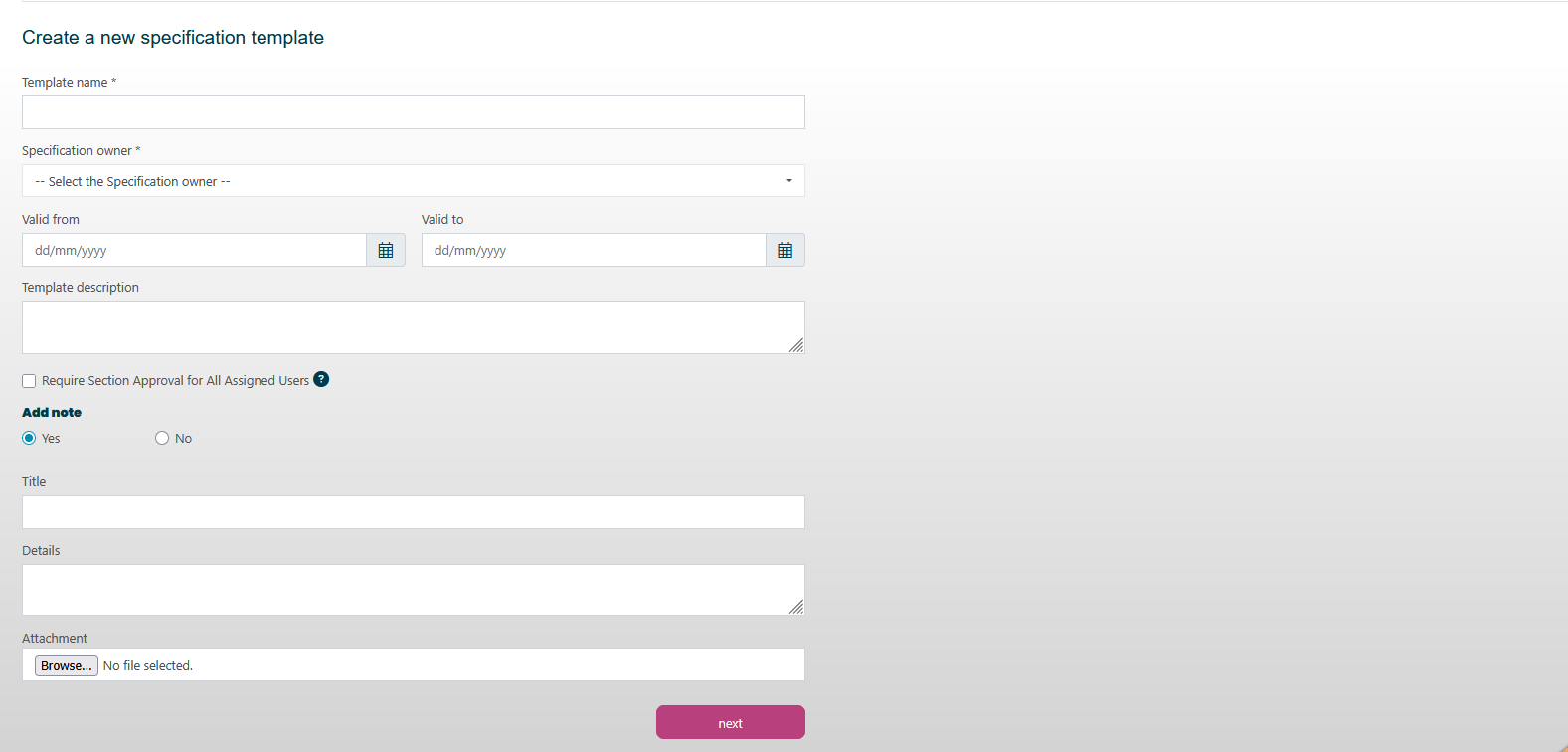
To configure your template settings, complete the following fields:
- Template Name - Name of your specification
- Specification Owner - Choose who will be the overall owner of the specification (able to make changes)
- Valid from/to - Add any relevant dates for this specification
- Template Description - For internal use only to describe what this specification is about
- Require Section Approval - If enabled, all section assignees must approve their designated section before the specification can be approved
- Add note - If you choose to send a note, this will send a preface message to the supplier explaining why they have received this specification, and you can also include an attachment
4. Selecting sections
To add sections to your specification template, follow these steps:
- Review the sections available on the left-hand side.
- Select the sections you want to include in your specification.
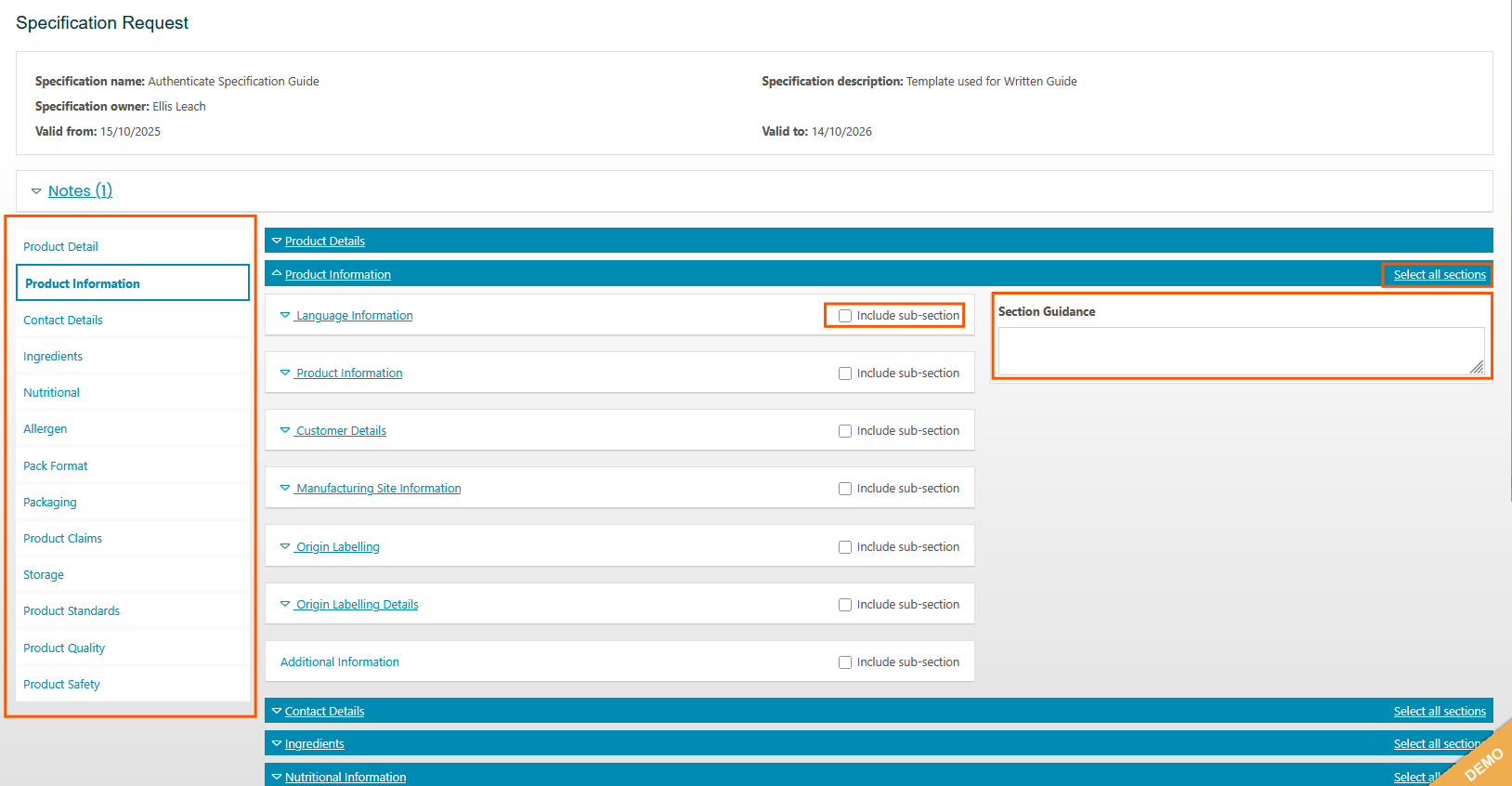
Within each section, you can access sub-sections and include section guidance to provide additional support to your suppliers.
You can use Select all Sections for each section on the left. This will include all attributes and fields for each sub-section under those sections but will not make them mandatory.
5. Choosing sub-sections and attributes
To customise your specification, follow these steps:
- Select the specific attributes and fields you want to send to your suppliers from the available options.
- Set fields as Mandatory if required.
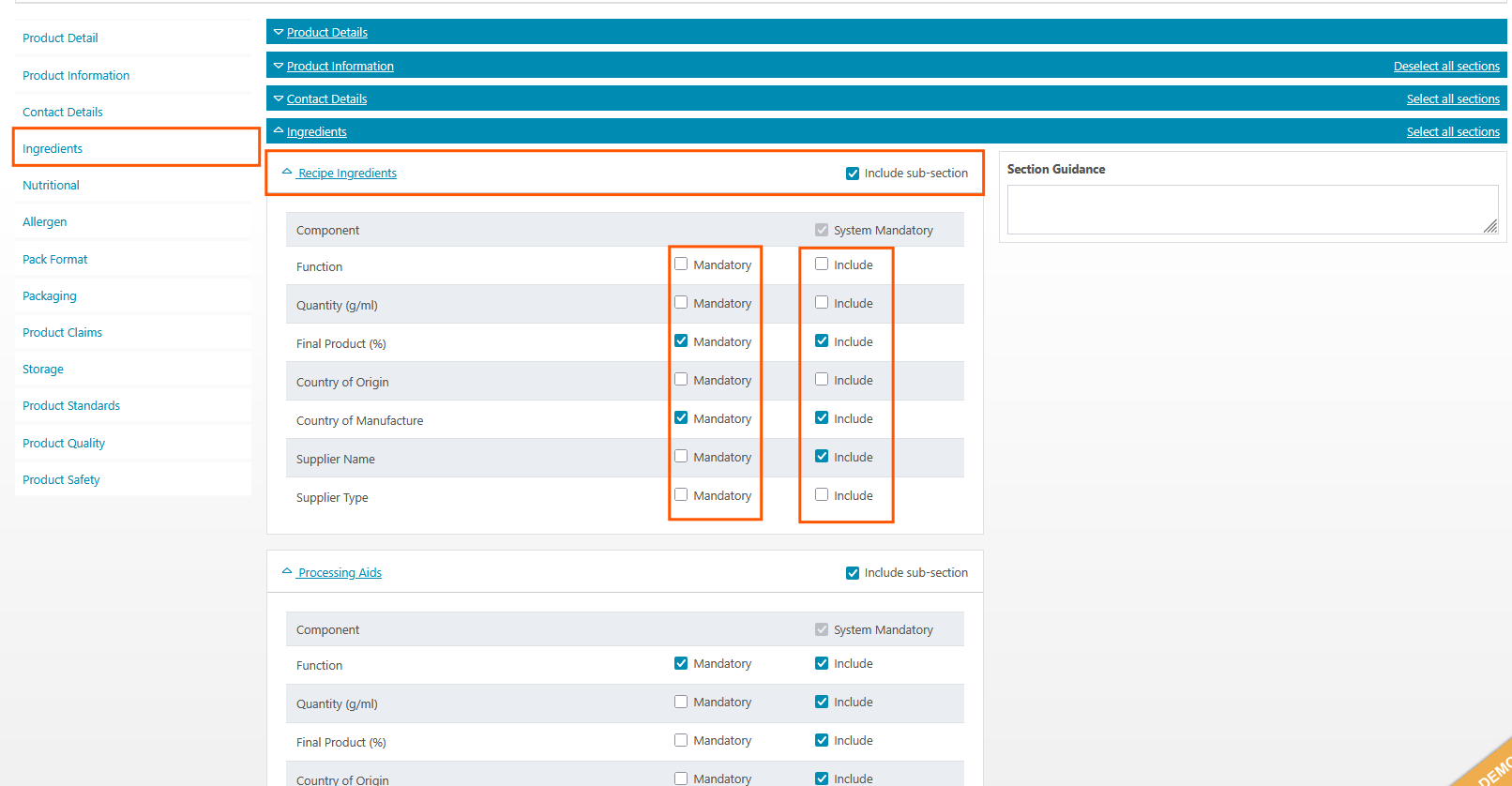
When a field is set as mandatory, the supplier will not be able to submit their specification without populating that field.
6. Publishing and sending the template
To publish your template, follow these steps:
- Review your template to ensure all details are correct.
- Click Publish at the bottom of the page.
Note: Once published, you will not be able to unpublish and make any changes. Please contact your account manager if you need to make changes.
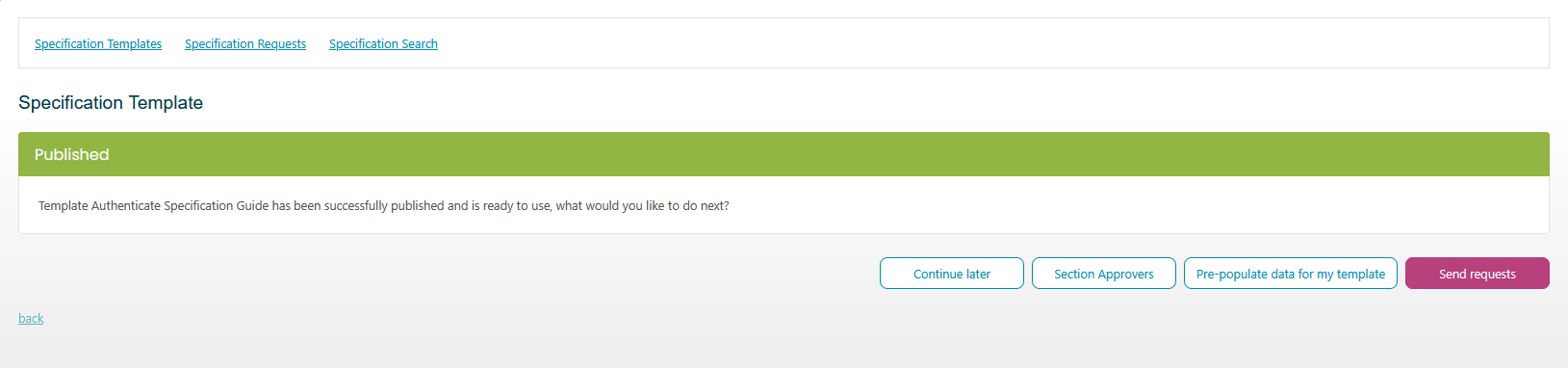
To send specification requests, follow these steps:
- Click Send requests.
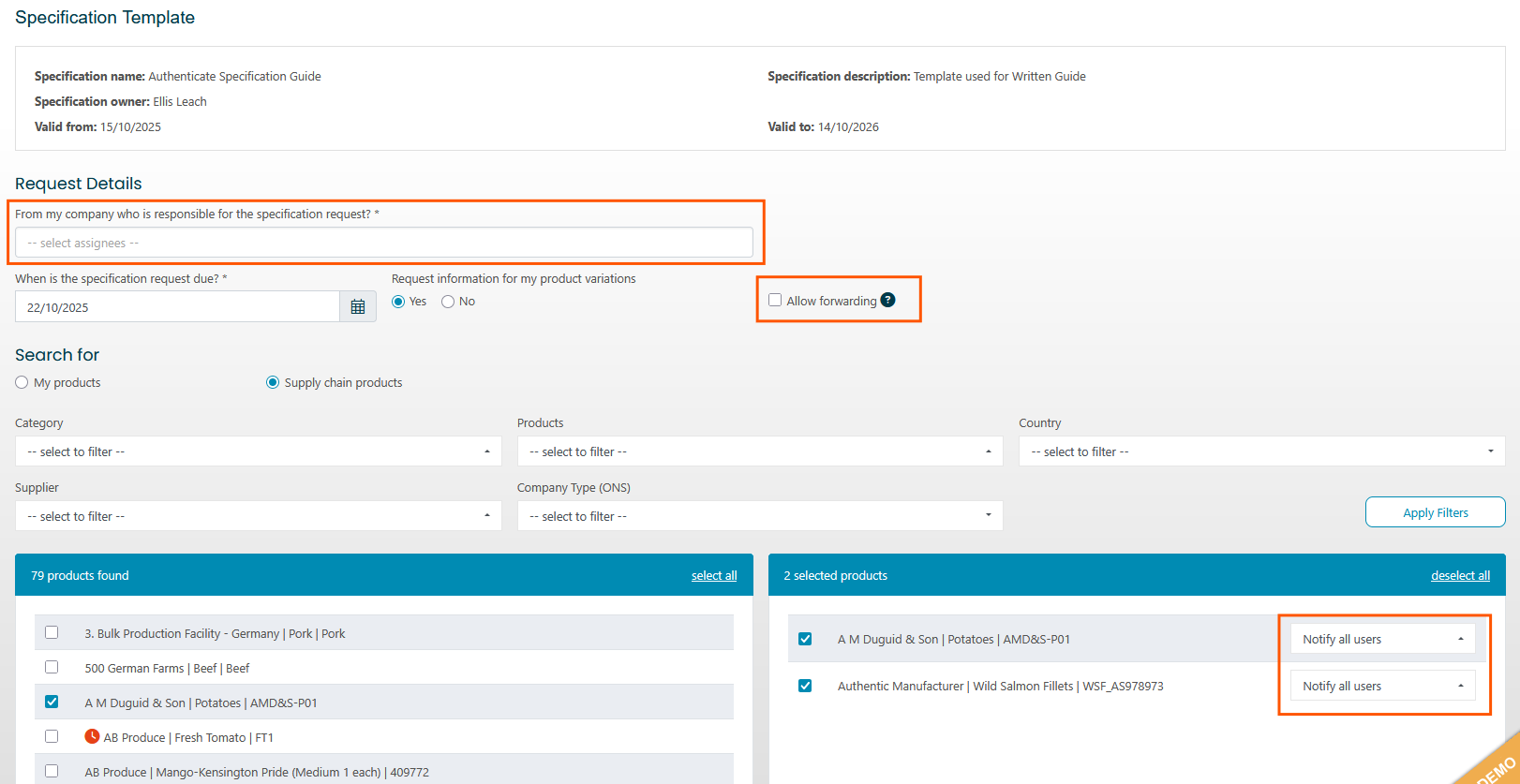
- Use the filters to find the suppliers or products you want to send the specification to.
- Configure the following settings:
- From my company who is responsible - This will be the user who will be responsible for approving, rejecting, and any other relevant controls for the specifications
- Allow Forwarding - Setting this to "Yes" will allow the recipients to forward the specification to third-party companies to complete the information
- Notify Users - Choose who to notify if applicable for the supplier you have chosen
- Send the requests.
7. Reviewing progress
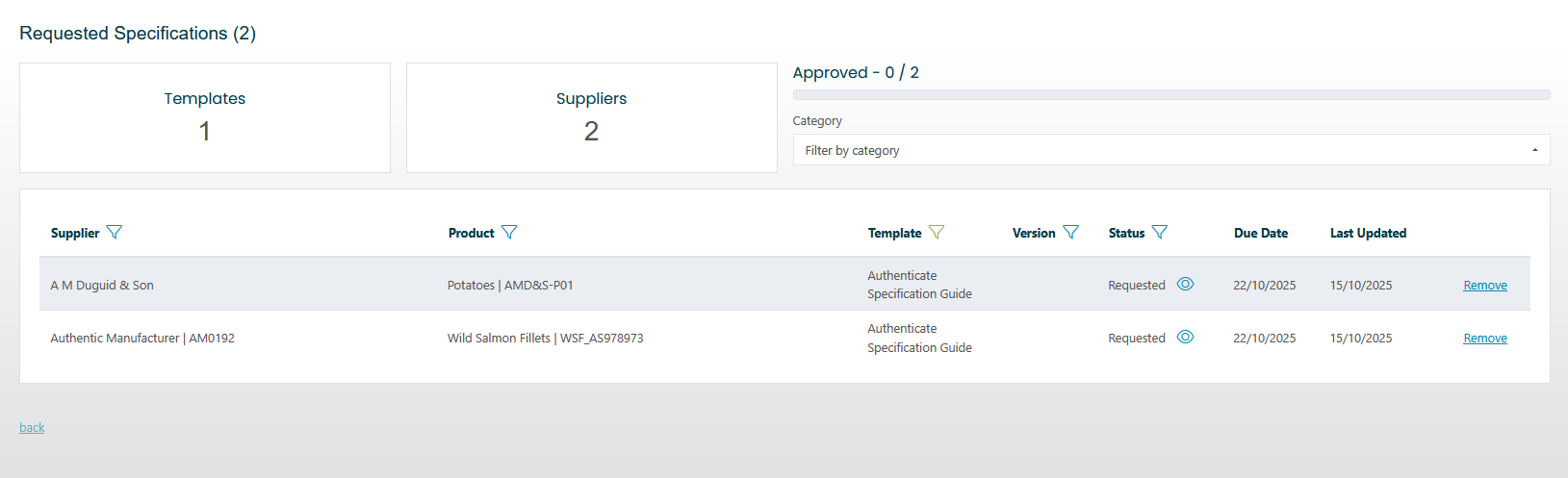
The Specification Templates Dashboard displays relevant metrics based on your existing templates.
From the dashboard, you can:
- Send More Requests - Takes you to the send requests page so you can send more specifications
- Edit Specification - Adjust the name of the specification and any other high-level details
- Preview - Look at the template to check what sections and fields are included
- Manage Data Sets - Create your own data sets to apply to the specifications you want to send, allowing you to pre-fill expected details associated with your suppliers' products. Your suppliers will be notified of this upon acceptance and will have the chance to see what information you have already defined
To view detailed progress, follow these steps:
- Click on the project or View Details when viewing the specification templates.
- Review the status of each specification.
Specifications can have the following statuses:
- Requested
- In Progress
- Submitted for Review
- Corrective actions Required
- Approved