


New article
Recently updated
Responding to product link requests

Who is this article for?
Users who need to accept a product link.
Supply Chain Mapping Admins permissions are required.
This tutorial explains how to respond to a product link request within the Authenticateis platform.
Responding to a product link request
Log into the system.
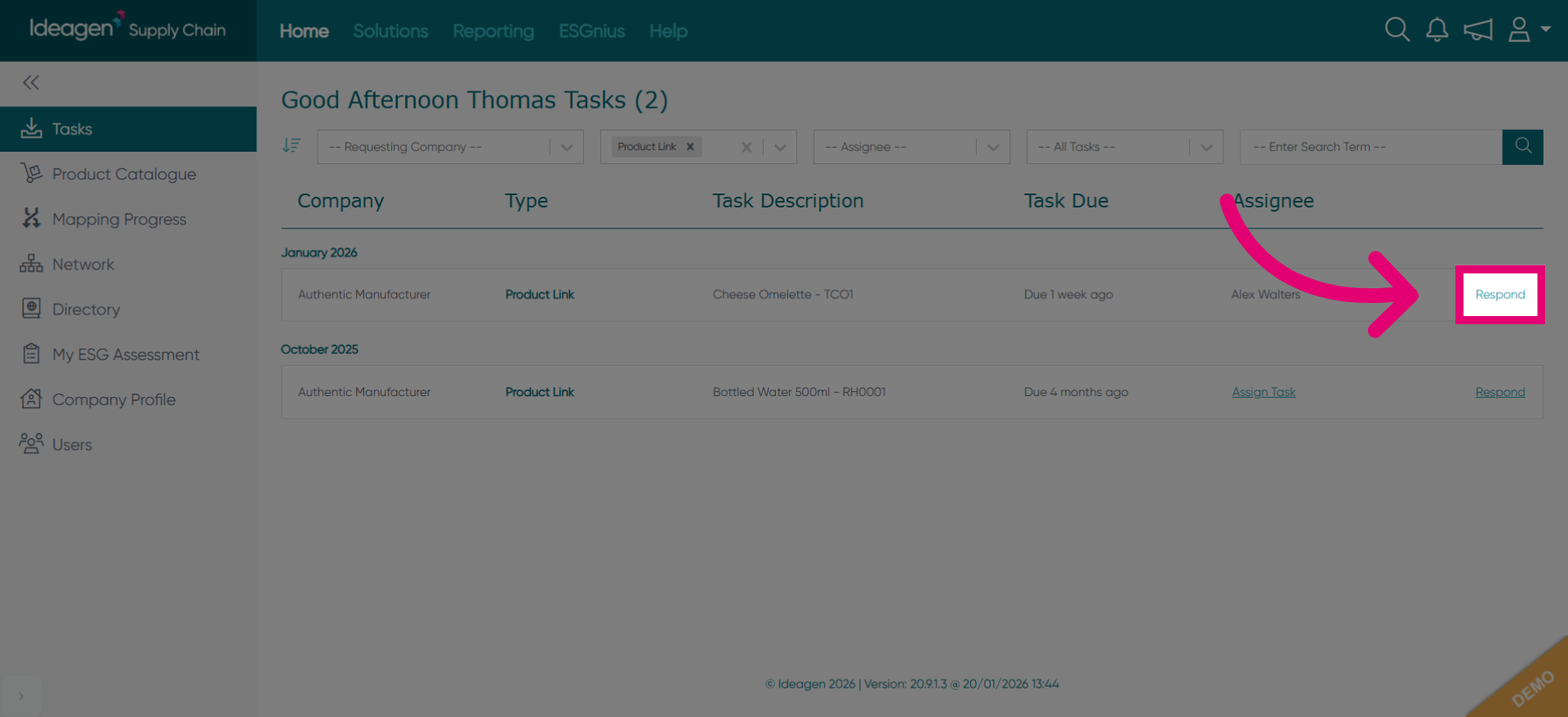
Click the Respond button to initiate your reply to the product link request.
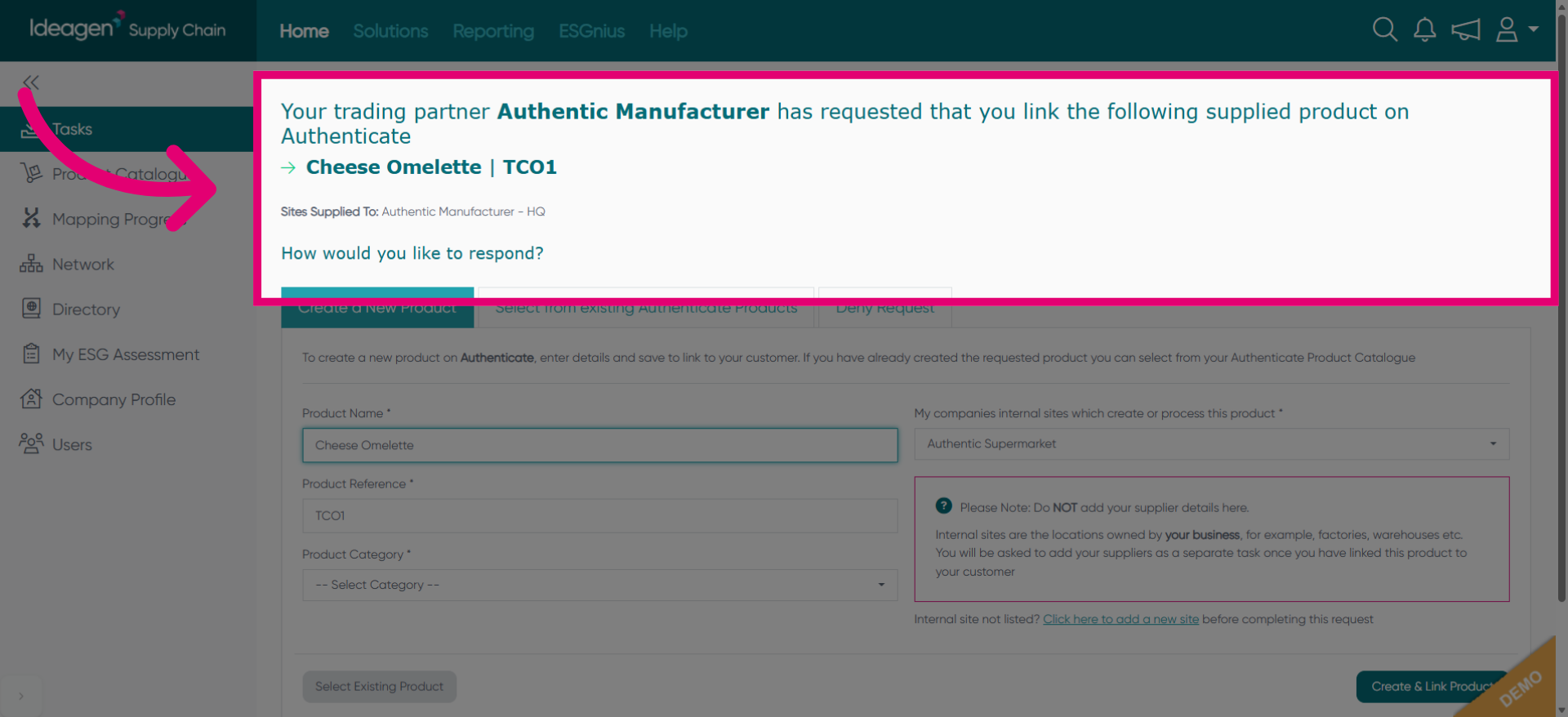
Review the details of the product link request, including the product and sites supplied.
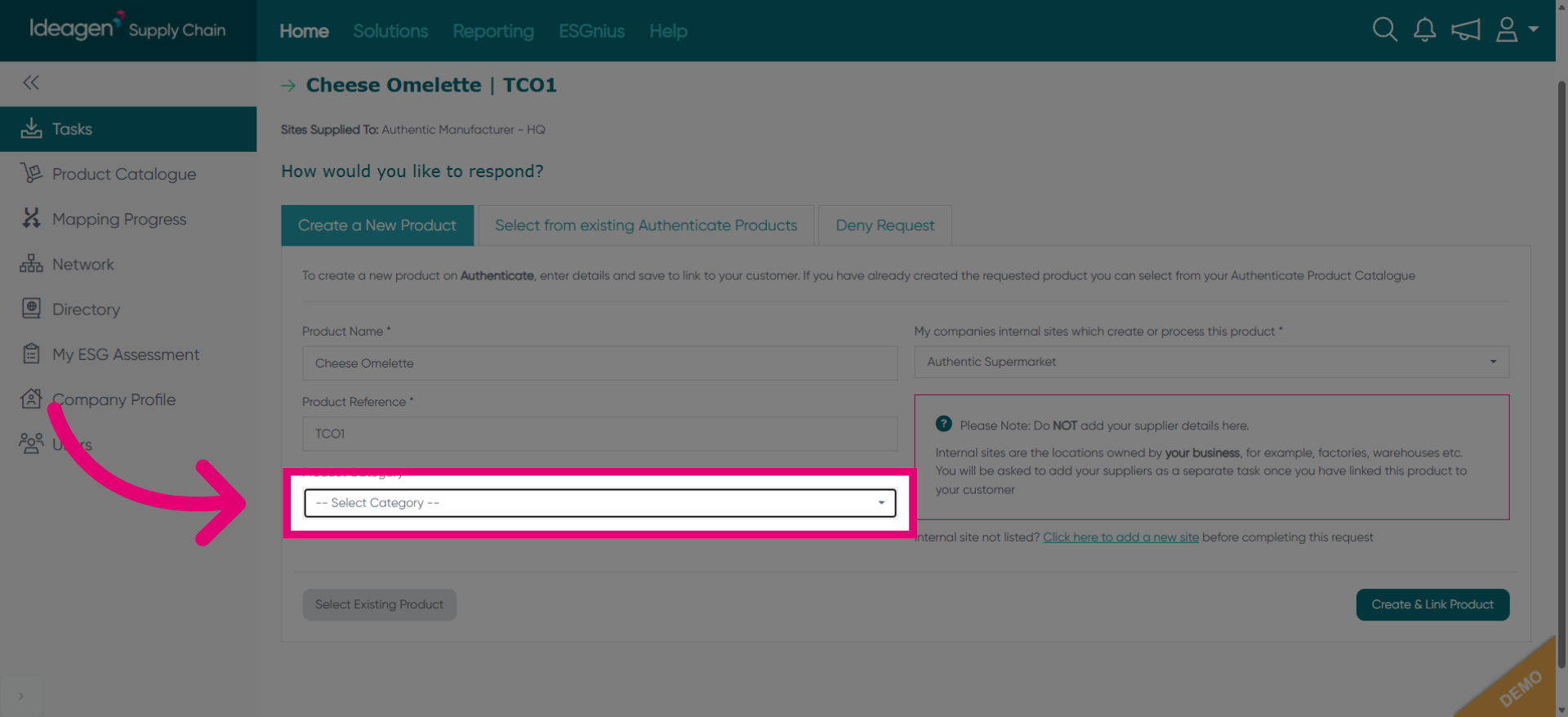
Click the category dropdown menu to select the appropriate product category.
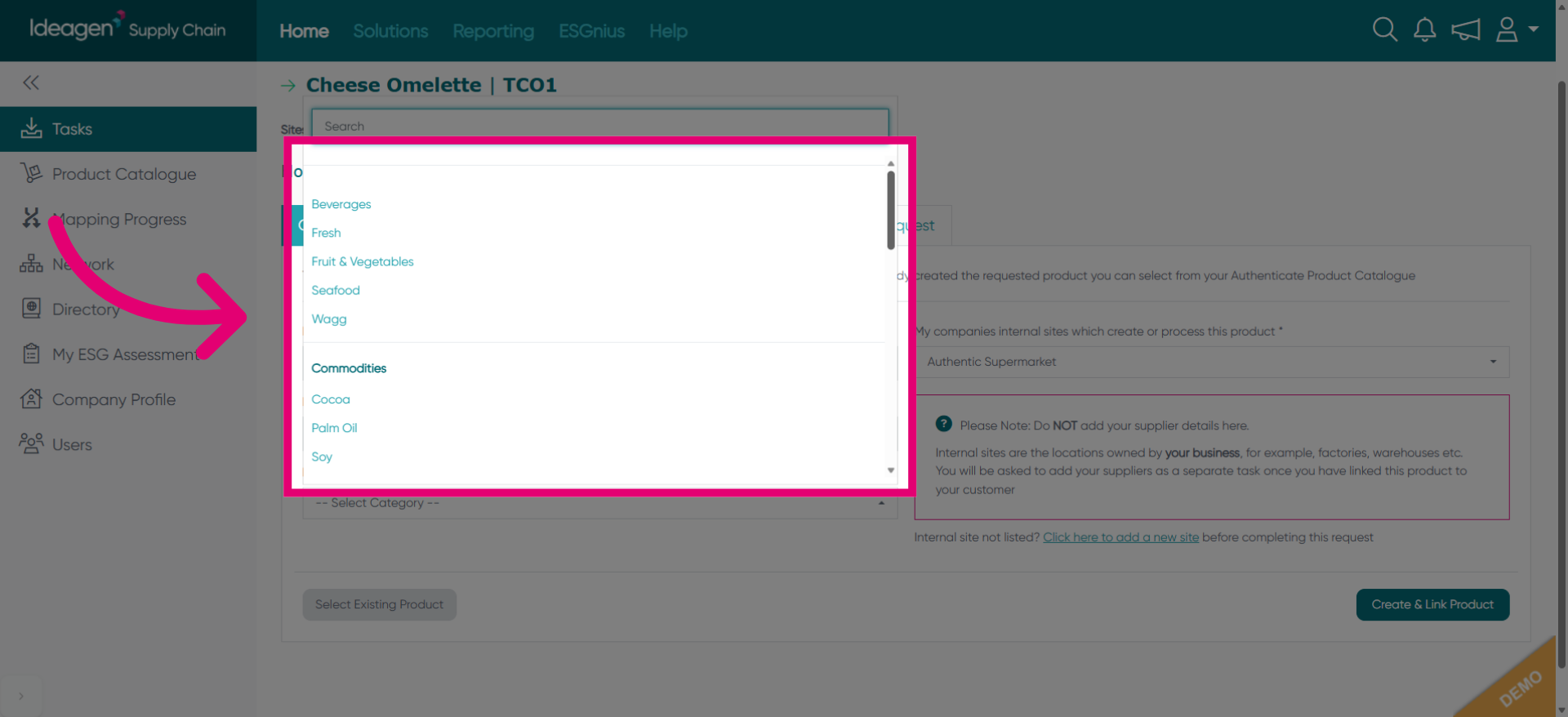
View the list of available product categories for selection.
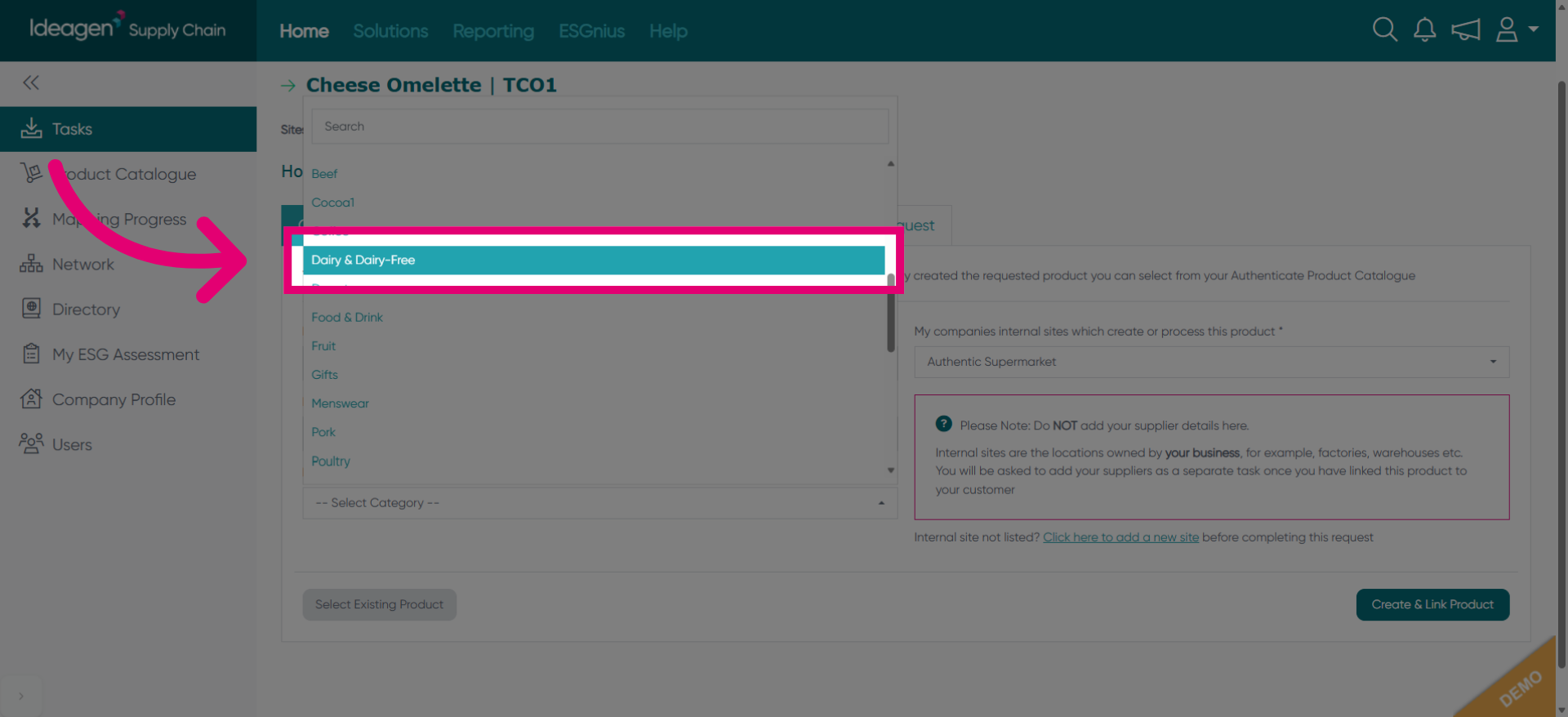
Select the Dairy & Dairy-Free category to classify the product correctly.
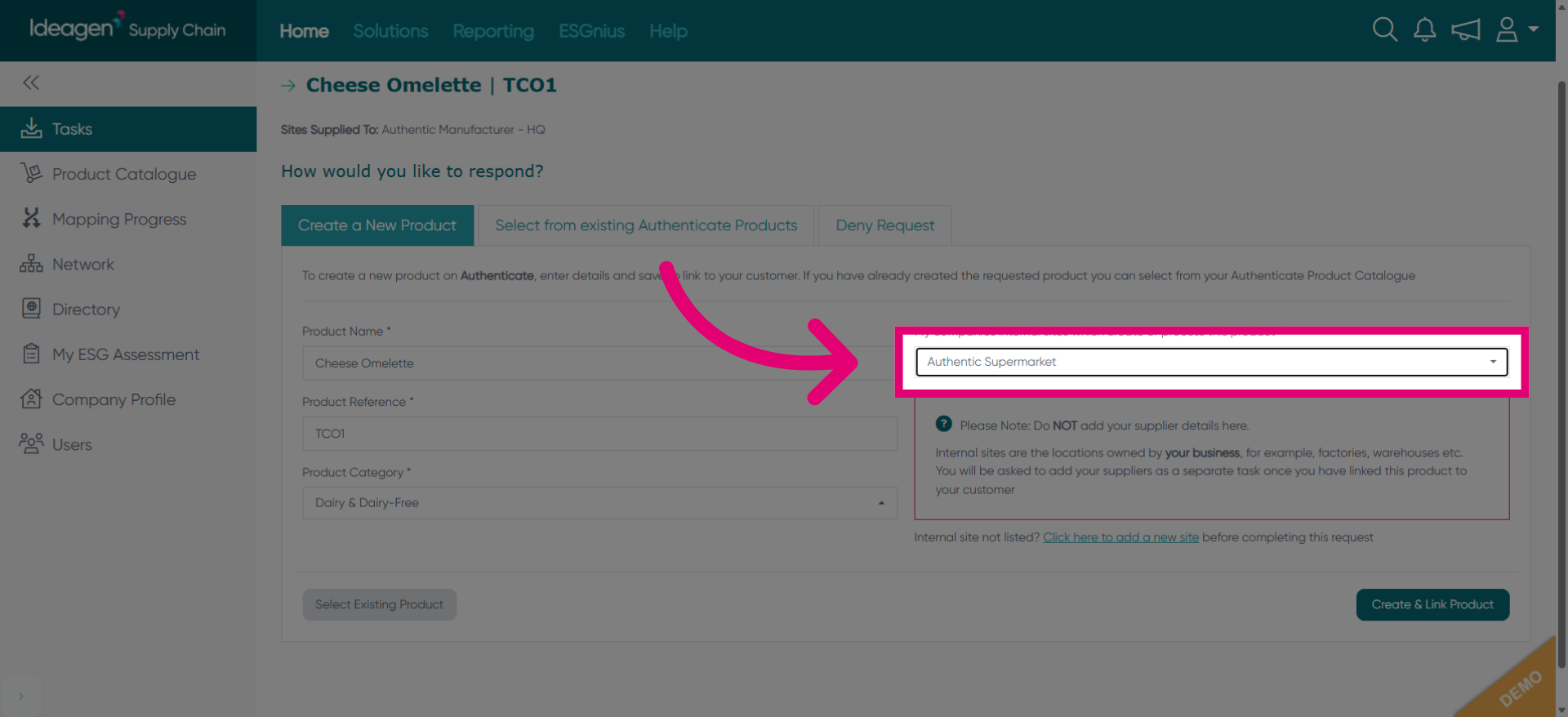
Select Authentic Supermarket as the internal site related to this product.
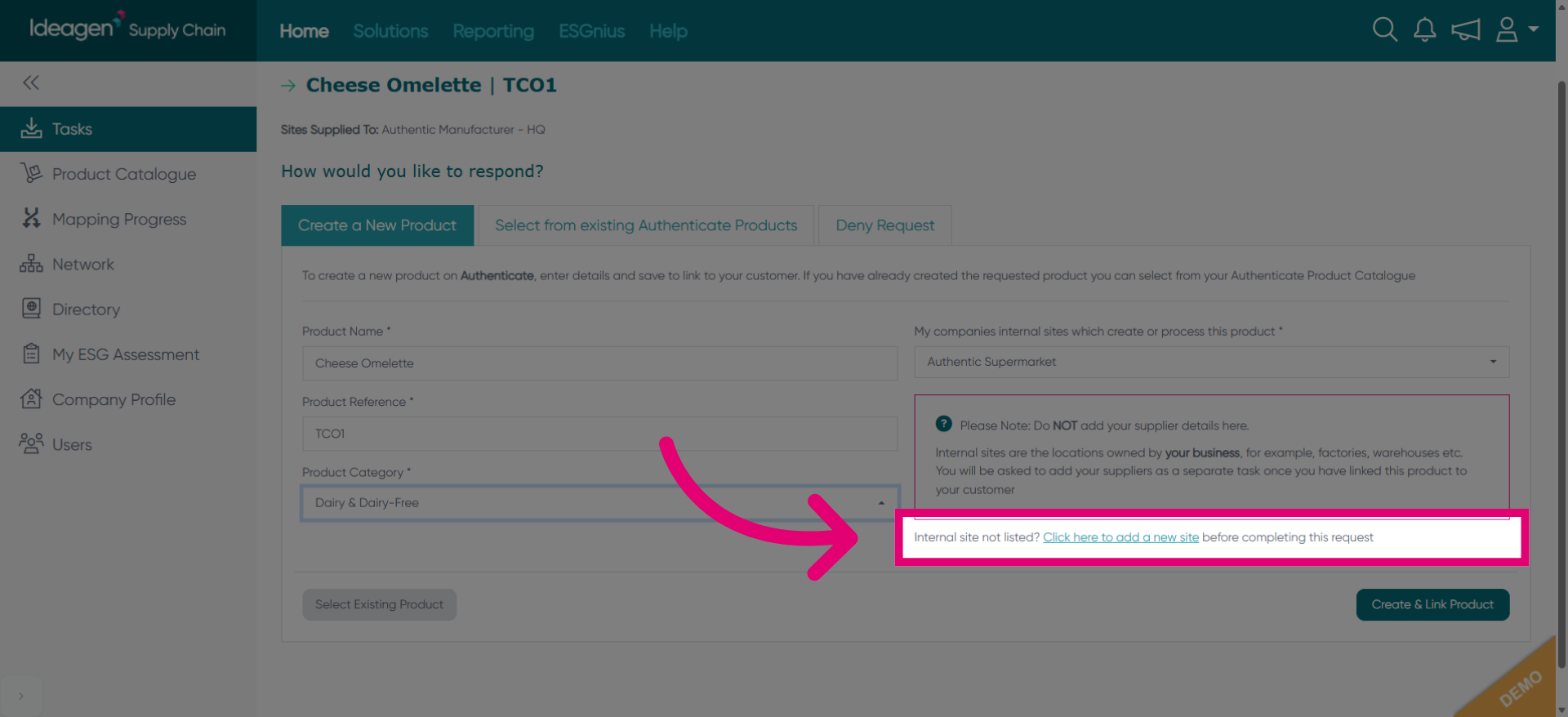
Click the link to add a new internal site if the required site is not listed before completing the request.
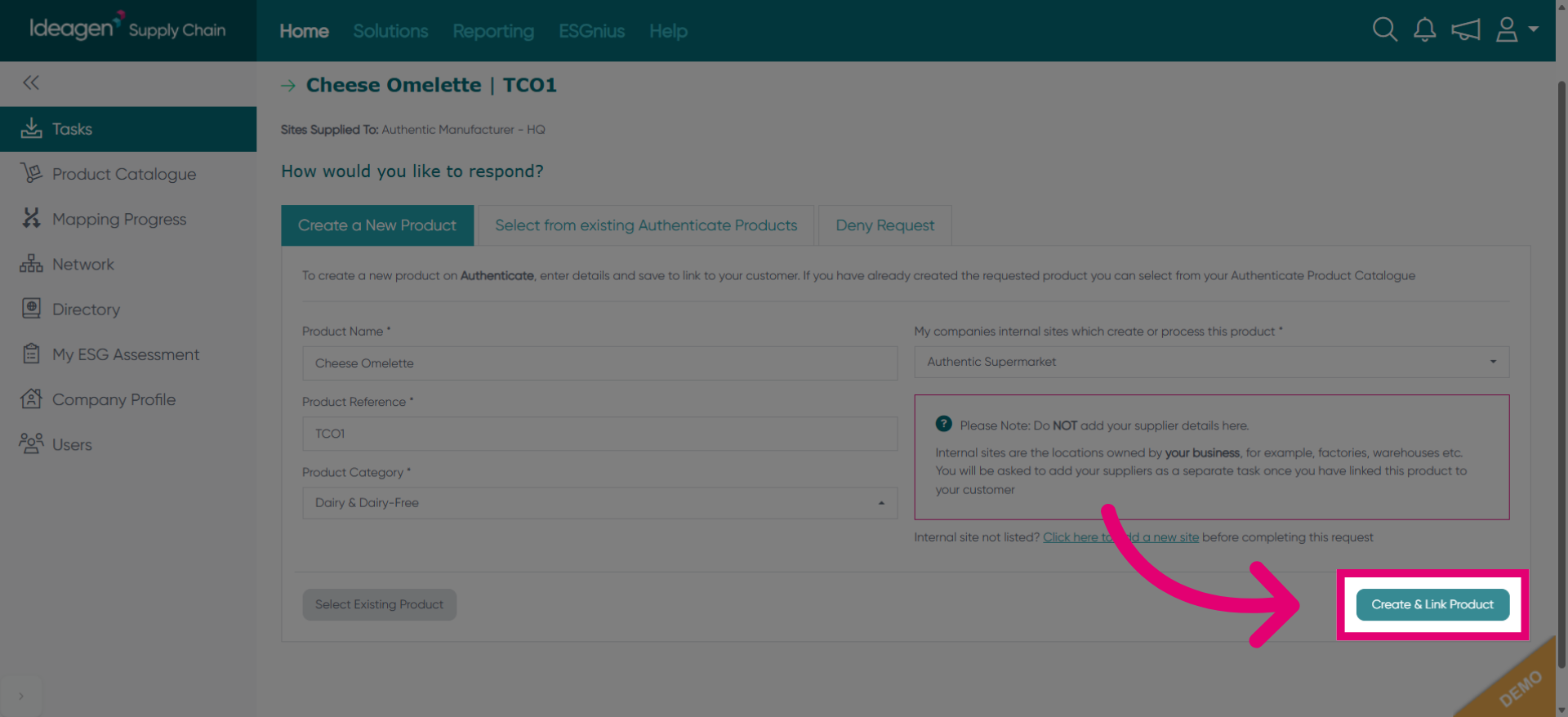
Click the Create & Link Product button to establish the product connection.
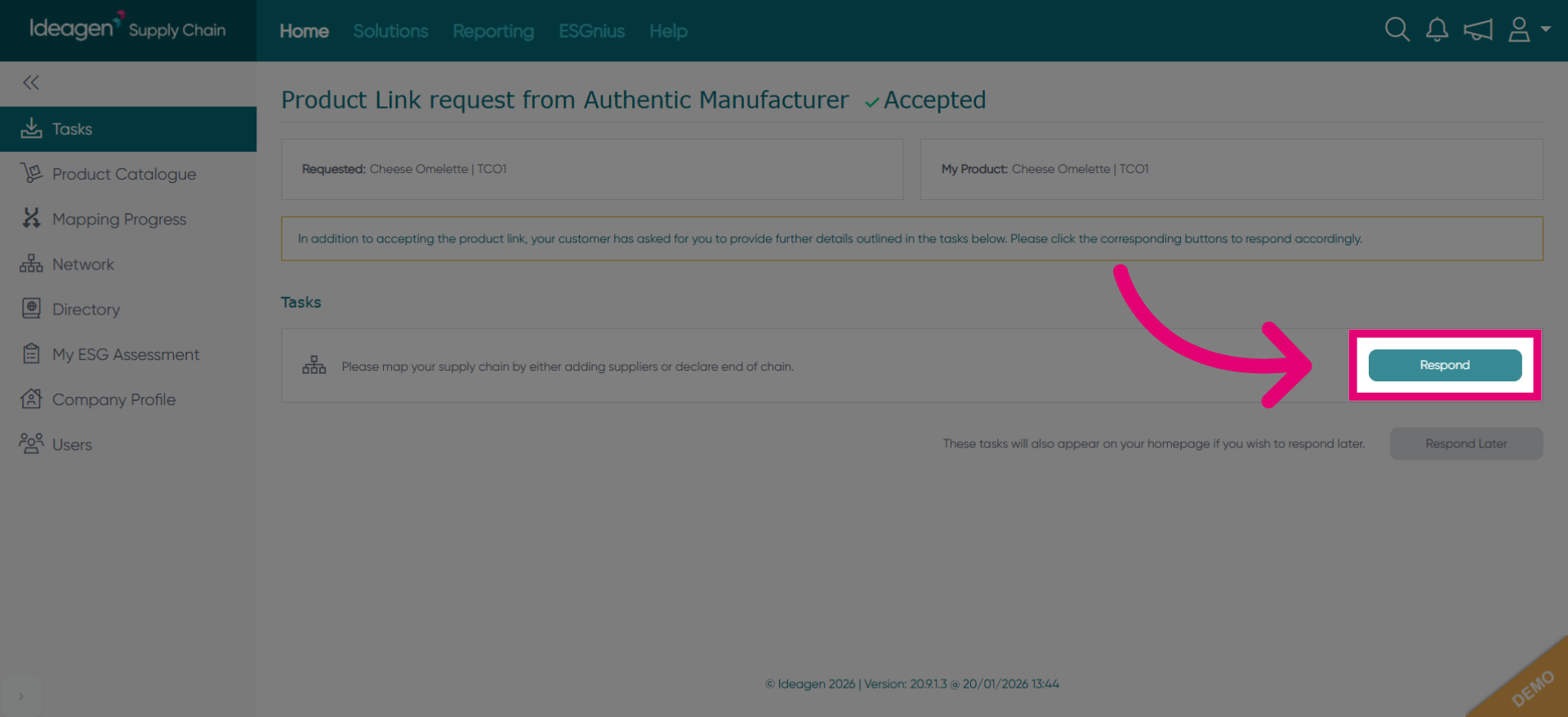
Click the Respond button to continue with your reply to the product link request.
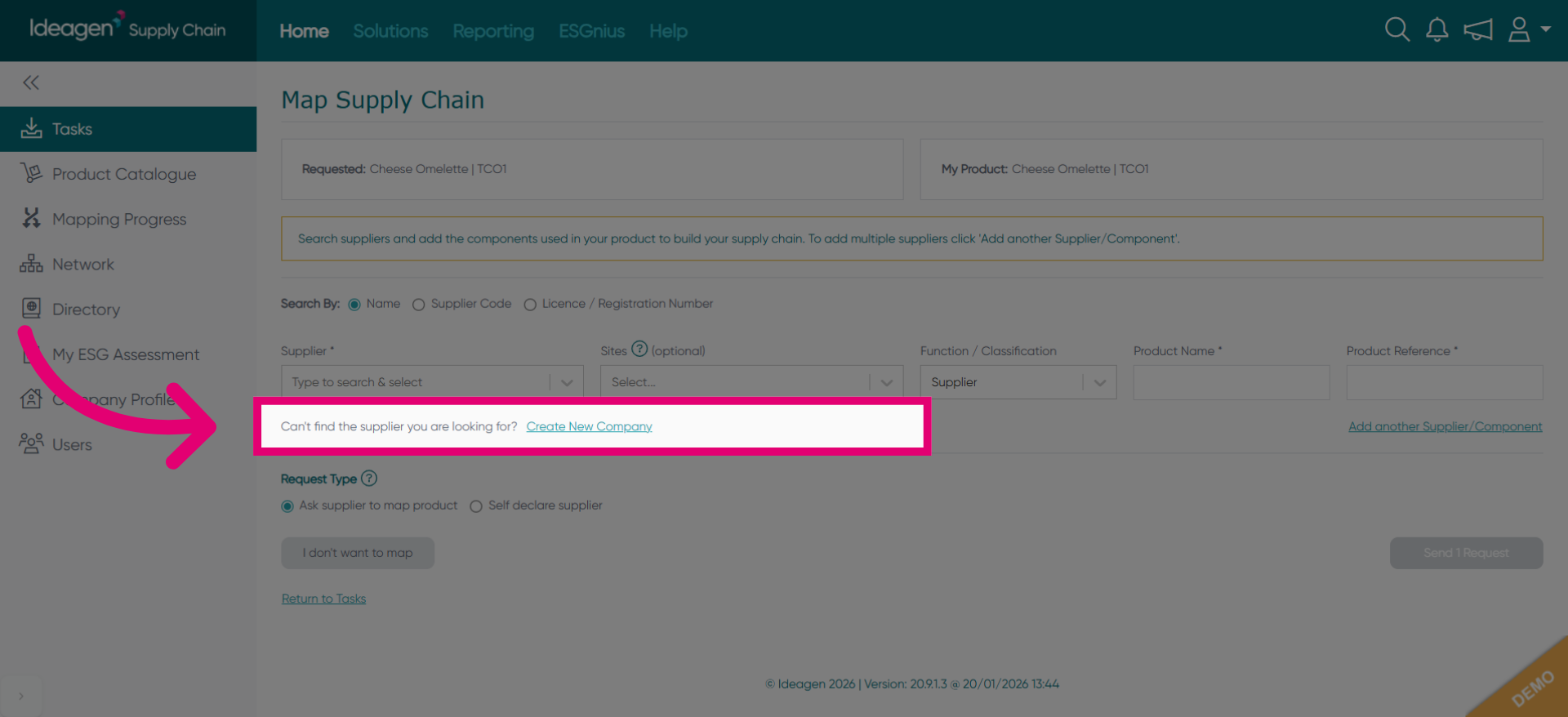
If you cannot find the supplier you are looking for, click to create a new company.
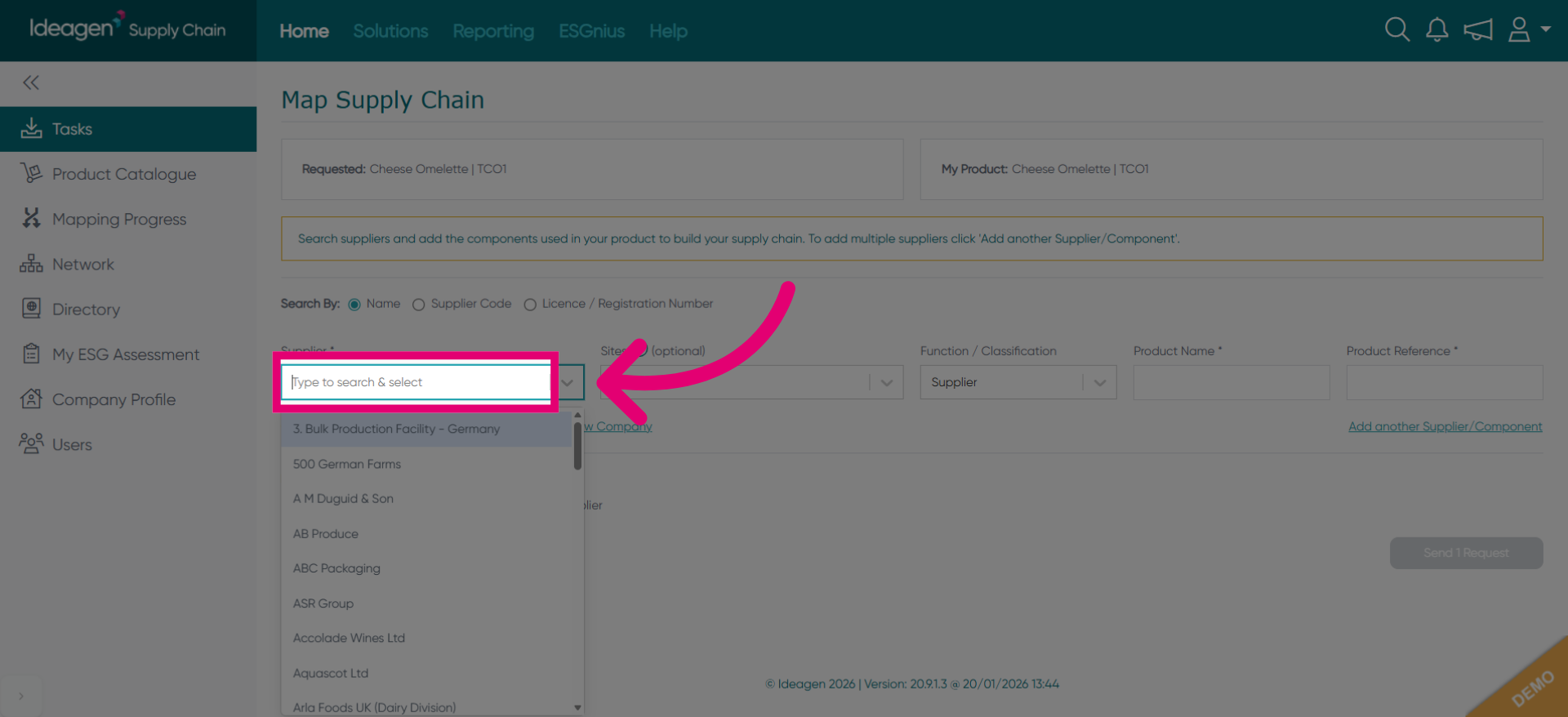
Click to access supplier options for the product link request.
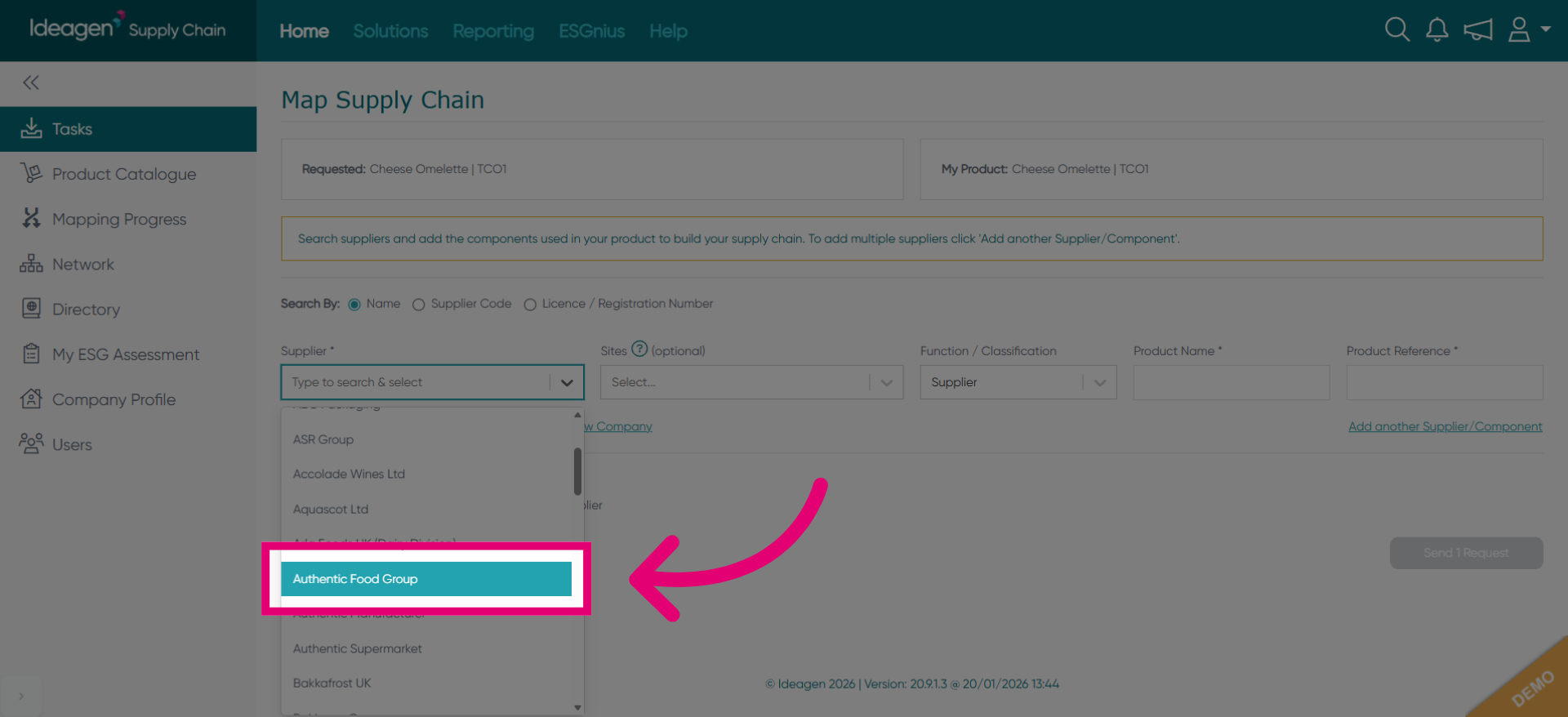
Select Authentic Food Group as the supplier company involved in this request.
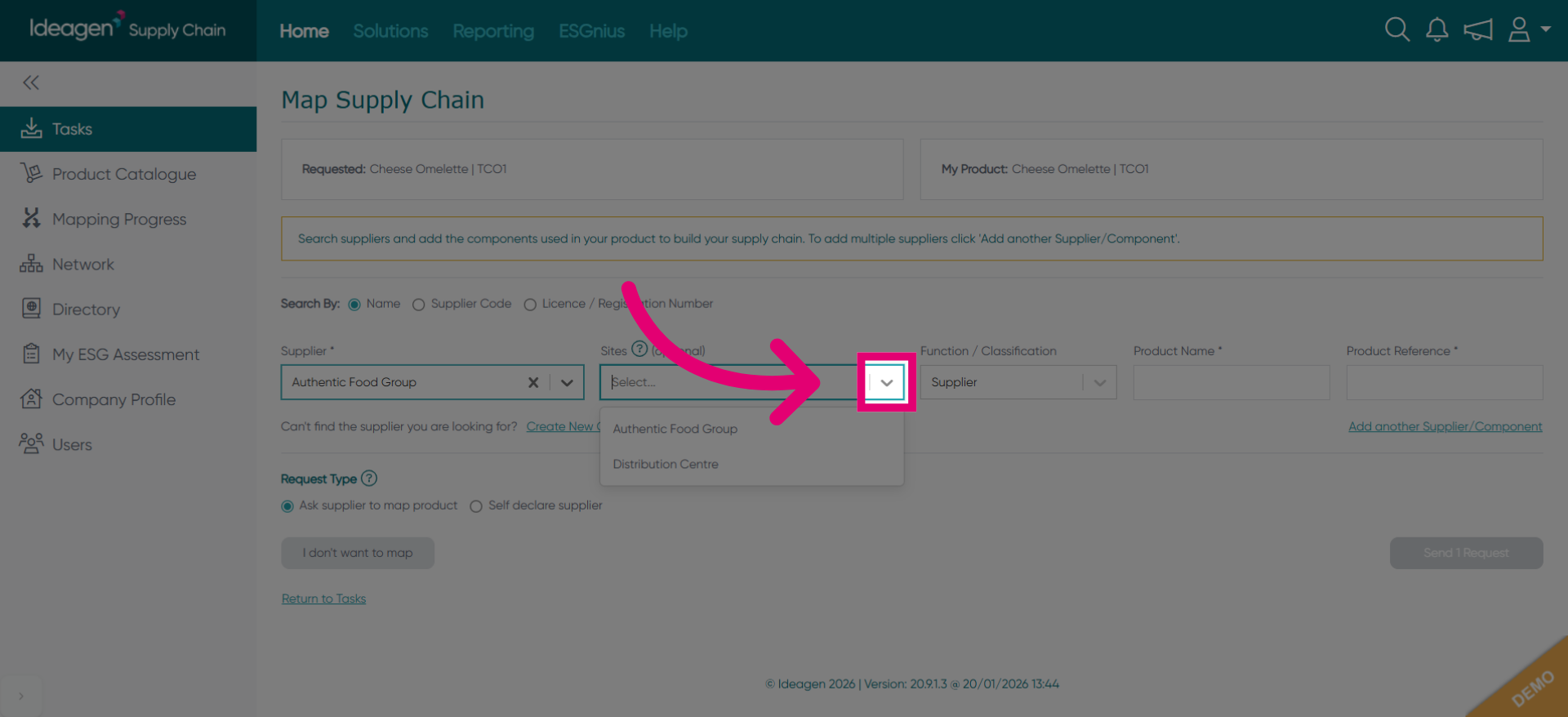
Click to view or edit supplier company details.
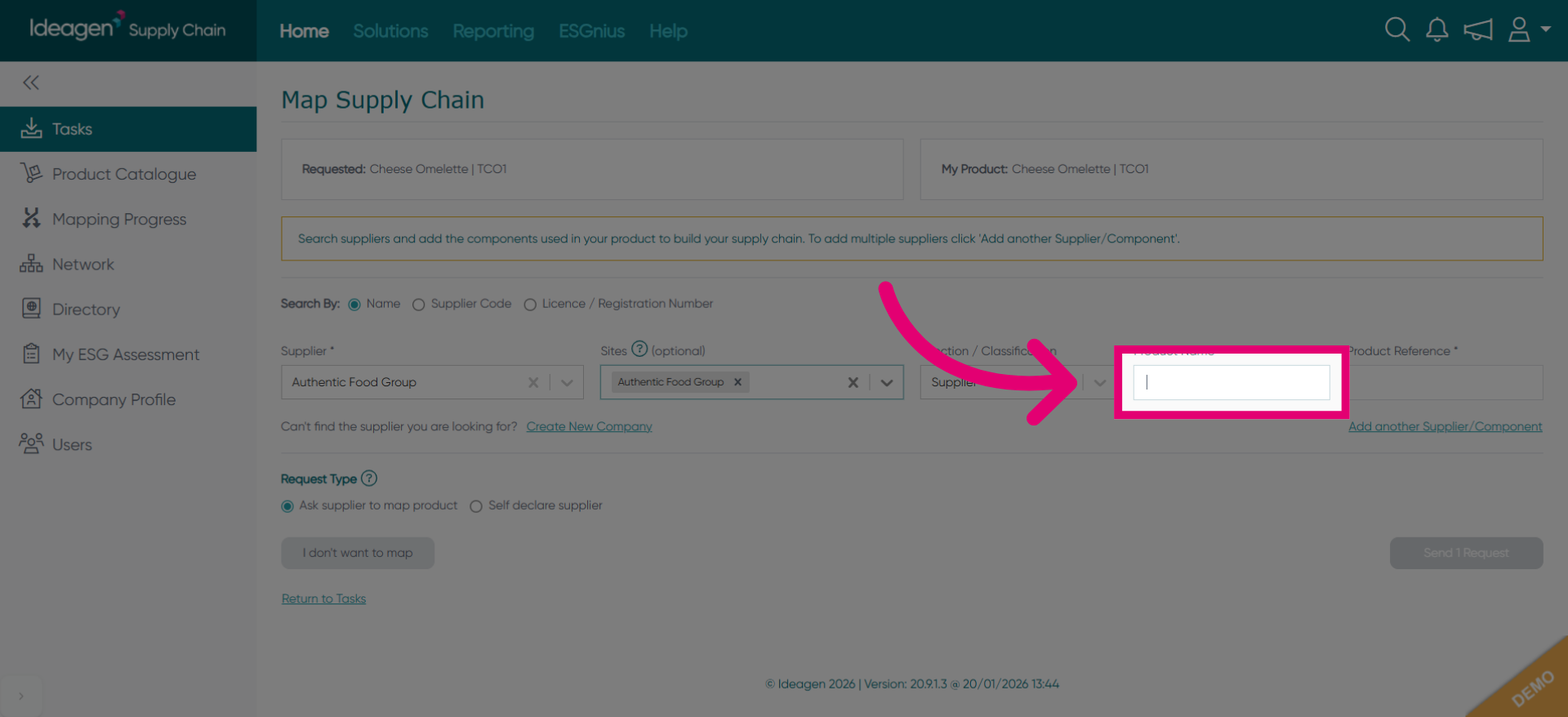
Click to access product information fields for editing or entry.
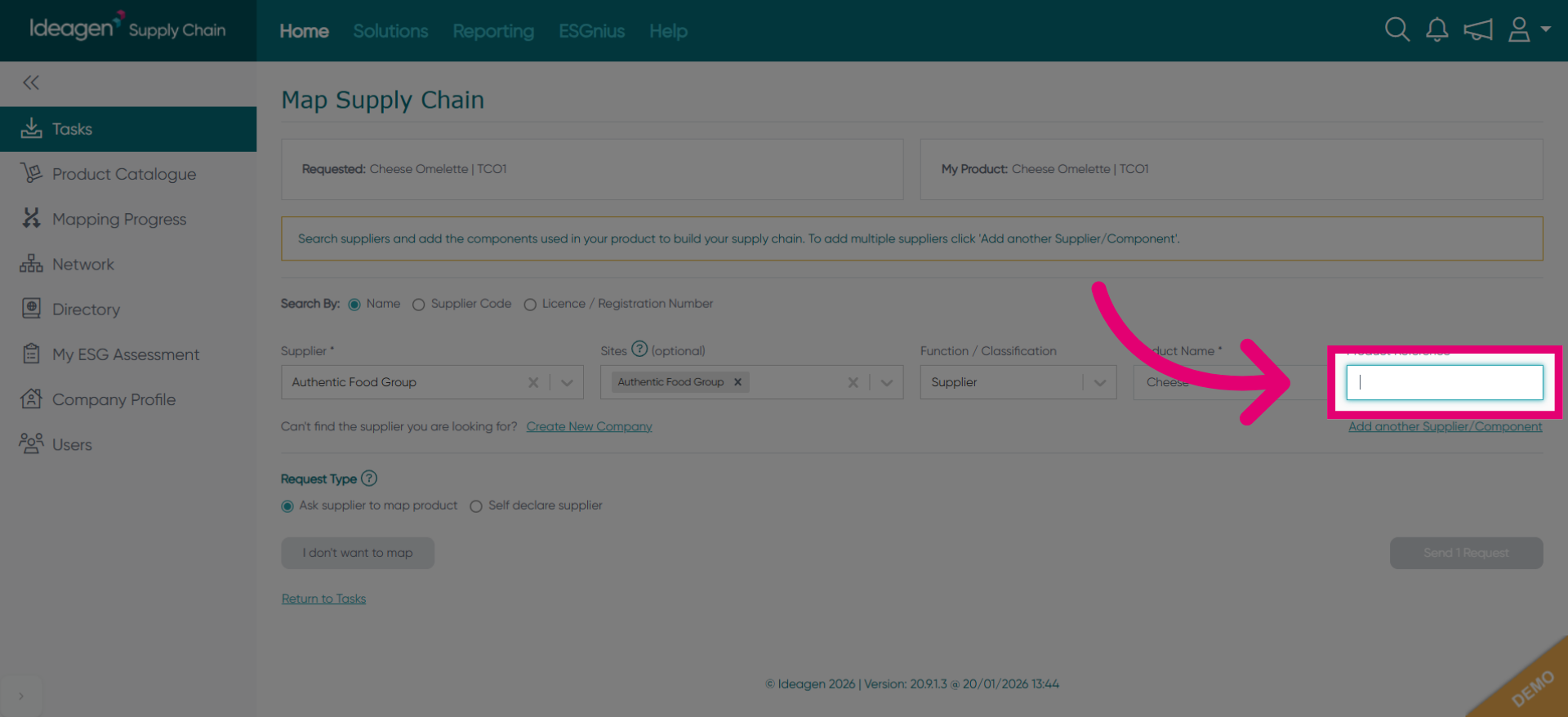
Move to the next field to continue entering product details.
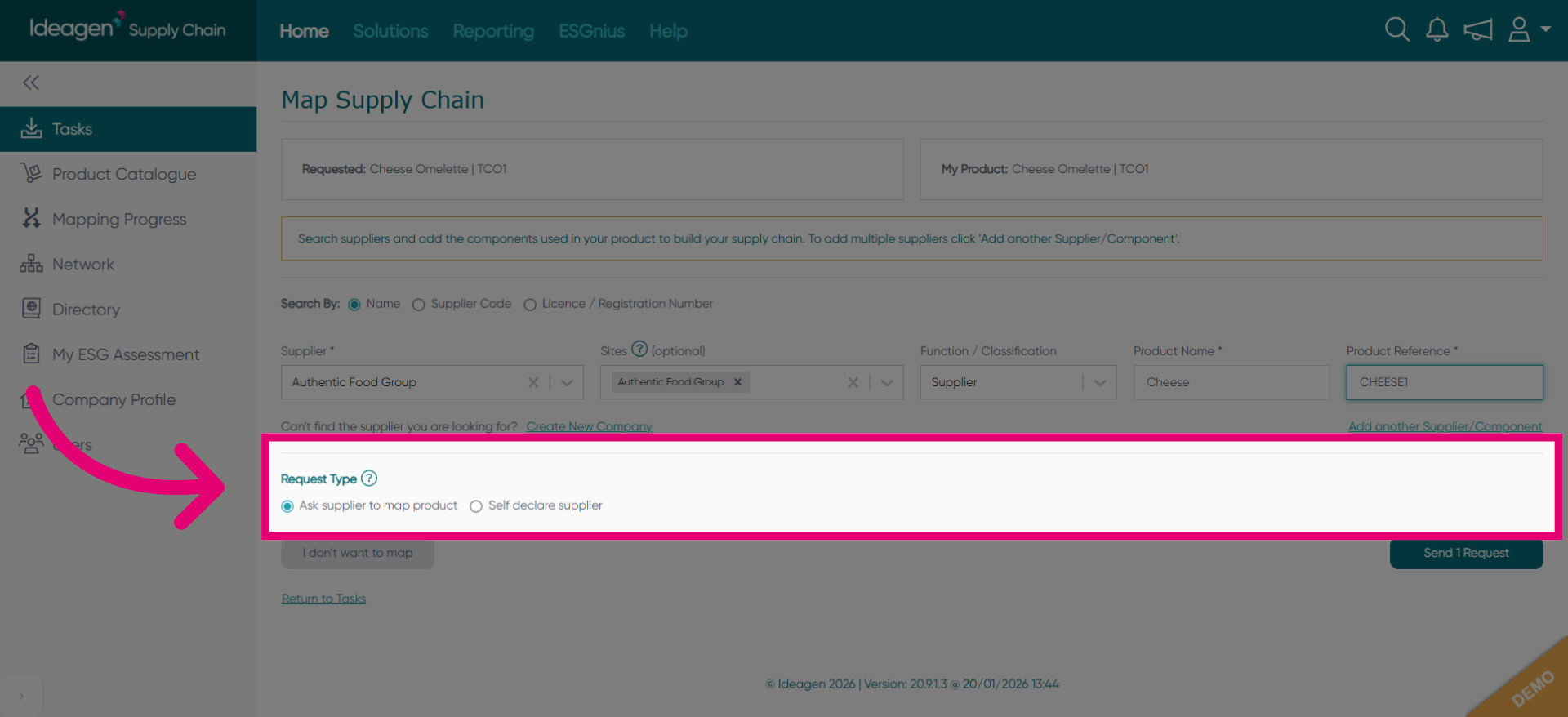
Click the Request Type dropdown to choose how you want to handle the supplier mapping.
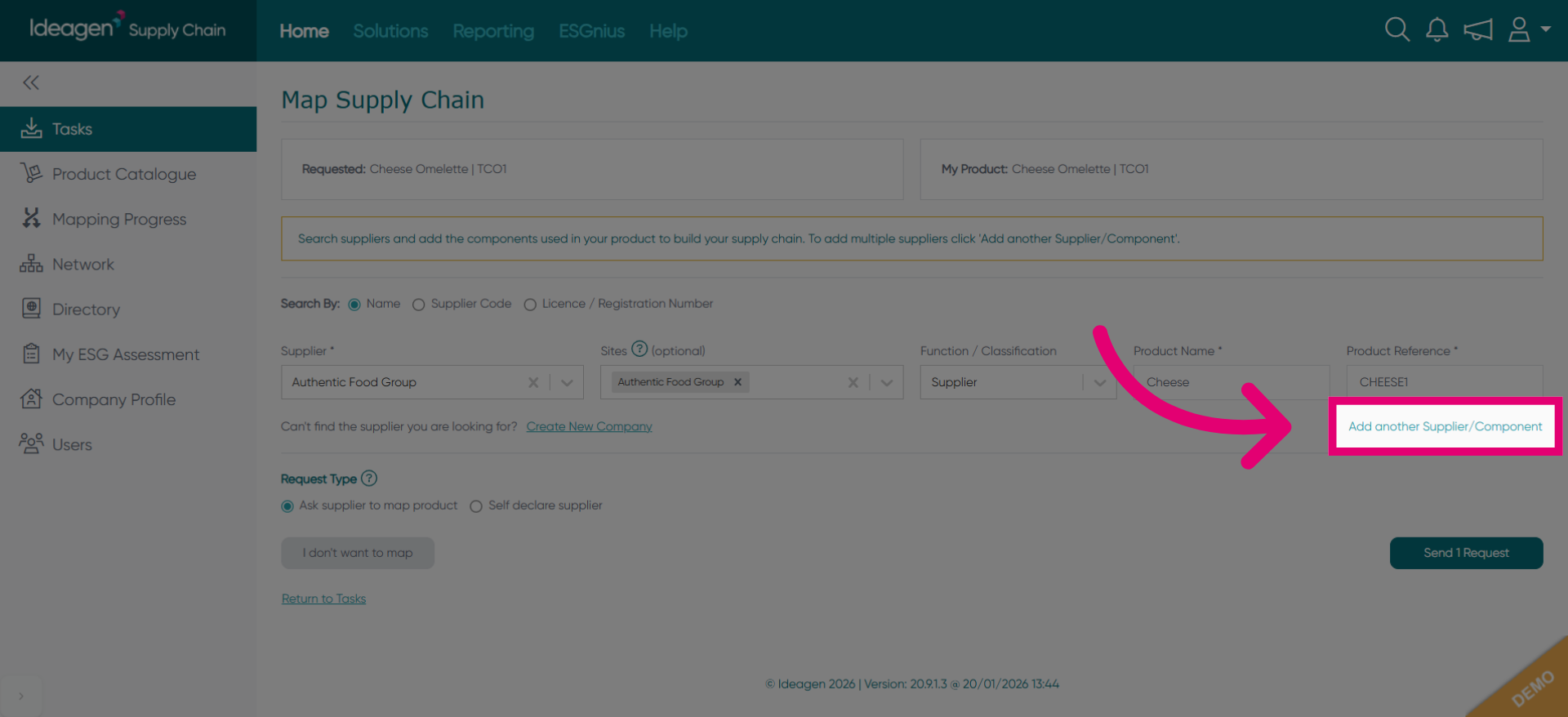
Click to add another supplier or component related to the product link request.
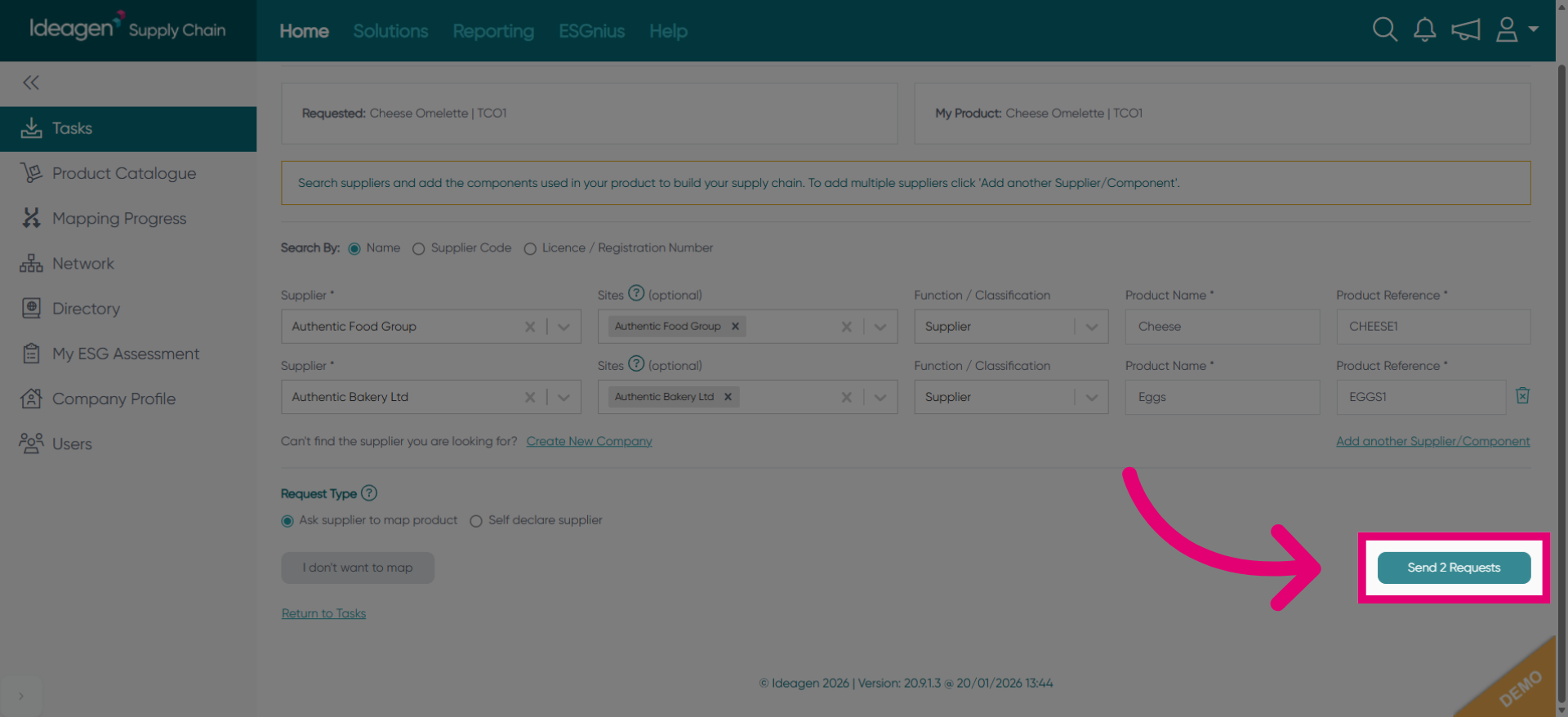
- Click Send 2 Requests to submit your responses for both the product and component suppliers.