New article
Recently updated
Managing Your Company's Certification - Certification

Who is this article for?
Users who want to view and manage their company's certification.
Certificate user permissions are required.
This tutorial guides you through configuring certificates for your company within the Ideagen Supply Chain platform.
You will learn how to add, update, edit, delete and manage certification schemes for your company.
Managing your company certifications
-
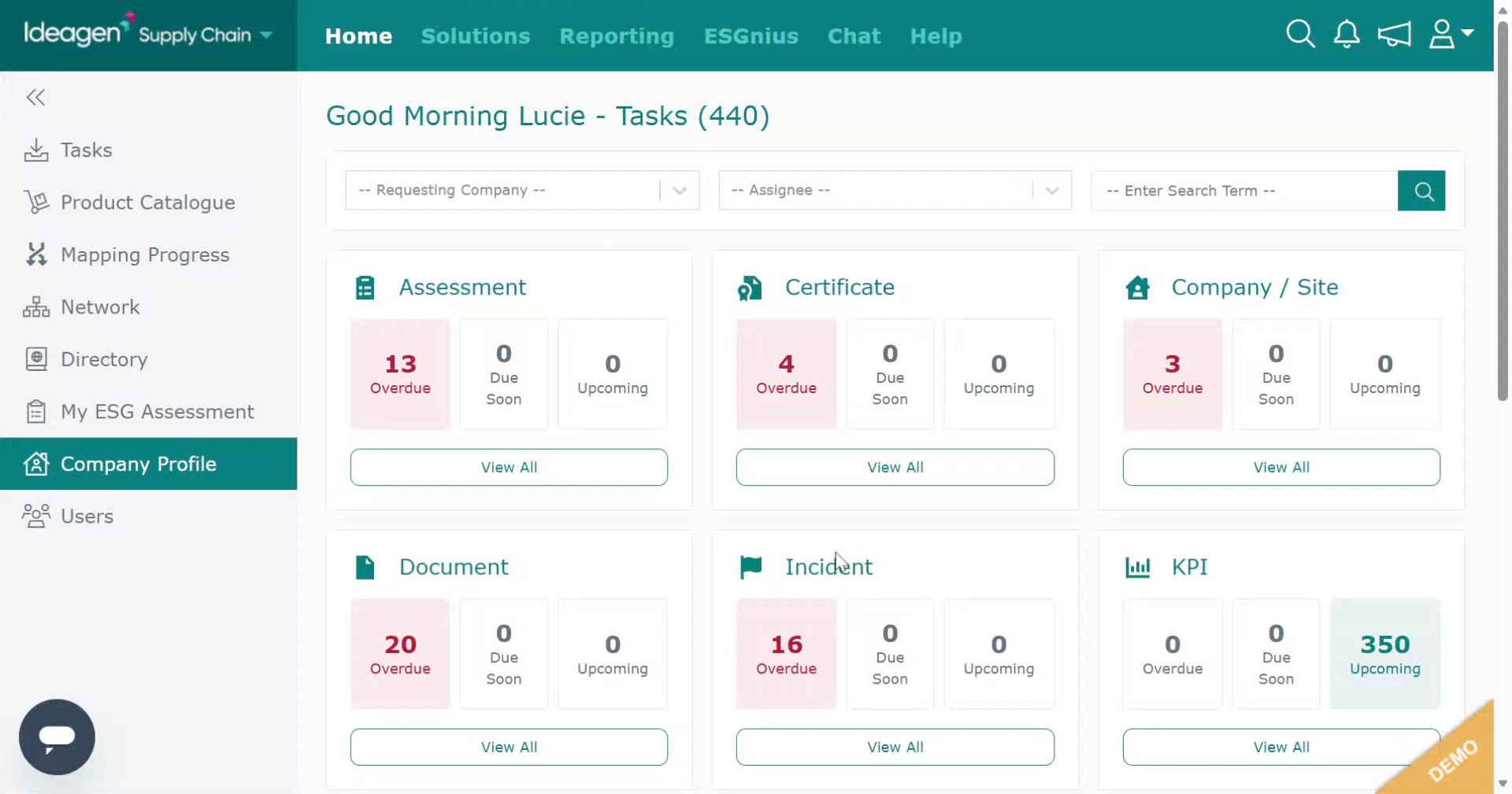
Log into the system.
-
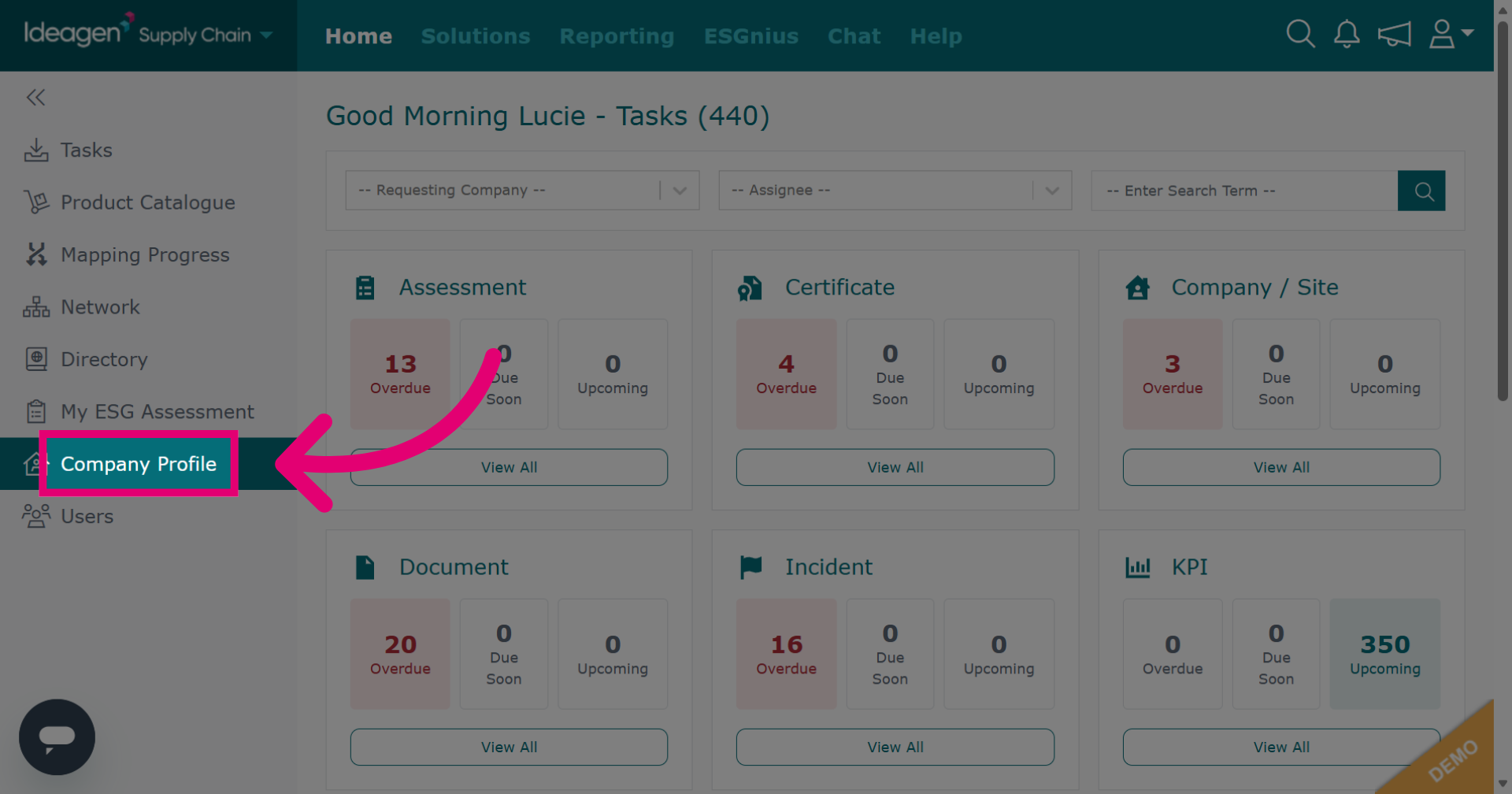
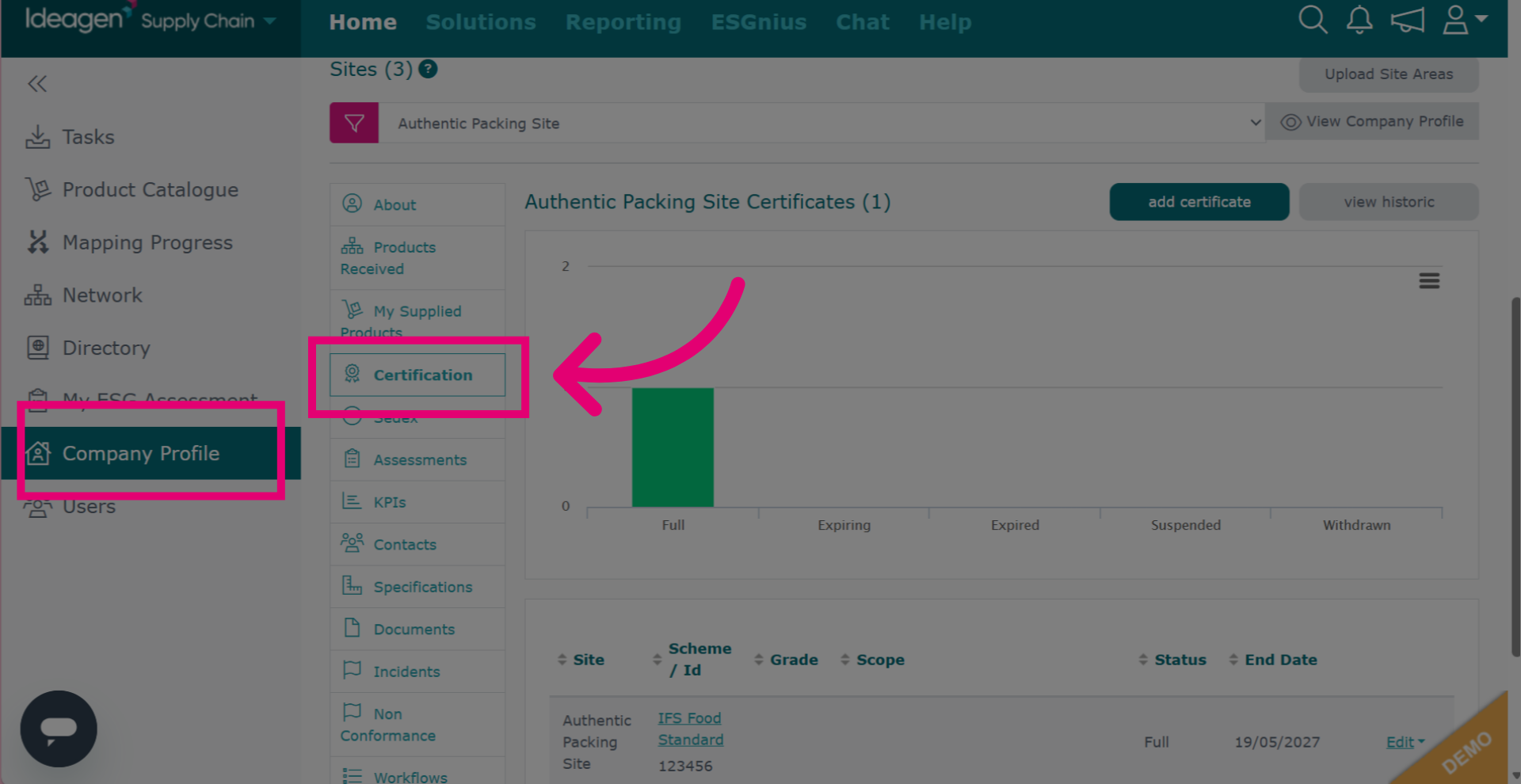
Click Company Profile to open your organization's main settings page.
-
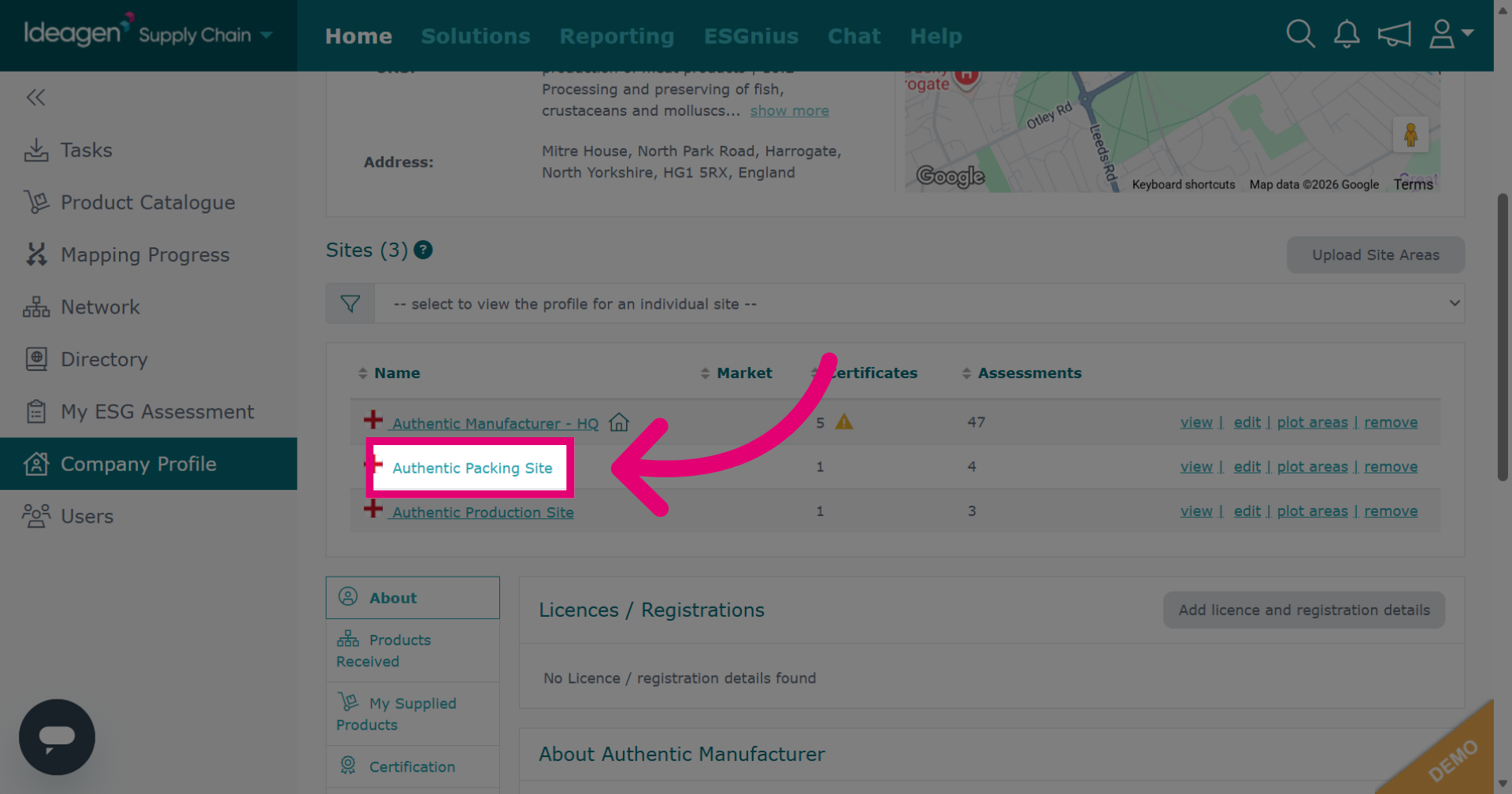
Select the site you wish to add certification to.
-
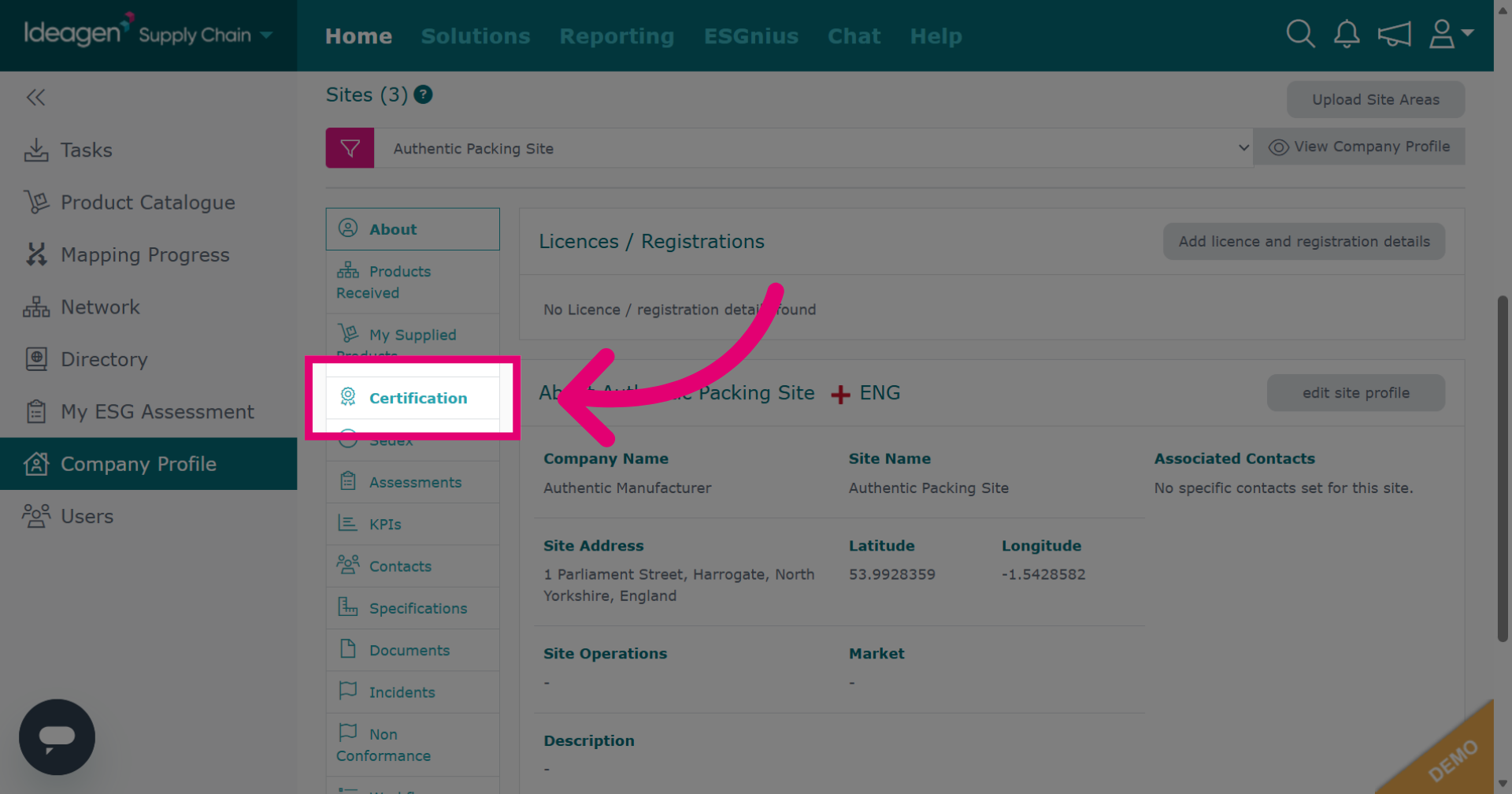
Click Certification to access the certification management area for the selected site.
-
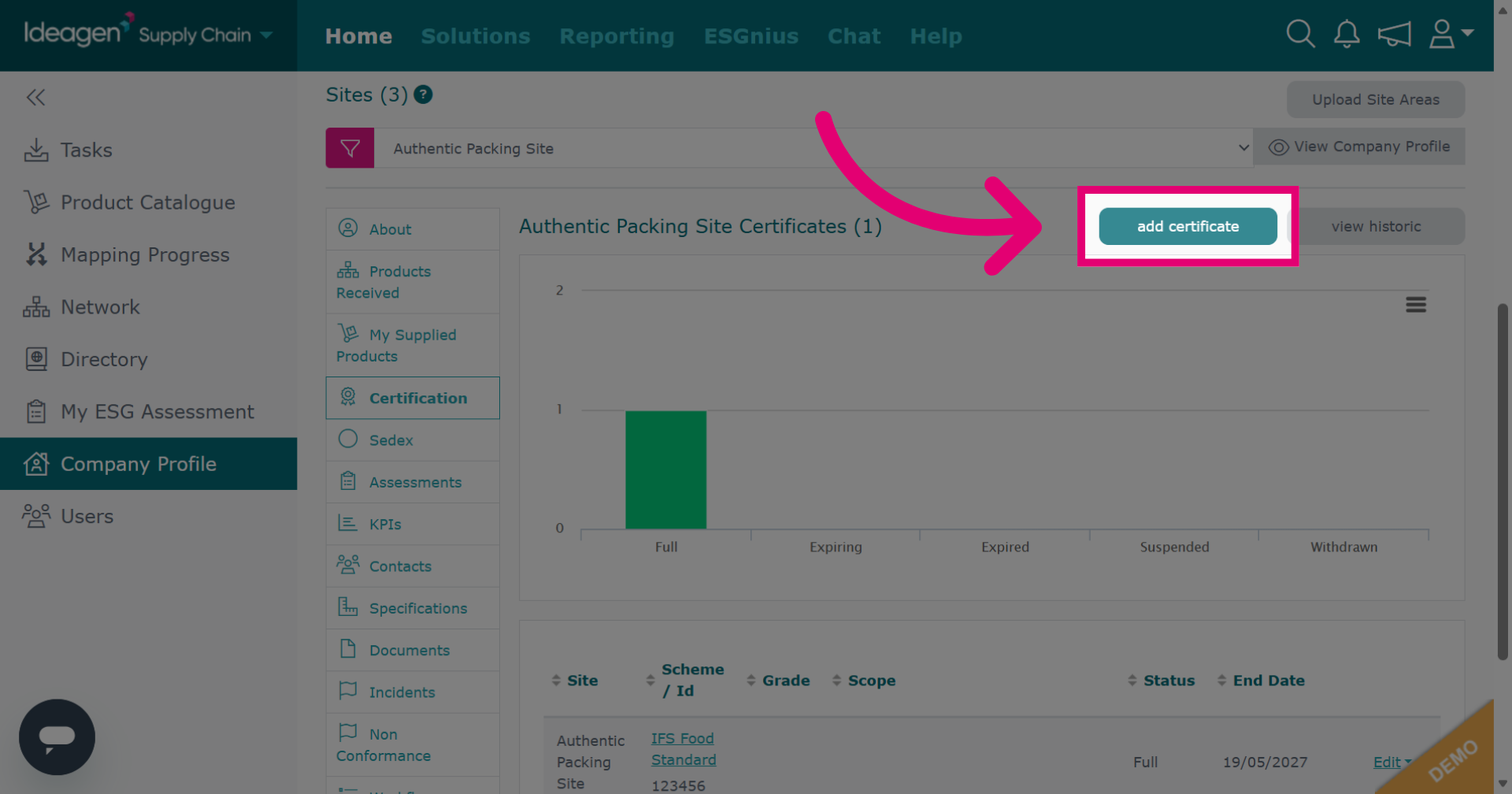
Click add certificate to start the process of adding a new certification to the site.
-
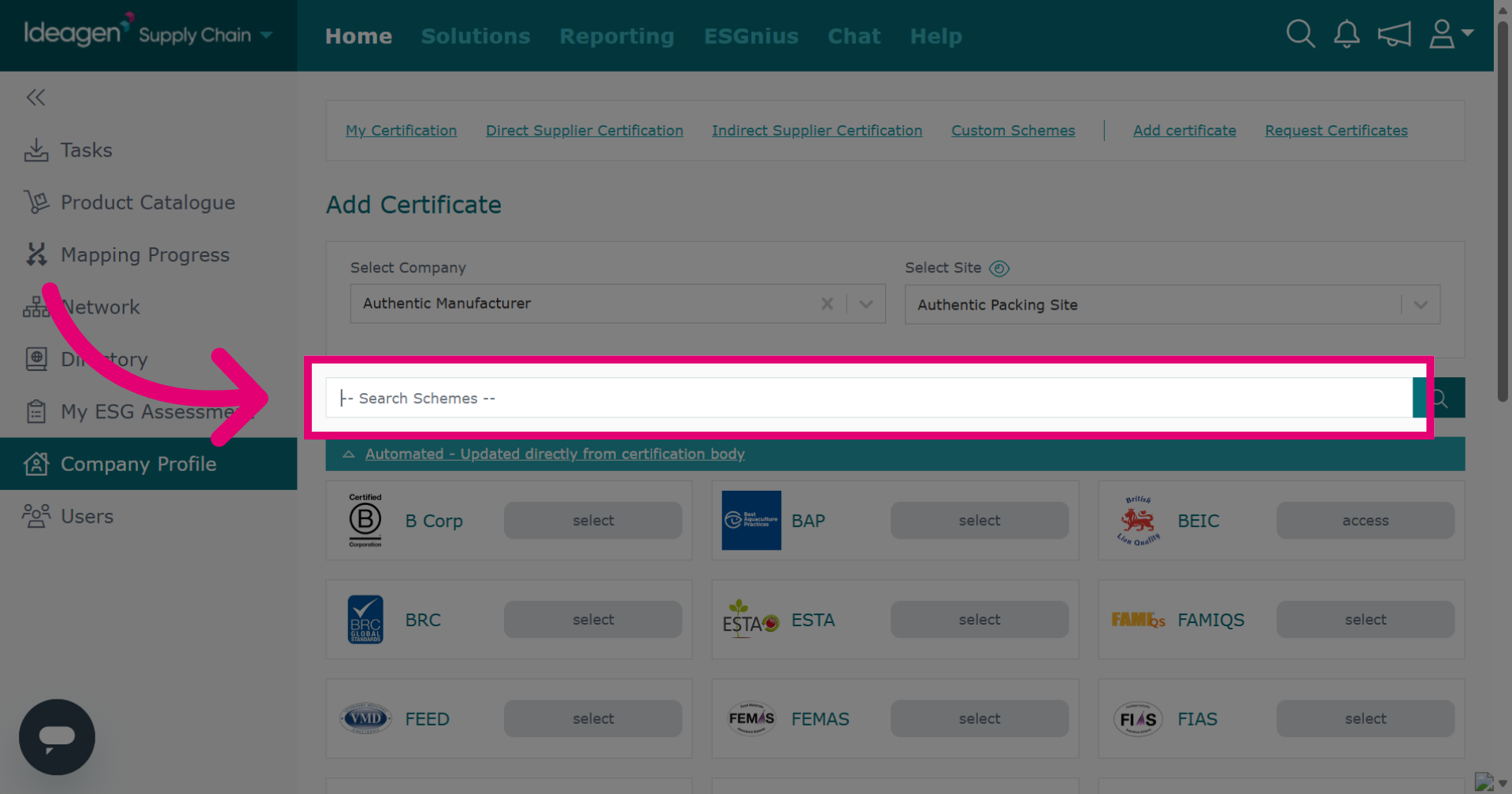
Click Search Schemes to input your search term.
-
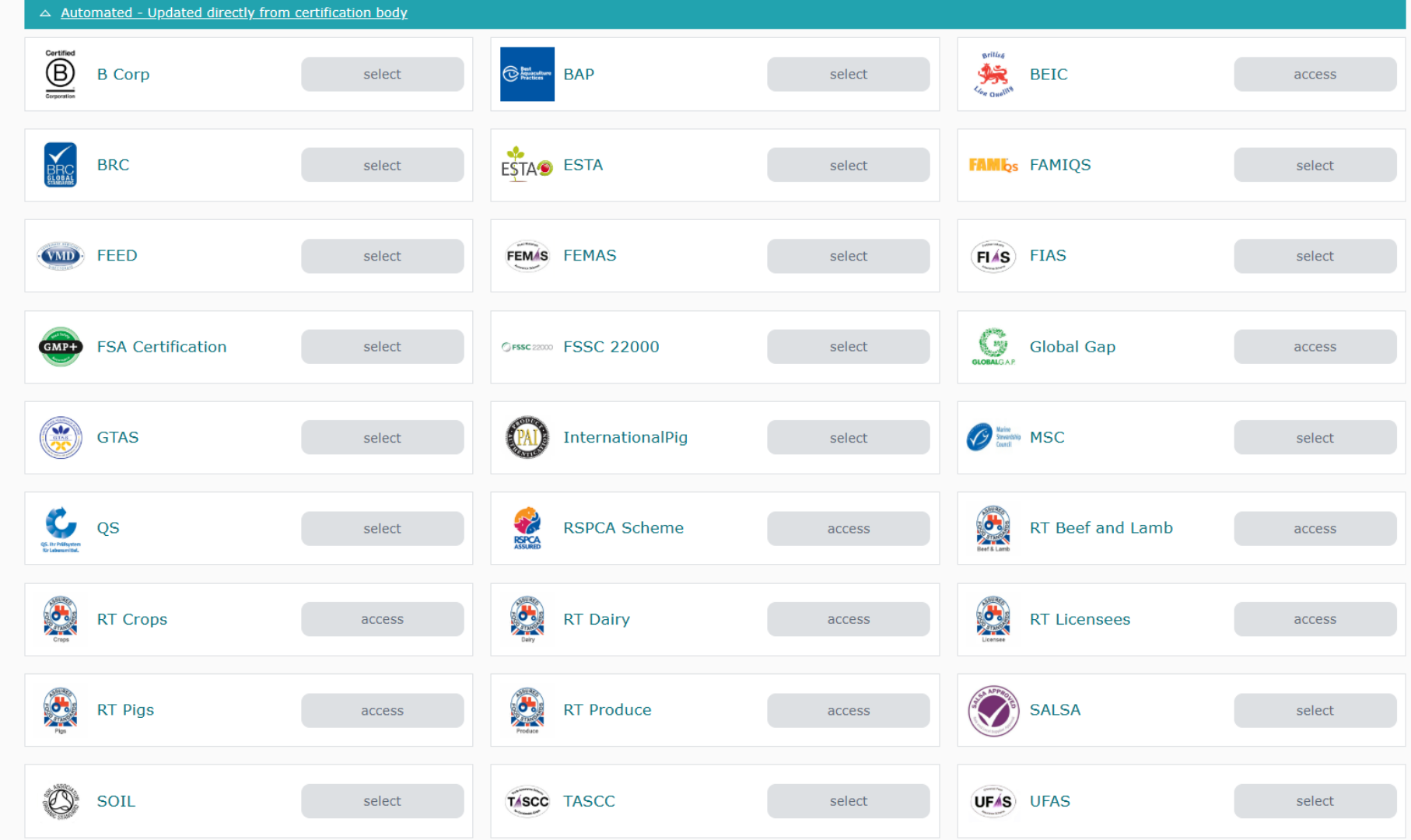
Automated schemes are certification bodies we have a direct link with via API. Some APIs may not be immediately available to you and may require set up.
-
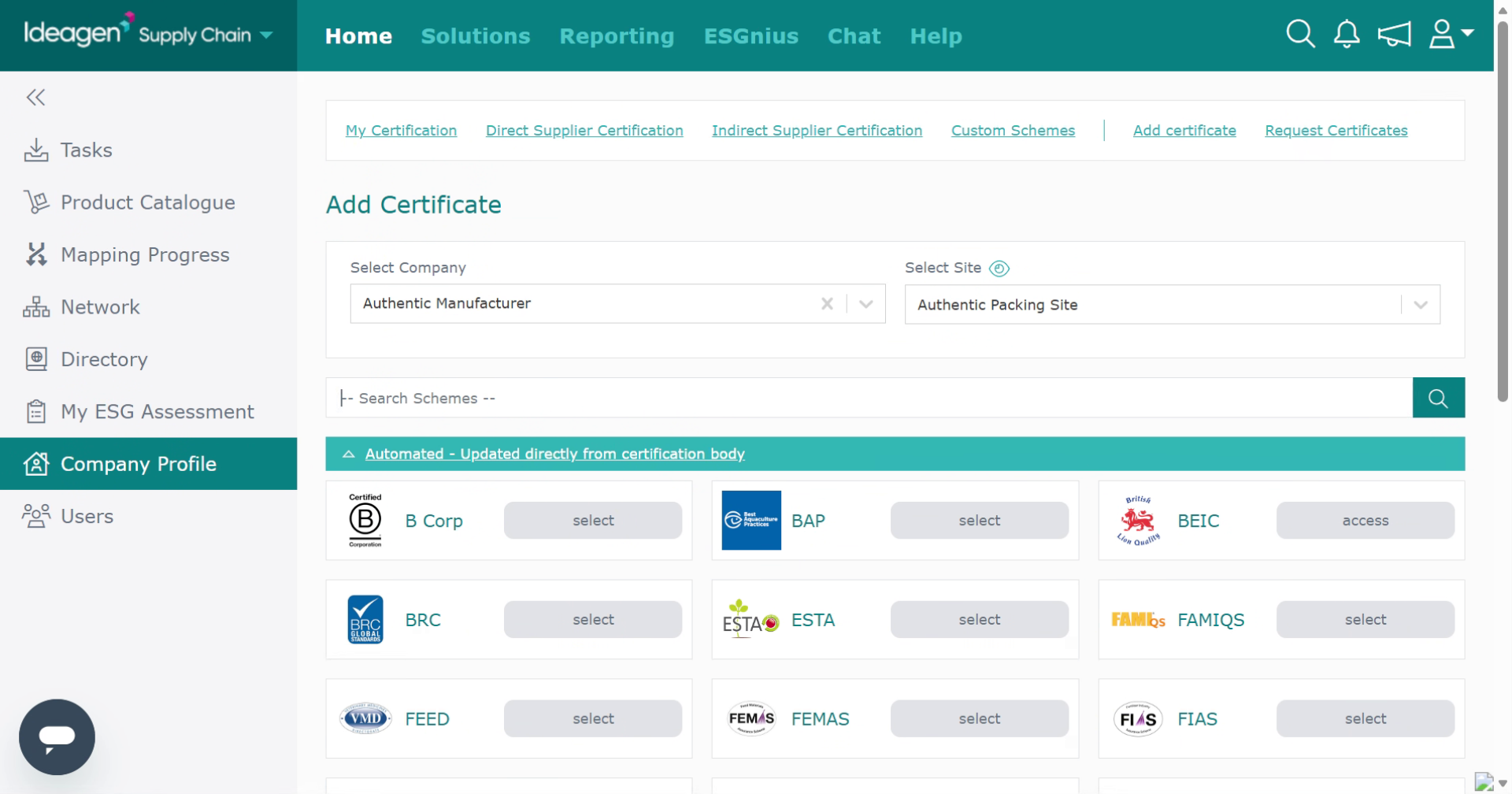
Type in the scheme you are looking to add.
-
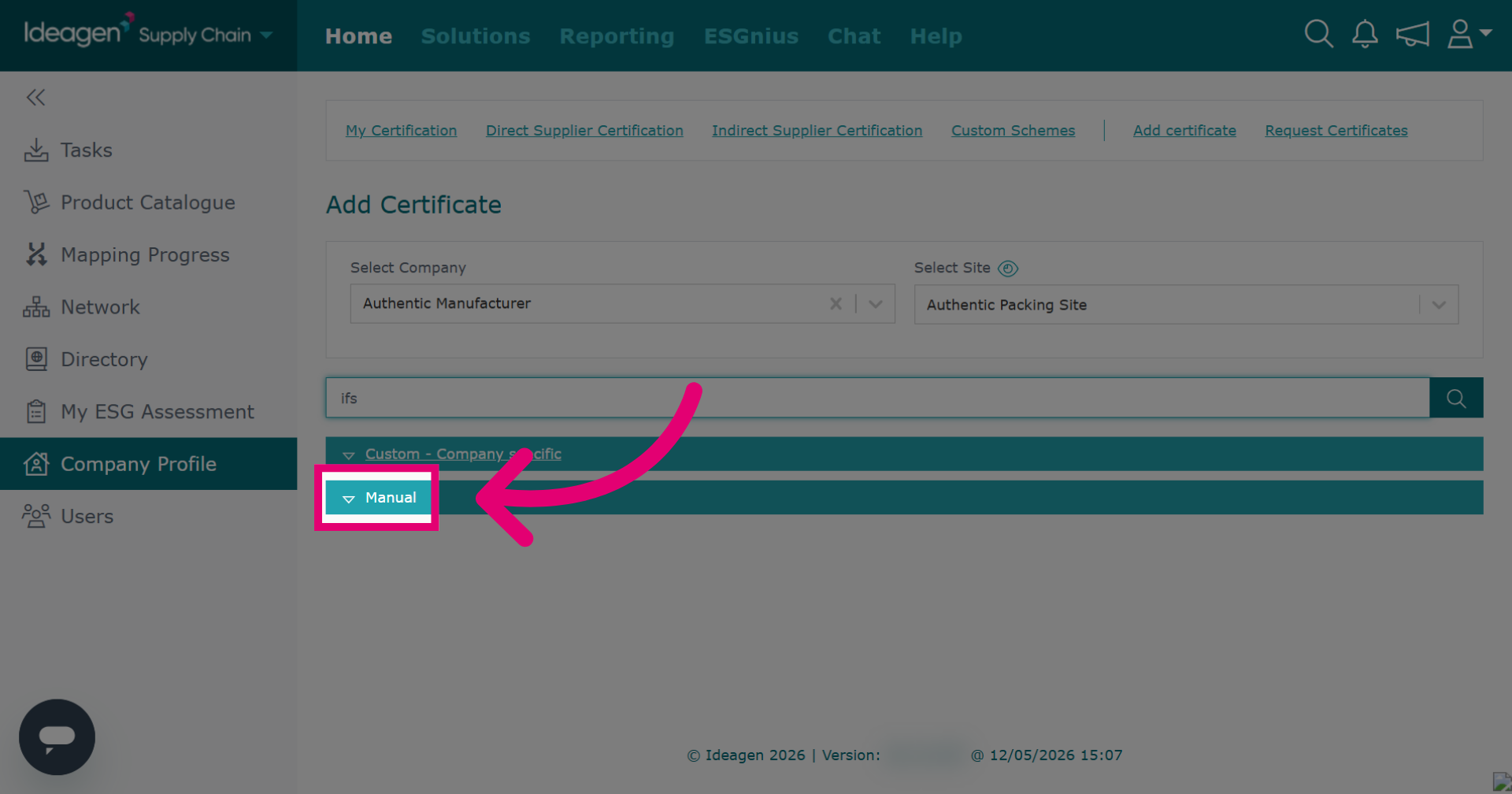
For all other available schemes, these will be under the Manual heading as we do not have an automated API link with these. Click Manual to open up the schemes available from your search term.
-
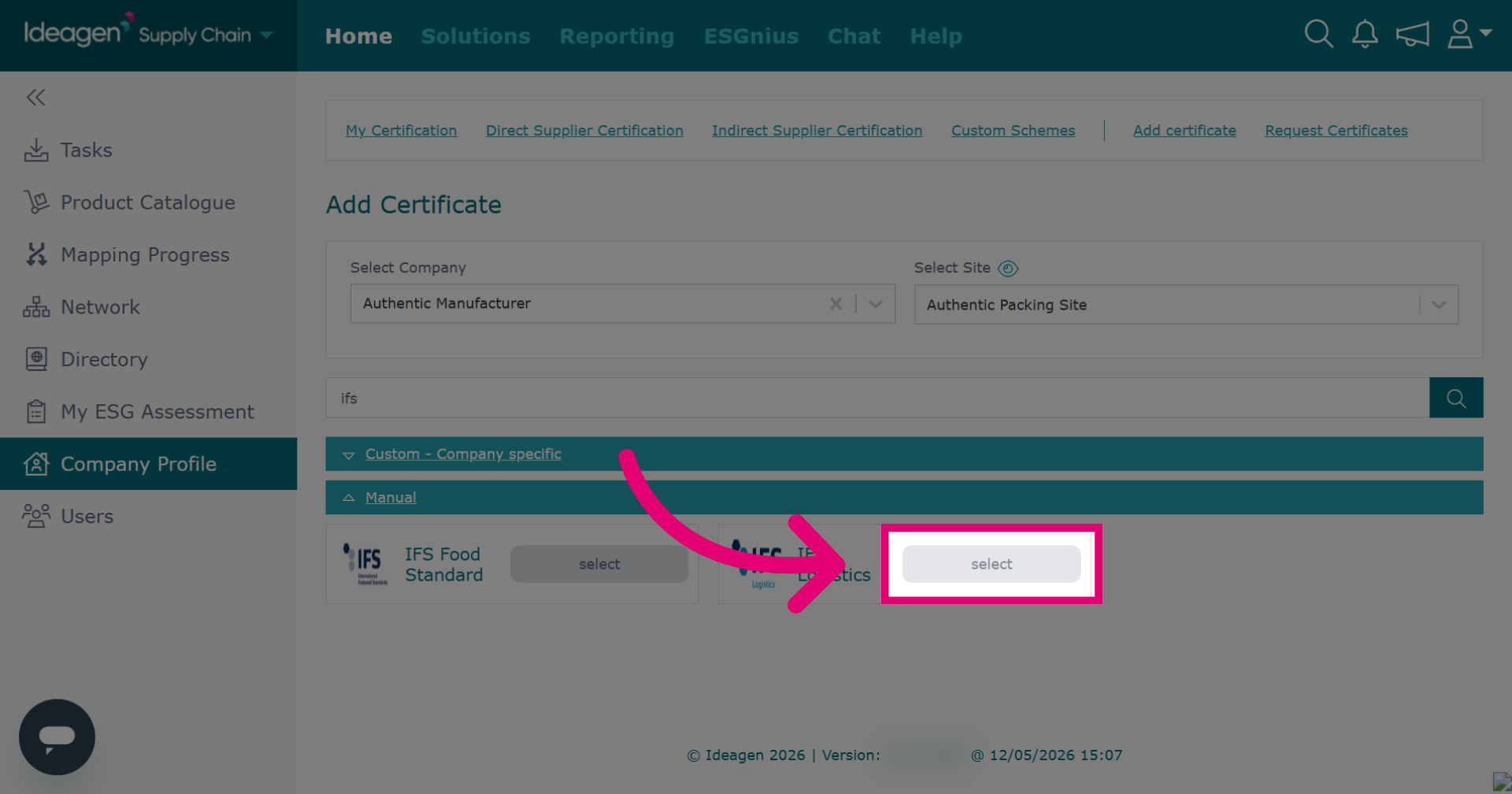
Click select to confirm your choice of the manual certification scheme.
-
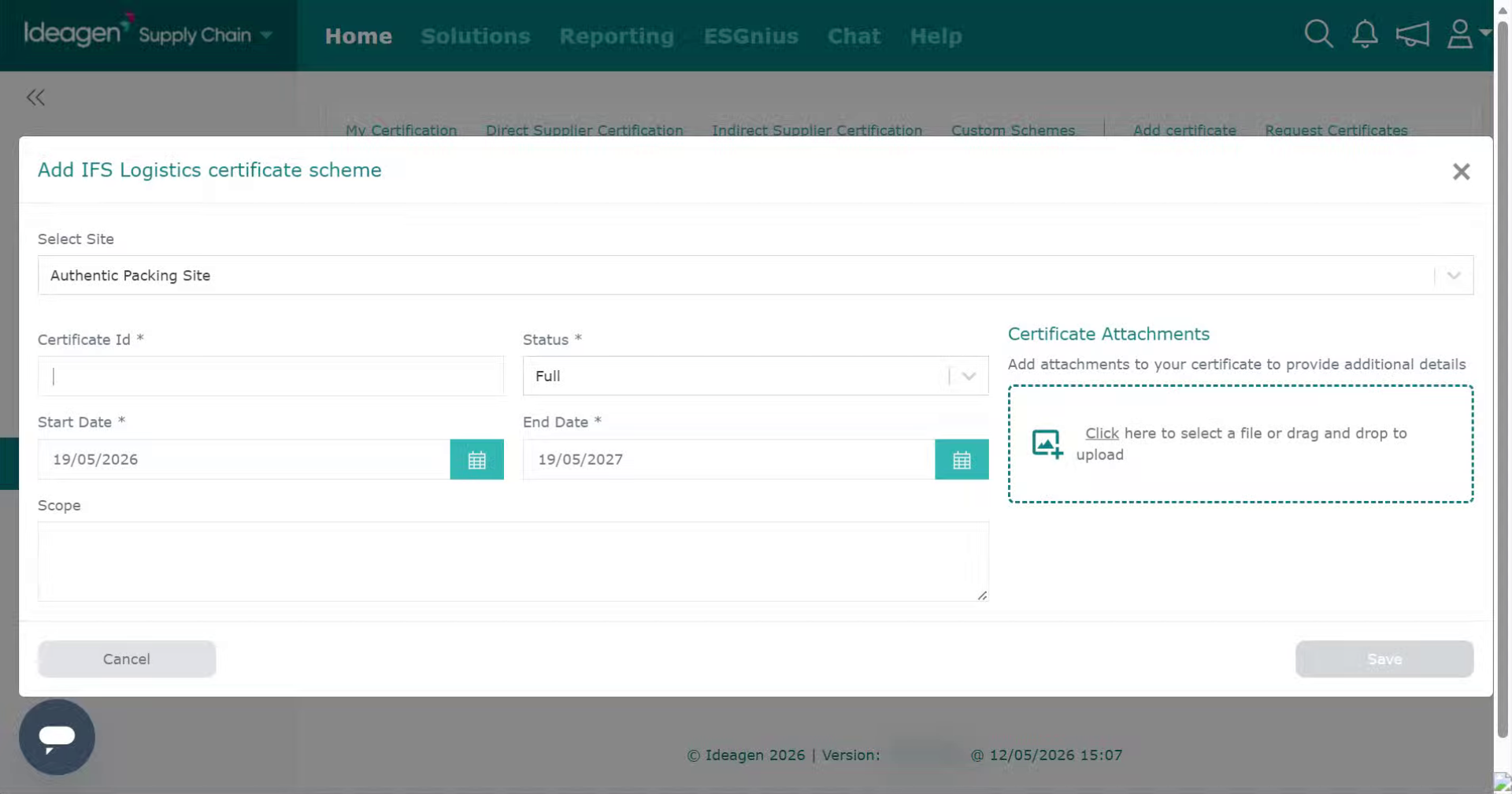
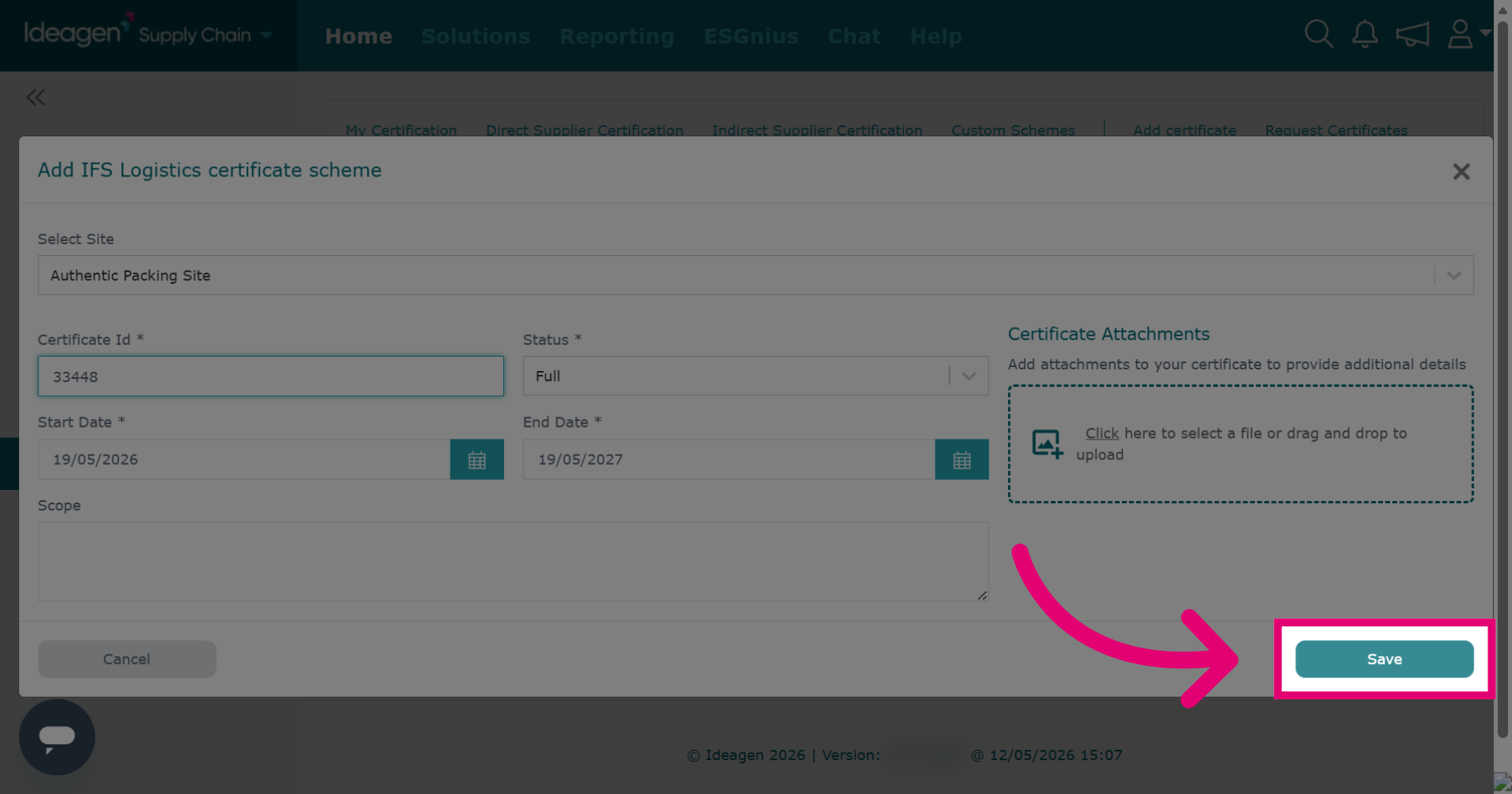
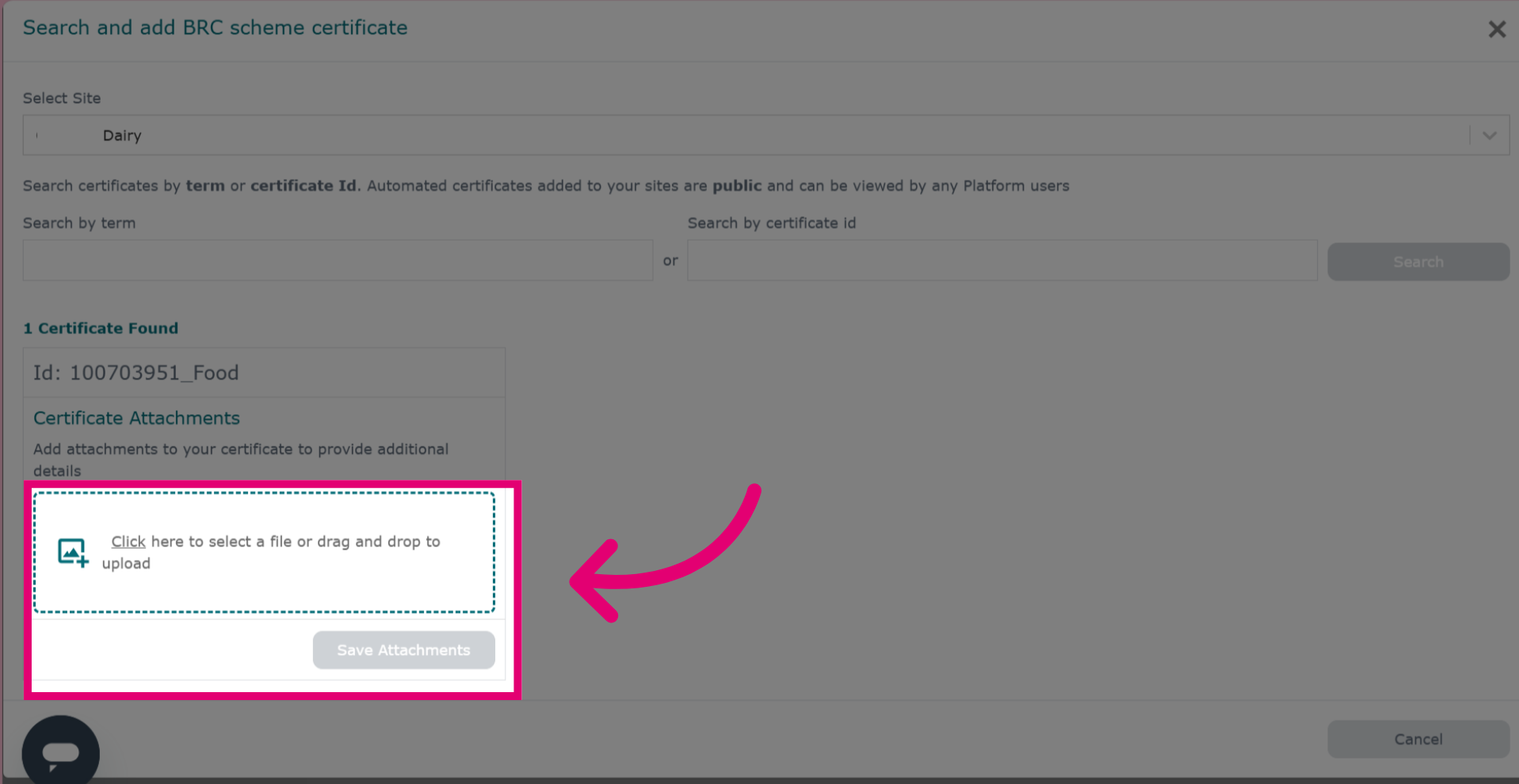
Enter certification details, all boxes marked with an asterisk are mandatory. It is strongly recommended you also add an attachment of the certificate. Click the box below the Certificate Attachments heading to upload directly from your device.
-
Click Save to store the newly added certificate information.
-
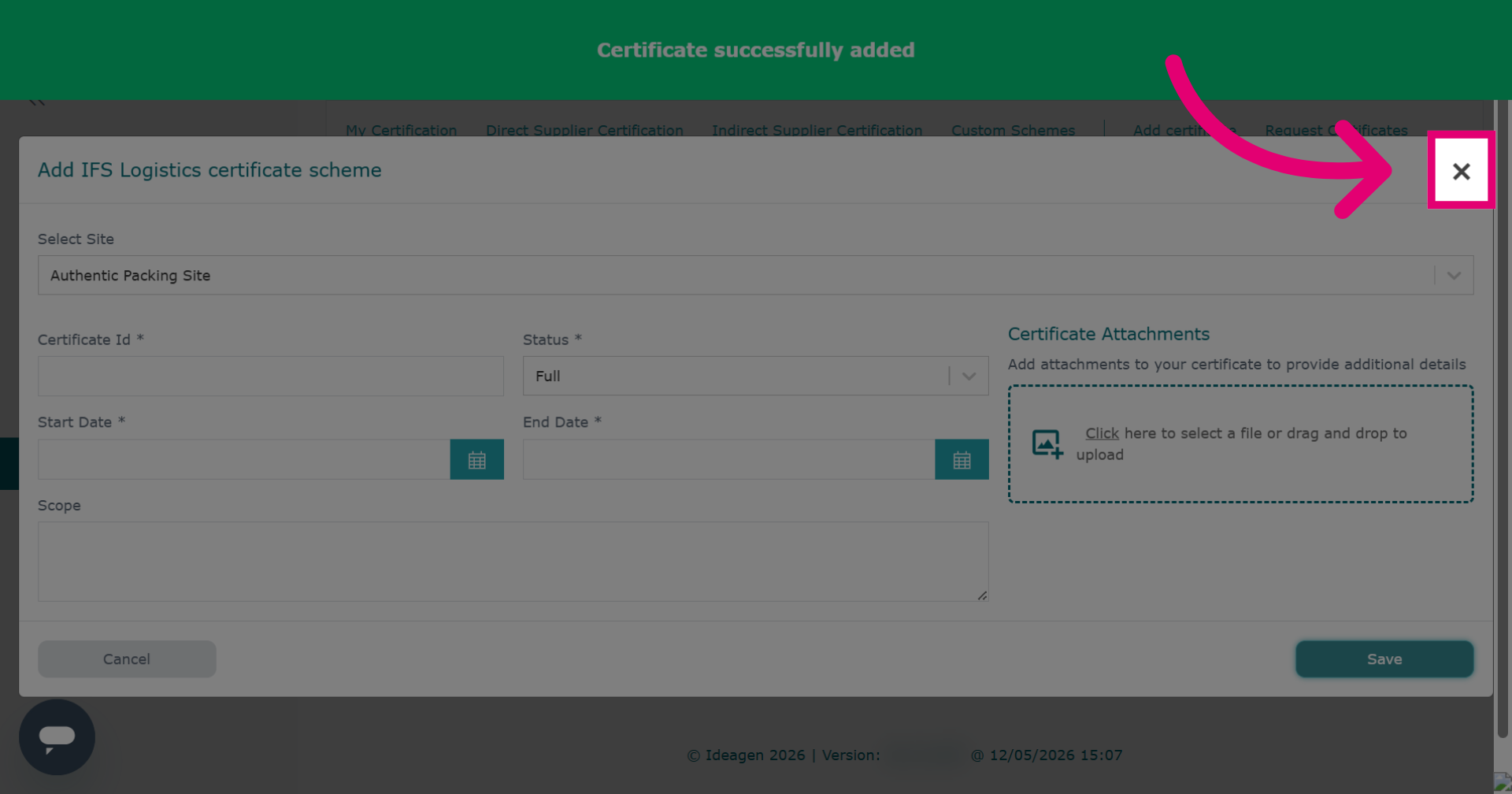
Click × to close the certificate addition dialog after saving unless you want to add multiple certificates to the same site under the same scheme. If so, you can repeat the process and add further certificate details.
-
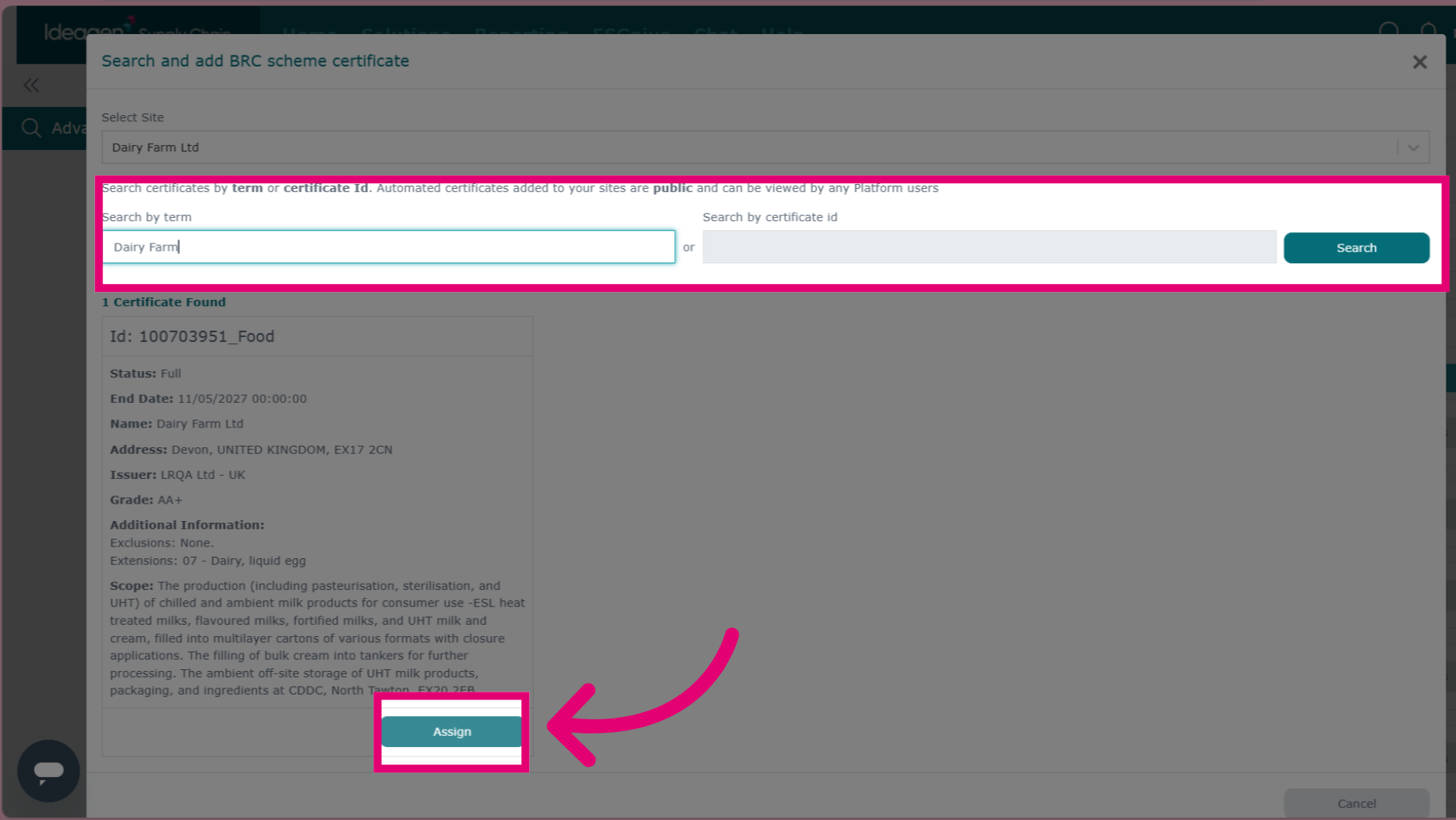
To add an automated API certificate, the process is the same however, you will be presented with search fields for the API to locate the certificate. You can search via a search term, i.e. the supplier/company name, or the certificate ID. You only need to search using one of the search box options. Ensure you click the search button after inputting data. If results matching the data set are found it will show in the area below, and you can add the certificate by clicking assign.
-
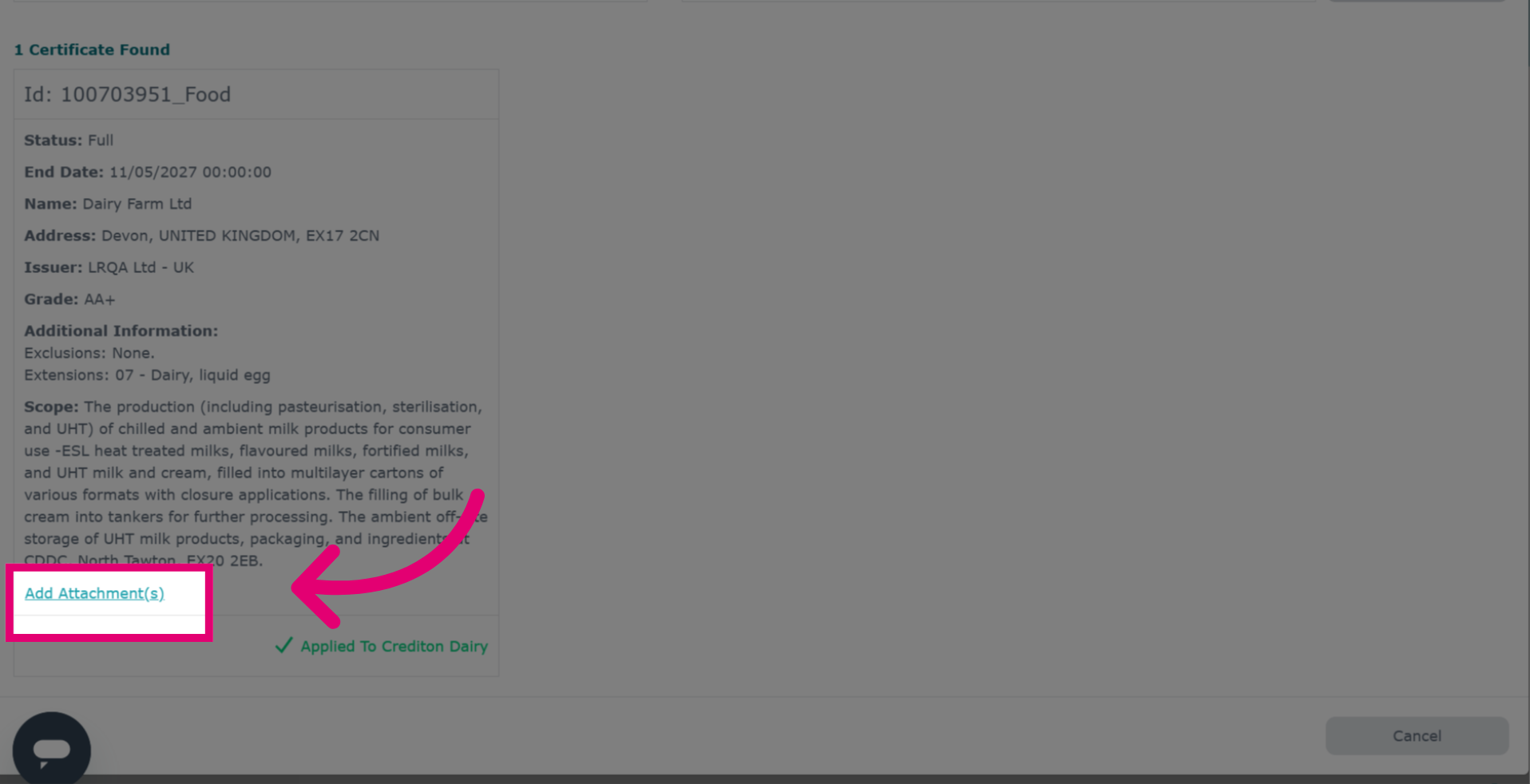
After you have clicked assign, you will be able to add an attachment to an API certificate if needed. To do so click add attachment.
-
Add a description for the attachment.
-
To view your certification, click back onto company profile and then certification ensuring you select the relevant site. If you do not select a site, you will be shown all certificates listed against your company.
-
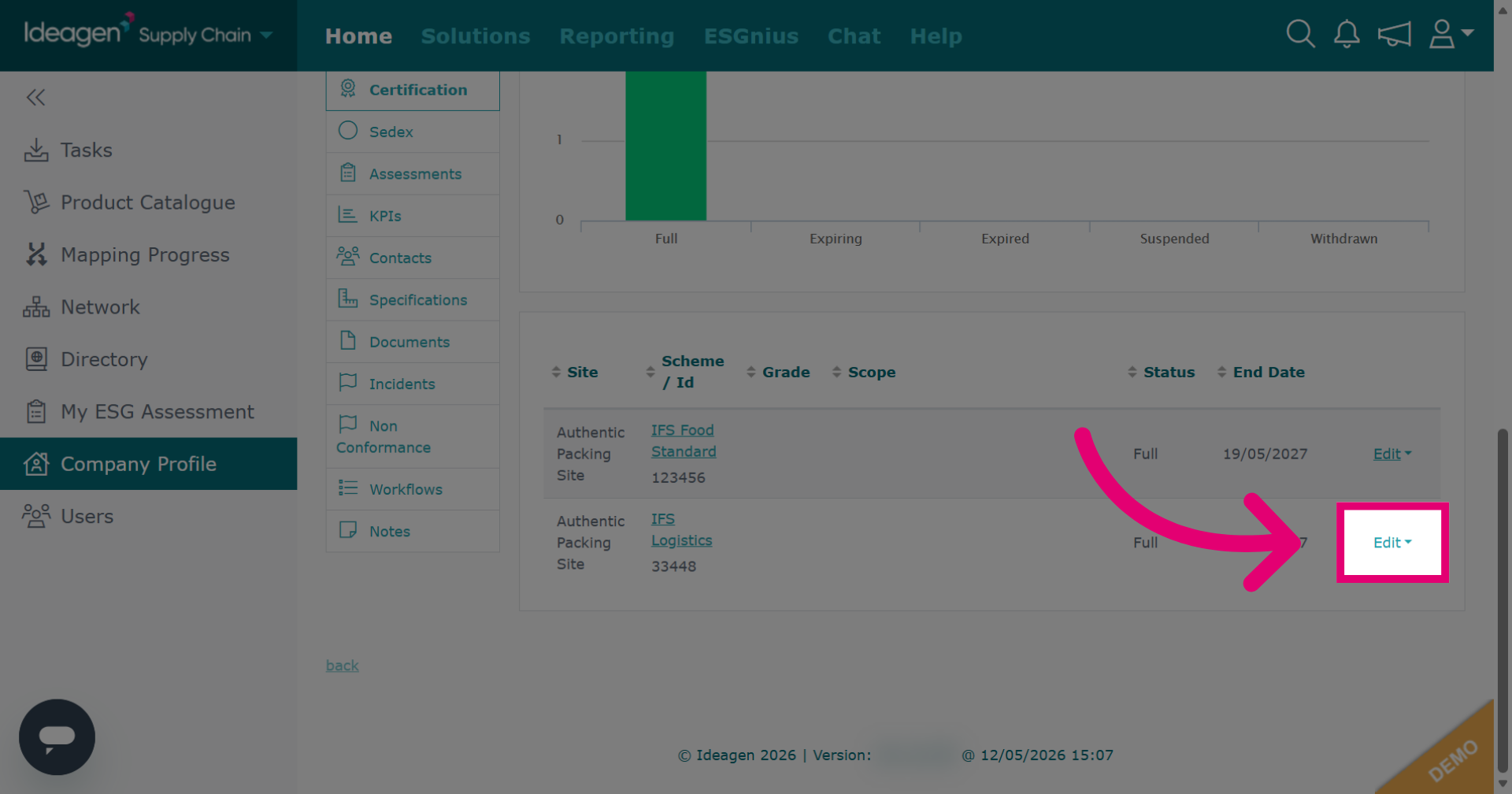
Click Edit to make changes to the selected certificate information.
-
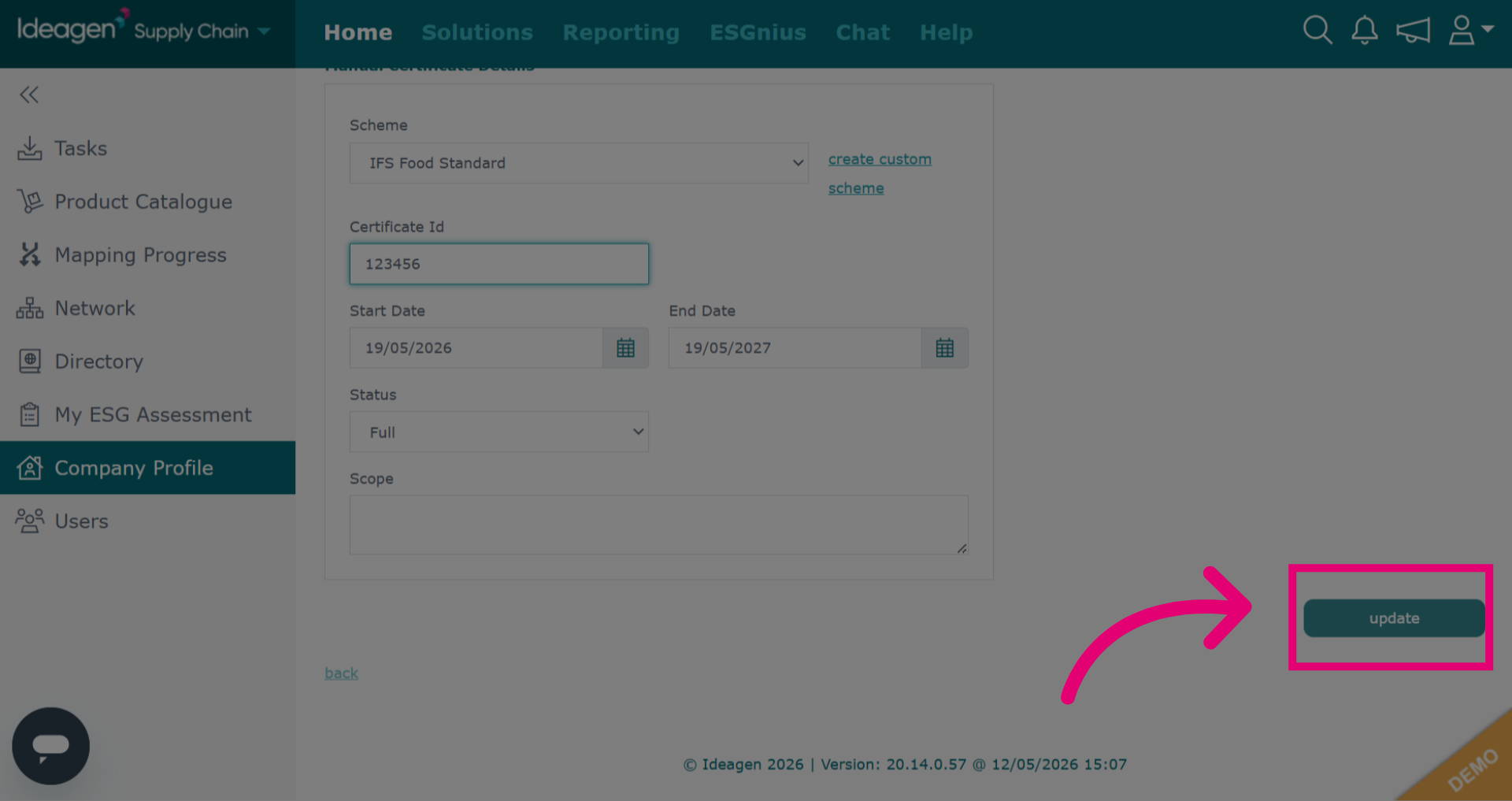
Once you have amended the details, click update.
-
Click Delete to start the process of removing a certificate.
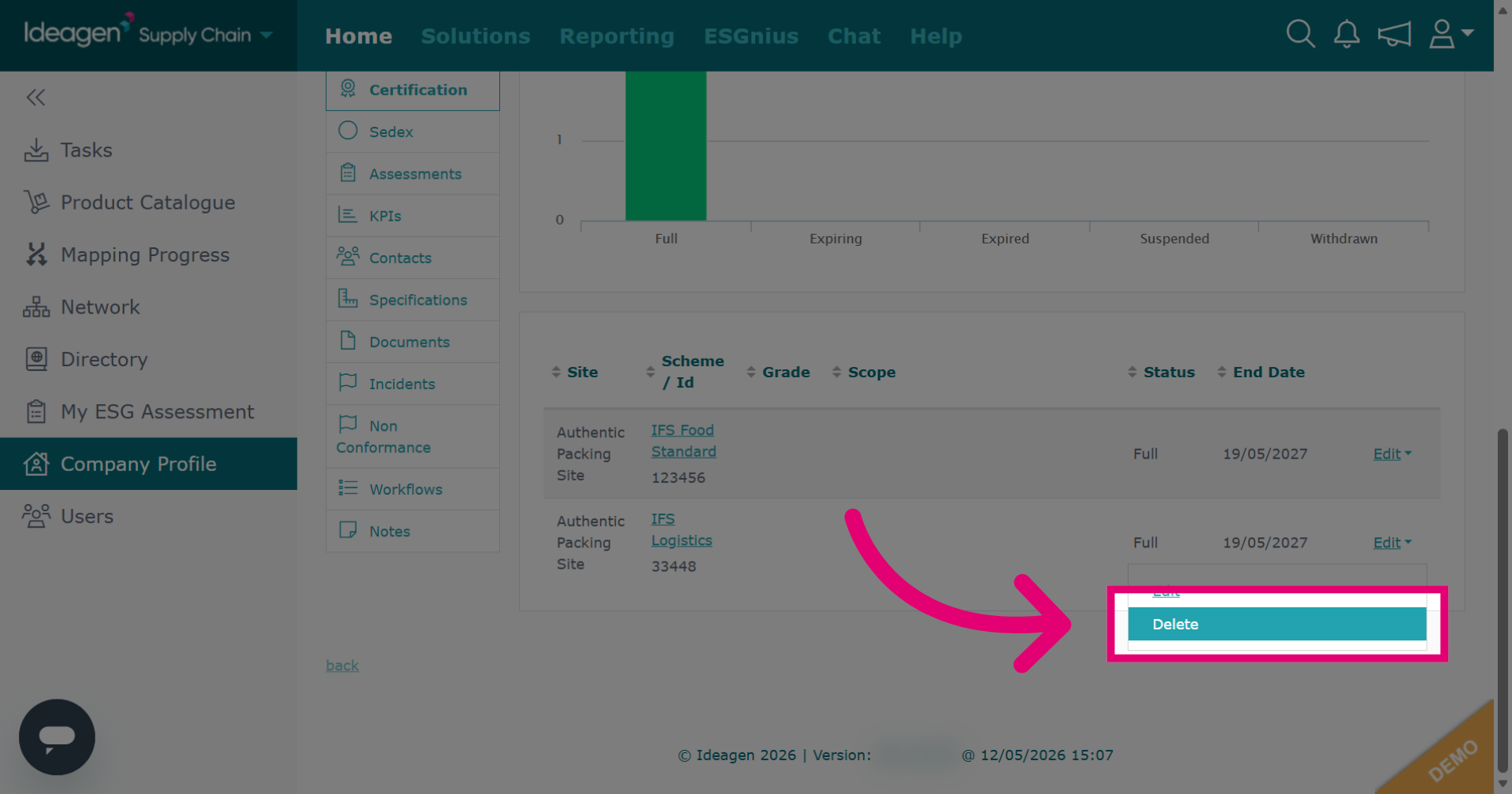
-
Click delete again to confirm and permanently remove the selected certificate.
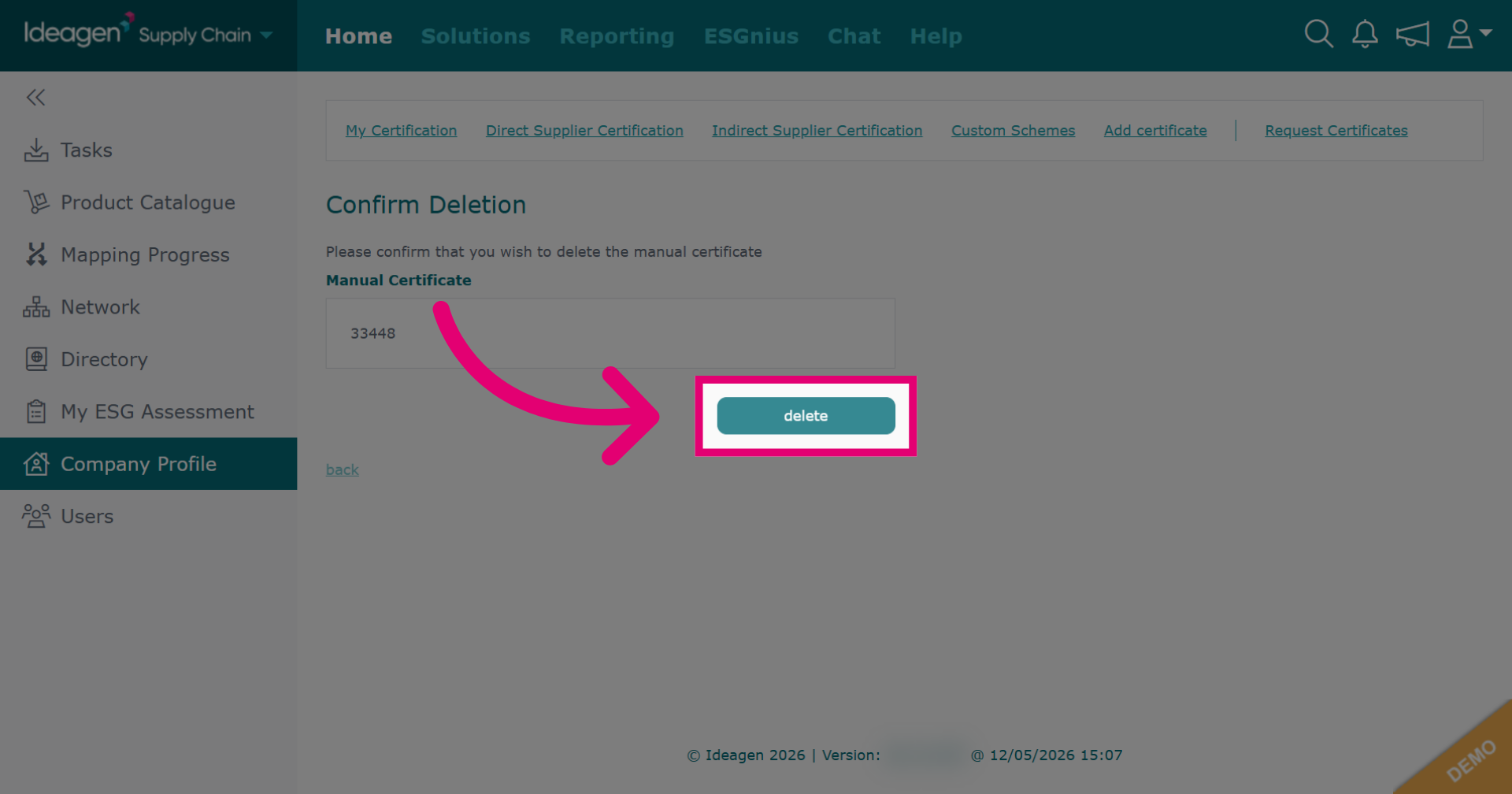
-
To view expired and historic certification, click View Historic.
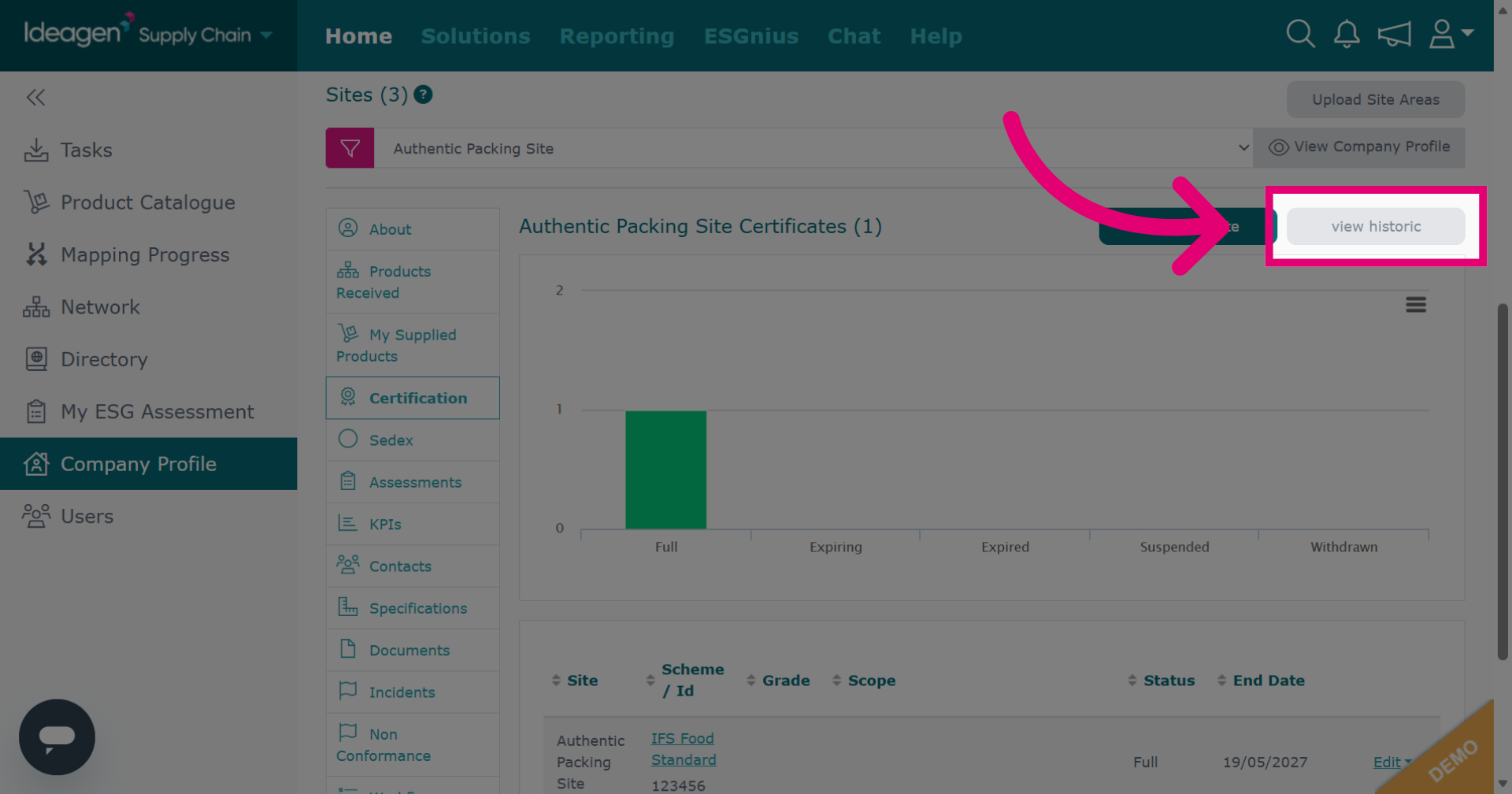
-
Click view current to return to viewing valid certification.
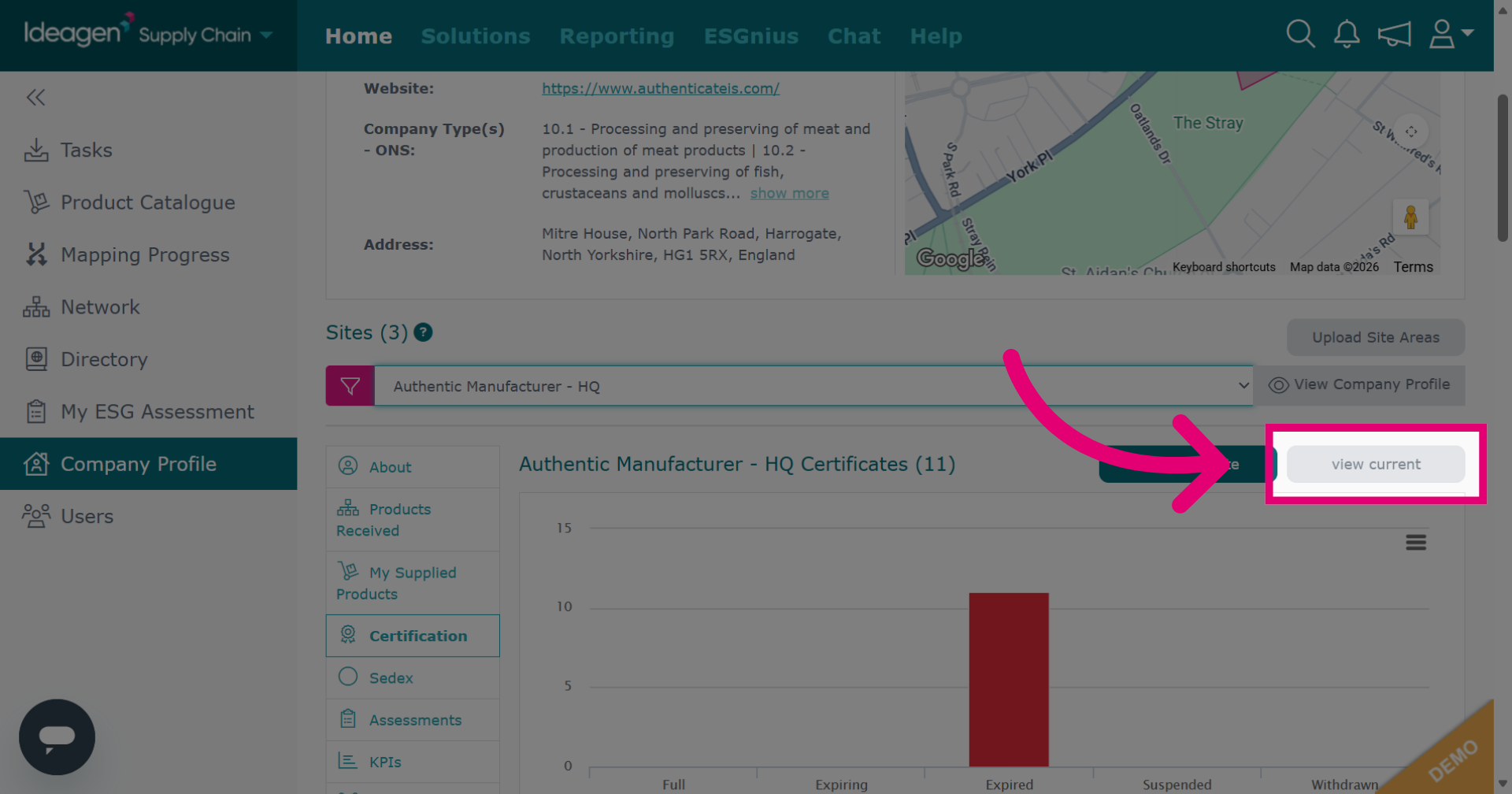
-
If a certification scheme you wish to add is not available, click add certificate to begin adding a new scheme.
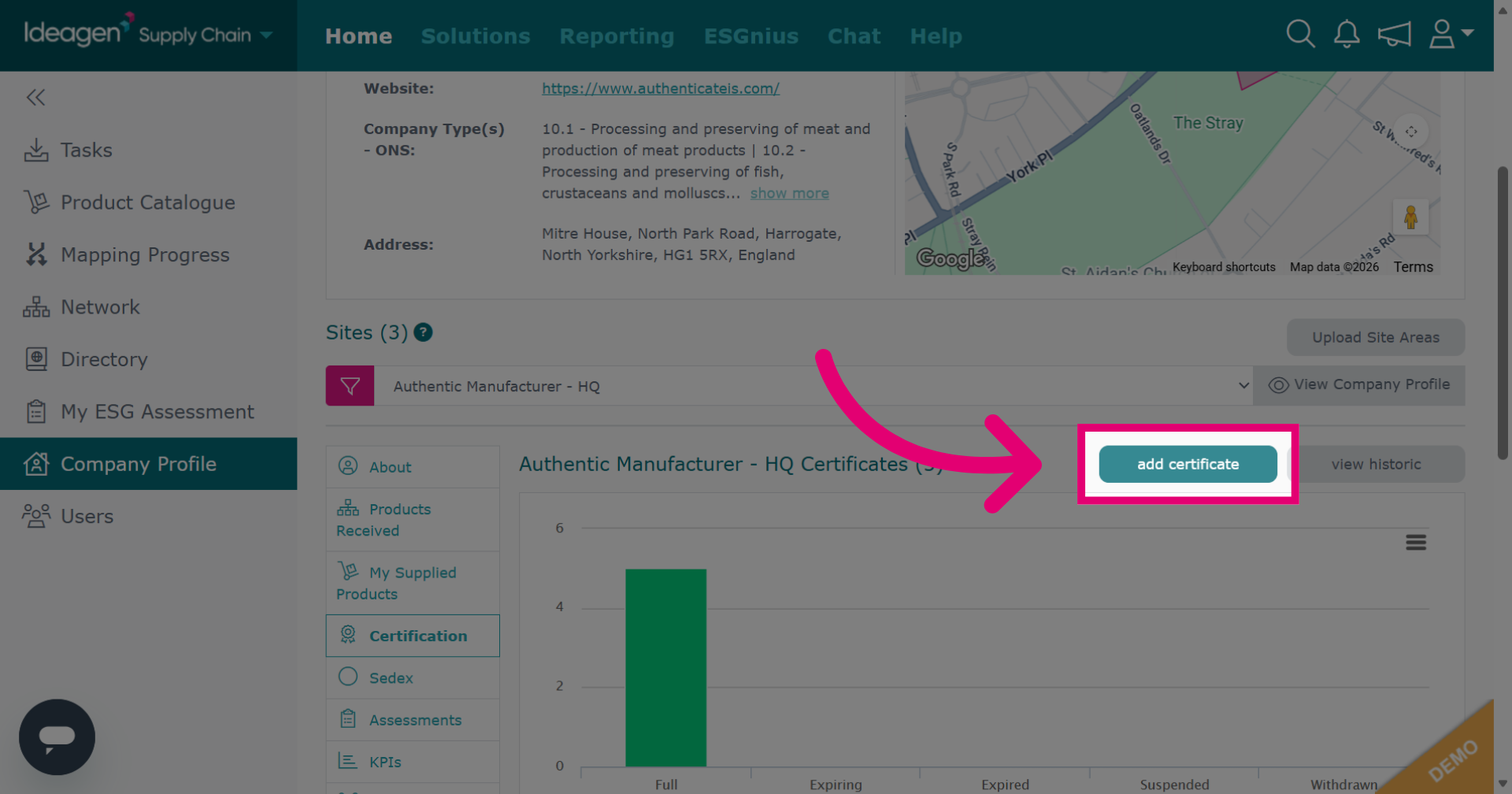
-
Click Custom - Company specific.
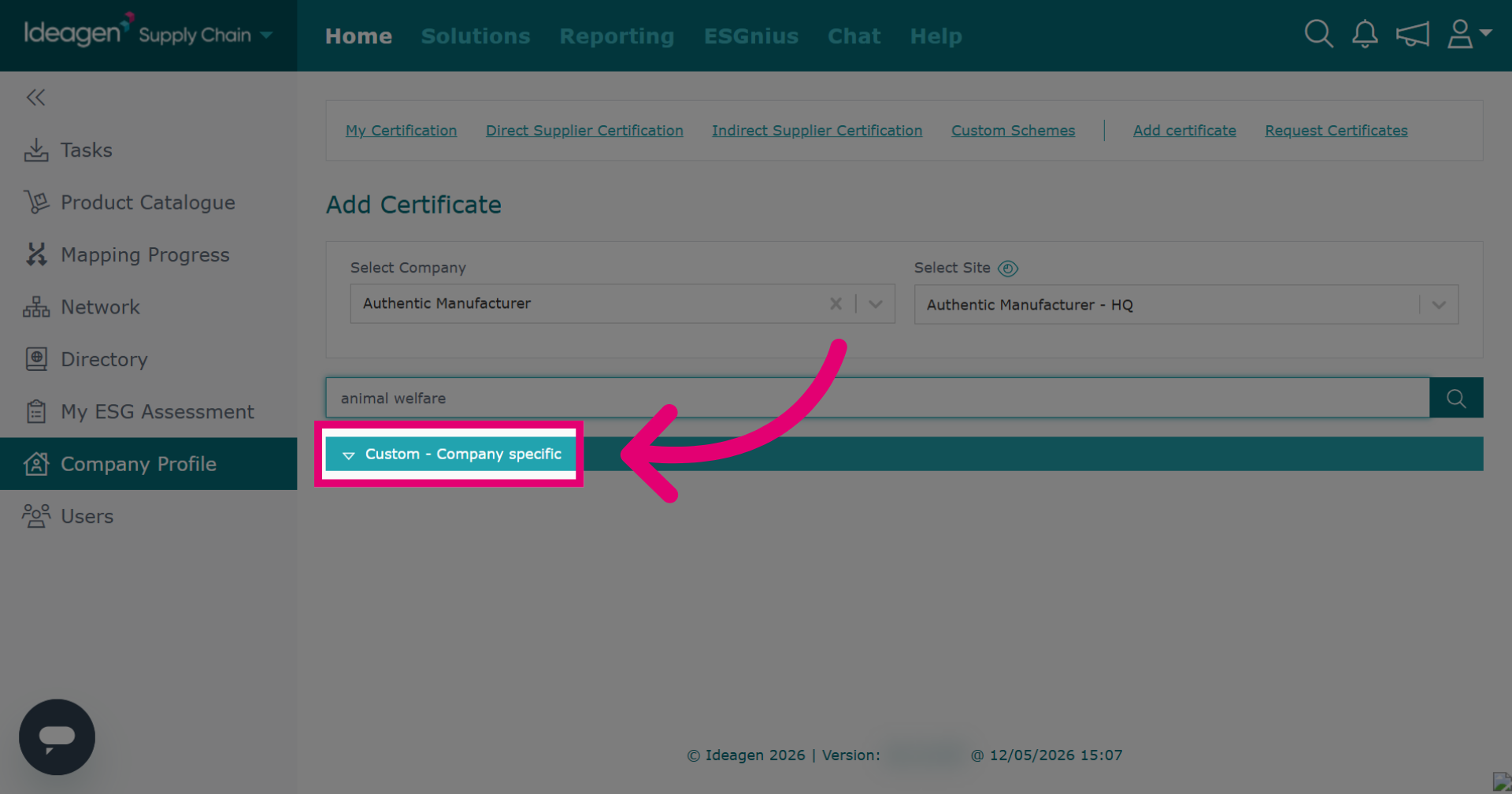
-
Click You have no schemes available to add to this site. Please create a custom scheme to add to proceed with creating a new scheme. If you do not have this message, you can select Custom Schemes from the heading in the navigation bar at the top of the page instead.
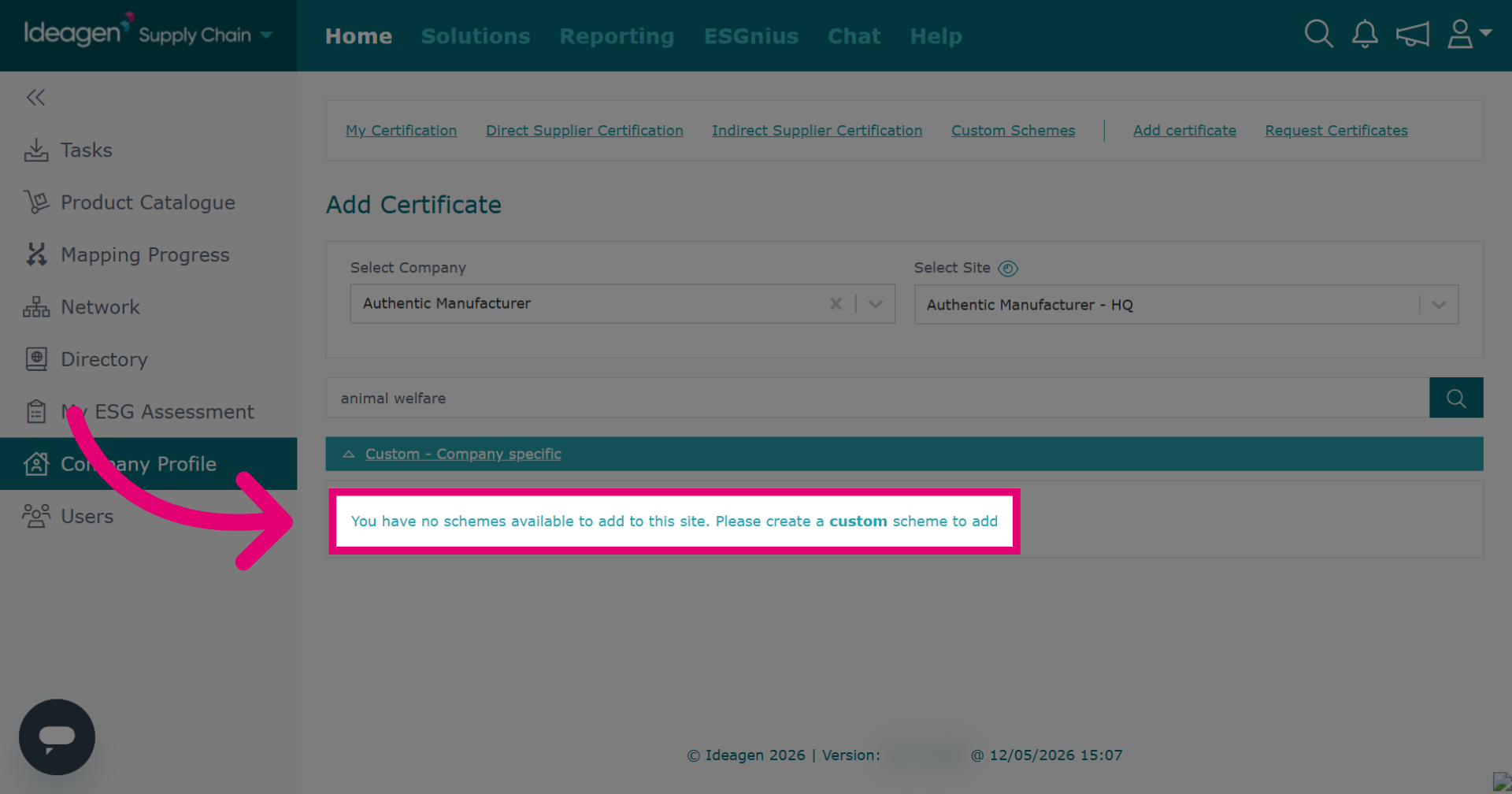
-
If you do not have this message, you can select Custom Schemes from the heading in the navigation bar at the top of the page instead.
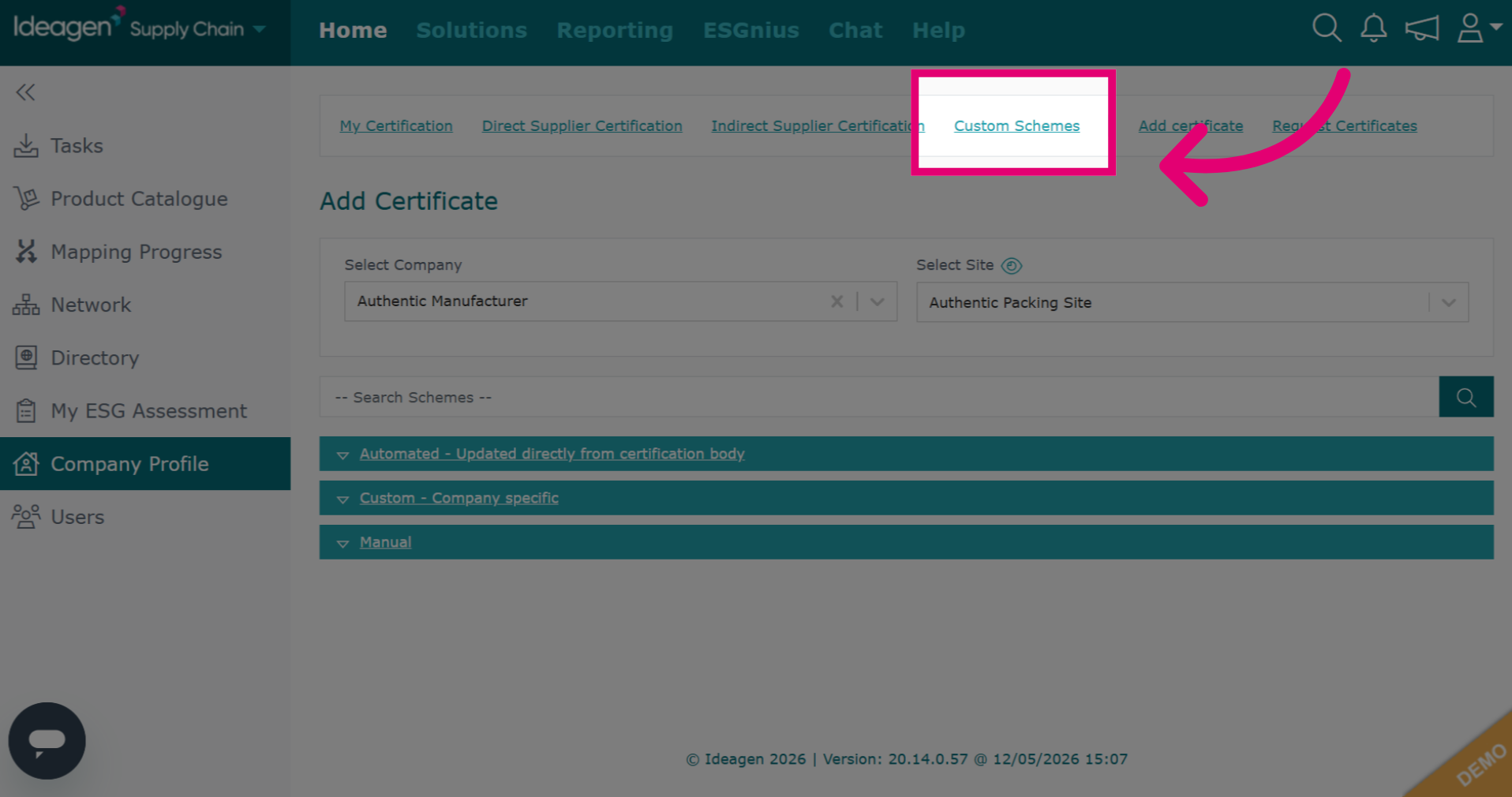
-
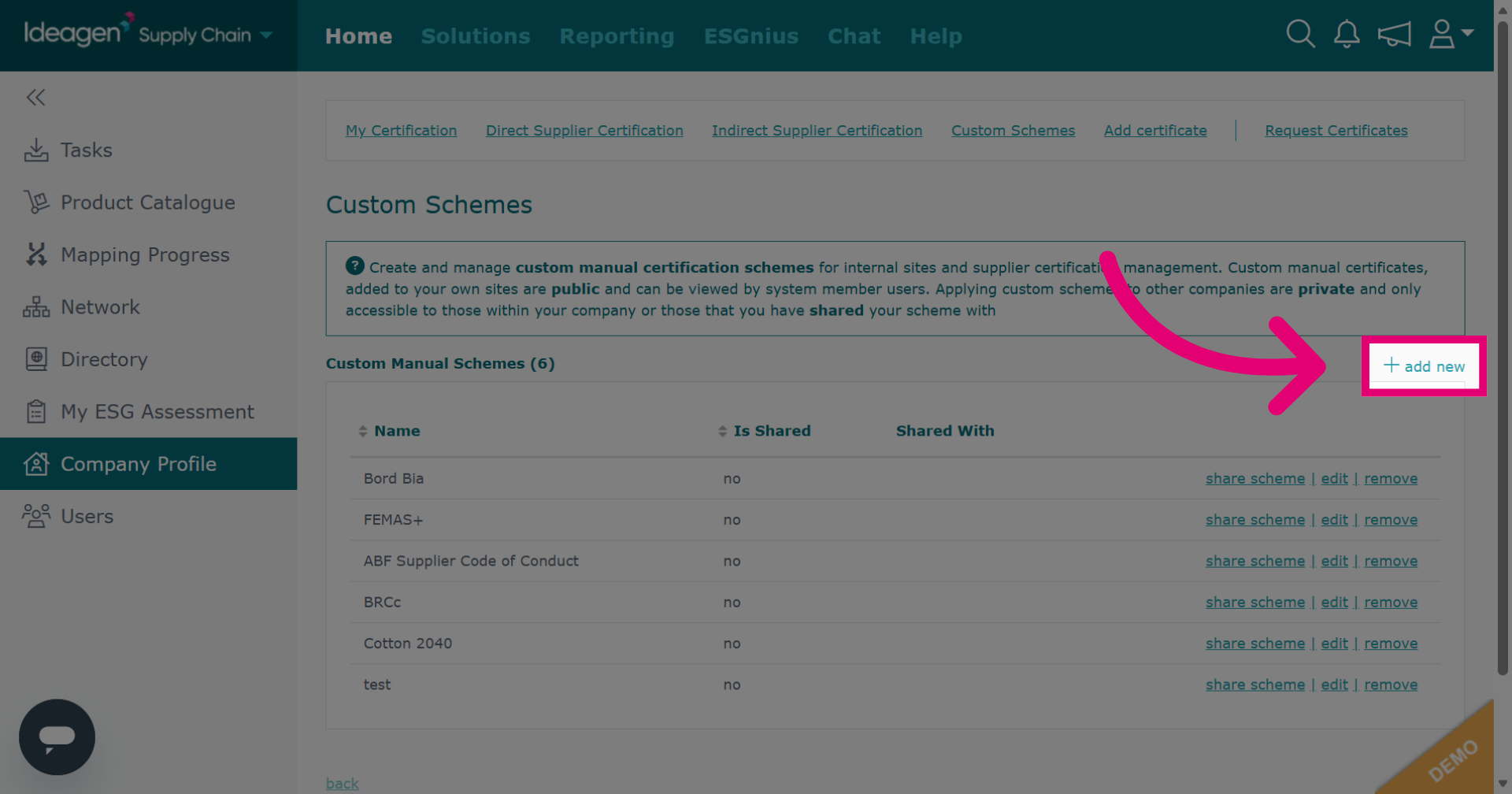
Click add new to start creating a custom certification scheme.
-
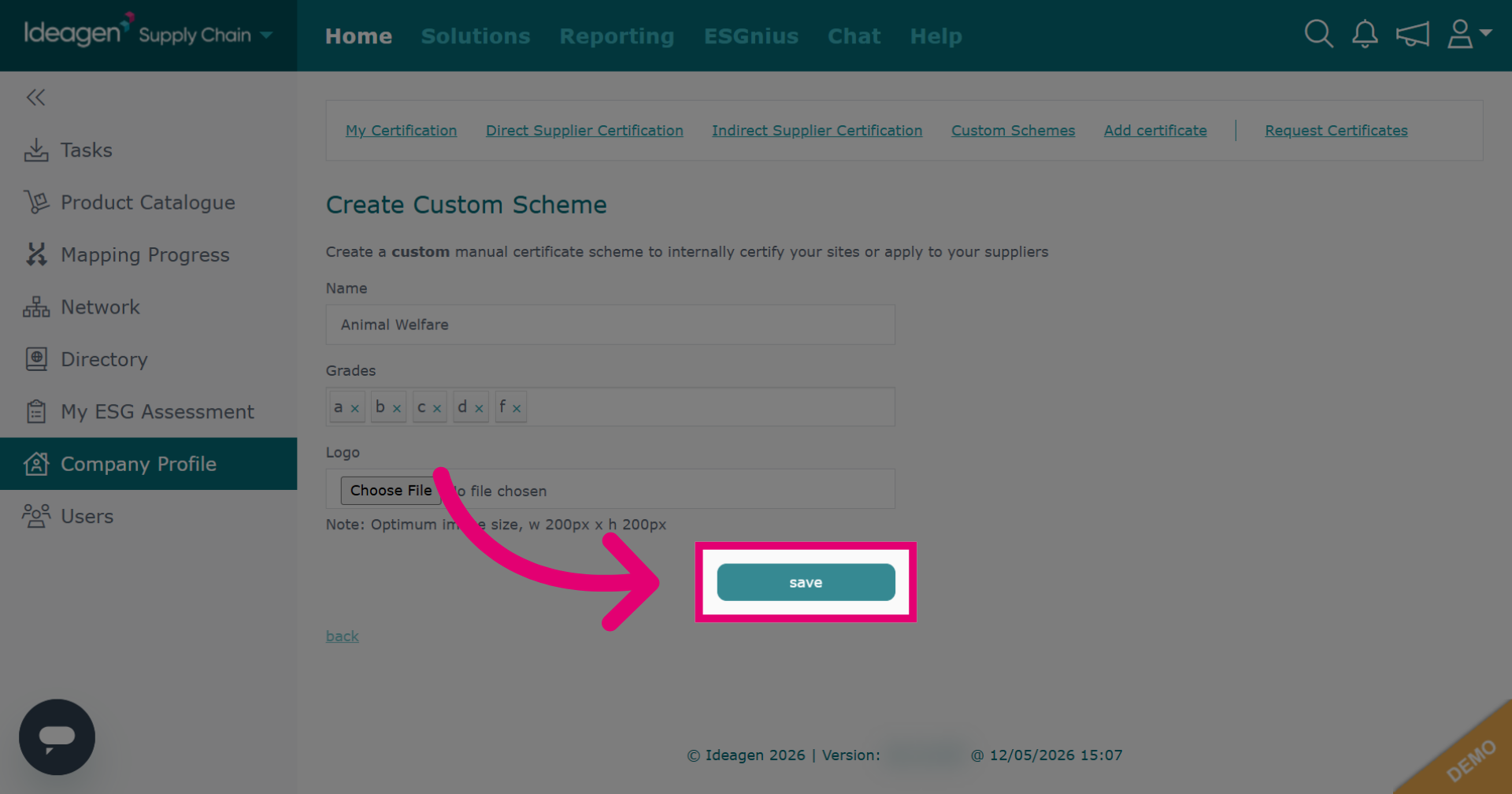
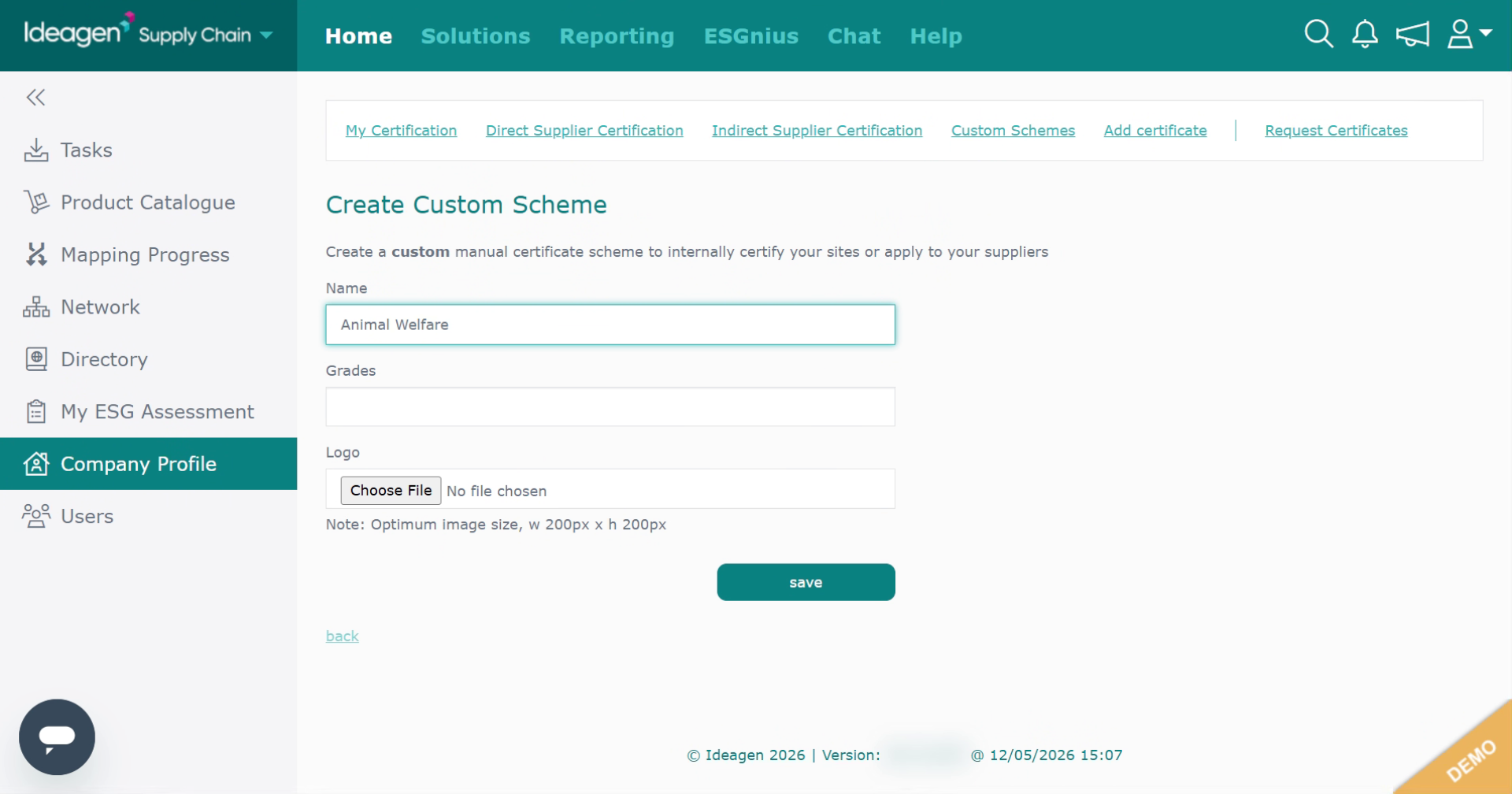
Input details for the new custom certification scheme. You can add grades if needed, however this is optional. You can also add a logo if desired by clicking Choose File and uploading from your device.
-
Click save to store the newly created custom certification scheme. Now, when you go to add certificates your newly created scheme will appear under the custom schemes heading.