New article
Recently updated
Managing Supplier Certification & Sending Certificate Requests - Certification

Who is this article for?
Users that want to manage their supplier's certification and send certificate requests.
Certificate admin permissions are required.
This tutorial guides you through managing supplier certification within Ideagen Supply Chain.
You will learn how to add certificates, view and export certificate data, and request certificate updates.
Managing supplier certification
-
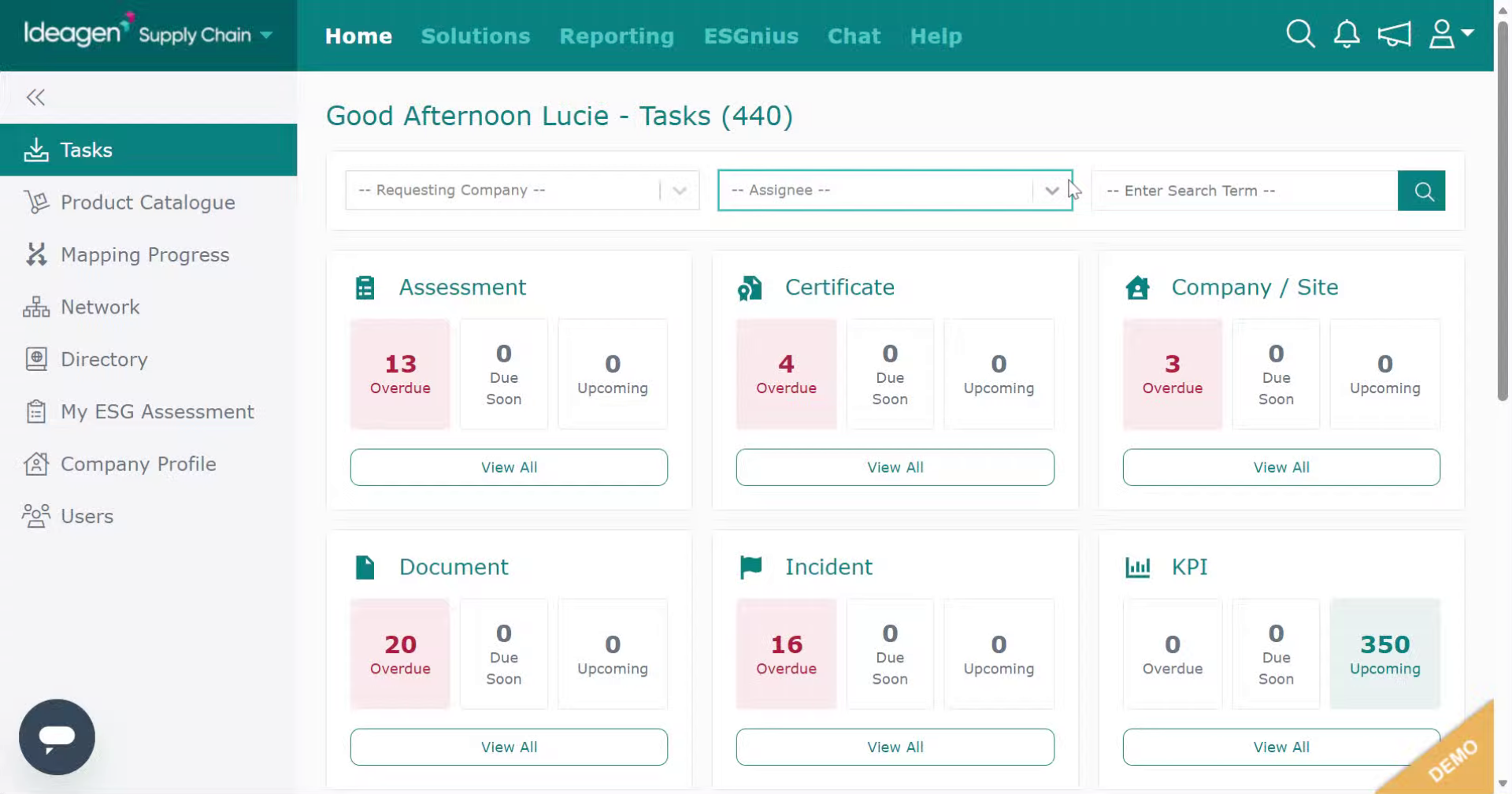
Log into the system.
-
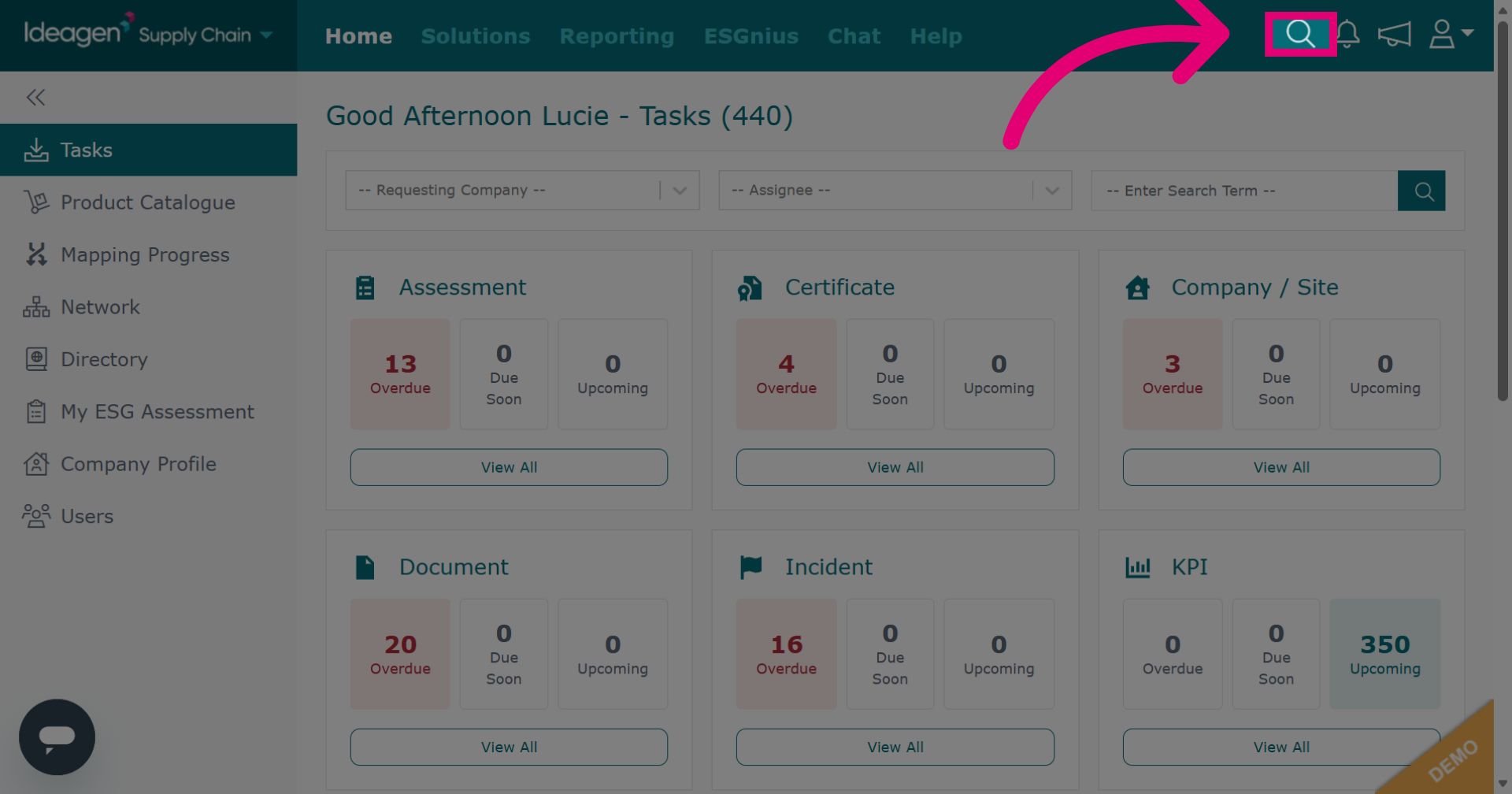
Click the search area to access the search functionality.
-
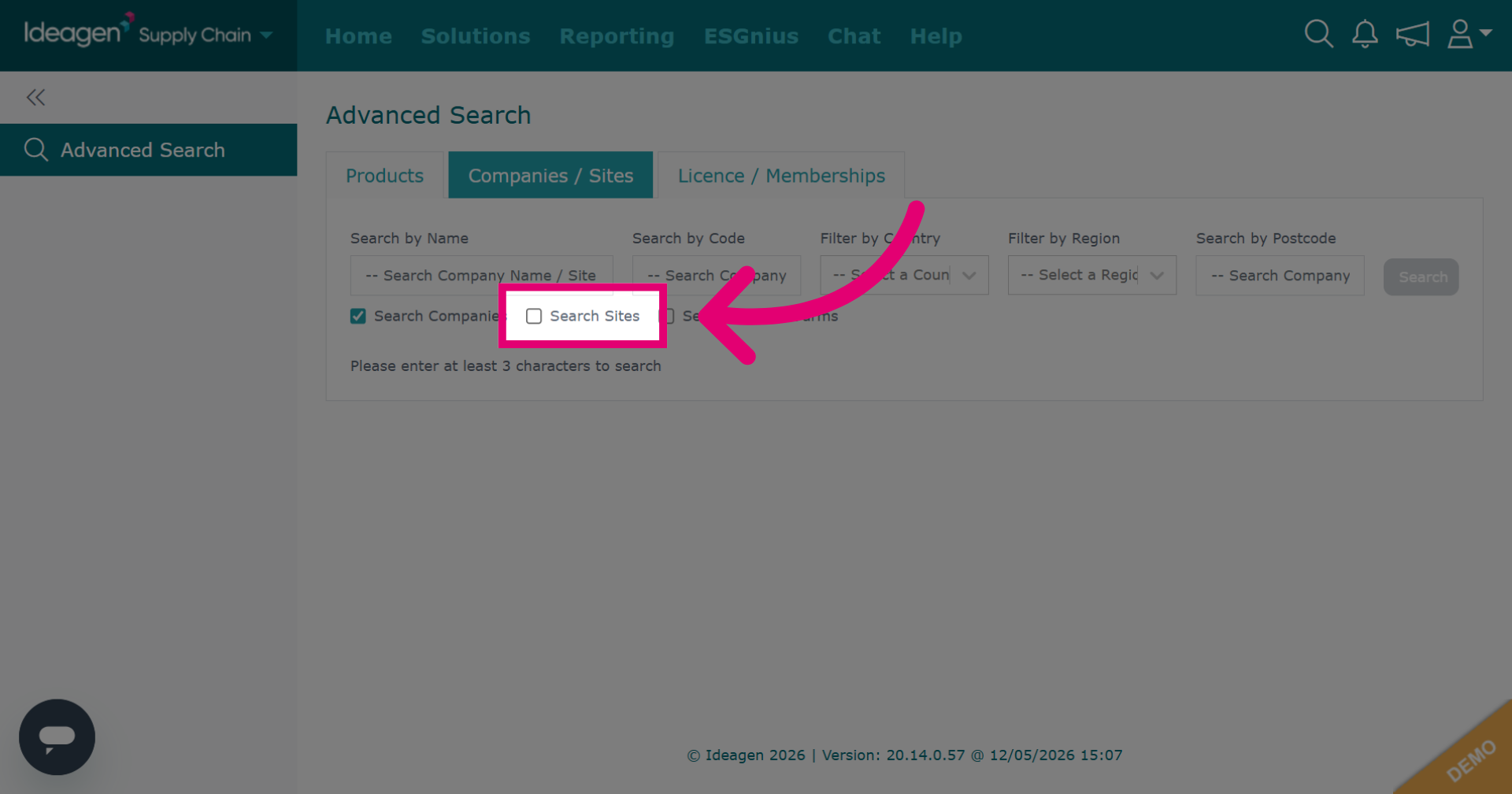
Ensure the site option is ticked if searching for sites.
-
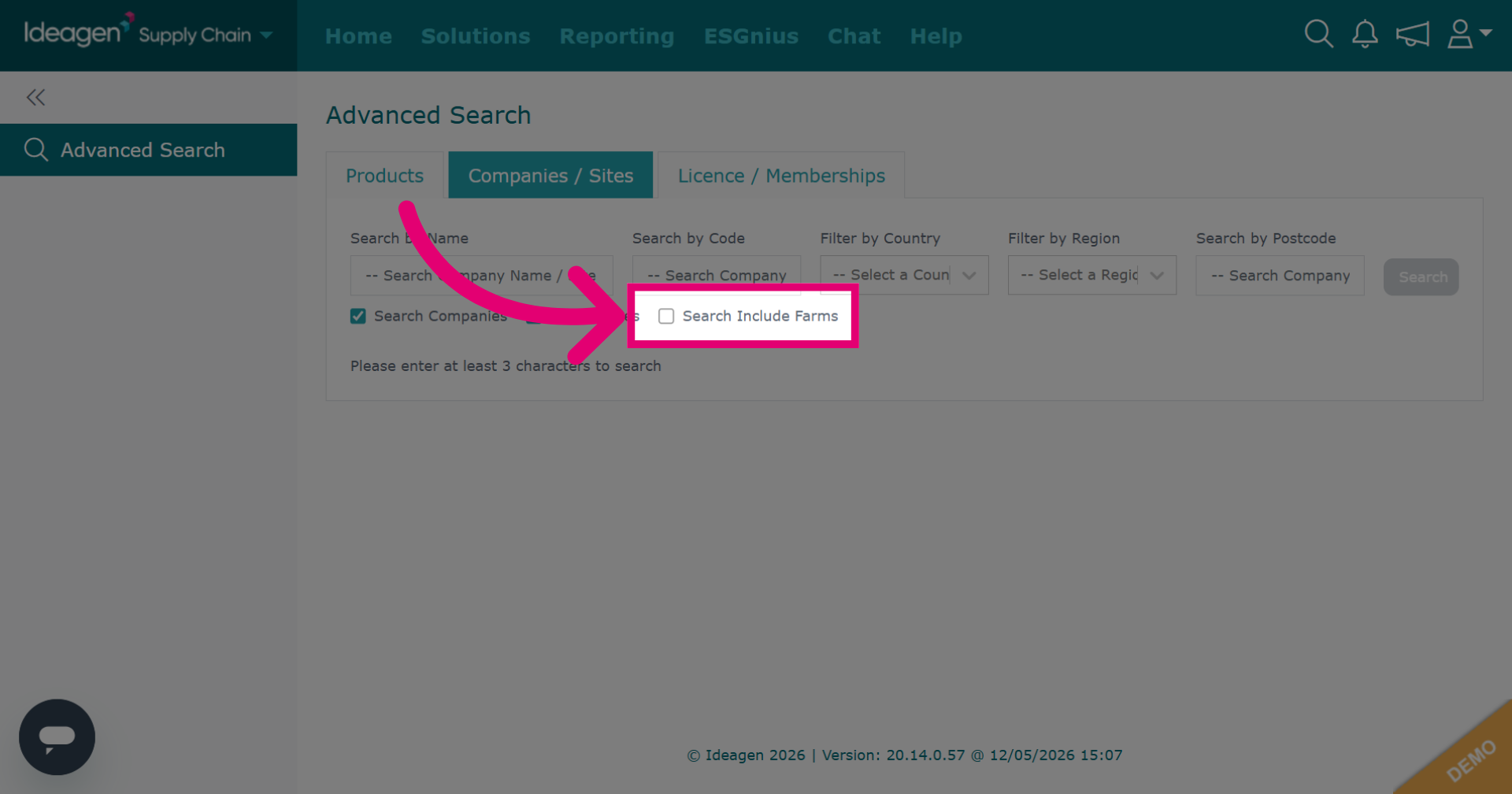
Click Include Farms to include farm locations in your site search results if needed.
-
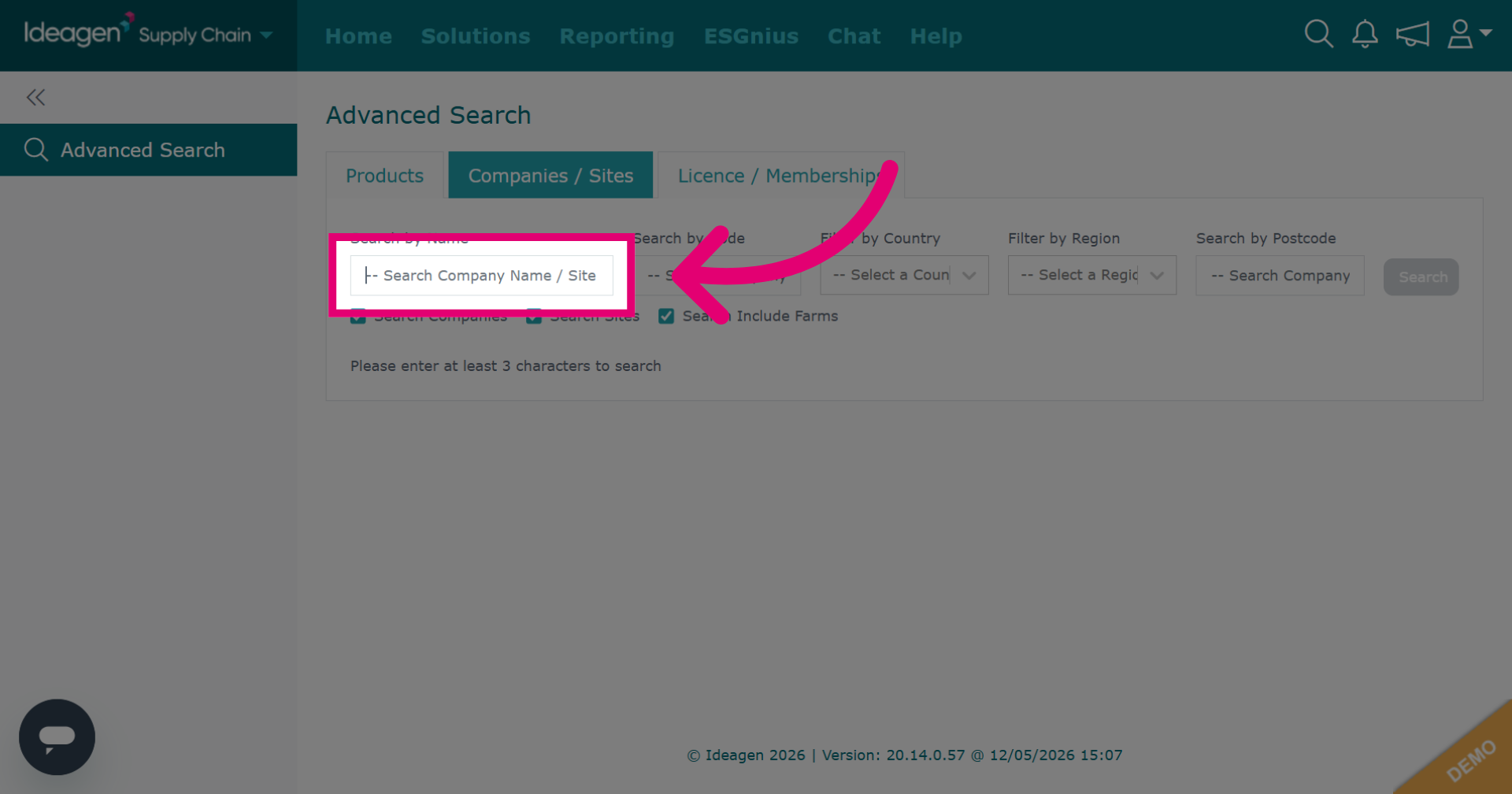
Click -- Search Company Name / Site Name -- to specify the company or site you want to find.
-
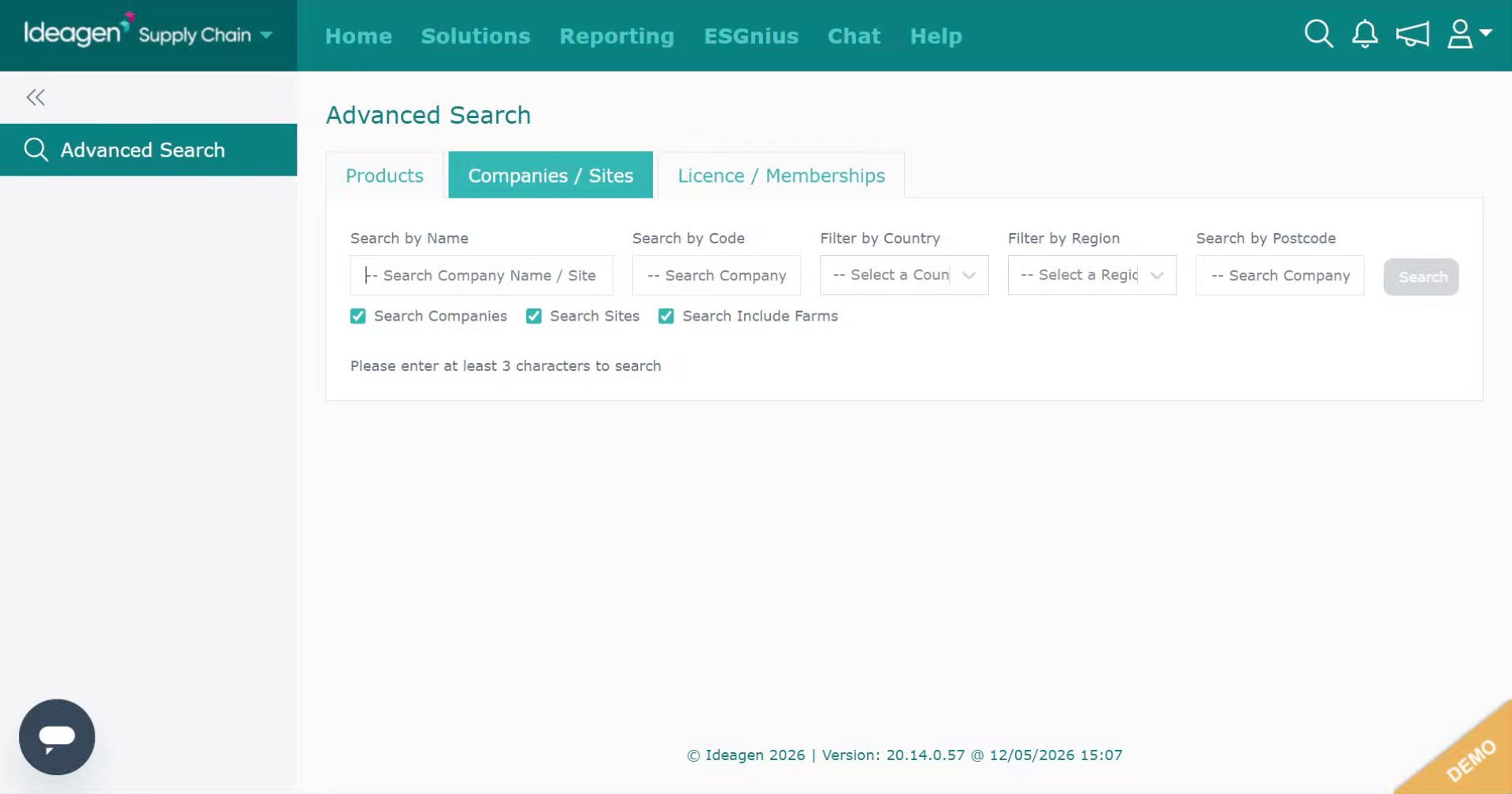
Enter your search term to find your supplier.
-
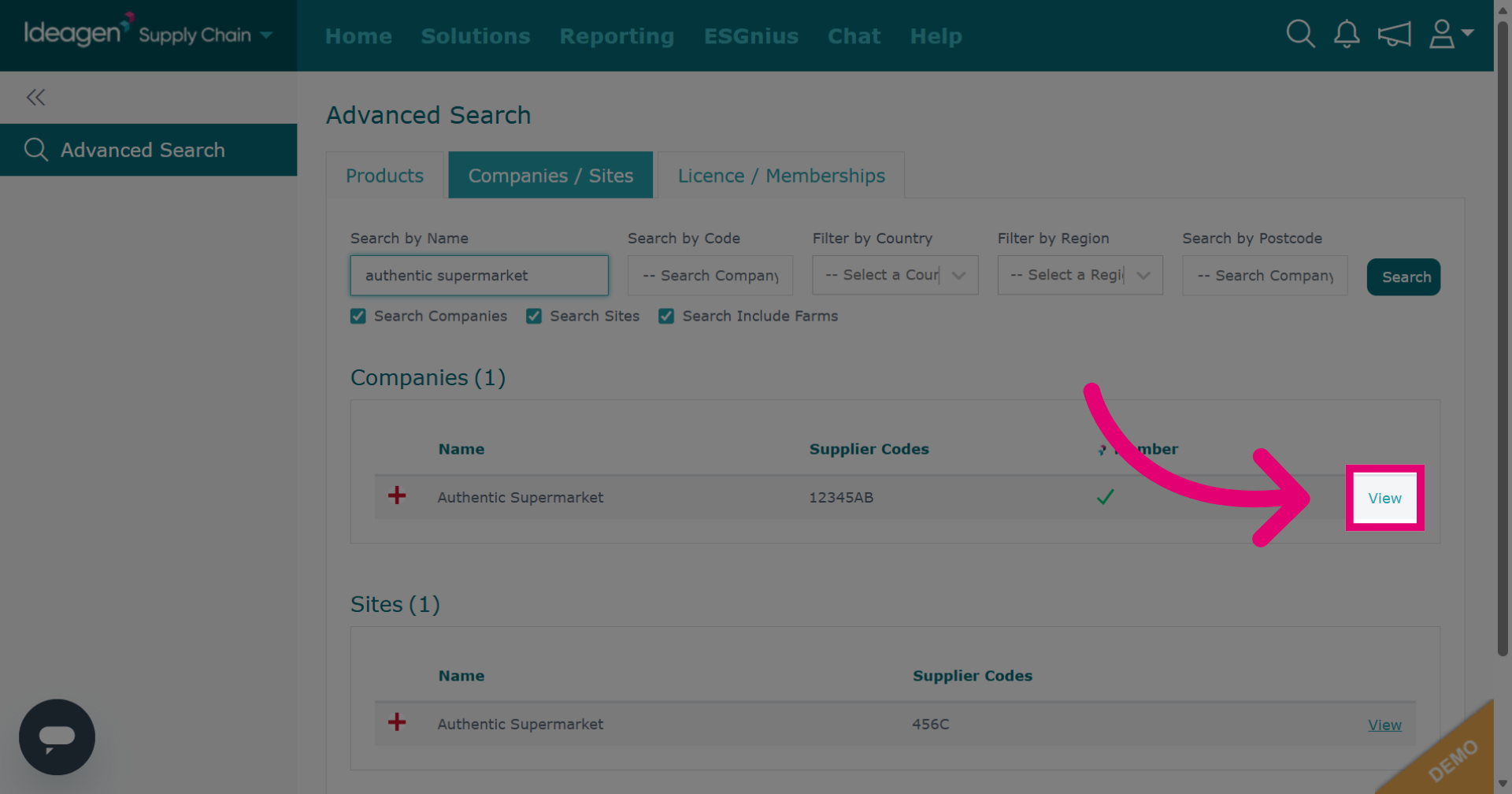
Click View beside the relevant supplier profile to open the details.
-
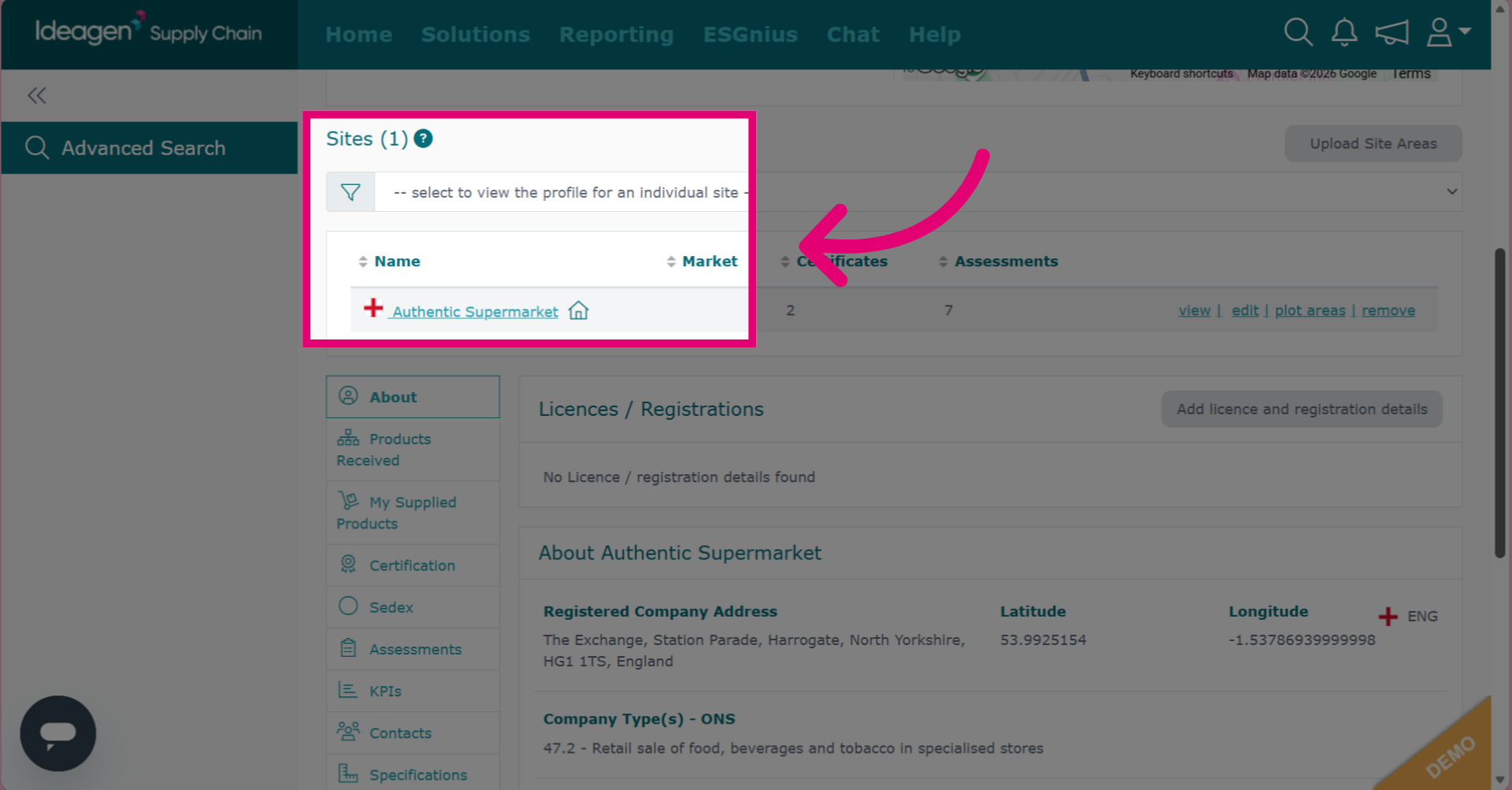
Choose the site you wish to add a certificate to.
-
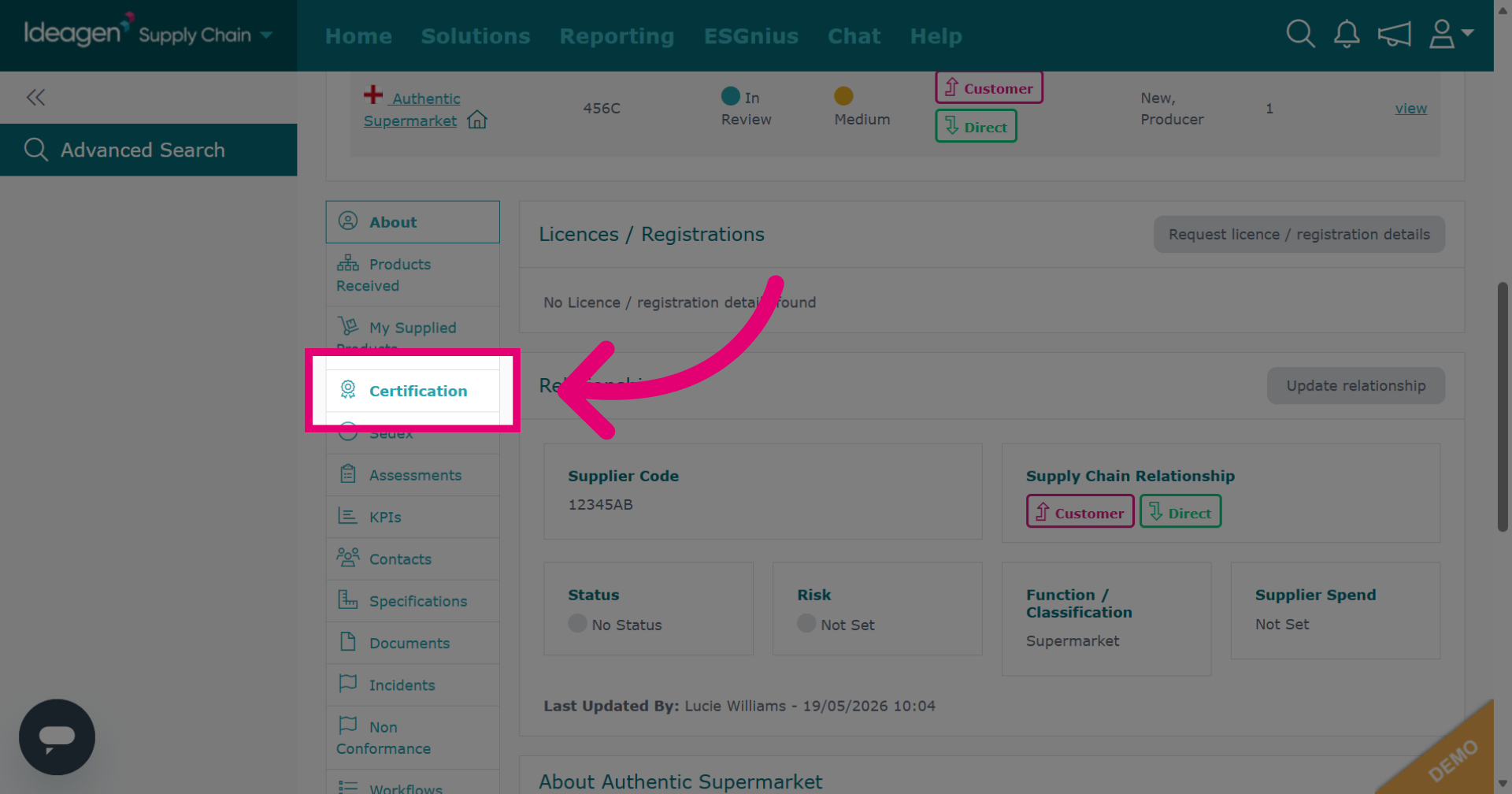
Click Certification to open the certification information for the selected site.
-
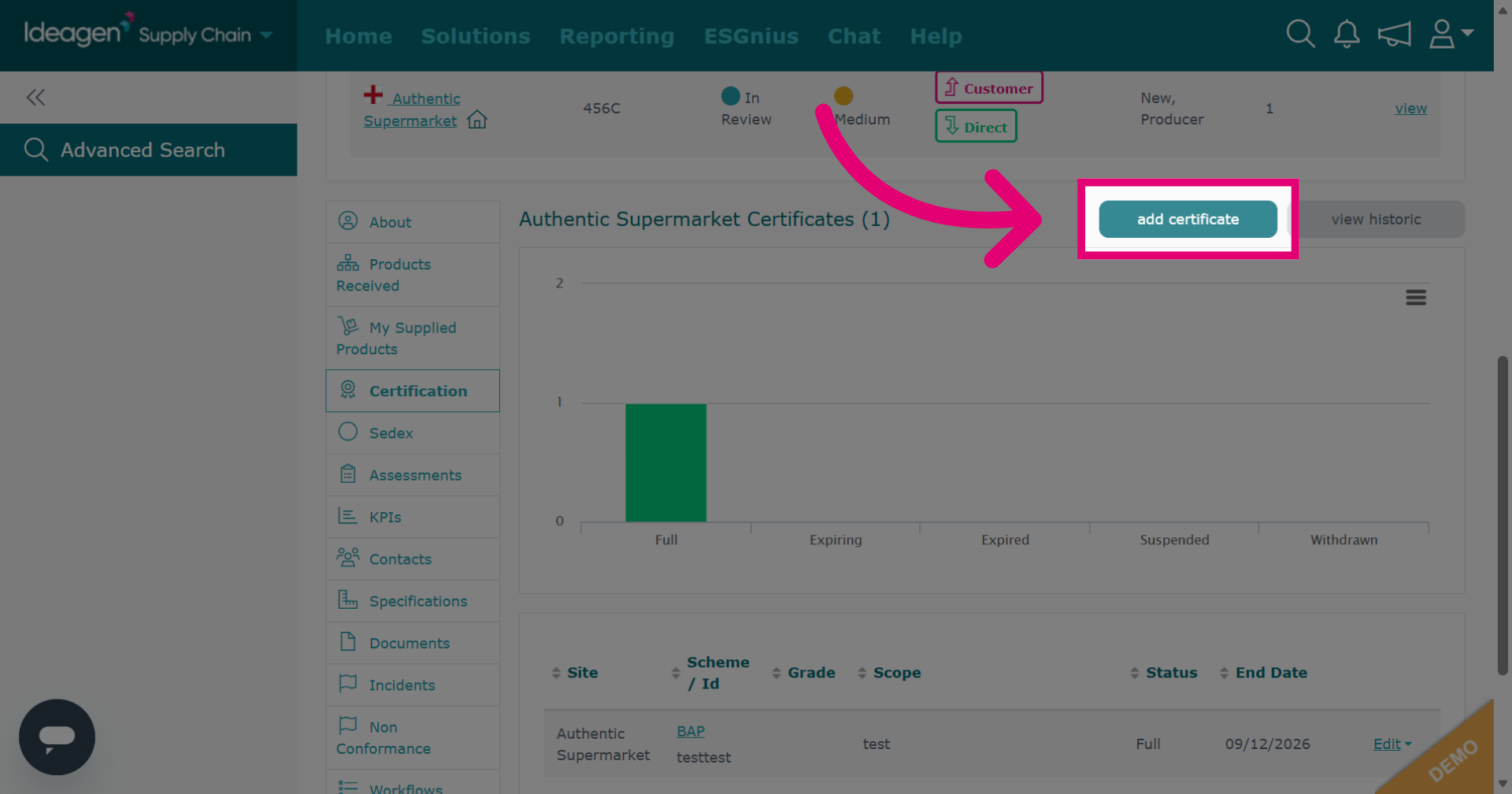
Click add certificate to begin adding a new certification record for the site.
-
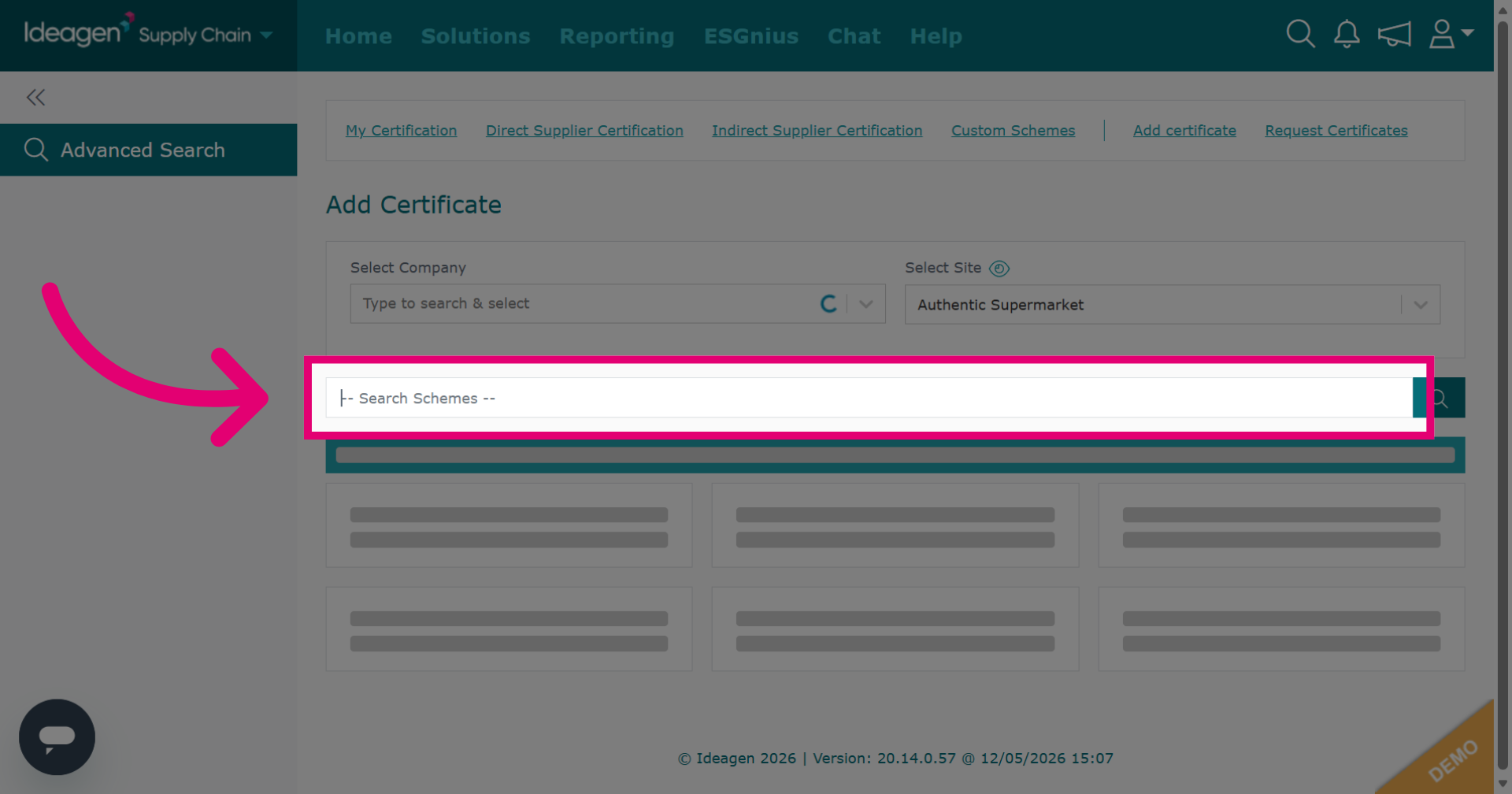
Click -- Search Schemes -- to select the certification scheme to apply.
-
Enter a search term to filter and find the needed certification scheme.
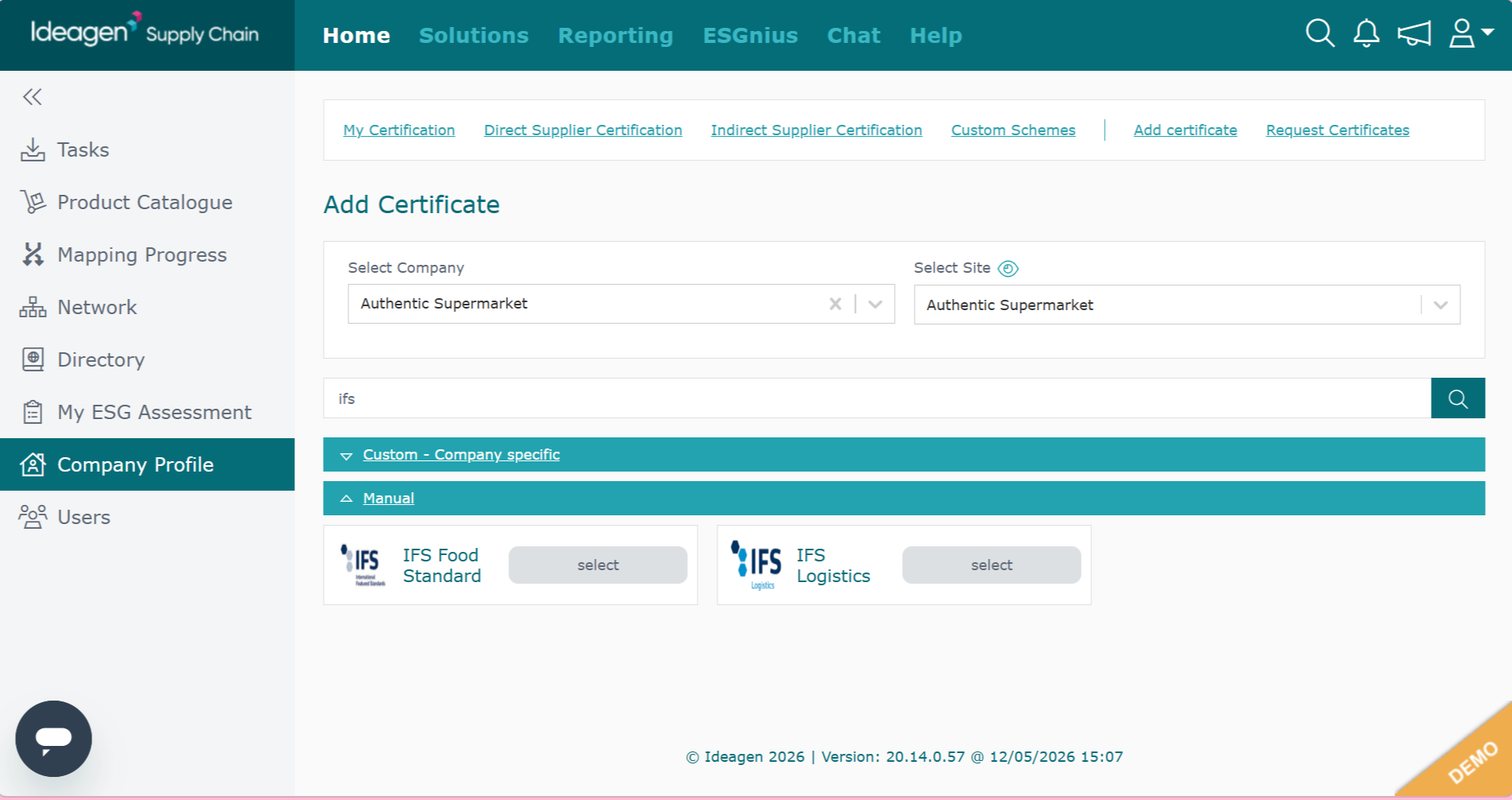
-
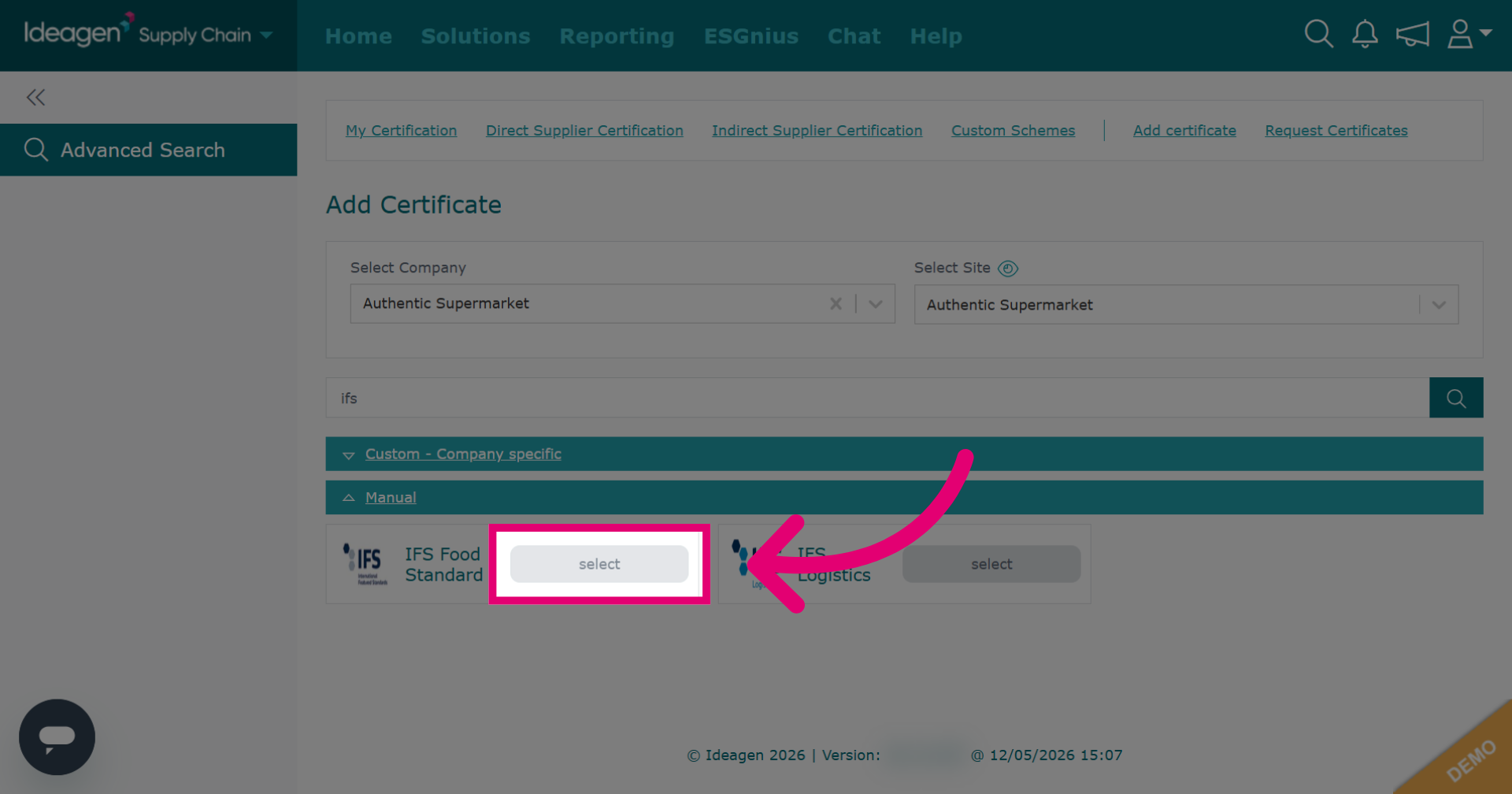
Click select to confirm the chosen certification scheme.
-
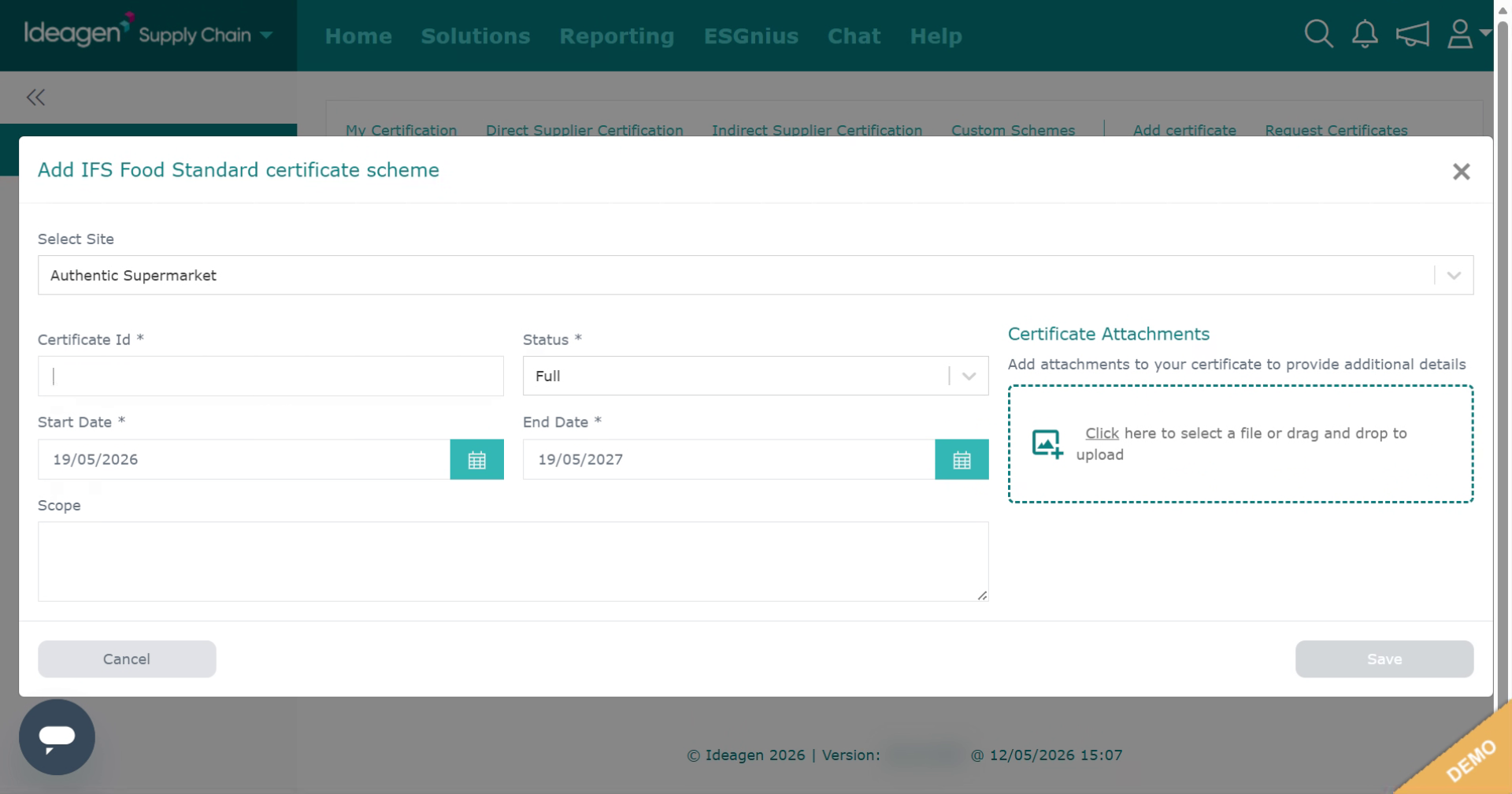
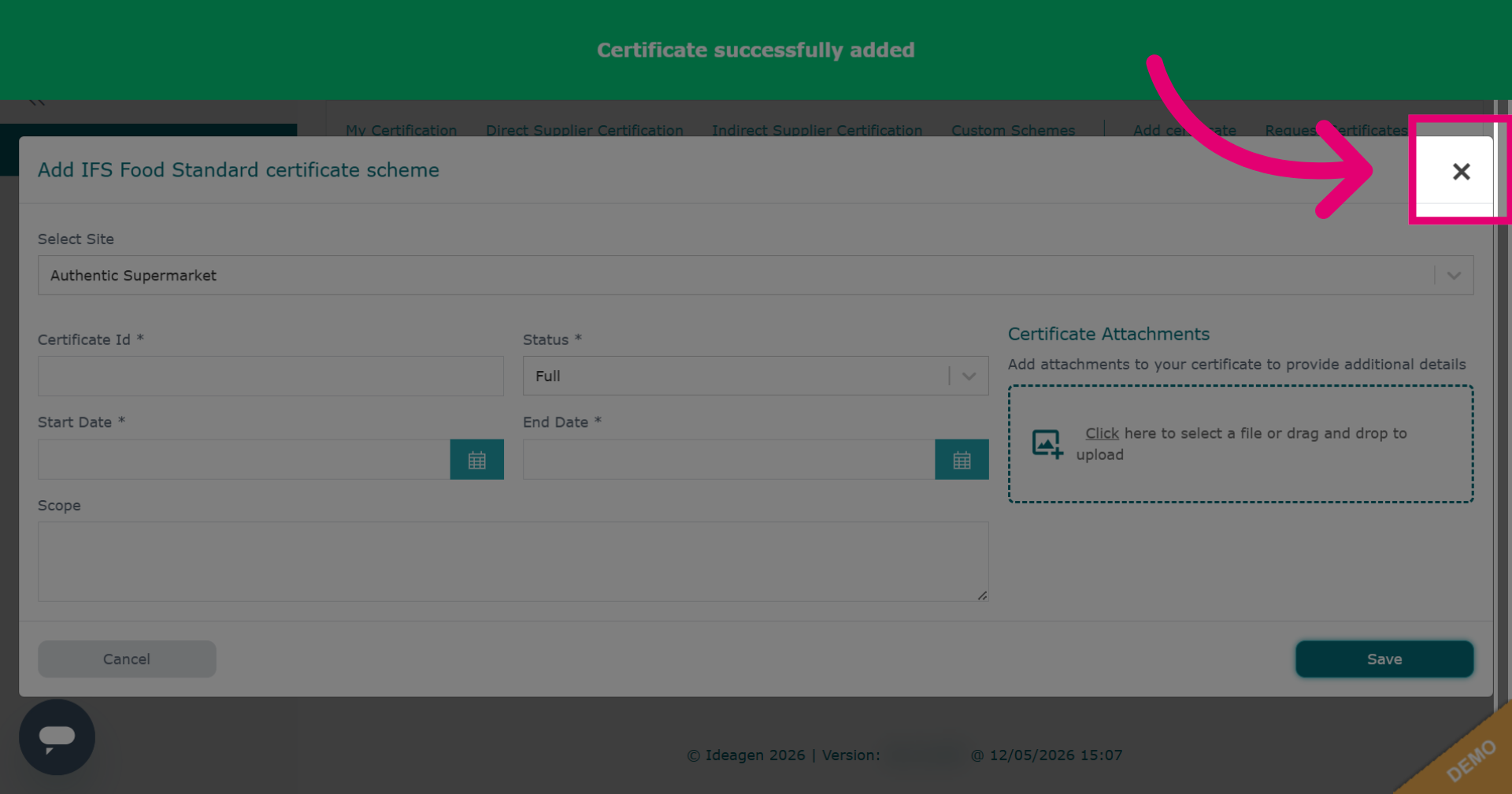
Enter the certification details. Boxes with an asterisk are mandatory. It is strongly recommended that you attach the certificate PDF. To do so click the box beneath the certificate attachments heading to upload directly from your device.
-
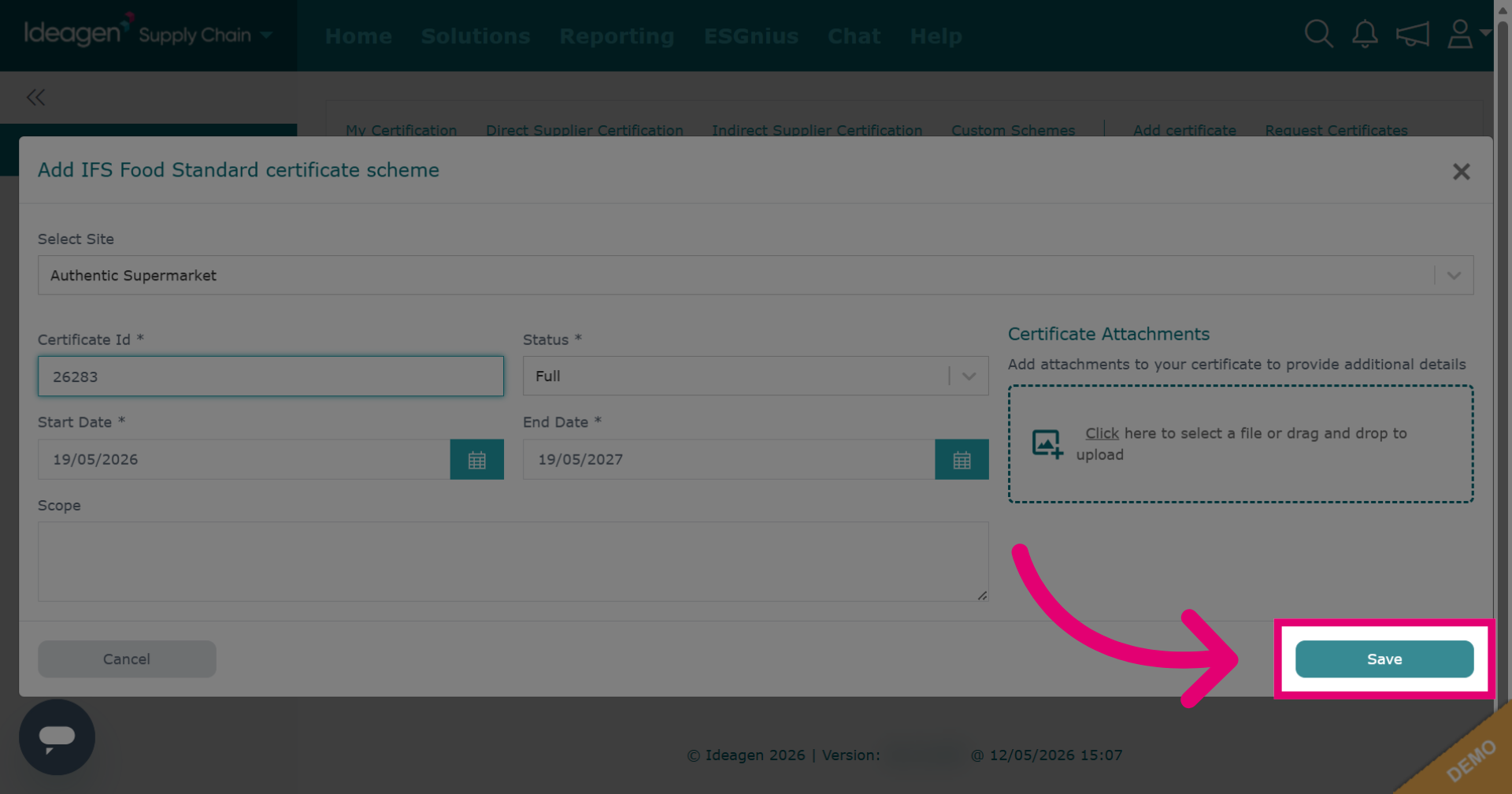
Click Save to store the new certificate information in the system.
-
Click X Close to exit the certificate addition window and return to the main view.
-
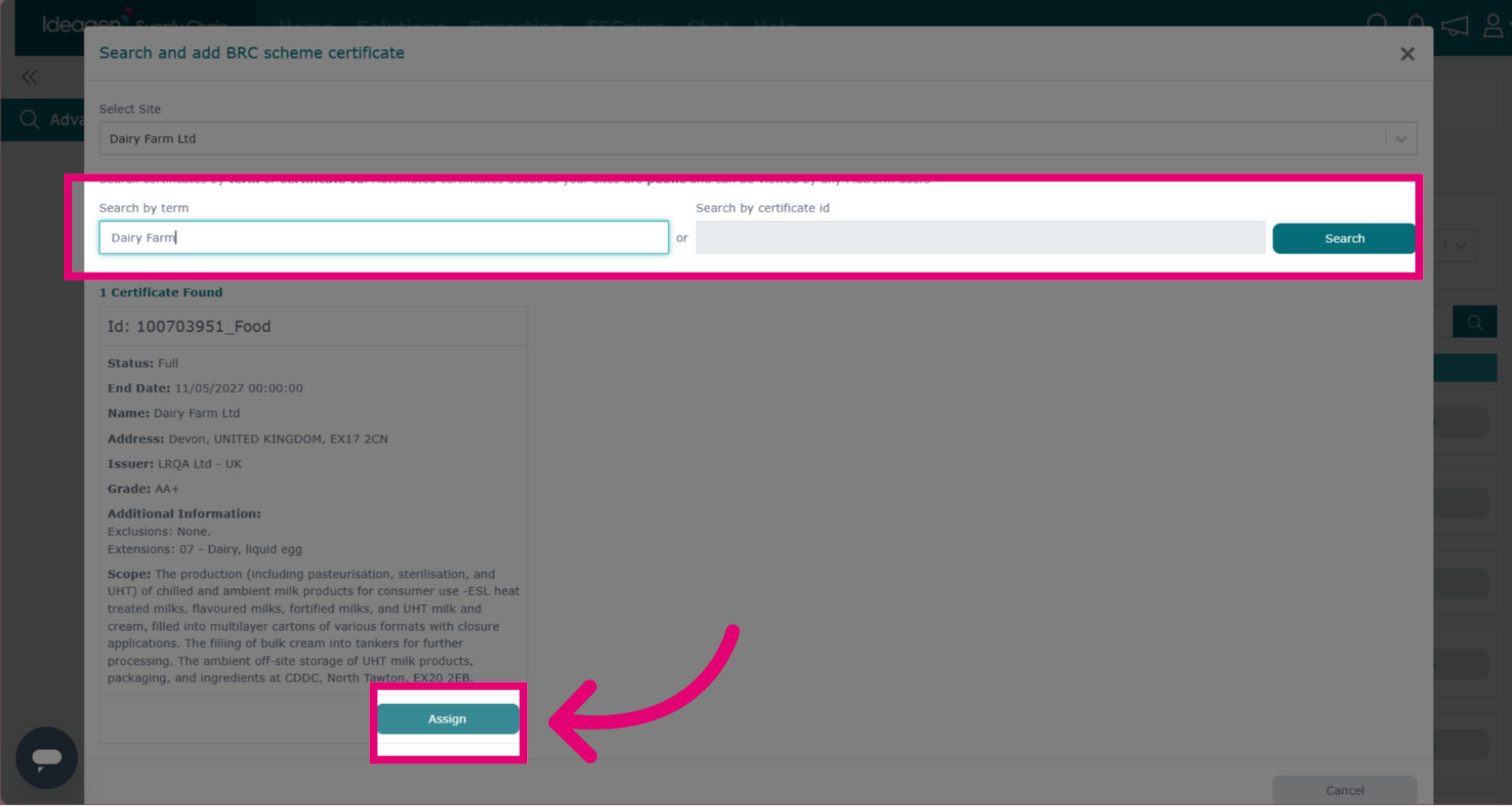
To add an automated API certificate, the process is the same however, you will be presented with search fields for the API to locate the certificate. You can search via a search term, i.e. the supplier/company name, or the certificate ID. You only need to search using one of the search box options. Ensure you click the search button after inputting data. If results matching the data set are found it will show in the area below, and you can add the certificate by clicking assign.
-
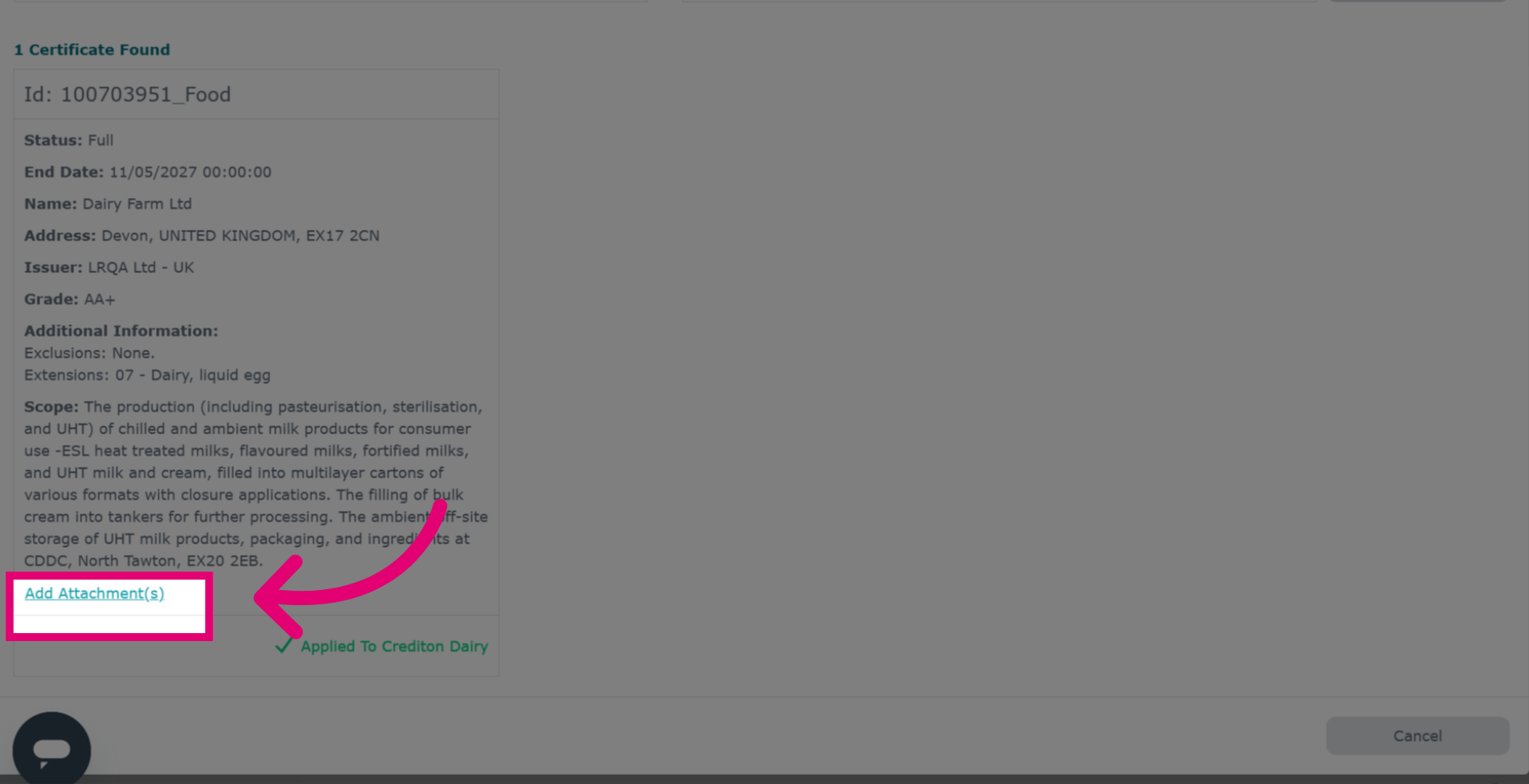
After you have clicked assign, you will be able to add an attachment to an API certificate if needed. To do so click add attachment.
-
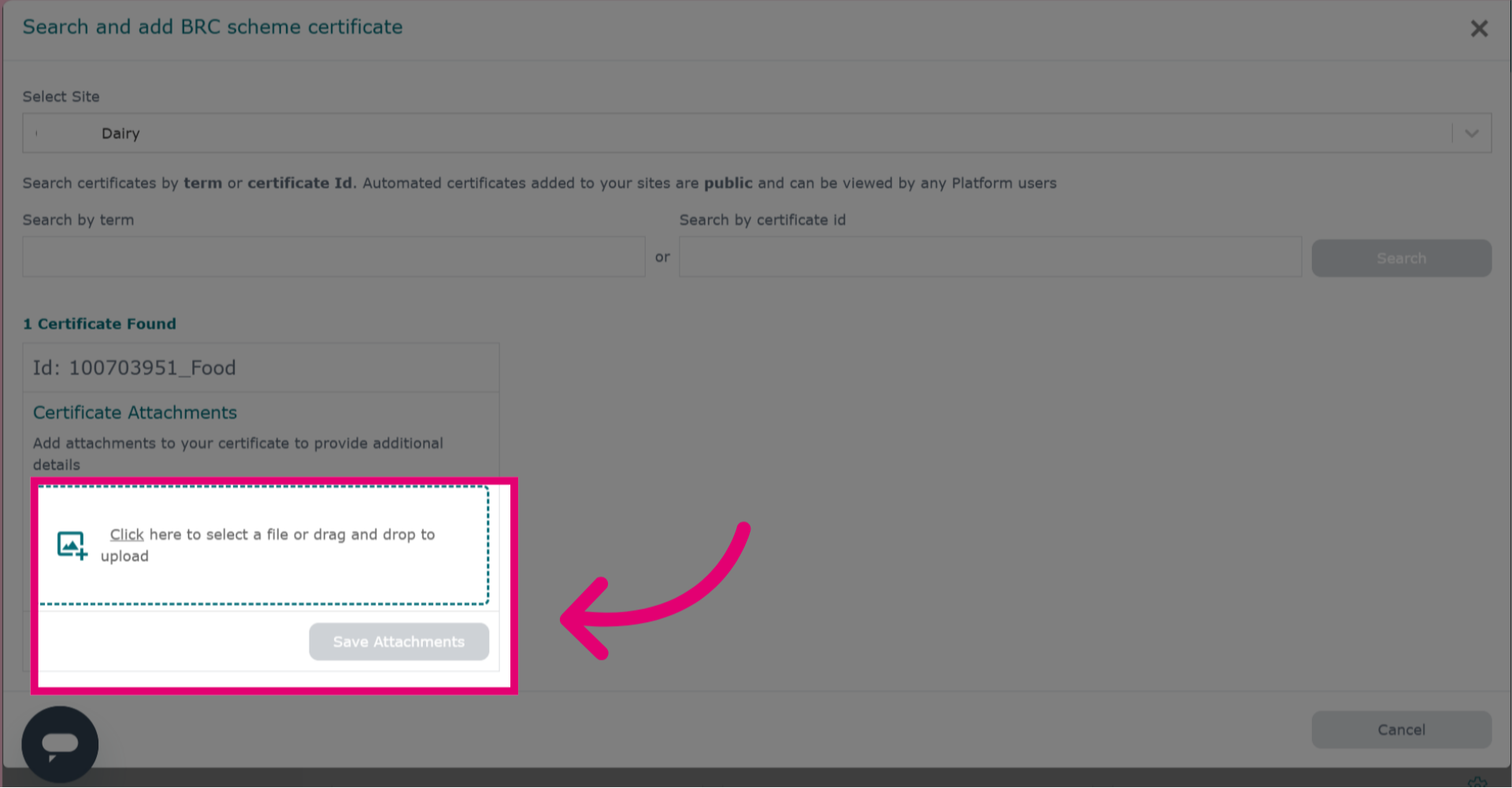
Add a description for the attachment.
-
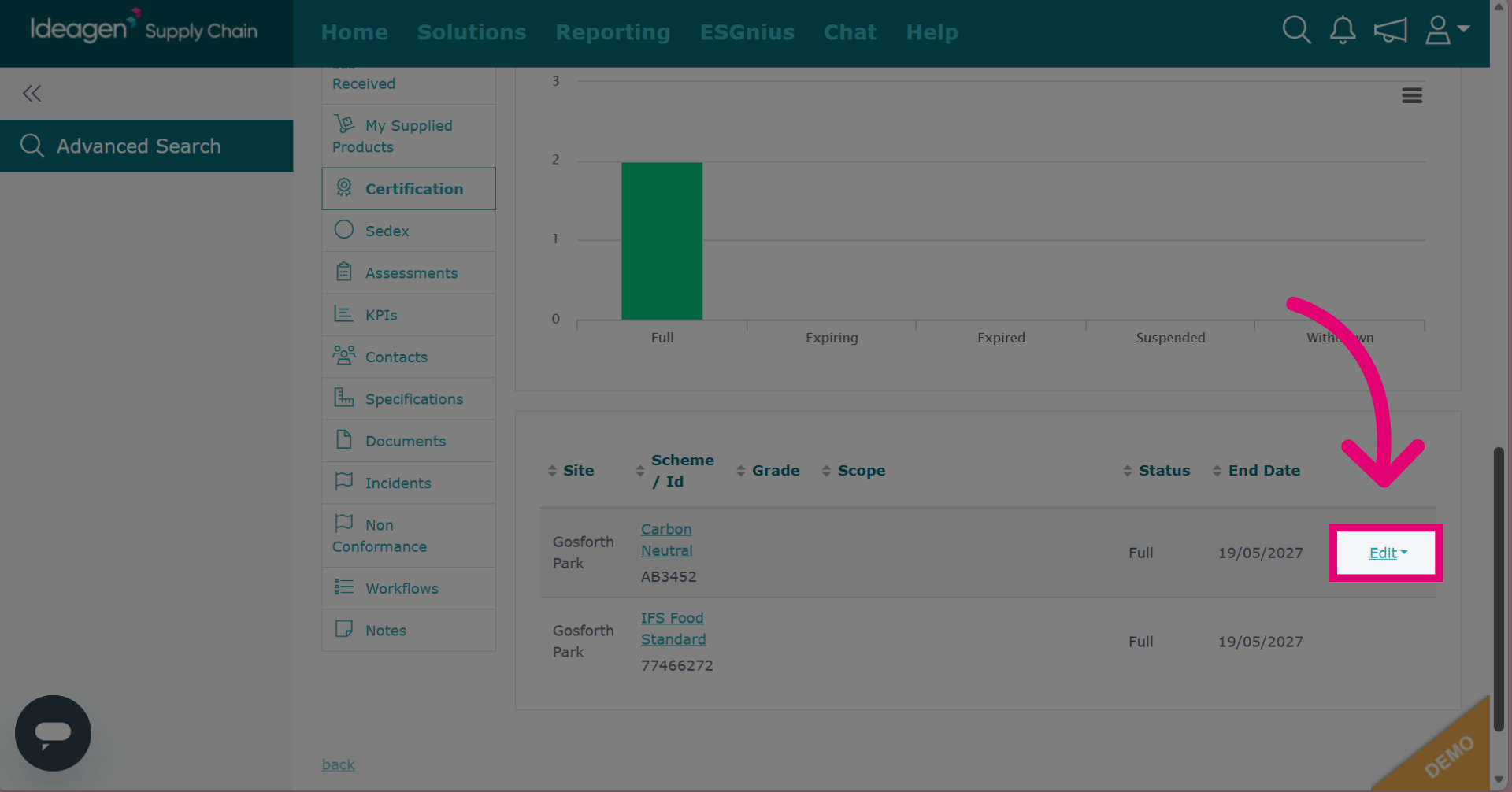
You will only be able to edit and delete supplier certification that your company has added. You will not be able to amend anything that has been added directly by the supplier or by any other company.
-
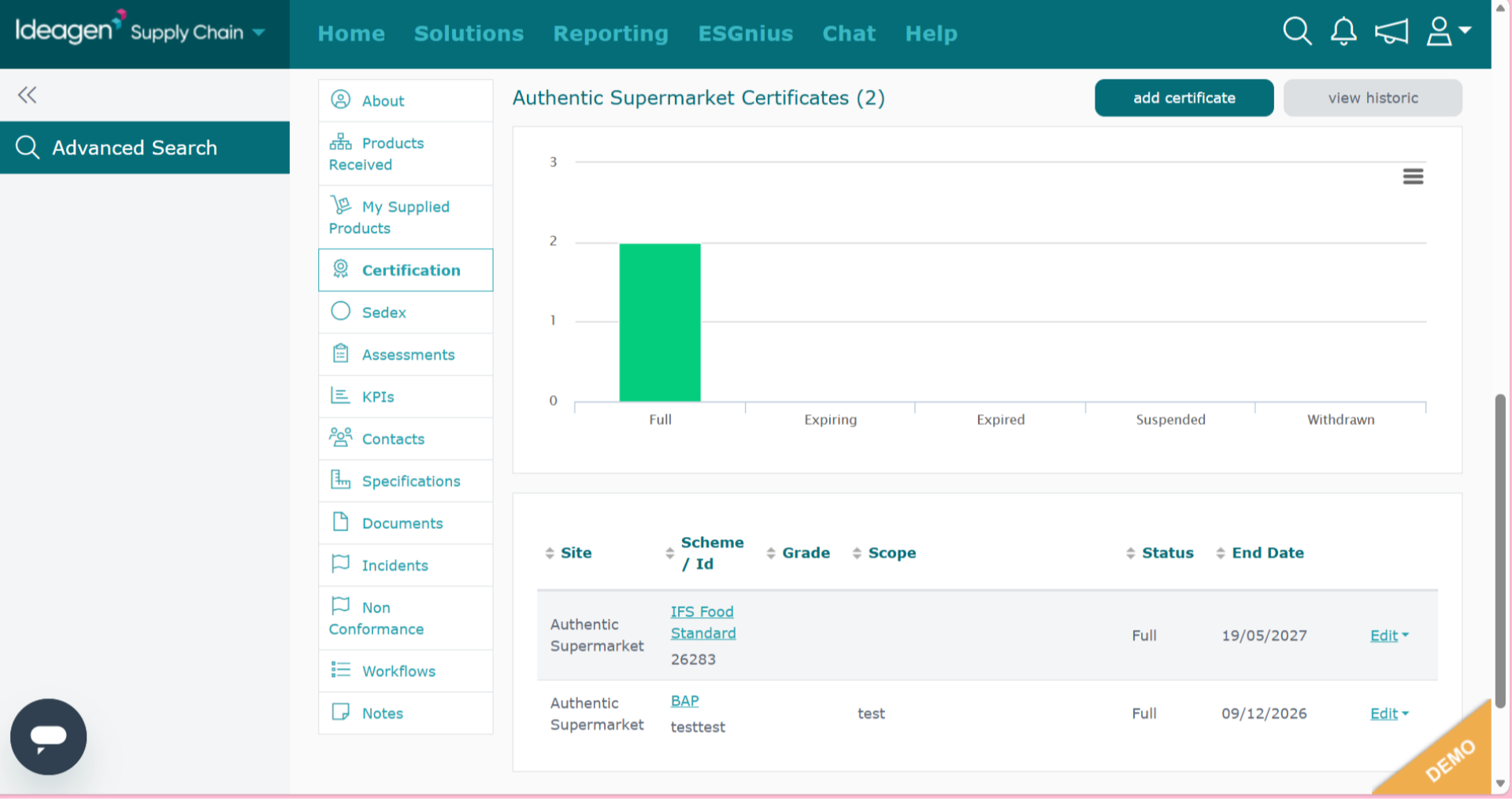
You can view supplier certification by clicking on their profile and then selecting Certification.
-
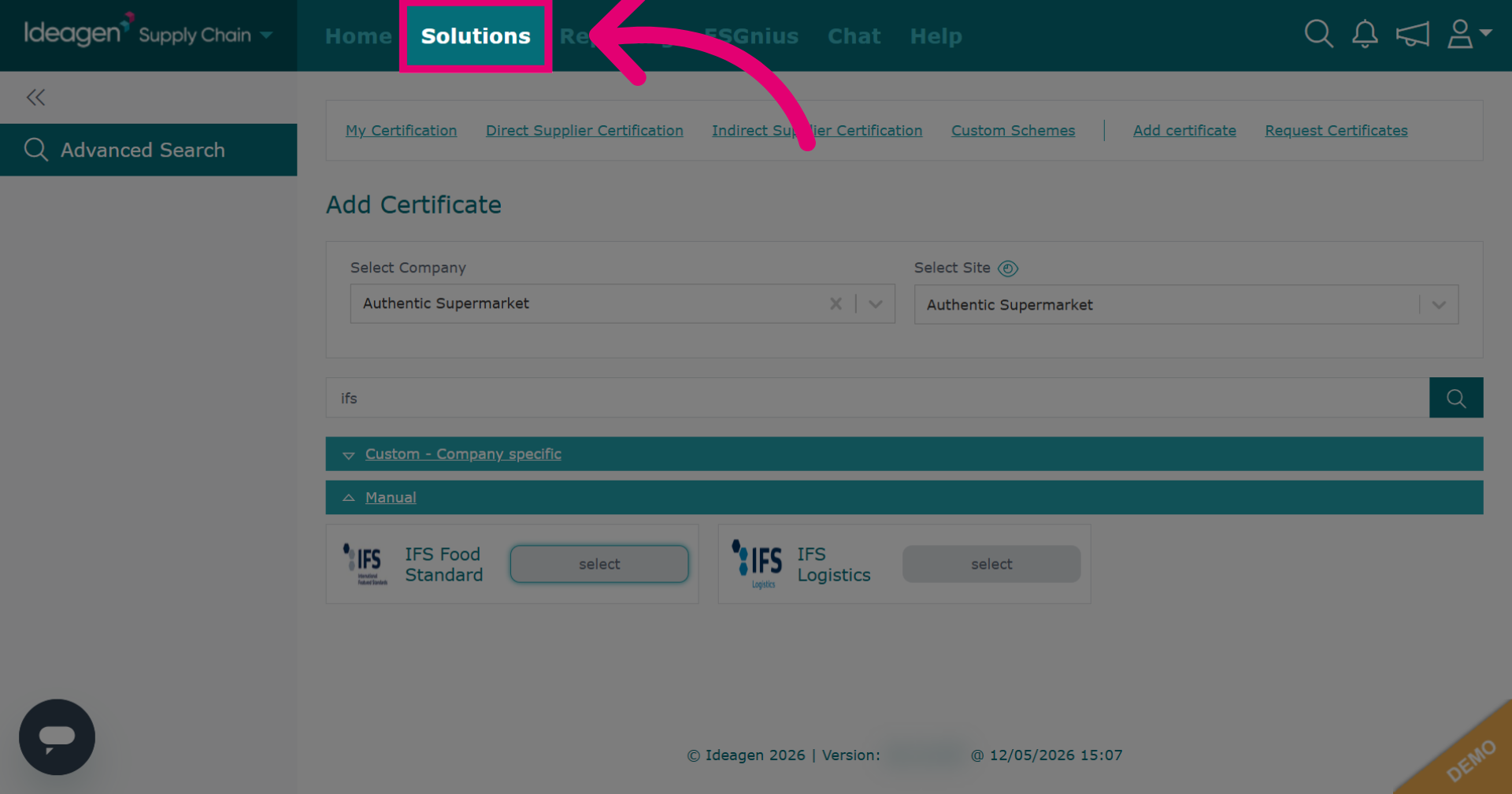
To view all your supplier's certification data in one place, click Solutions.
-
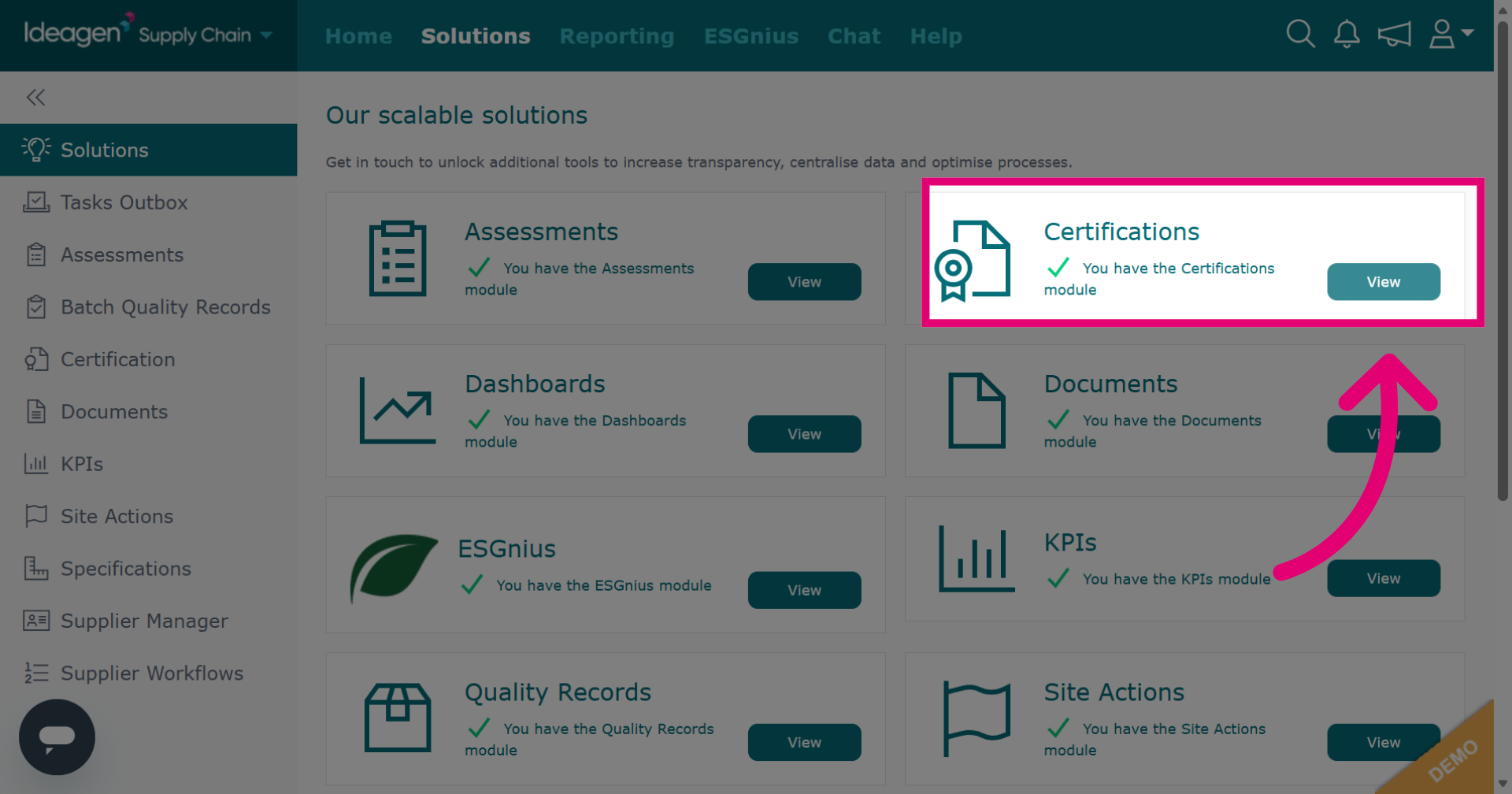
Click View beneath the Certifications heading.
-
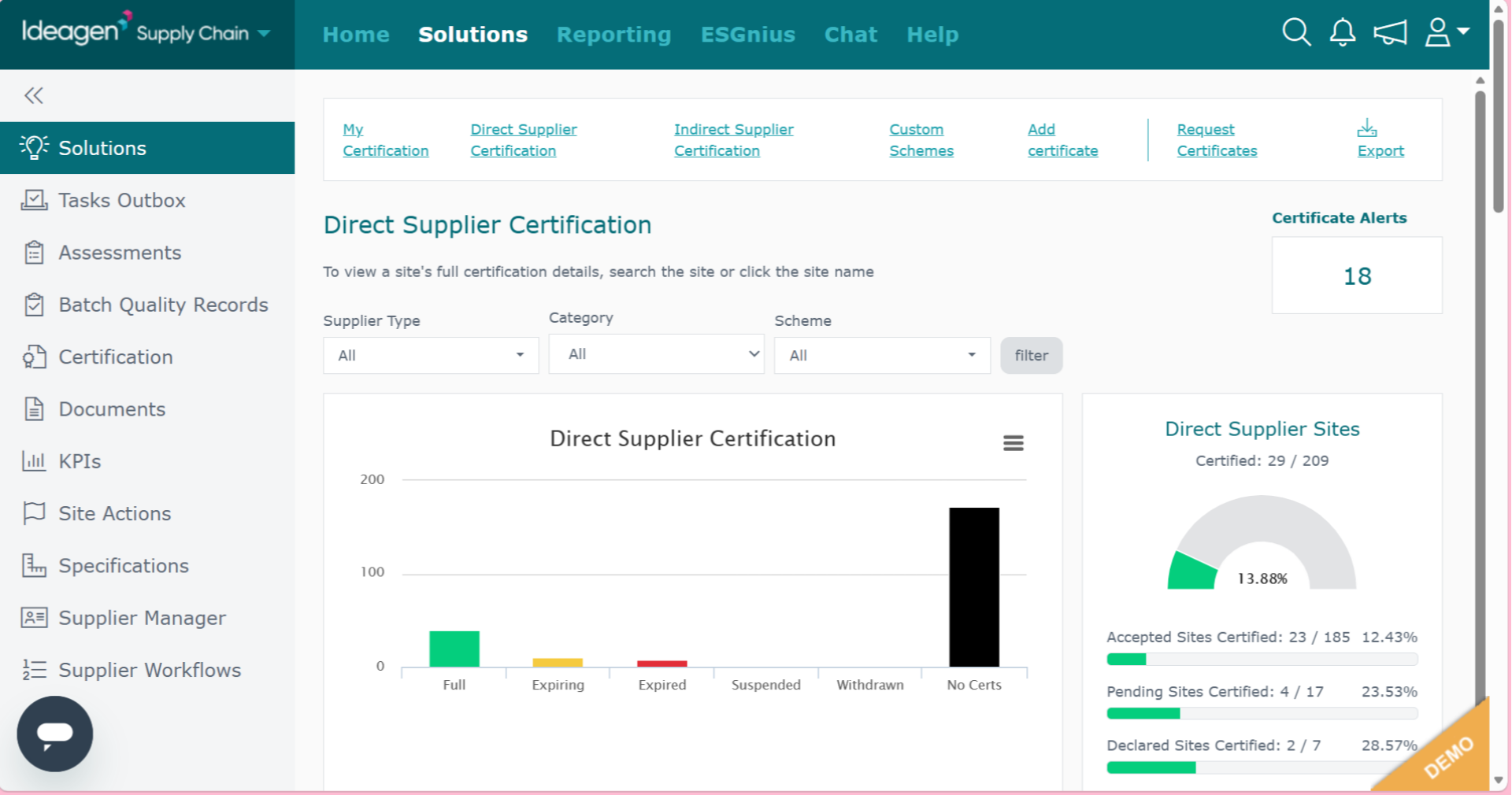
The default view is for your direct supplier certification. A graph is shown compiling all data, and if you scroll down the page it breaks it into which suppliers fall into which area of the graph.
-
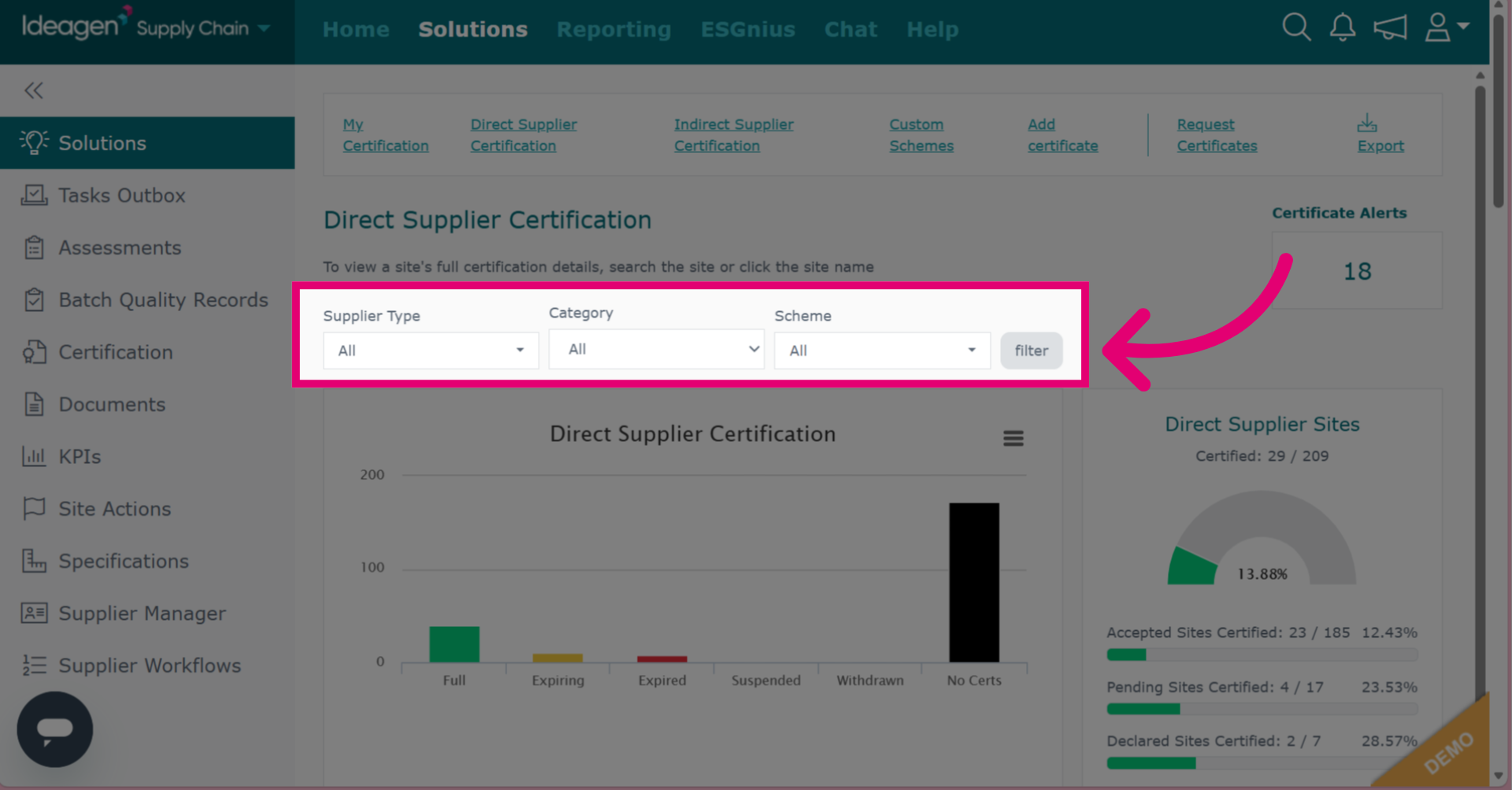
There are three available filters for Direct Supplier Certification: Supplier type, category and certificate scheme.
-
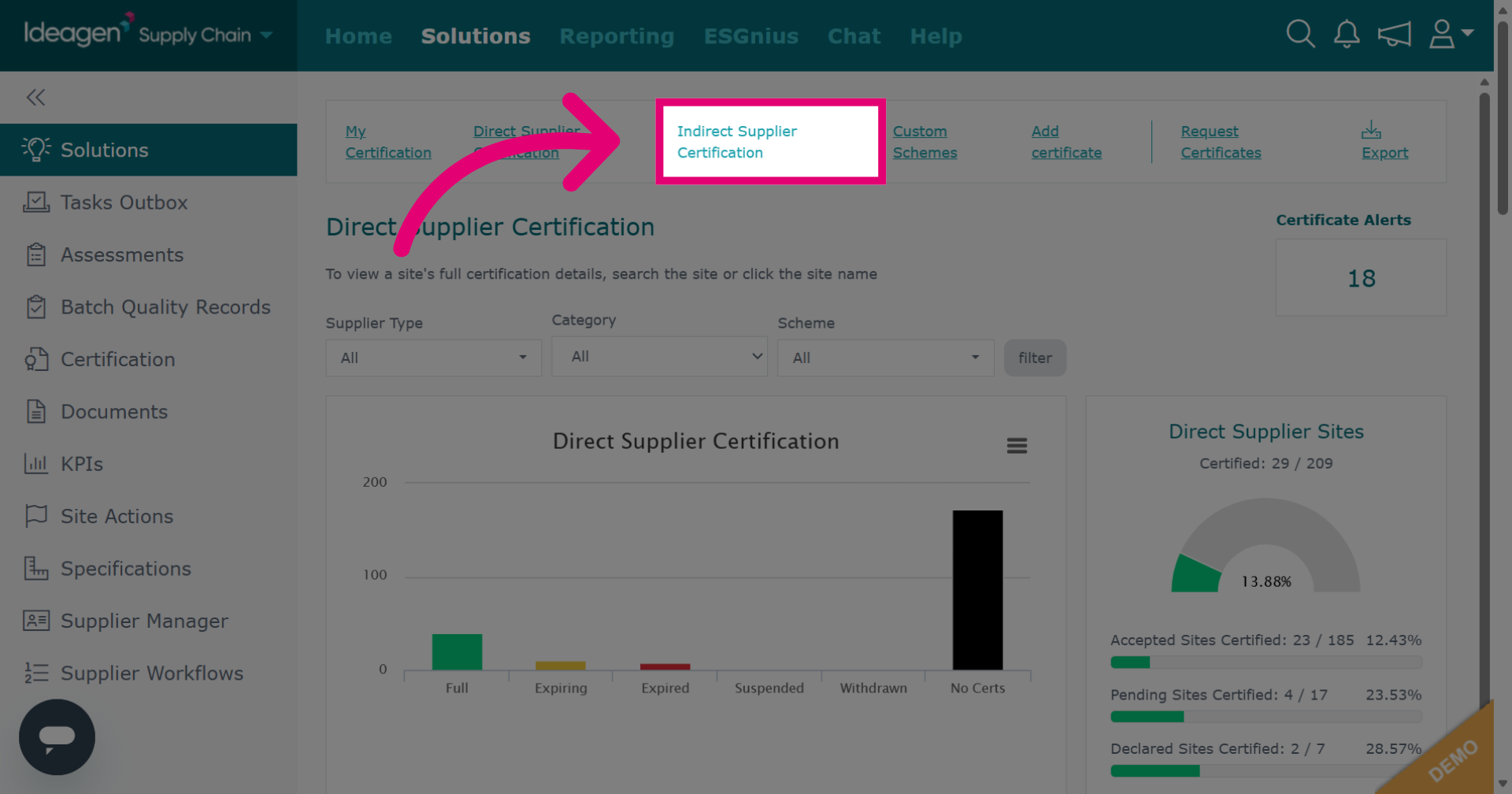
To view indirect supplier certification, select the option from the navigation bar at the top of the page.
-
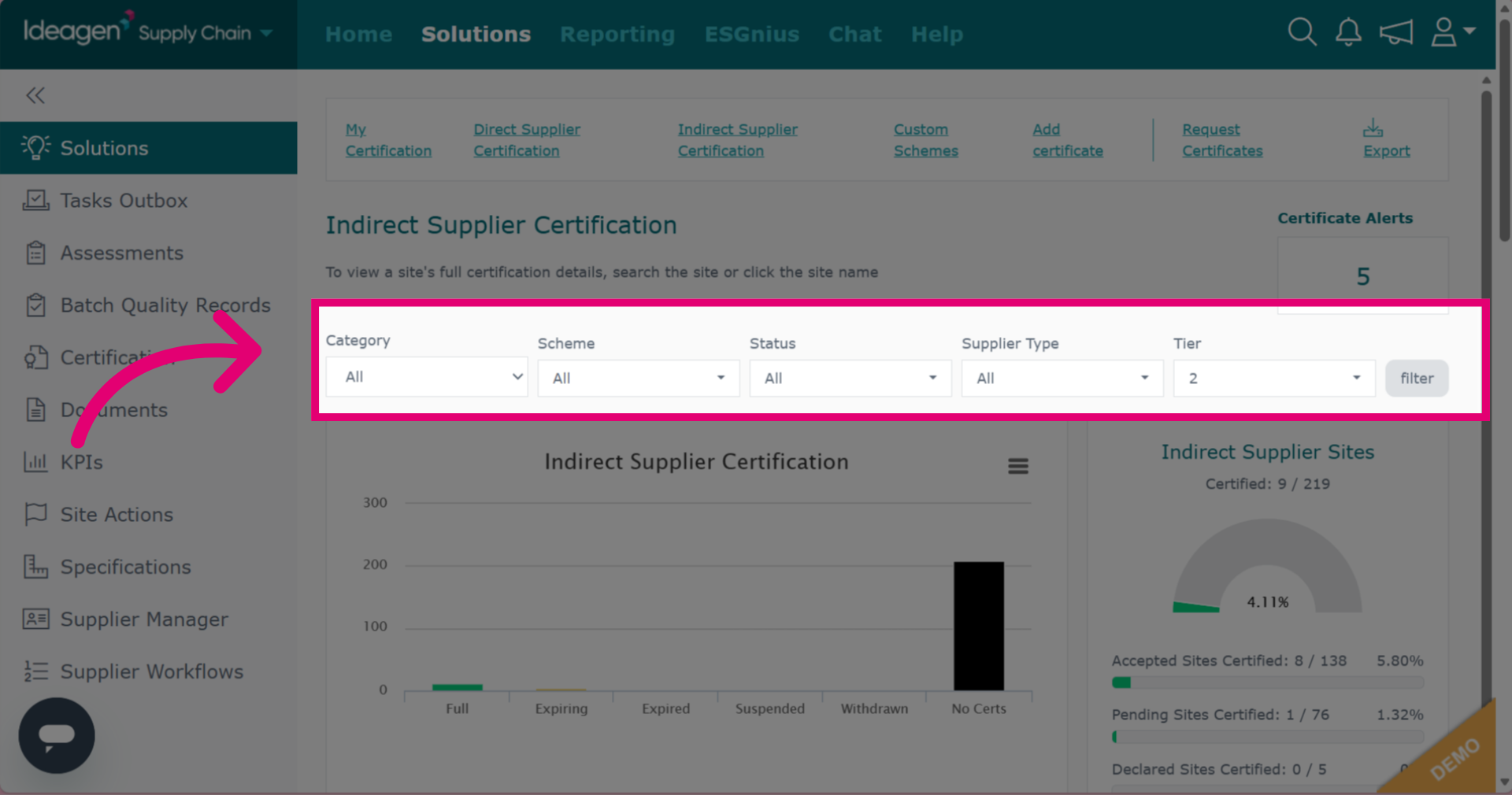
There are five available filters for indirect supplier certification: Category, certificate scheme, status, supplier type and tier.
-
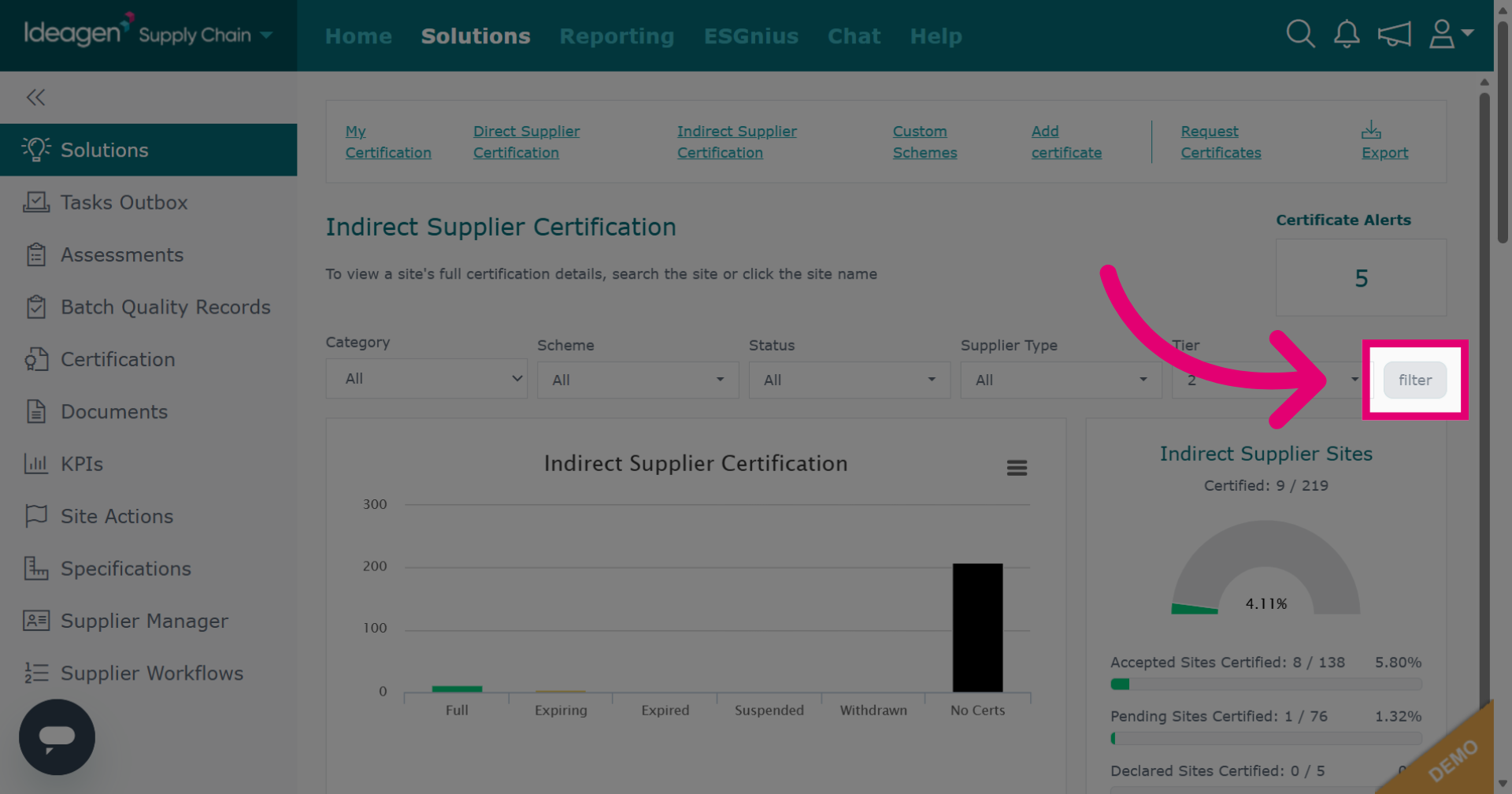
Click filter to apply filter options for certification records.
-
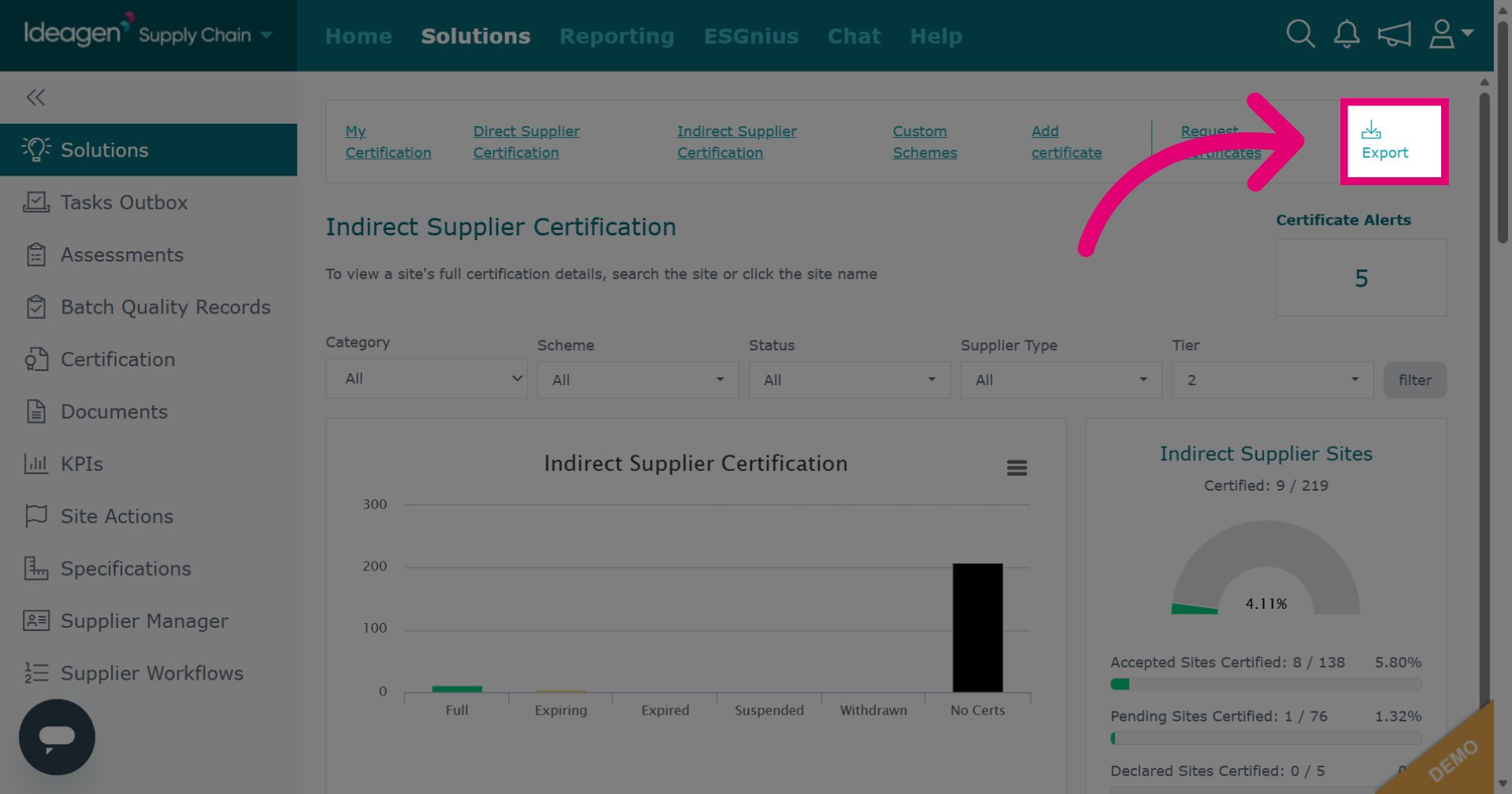
Click Export to download certification data for external review or reporting.
-
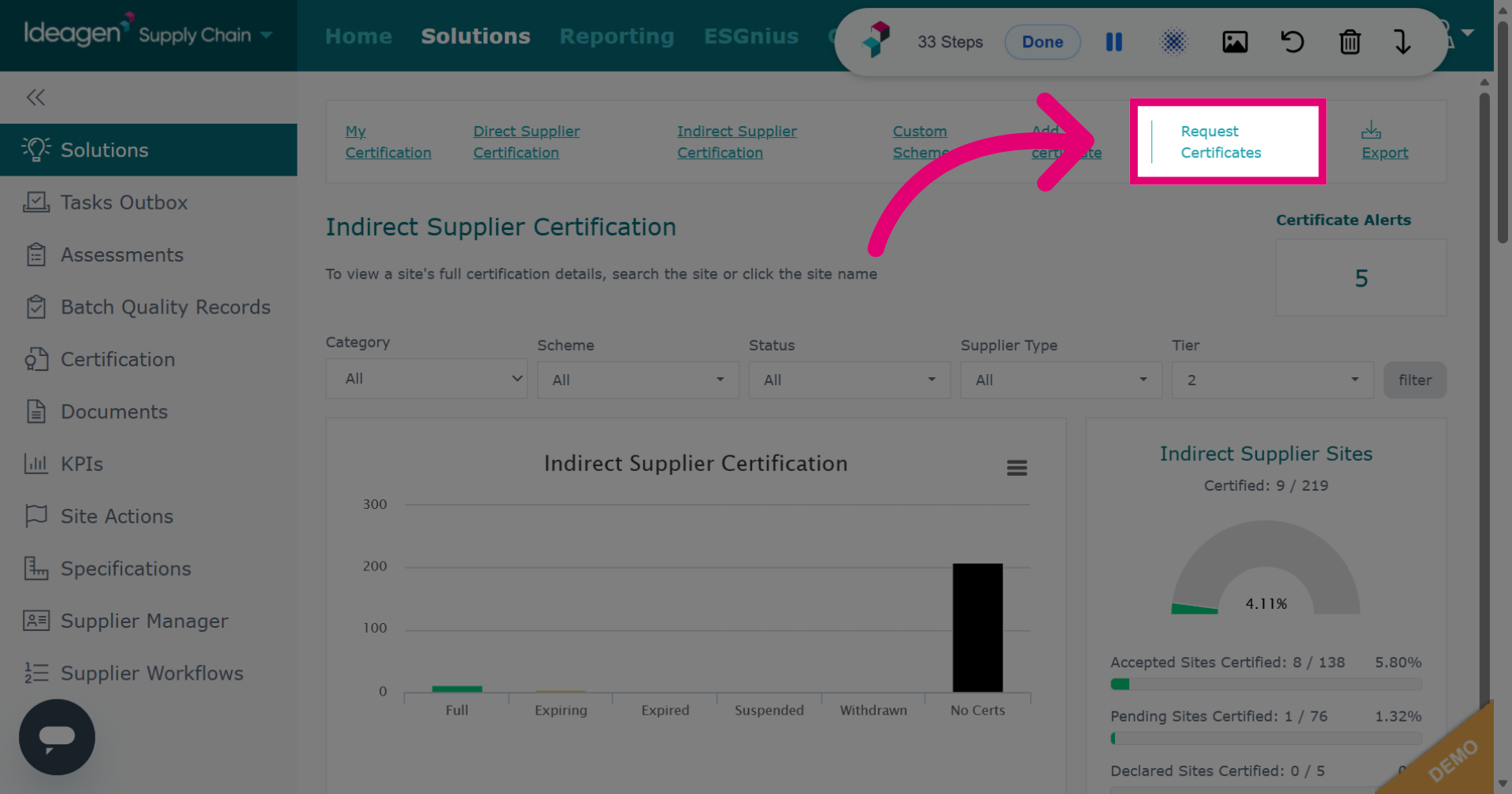
Click Request Certificates to initiate requests for updated certification from suppliers.
-
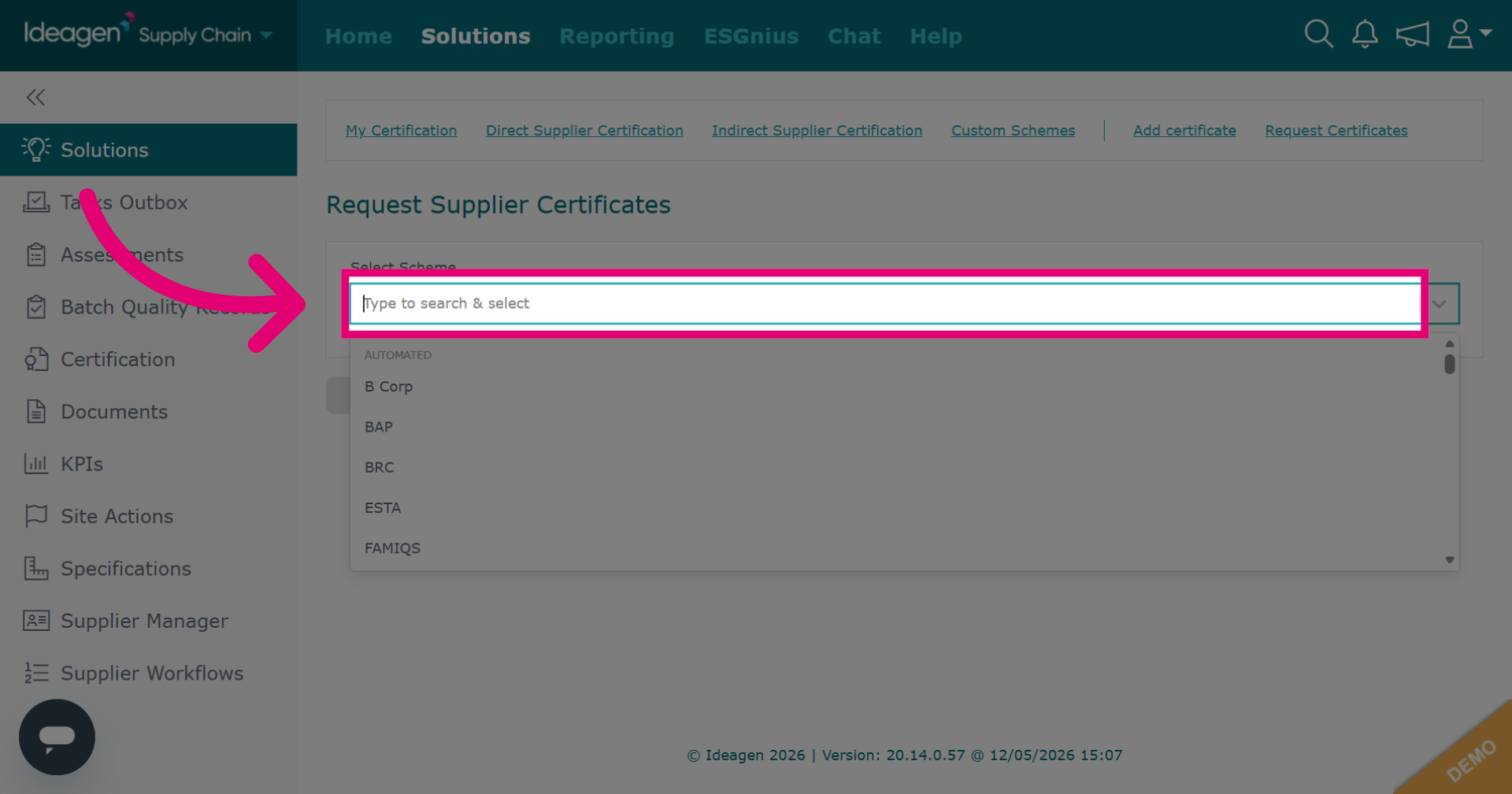
Select which scheme you wish to include within your request.
-
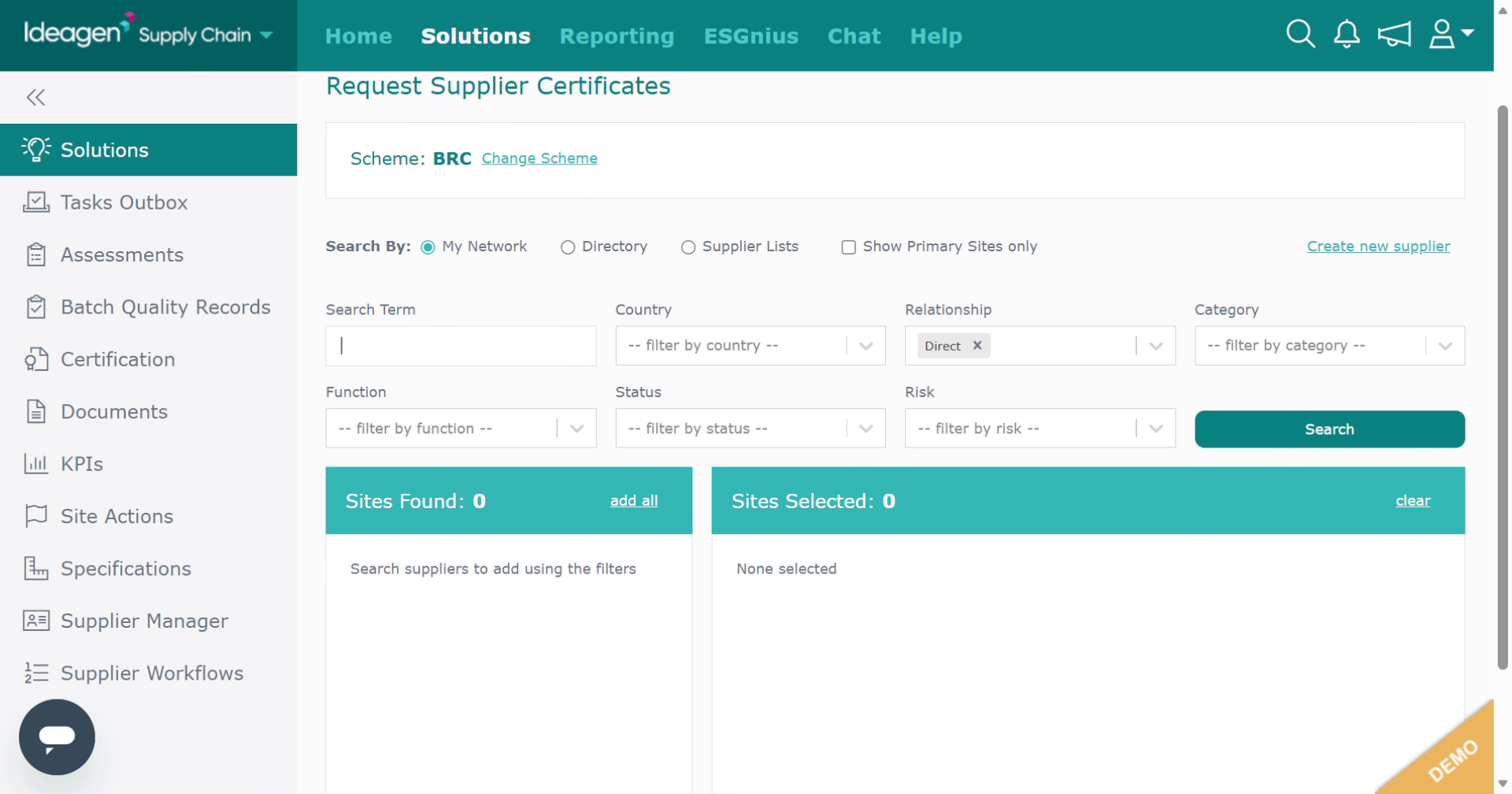
Enter your search term to locate your suppliers on the platform. Enter the supplier name into the search term box. You can apply filters to narrow down your results, these include Country, Relationship, Category, Function, Status and Risk. Boxes with a downwards arrow besides them are drop down options, boxes without the arrow are free text. You can search within three different areas of the platform: my network, directory and supplier lists. My network are suppliers connected to you via supply chain mapping. Directory are all companies with a profile on Ideagen Supply Chain. Supplier lists are lists of suppliers created by your company within the supplier manager solution module.
-
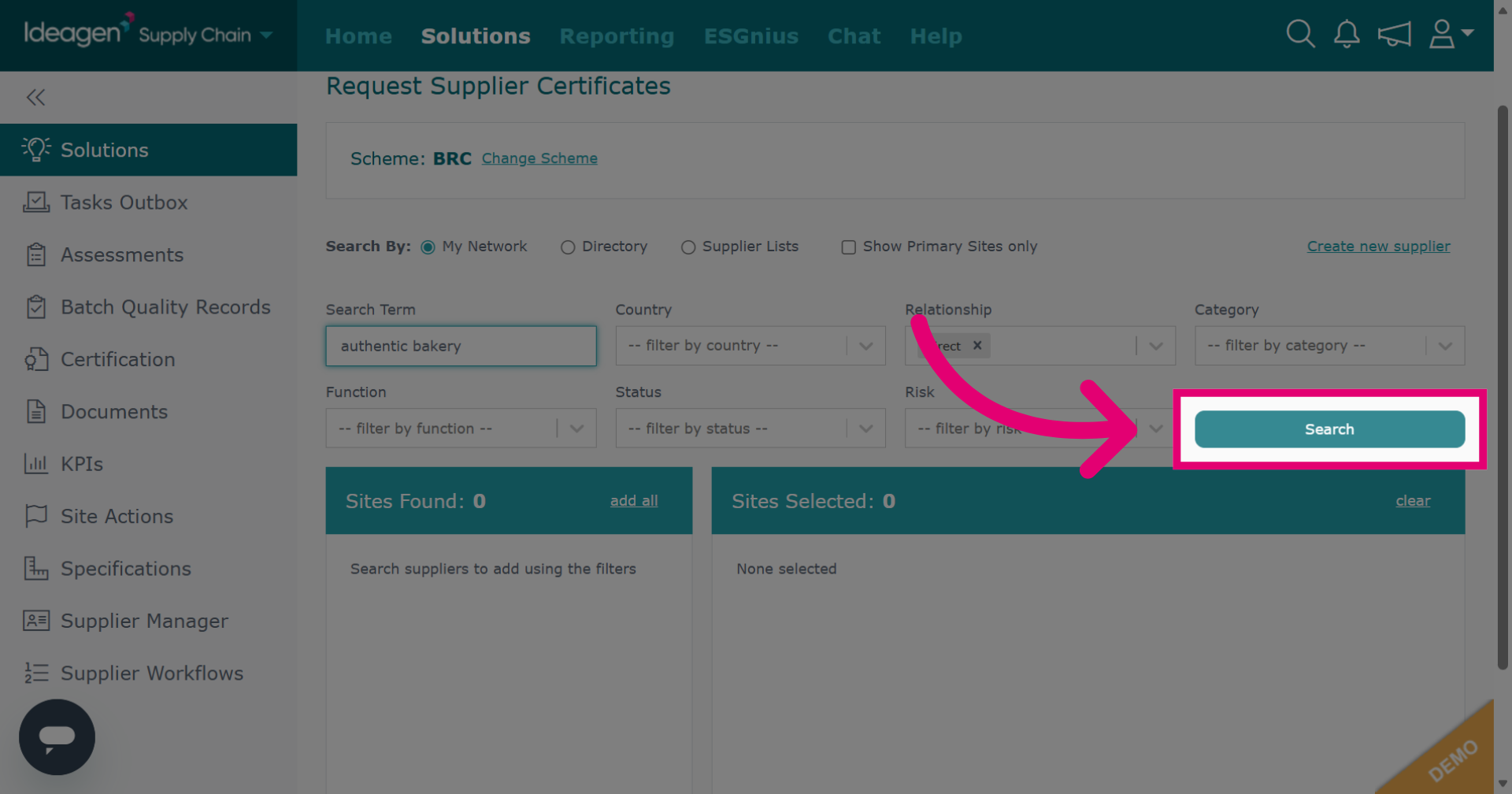
Click Search to find your supplier.
-
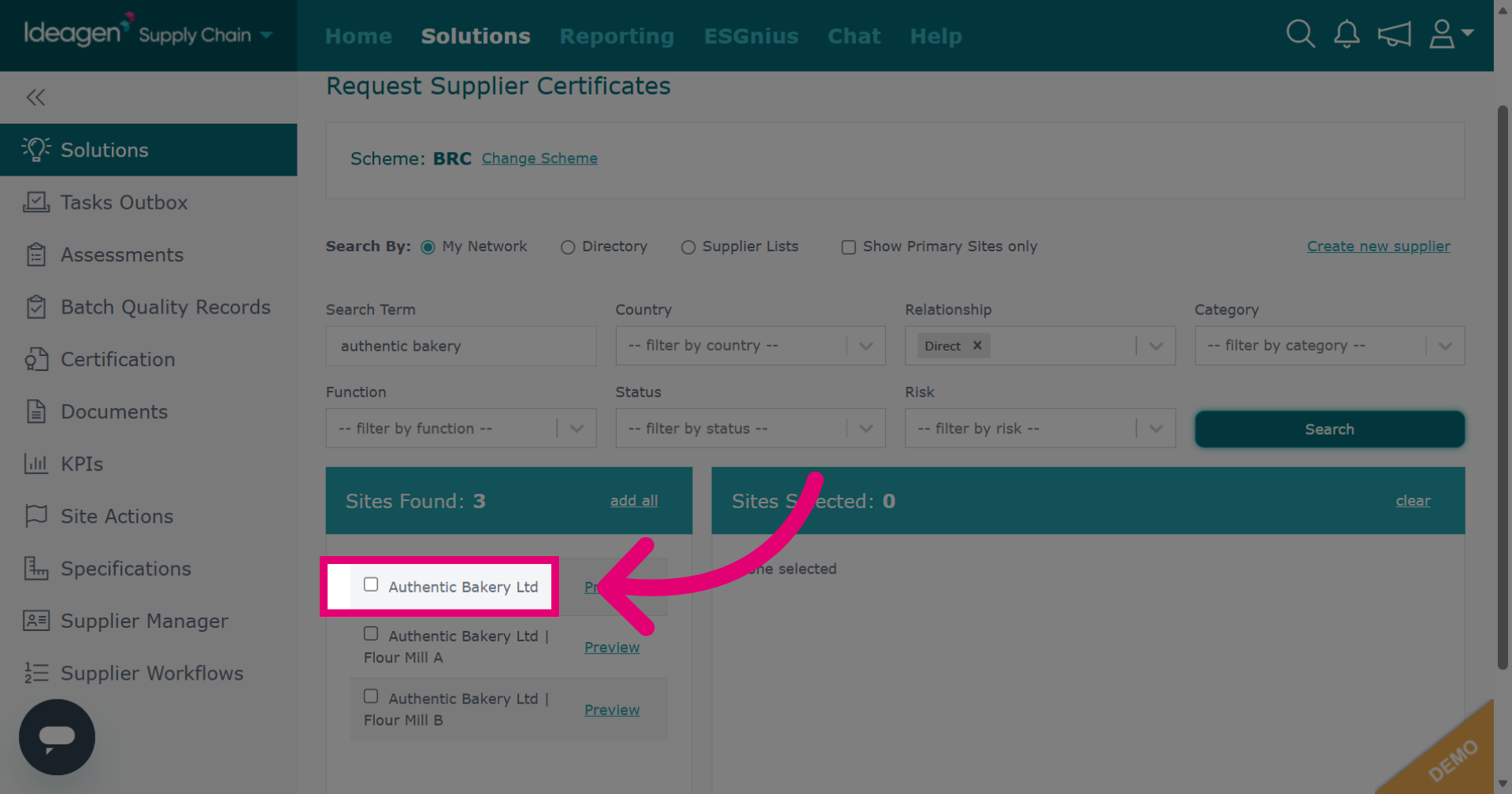
Click on your supplier. They will then move over to the right hand side of the screen. You can add multiple suppliers to receive the certificate request.
-
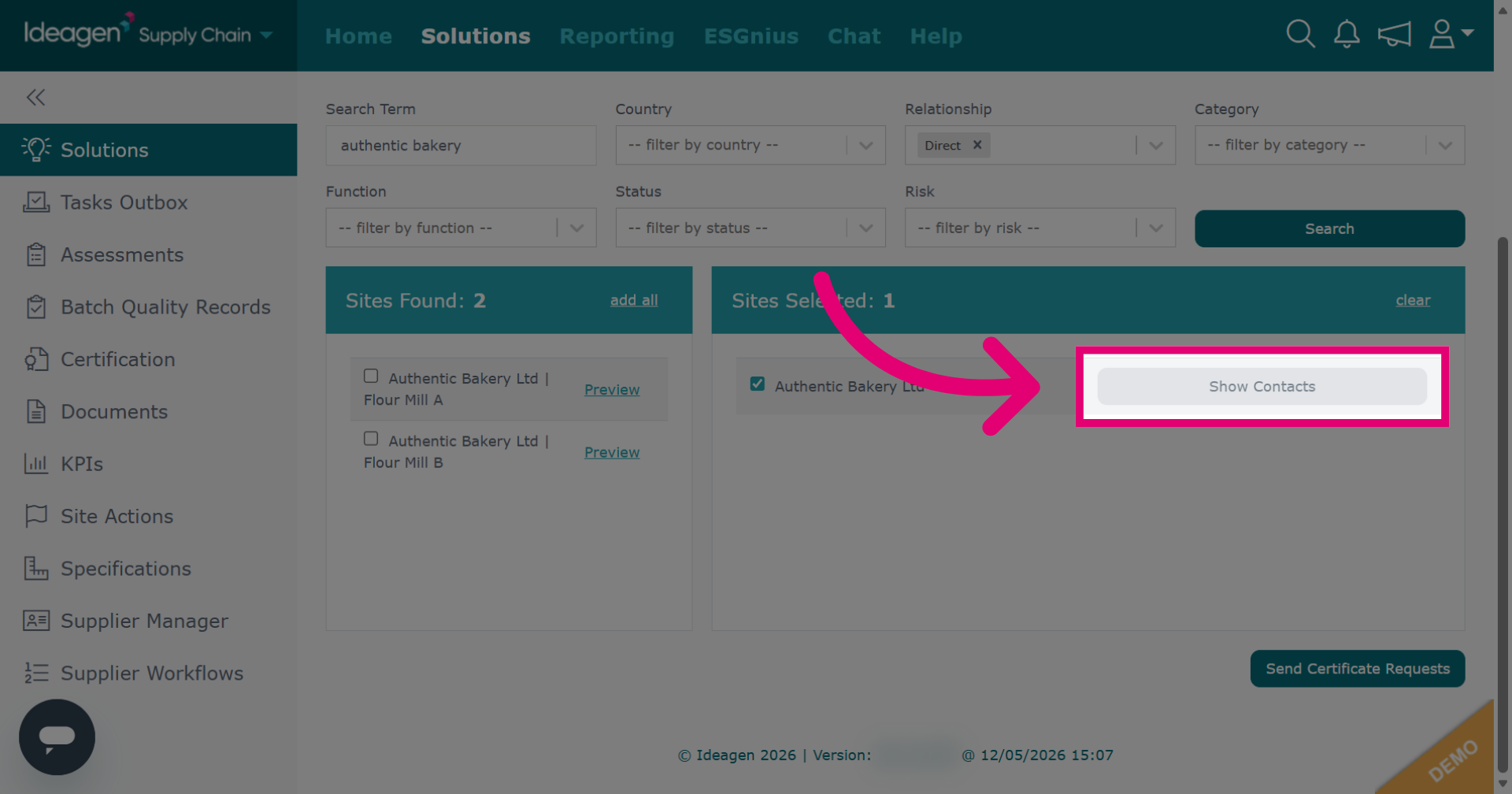
Click Show Contacts to view contact details associated with the selected supplier. You can select a specific contact to send the request to if desired. If you do not select a contact, the request will go to all contacts associated with the supplier.
-
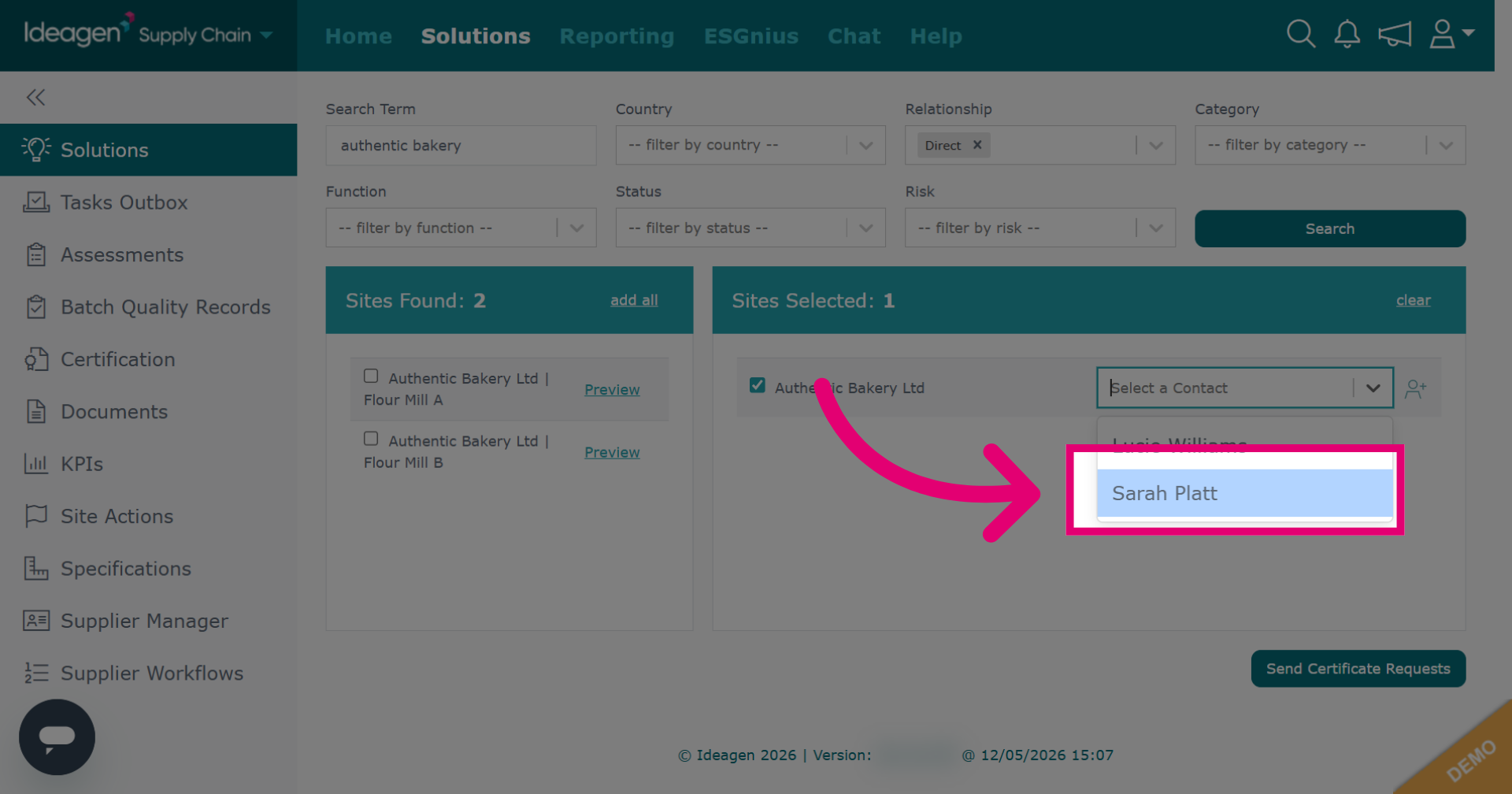
If selecting a contact, pick the relevant person from the drop down.
-
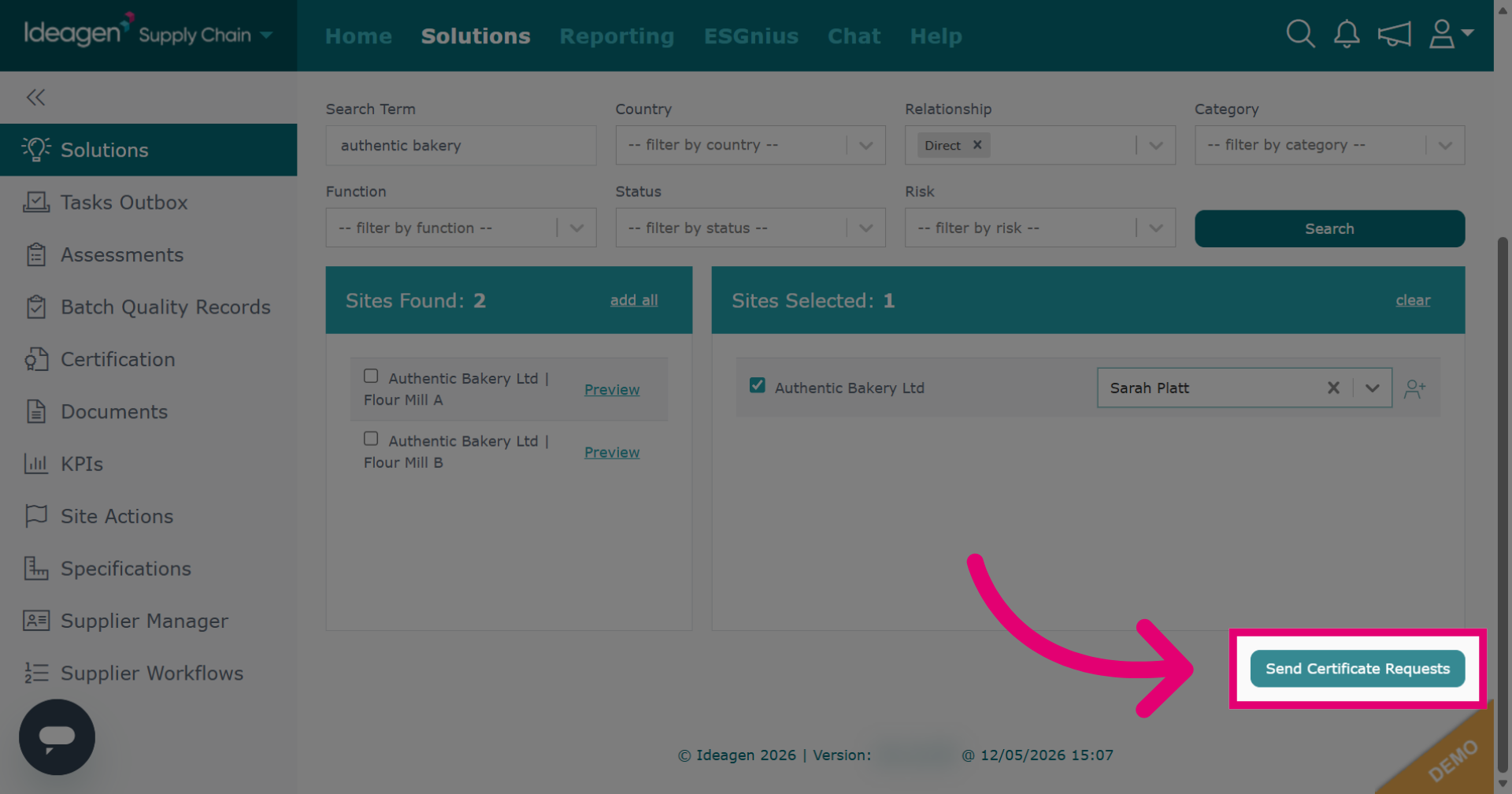
Click Send Certificate Requests to dispatch requests for updated certificates.
-
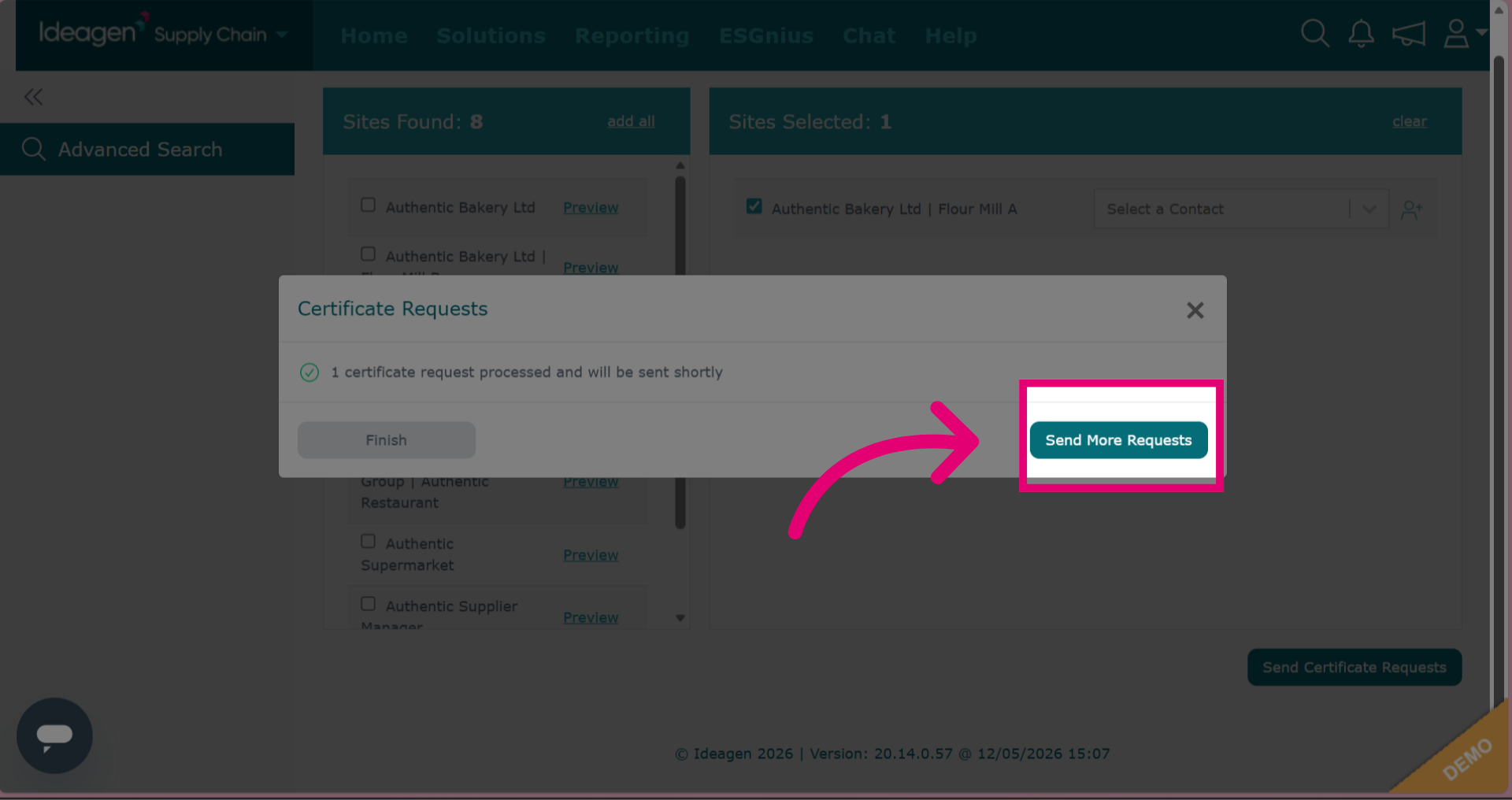
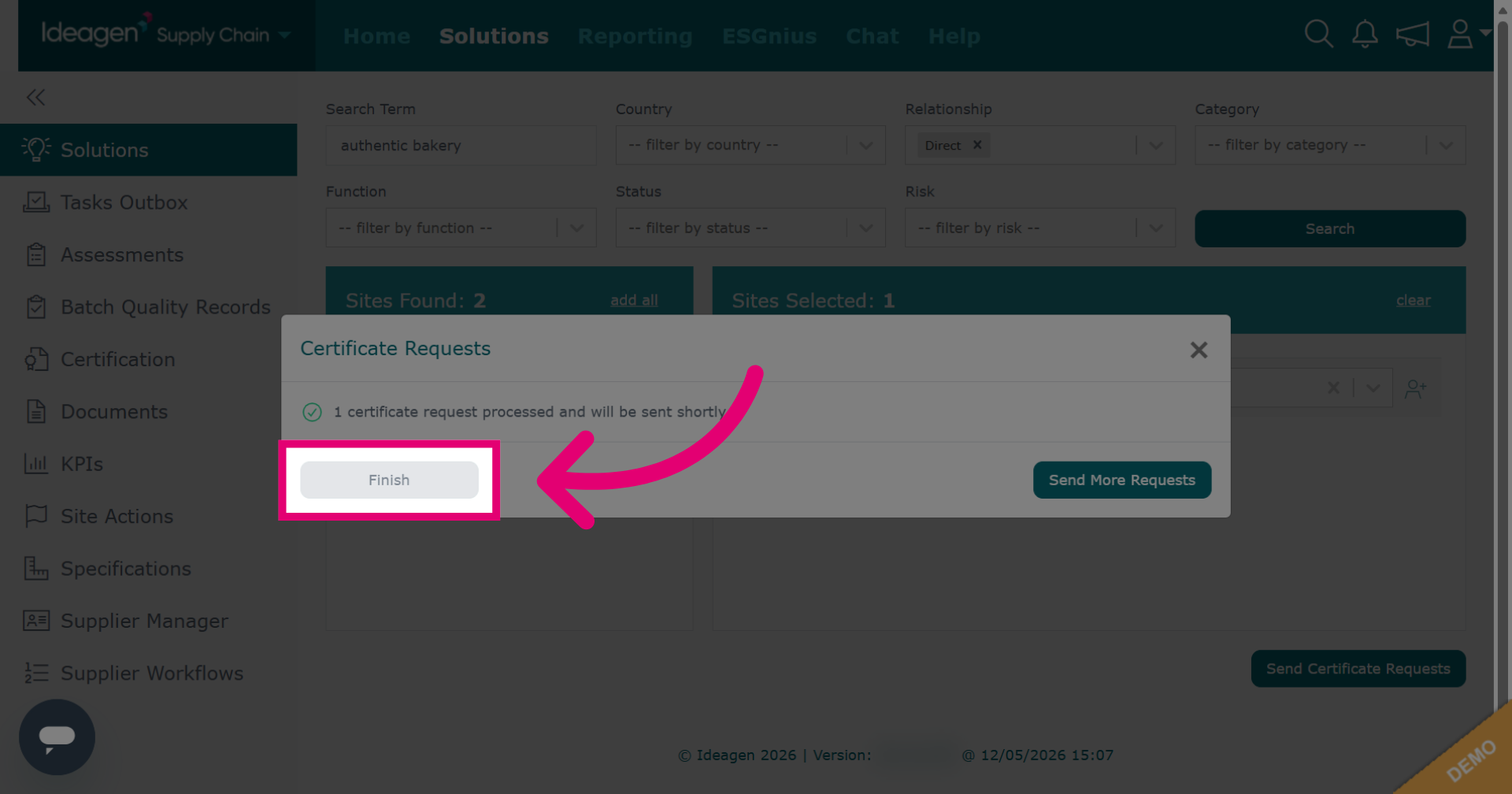
Click Finish to complete the certificate request process and close the workflow.
-
To send further certificate requests for a different scheme, click send more requests.