New article
Recently updated
Navigating the search bar functionality

Who is this article for?
Users who want to learn to navigate the search bar functionality.
No elevated permissions are required.
This tutorial guides you through search bar functionalities such as companies, sites and product lines in Ideagen Supply Chain.
Navigating the search bar functionality
- Log into the system.
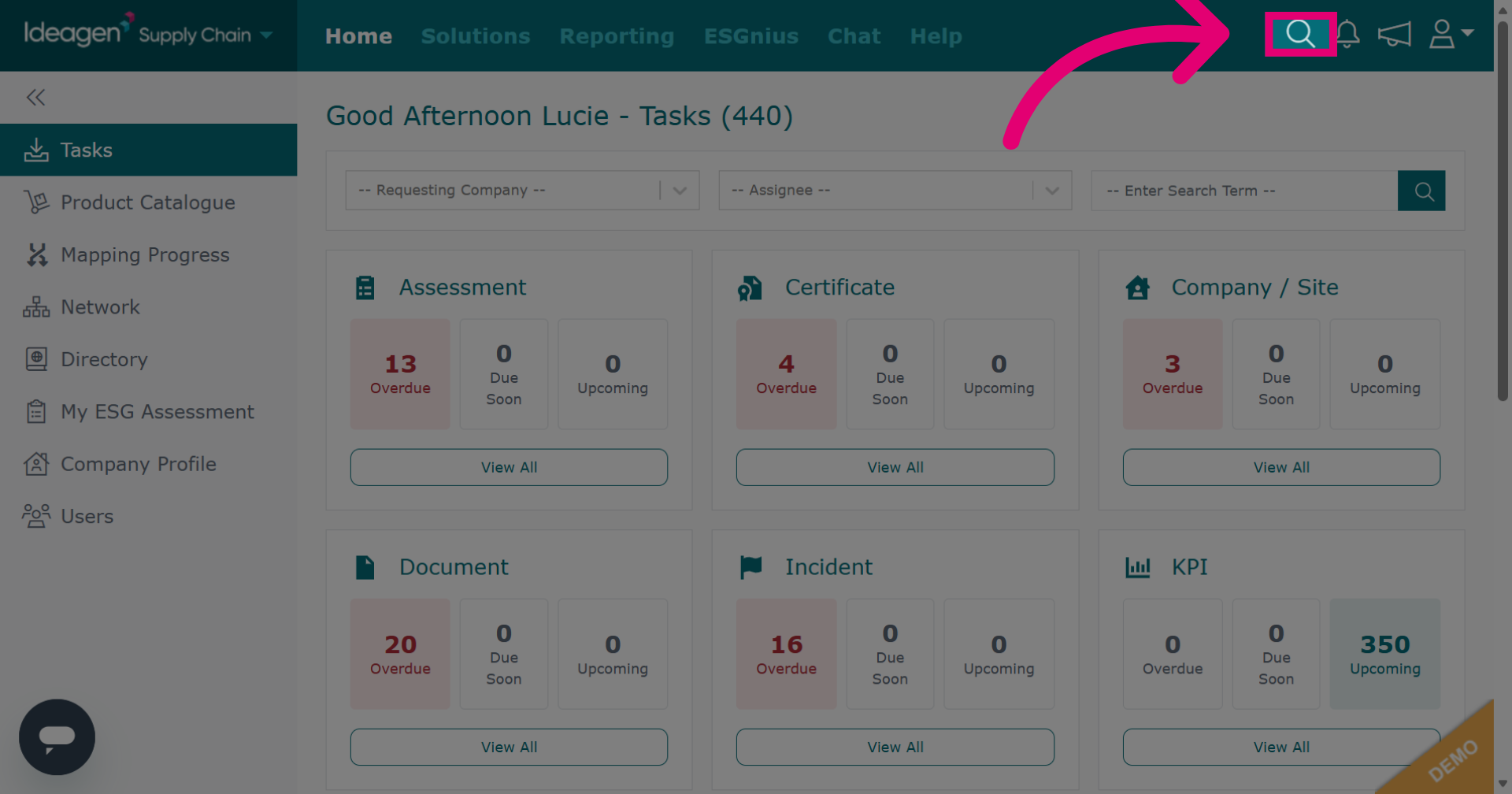
Click the magnifying glass to open the search options.
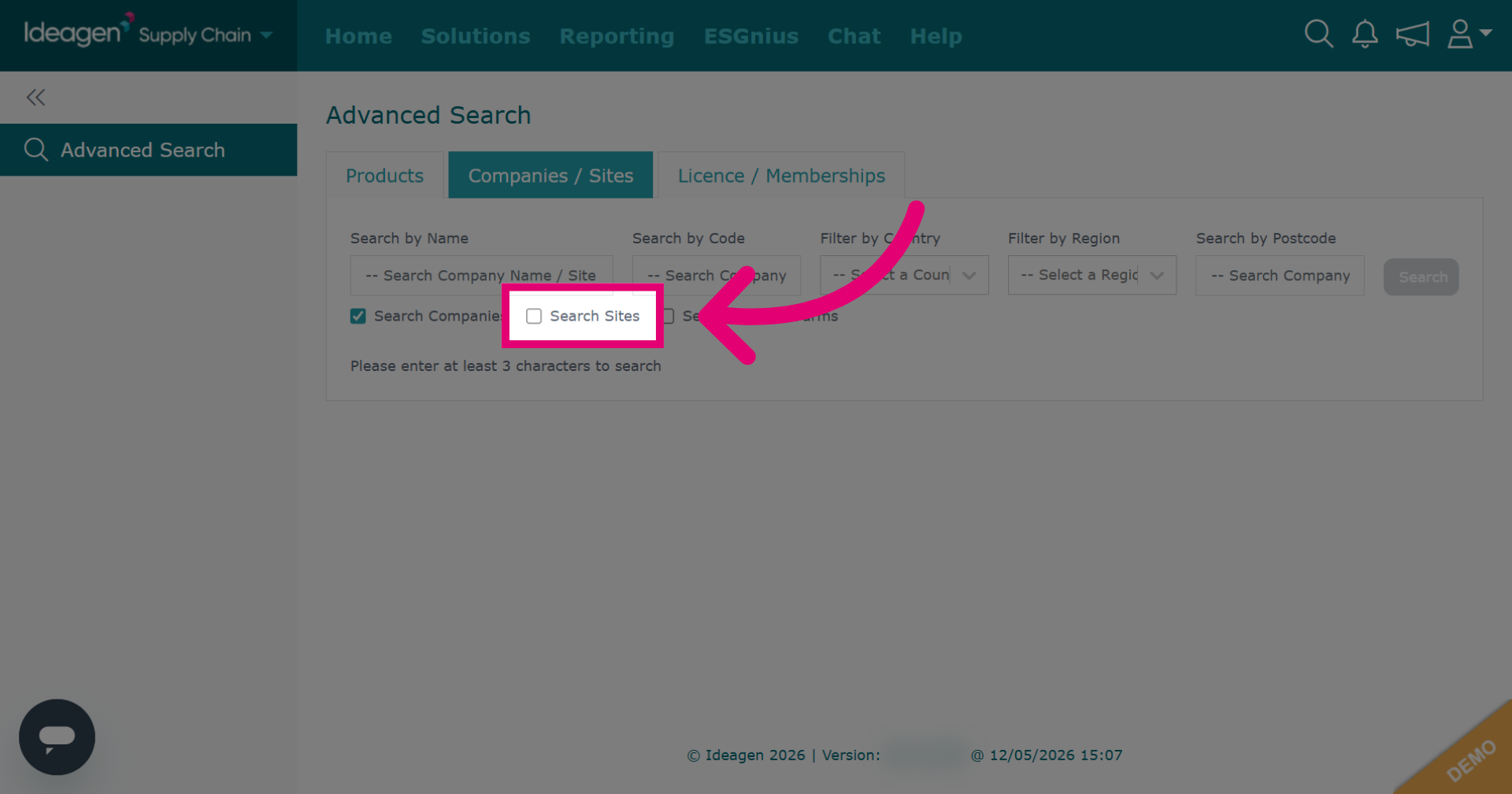
To include sites within your company/supplier search, tick the search sites button.
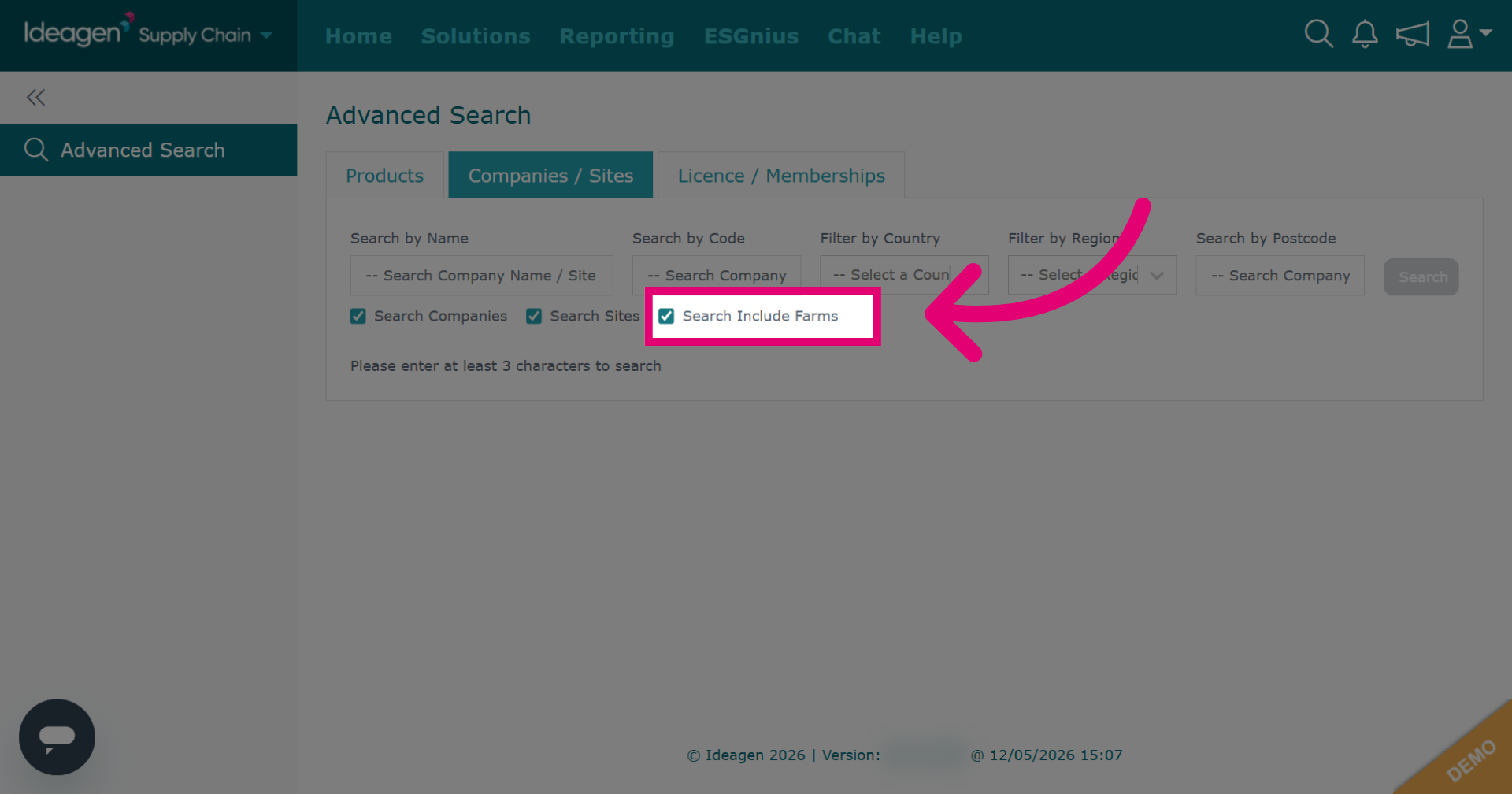
To include farms within your company/supplier search, tick the search include farms button.
Click Search Company Name / Site Name and enter search term to look for a company or site by its name.
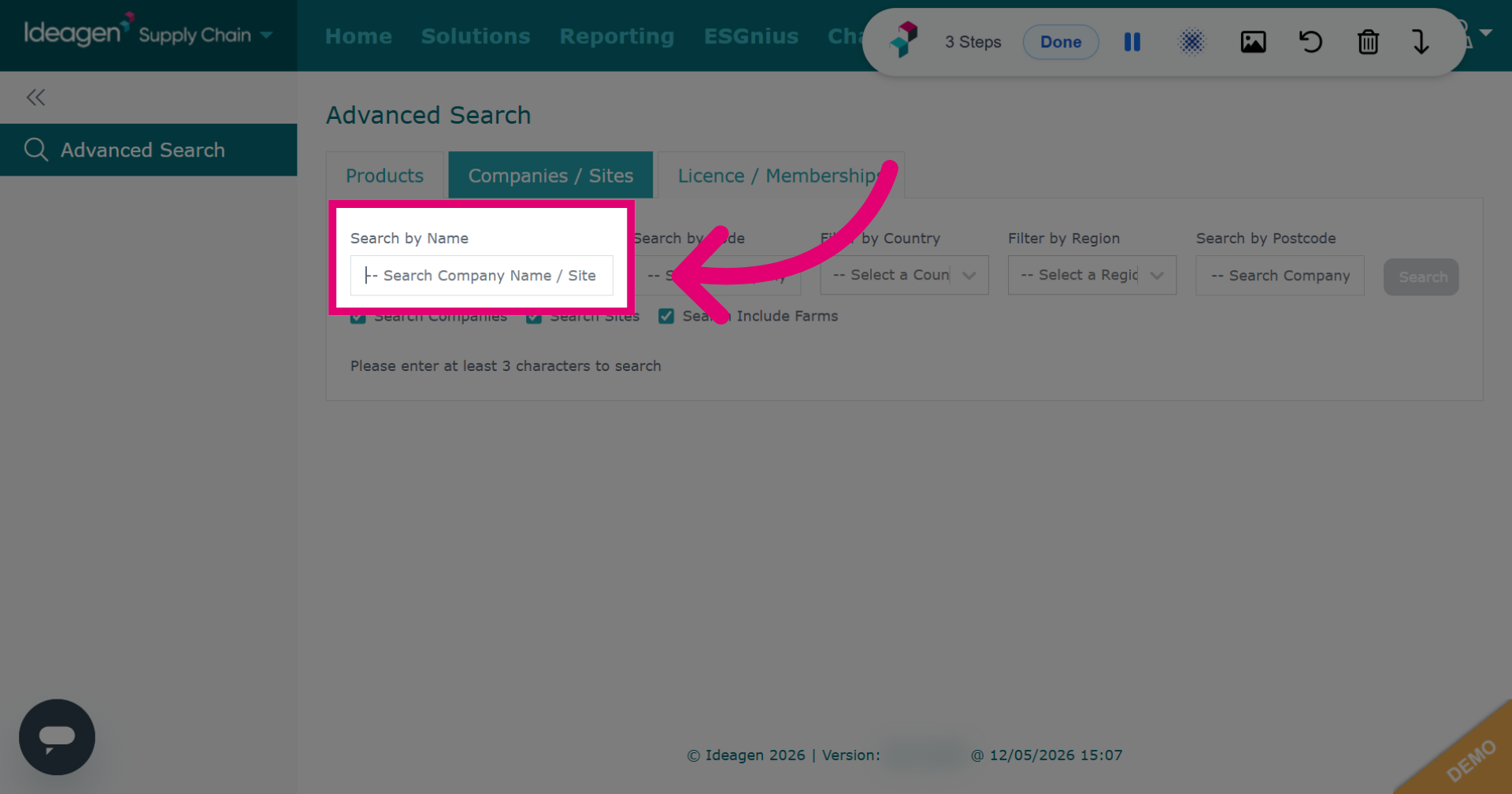
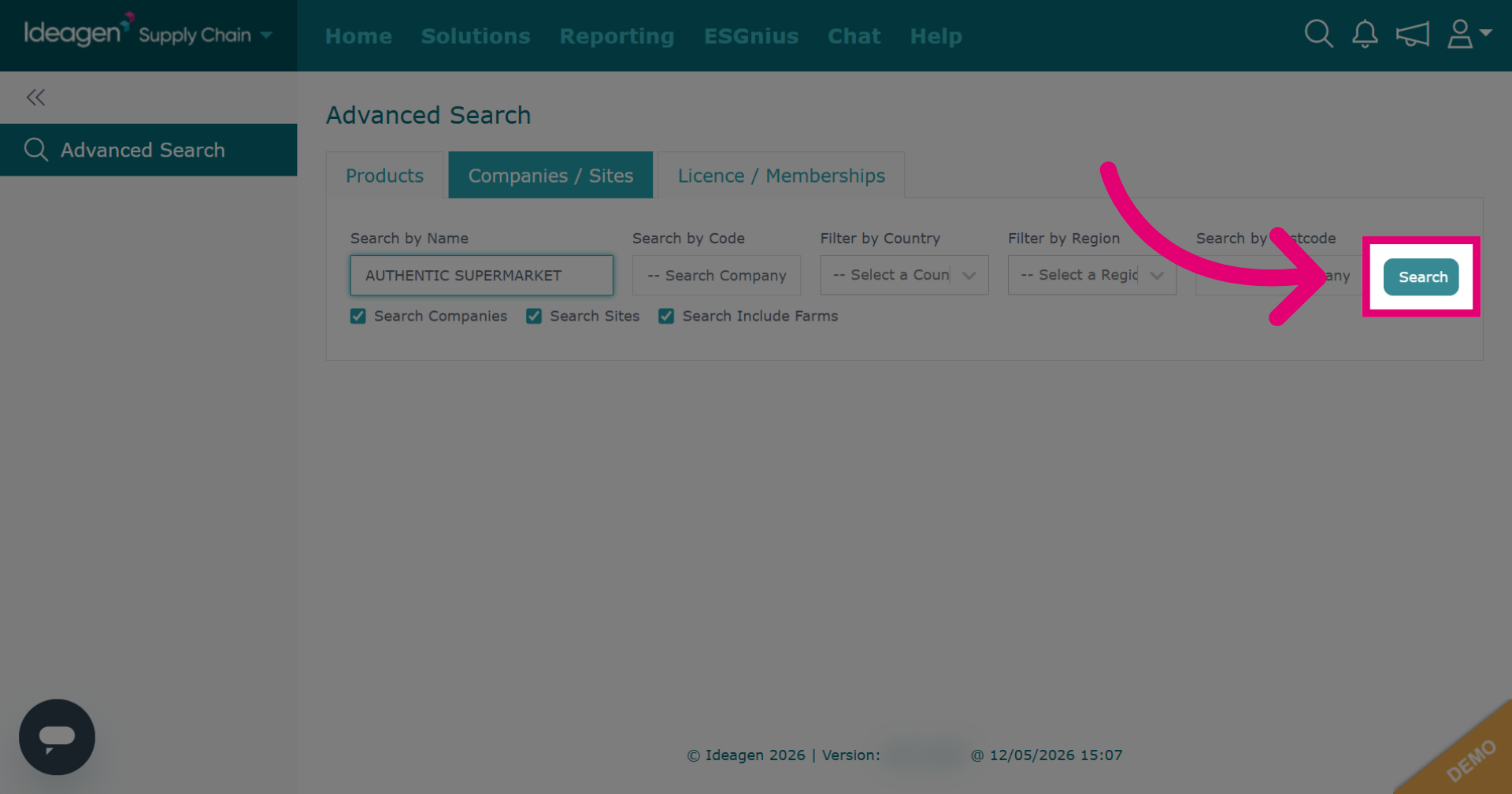
Click Search to execute the search for the entered company name.
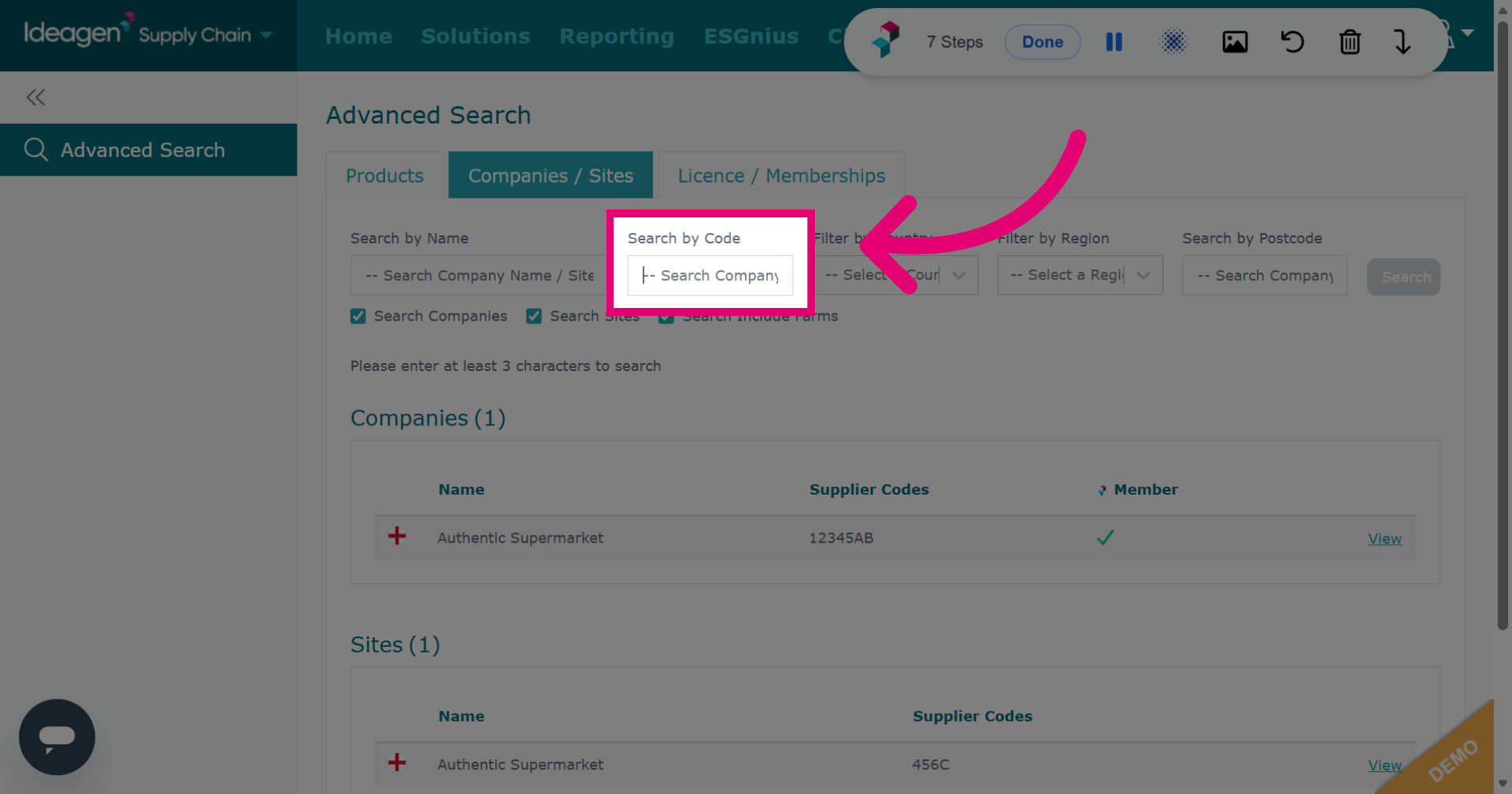
To find a company or supplier by code, click Search Company Code / Site Code and input the search field.
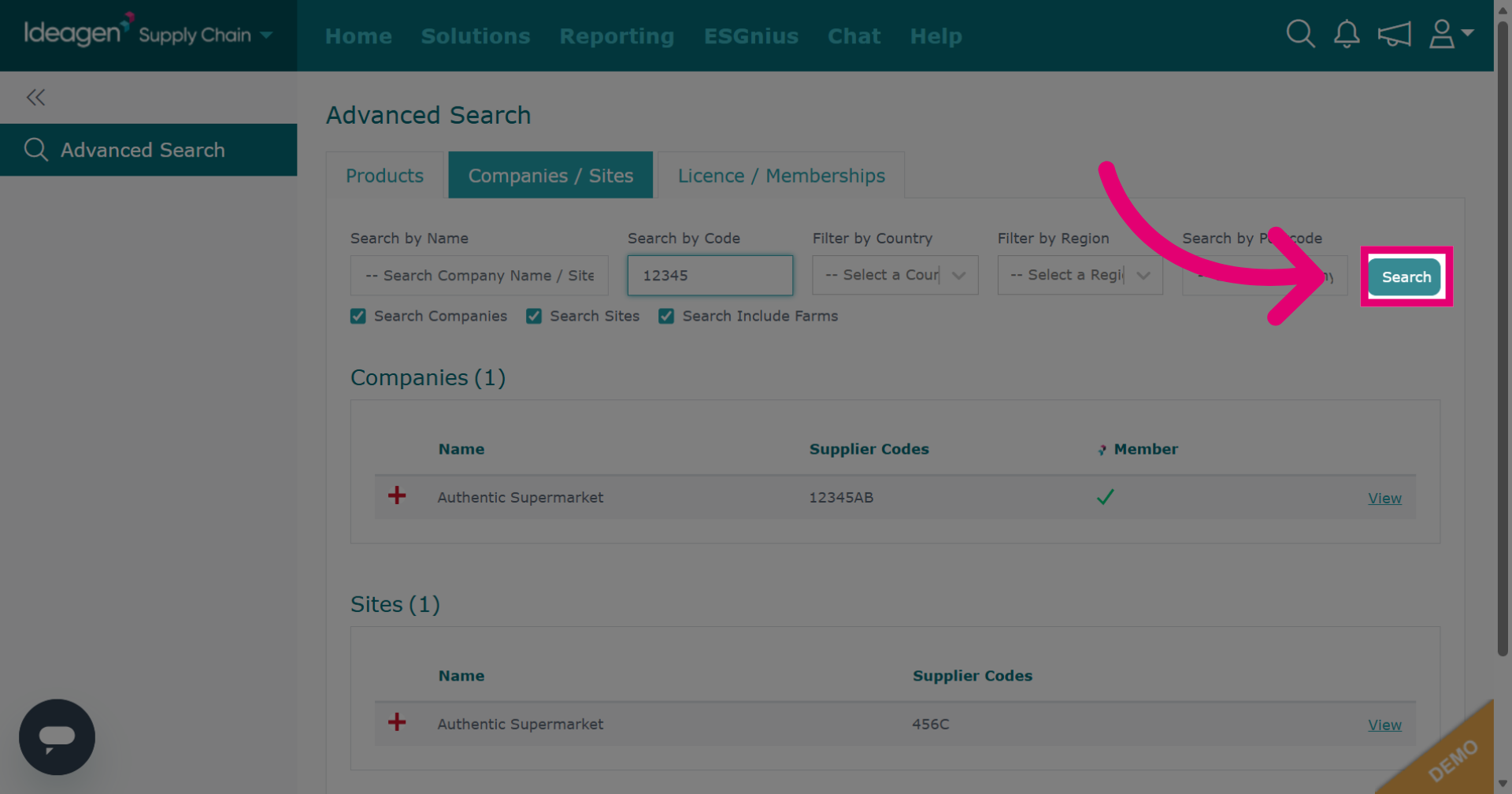
Click Search to perform the search using the specified company code.
Click here to access further filtering or navigation options within the platform. Filters are optional and a combination of all or some can be used for any search.
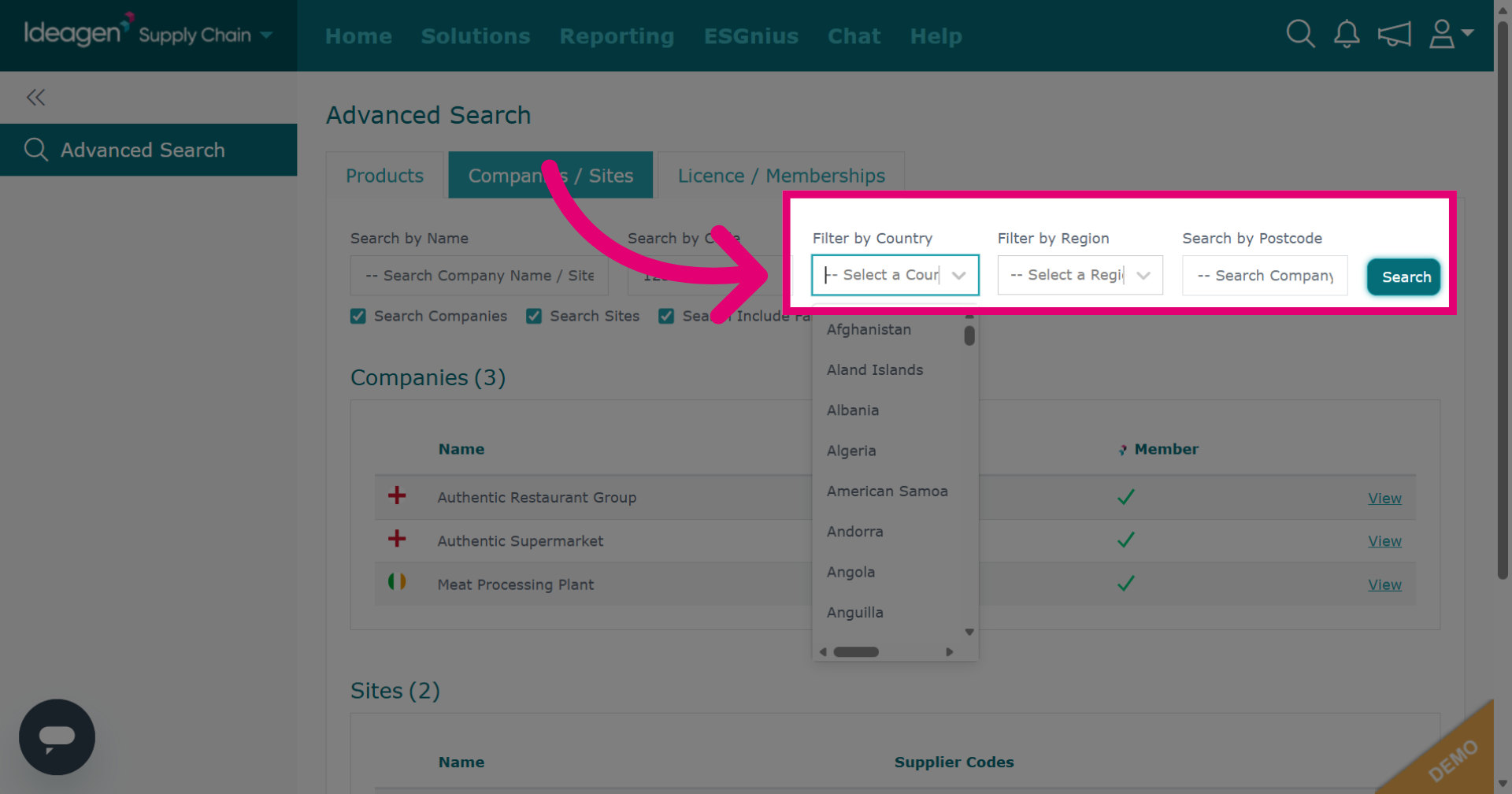
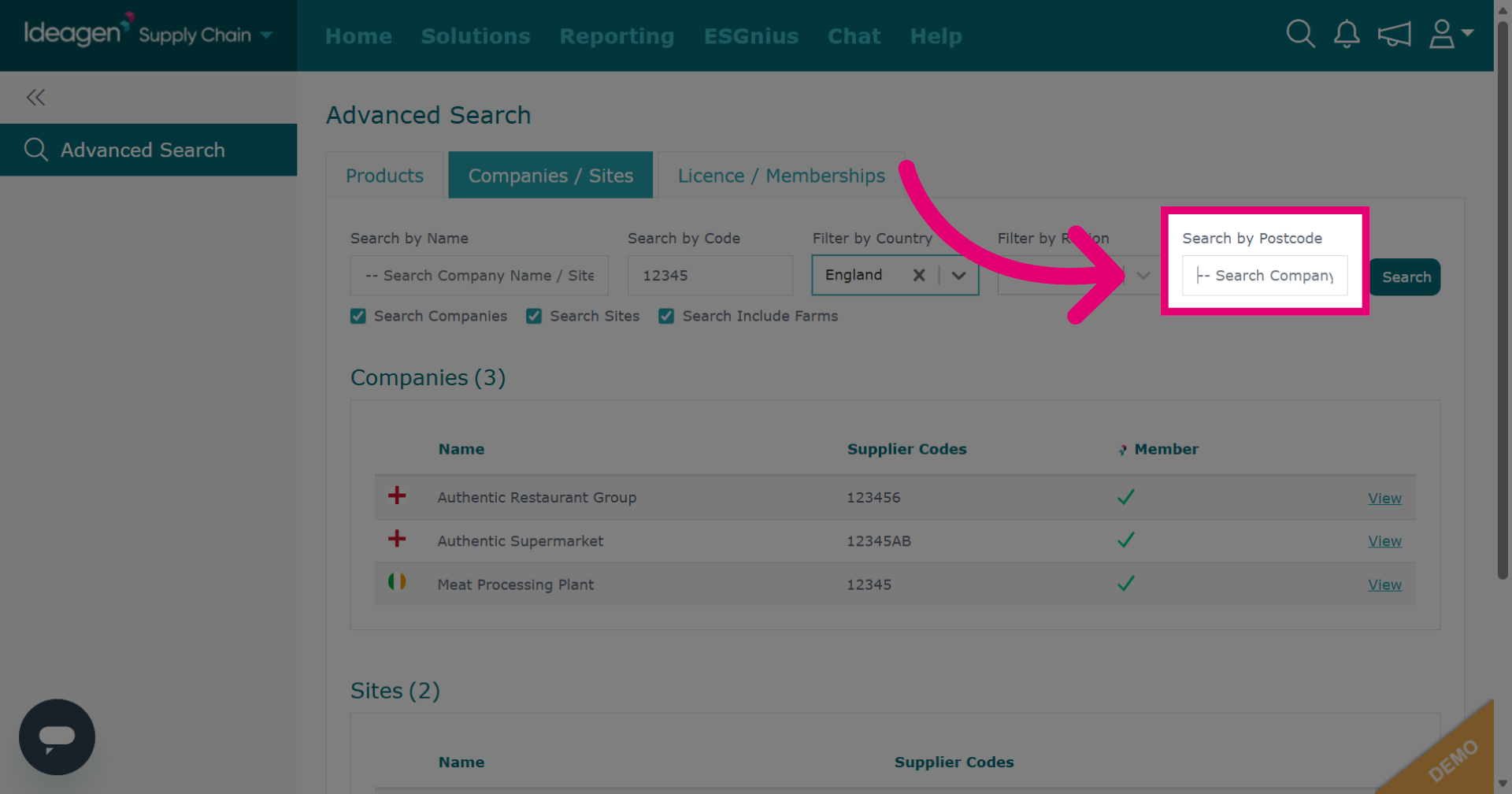
Click Search Company/ Site Postcode to search via postcode.
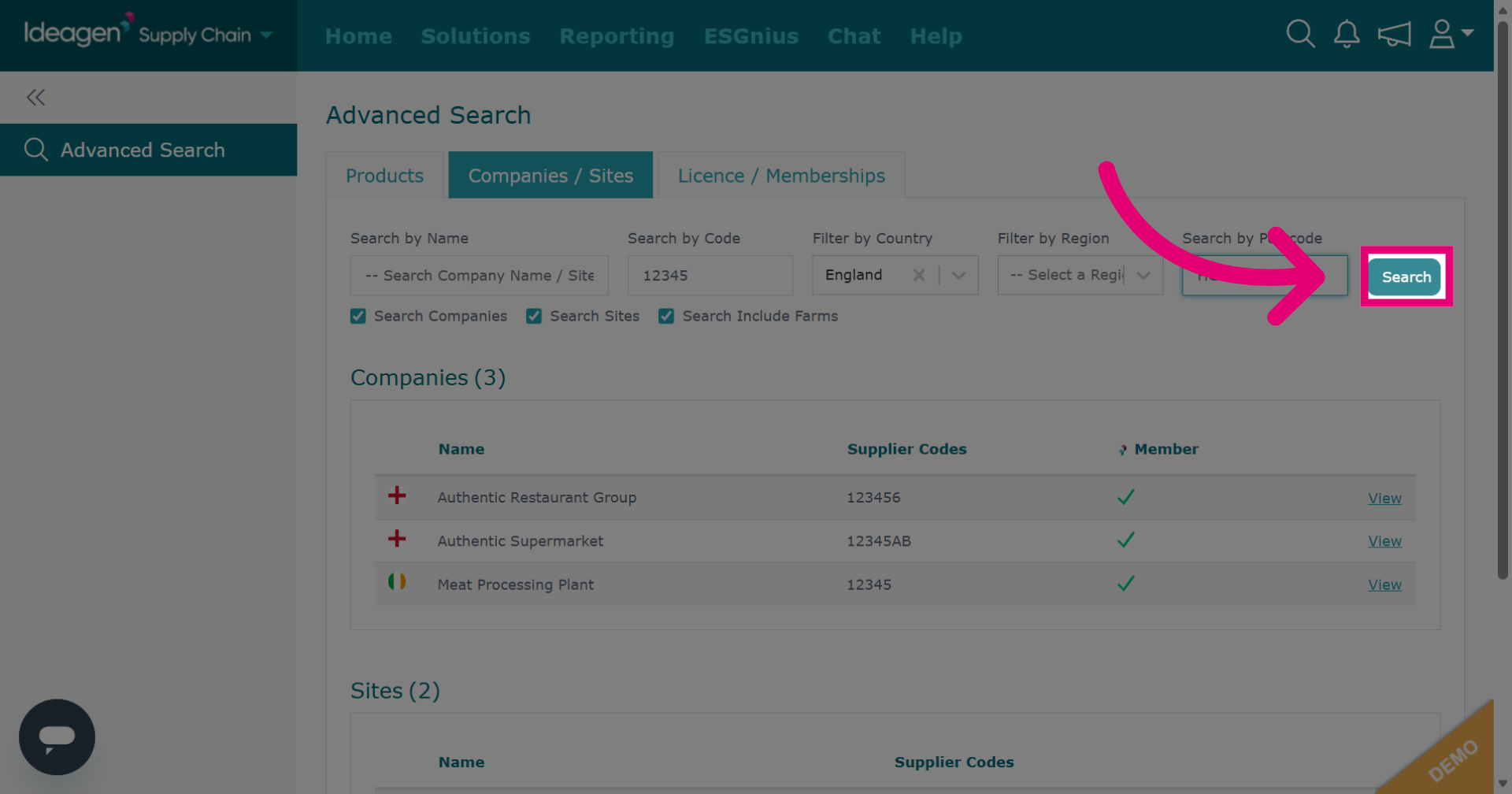
Click Search to execute the search based on the postcode criteria.
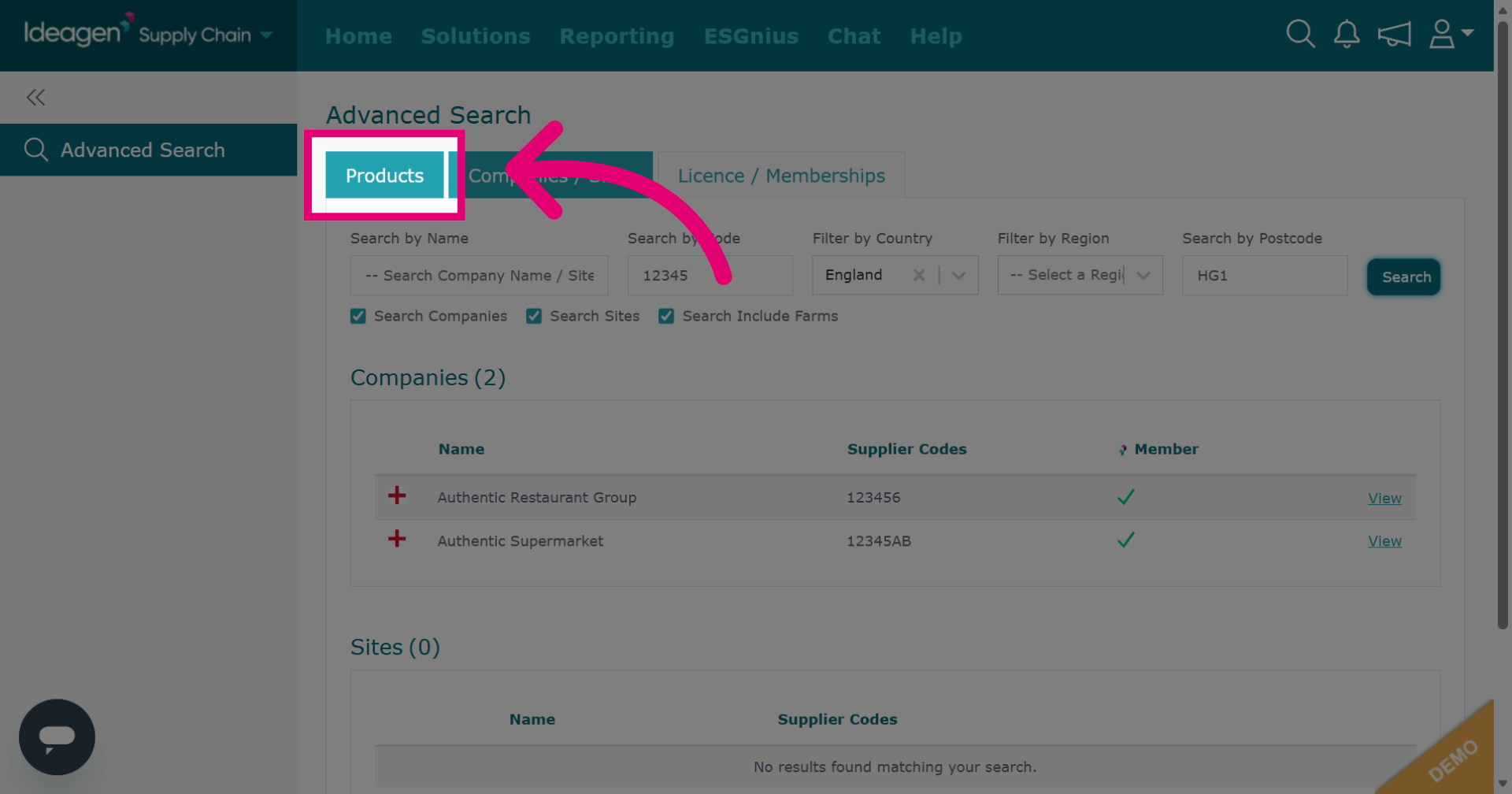
Click Products to search by product.
Click Search Product Lines to specify the product search field.
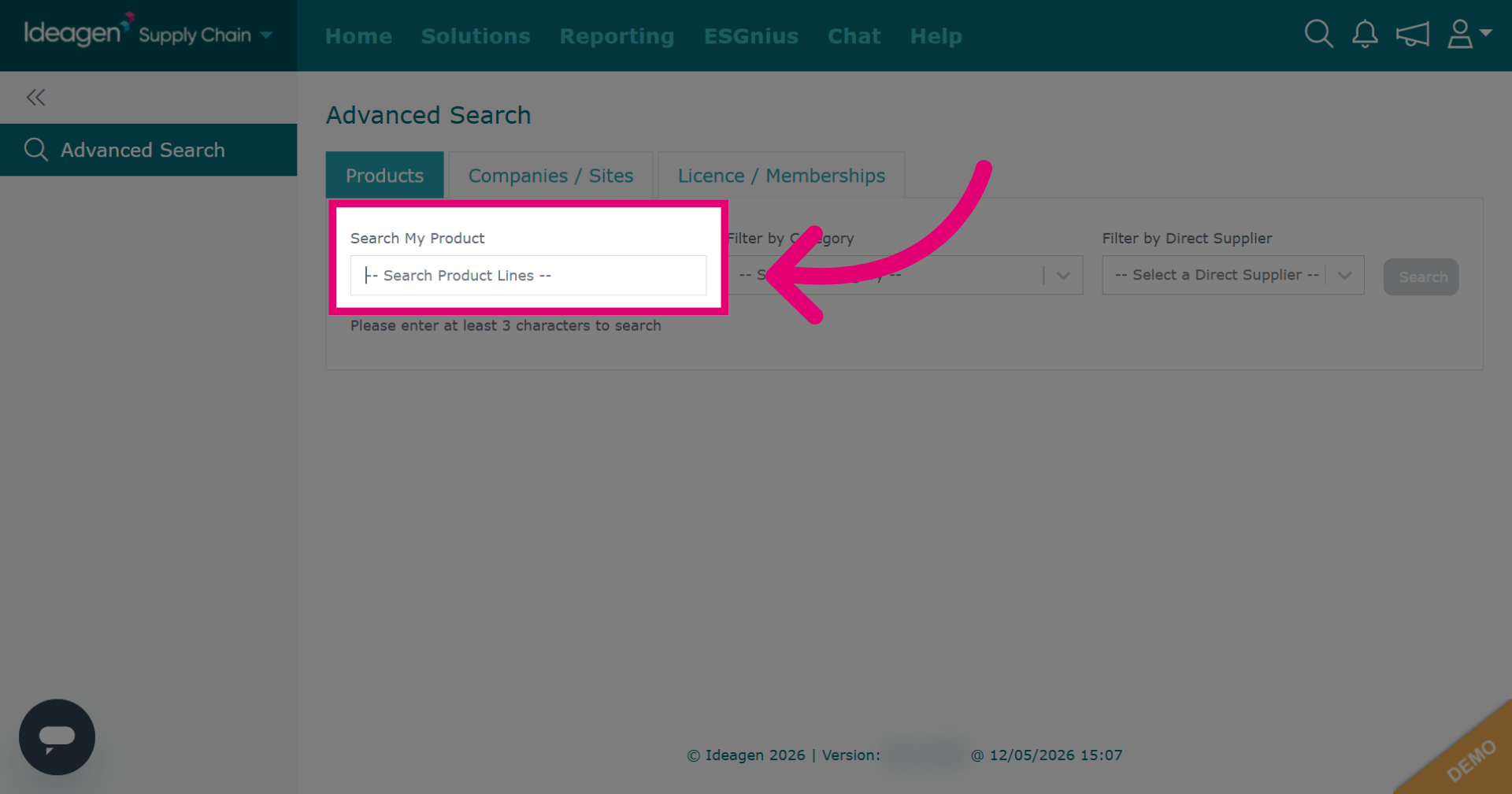
Click Search to find product lines matching the entered criteria.
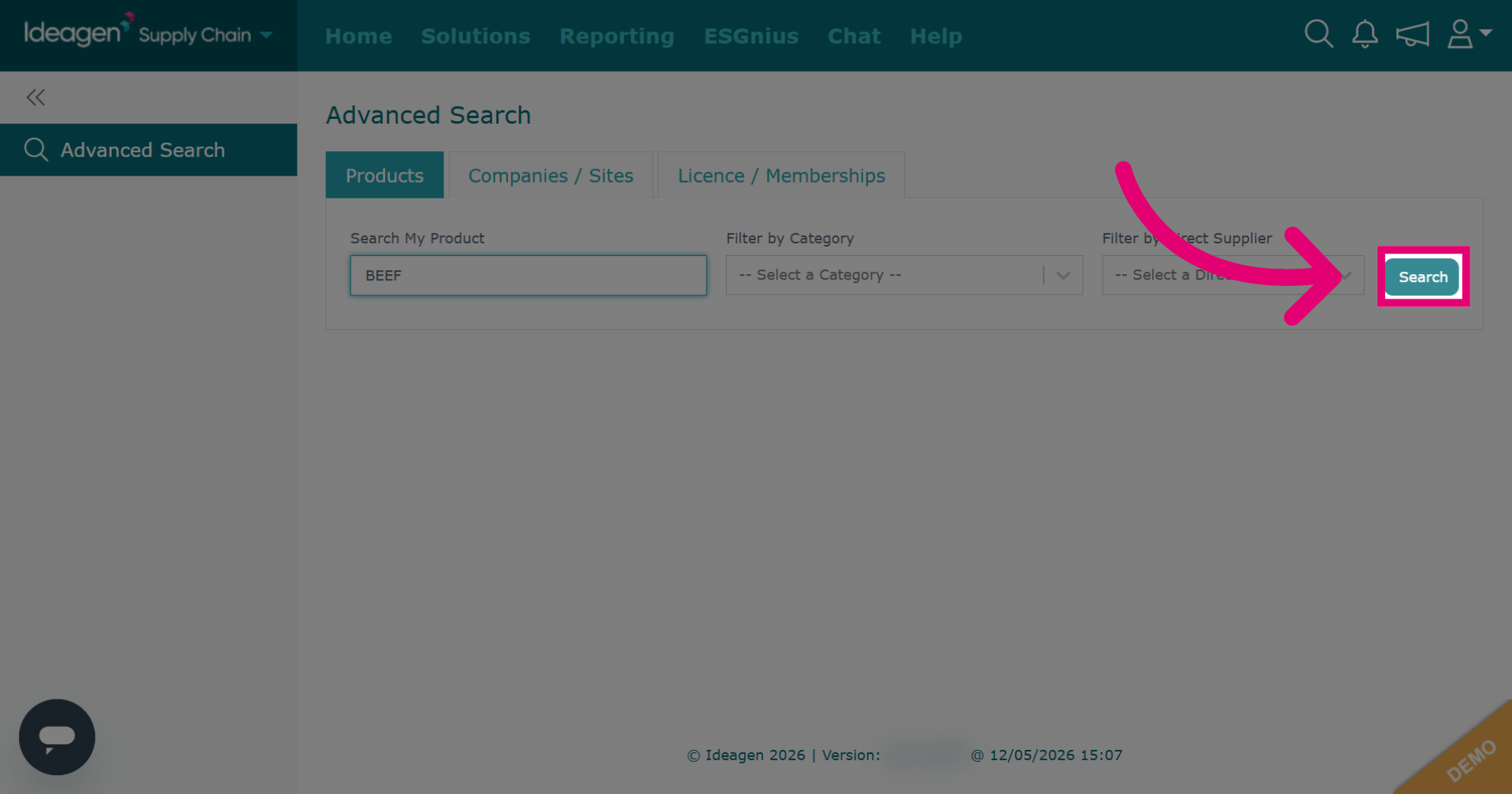
Use the Category or Direct supplier filters to narrow your results. Filters are optional and can be combined.
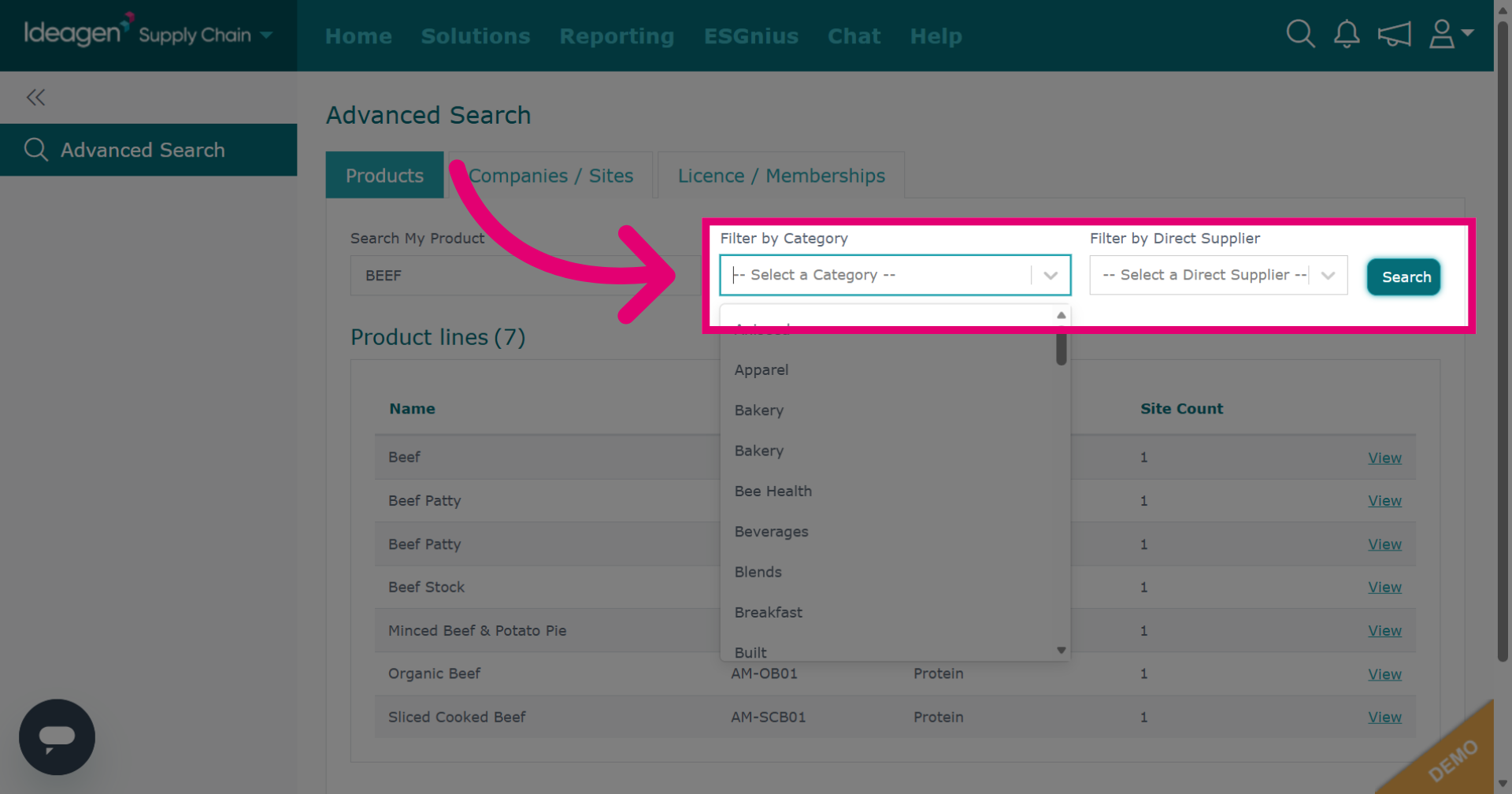
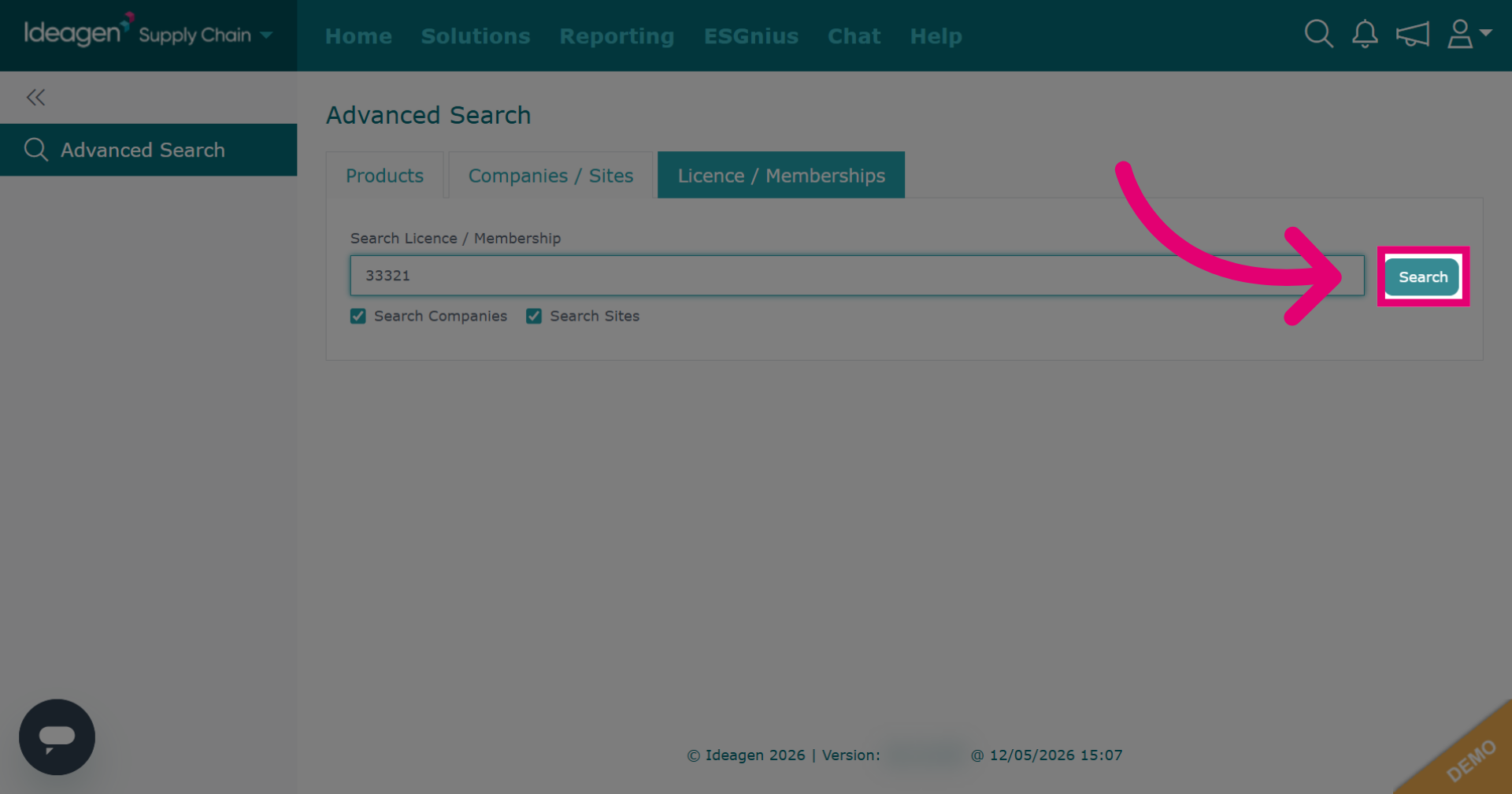
Click Licence / Memberships to search for a company/supplier via license or membership numbers.
Click Search Licence /Membership to specify the search field for licences or memberships.
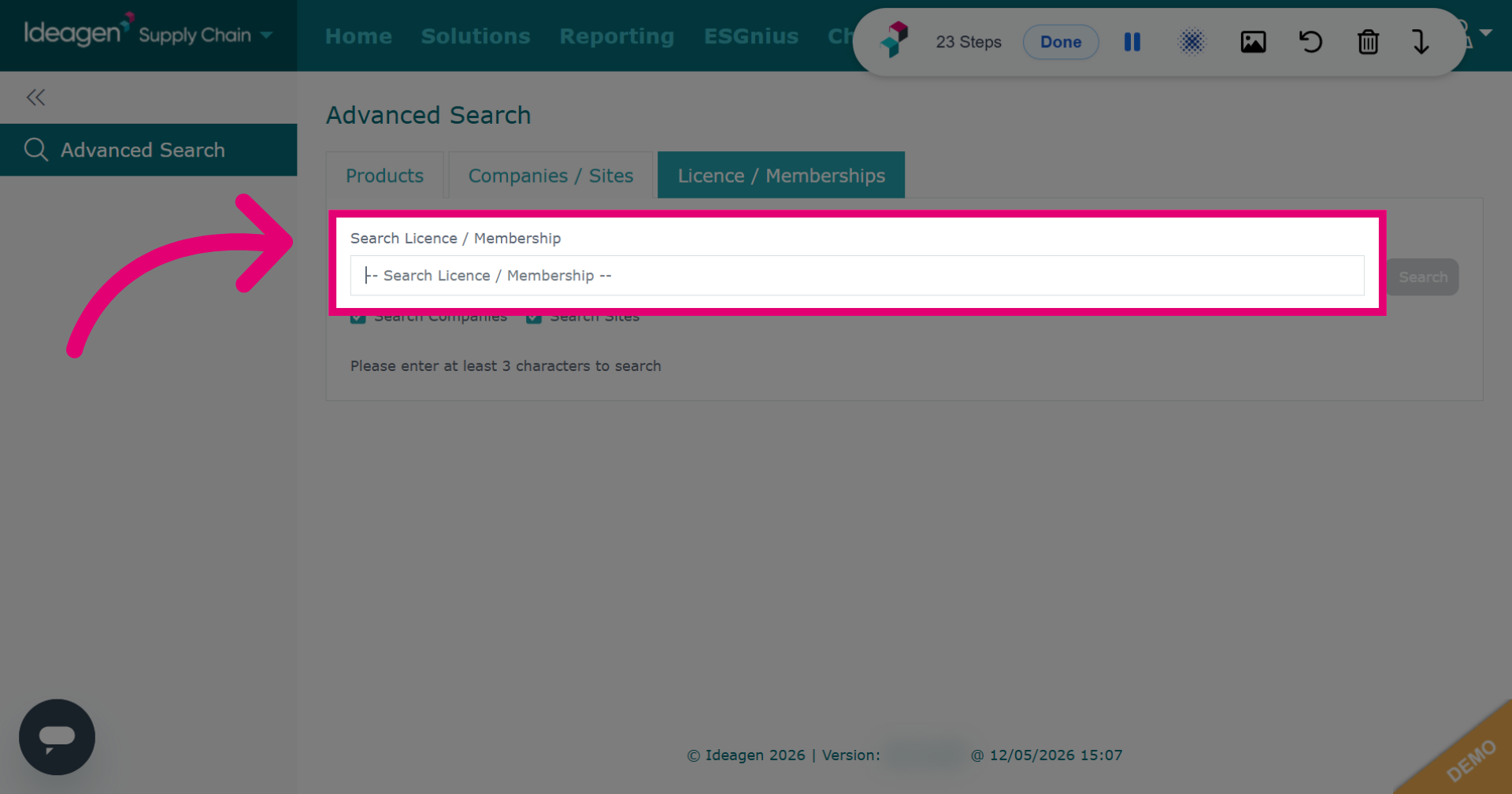
Enter search criteria.
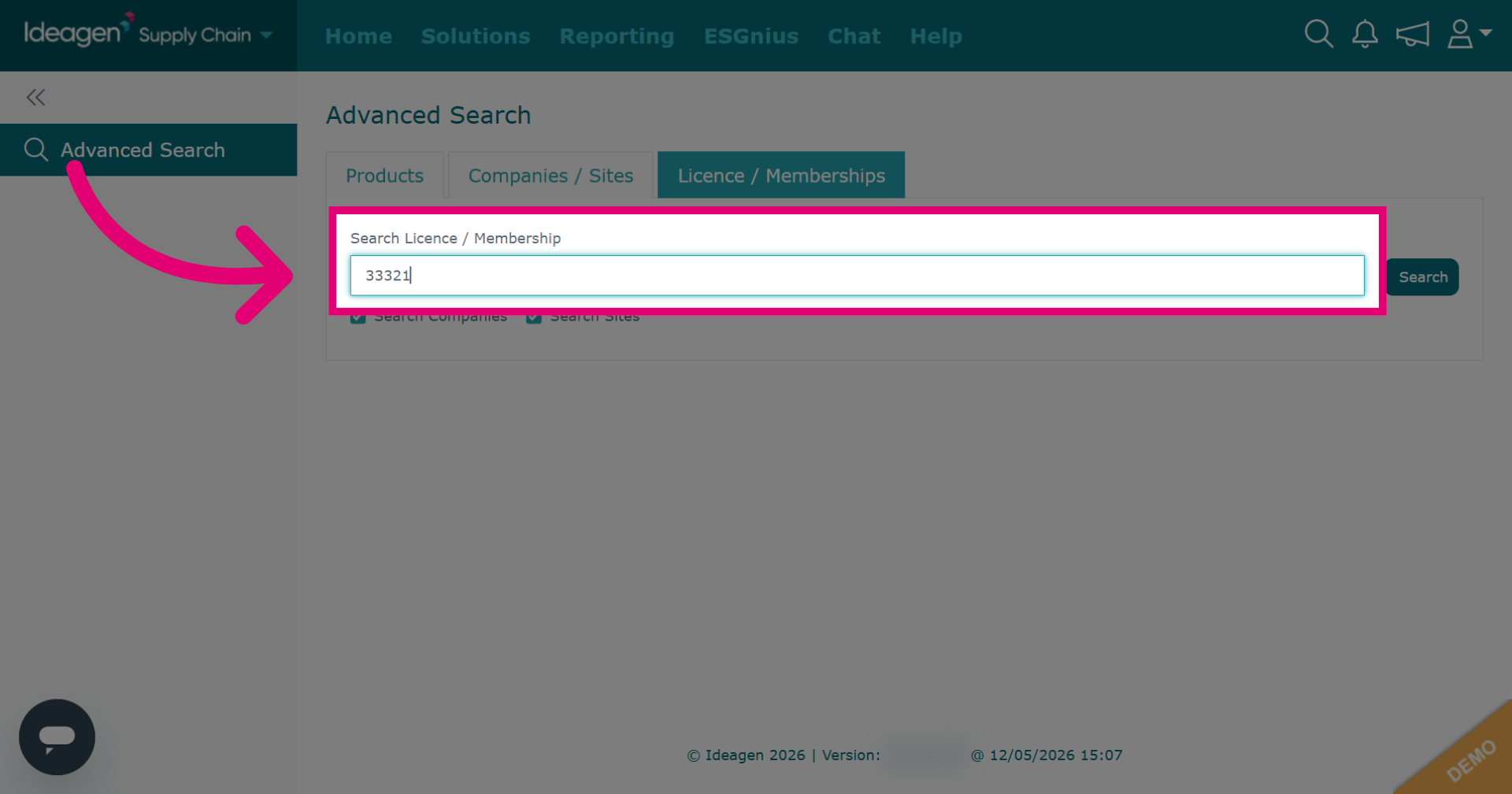
Click Search to perform the search for the entered licence or membership number.