New article
Recently updated
Responding to a Certificate Request - Certification

Who is this article for?
Users who need to respond to a certificate request.
Certificate user permissions are required.
This tutorial guides you through responding to certificate requests.
You will learn how to access certificate requests, add automated or manual certificates, and reject requests when necessary.
Responding to certificate requests
-
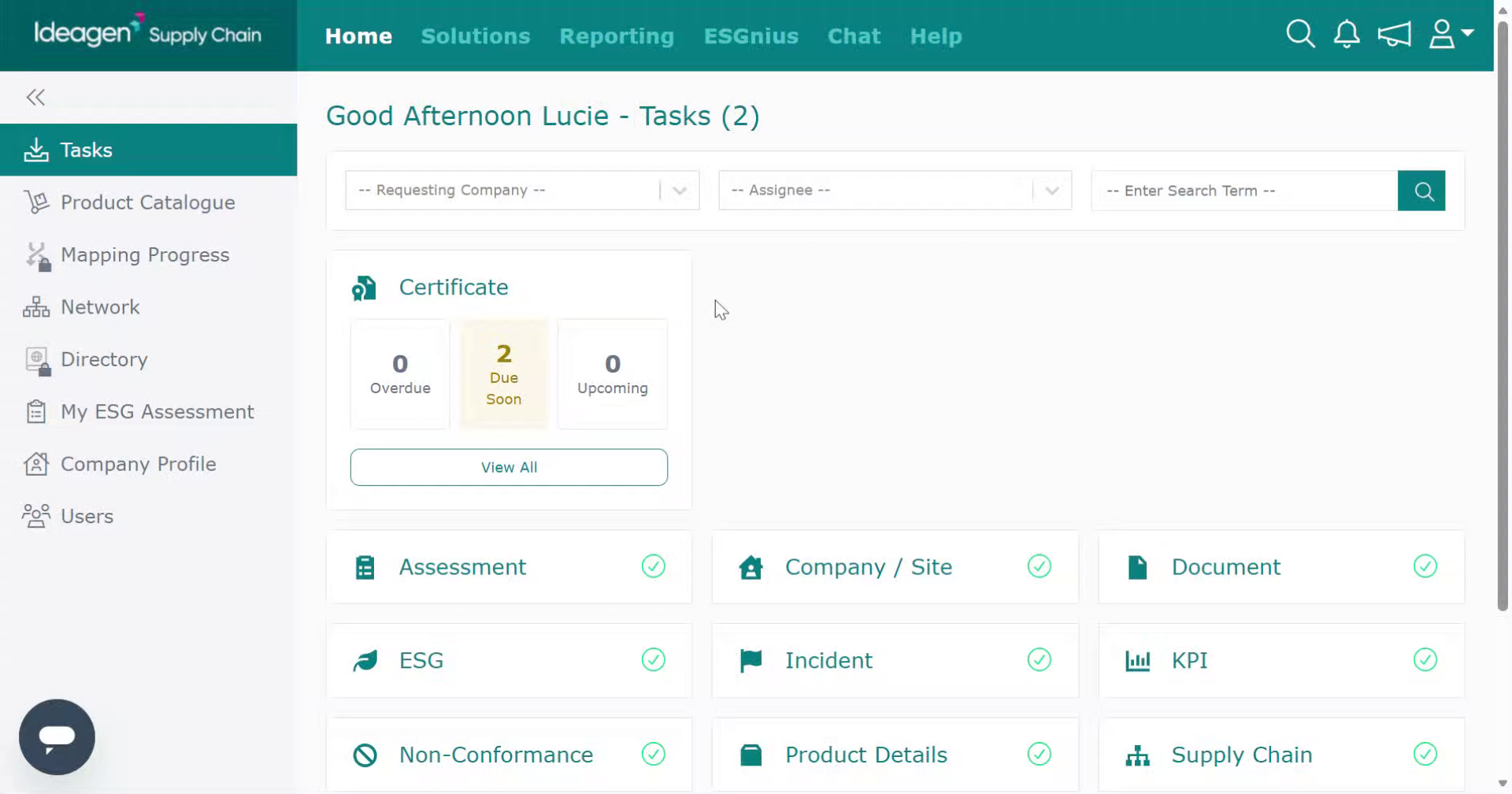
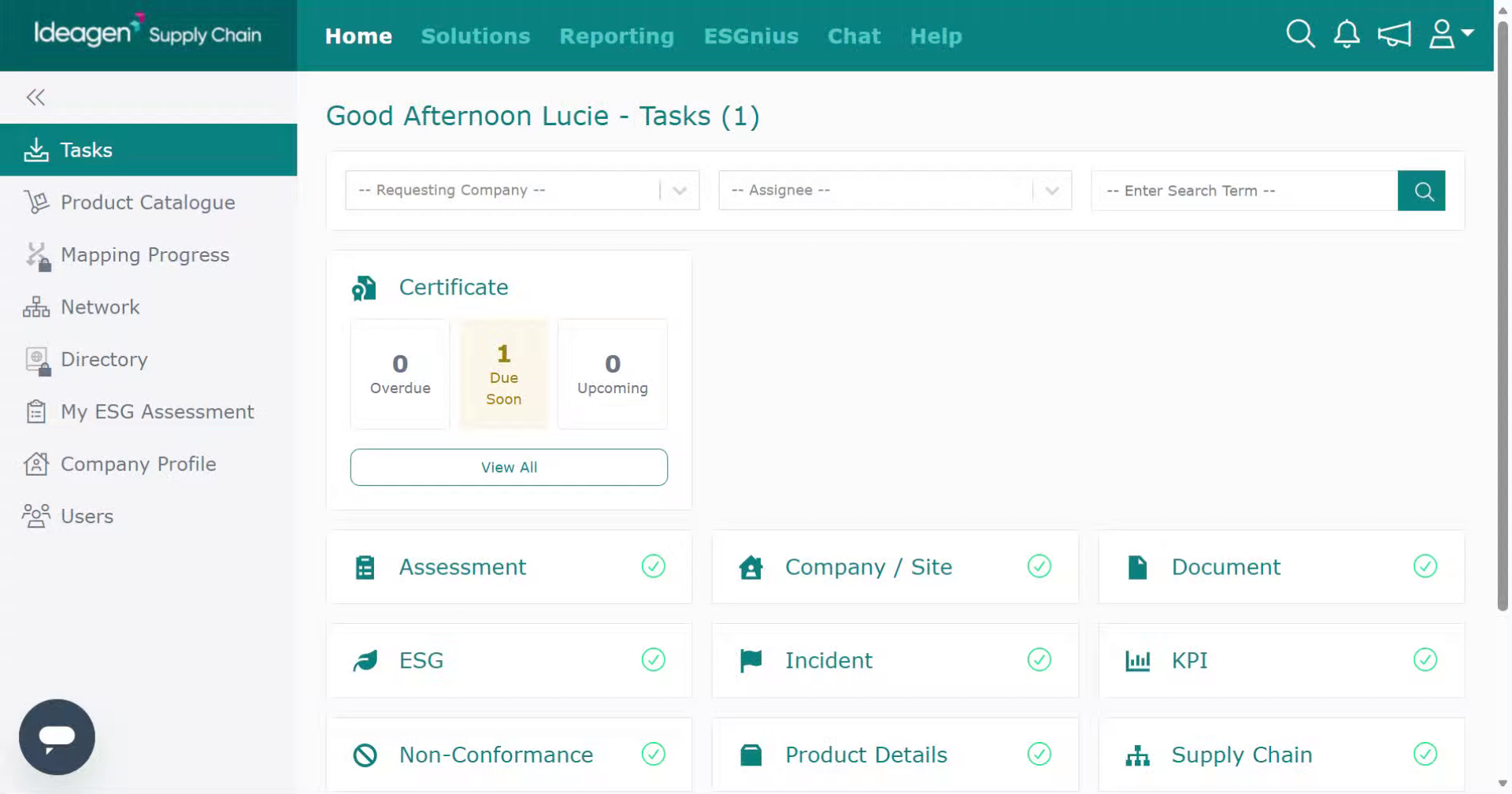
View the Homepage Tasks section to see your outstanding certificate requests.
-
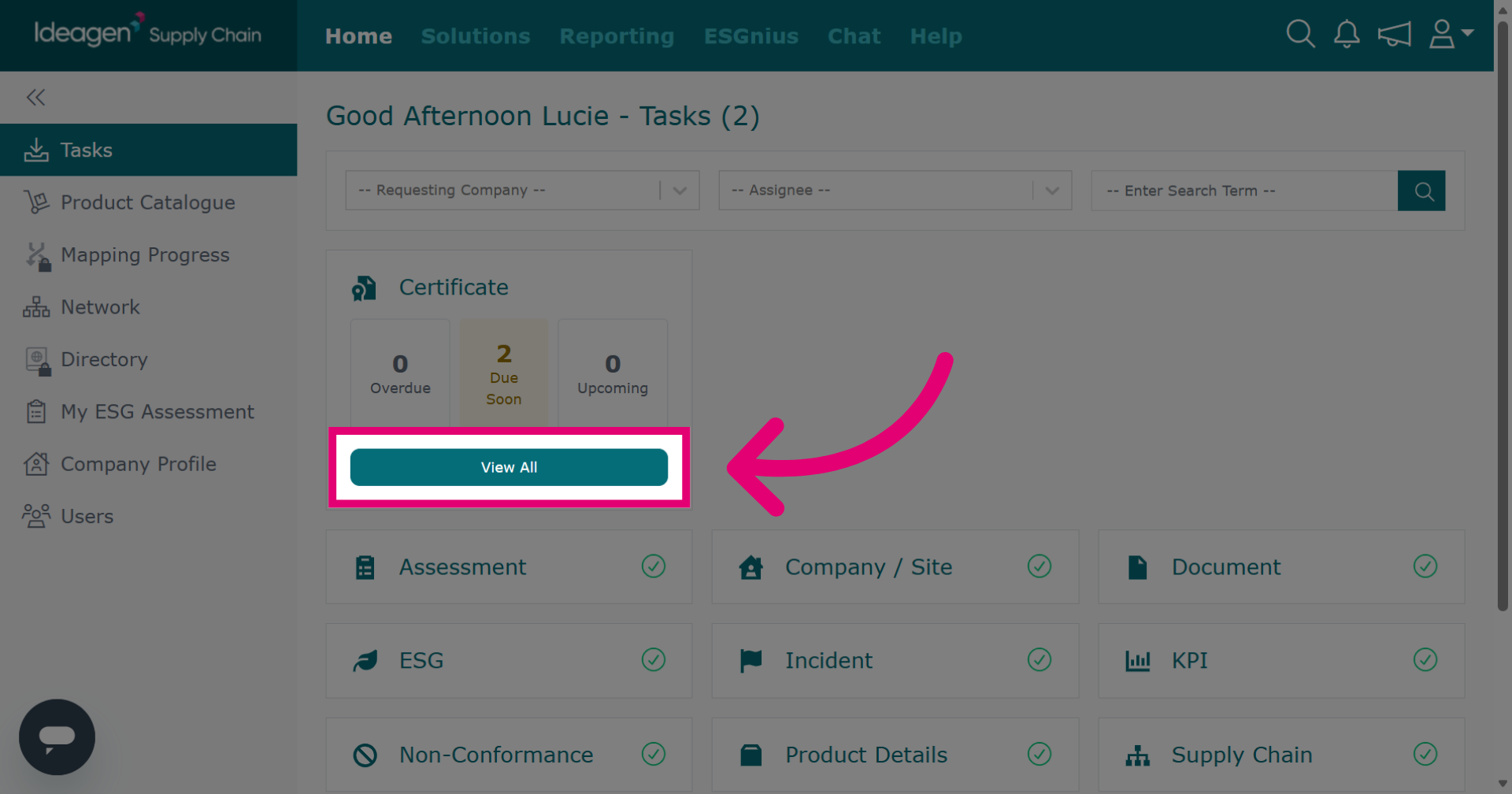
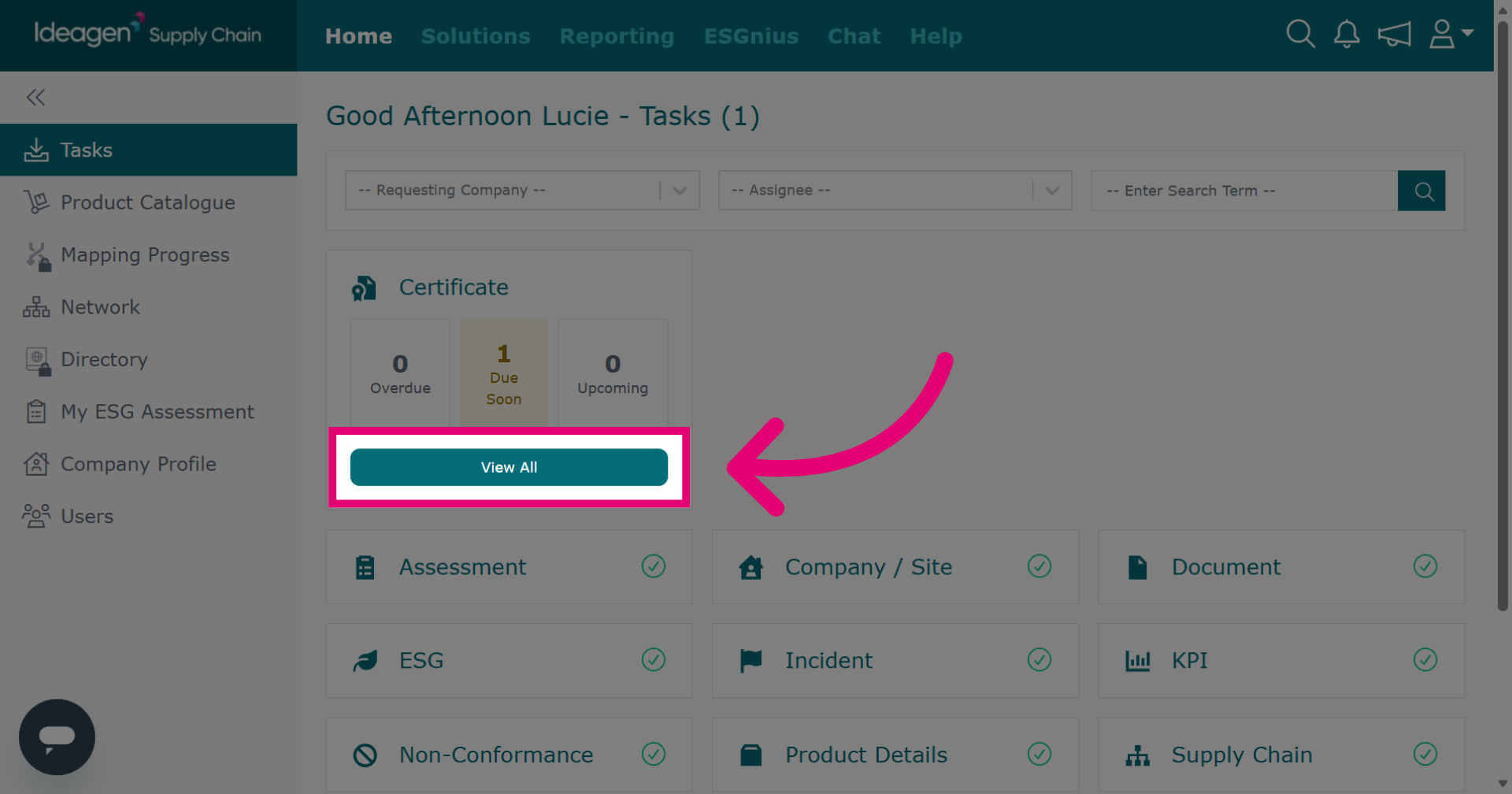
Click View All beneath the Certificate task tile to see all outstanding certificate requests.
-
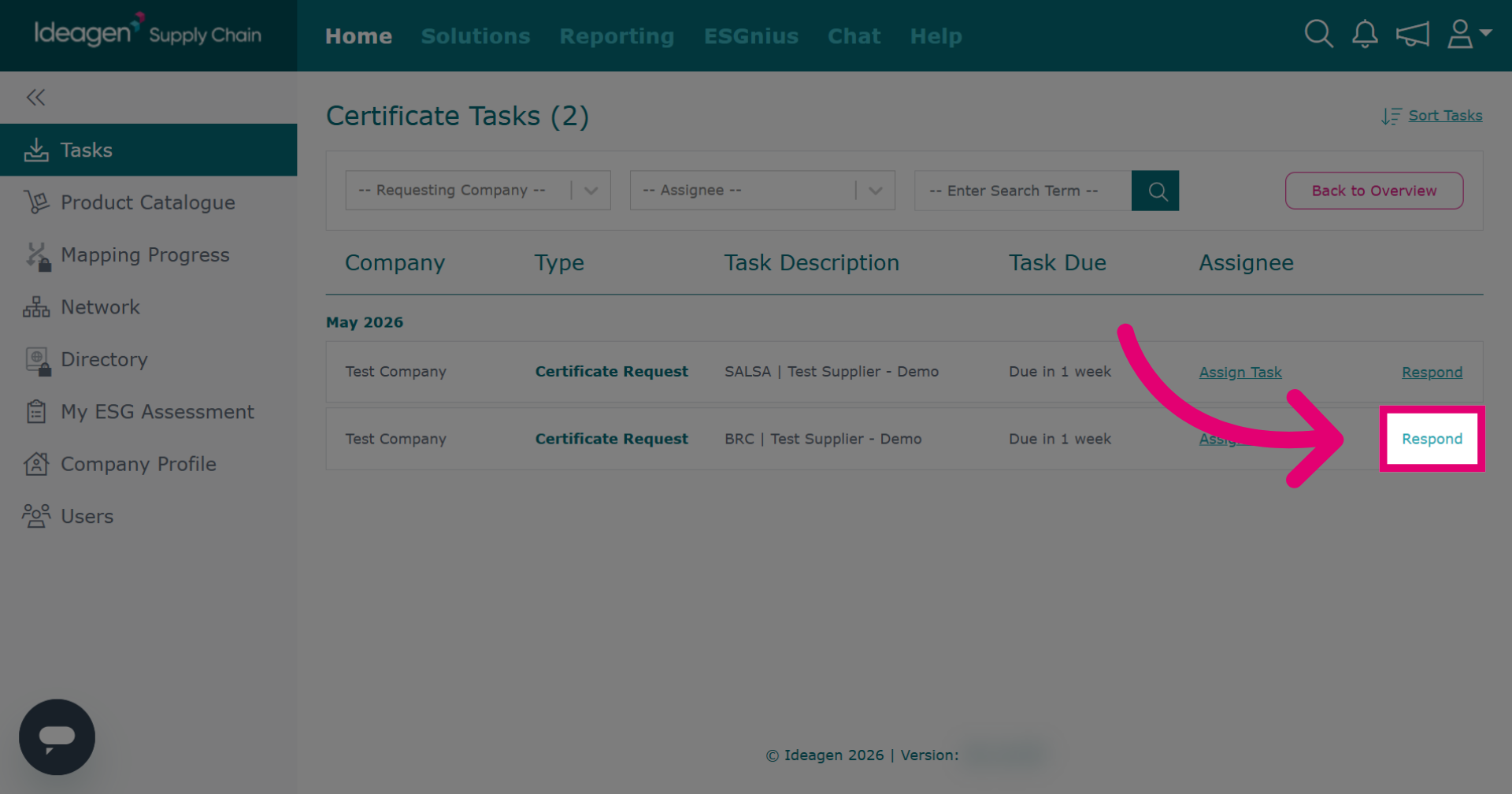
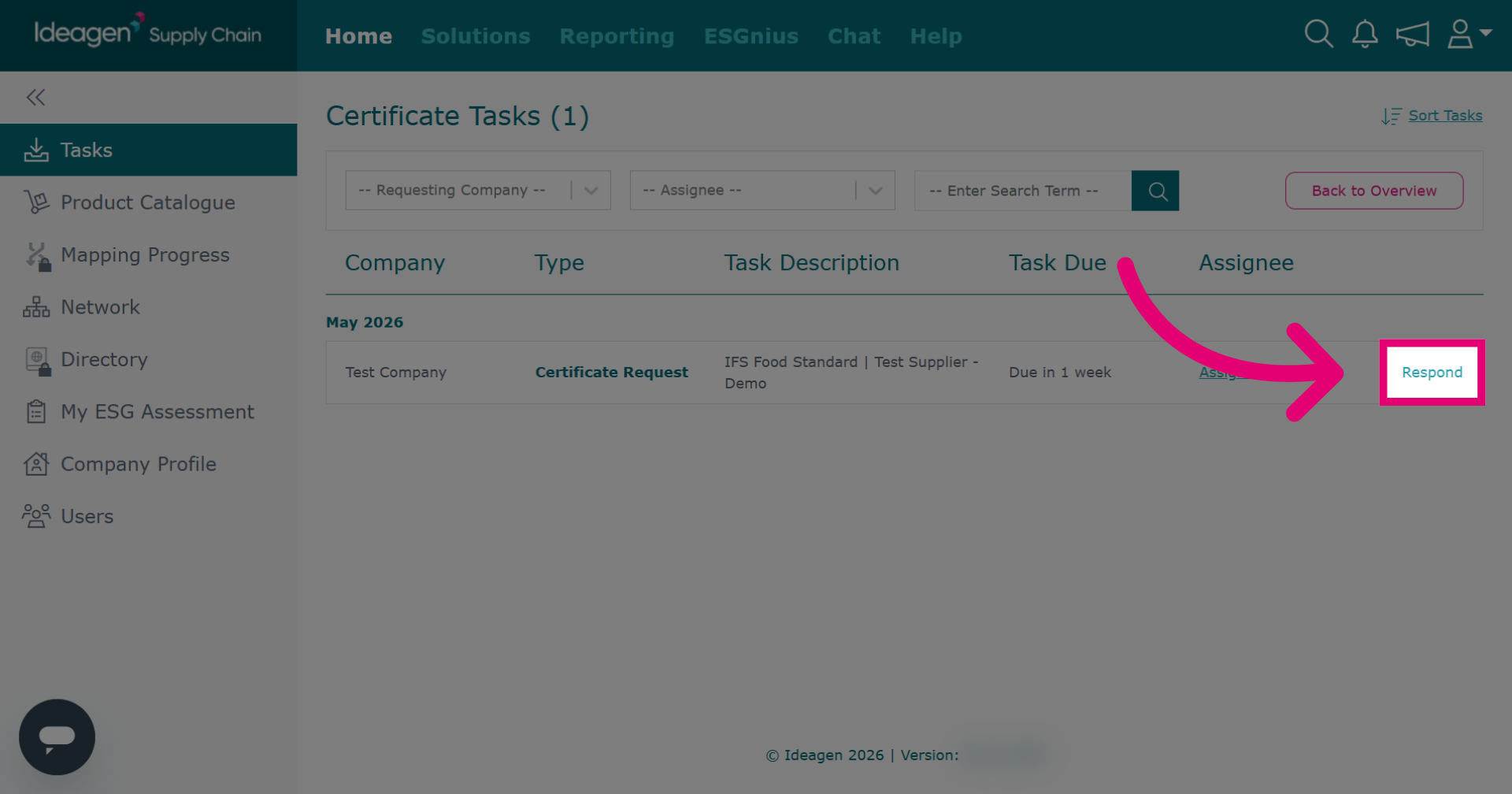
Click Respond to open the response options for the selected certificate request.
-
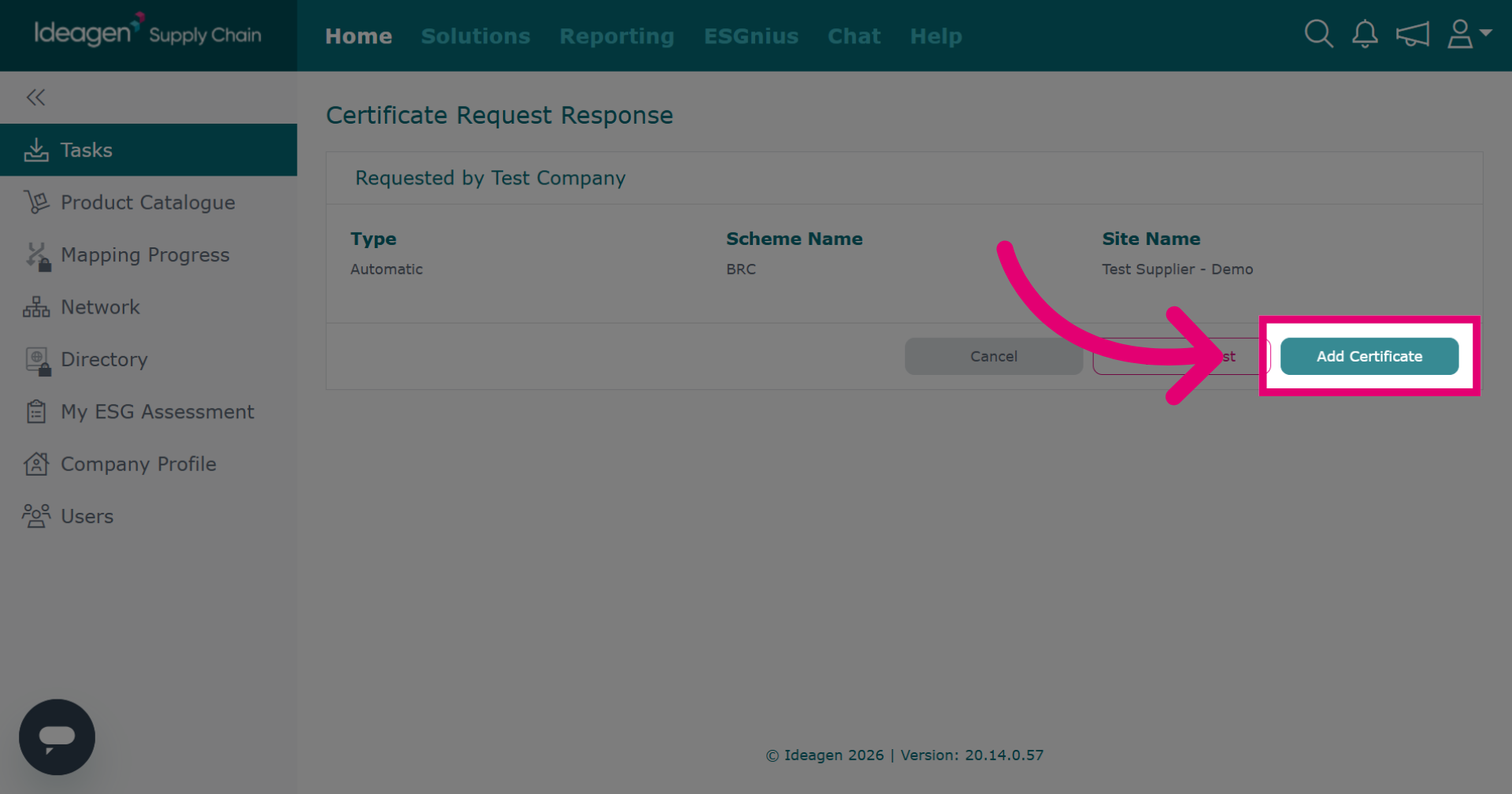
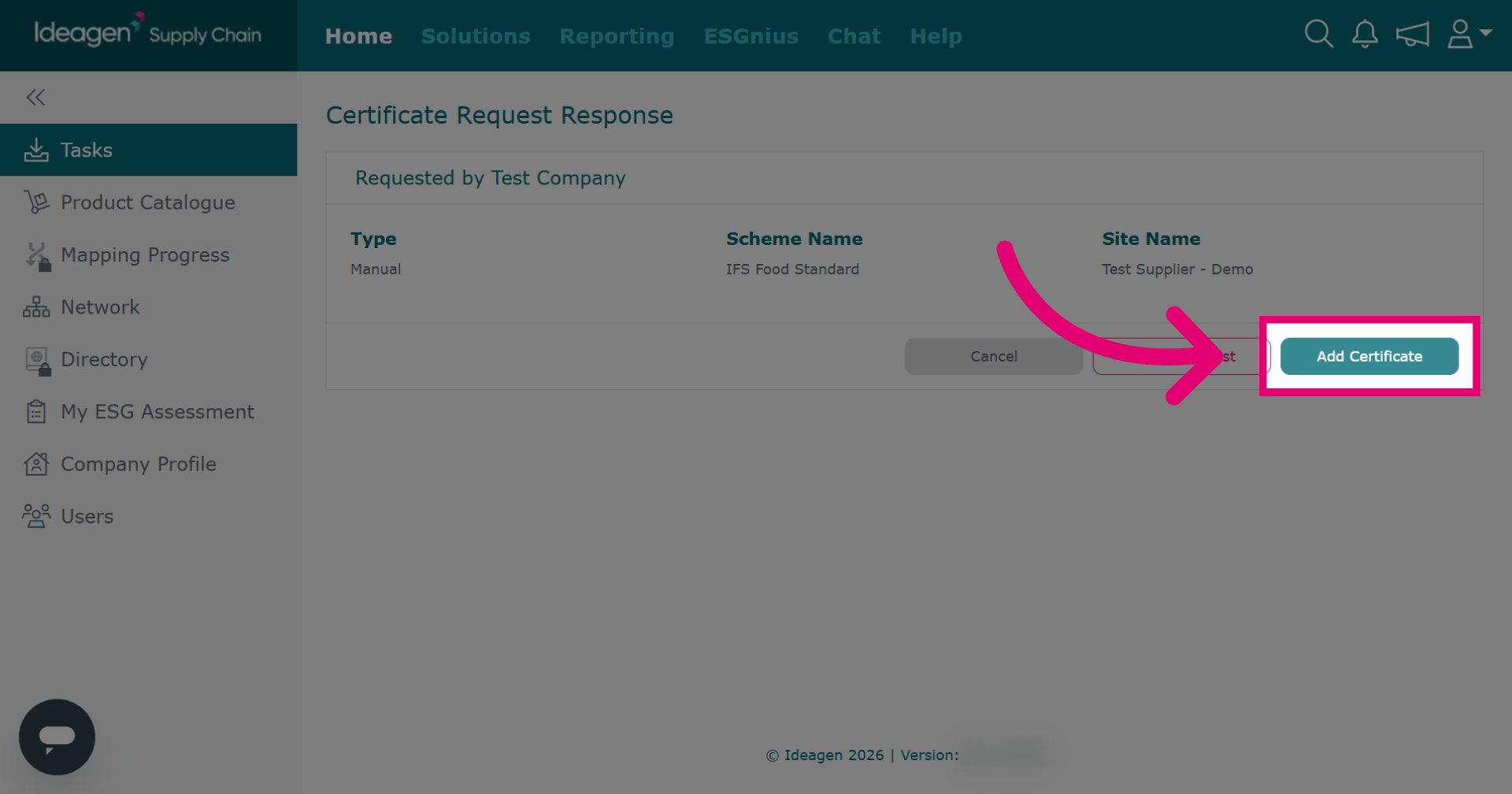
Click Add Certificate to start the process of adding a requested certificate.
-
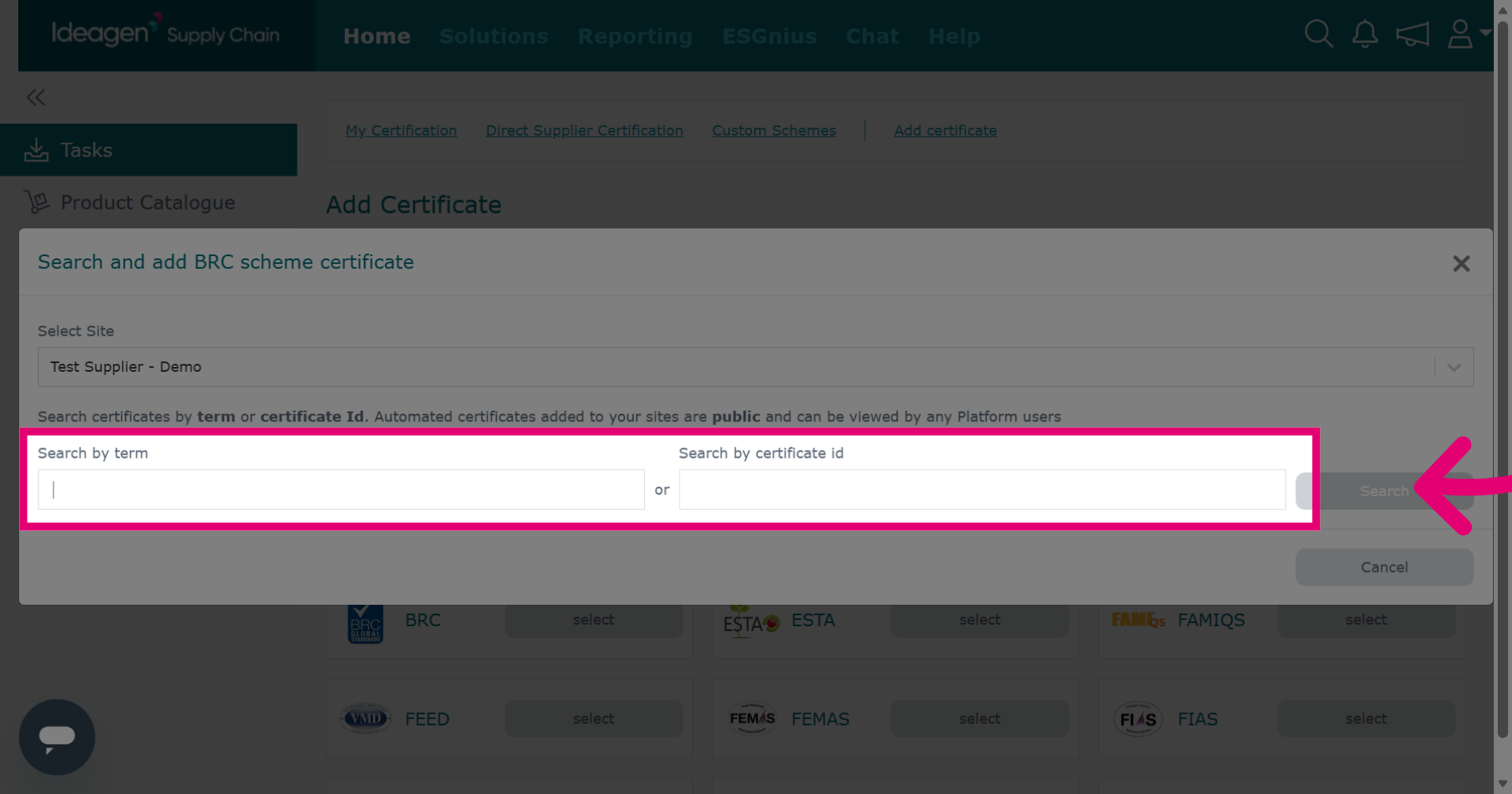
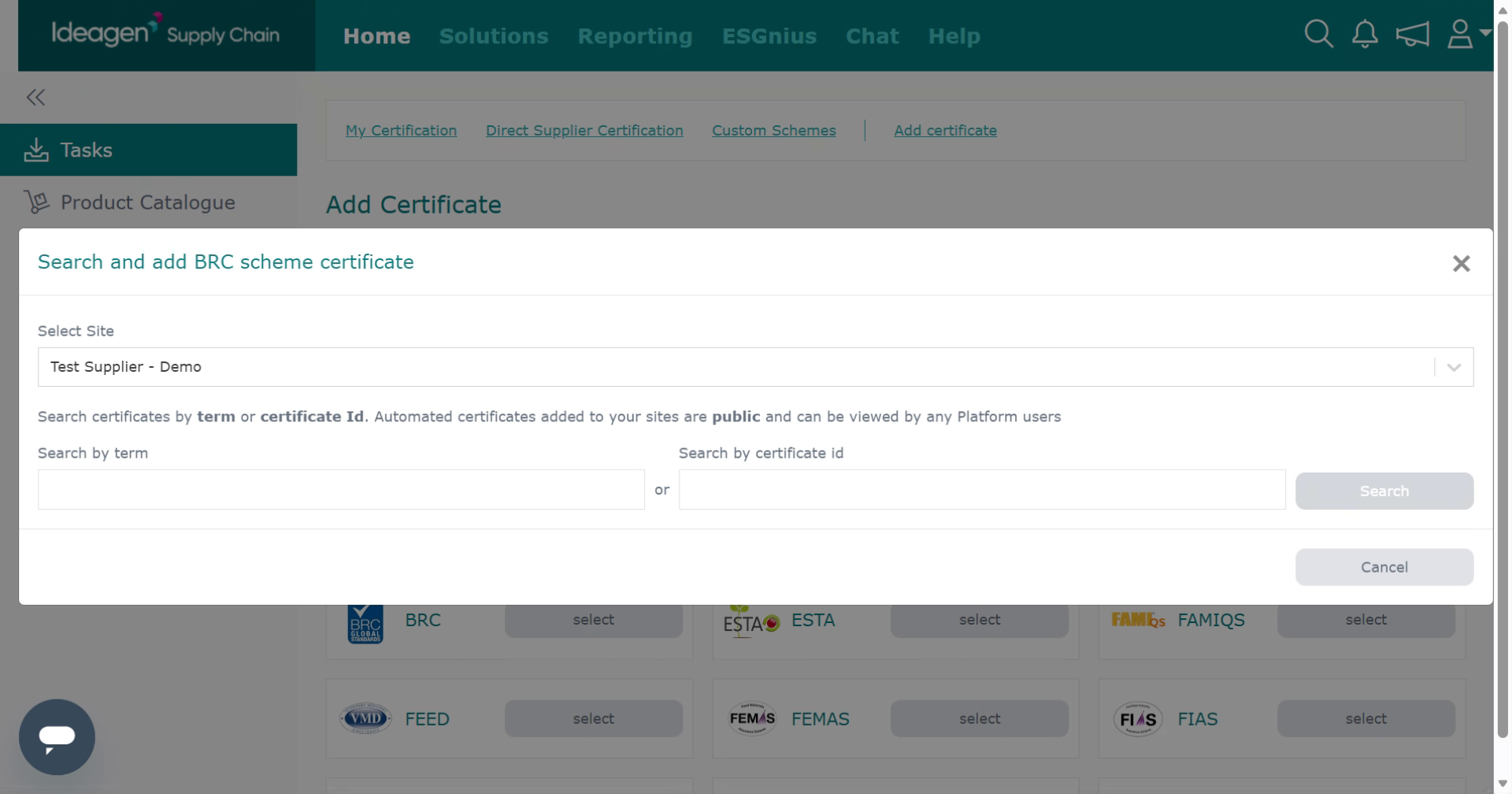
If the requested certificate scheme has an API, you will be able to search for your certificate via the API search options to assign automatically.
-
Enter a search keyword to locate the certificate.
-
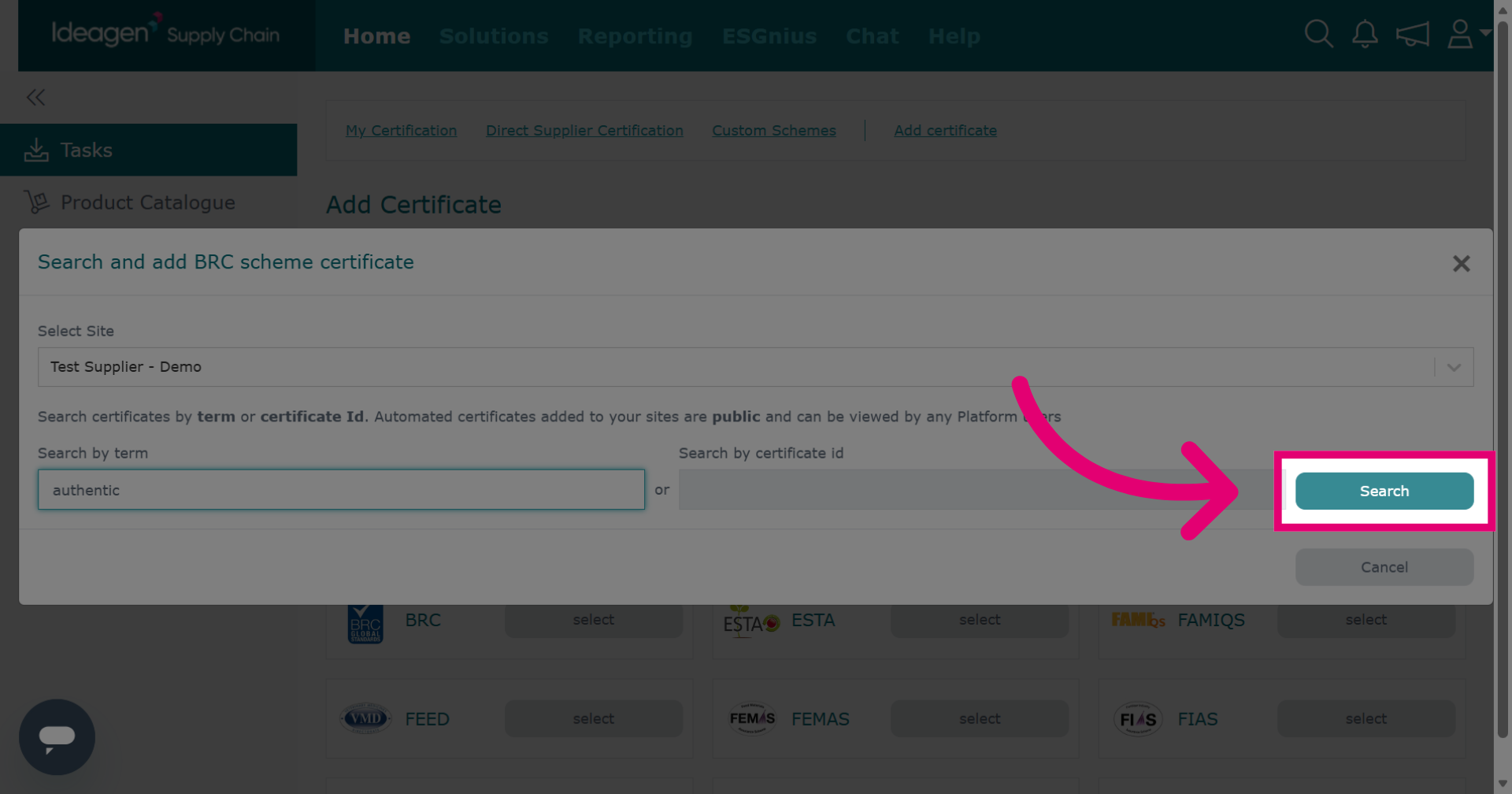
Click Search to initiate the lookup for certificates matching the entered keyword.
-
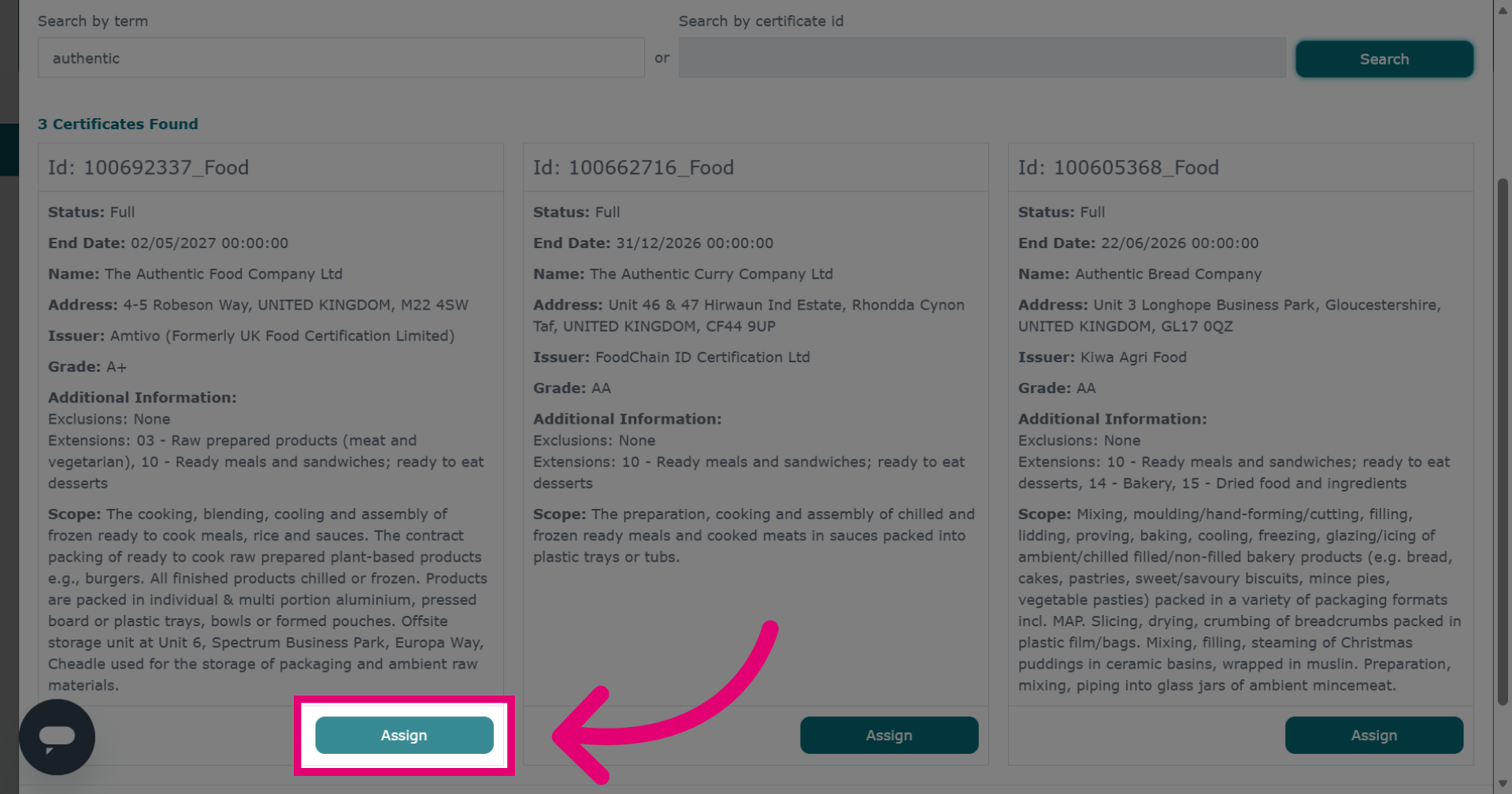
Click Assign to allocate the chosen certificate to the appropriate request or user.
-
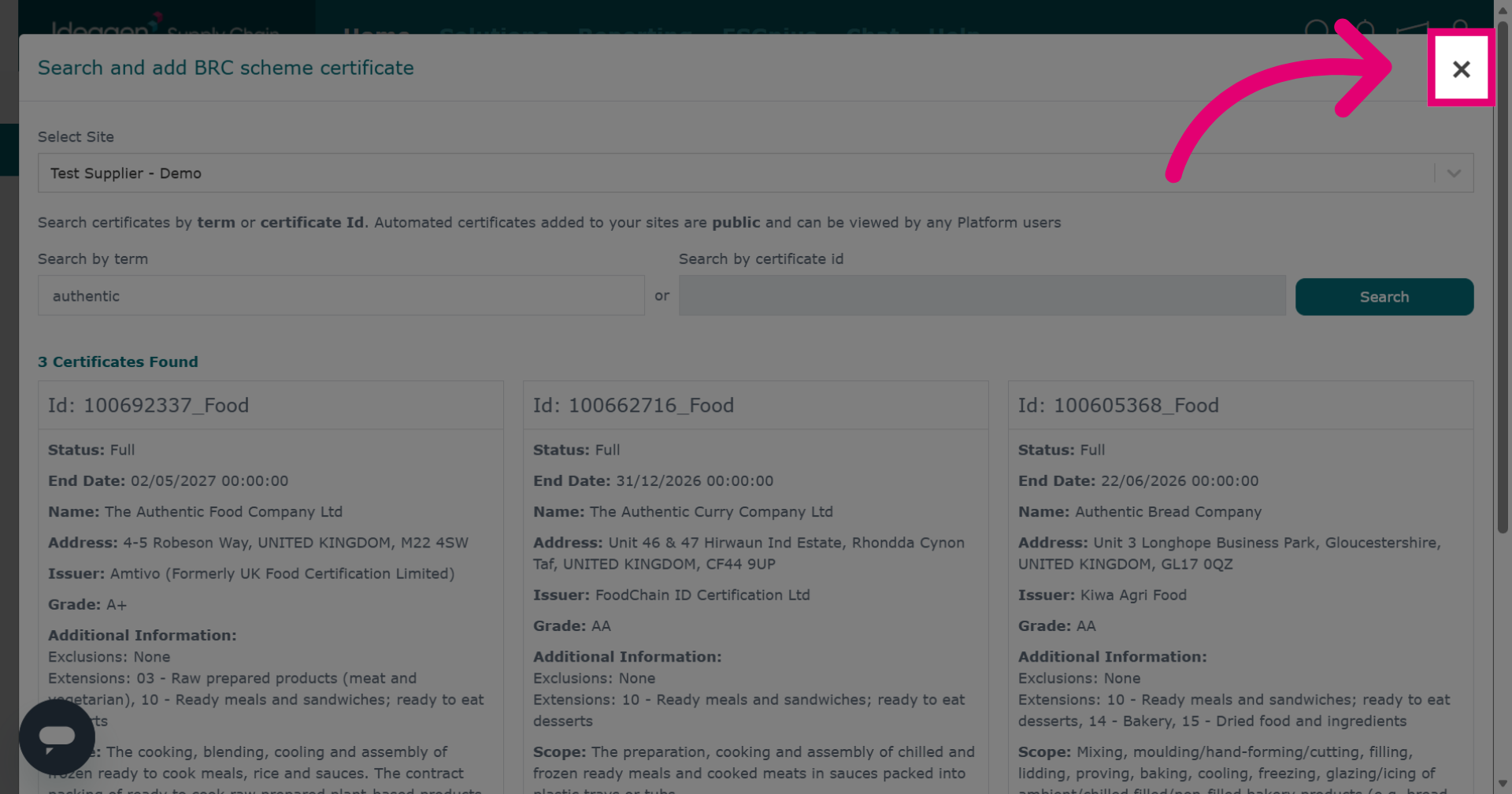
Click × to close the assignment window and return to the previous screen.
-
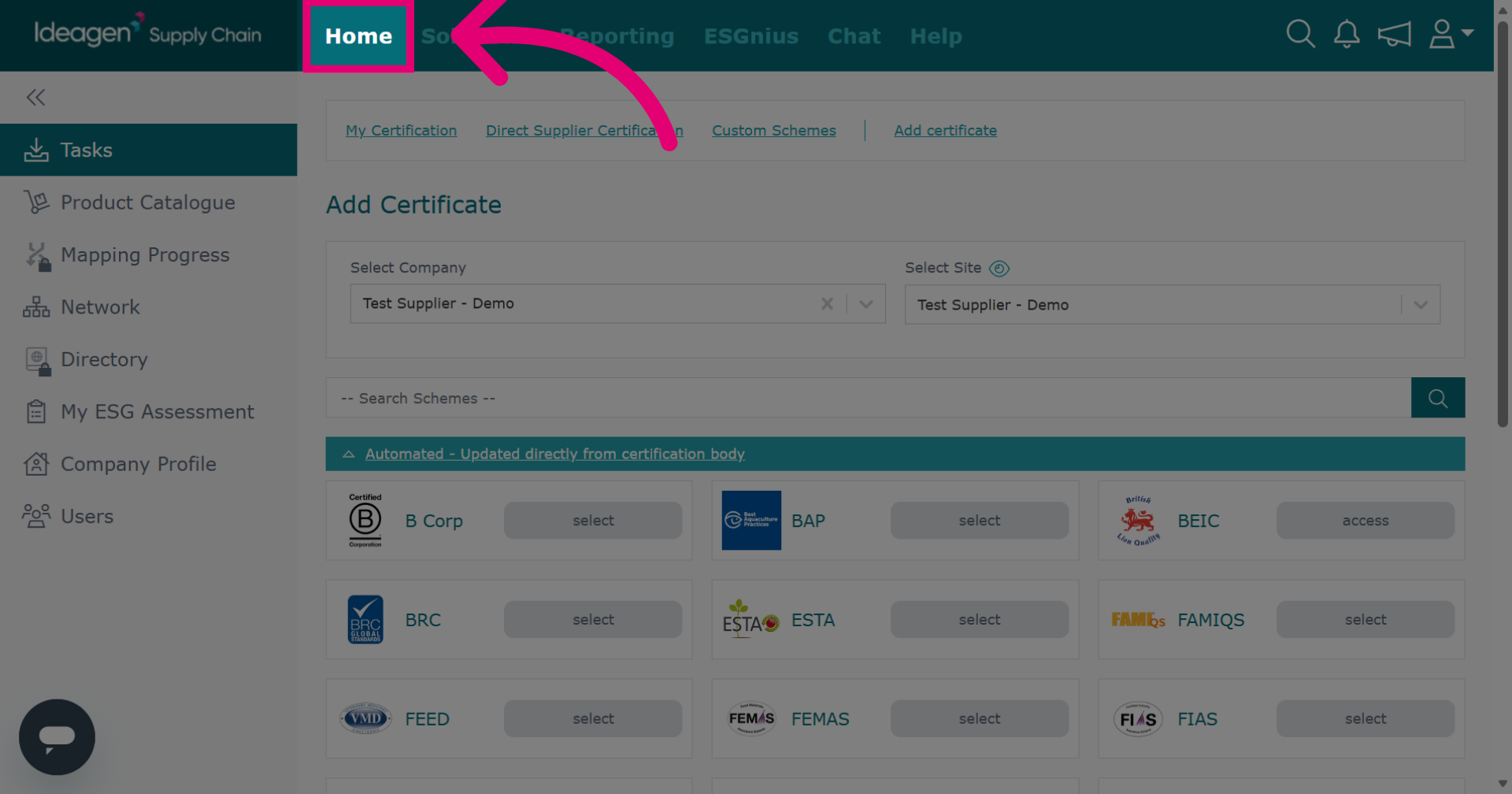
Click Home to navigate back to the main dashboard of the Ideagen Supply Chain platform.
-
The process is the same for adding a manual certificate.
-
Access the certificate request you want to respond to.
-
Click Respond to address the selected certificate request and proceed with the necessary actions.
-
Click Add Certificate to start the process of adding a new certificate.
-
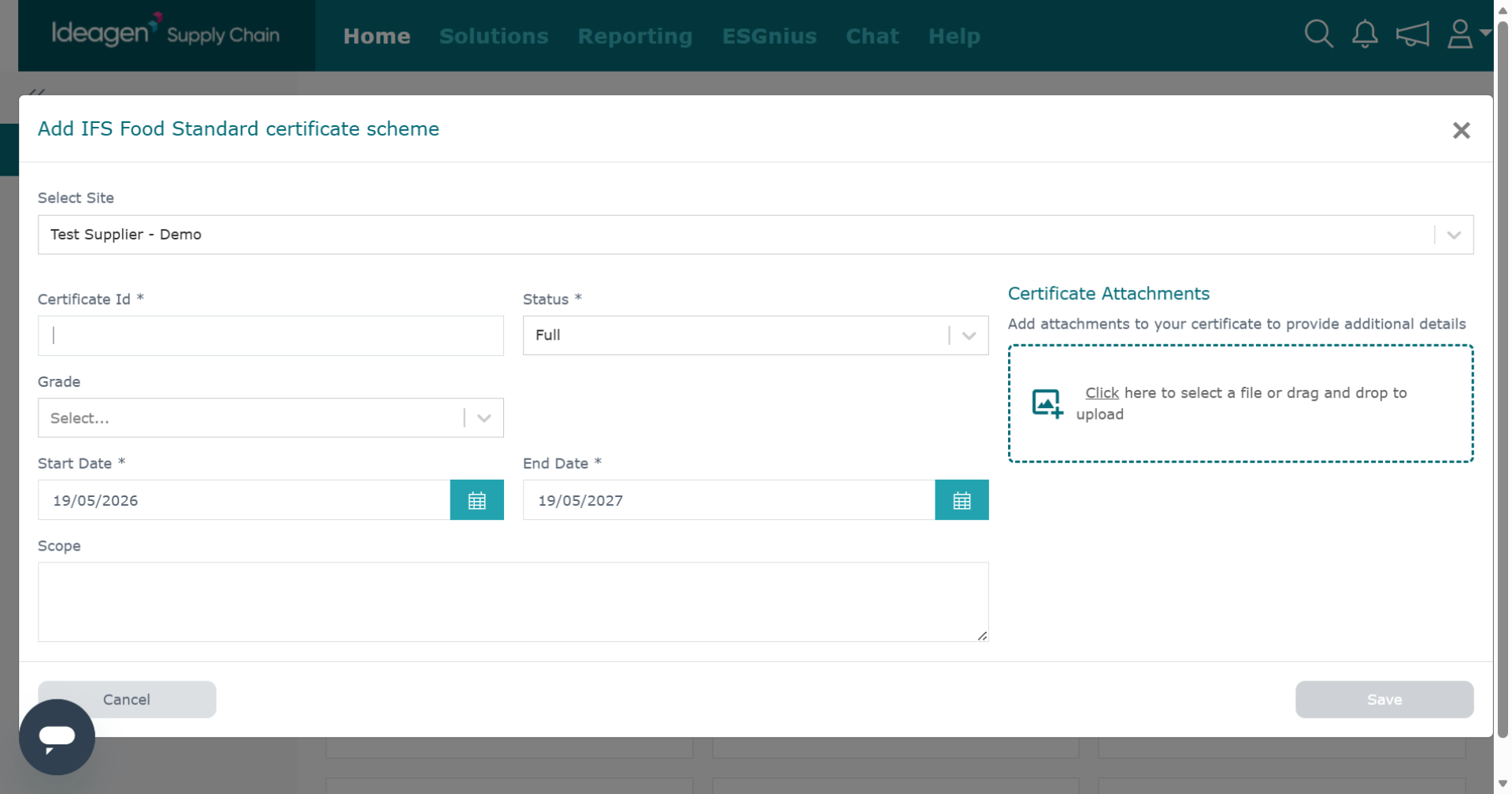
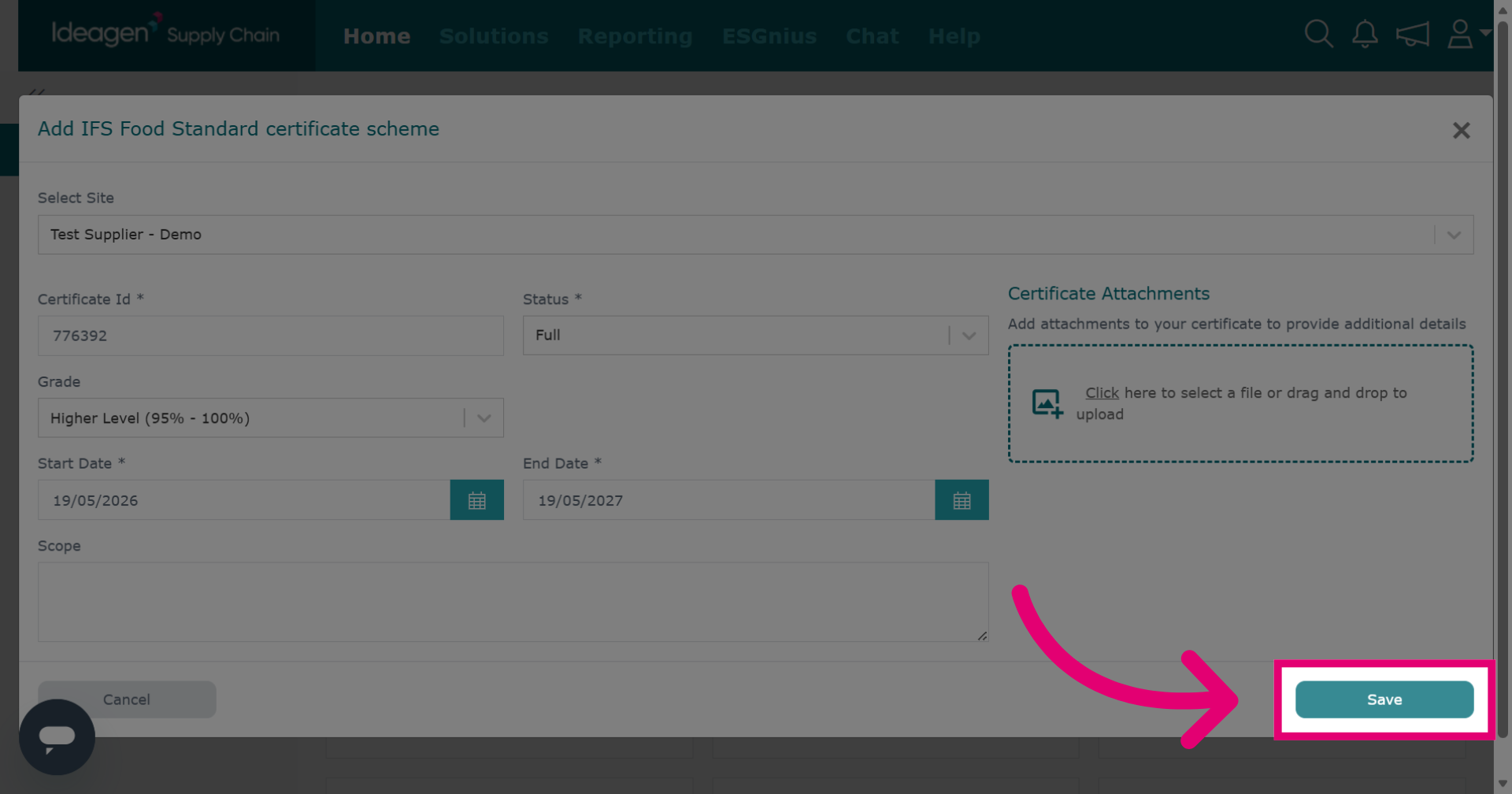
Input the certificate information. Boxes with an asterisk are mandatory.
-
Click Save to store the certificate information.
-
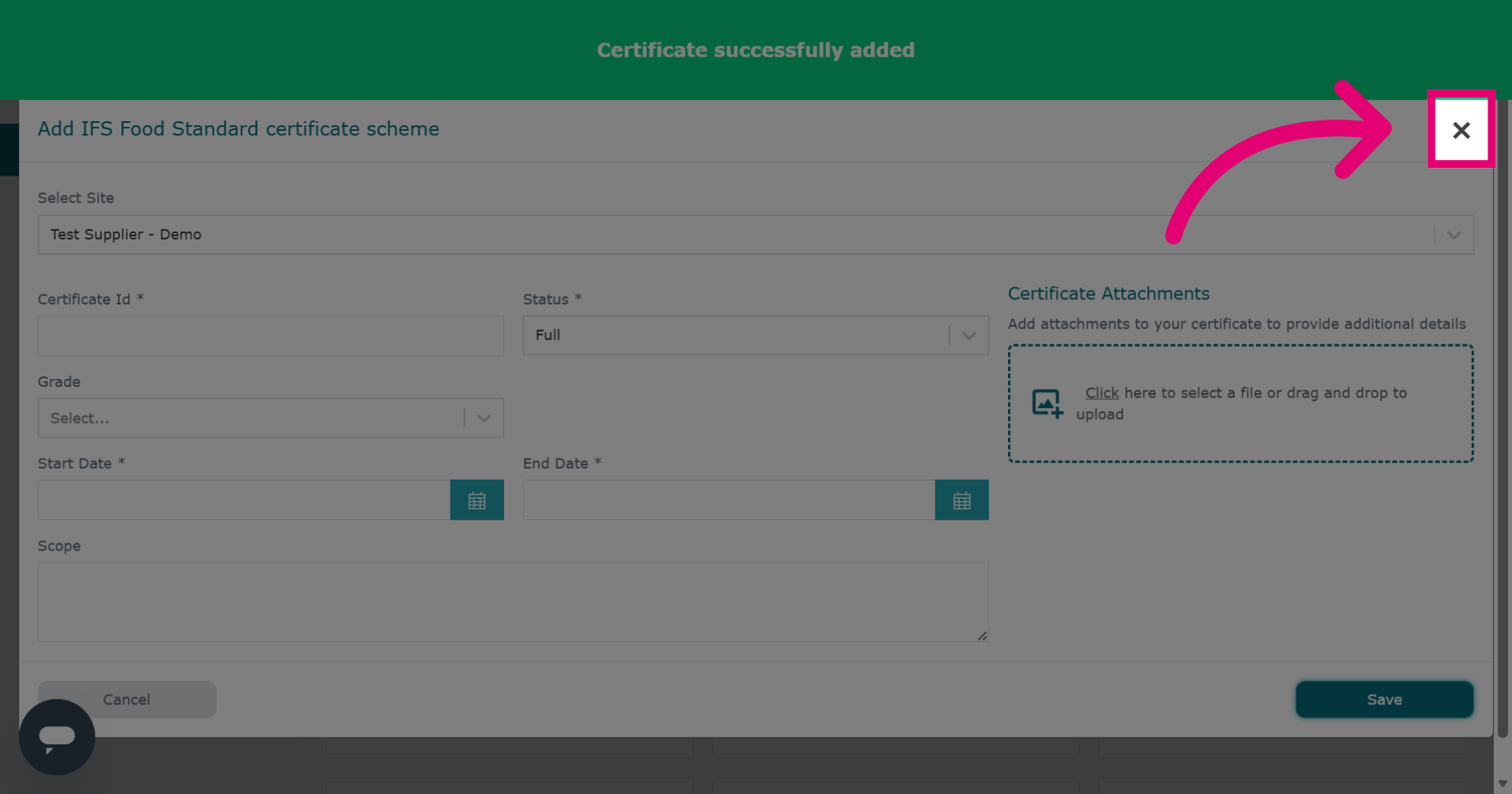
Click × to close the certificate addition window and return to the homepage.
-
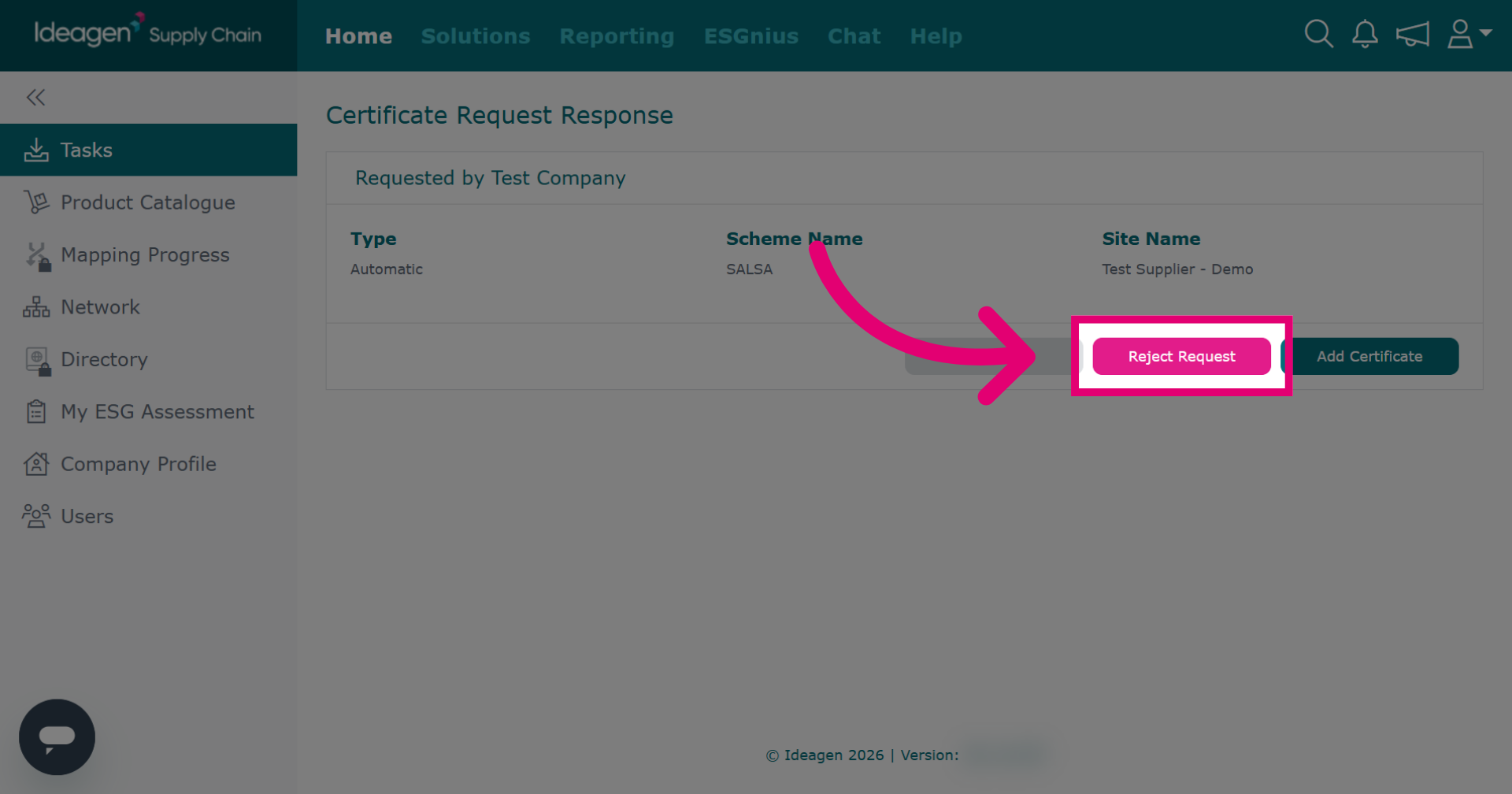
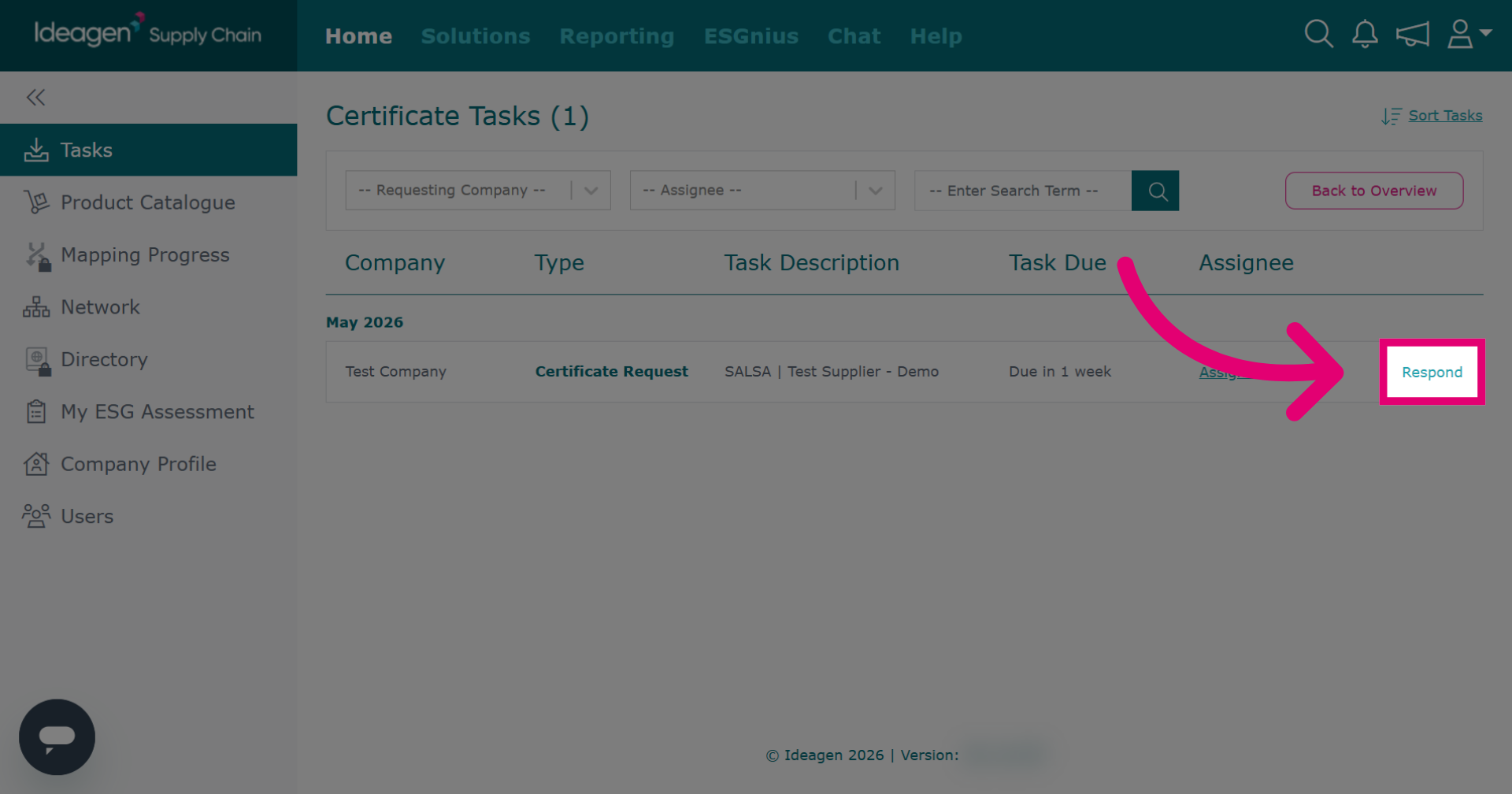
To reject a certificate request, click Respond to open the response interface for handling certificate requests.
-
Click Reject Request to decline the certificate request.