New article
Recently updated
Responding to product link requests and mapping

Who is this article for?
Users who need to respond to a product link request and map their supply chain.
Supply chain admin permissions are required.
This tutorial guides you through accepting, rejecting and mapping product link requests.
You will learn how to create new products, link existing products, map suppliers, and manage product requests within the Ideagen Supply Chain platform.
Responding to Product Link Requests and Mapping Supply Chains
Log into the system.
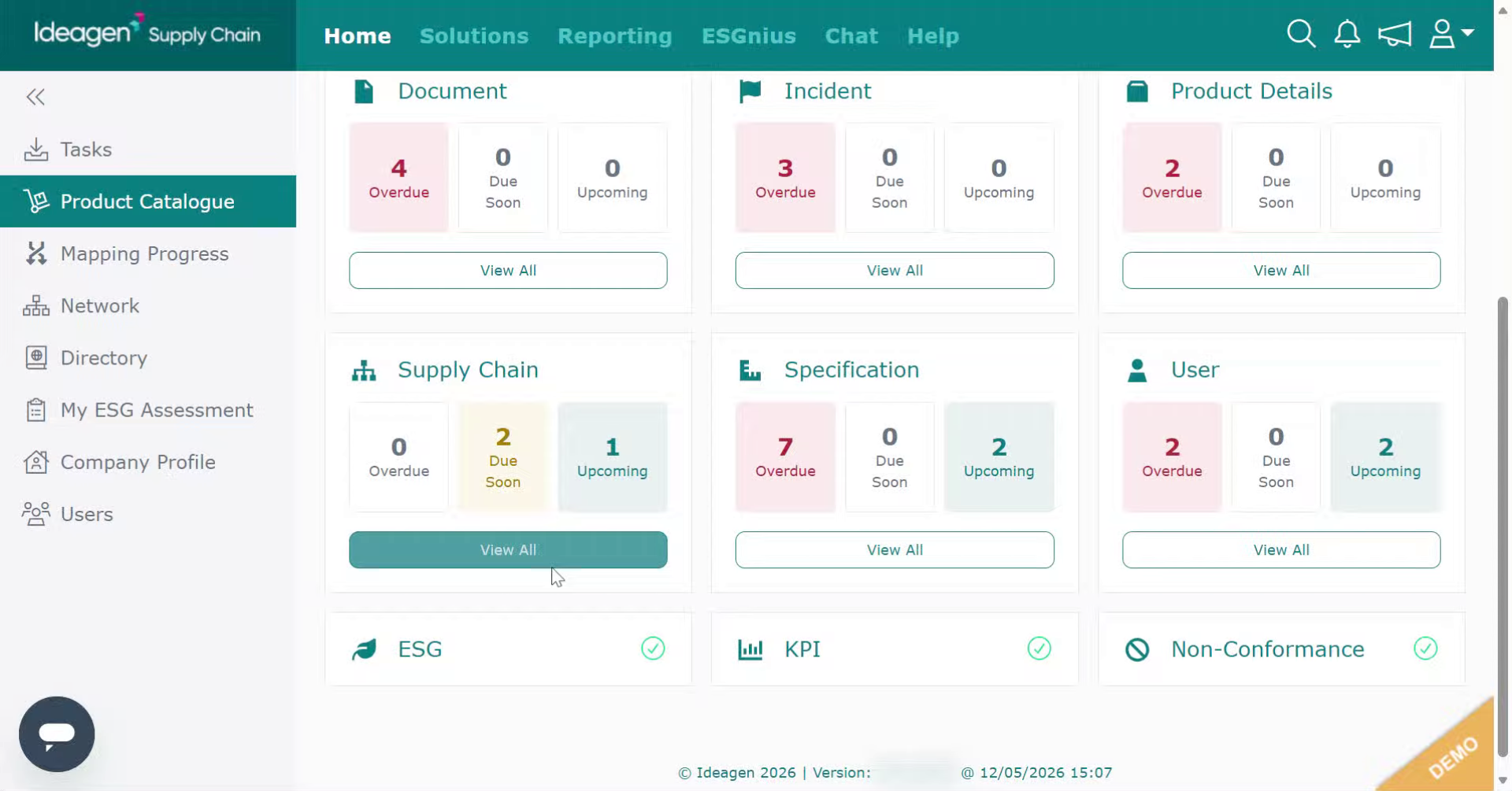
Click View All beneath the Supply Chain tile to display all outstanding supply chain mapping and product requests.
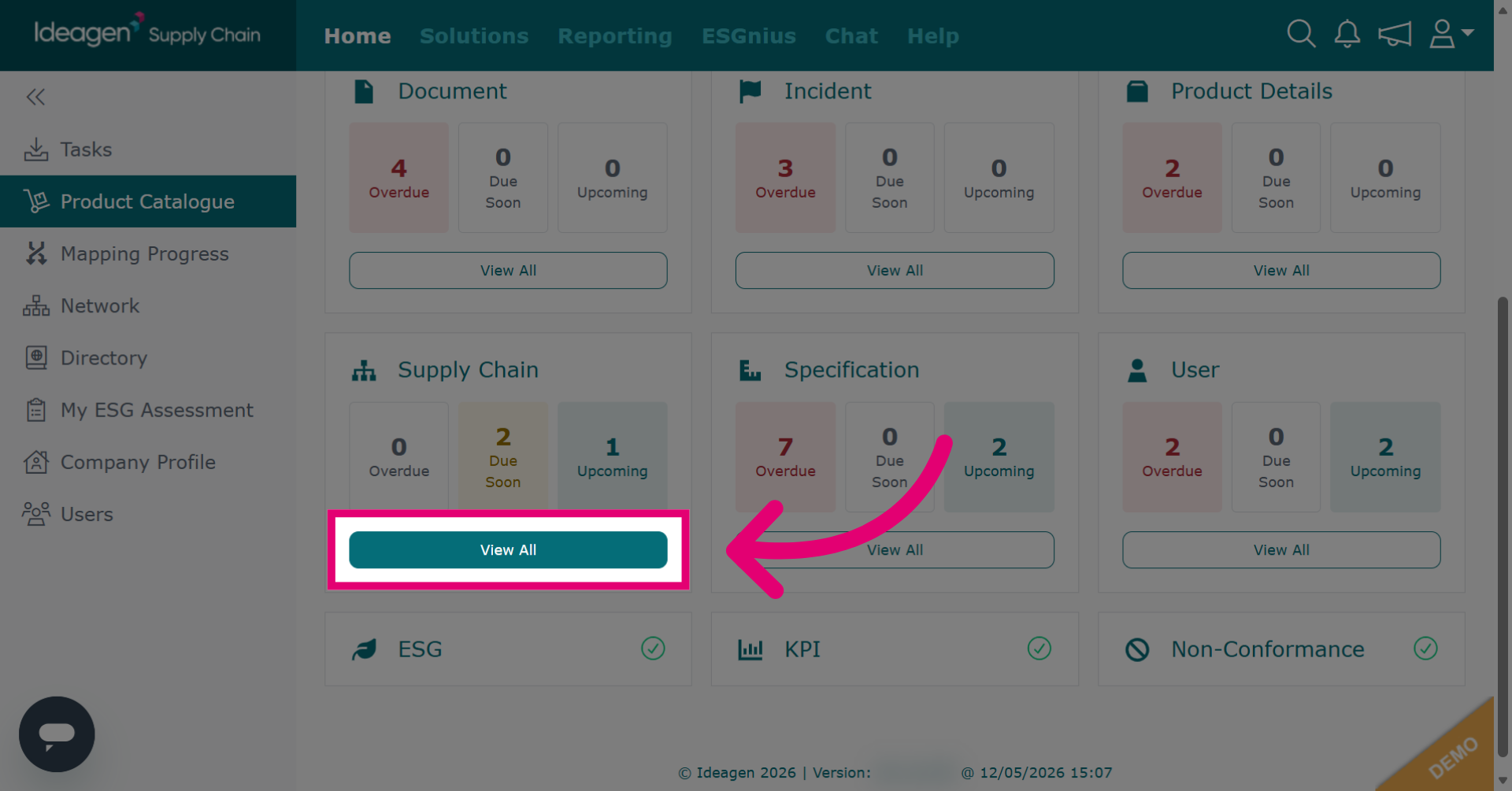
Click Respond next to the task you wish to action.
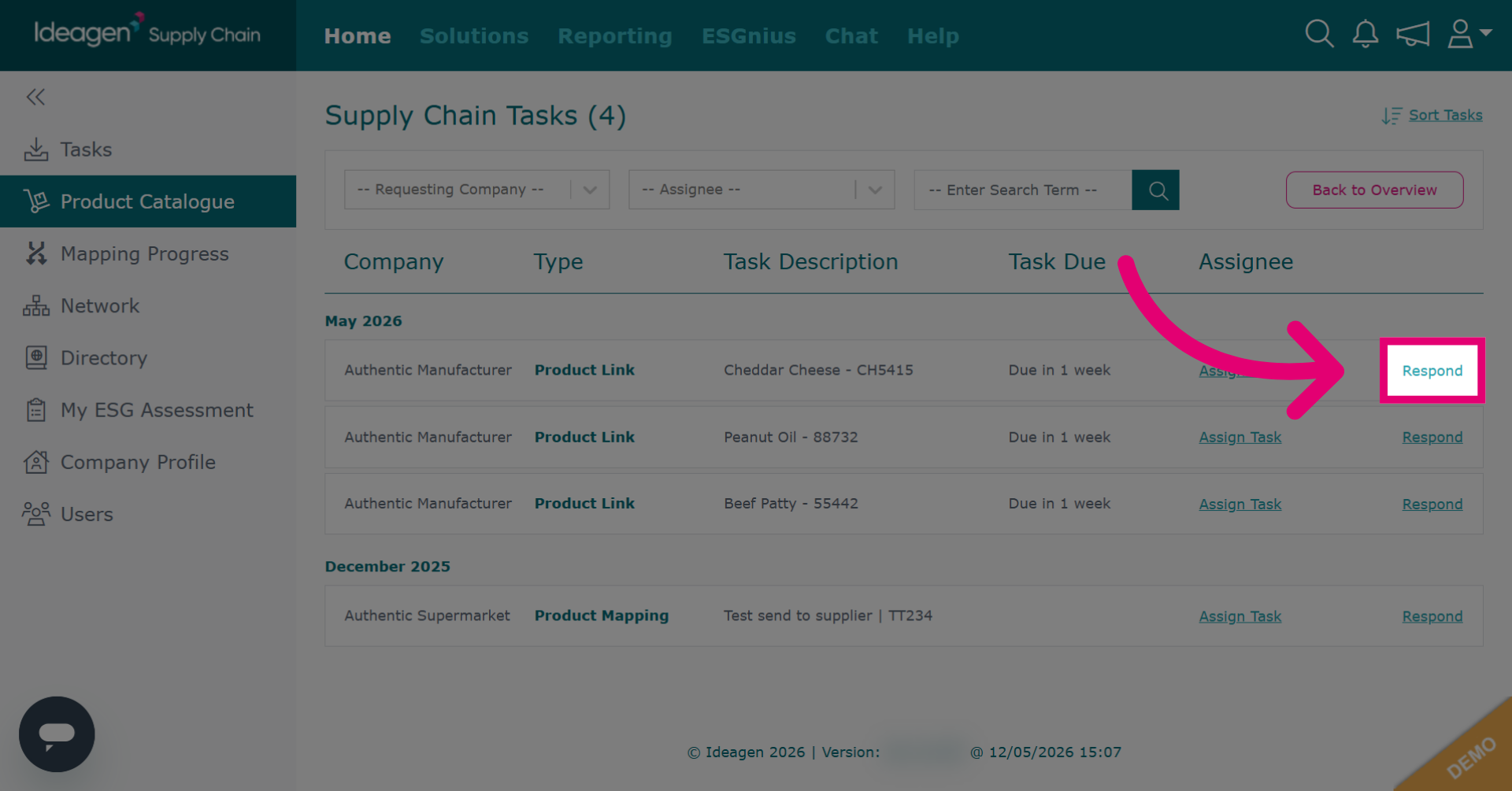
If the requested product does not already exist within your product catalogue on the Ideagen Supply Chain platform, select the Create New Product option.
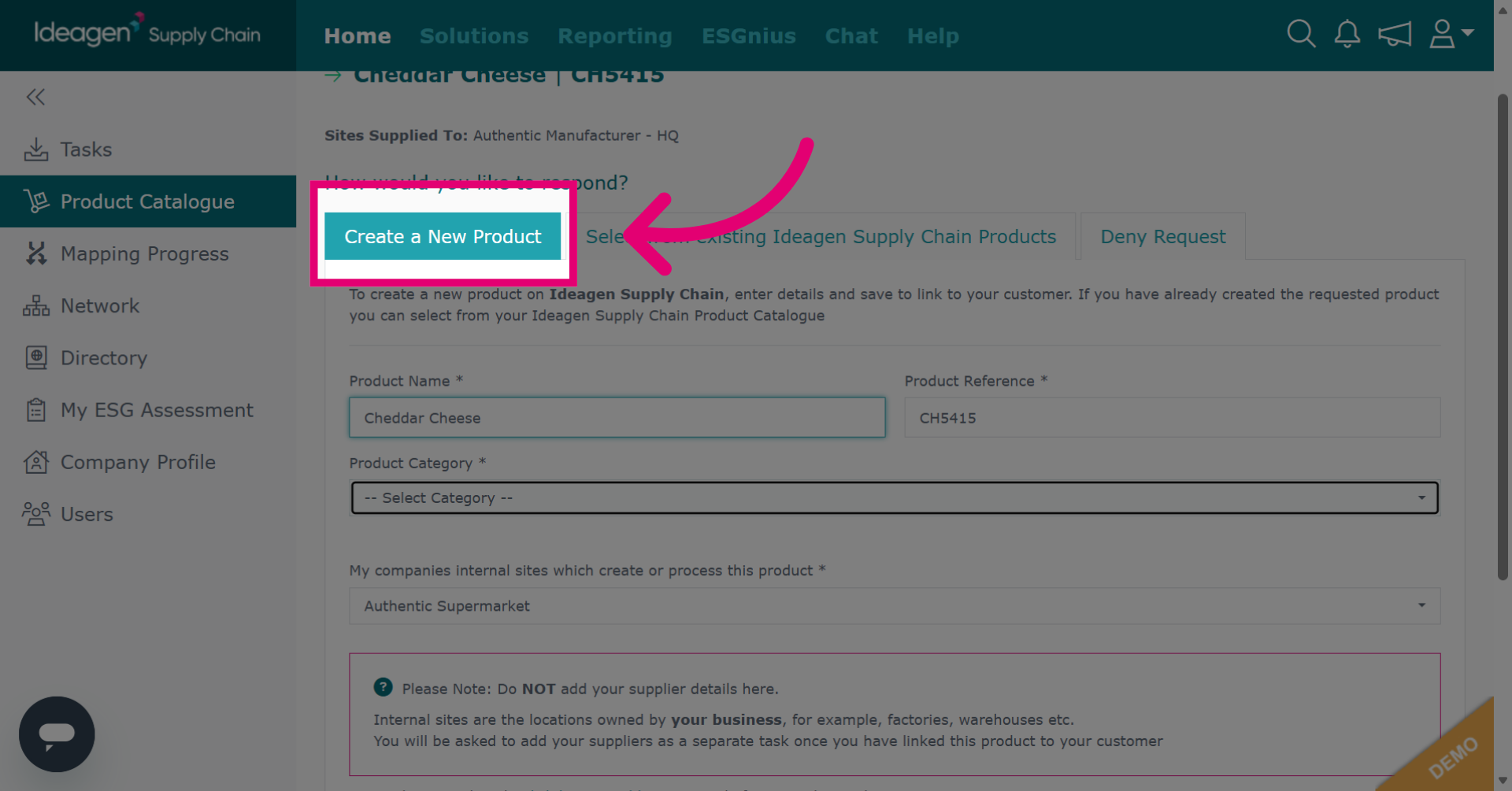
Input the product details. The name and product reference are auto populated from the request details, however you can change these if needed. Select the category within your product catalogue that the product will sit within. Finally, select the internal site of your company that this product is created or processed by.
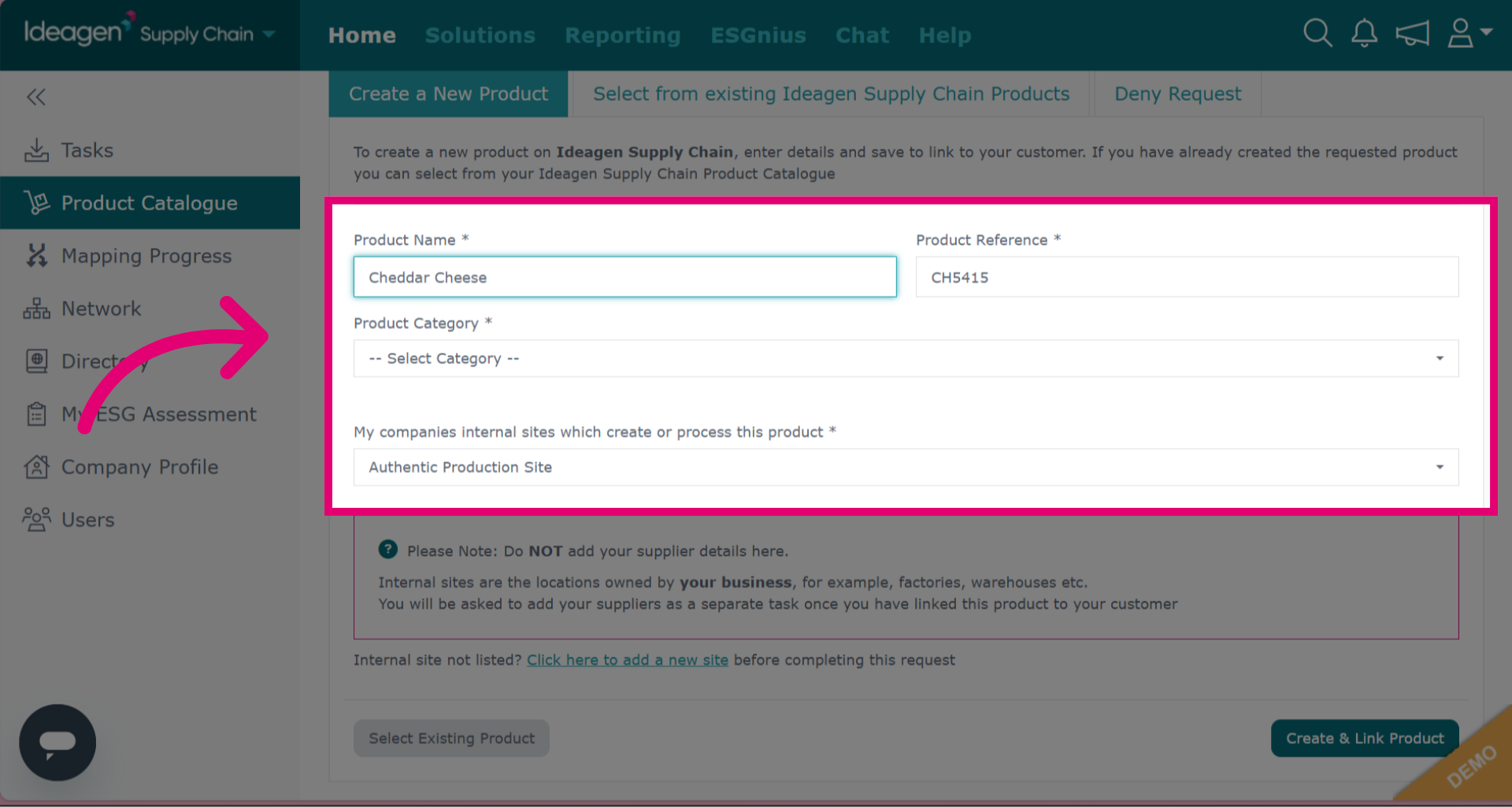
Click Create & Link Product to initiate the process of adding and associating a new product.
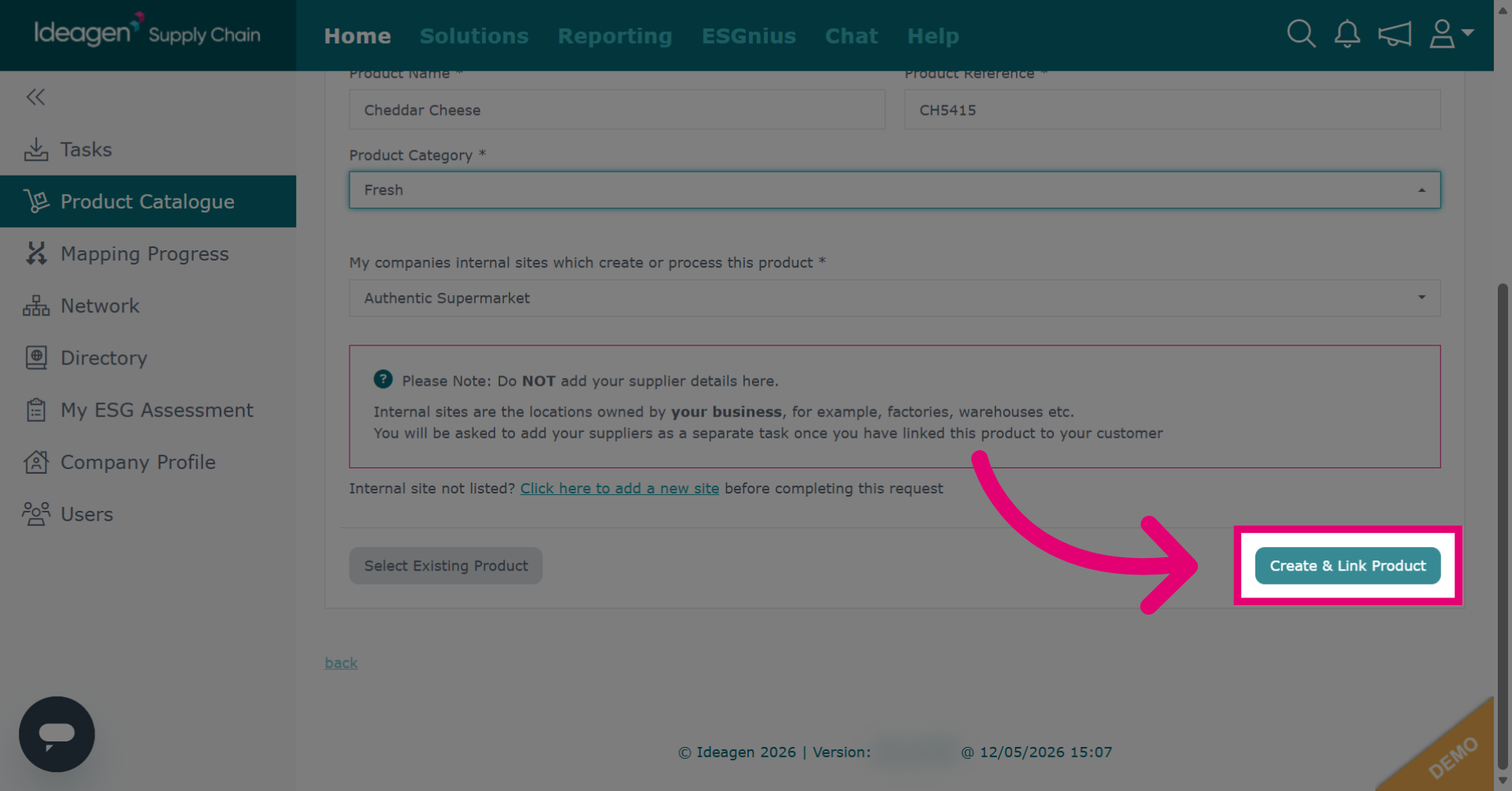
You will then be asked to map your product. To map your products immediately, click Respond.
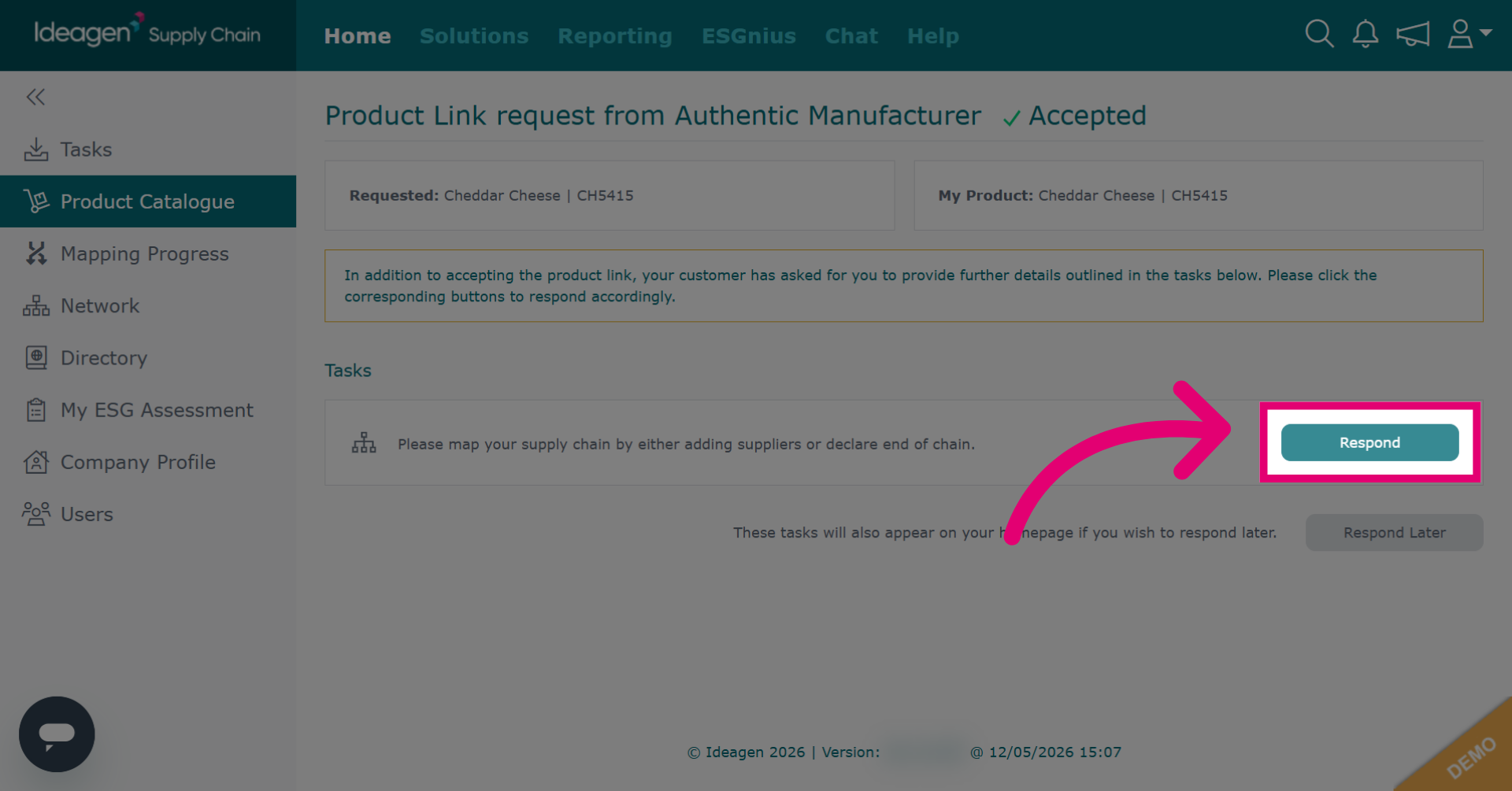
To map your product later, click Respond Later.
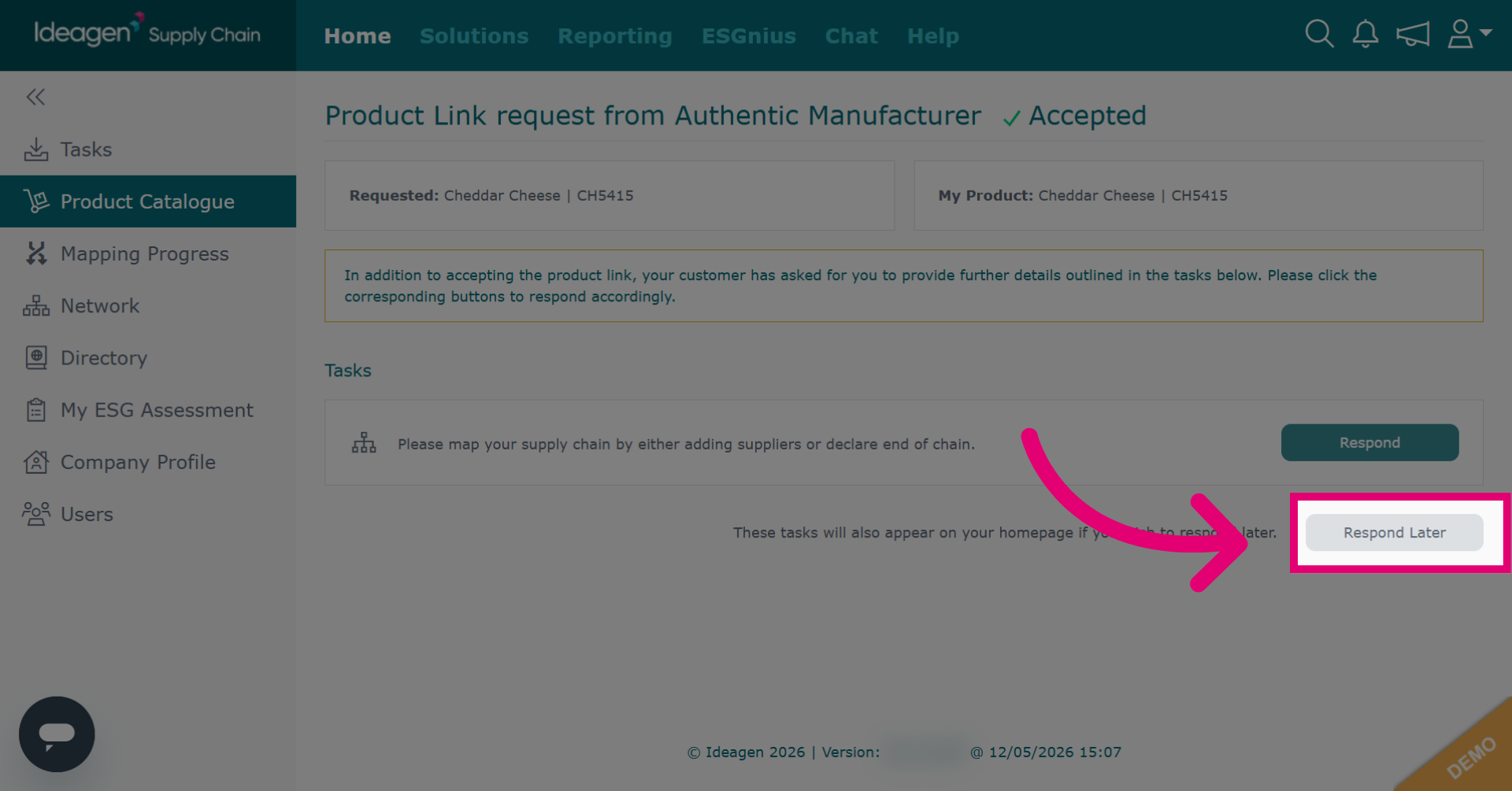
Click Supplier to input supplier details.
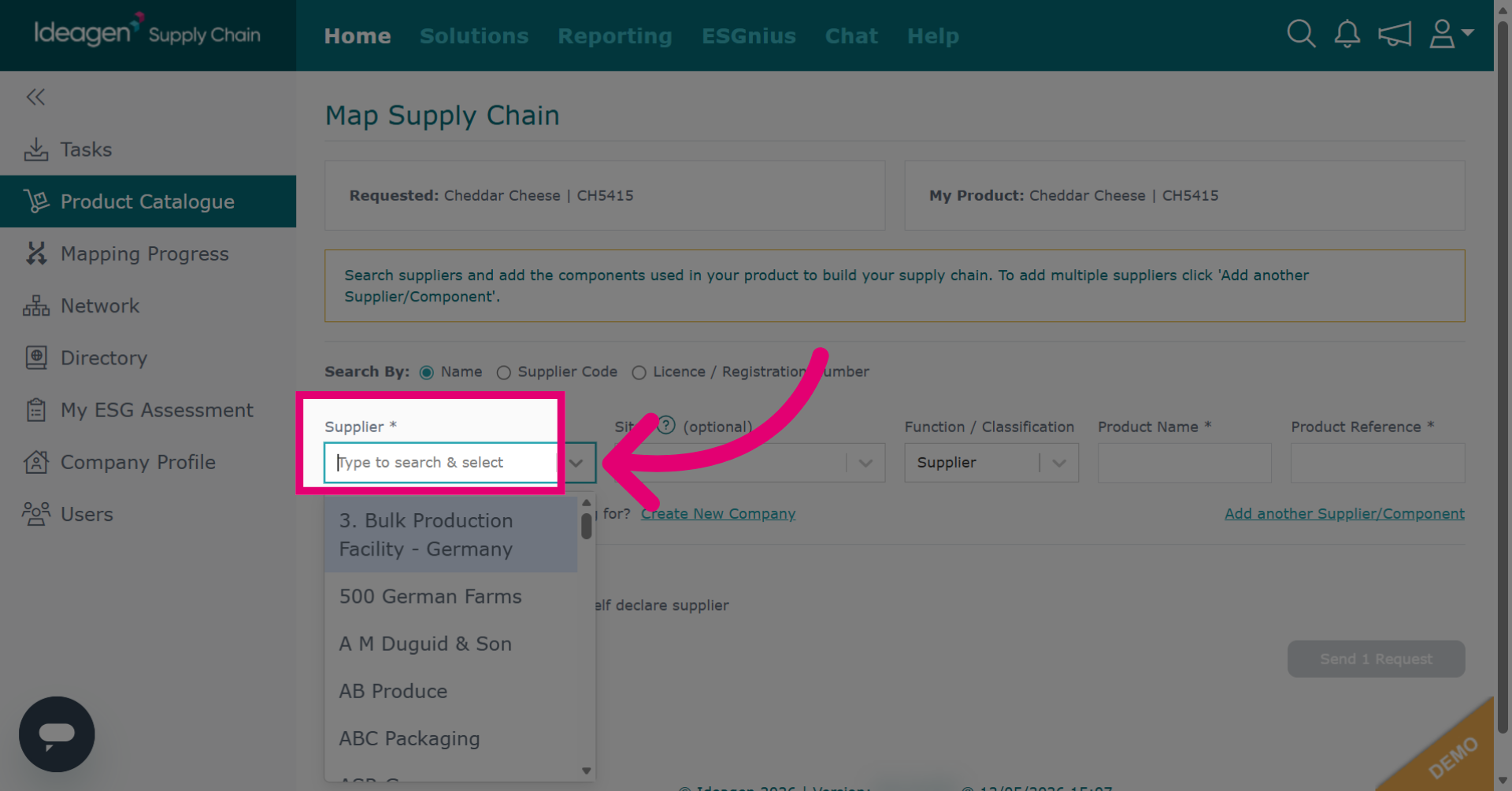
Enter the supplier name then select relevant company and site from the drop down.
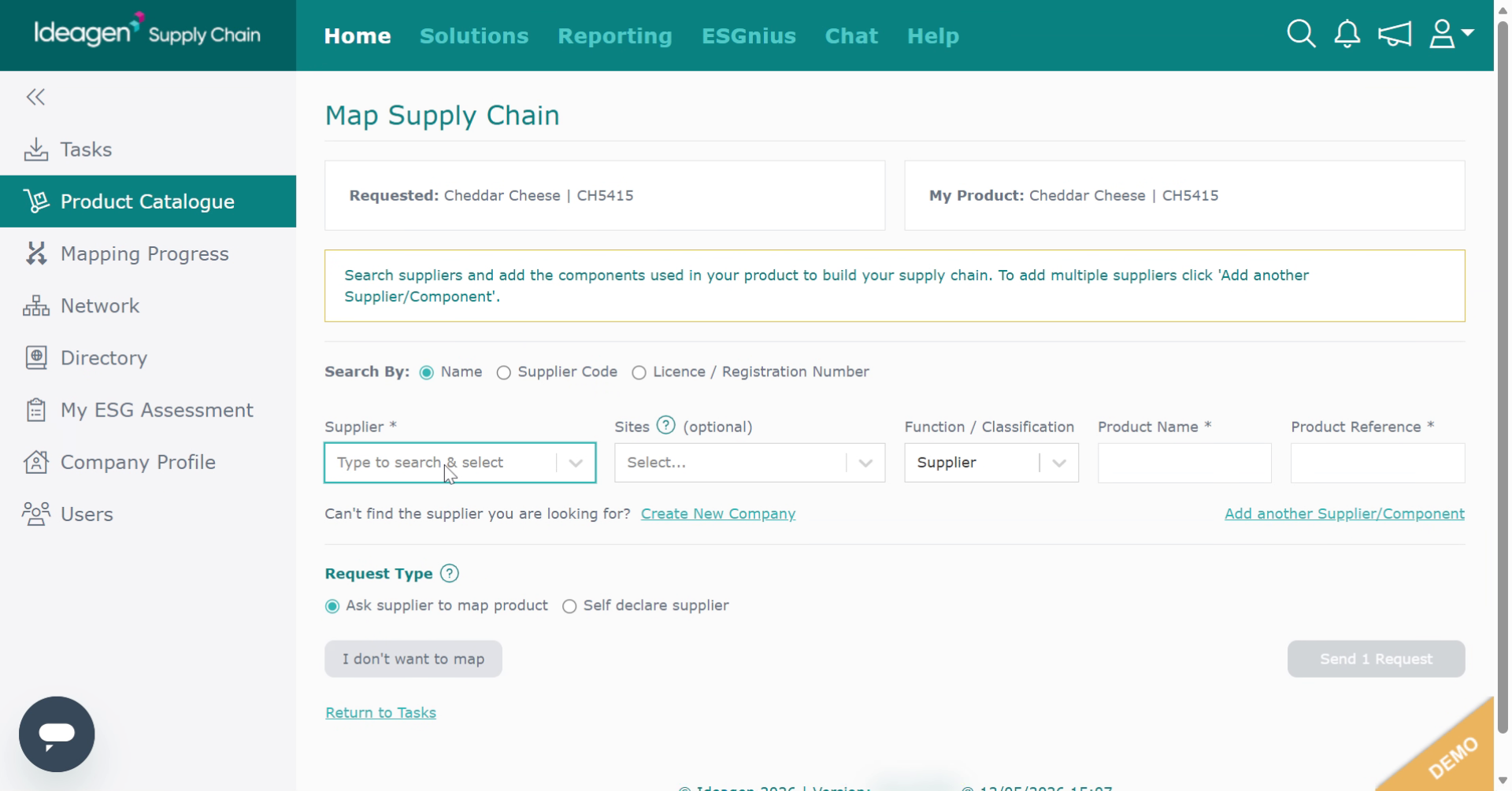
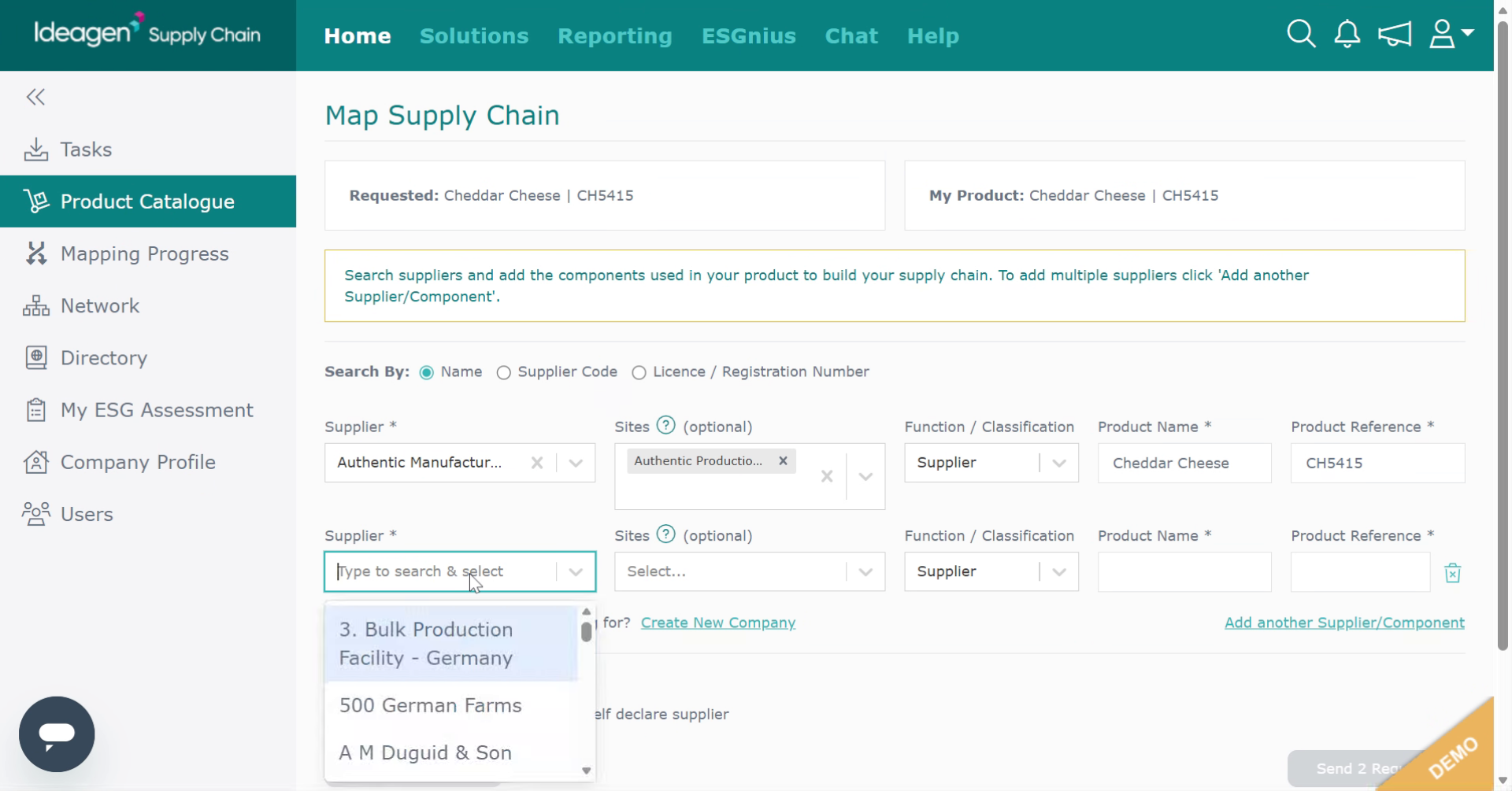
Select the supplier and site from the dropdown options.
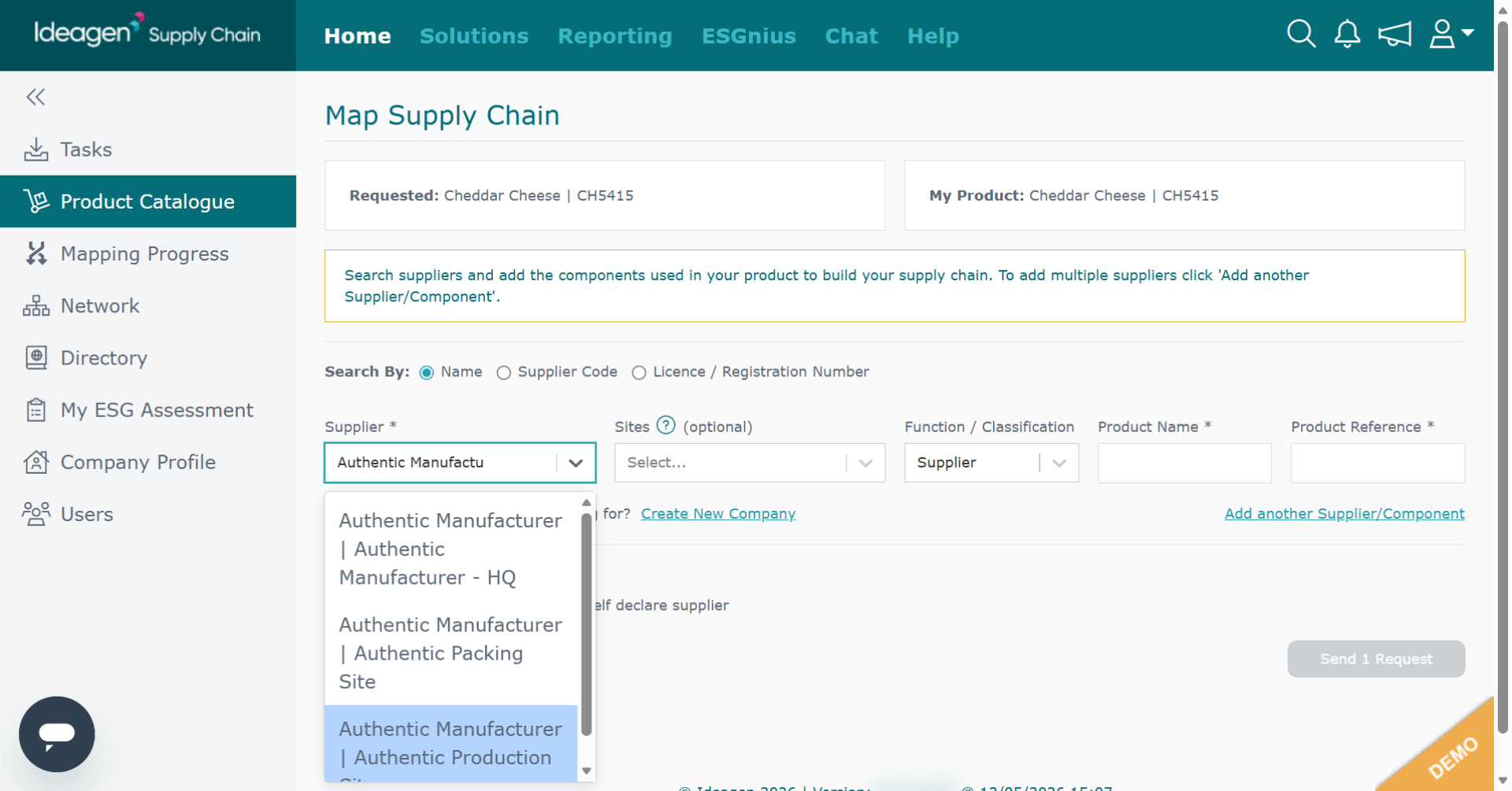
Choose the supplier type from the drop down options.
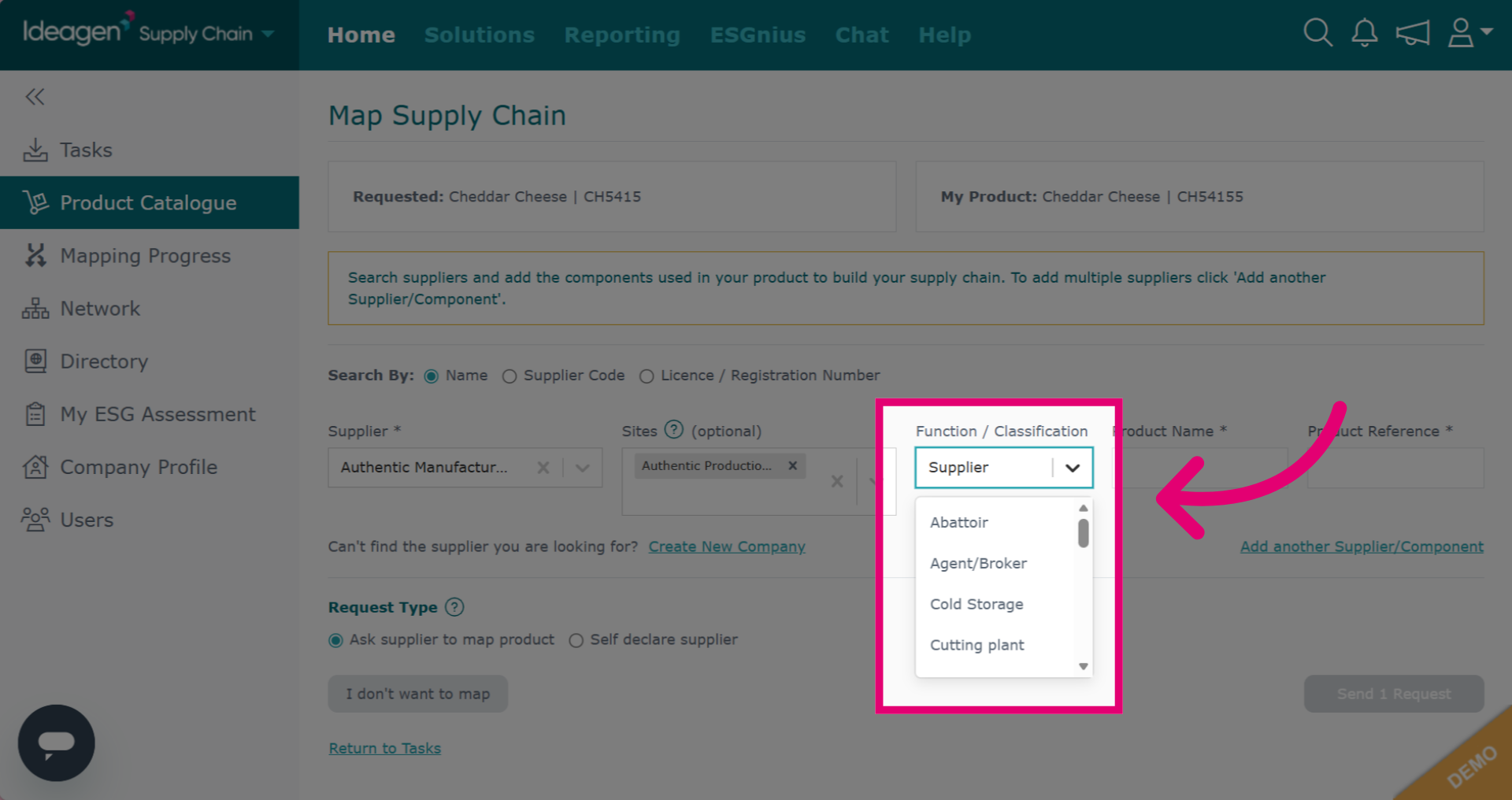
Input the product name and reference as you want it to appear within the request to your supplier.
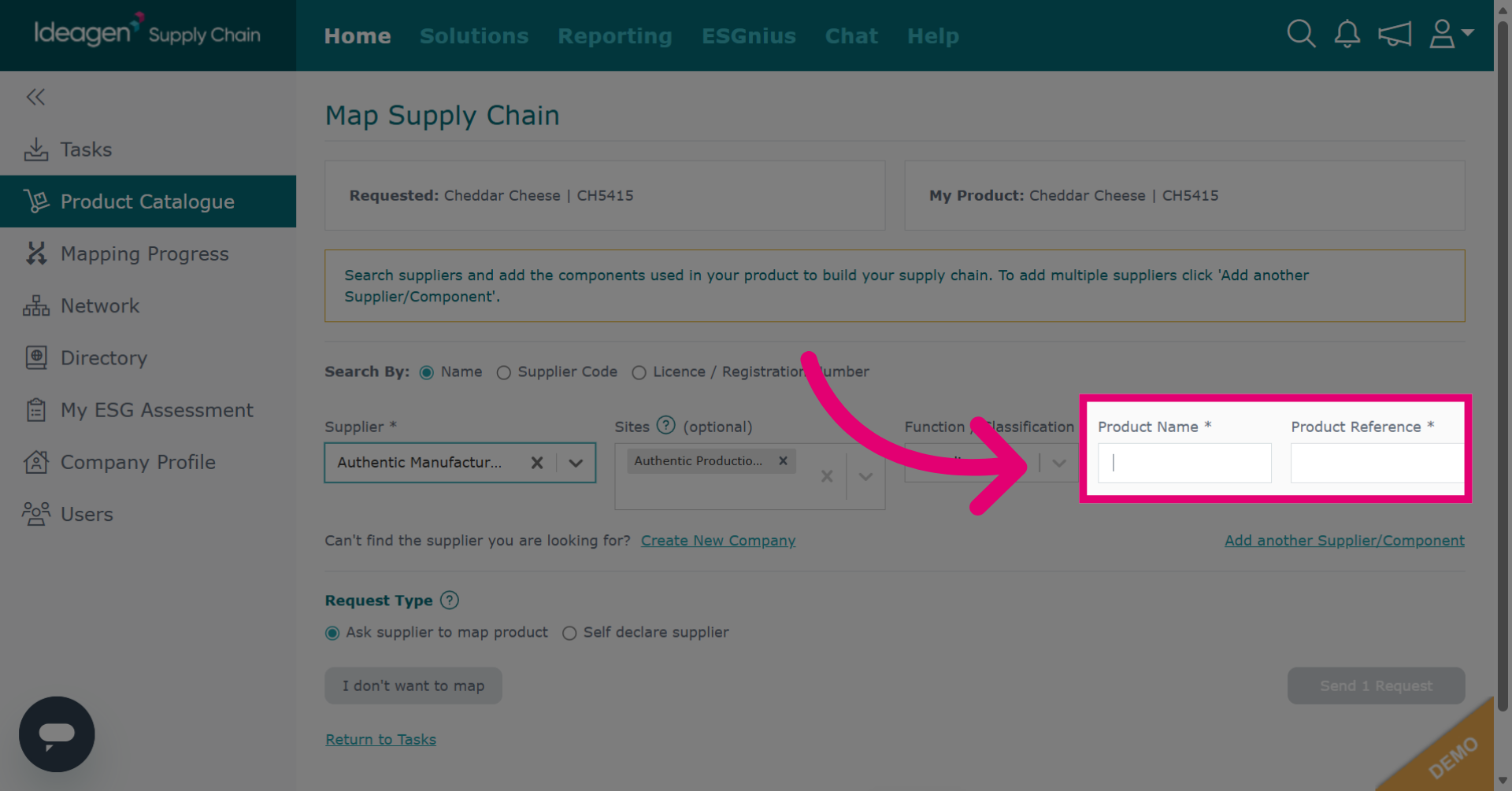
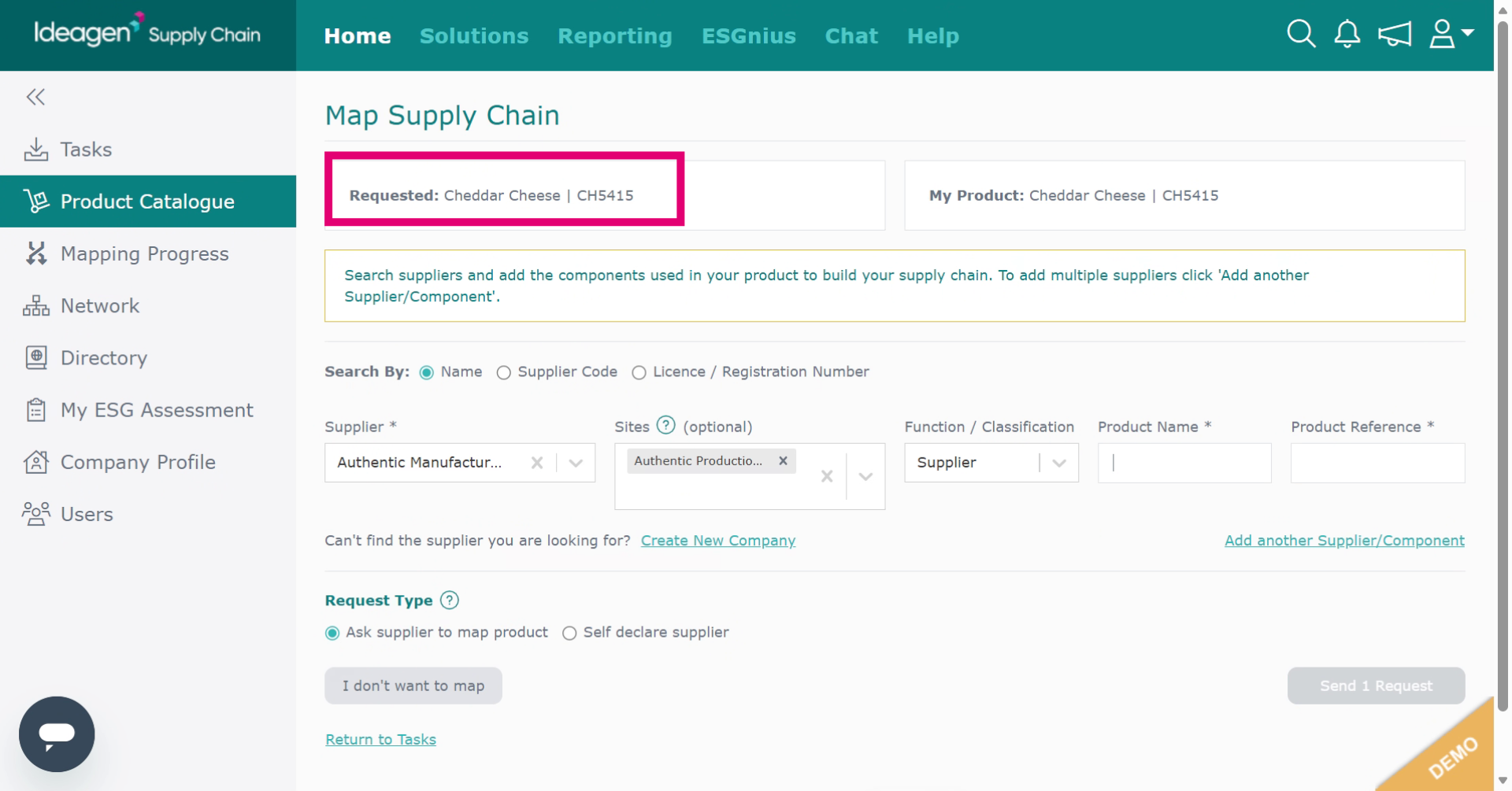
You can copy and paste the product name from the request unless you wish to change it to something different.
Click Add another Supplier/Component to include additional suppliers or components for the product. This process will allow you to input further suppliers or components within one request.
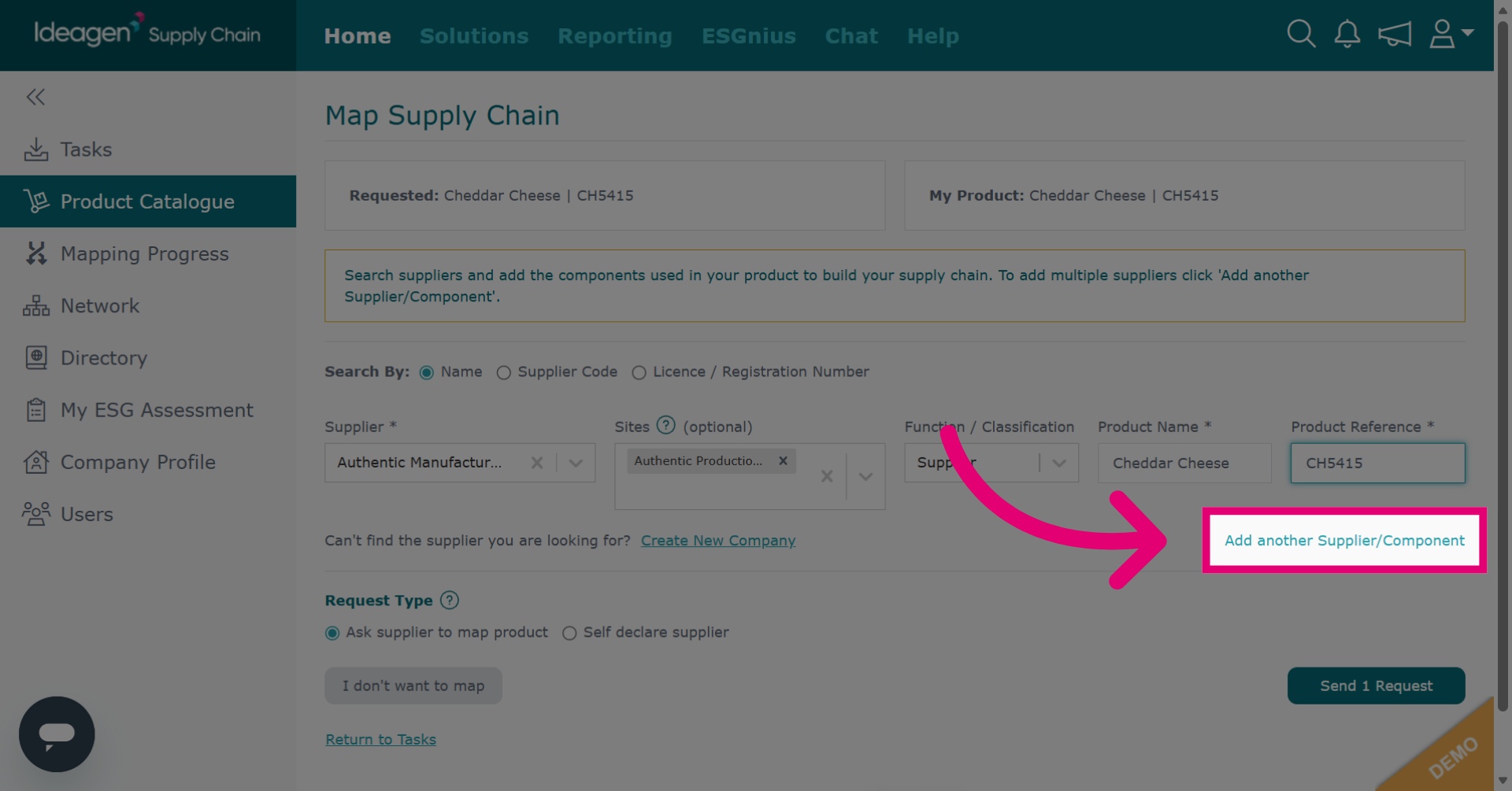
Repeat the process for additional suppliers or components.
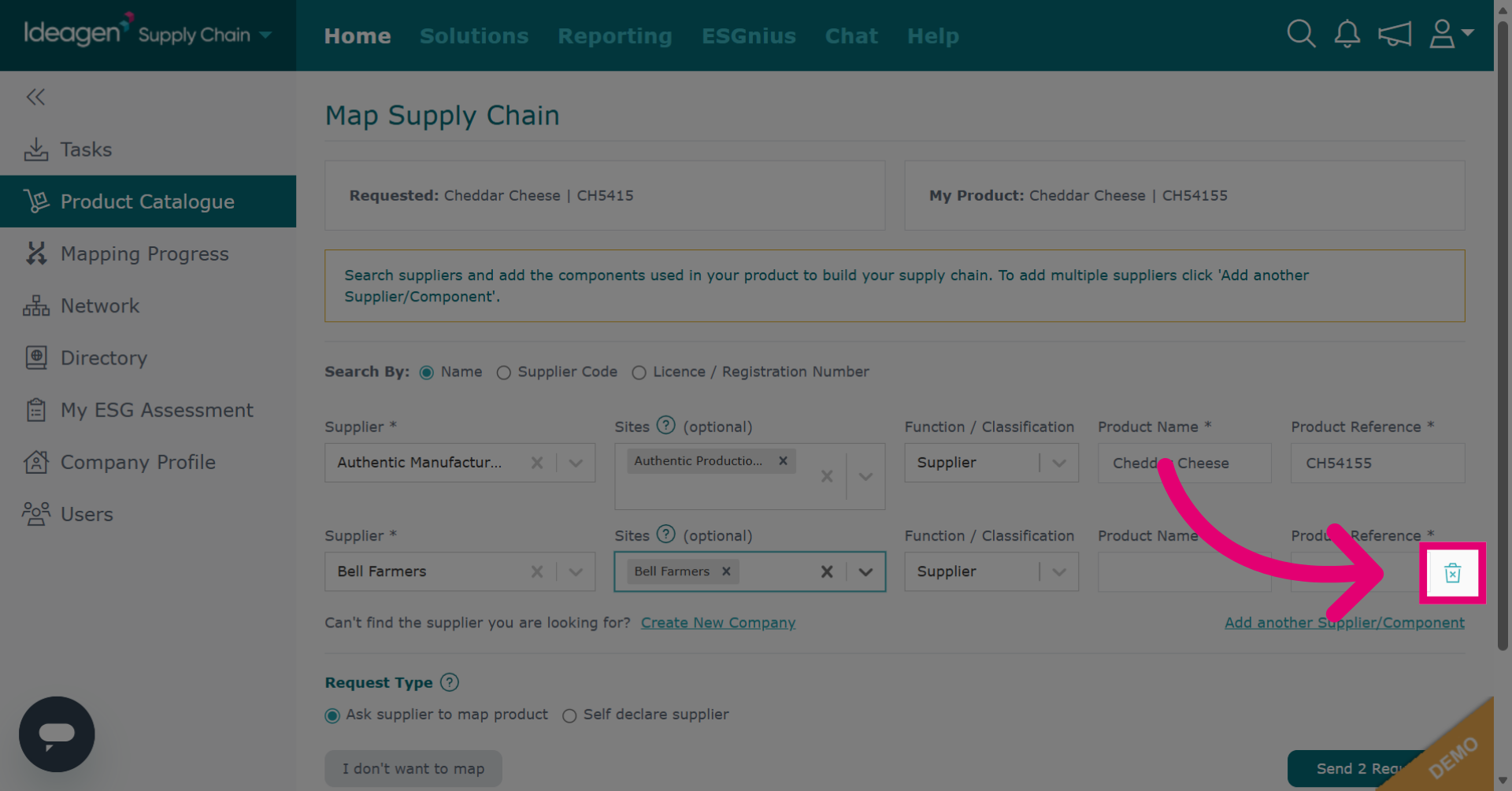
To remove a supplier from the mapping request, click the bin icon next to their entry.
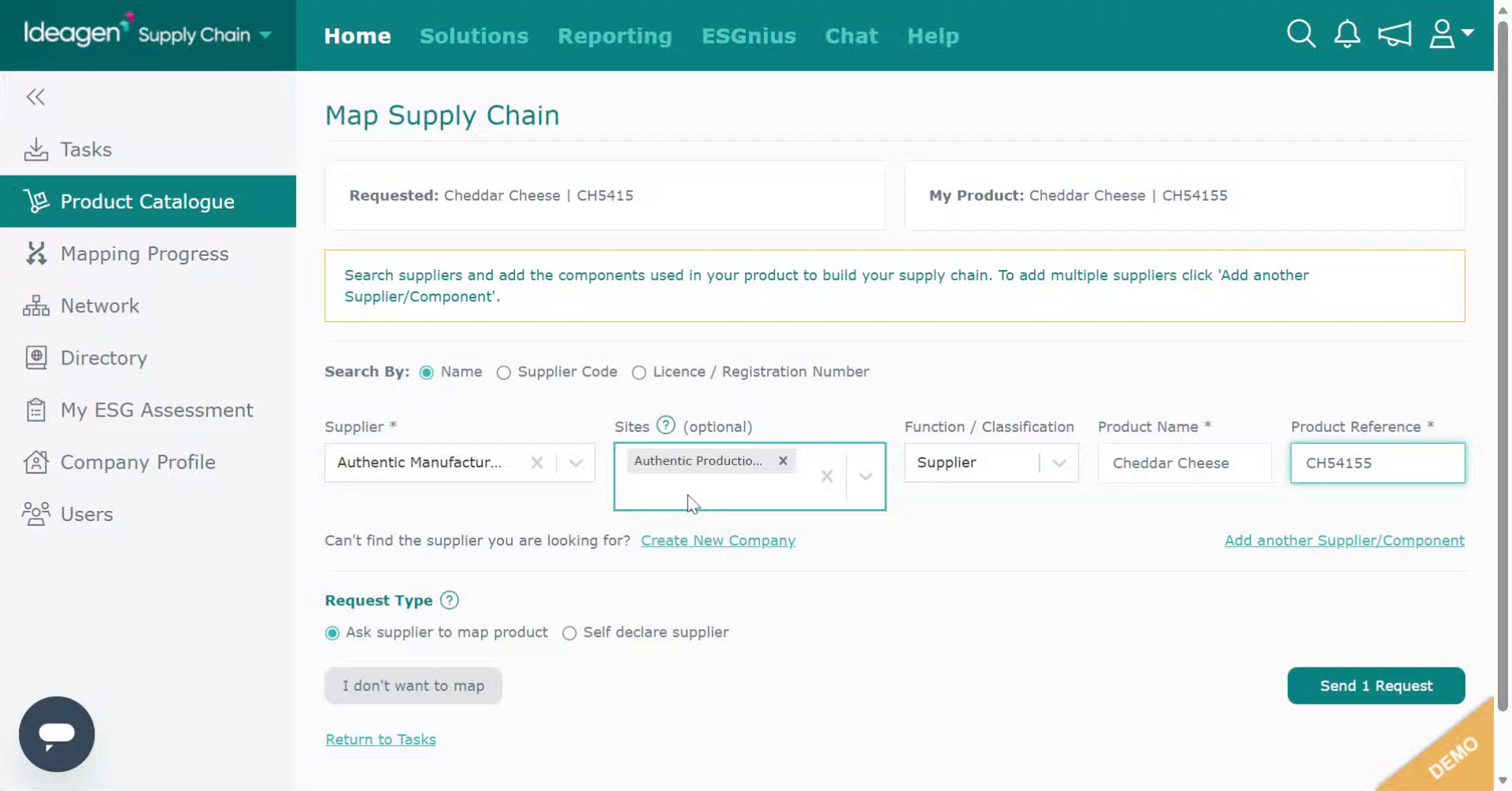
If you cannot find your supplier on the platform, you can create a profile for them.
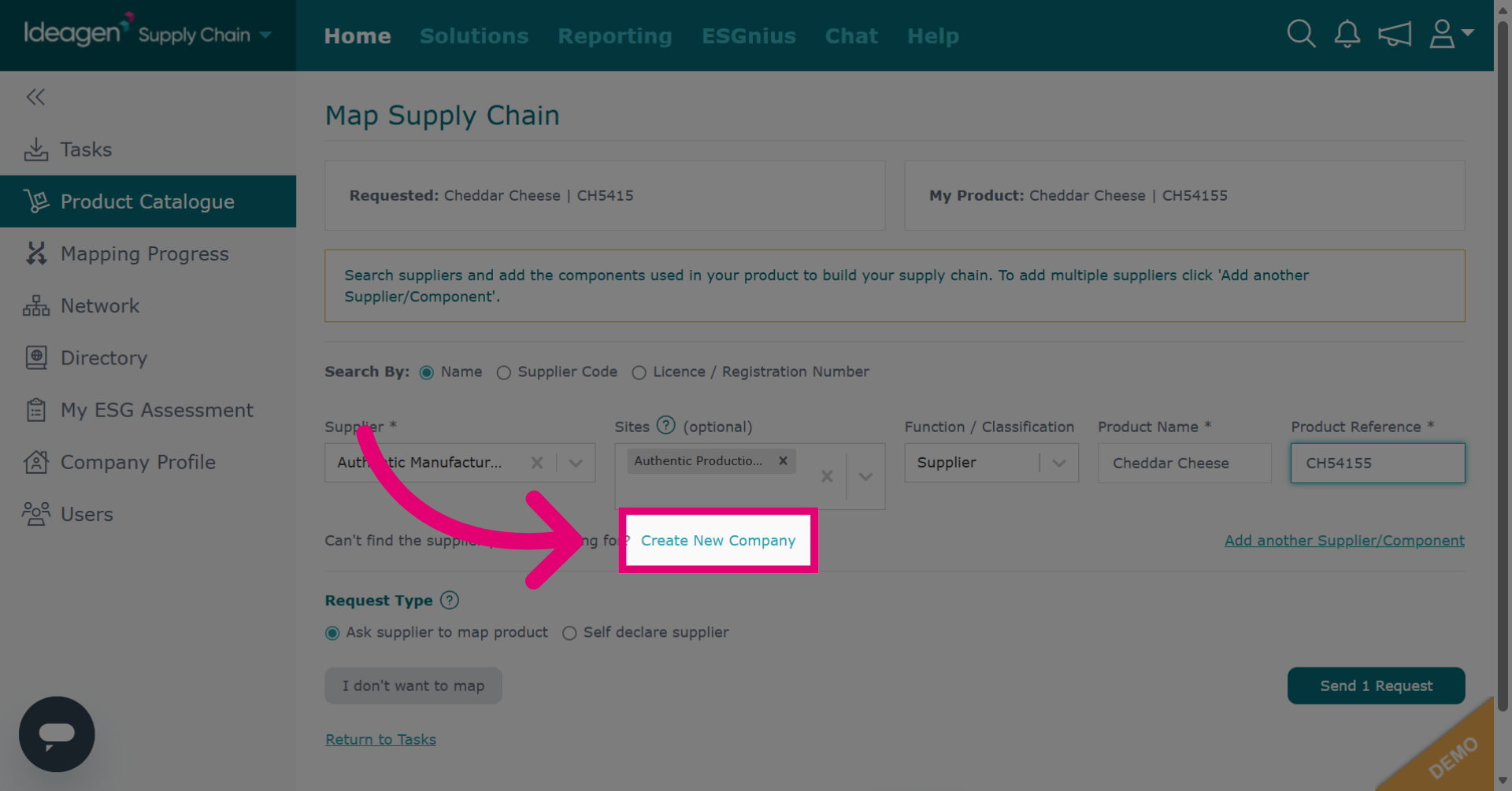
Click Create New Company to begin adding a new company profile.
Input the company details, you will need their company address and contact information inclusive of email.
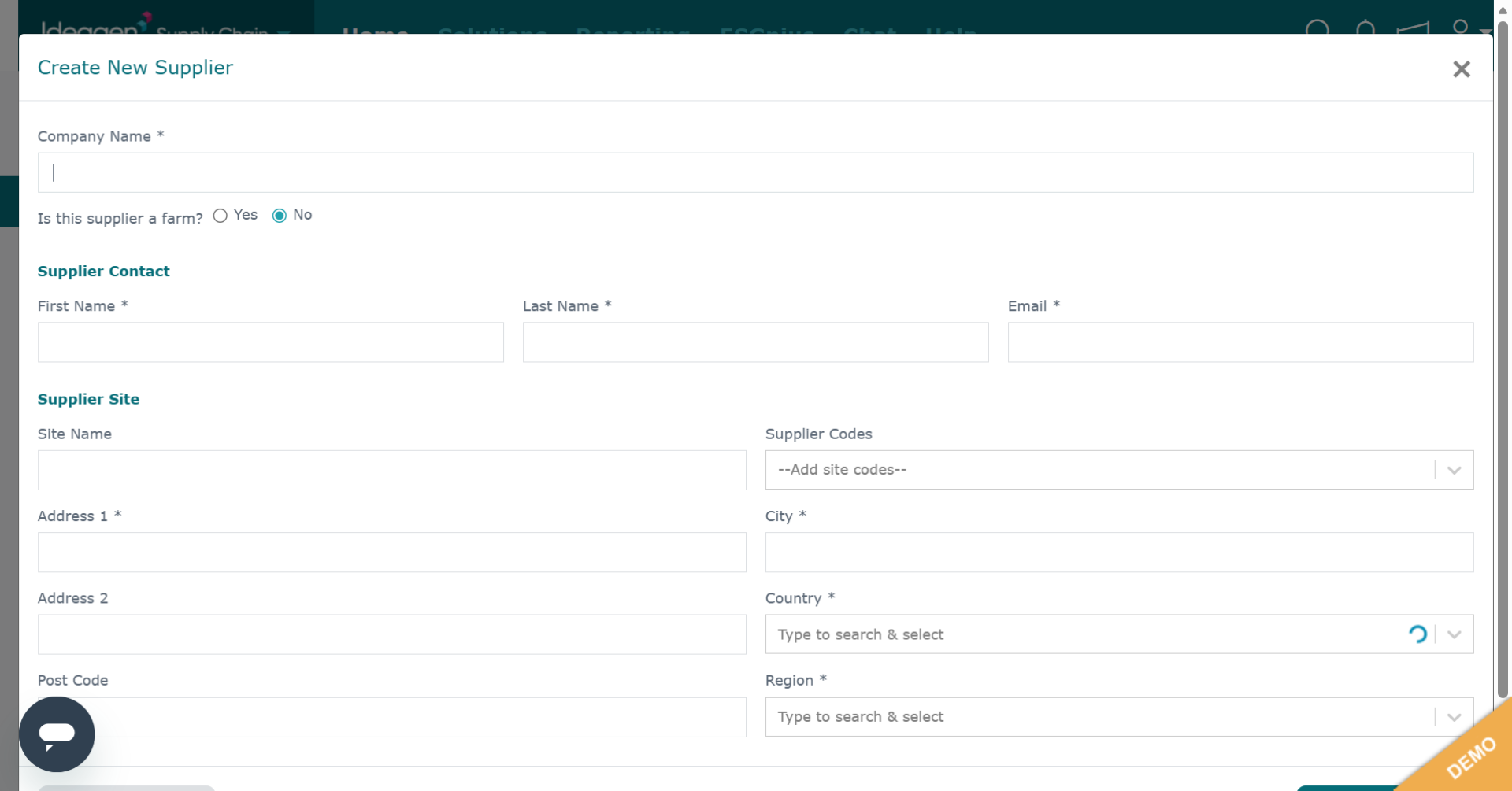
Click Save to store all entered company information and complete the creation process.
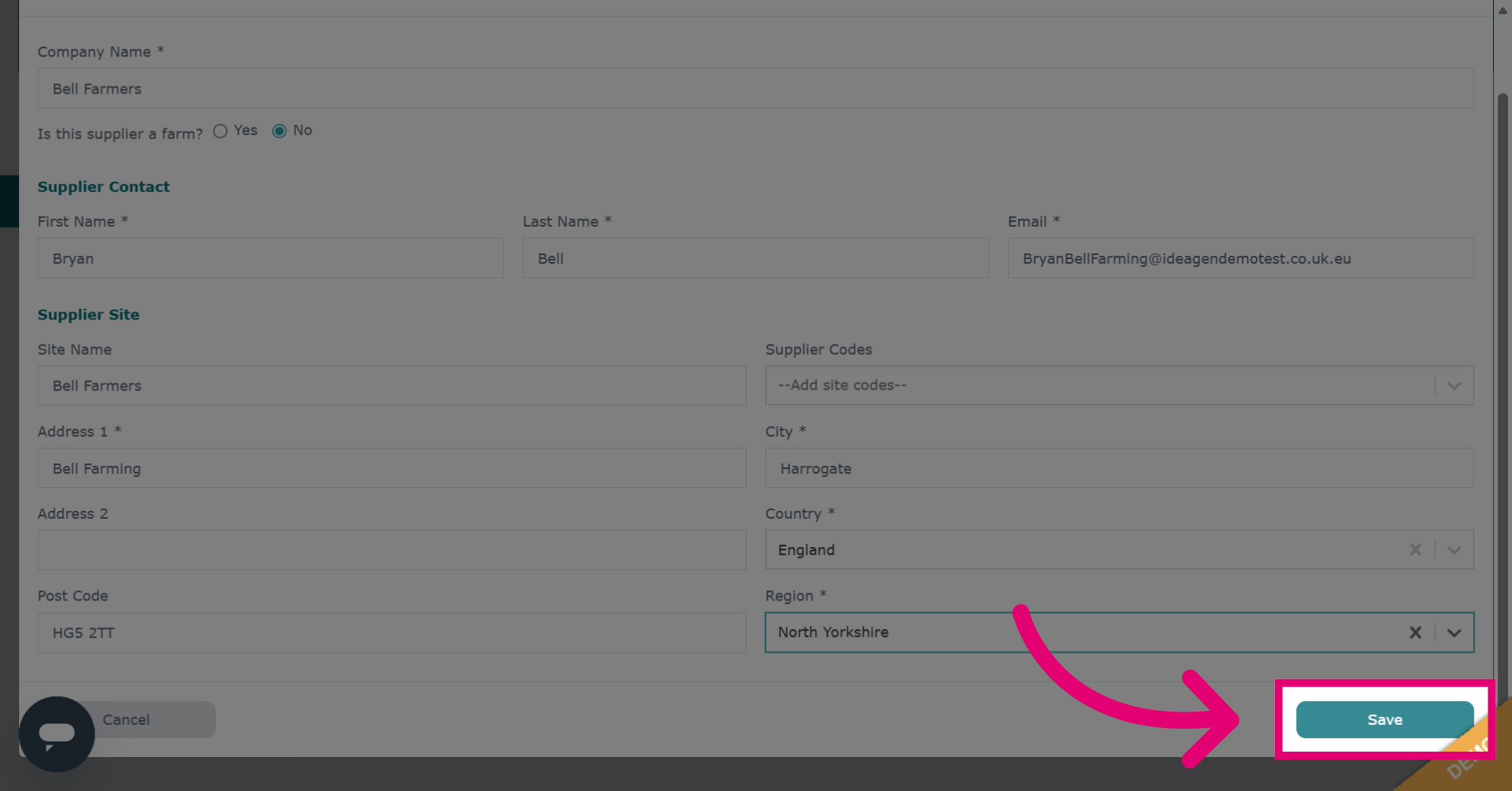
You will then be returned to the mapping screen to input the product details to be sent to the newly added supplier.
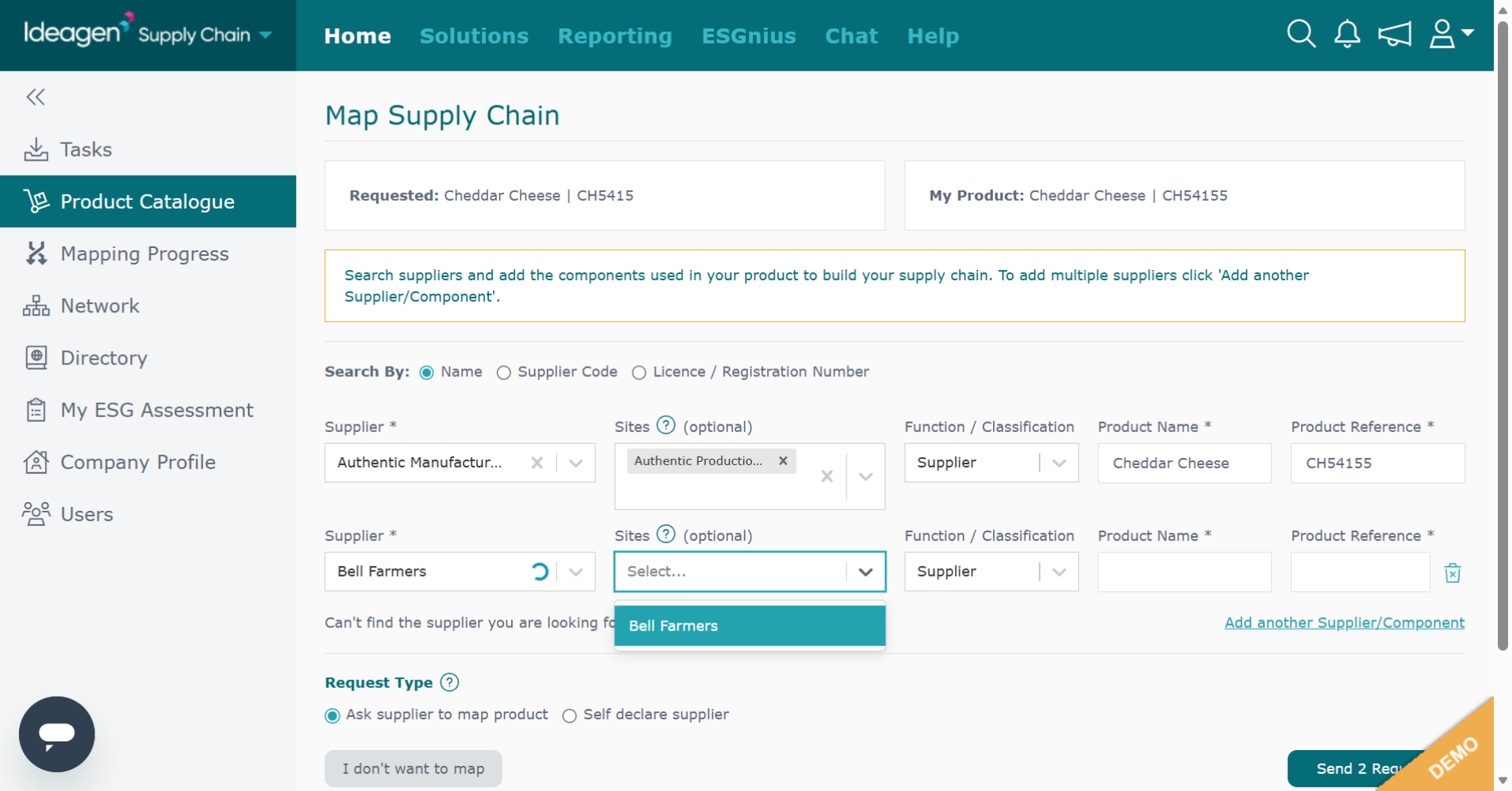
Enter the product details for the mapping request.
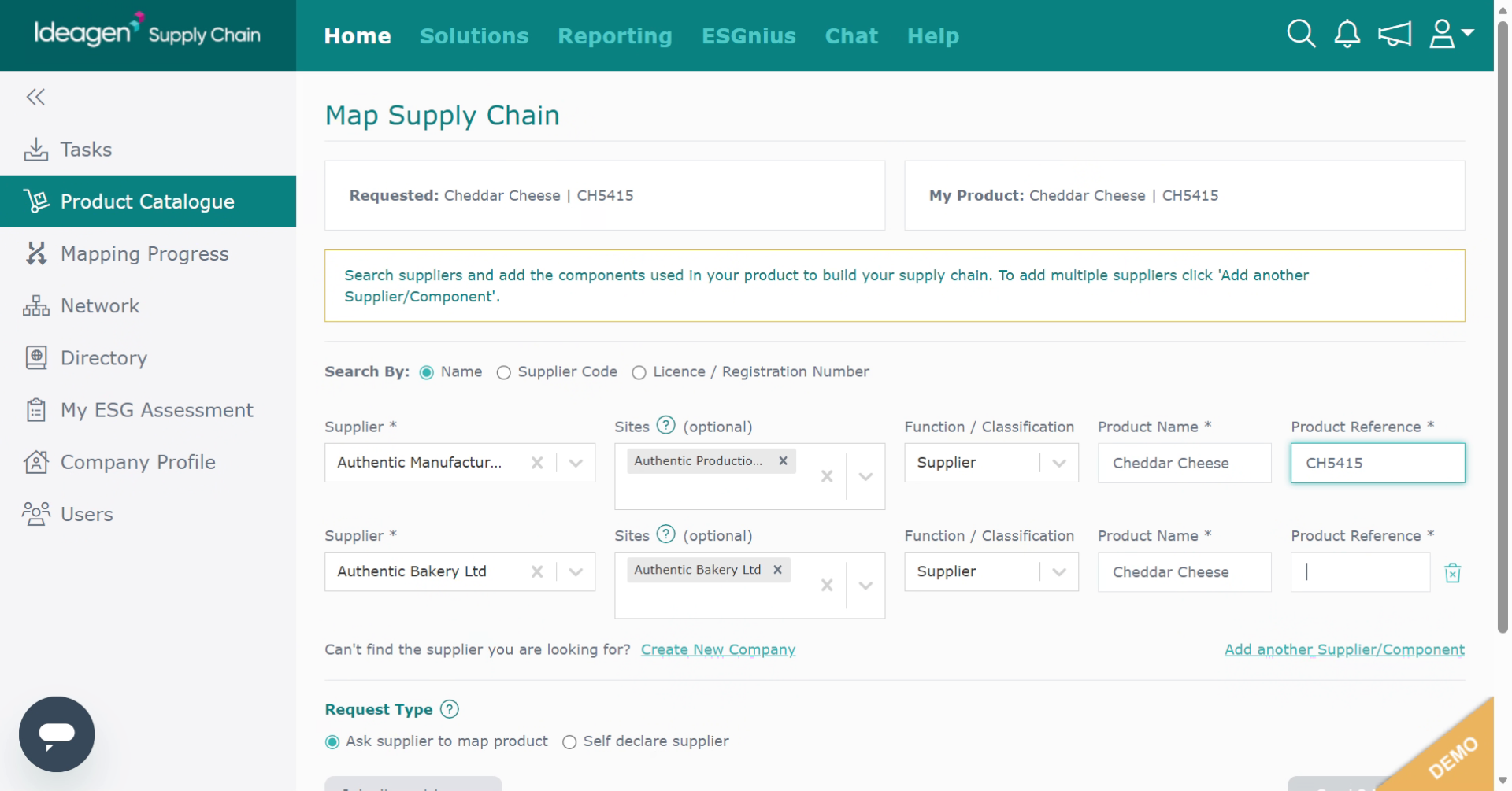
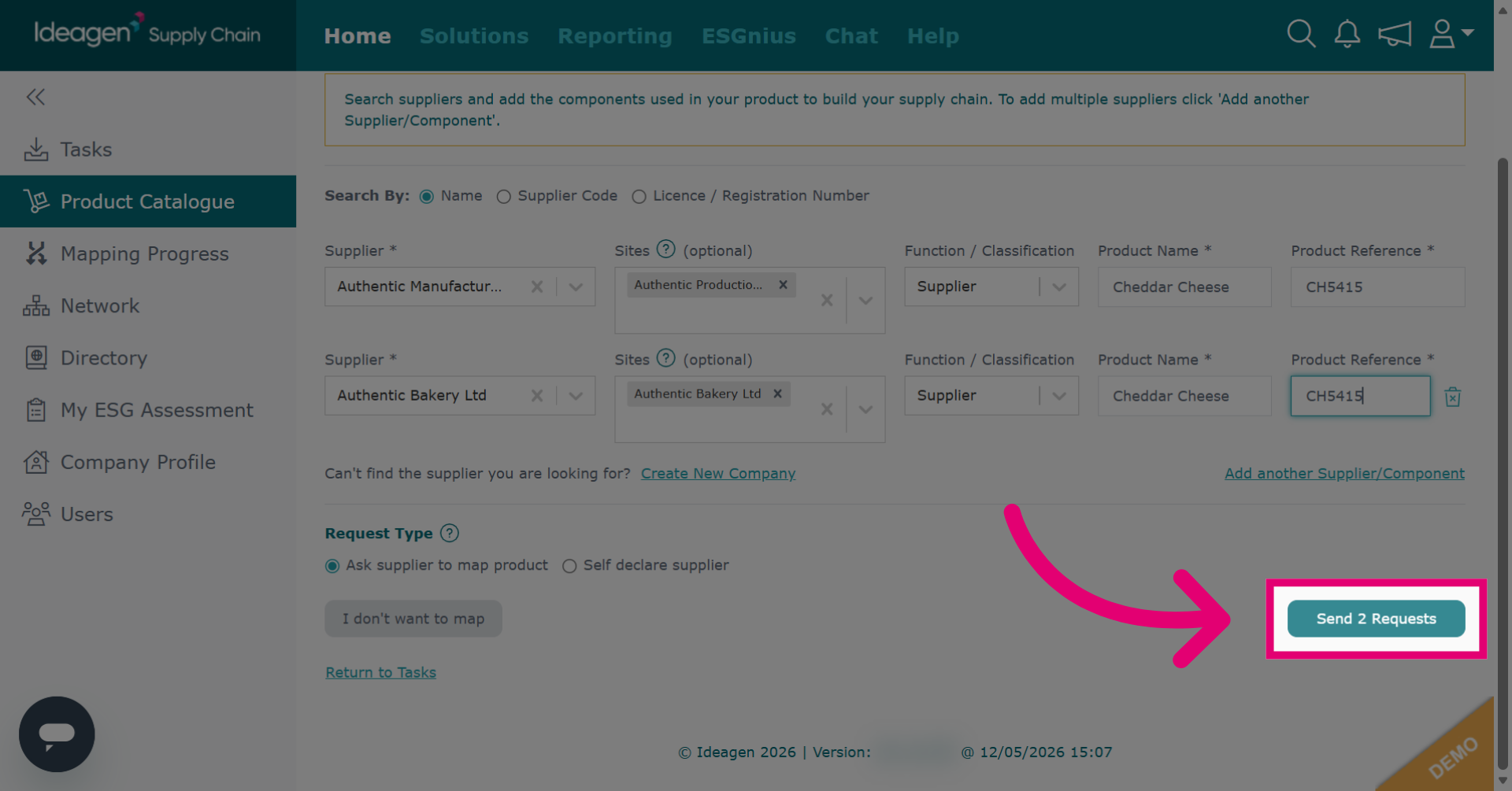
Click Send Requests to submit the product and supplier requests. Your supplier will only be able to see the supplier above them in the chain, and the supplier below them. The supplier above them will always be your company, their customer, and the supplier below them will always be the companies they list as their suppliers.
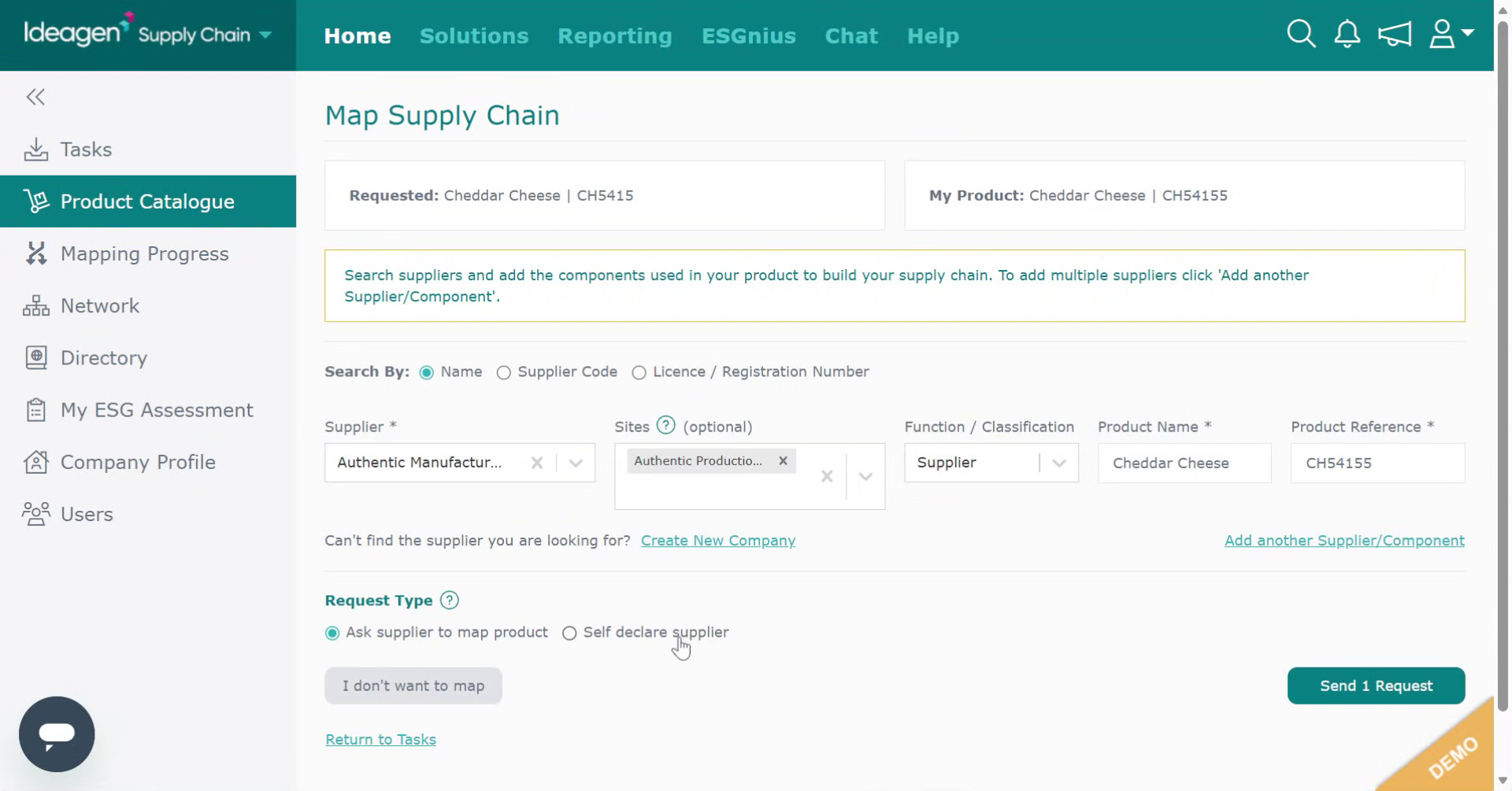
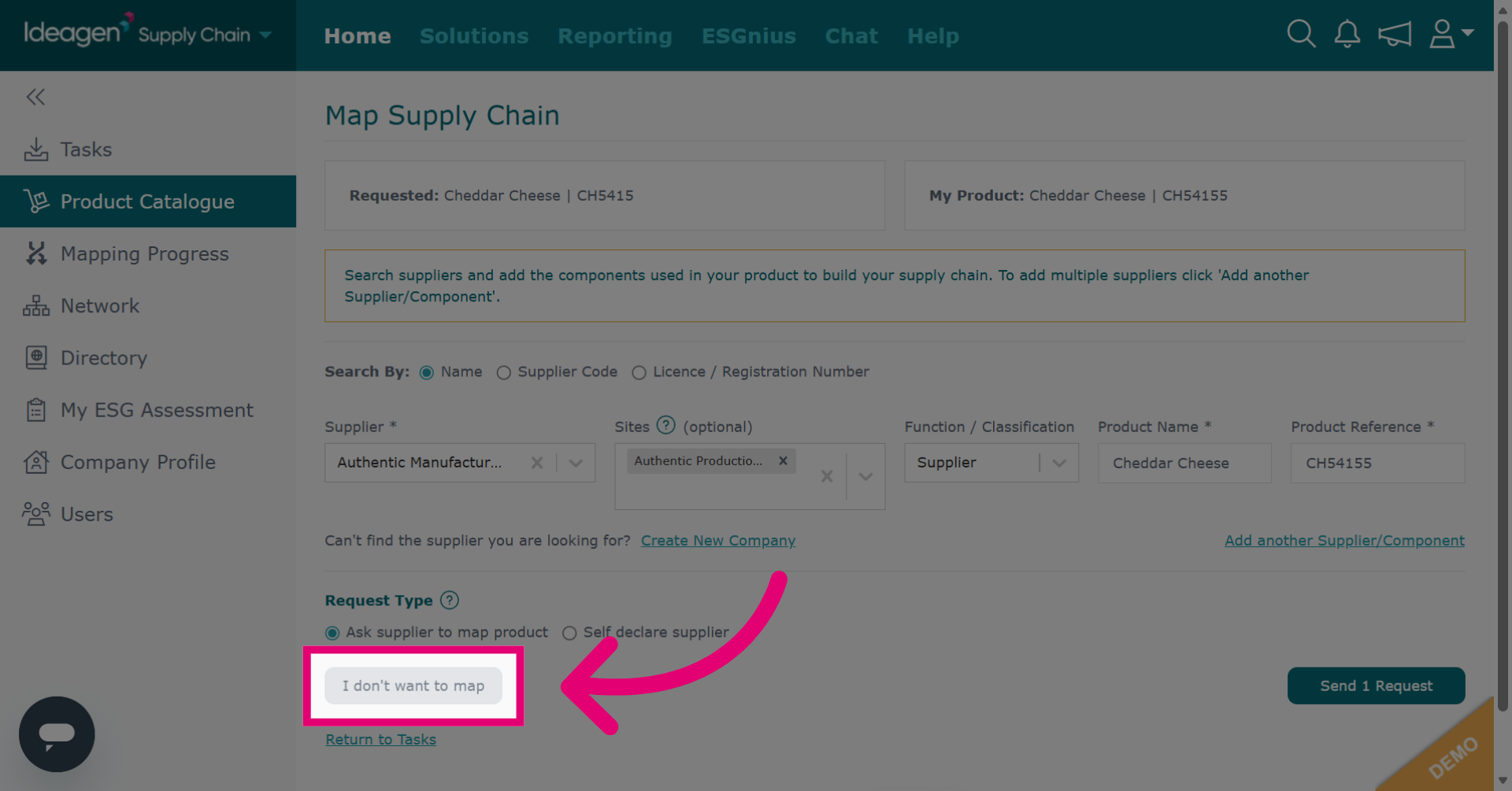
If you do not want to map your suppliers, click I don't want to map.
Confirm your decision to decline supply chain mapping.
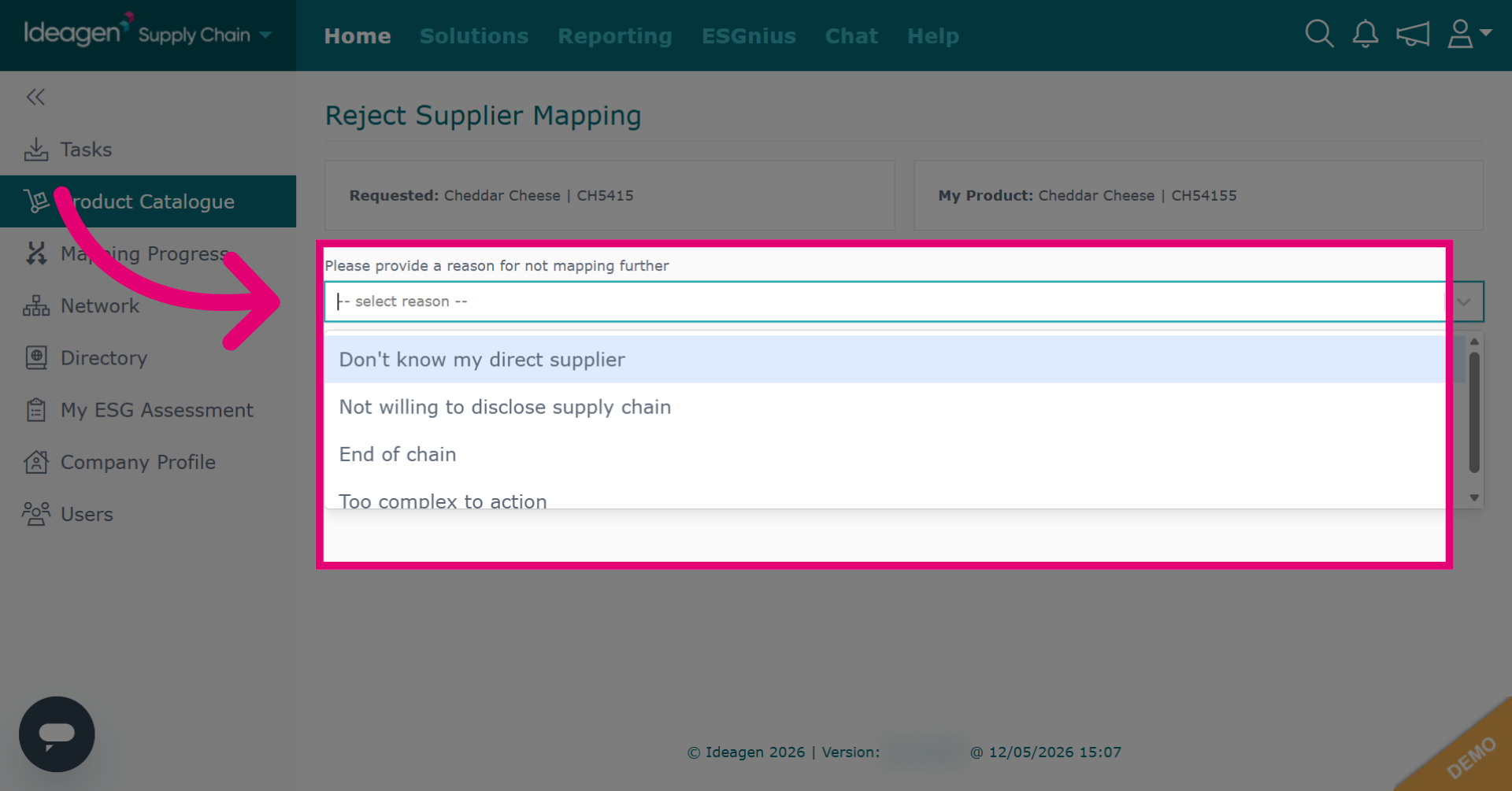
Select a reason from the drop down options.
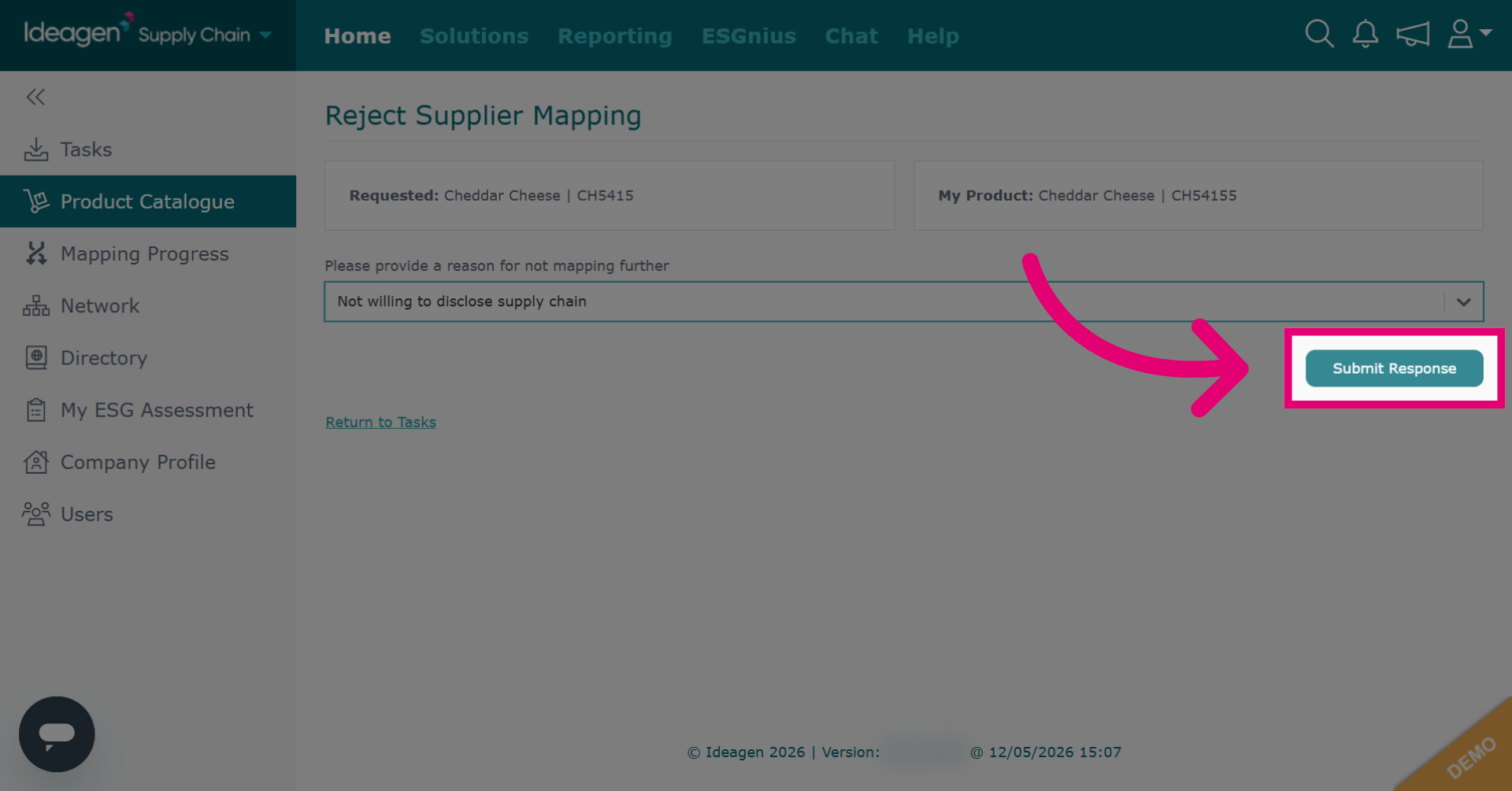
Click Submit Response to finalize and send your response.
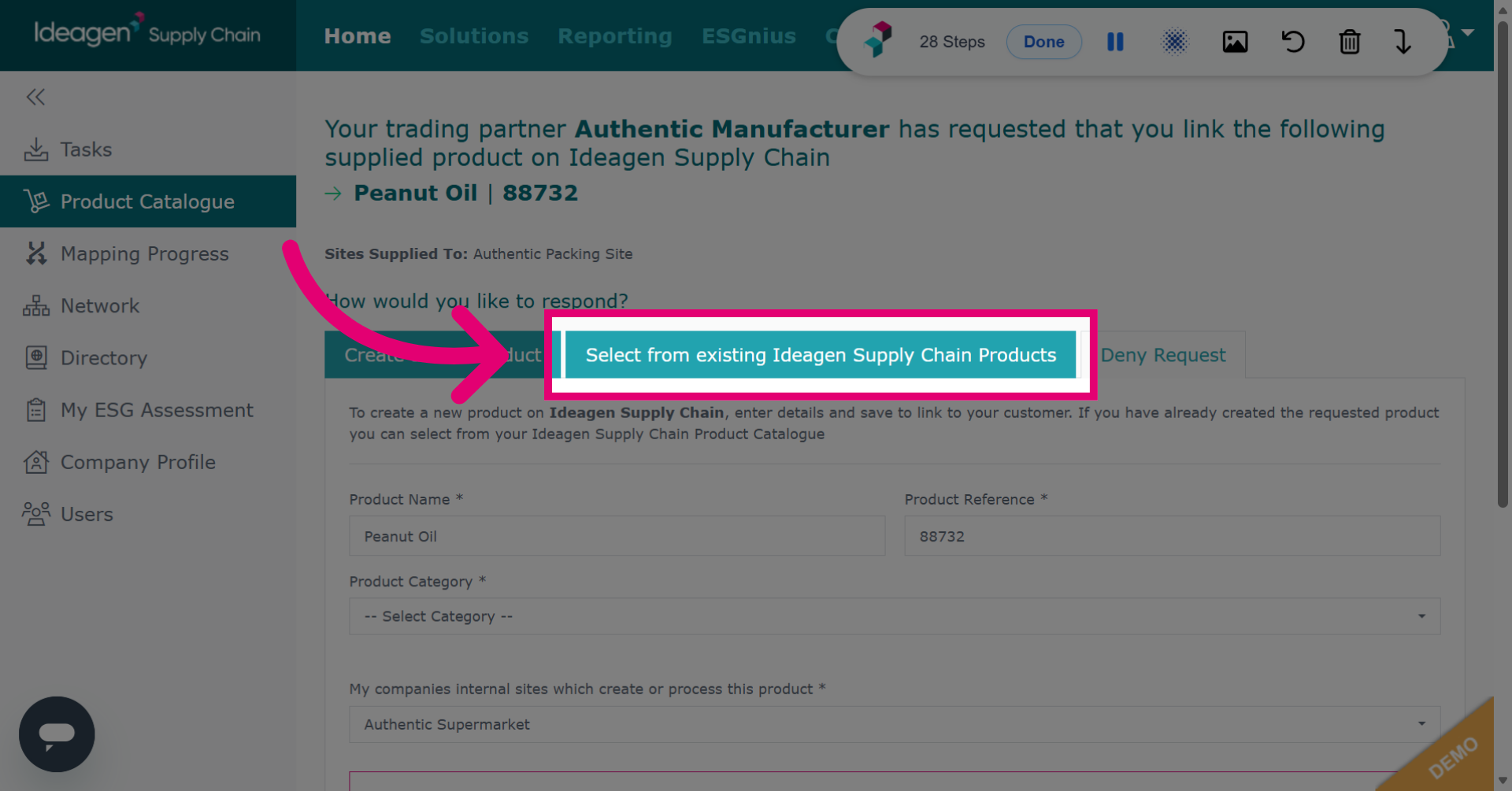
If the requested product already exists within your product catalogue, click Select from existing Ideagen Supply Chain Products.
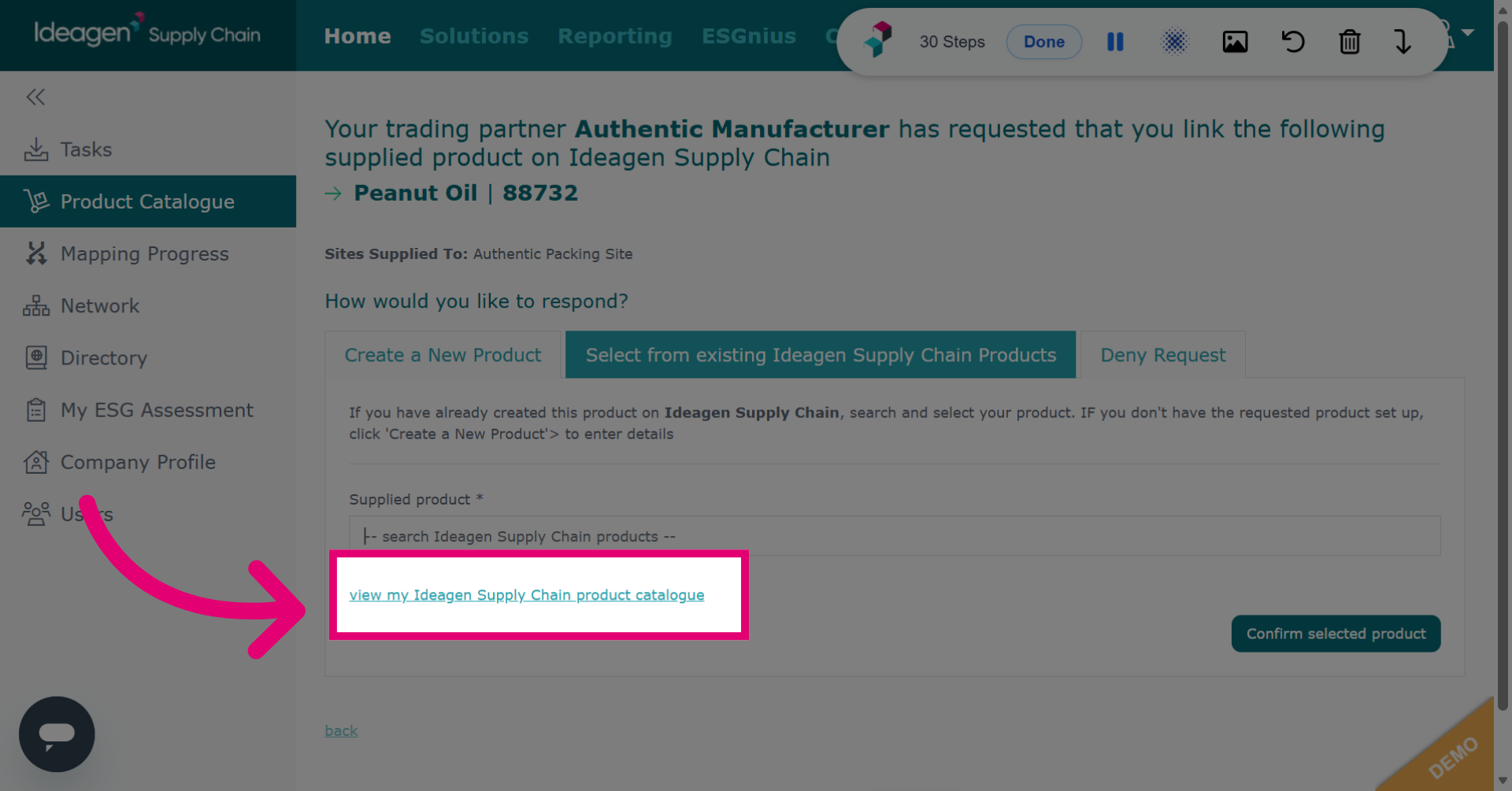
If you need to check the product catalogue to find said product, you can click View Product Catalogue.
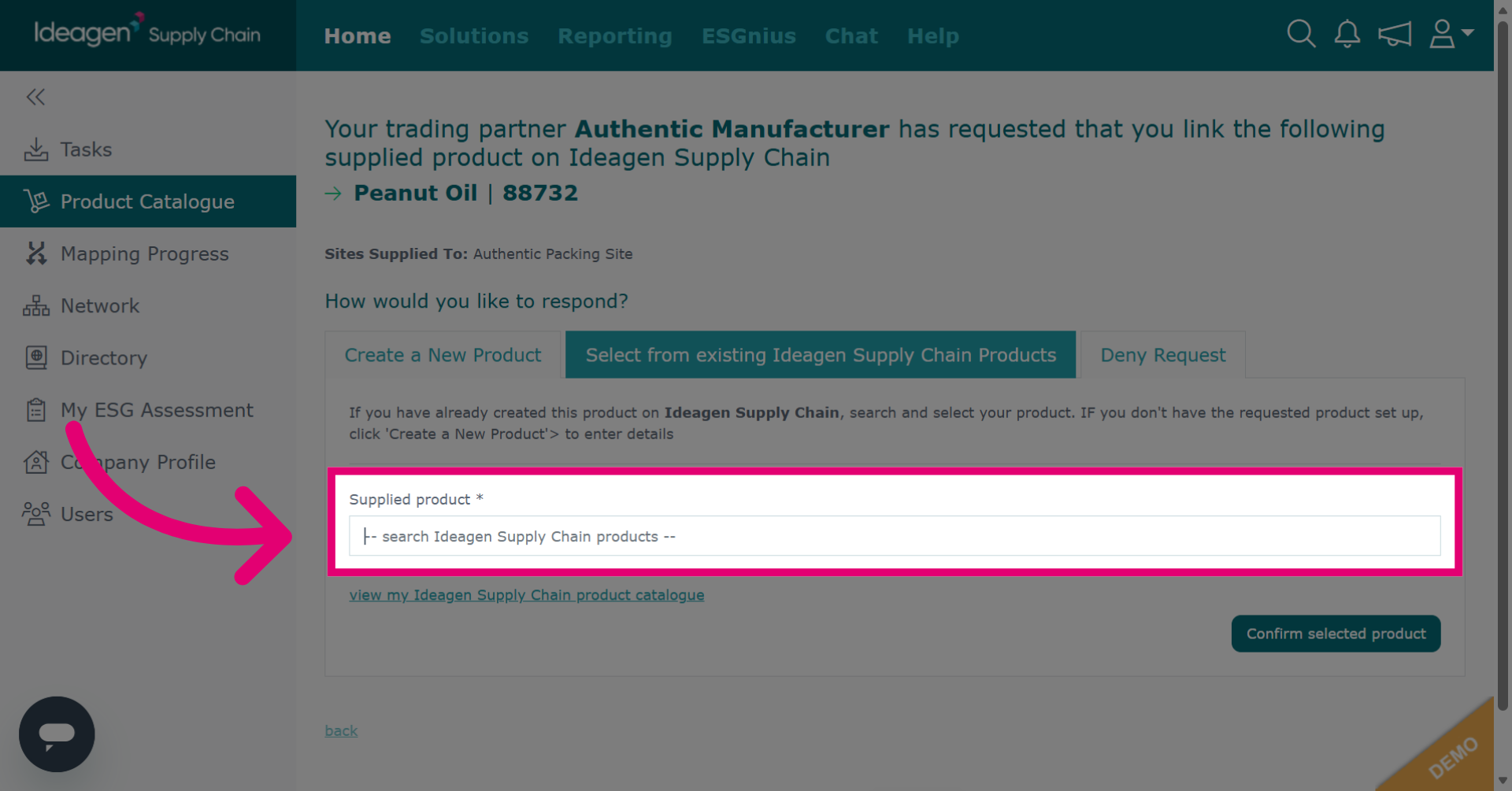
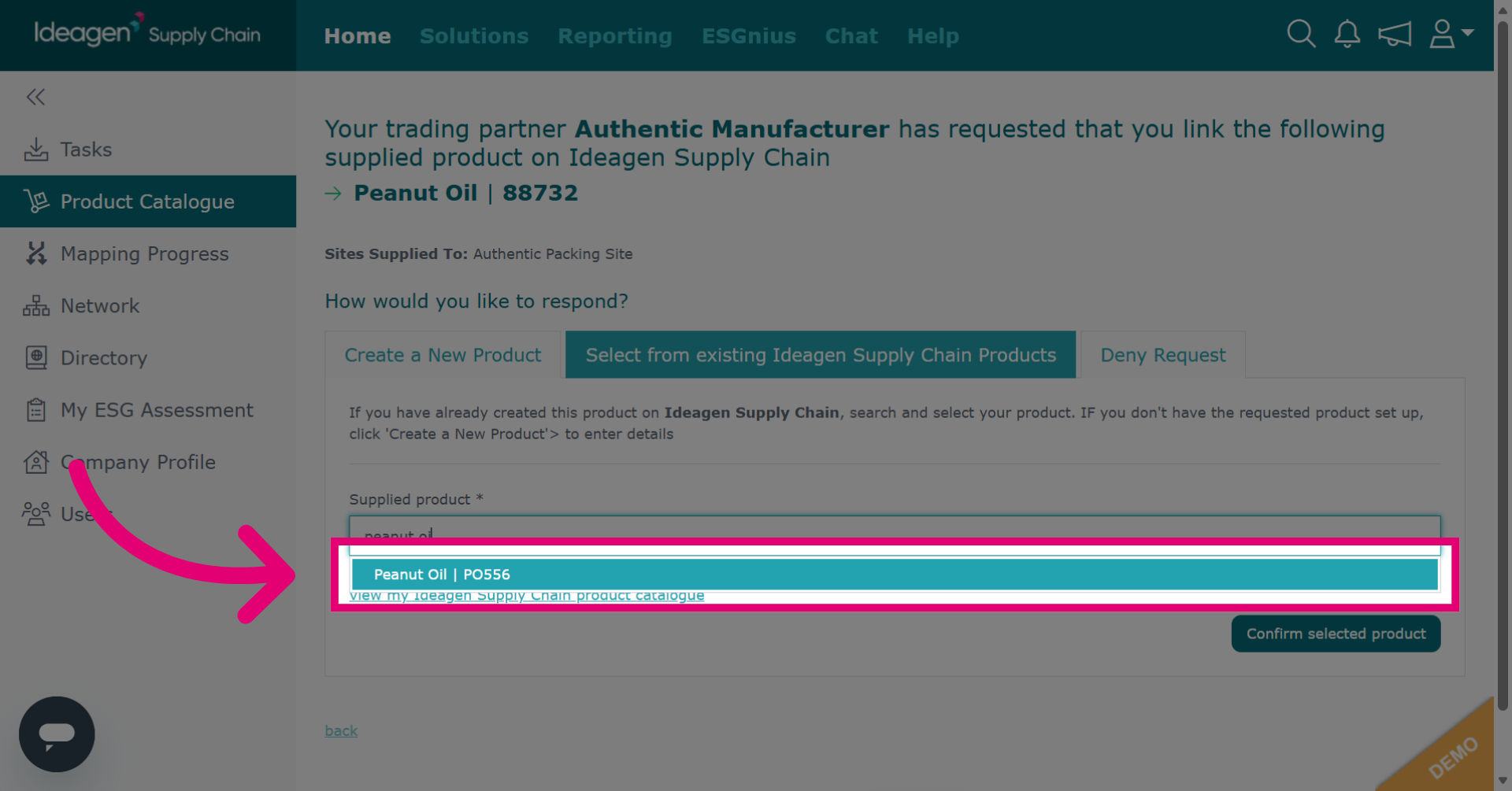
Click search Ideagen Supply Chain products and type in the product name.
Select the relevant product from the drop down.
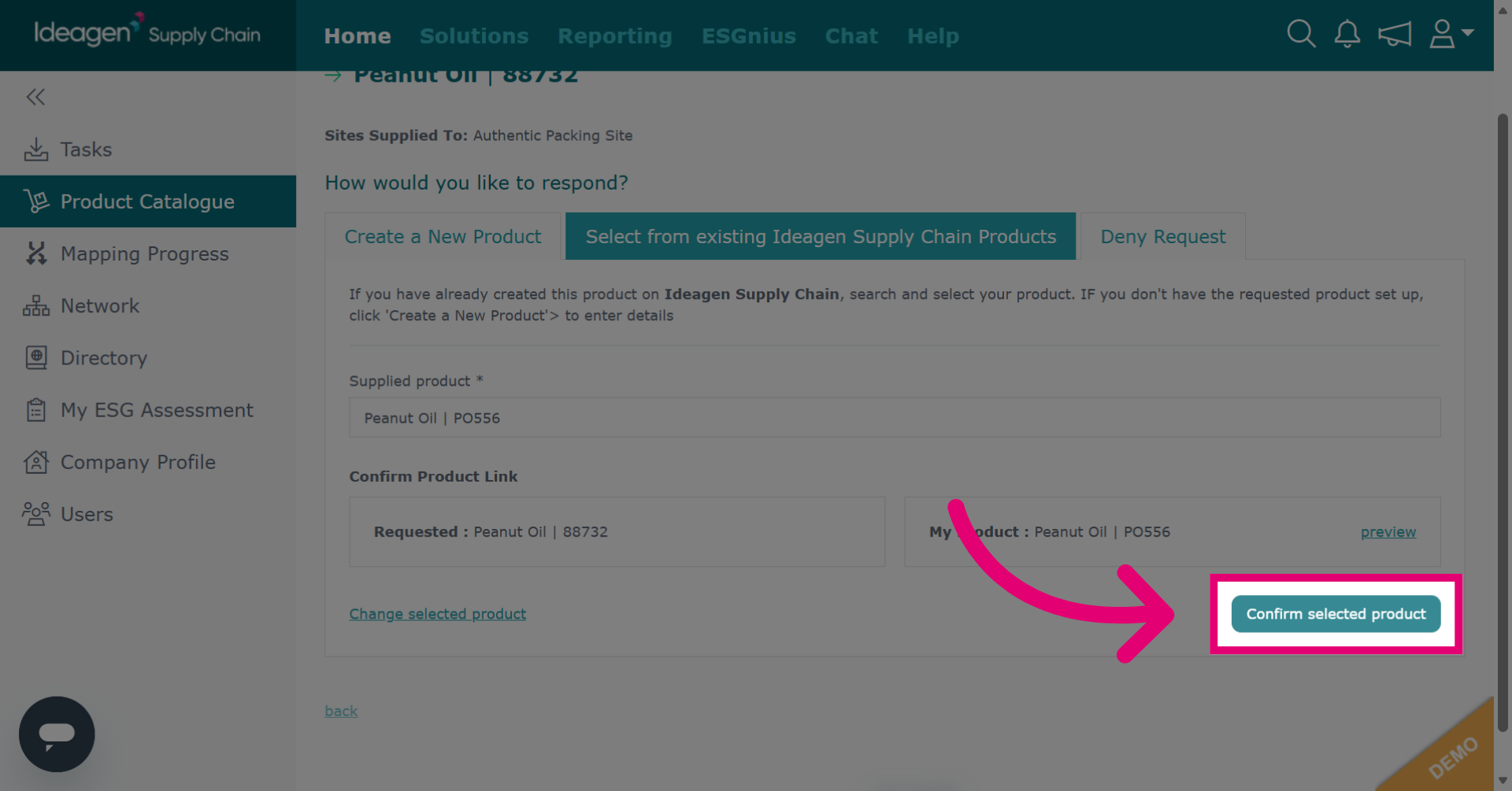
Click Confirm selected product to finalize the product choice. You will then be asked to map the product.
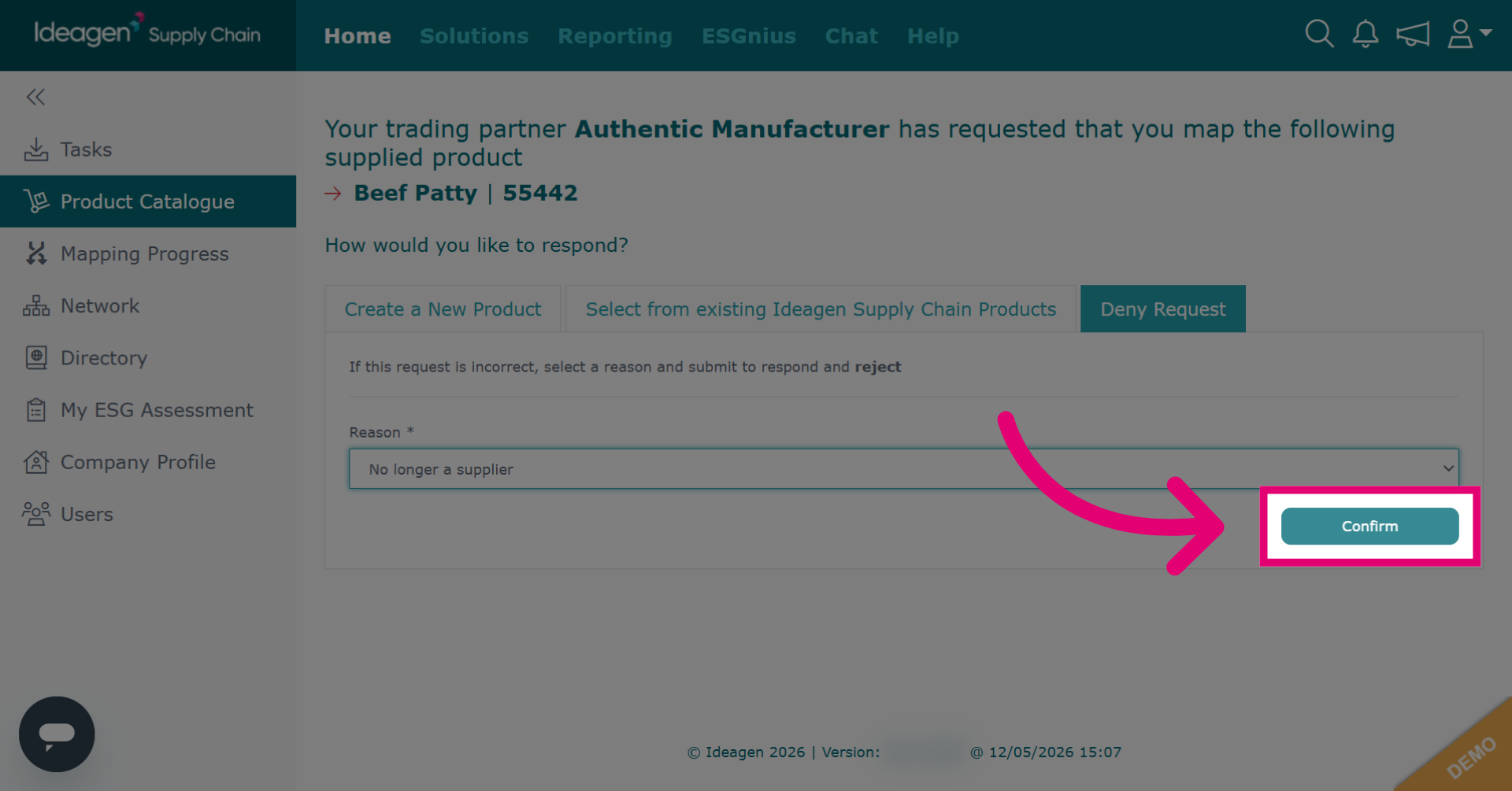
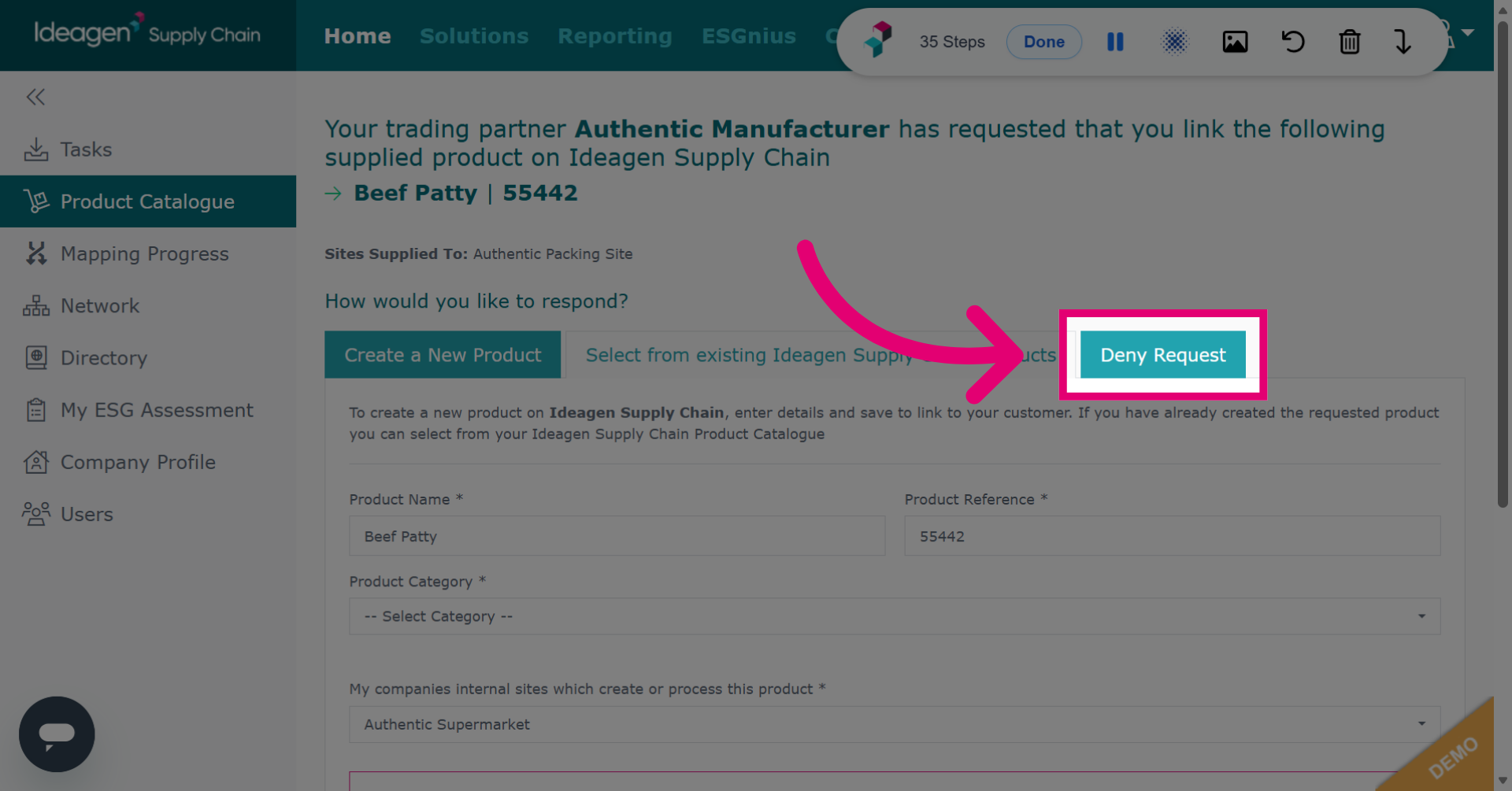
To deny a product link request, click Deny Request.
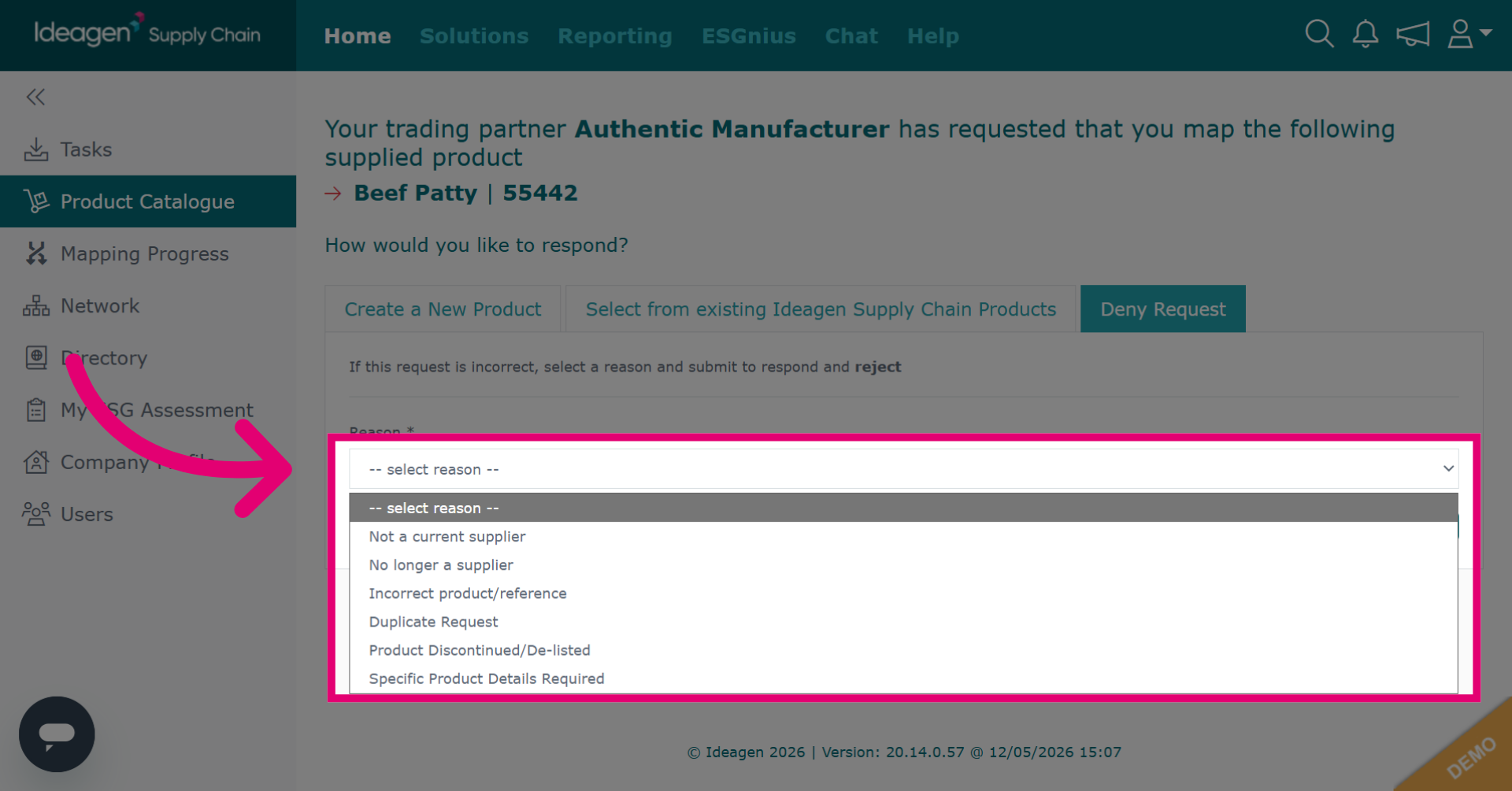
Click Select reason and choose from the drop down options.
Click Confirm to finalize the denial of the product request. You will then be returned to the homepage.