New article
Recently updated
Using Bulk Mapping - Supply Chain Mapping

Who is this article for?
Users who want to bulk map products.
Product admin permissions are required.
This tutorial guides you through bulk mapping in the supply chain management system.
You will learn how to efficiently map multiple products to suppliers using the bulk management interface.
Bulk mapping products to suppliers
- Click into the product catalogue to access the product management area.
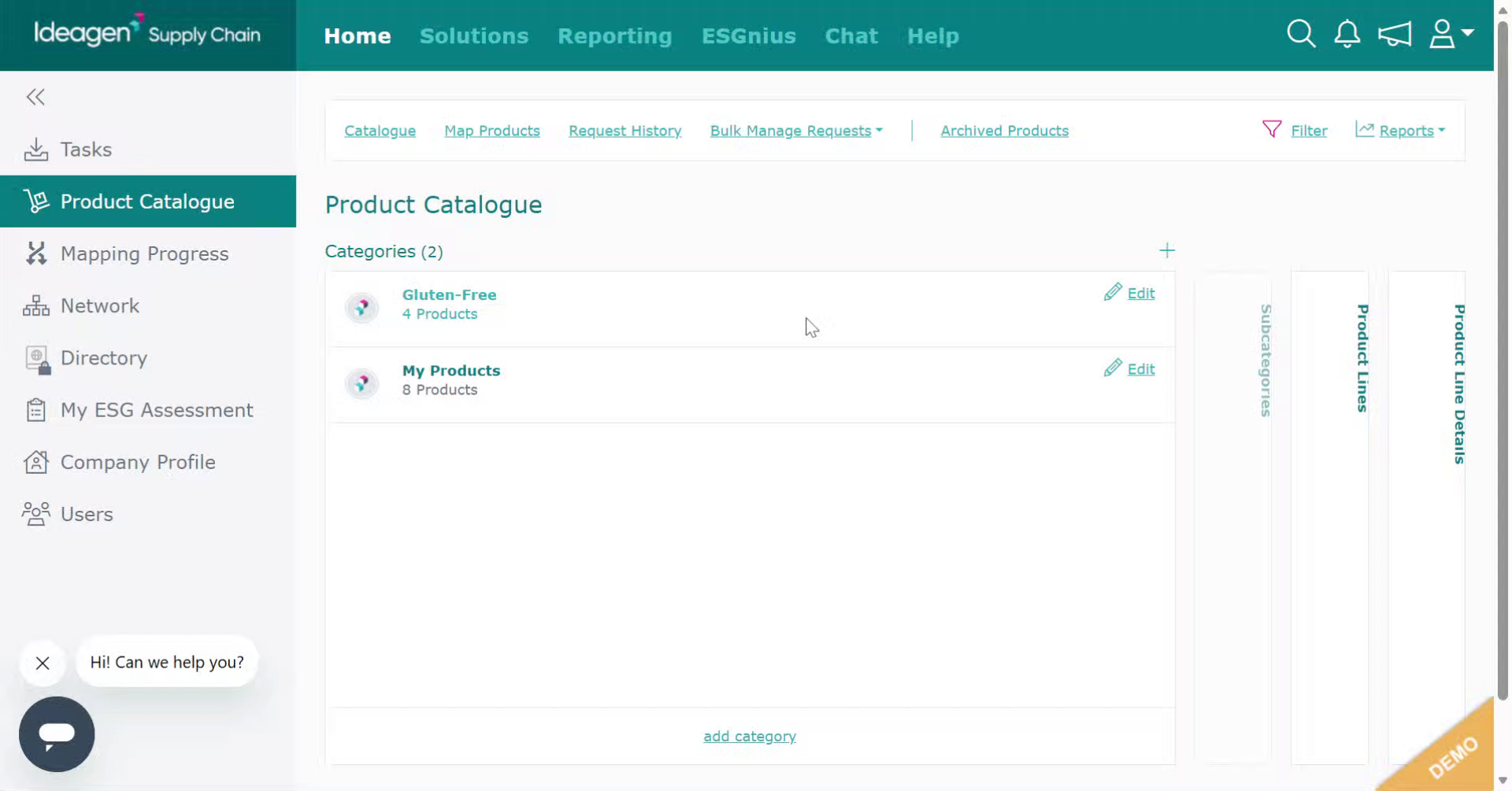
- Click Bulk Manage Requests to open the bulk management interface for handling multiple requests simultaneously.
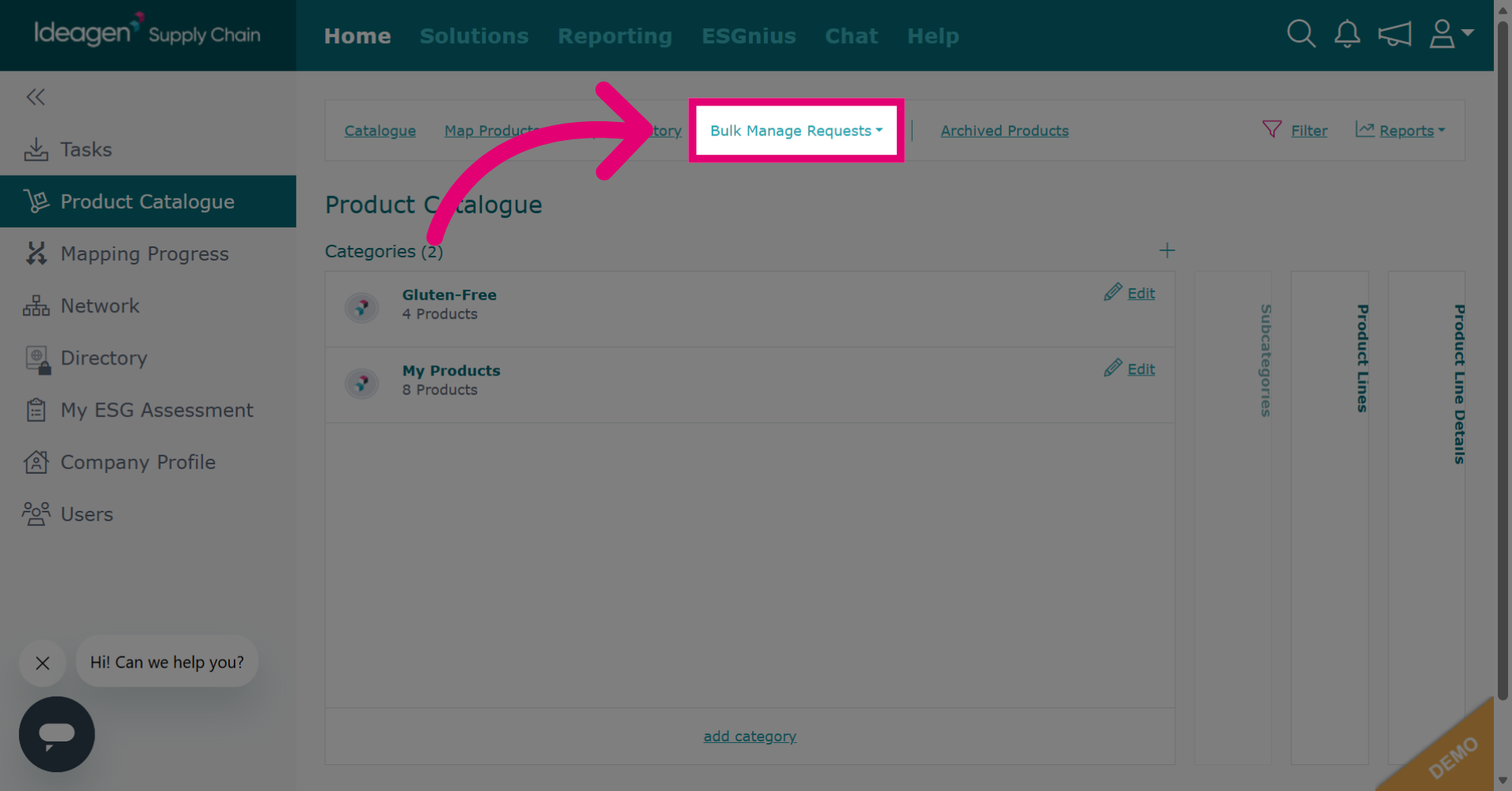
- Click Mapping to begin the mapping process.
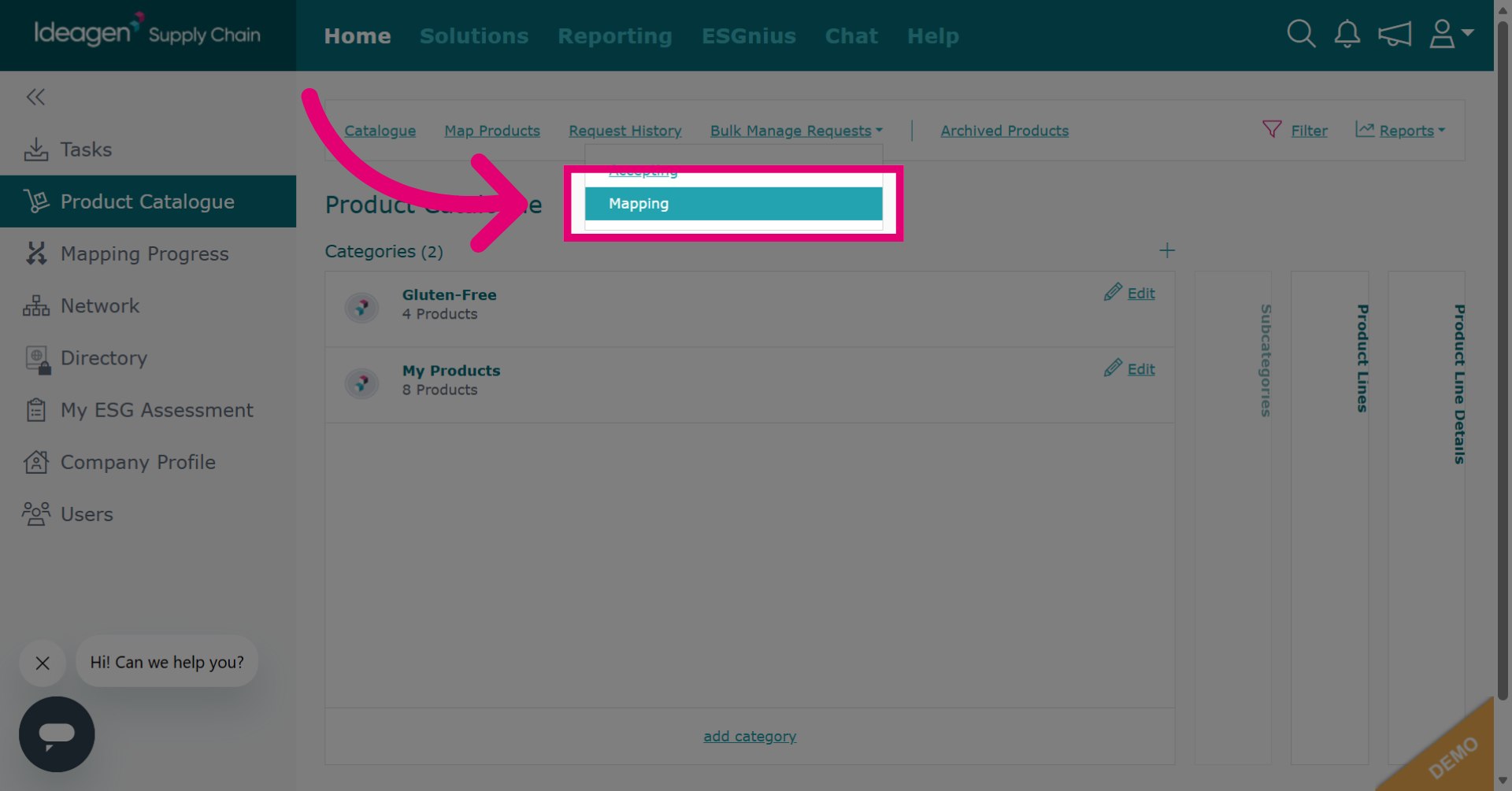
- Select the category from the dropdown menu that contains the products you will be mapping.
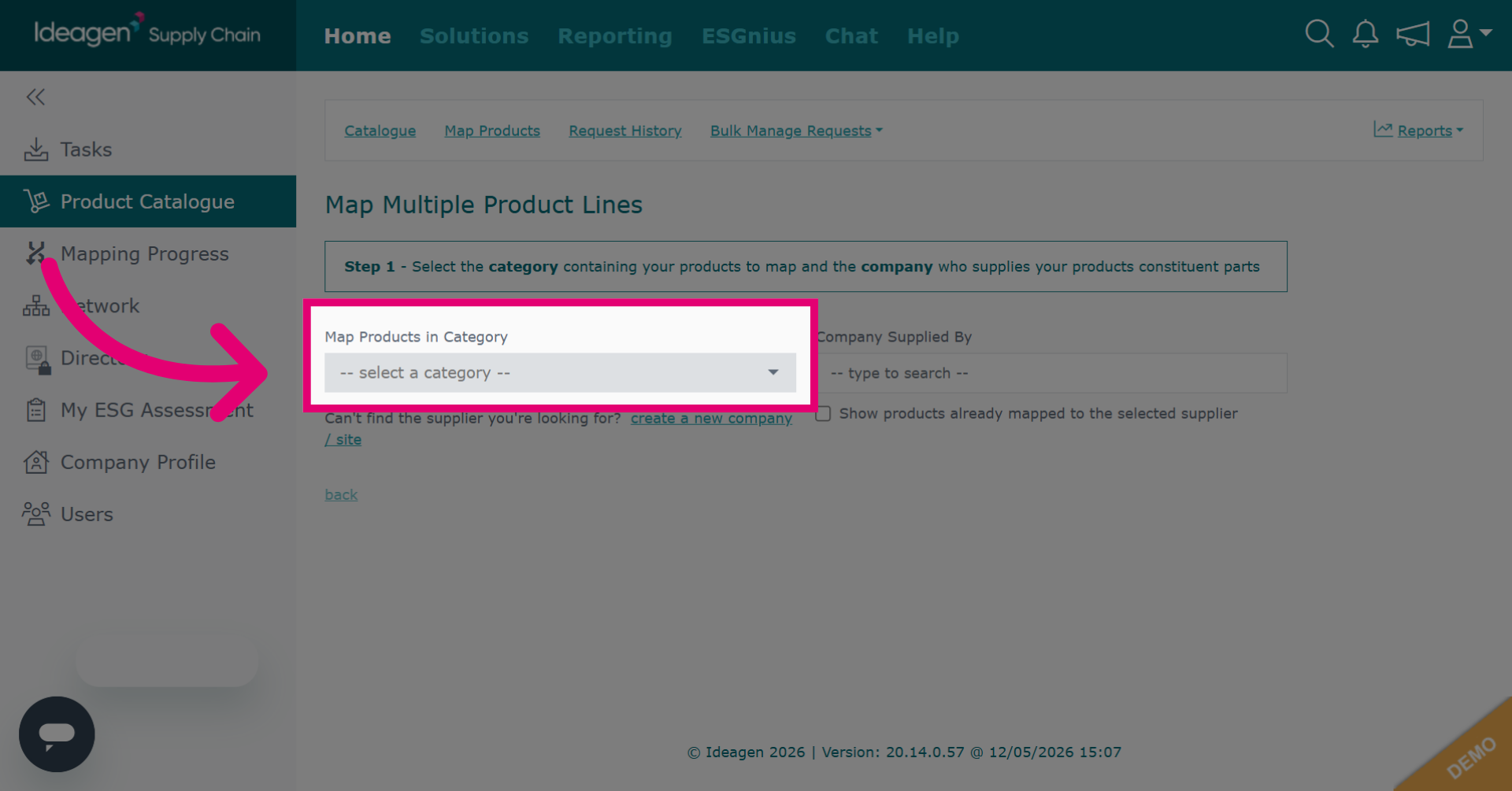
- Type your supplier into the search box and select them from the dropdown list.
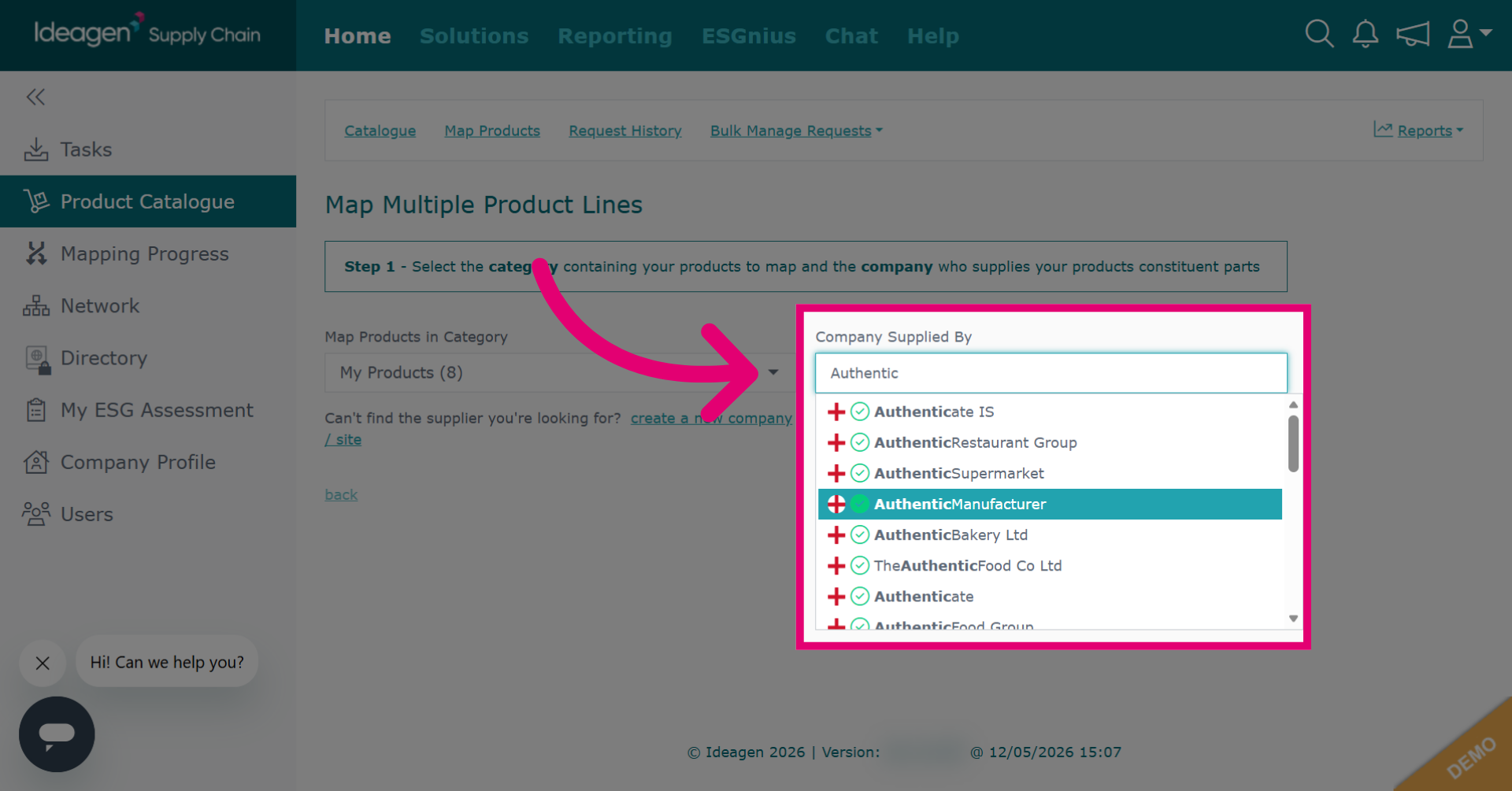
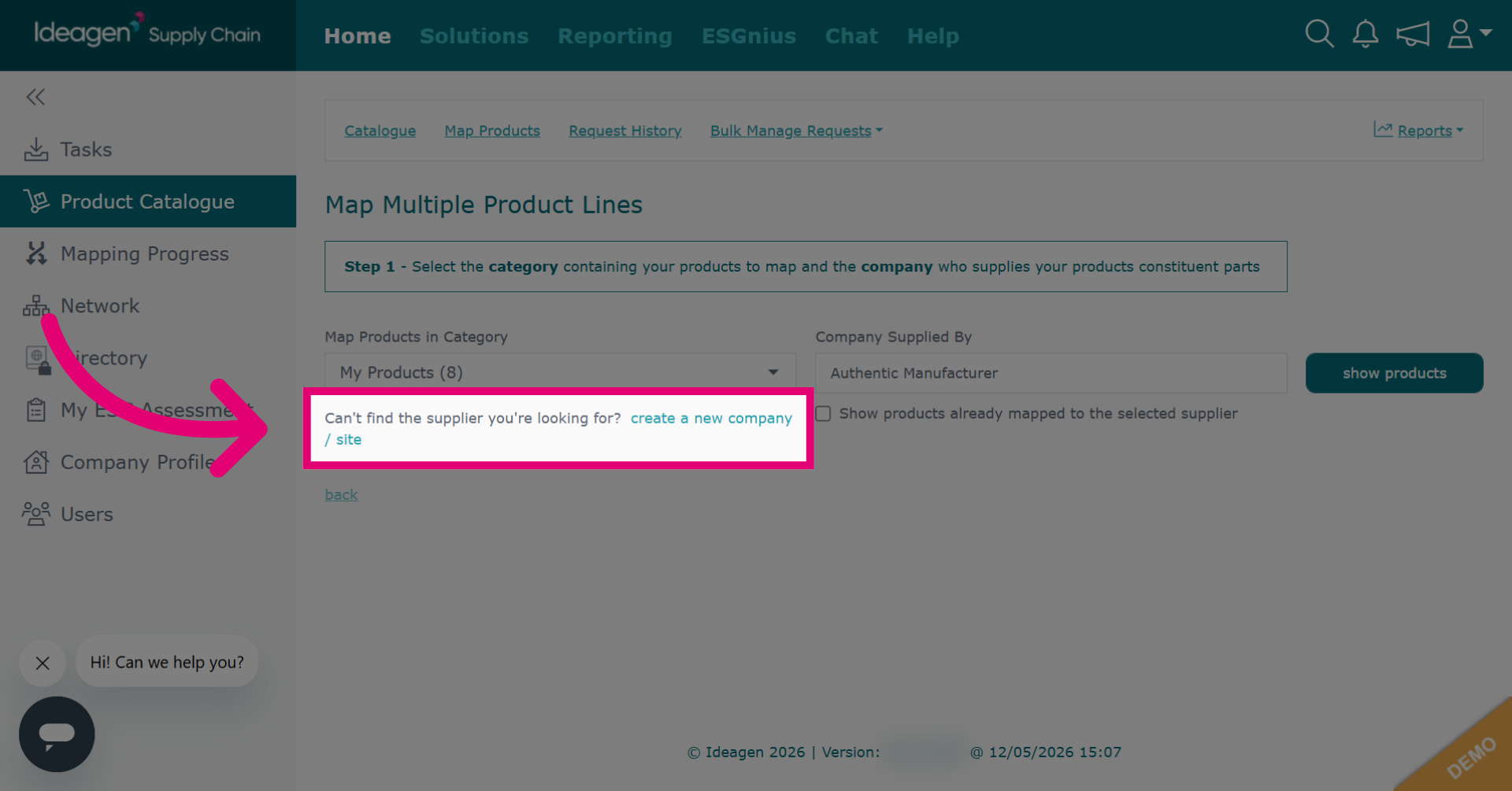
- If you cannot find your supplier on the platform, click create a new company to access a form where you can input the supplier's details to create their profile.
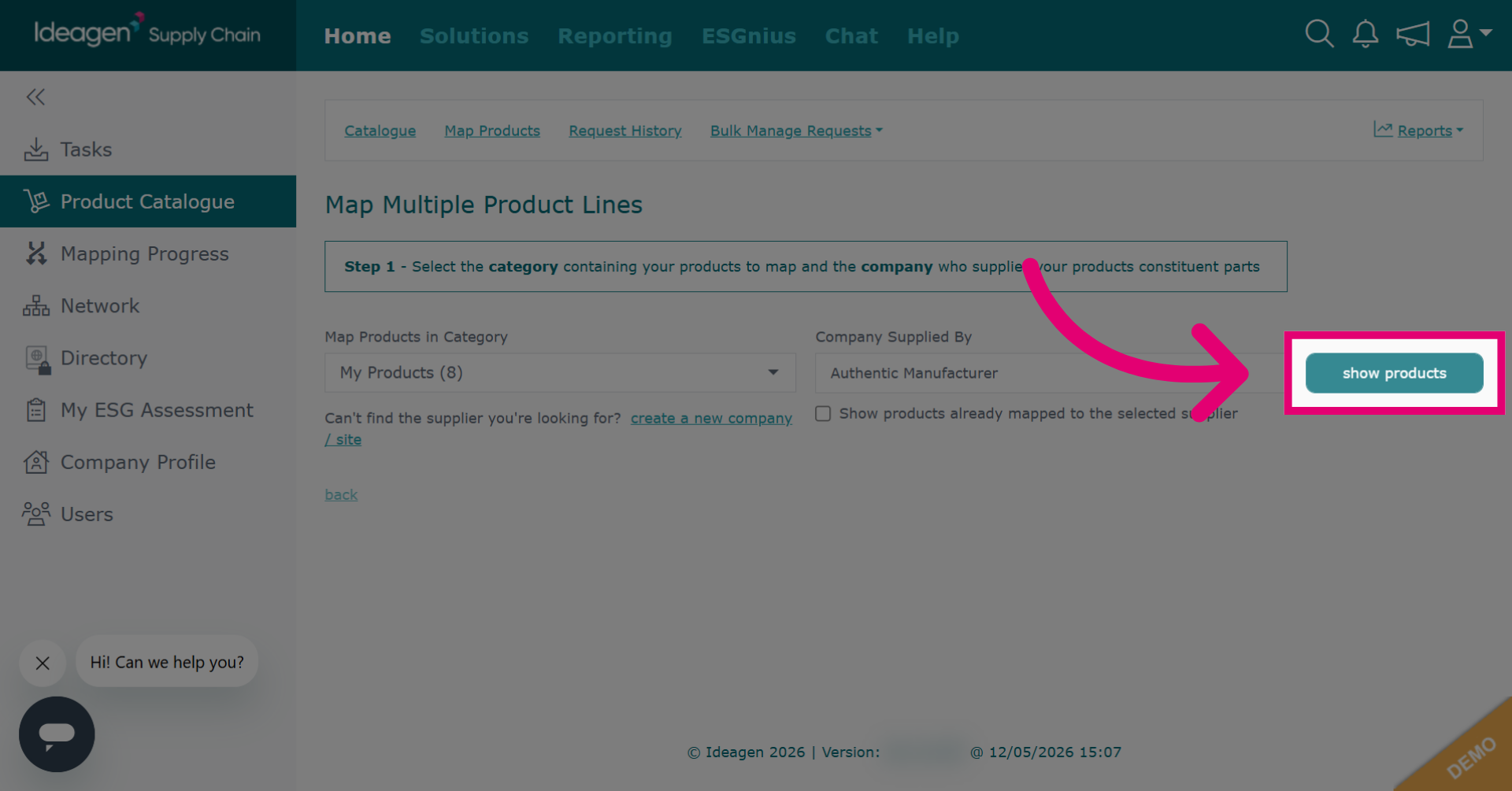
- Once you have selected the category and supplier, click show products to display the product list.
- If you want to send your mapping requests using the existing product name and reference, click the arrow to copy the details to the request form.
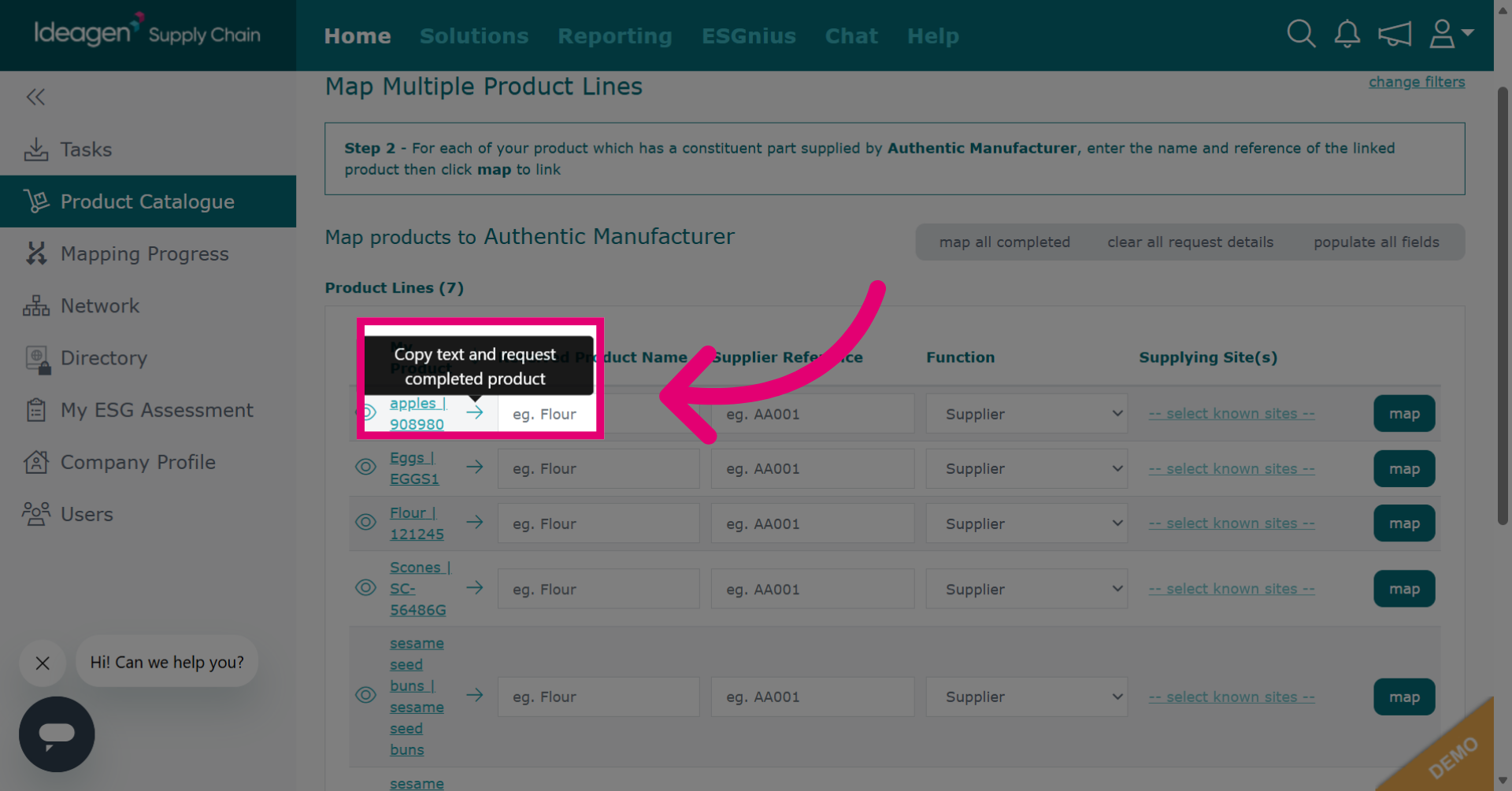
- If you want to send your mapping requests using details that differ from the existing product name and reference, type them manually into the product name and reference boxes.
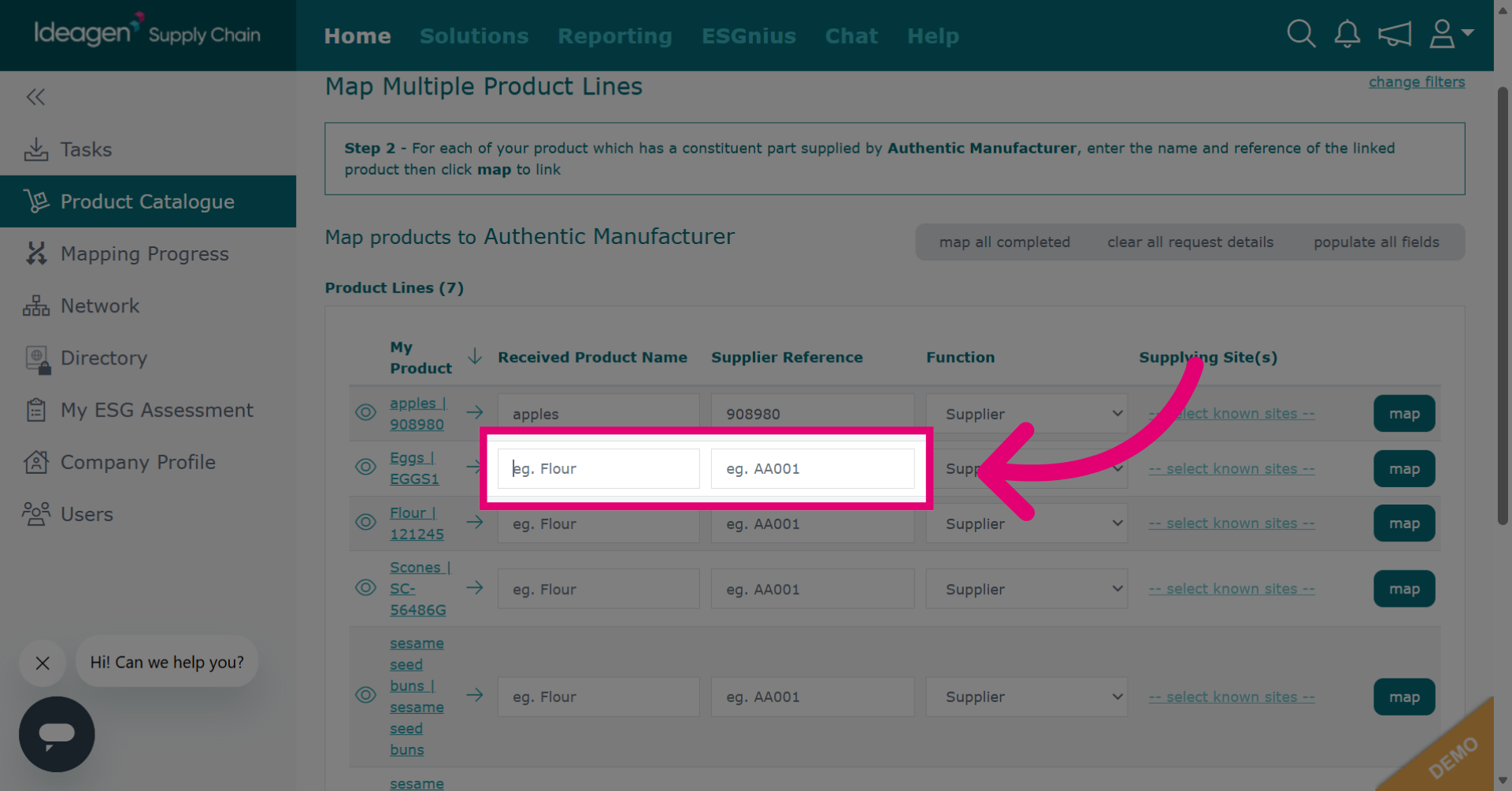
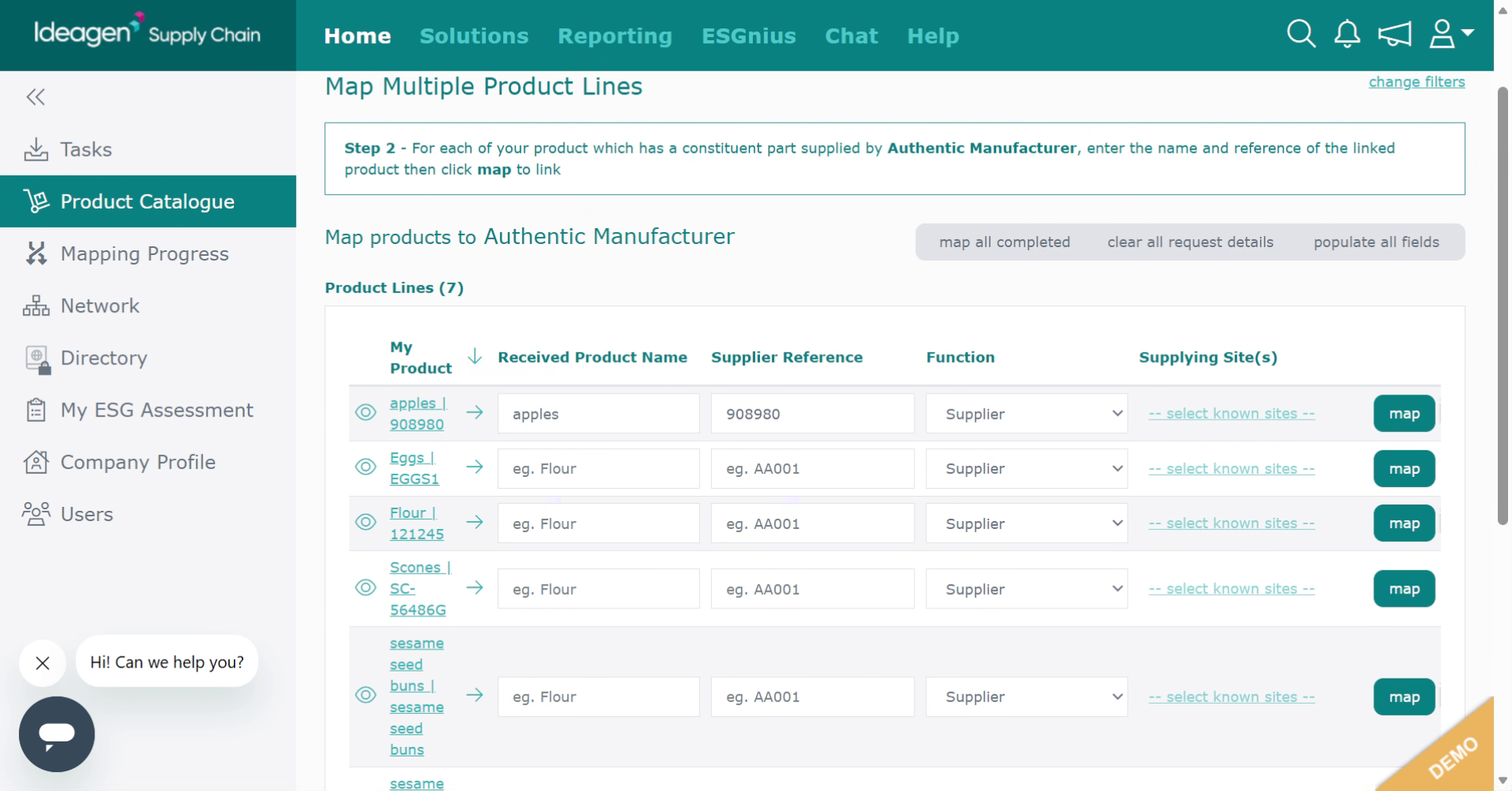
- Select the supplier type from the dropdown options.
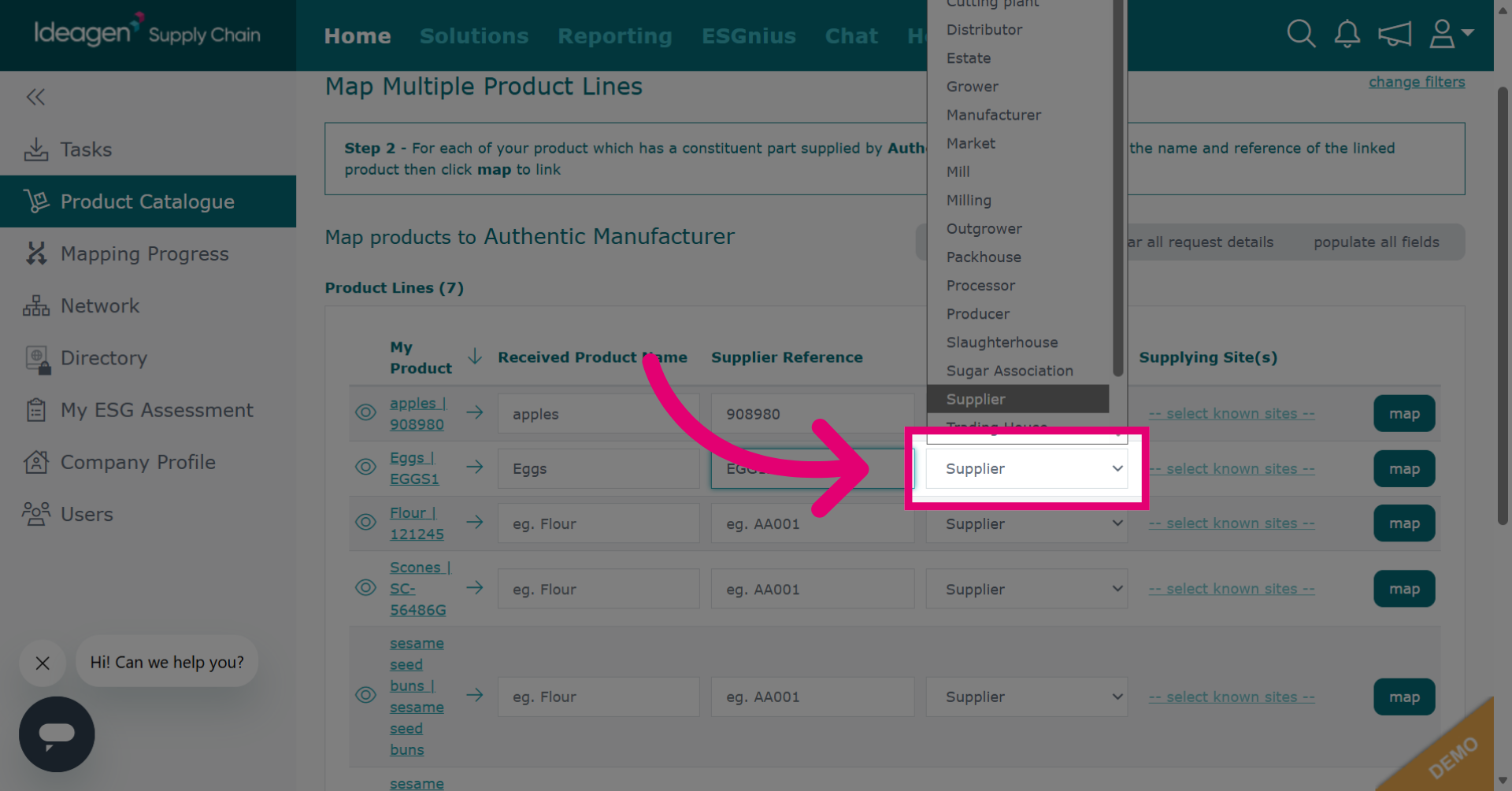
- If you want to send your mapping request to a specific site of the supplier, select from the site dropdown options. If you leave the site blank, the mapping request will be sent at company level and the supplier can specify a site when responding if needed.
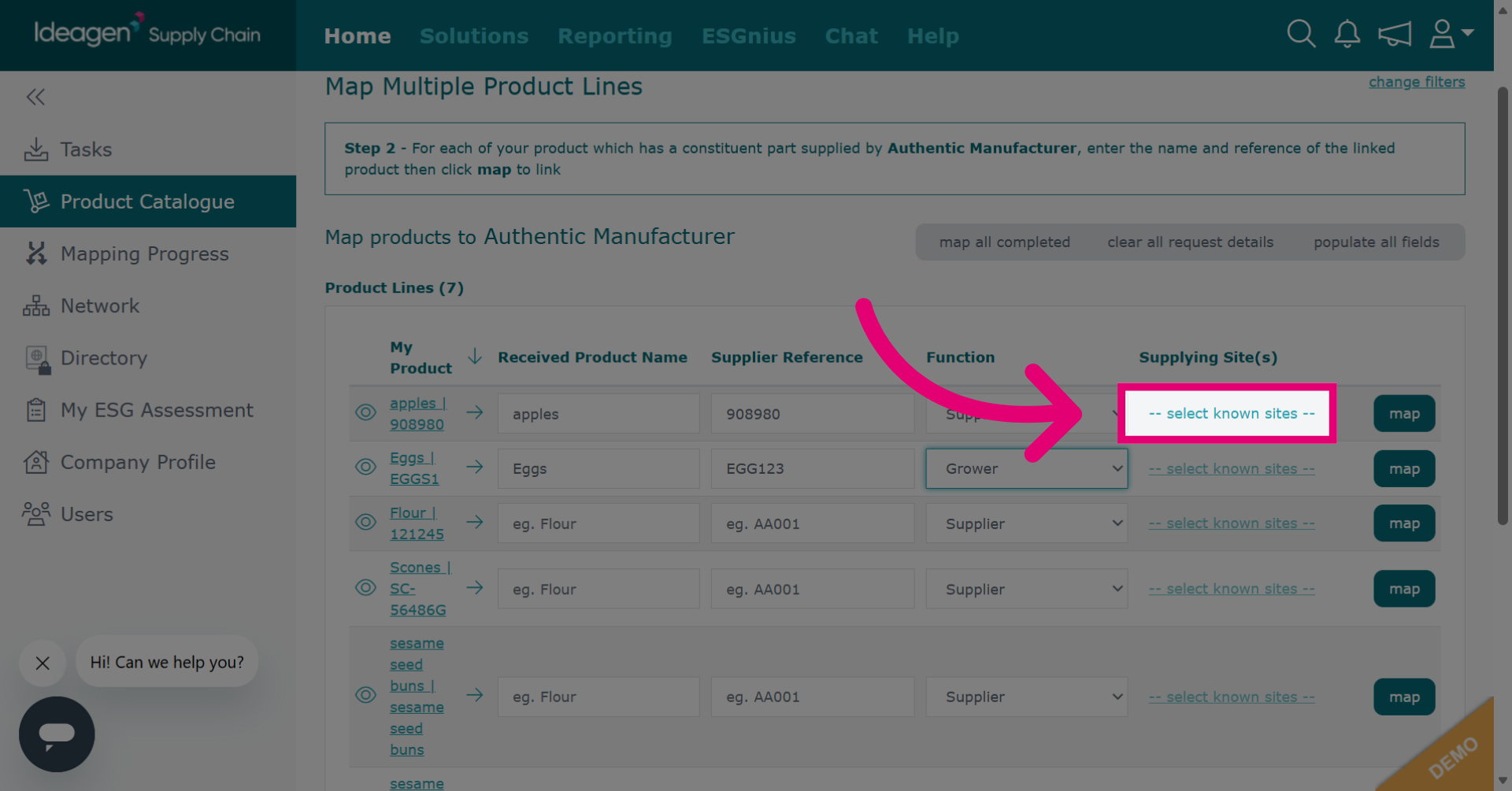
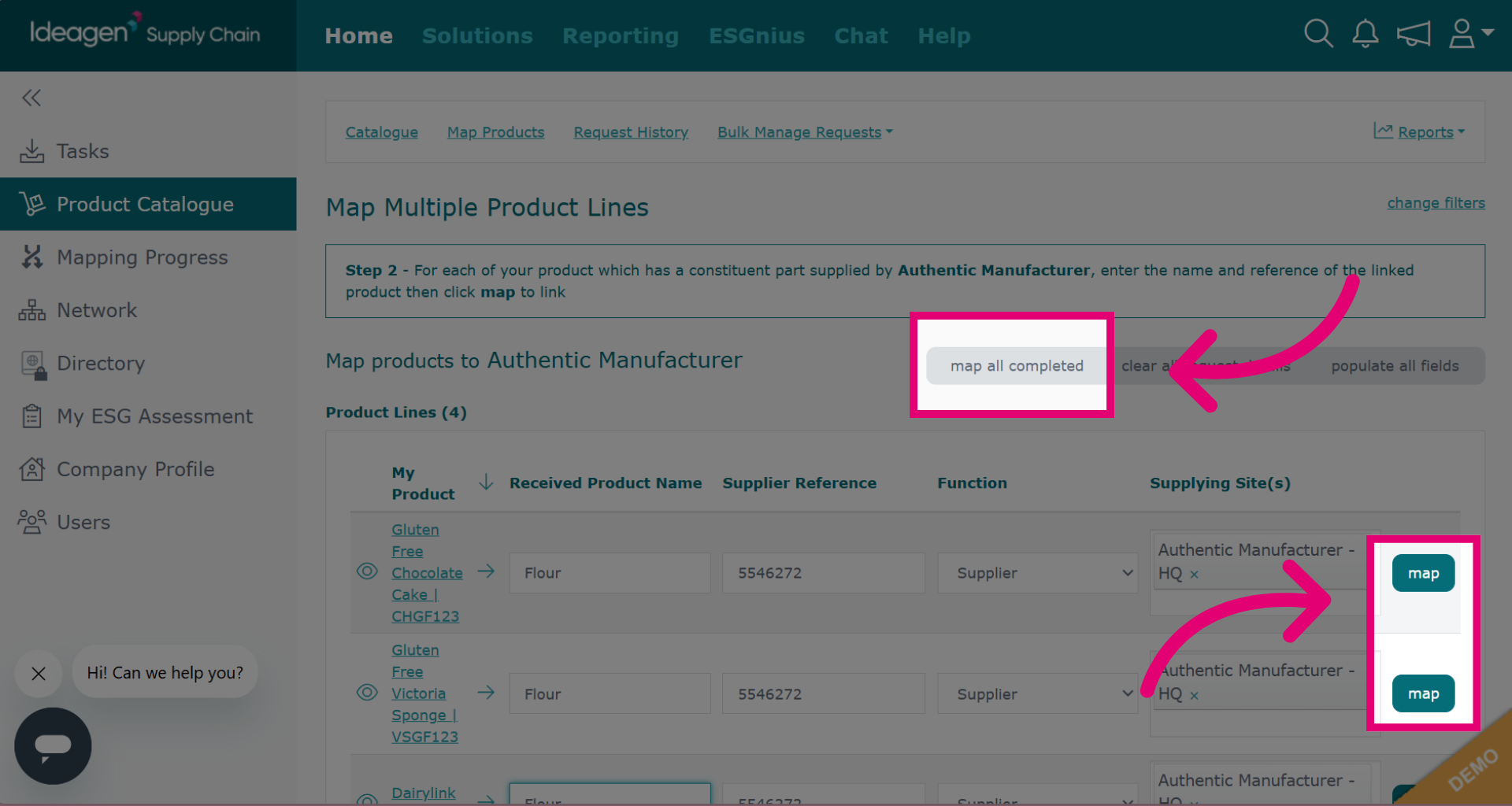
- To map entry by entry, click map beside the request you wish to send.
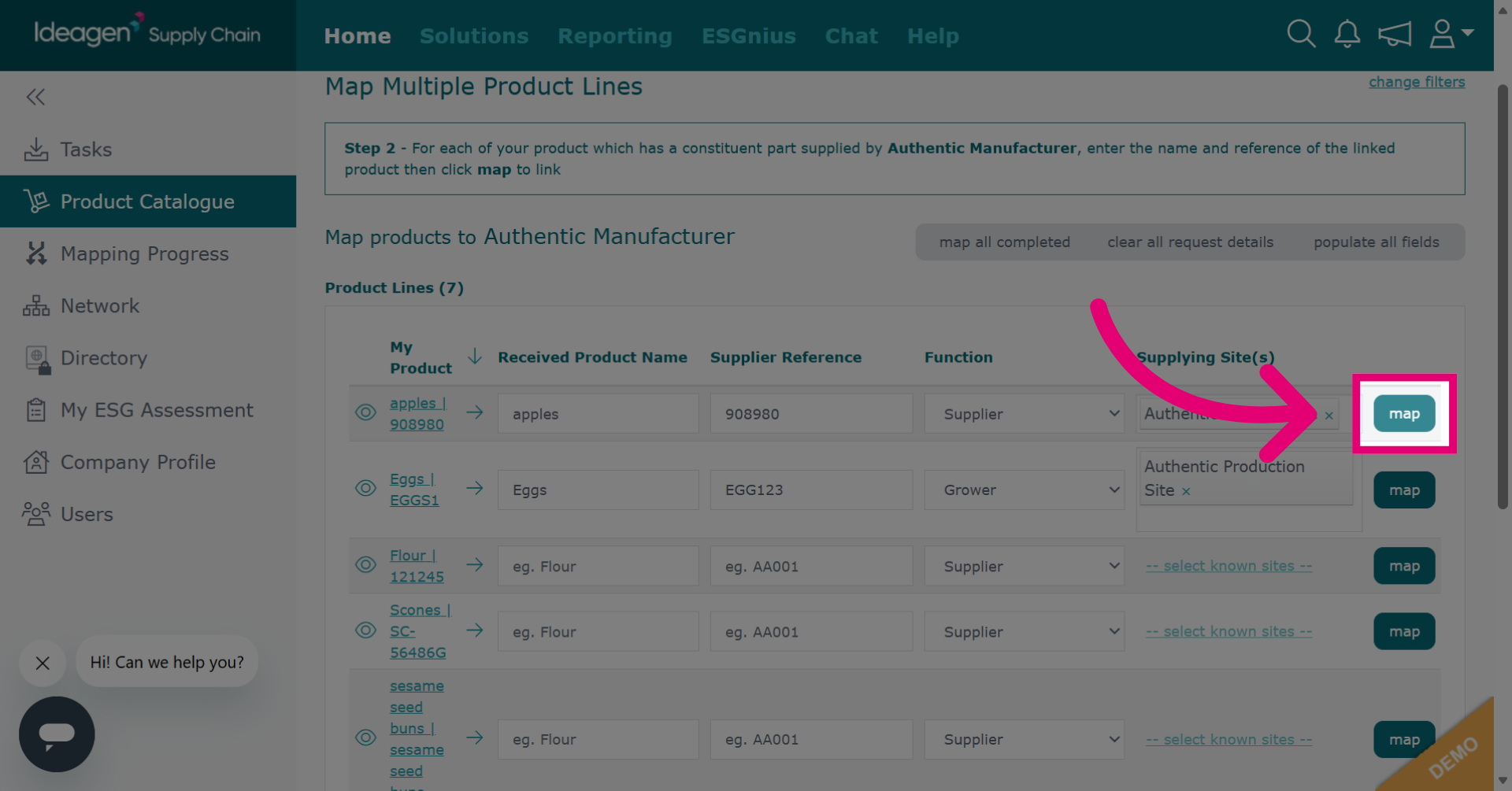
- Click map all completed to send mapping requests to all entries you have input data for.
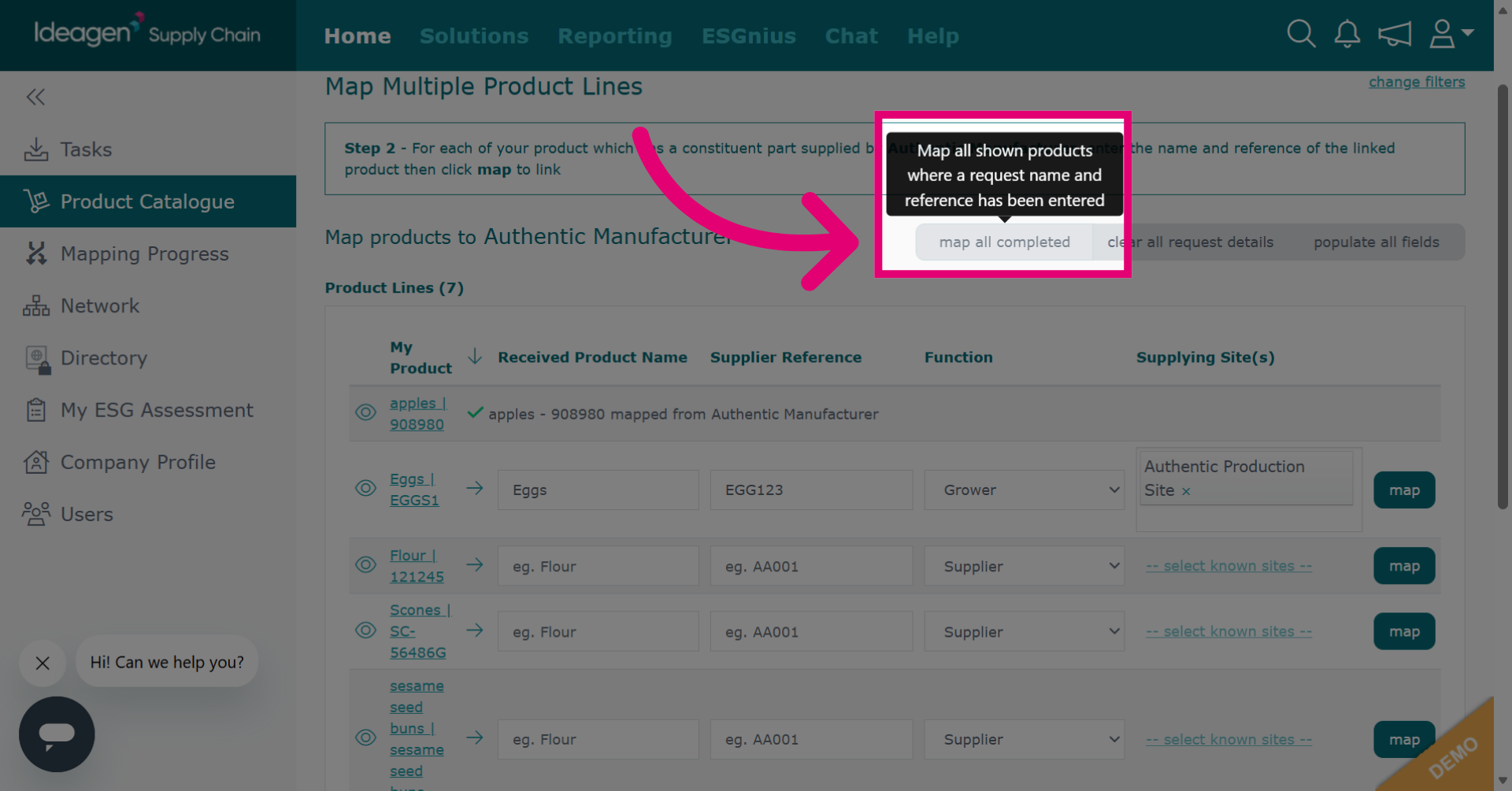
- If using the map all completed option, you will be asked to confirm by clicking Map. If you want to go back and edit, click Don't Map.
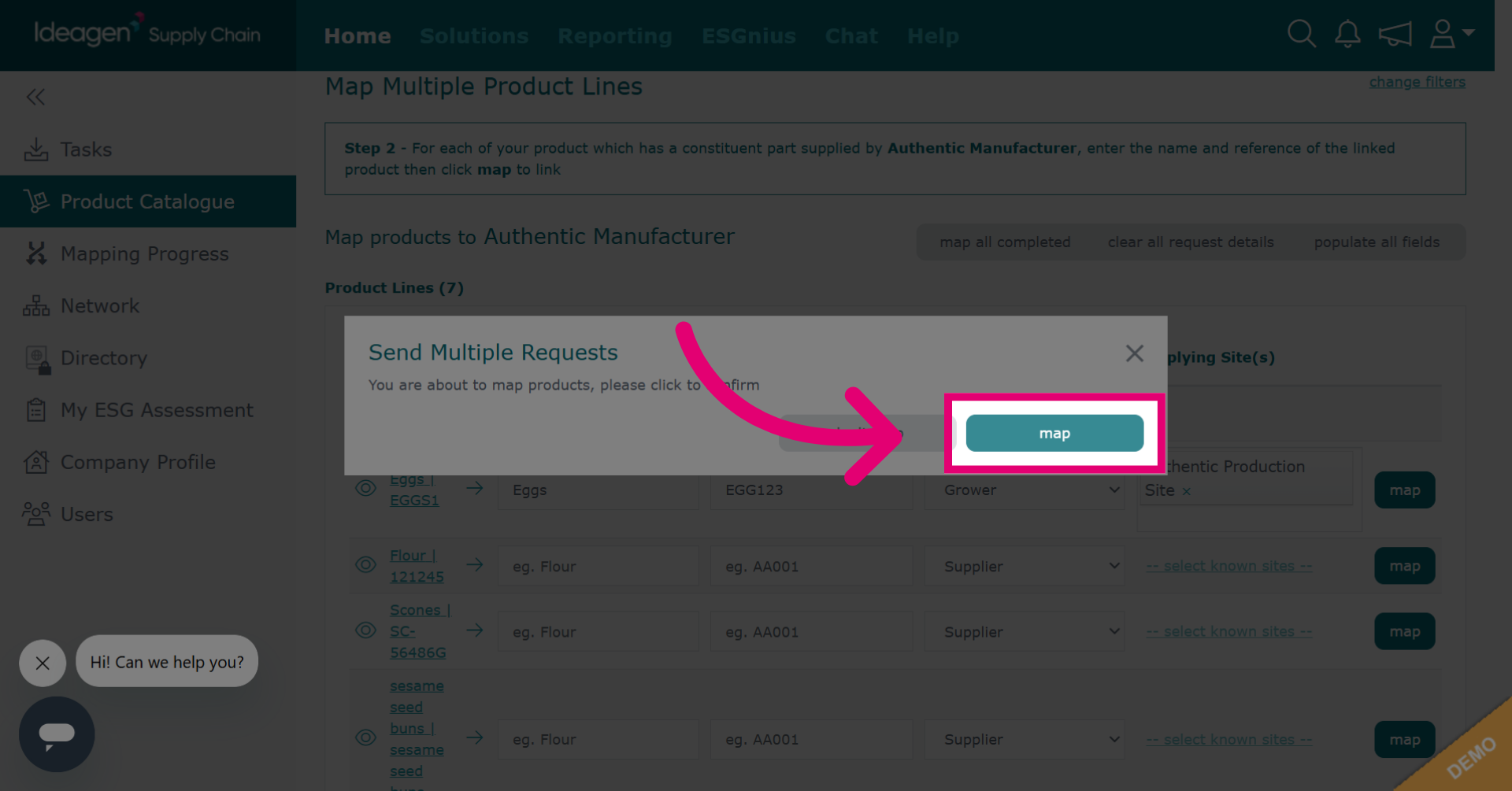
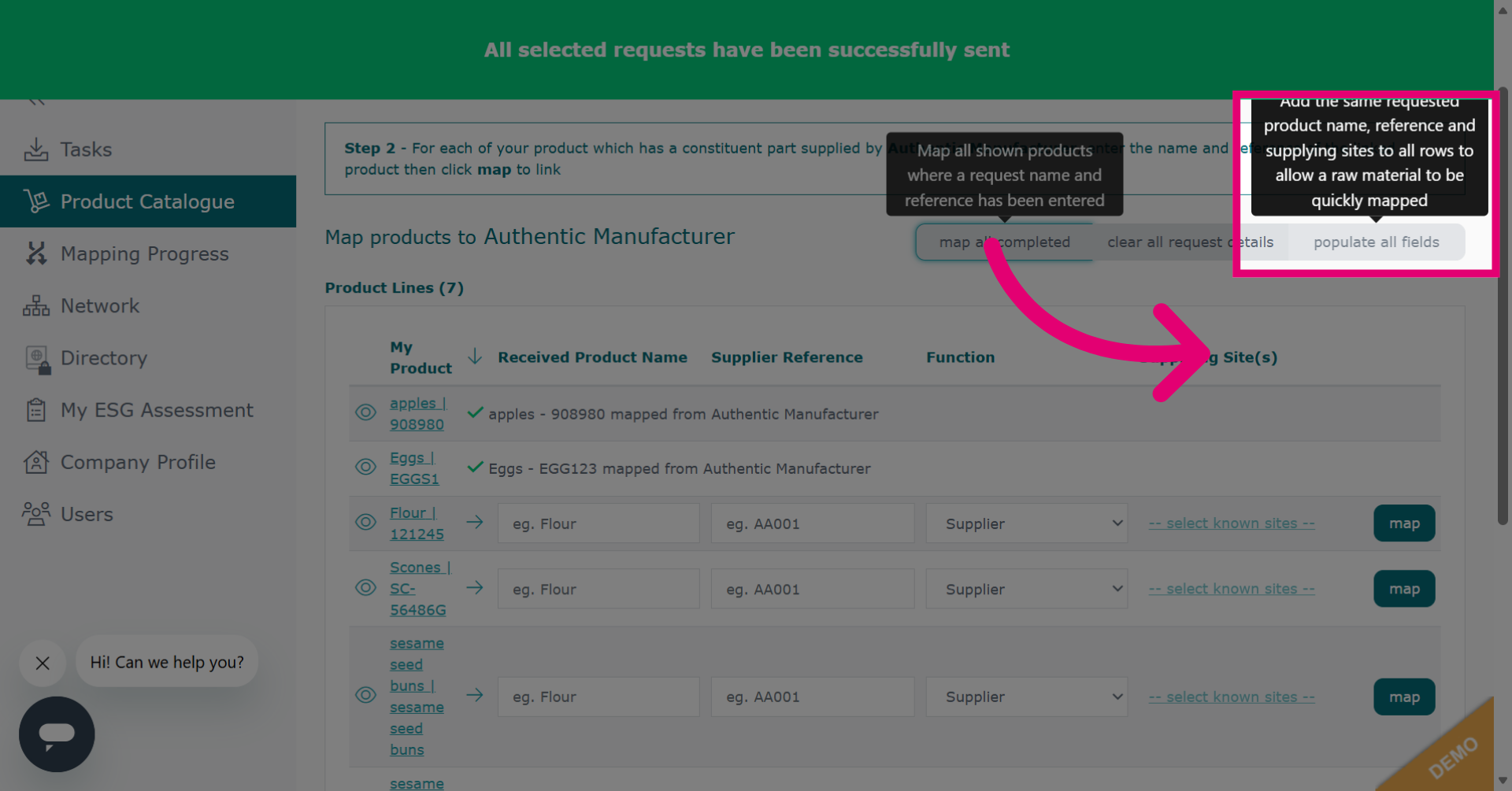
- If you want to map all items with the same product and reference, click Populate All Fields. This is particularly useful for mapping components or raw materials.
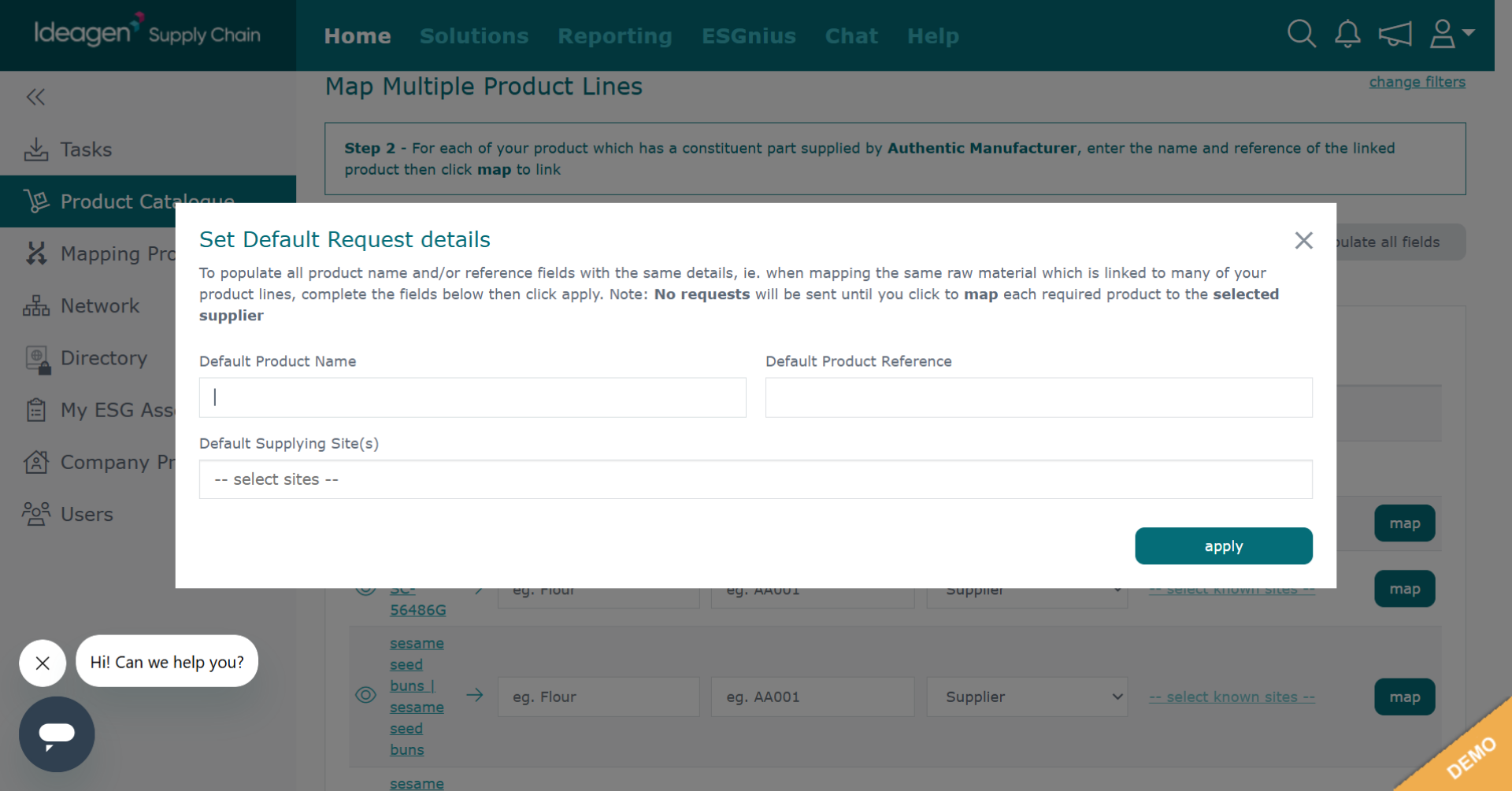
- You will then be presented with a screen to input the details that will be applied to all of the products.
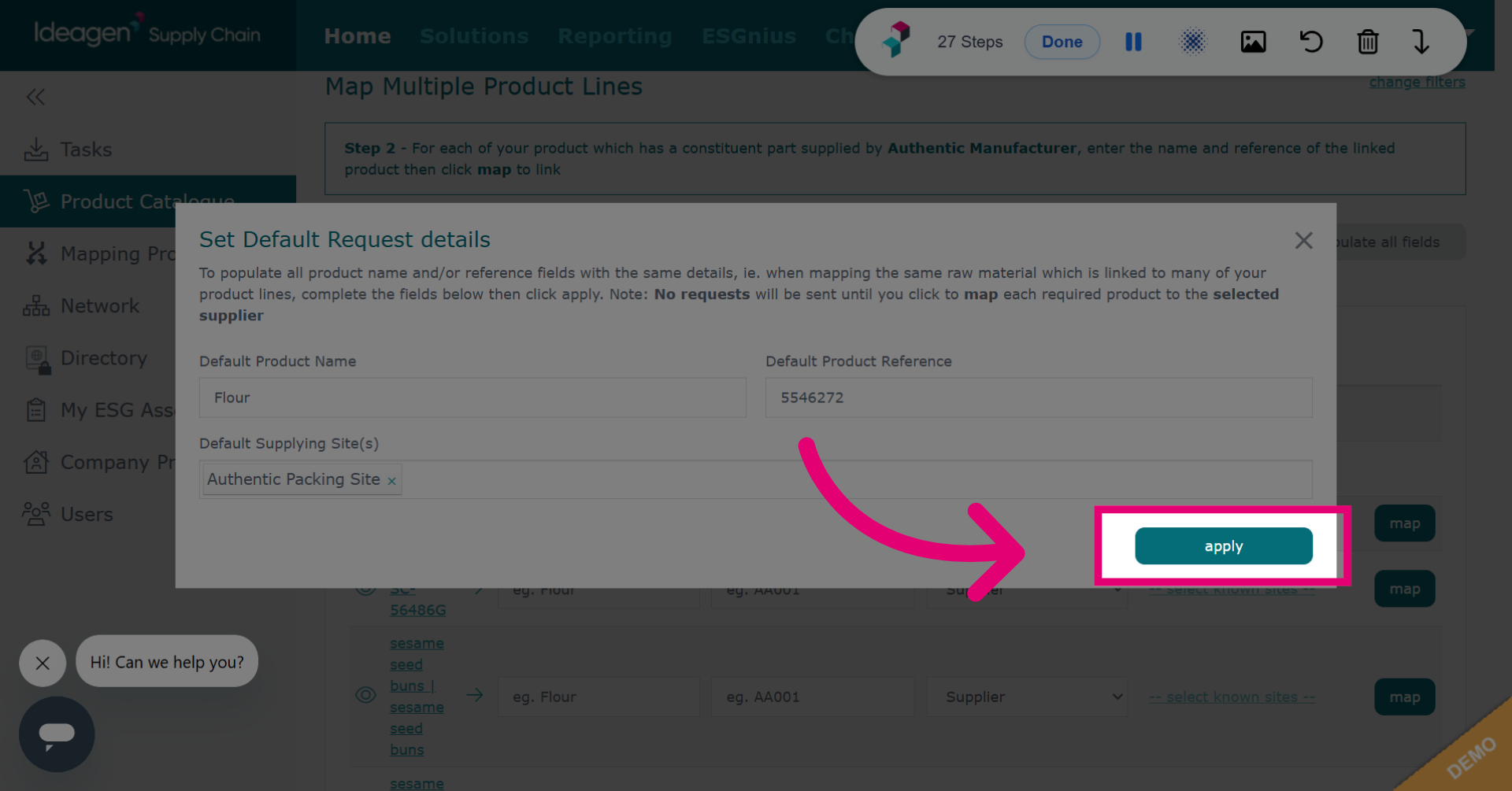
- Once you have input details, click apply to add the details you have input to all products.
- To send out the requests, click Map beside each entry or Map All Completed to map all entries at once.