New article
Recently updated
Using bulk mapping

Who is this article for?
Users who want to learn to bulk map products.
Product admin permissions are required.
This tutorial guides you through bulk mapping in the product catalogue.
You will learn how to map multiple products simultaneously to suppliers using the bulk management interface.
Using bulk mapping
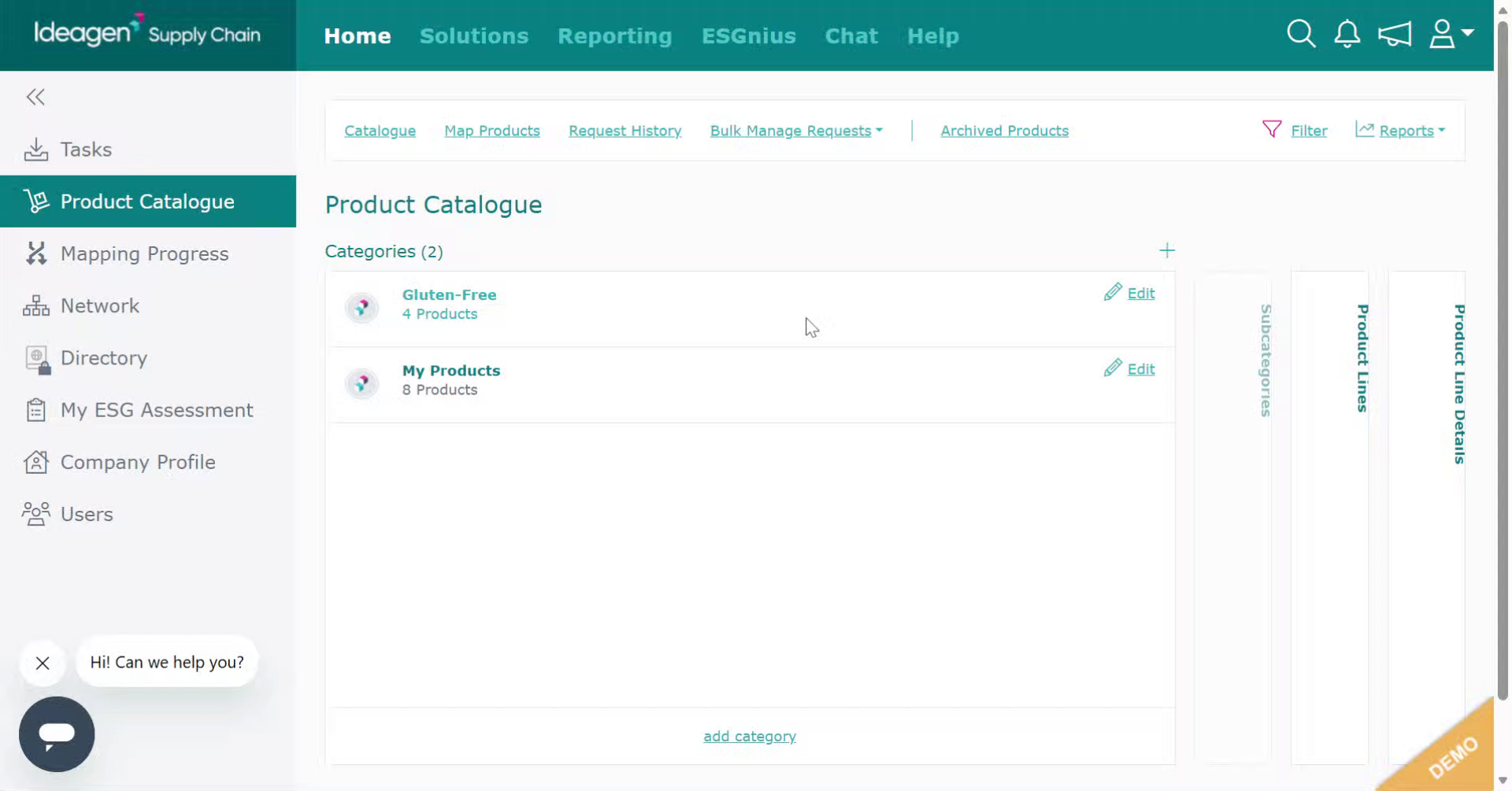
Click into the product catalogue.
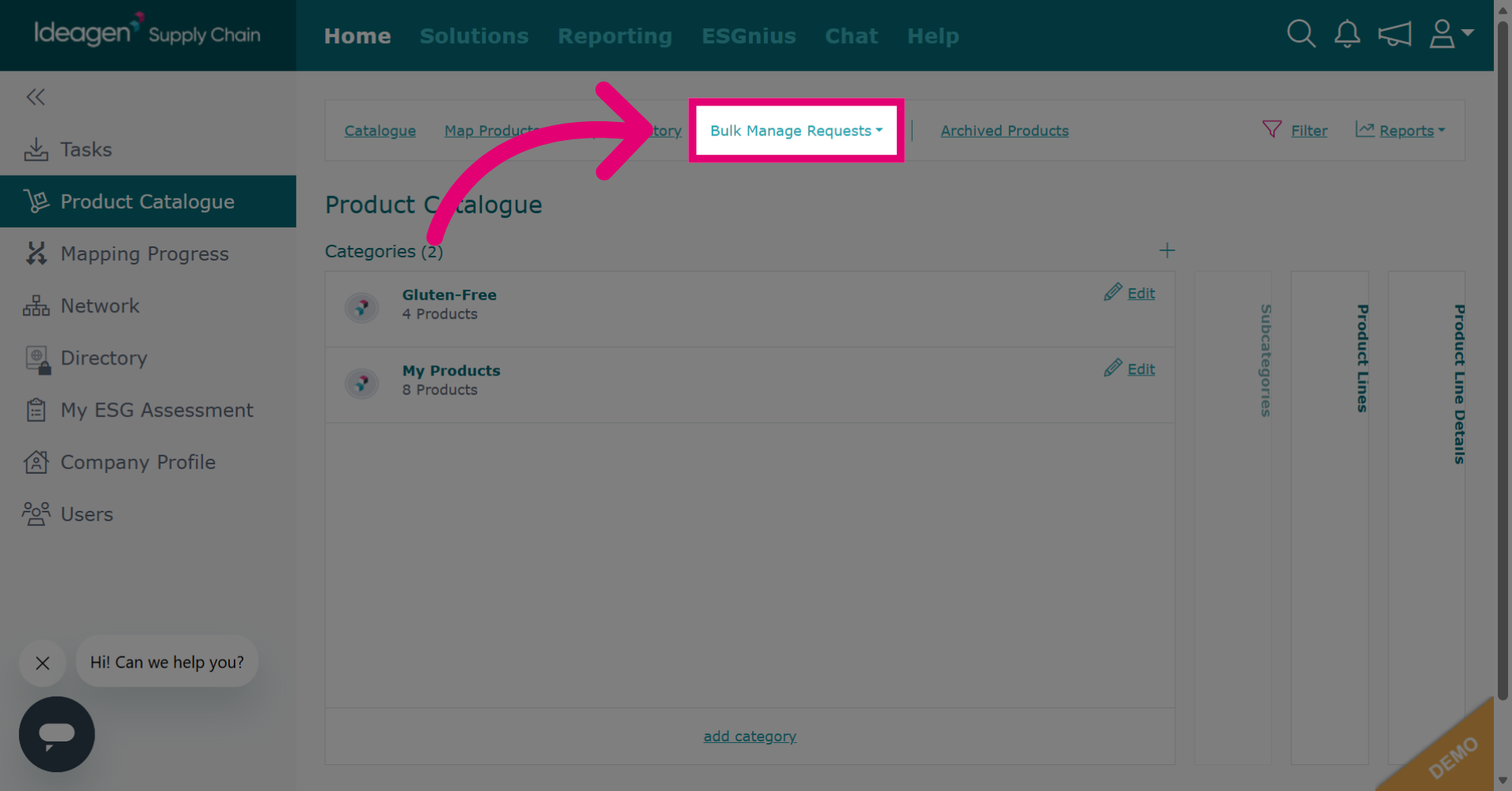
Click Bulk Manage Requests to open the bulk management interface for handling multiple requests simultaneously.
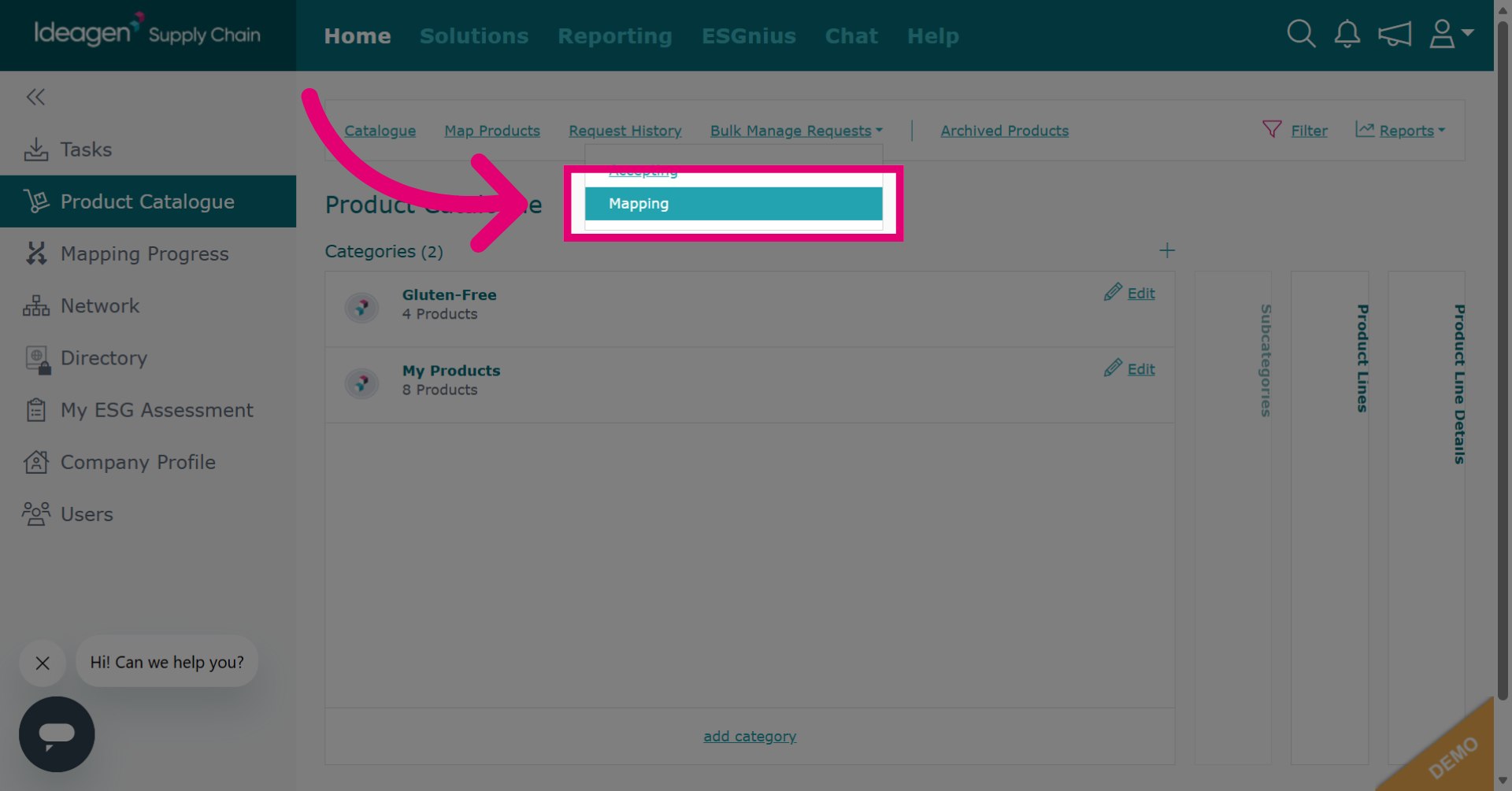
Click Mapping.
Select the category from the dropdown you will be mapping products from.
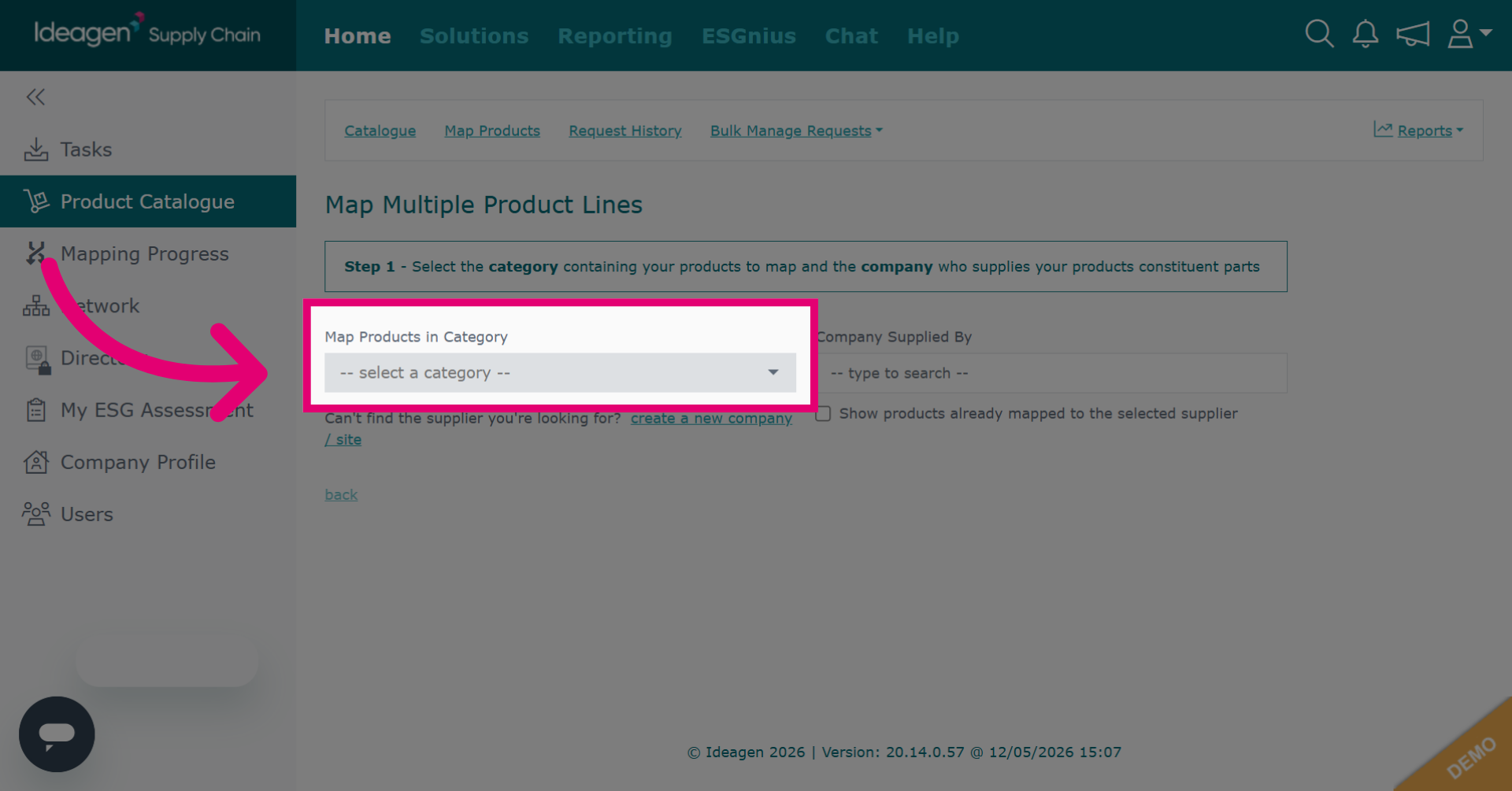
Type your supplier into the search box and select them from the dropdown list.
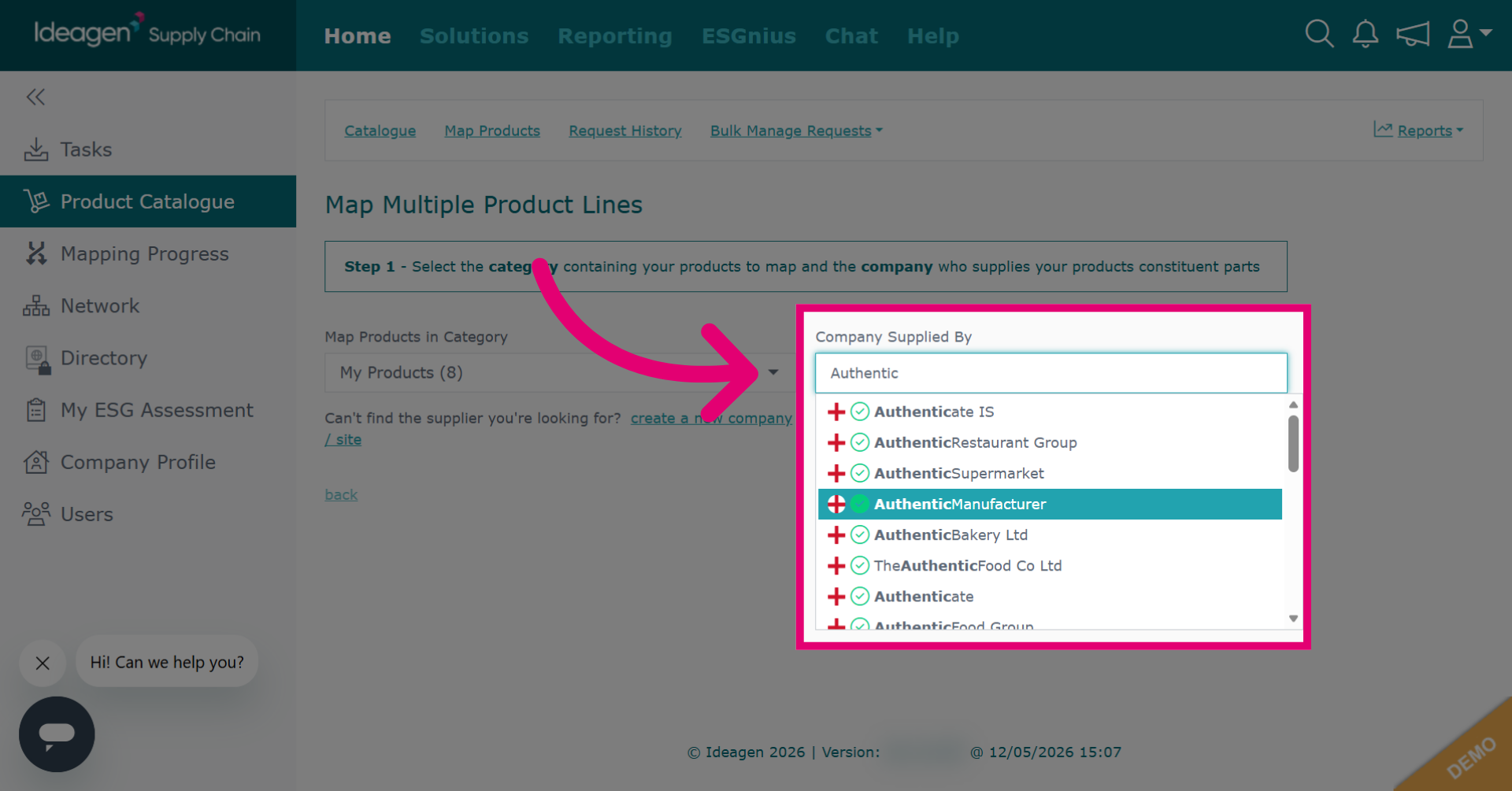
If you cannot find your supplier on the platform, click create a new company. You will then be given a form to fill out with the supplier's details so a profile can be created for them.
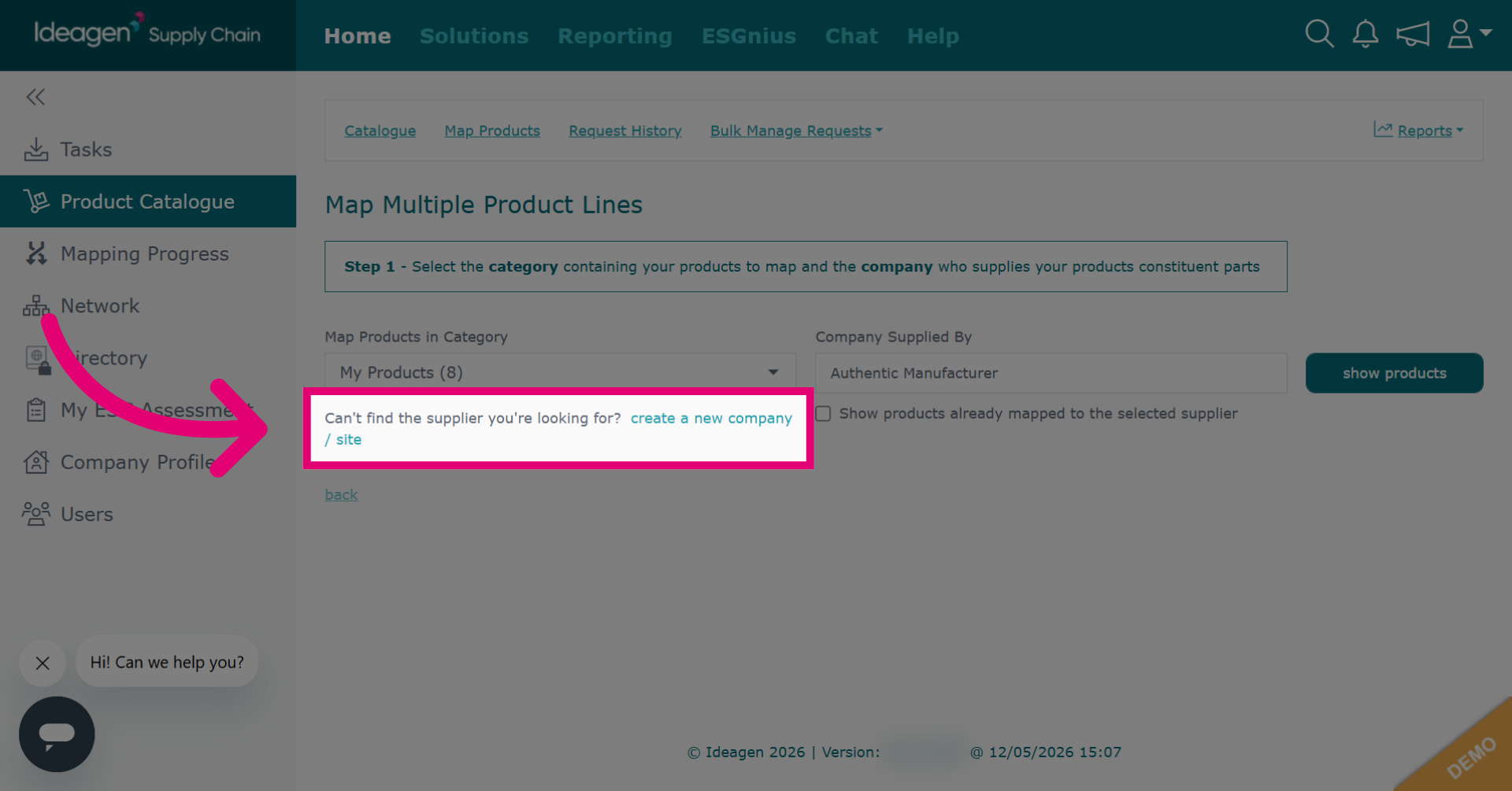
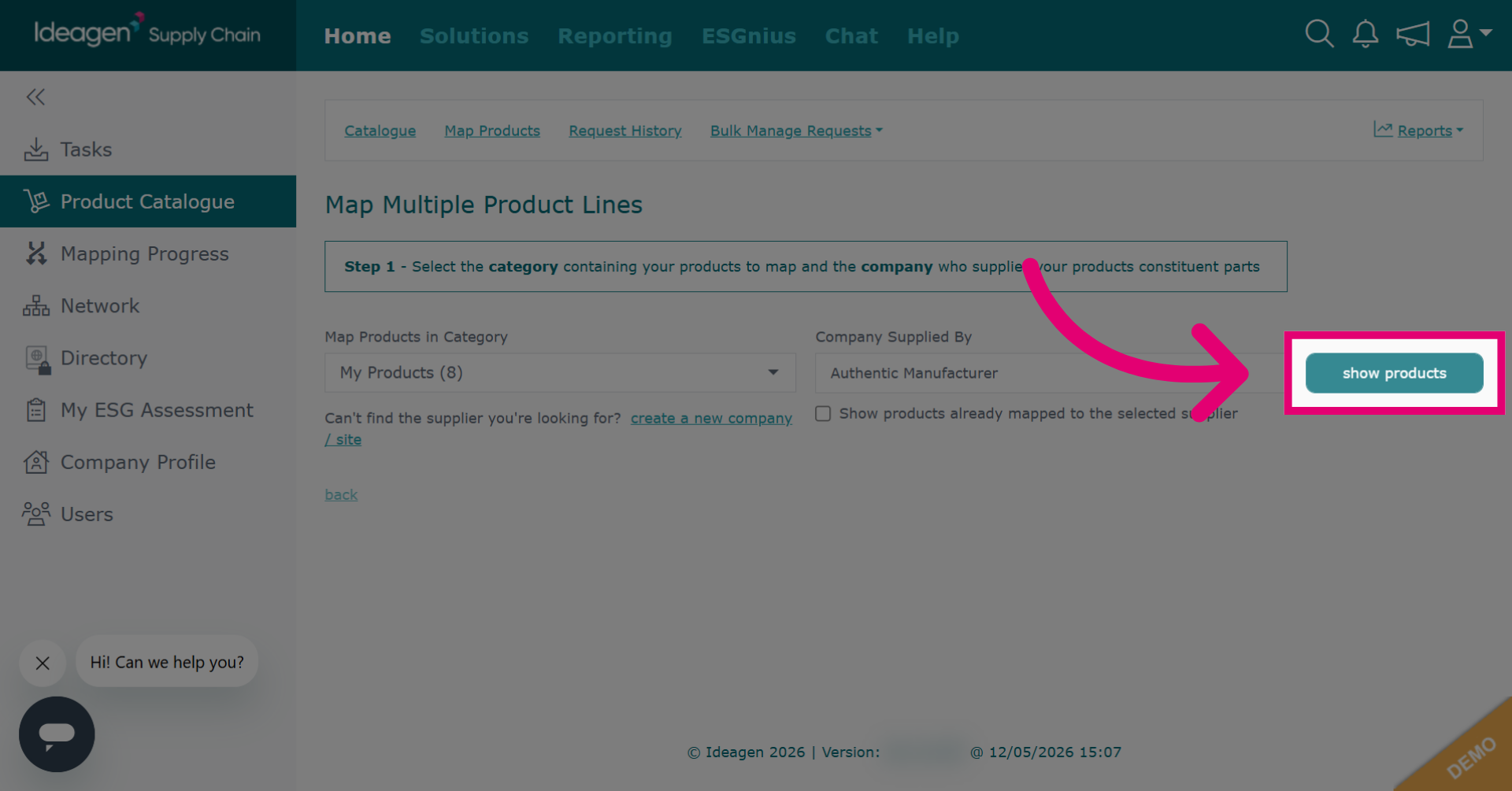
Once you have selected the category and supplier, click show products.
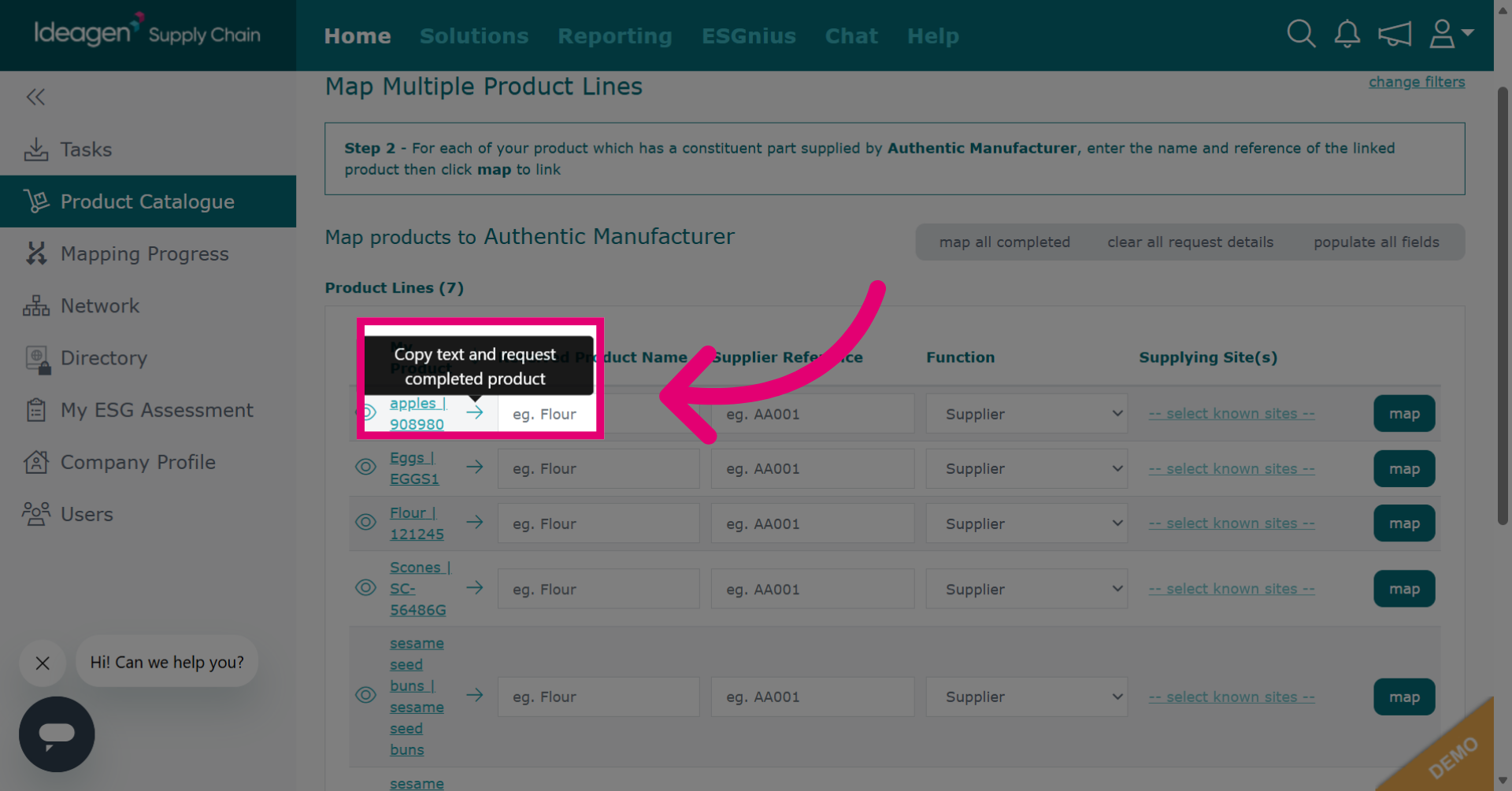
If you want to send your mapping requests using the existing product name and reference, click the arrow to copy the details to the request form.
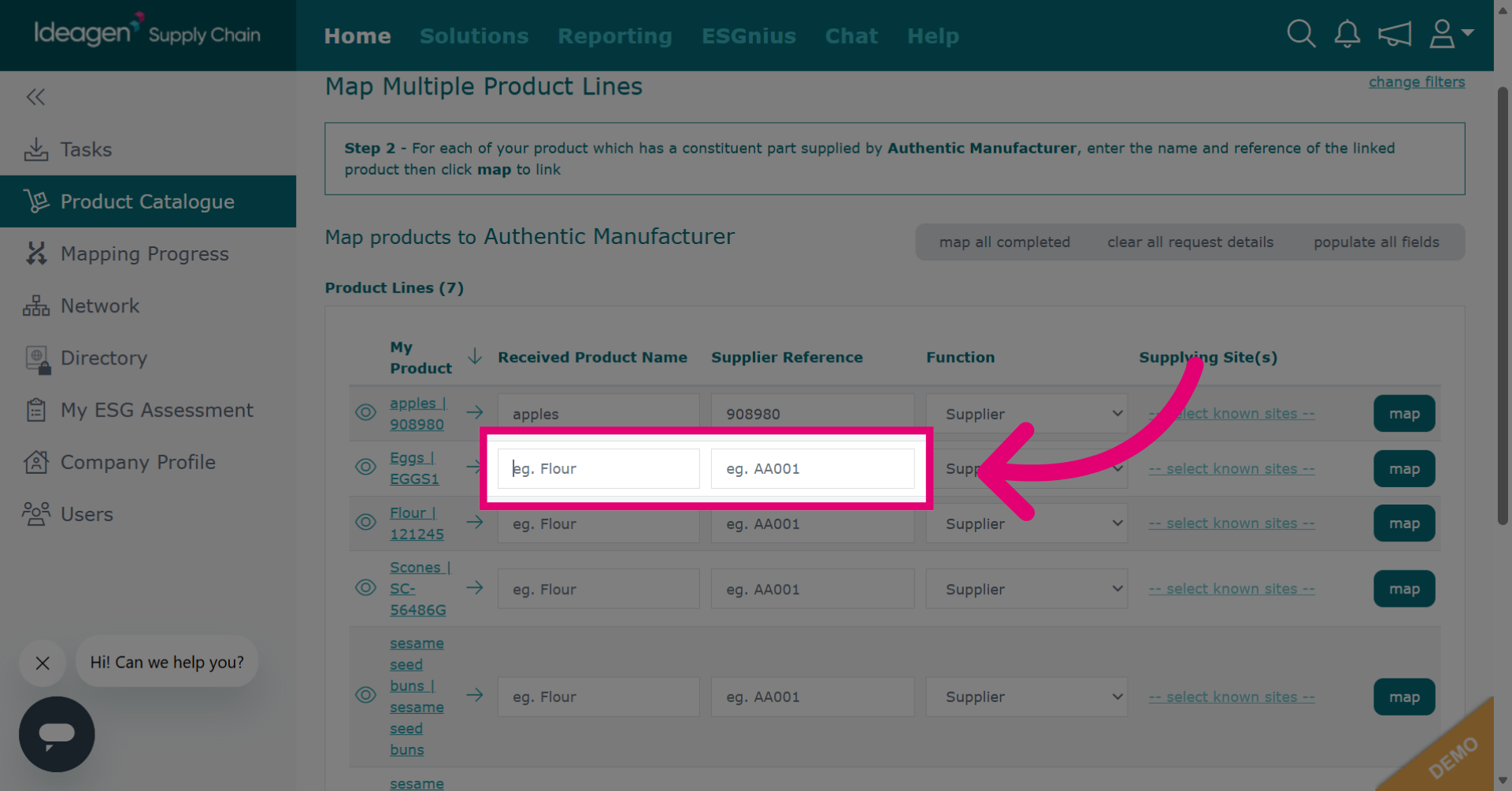
If you want to send your mapping requests using details that differ from the existing product name and reference, you can type them manually into the boxes.
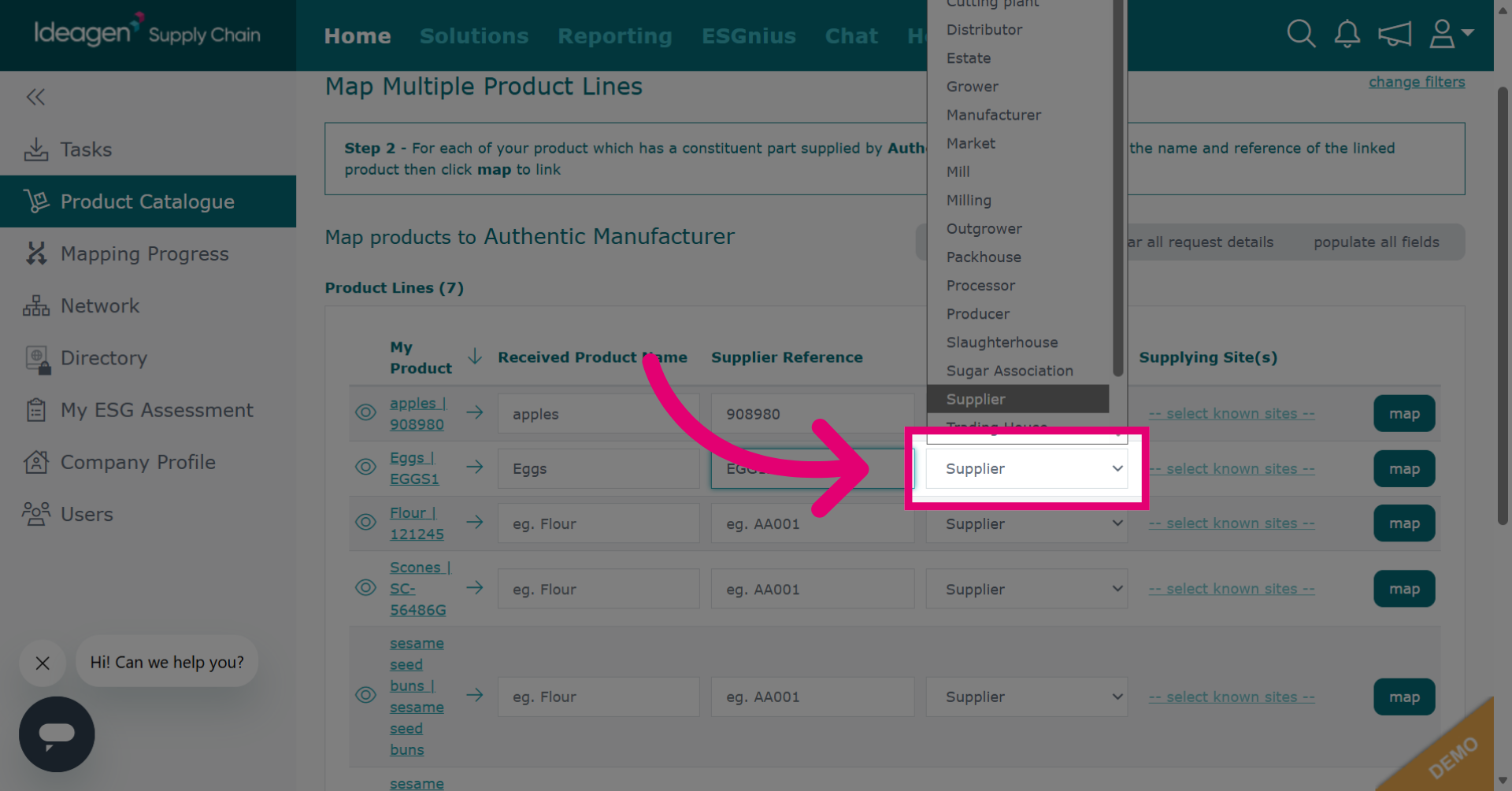
Select the supplier type from the dropdown options.
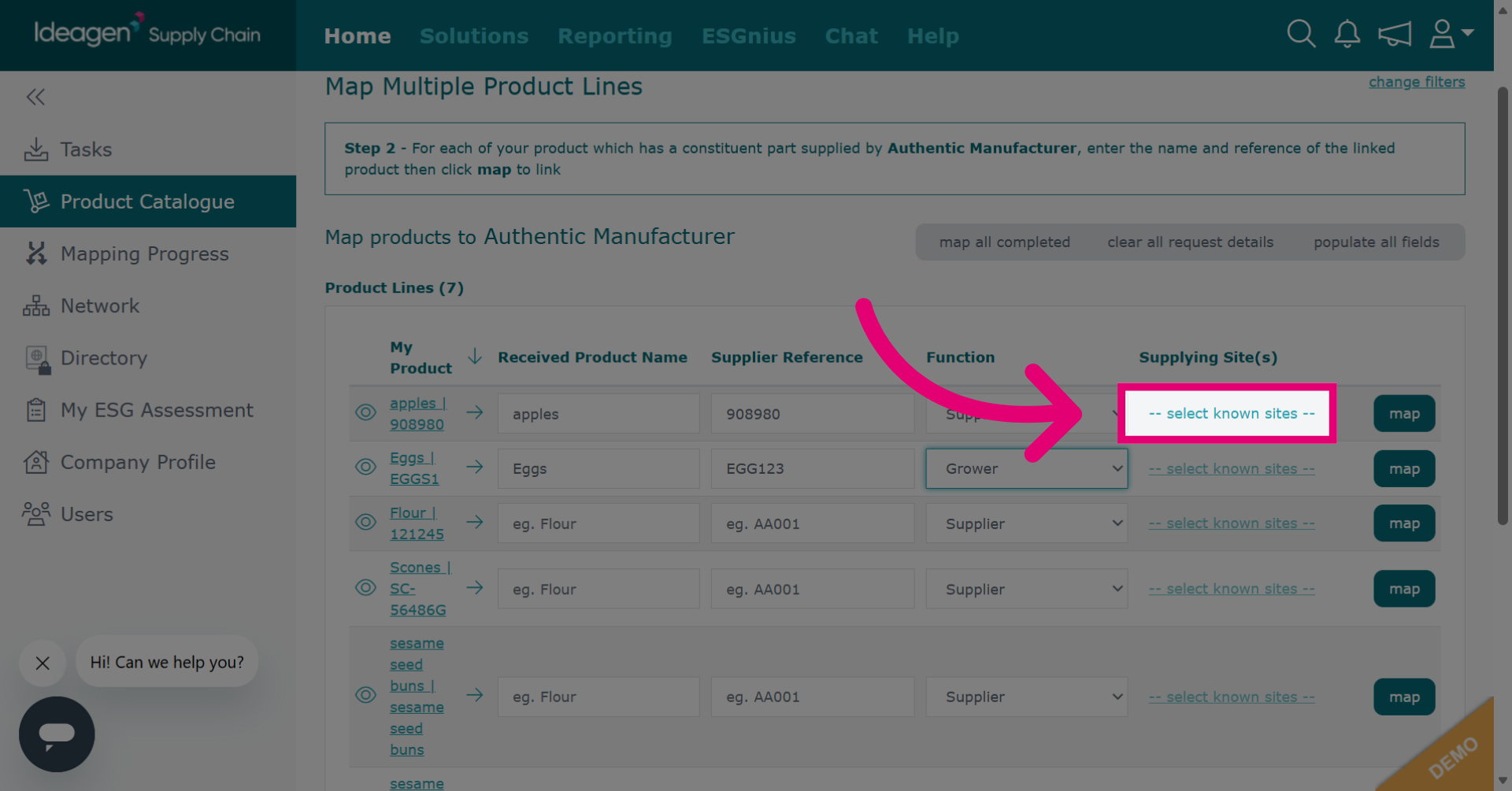
If you want to send your mapping request to a specific site of the supplier, select from the dropdown options. If you leave the site blank, the mapping request will be sent at company level. The supplier can always specify a specific site when responding if needed.
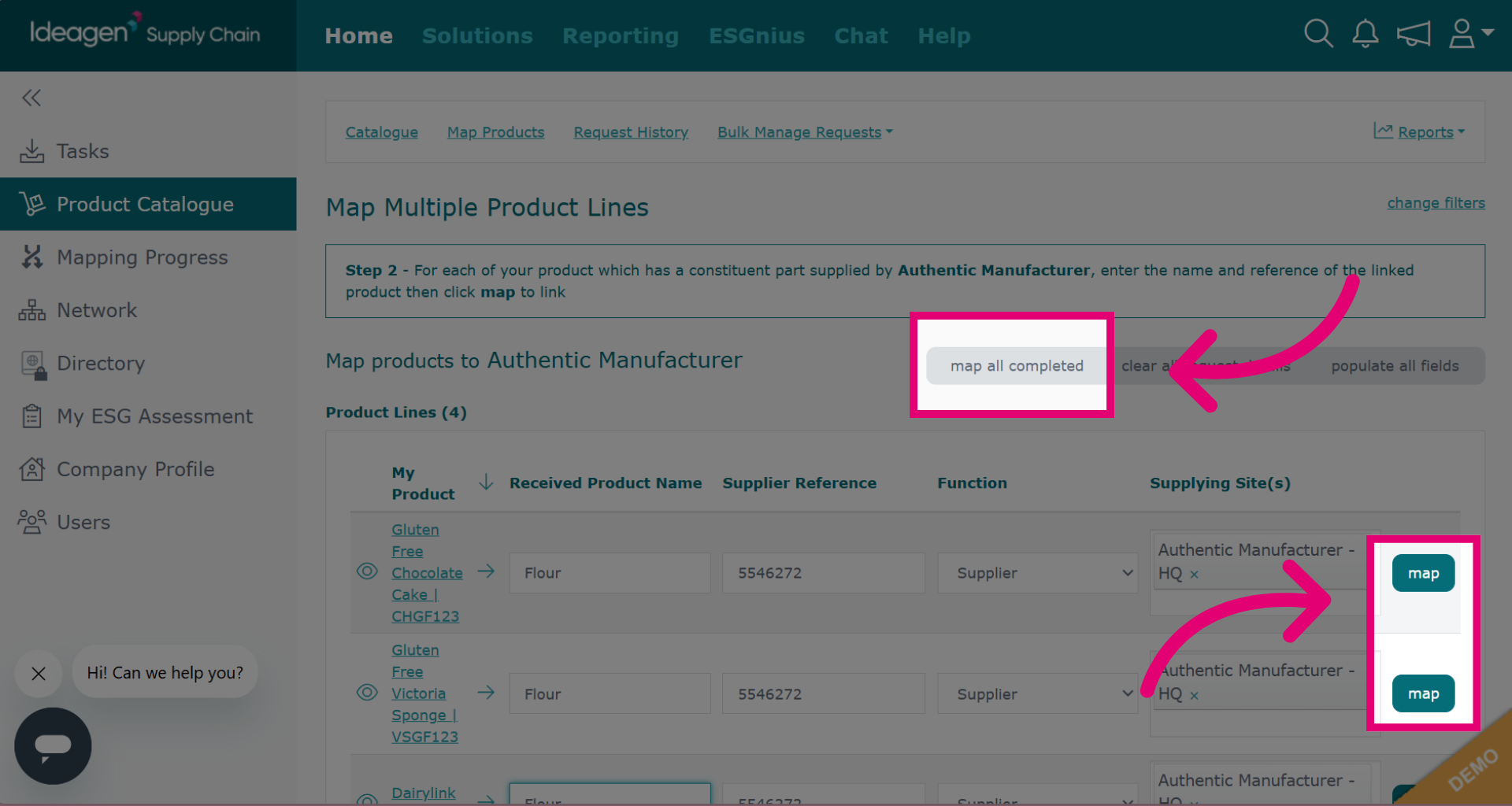
To map entry by entry, click map beside the request you wish to send.
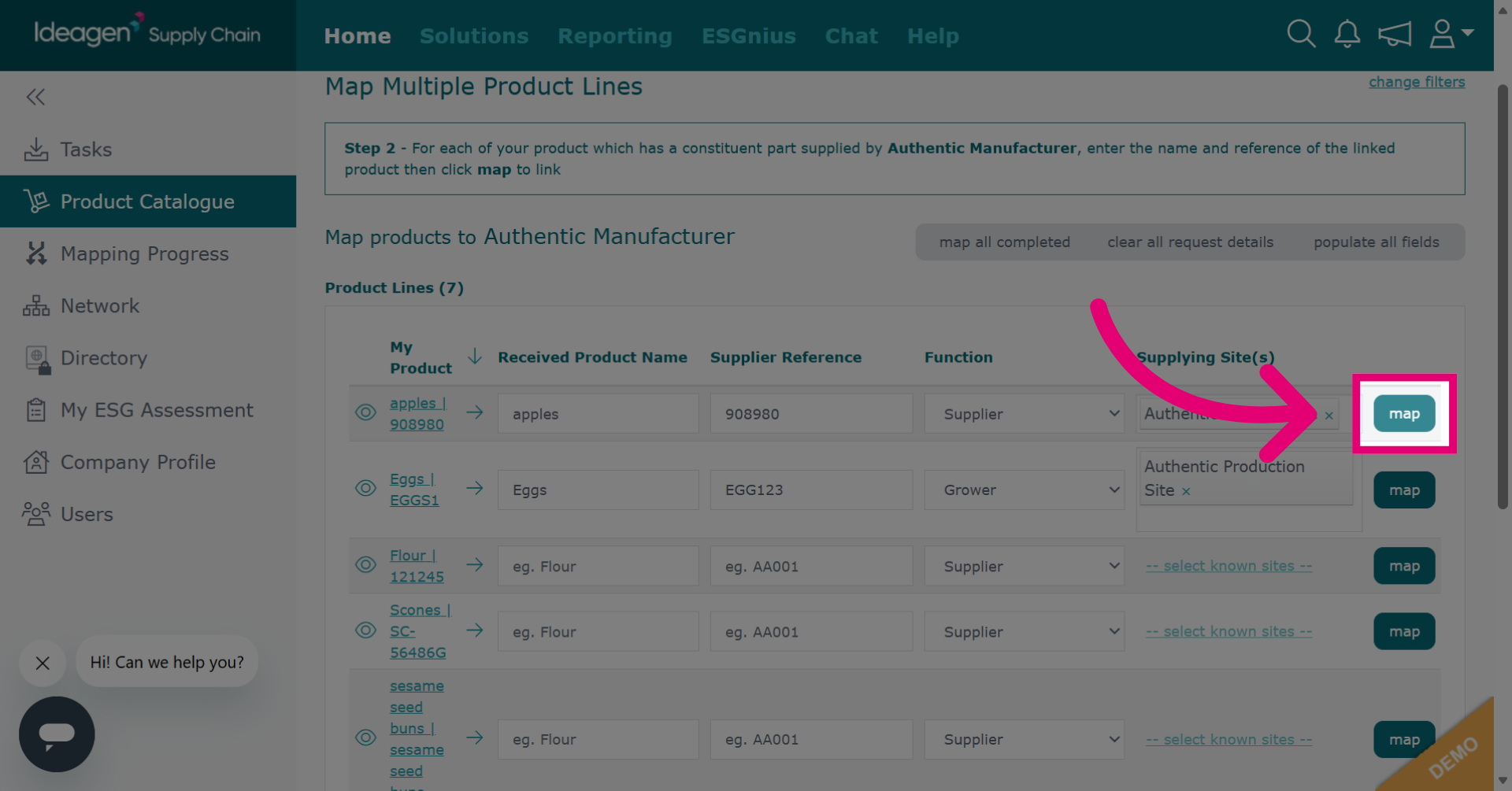
Click map all completed to send mapping requests to all entries you have input data for.
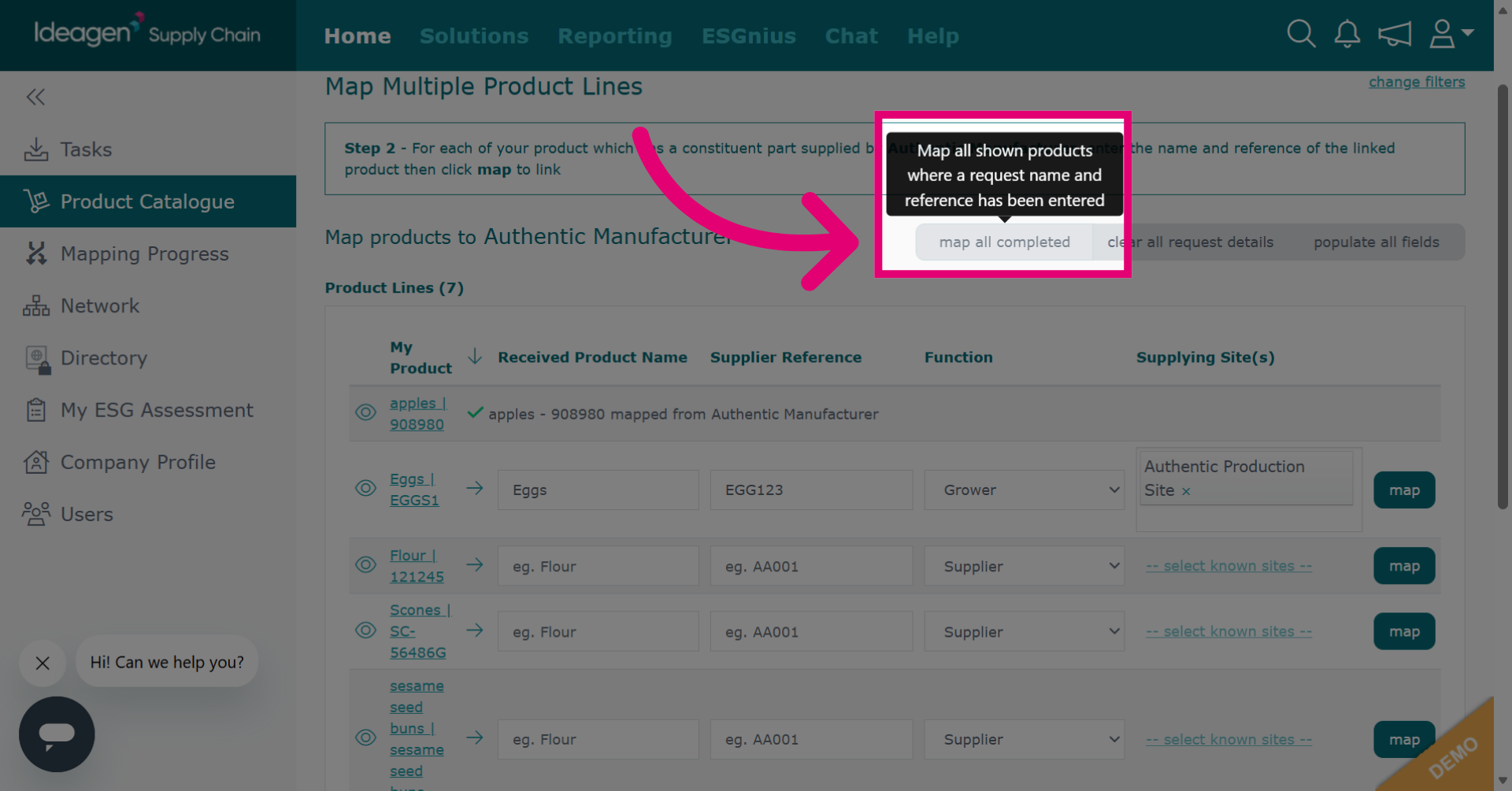
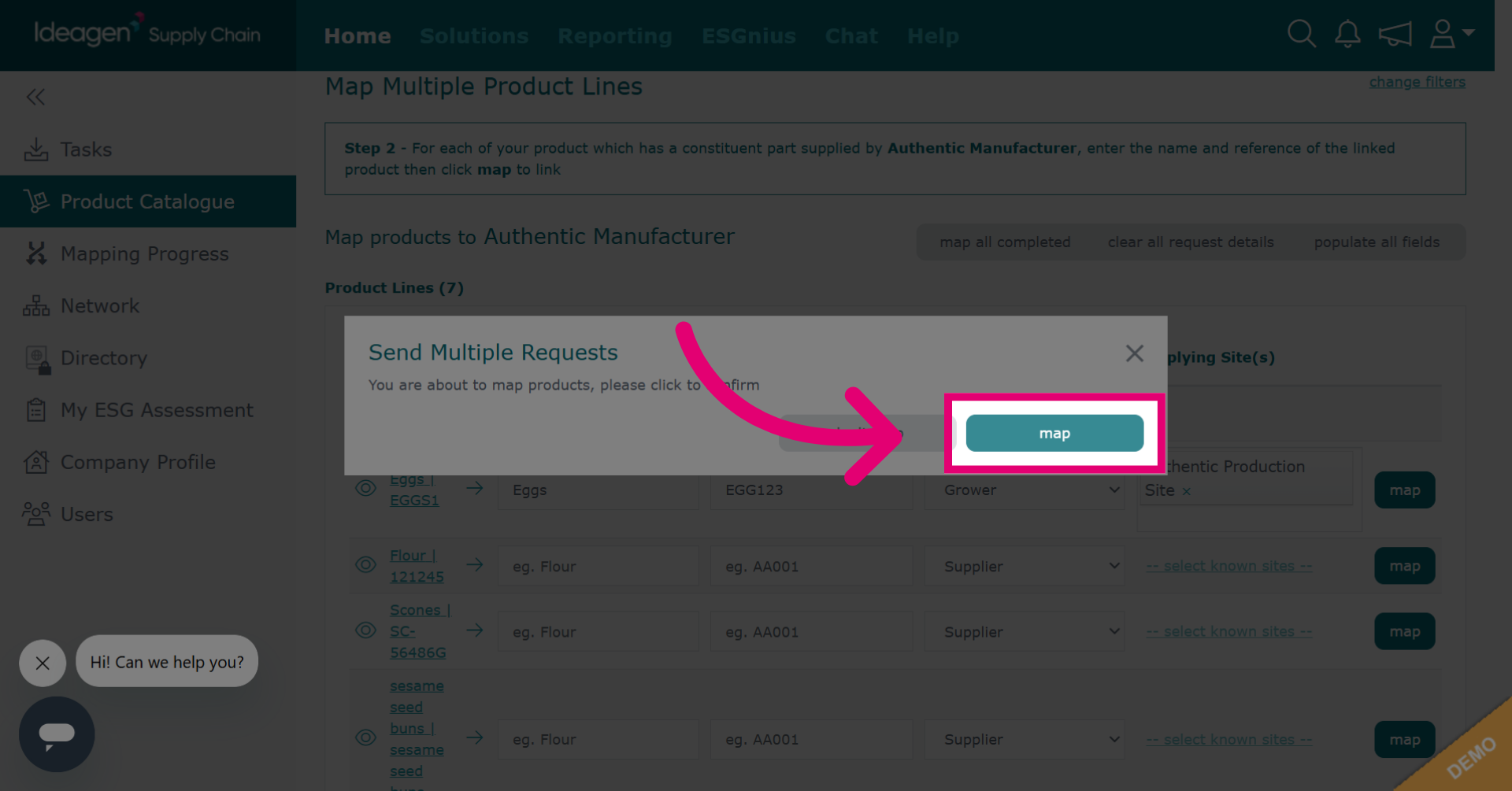
If using this option you will be asked to confirm by clicking Map. If you want to go back and edit you can click Don't Map.
If you want to map all items with the same product and reference, you can click Populate All Fields to do so. This is particularly useful for mapping components or raw materials.
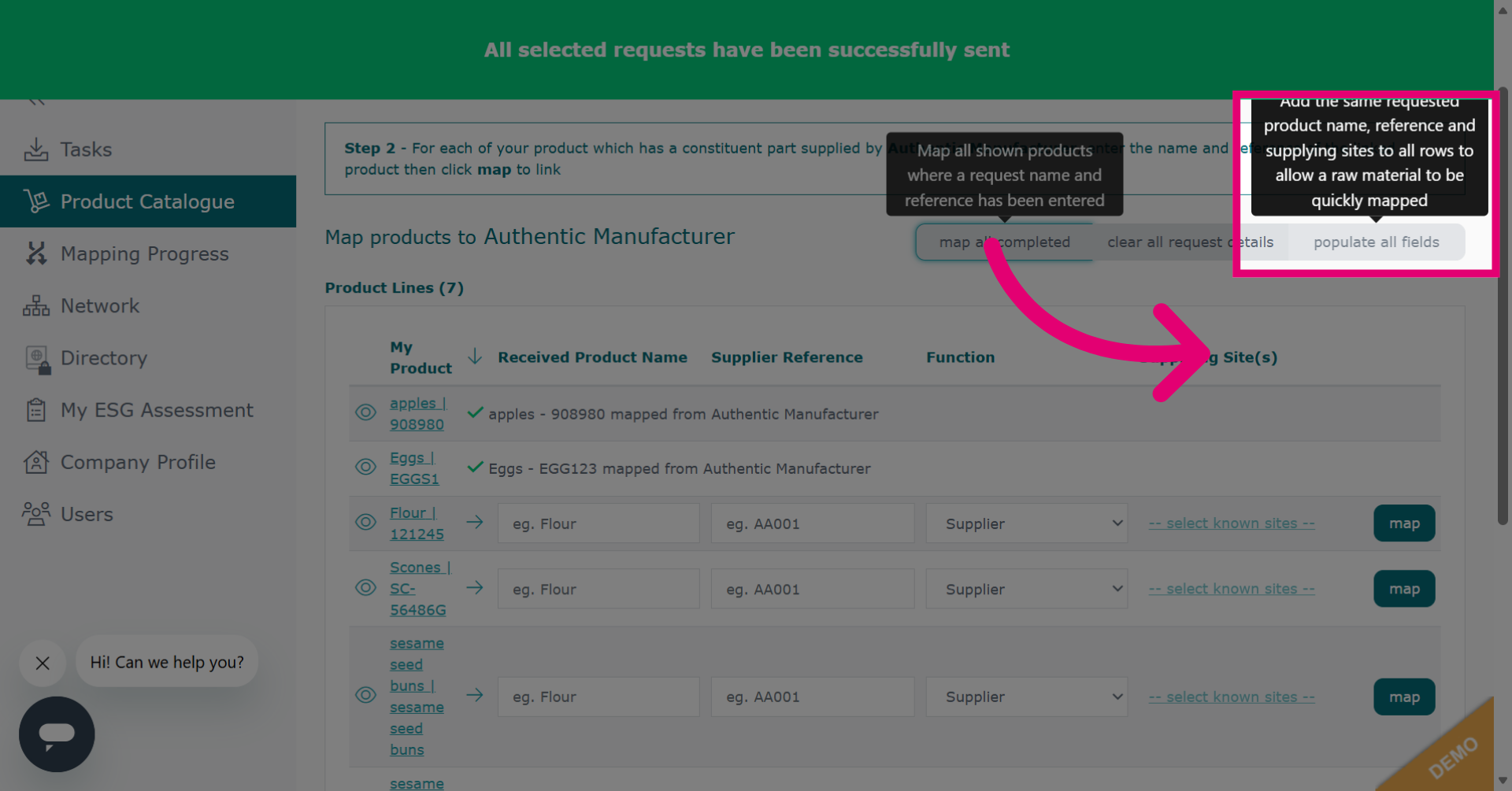
You will then be presented with a screen to input the details that will be applied to all of the products.
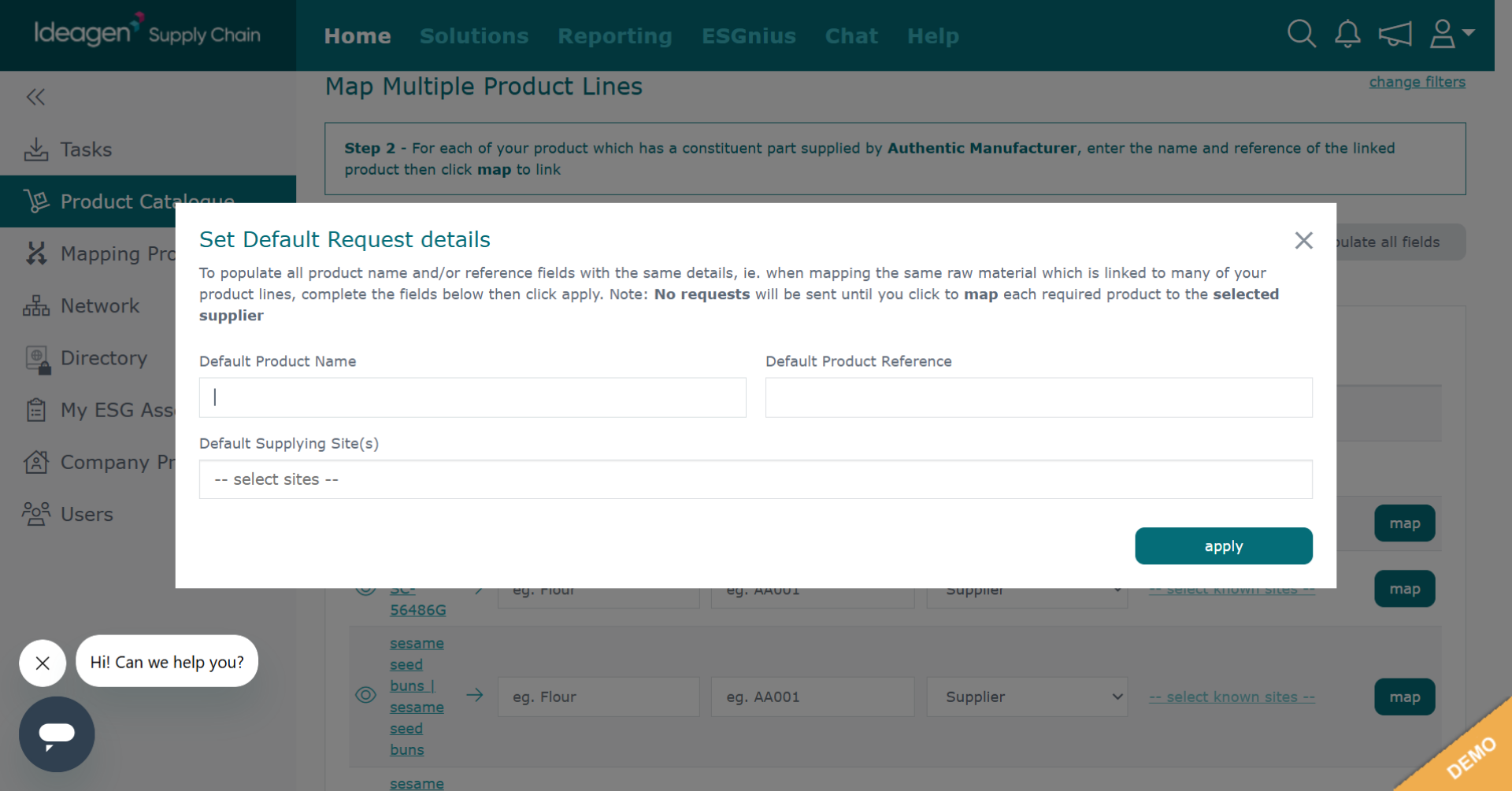
Once you have input details, click apply. This will add the details you have input to all products.
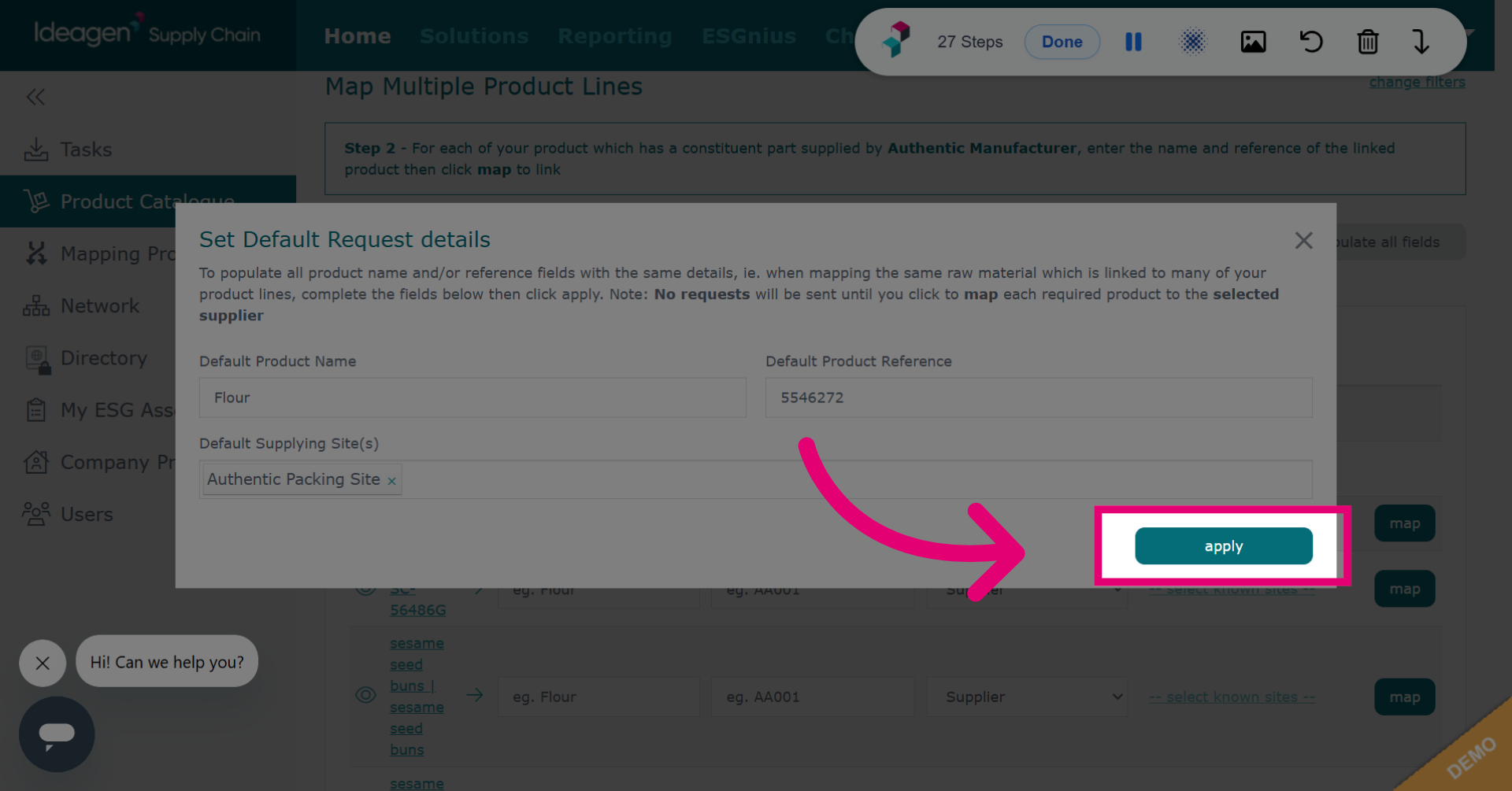
To send out the requests, click Map beside each entry or Map All Completed to map all entries.