New article
Recently updated
Sending Product Links & Mapping Requests - Supply Chain Mapping: Quick Guide

Who is this article for?
Users who want to send product links and mapping requests.
Supply Chain admin permissions are required.
This tutorial guides you through sending product links and mapping requests in the Supply Chain Mapping module.
You will learn how to access products, view supply chains, add suppliers, and send mapping requests or self-declare suppliers.
Sending product links and mapping requests
-
This is the quick guide. For more detailed information including how to edit, delete and manage products and suppliers within your catalogue and supply chain, please watch our guide titled "Supply Chain Mapping: Quick Guide - Sending Product Links & Mapping Requests".
-
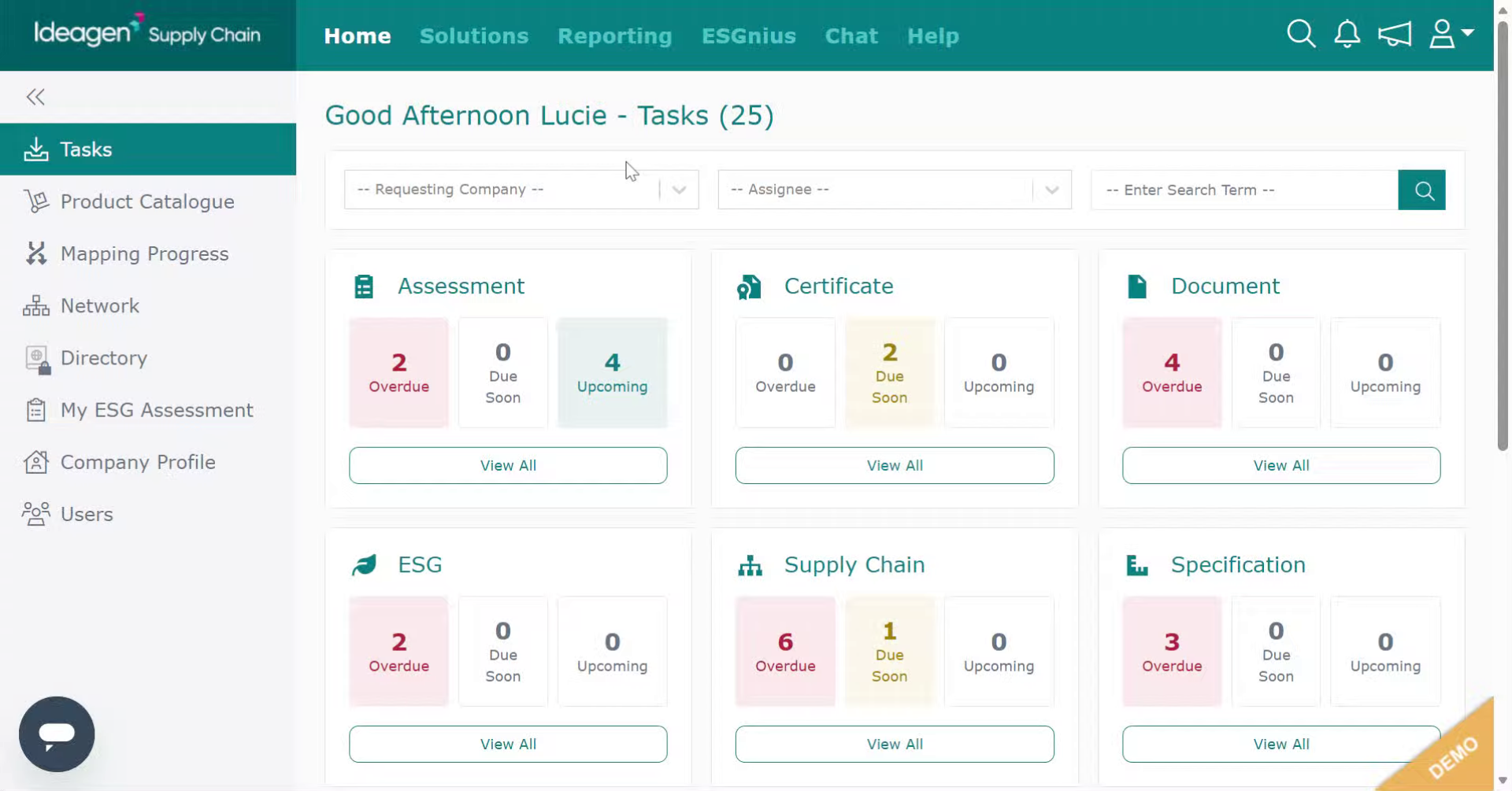
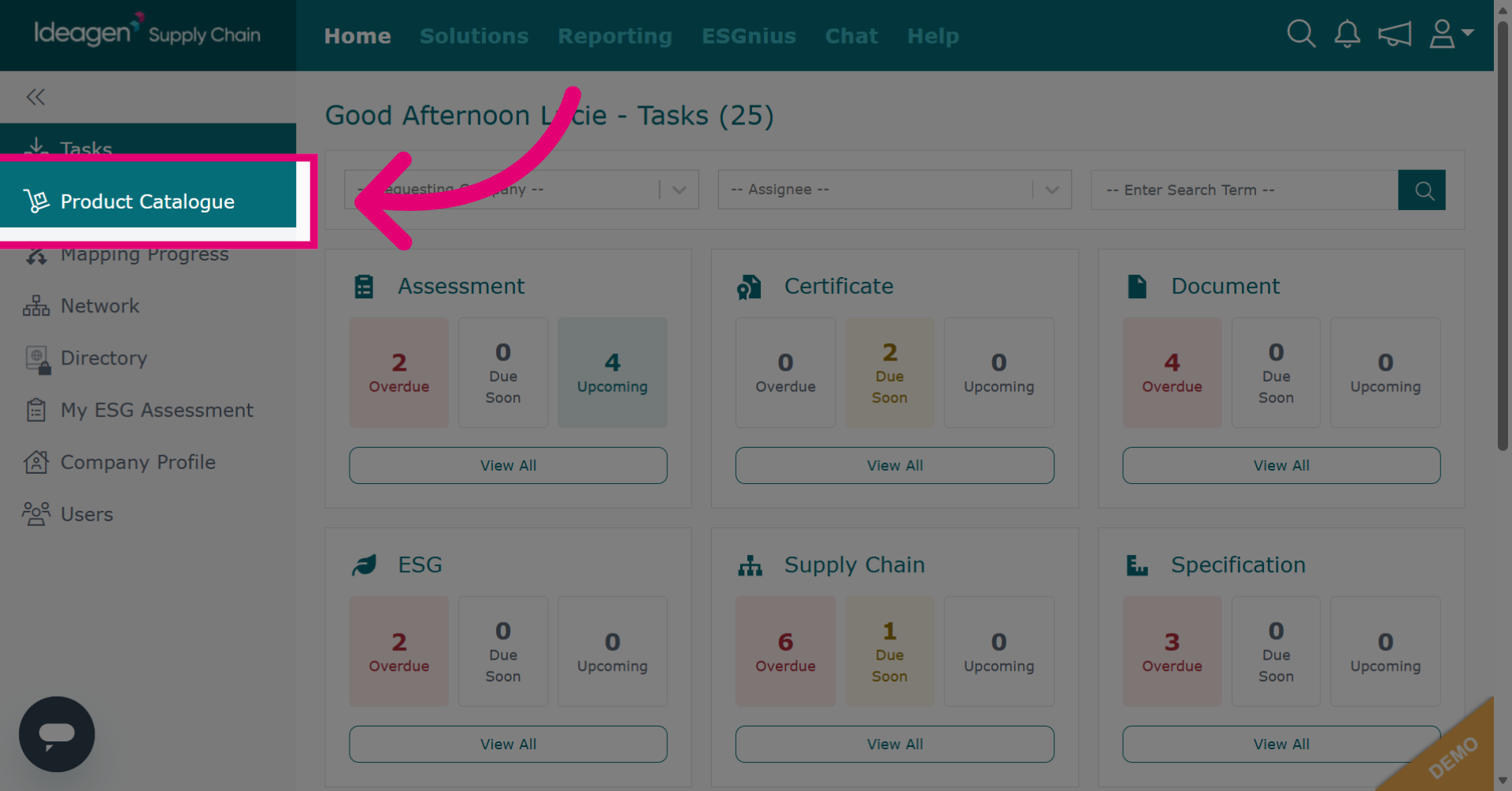
Click Product Catalogue to access products via the catalogue.
-
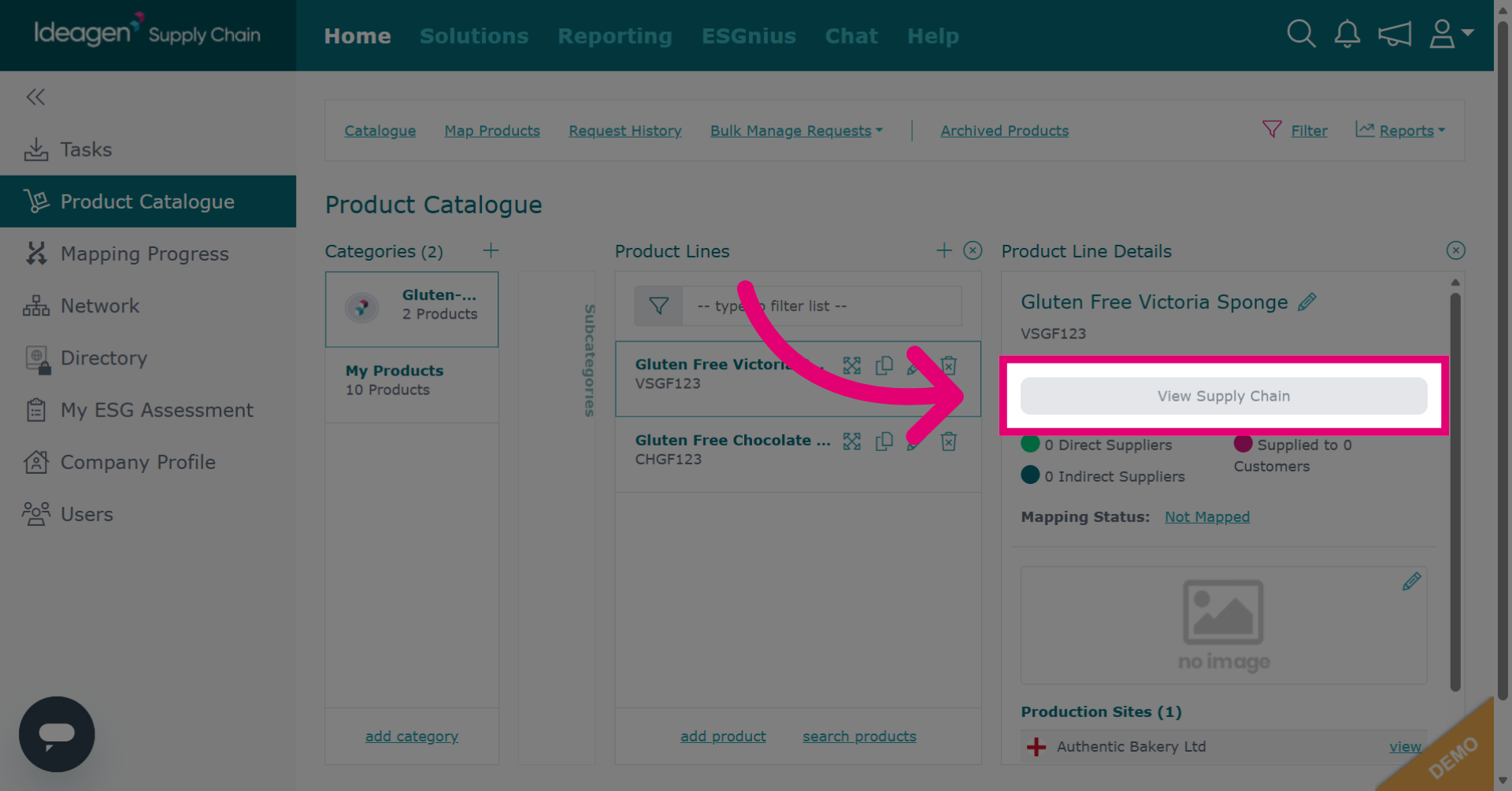
Find the relevant product and click View Supply Chain to display the detailed supply chain information for your product.
-
Alternatively, you can access your product via the search bar.
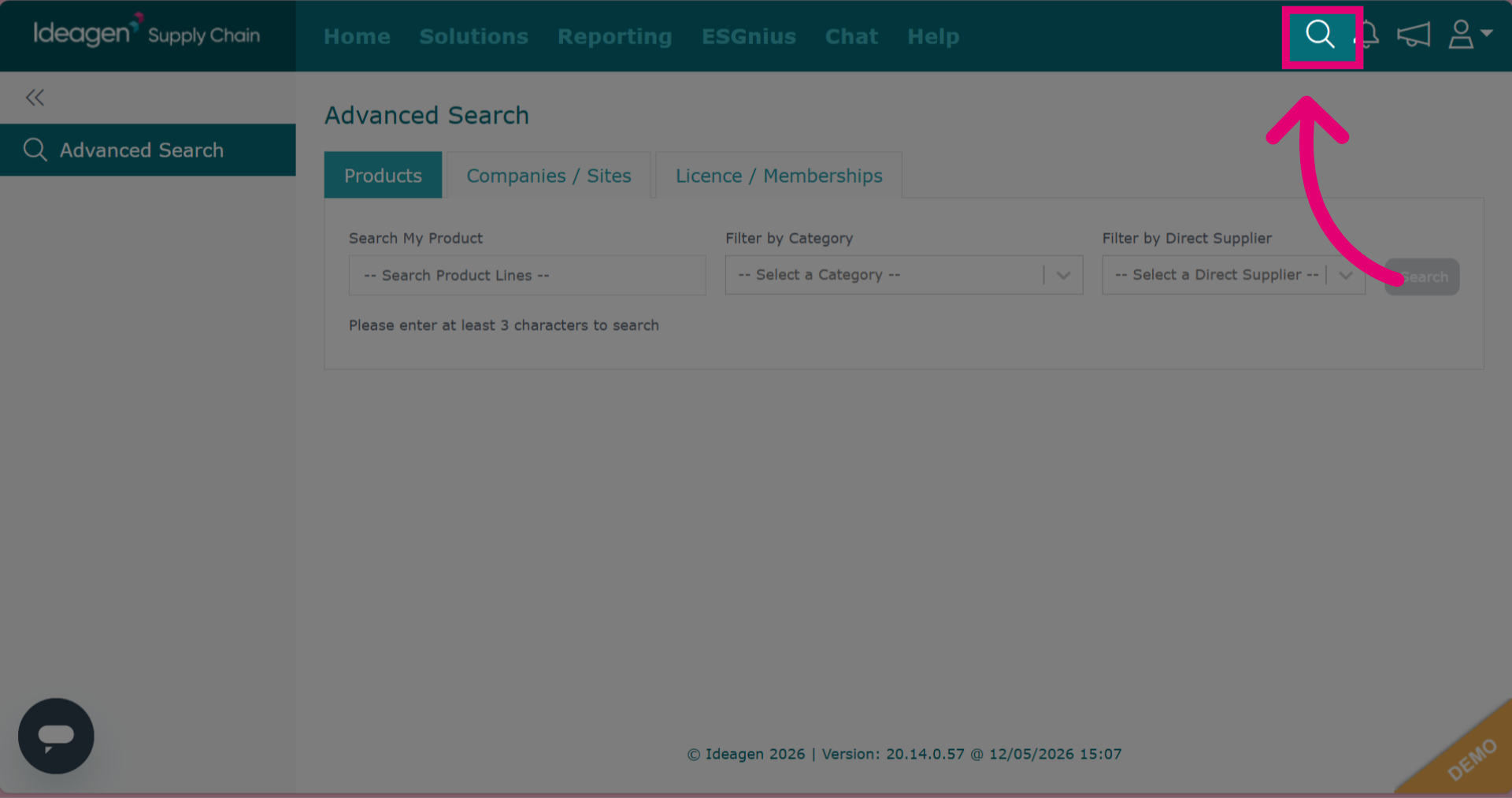
-
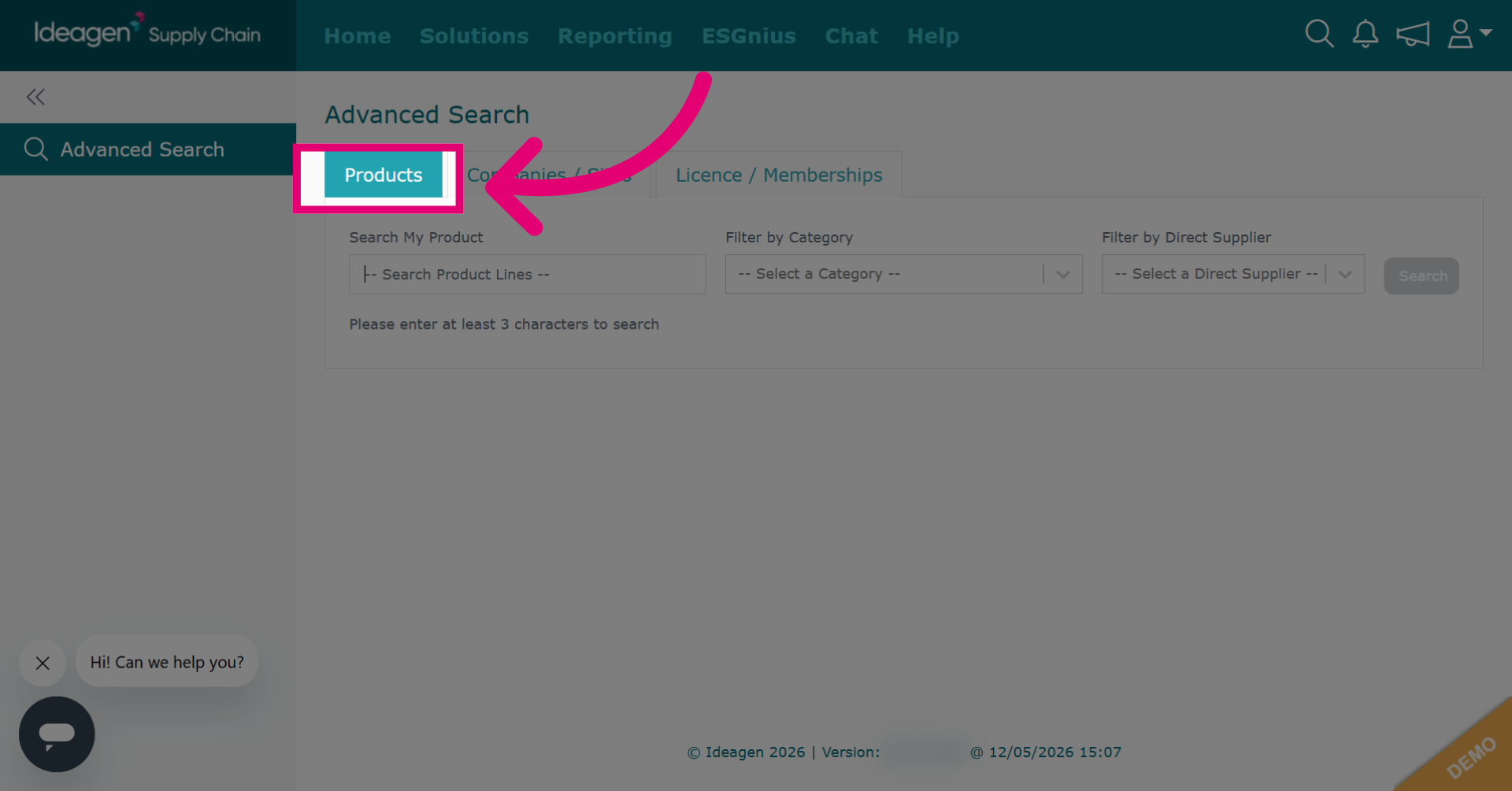
Click the products tab to begin your search.
-
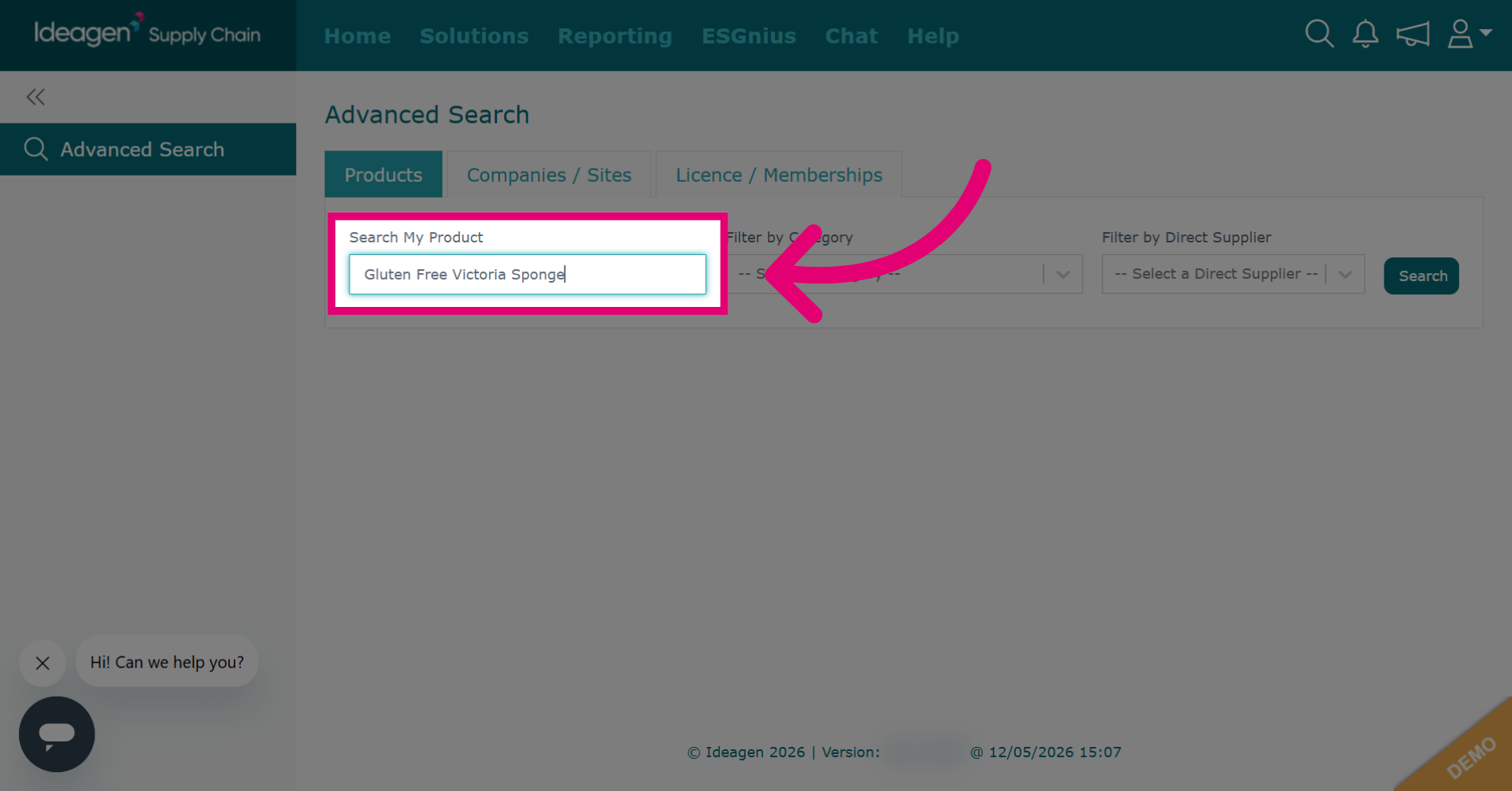
Enter the product name. You can filter by category and direct supplier also if needed.
-
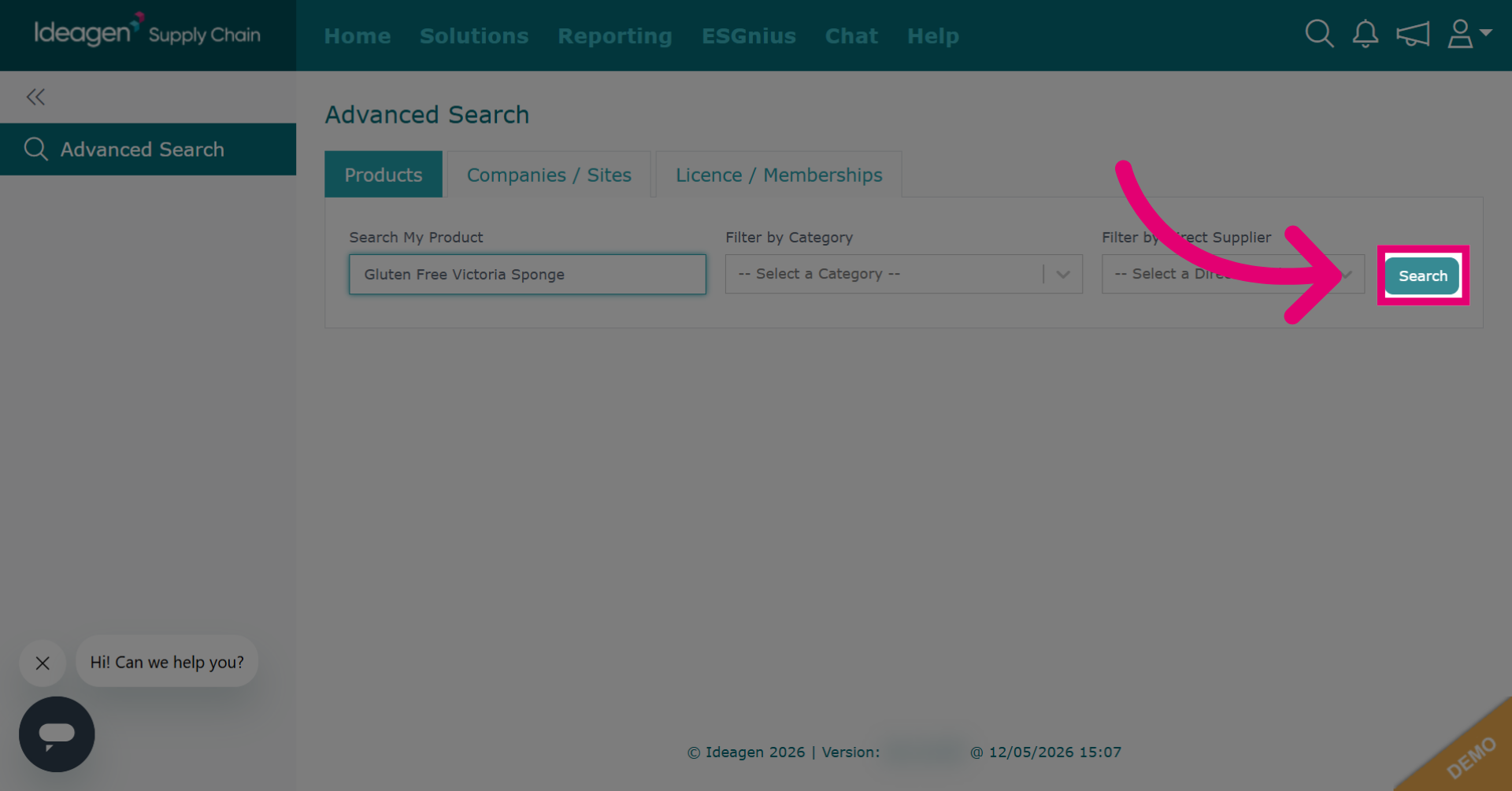
Click Search to execute the product line search and retrieve matching results.
-
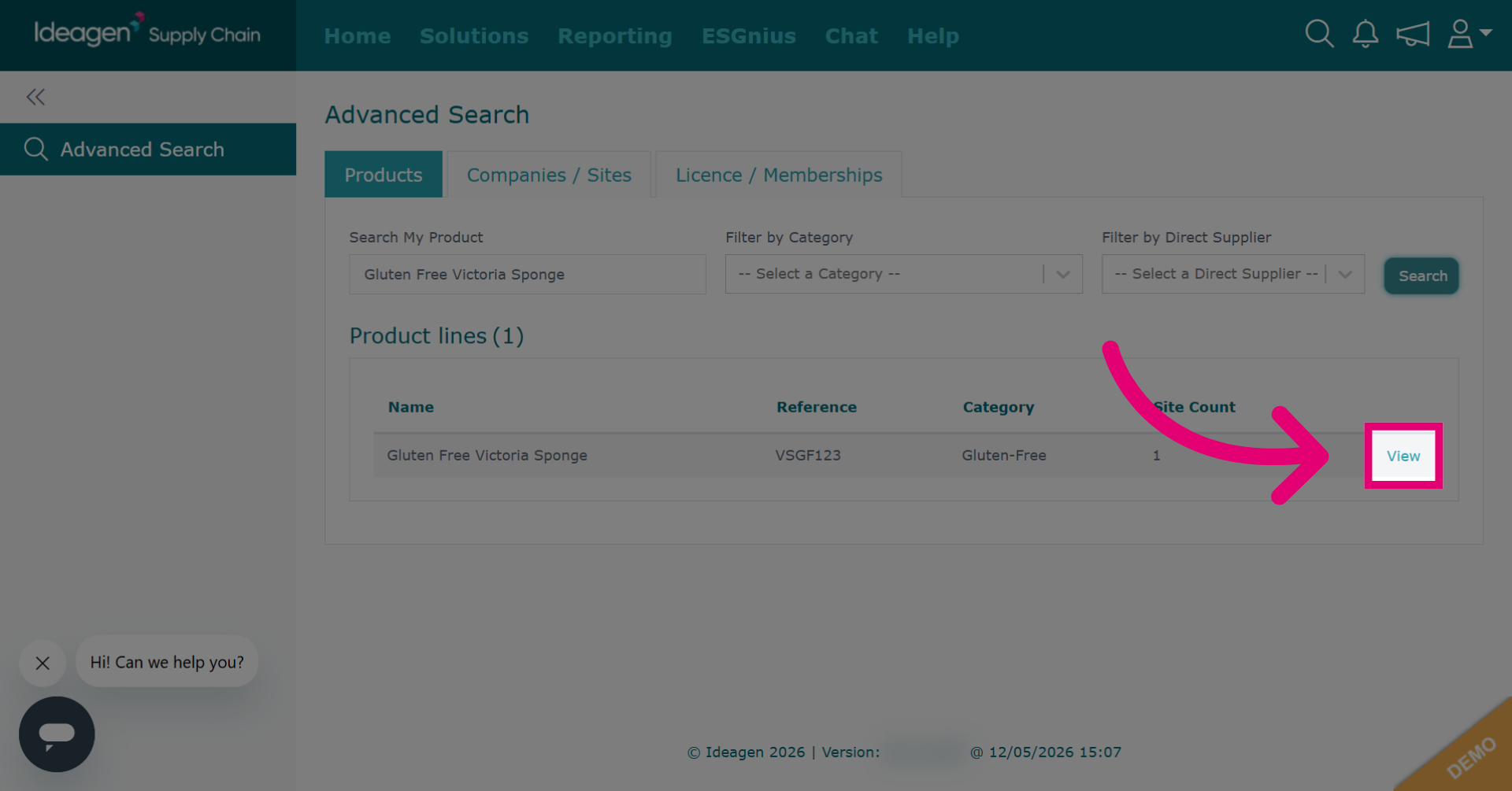
Click View to open detailed information about the selected product.
-
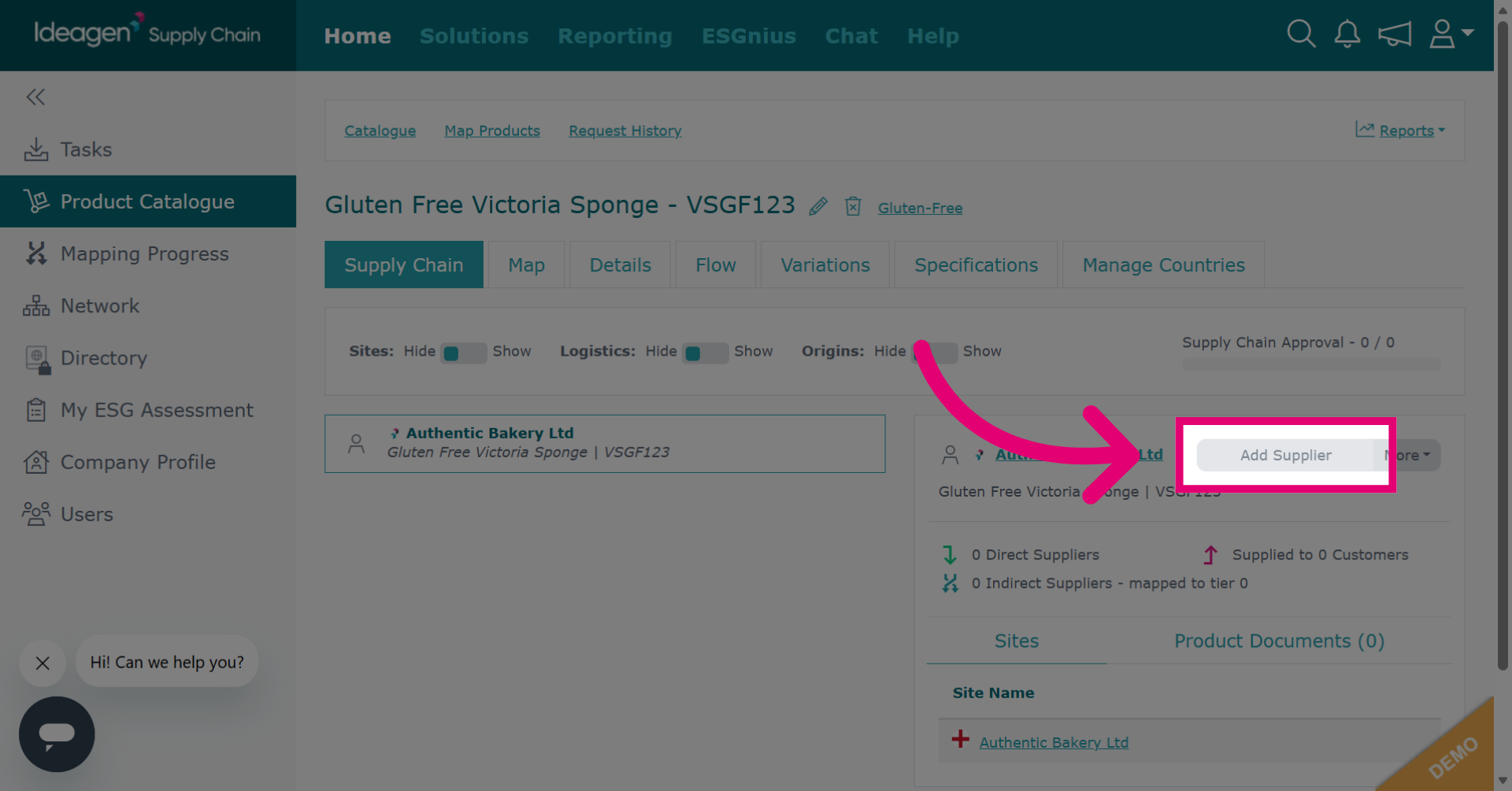
Click Add Supplier to begin associating a new supplier with the selected product.
-
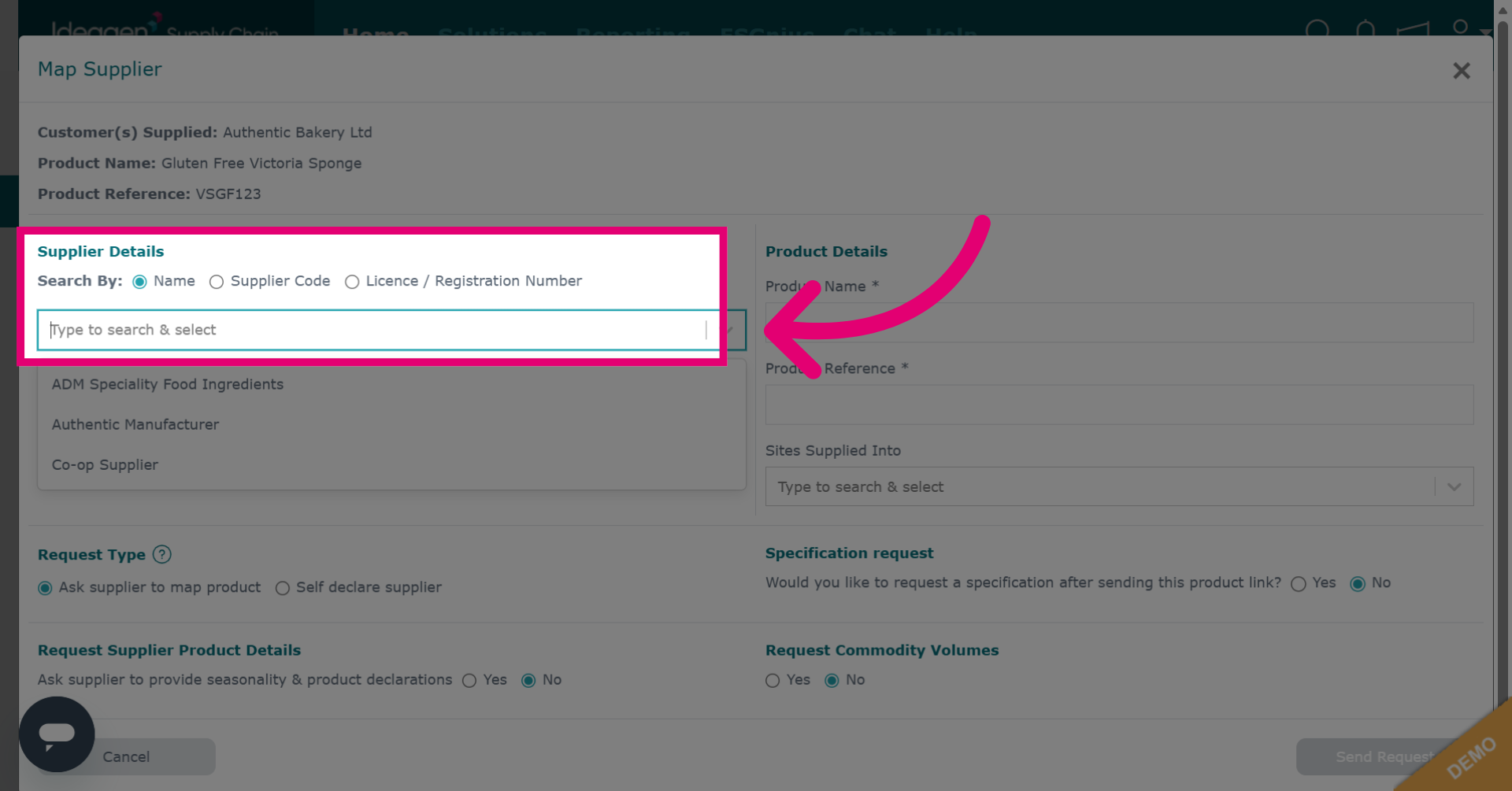
You can search by supplier name, supplier code, or license/registration number. Select which search option you need and then enter the search term in the box. Please note you will only be able to search by the latter options if these have already been set up on the platform.
-
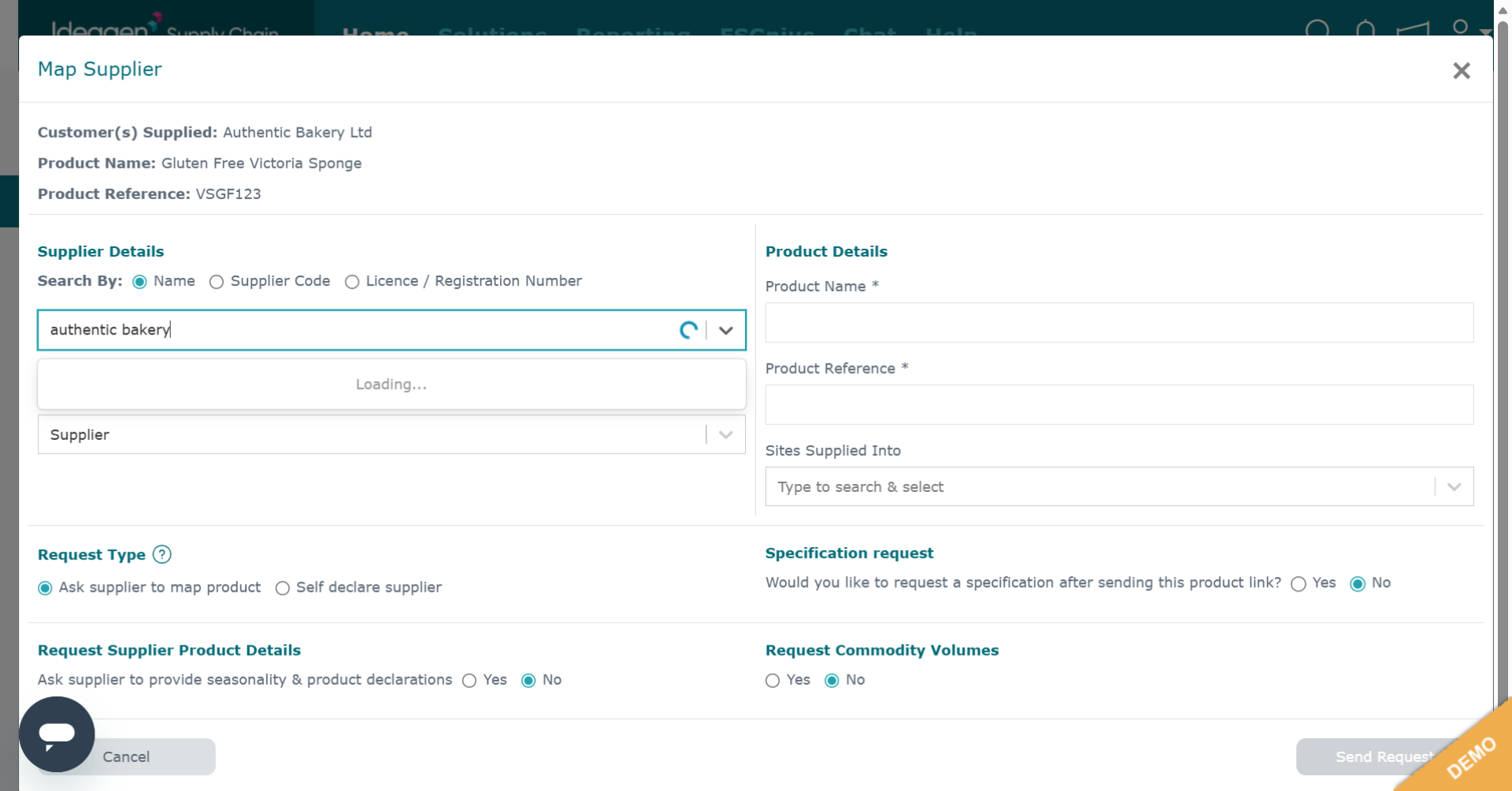
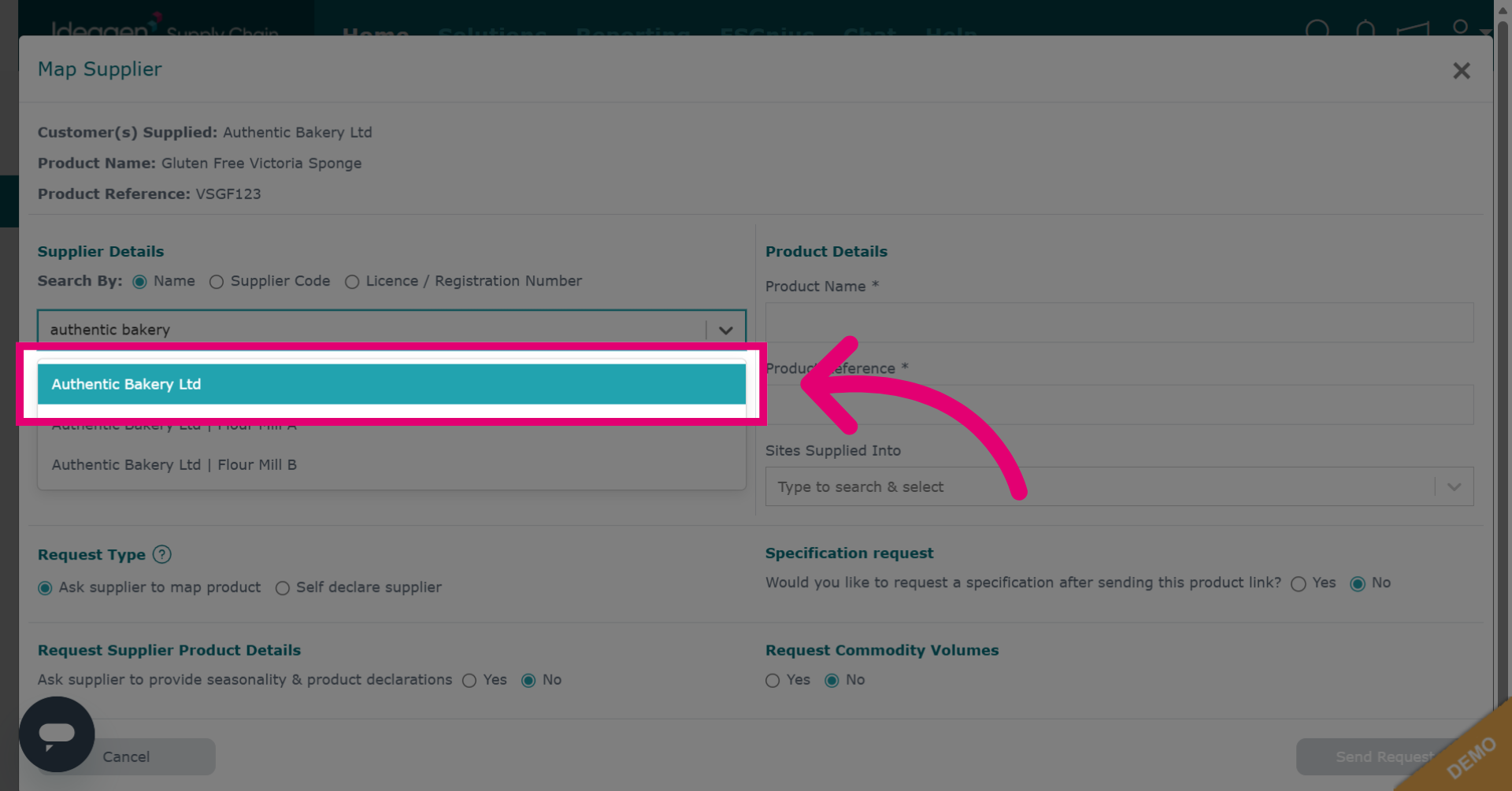
Enter the supplier name (for example, "authentic bakery") to find the supplier you want to add.
-
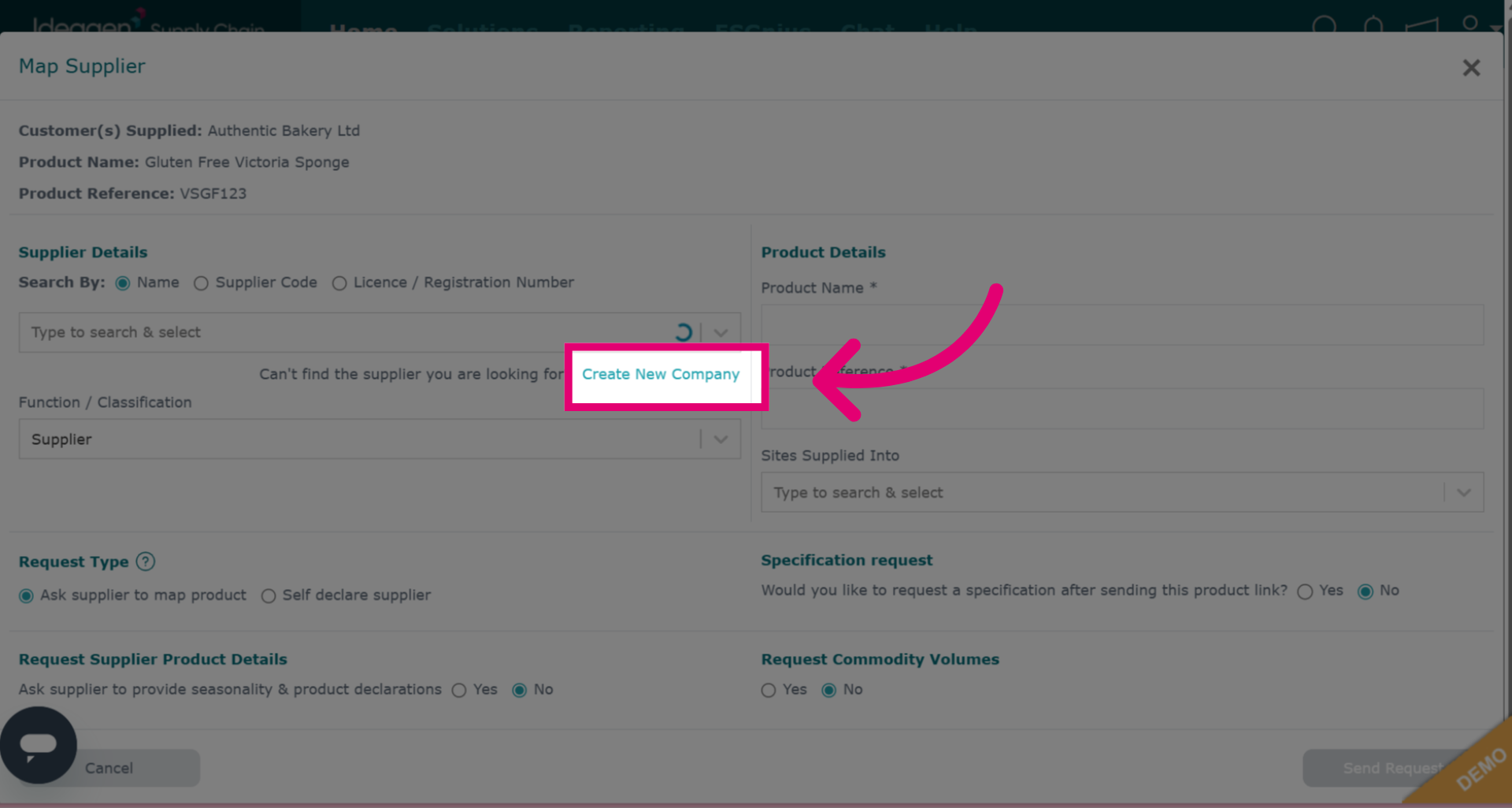
If you cannot find your supplier, you can click Create New Supplier. You will be presented with a form to input their address and contact information so a profile can be created for them.
-
Select the supplier from the drop down options. You can select a site if needed but this is optional.
-
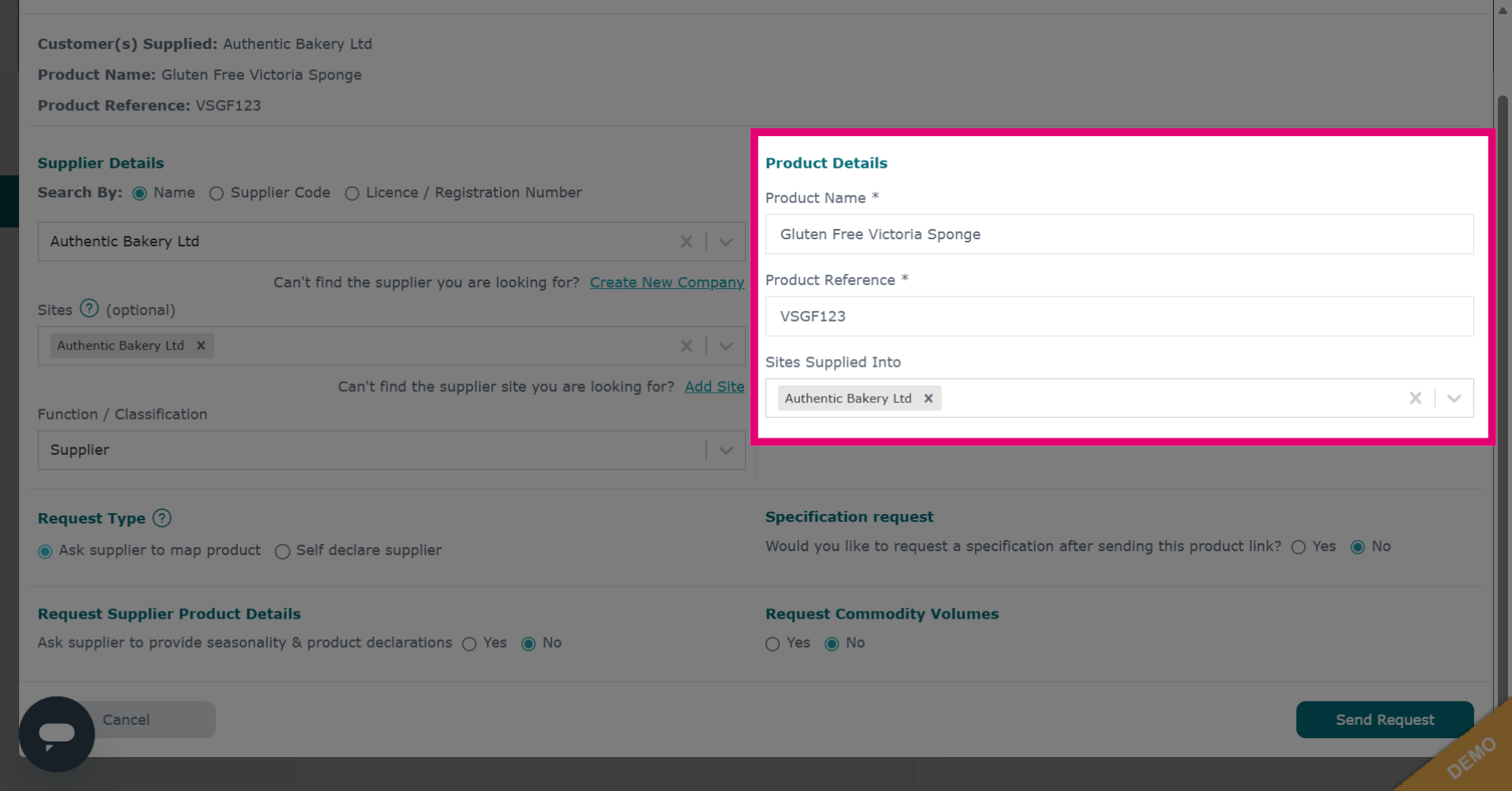
Add the product name and reference how you want it to appear in the request.
-
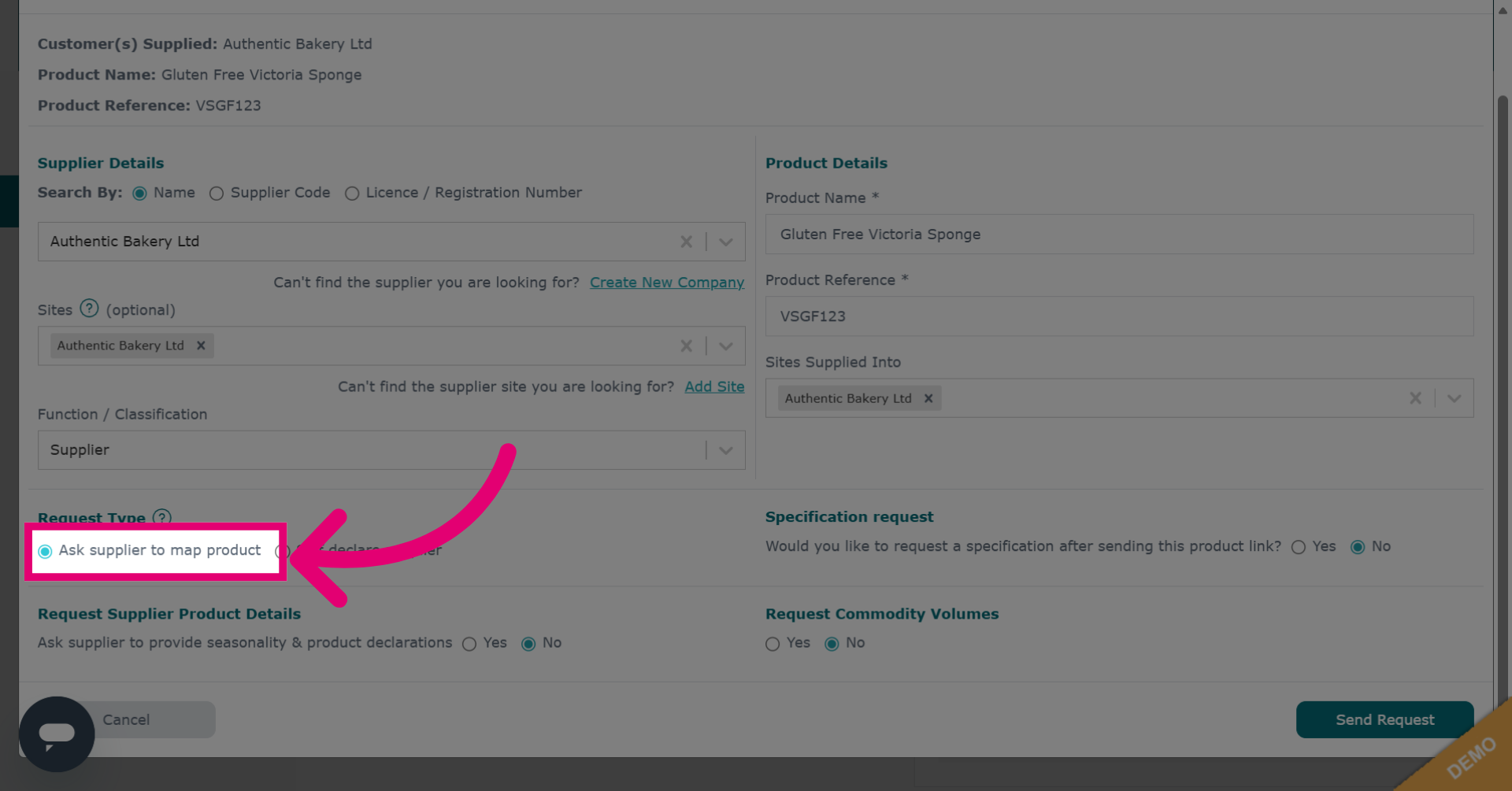
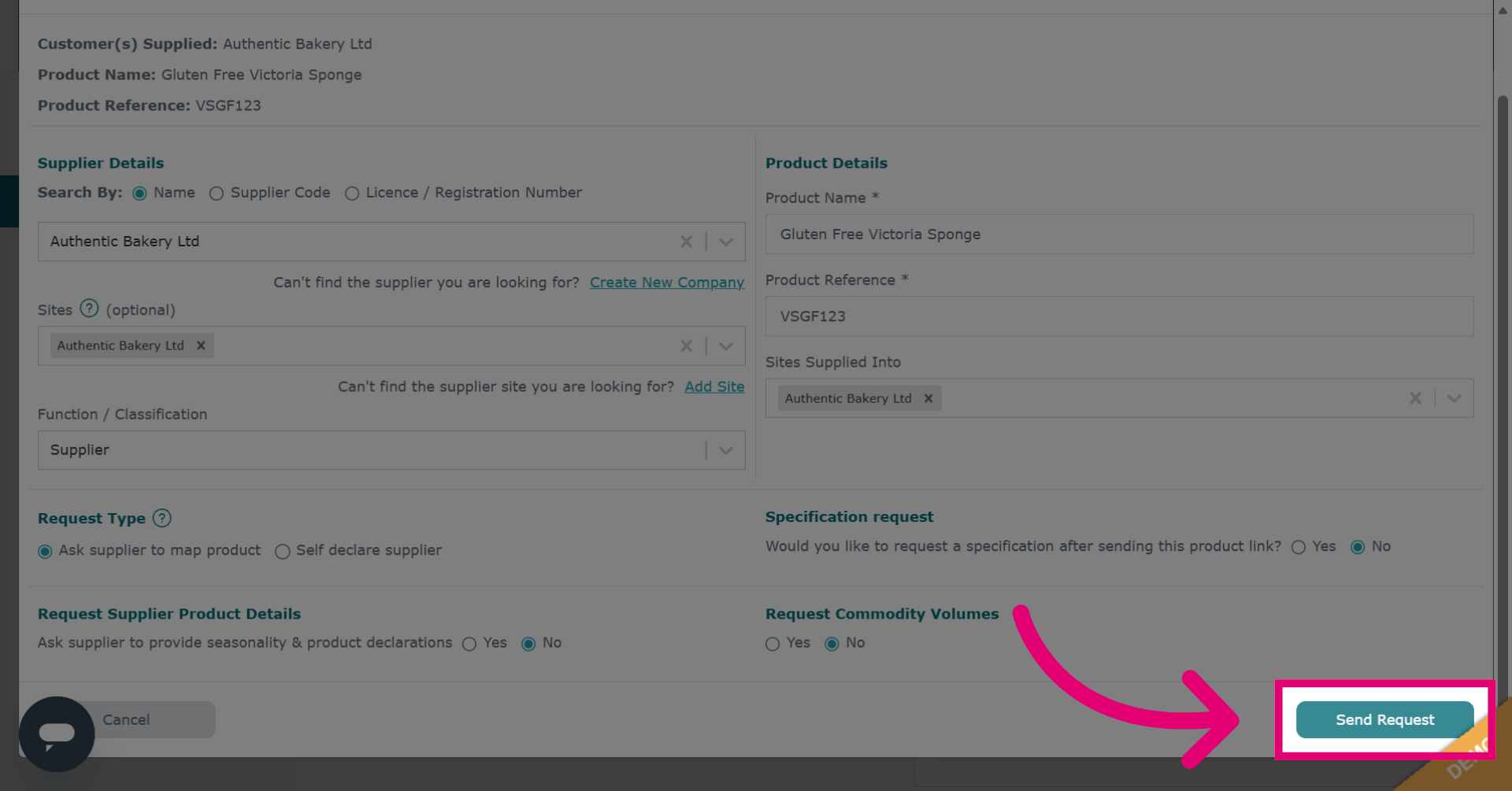
Click Ask supplier to map product to send a request for the supplier to map the product.
-
Click Send Request to submit the mapping request to the selected supplier.
-
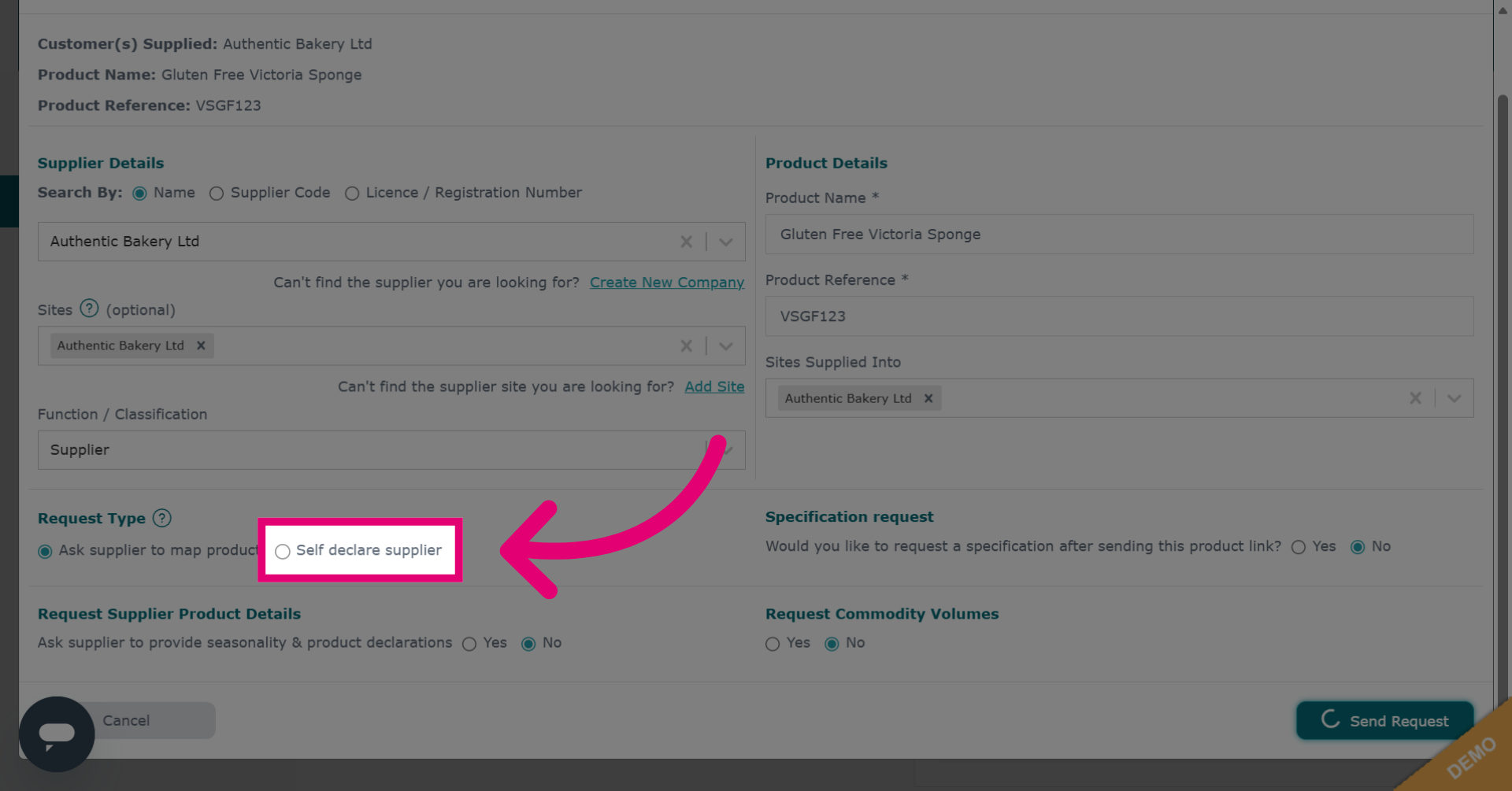
Alternatively, click Self declare supplier if you do not want the supplier to be sent a request or map the supply chain. This option is useful if you are confident you already know your supply chain.
-
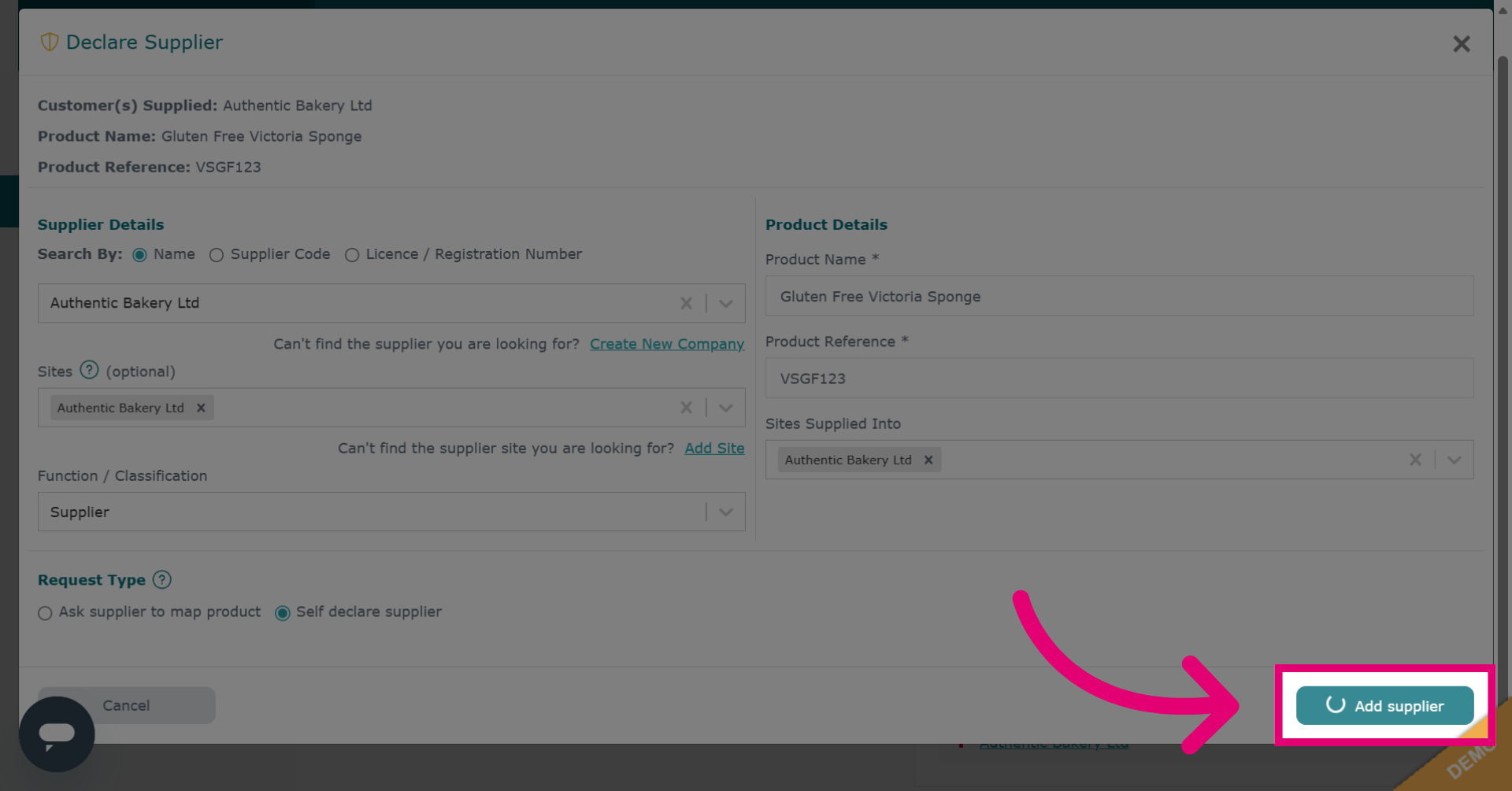
Click Add supplier to finalize adding the supplier to the product line.
-
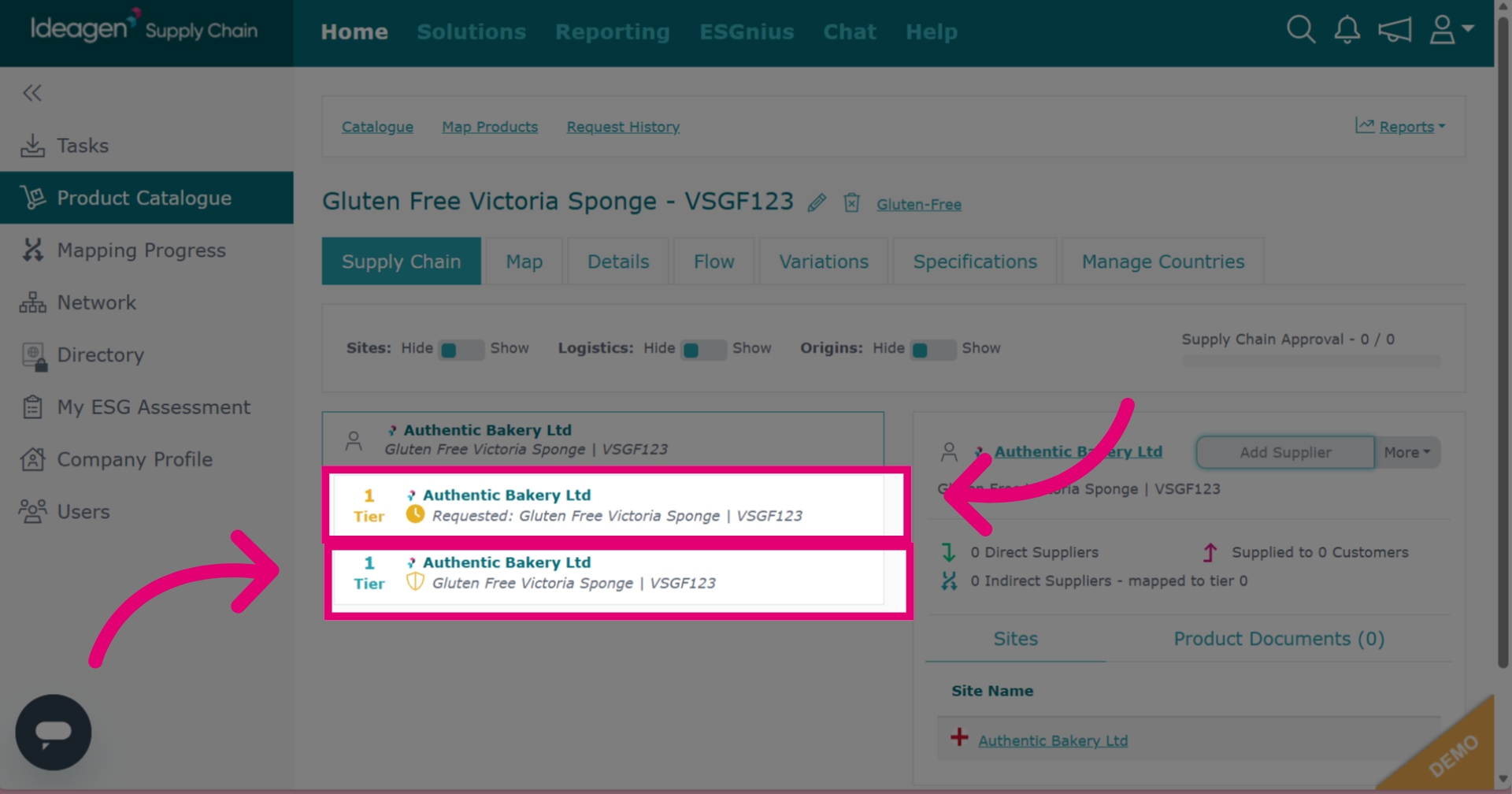
Your supply chain is now updated with the new supplier information.