New article
Recently updated
Sending product links and mapping requests

Who is this article for?
Administrators who want to send product links and mapping requests.
Administrator permissions are required.
This tutorial guides you through sending product links and mapping requests.
You will learn how to access products, search for them, add suppliers, and submit mapping requests to build your supply chain visibility.
Sending product links and mapping requests
- Log into the system.
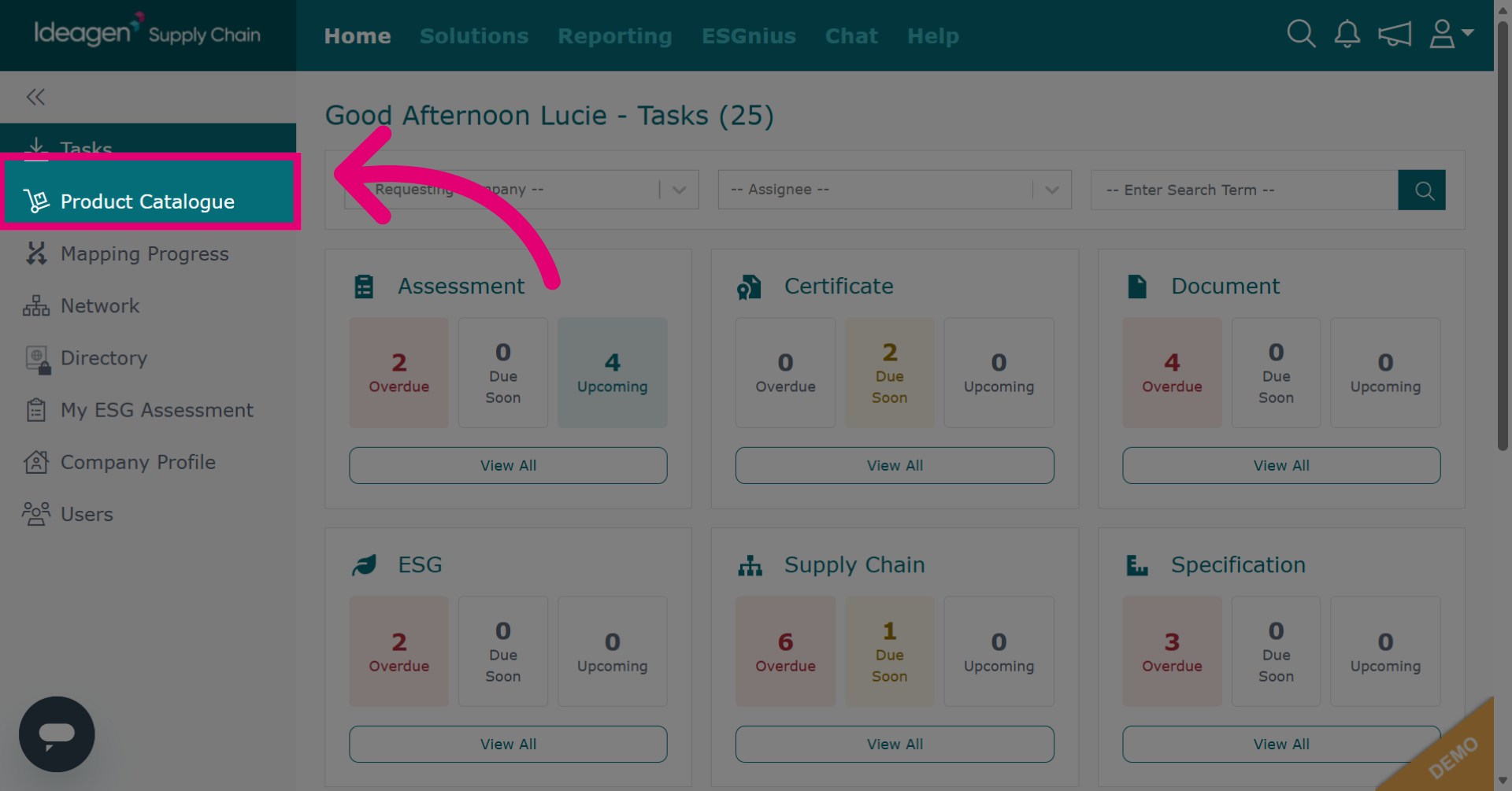
Click Product Catalogue to access products via the catalogue.
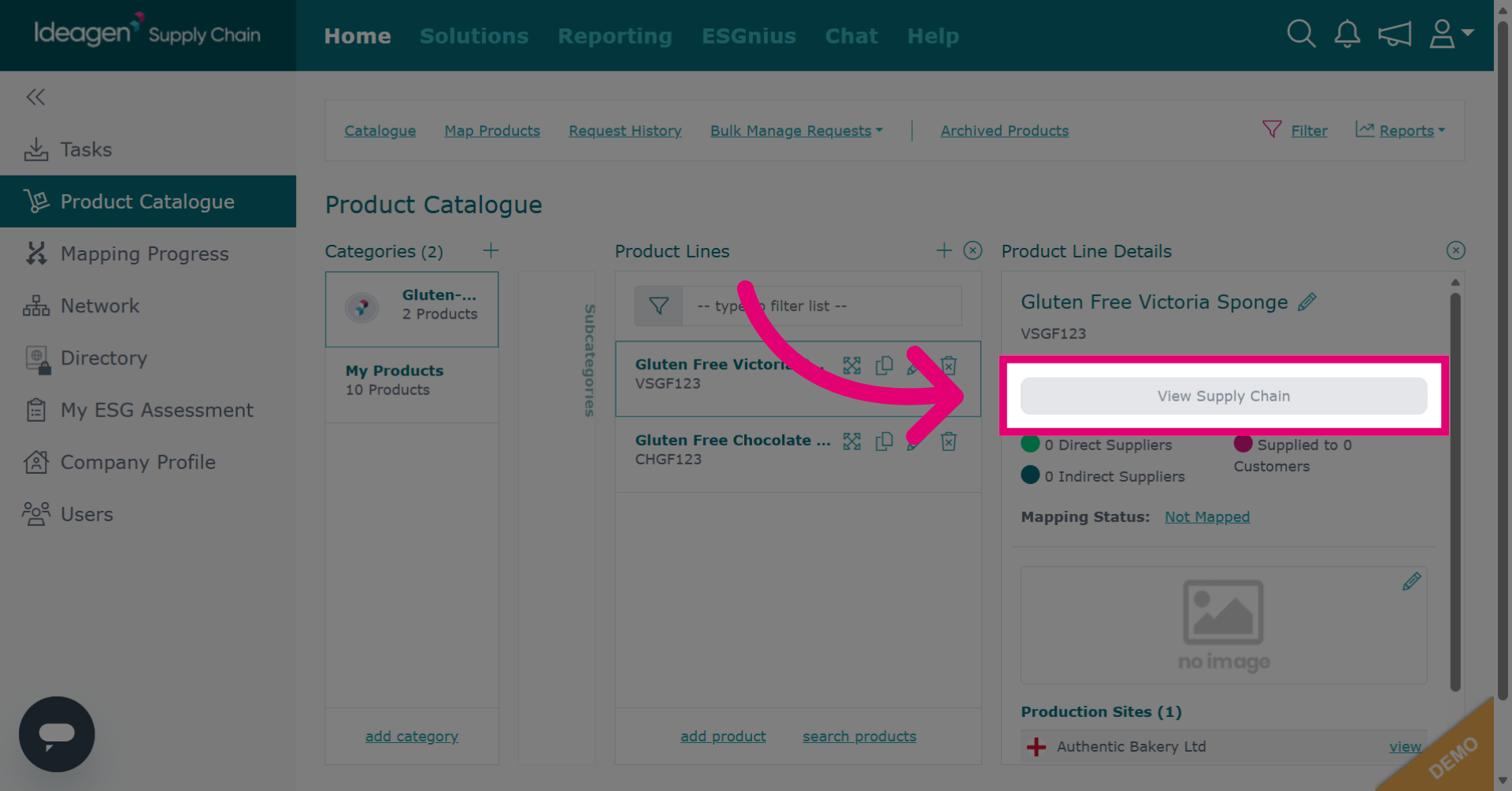
Find the product and click View Supply Chain for detailed information.
Access your product via the search bar.
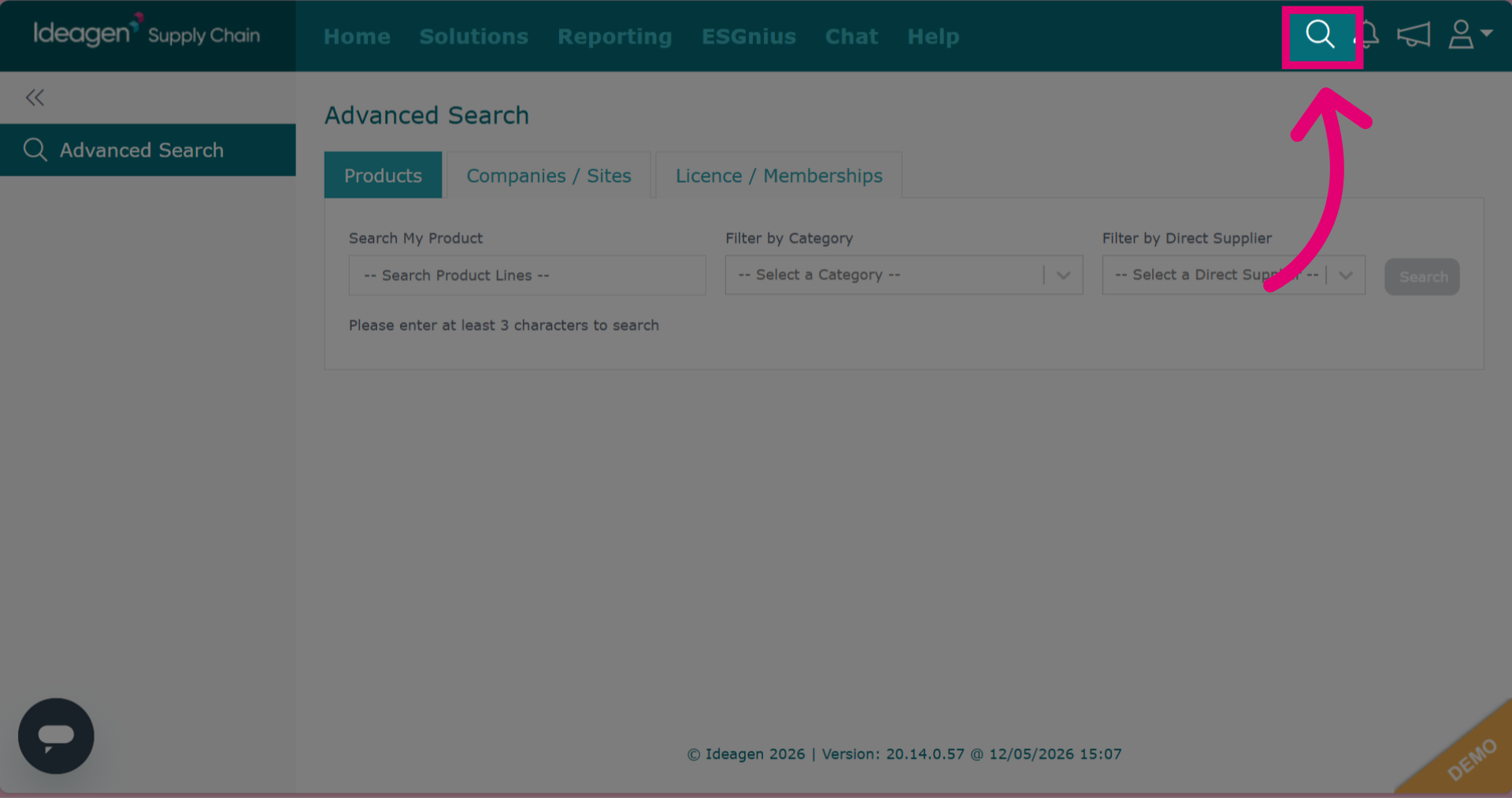
Click the Products tab.
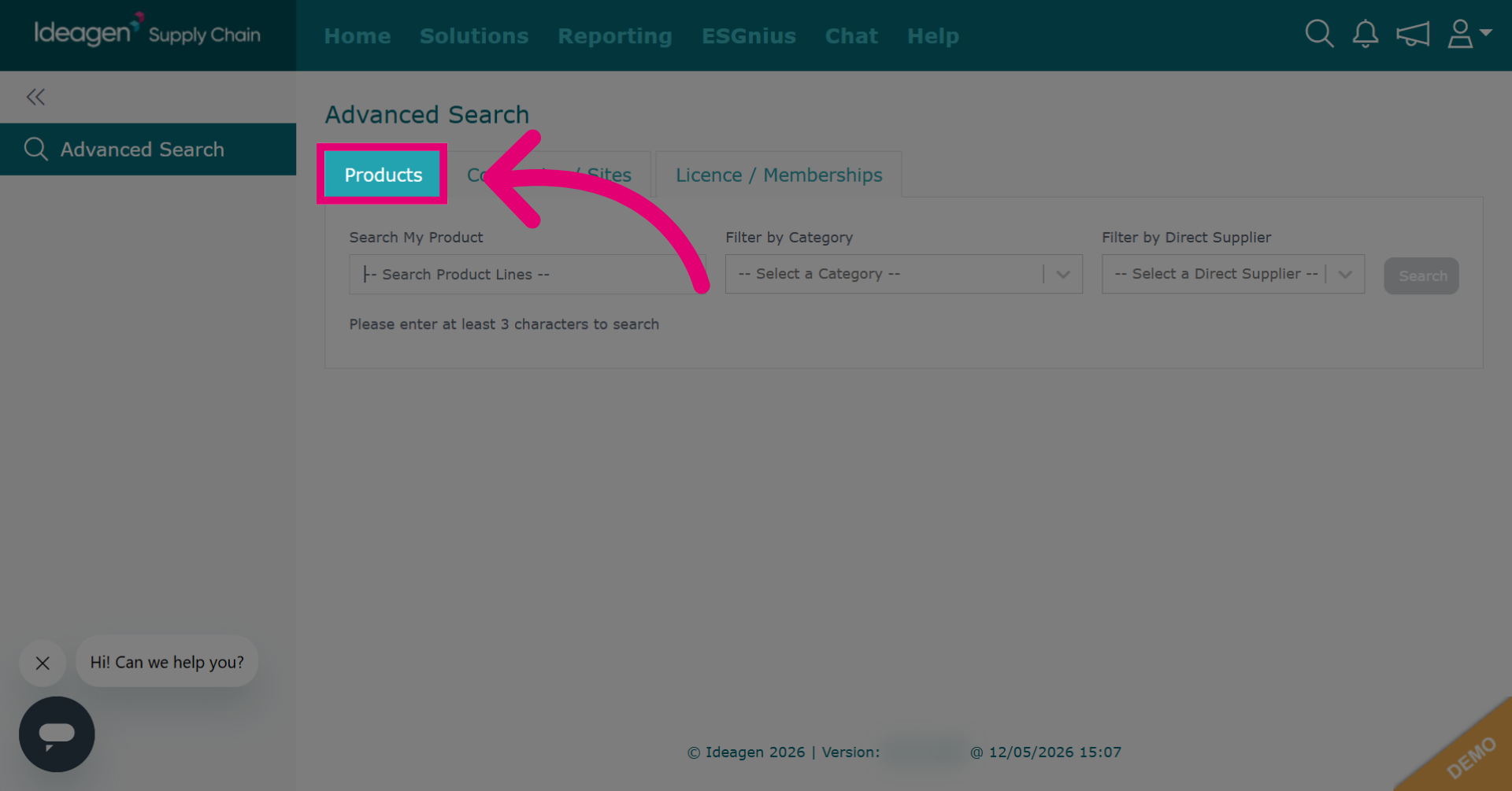
Enter the product name and filter by category or supplier if needed.
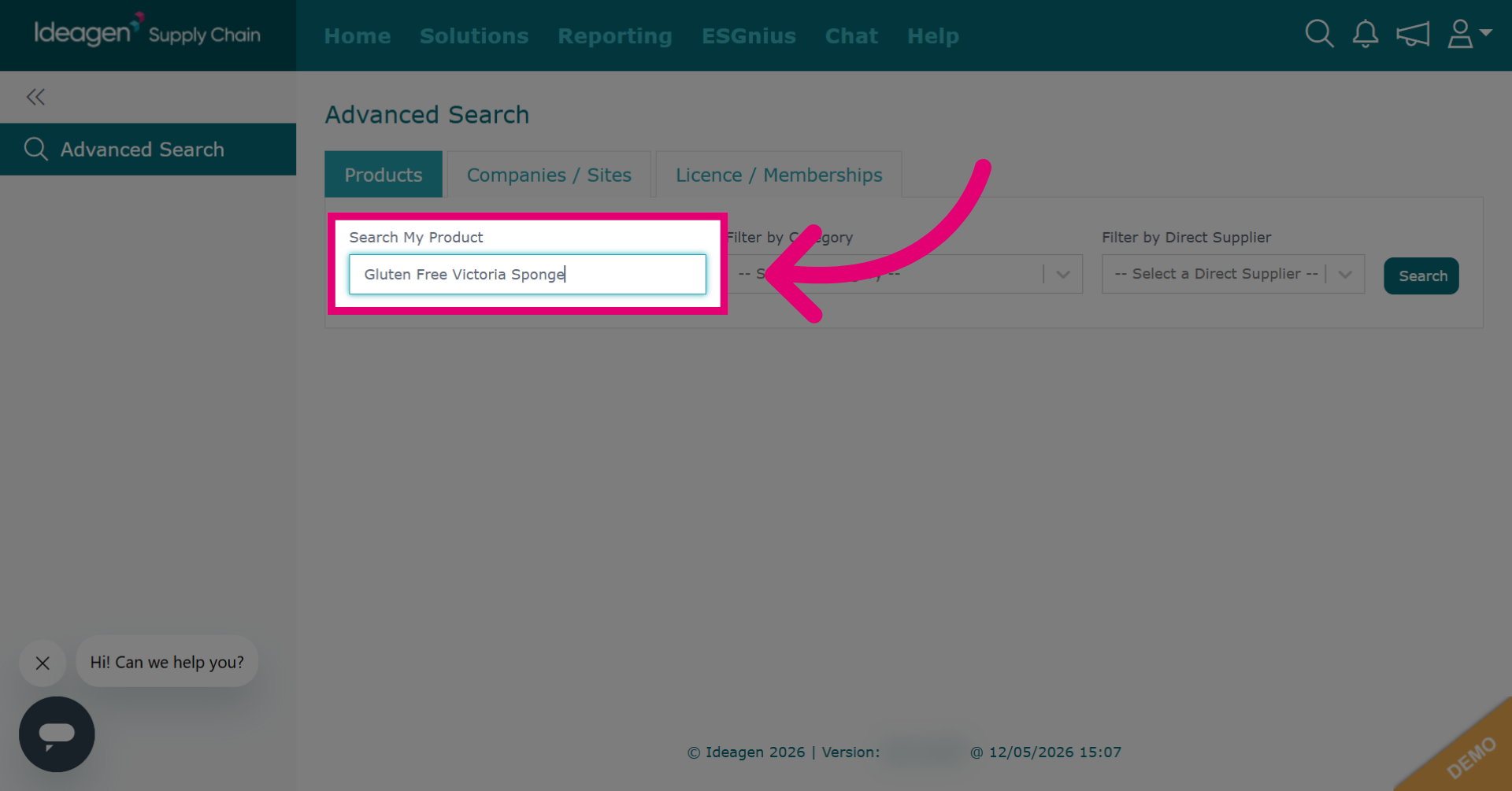
Click Search to execute the product line search and retrieve matching results.
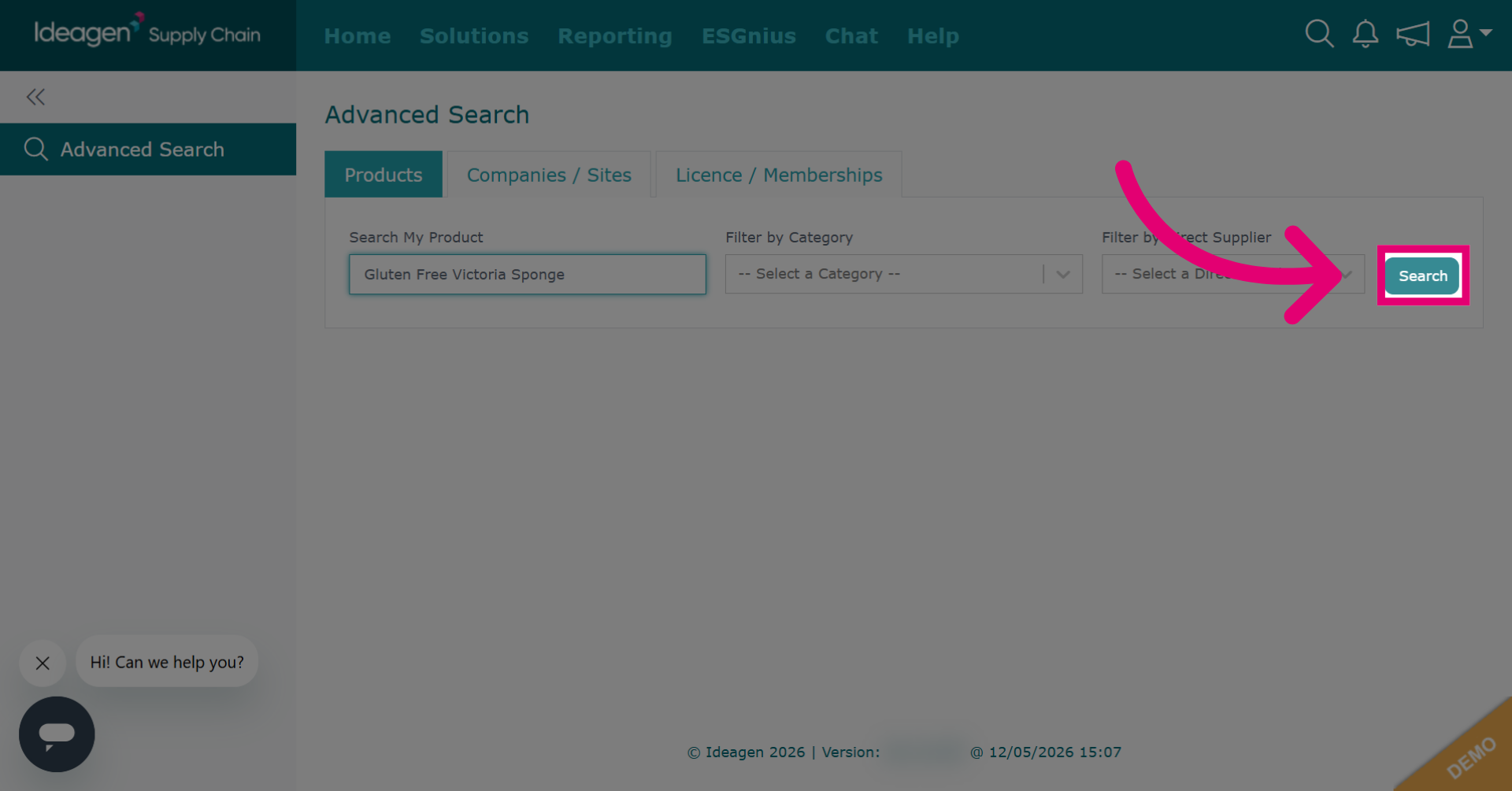
Click View to open detailed information about the selected product.
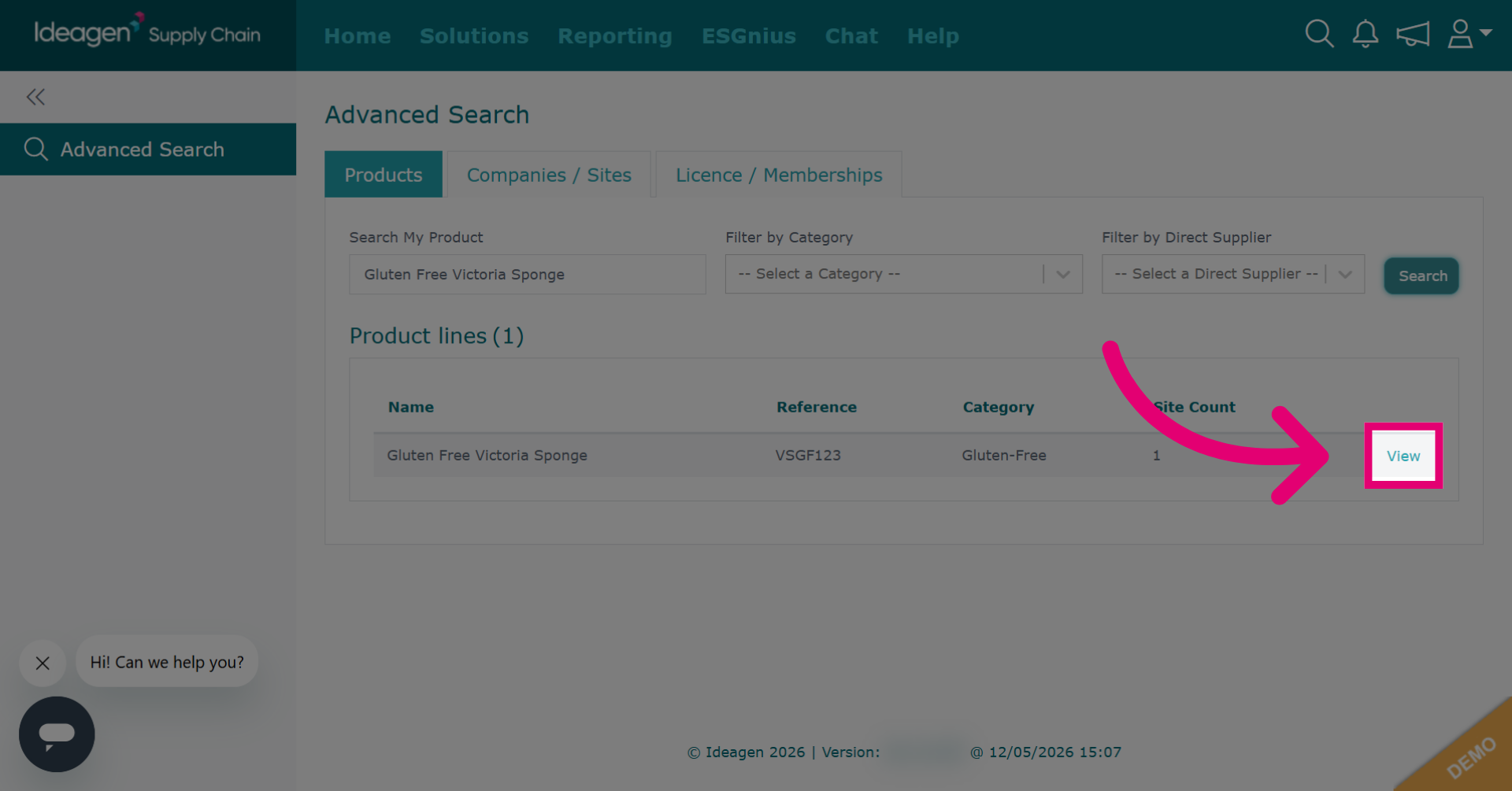
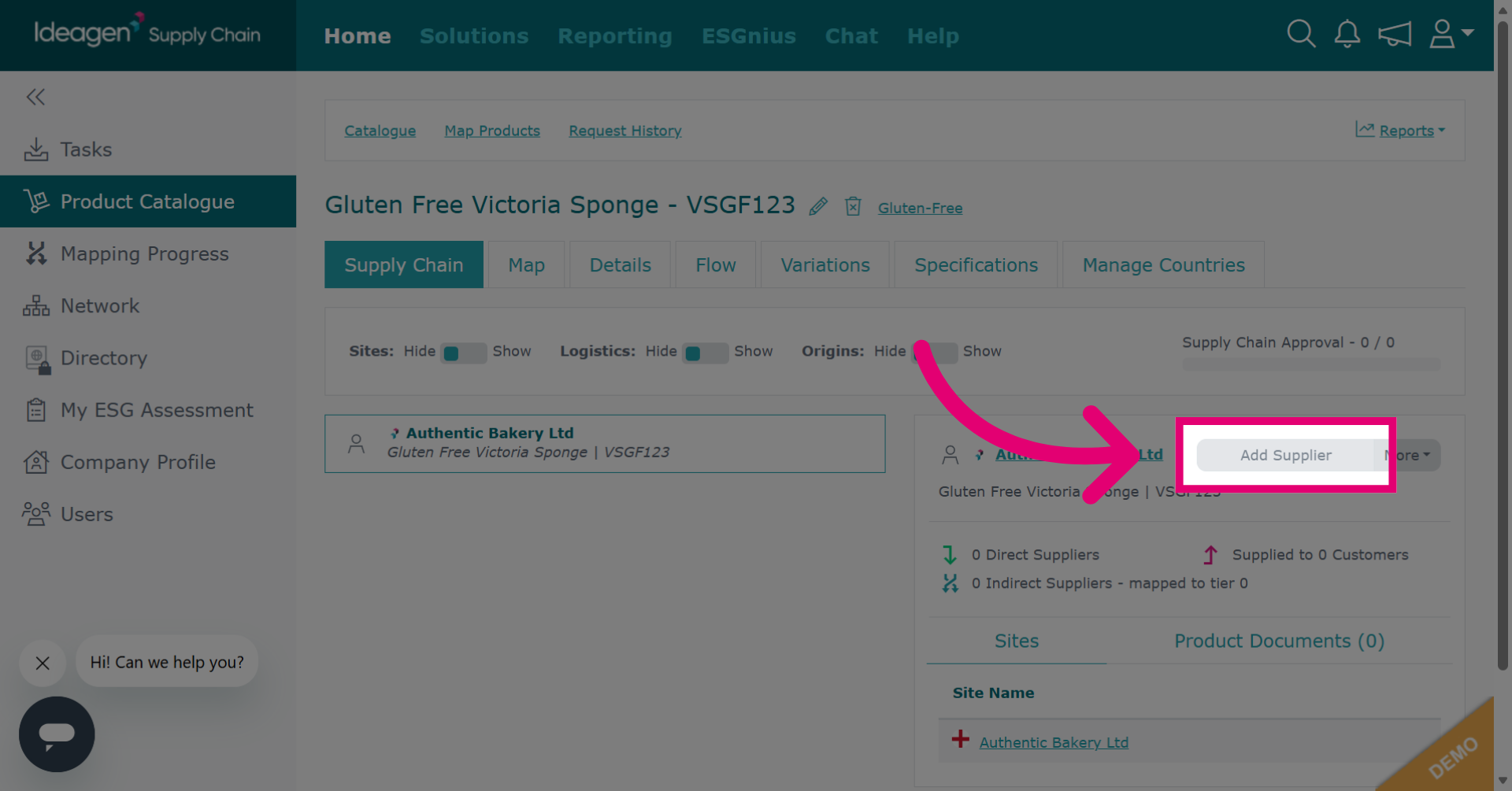
Click Add Supplier to begin associating a new supplier with the selected product.
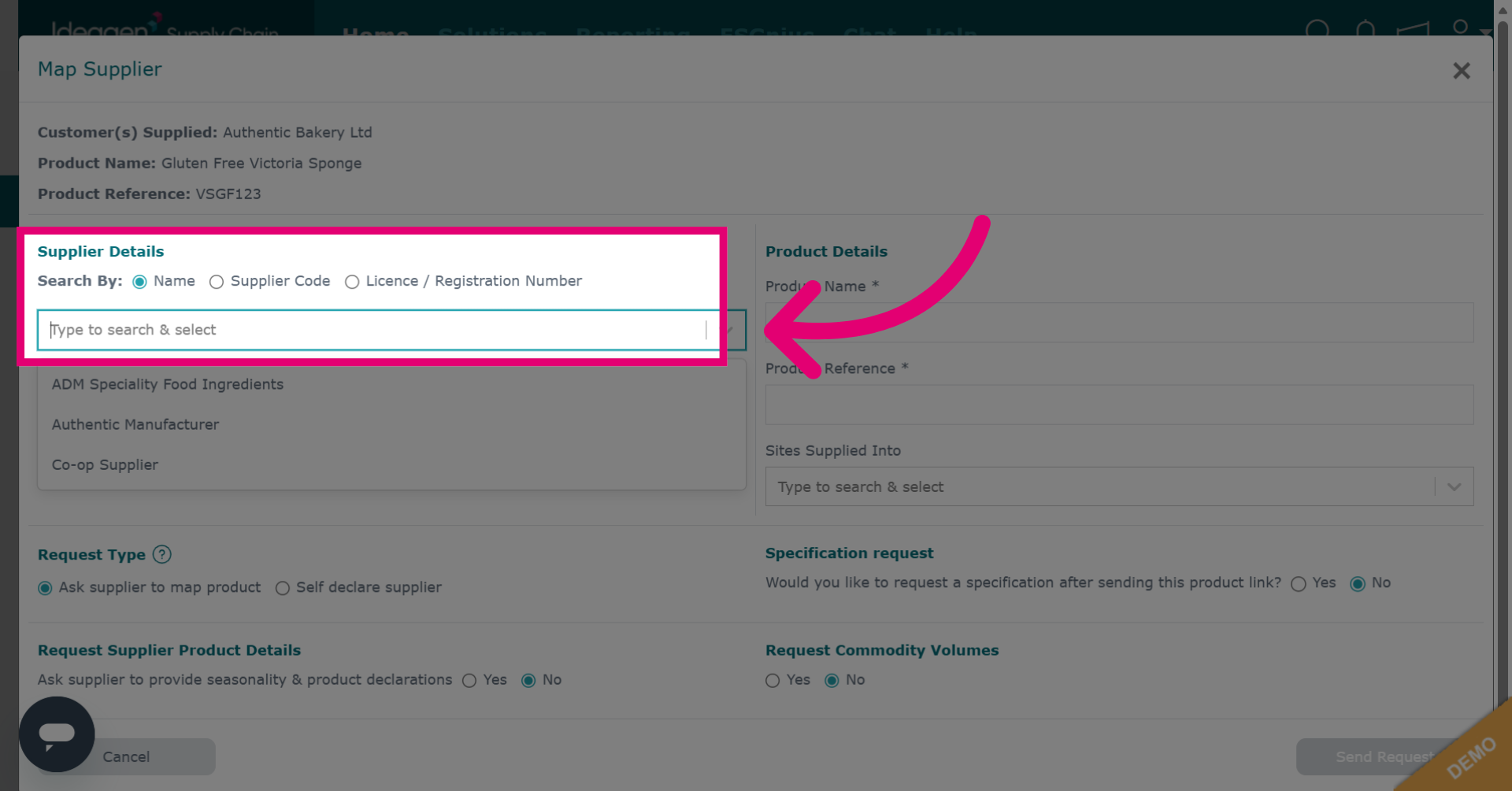
Search by supplier name, code, or license number. Choose a search option and enter the term. Note: You can only search by the latter if set up on the platform.
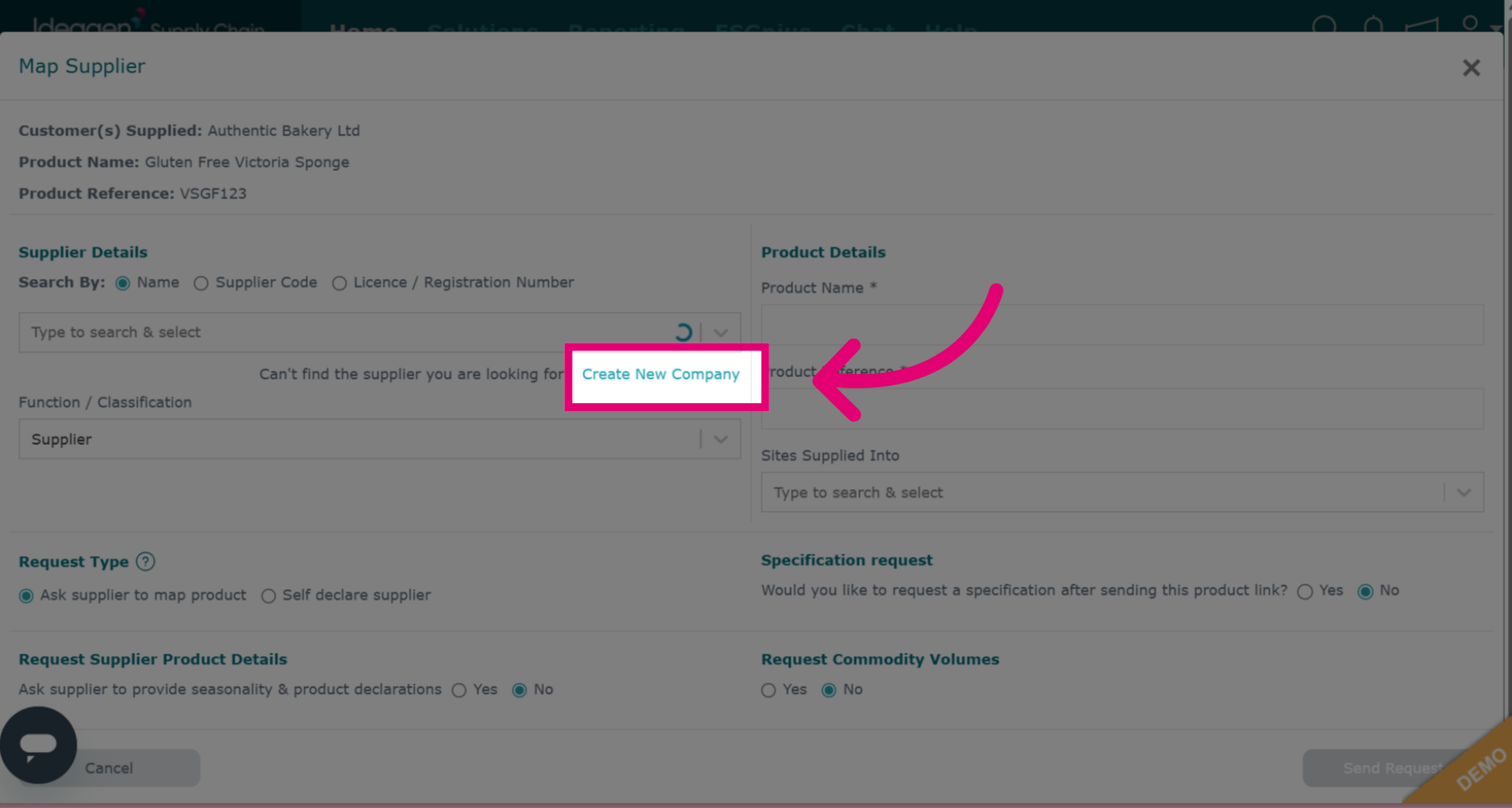
If you can't find your supplier, click Create New Company to input their address and contact info for a profile.
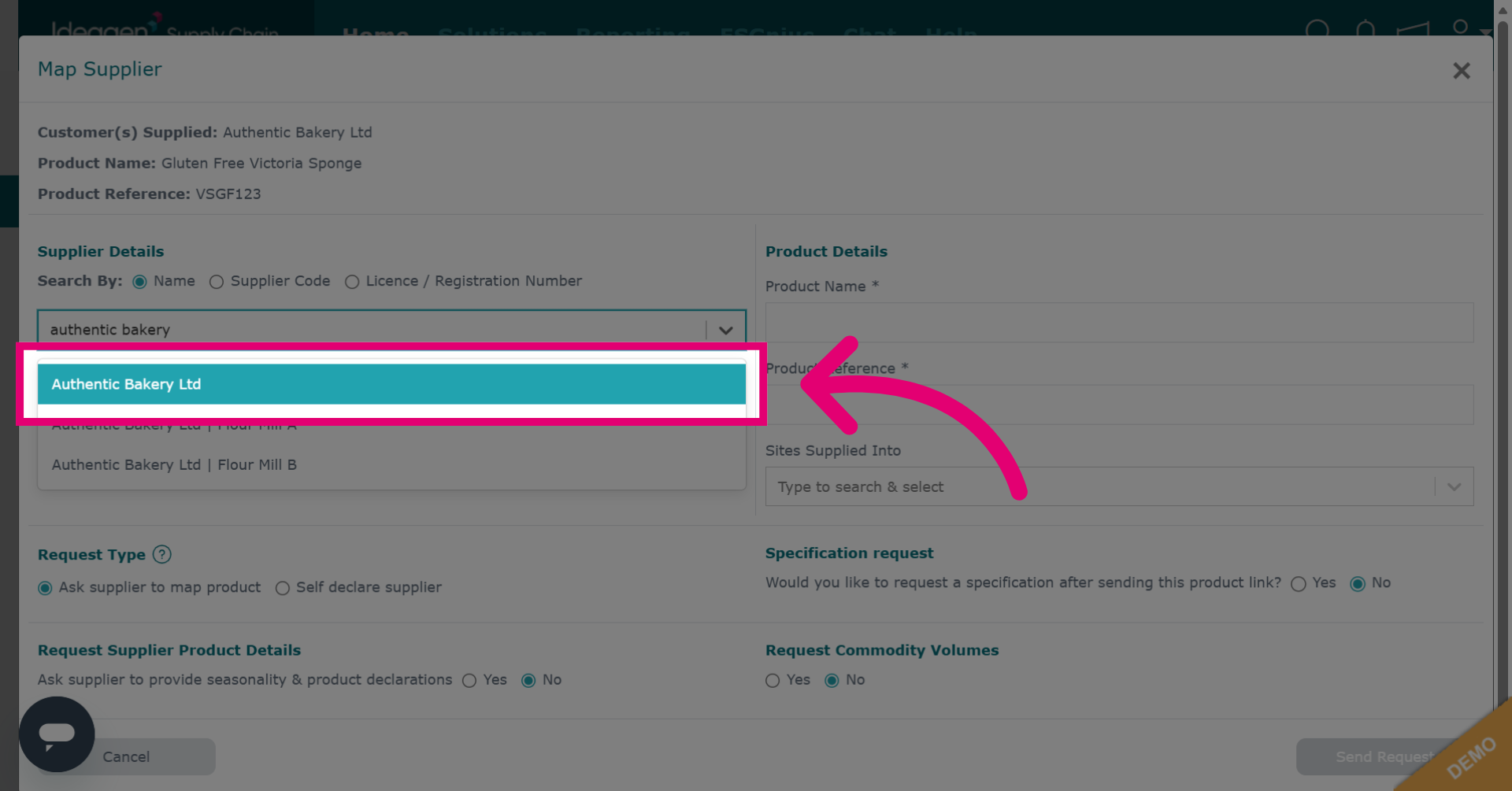
Select the supplier from the drop down options.
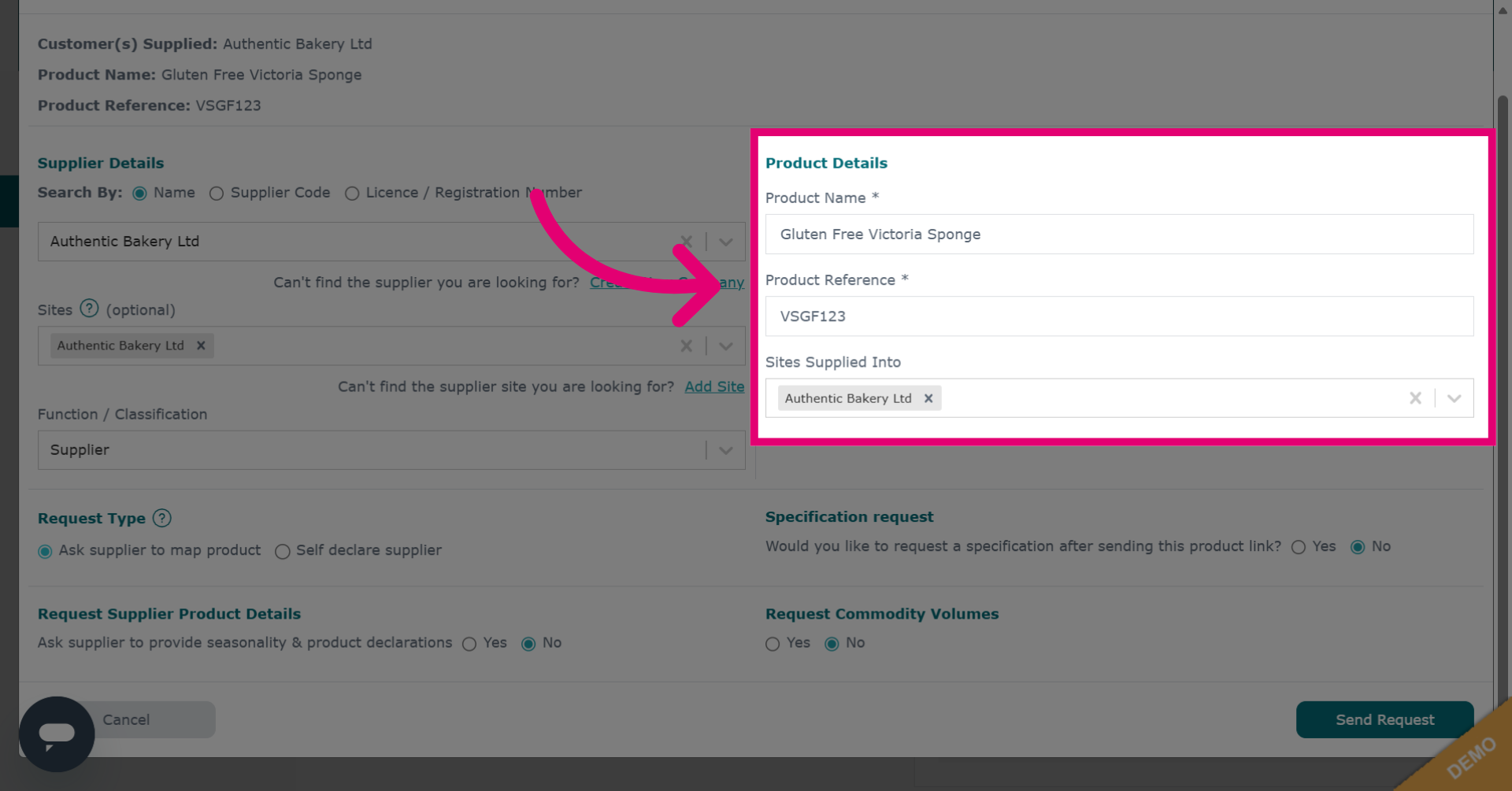
Specify the product name and its desired appearance in the request.
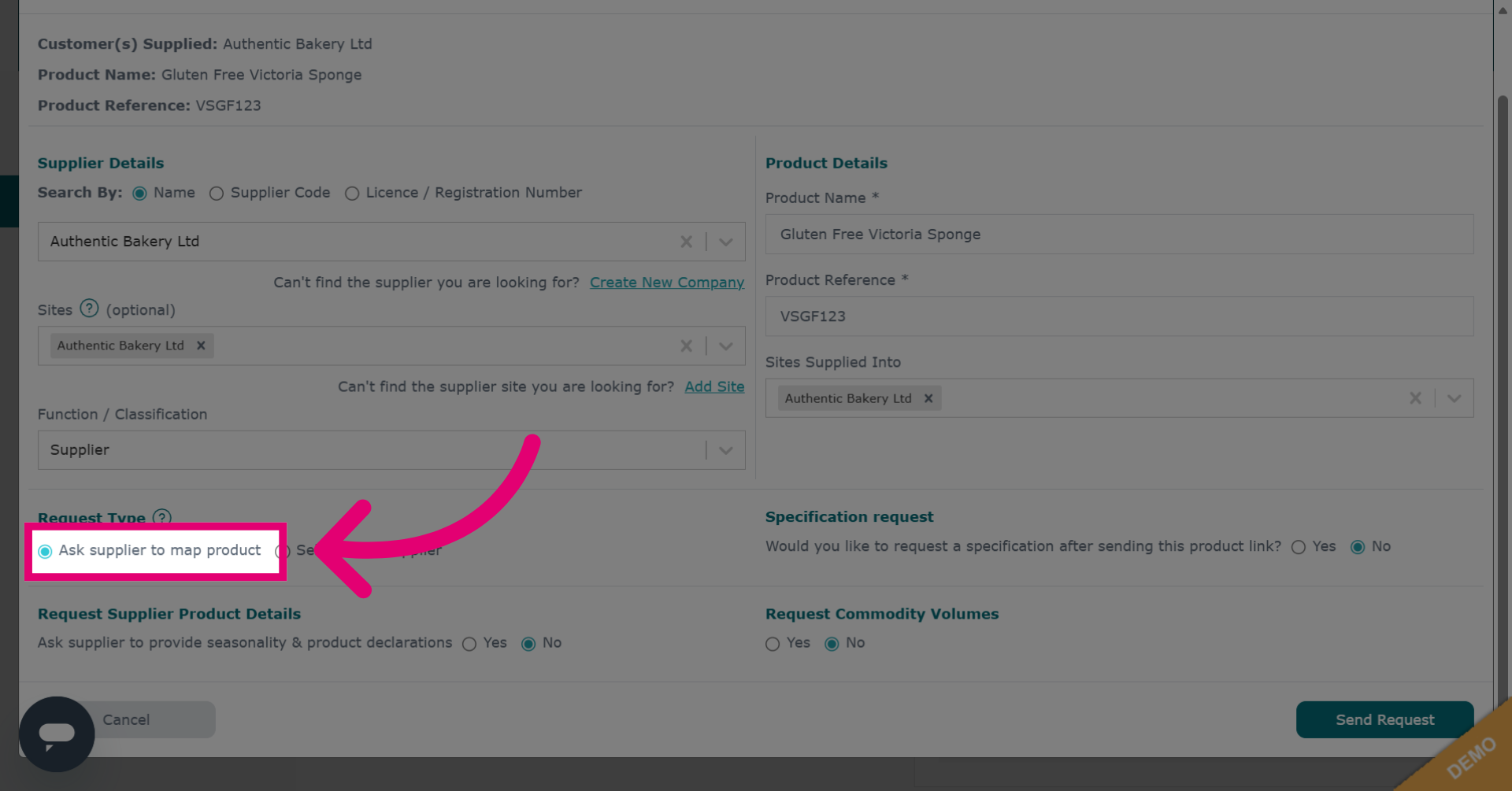
Select Ask supplier to map product to request mapping. This builds your chain and grants visibility of indirect supply chain tiers.
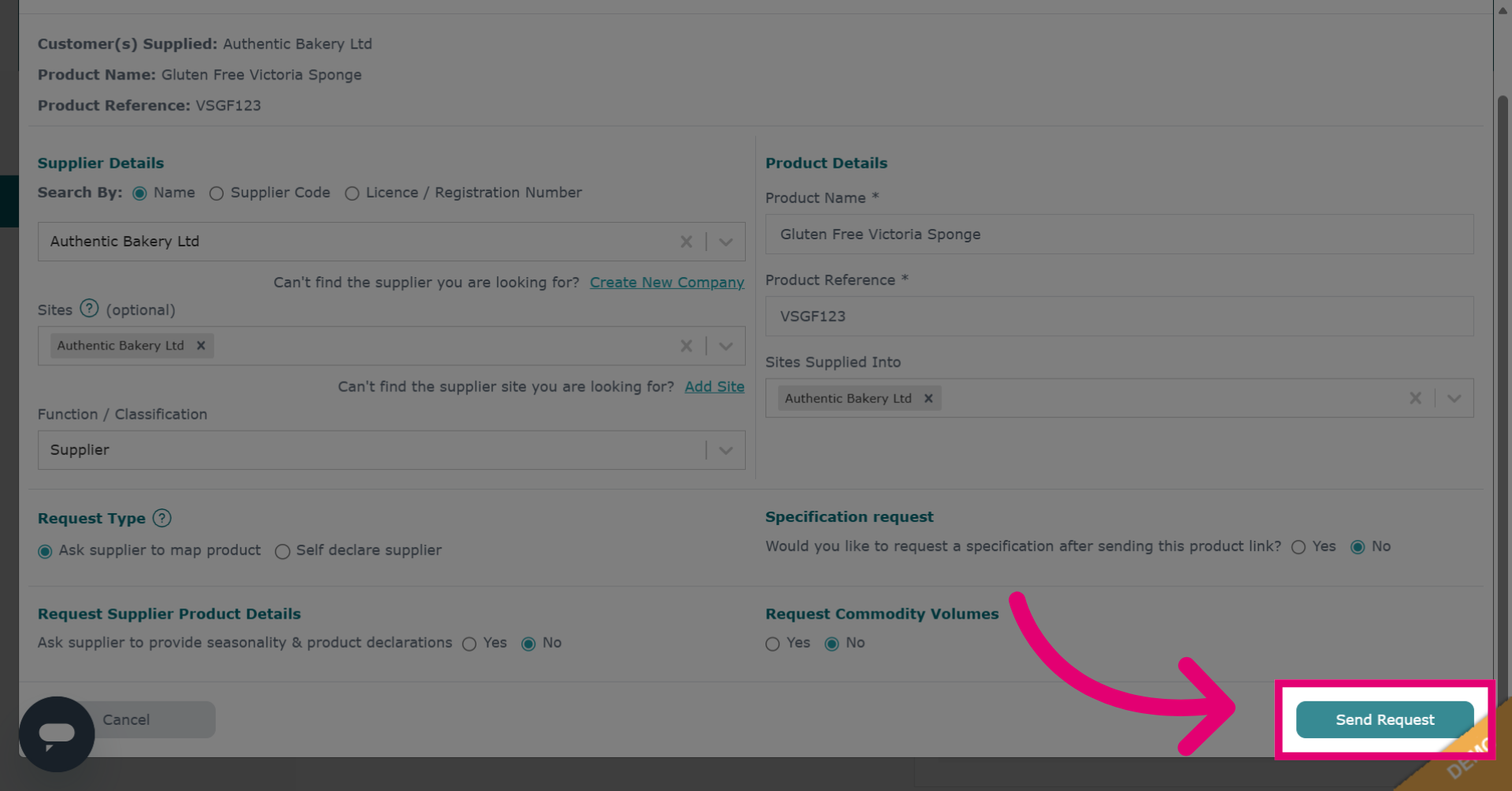
Click Send Request to submit the mapping request to the selected supplier.
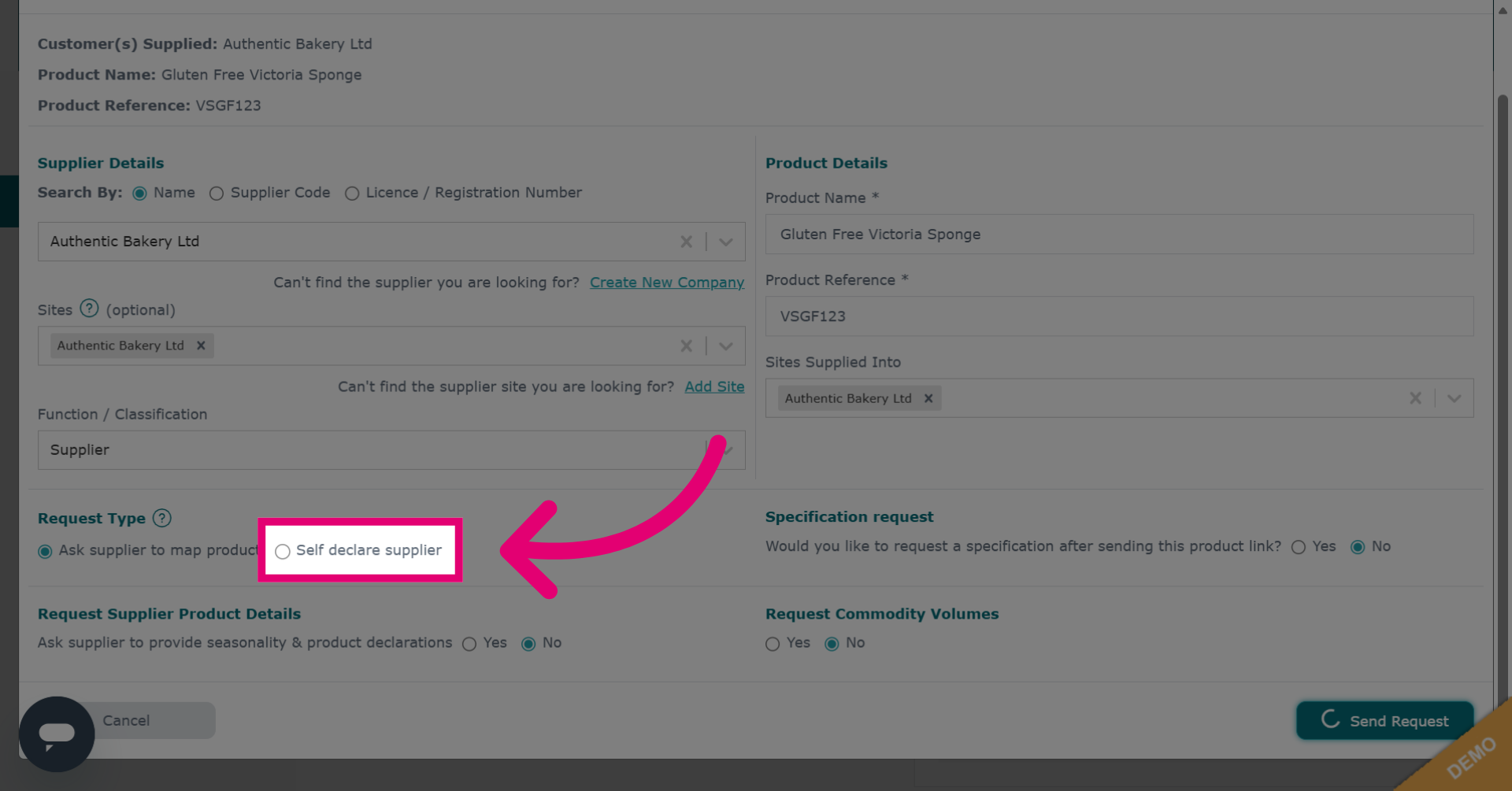
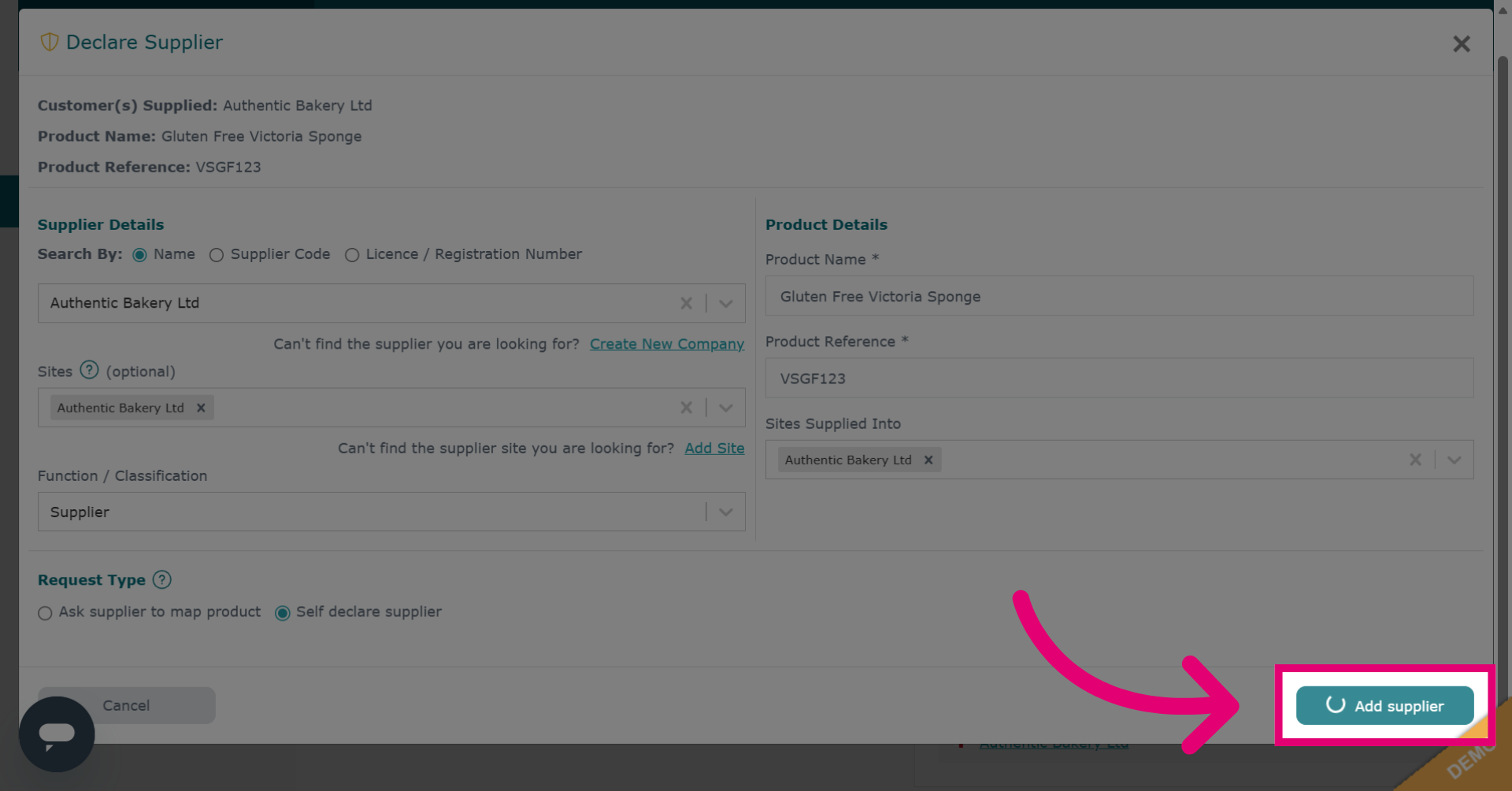
Click Self declare supplier if you don't want to send a request or map the supply chain. This is useful if you know it.
Click Add supplier to finalize adding the supplier to the product line.
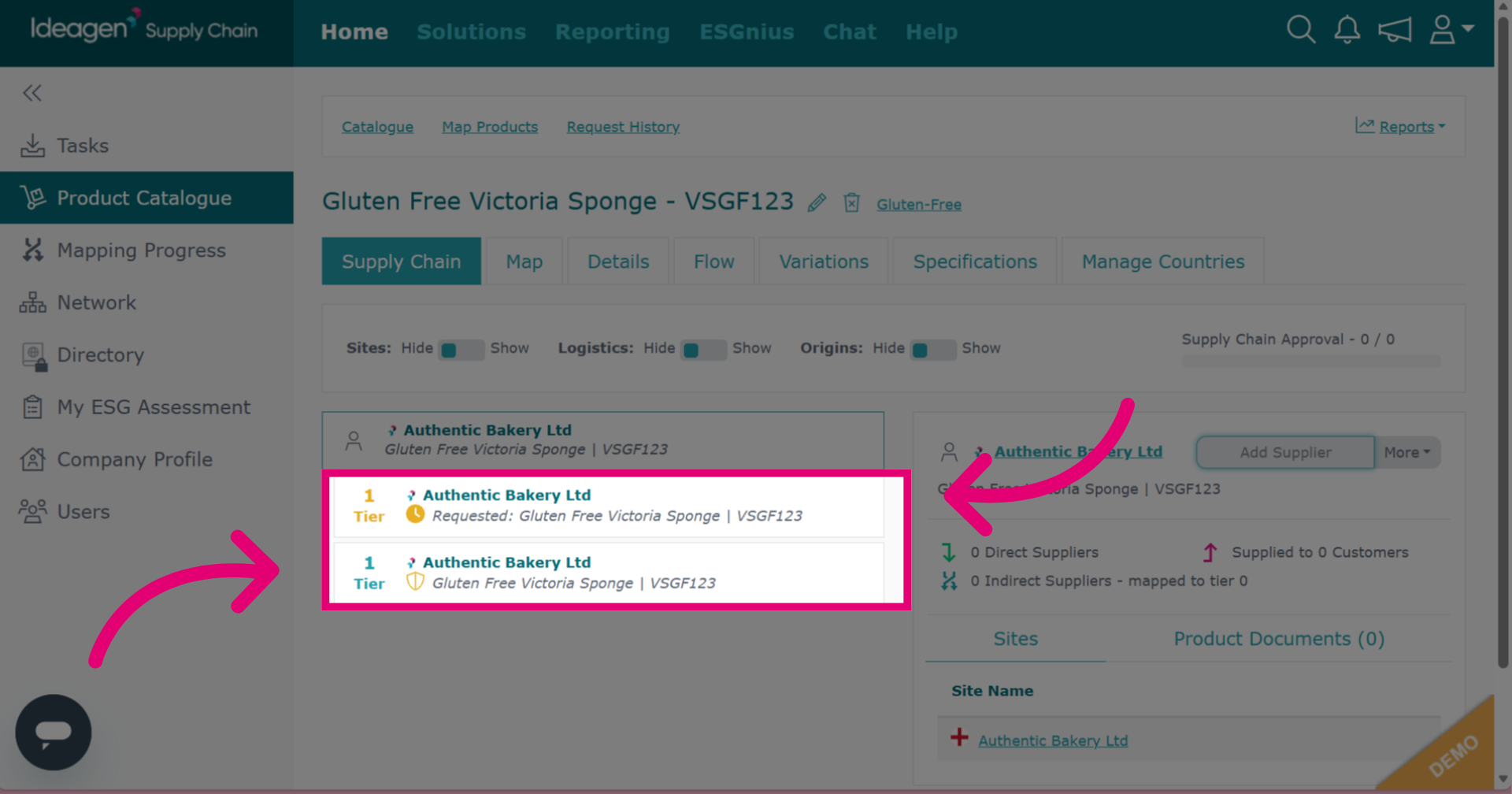
The supplier will appear in your supply chain. The link shows as pending with a clock icon until accepted. The self-declared link has its icon.