New article
Recently updated
Managing Company & Site Details - Company Profile

Who is this article for?
Users who want to manage their company and site details.
Platform admin permissions are required.
This tutorial guides you through managing your company profile and site settings within Ideagen Supply Chain.
You will learn how to edit profile details, add new sites, and update or remove existing site information.
Managing your company profile and sites
-
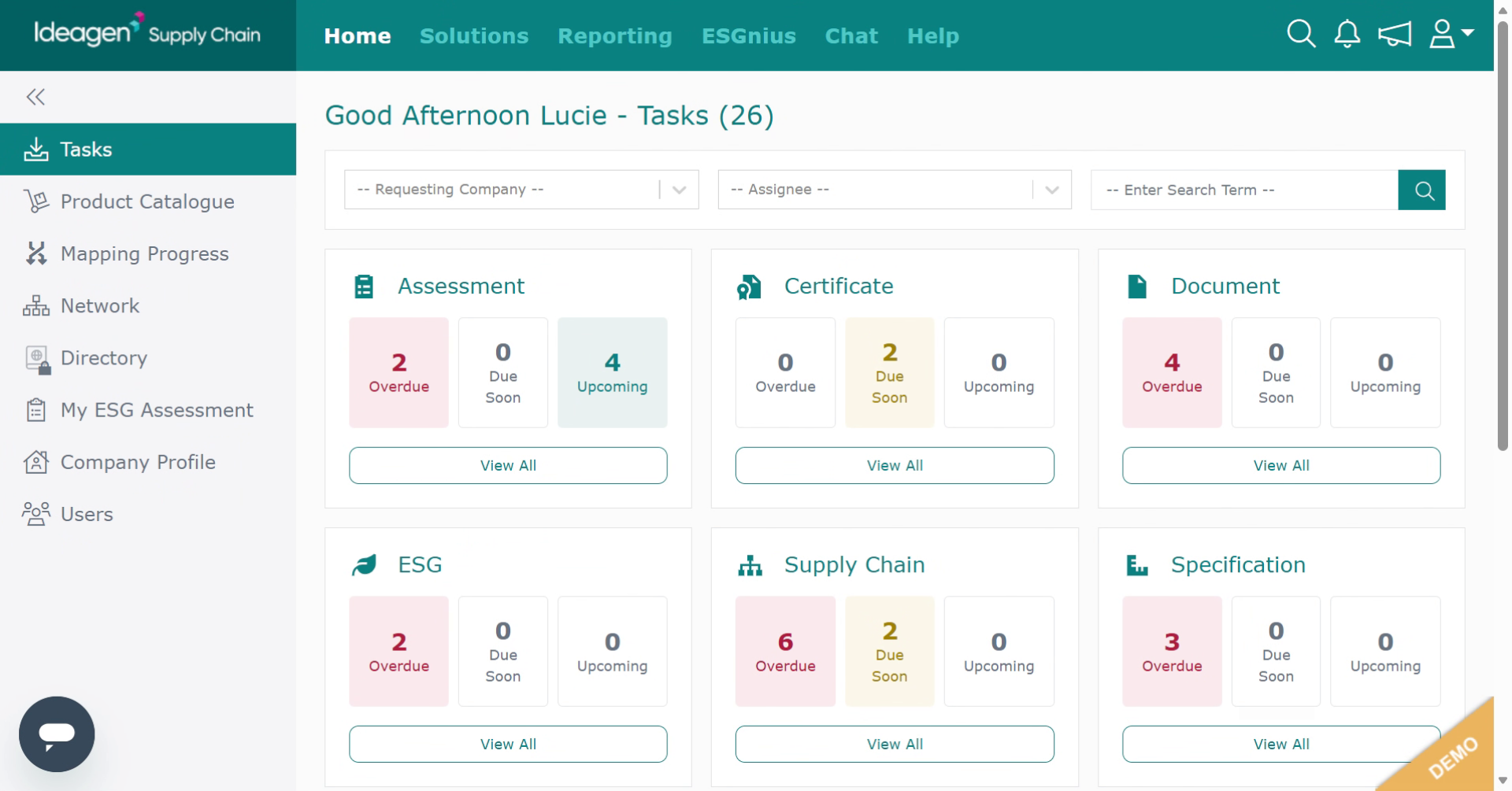
Log into the system.
-
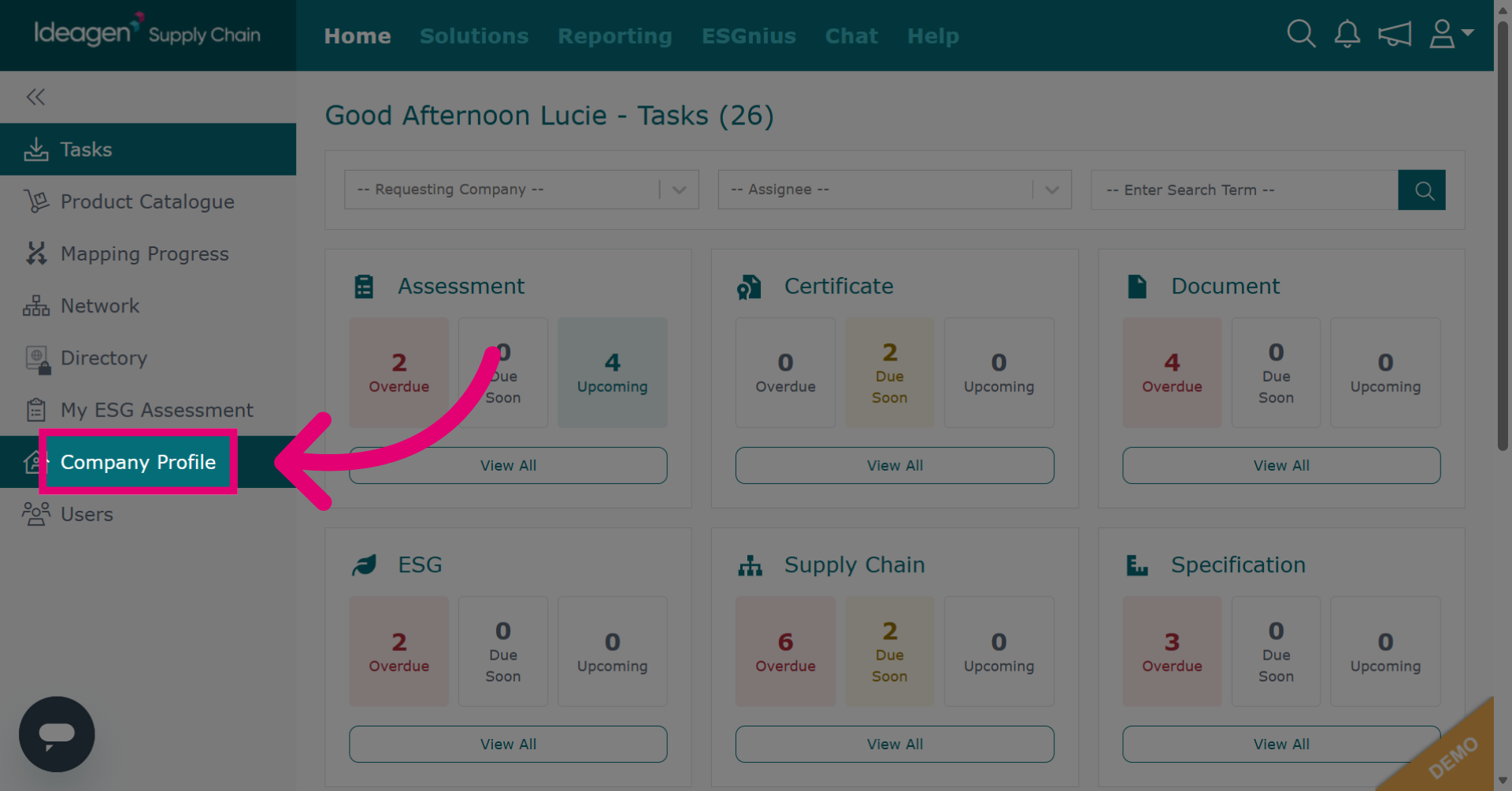
Click Company Profile to open your company information page.
-
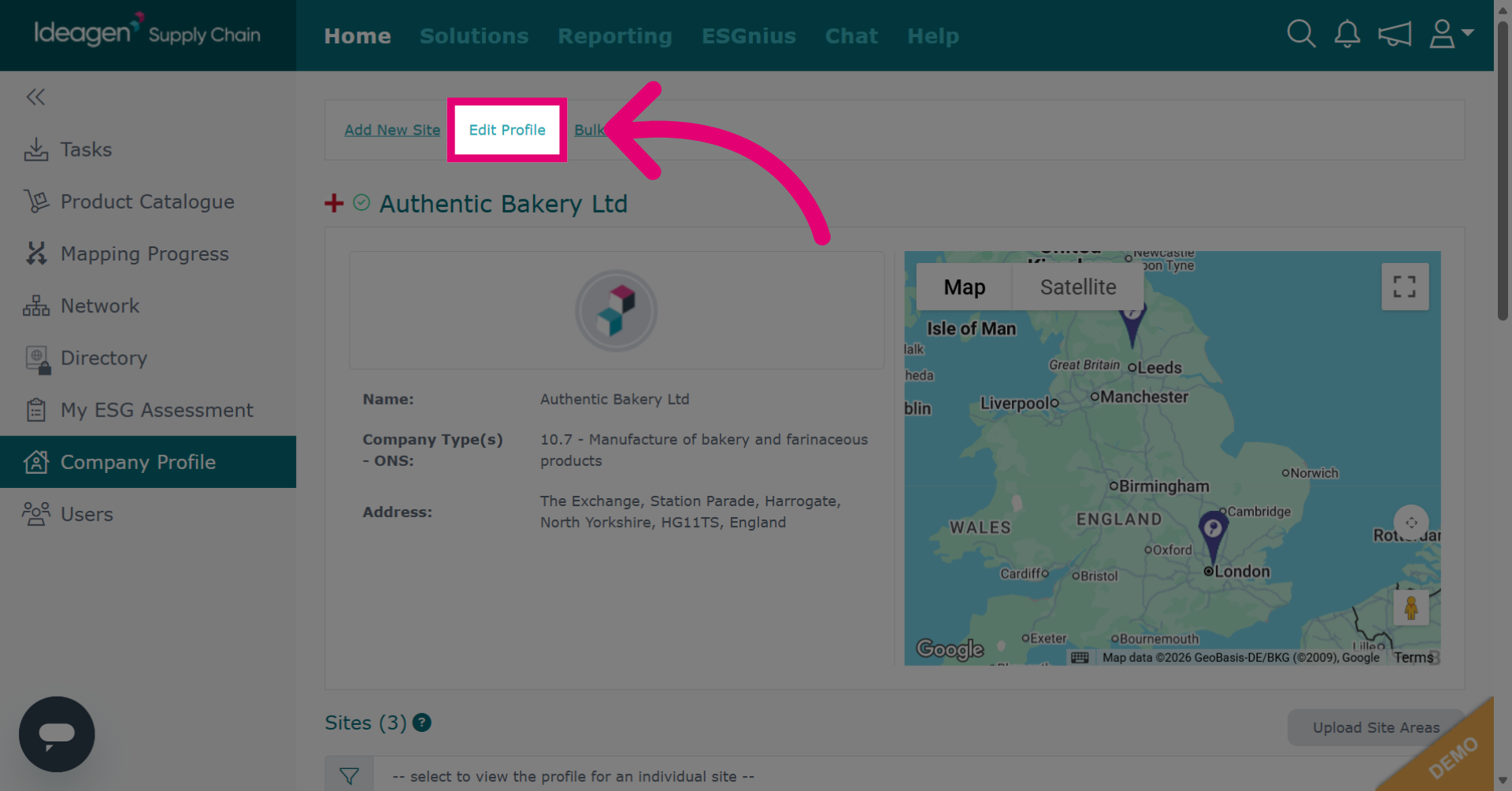
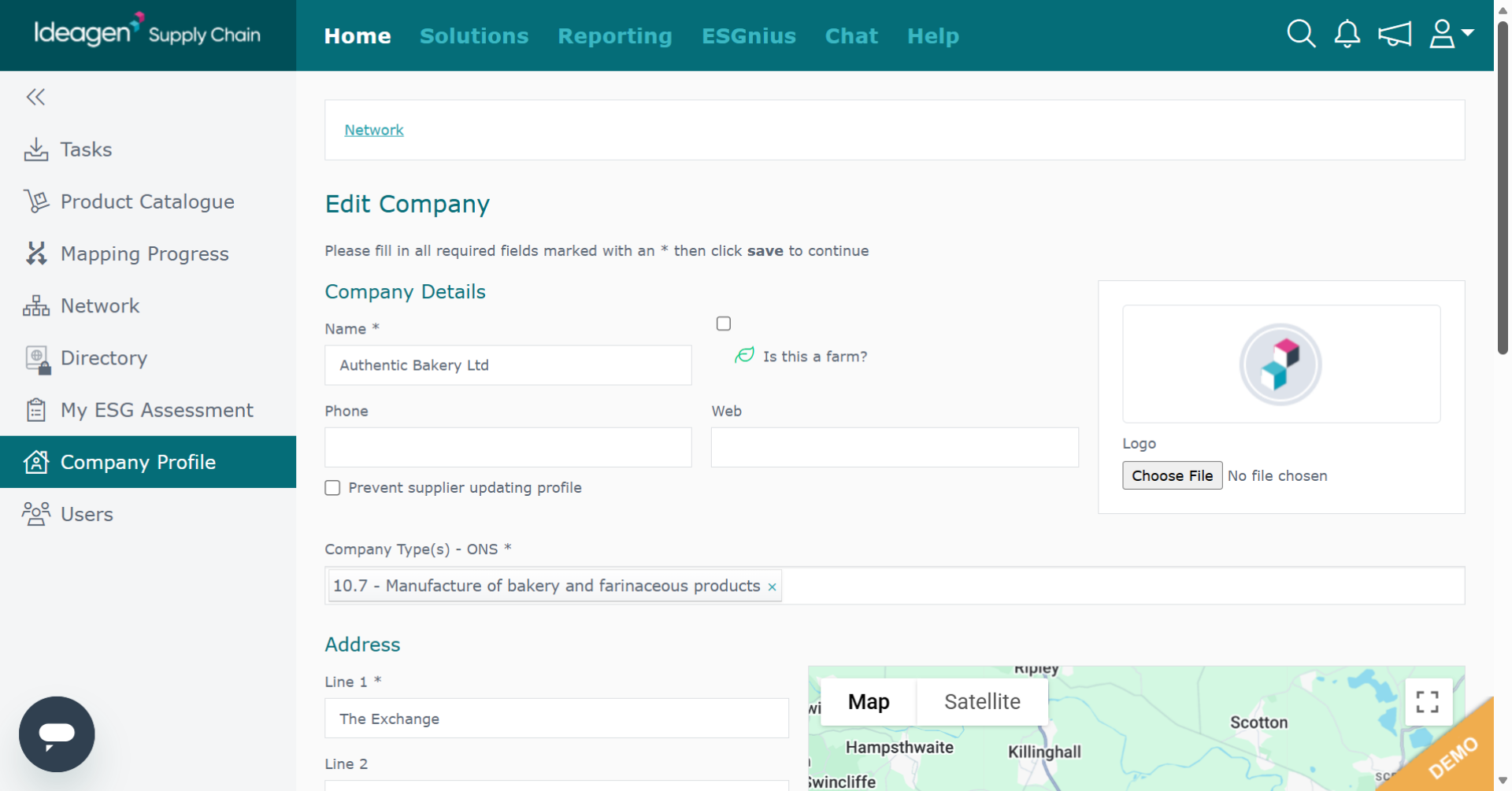
Click Edit Profile to begin modifying your company profile details.
-
Amend your details as needed.
-
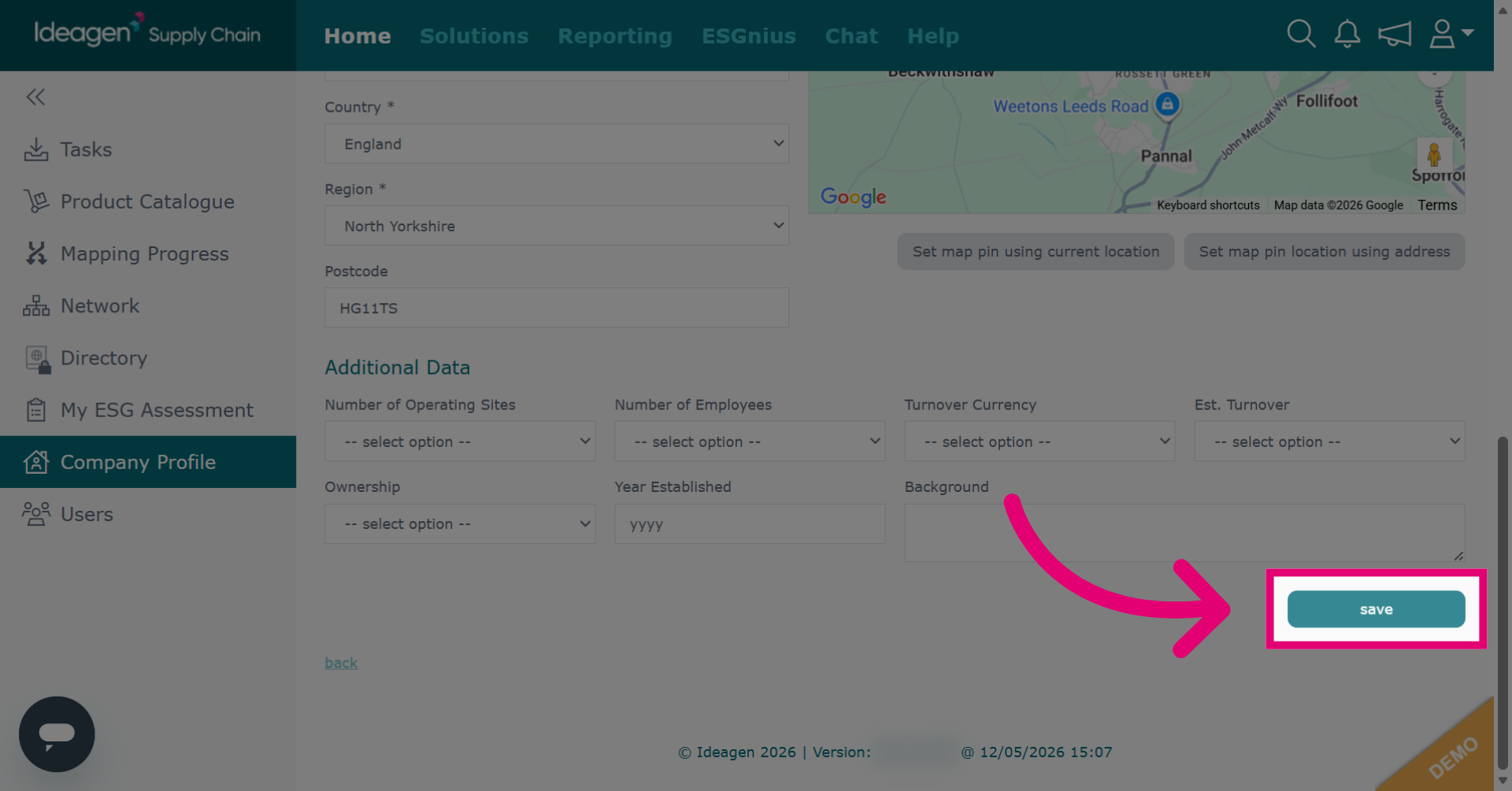
Click save to apply and store the changes made to your company profile.
-
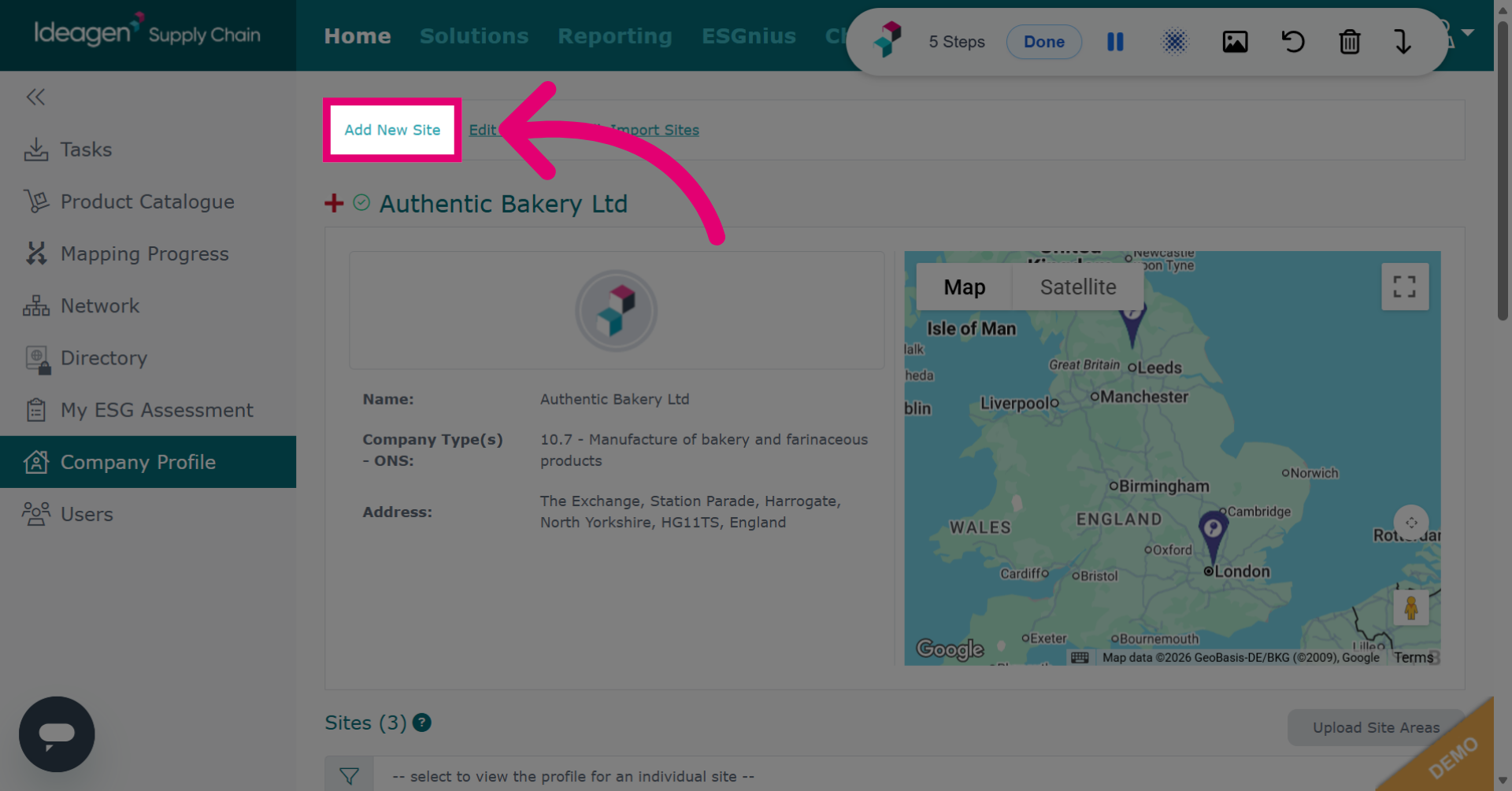
Click Add New Site to start the process of adding a new location to your company profile. Please note, Do NOT add your supplier details here. Internal sites are the locations owned by your business, for example, factories, warehouses etc.
-
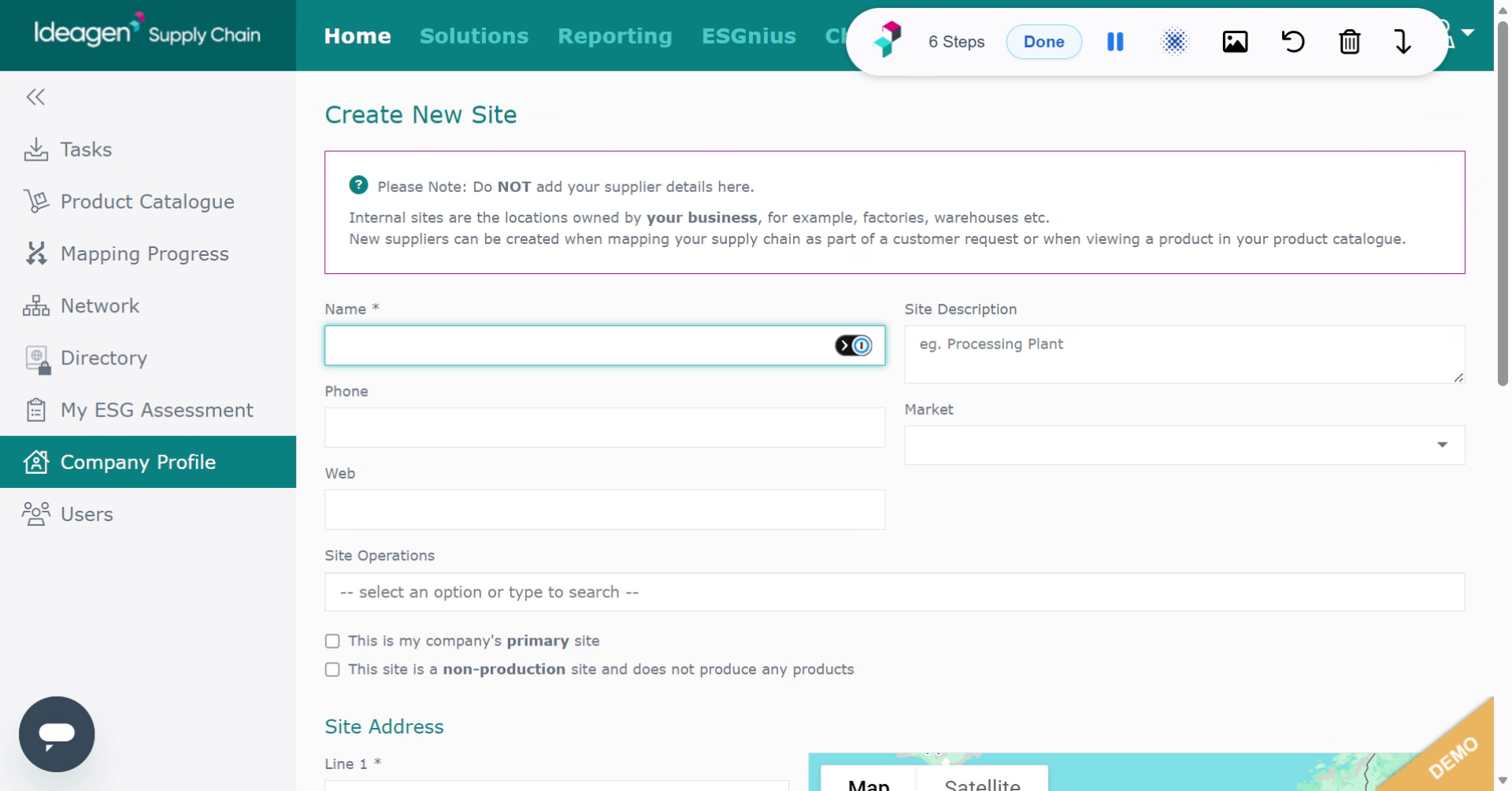
Enter site details including name and address.
-
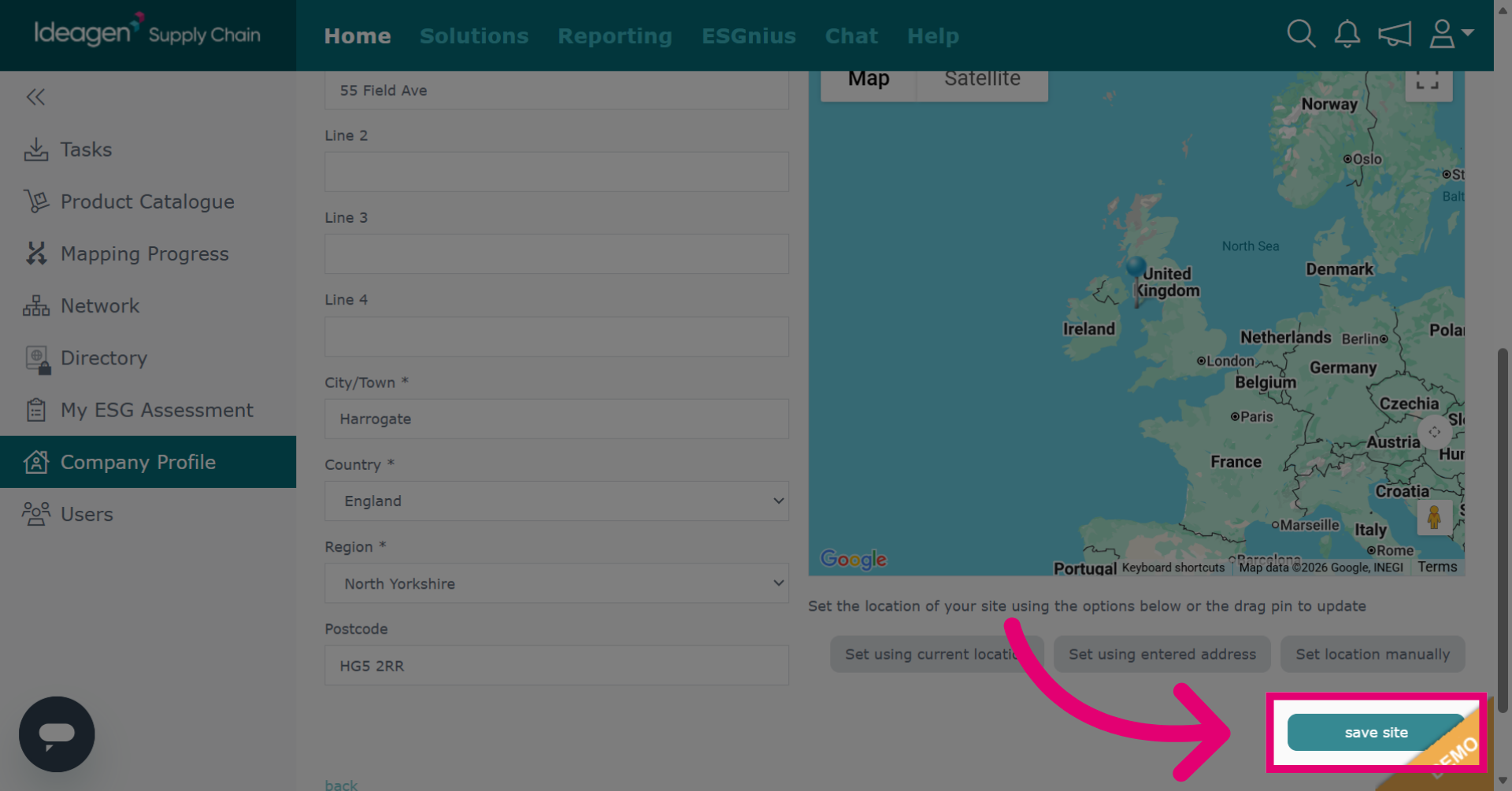
Click save site to add the new site information to your company profile.
-
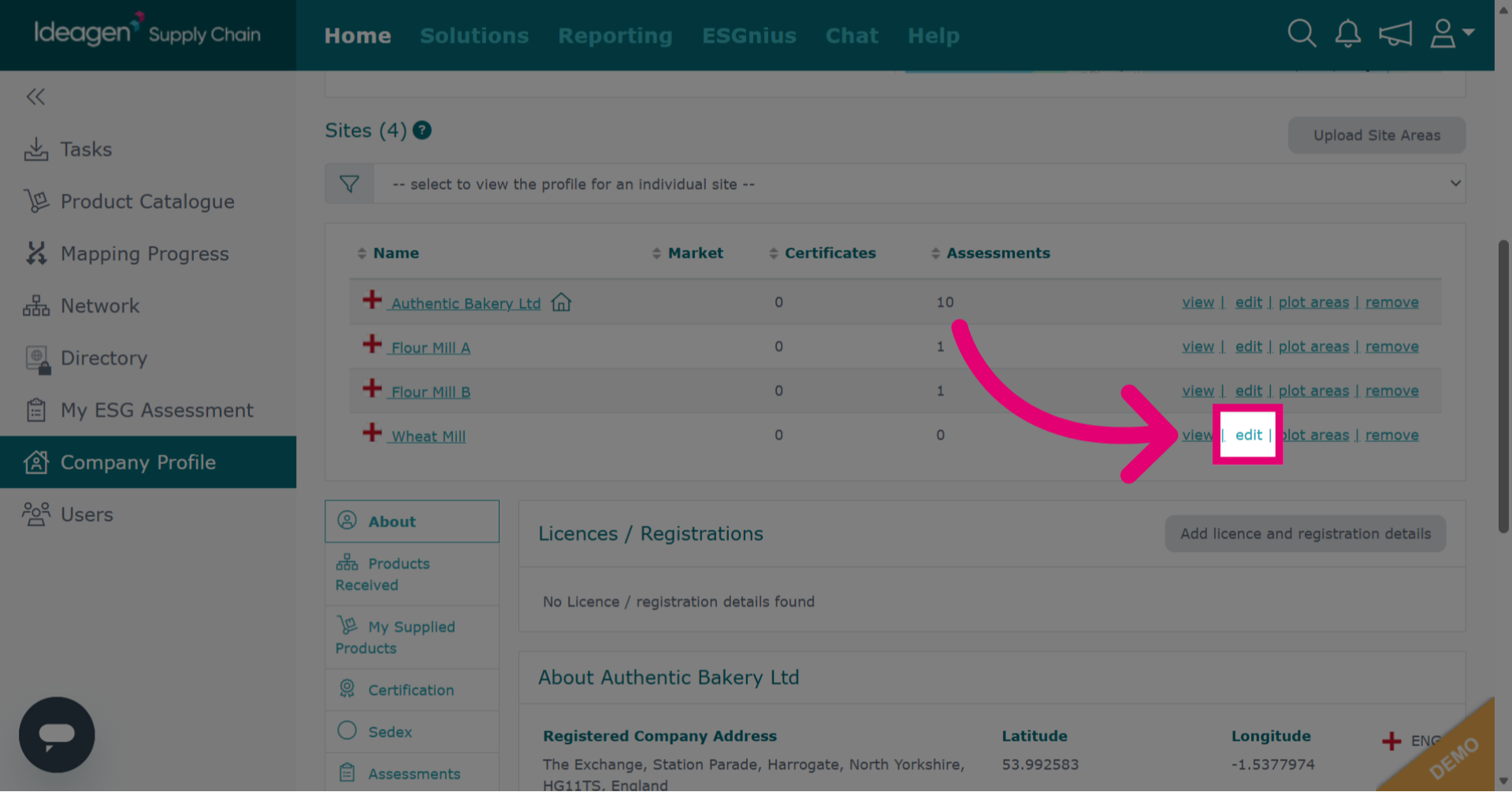
Click edit to modify details of an existing site within your company profile.
-
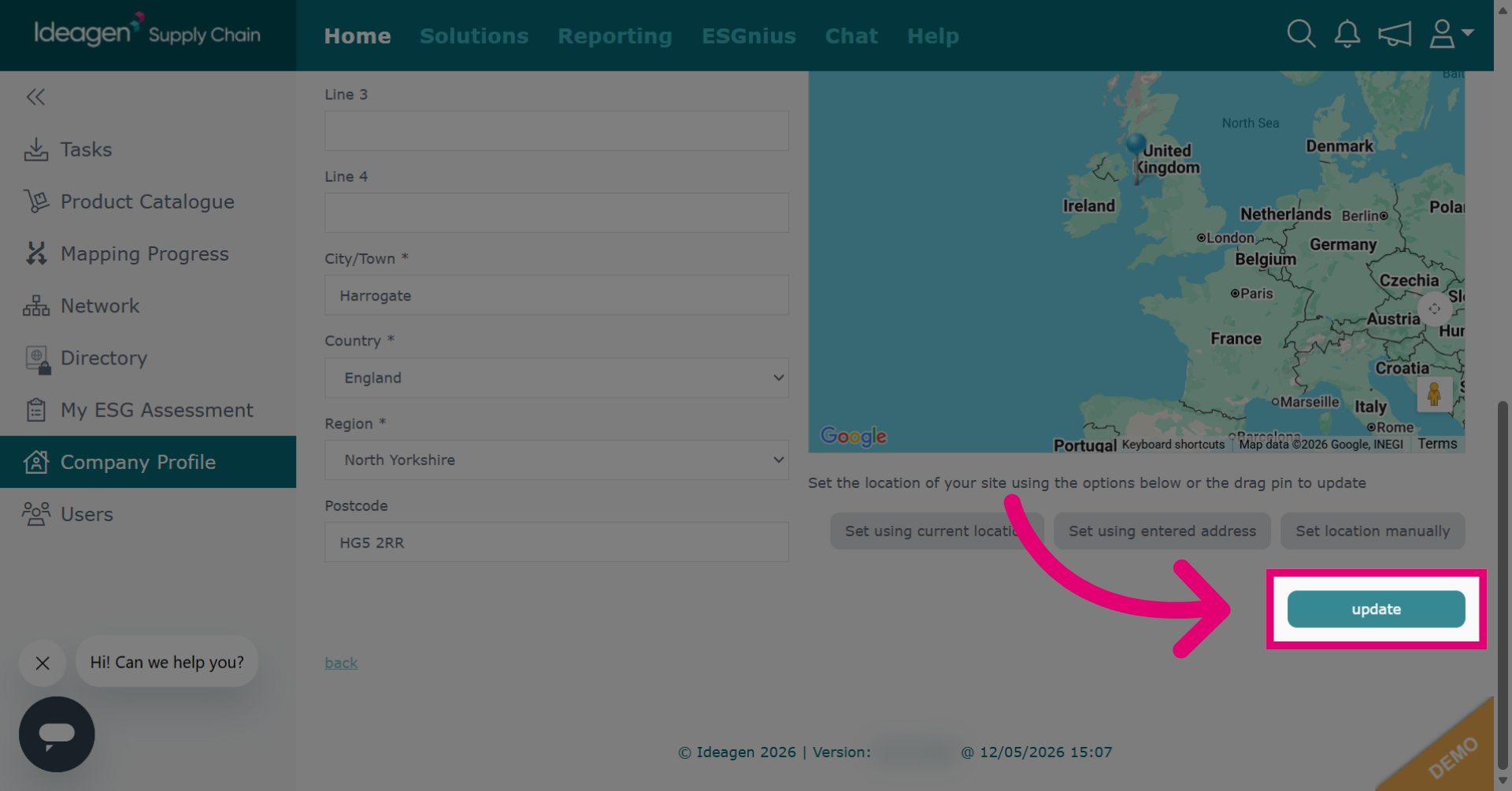
Click update to save the changes made to the site details.
-
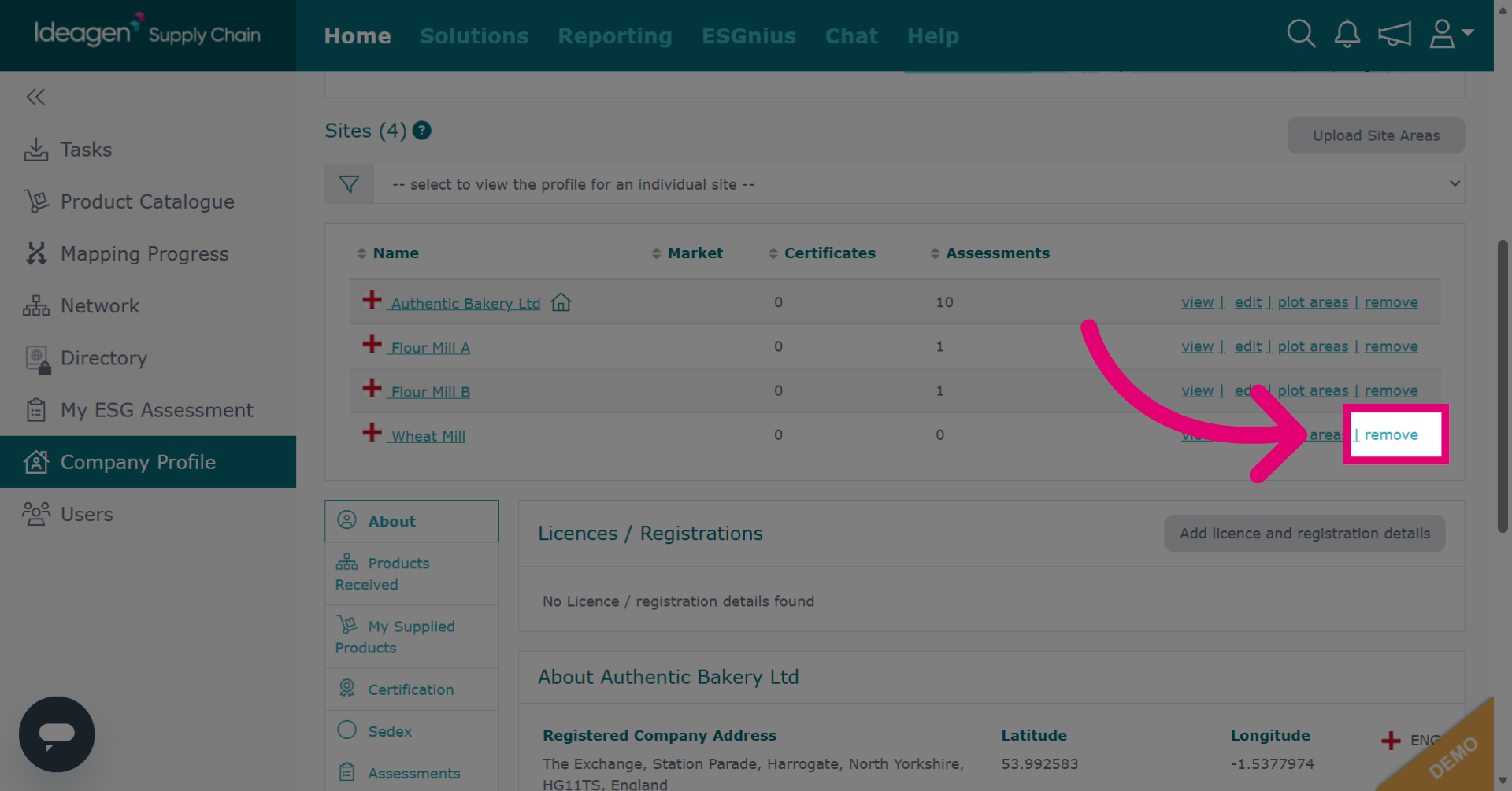
Click remove to initiate the process of deleting a site from your company profile.
-
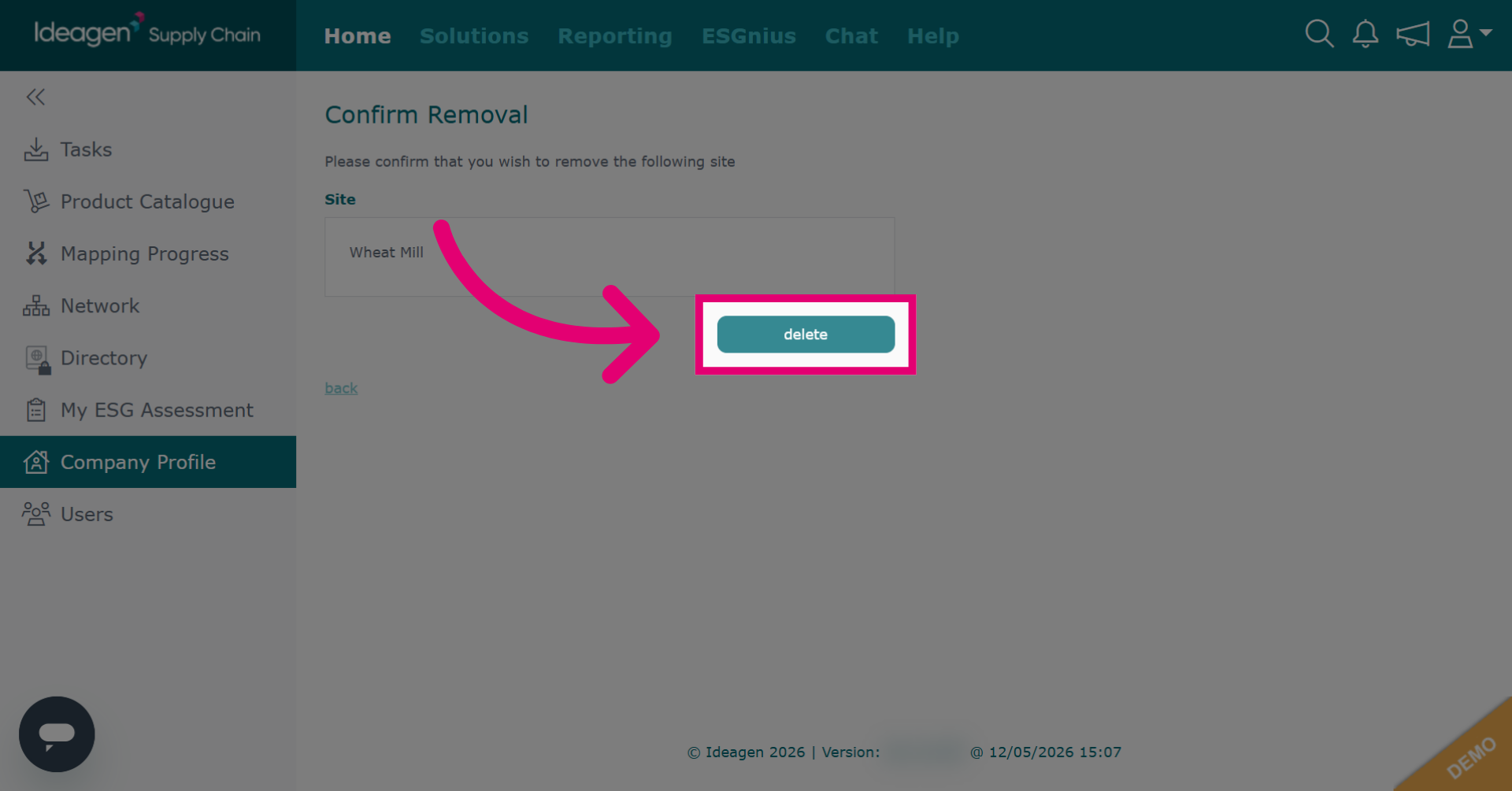
Click delete to confirm and permanently remove the selected site from your profile.
-
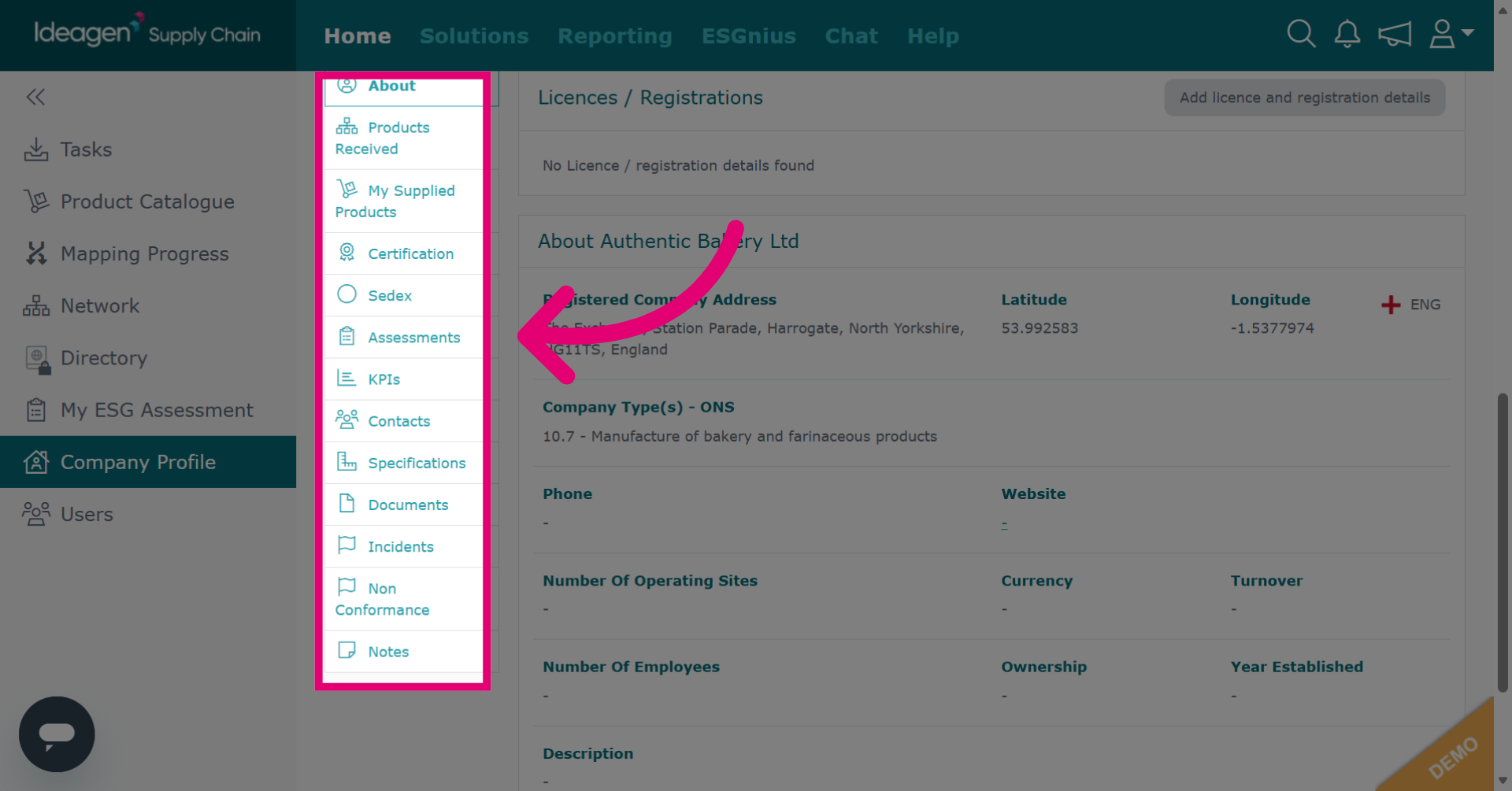
You can view all items that have been sent to your company via the company profile. This includes outstanding items as well as previously completed items. Click on the relevant module to view the data.
-
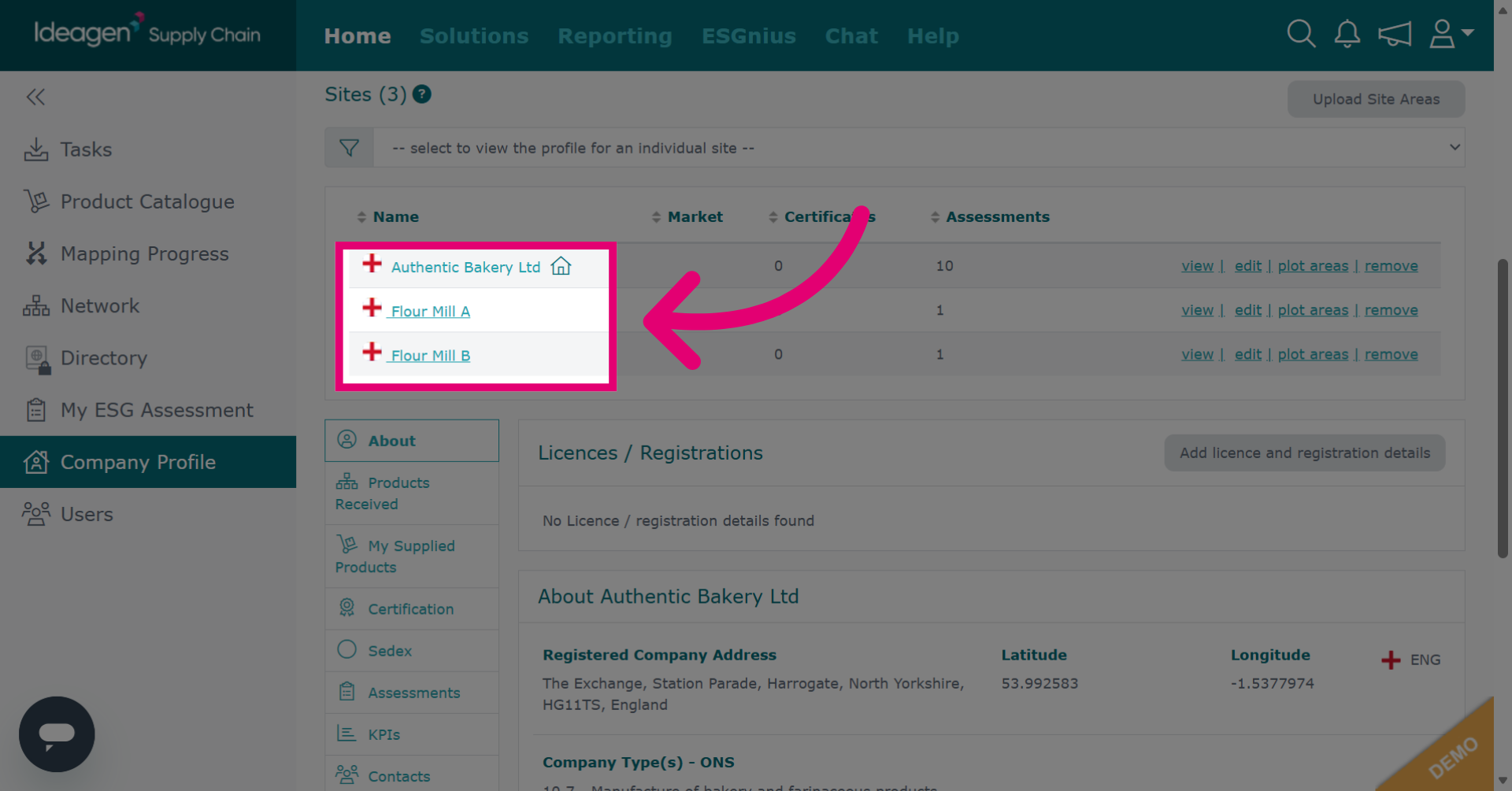
Select a site to view only data associated with said site.
-
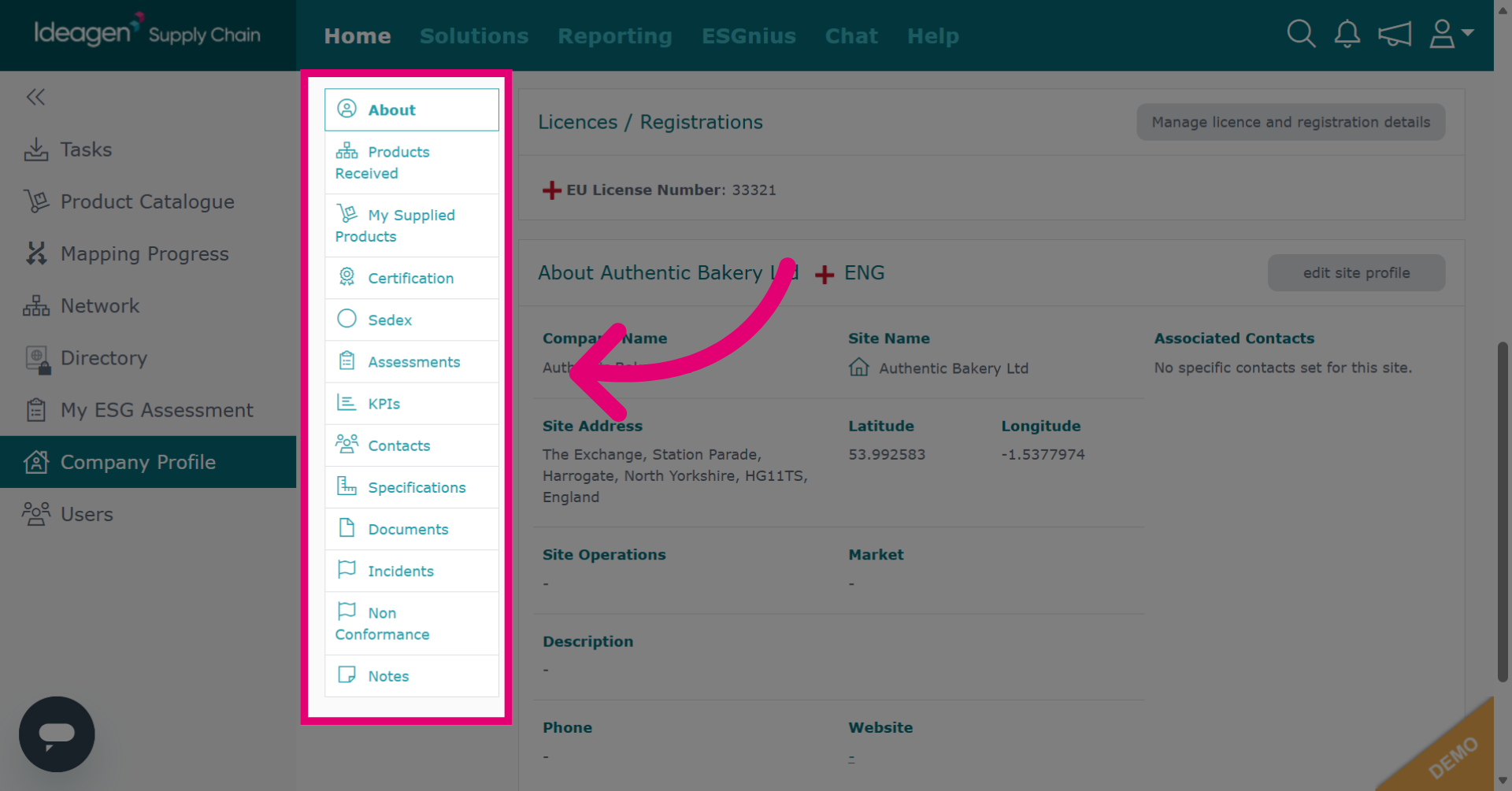
Now when you click on a module, it will only show site specific data.