New article
Recently updated
Adding & Removing Users for Your Company

Who is this article for?
Users who want to add or remove users to their company.
Platform admin permissions are required.
This tutorial guides you through adding and removing users for your company.
You will learn how to access user management, create new user accounts with appropriate permissions, and remove users from the system.
Adding and removing users
-
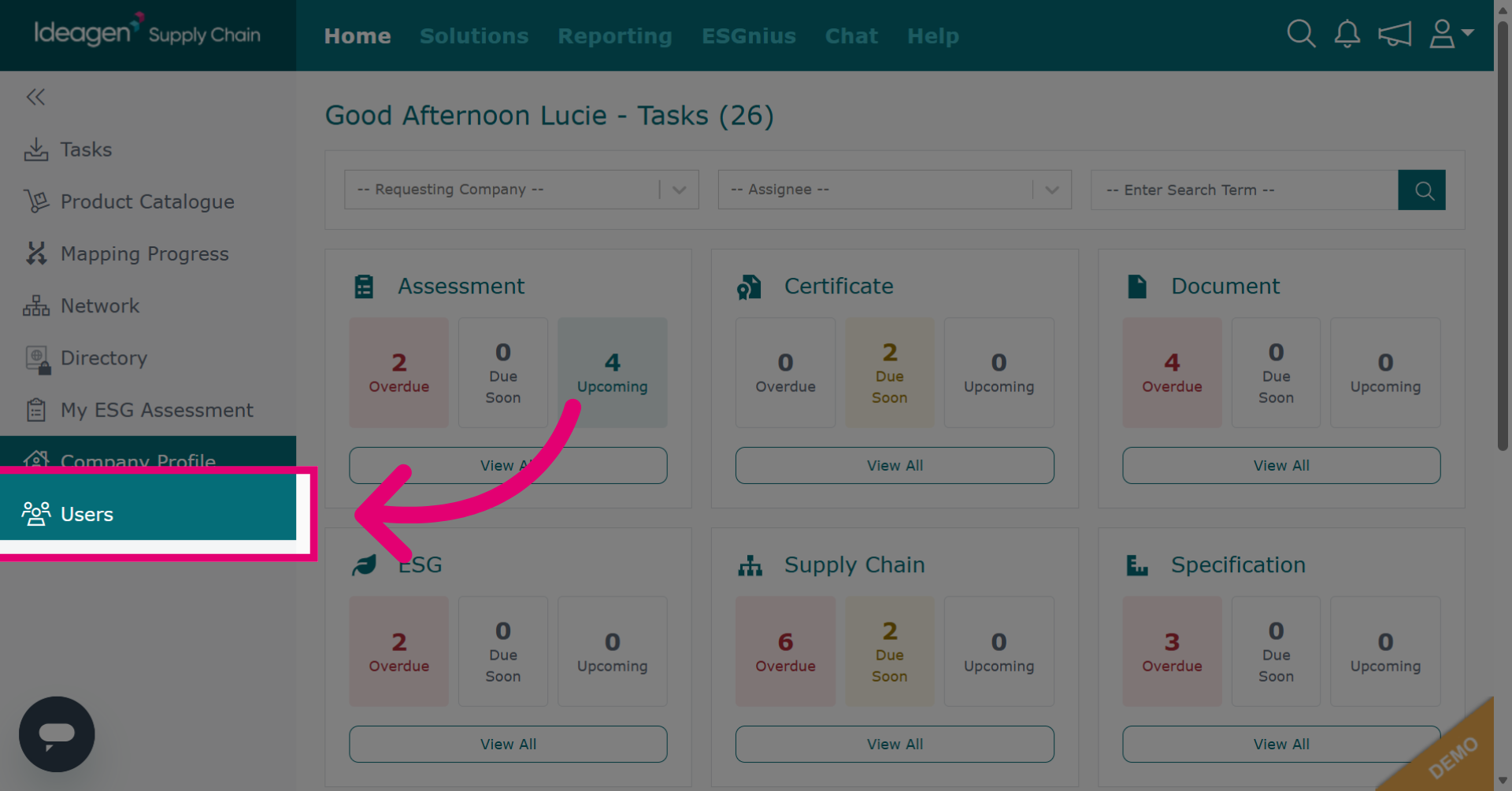
Click Users to open the user management section in Ideagen Supply Chain.
-
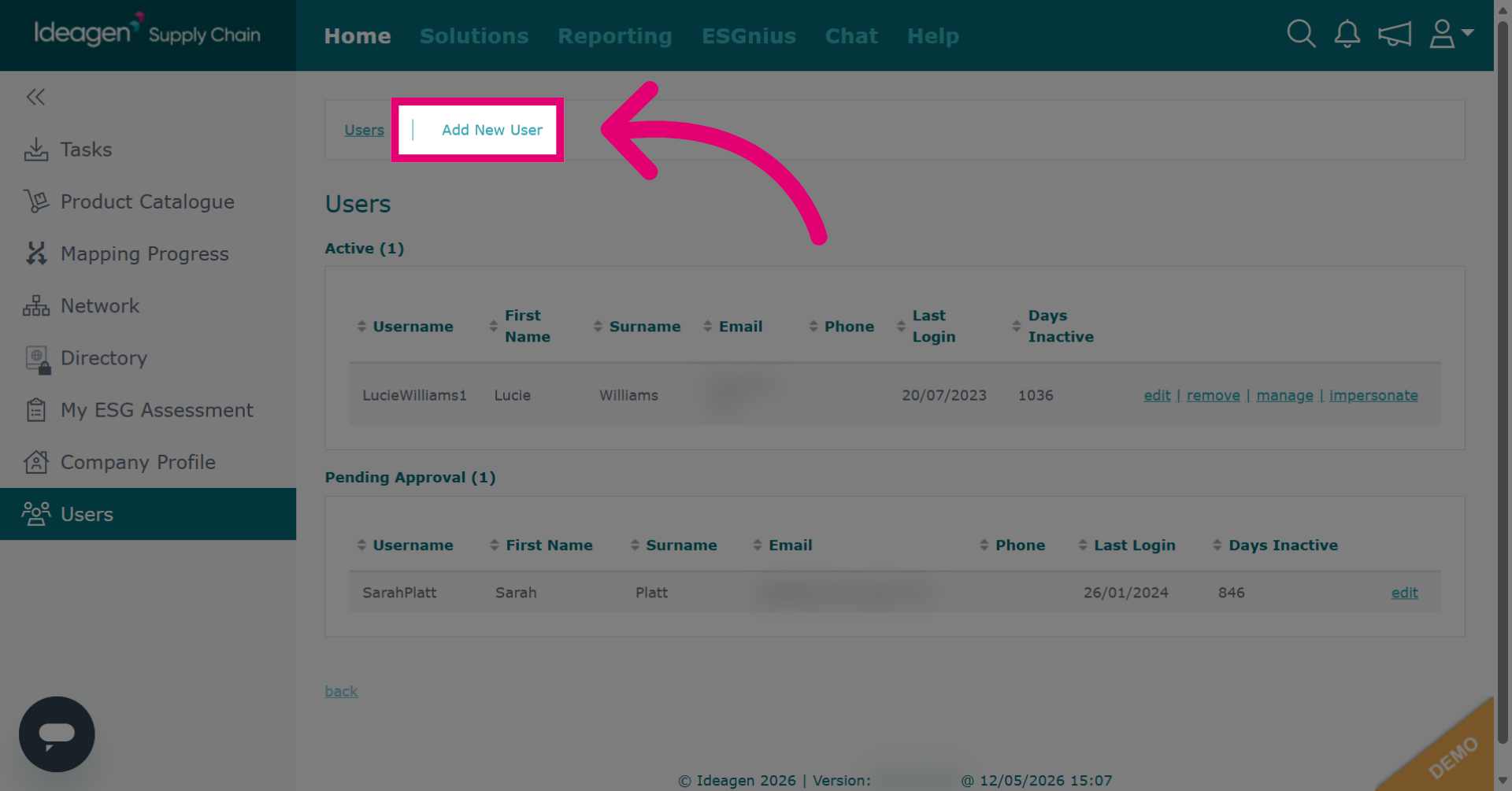
Click Add New User to start creating a new user account.
-
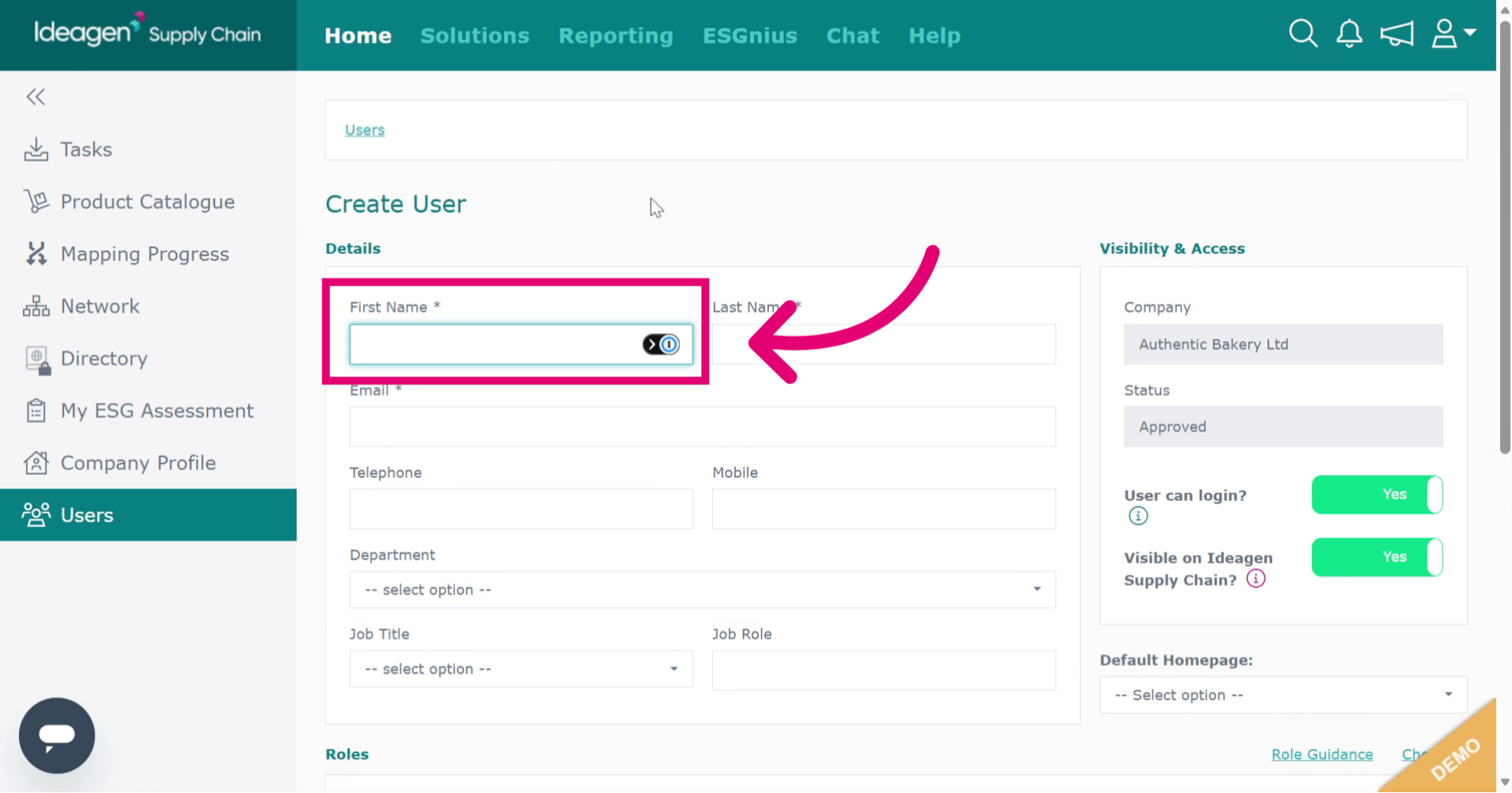
Enter the user's first name.
-
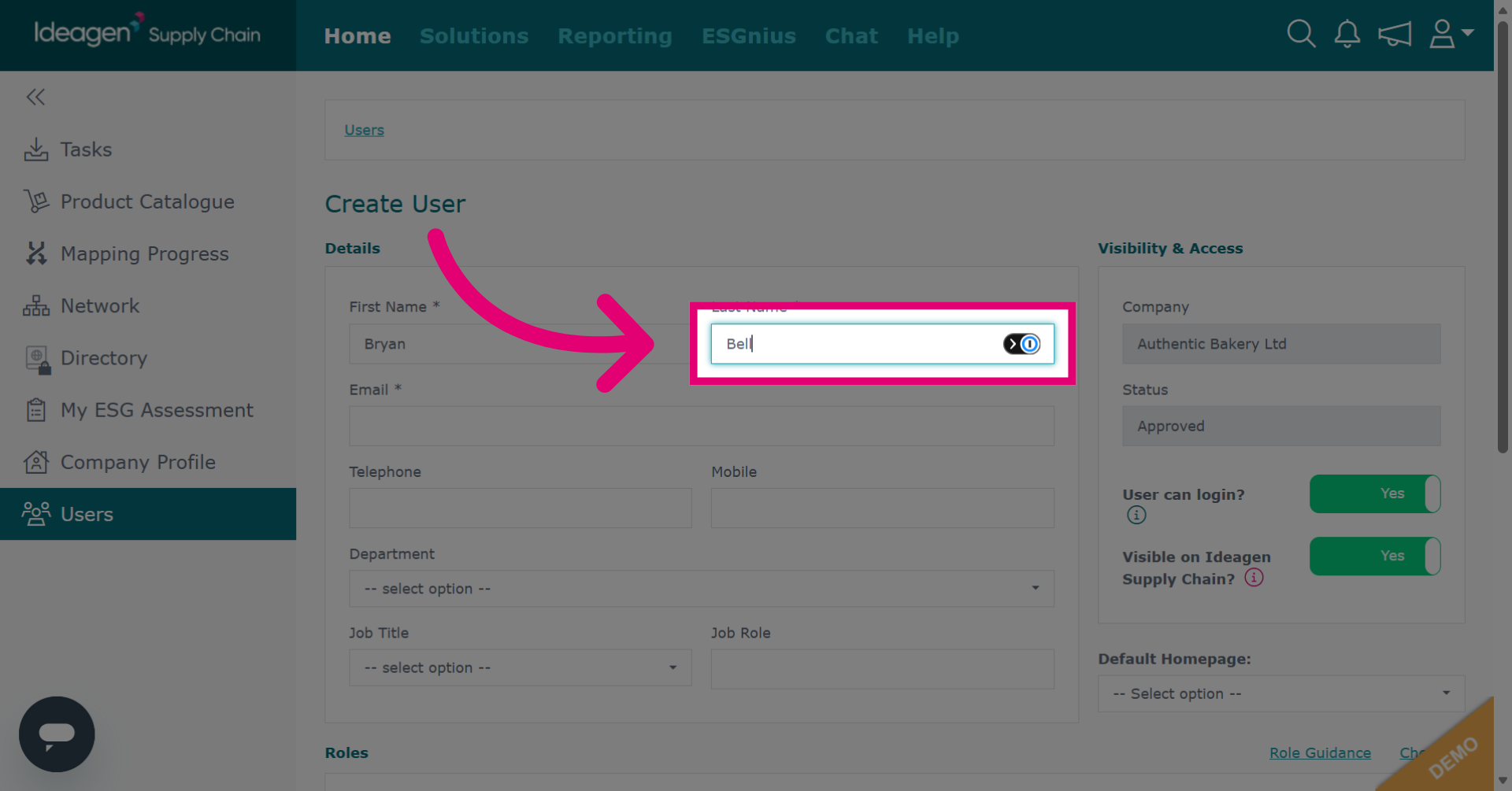
Enter the user's last name.
-
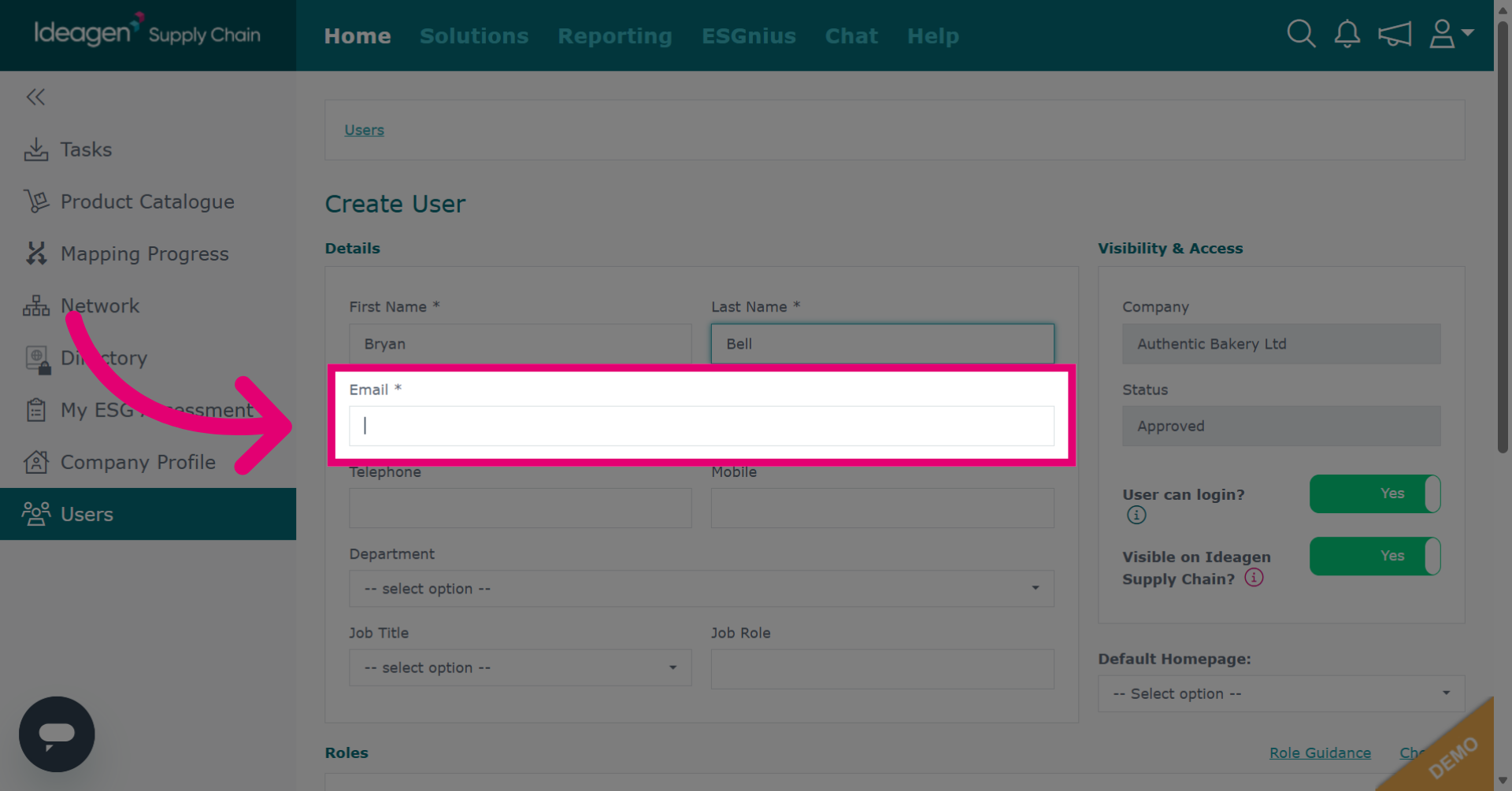
Enter the user's email address, this is what they will use to login.
-
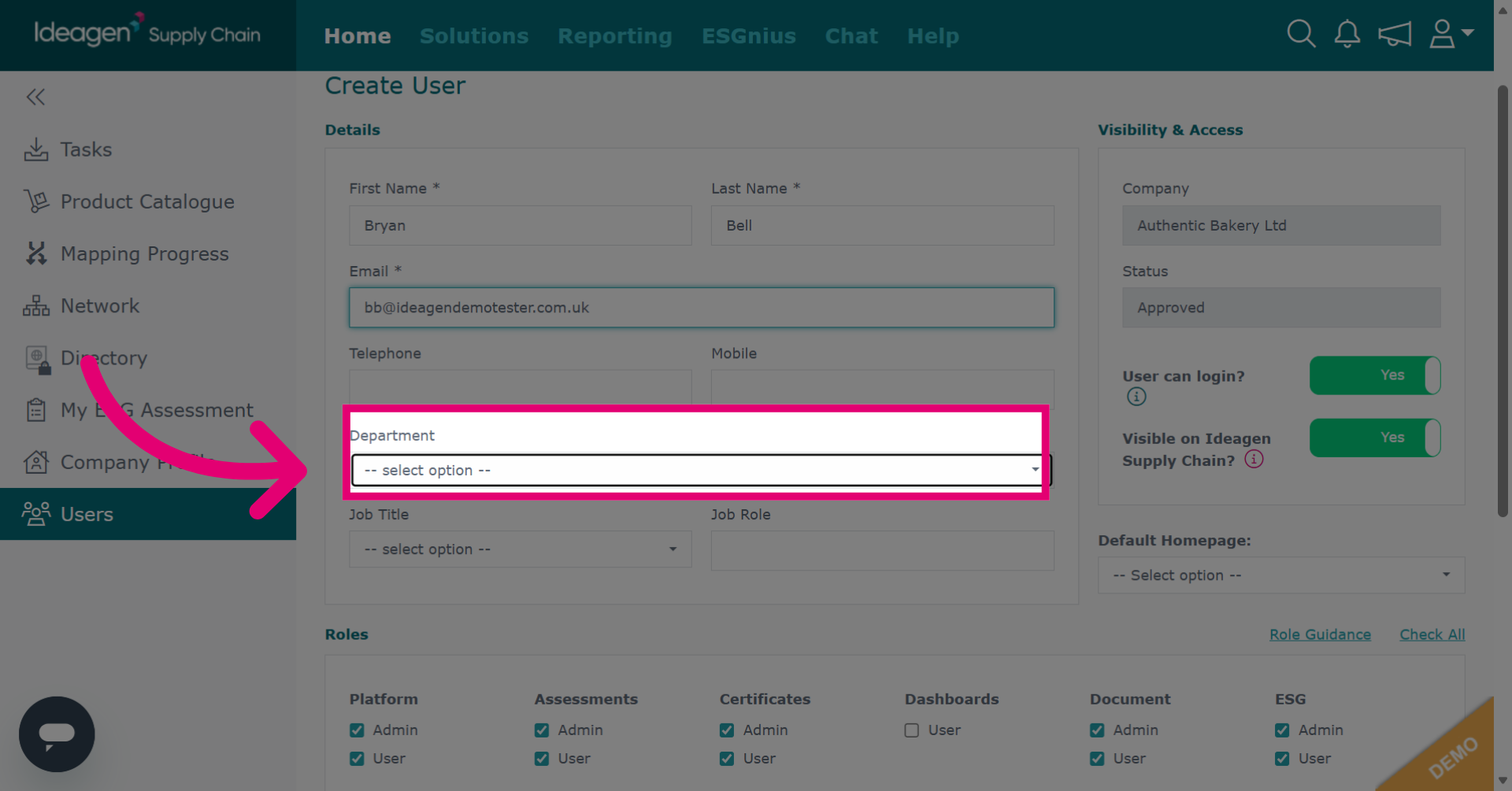
Select the user's department from the drop down options.
-
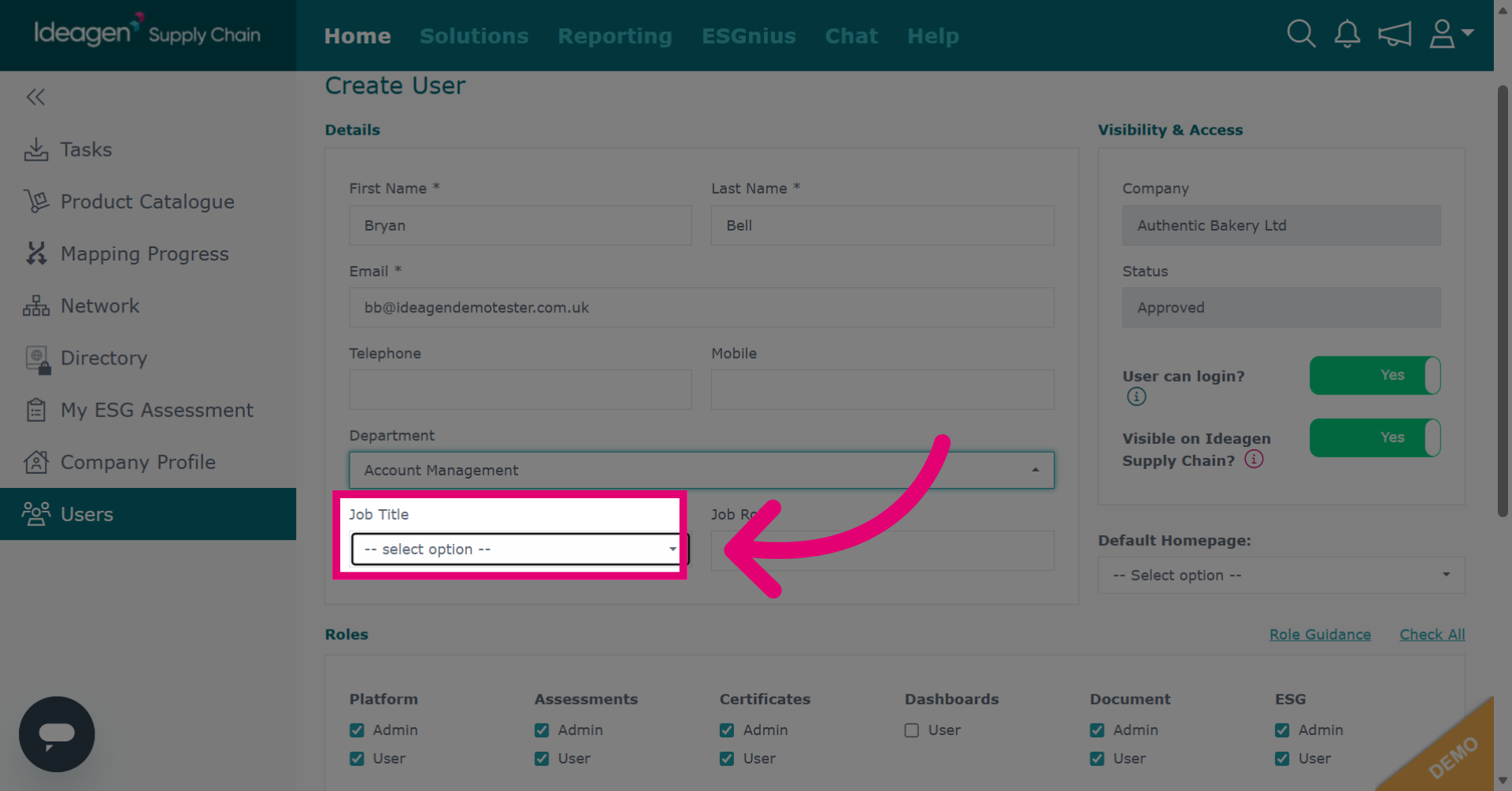
Select the user's job title from the drop down options.
-
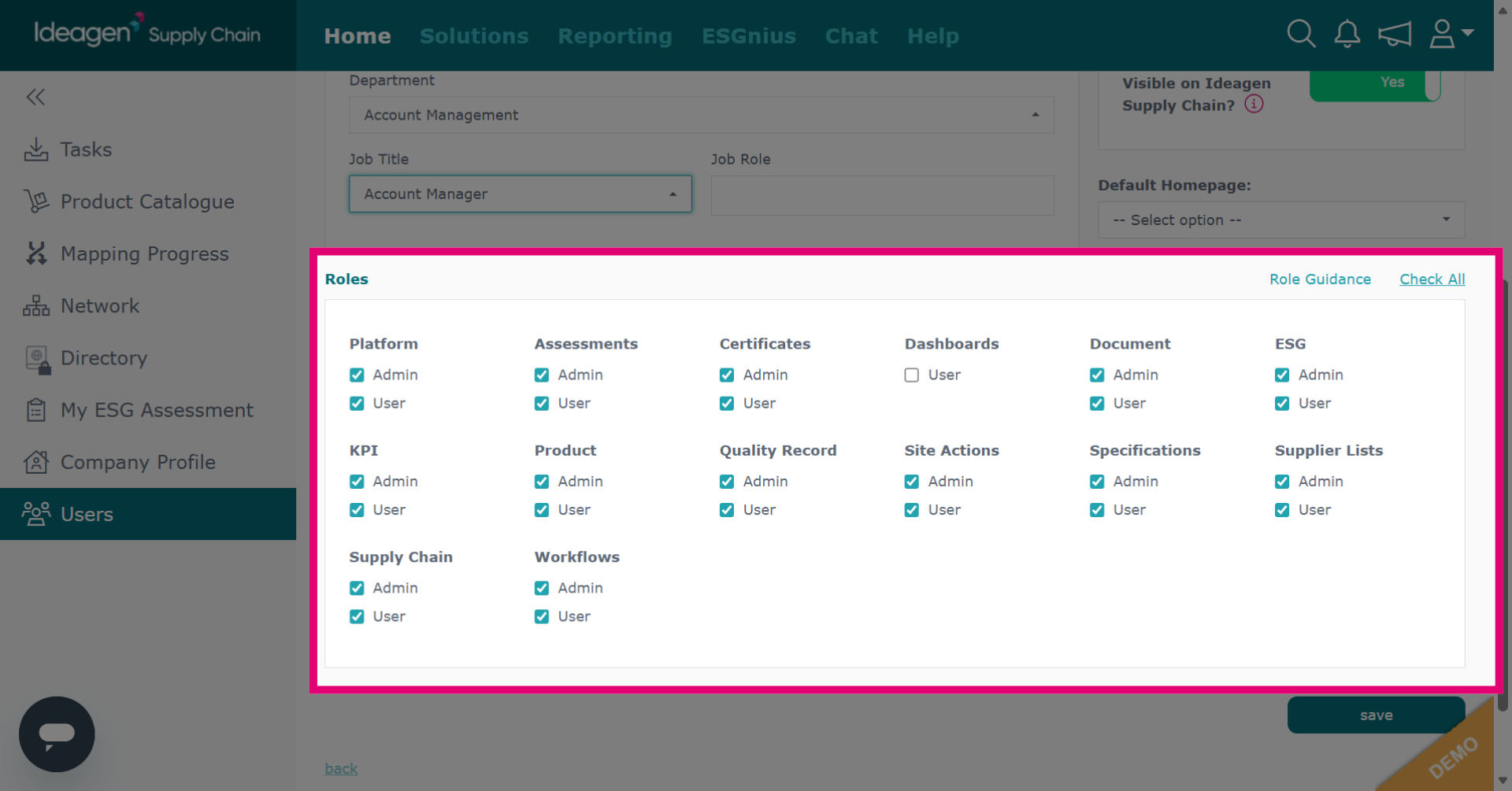
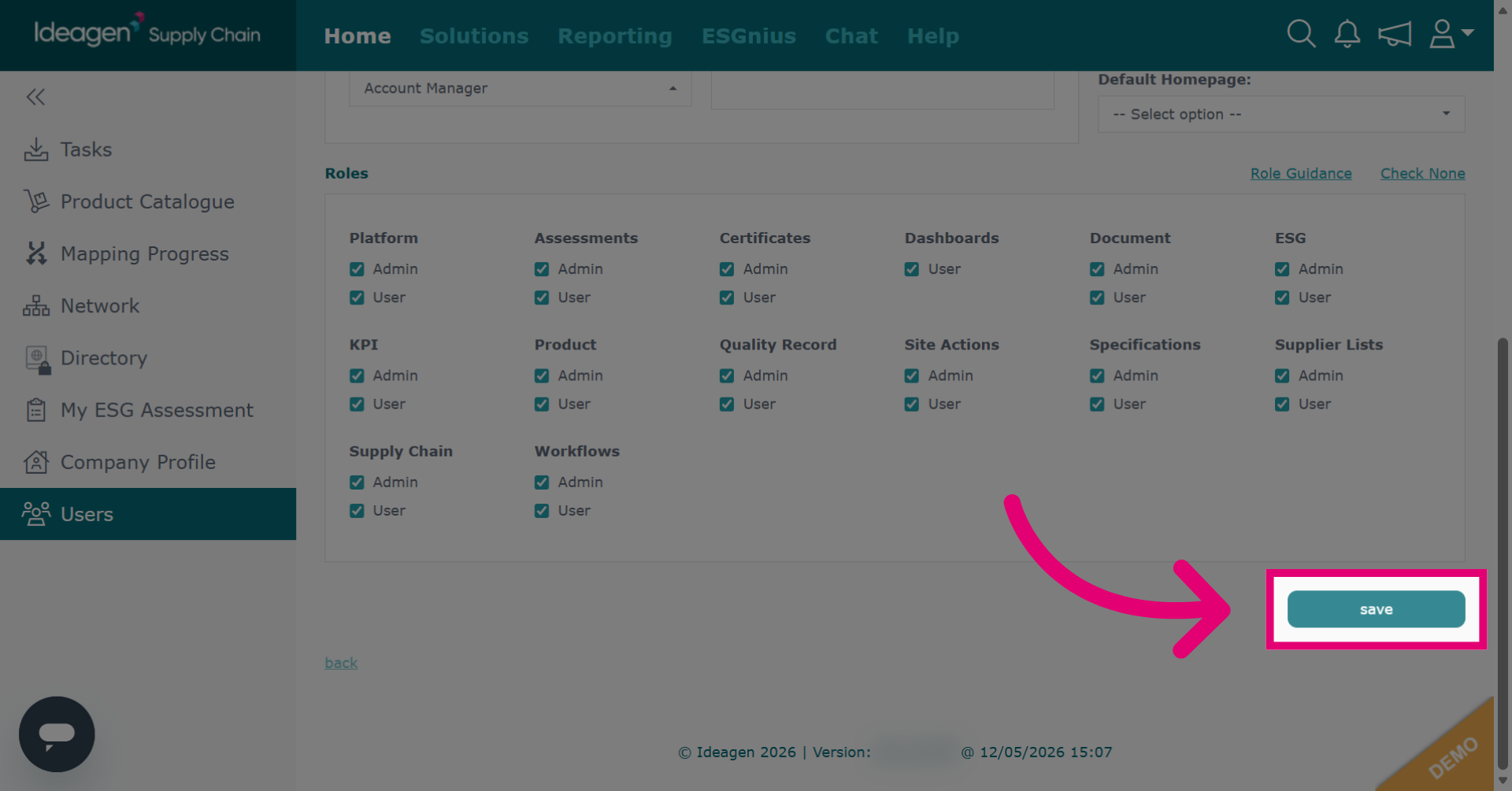
Pick the permissions suitable for the user, you can check or uncheck the boxes as necessary.
-
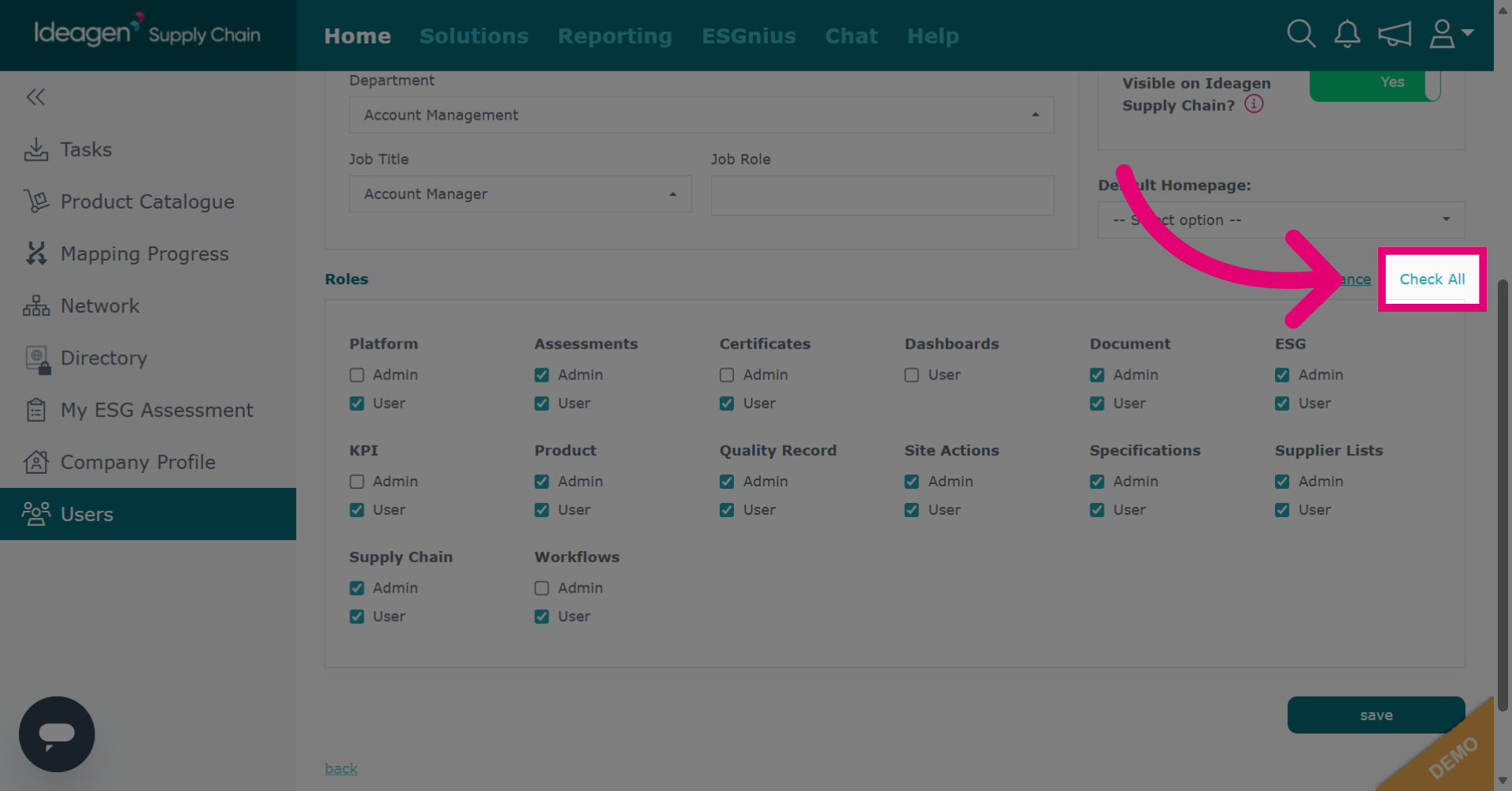
Alternatively you can select Check All to grant all available permissions to the user.
-
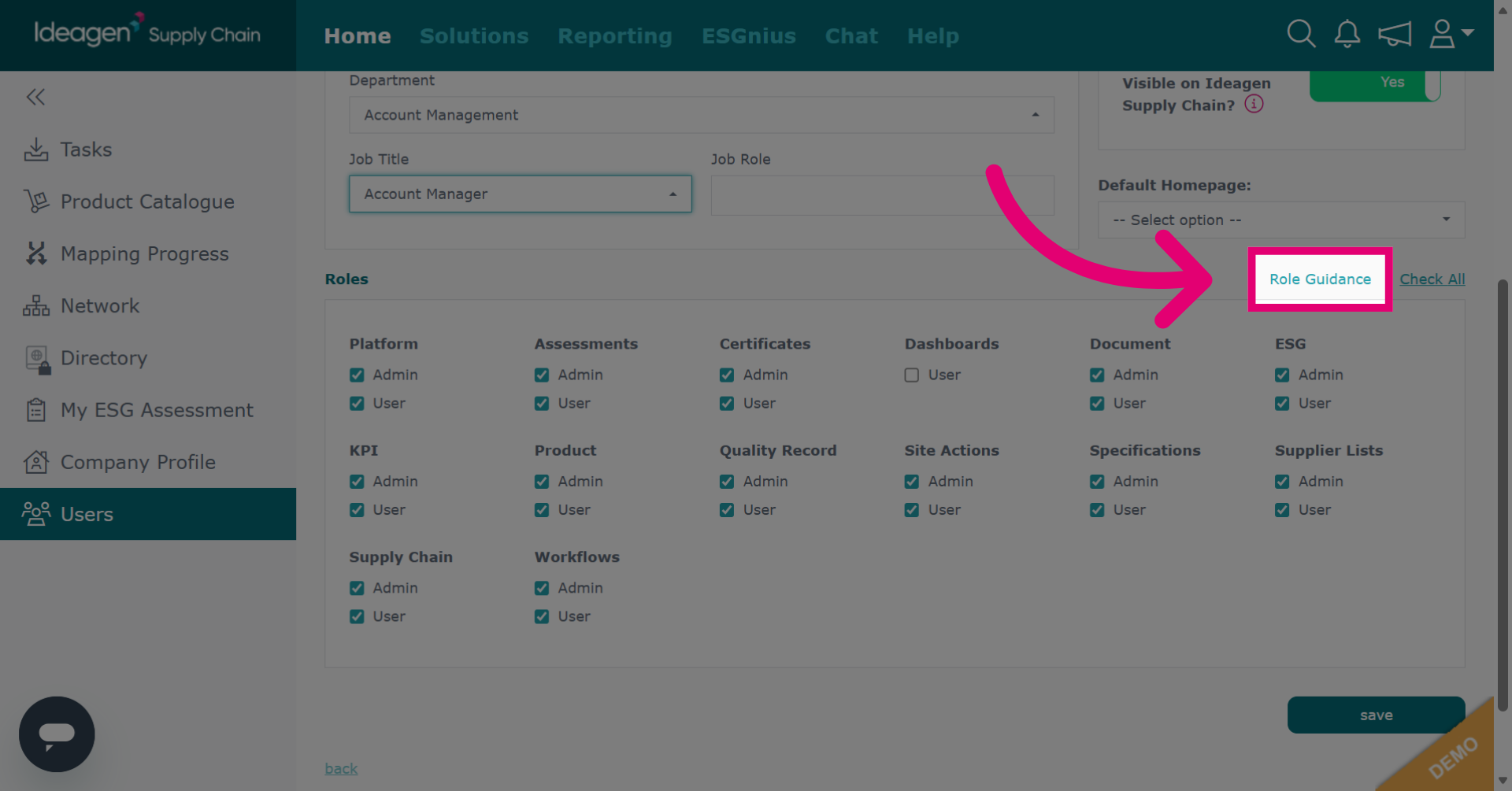
If you are unsure on what roles are appropriate for a user, click role guidance for a help sheet on what each role does on the platform.
-
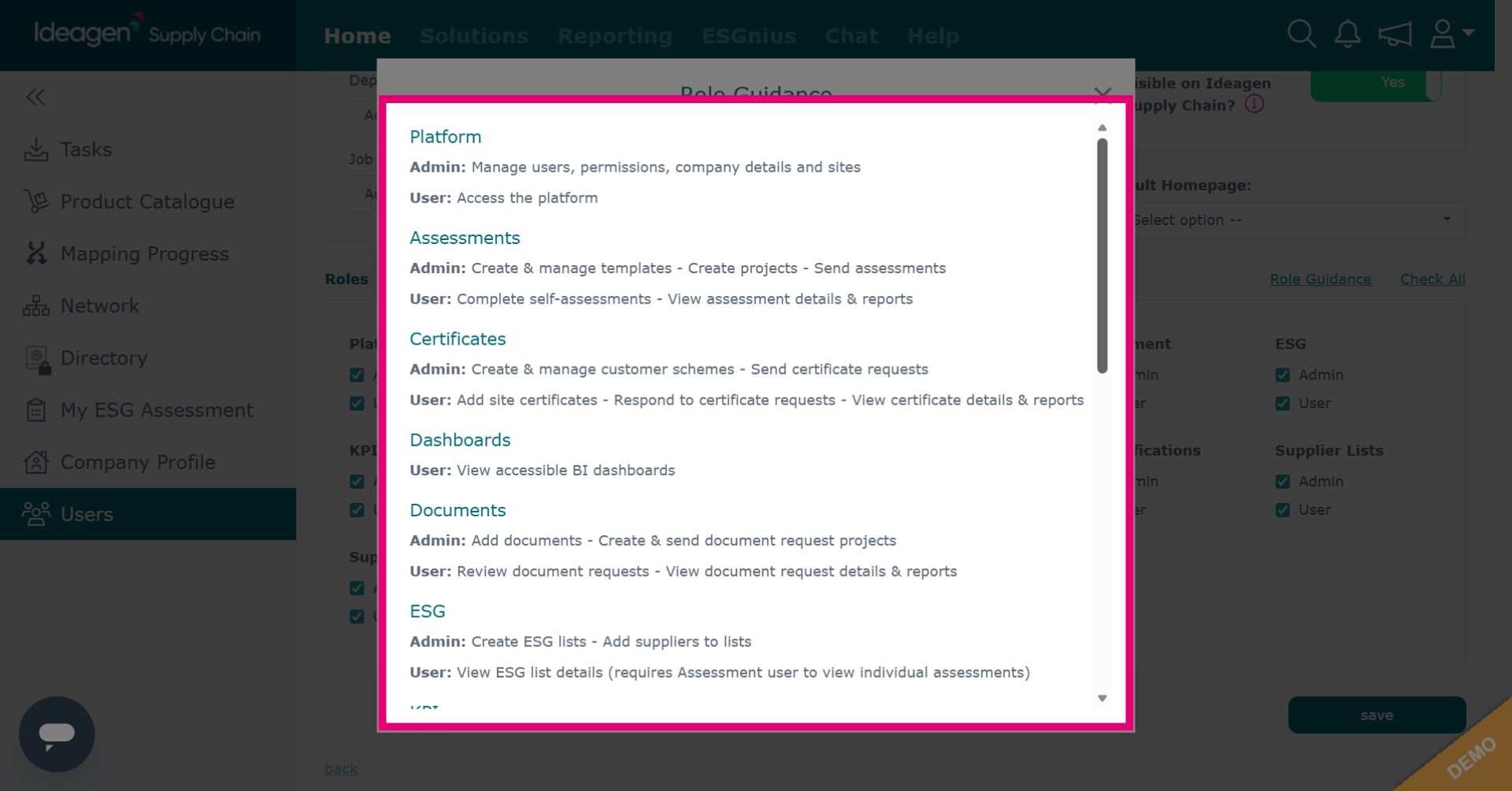
Review the role guidance information to understand each permission level.
-
Click save to apply and save the new user settings.
-
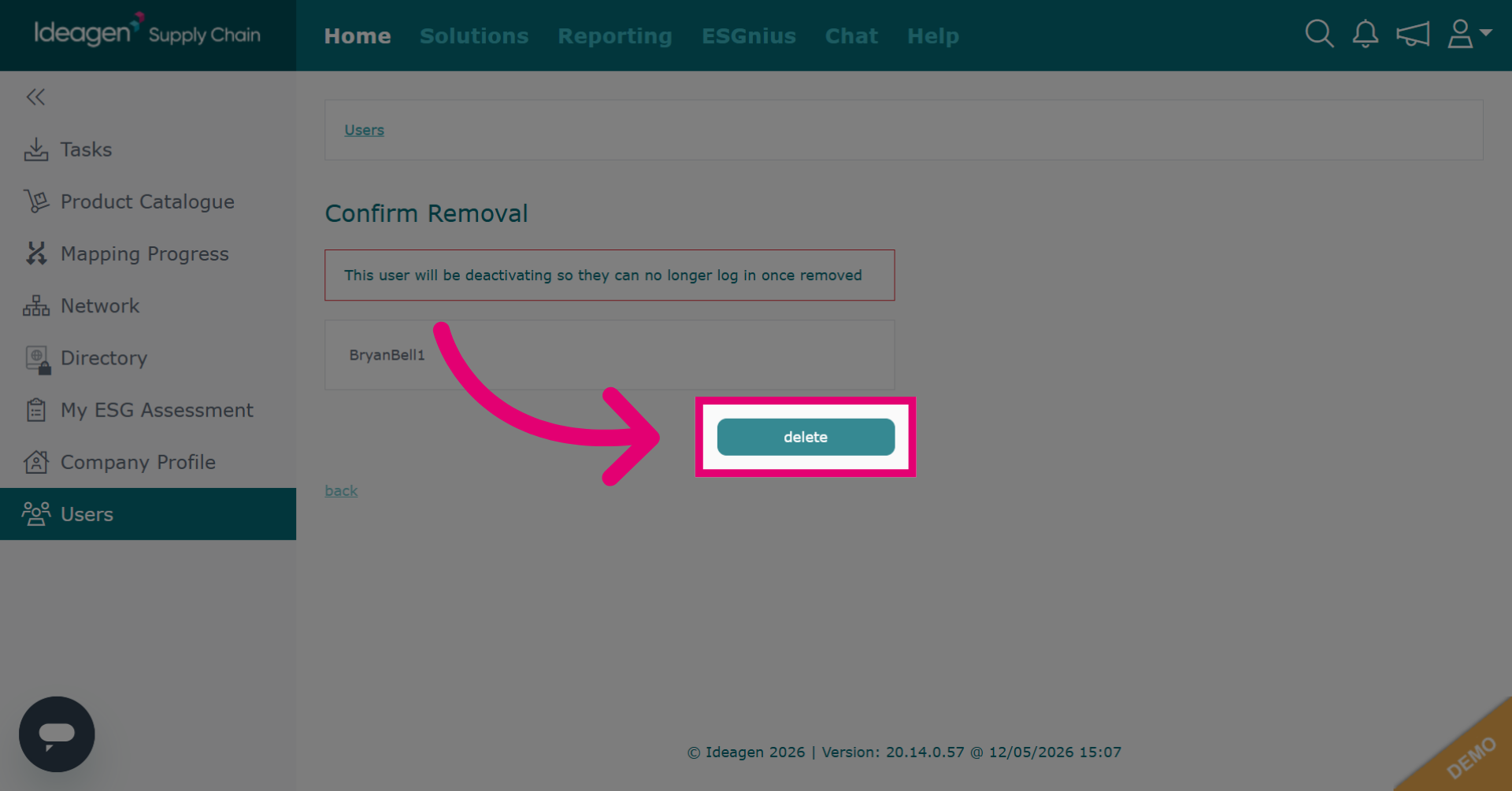
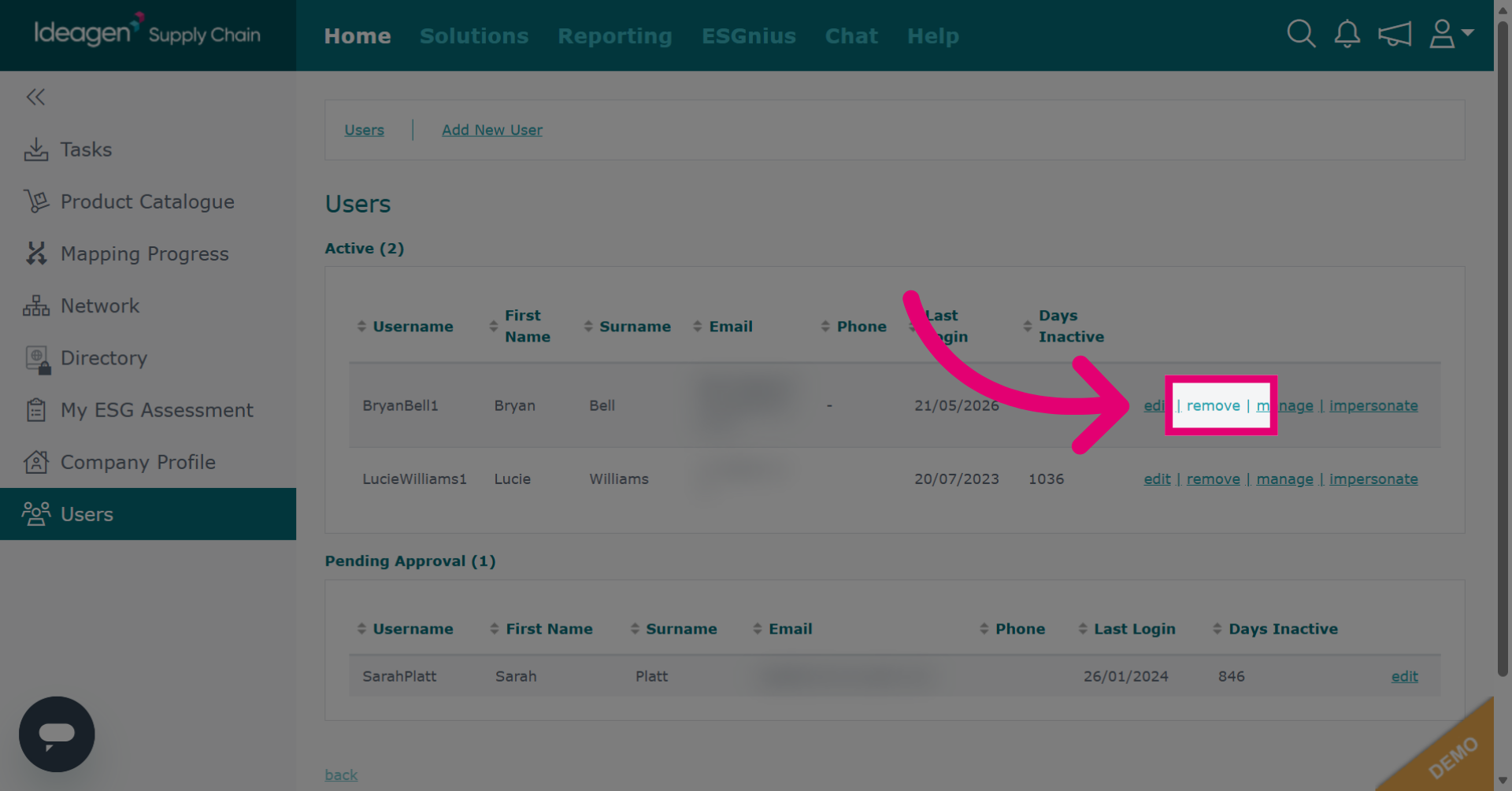
To remove a user, click remove to initiate the removal of a user from the system.
-
Click delete to permanently delete the selected user account.