New article
Recently updated
Adding and removing users from your company

Who is this article for?
Users who want to learn to add or remove users from your company.
No elevated permissions are required.
This tutorial guides you through adding and removing users for your company.
You will learn how to create new user accounts, configure their permissions, and remove users when necessary.
Managing users in your company
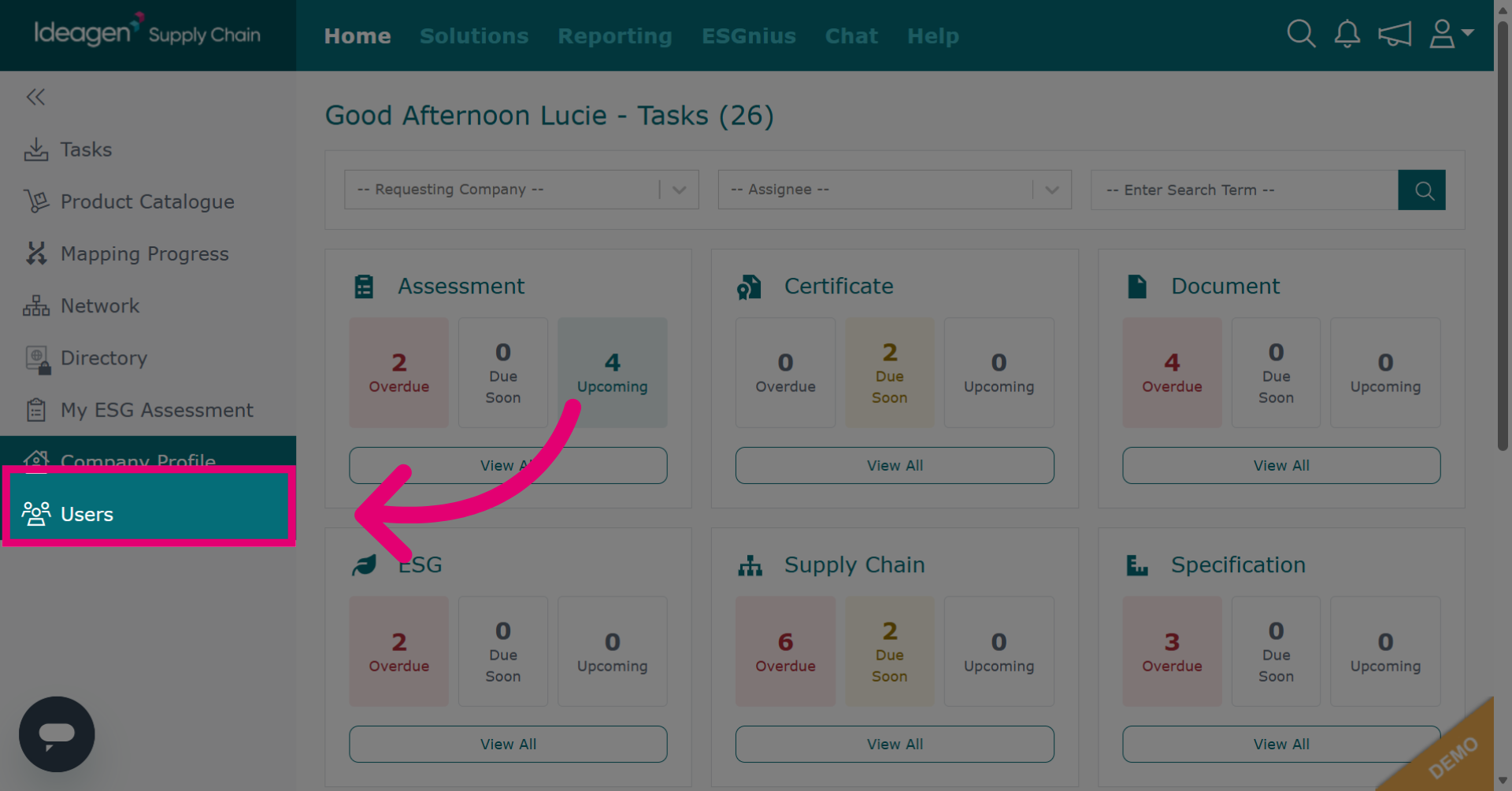
Click Users to open the user management section.
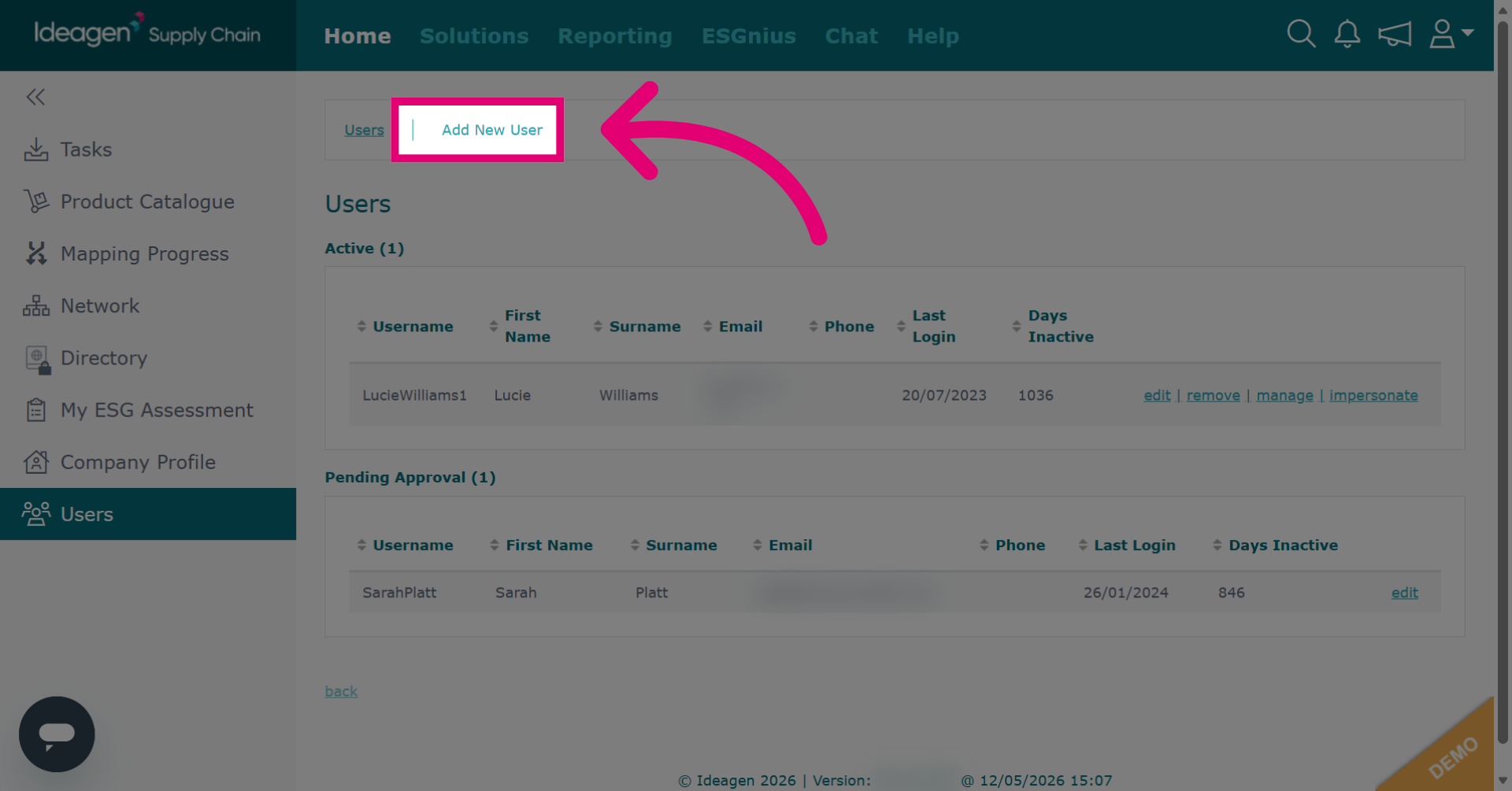
Click Add New User to start creating a new user account.
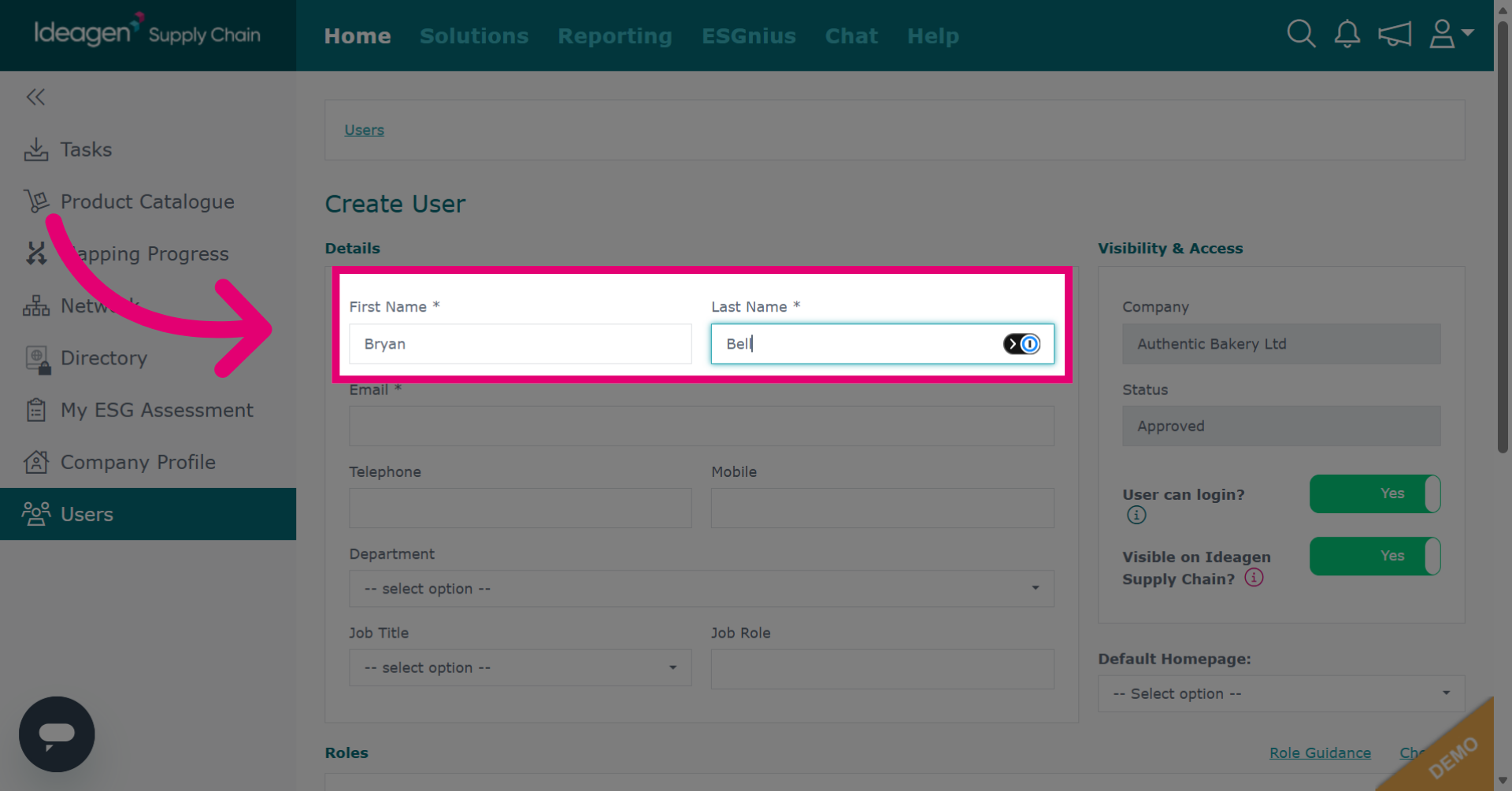
Enter the user's first and last name.
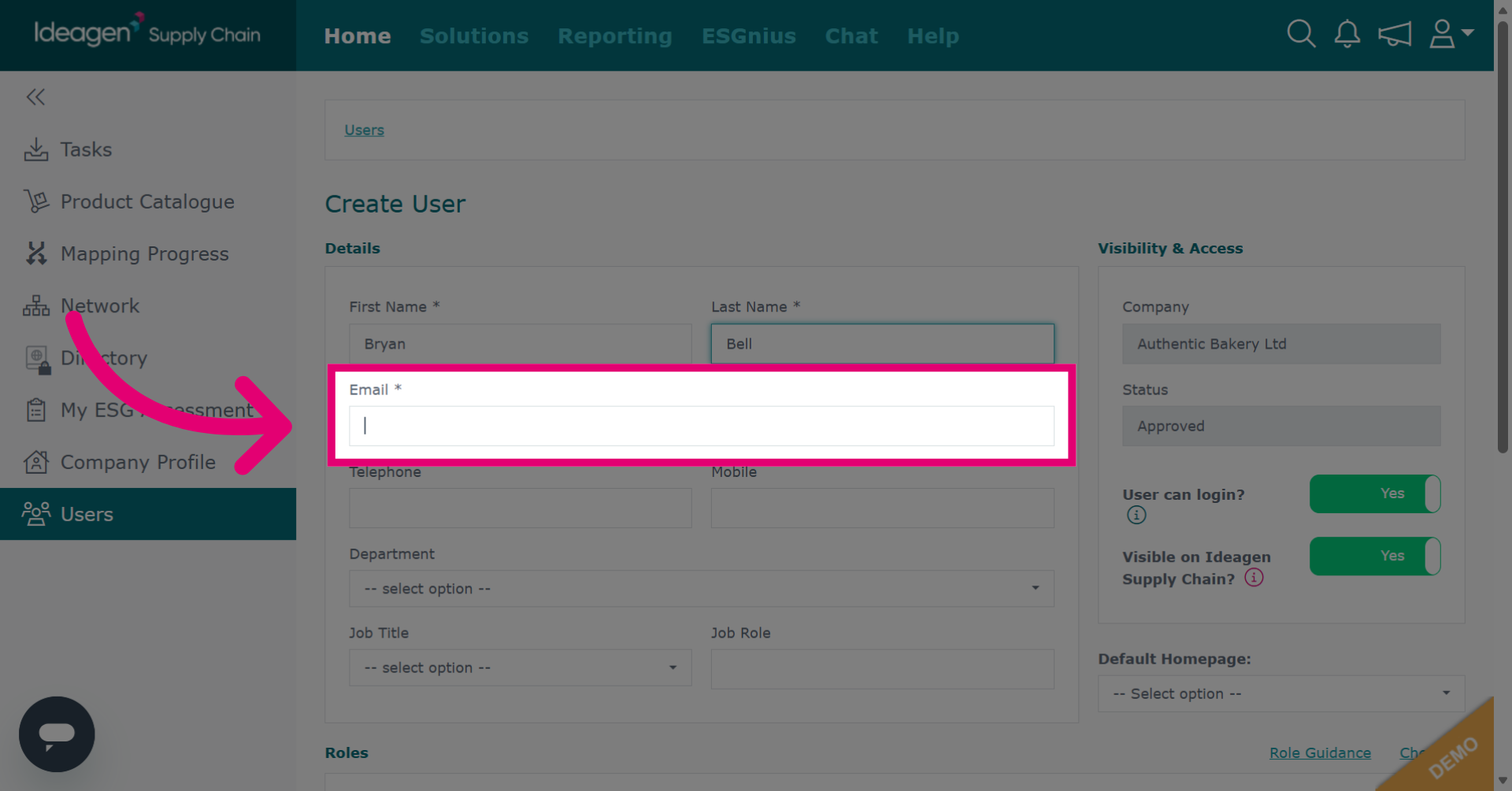
Enter the user's email address, this is what they will use to login.
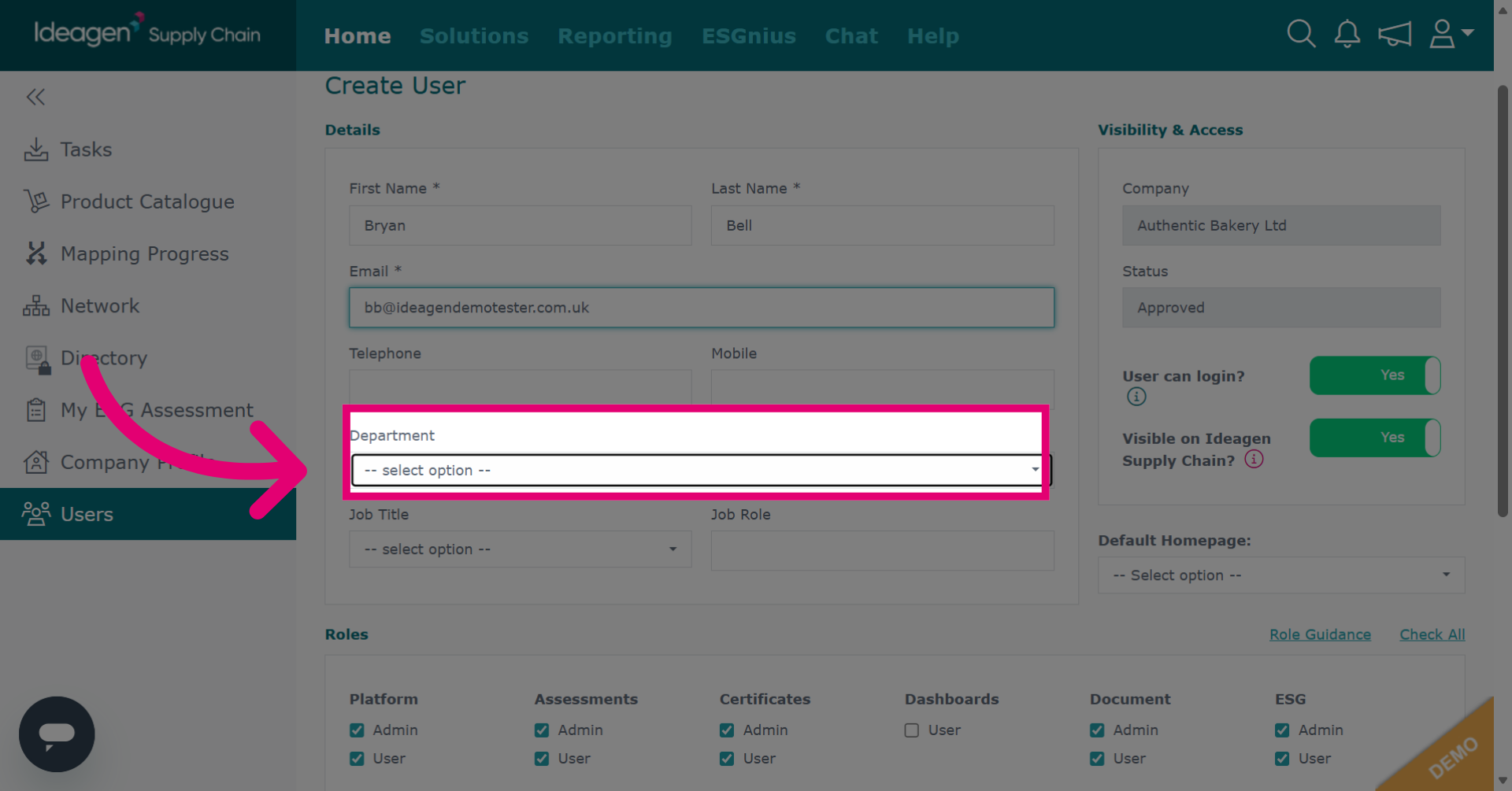
Select the user's department from the drop down options.
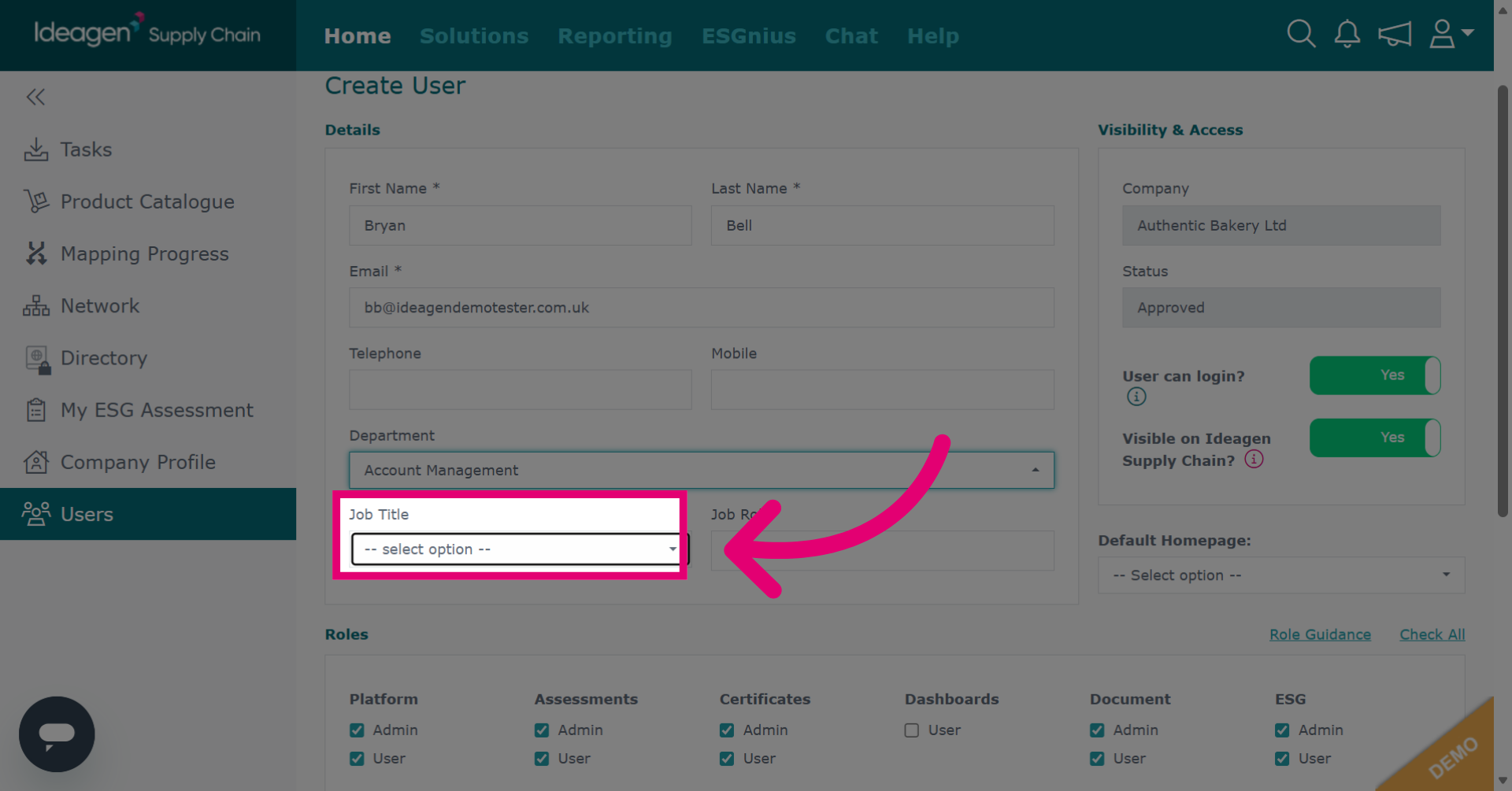
Select the user's job title from the drop down options.
Pick the permissions suitable for the user, you can check or uncheck the boxes as necessary.
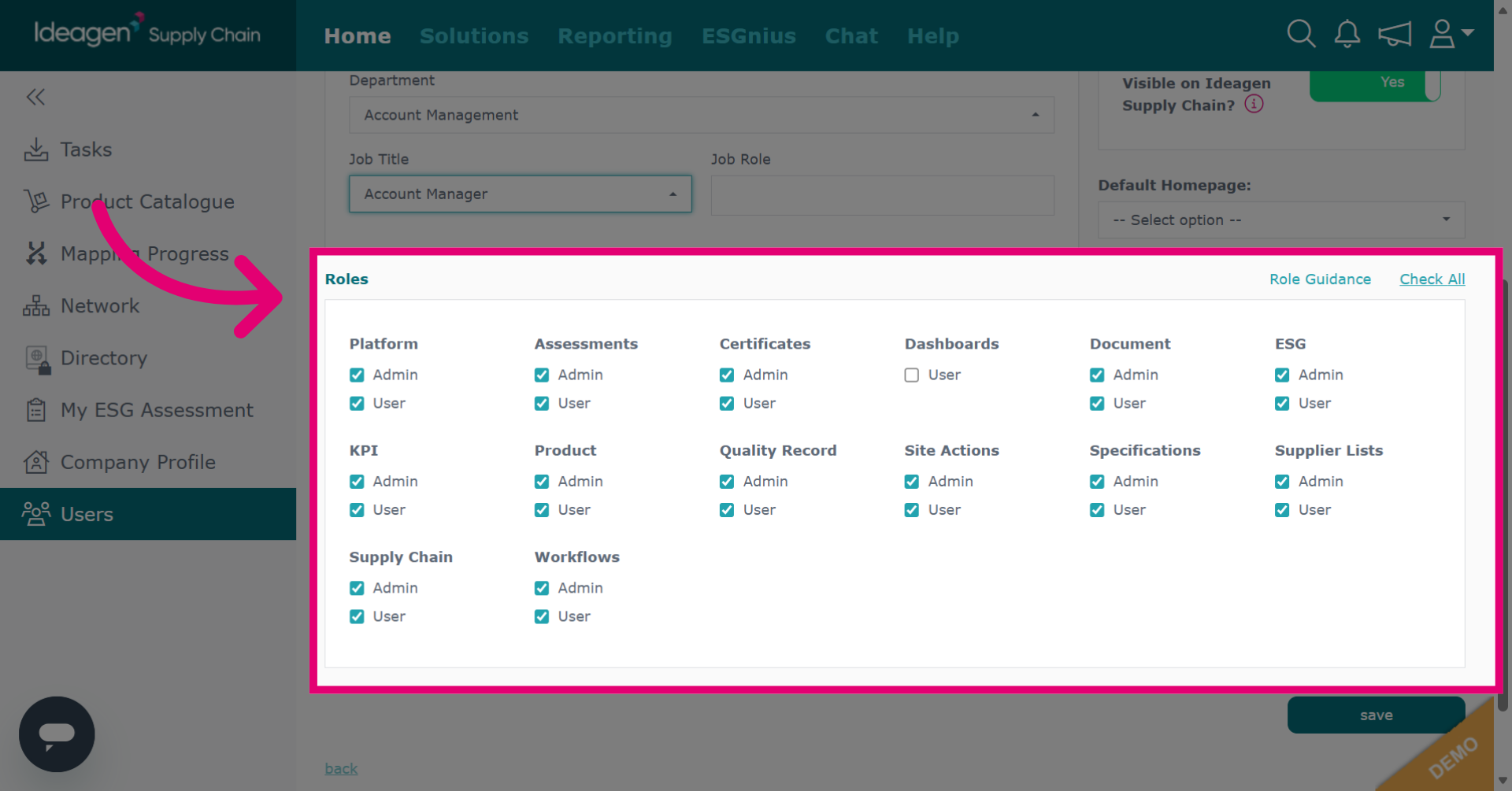
Select Check All if you want to grant all permissions to the user.
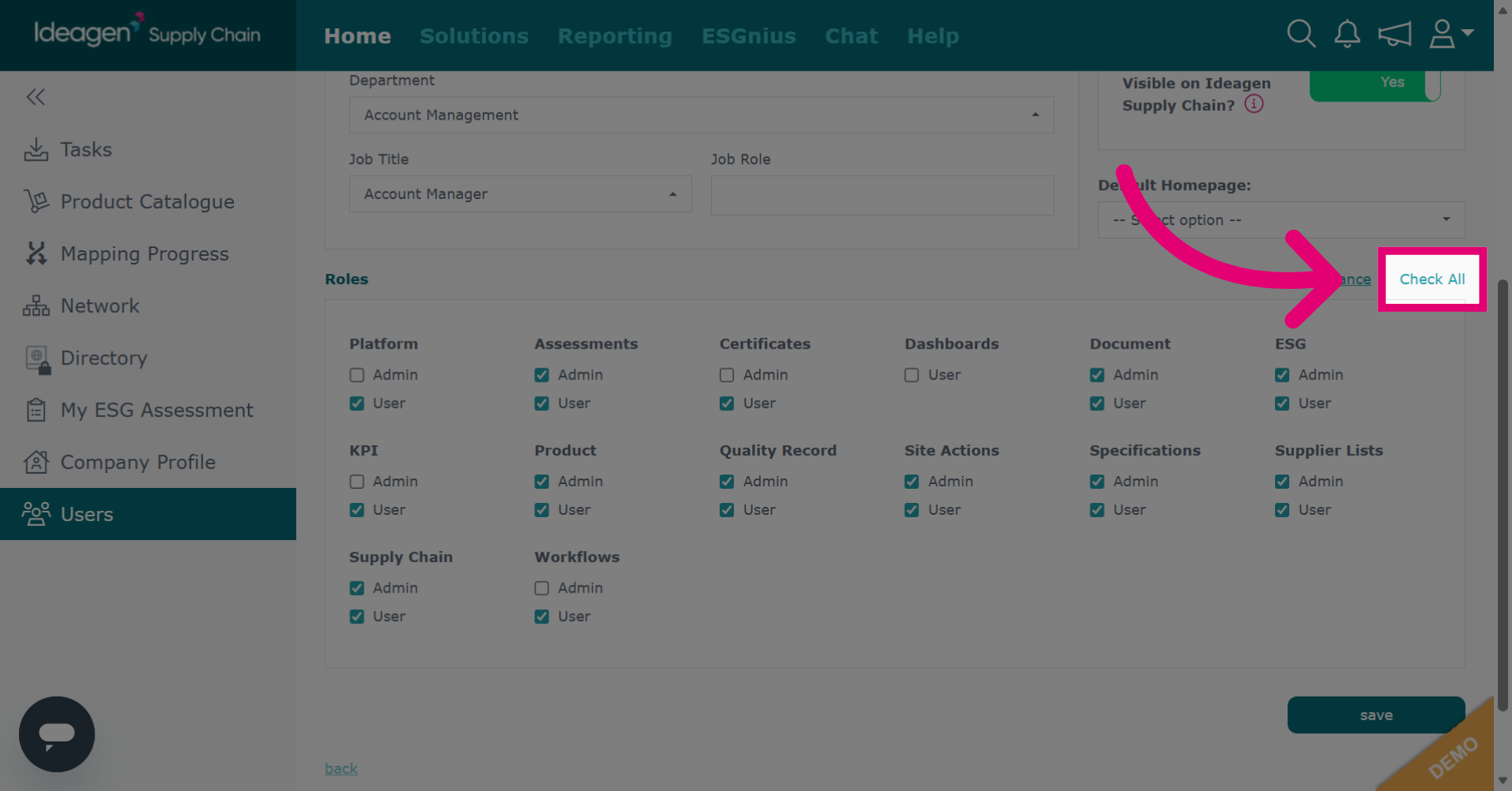
If unsure about user roles, click role guidance for a help sheet on each role's function.
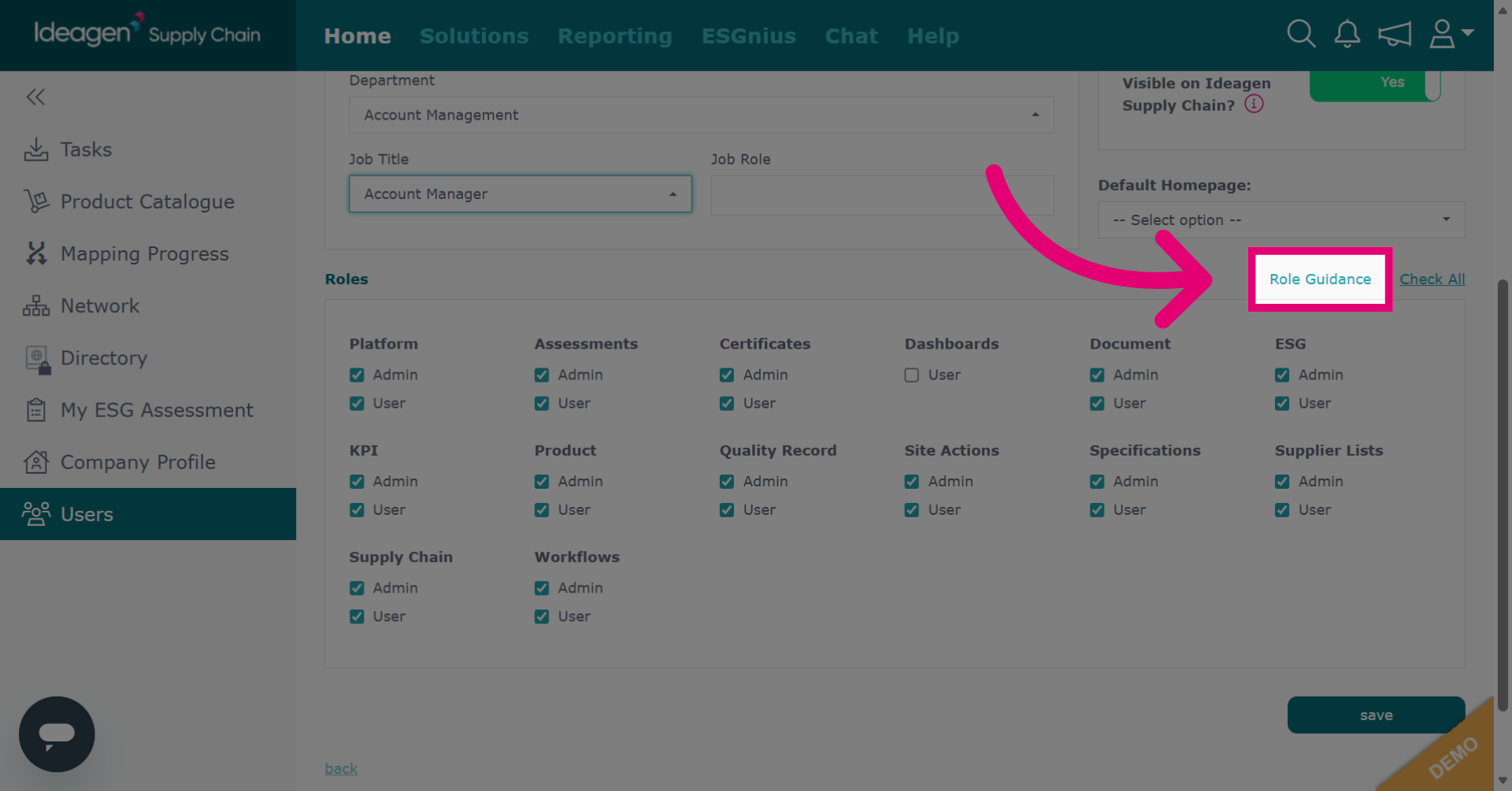
An admin has access to all module aspects, while a user has access only to specific items assigned to them. For instance, an assessments admin can view all assessments, but an assessments user can only view those assigned to them.
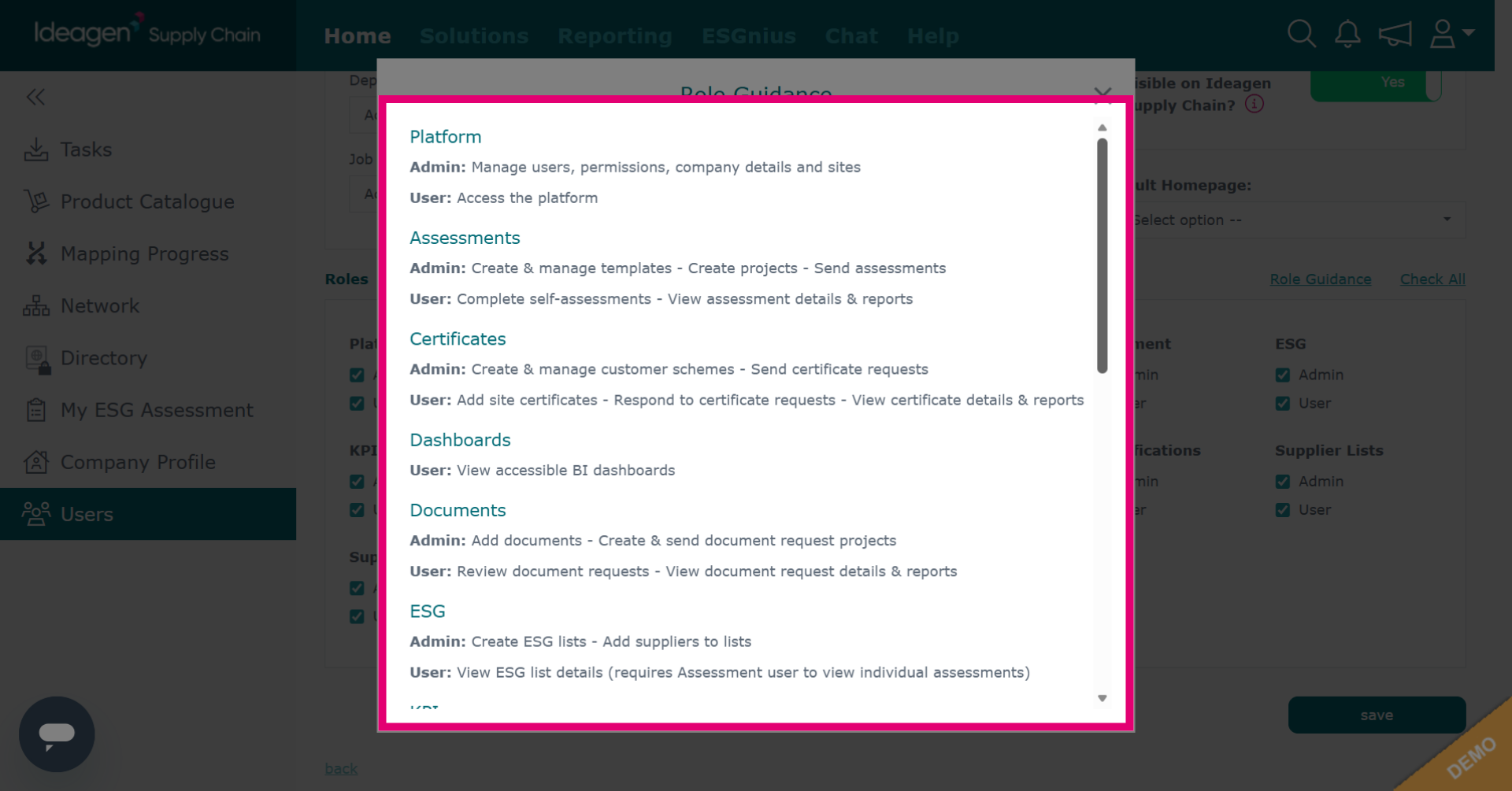
Click save to apply and save the new user settings.
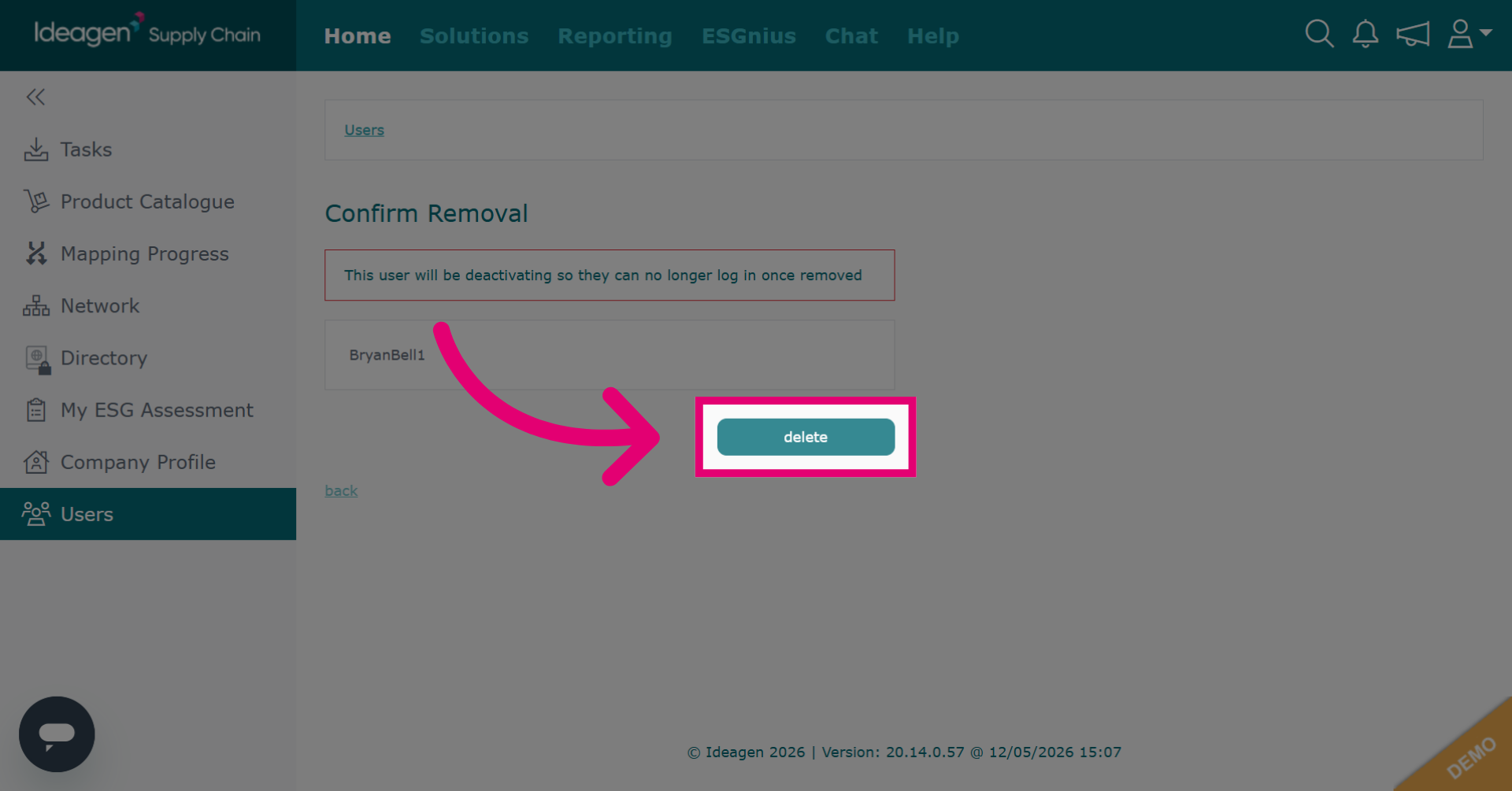
To remove a user, click remove to initiate the removal of a user from the system.
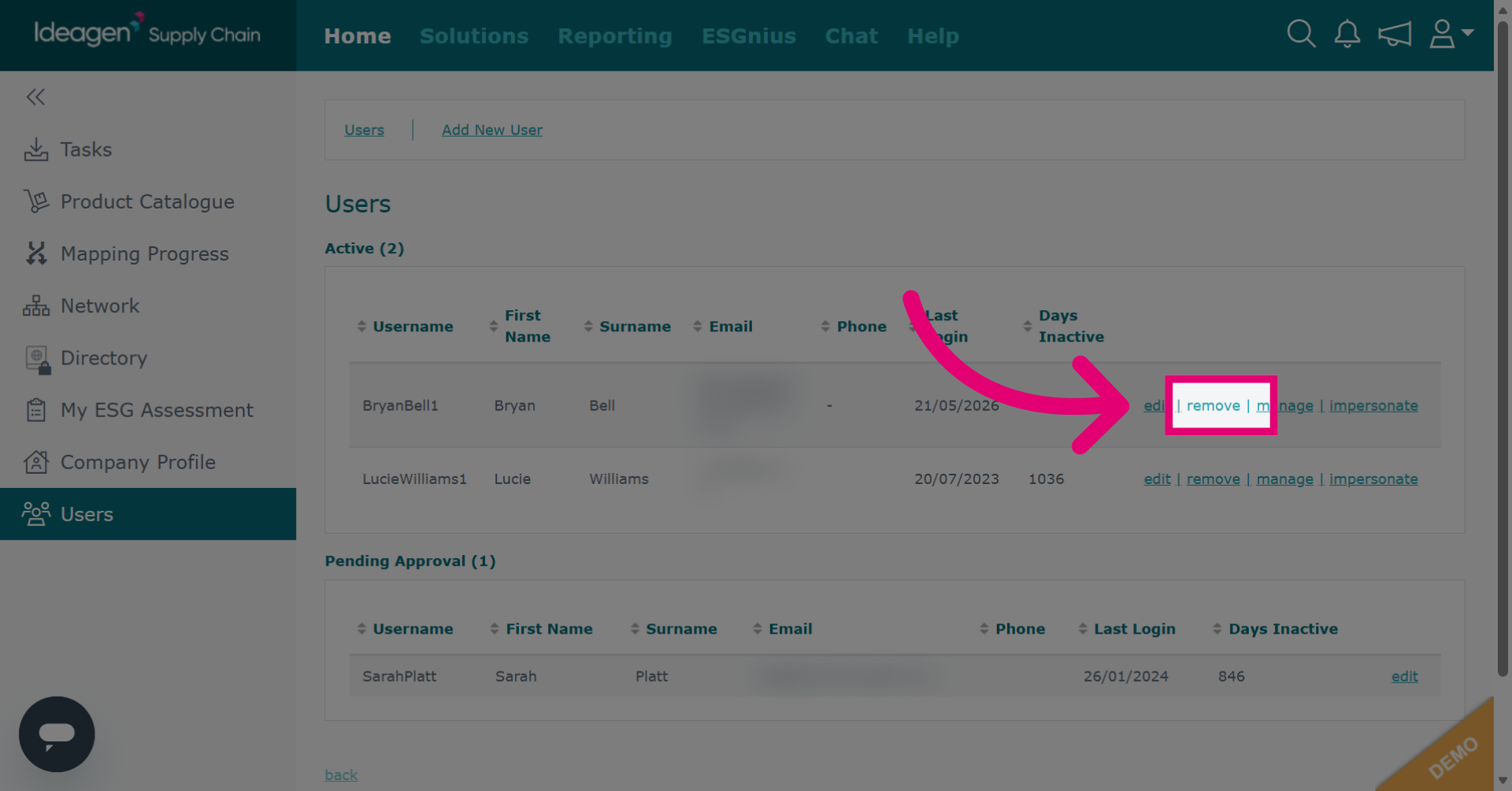
Click delete to permanently delete the selected user account.