New article
Recently updated
Responding to an Assessment - Assessments

Who is this article for?
Users who need to respond to an assessment request.
Assessments user permissions are required.
This tutorial guides you through completing an assessment using the Ideagen Supply Chain platform.
You will learn how to view, accept, complete, and submit assessments for review.
Completing an Assessment
-
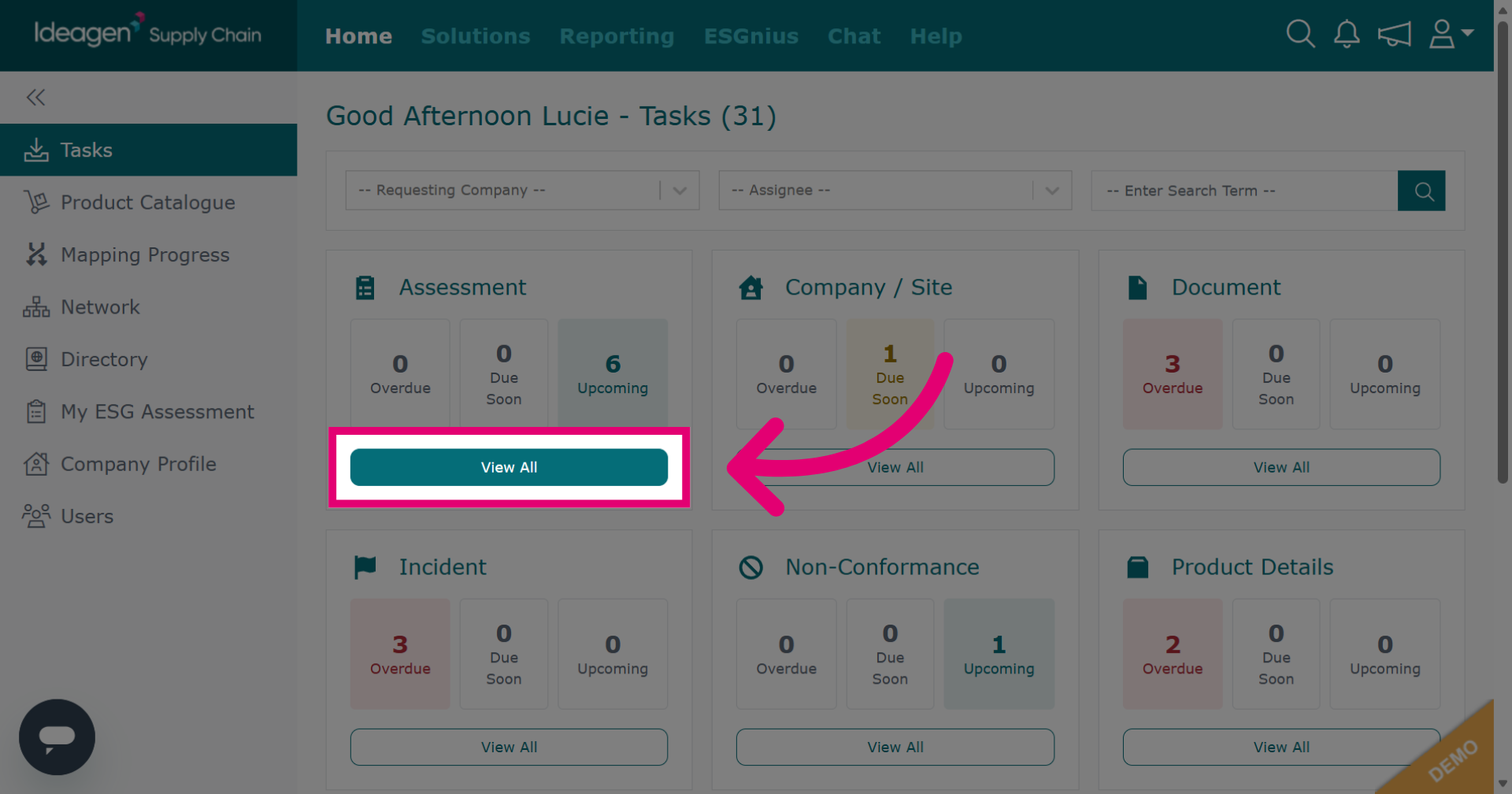
Click View All beneath the assessment tile to display the full list of assessment tasks.
-
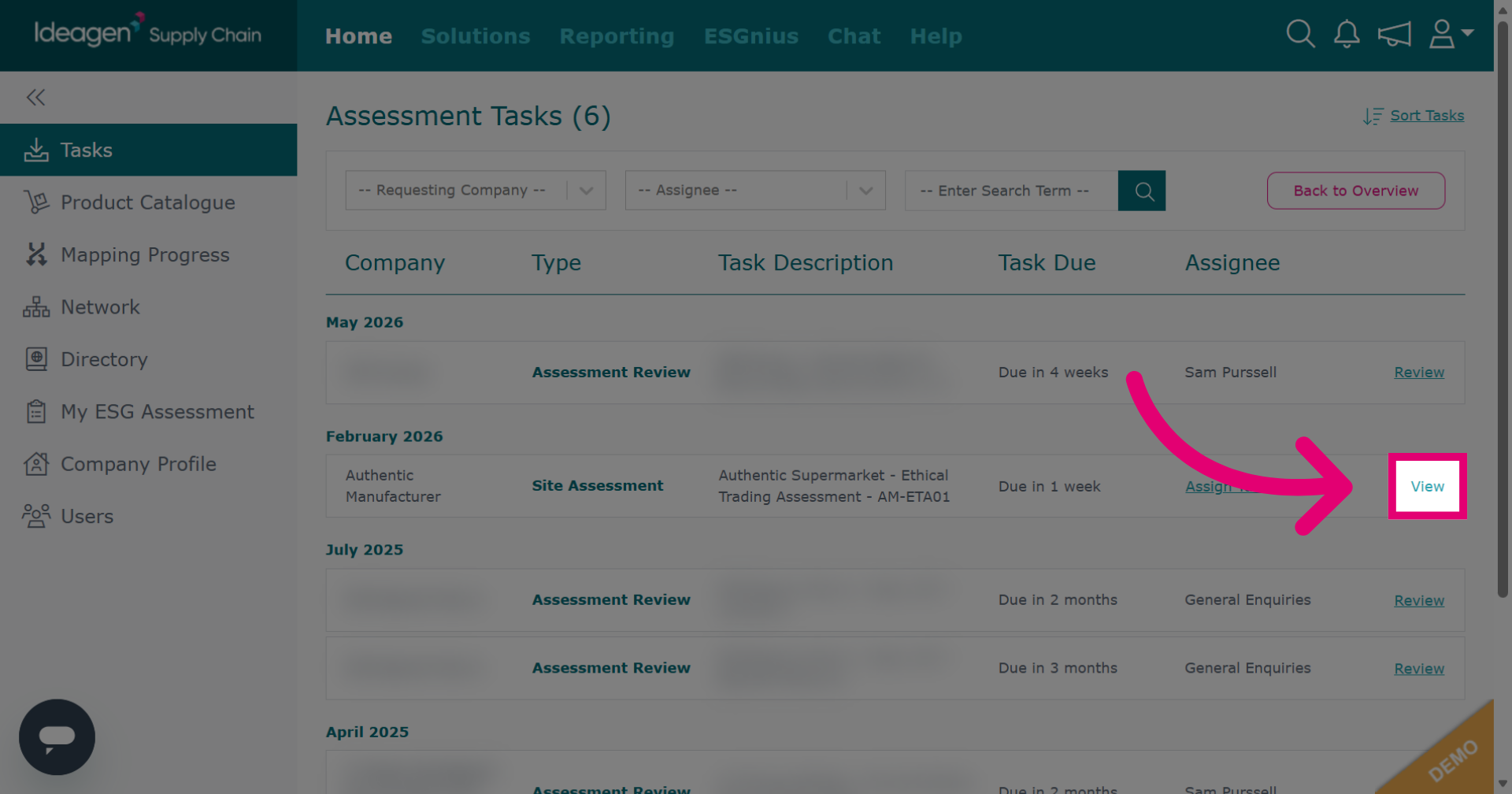
Click View next to the assessment you wish to complete.
-
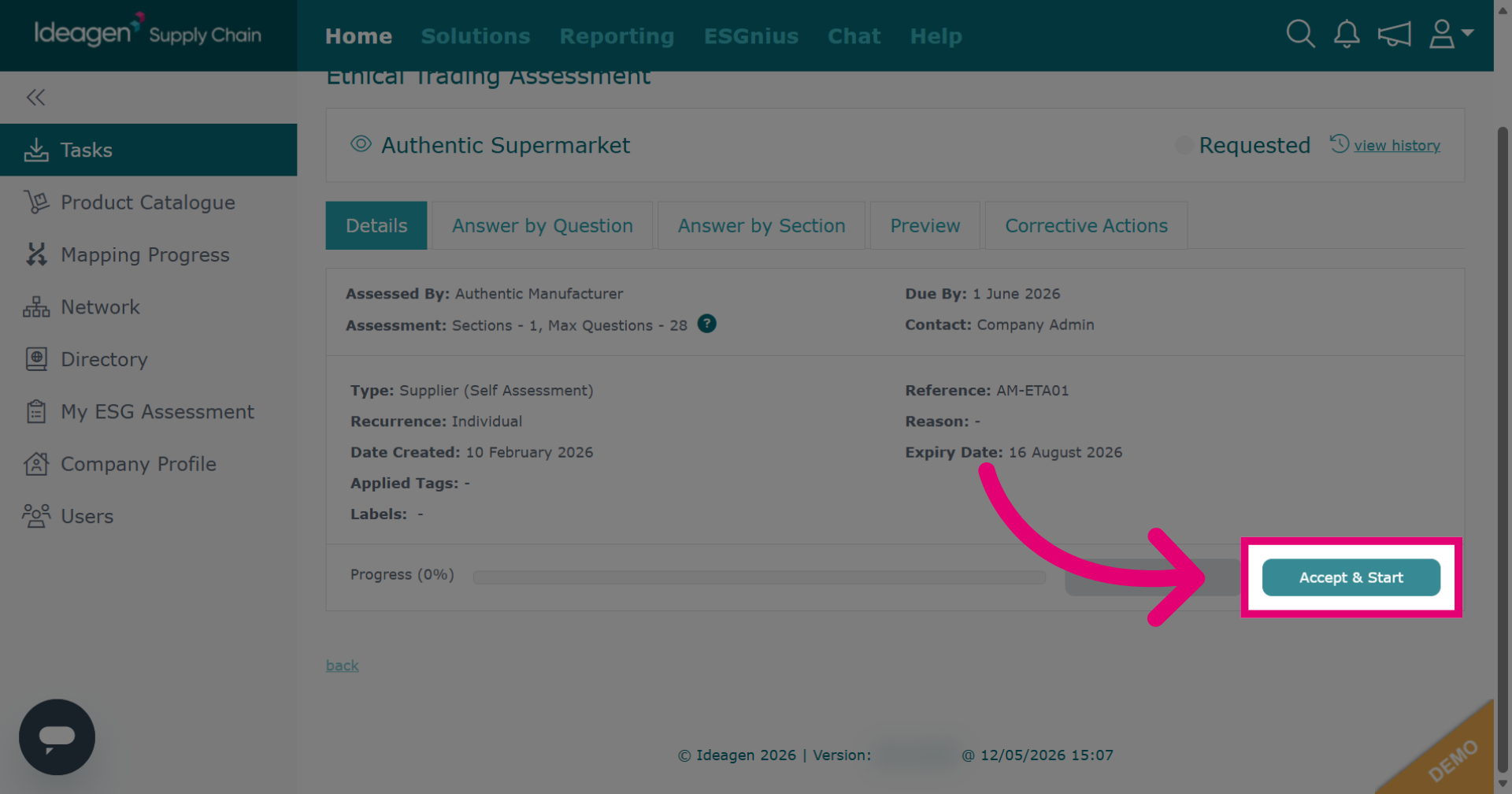
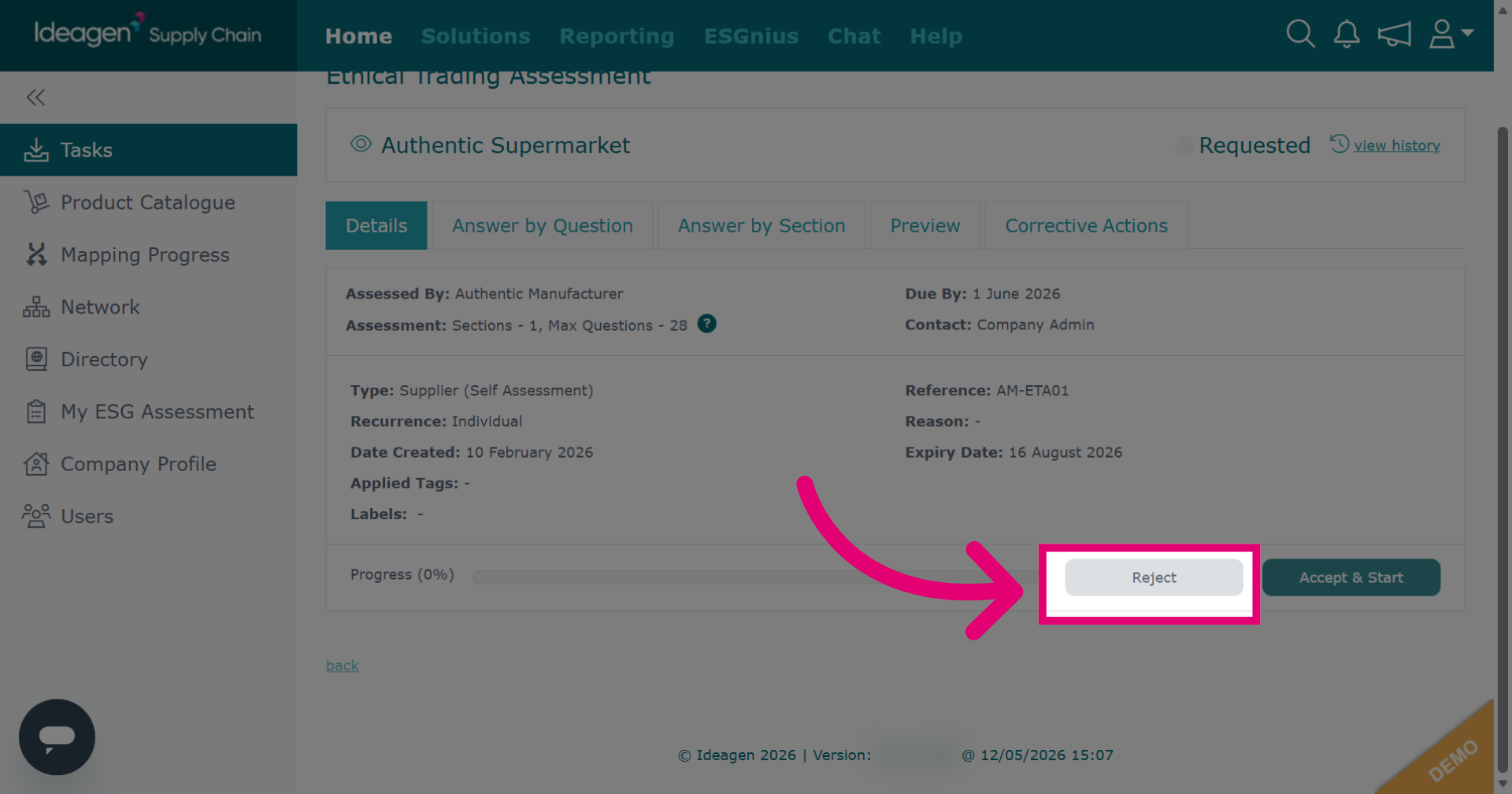
Click Accept & Start to initiate the assessment process.
-
Click Reject to reject the assessment.
-
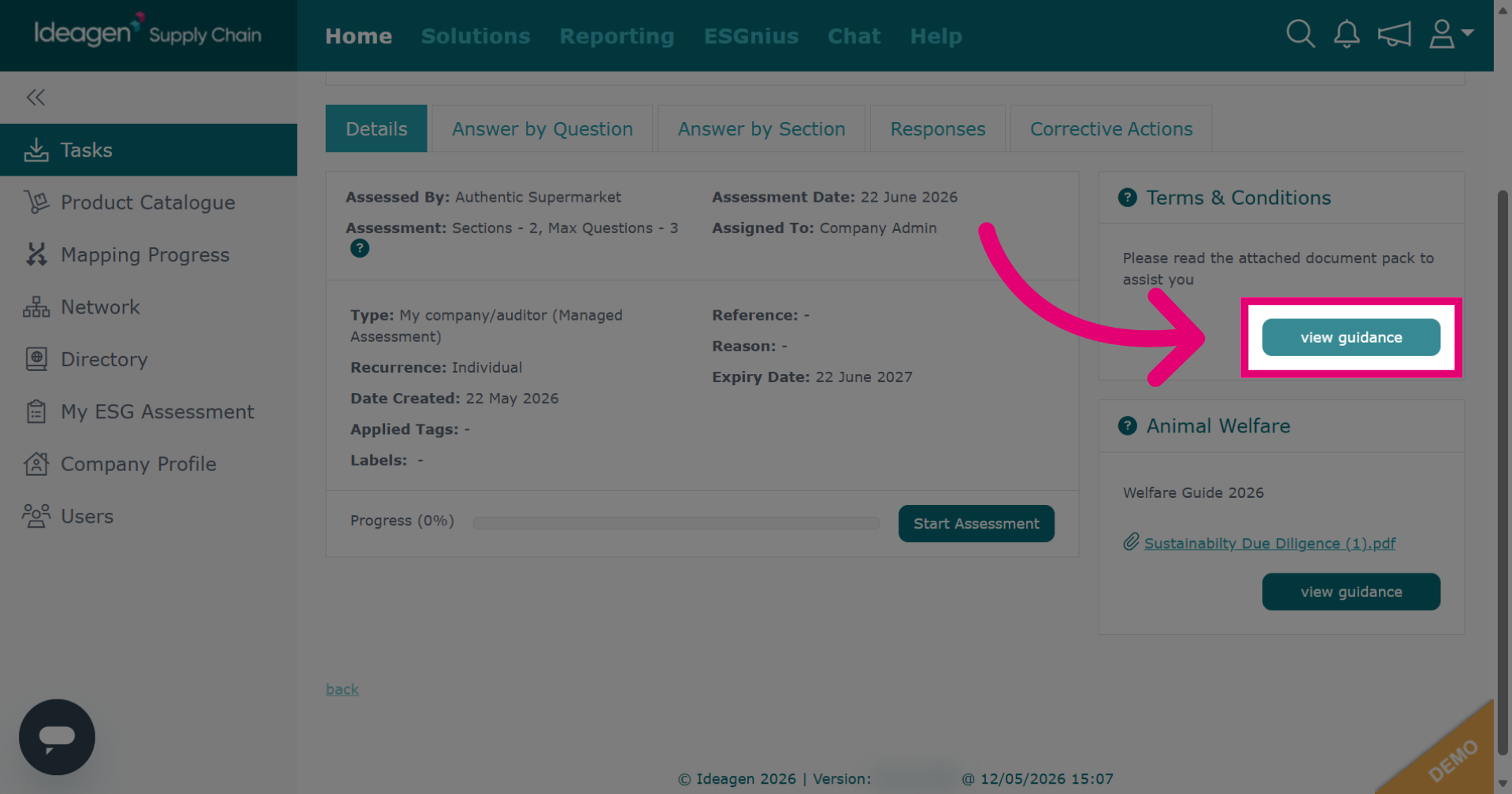
Click view guidance to access additional information and instructions related to the assessment. Not all assessments will have guidance.
-
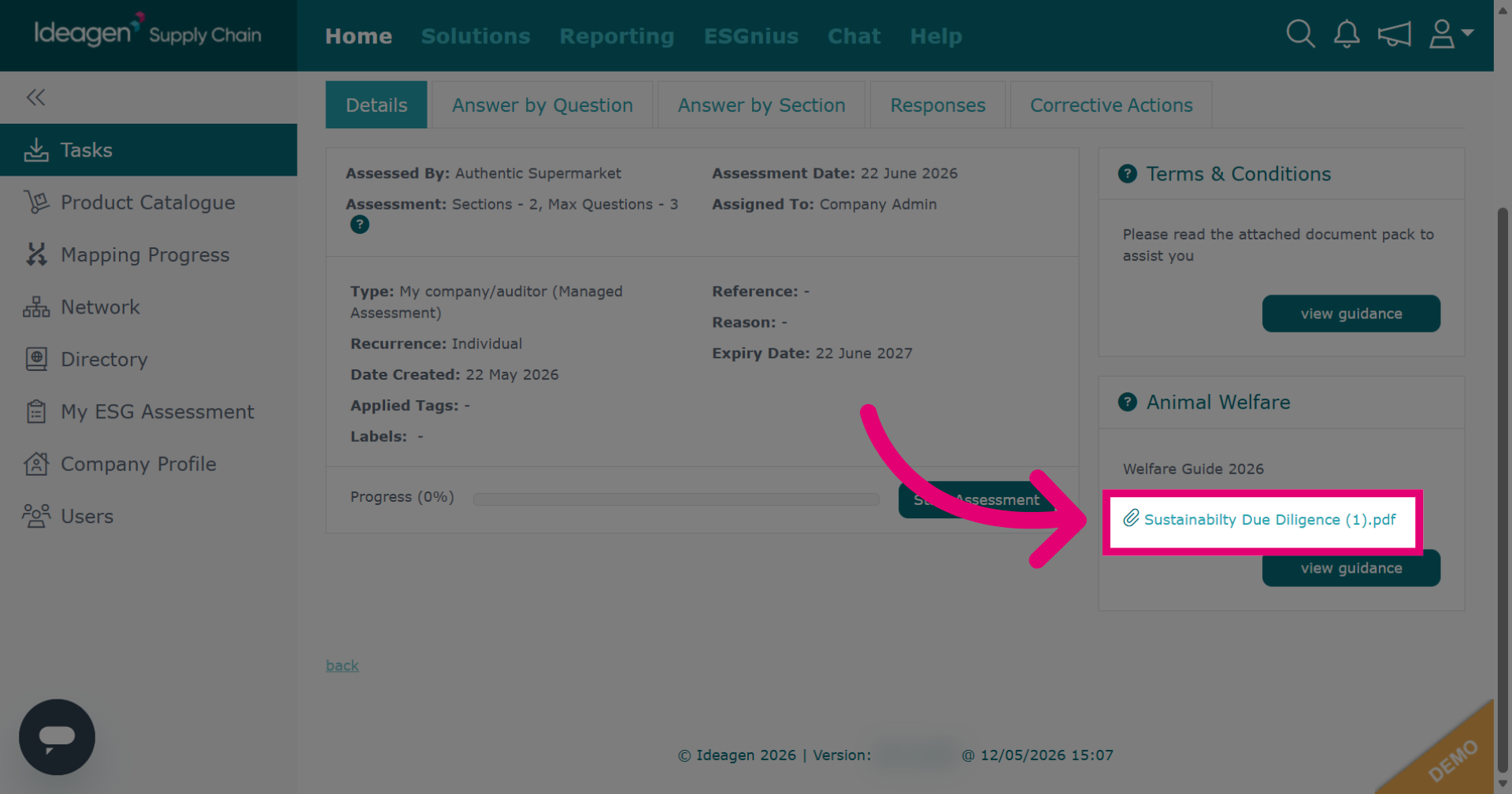
If there is an attachment within the guidance section, click to open or download the related document.
-
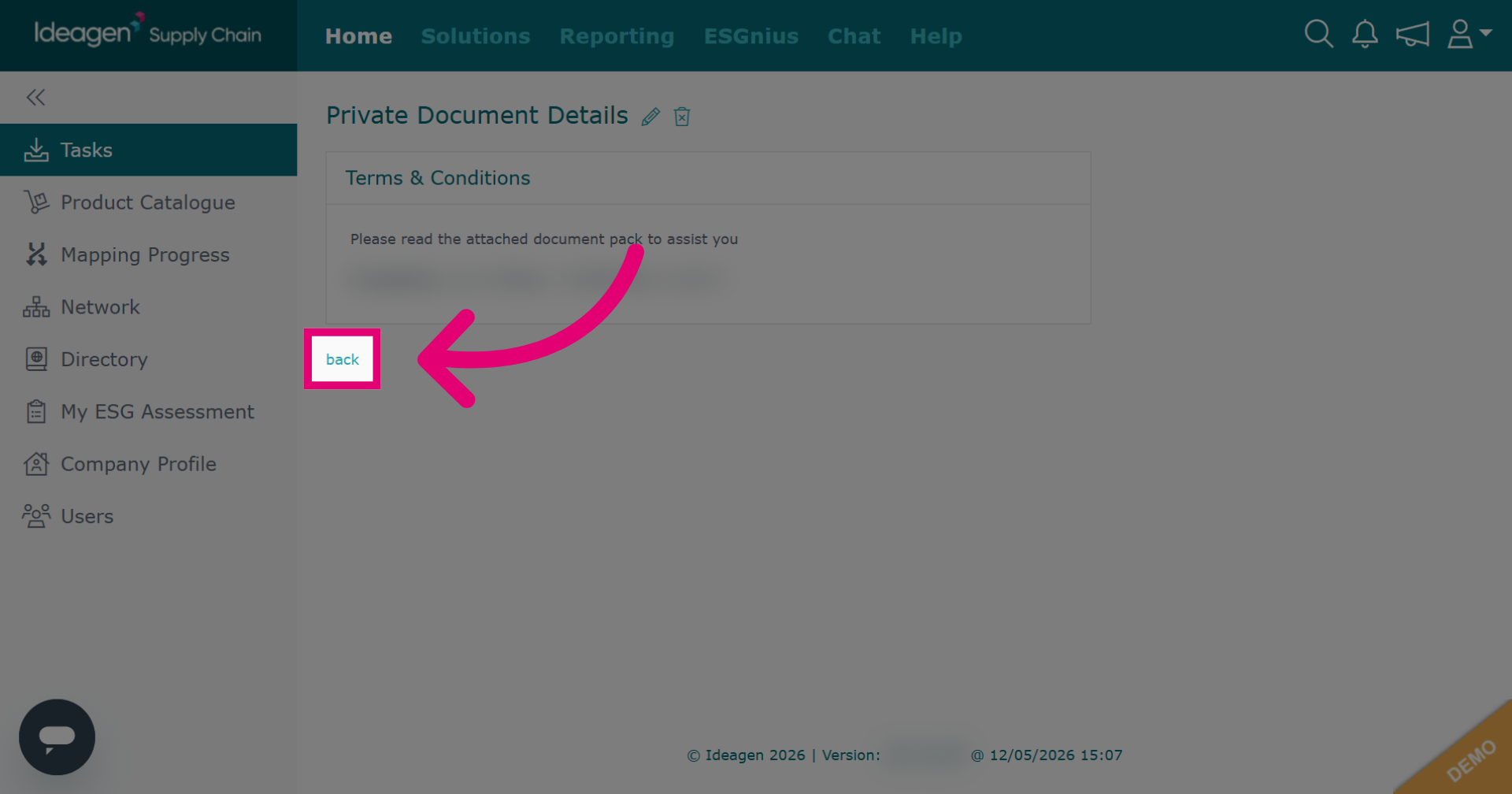
Click back once you have viewed and/or downloaded the guidance to return to the assessment screen to begin completing the assessment.
-
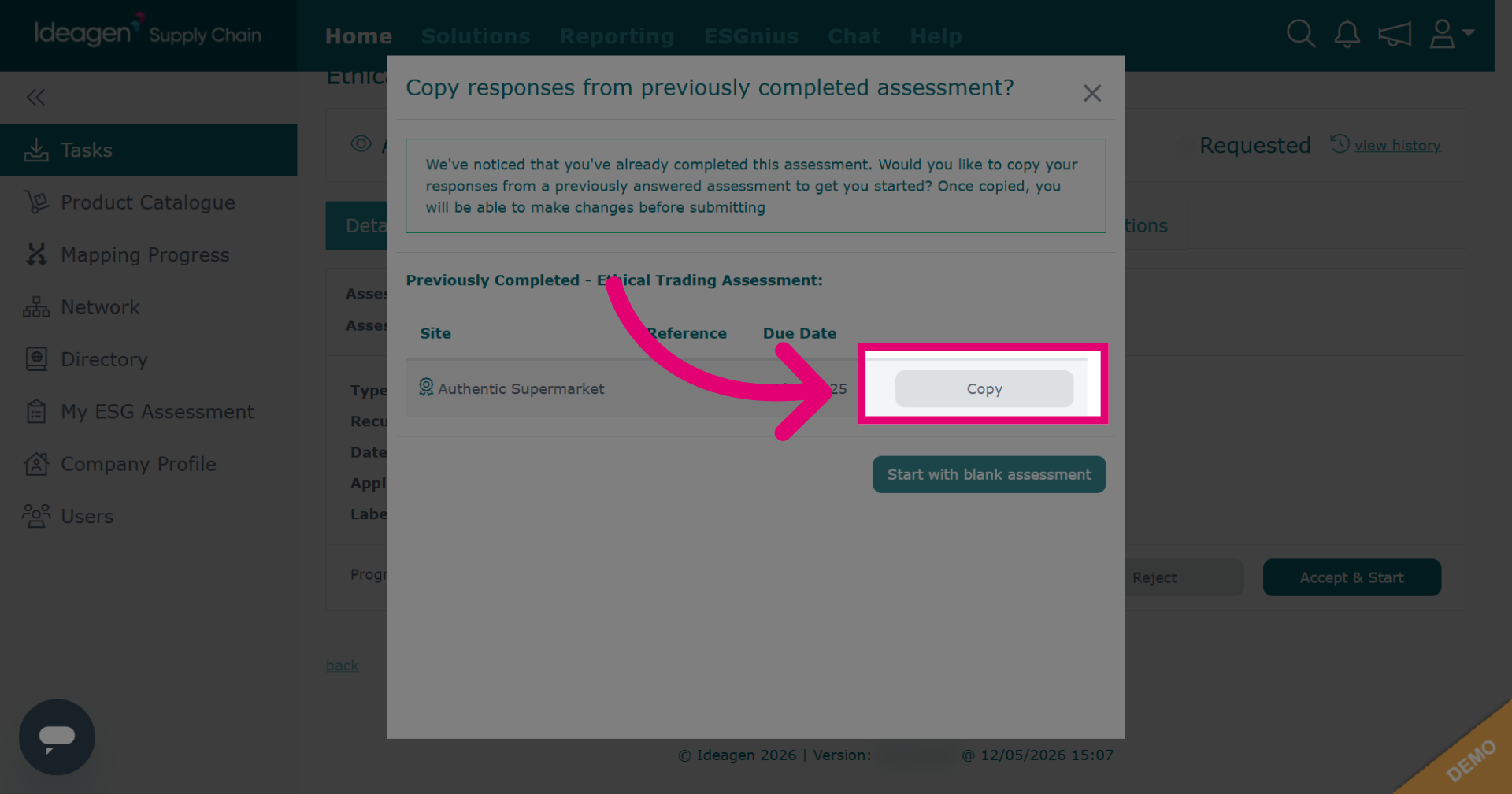
If you have completed this assessment template previously, you will be able to copy over your previous answers if desired. To do so, click Copy.
-
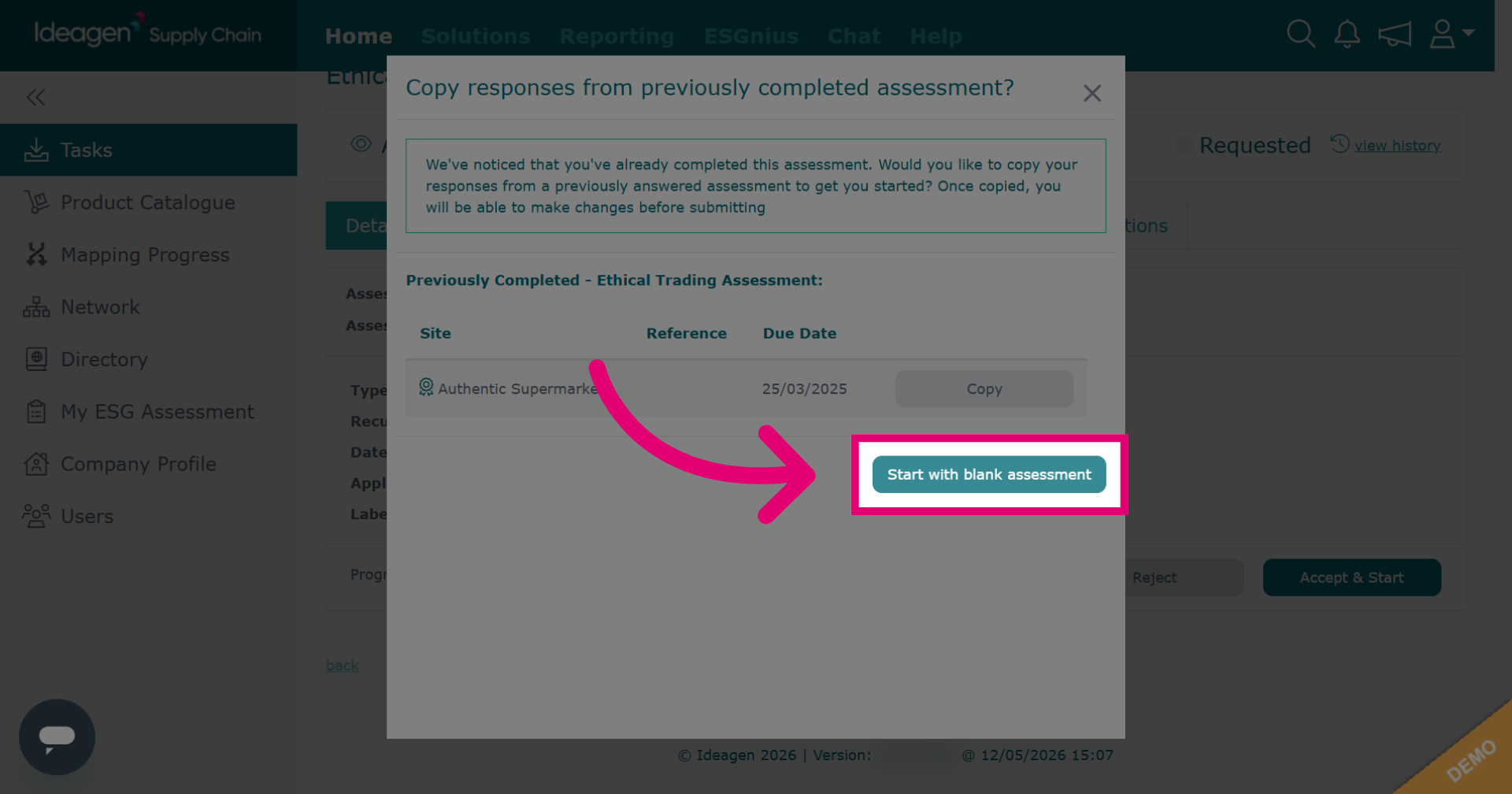
If you want to start fresh, click Start with blank assessment to begin a new assessment without pre-filled data.
-
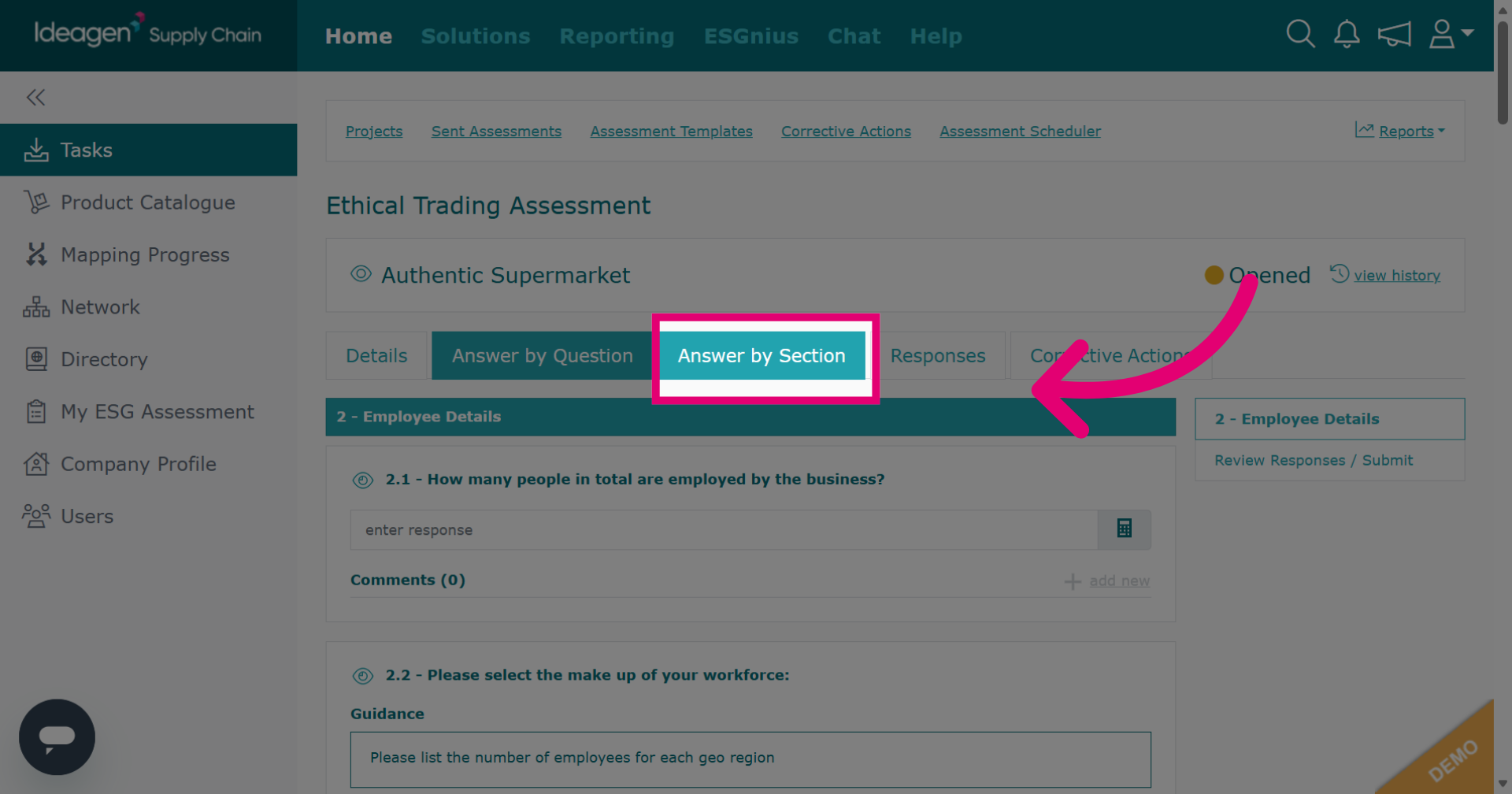
Click Answer by Section to respond to assessment questions section by section.
-
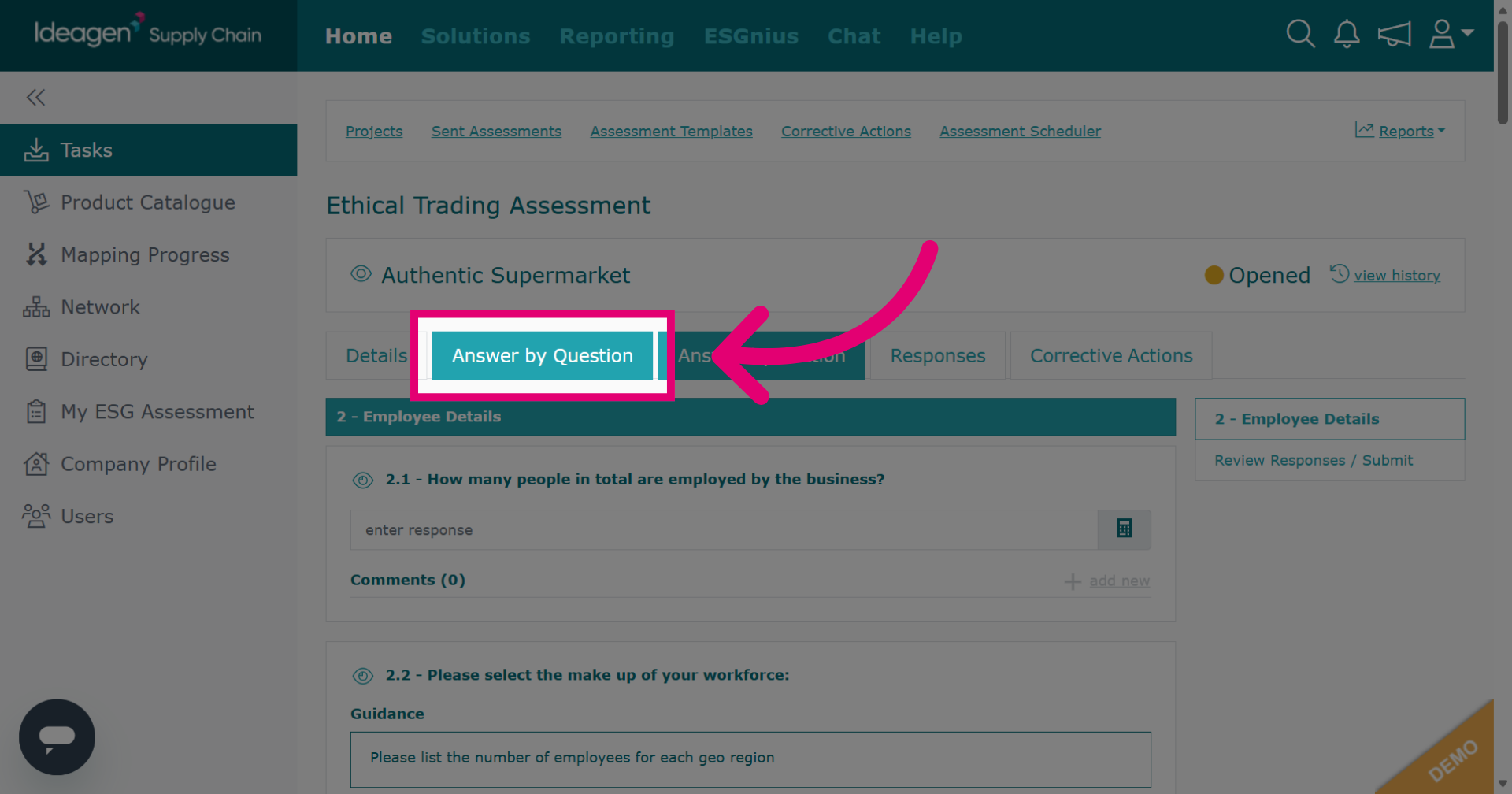
Click Answer by Question to respond to assessment items one question at a time.
-
For questions that require you to type in an answer, ensure you click update to save the entered answer for the current question.
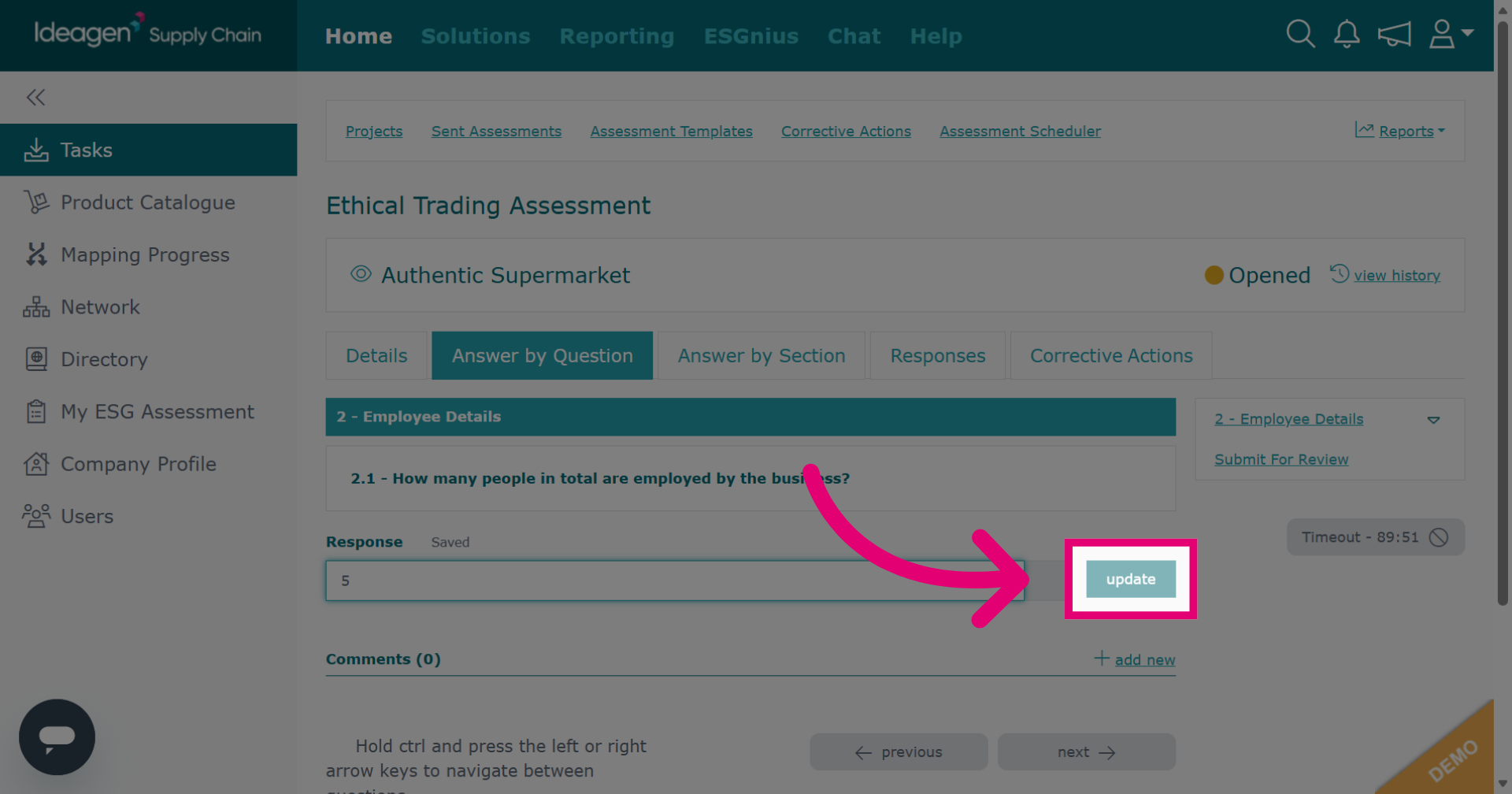
-
Click next to move forward to the following question in the assessment sequence.
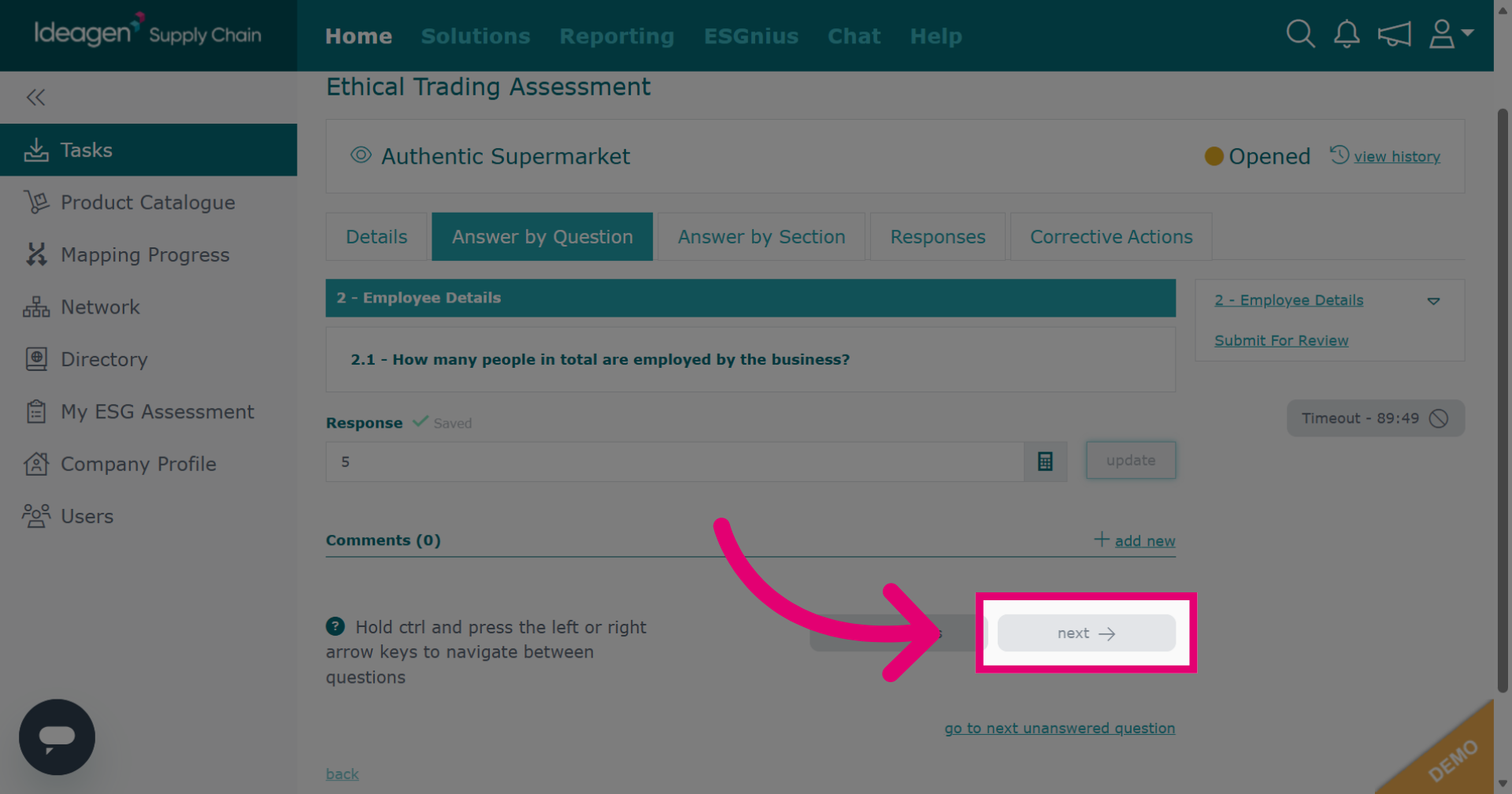
-
Click previous to return to the previous question.
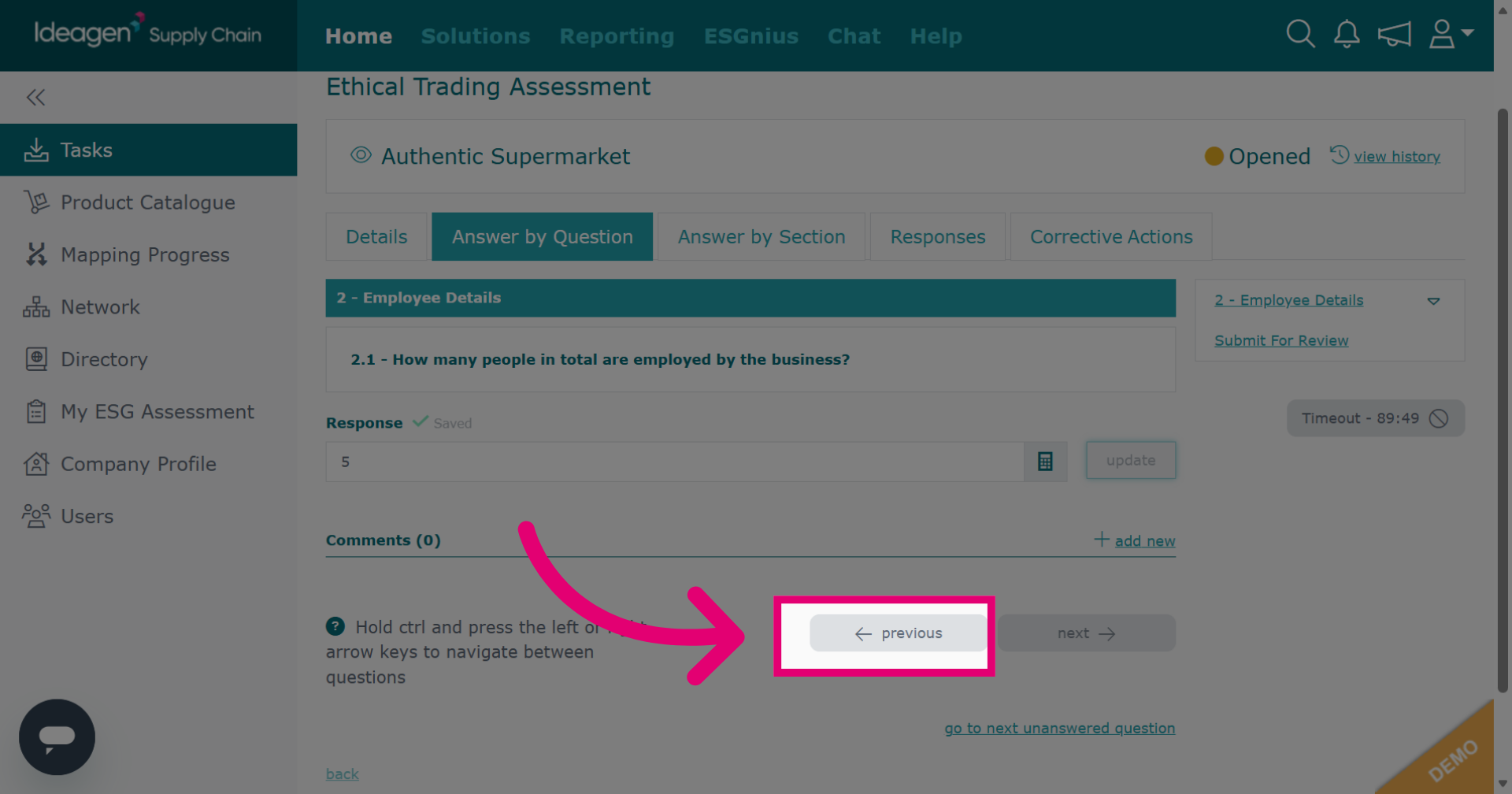
-
Some multiple choice questions will allow you to select only one answer, some will allow you to select multiple. These auto-save upon clicking them.
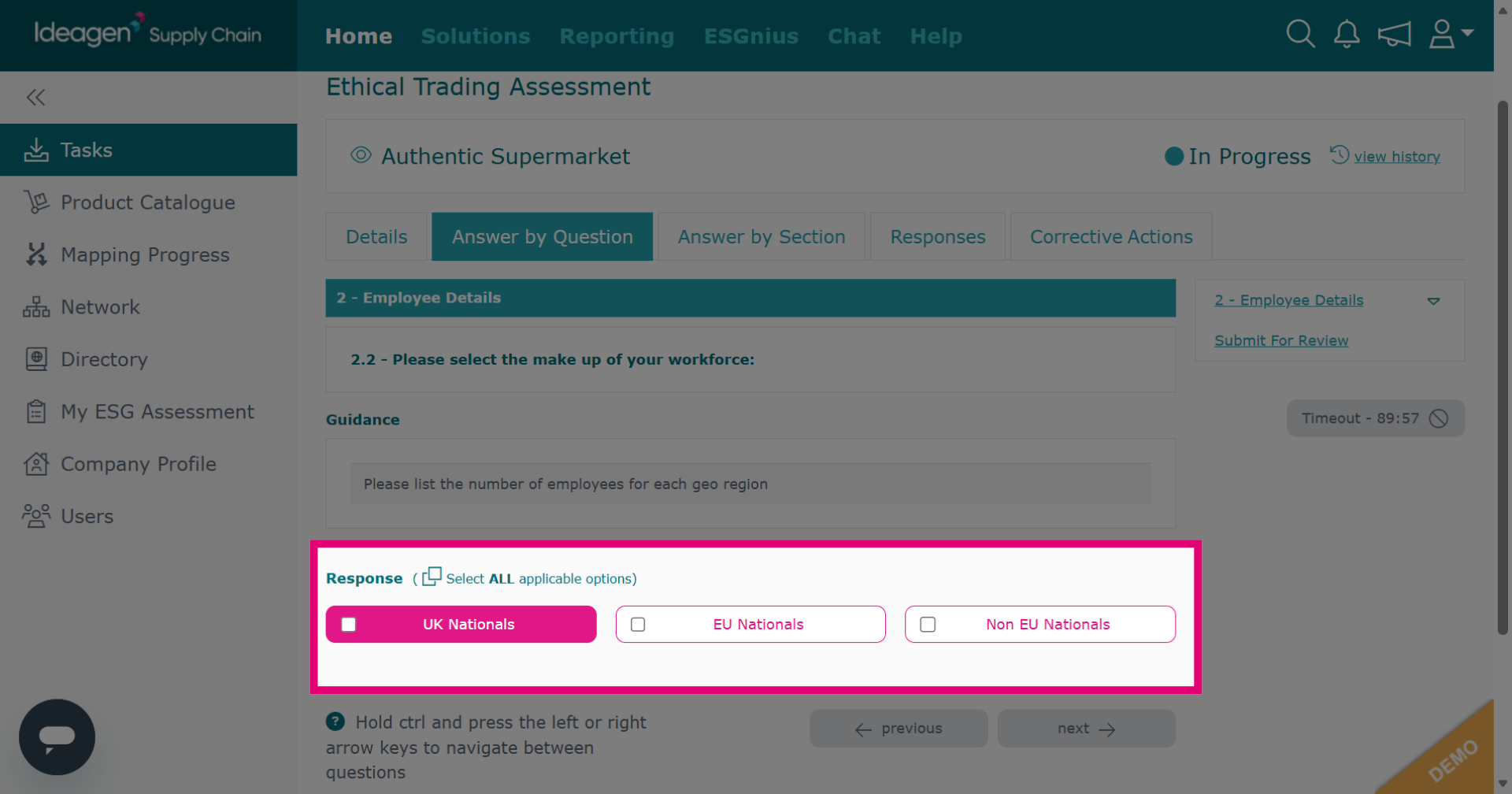
-
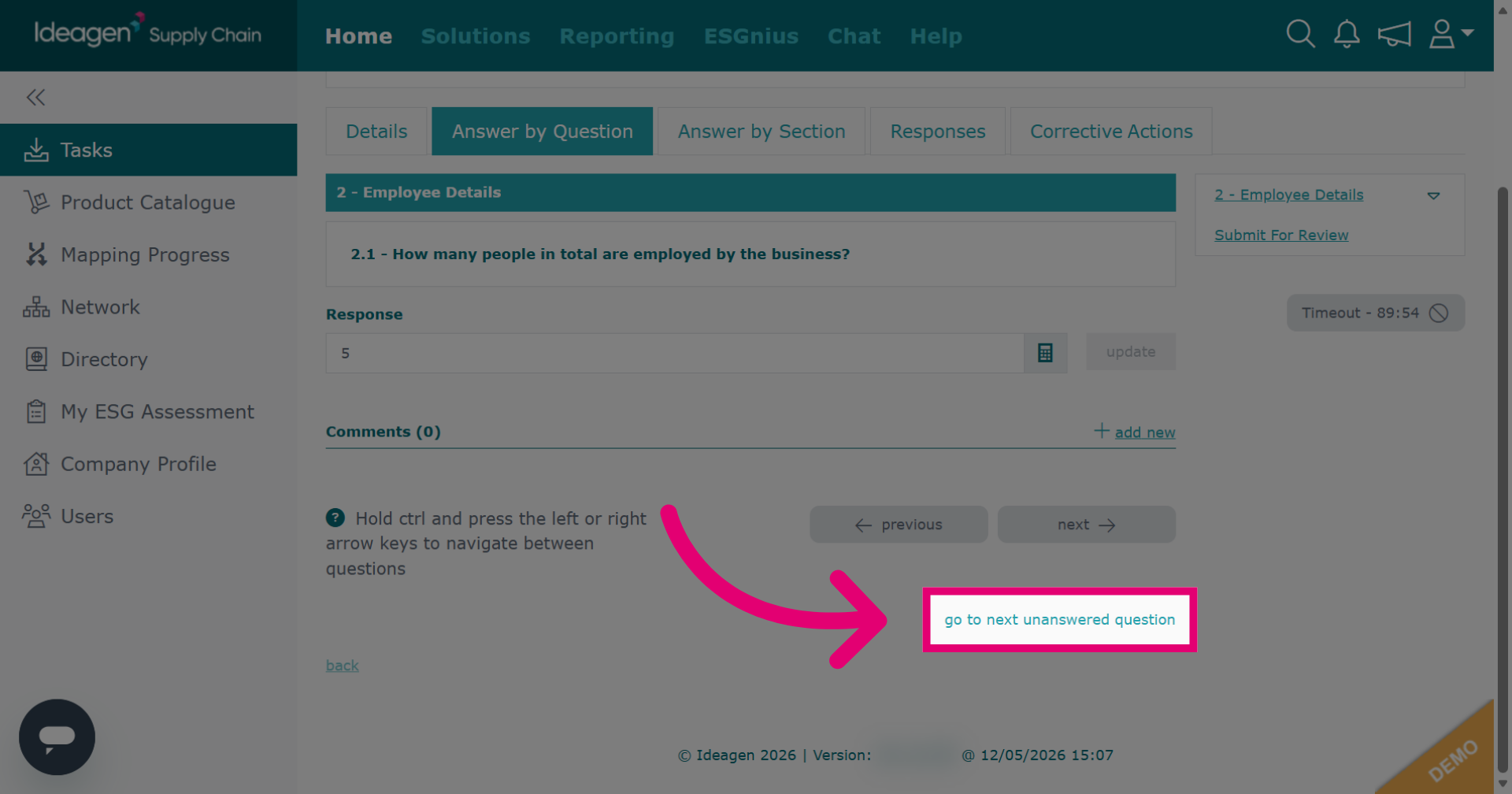
Click go to next unanswered question to quickly find and answer remaining items.
-
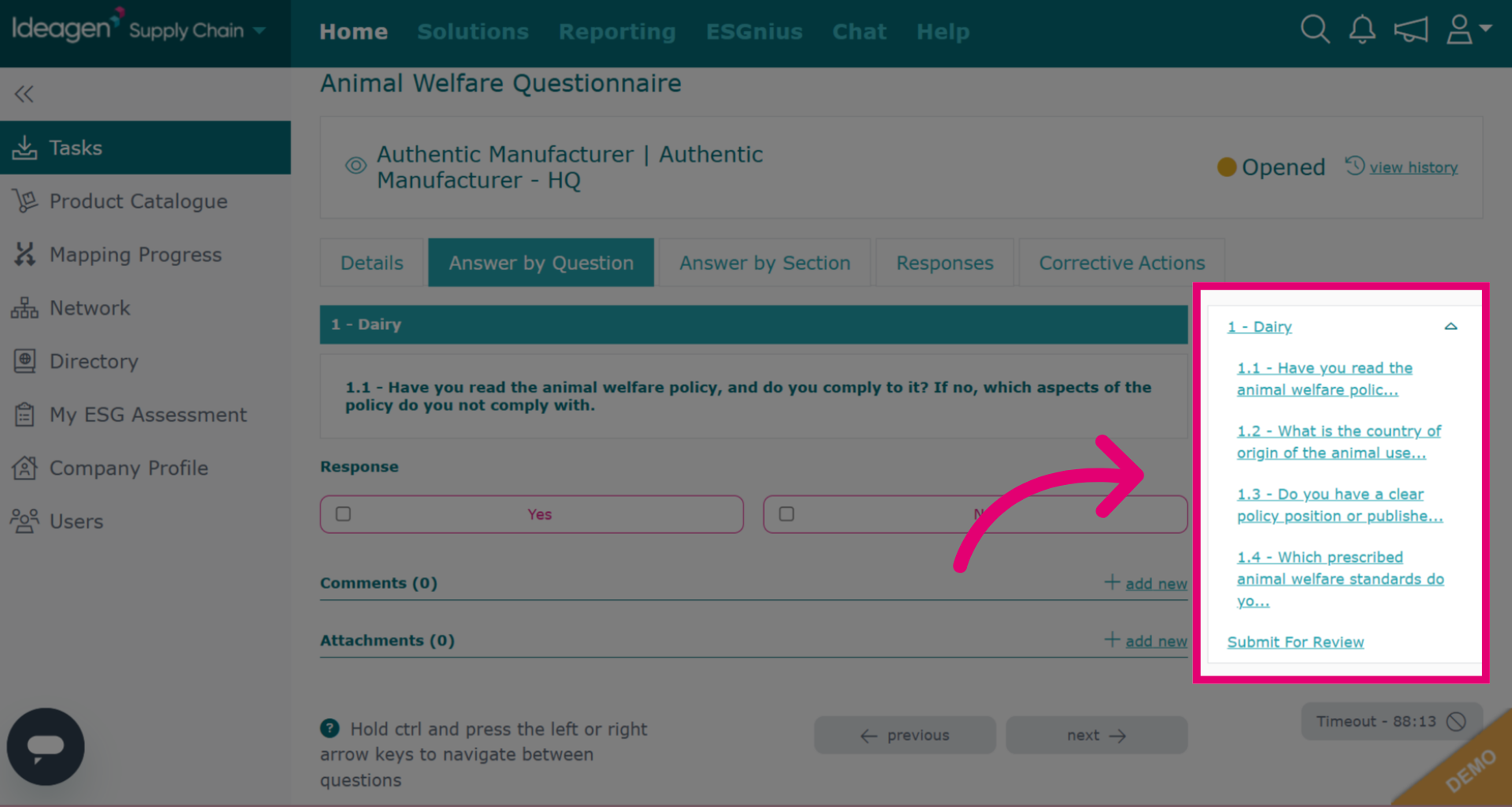
To edit a question you have already answered, find the question within the navigation bar on the right hand side. Click into the question and you will be able to update your answer accordingly. Please note, if you are in the answer by section tab, it will only show sections, therefore it is recommended you use the answer by question tab for this.
-
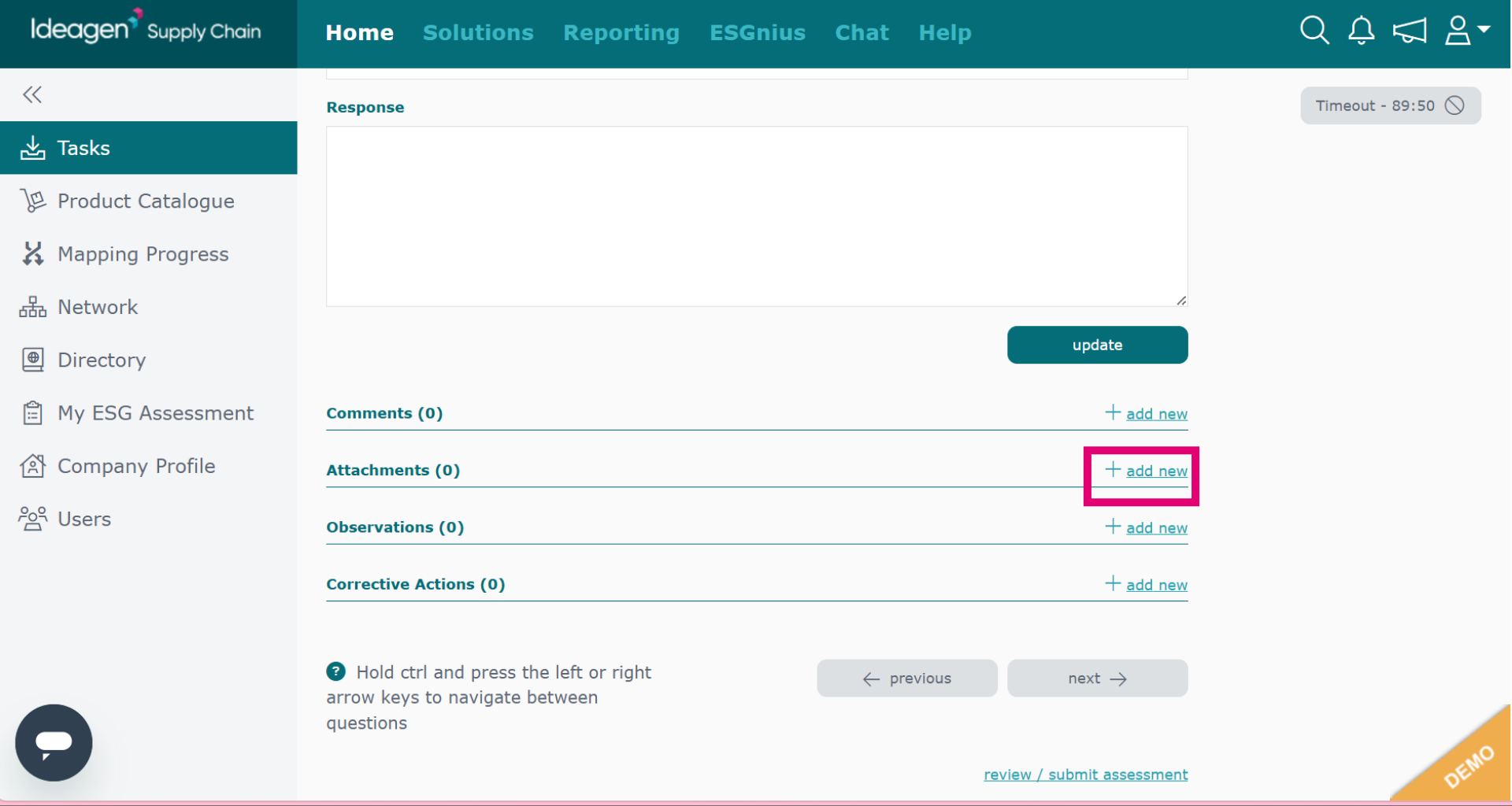
To add an attachment, ensure you are in the answer by question tab. Click Add New in the attachment area. You can add multiple attachments.
-
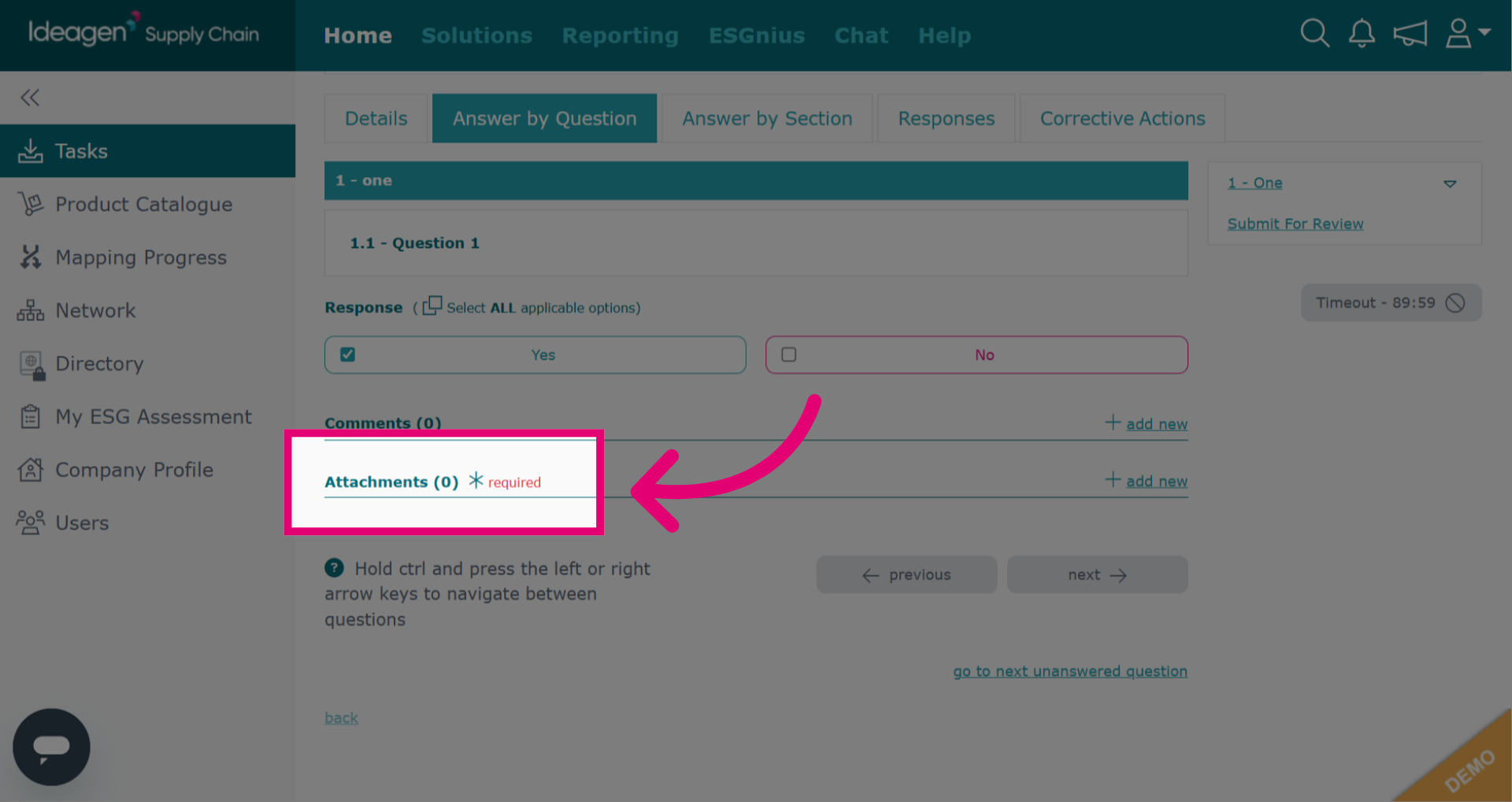
Some questions will have adding an attachment as a mandatory requirement. This will be stated next to the attachment option.
-
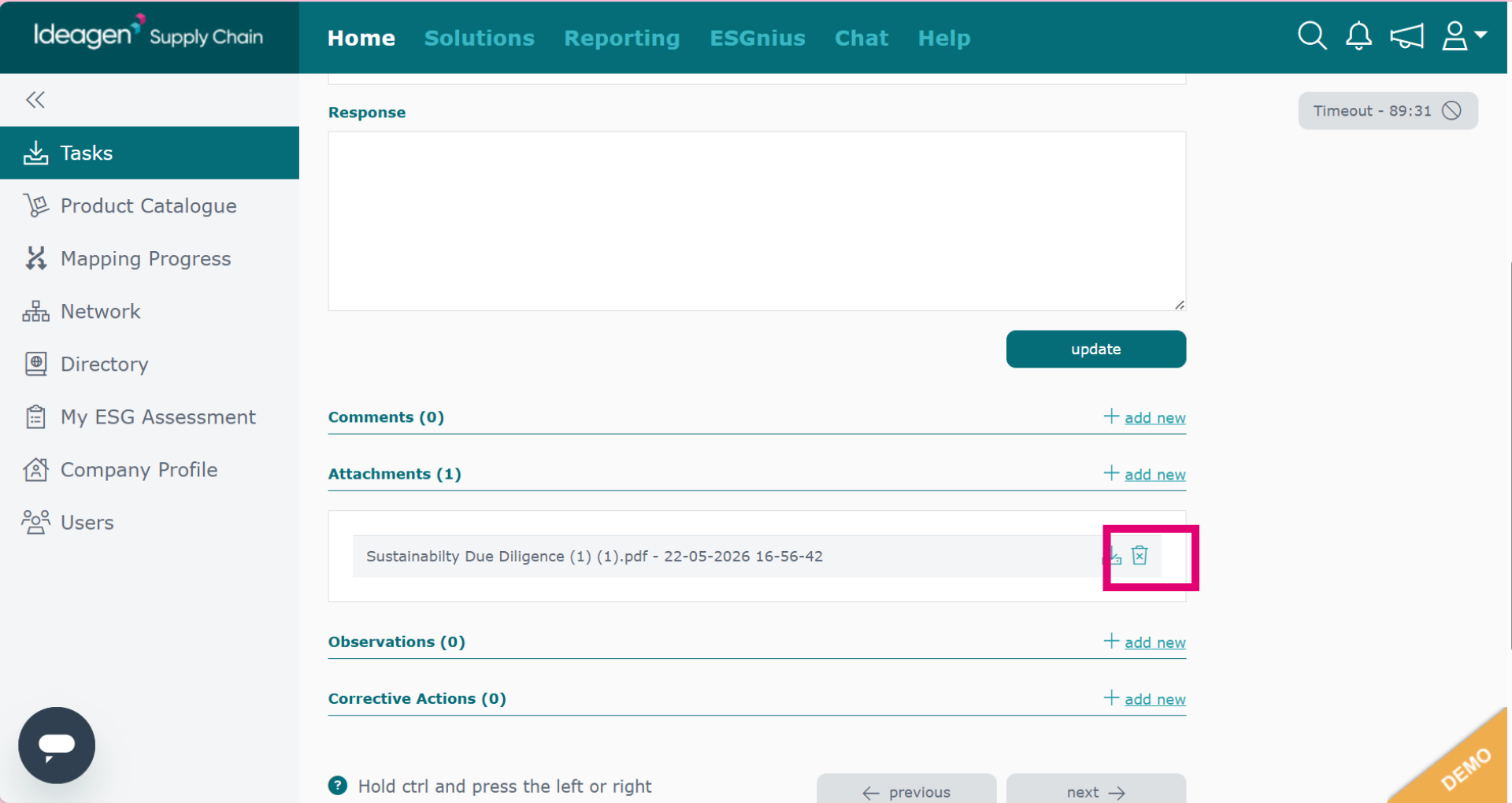
To remove an attachment, ensure you are in the answer by question tab. Then, click the bin icon next to the attachment. You will then be able to re-upload an attachment if needed.
-
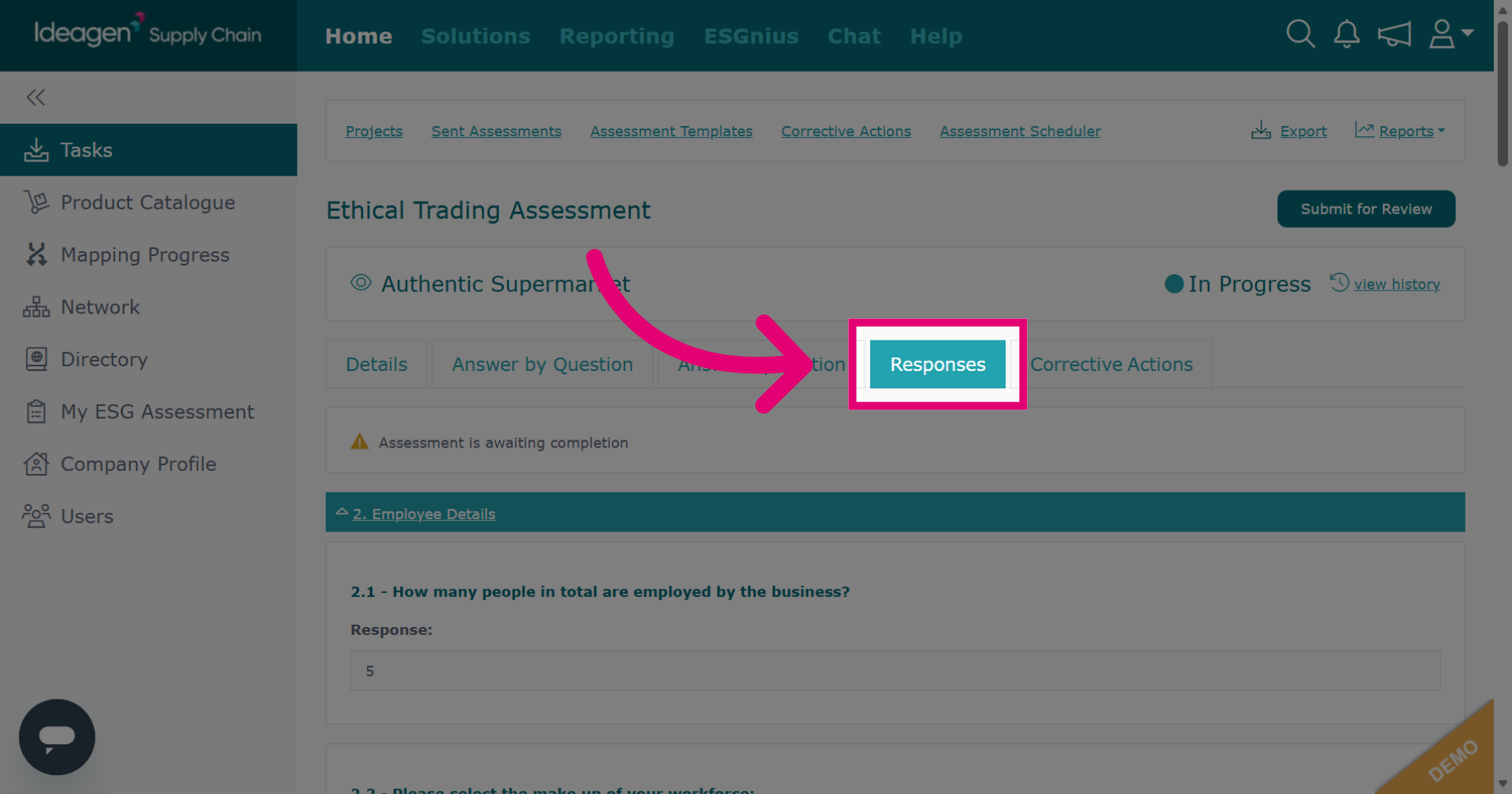
Click Responses to review all answers provided within the assessment so far. You can also answer the questions from this tab.
-
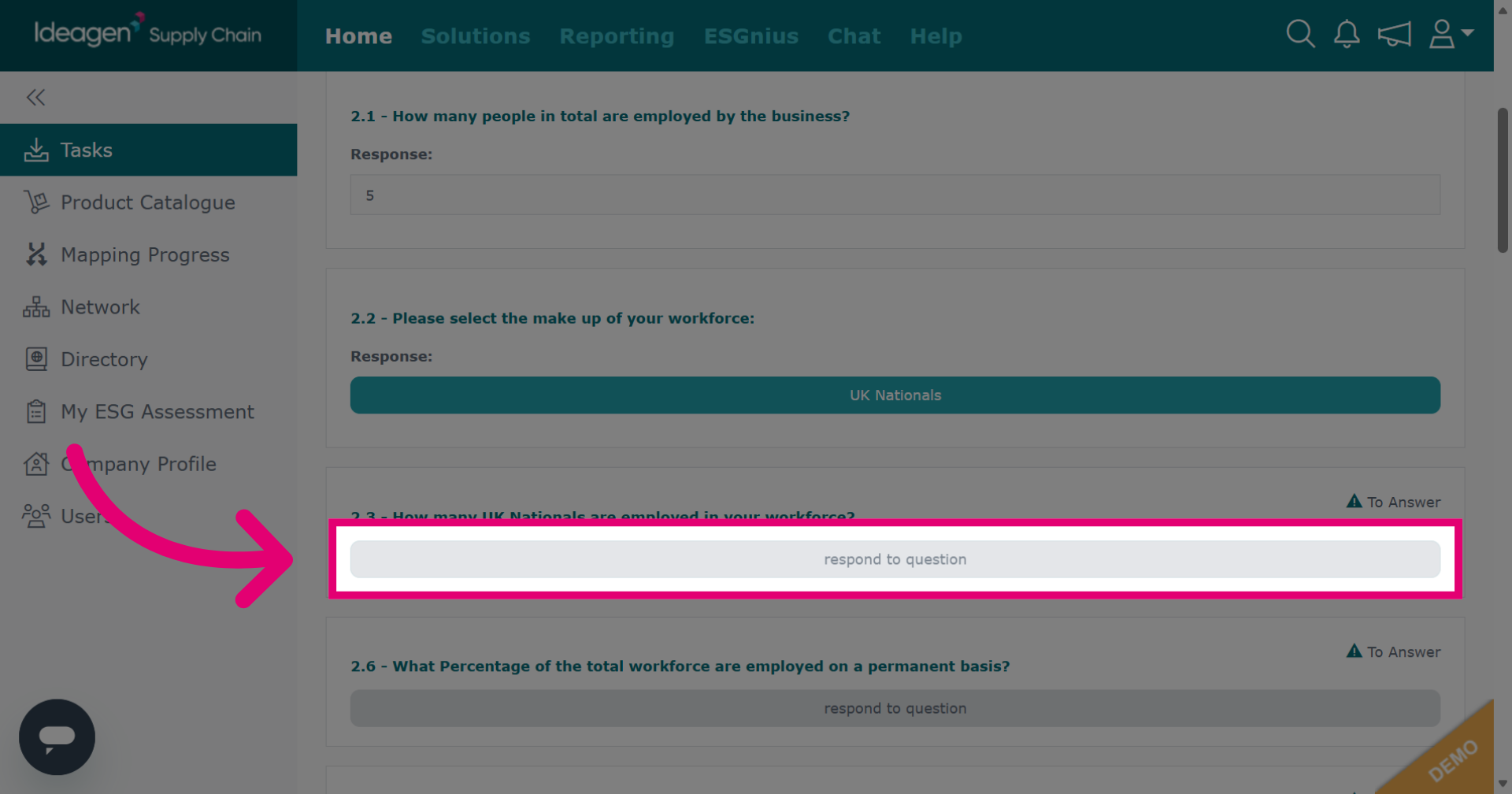
Click respond to question in the Responses tab to answer a question.
-
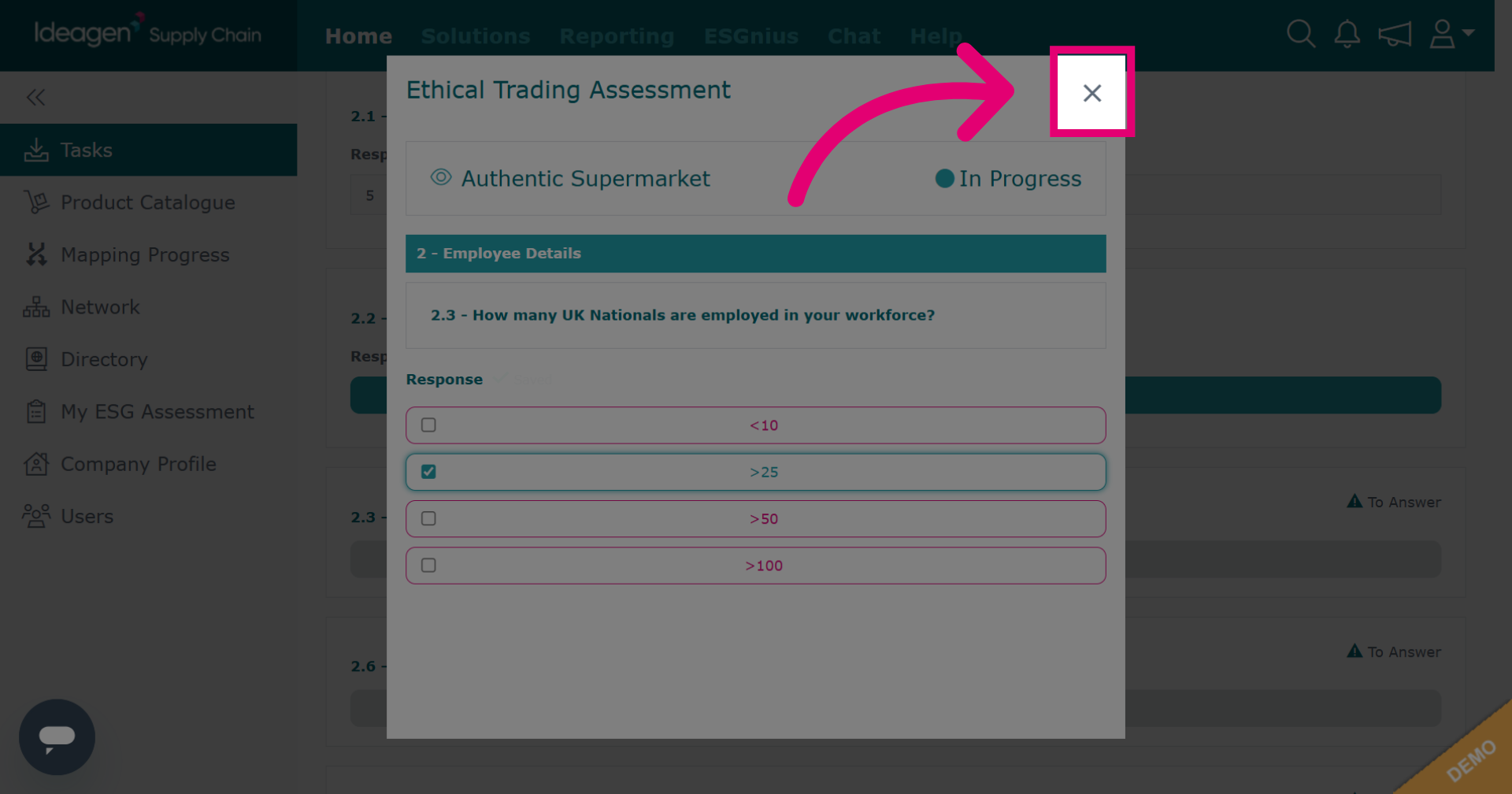
Once you have answered a question within the responses section, click × to close the current selection or dialog window.
-
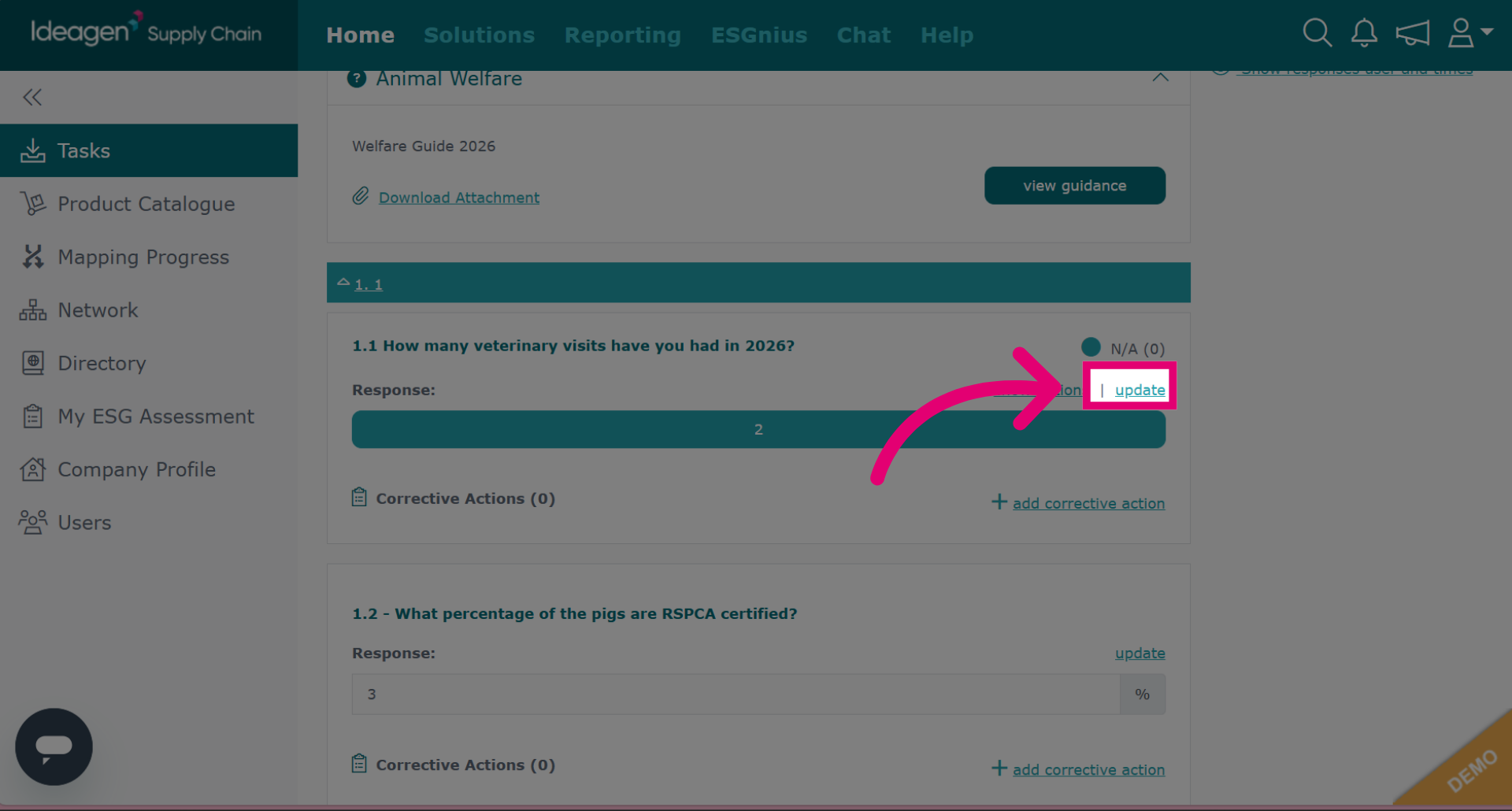
To edit an answer within the responses tab, click update.
-
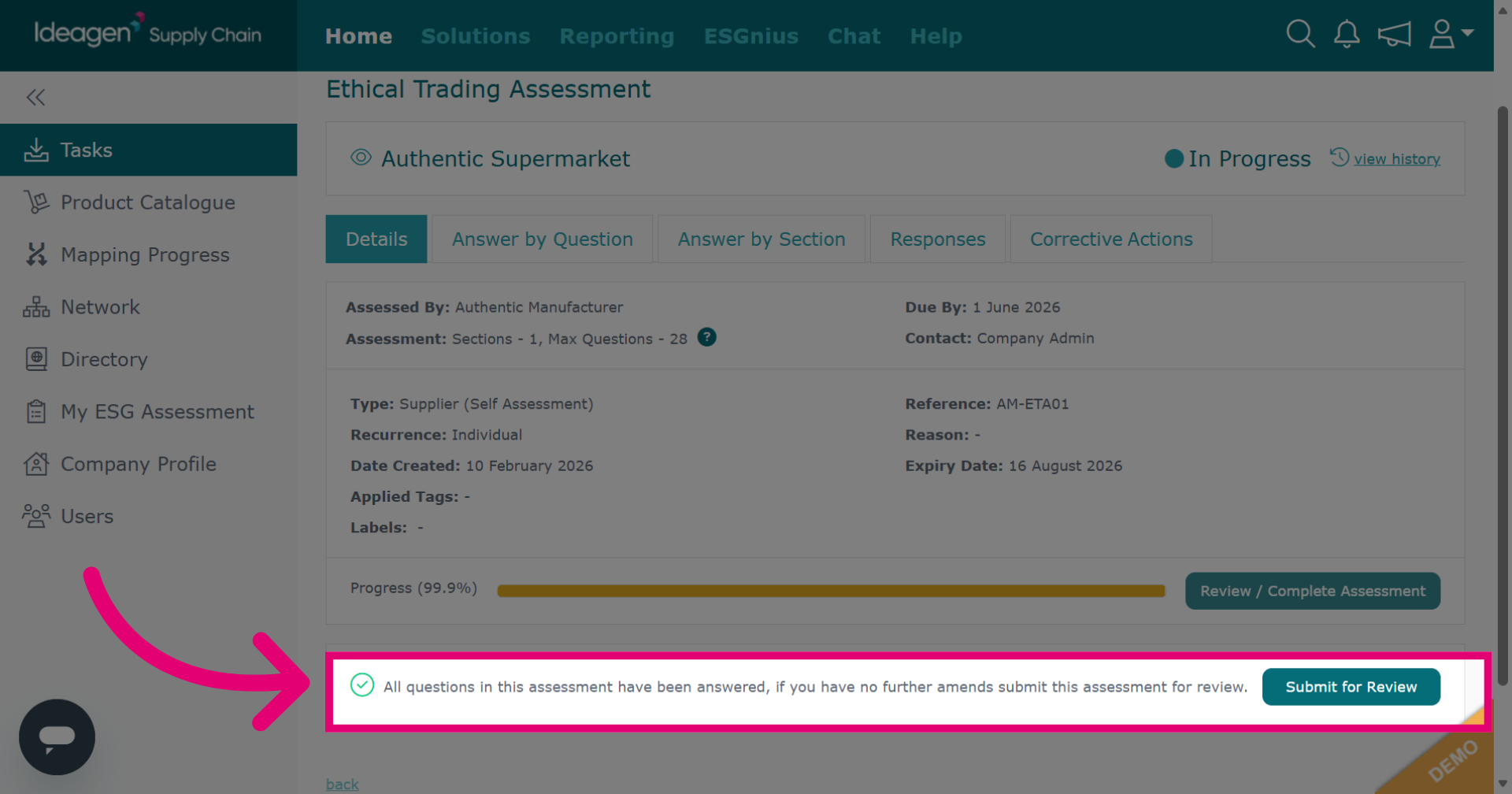
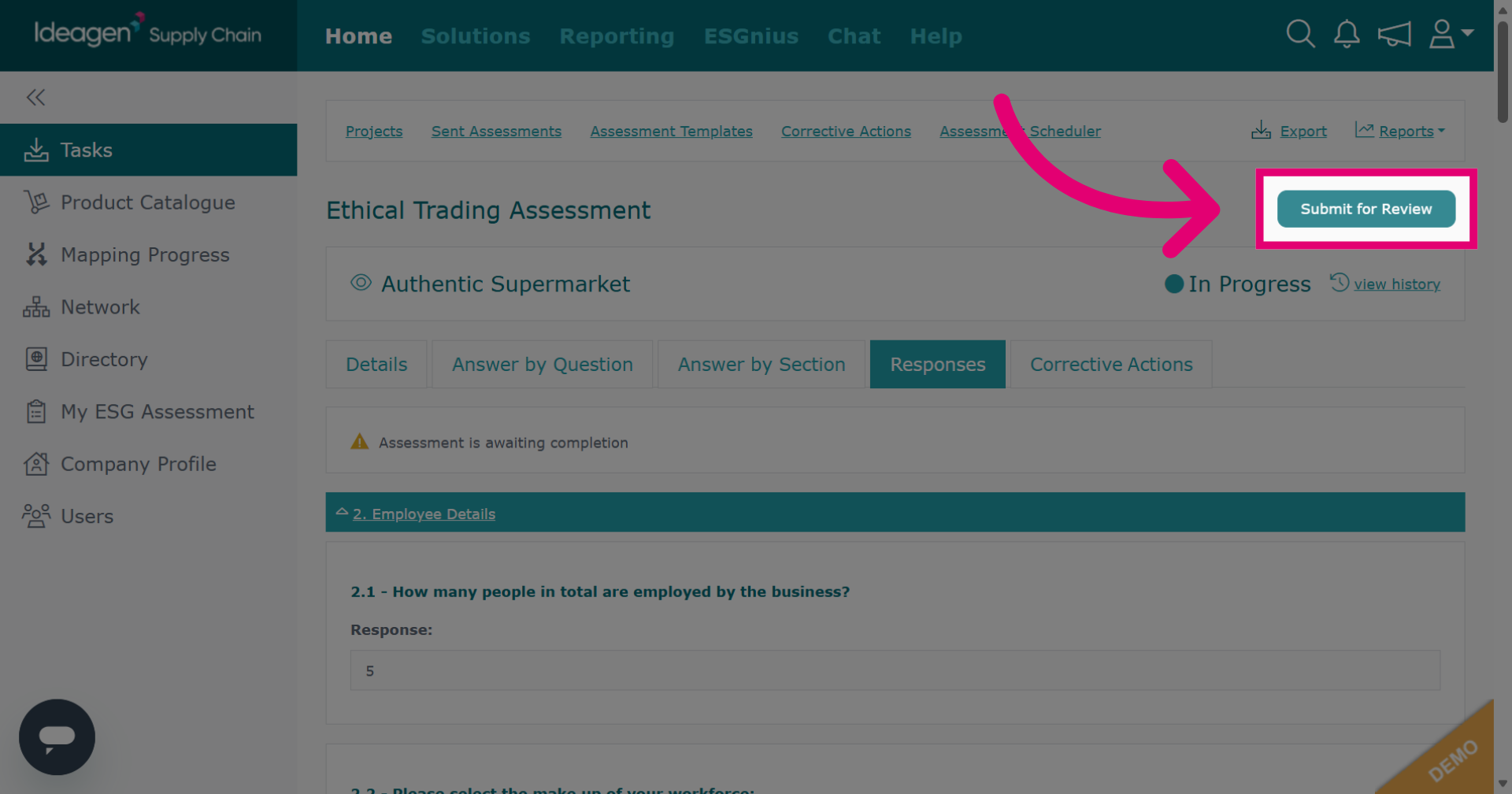
If all questions have been completed, you can click Submit for Review here.
-
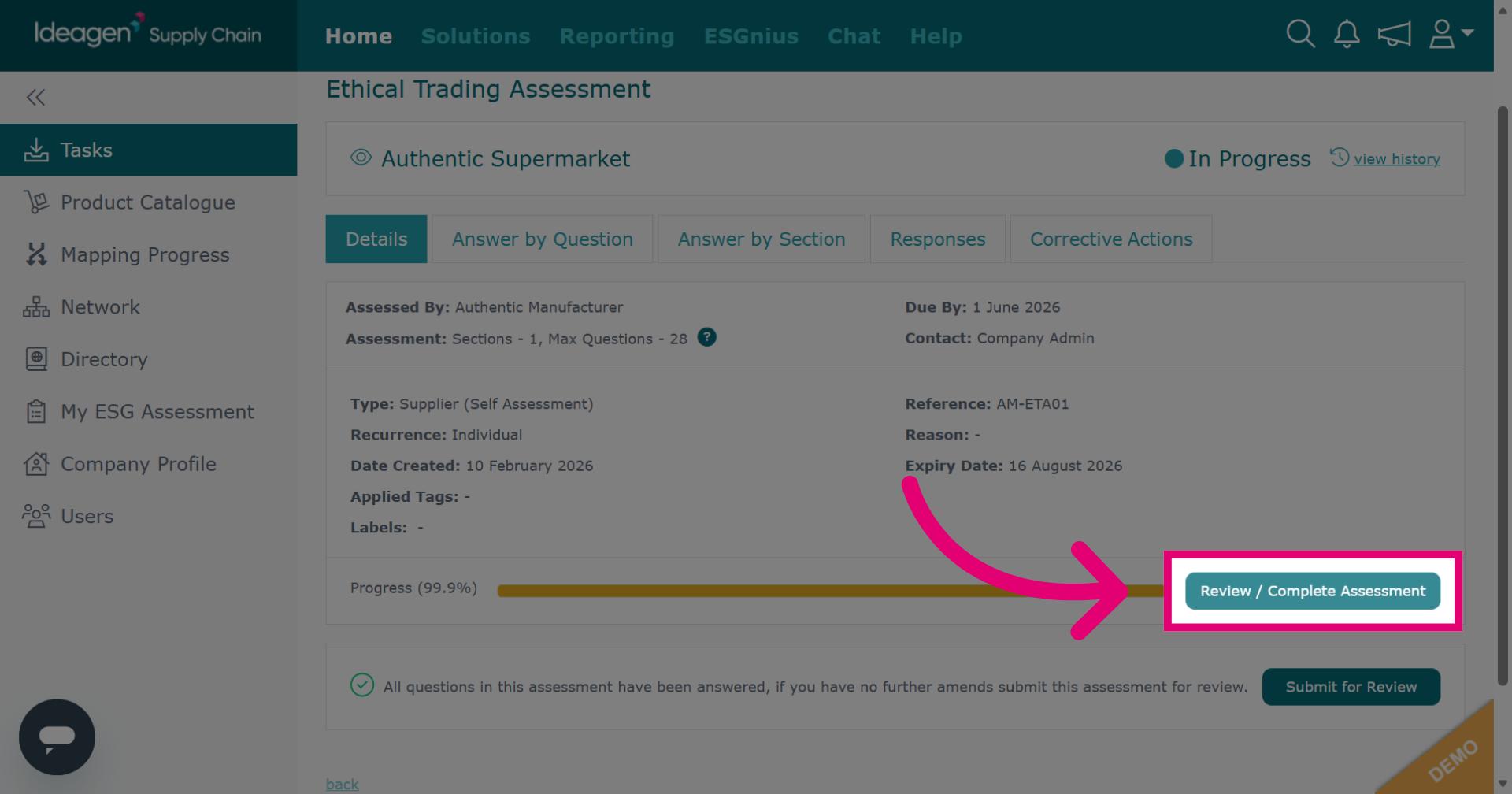
Click Review / Complete Assessment to examine your responses before final submission.
-
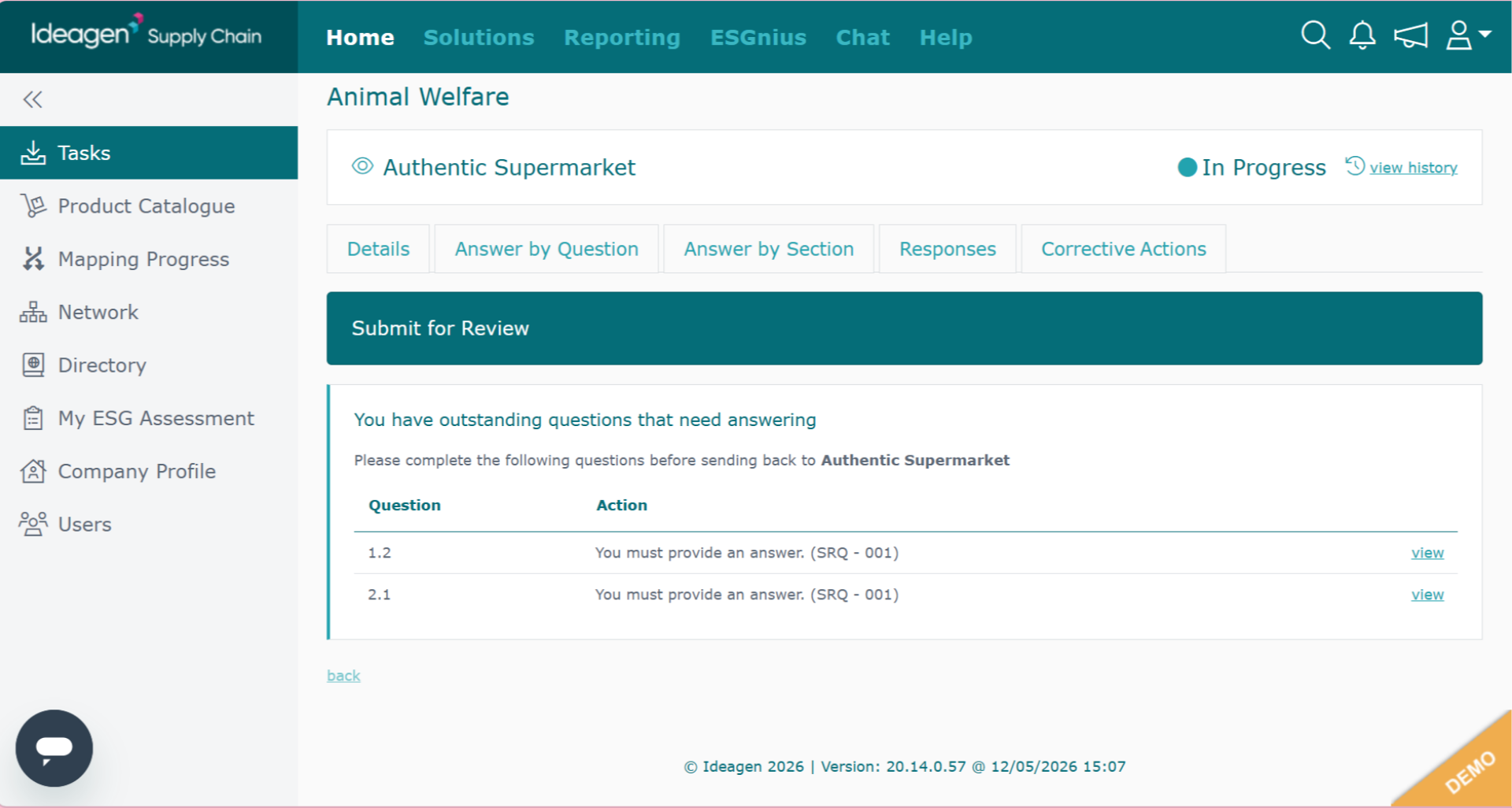
If you try to submit for review with questions outstanding, you will be informed of this. Click View beside the question to input an answer.
-
Once you have evaluated your answers and are happy with them, click Submit for Review to send your completed assessment for evaluation.
-
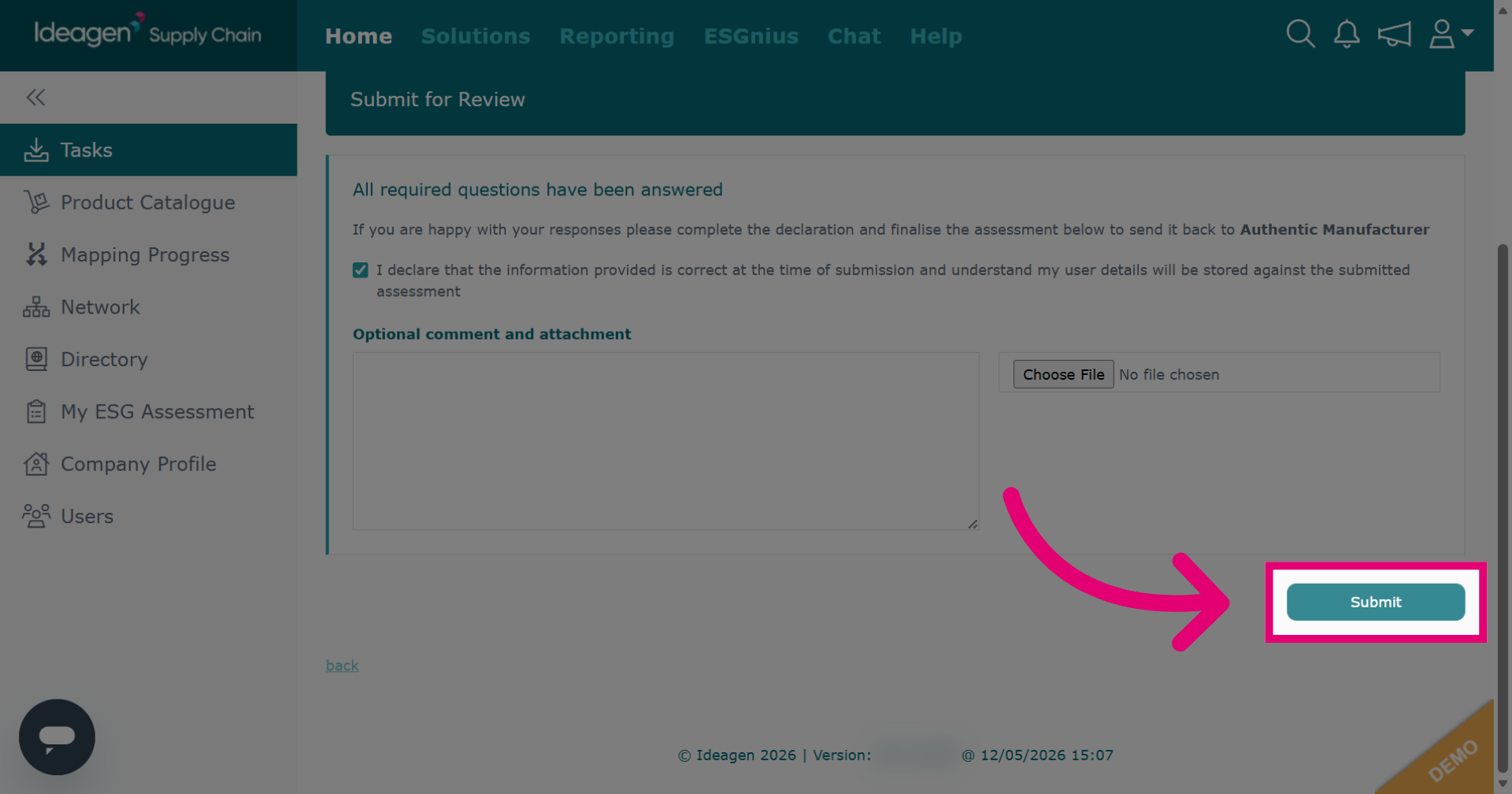
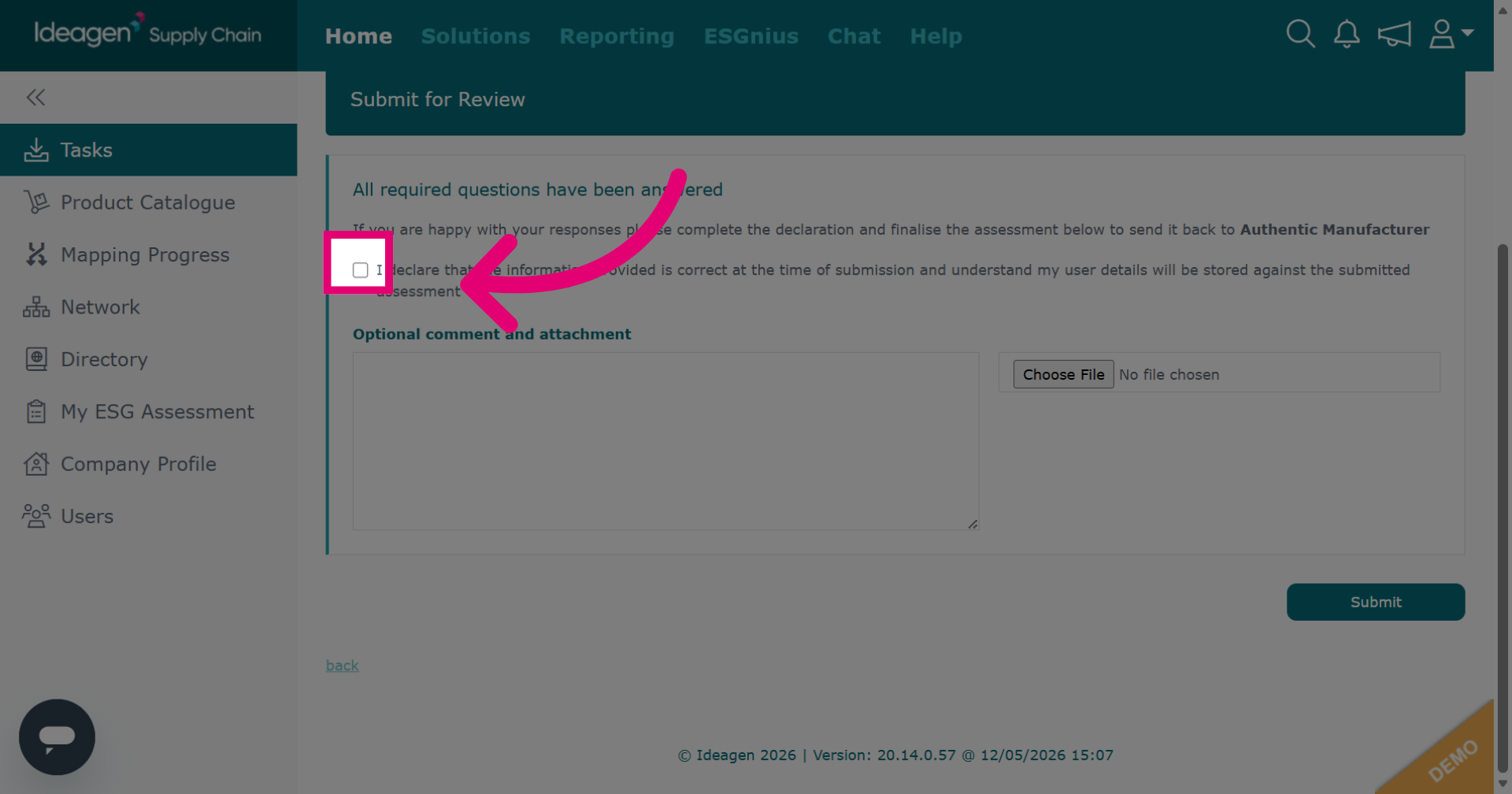
Click the declaration confirming that the information provided is correct and that your user details will be stored with the submitted assessment.
-
If you are happy with your assessment responses, click submit. This will send the assessment back to the requesting company. You will not be able to edit your answers after submission.