New article
Recently updated
Managing Assessment Templates - Assessments

Who is this article for?
Users who want to manage assessment templates.
Assessment admin permissions are required.
This tutorial guides you through managing project templates within the Ideagen Supply Chain platform.
You will learn how to share, copy, archive, edit, and publish assessment templates.
Managing assessment templates
-
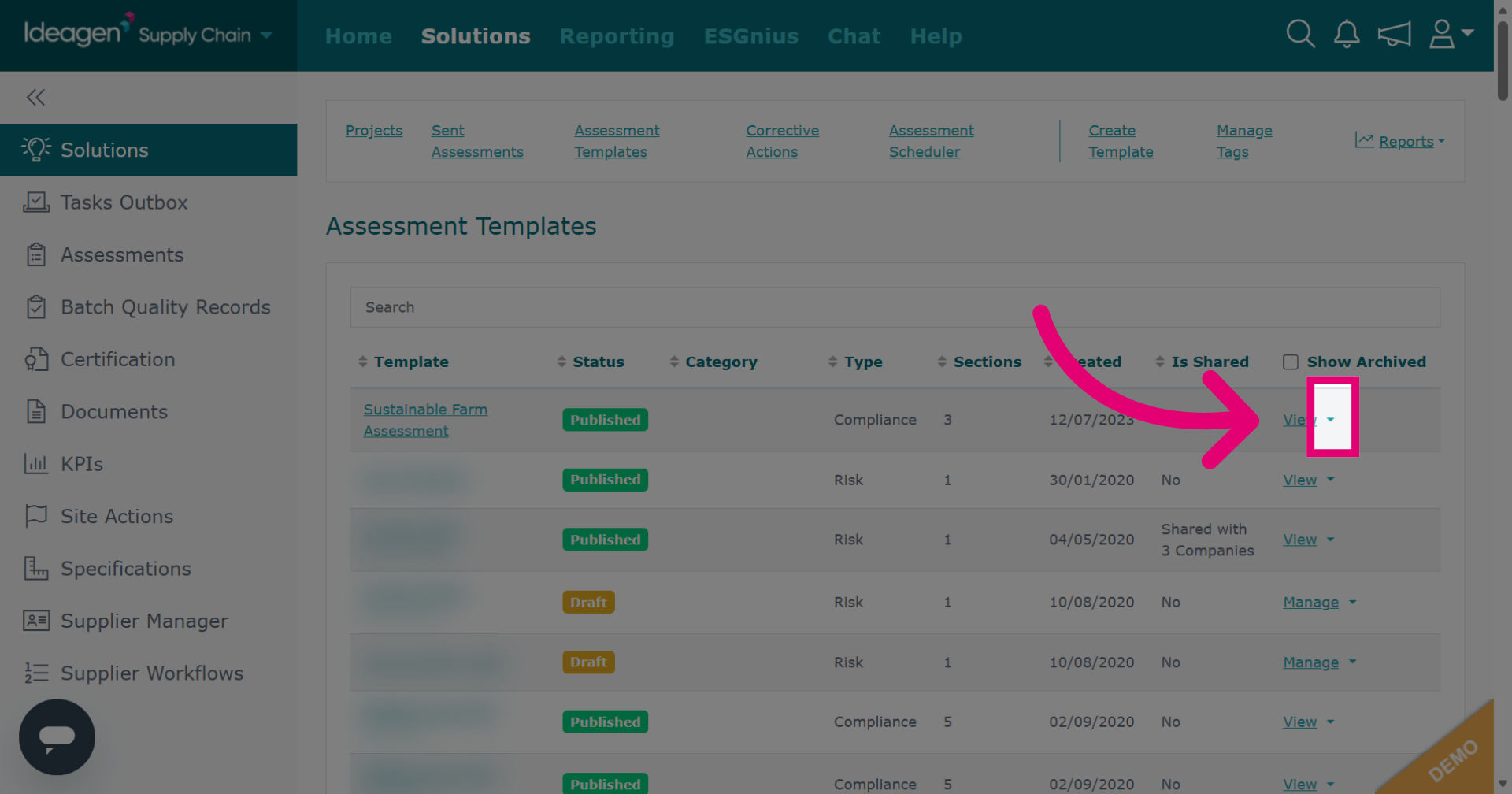
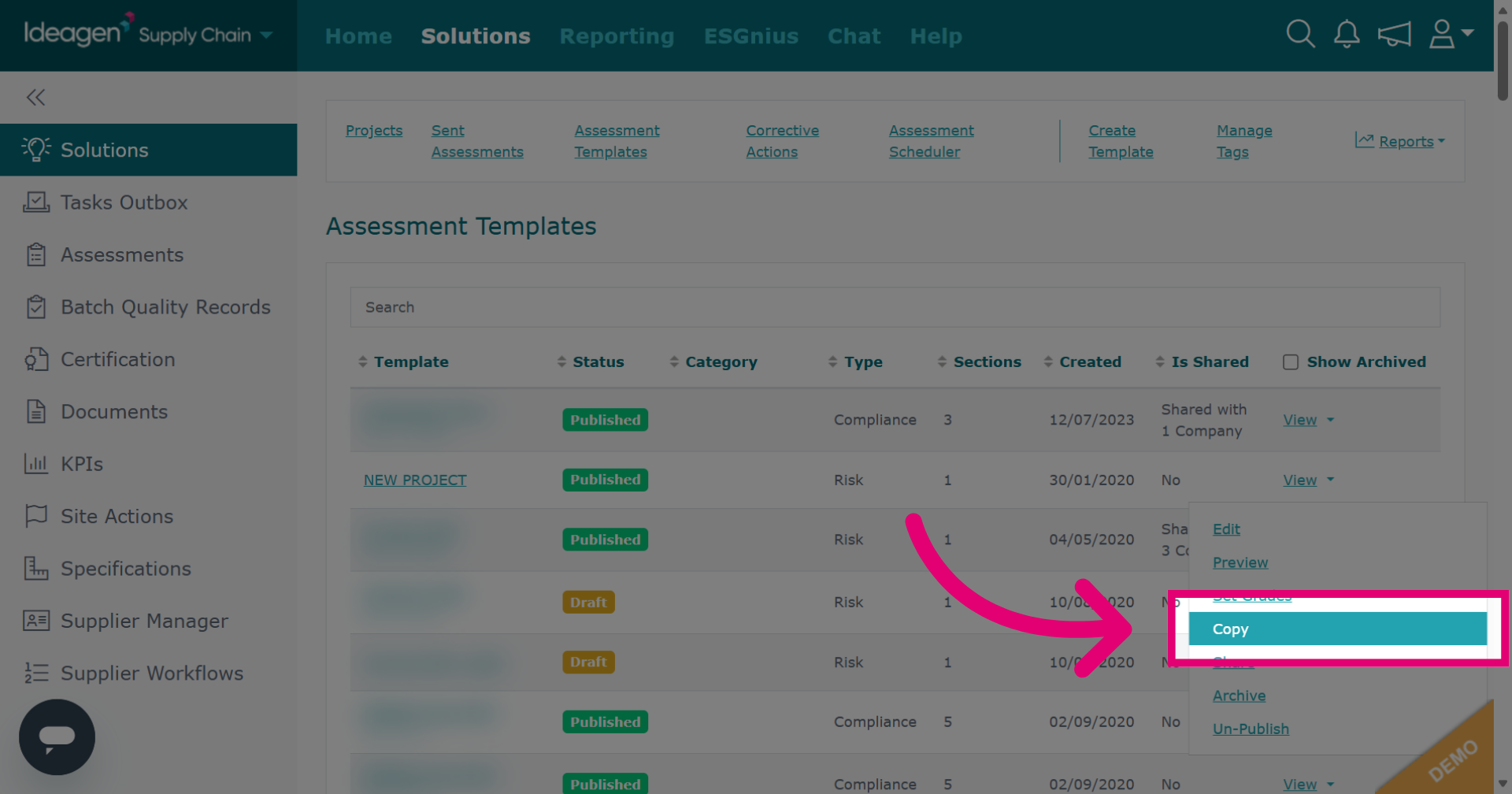
Click the arrow next to the relevant template to see the available options.
-
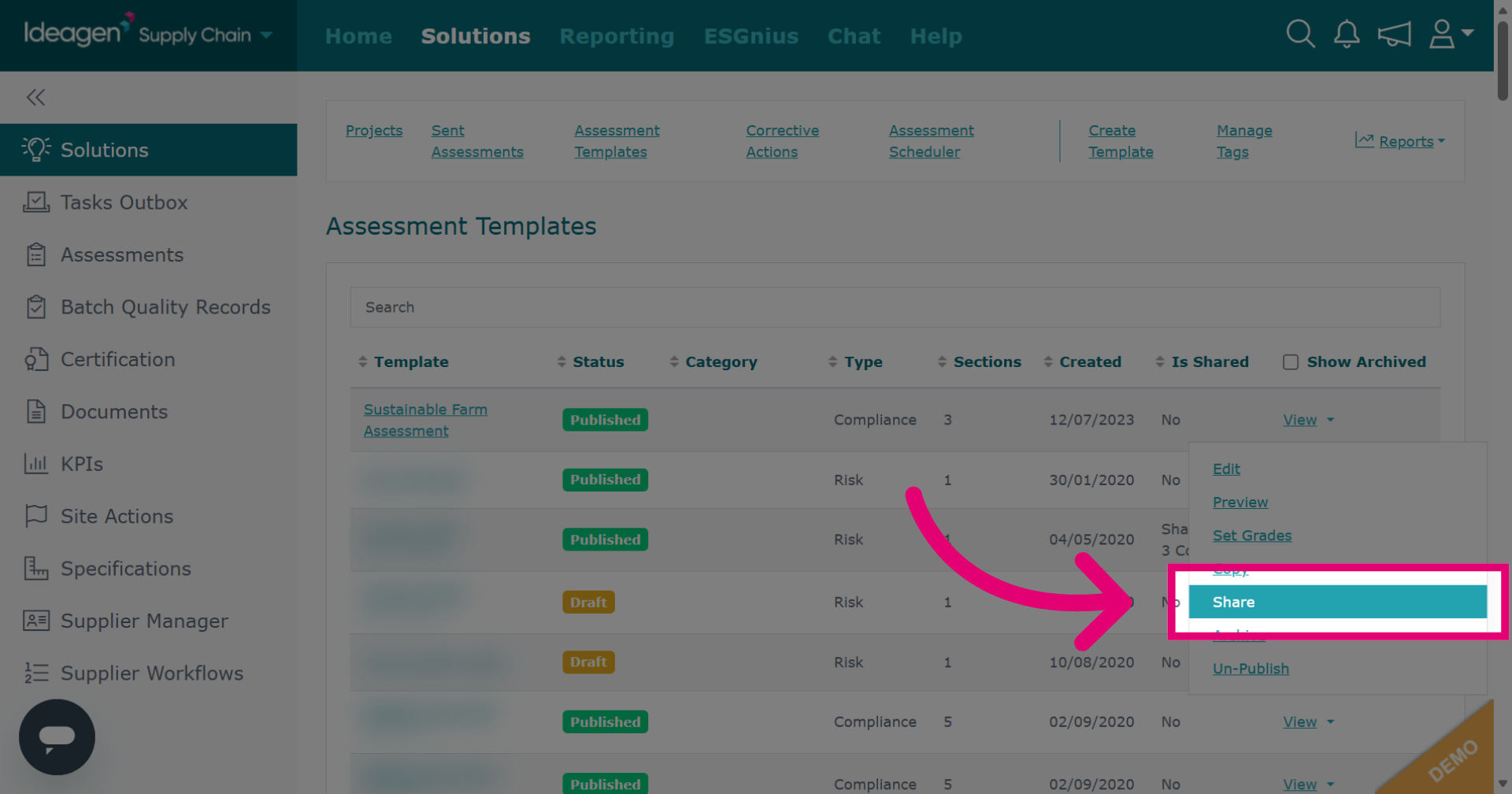
Click Share to access sharing features for your project templates.
-
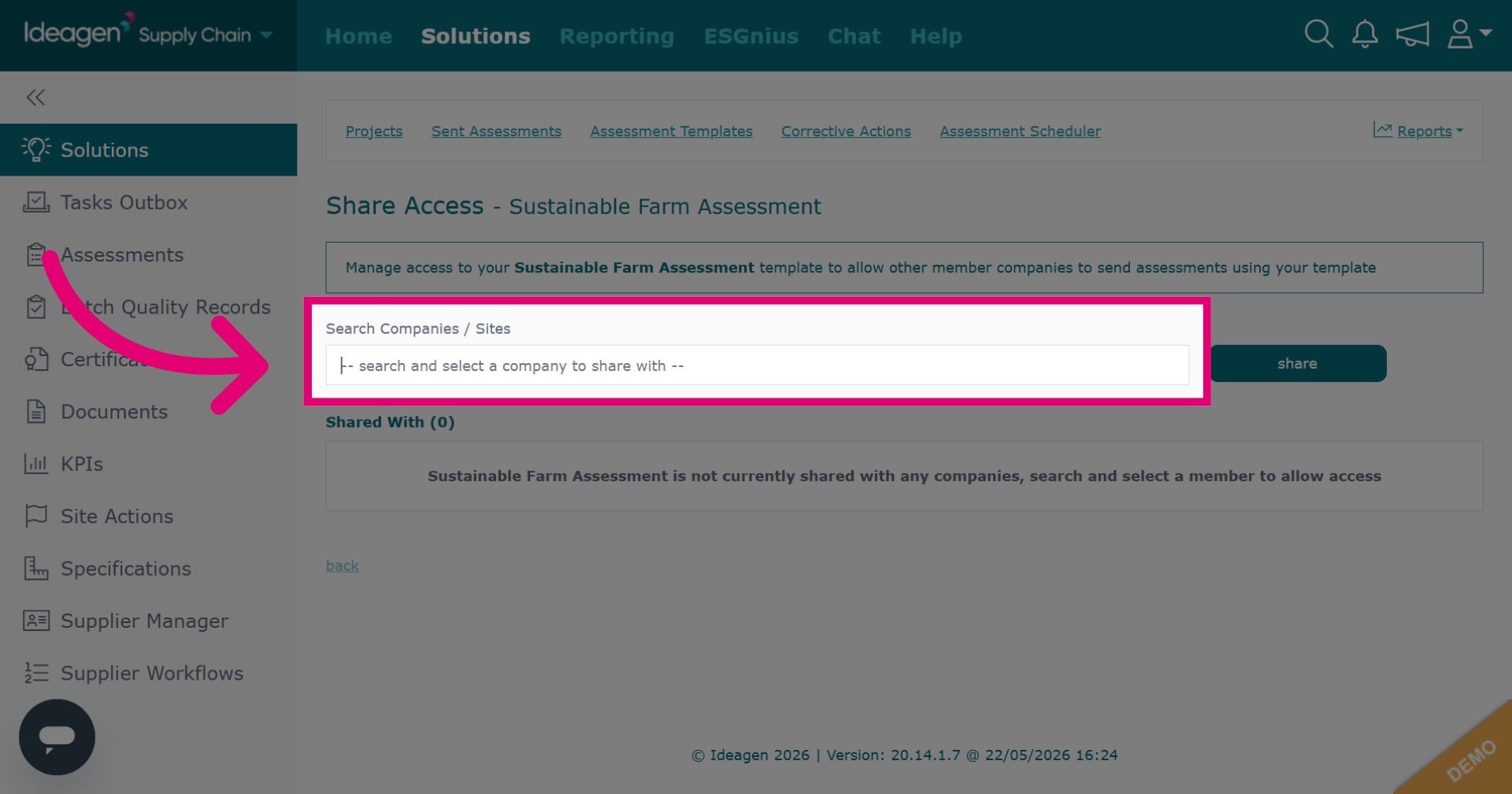
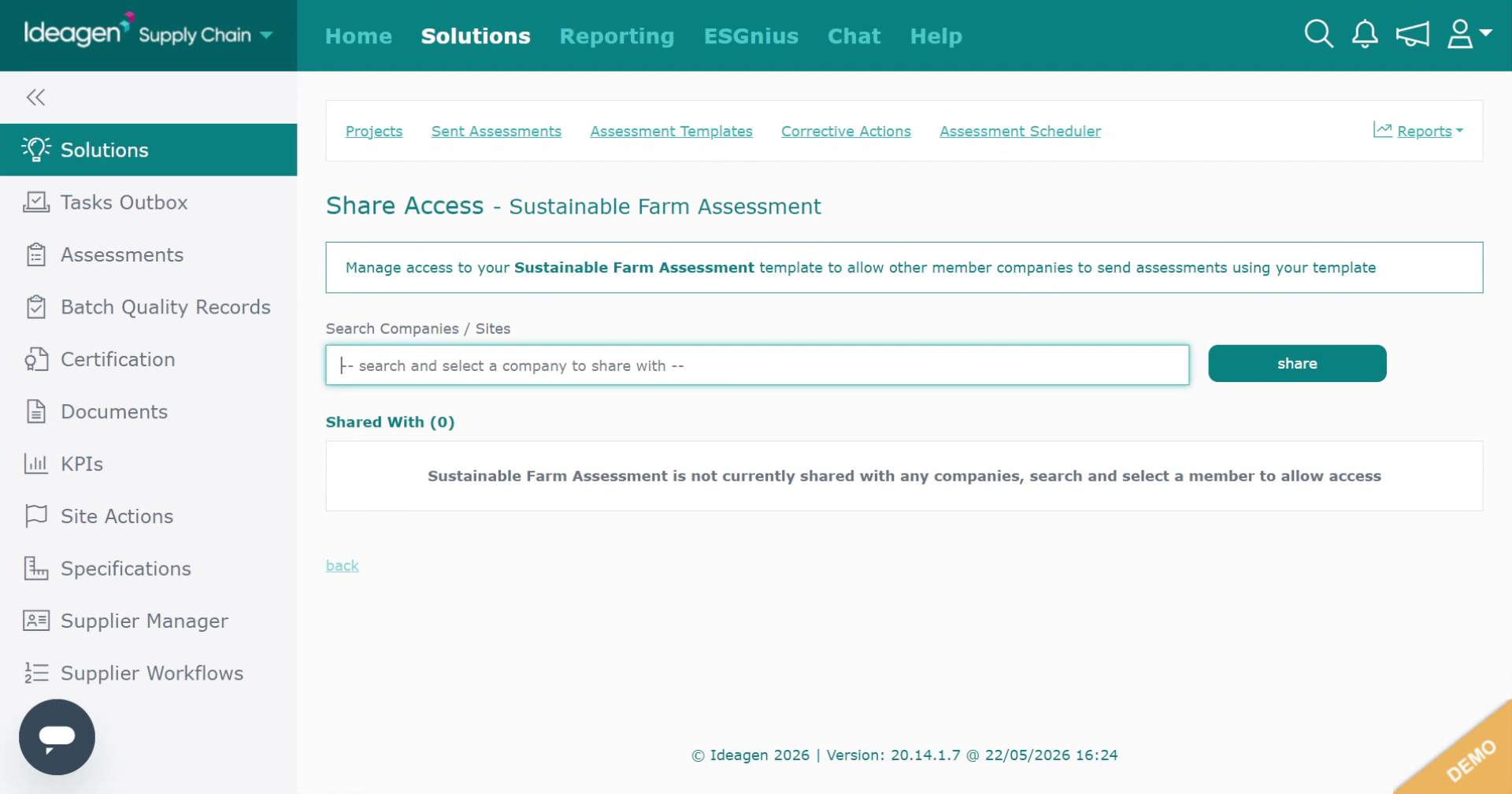
Click Search Companies / Sites to find the company or site you want to share with.
-
Enter the company name into the search box.
-
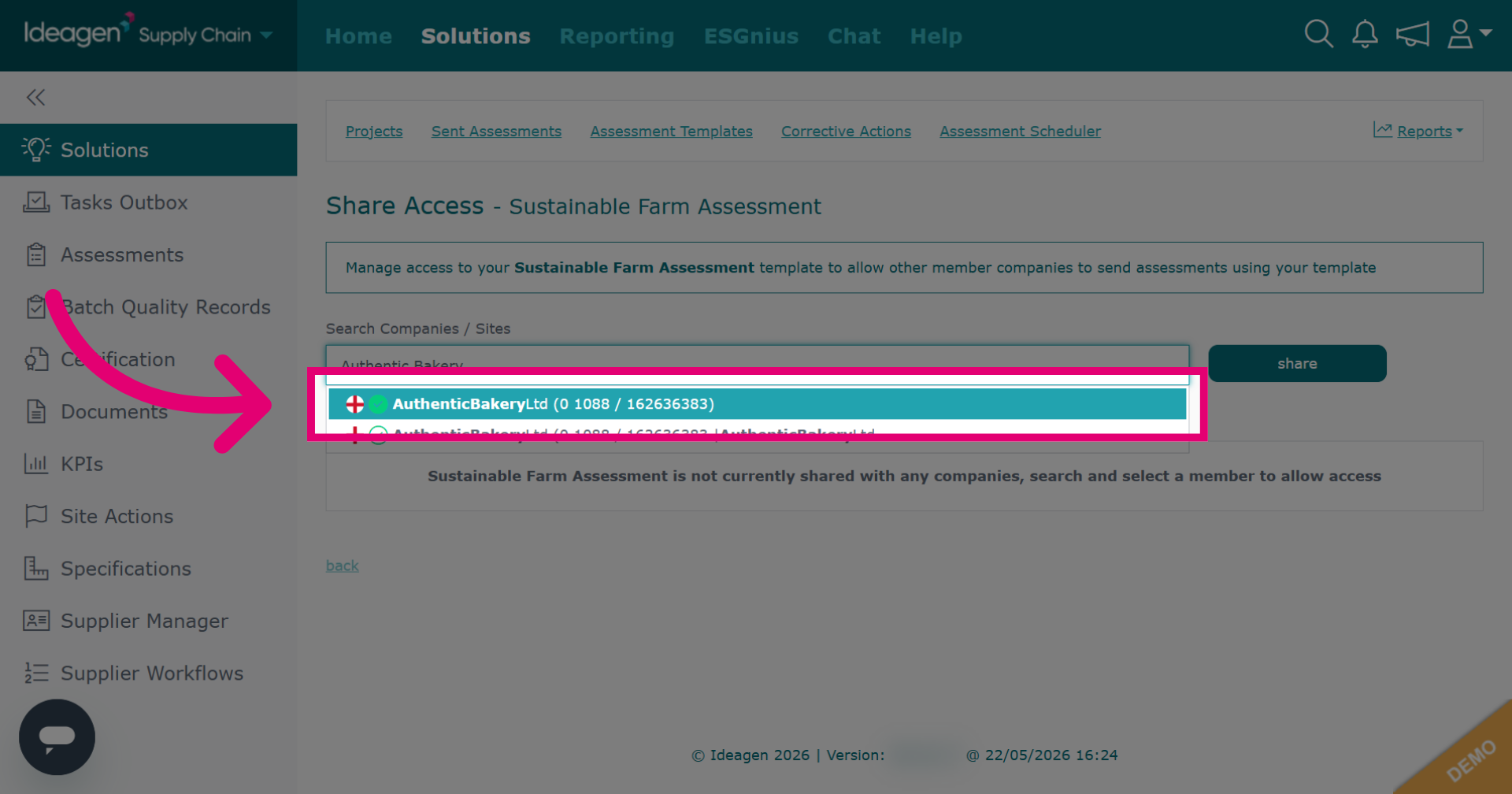
Select the company from the drop down results.
-
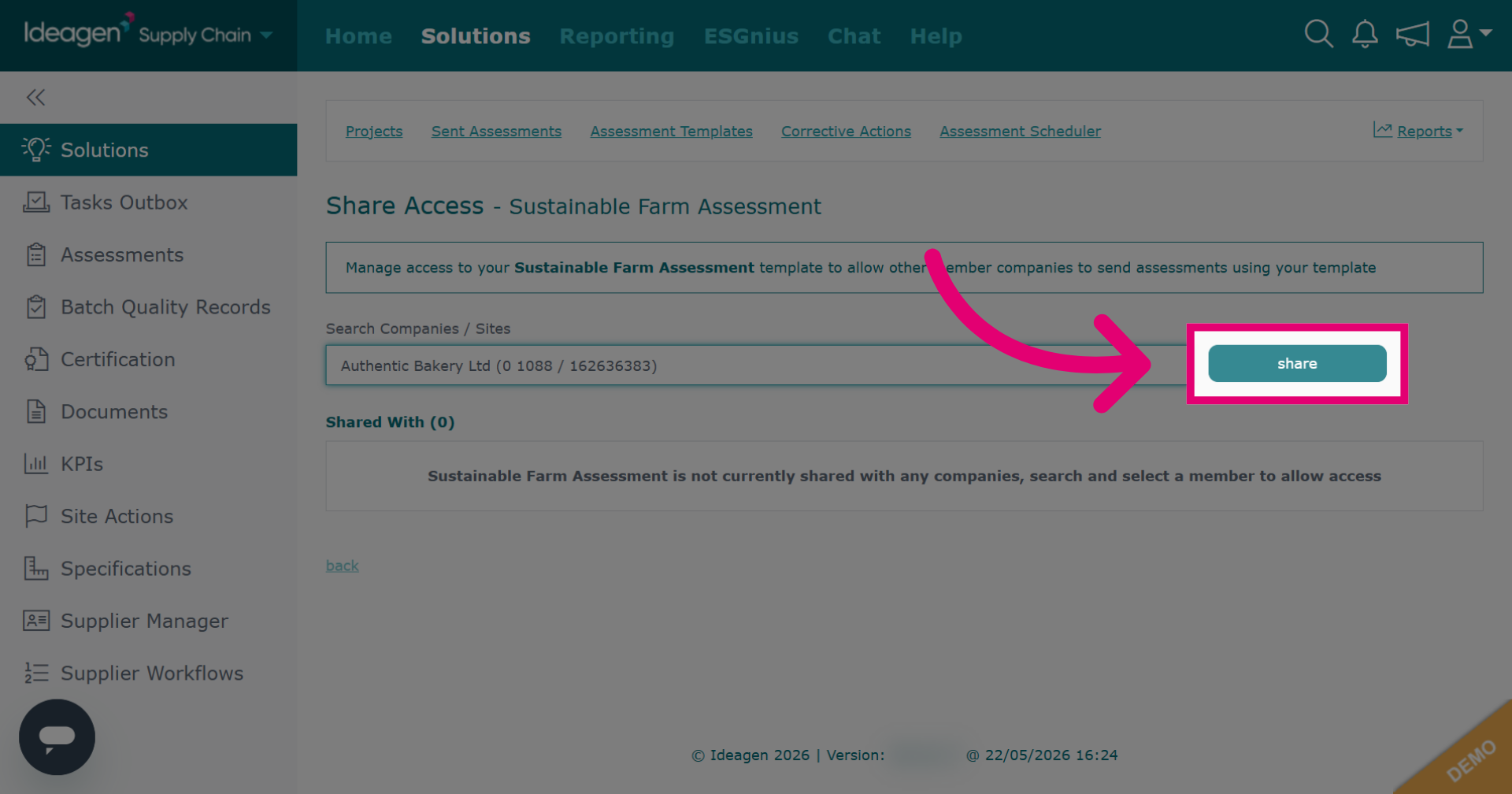
Click share to begin sharing the selected company information.
-
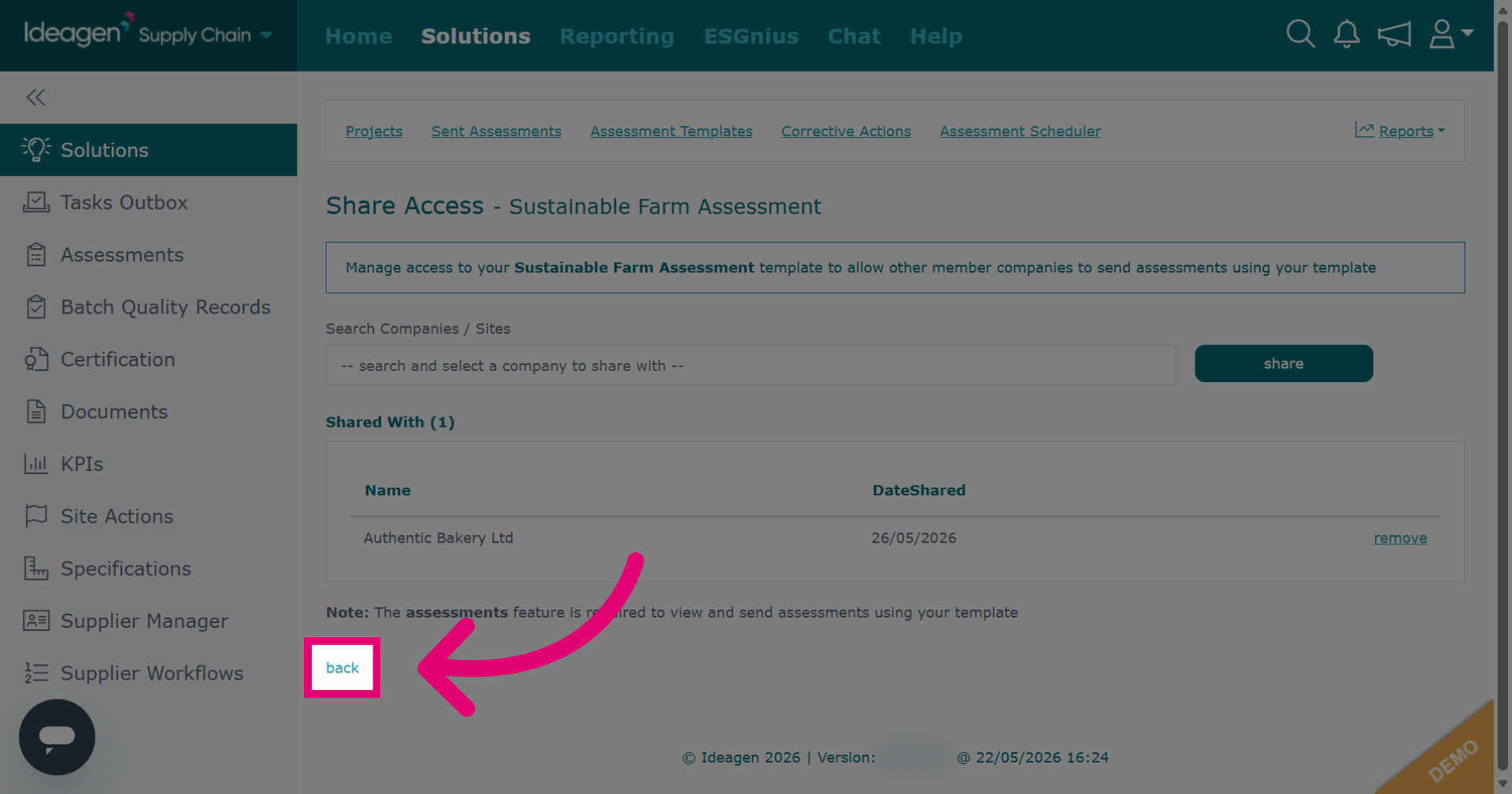
Click back to return to the previous screen if you want to continue viewing your assessment templates.
-
Click Copy to create a duplicate of the selected project template.
-
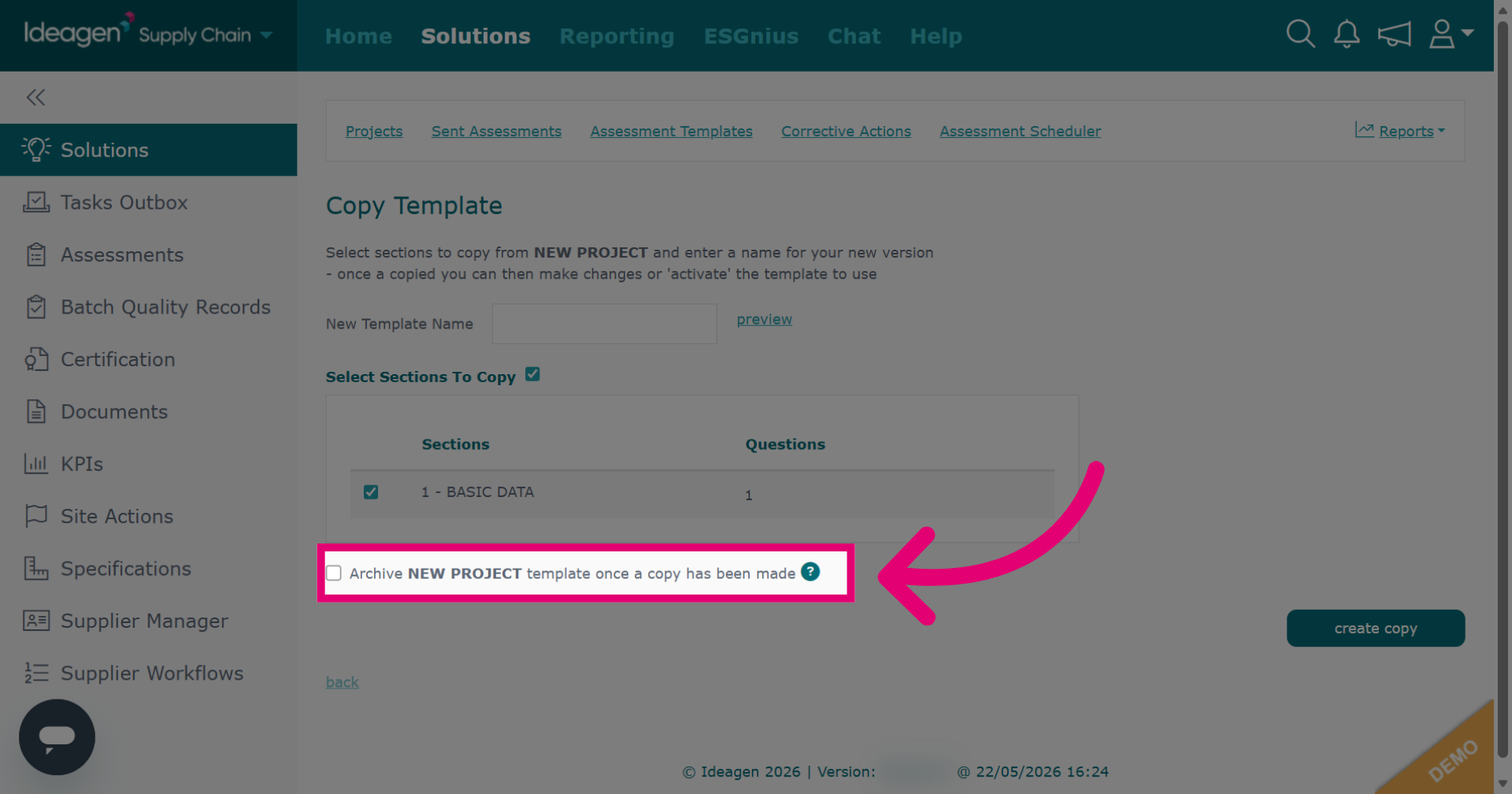
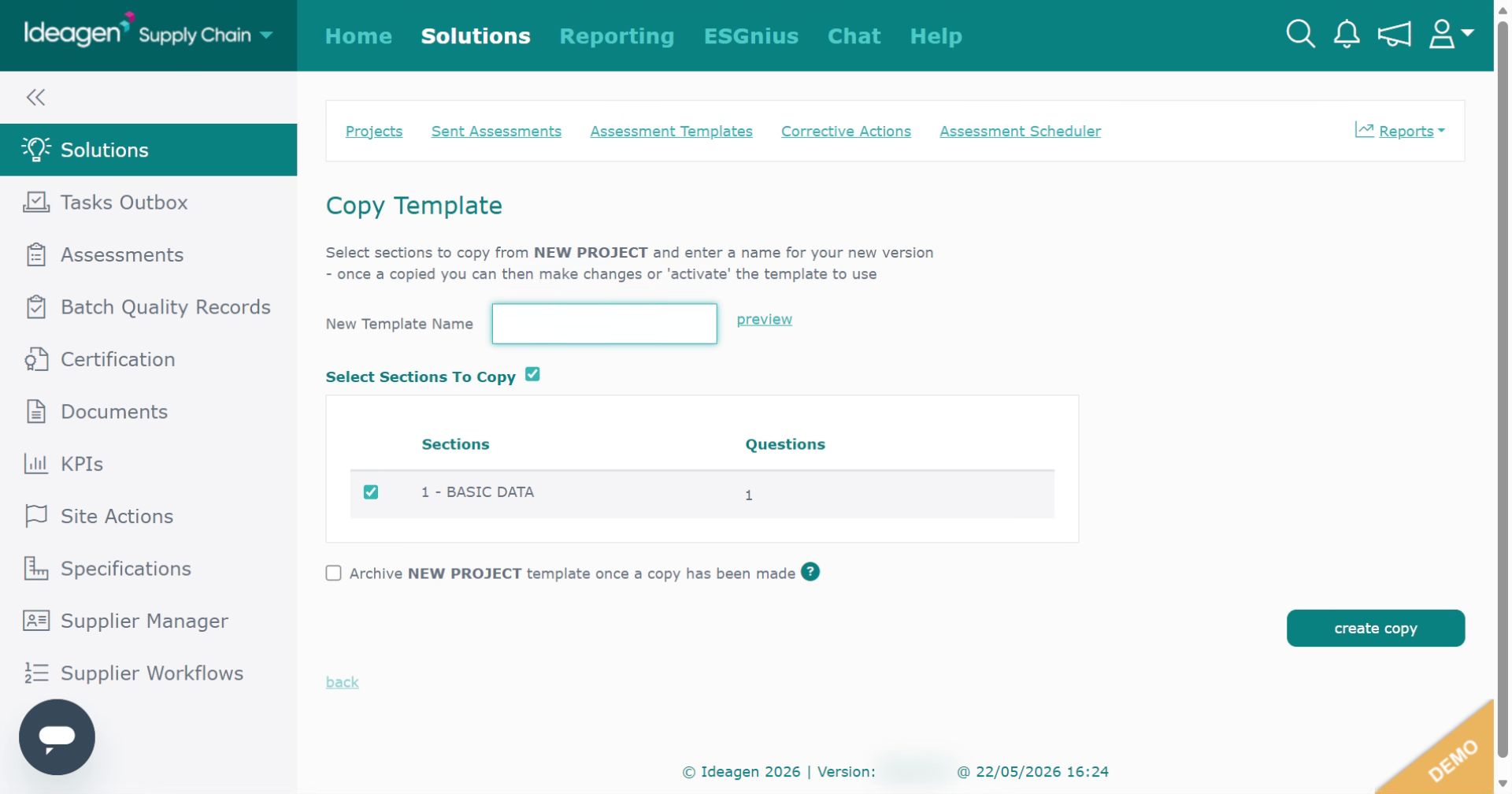
When making a copy, tick the box if you wish to archive the original.
-
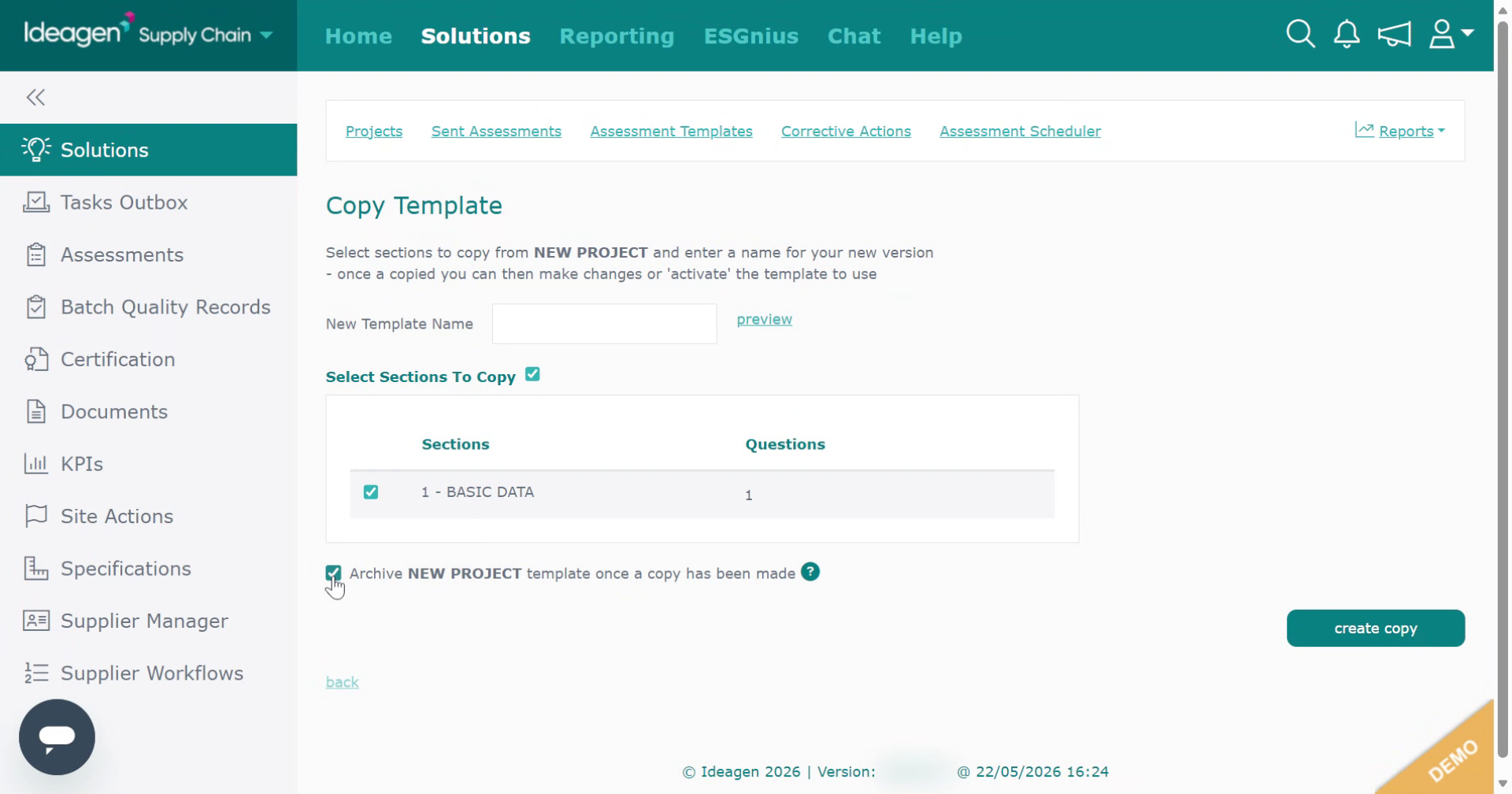
Confirm the archived copy settings.
-
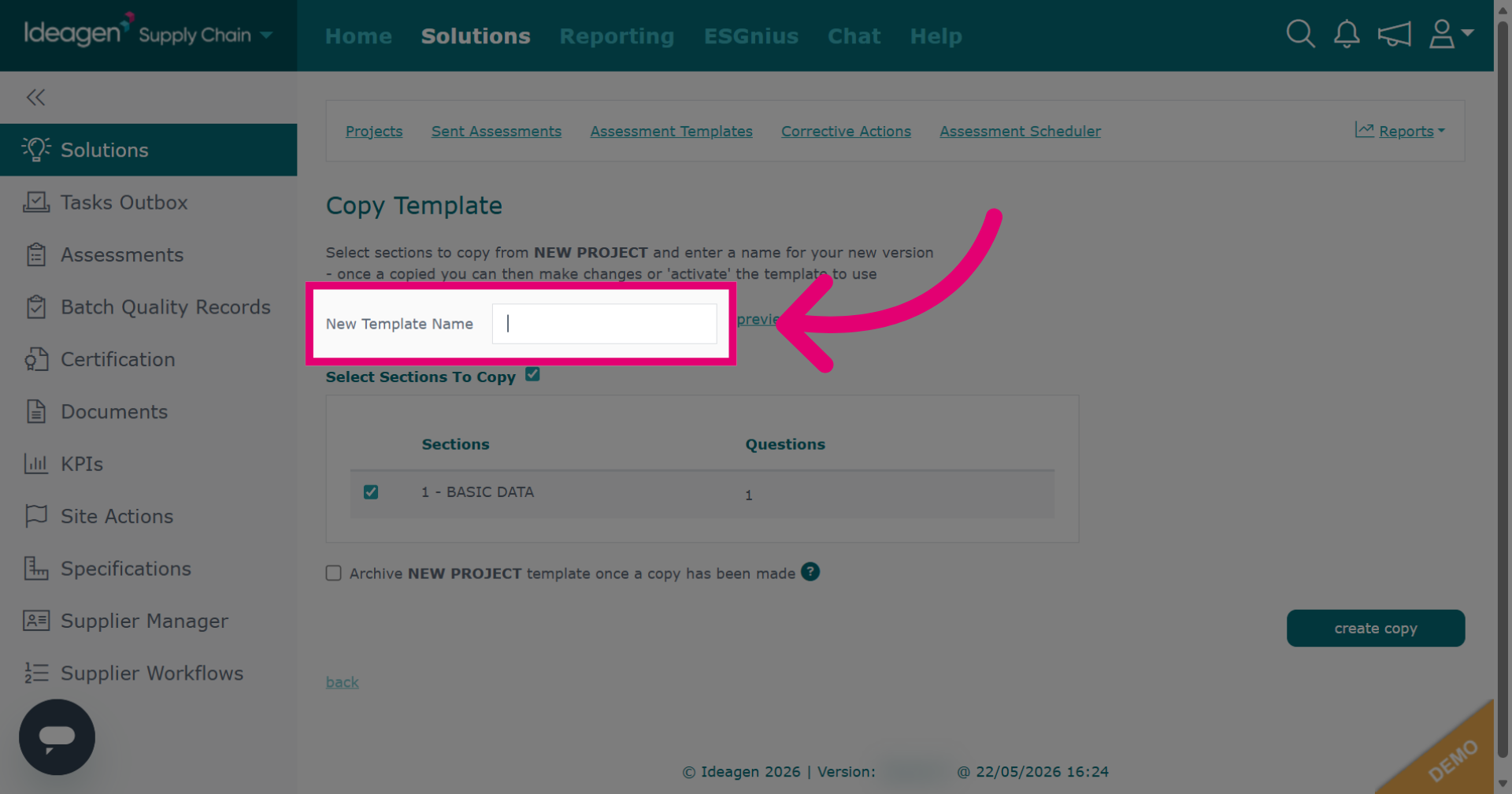
Click New Template Name to specify the name for the copied template.
-
Enter the new template name.
-
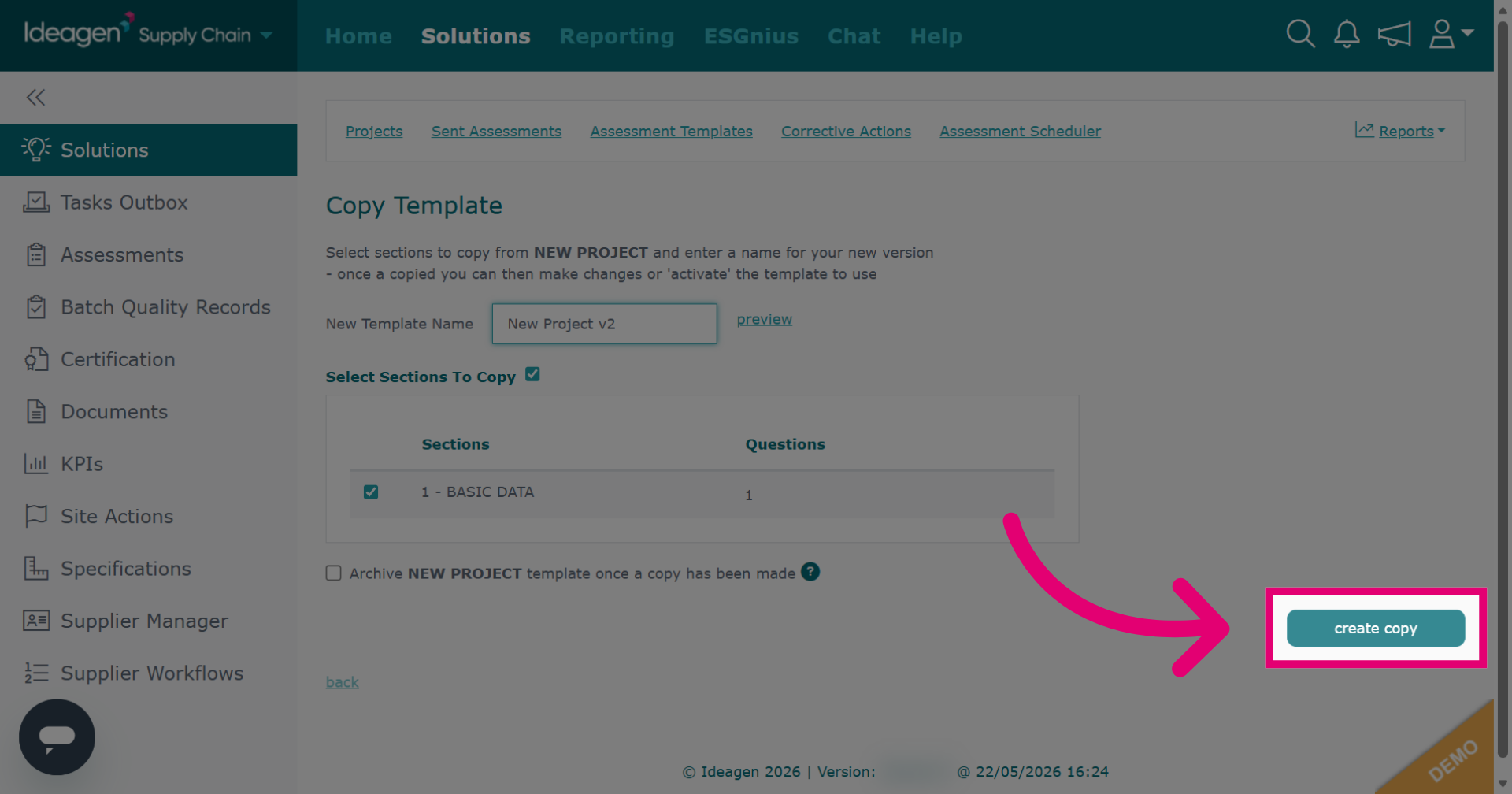
Click create copy to finalize creating the new project template.
-
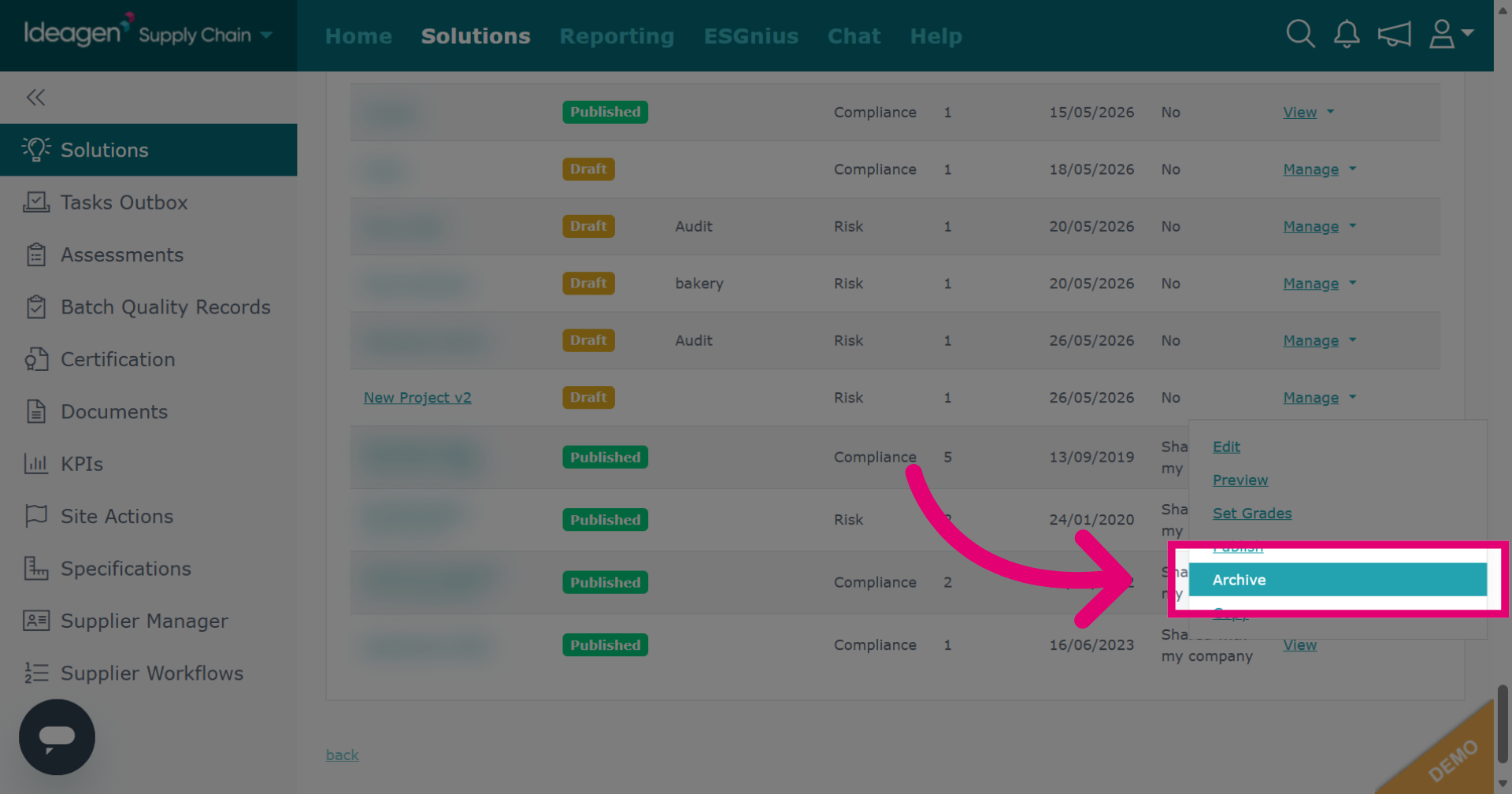
Click Archive to initiate archiving the selected project template.
-
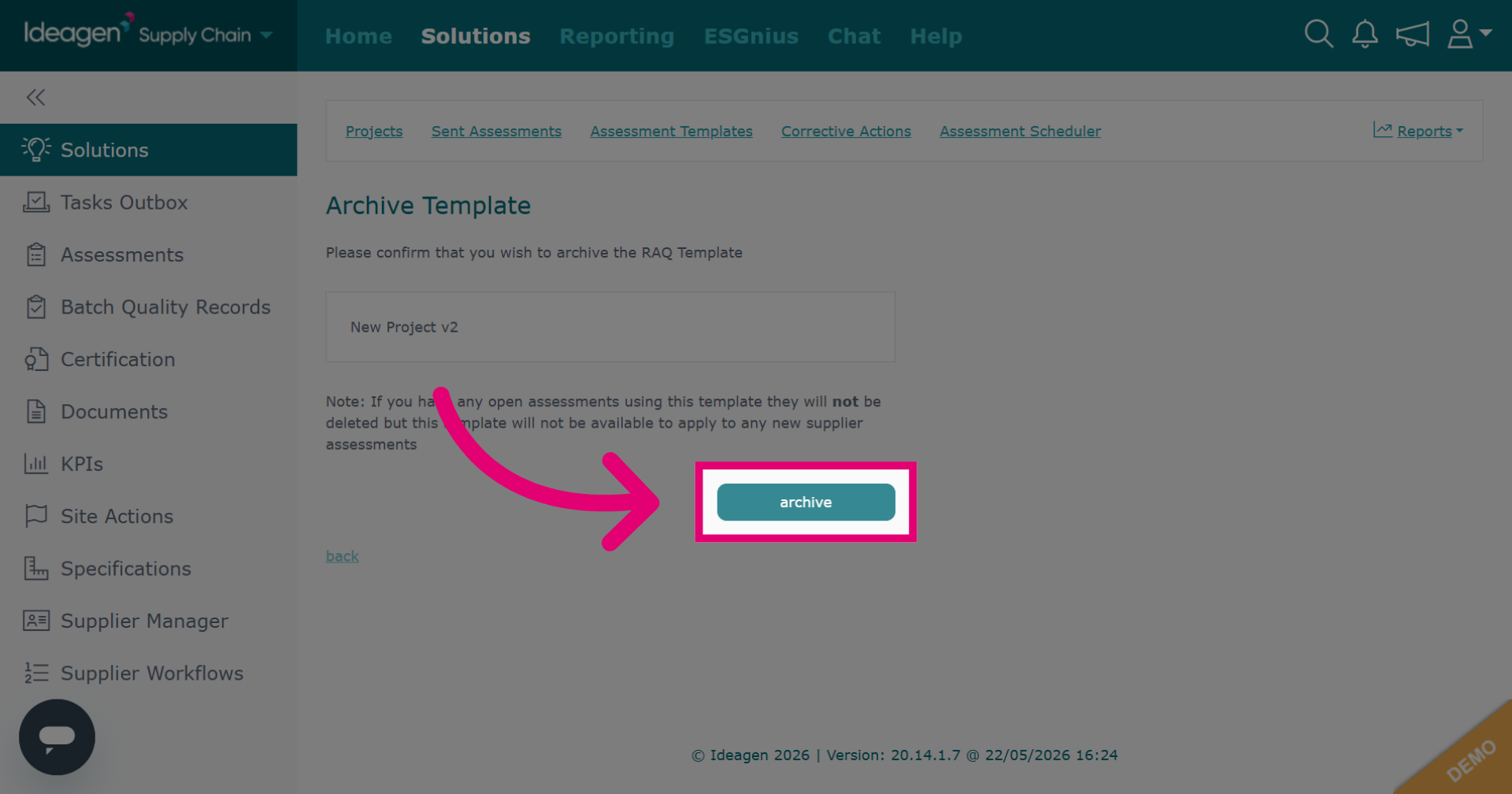
Click archive to confirm and complete the archiving process.
-
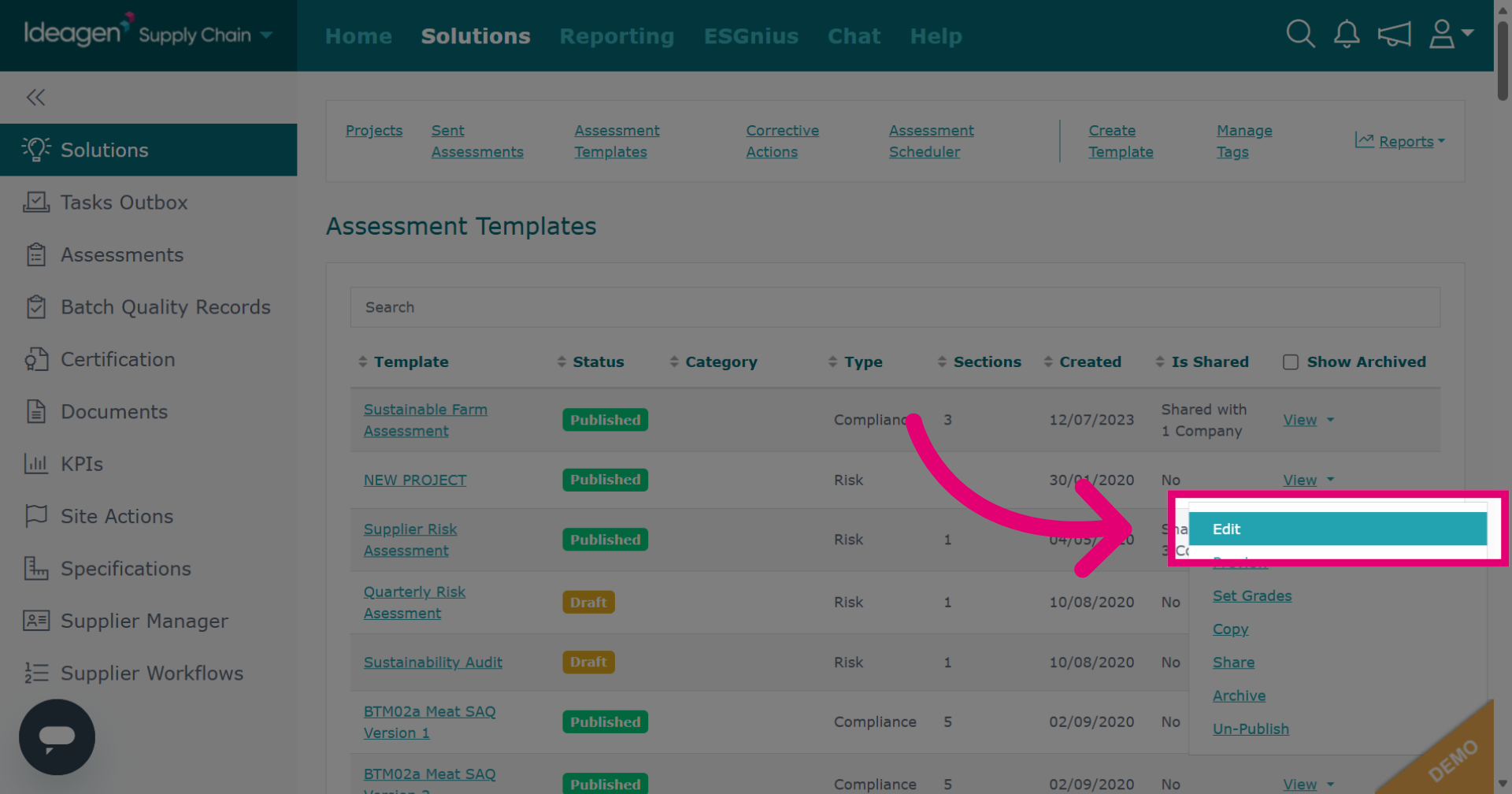
Click Edit to modify the selected project template's core details.
-
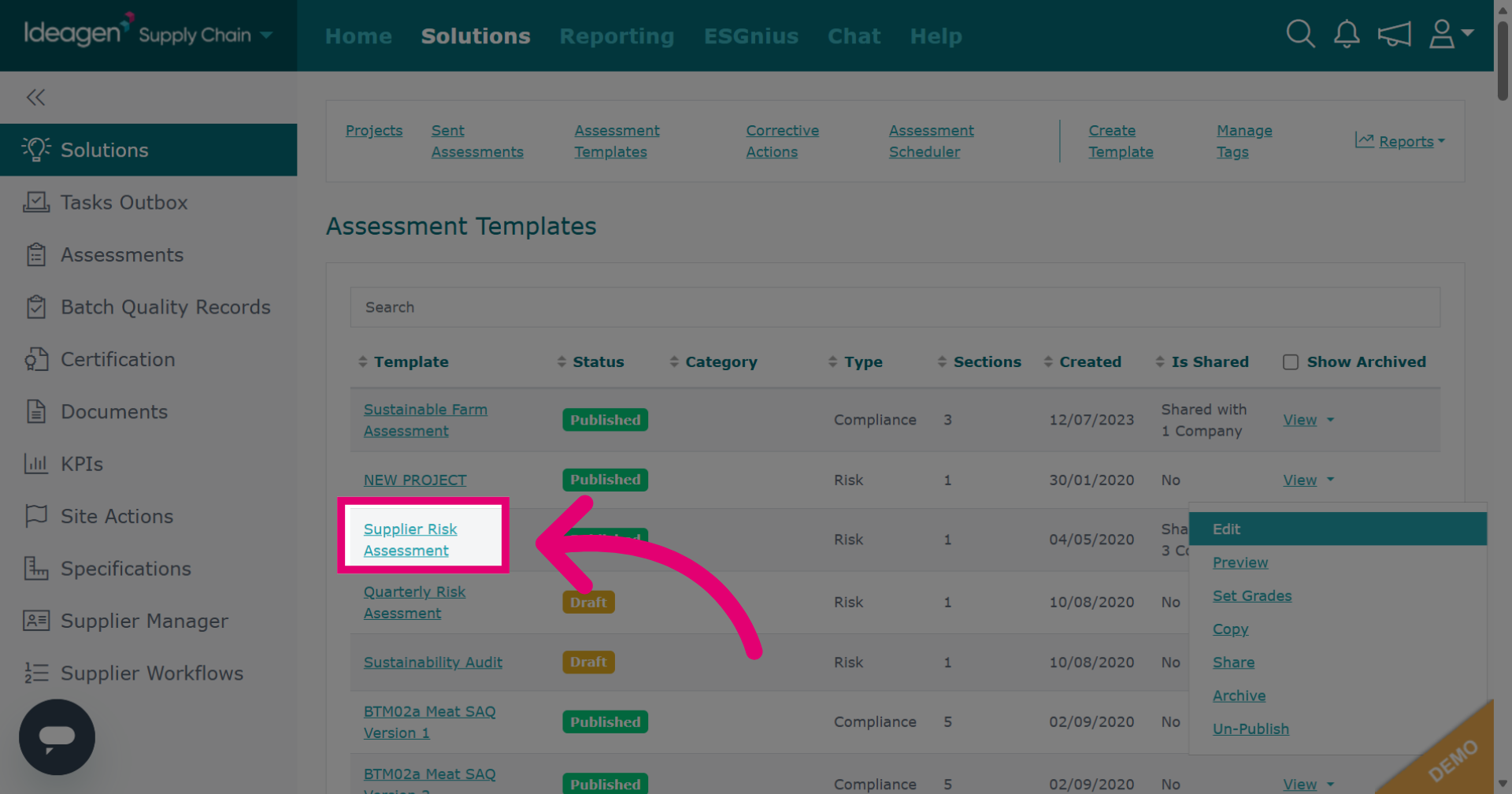
Click the template name to edit all aspects of the template including sections, questions and scoring.
-
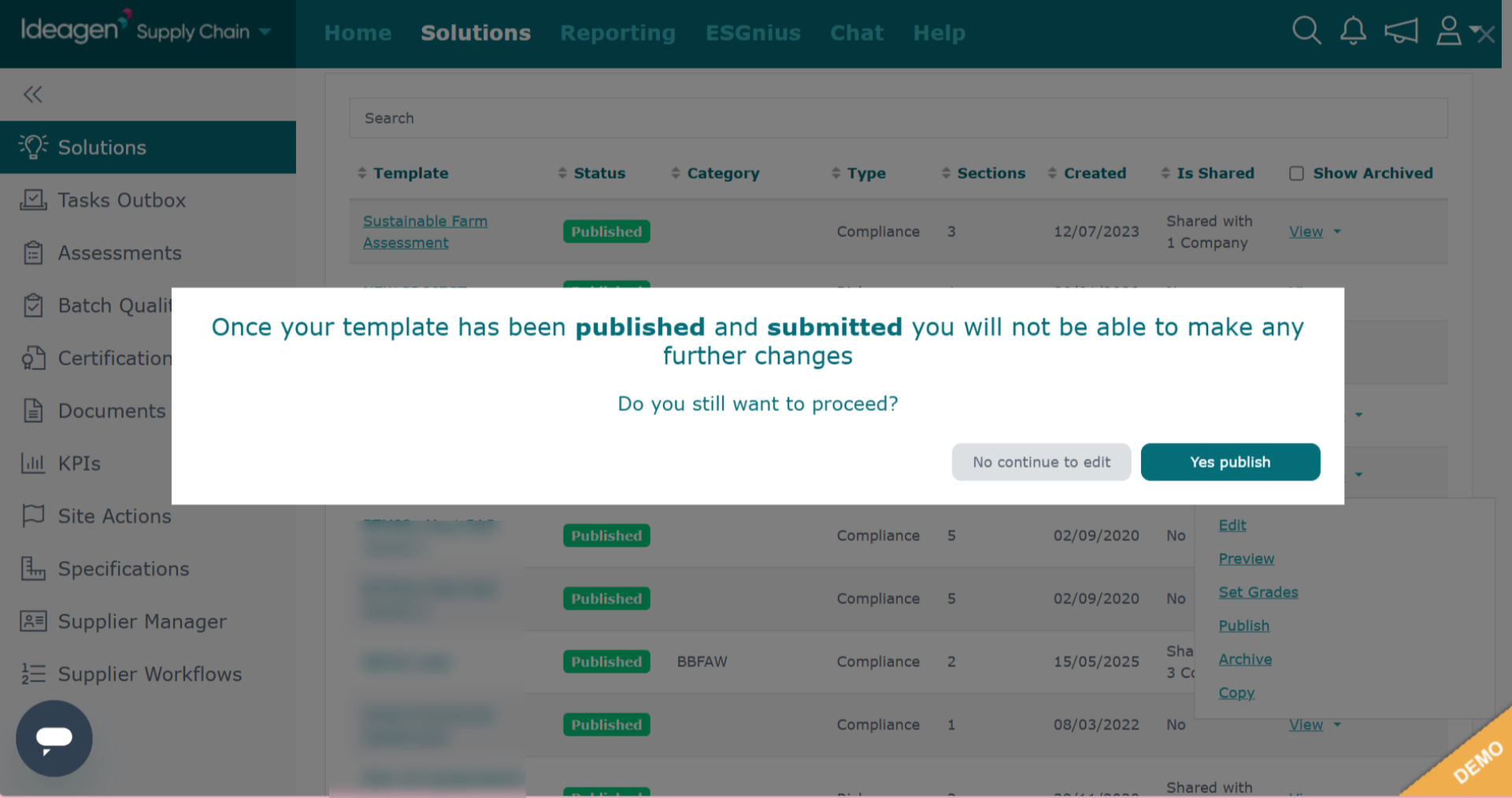
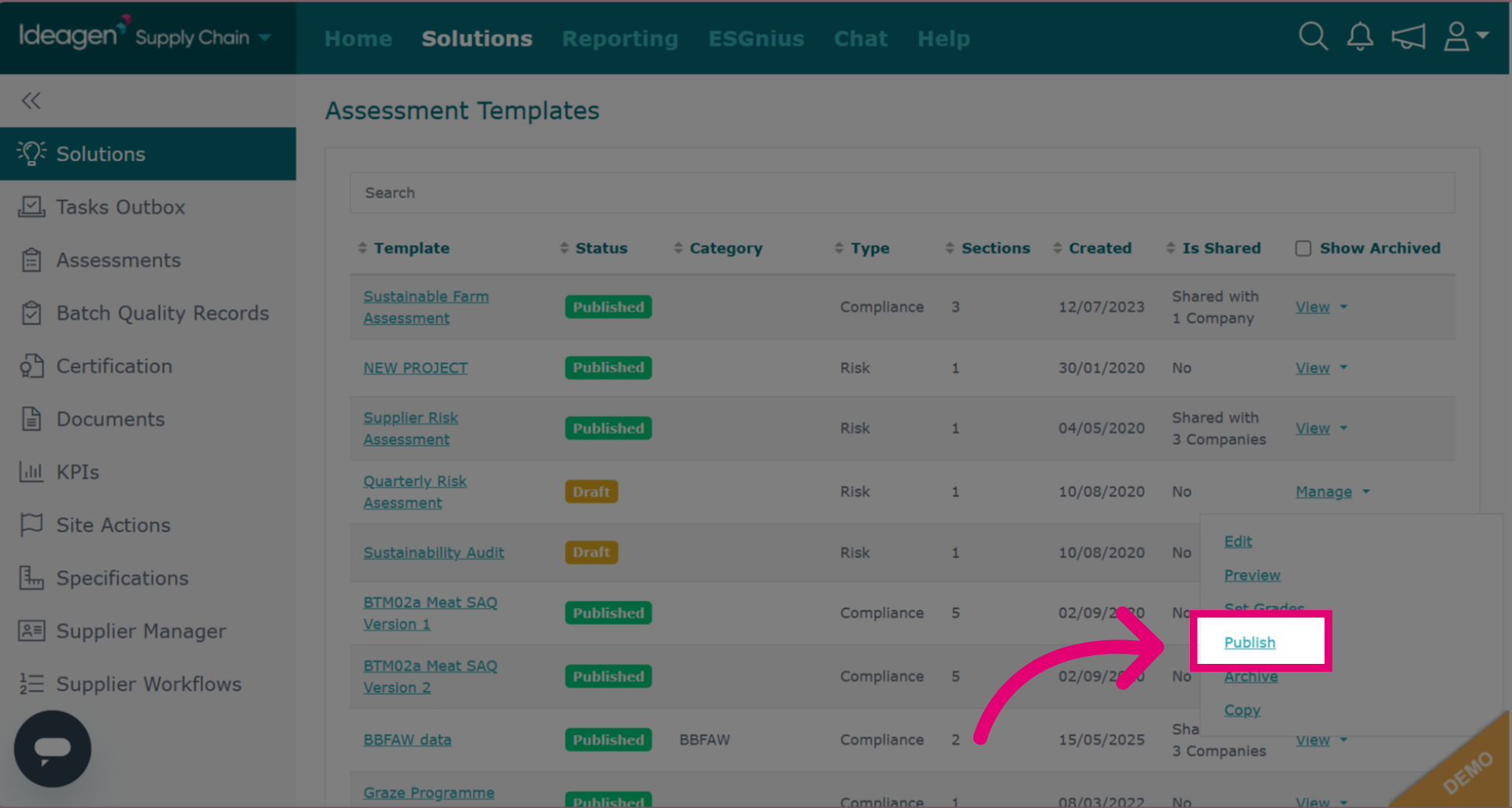
For assessment templates in draft, click publish.
-
You will be asked to confirm publish or whether you want to go back and edit.