New article
Recently updated
Managing assessment templates

Who is this article for?
Users who want to learn to manage assessment templates.
Assessment admin permissions are required.
This tutorial guides you through managing project templates within the Ideagen Supply Chain platform.
You will learn how to share, copy, archive, edit, and publish assessment templates.
Managing assessment templates
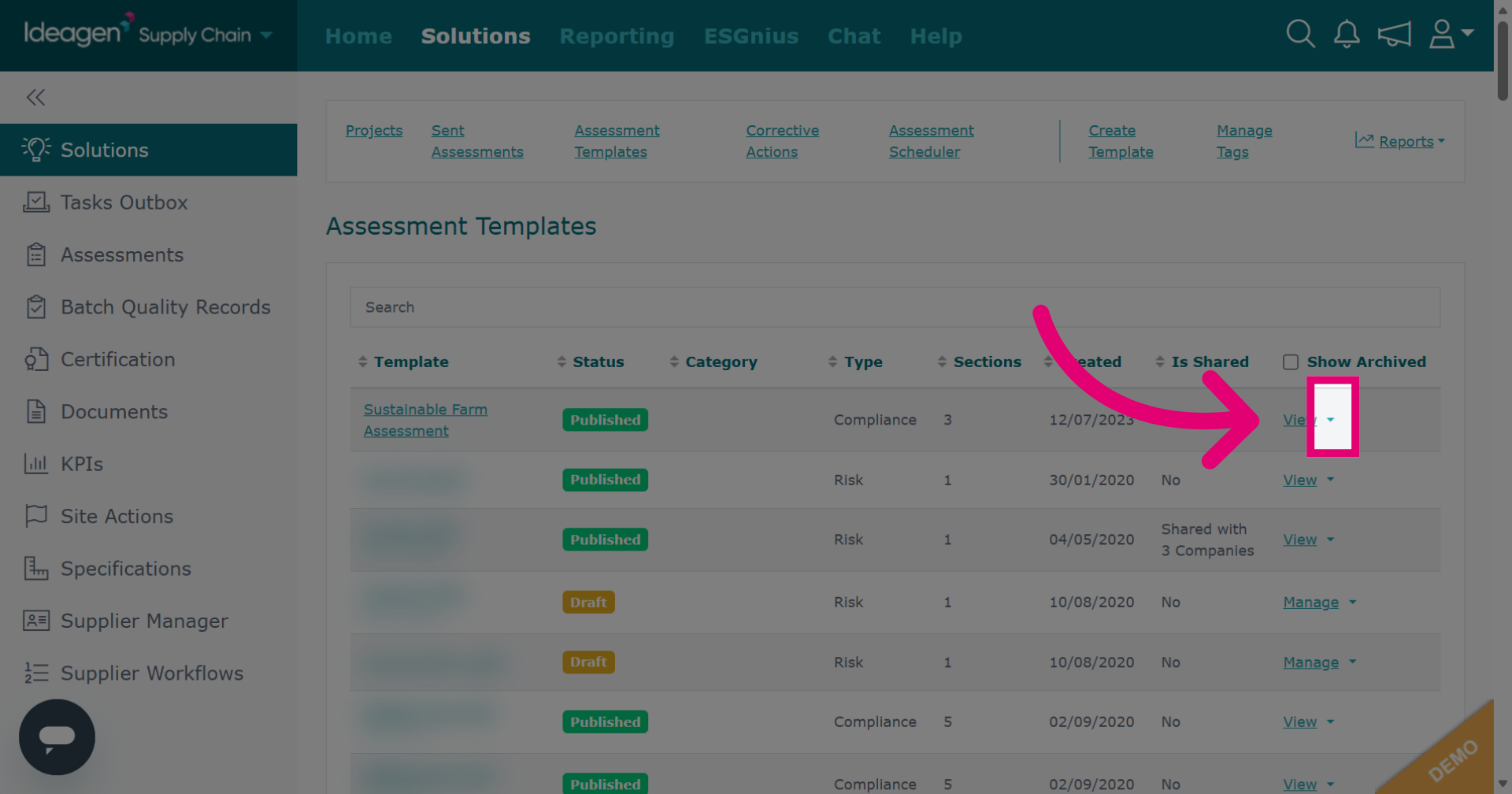
Click the arrow next to the relevant template to see the available options.
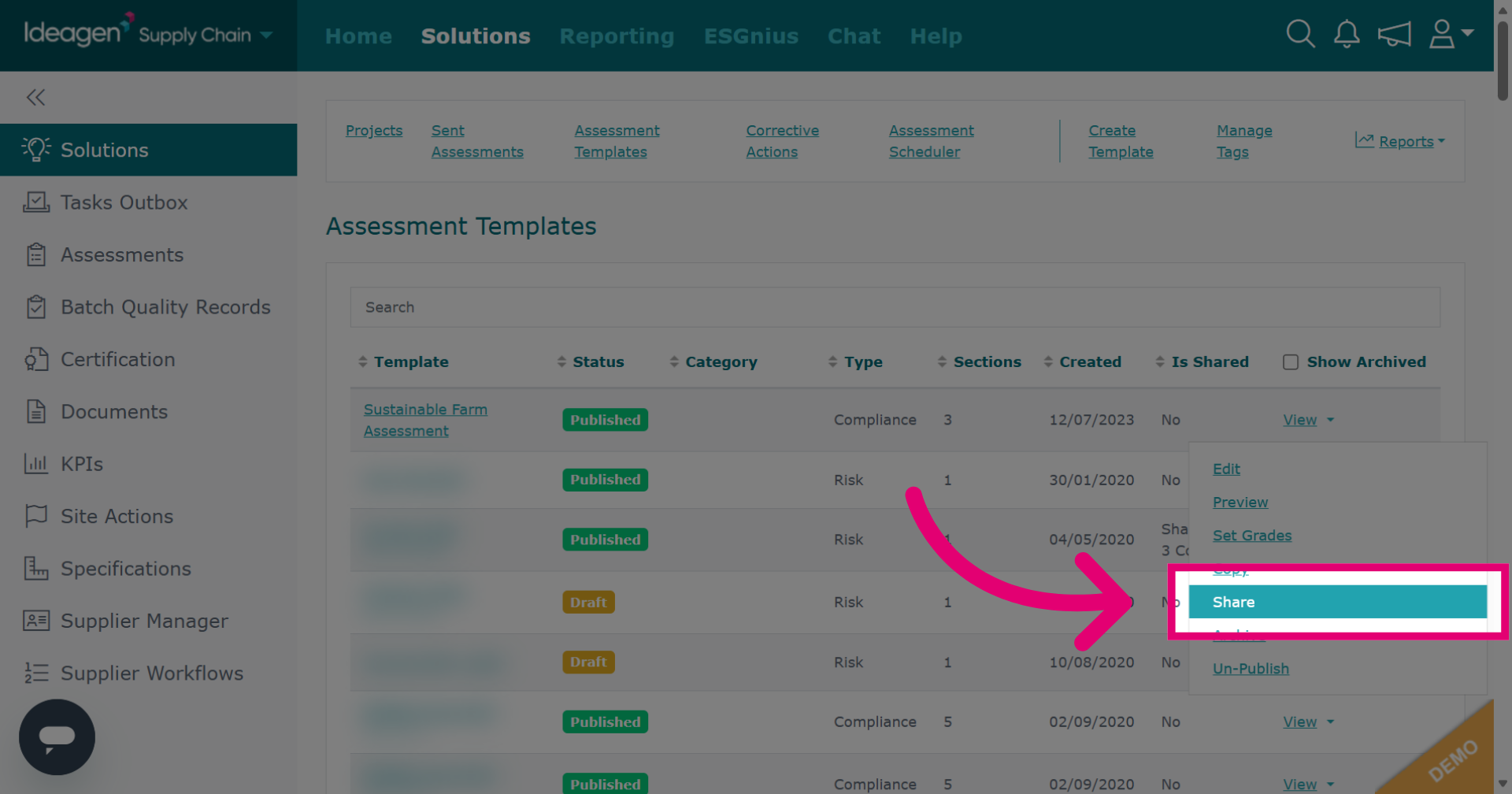
Click Share to access sharing features for your project templates.
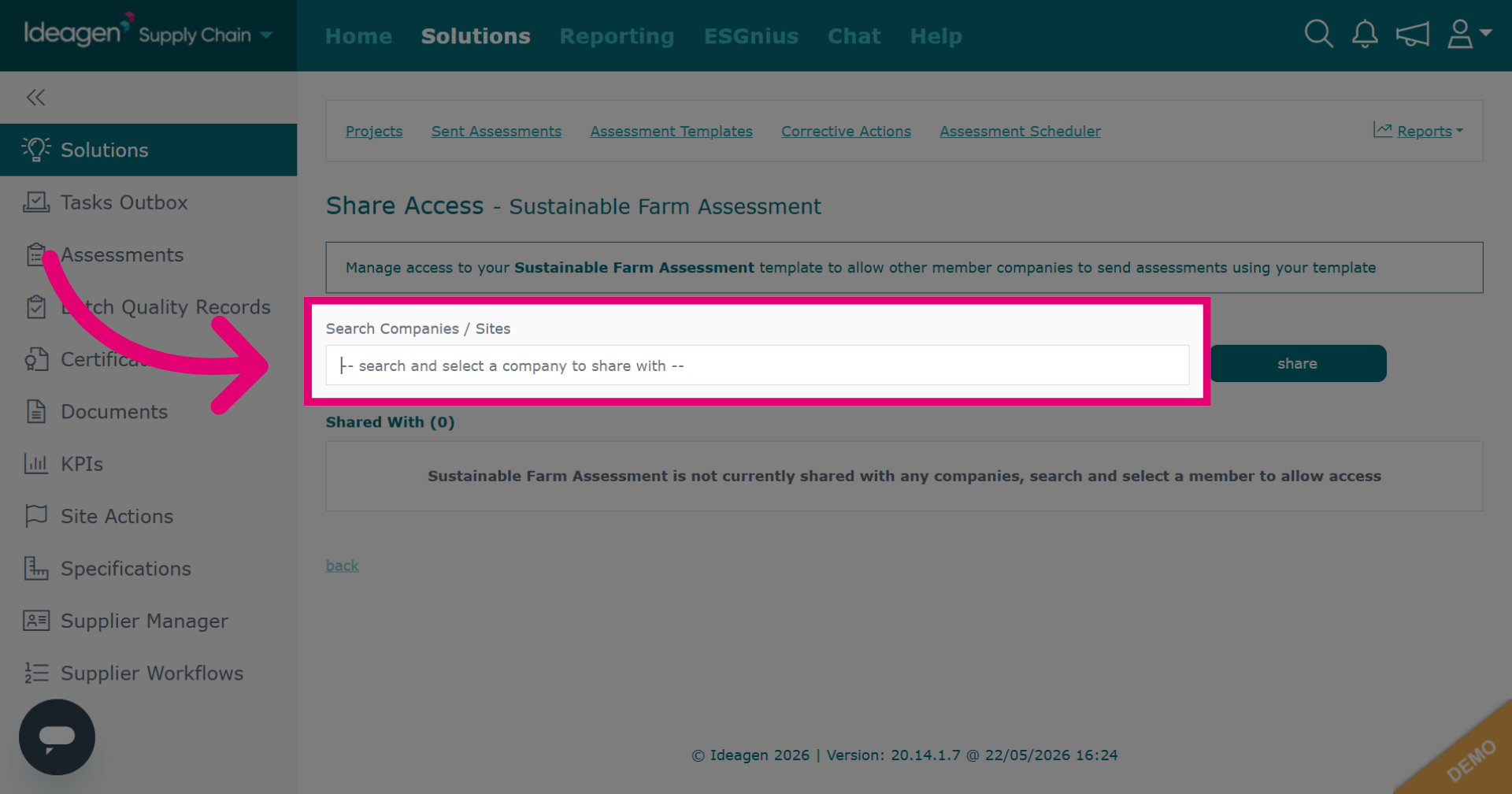
Select Search Companies / Sites to find and enter the company name in the search box.
Select the company from the drop down results.
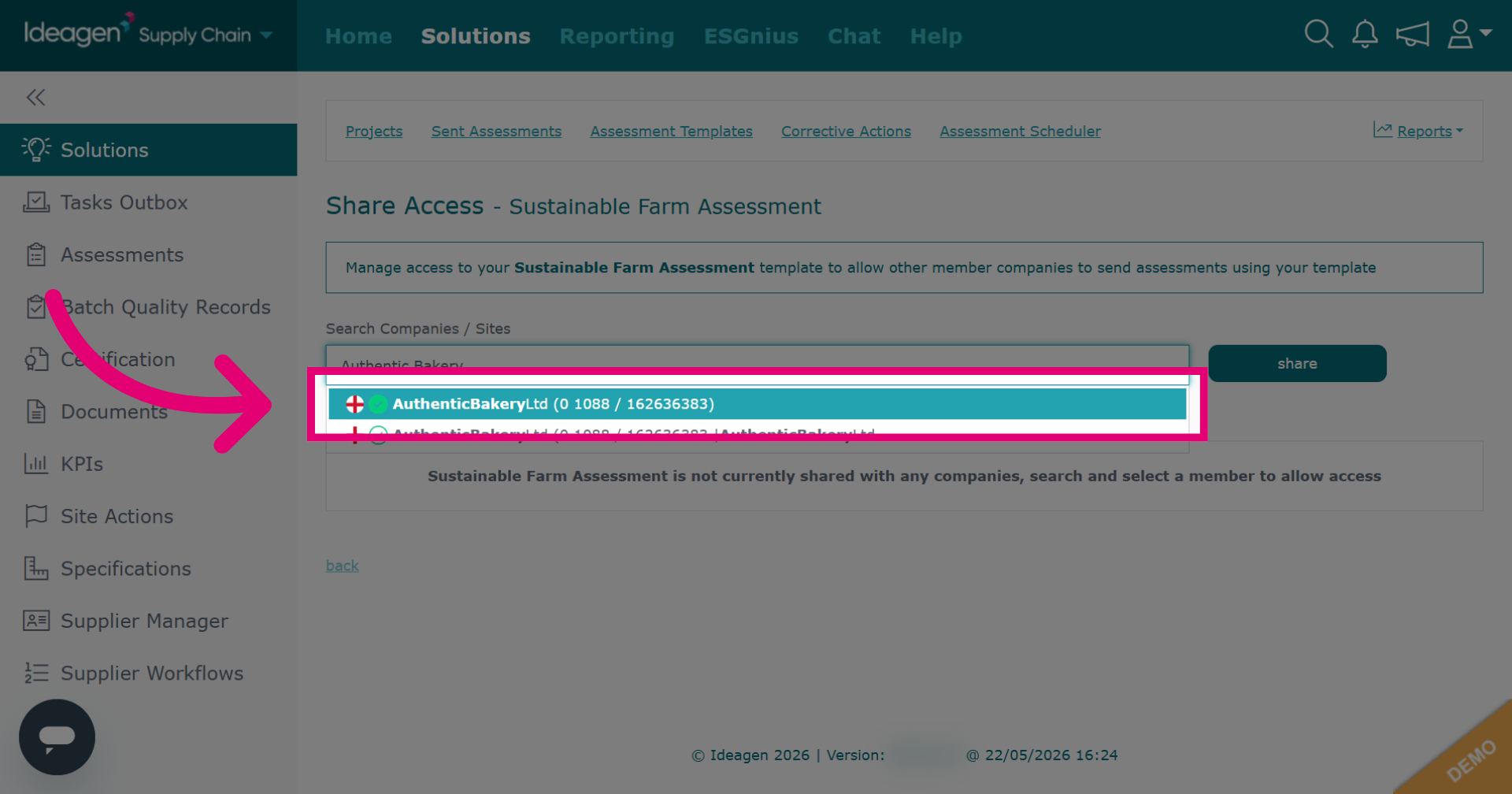
Click share to begin sharing the selected company information.
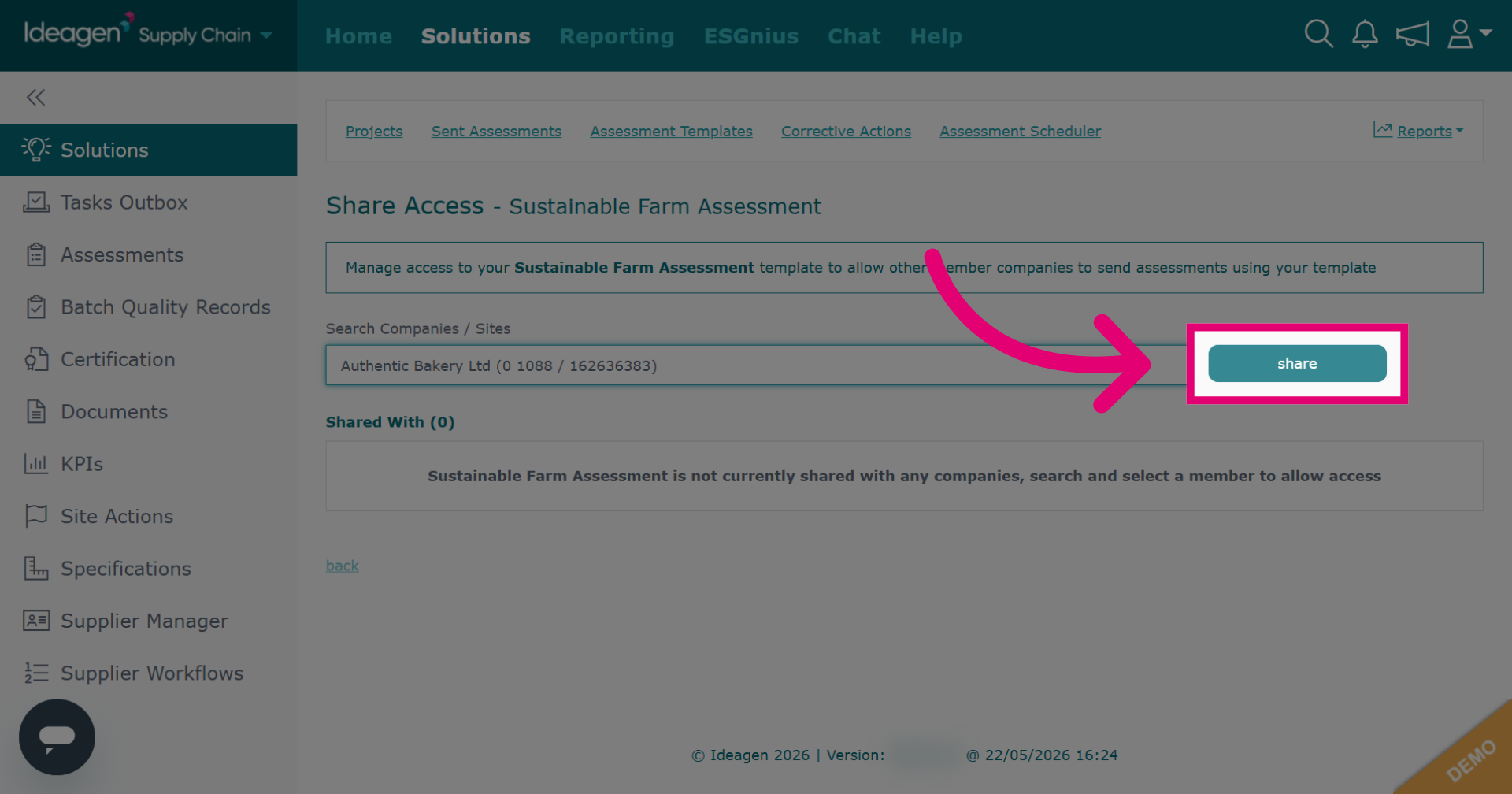
Click back to return to the previous screen if you want to continue viewing your assessment templates.
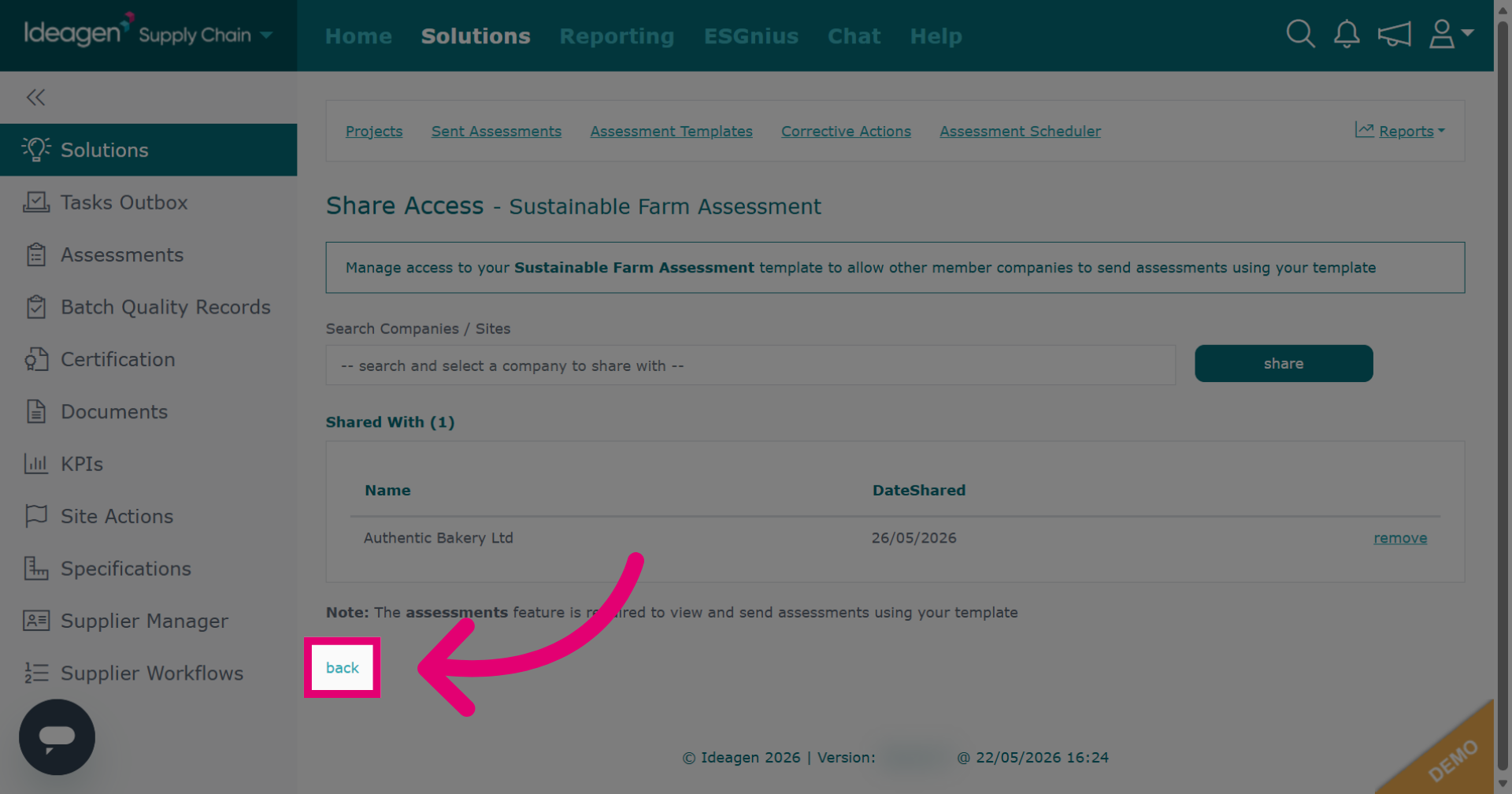
Click Copy to create a duplicate of the selected project template.
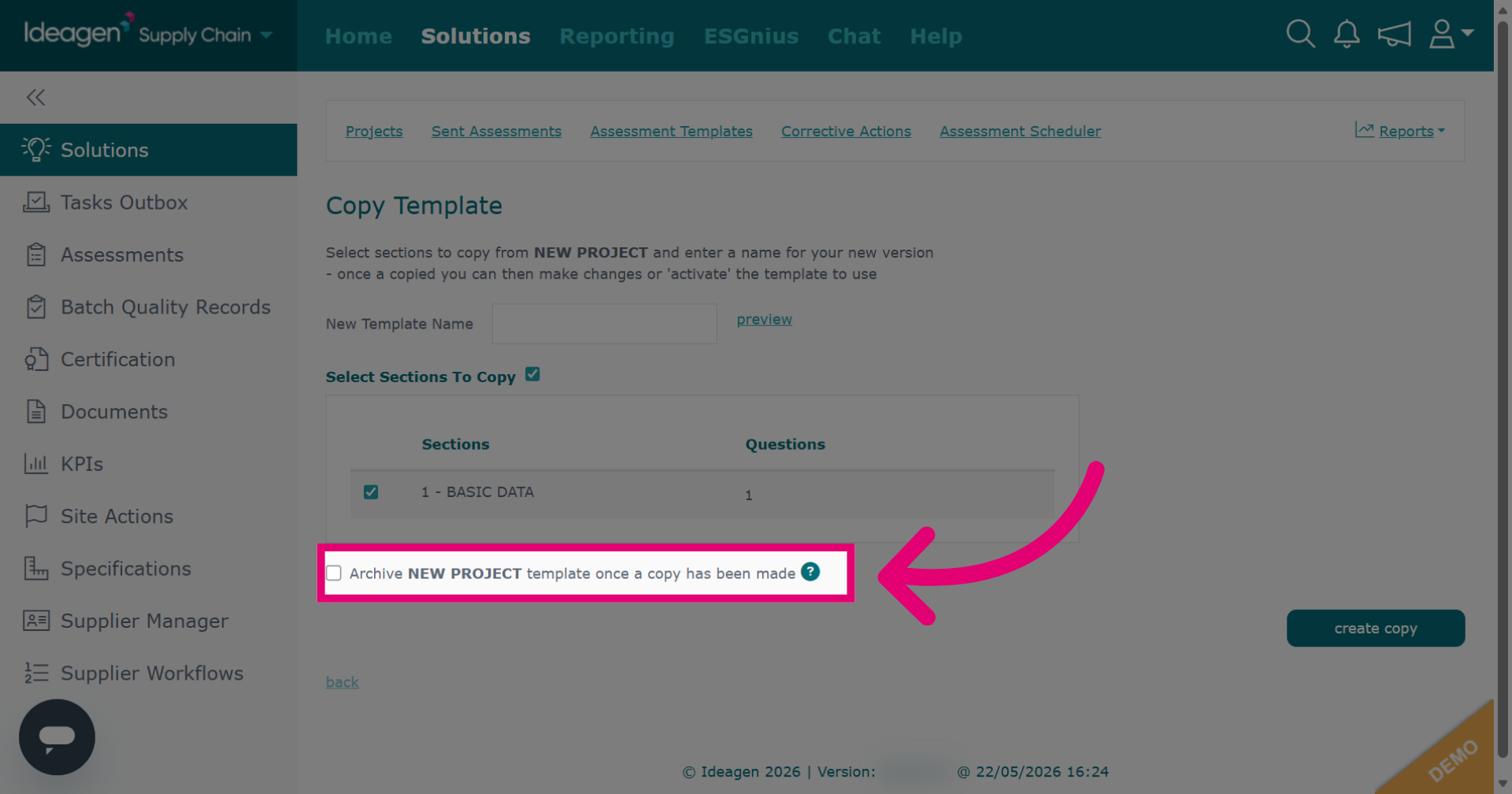
When making a copy, tick the box if you wish to archive the original.
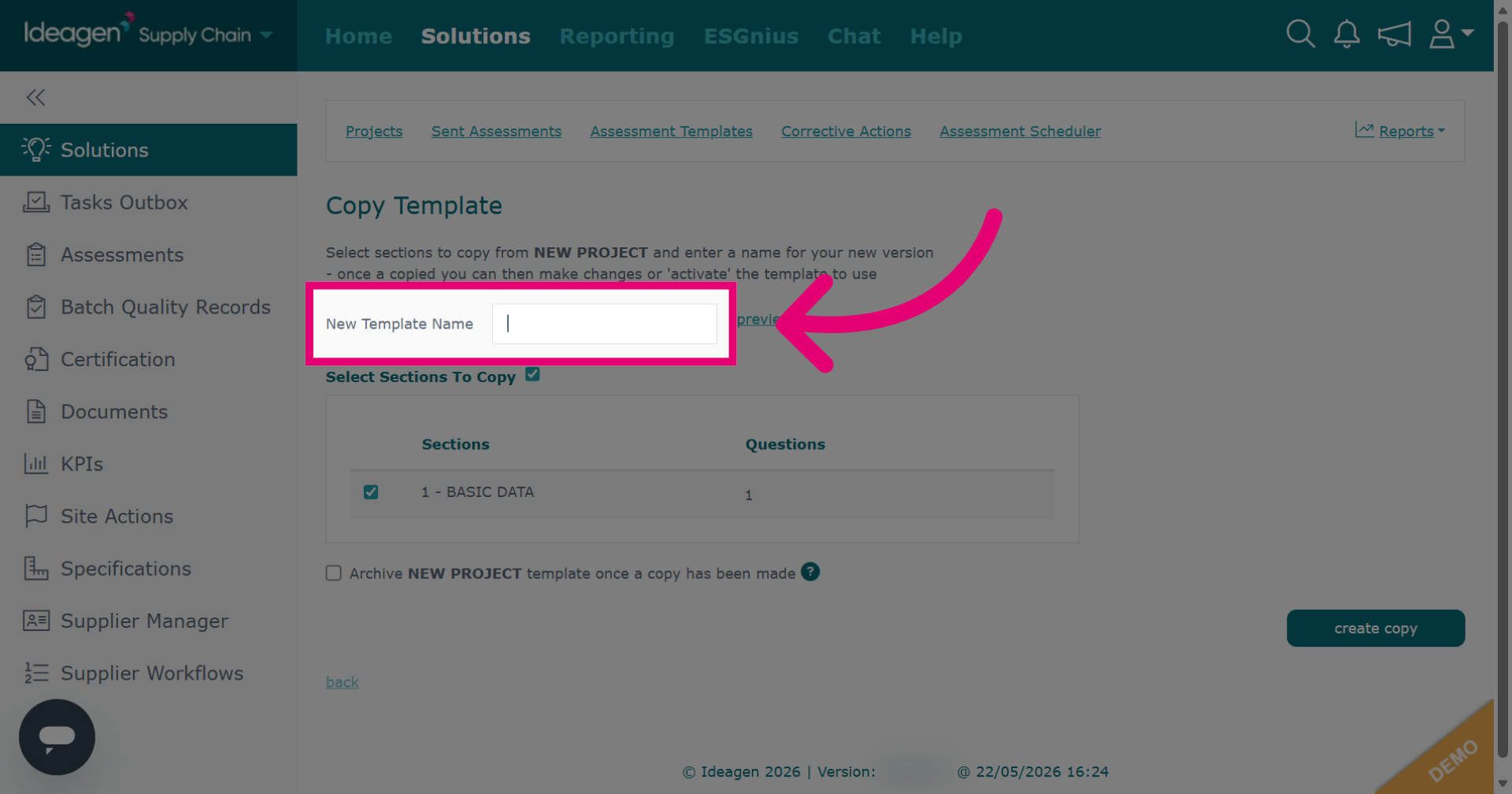
Click New Template Name to specify the name for the copied template.
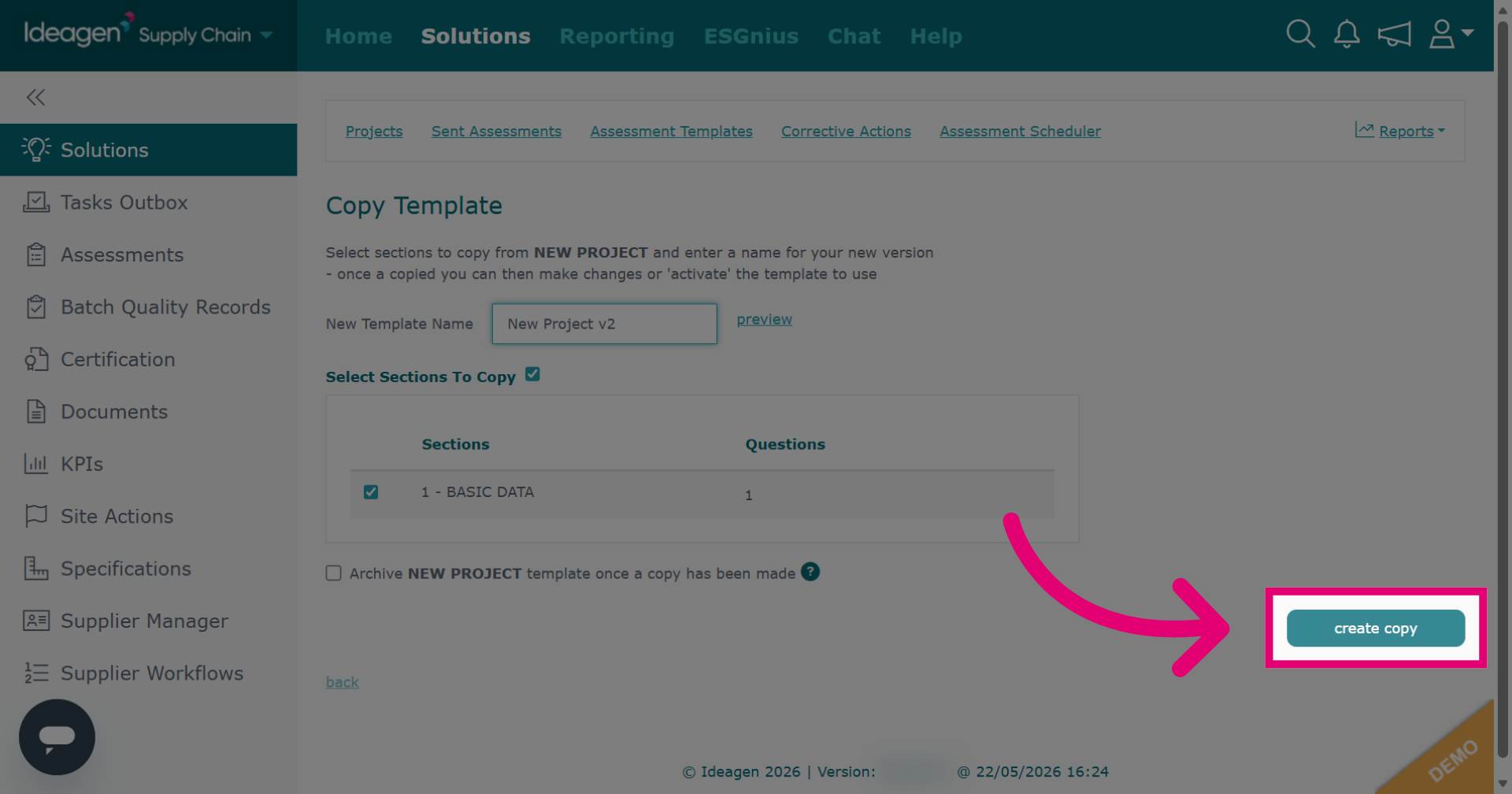
Click create copy to finalize creating the new project template.
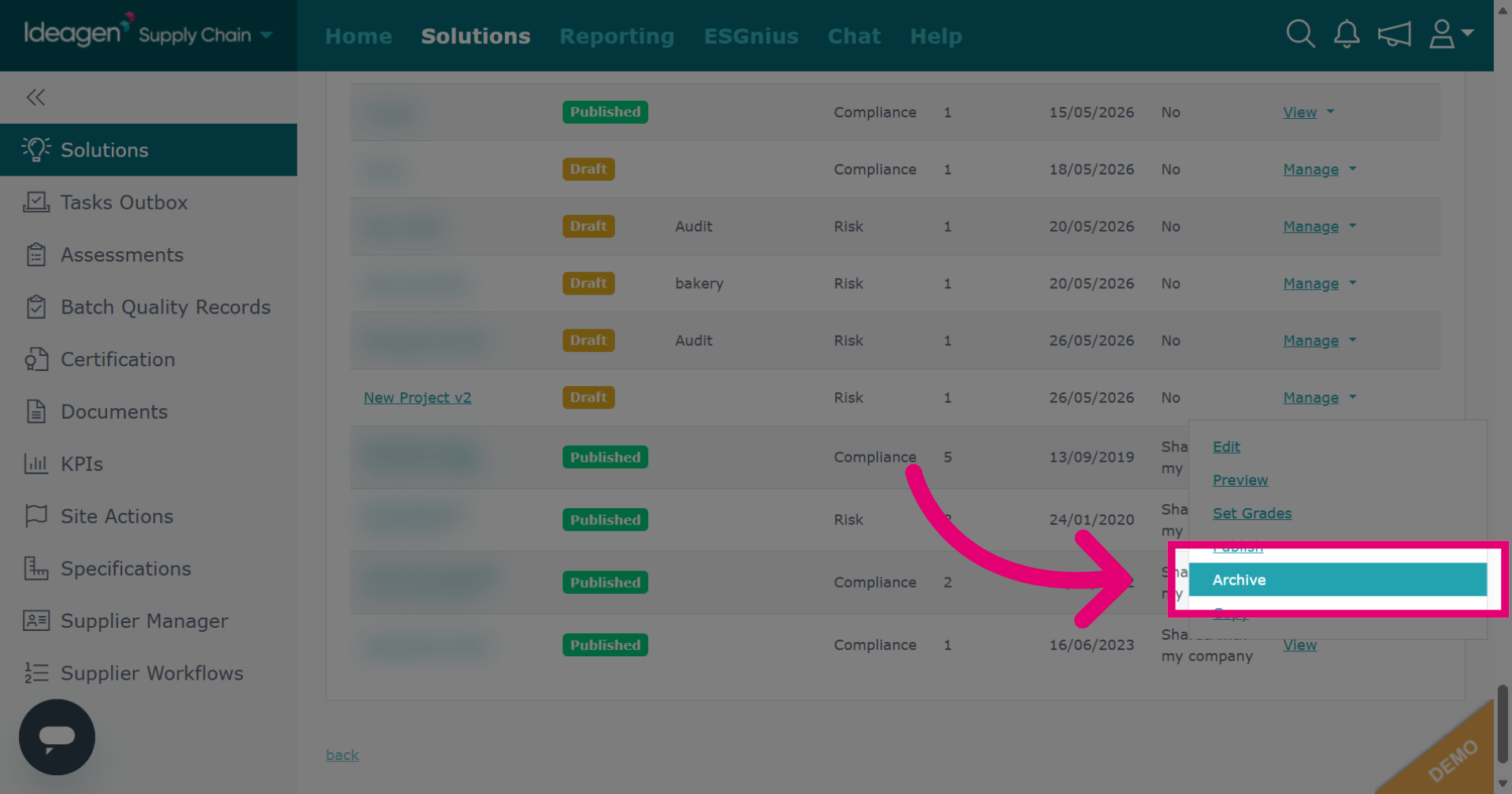
Click Archive to initiate archiving the selected project template.
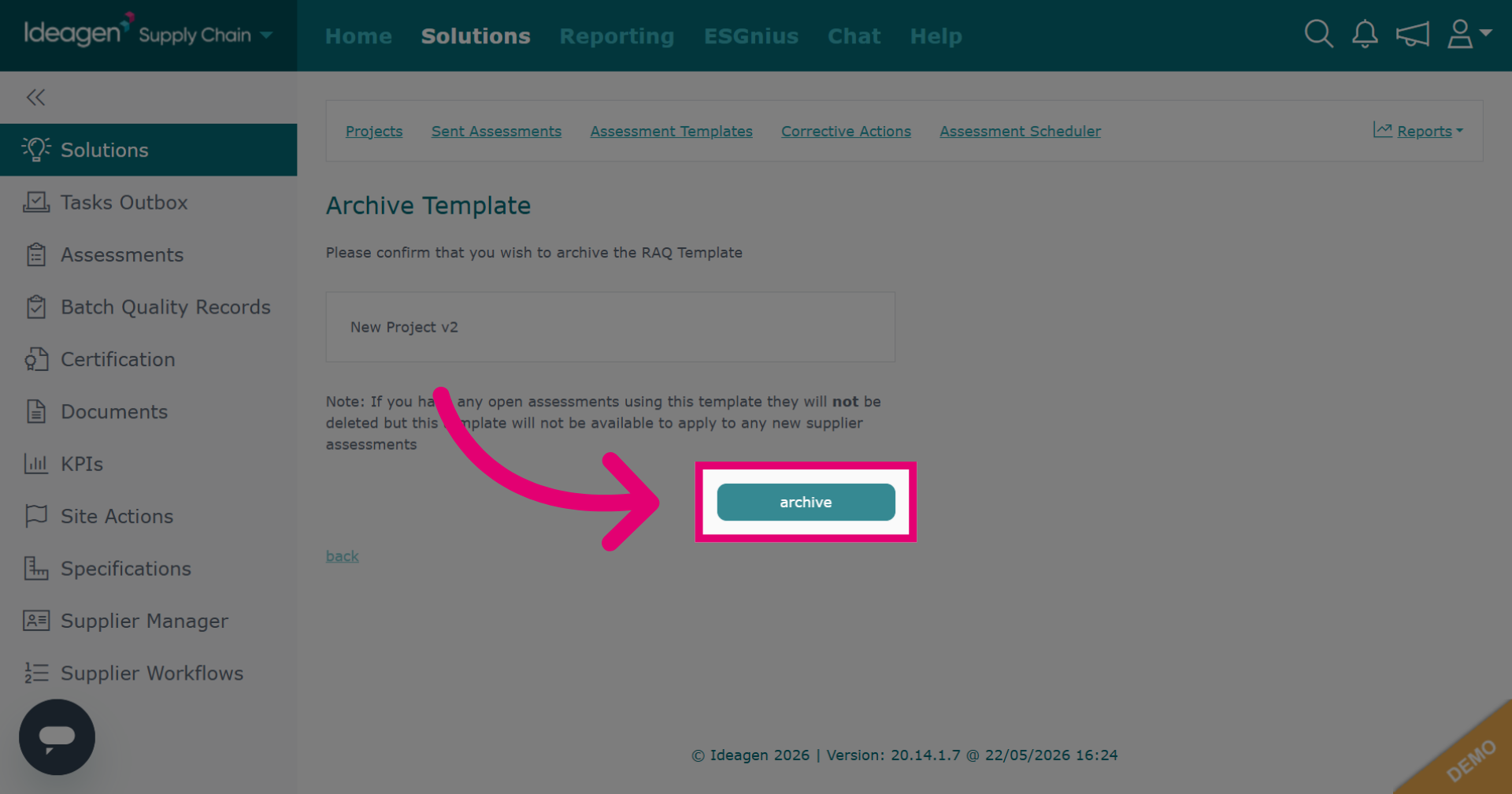
Click archive again to confirm.
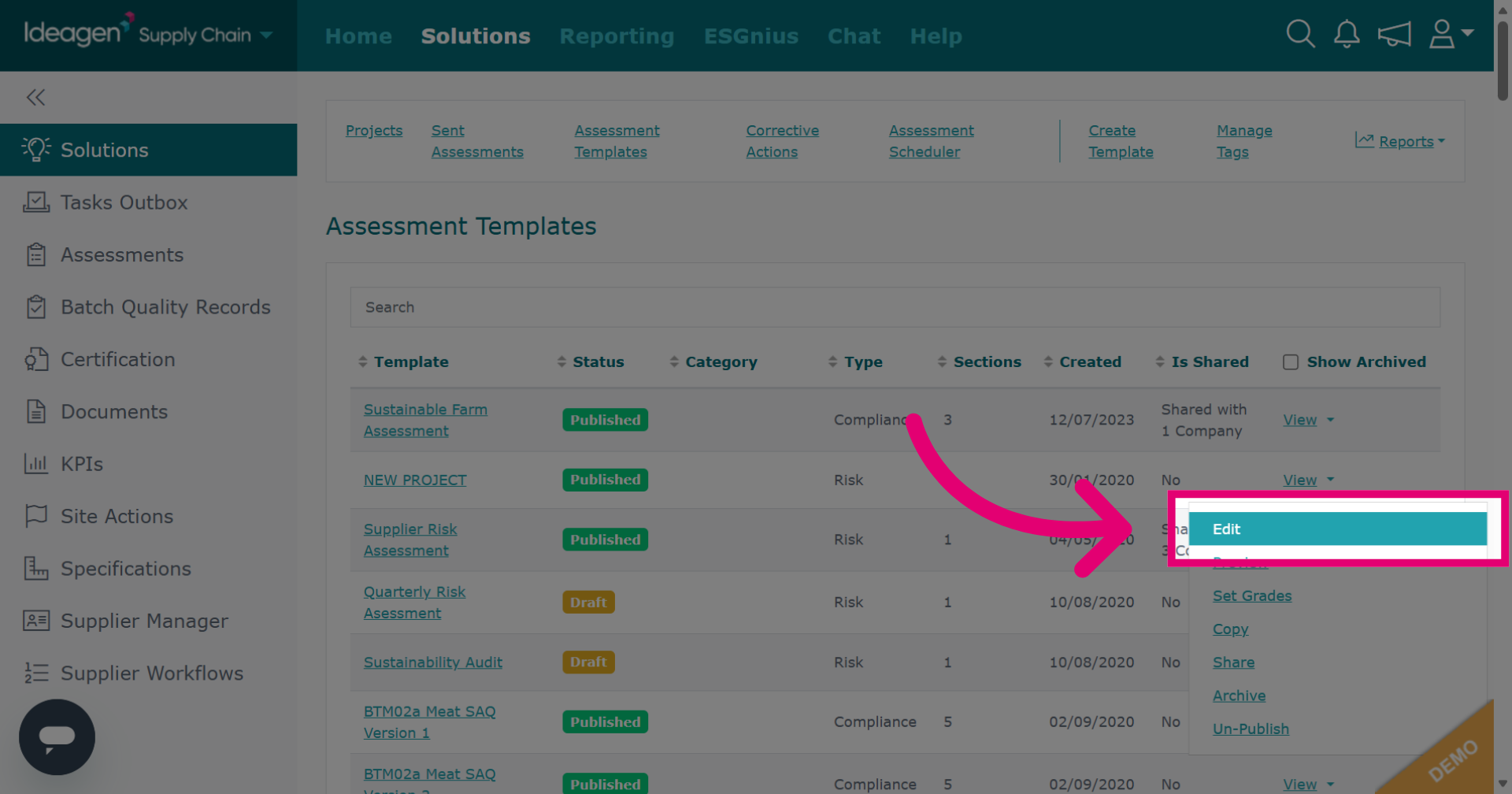
Select Edit to modify the project template details.
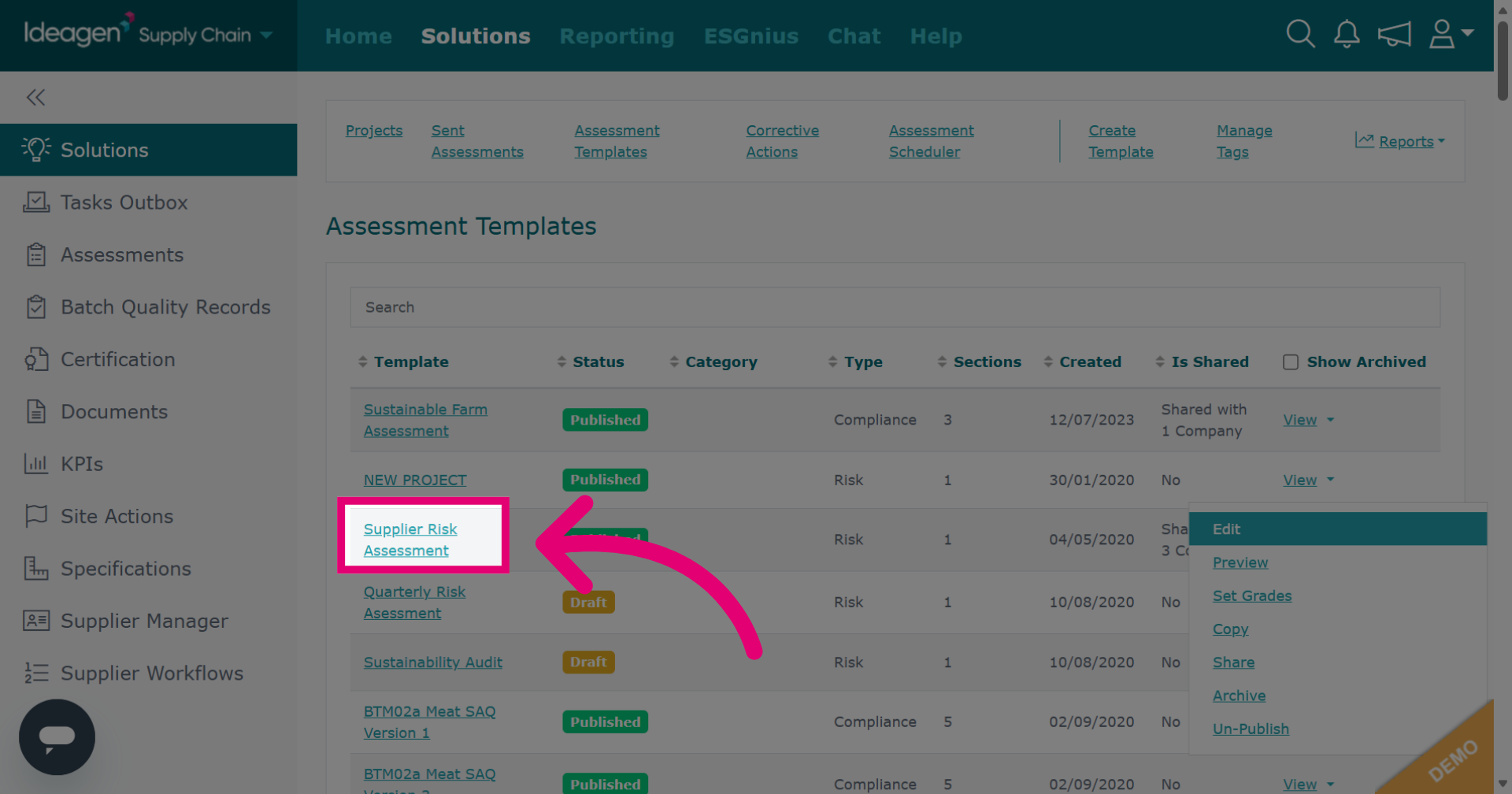
Click the template name to edit sections, questions, and scoring.
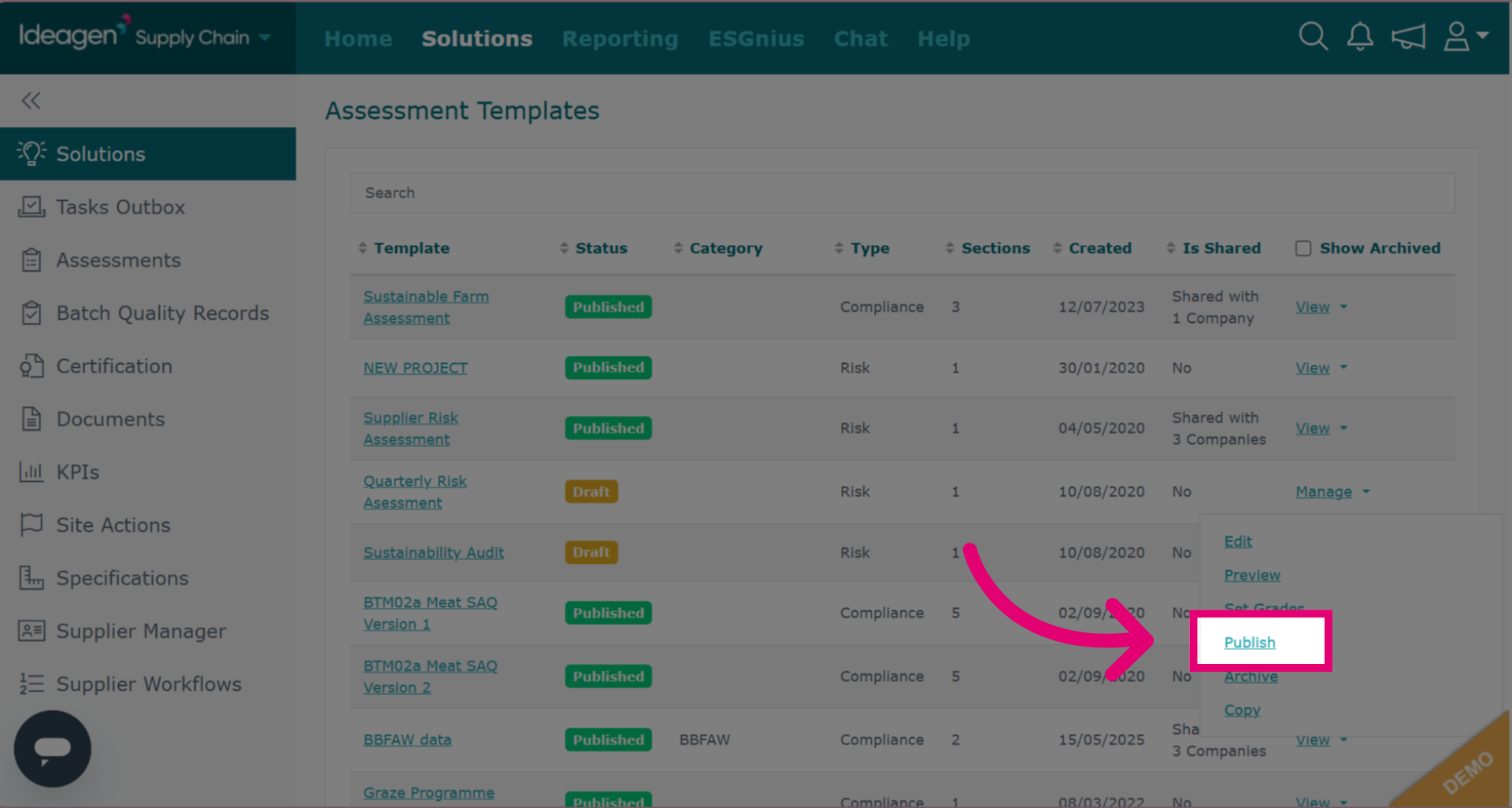
For assessment templates in draft, click publish.
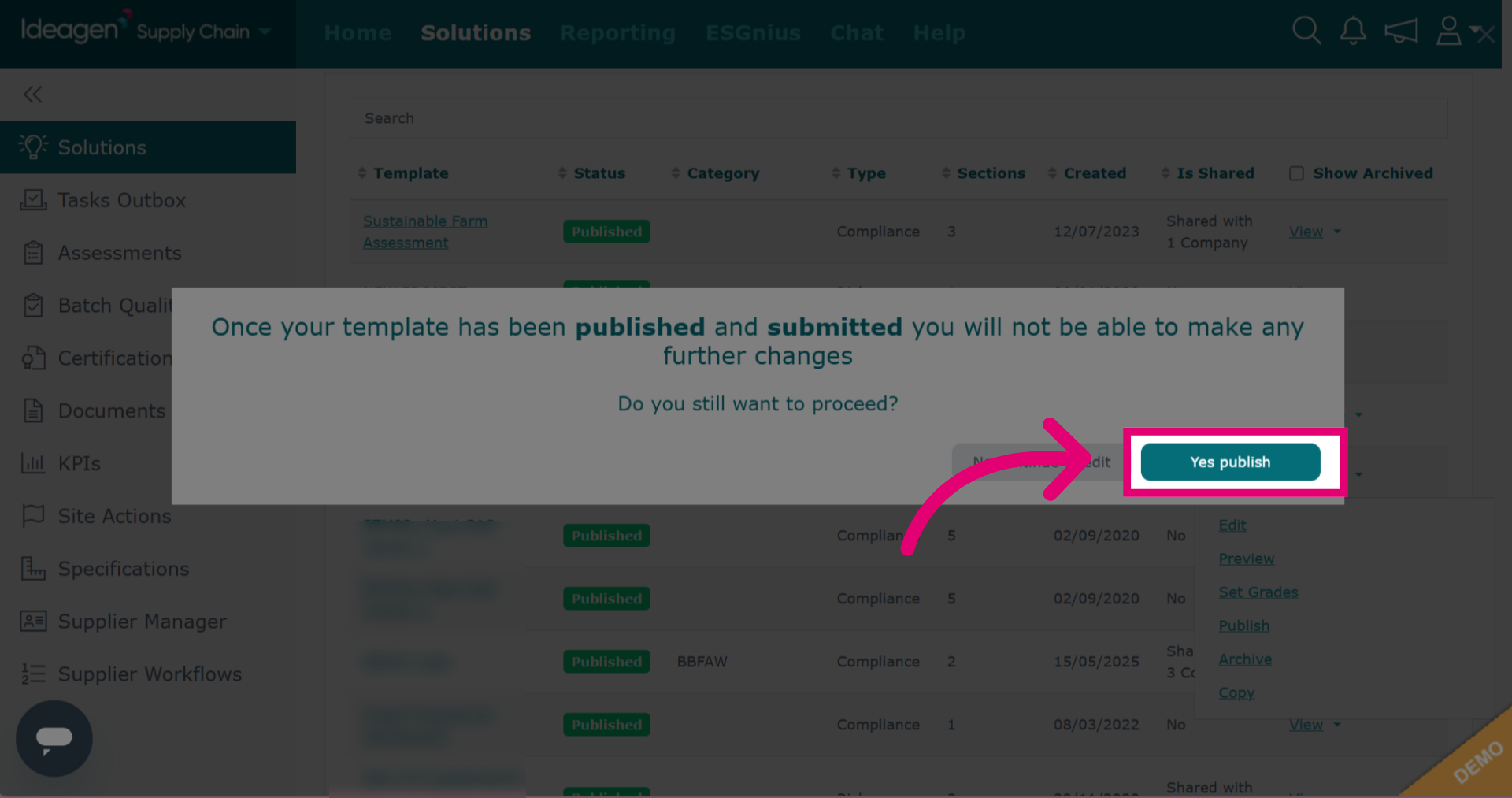
Click Yes publish to publish the template.