New article
Recently updated
Creating an Assessment Project - Assessments

Who is this article for?
Users who want to create an assessment project.
Assessment admin permissions are required.
This tutorial guides you through creating an assessment project. You will need an assessment project to house your assessment template.
The project allows the assessment to be sent out to suppliers for action.
Creating an Assessment Project
-
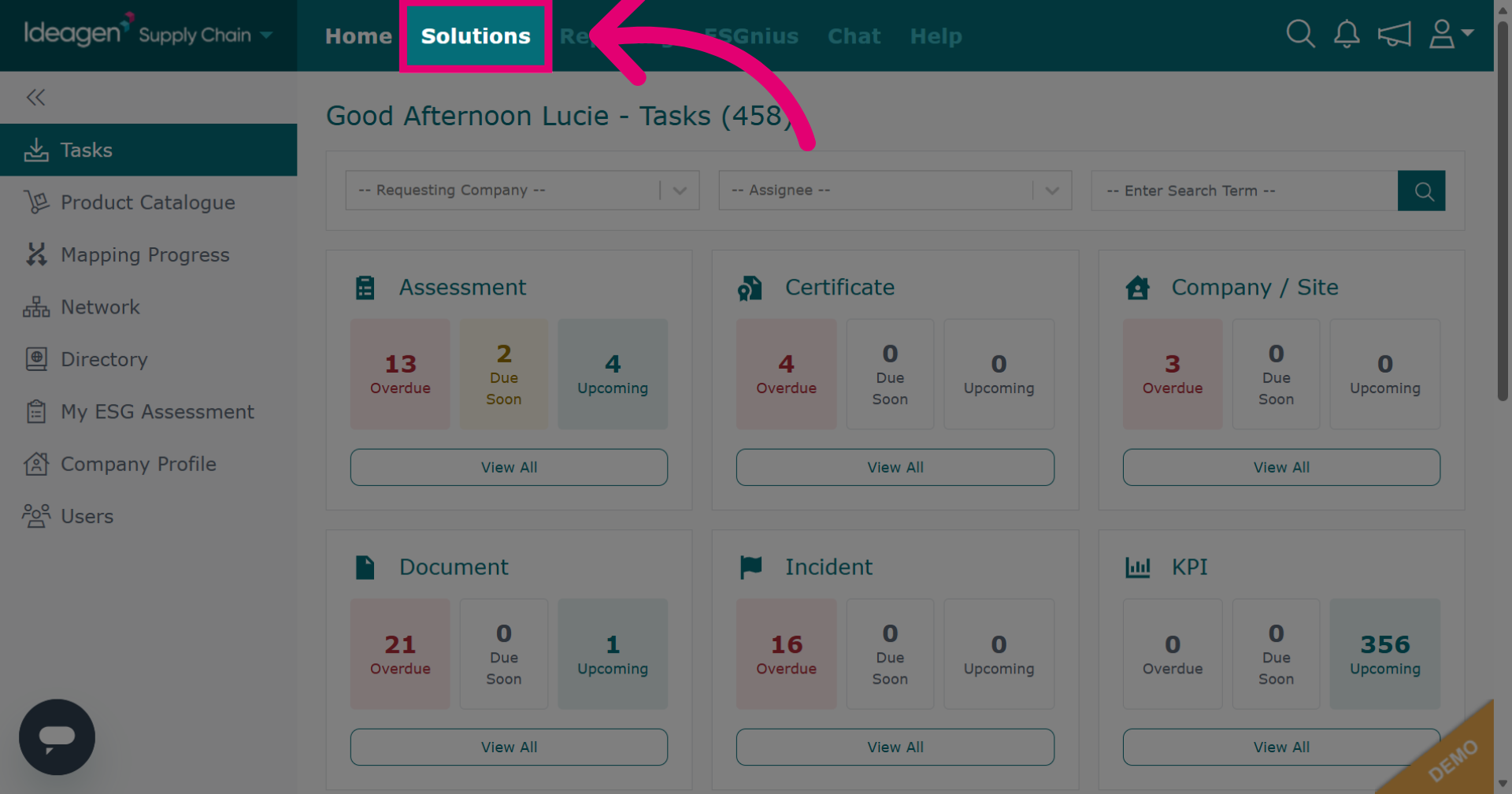
Log into the system.
-
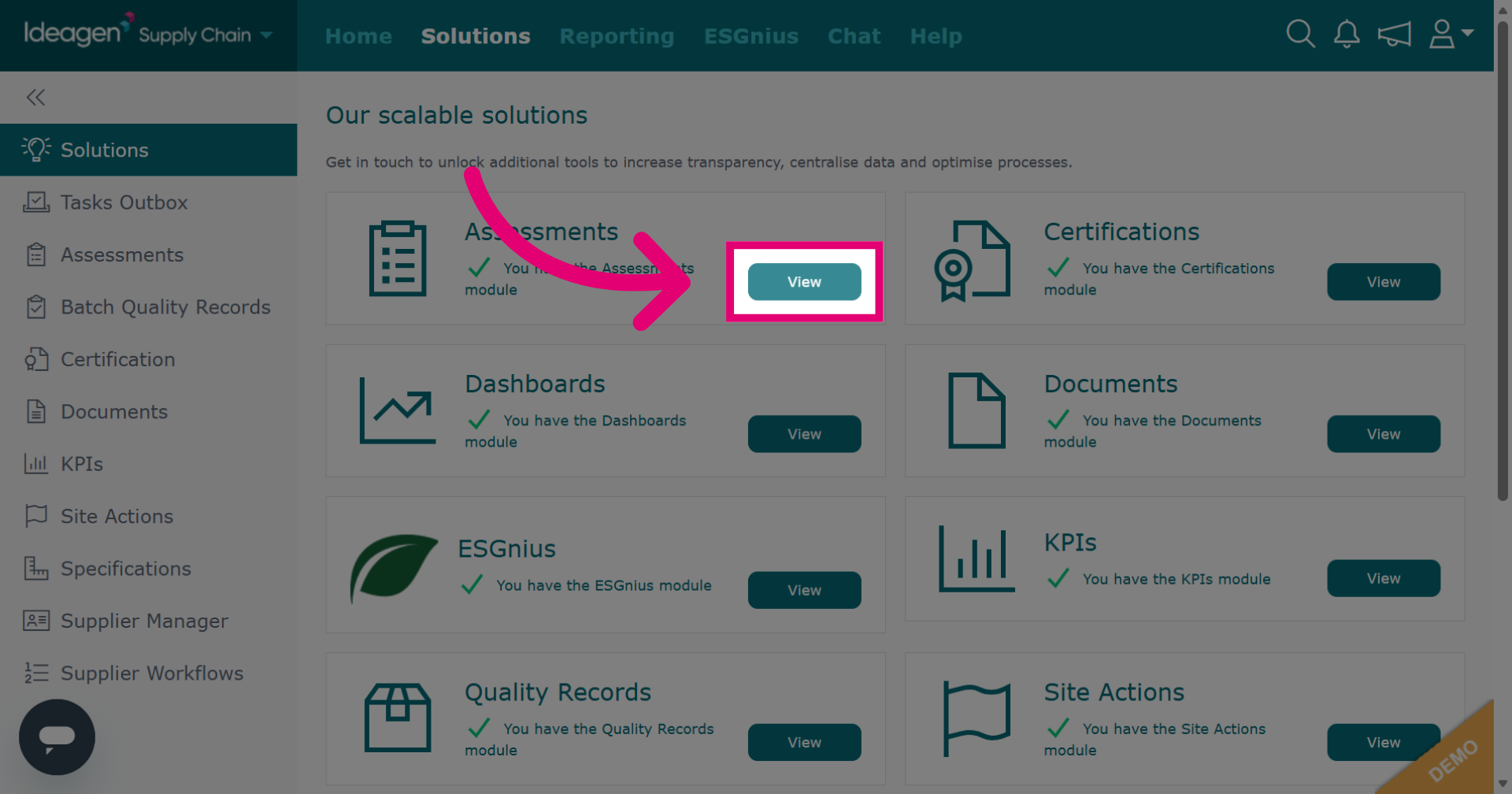
Click View next to Assessments to open the module.
-
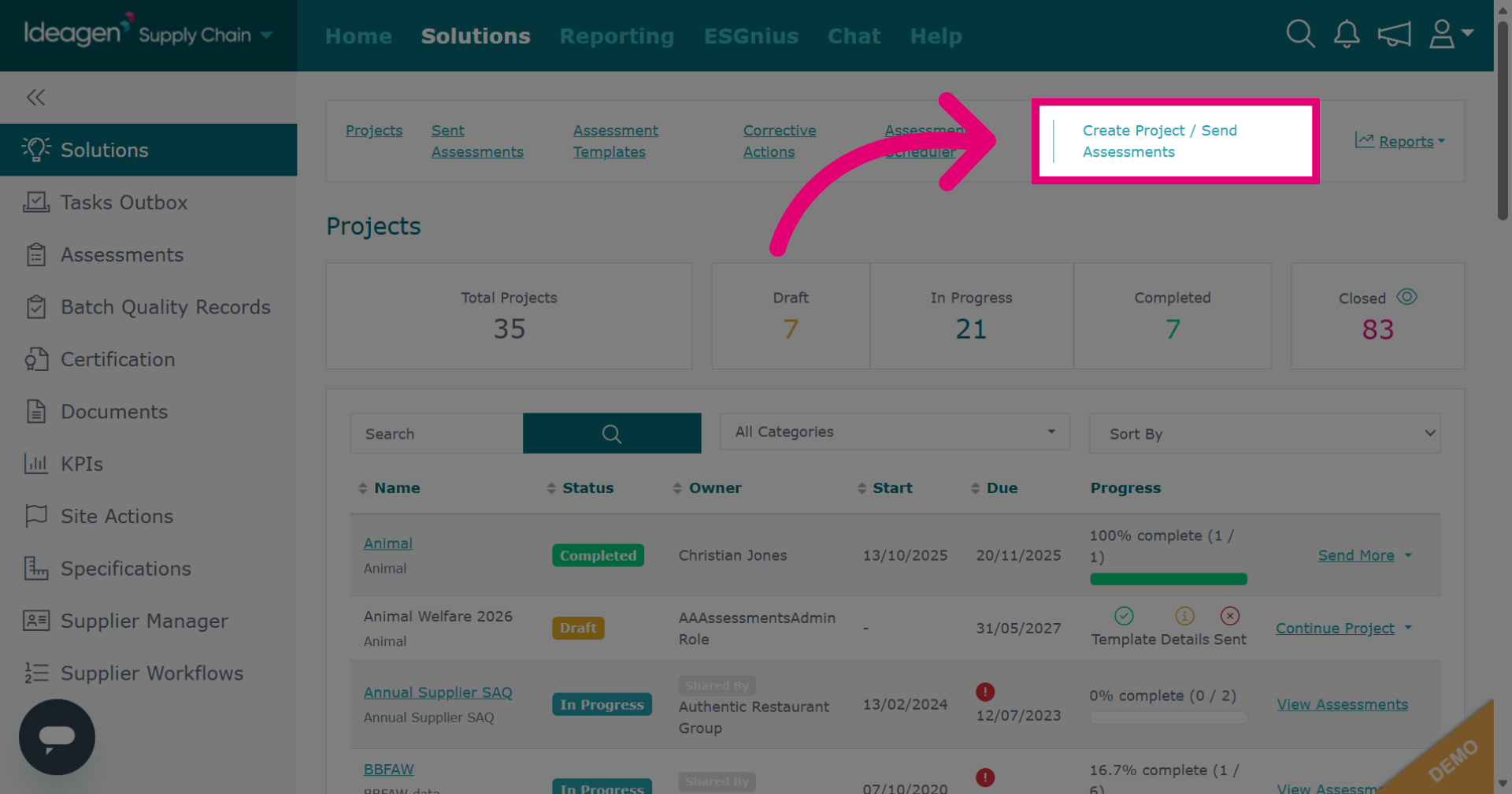
Click Create Project / Send Assessments to start setting up a new assessment project.
-
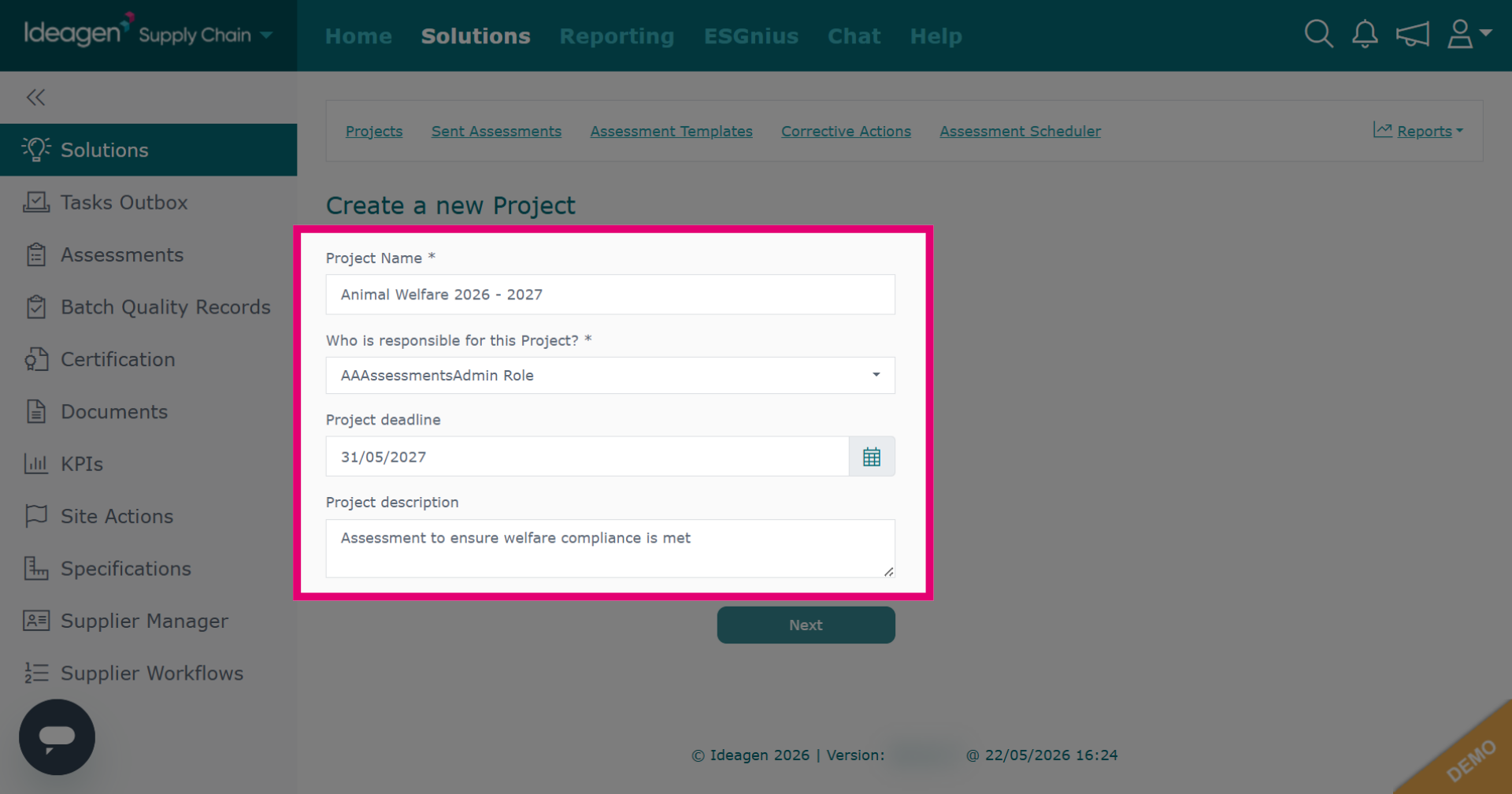
Input the project name, assignee, deadline and optionally, description.
-
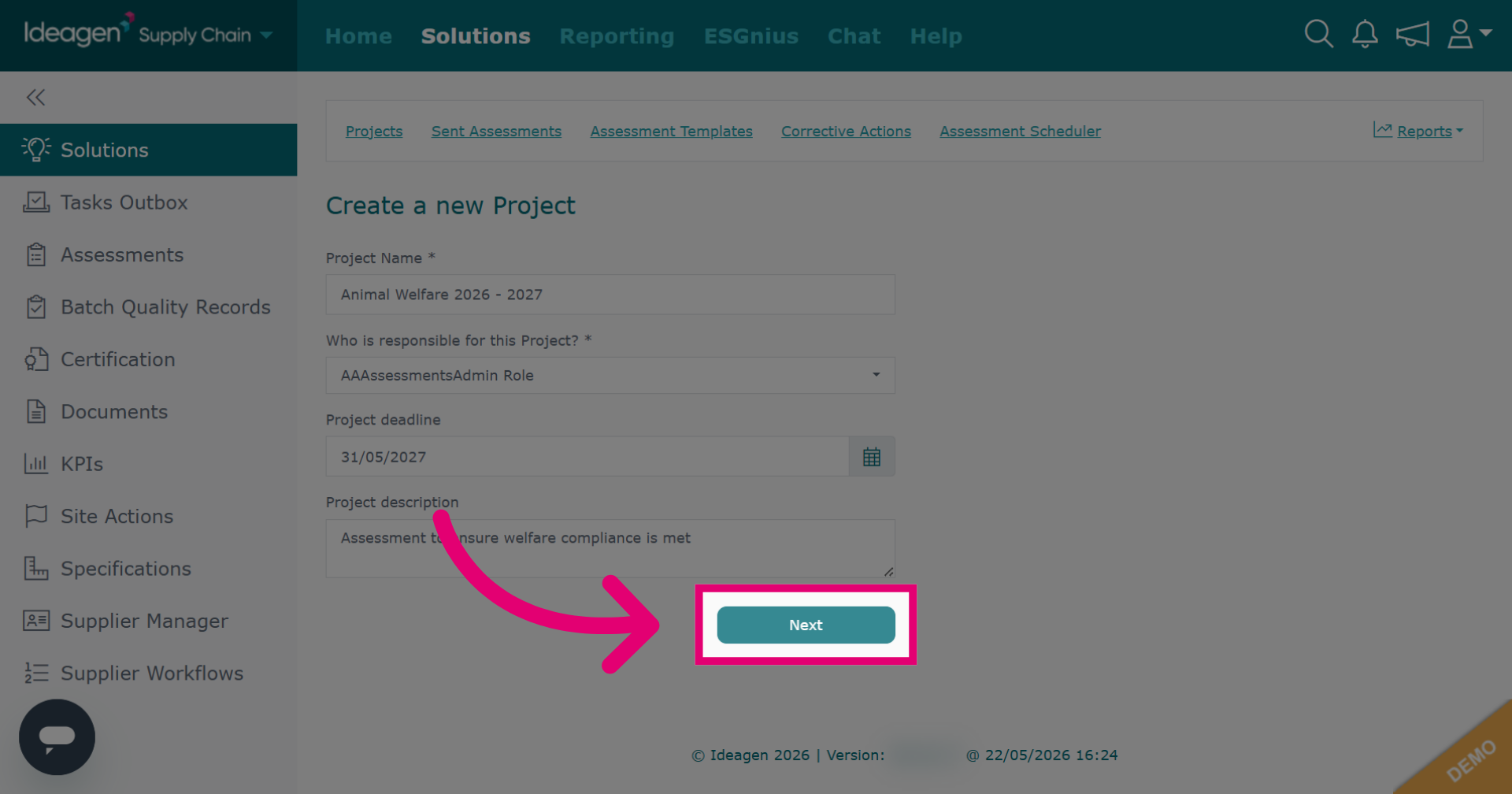
Click Next to continue to the project configuration stage.
-
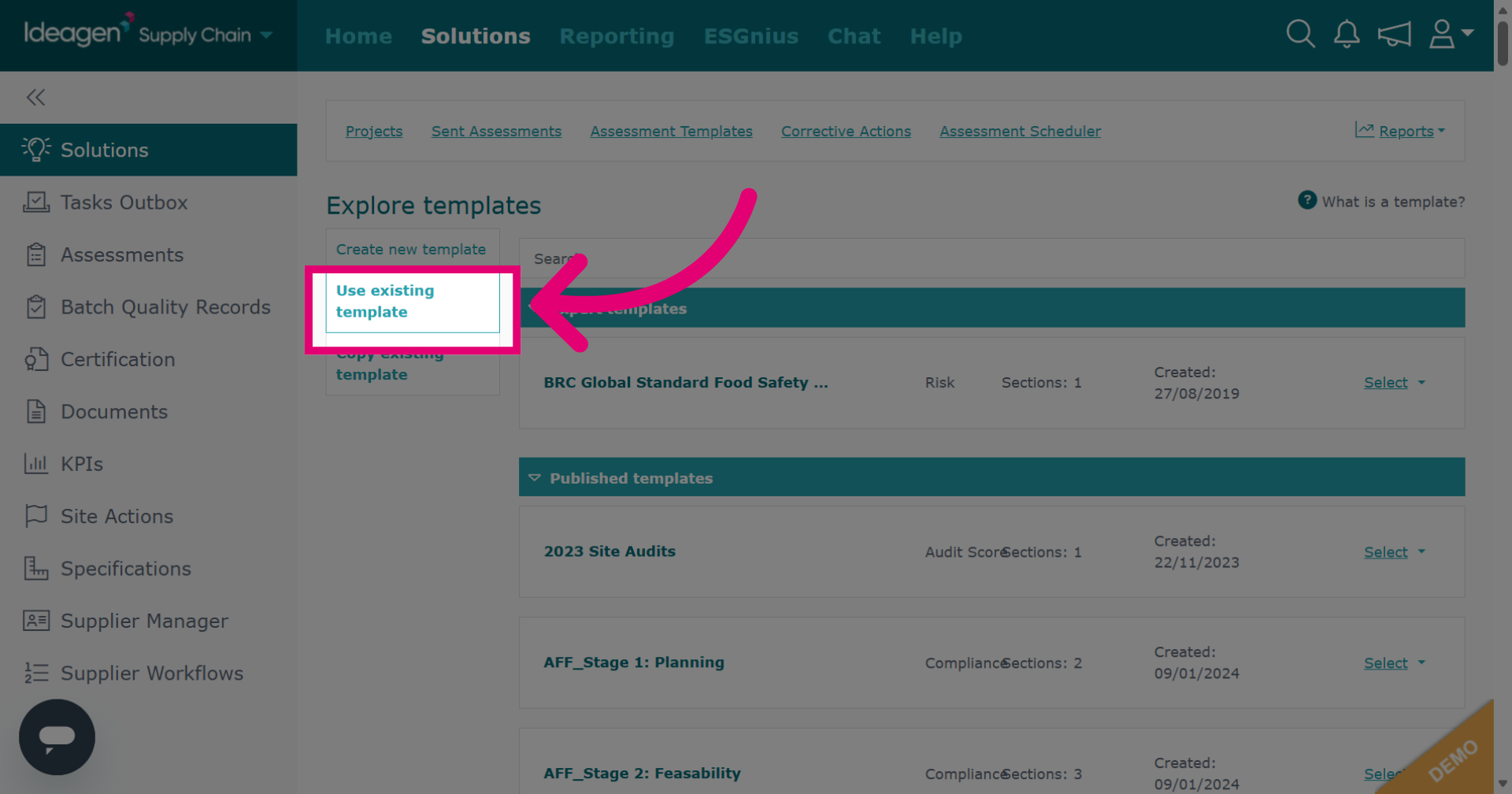
Select Use Existing Template to link a pre-created template with the project. Projects house assessment templates and provide the vehicle that allows them to be sent to suppliers as assessments.
-
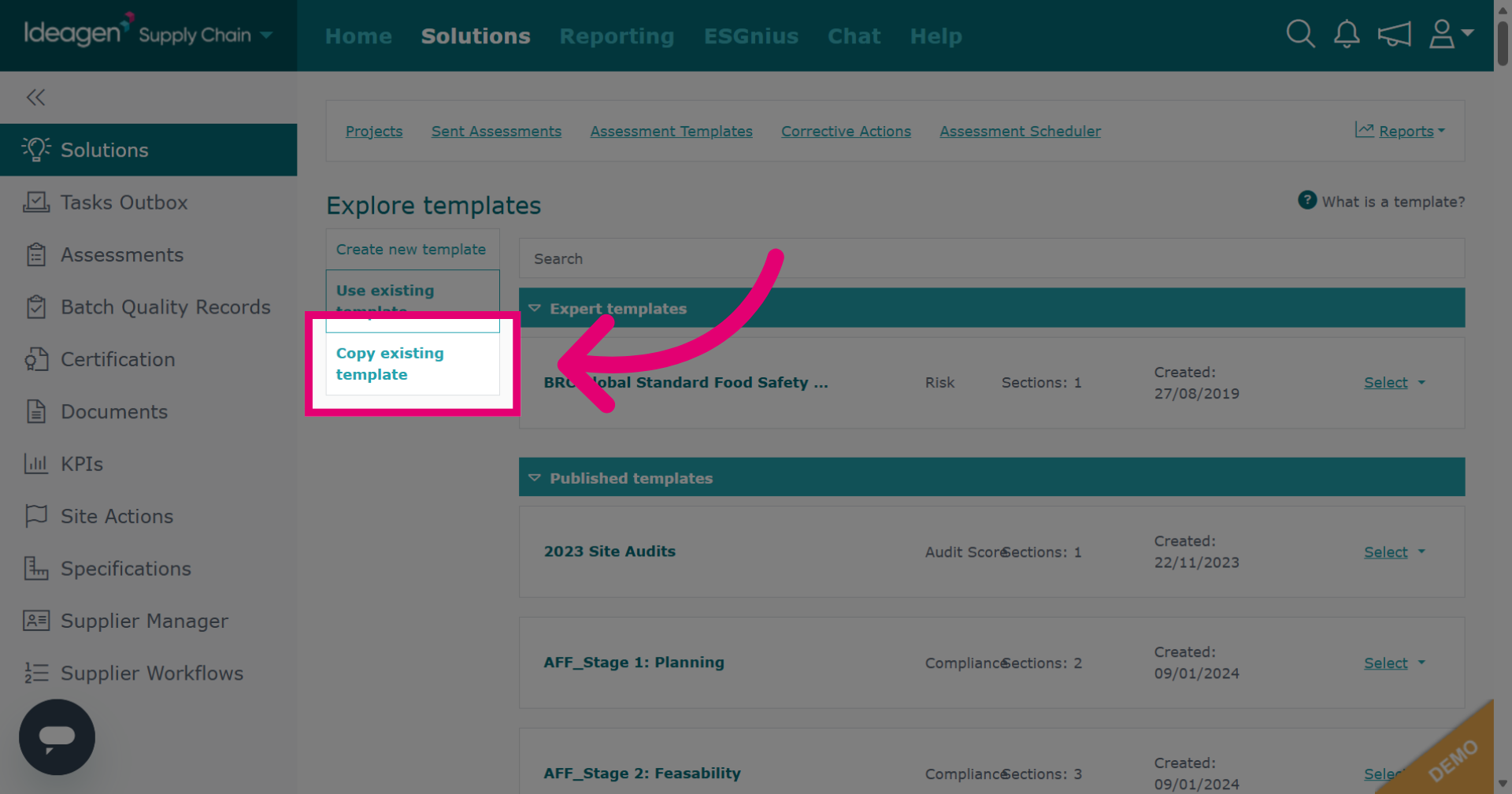
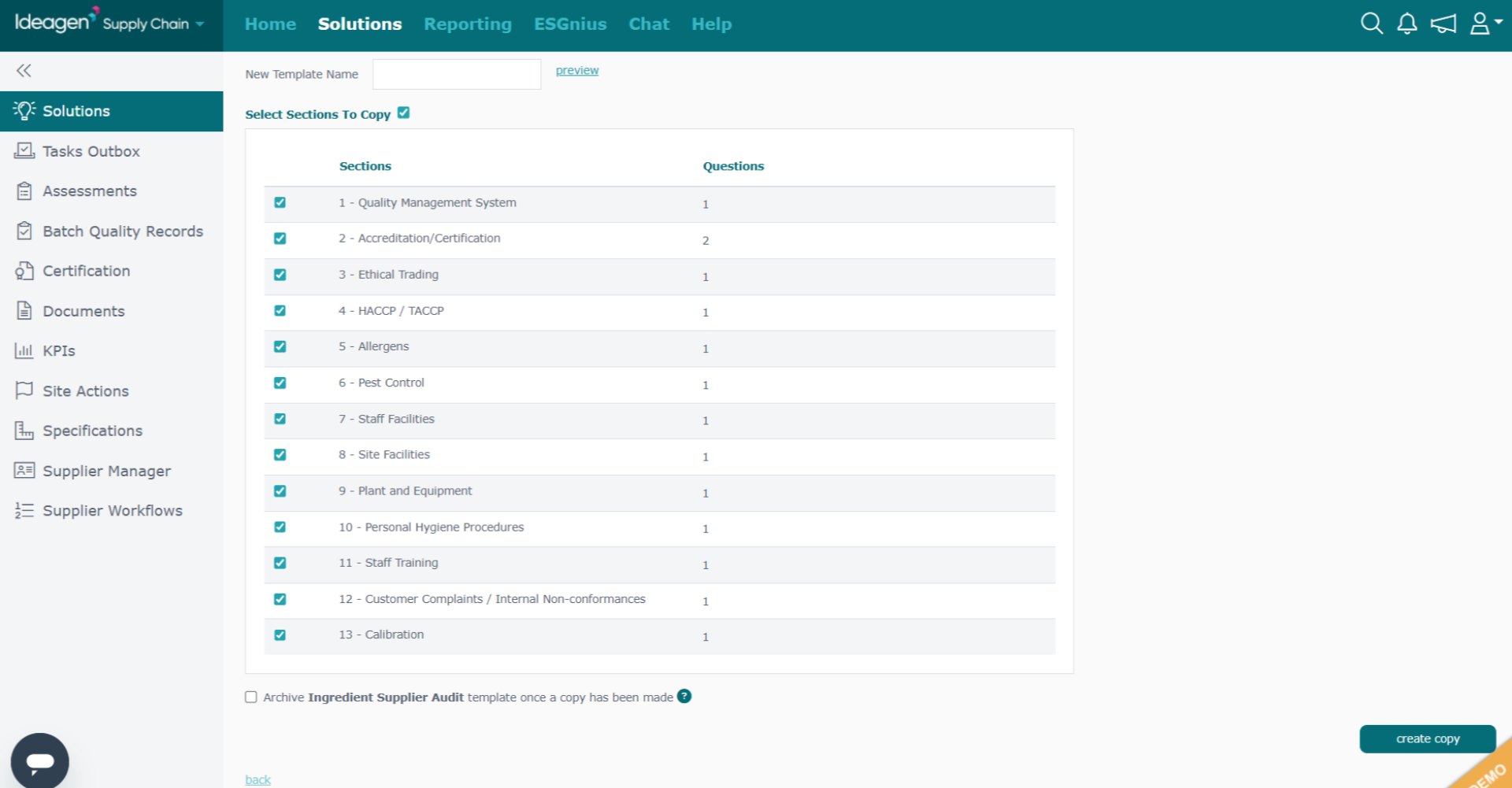
Click Copy existing template to replicate either sections of, or the entirety of an existing template to create a new template.
-
If copying an existing template, enter the new template name, click the check boxes to include or remove specific sections then click create copy.
-
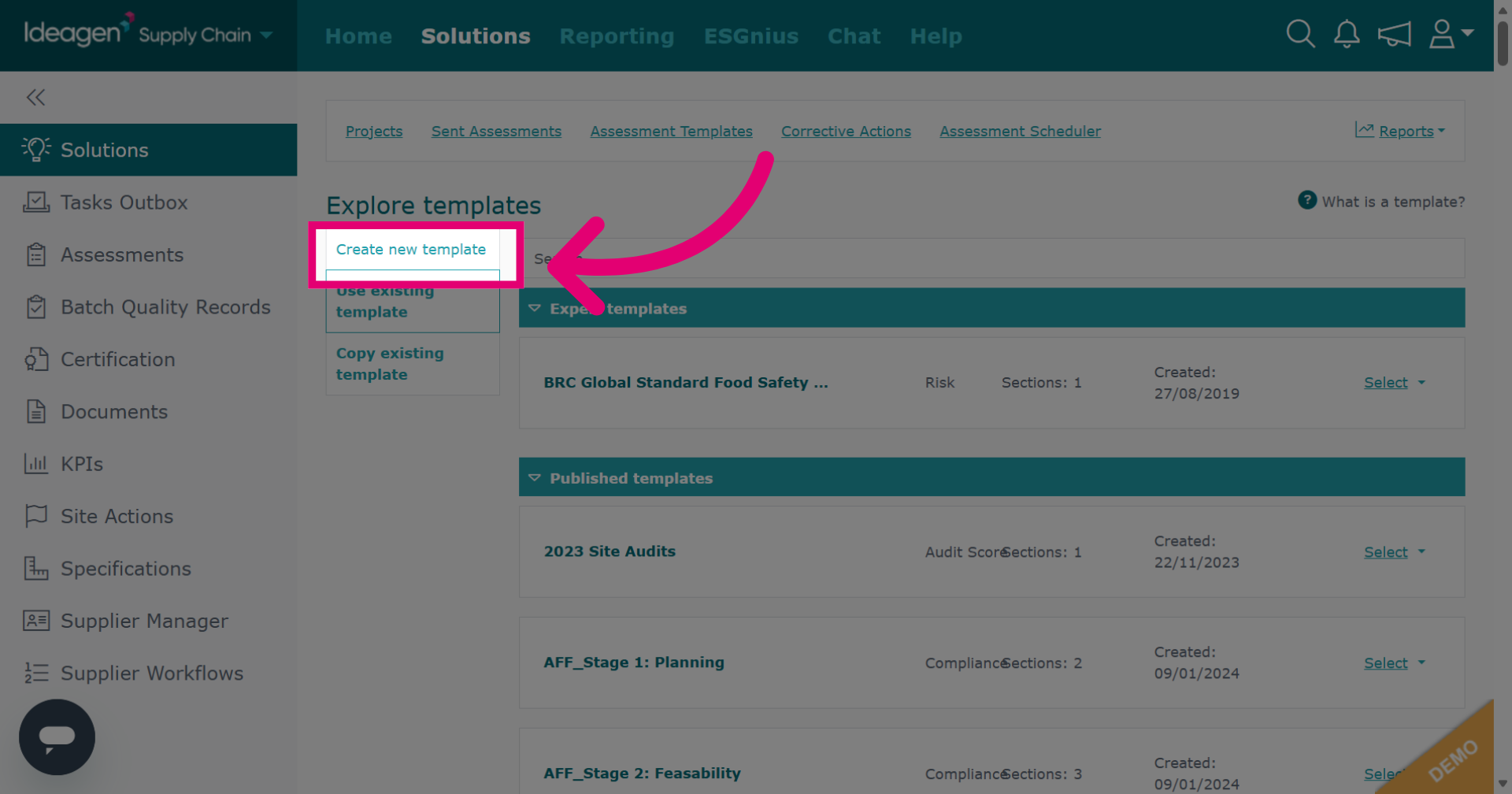
If you have not yet created a template for your project, select Create New Template. If doing so then please go and watch our guide titled "Creating an Assessment Template."
-
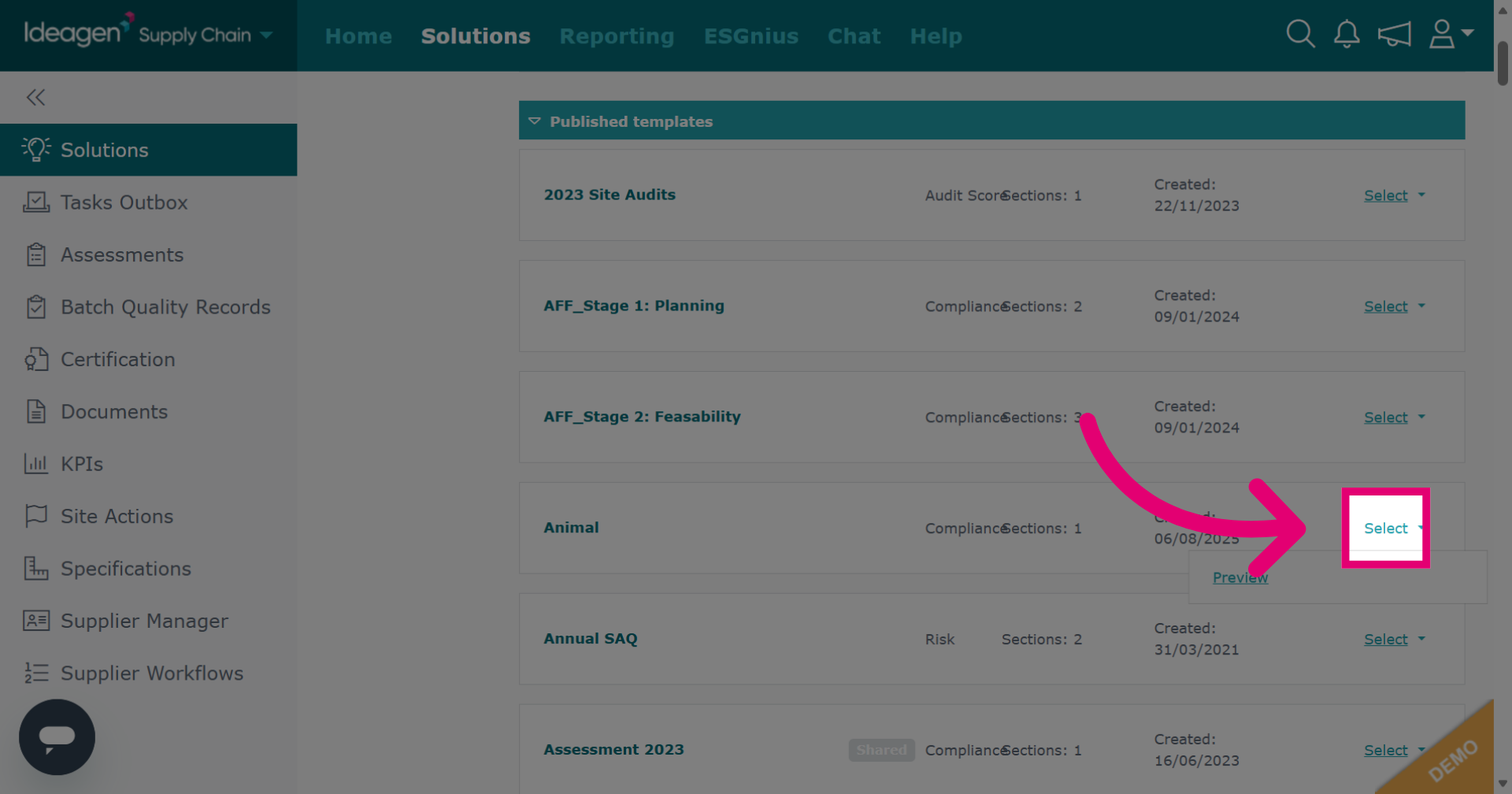
Find the template you wish to use and click Select.
-
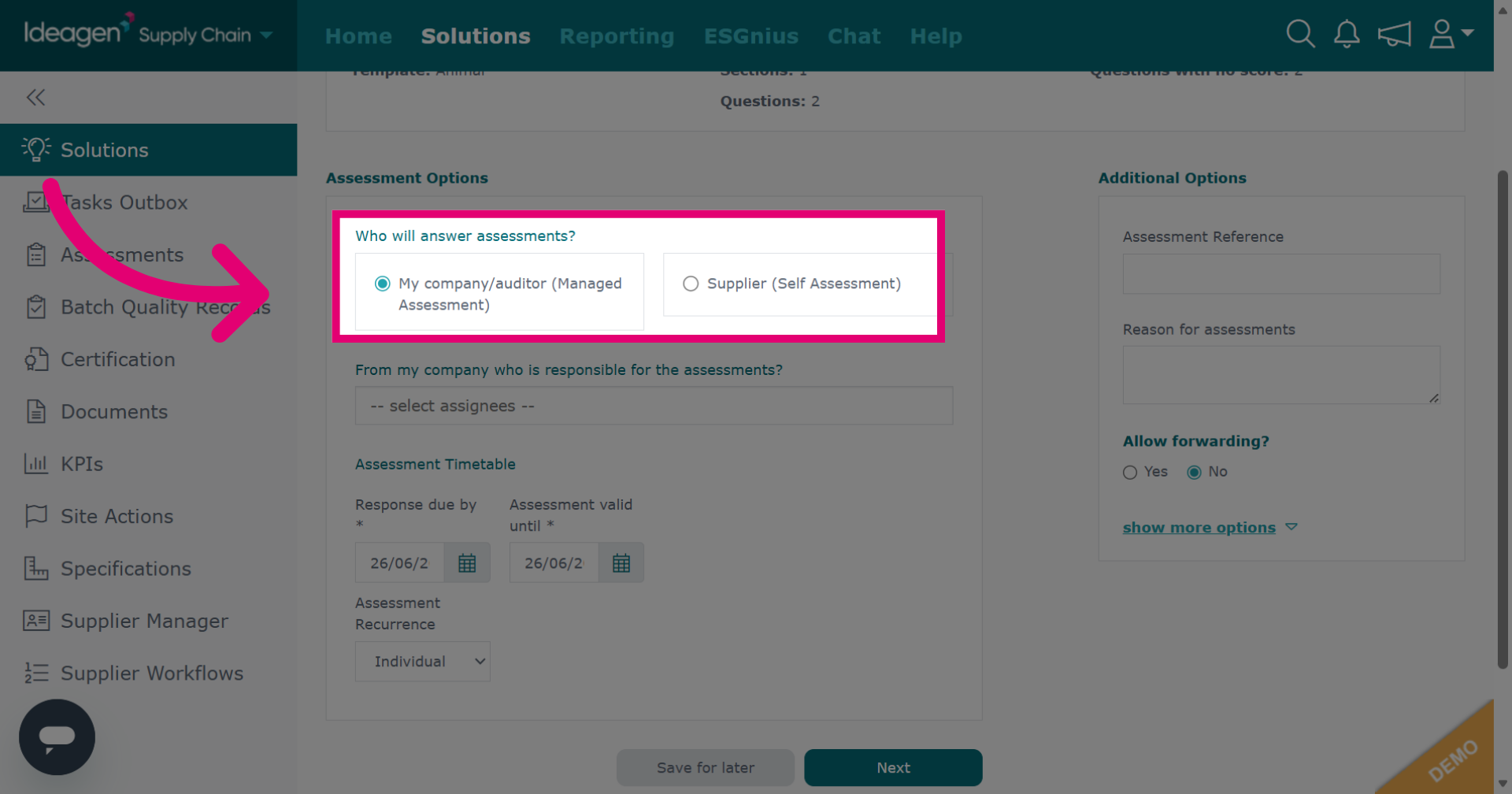
Choose My Company/auditor (Managed Assessment) if you want the assessment to be completed by someone from your company. Choose Supplier (Self Assessment) if you want the assessment to be completed by your supplier.
-
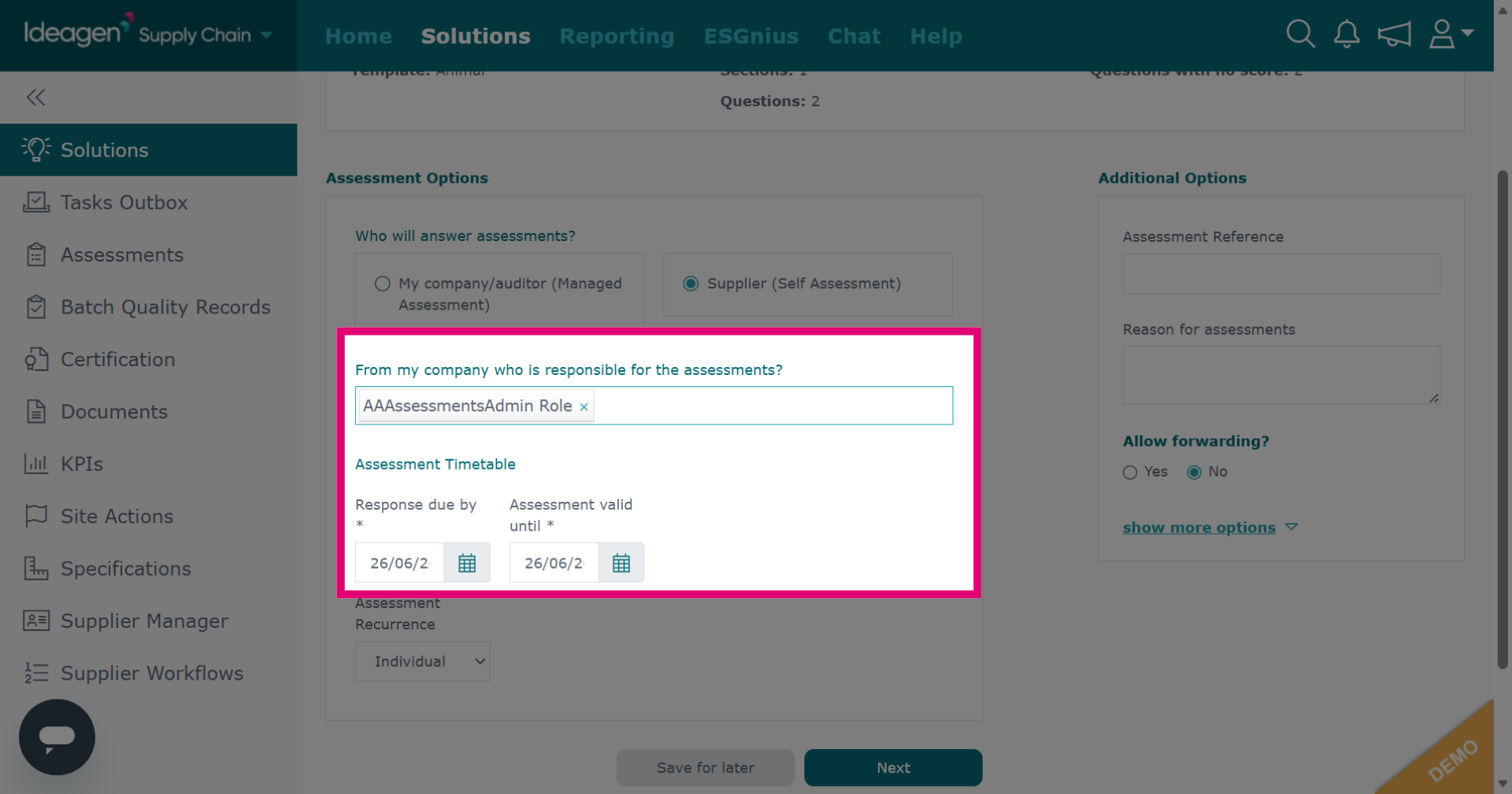
Set your assignees and due dates.
-
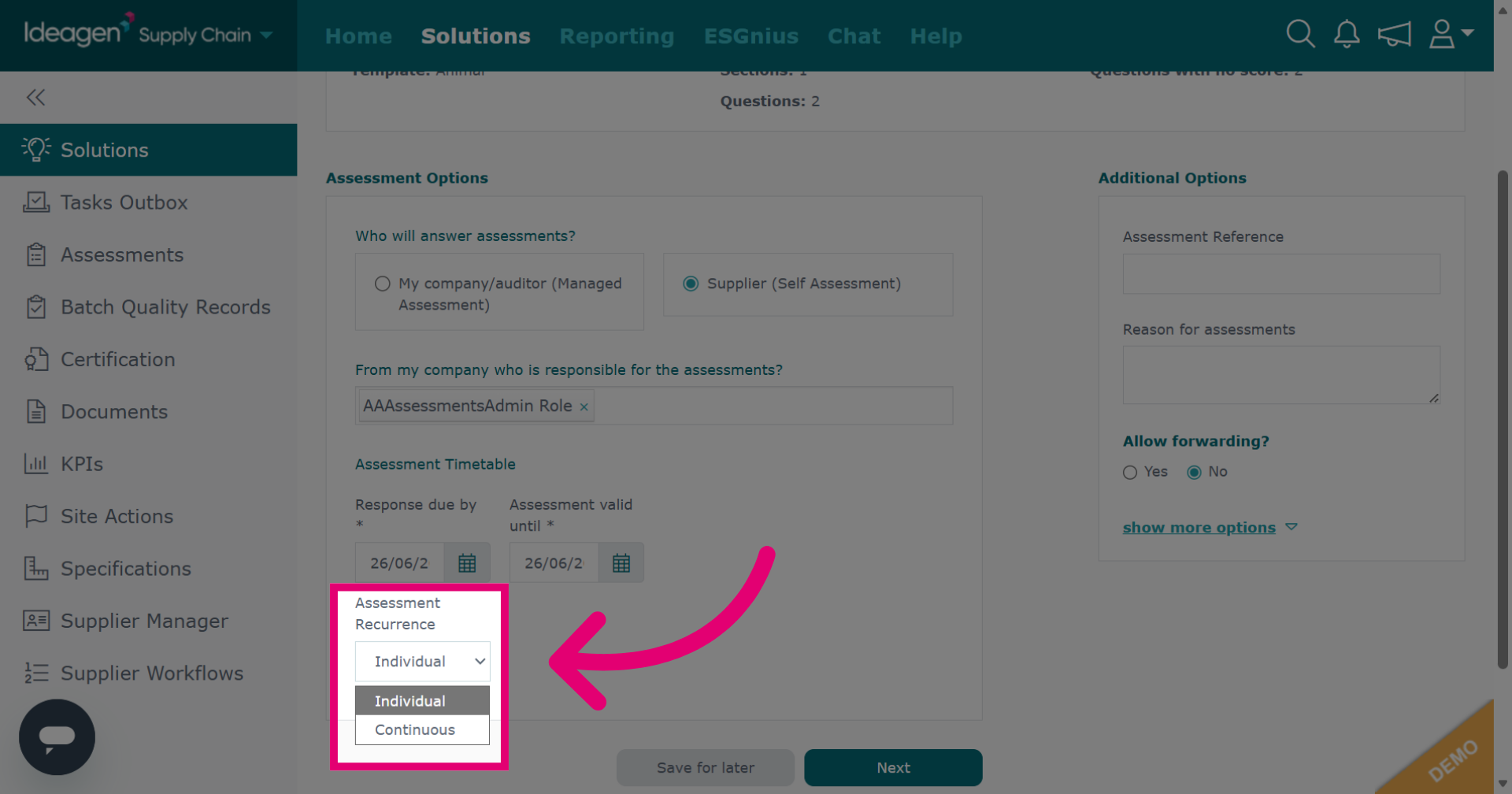
If you want your assessment to be sent one time only, select Individual. If you want your assessment to re-send continuously on a date of your choosing, select Continuous.
-
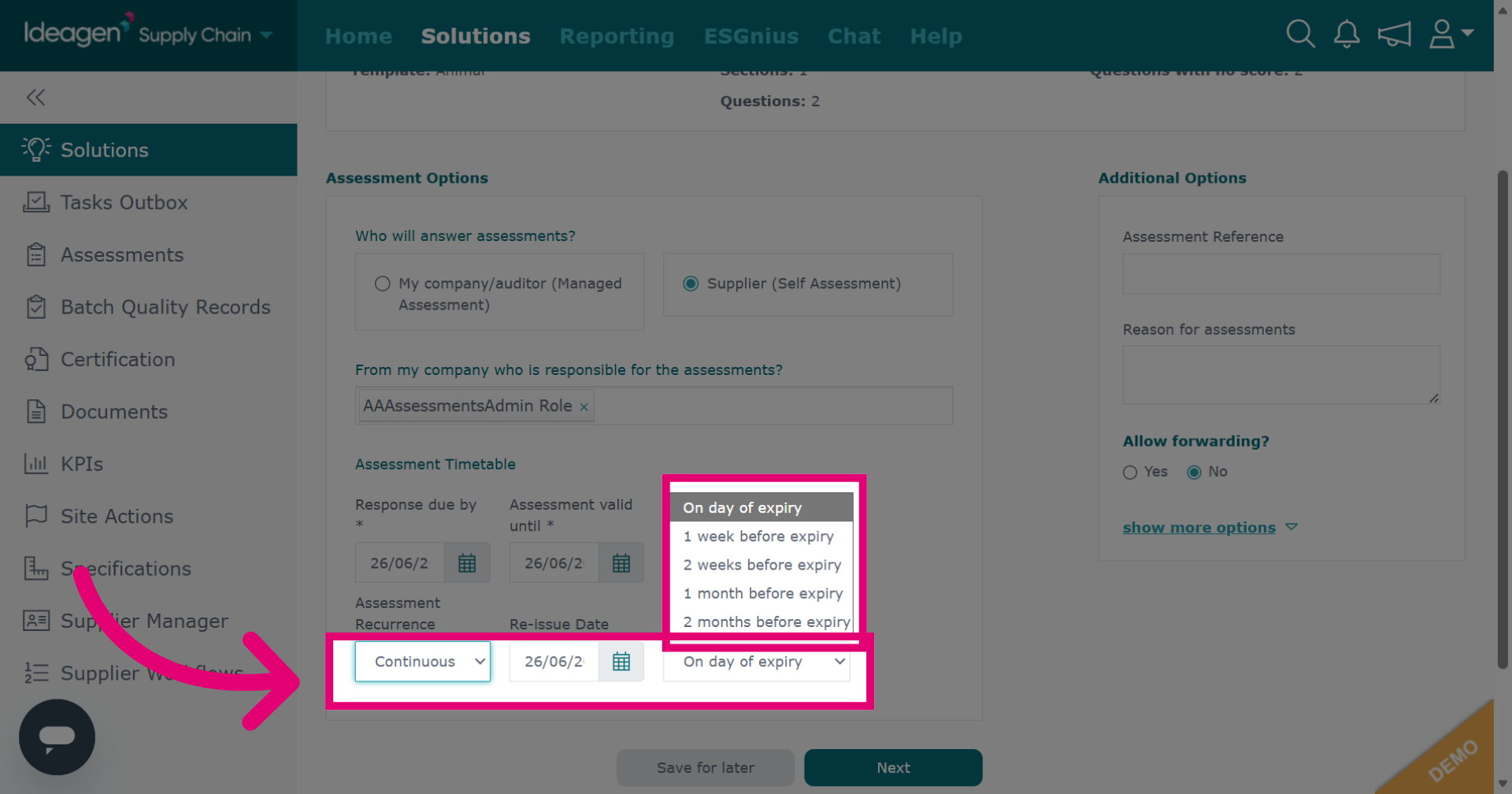
If you select a continuous assessment, pick when you need your assessment to re-send using the drop down options or the calendar.
-
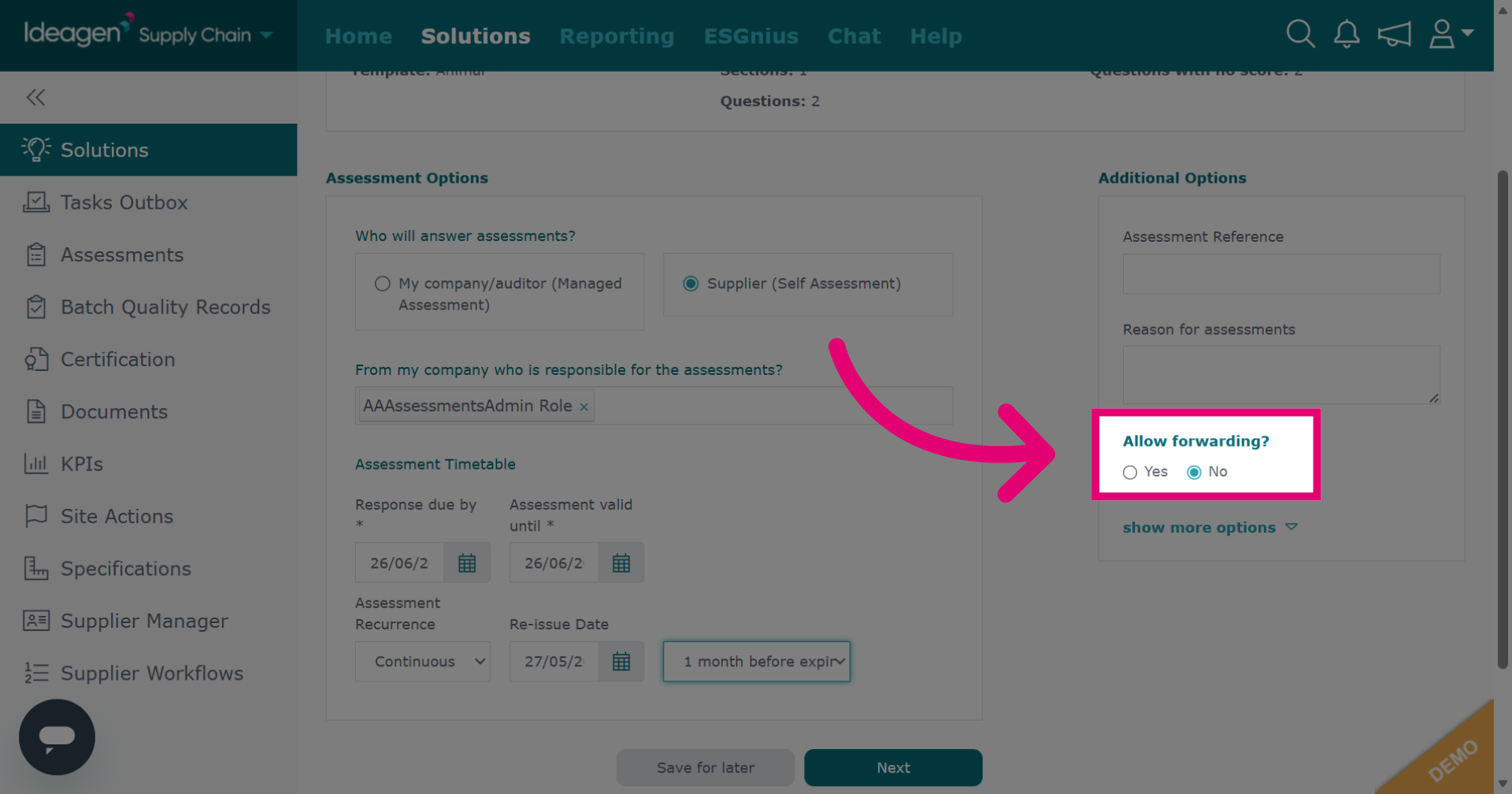
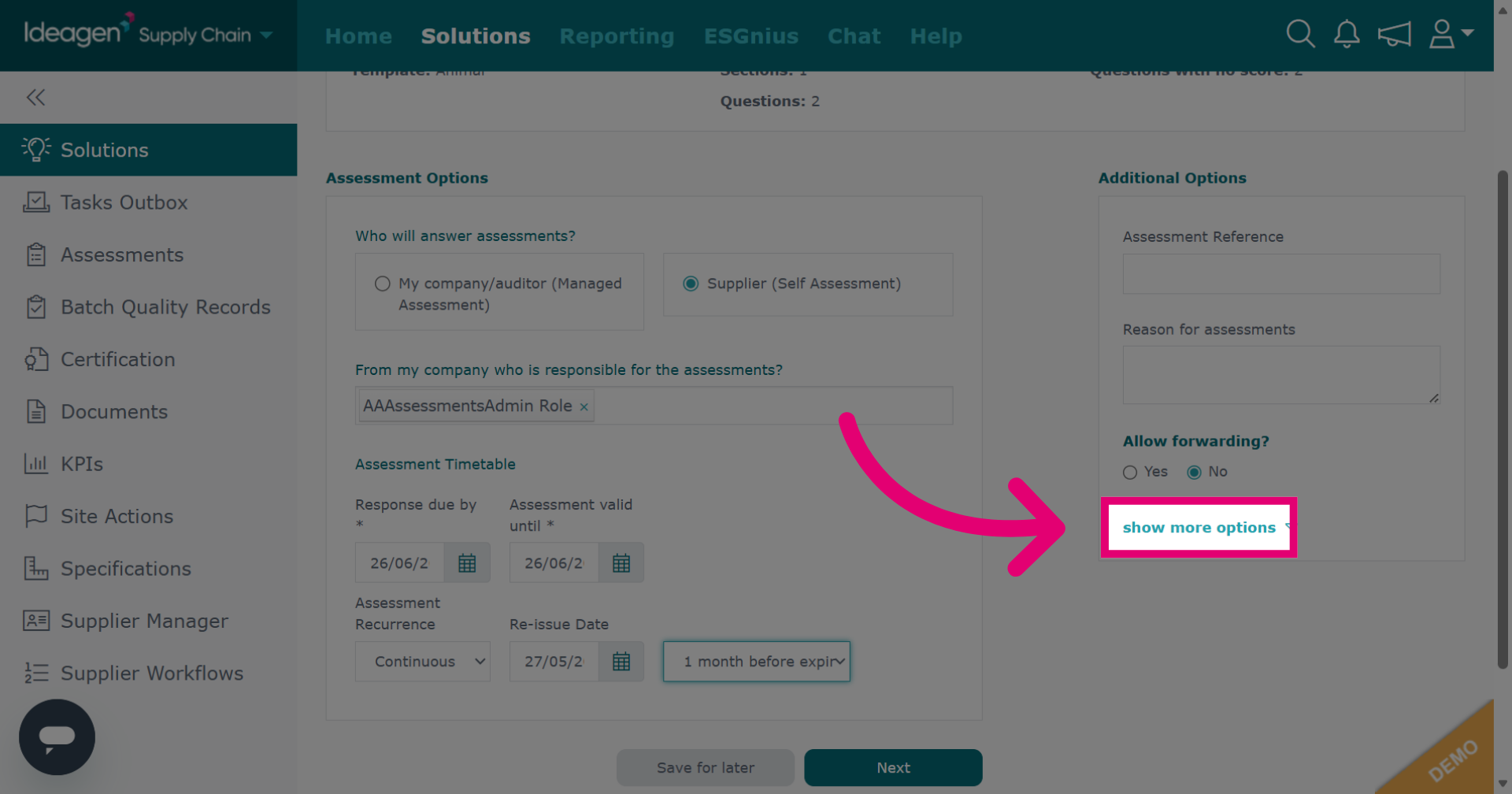
Configure forwarding settings for your assessment as needed.
-
Click show more options to access advanced assessment settings.
-
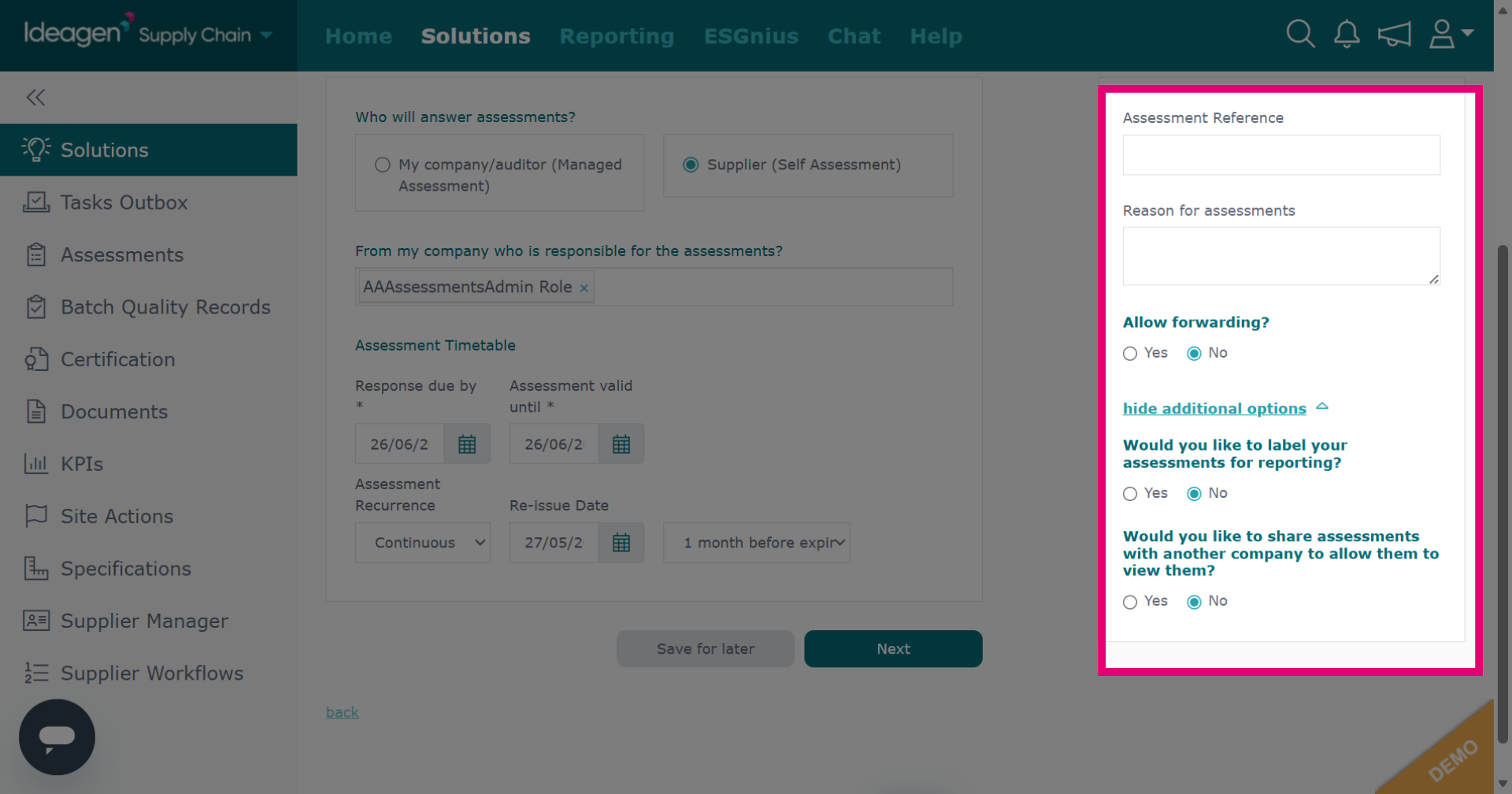
For managed assessments, review the additional options available.
-
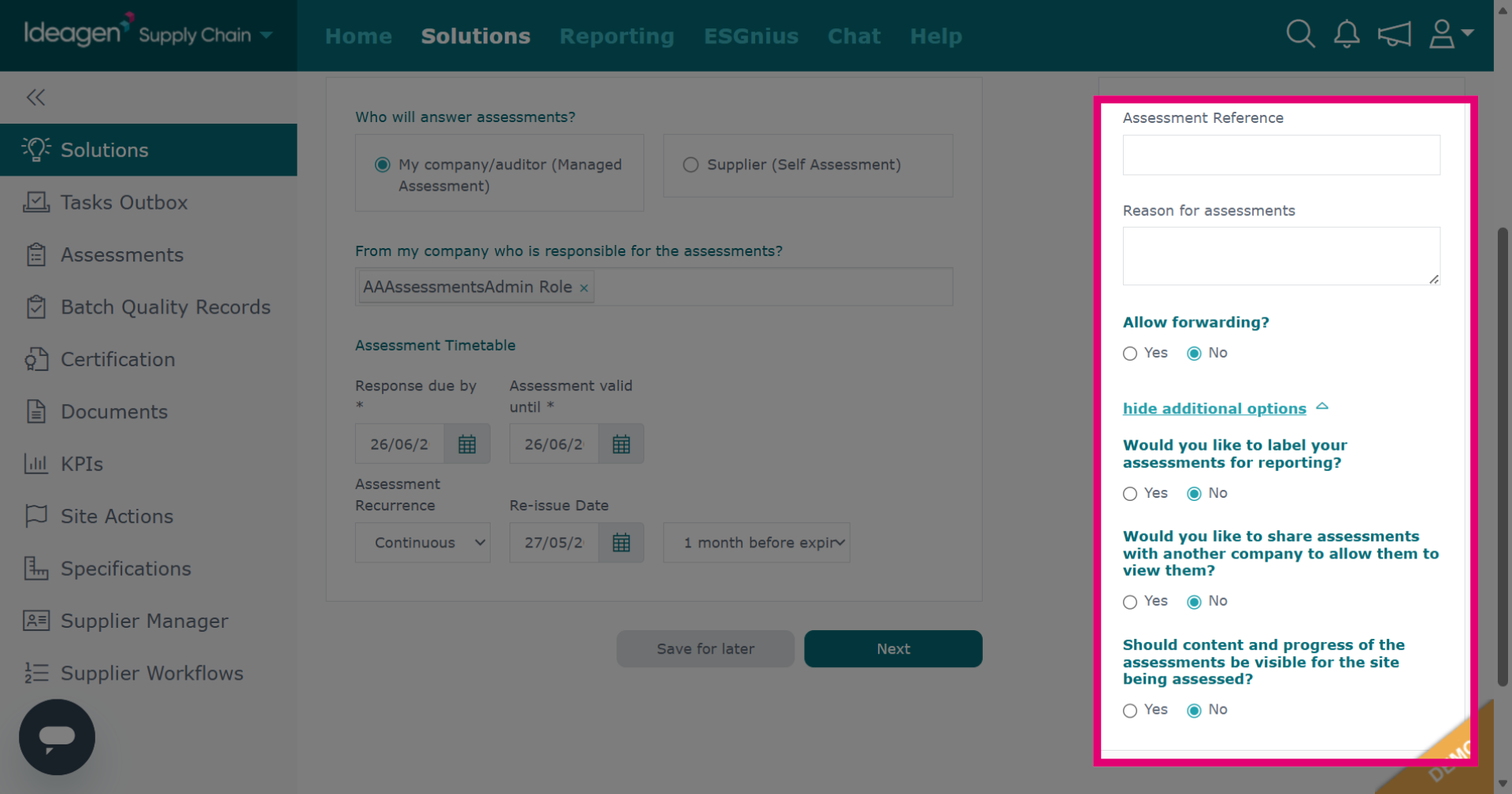
For self assessments, review the additional options available.
-
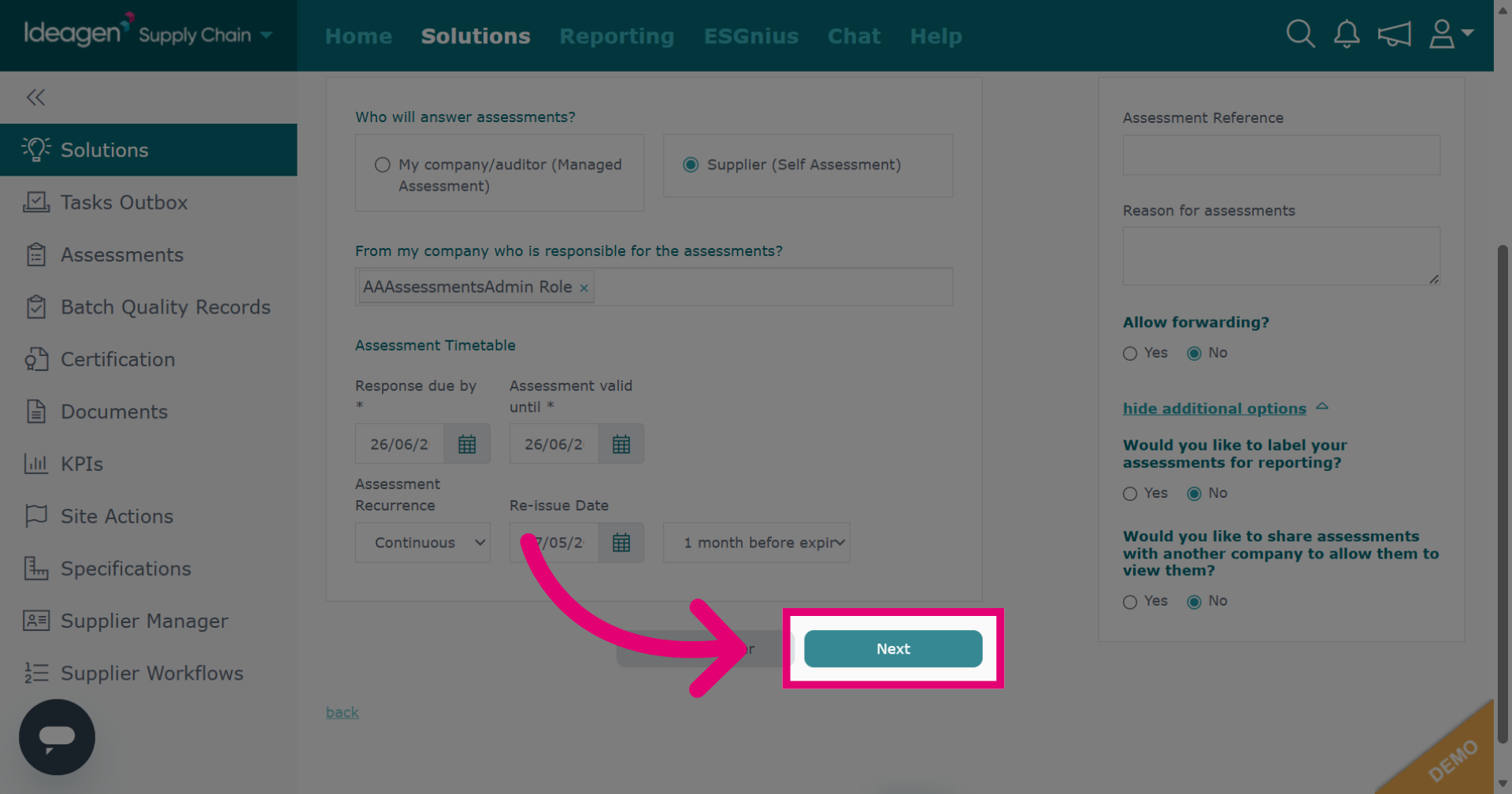
Click Next when all options are set to begin sending out assessments.
-
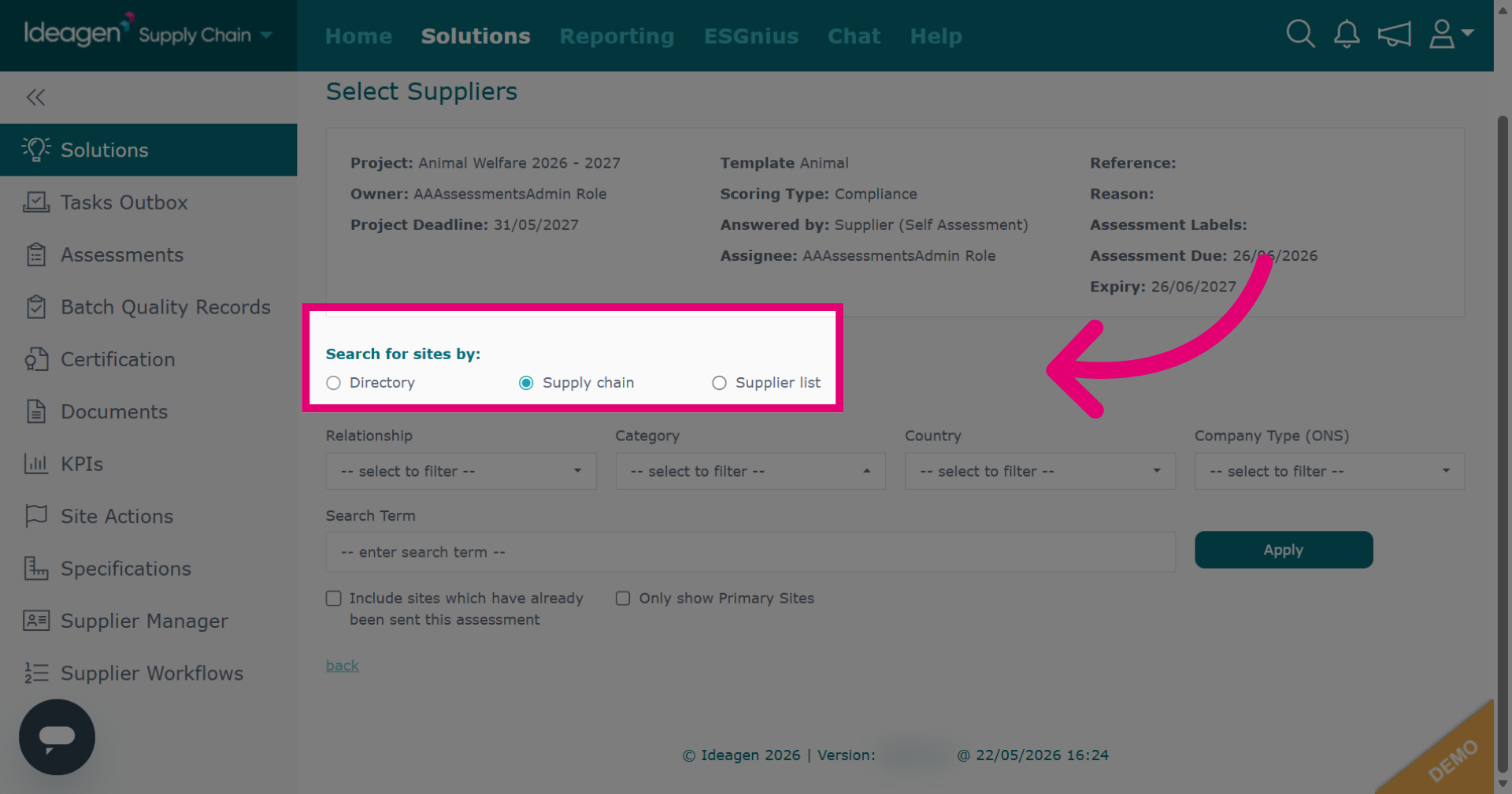
Choose your search method for suppliers. There are three ways to search: directory (searches across all of Ideagen Supply Chain's directory), supply chain (searches within your supply chain mapping), or supplier list (searches within your supplier lists created in the supplier manager module).
-
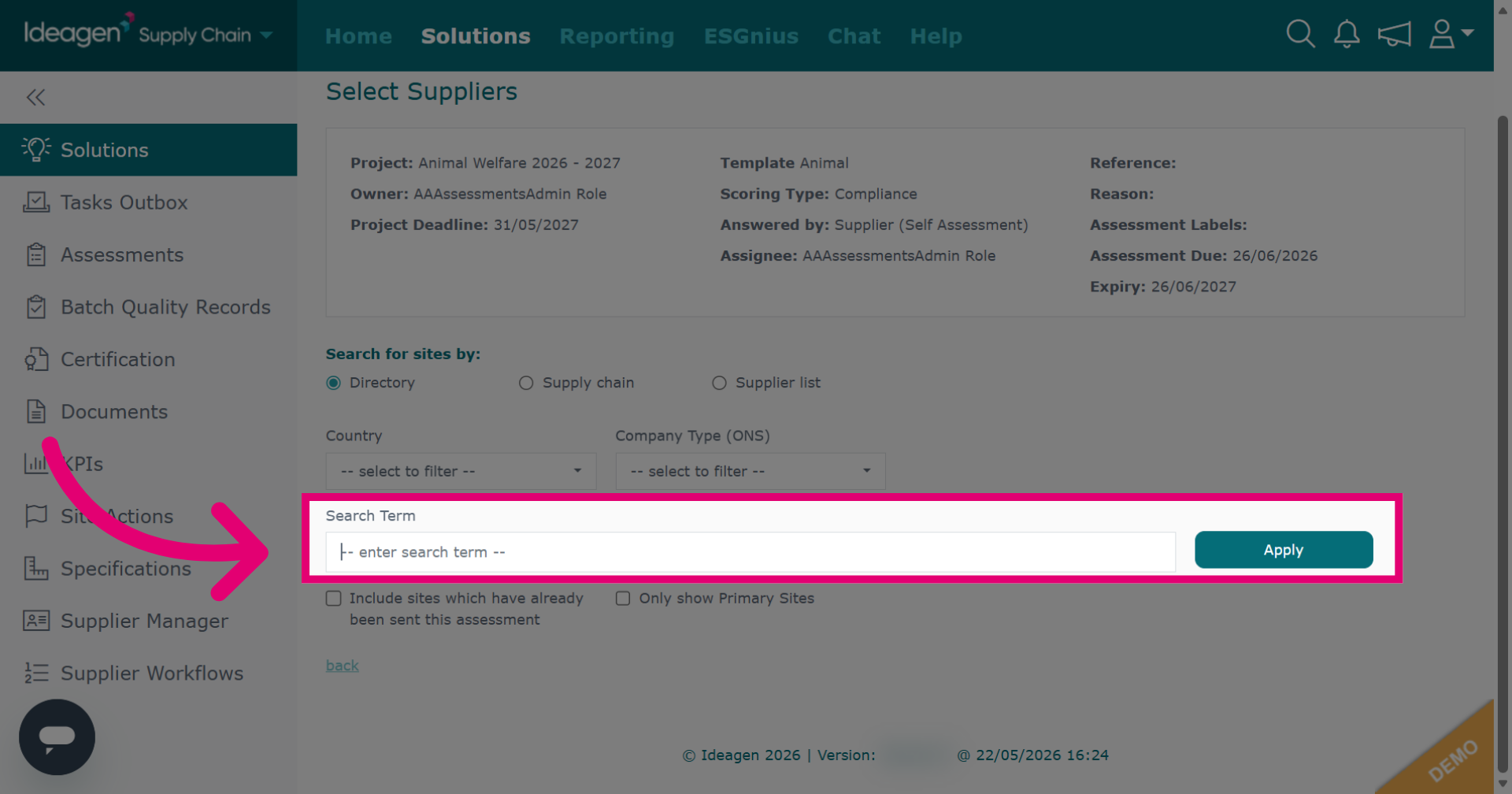
Enter your search term and click apply.
-
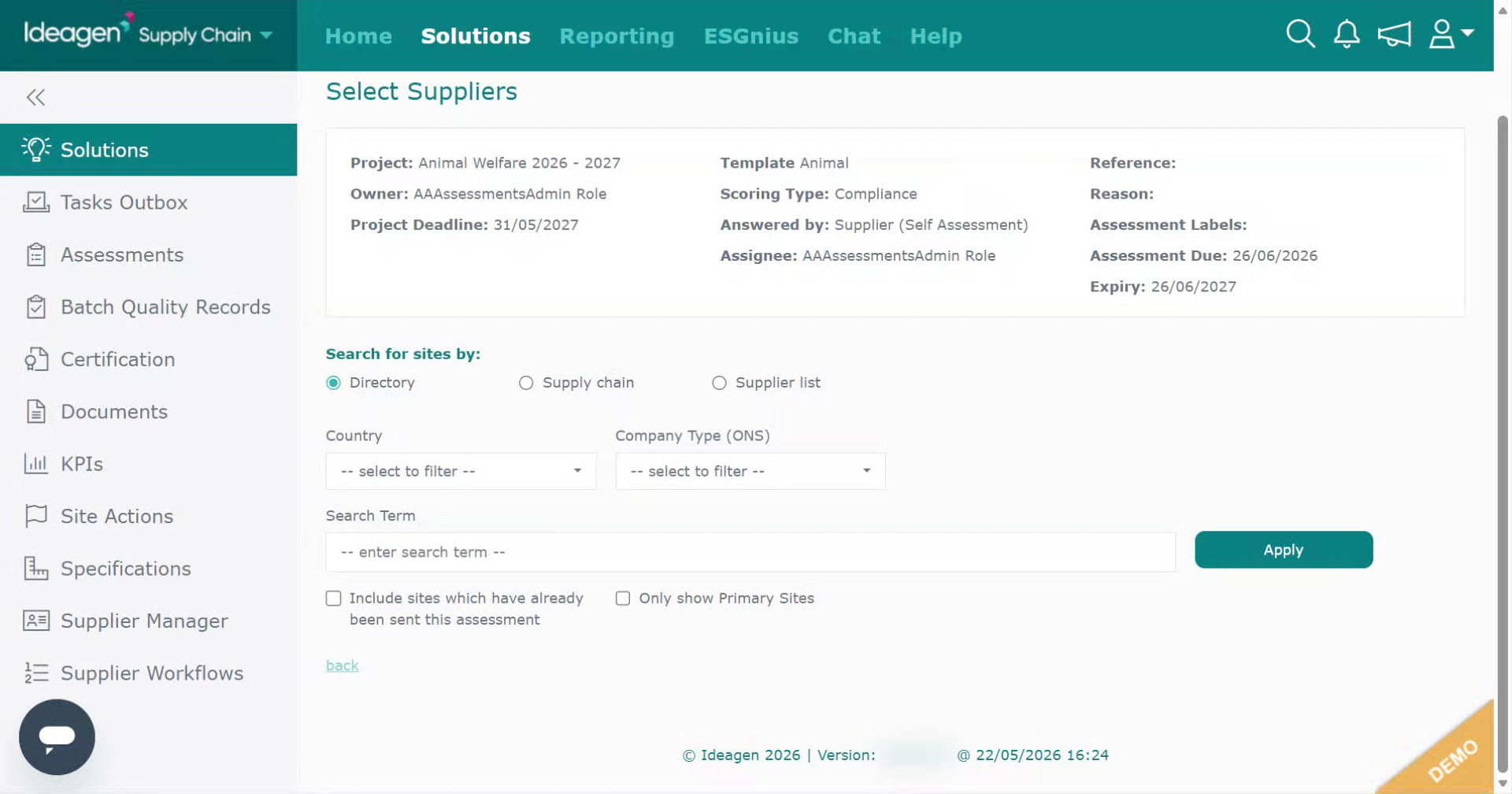
Review your search results.
-
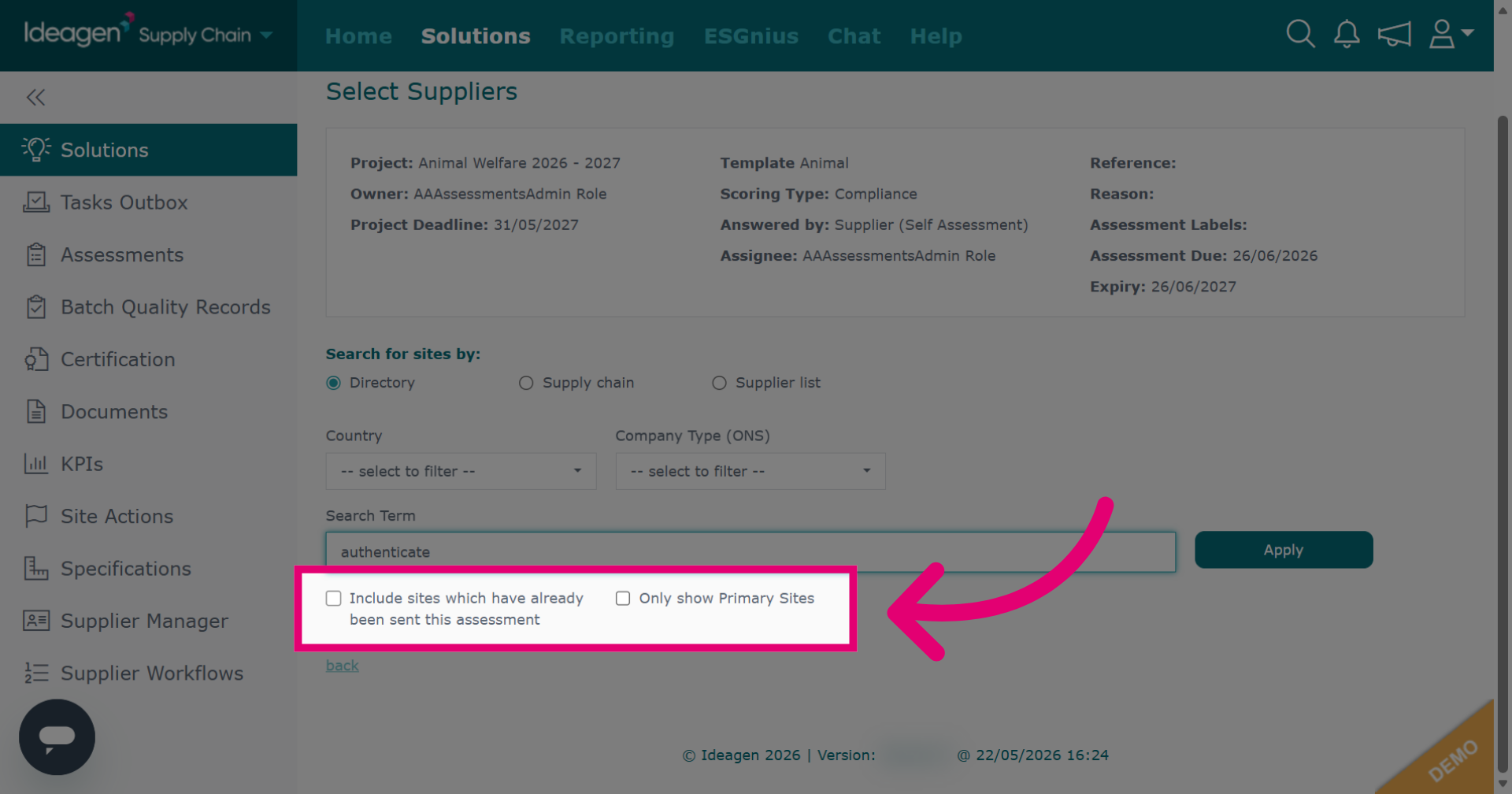
Click Include sites which have already been sent this assessment to broaden your search results. Click Only show primary sites to show only a company's primary site.
-
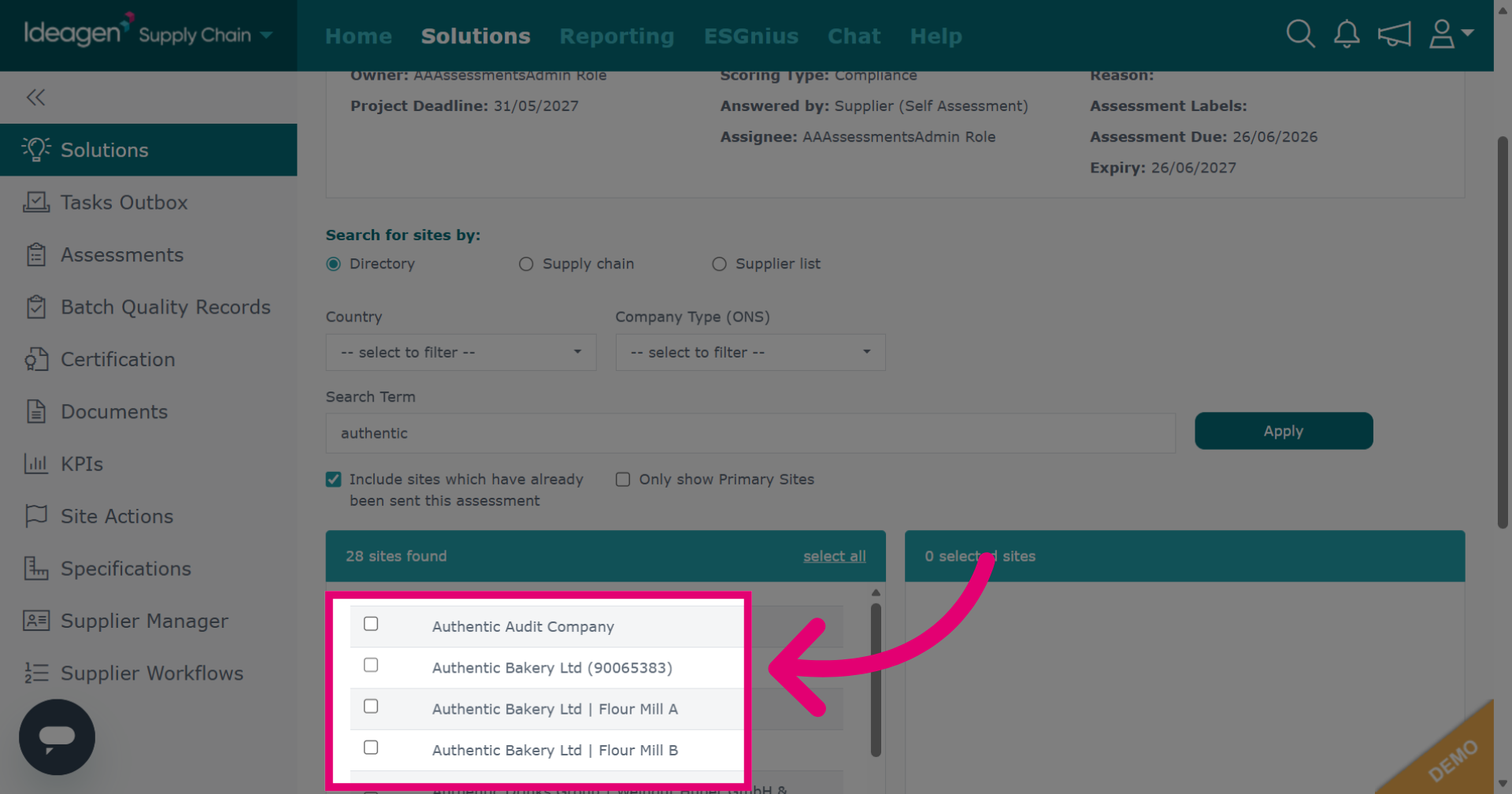
Select suppliers from the search results. Once you have selected a supplier they will move into the right hand box. Repeat process until you have found all suppliers you want to include.
-
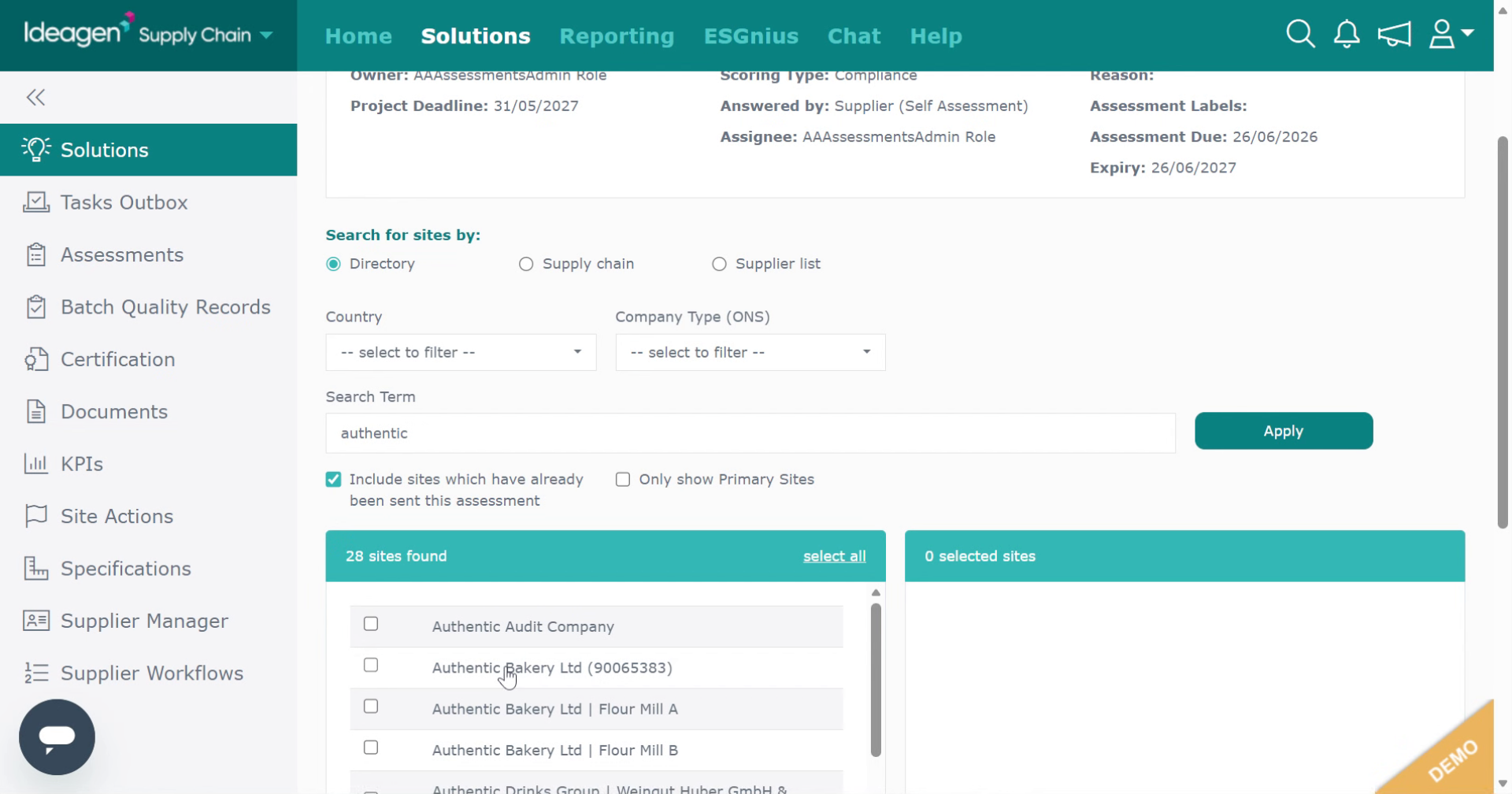
Continue selecting suppliers as needed.
-
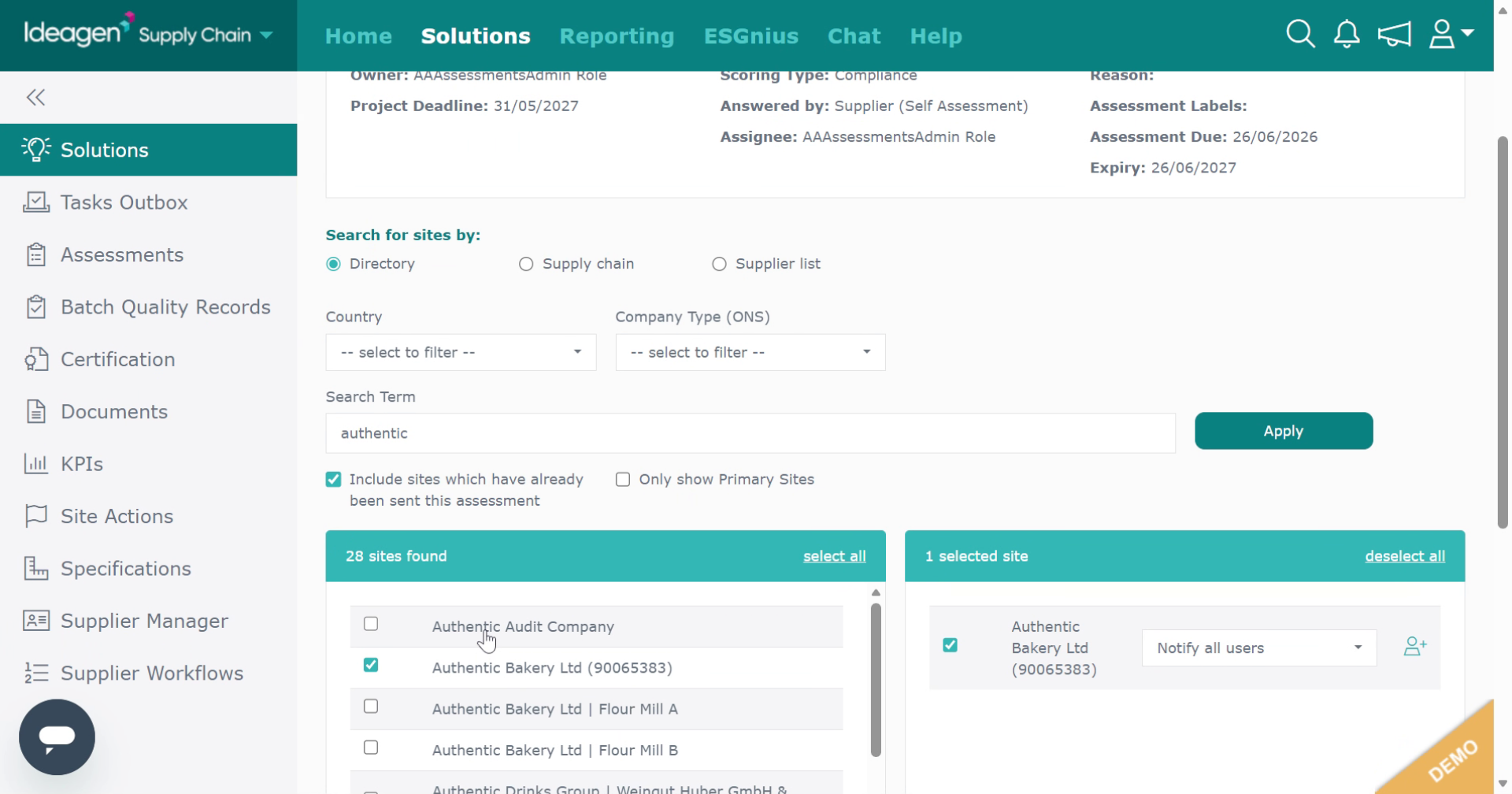
Review your selected suppliers.
-
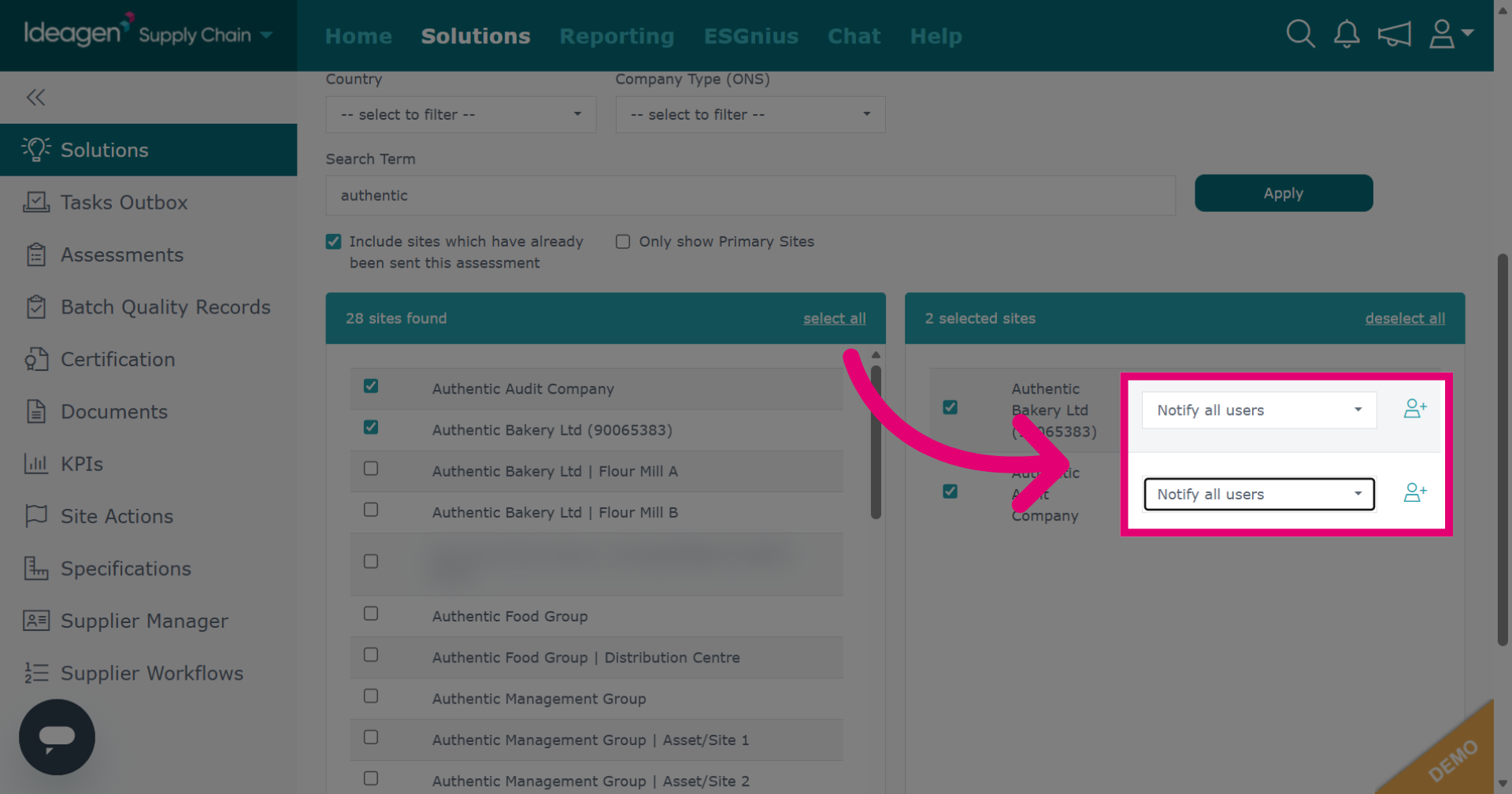
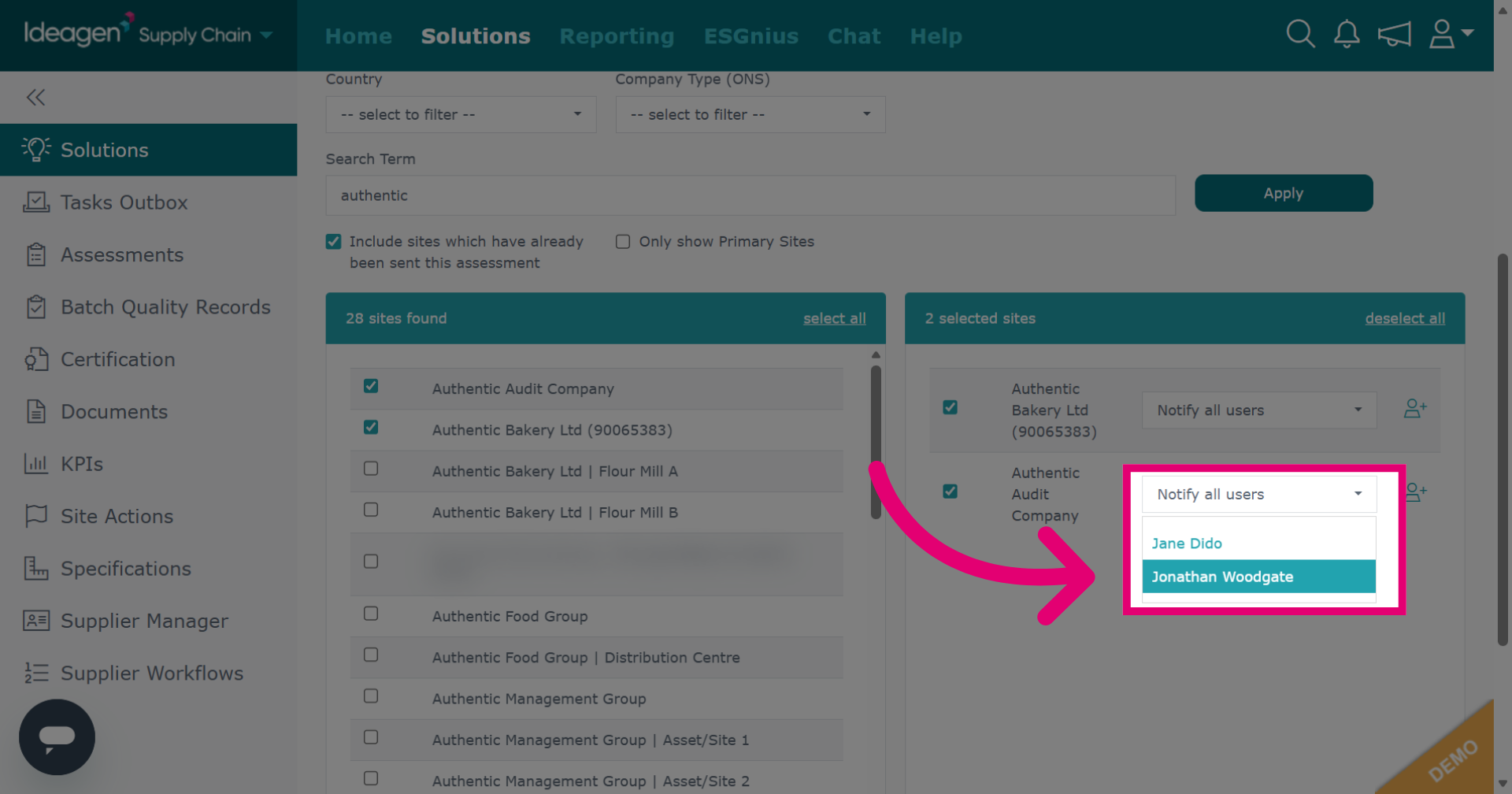
Note that assessments will be sent to all users on a supplier profile unless you specifically pick a user for it to be sent to.
-
Click the arrow to select a user from the drop down options. Other users will still be able to access if they are an Assessment Admin, however they will not be notified of the task. Selecting a specific user is optional.
-
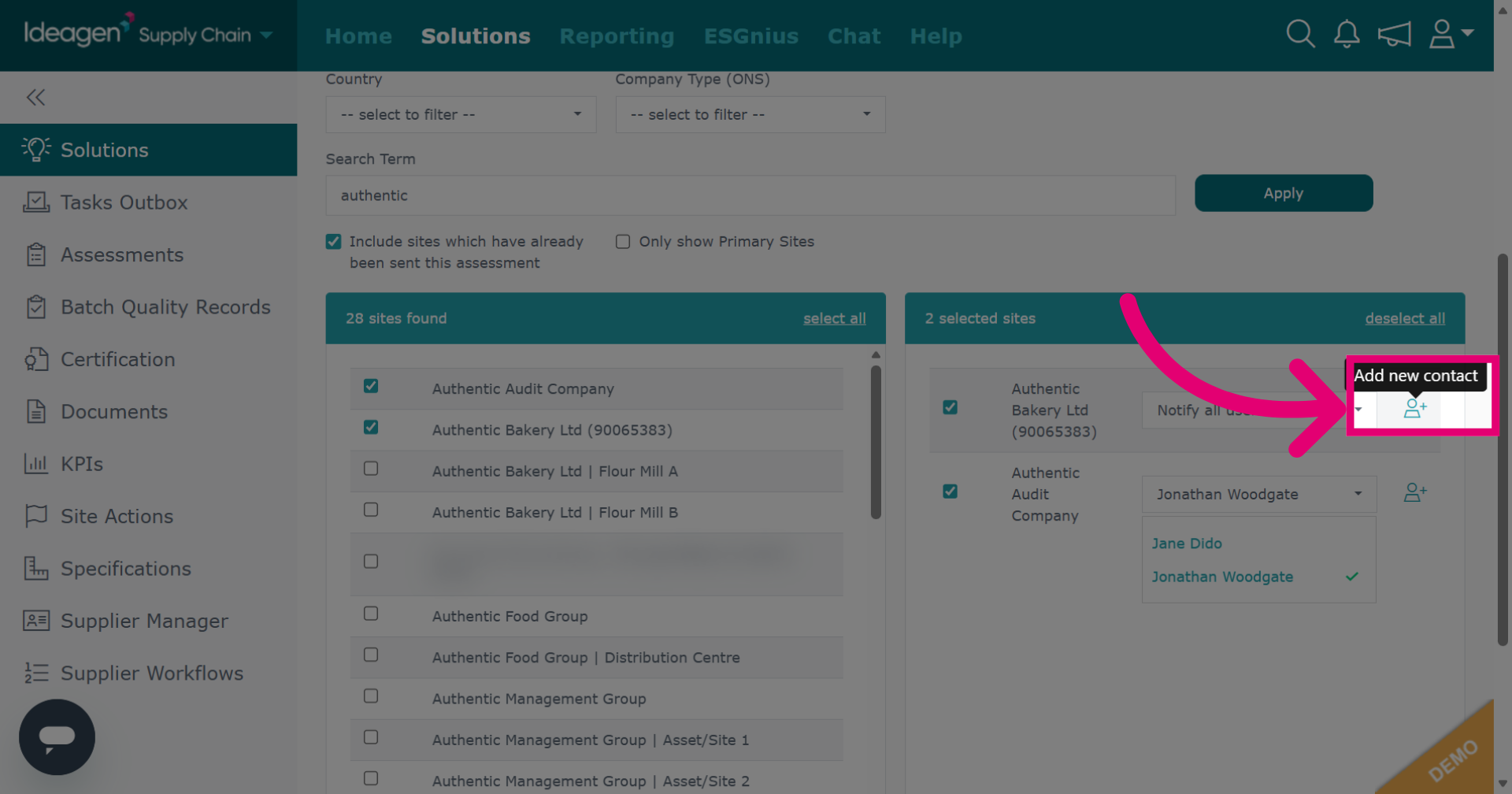
If the user you want to send the assessment to is not visible, you can click the person icon to add a user to the profile.
-
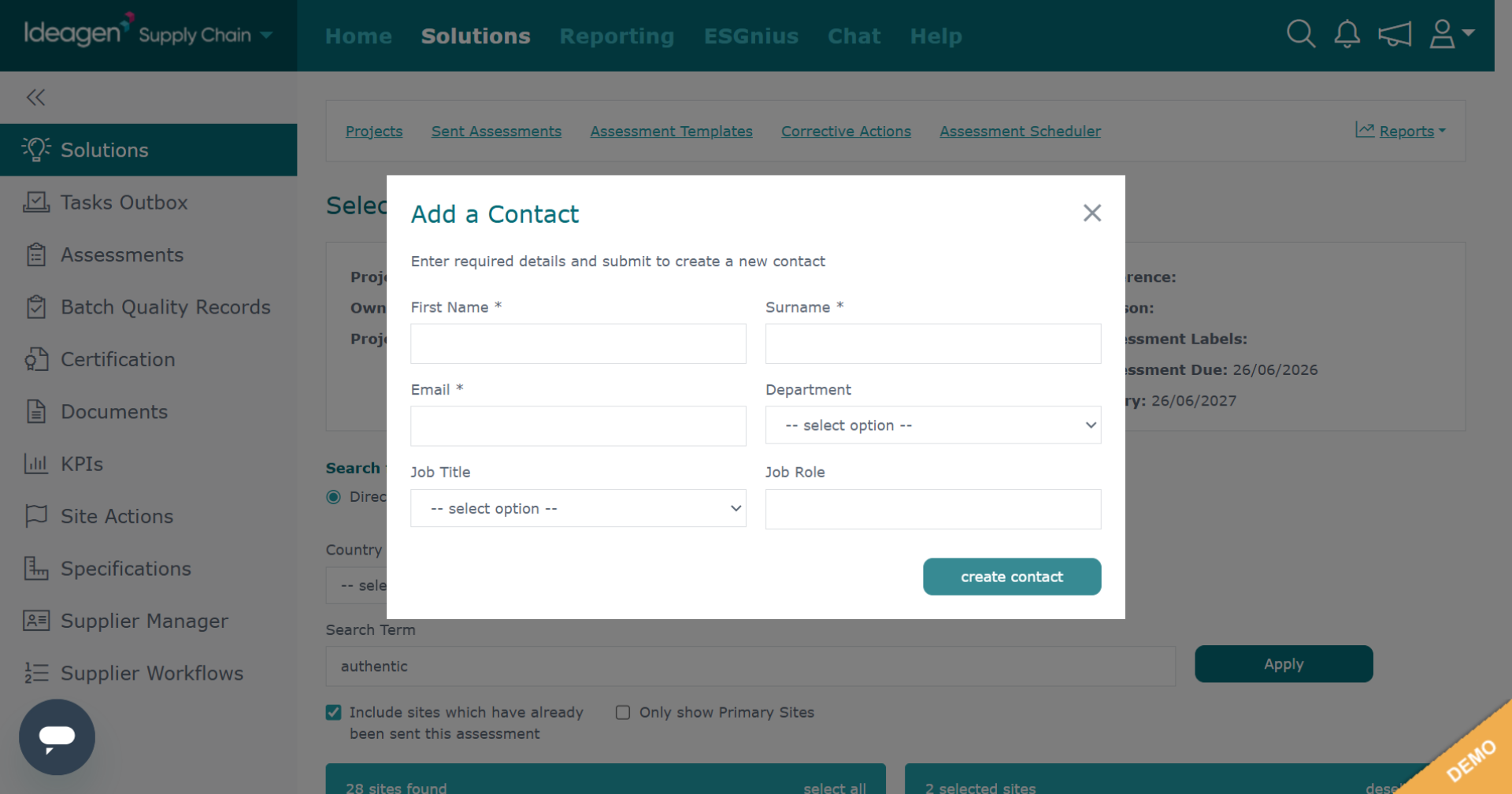
Input the user details and then click create contact.
-
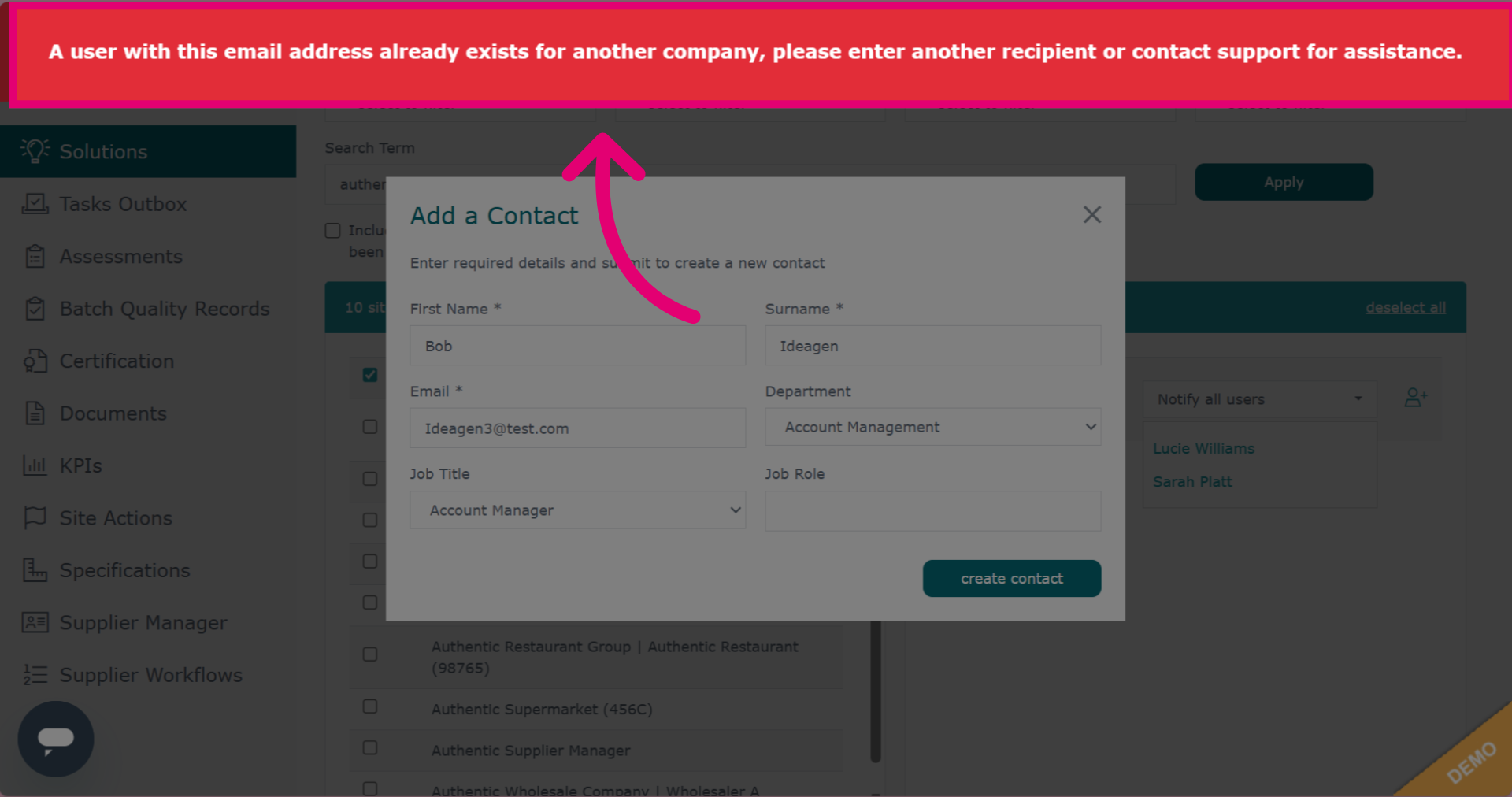
If when attempting to add a contact you receive an error message, it is because this user already has an account. It may be that the user's account is private, and you will not be able to select them as a specific contact or, they may be connected to a different profile entirely. Please select a different pre-existing contact from the drop down to assign your assessment to.
-
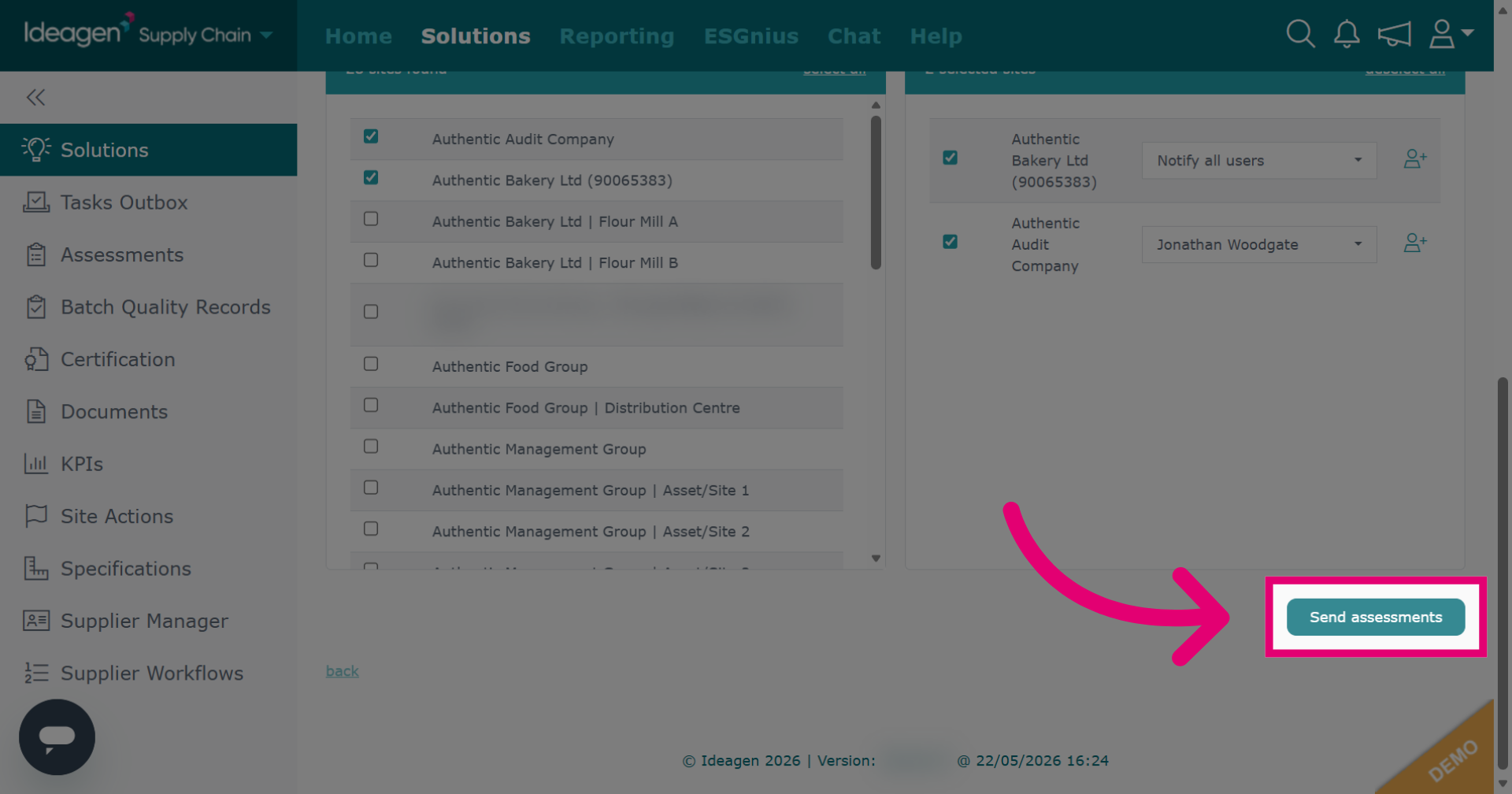
Click Send assessments to distribute the configured assessments to selected suppliers and users.
-
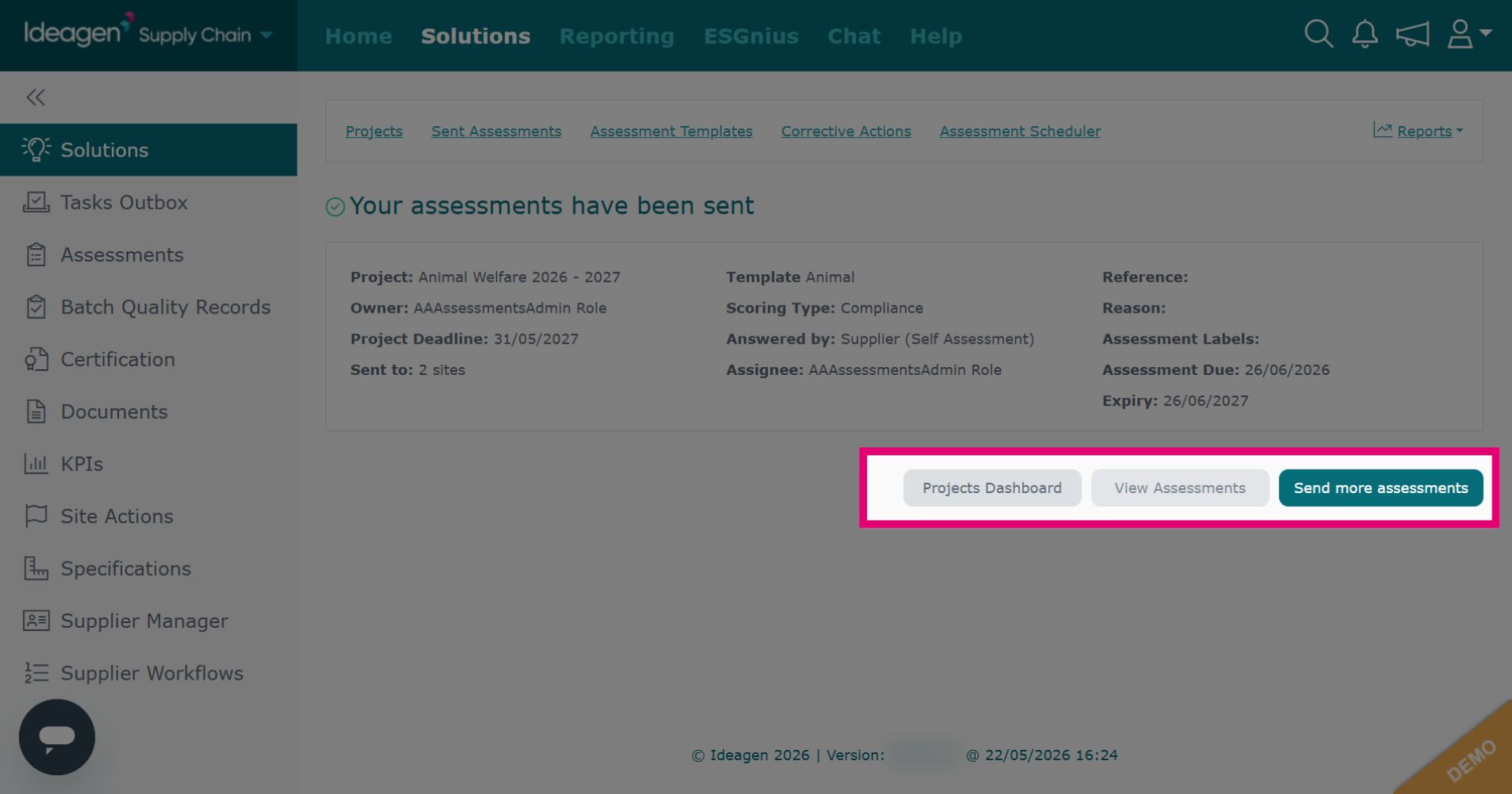
Once you have sent your assessments you can return to your assessment projects dashboard, view the assessments you have just sent or send more assessments.