


New article
Recently updated
Managing Individual Supplier Assessments - Assessments

Who is this article for?
Users who want to manage individual supplier assessments.
Assessment admin permissions are required.
This tutorial guides you through managing an individual supplier's assessment using the Ideagen Supply Chain platform.
You will learn how to approve, fail, or complete assessments, submit them for review, add corrective actions, and manage assessment details throughout the evaluation process.
Approving, Failing, and Managing Supplier Assessments
- Log into the system.
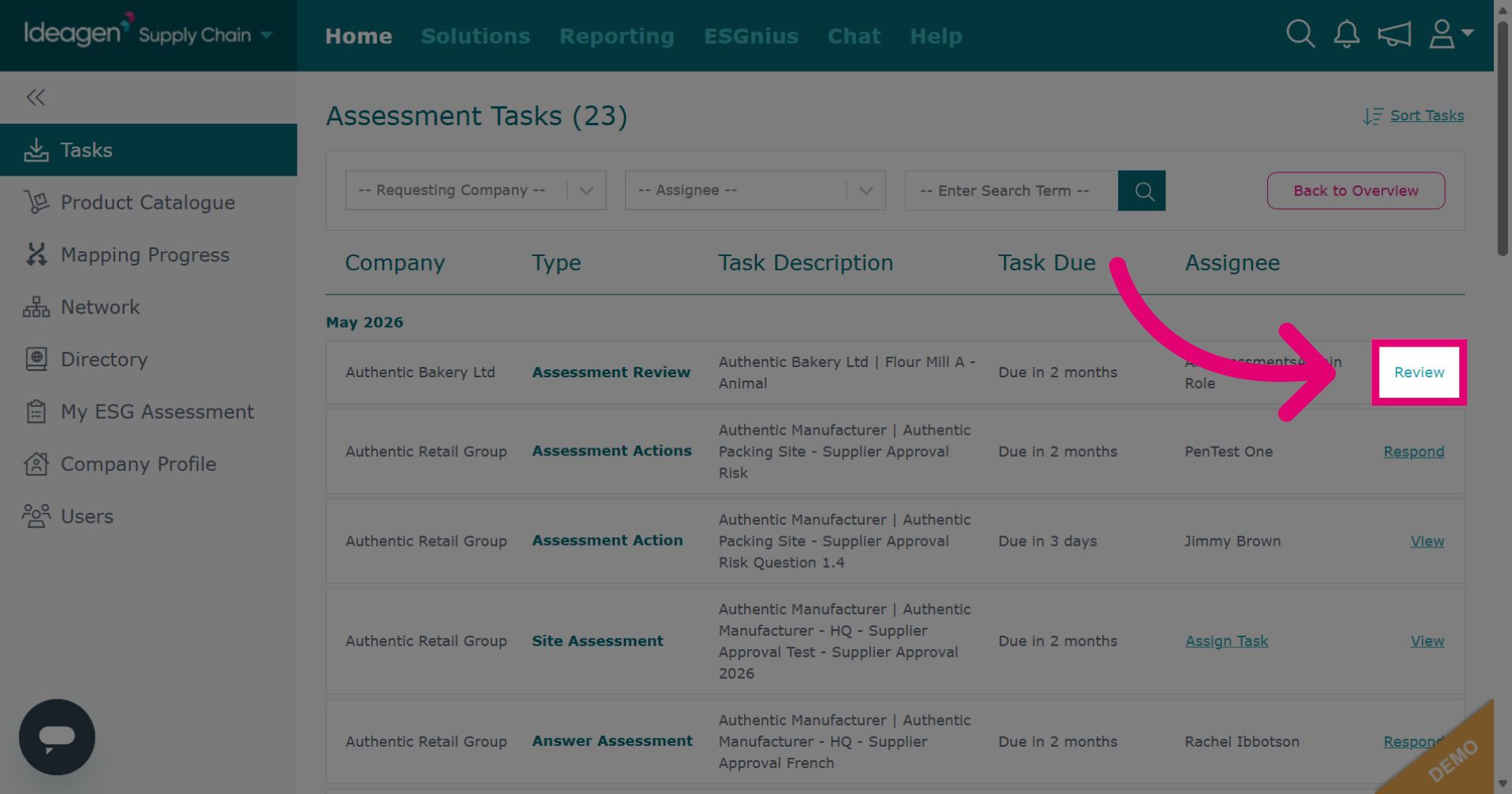
- Click Review next to the assessment task on your homepage to open the detailed view of the selected supplier assessment for evaluation. Assessments that have been returned to you by your supplier for grading will appear as assessment tasks on your homepage.
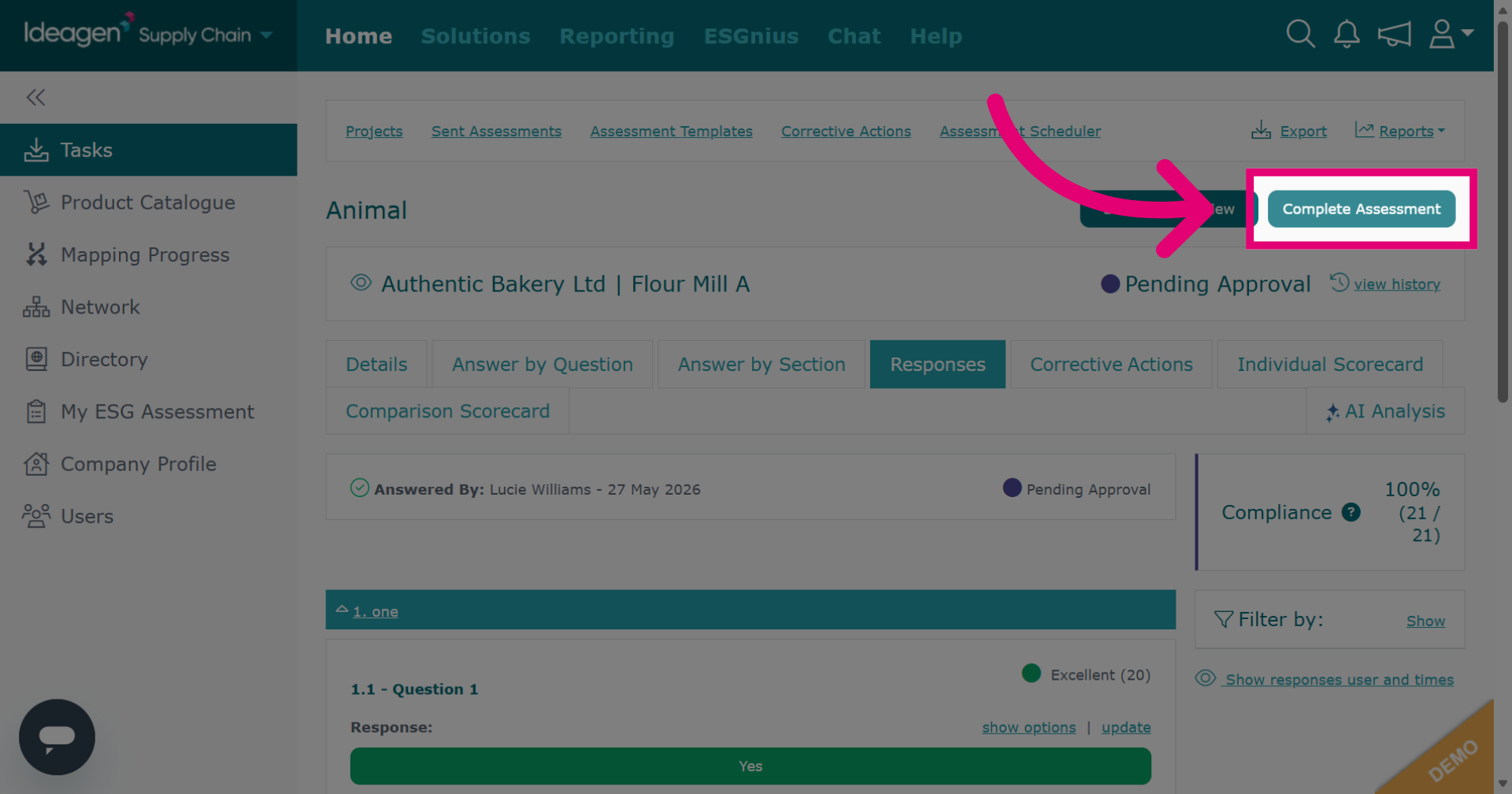
- Click Complete Assessment to pass, fail or complete an assessment.
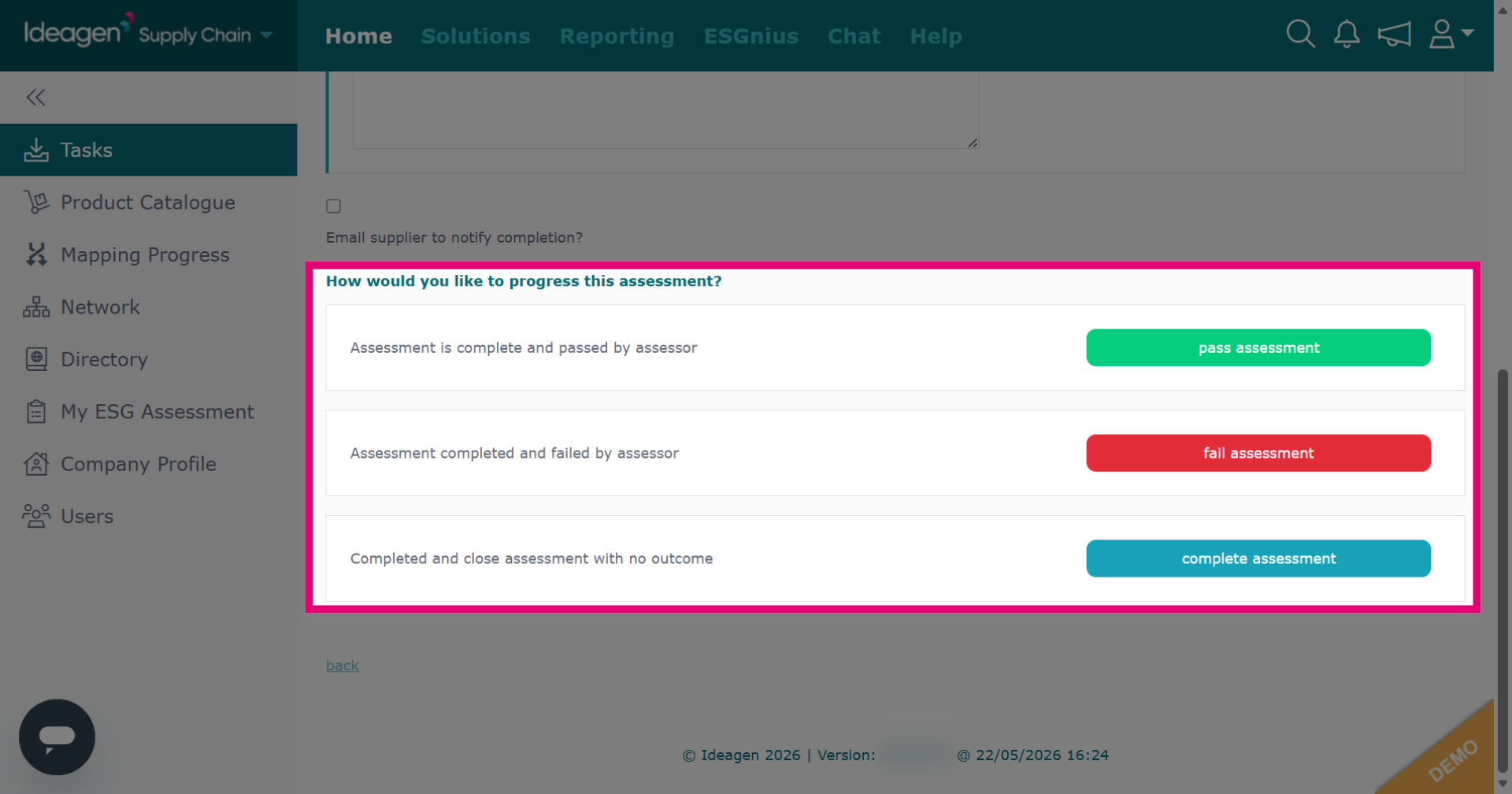
- Click Pass, Fail or Complete accordingly.
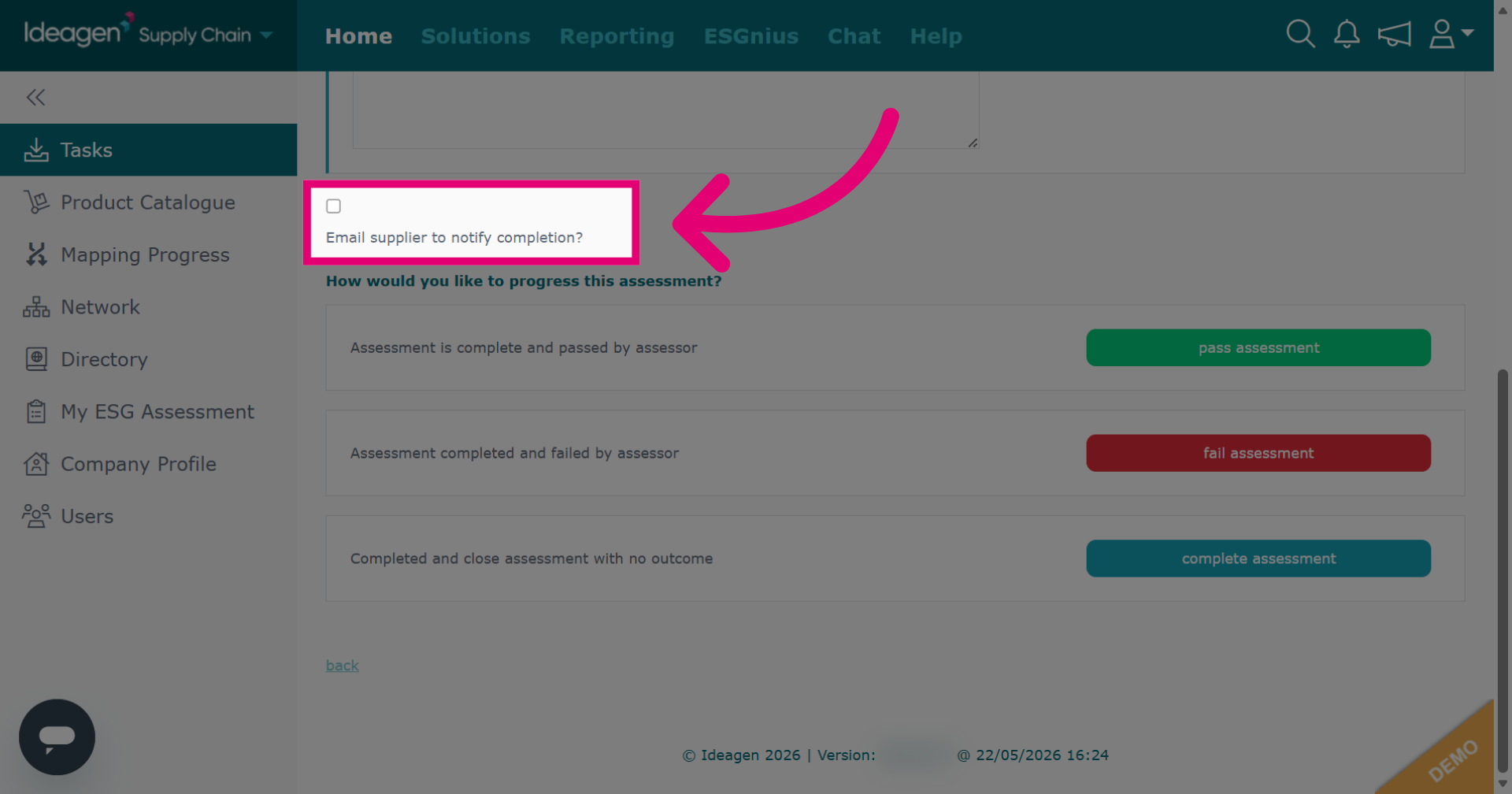
- Click Email supplier to notify completion to decide whether to send an email notification to the supplier upon assessment outcome.
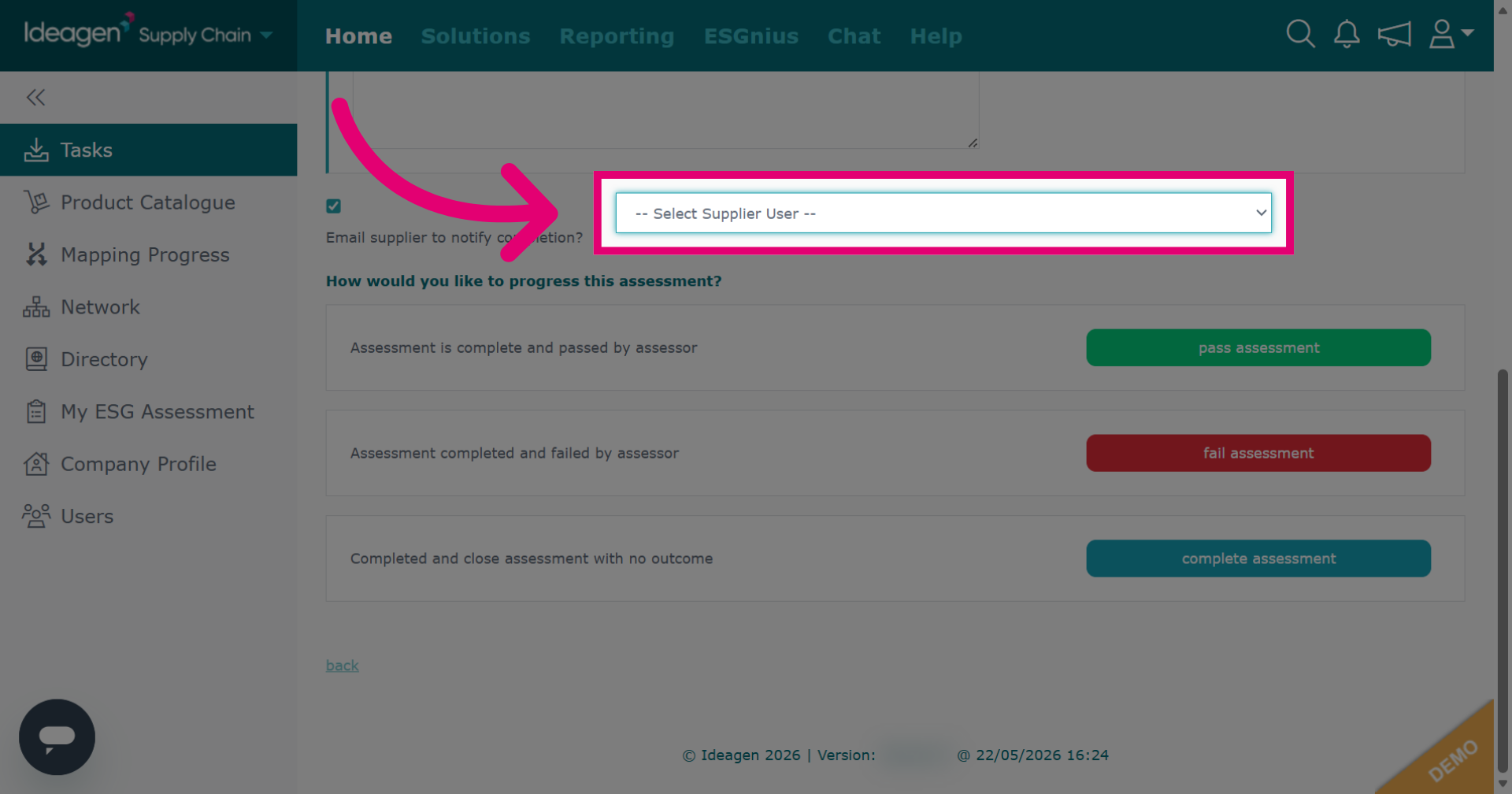
- If notifying, select a user from the drop down options.
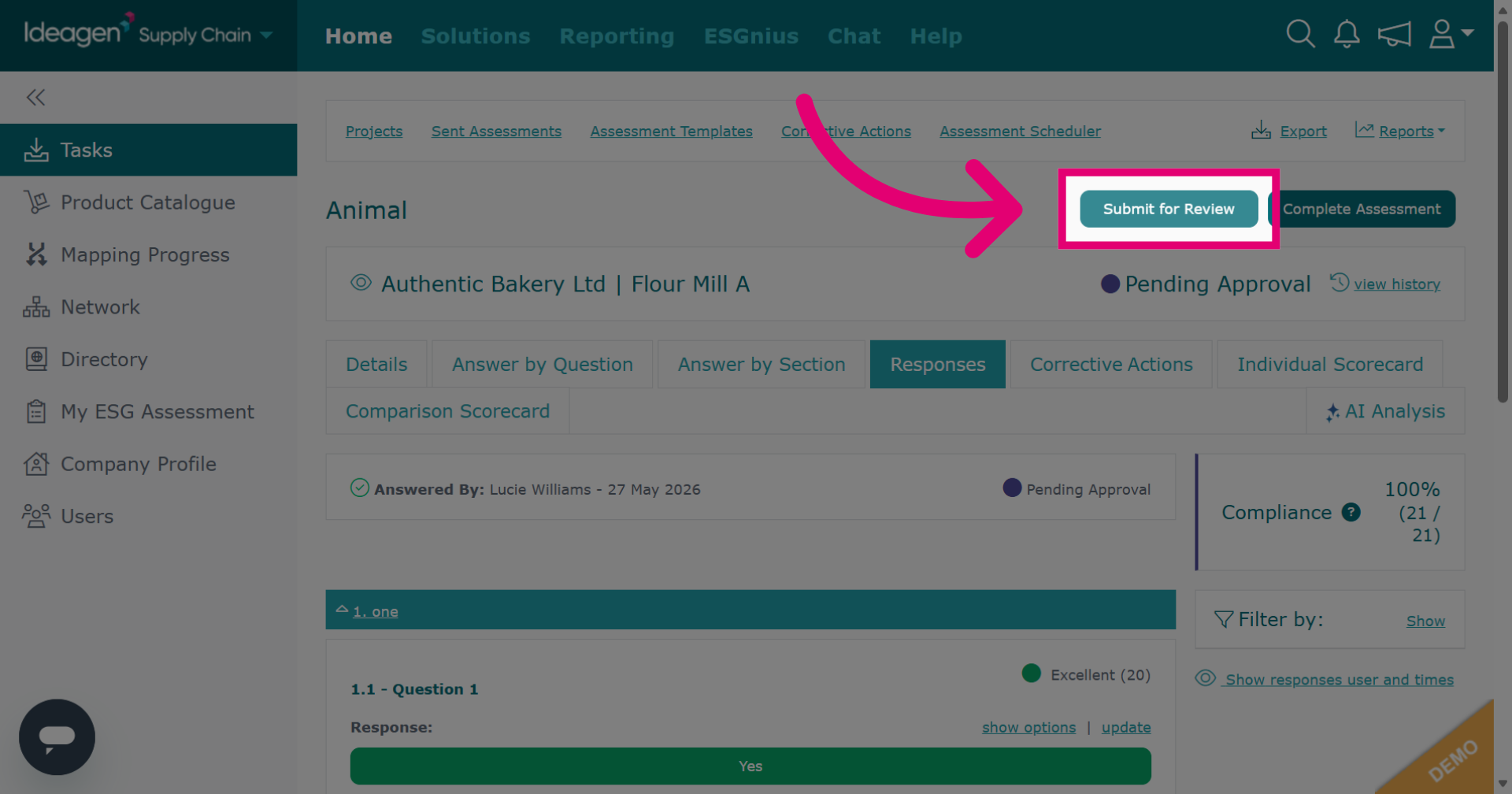
- Click Submit for Review to send the assessment for further review. This could be back to the supplier for corrections, or for a secondary review from someone within your company.
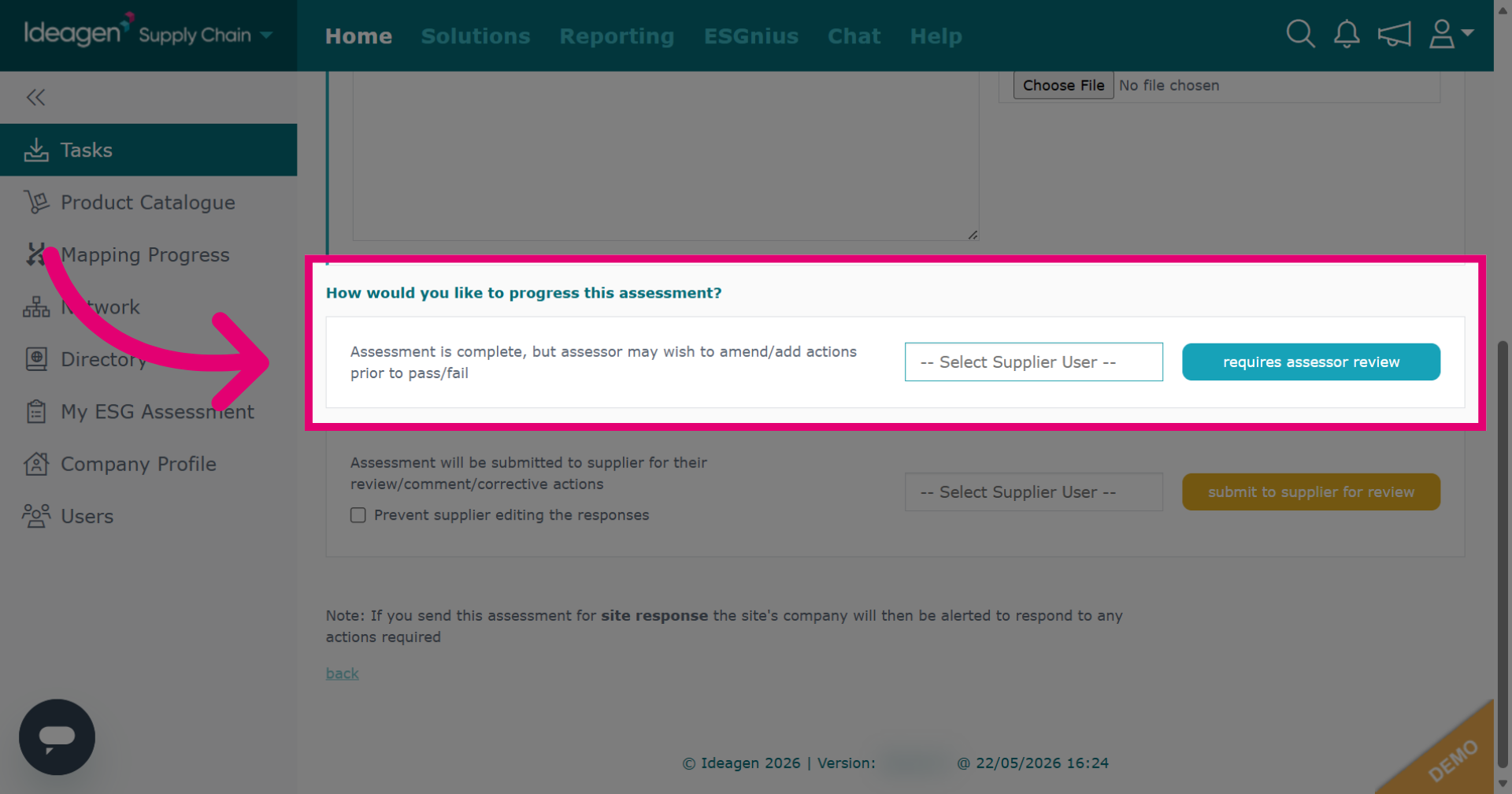
- To have someone from your company review the assessment further, select Requires Assessor Review.
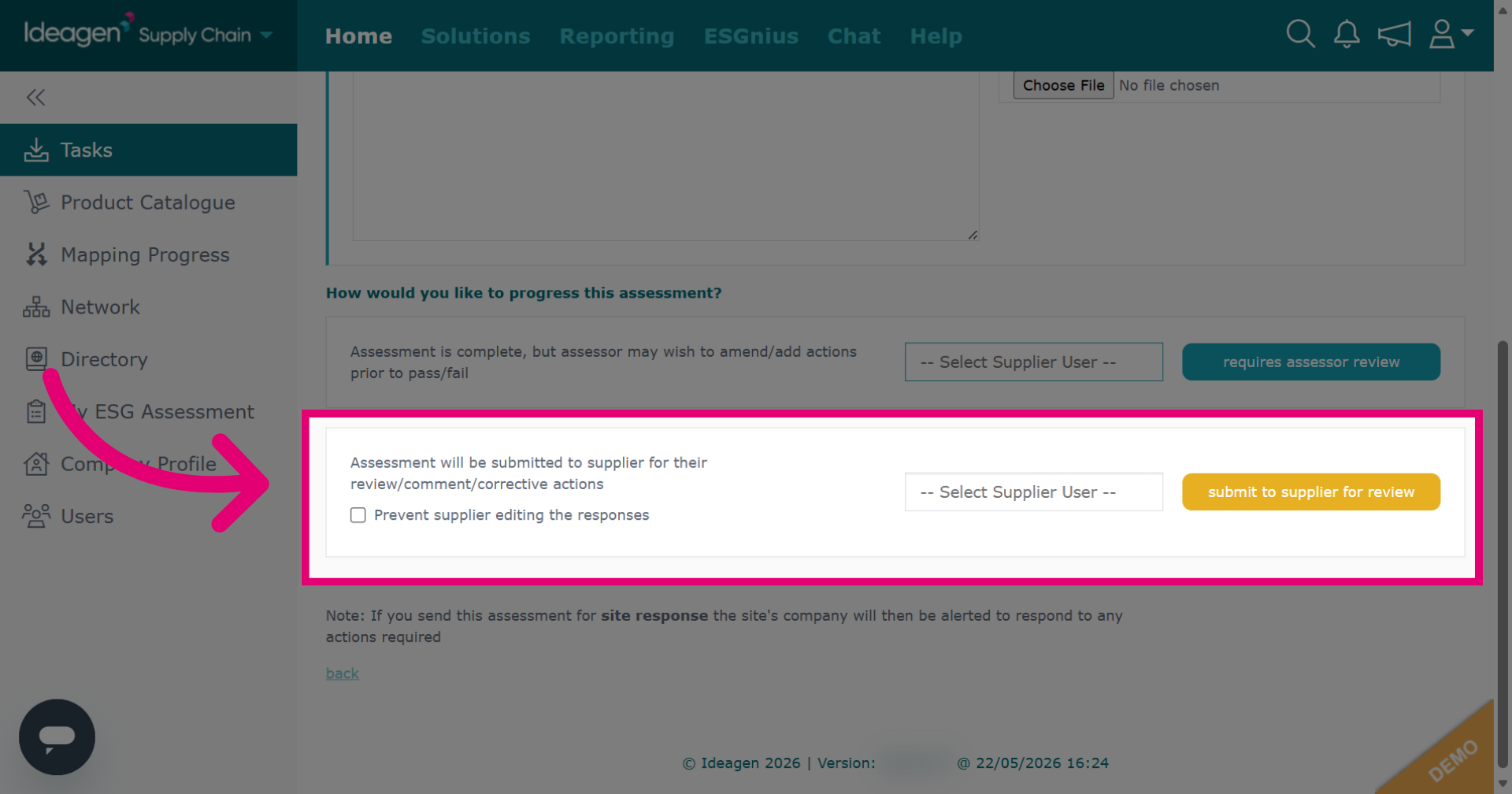
- To return the assessment to the supplier for correction, click Submit to Supplier for Review. Please note, before doing so you will need to add corrective actions.
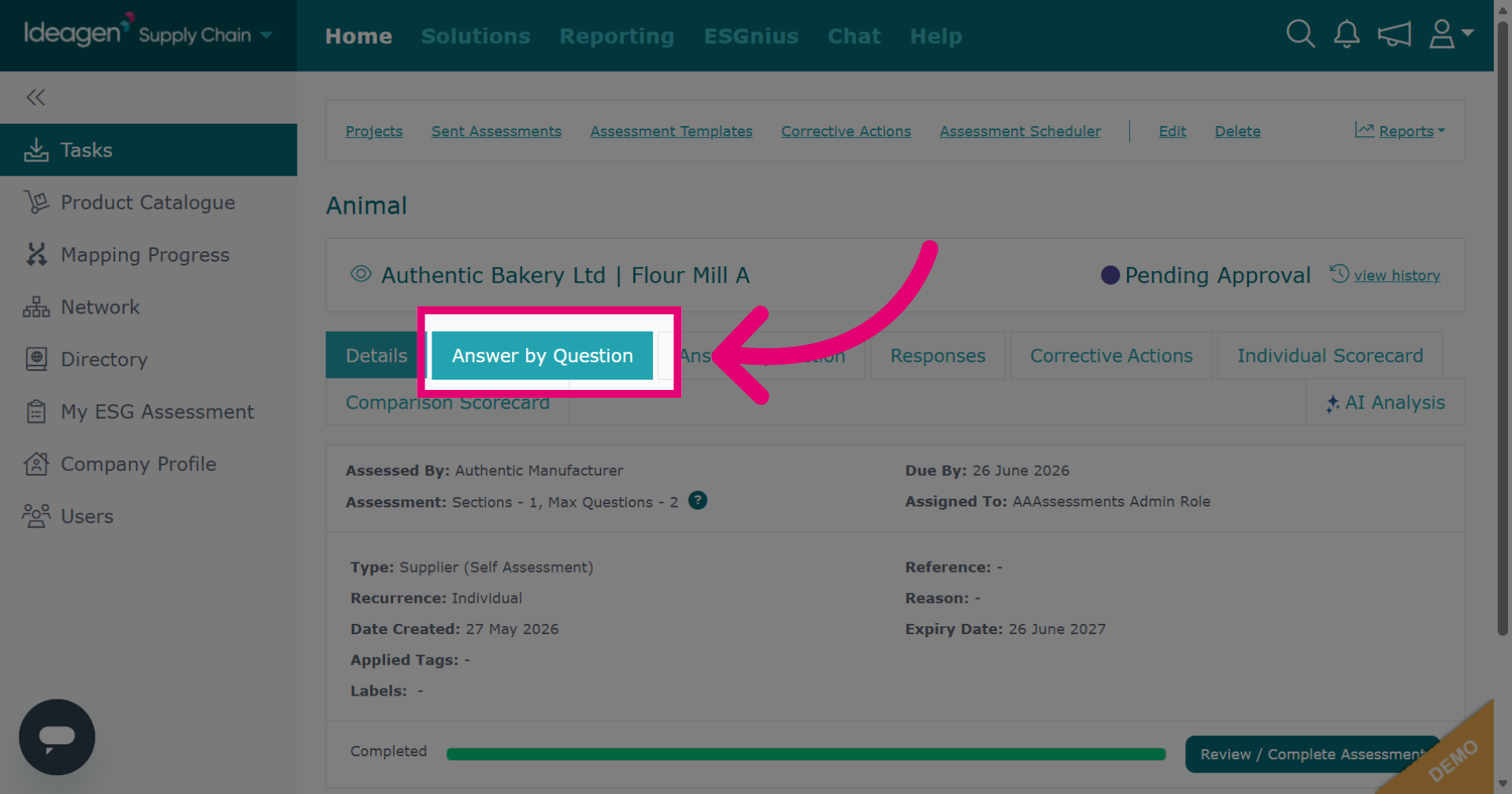
- To add corrective actions, click Answer by Question to organize assessment responses grouped by each question for easier review.
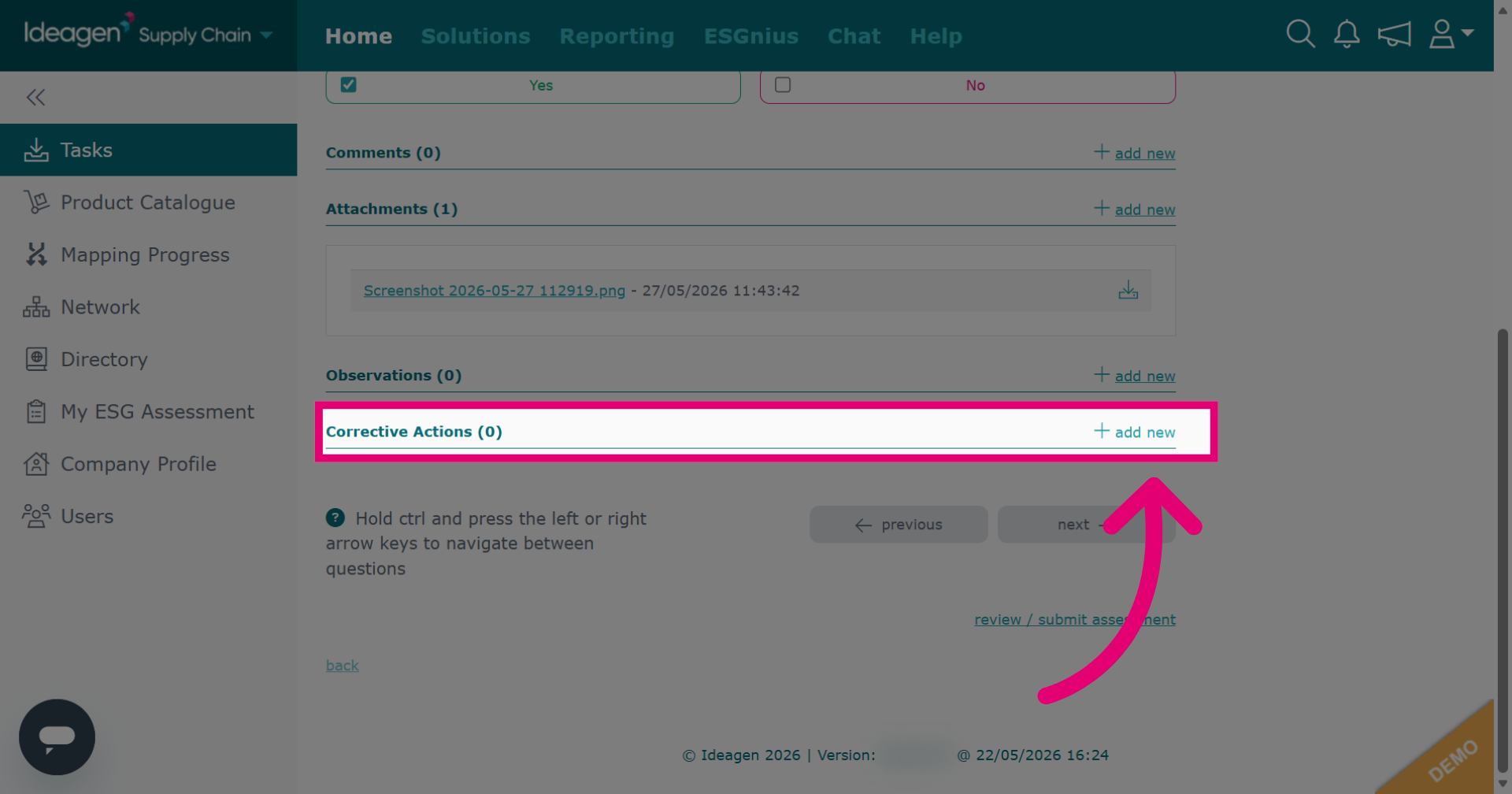
- Select the relevant question and scroll down, then click add new beside the corrective actions option.
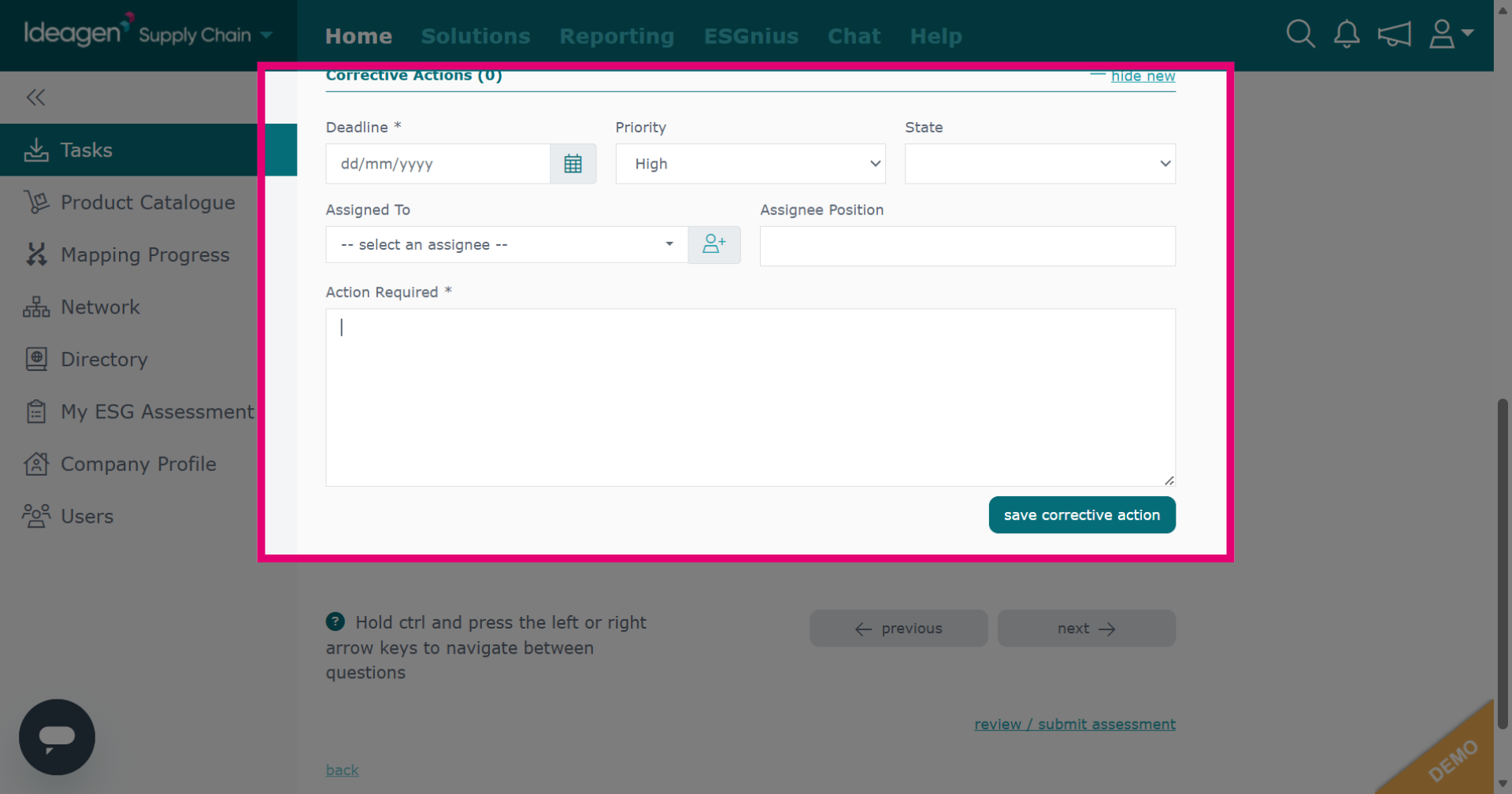
- Input the details and then click Save Corrective Action. Once your corrective actions have been added you will be able to click Submit for Review and then Submit to Supplier for Review to send the assessment back to your supplier with corrective actions.
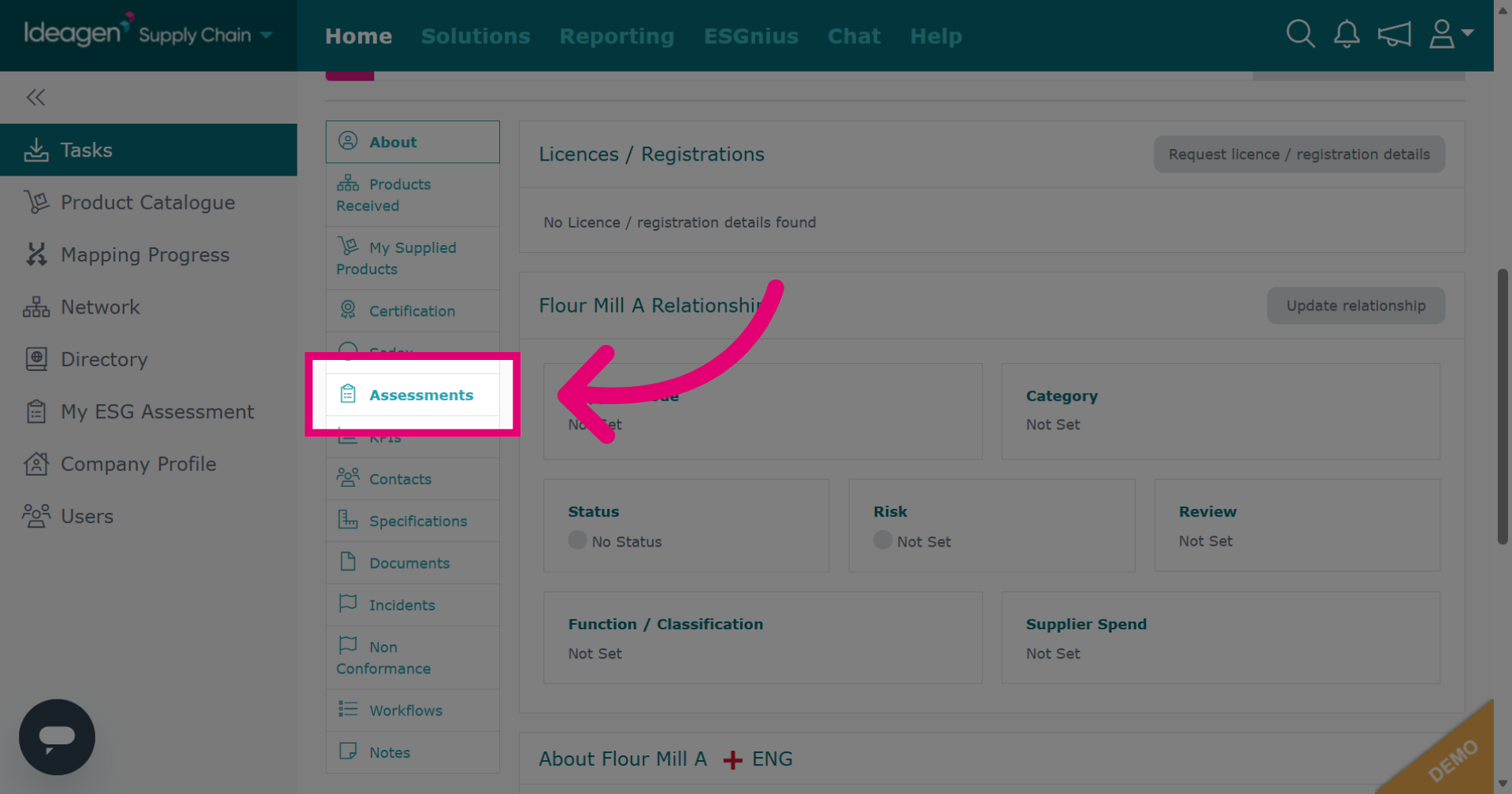
- To view an assessment on your supplier's profile, navigate to their profile. If you are unsure how to do so please watch our video guide titled "Supplier Profile: Relationships and Contacts." Scroll down the supplier profile and then click on the assessments option. You can also view an individual supplier assessment via an assessment project, please go and watch our video guide titled "Assessments: Managing Projects" if you are unsure how to do this.
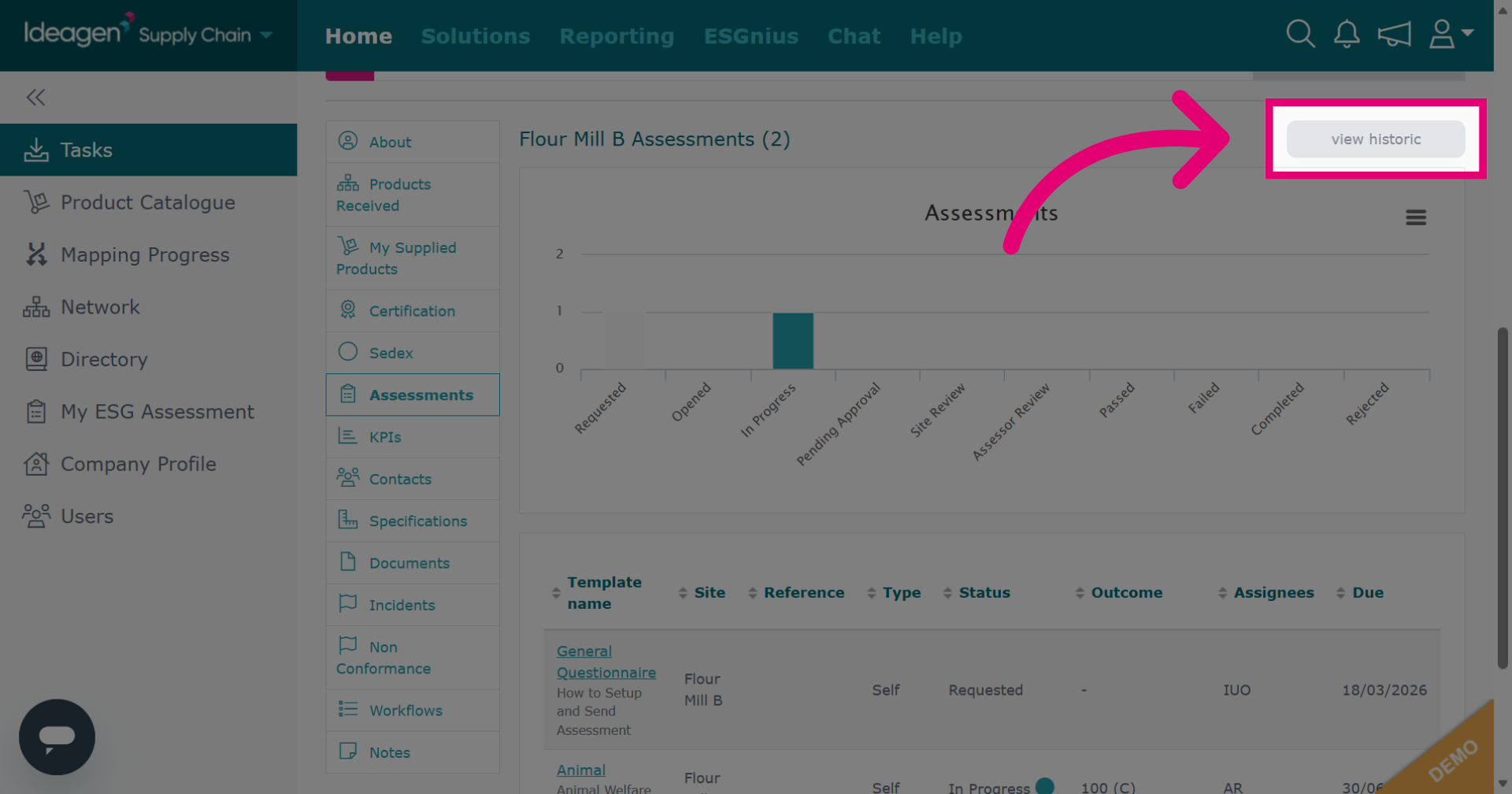
- Click View Historic to view historic or expired individual supplier assessments.
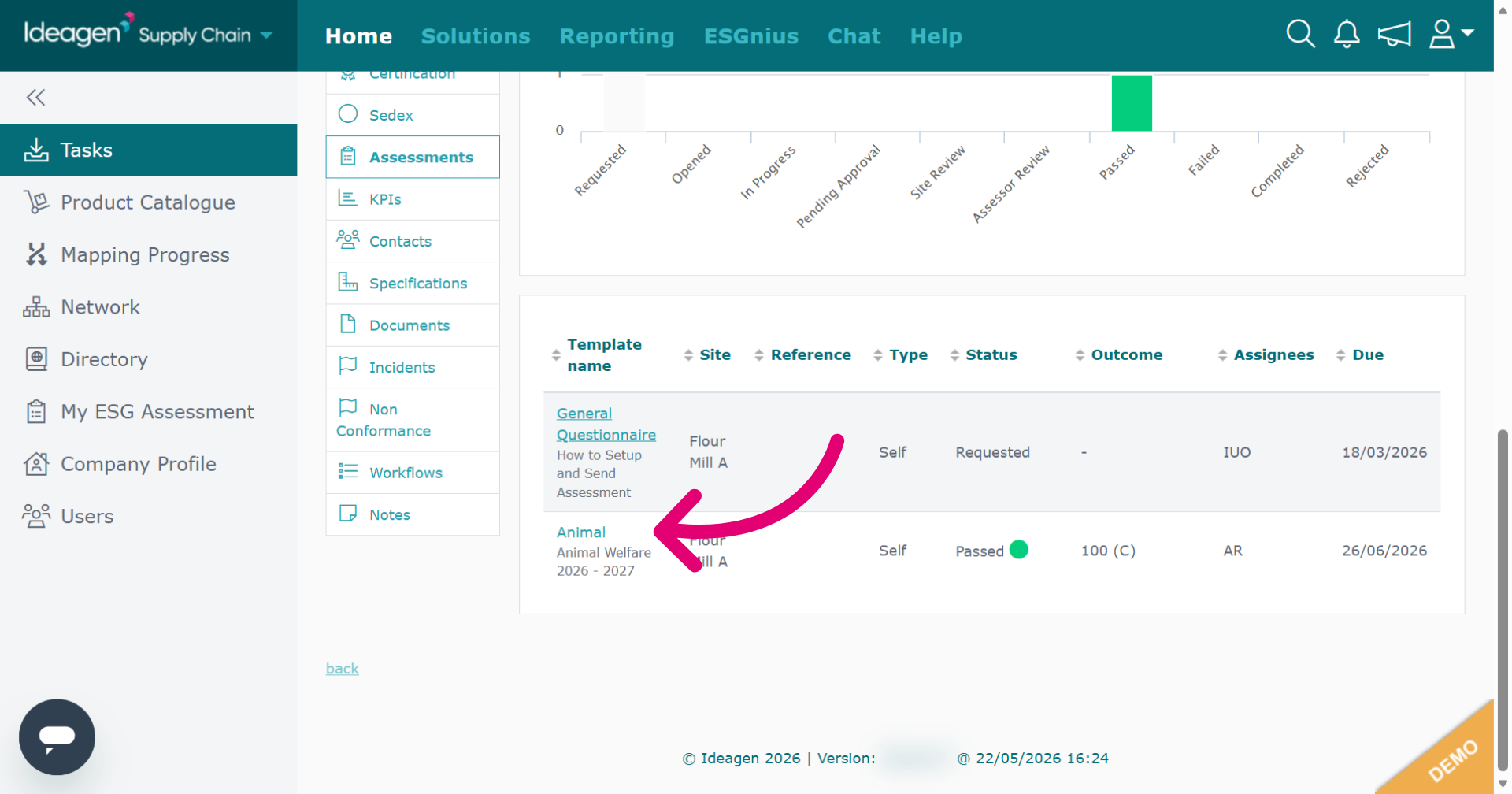
- Click the title of the assessment you wish to view.
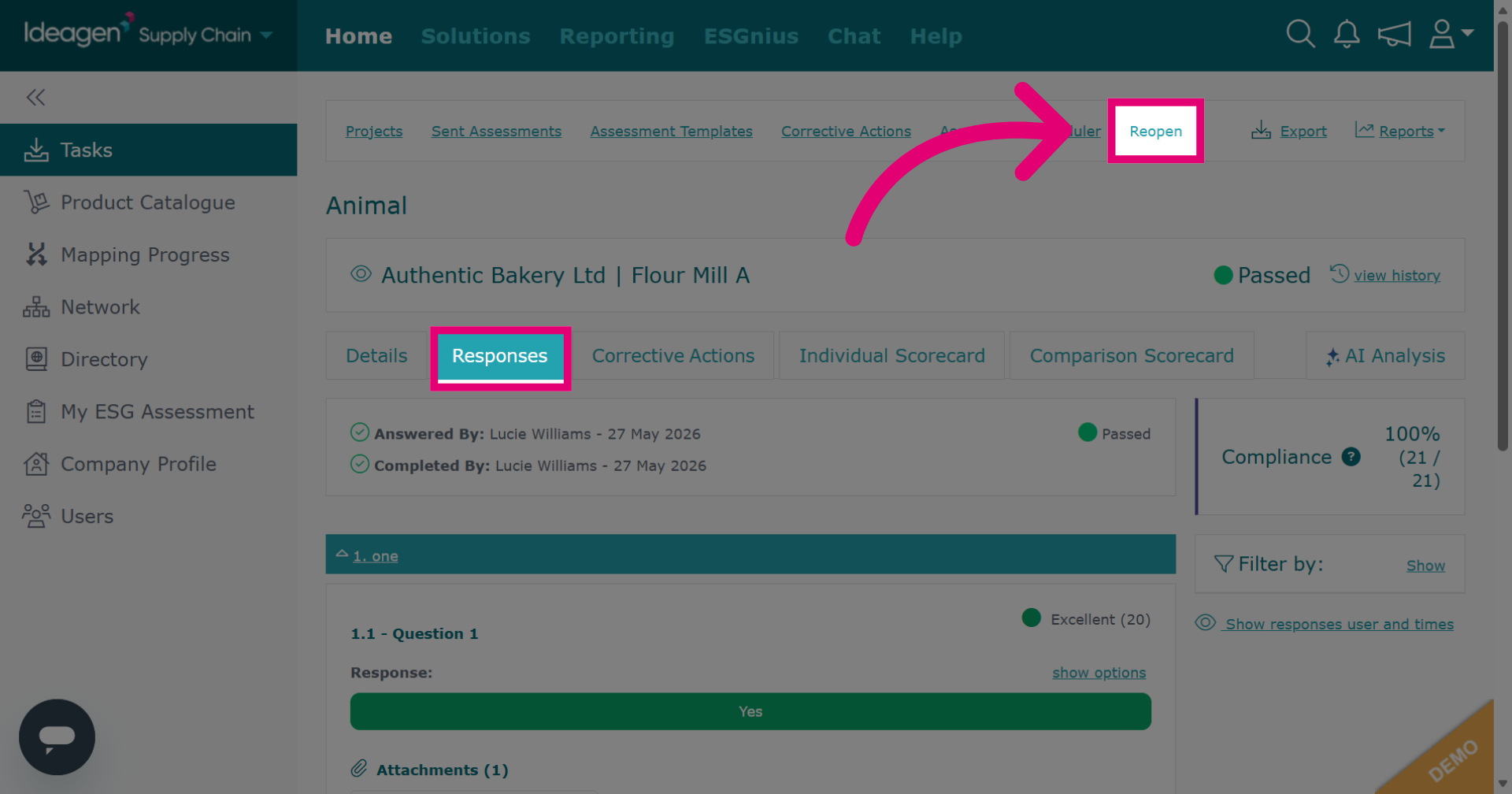
- To re-open a previously passed, completed or failed individual supplier's assessment, ensure the responses tab is selected and then click Re-Open at the top of the page.
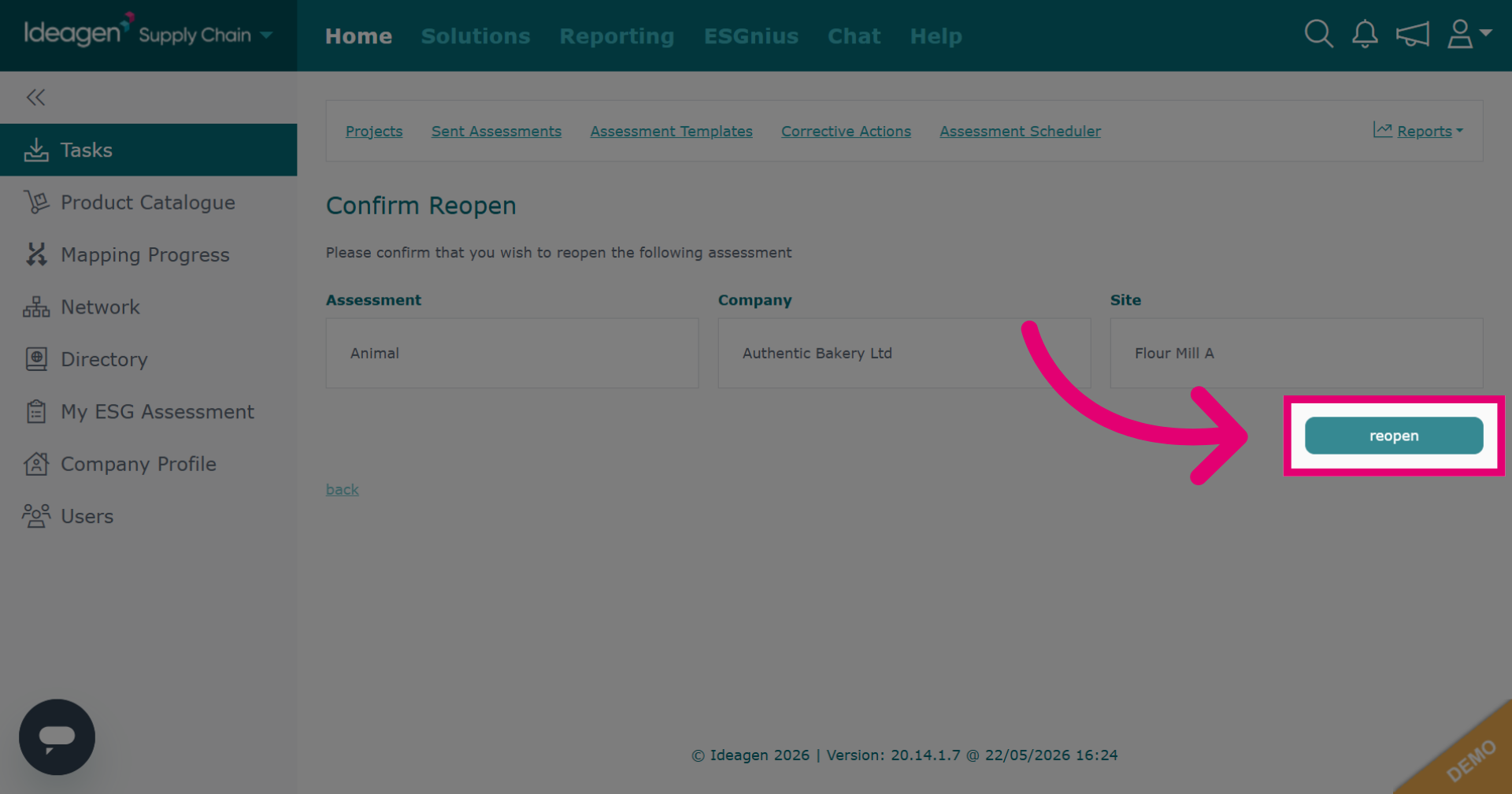
- Click reopen again to confirm the decision to reopen the supplier assessment.
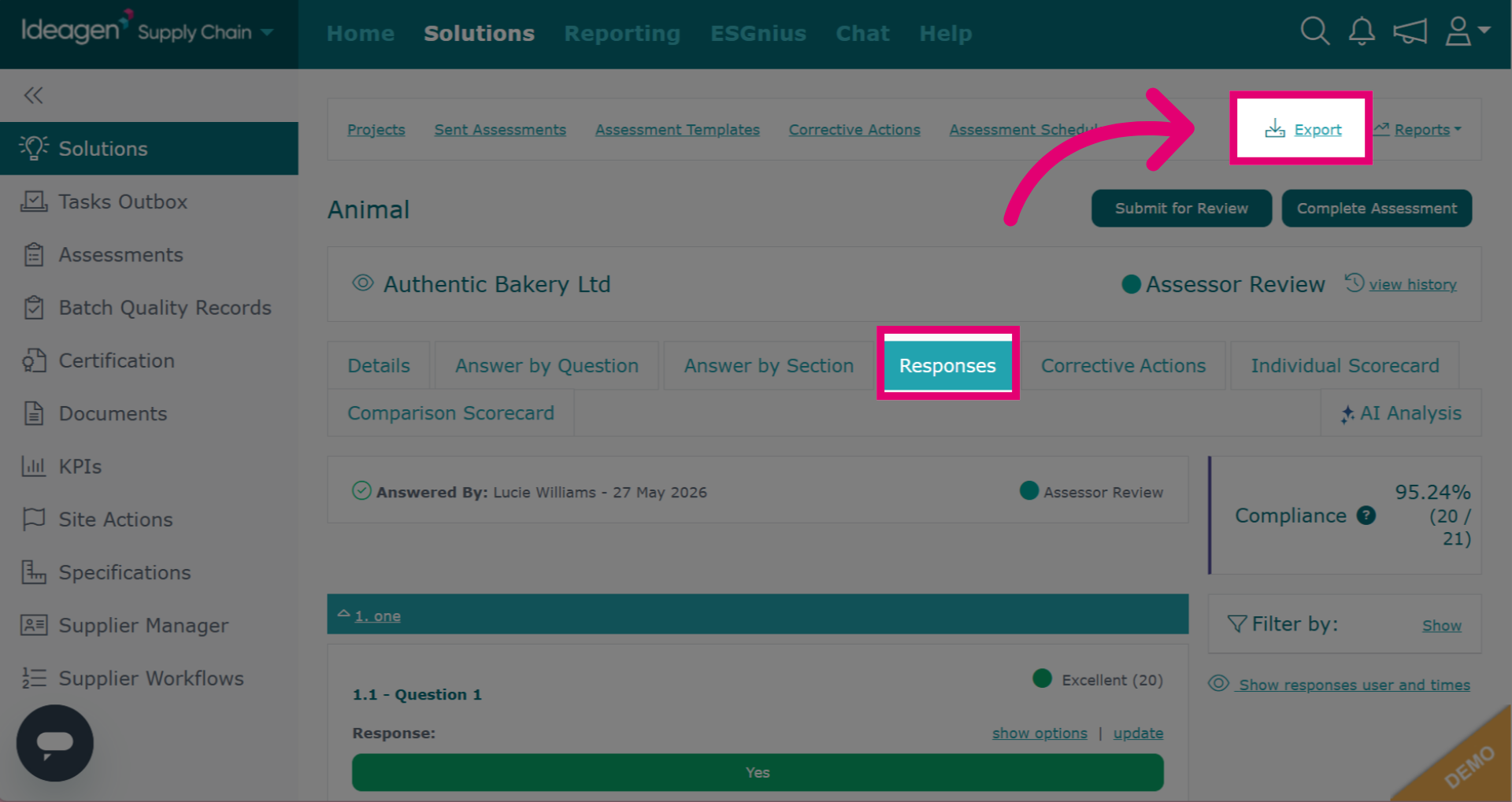
- To export an individual supplier assessment, ensure the Responses tab is selected and then click Export at the top of the page.
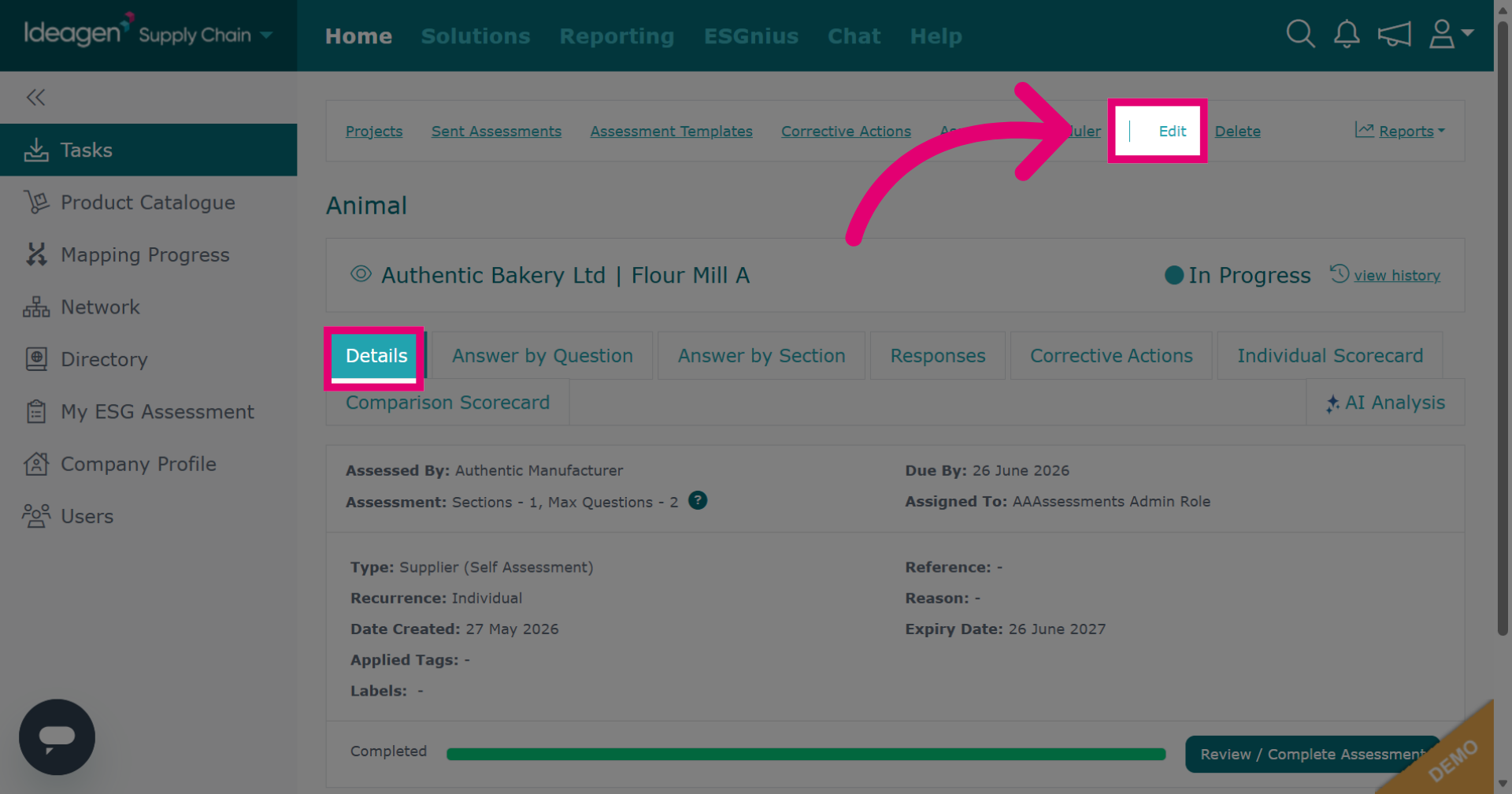
- To edit an individual supplier's assessment, ensure the details tab is selected and then click Edit to modify the details.
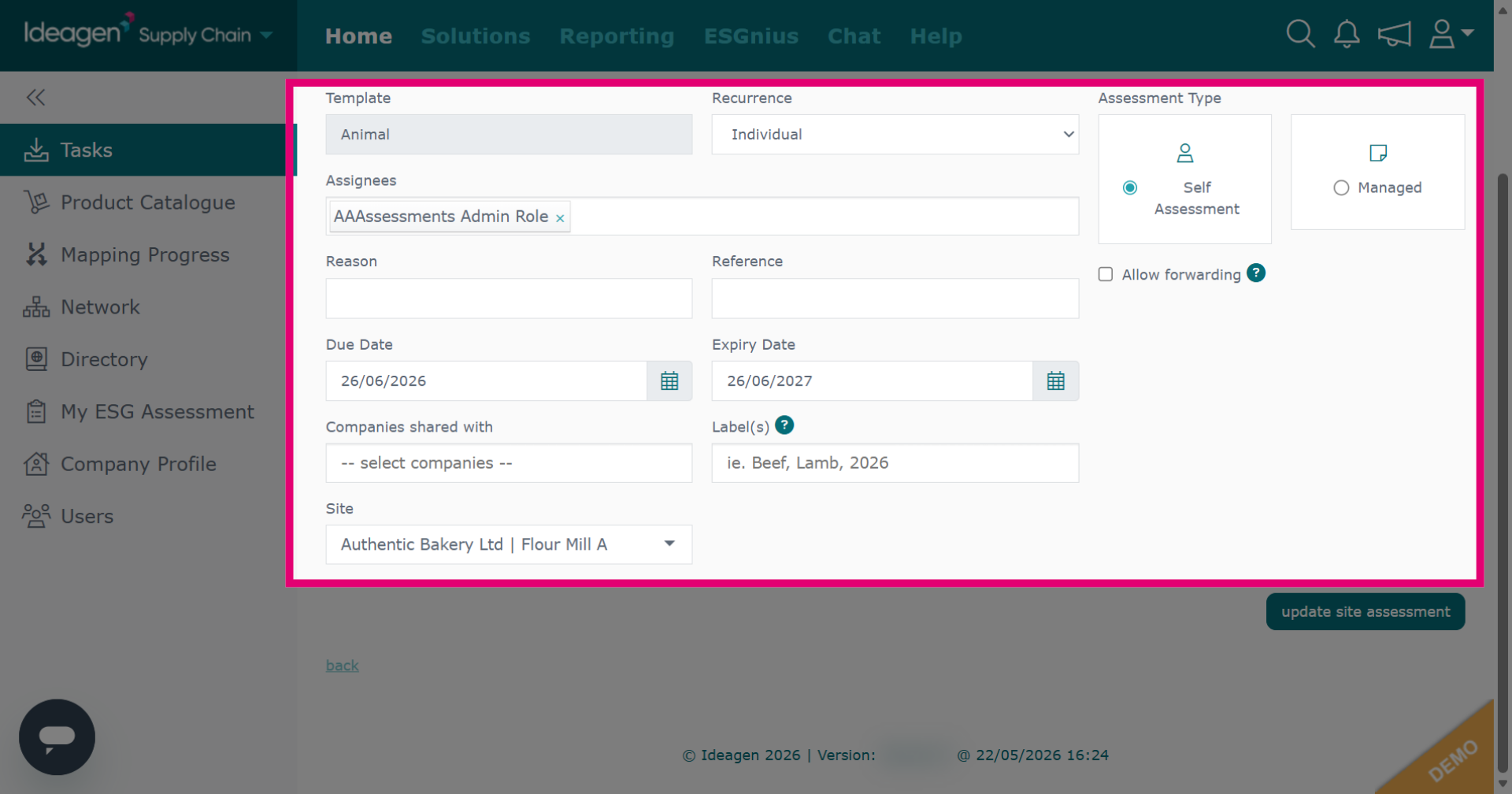
- You will then be able to edit the assessment type, internal assignees, due date, expiry date, companies shared with, reason, reference, label and site.
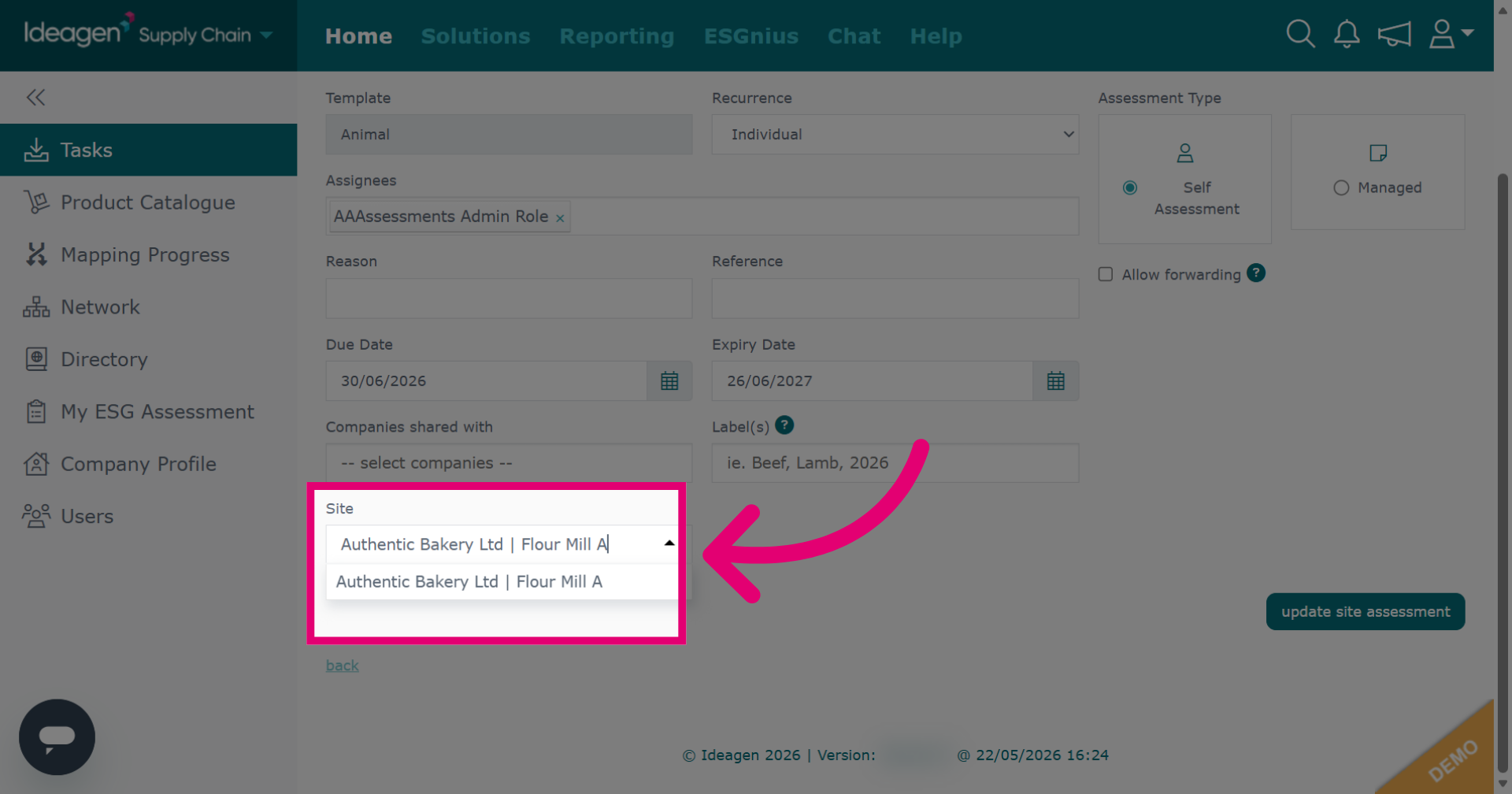
- Please note, if editing the supplier site, you will need to delete and then re-type in the correct site, where you will then be able to select. Sites will not automatically appear in the drop down options. All other options you will be able to type and add freely, using the 'X' to delete any unwanted data.
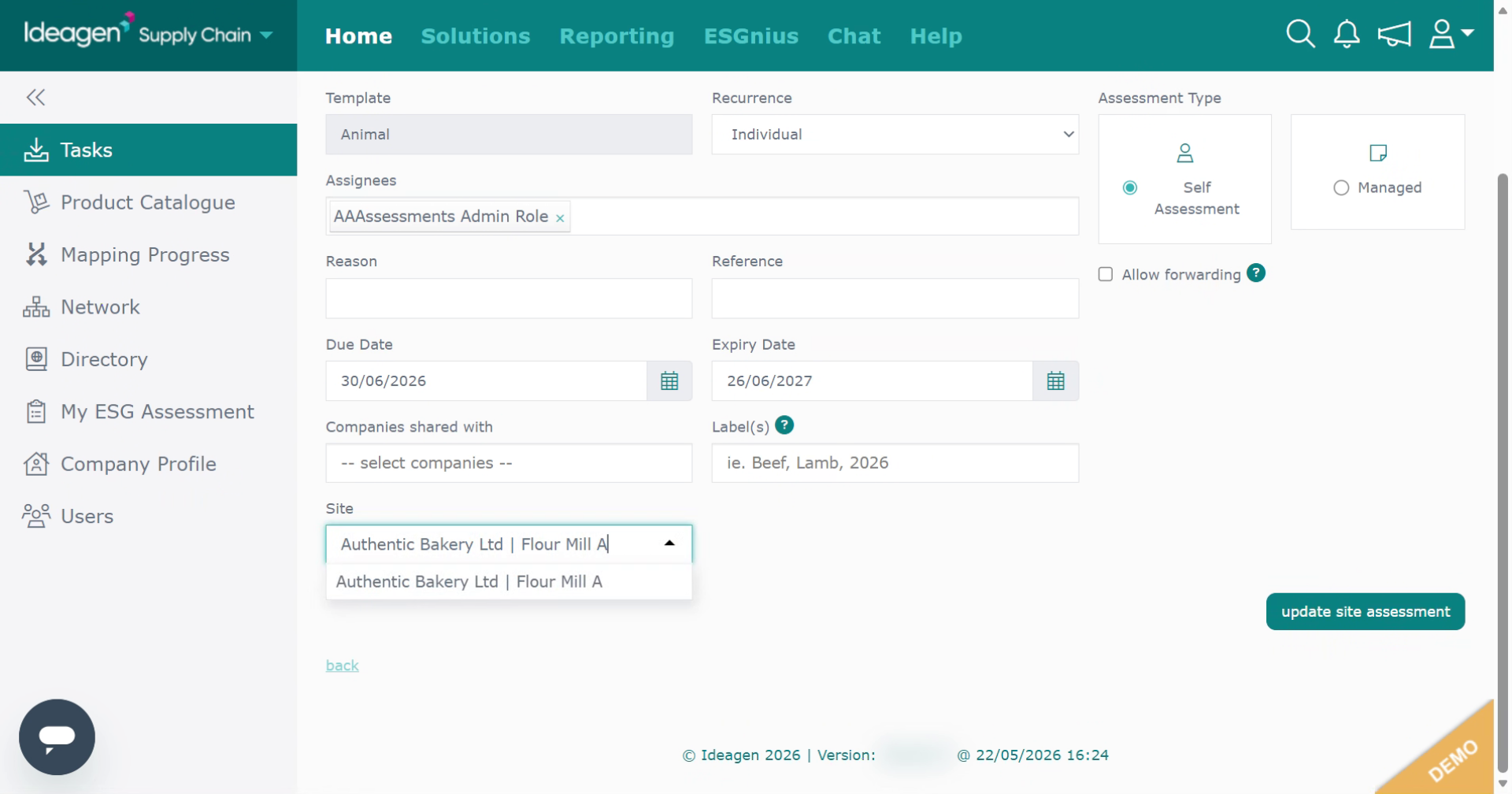
- Enter the supplier name in the field.
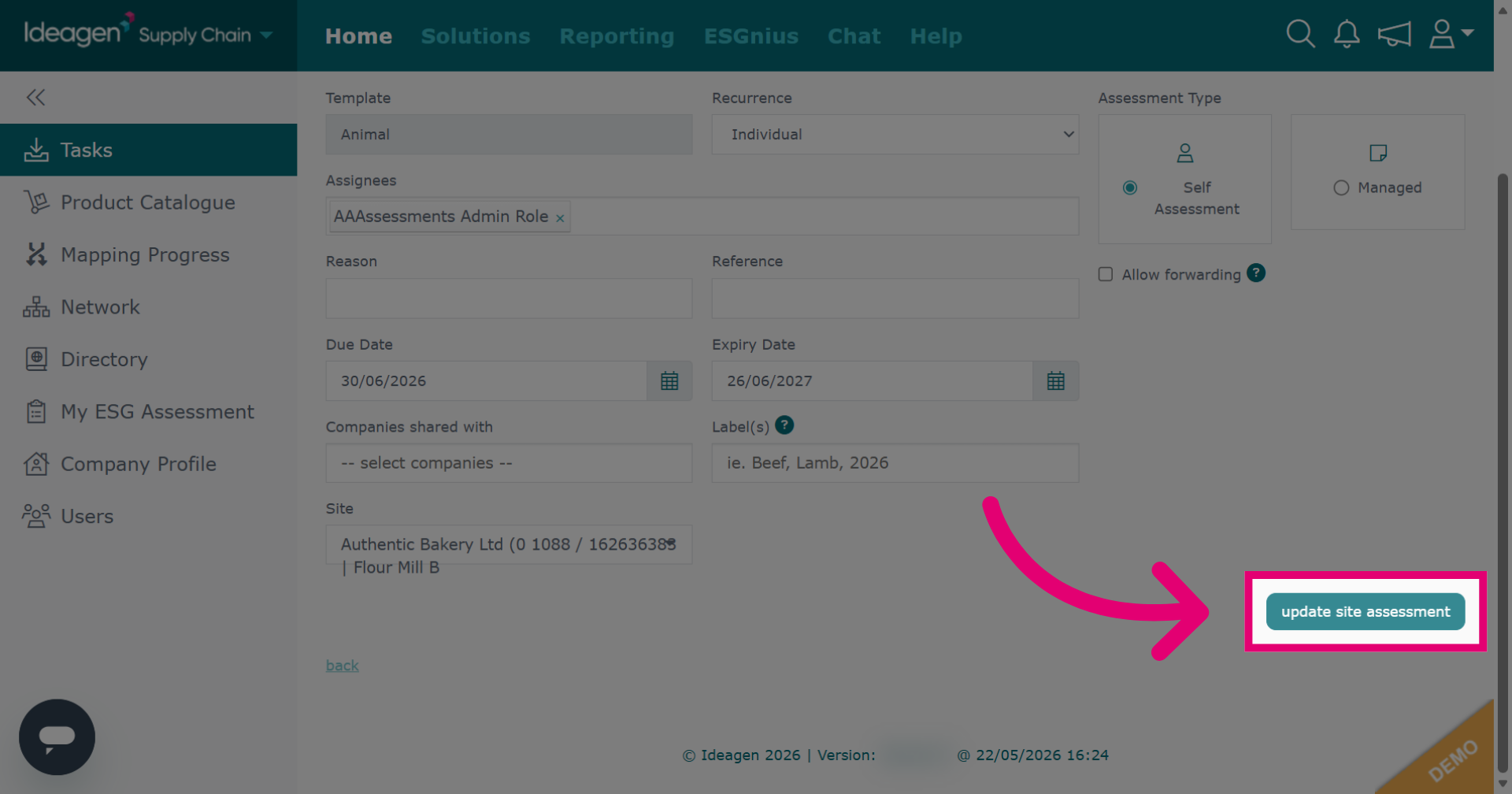
- Click update site assessment to save changes.
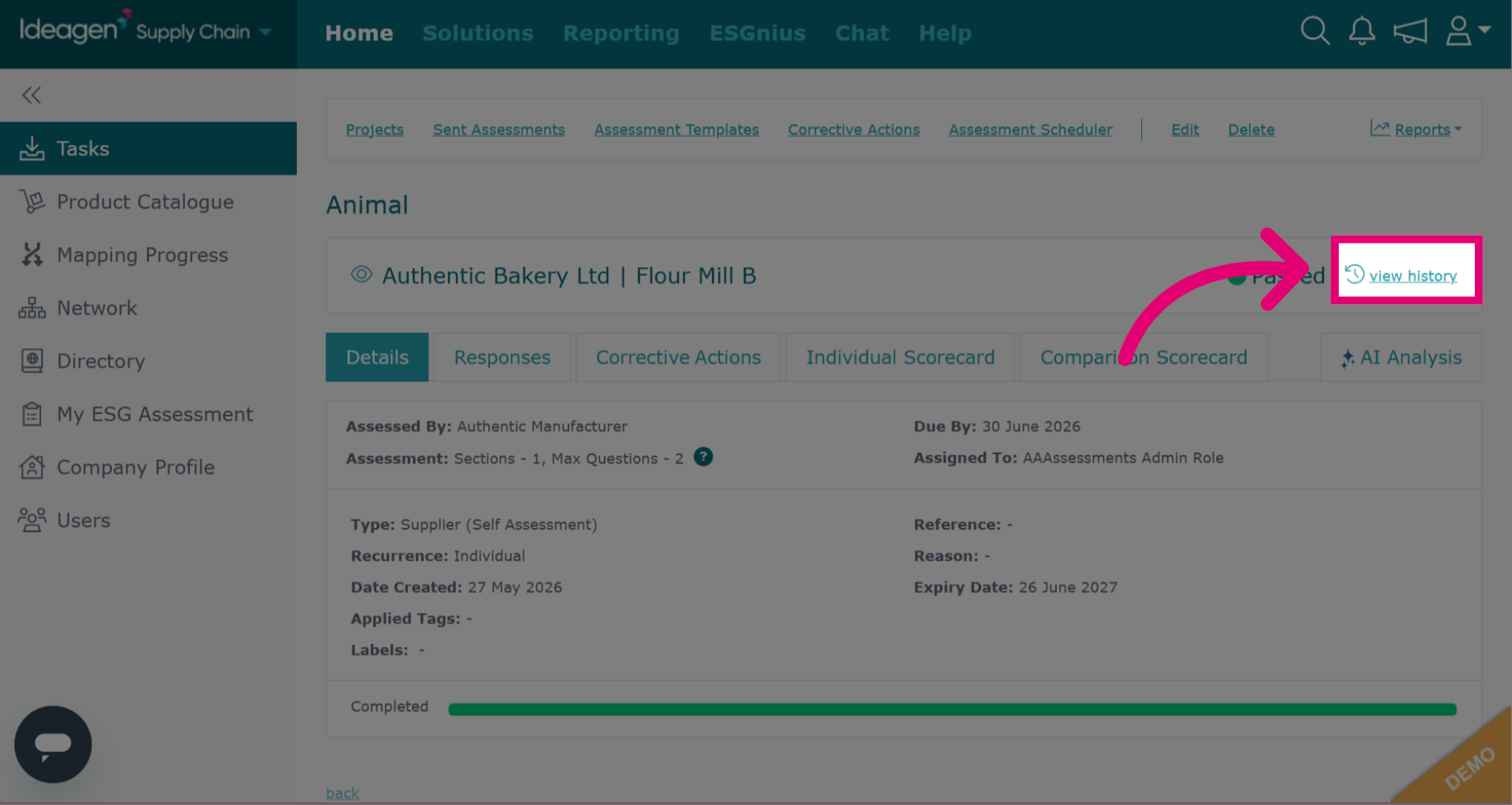
- To view an in depth break down of an assessment's status history timeline, click View History. This is accessible from any assessment tab.
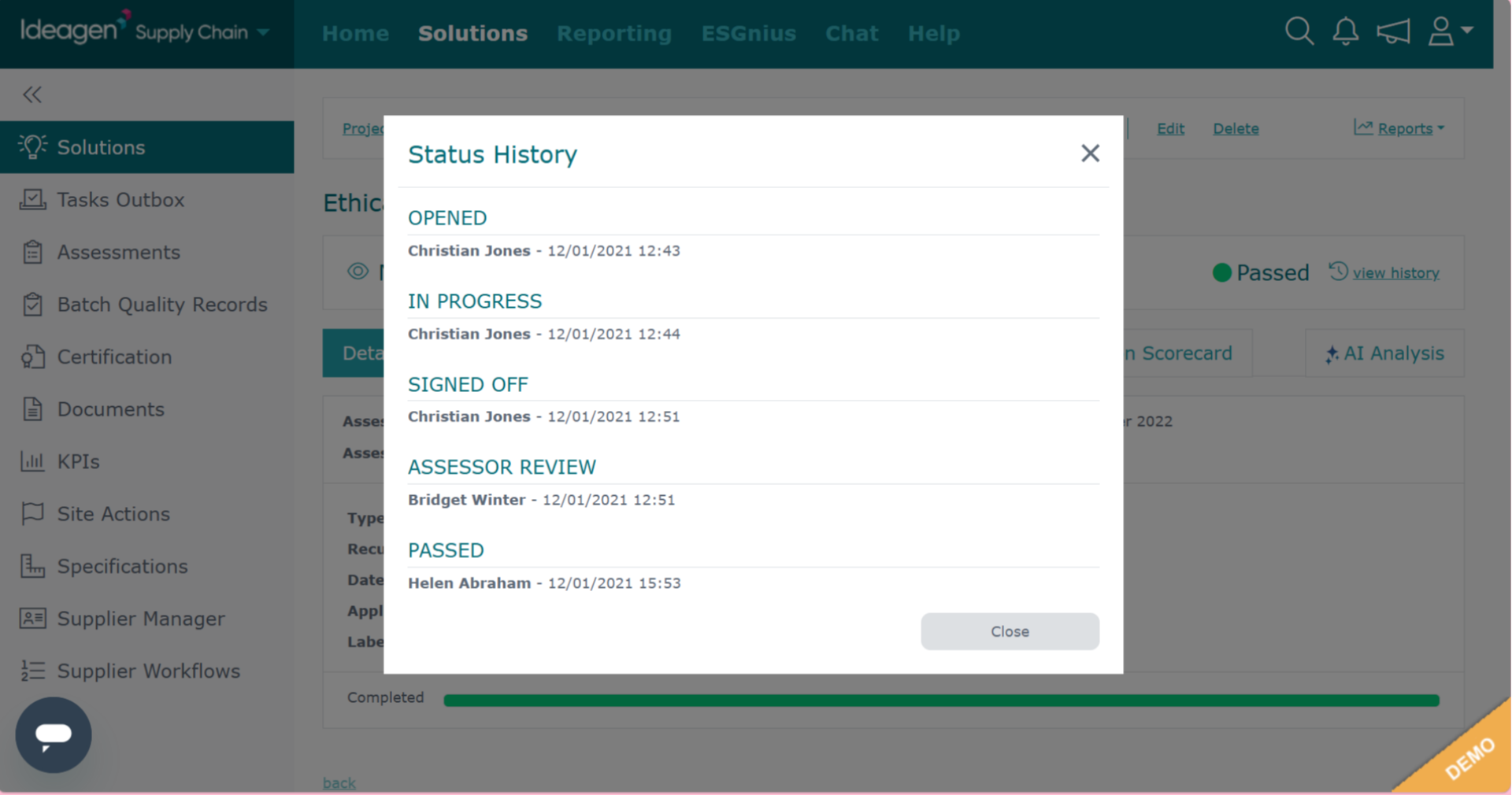
- You will then be able to view a timestamped progress history of when the assessment reached each stage, and who was responsible for each. To exit, click close.
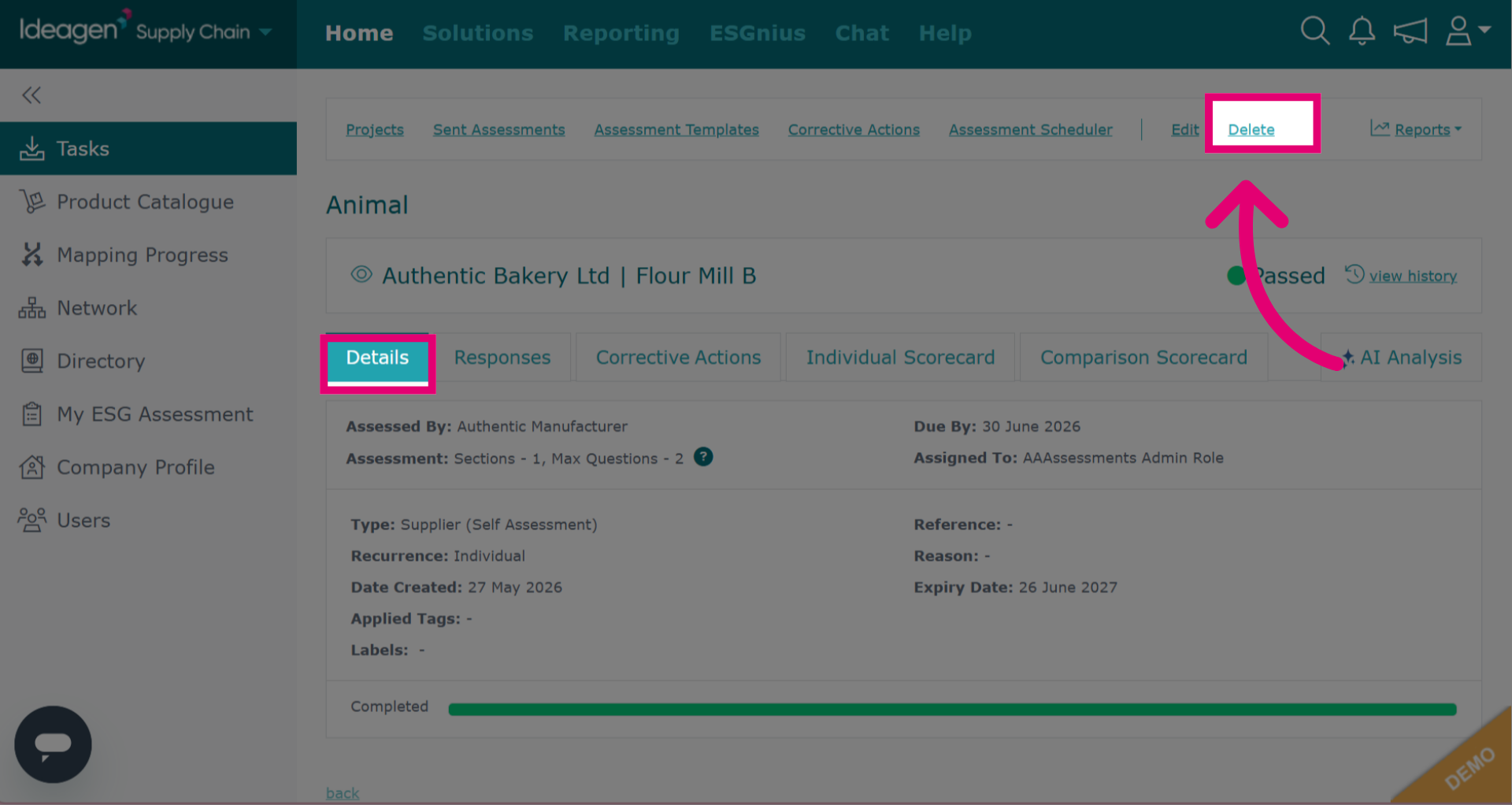
- To delete an assessment, ensure the details tab is selected and then click delete at the top of the page.
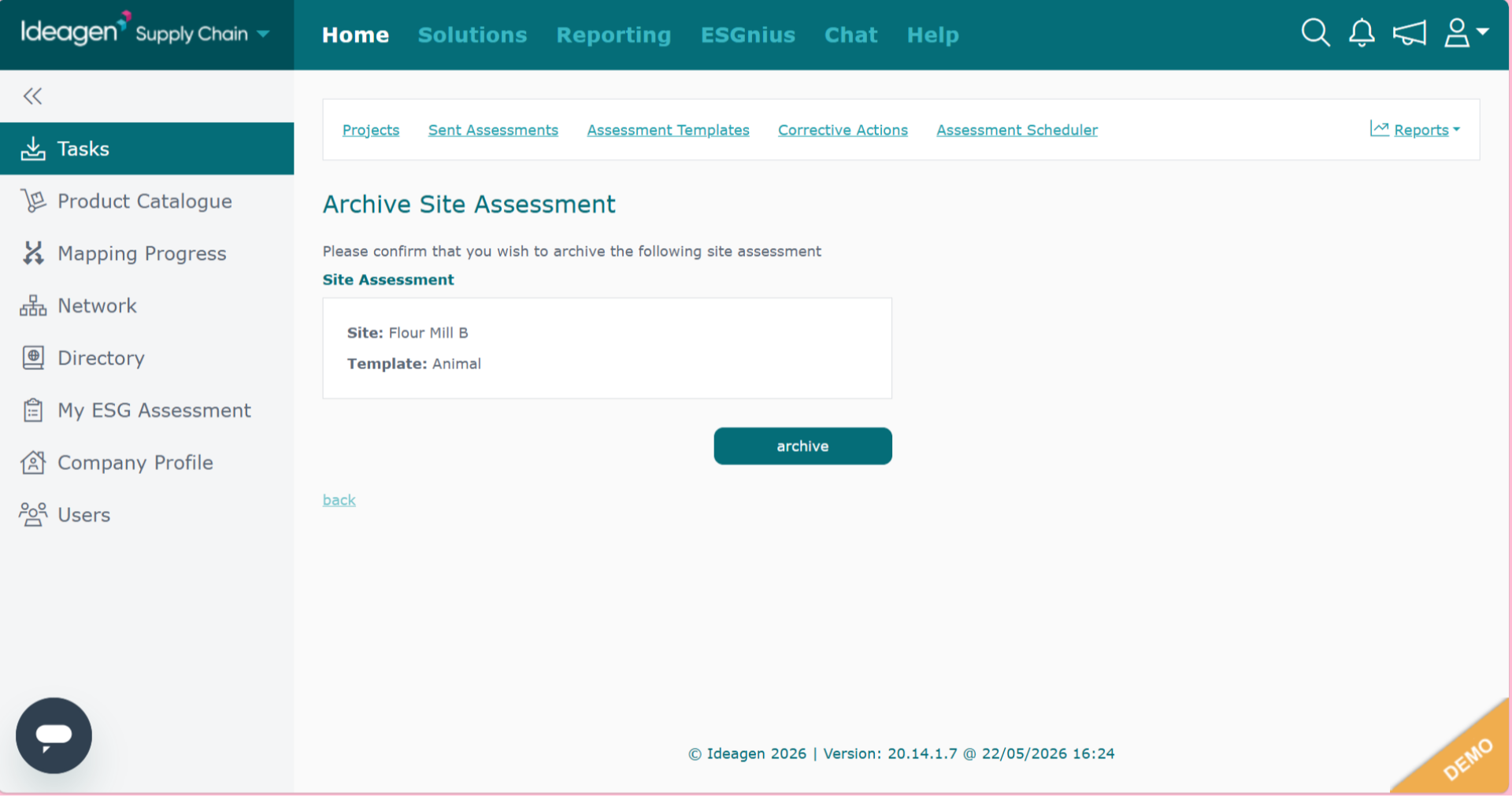
- Click archive to confirm deletion of the individual supplier's assessment.