New article
Recently updated
Sending Assessments: Quick Guide - Assessments

Who is this article for?
Users who want to send assessments.
Assessments admin permissions are required.
This tutorial guides you through sending assessments within the Ideagen Supply Chain platform.
You will learn how to send out assessments for a pre-existing project. Please note if you have not already created an assessment template and an assessment project, you will need to do so. Go and watch our guides titled "Creating an Assessment Template" and "Creating an Assessment Project".
Sending assessments to suppliers
-
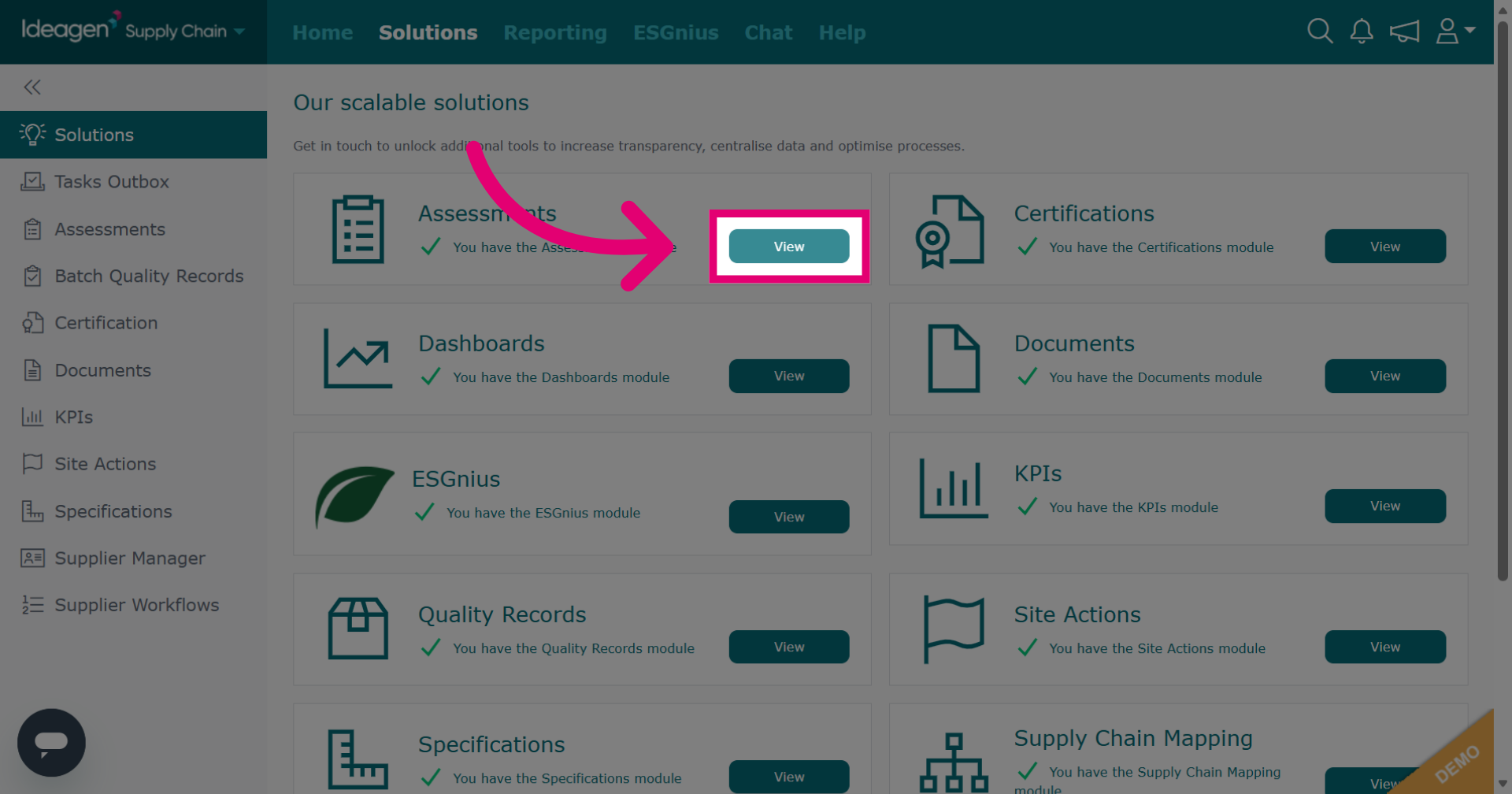
Click Solutions and then View next to the Assessments module.
-
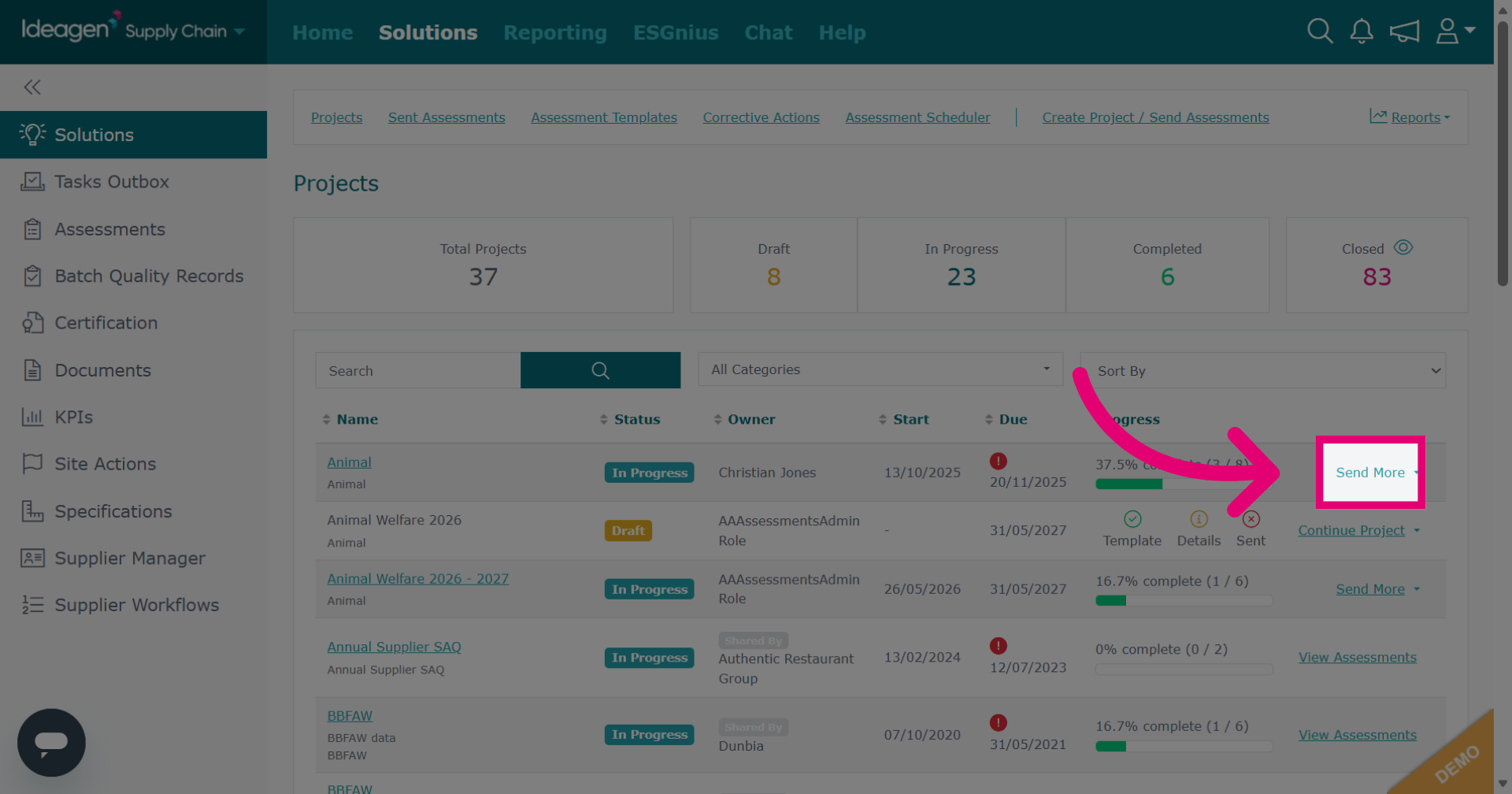
Click Send More next to the project you wish to send further assessments from.
-
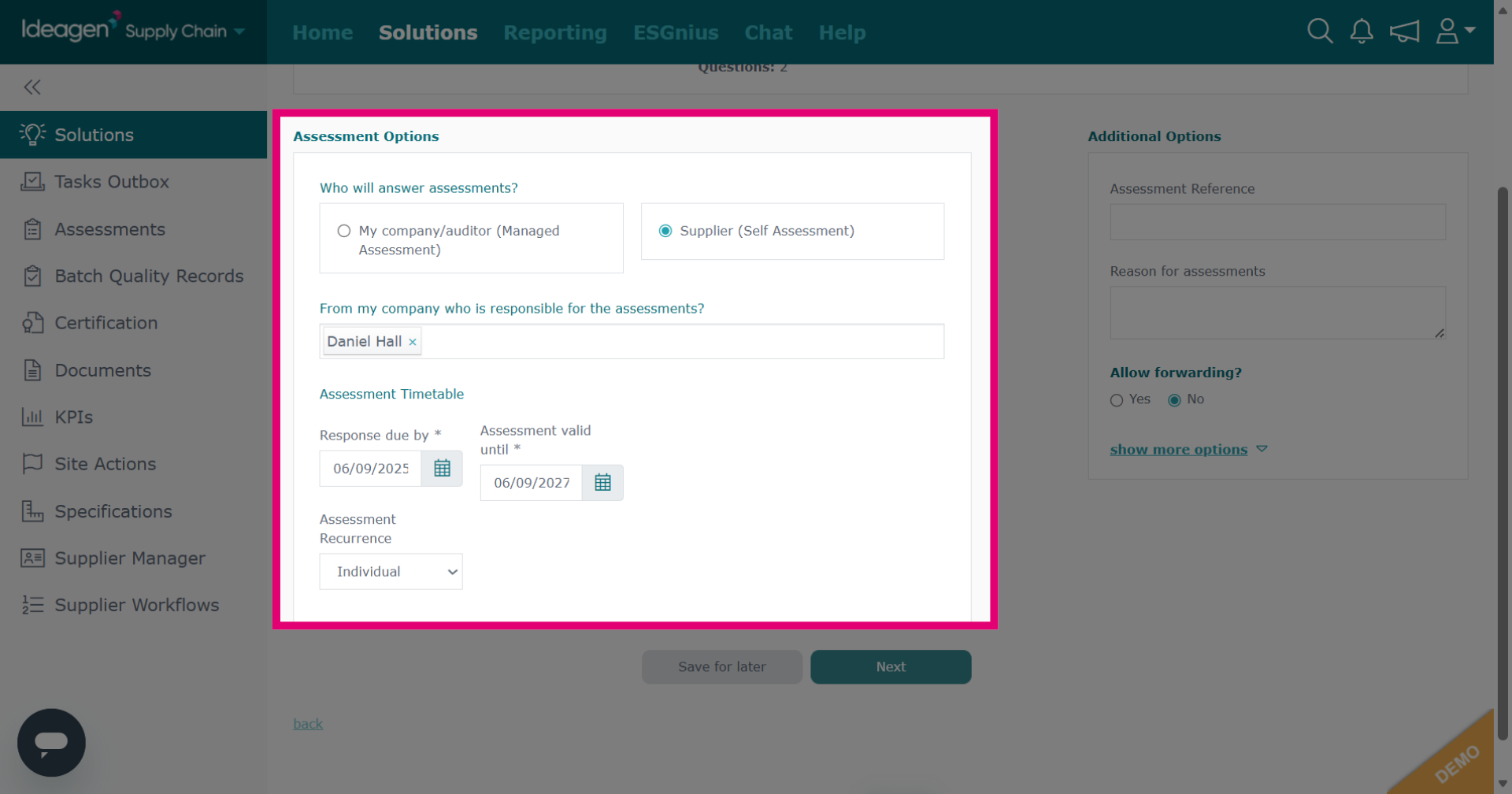
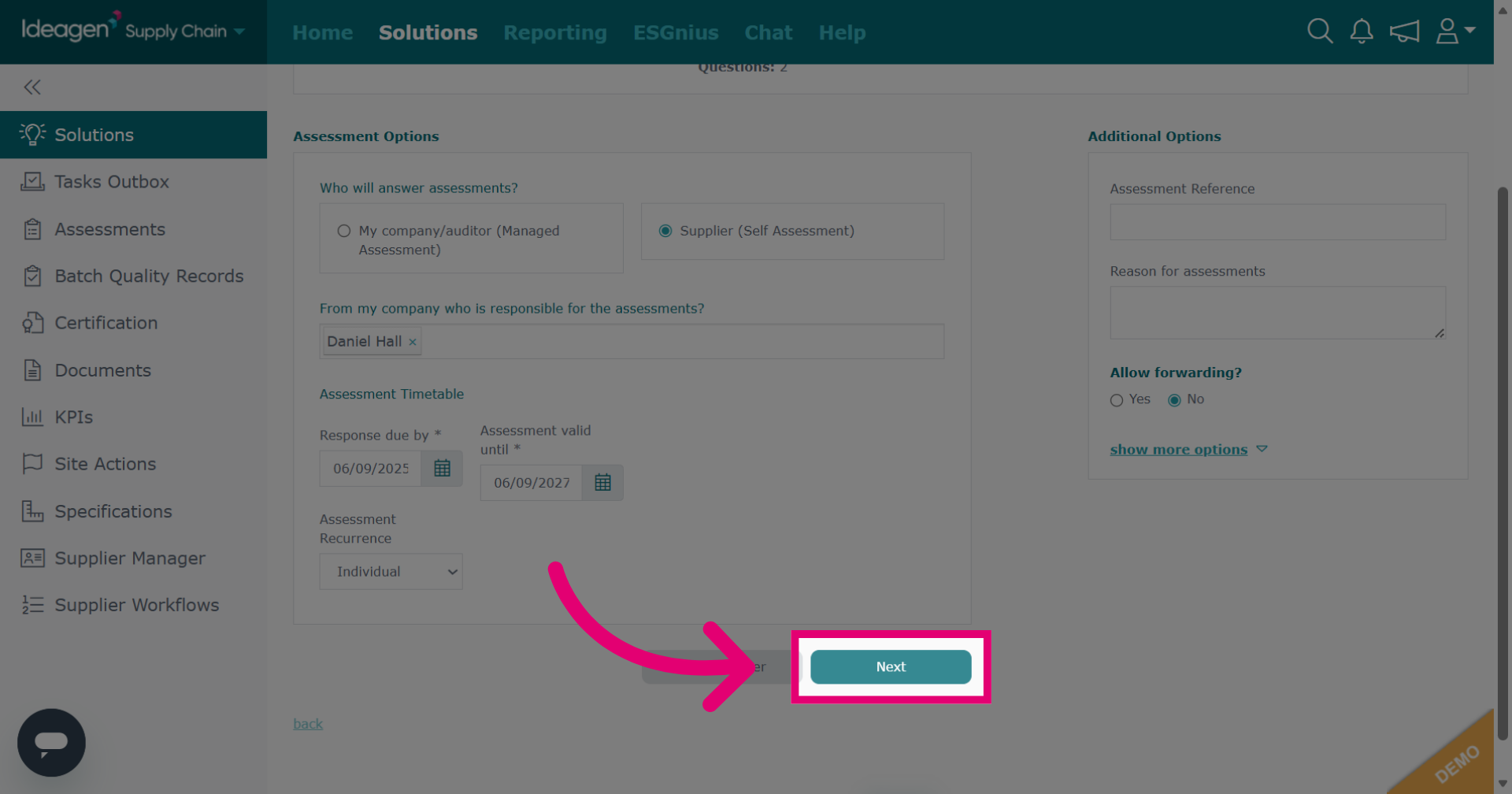
Update the assessment details accordingly.
-
Click Next to continue.
-
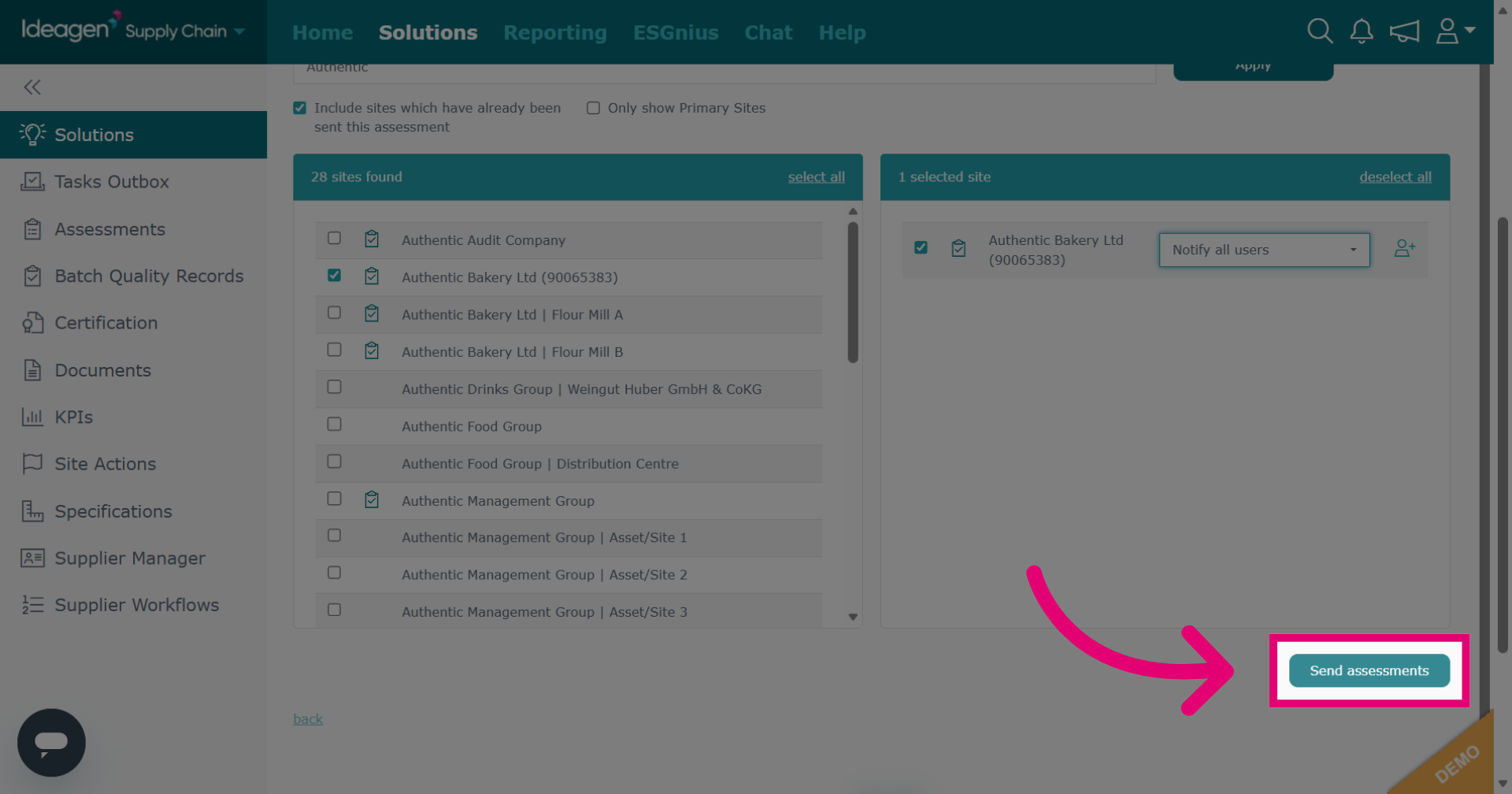
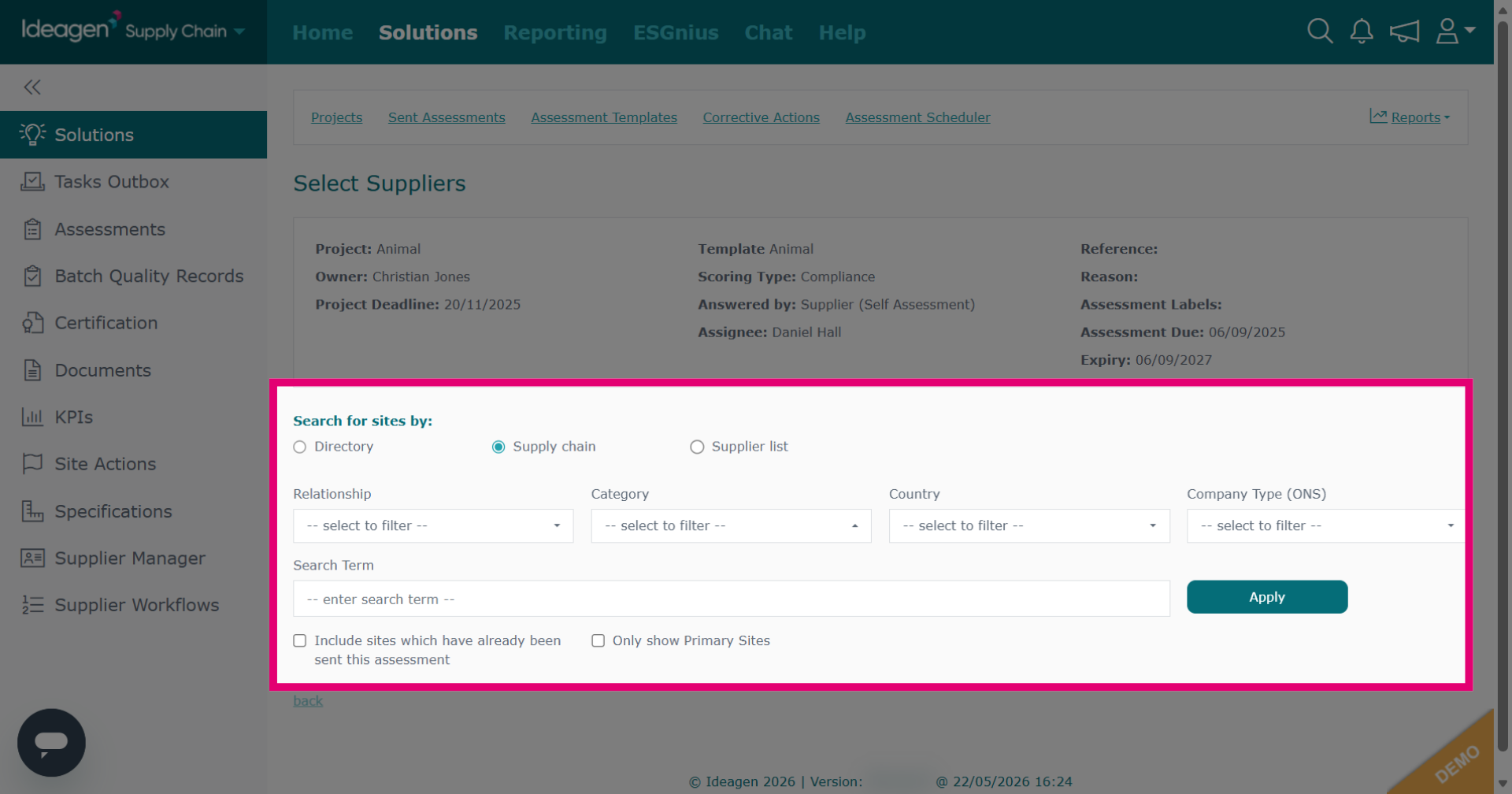
Enter your search query to locate your supplier.
-
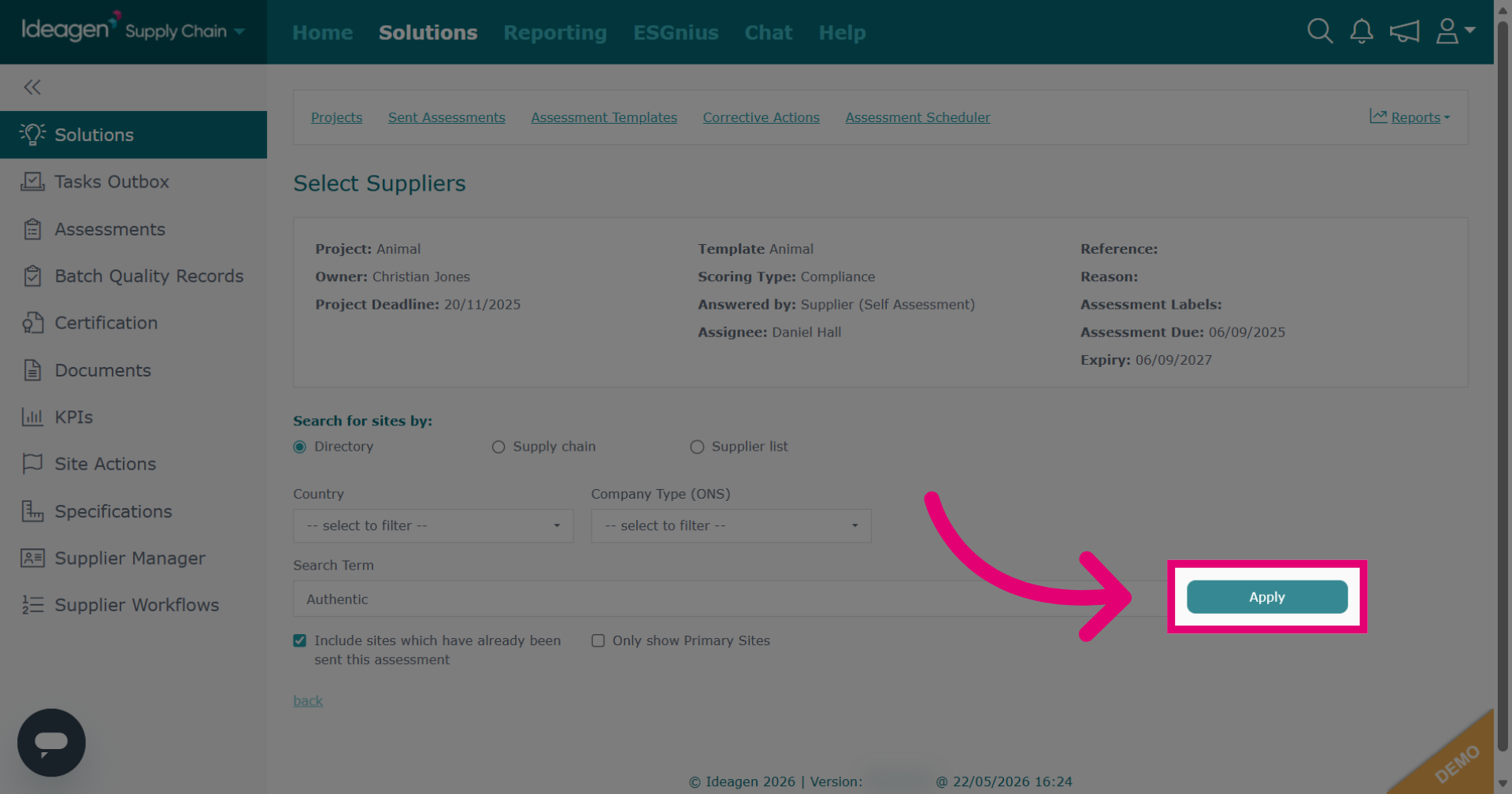
Click Apply to filter the search based on your input.
-
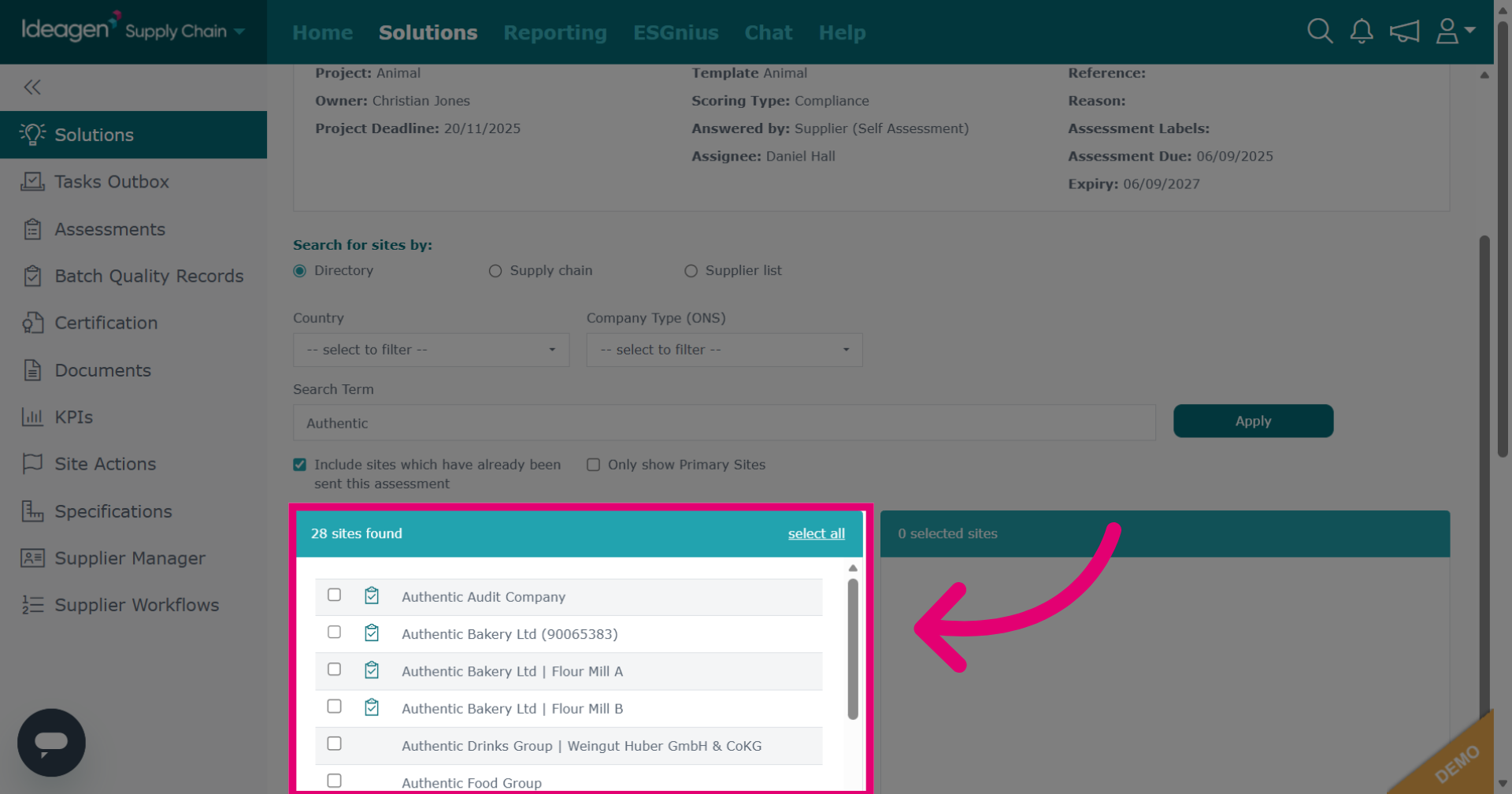
Select your suppliers from the list. Repeat process until you have found all suppliers you want to include.
-
Select supplier assignee if needed, this is optional.
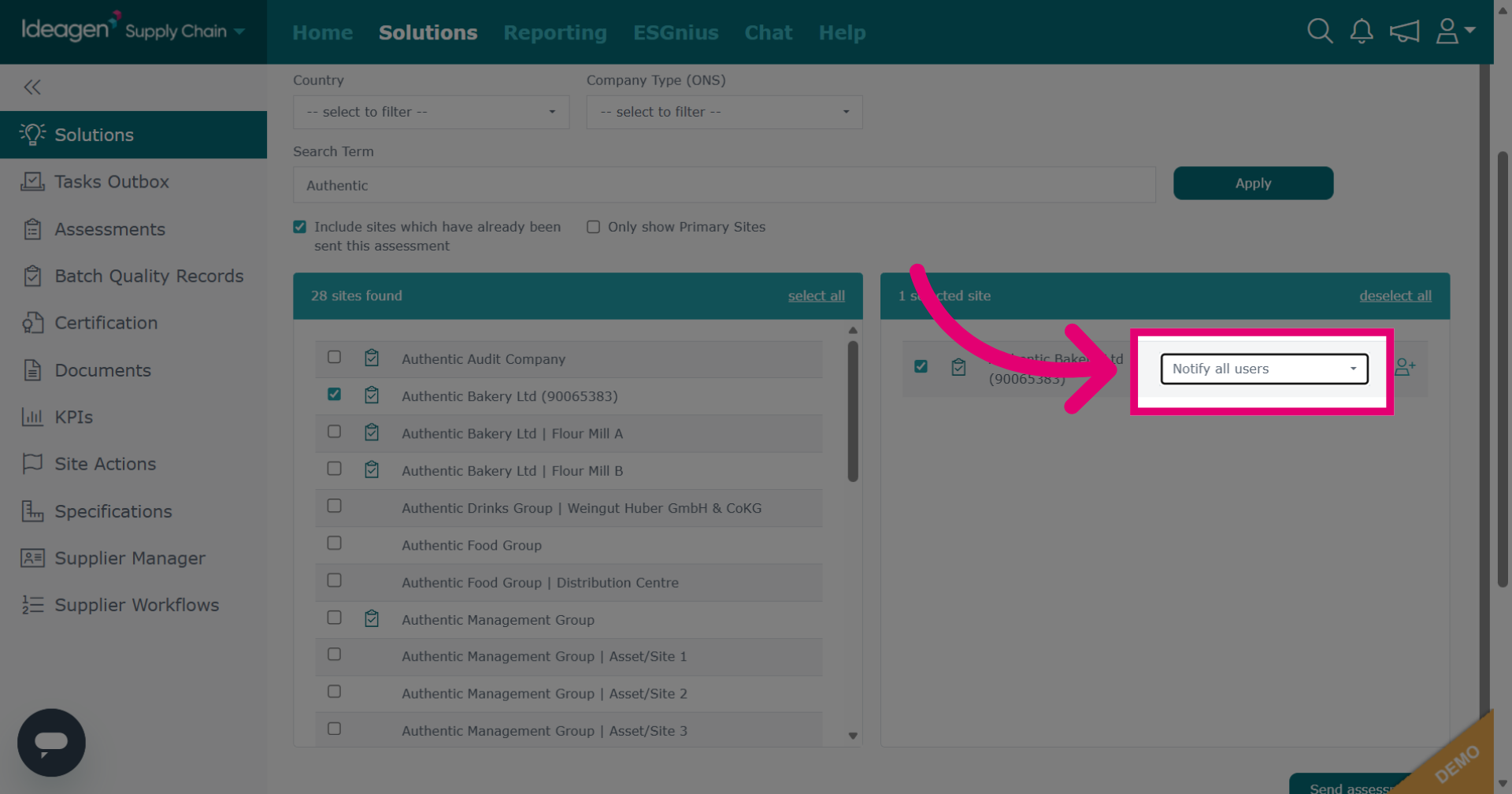
-
Click Send assessments to dispatch the assessments to the selected users and suppliers.