New article
Recently updated
Sending assessments

Who is this article for?
Users who want to learn to send assessments.
No elevated permissions are required.
This tutorial guides you through sending assessments within the Ideagen Supply Chain platform.
Please note that you will need to have an assessment template and assessment project created.
Sending assessments to suppliers
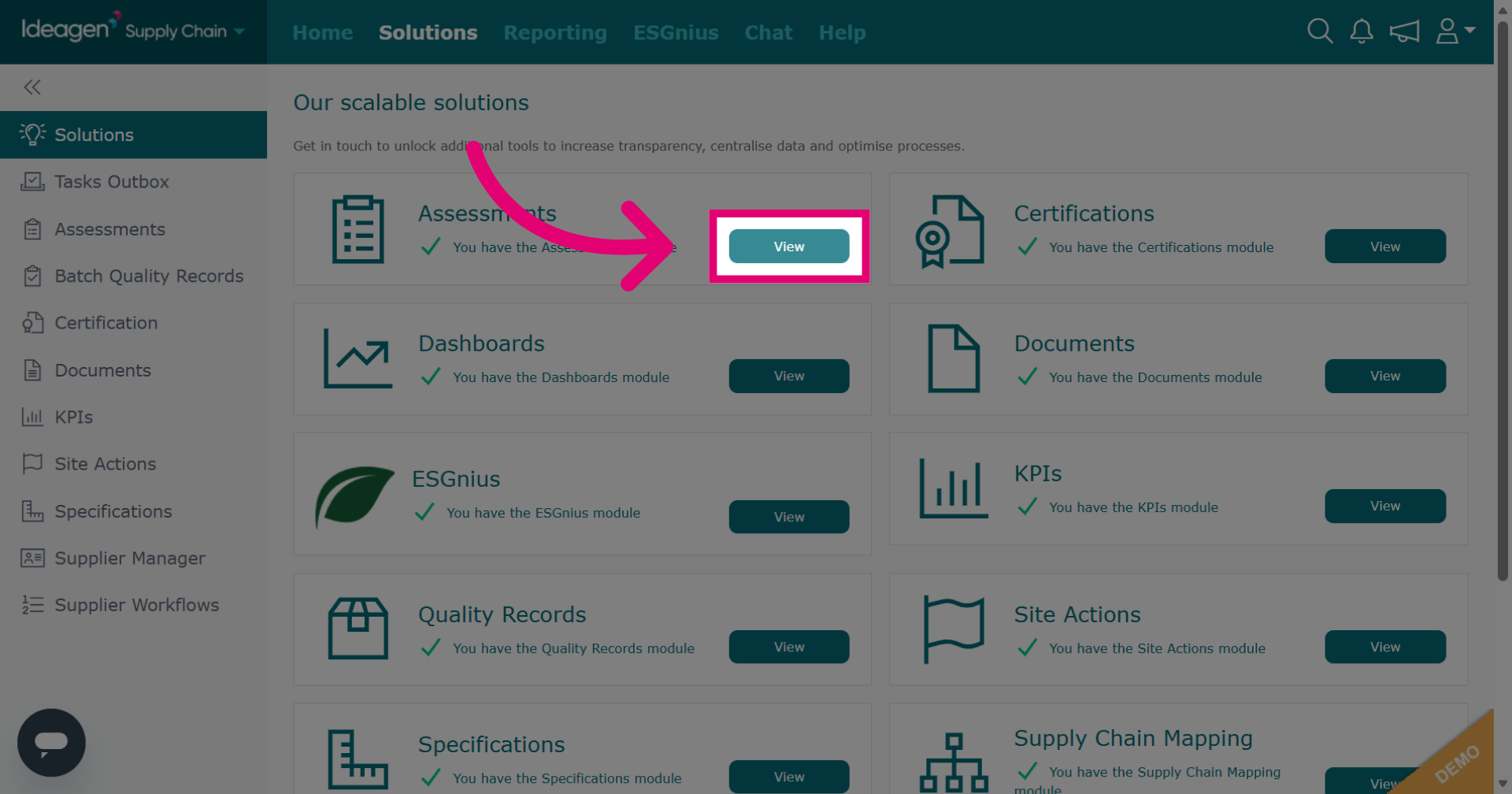
Click Solutions and then View next to the Assessments module.
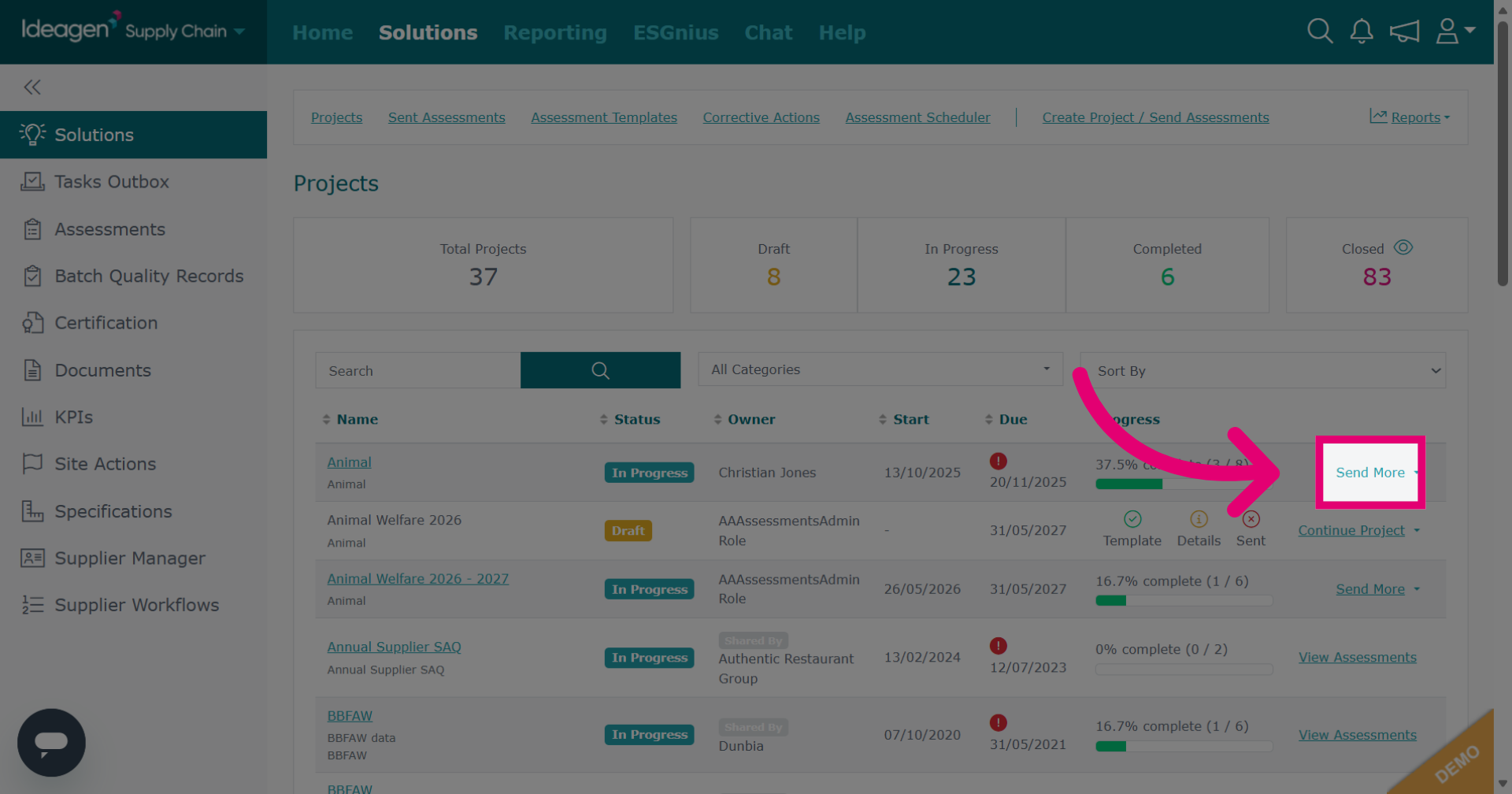
Click Send More next to the project you wish to send further assessments from.
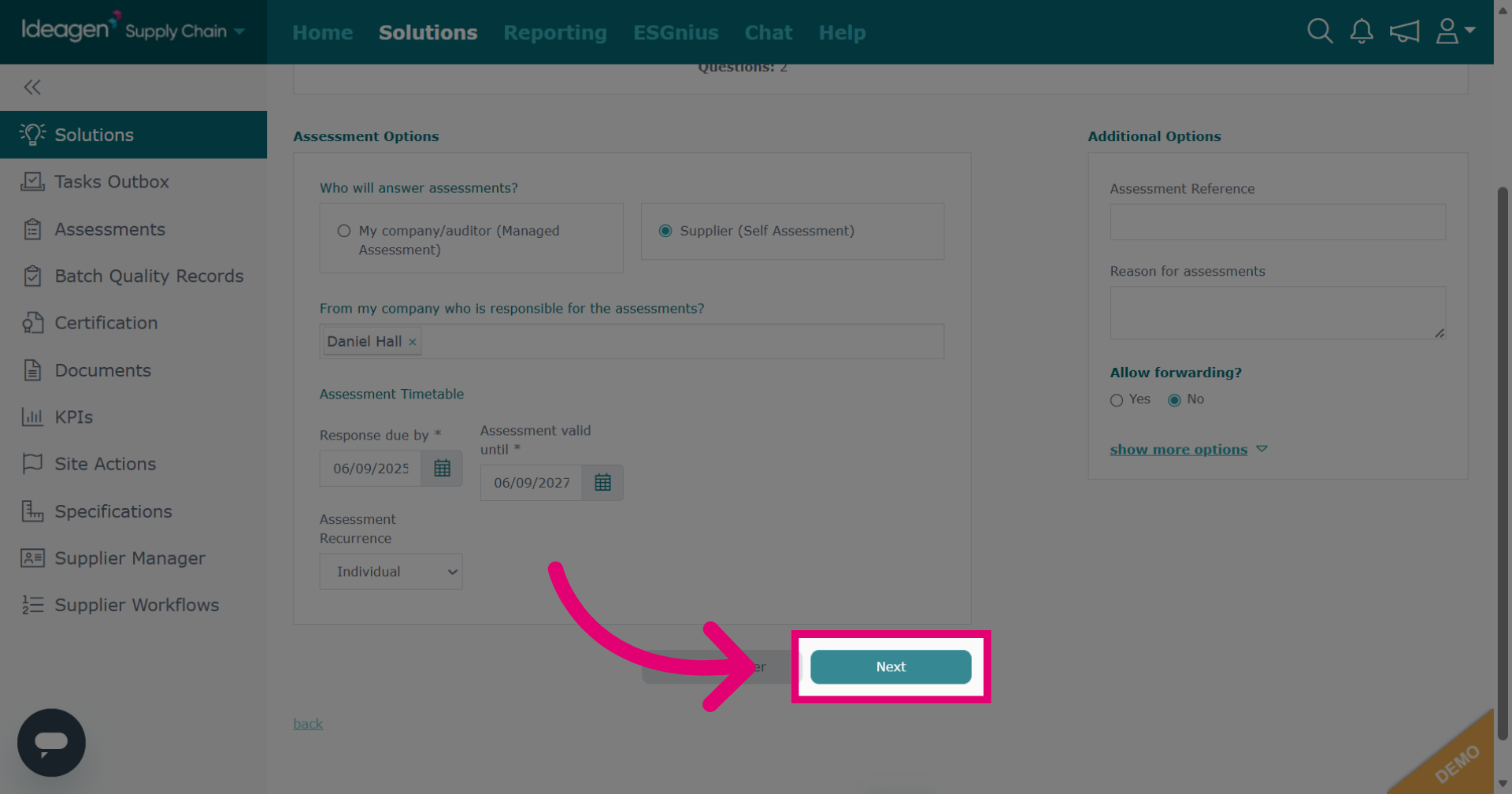
Update the assessment details accordingly.
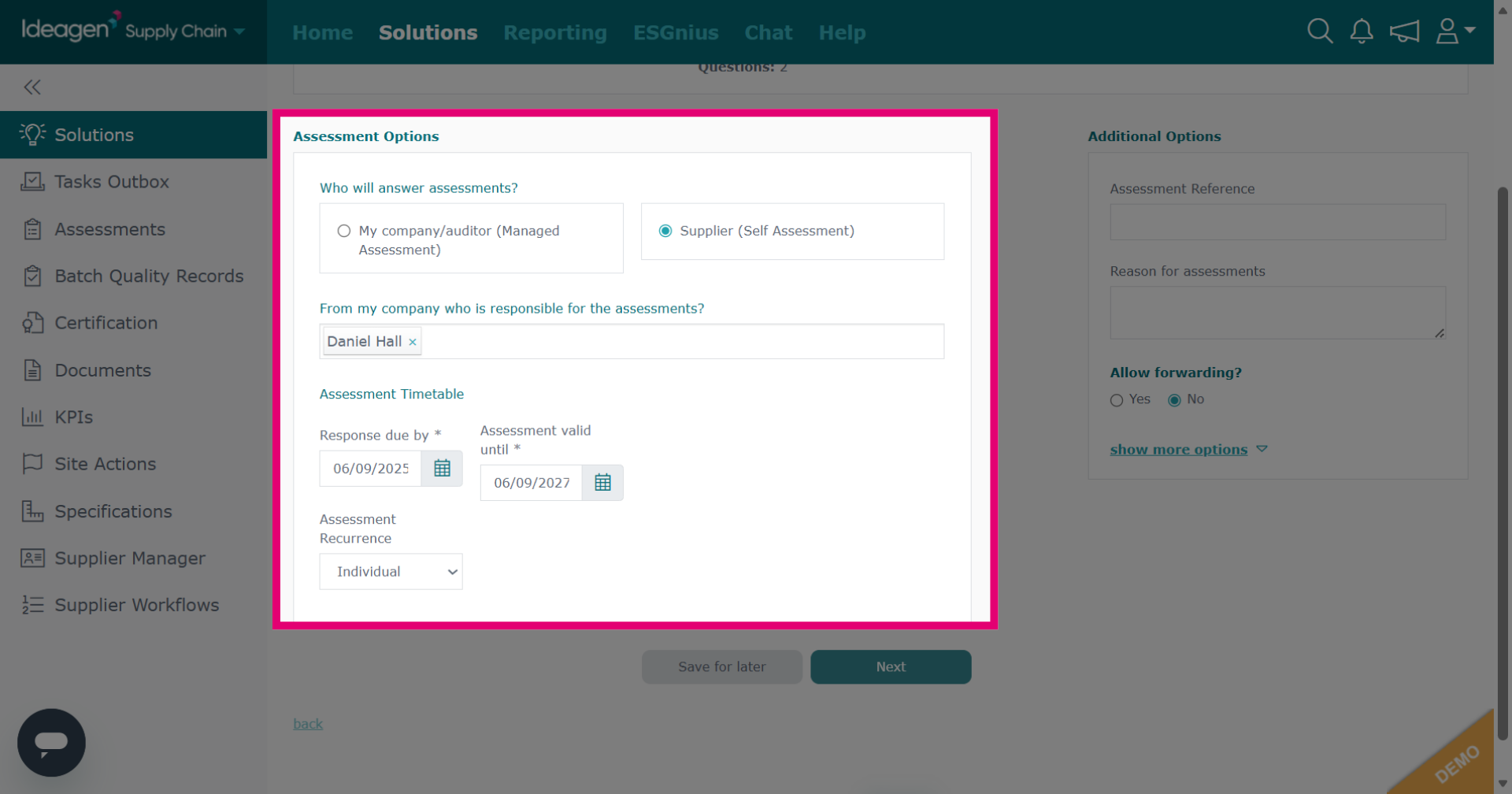
Click Next to continue.
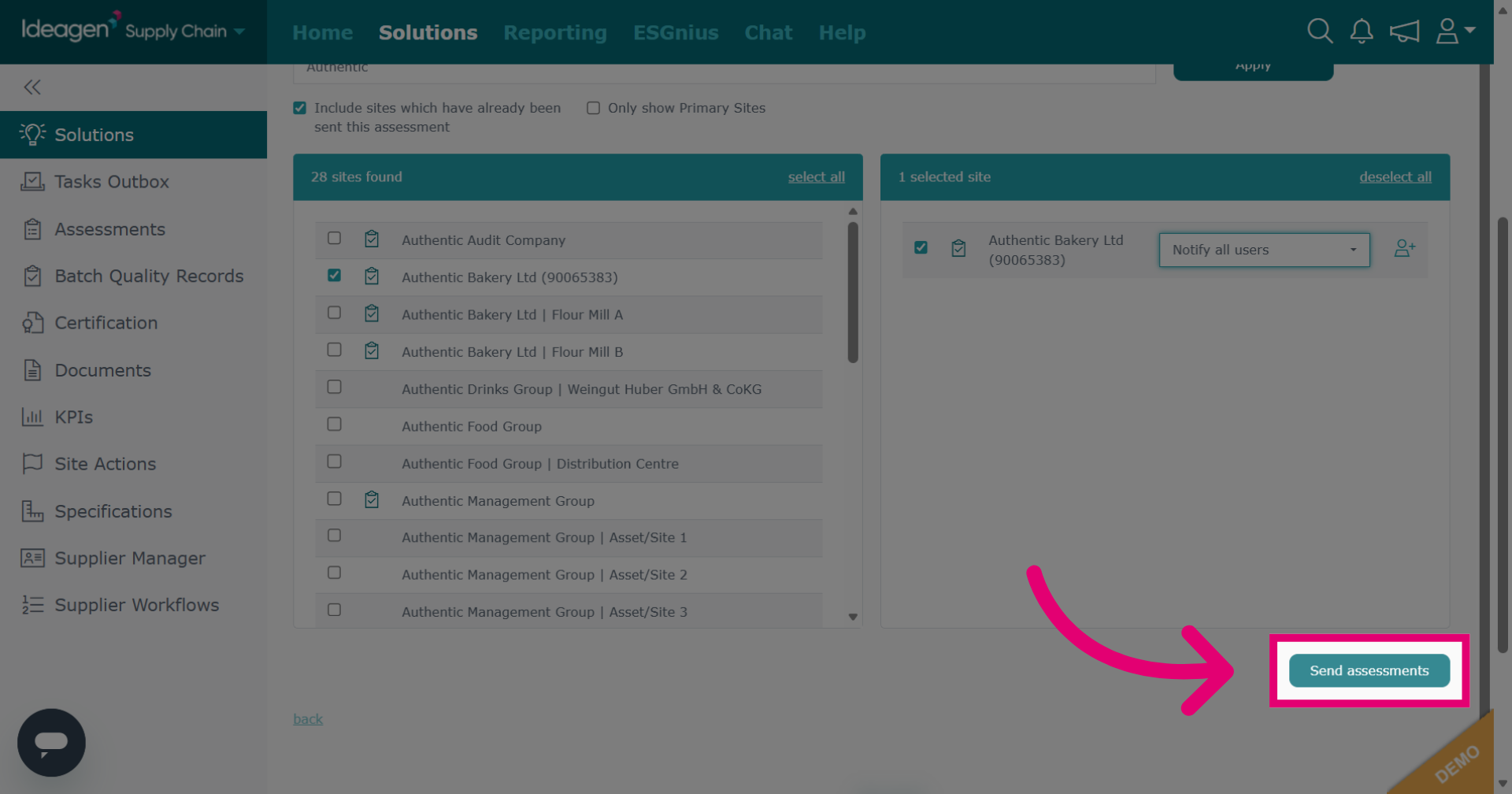
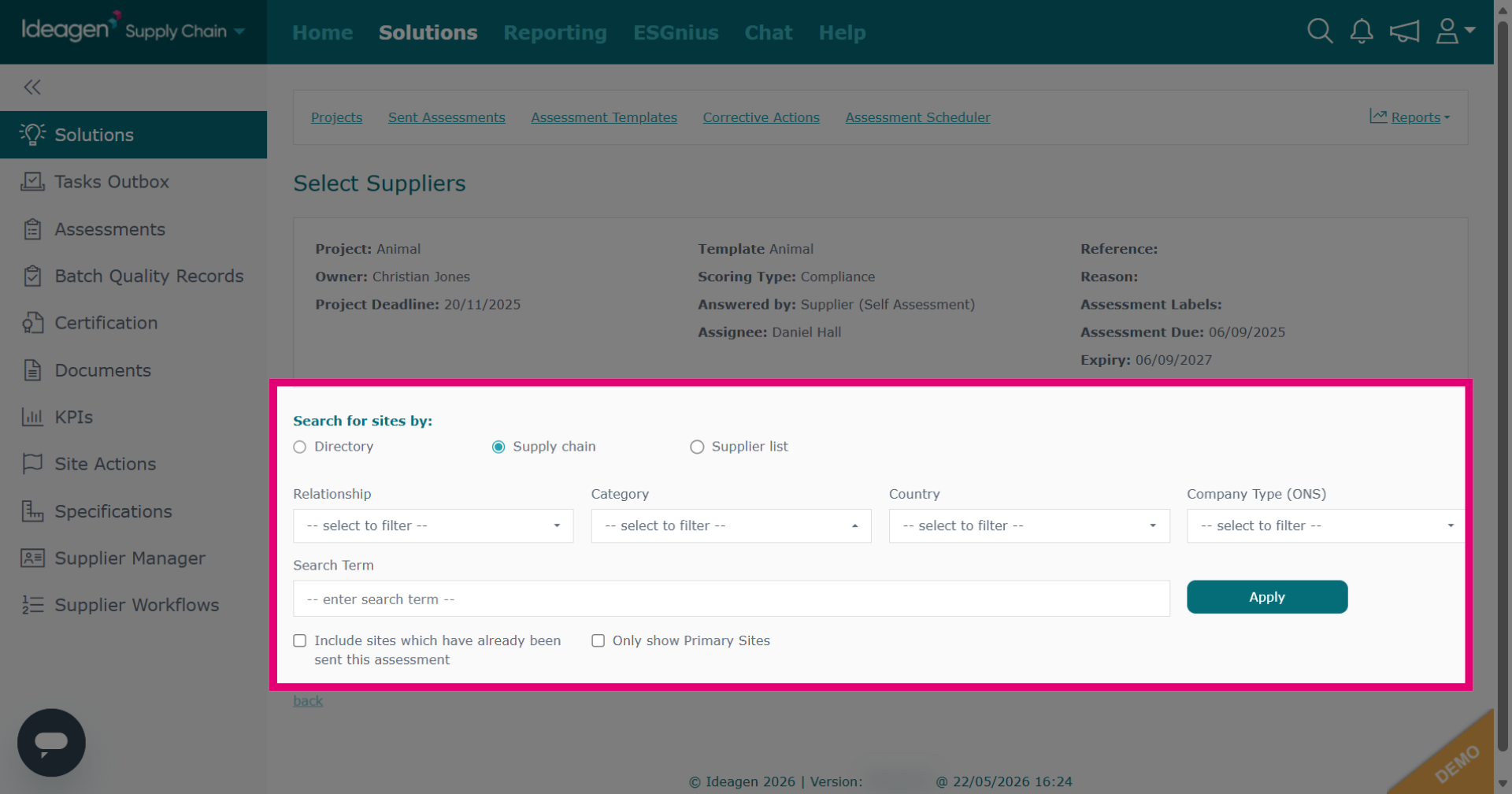
Enter your search query to locate your supplier.
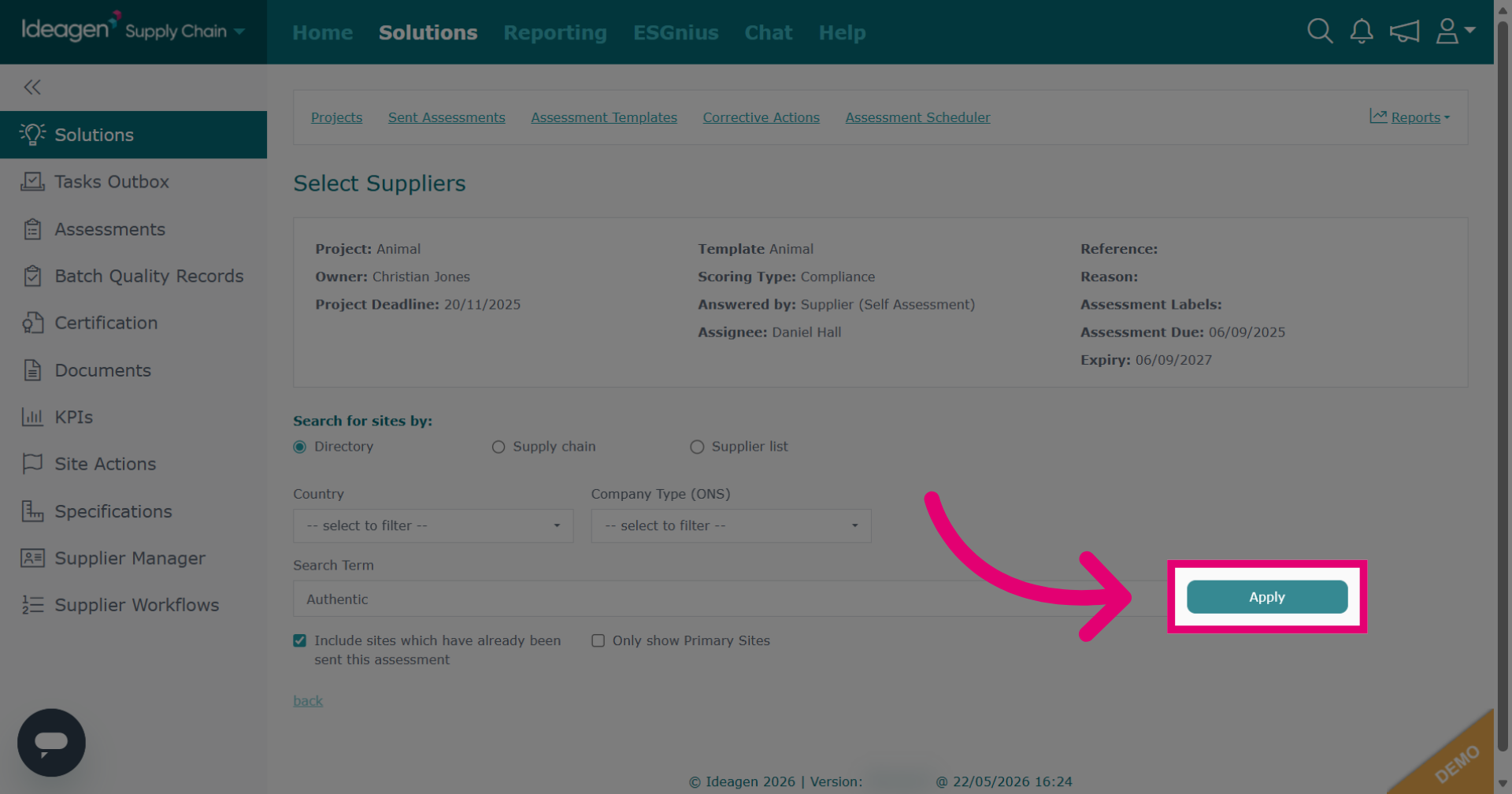
Click Apply to filter the search based on your input.
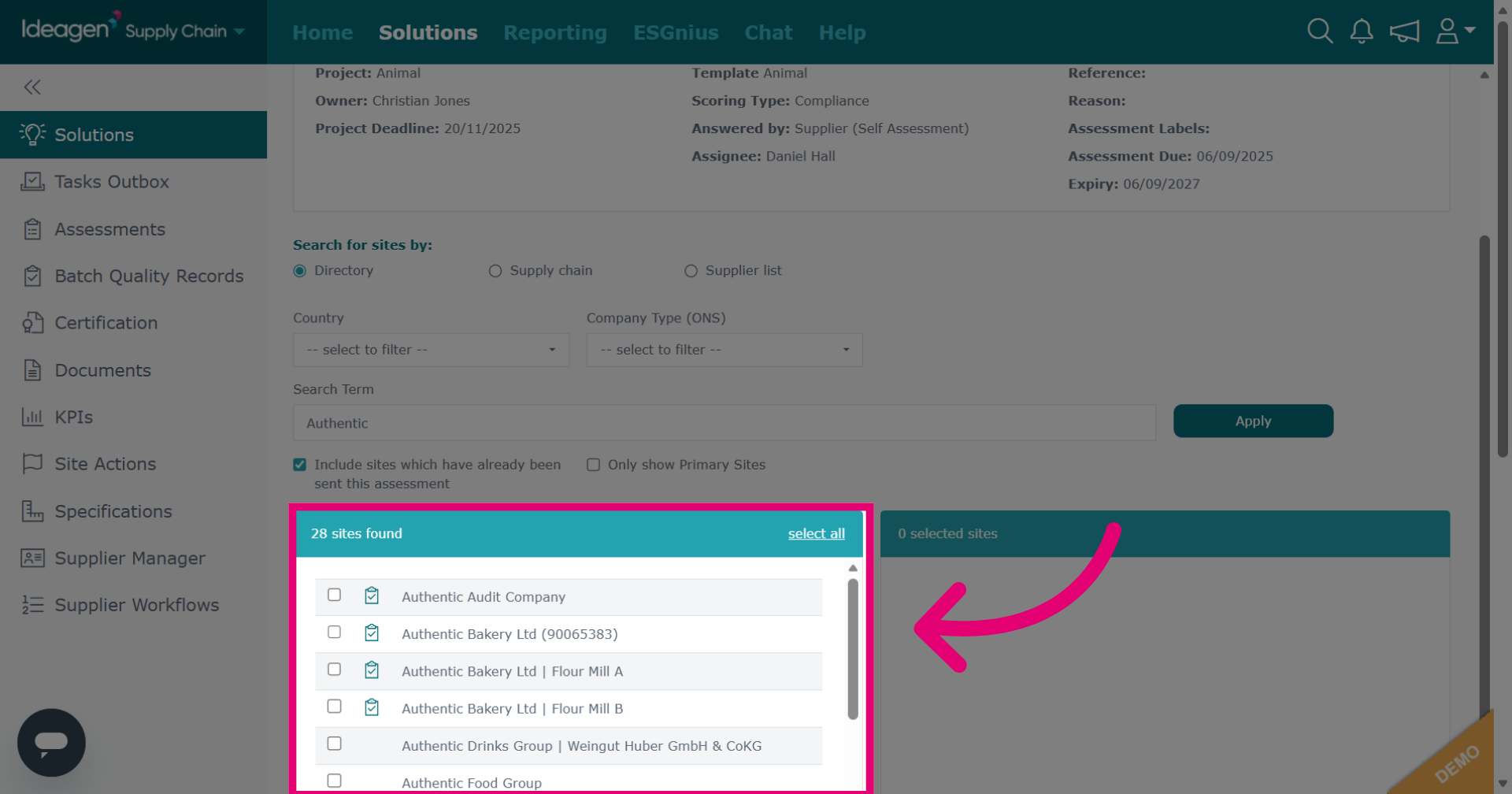
Select your suppliers from the list. Repeat process until you have found all suppliers you want to include.
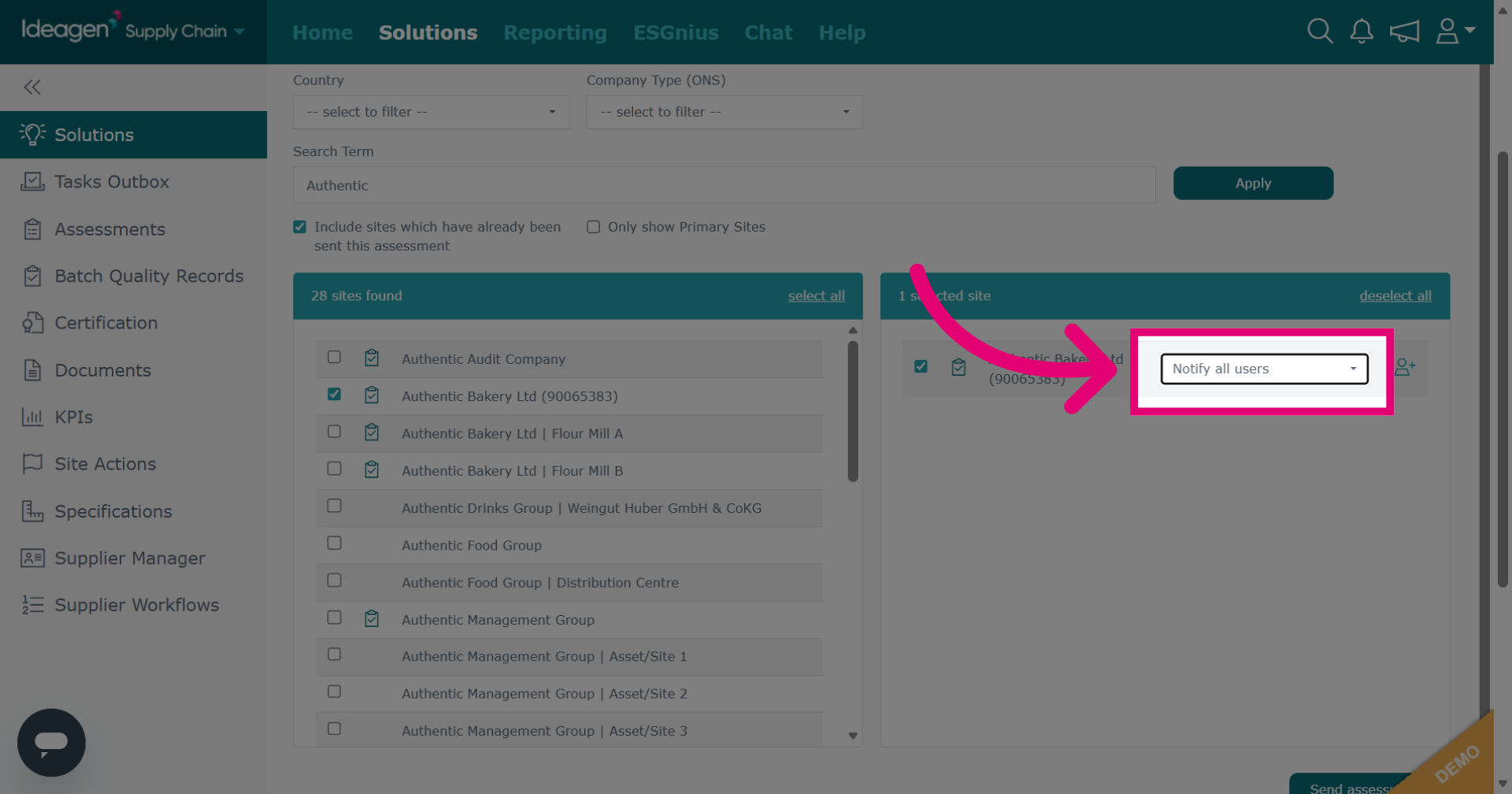
Select supplier assignee if needed, this is optional.
Click Send assessments to dispatch the assessments to the selected users and suppliers.