New article
Recently updated
Managing Assessment Projects - Assessments

Who is this article for?
Users who want to manage assessment projects.
Assessment admin permissions are required.
This tutorial guides you through managing assessment projects.
You will learn how to search, edit, close, and reopen projects, as well as move assessments between projects and generate reports.
Managing assessment projects
-
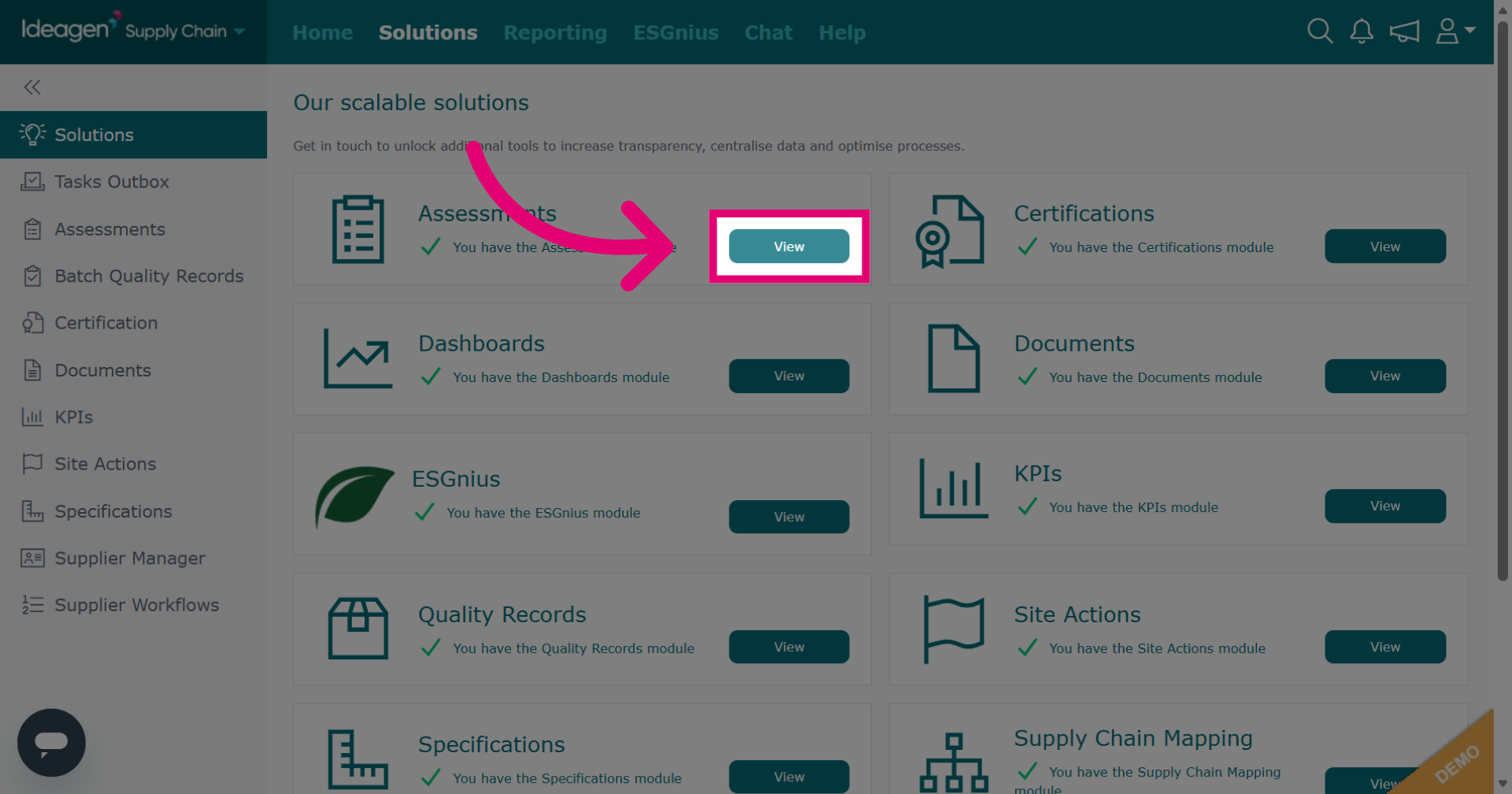
Click Solutions and then View next to the Assessments module.
-
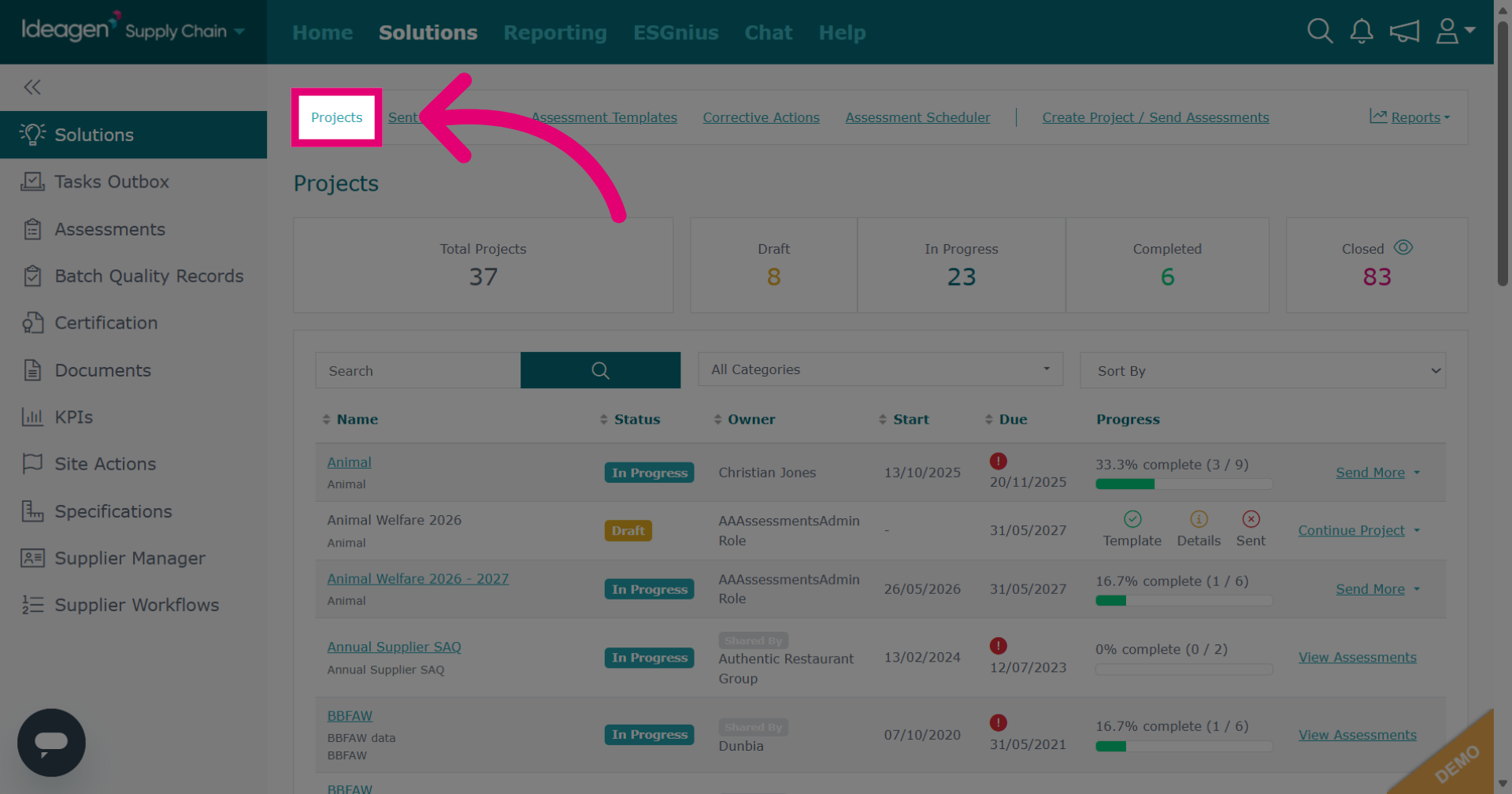
You will be automatically taken to the projects area, however if you are unsure you can click Projects to ensure you are in the correct area.
-
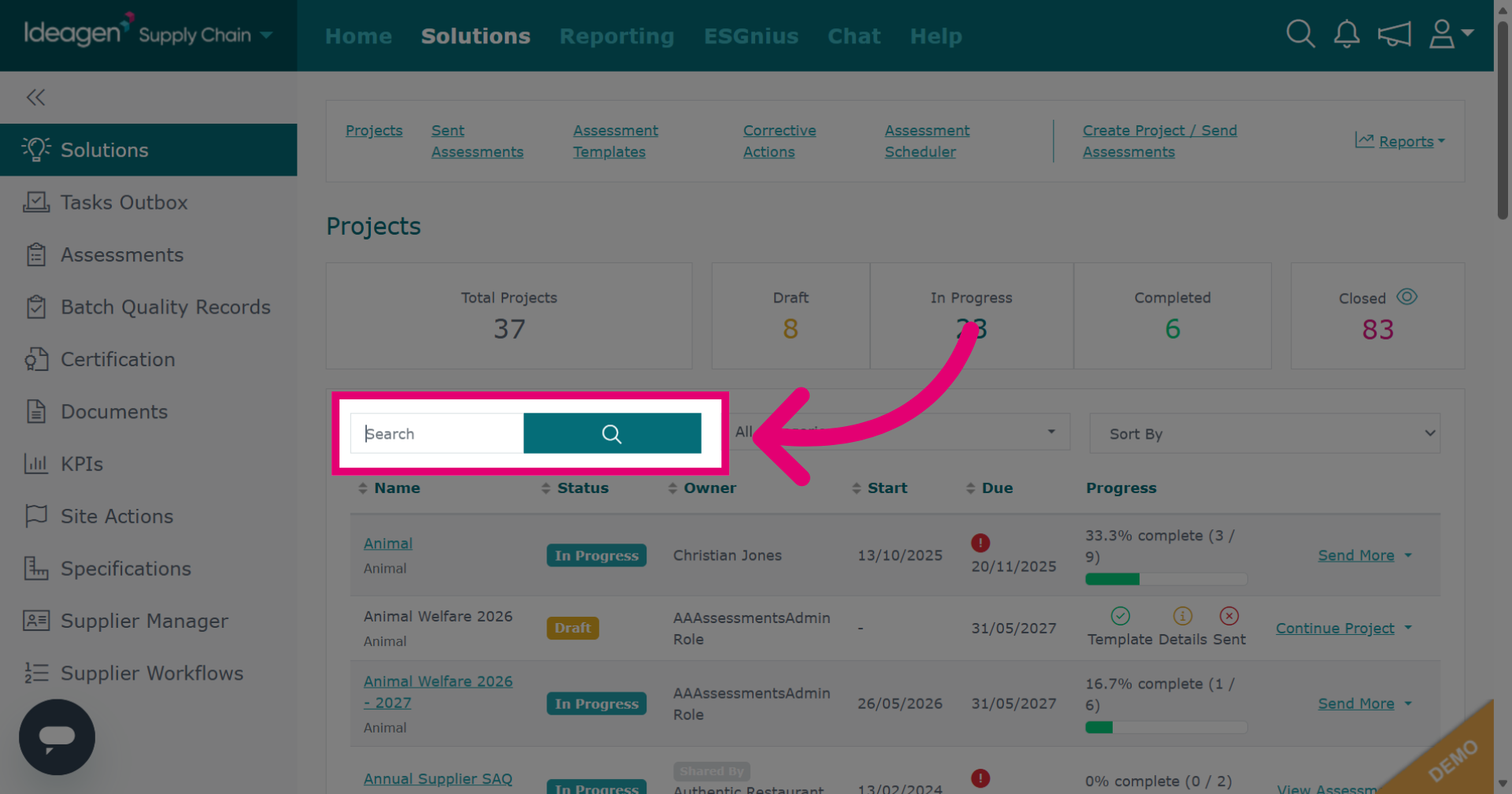
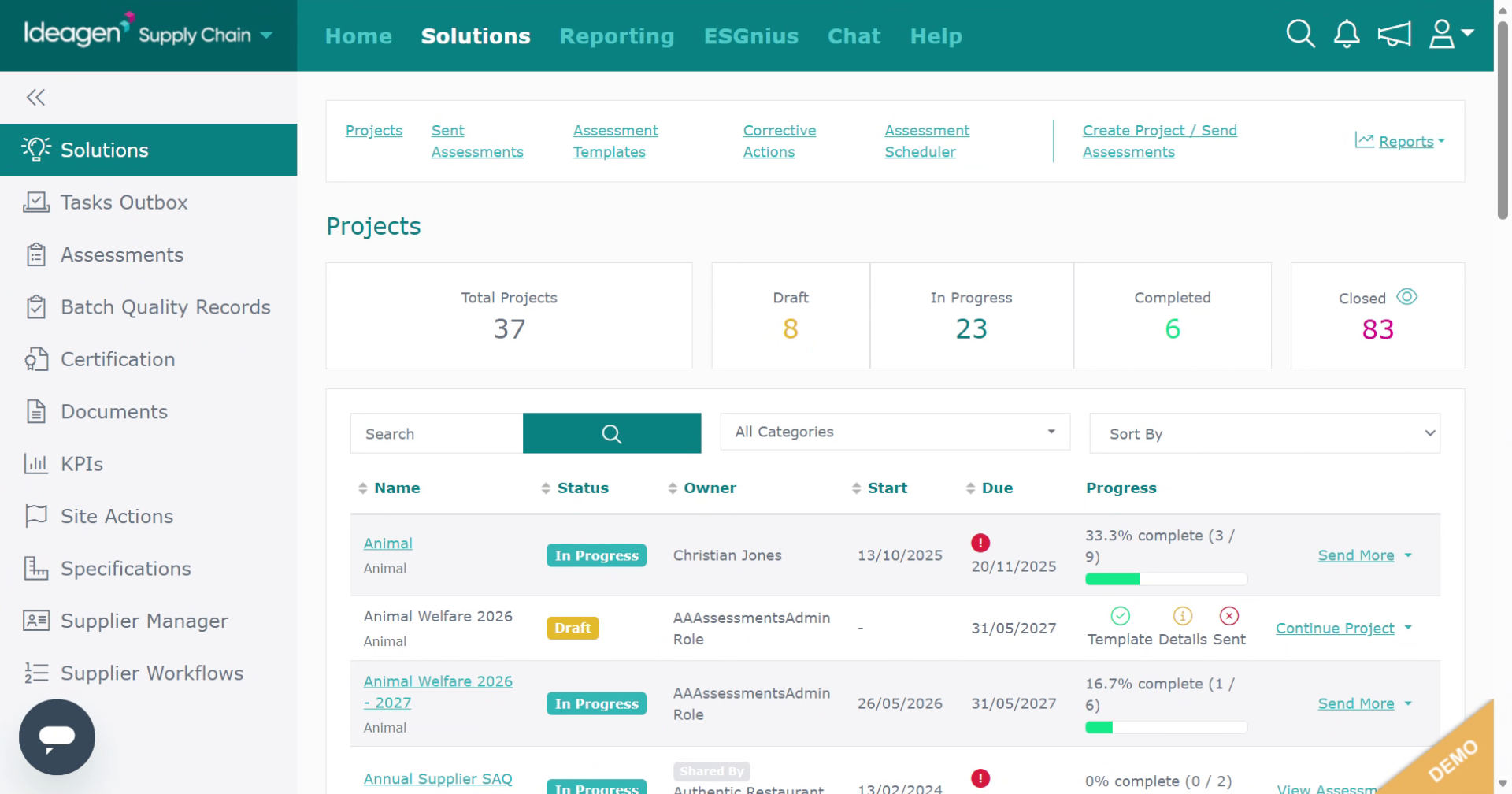
Click the Search button to search for a project.
-
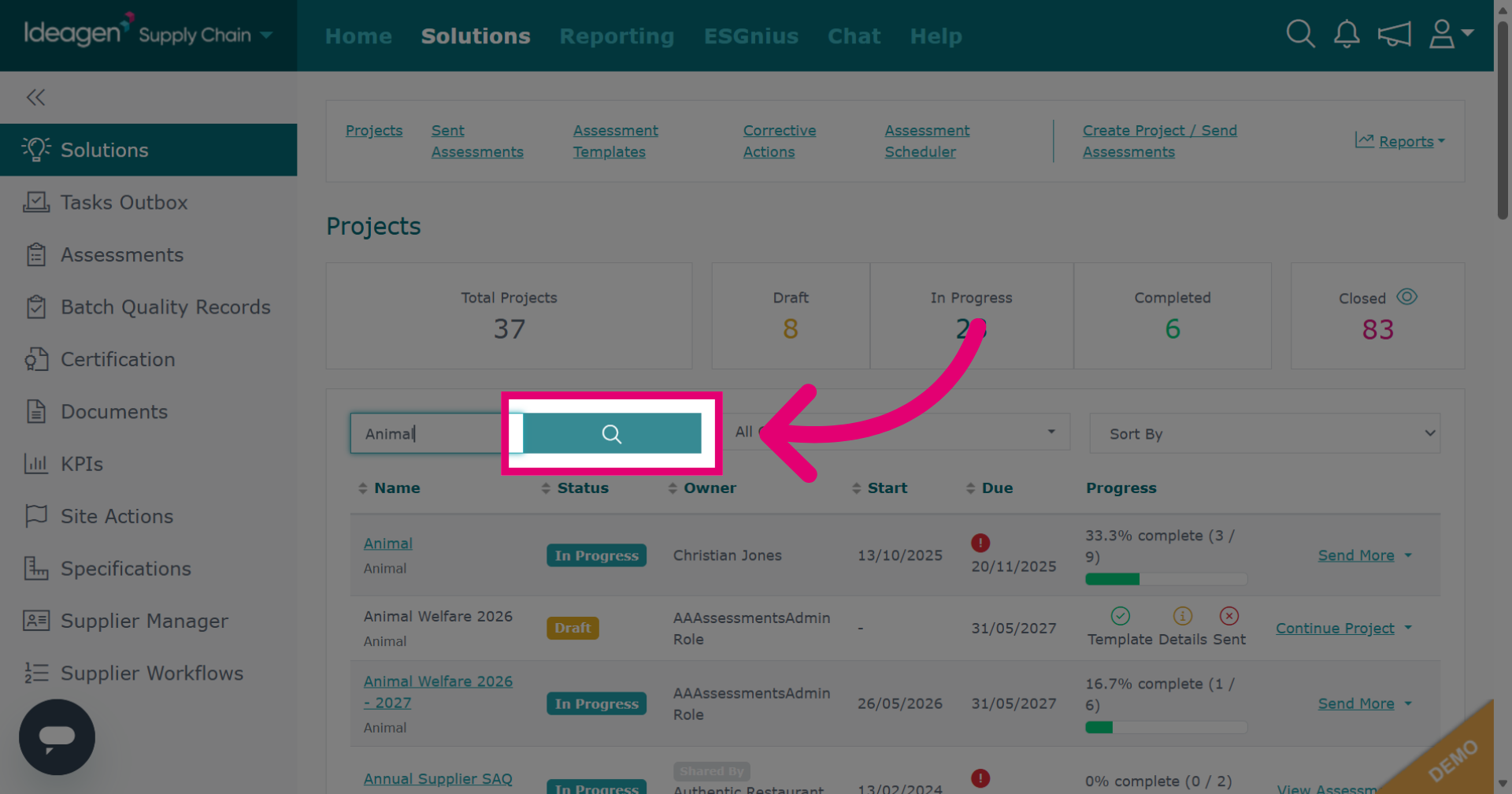
Enter the search term to specify your query.
-
Click the magnifying glass icon to execute the search based on your criteria.
-
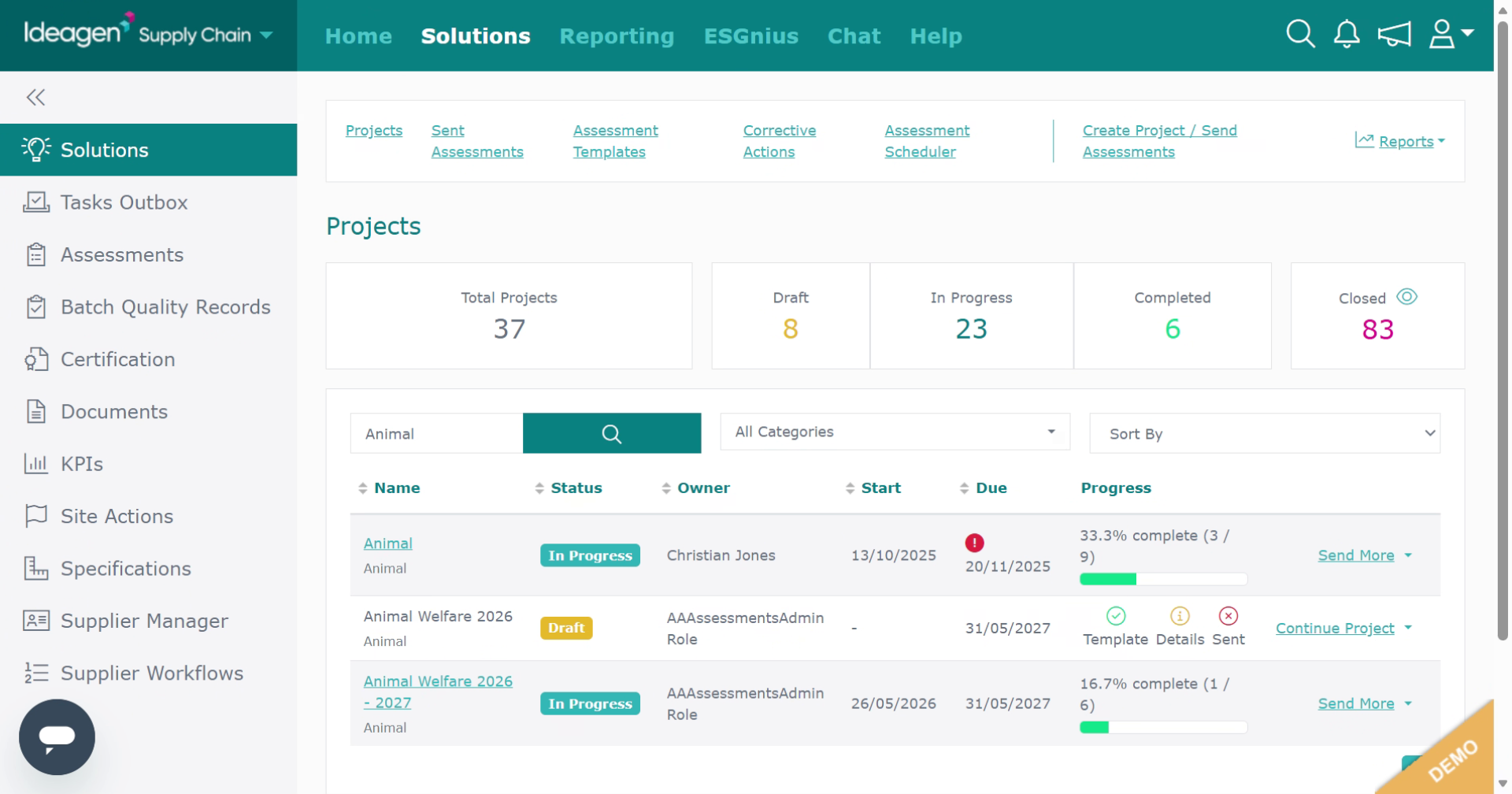
To remove the search filter, delete the text entry and then click the magnifying glass icon again to reset the results.
-
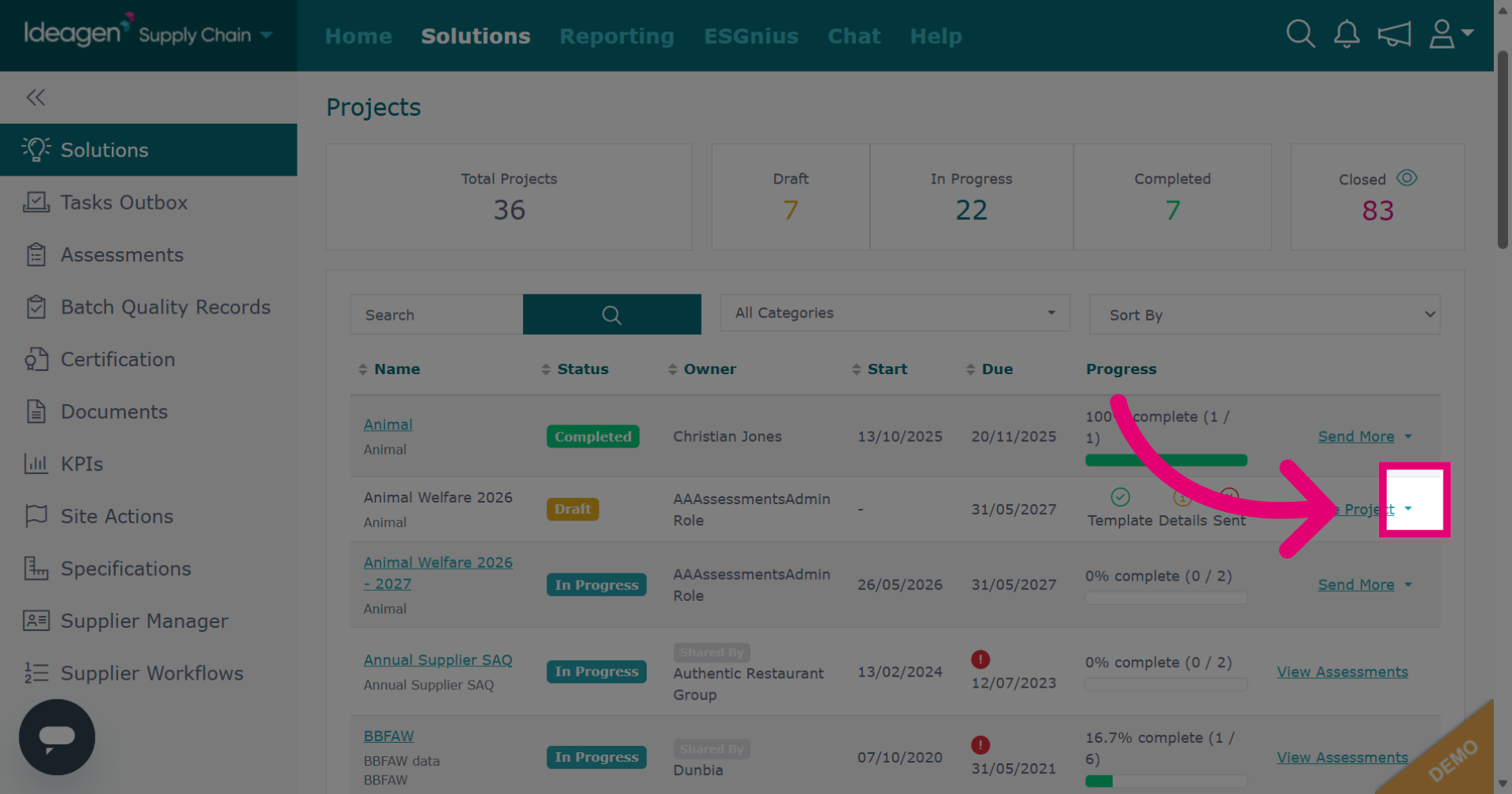
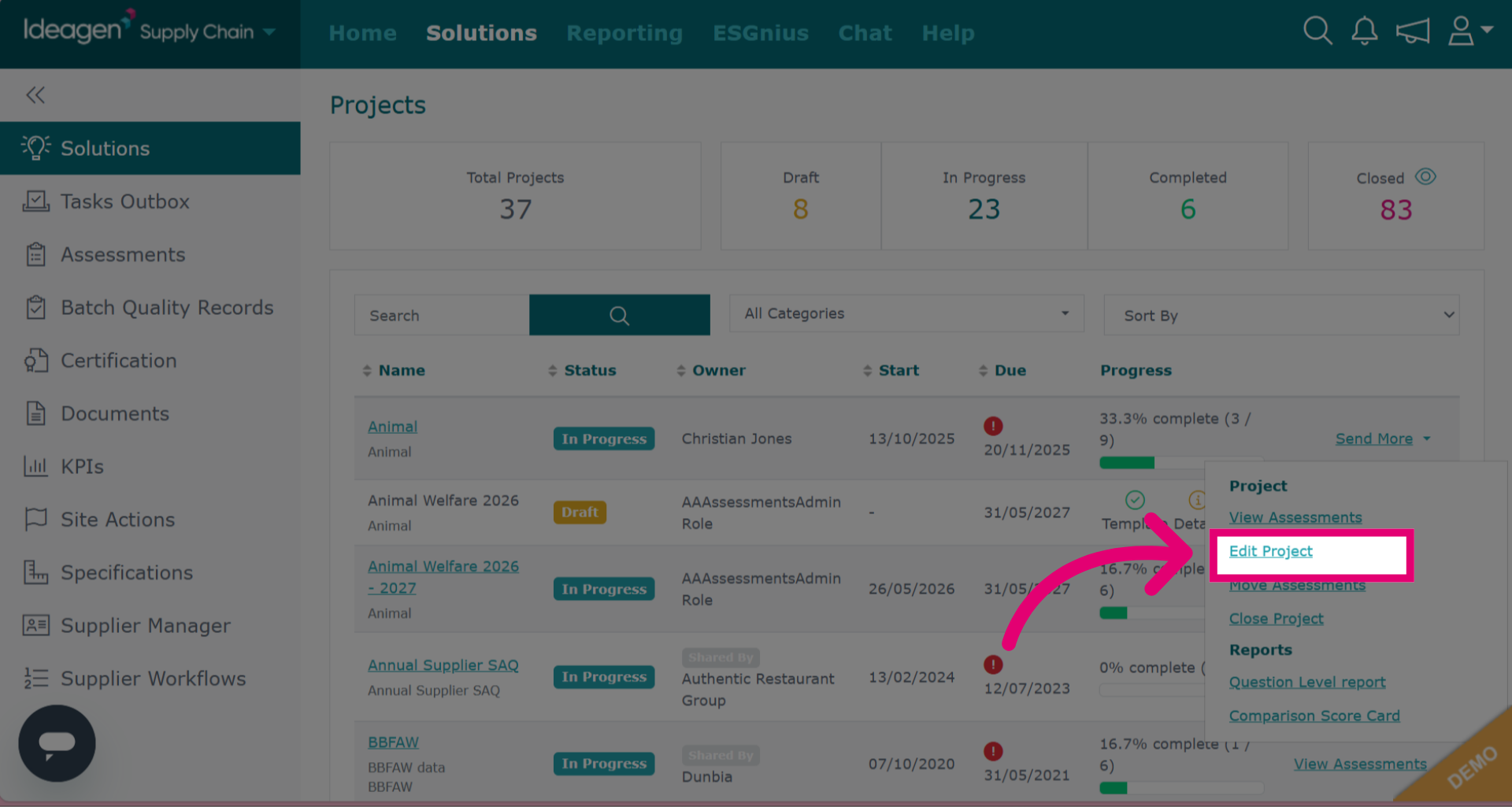
Click the down arrow to open the options associated with the project.
-
To edit the core details of a project such as name, internal assignee, deadline and description click Edit Project.
-
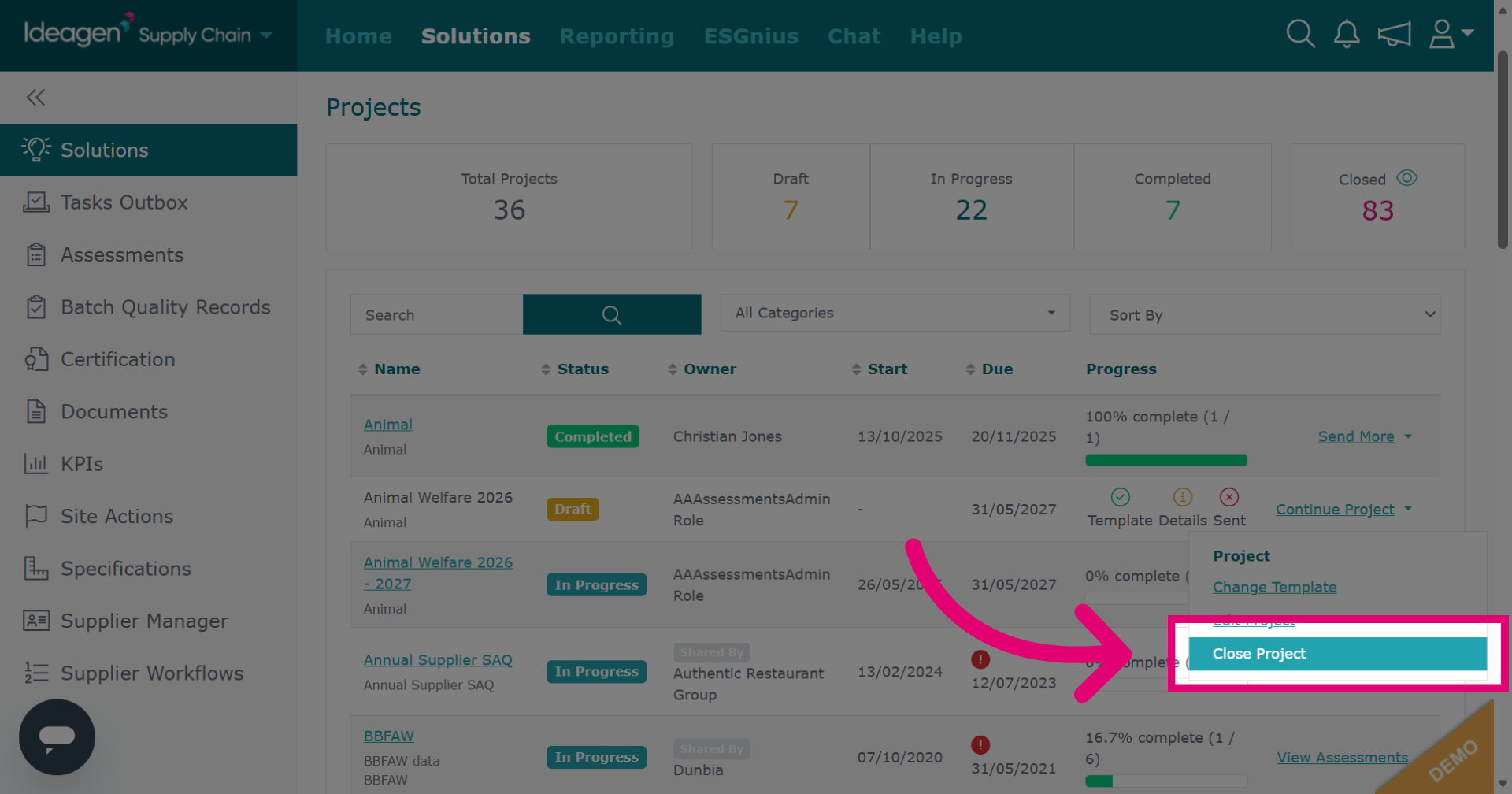
Also located within the project options is the ability to Close Project. Click to mark the project as closed and restrict further changes. It will then move to the closed area.
-
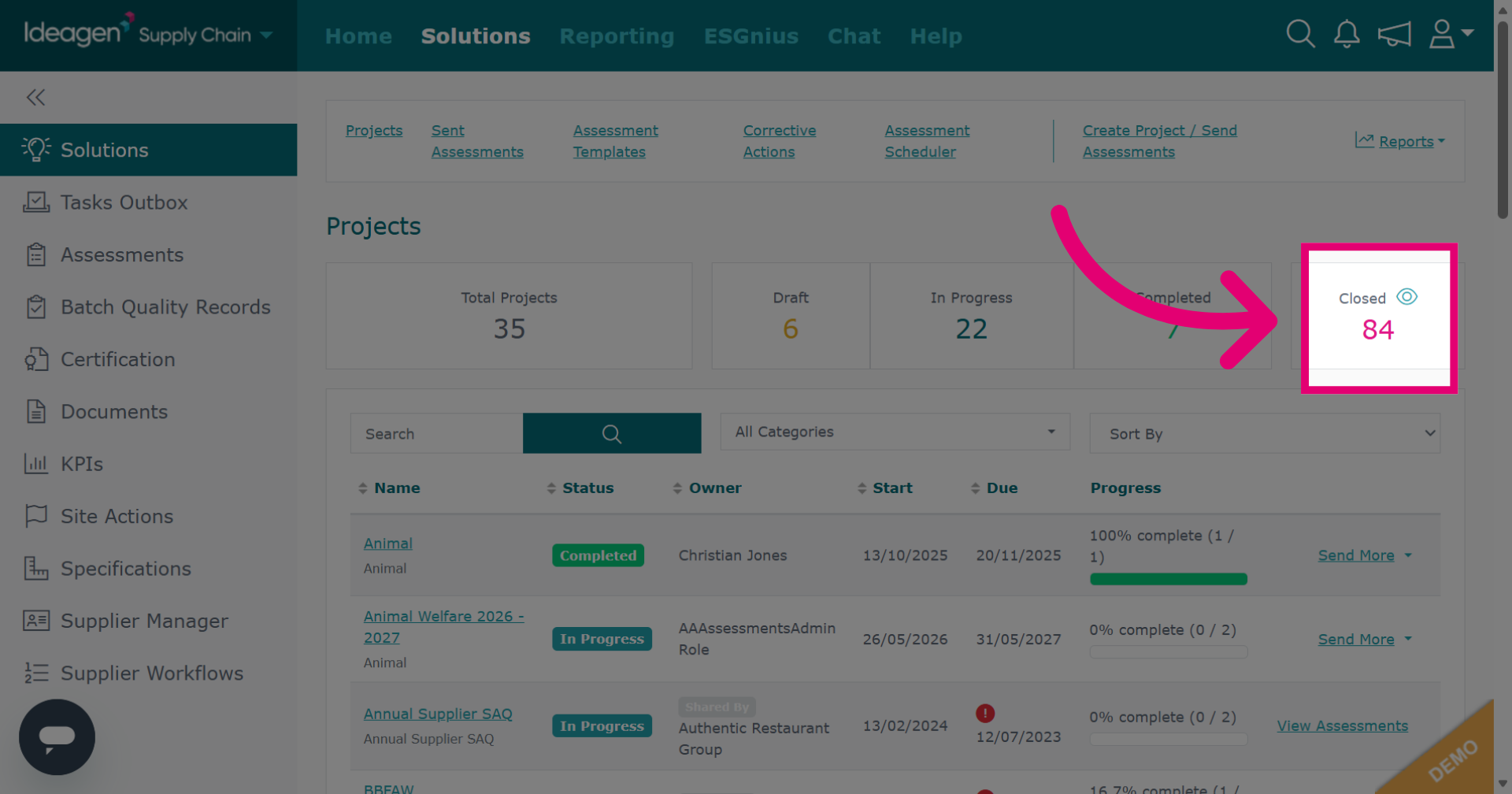
To view closed projects, click the eye icon next to the closed area.
-
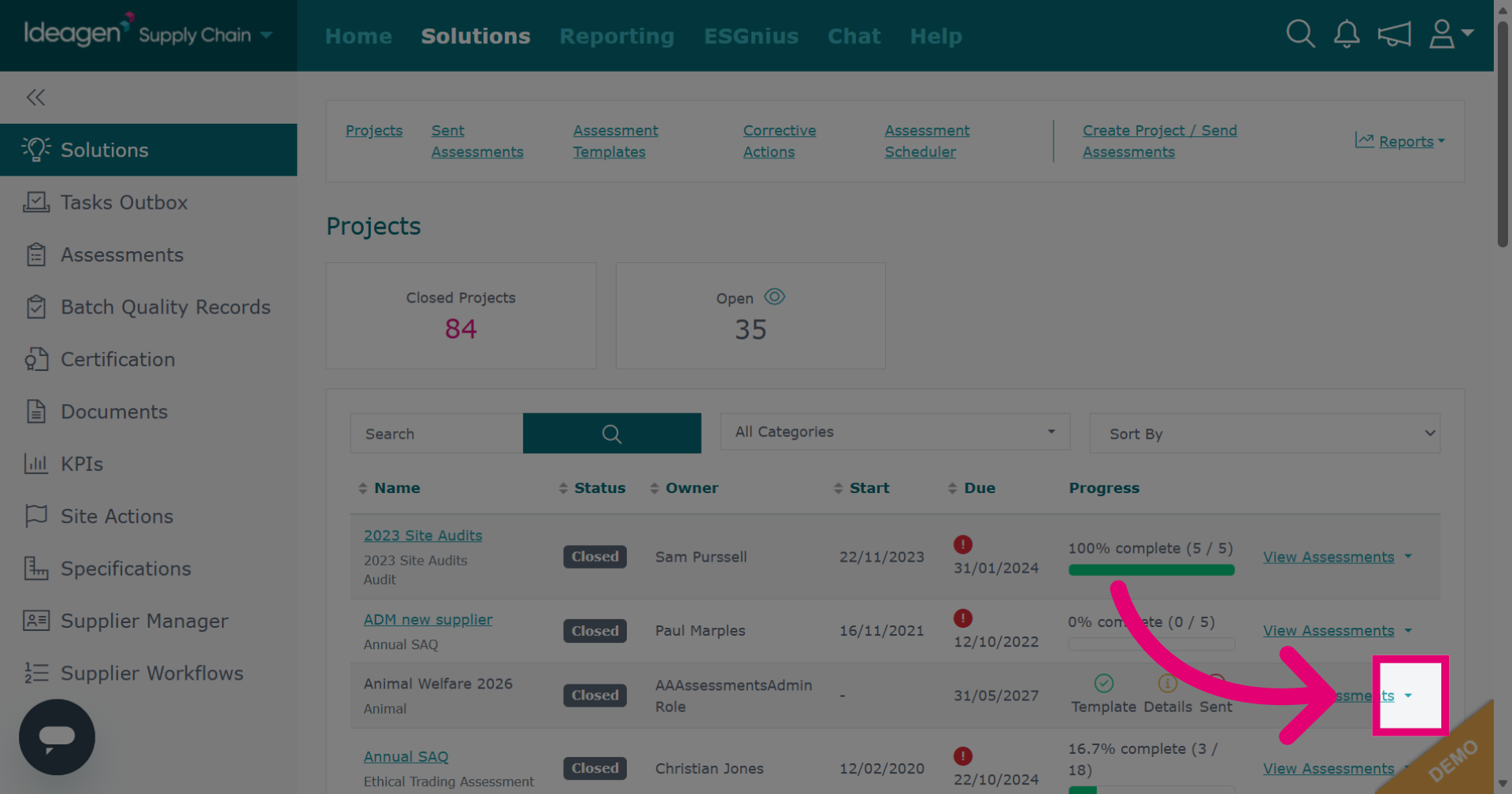
Click the down arrow to open the options associated with a closed project.
-
Click Re-open Project to reactivate the project and allow further updates.
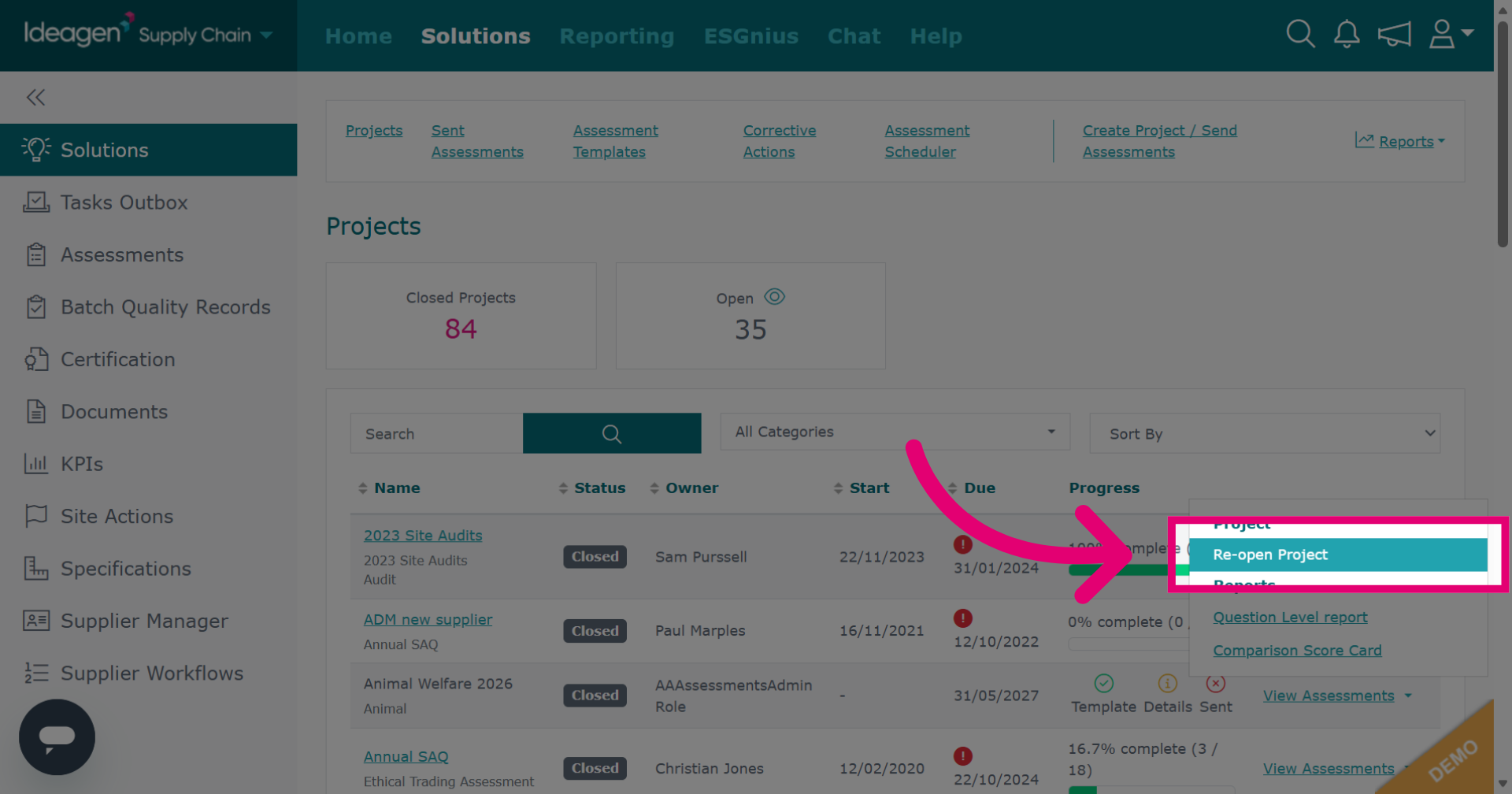
-
Also located within the project options drop down arrow is Move Assessments.
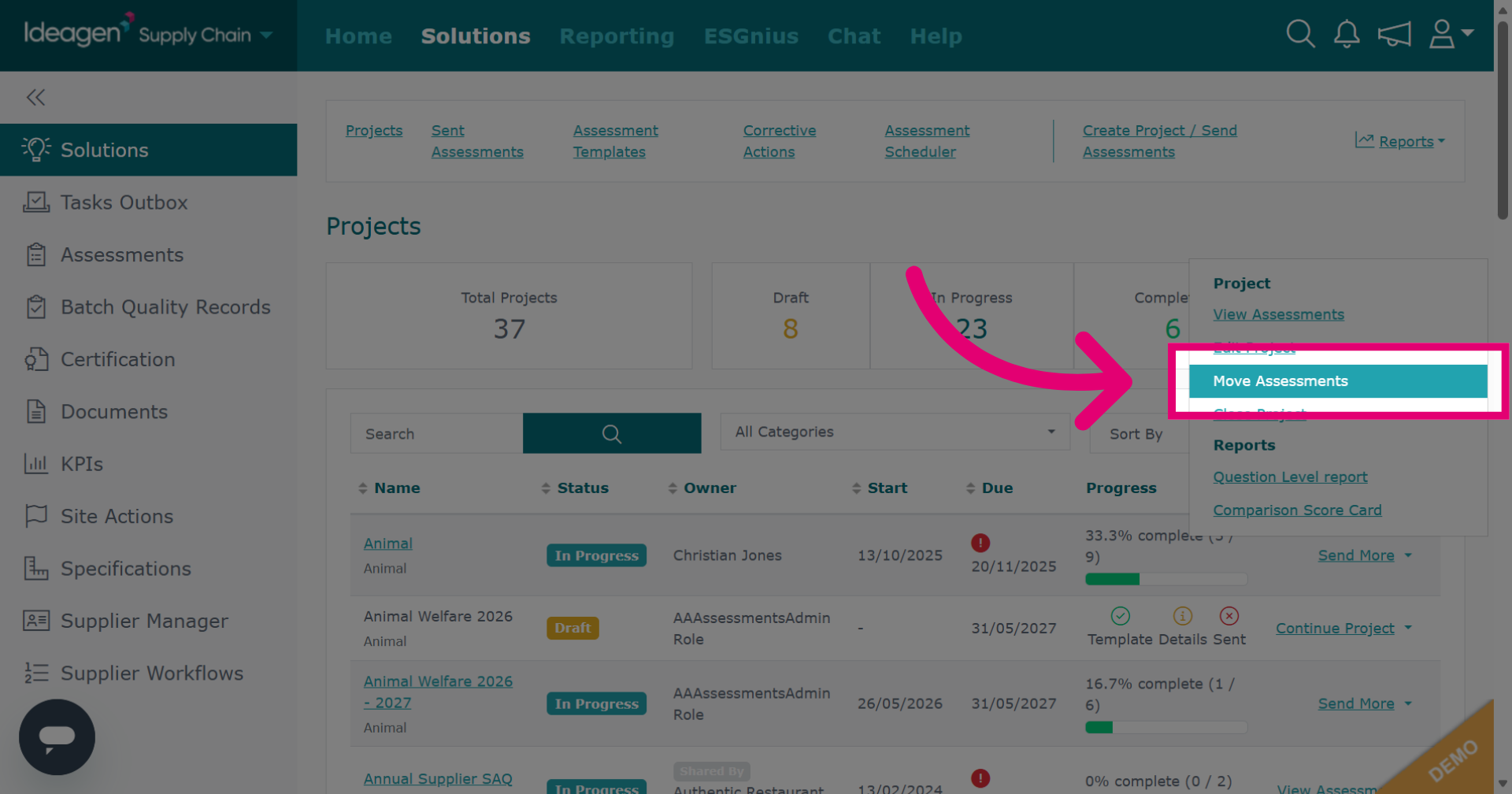
-
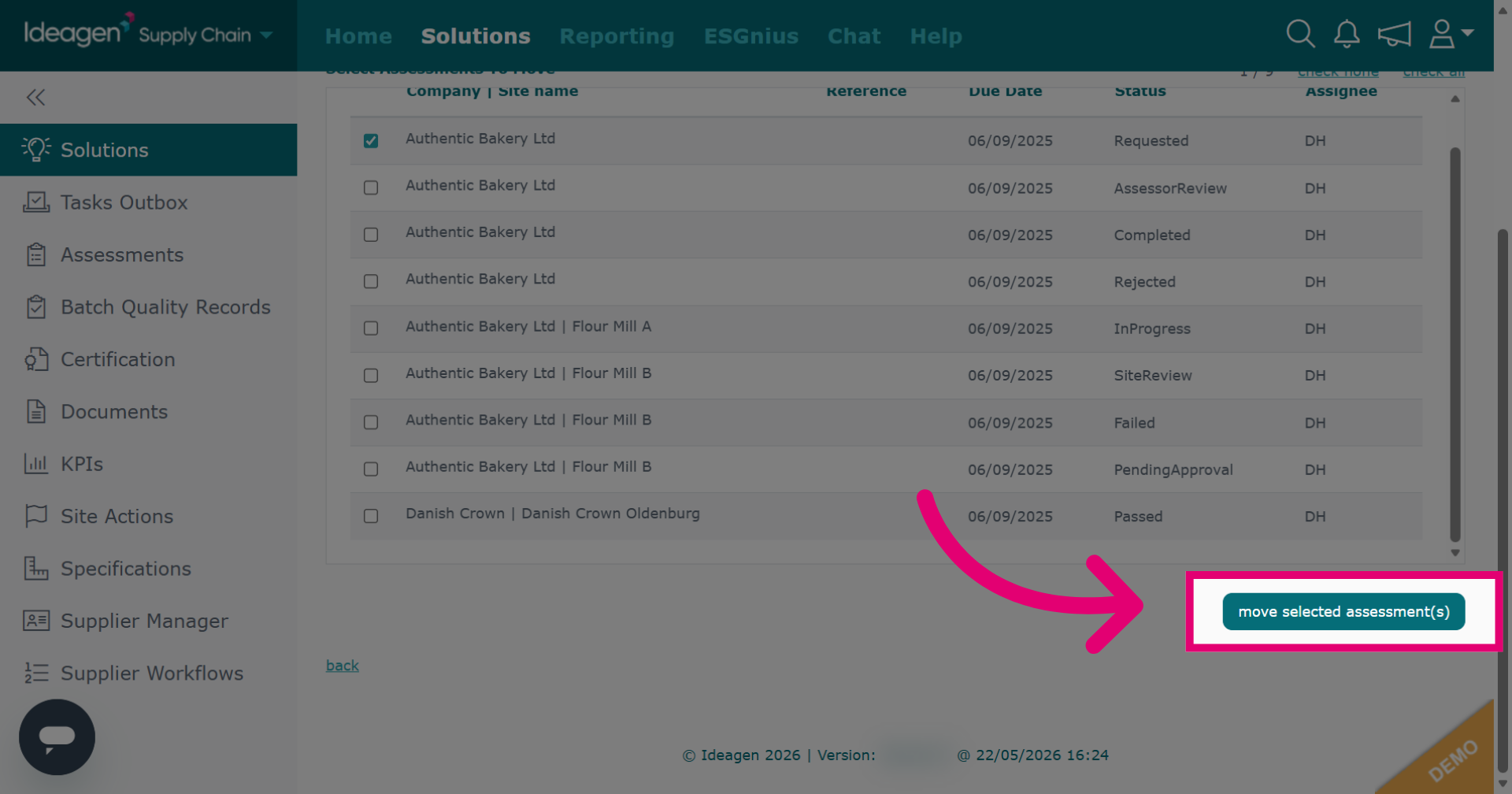
Select the project you wish to move assessments to from the drop down options, and then select the individual assessments you want to move by ticking and unticking the boxes accordingly. Please note you can only move assessments to a project that uses the same template as the project you are moving them from.
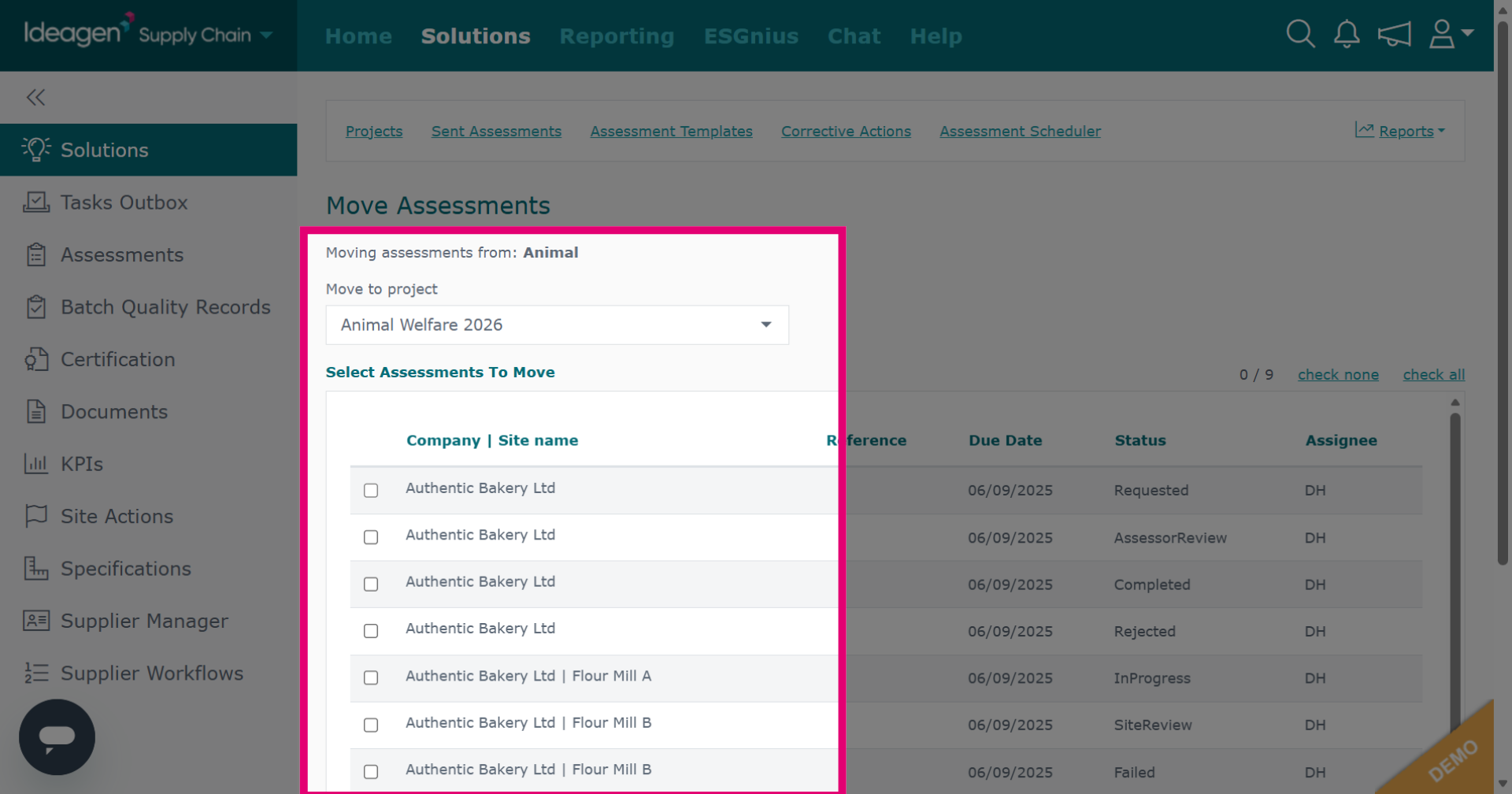
-
Click Move Assessments to proceed.
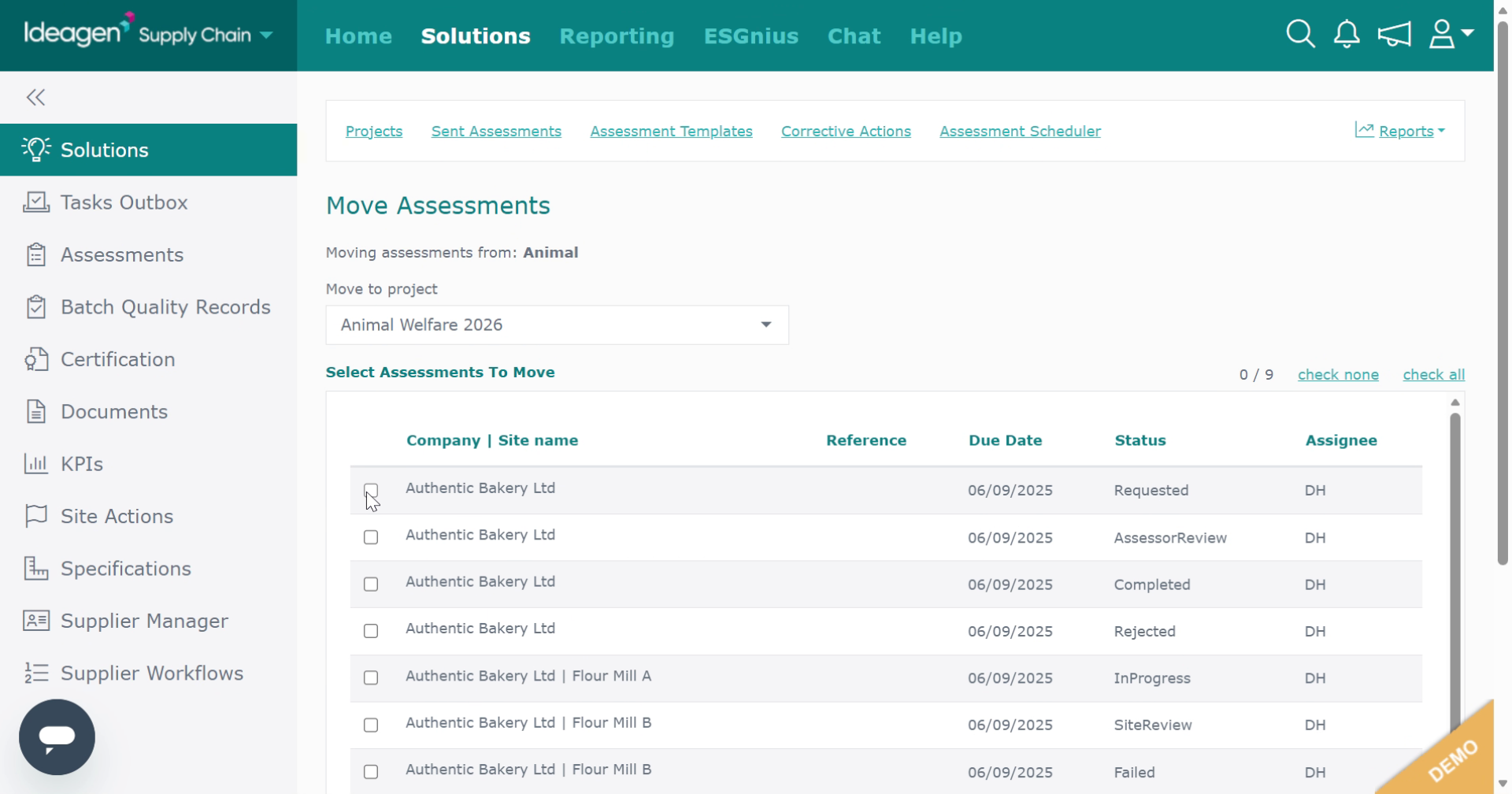
-
Click here to finalize your selection and proceed with the move.
-
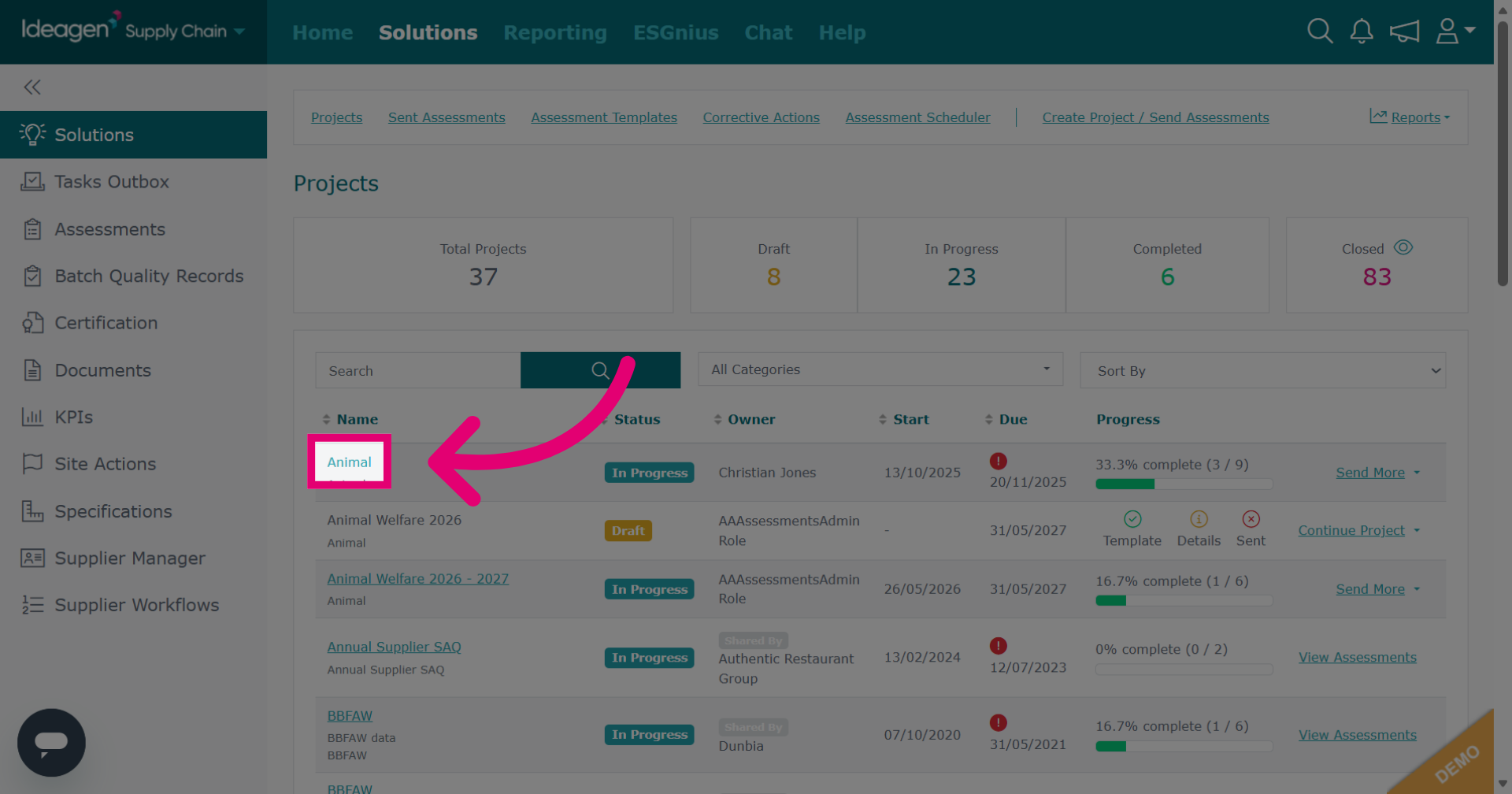
To view a specific project, click the name of the project.
-
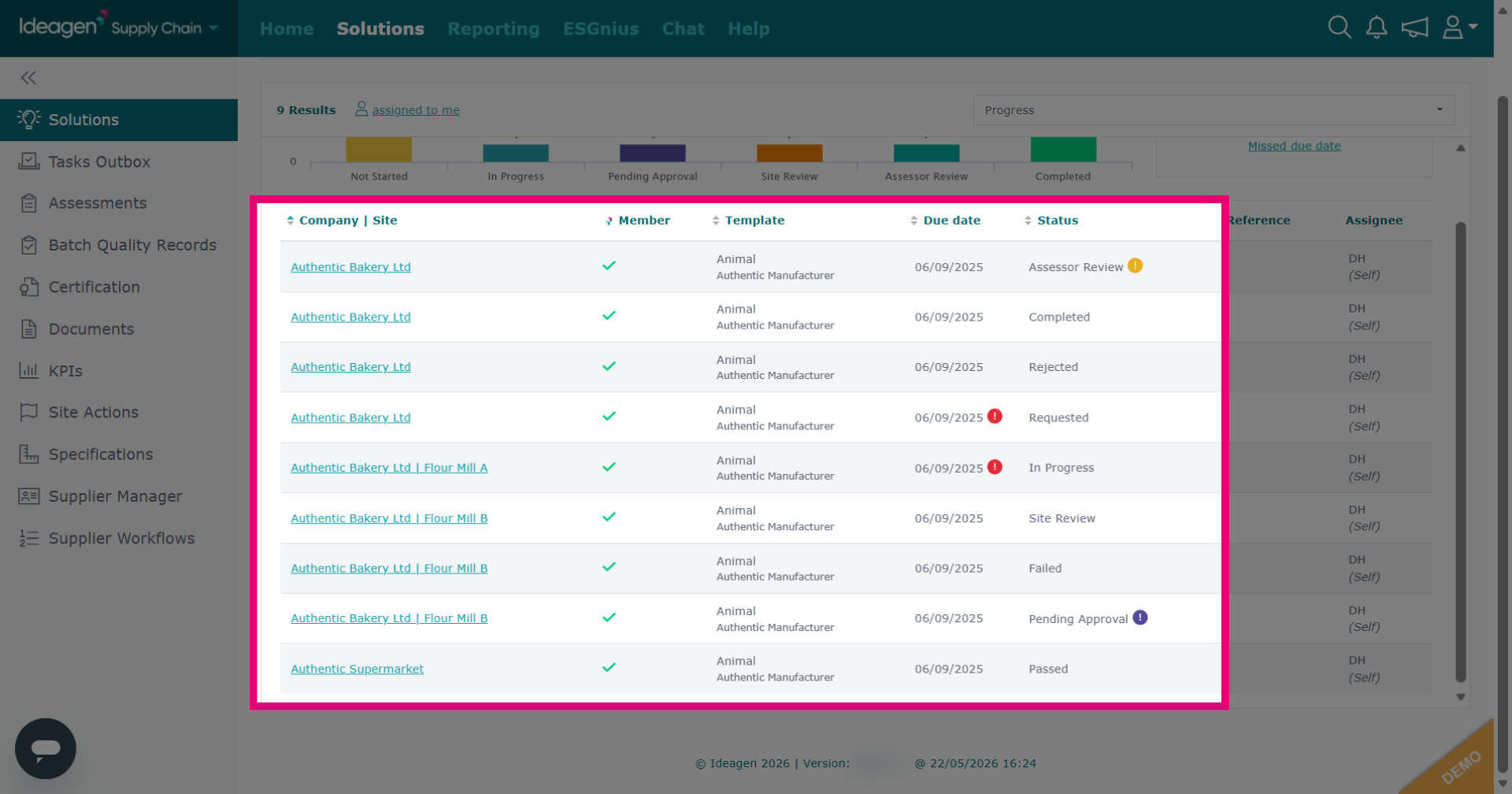
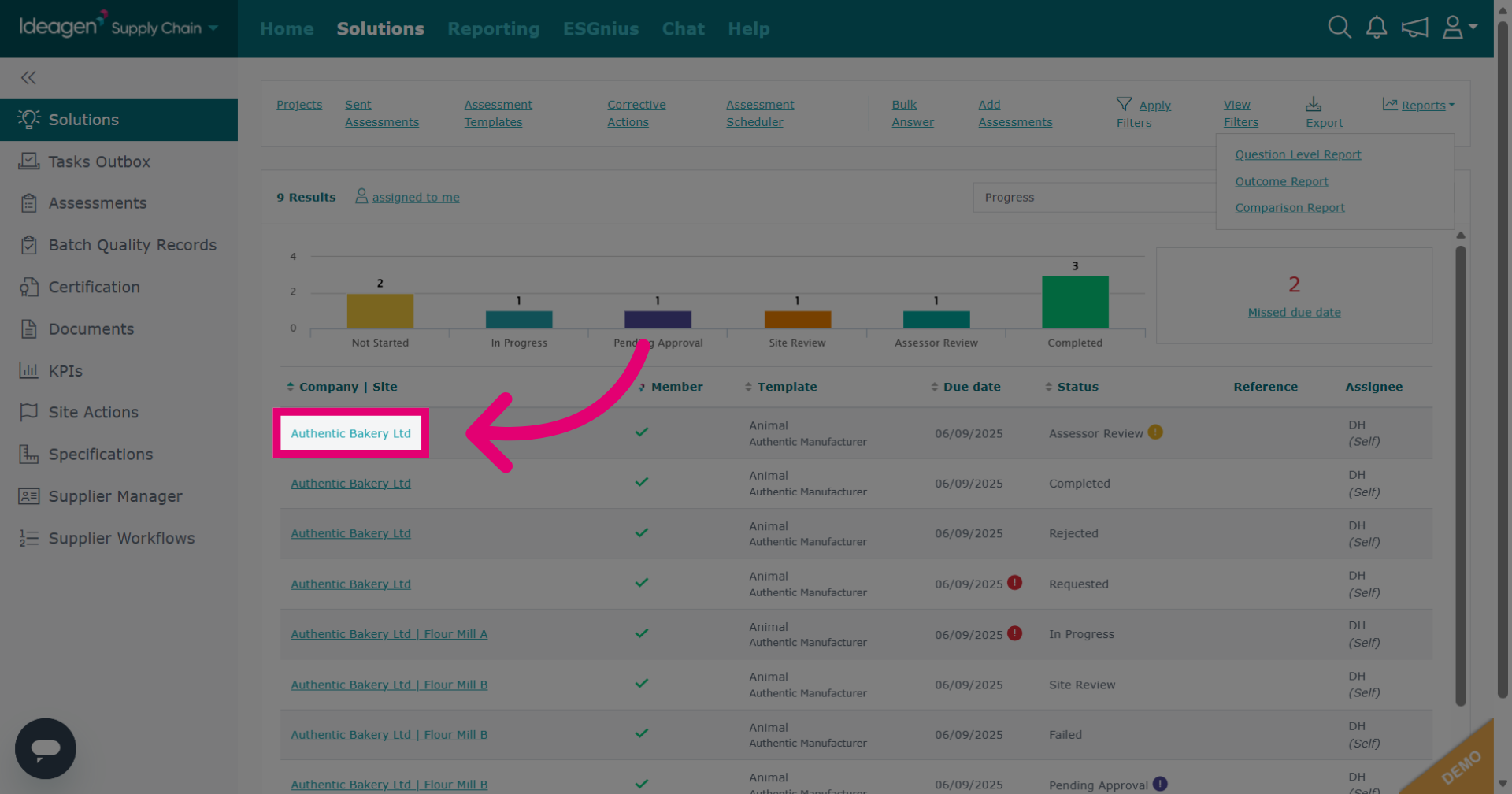
Within the project, you will be able to view all the individual assessment details such as company/site name, member status, due date and status.
-
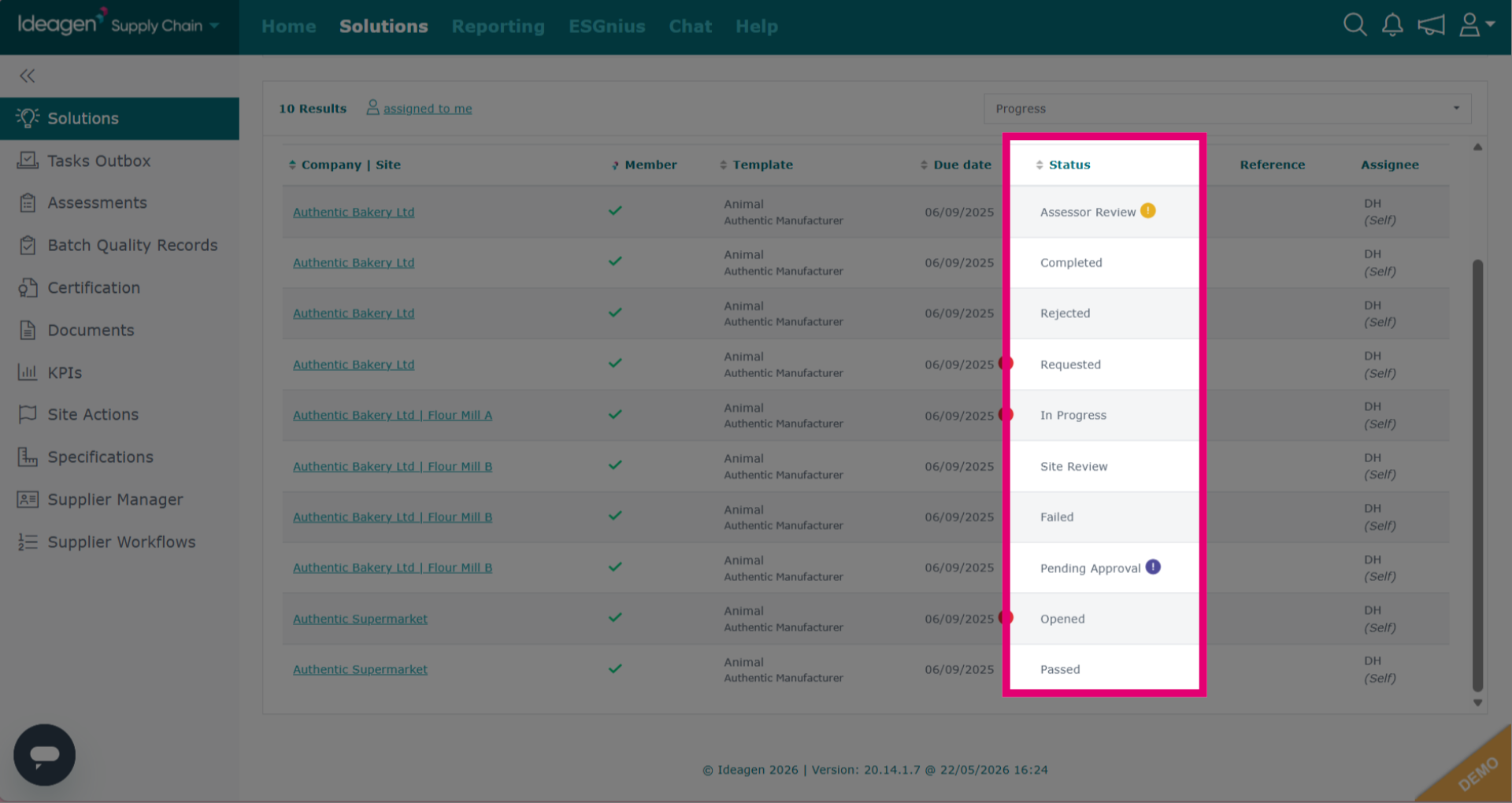
Assessment status can be any of the displayed. Assessor review means the assessment is currently being reviewed by an internal assessor from your company. Completed means the assessment has been marked as completed by someone from your company. Rejected means the assessment has been rejected by the supplier. Requested means the assessment has been sent to the supplier but they have not begun working on it yet. In Progress means that the supplier has begun entering data but not finished answering all questions. Site review means the assessment has been returned to the supplier with corrective actions. Failed means the assessment has been failed by someone from your company. Pending approval means the supplier has finished the assessment and returned it back to you for grading. Opened means the assessment has been accepted by the supplier but no data has been input yet. Passed means someone from your company has passed the assessment.
-
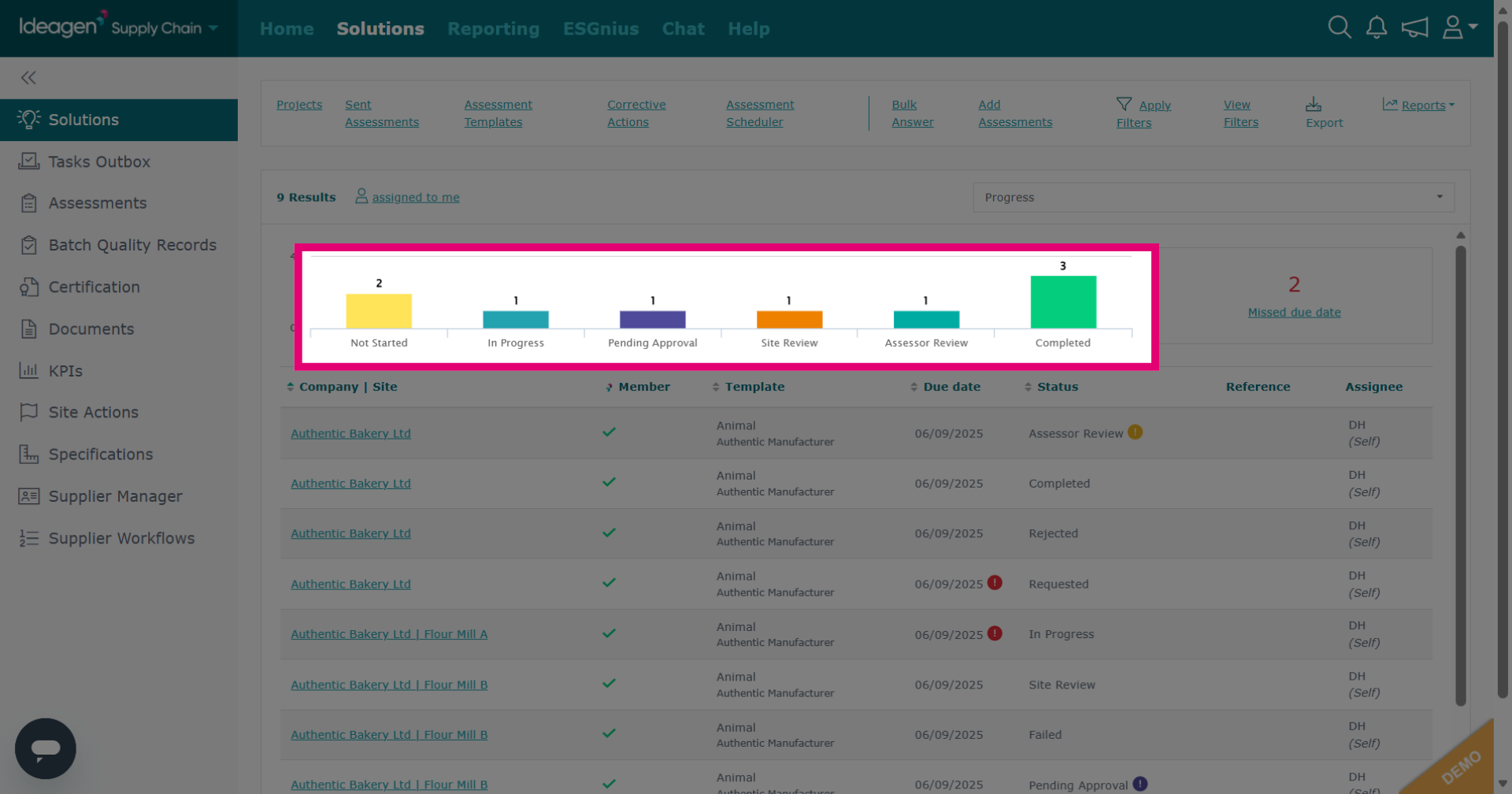
To filter results within the project overview, you can click the relevant bar within the chart to view the data.
-
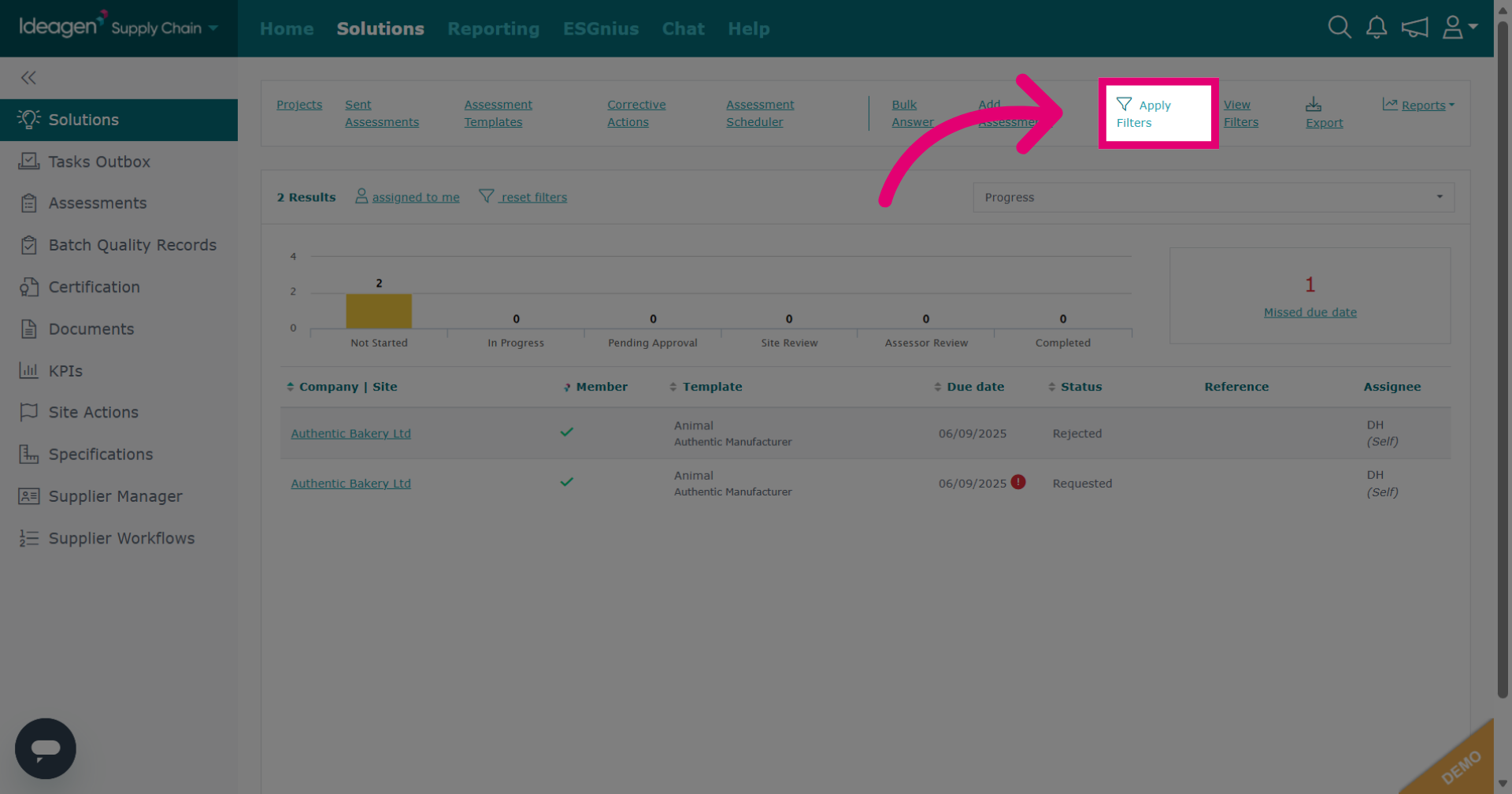
Click Apply Filters to filter data by more specific criteria.
-
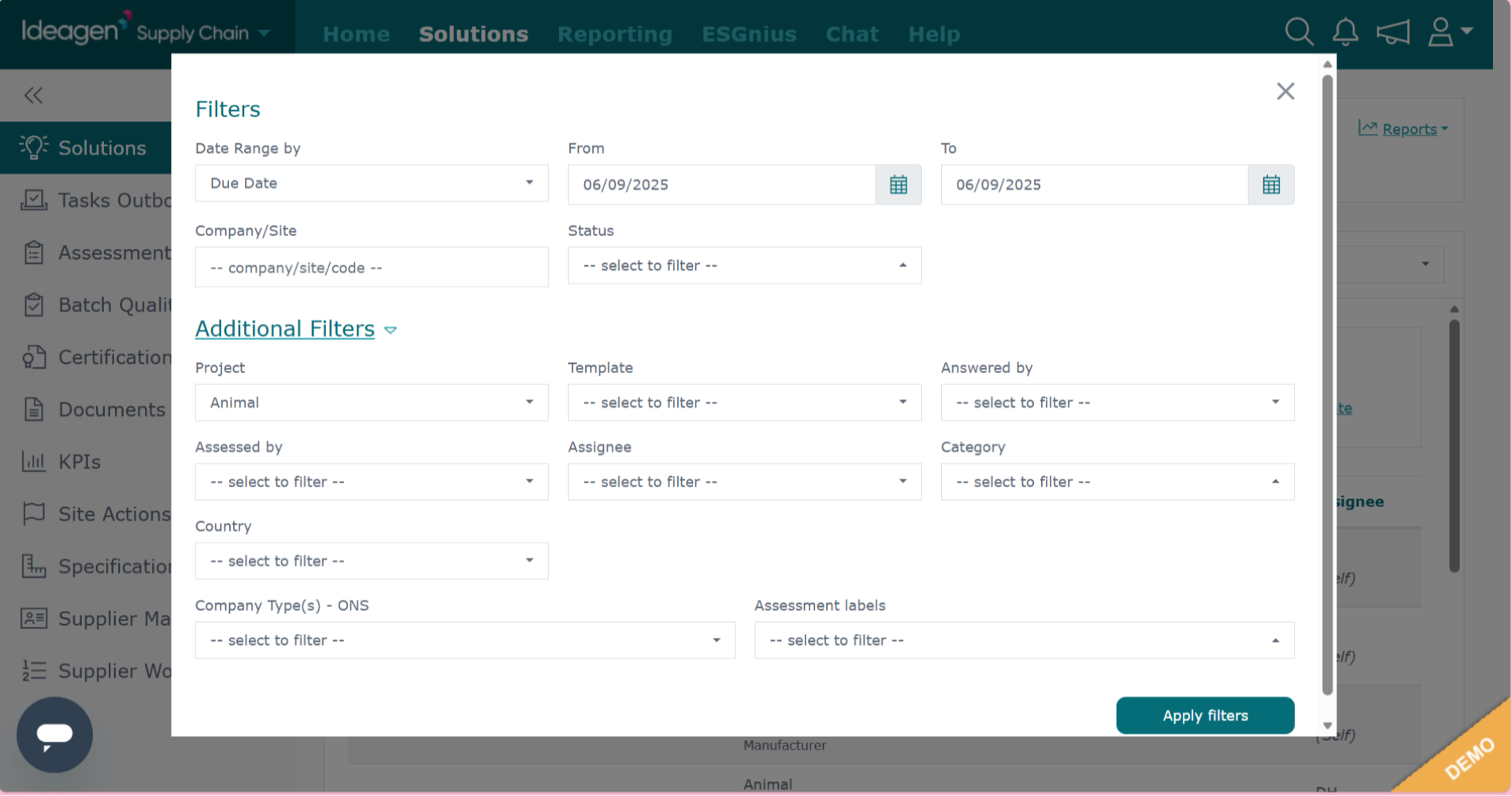
Enter the data you want to filter by and then click Apply Filters.
-
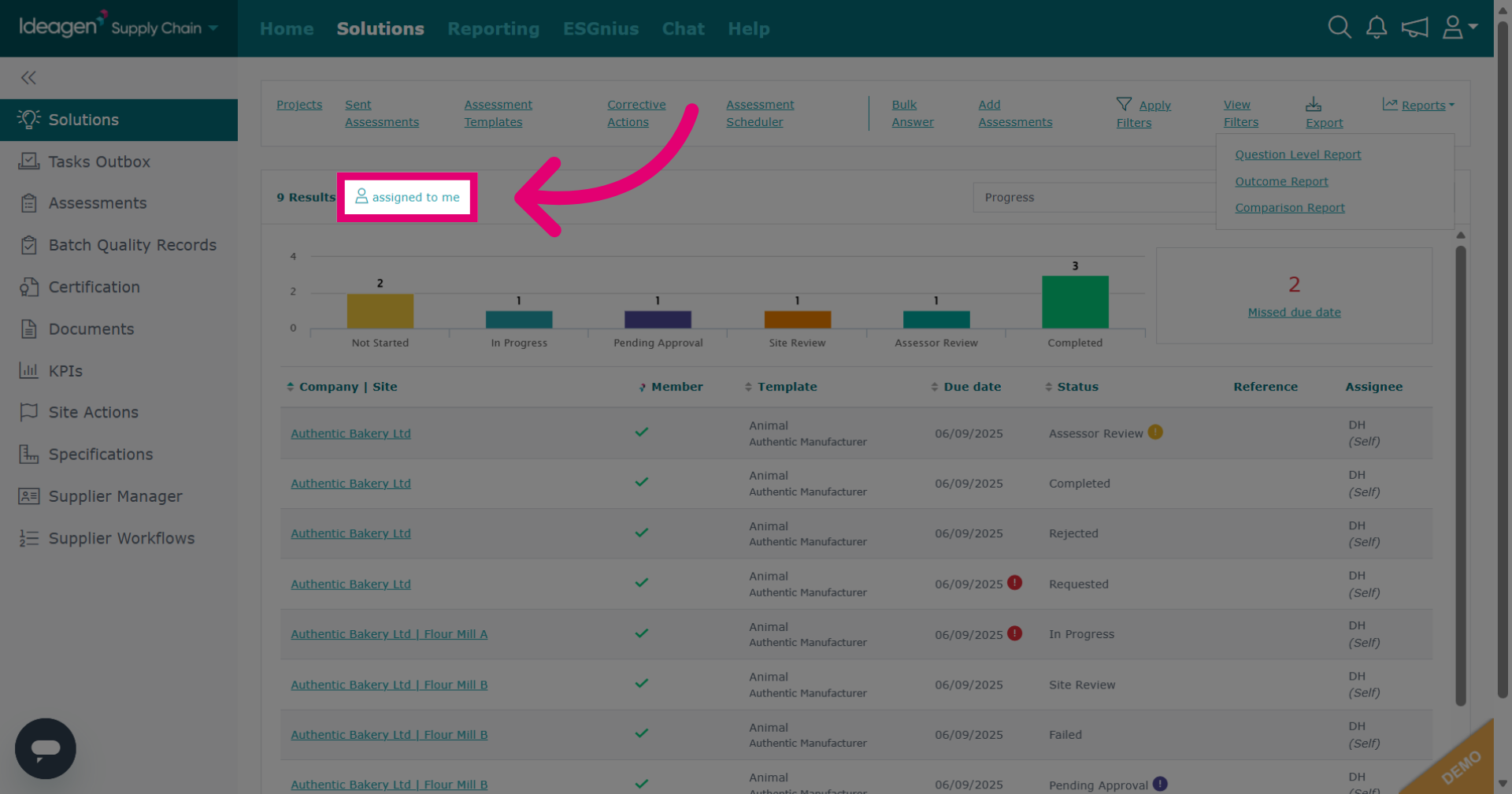
Click assigned to me to filter only items assigned to your user account.
-
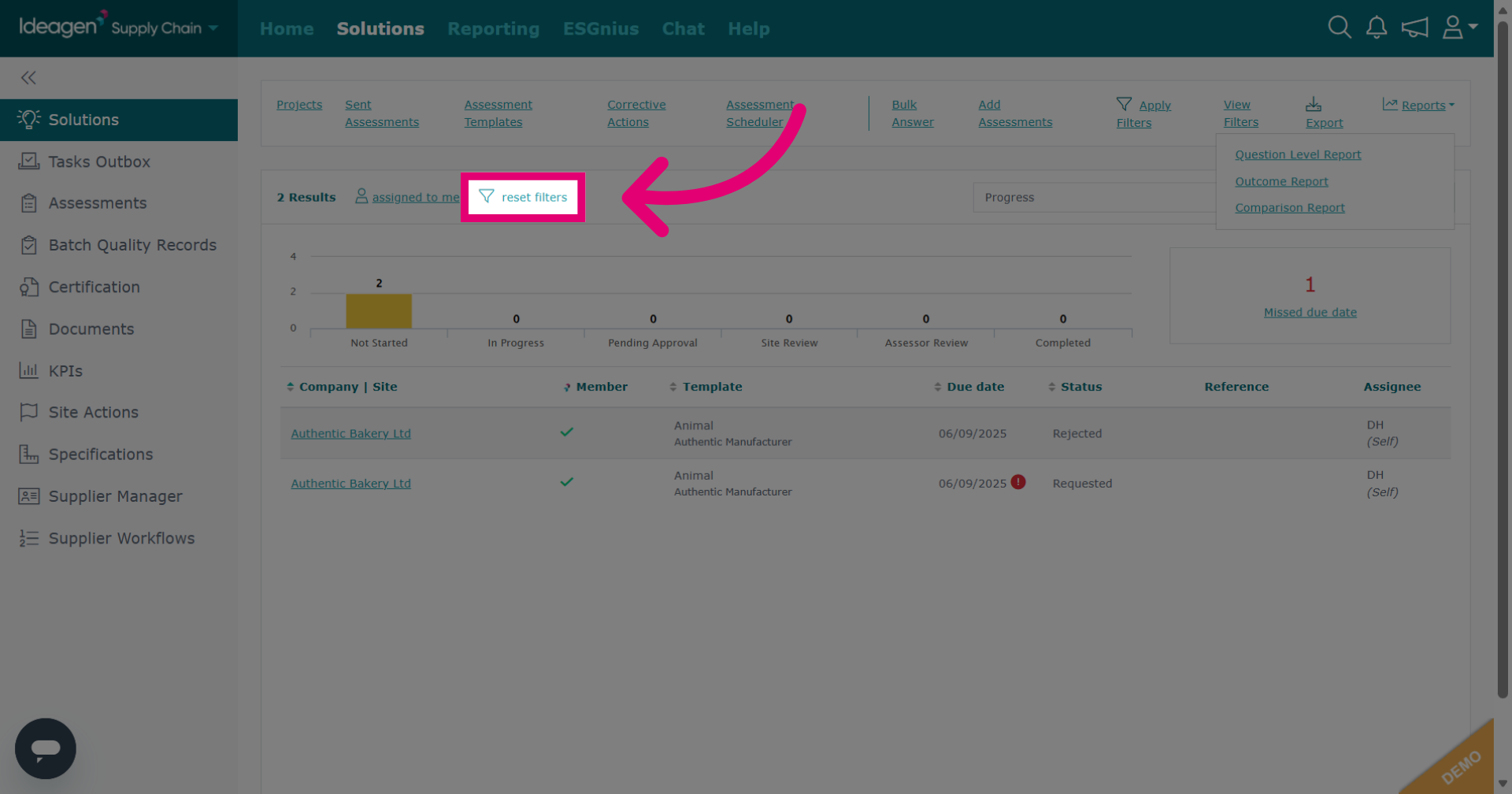
Click reset filters to clear all applied filters and return to the default project view.
-
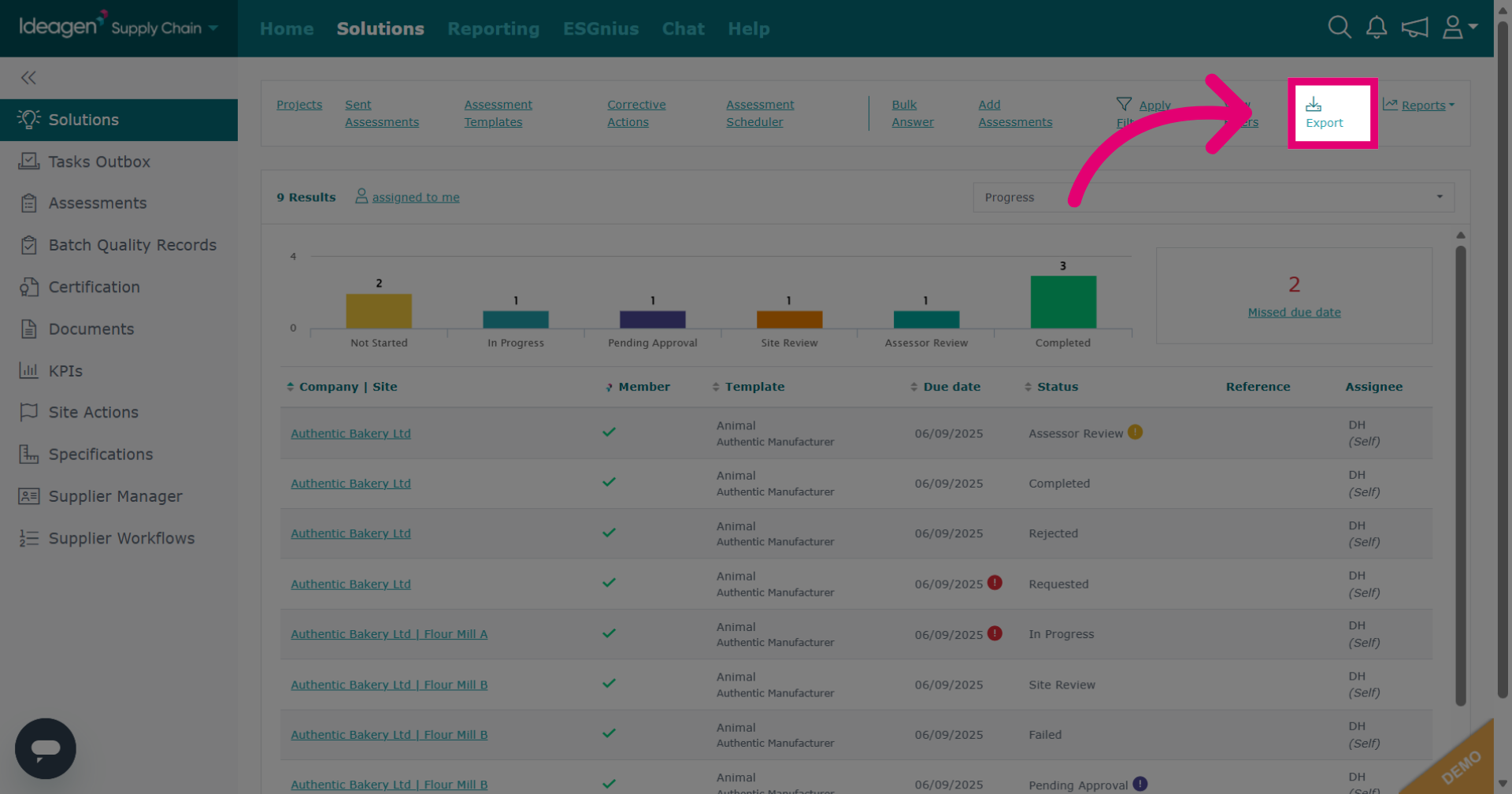
Click Export to begin exporting the data as displayed in the project overview page for all assessments within the project.
-
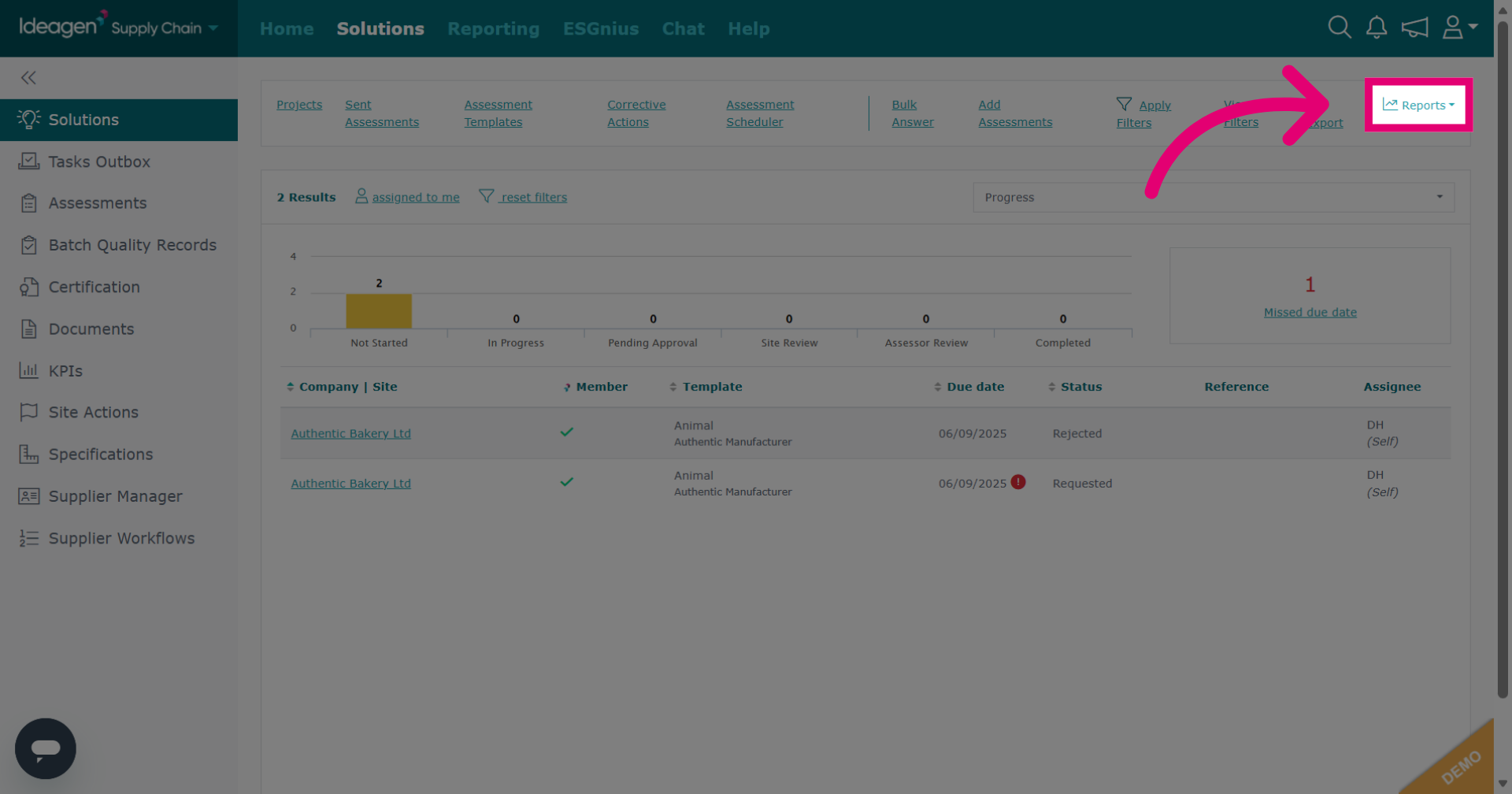
Click Reports to access the reports available for the project.
-
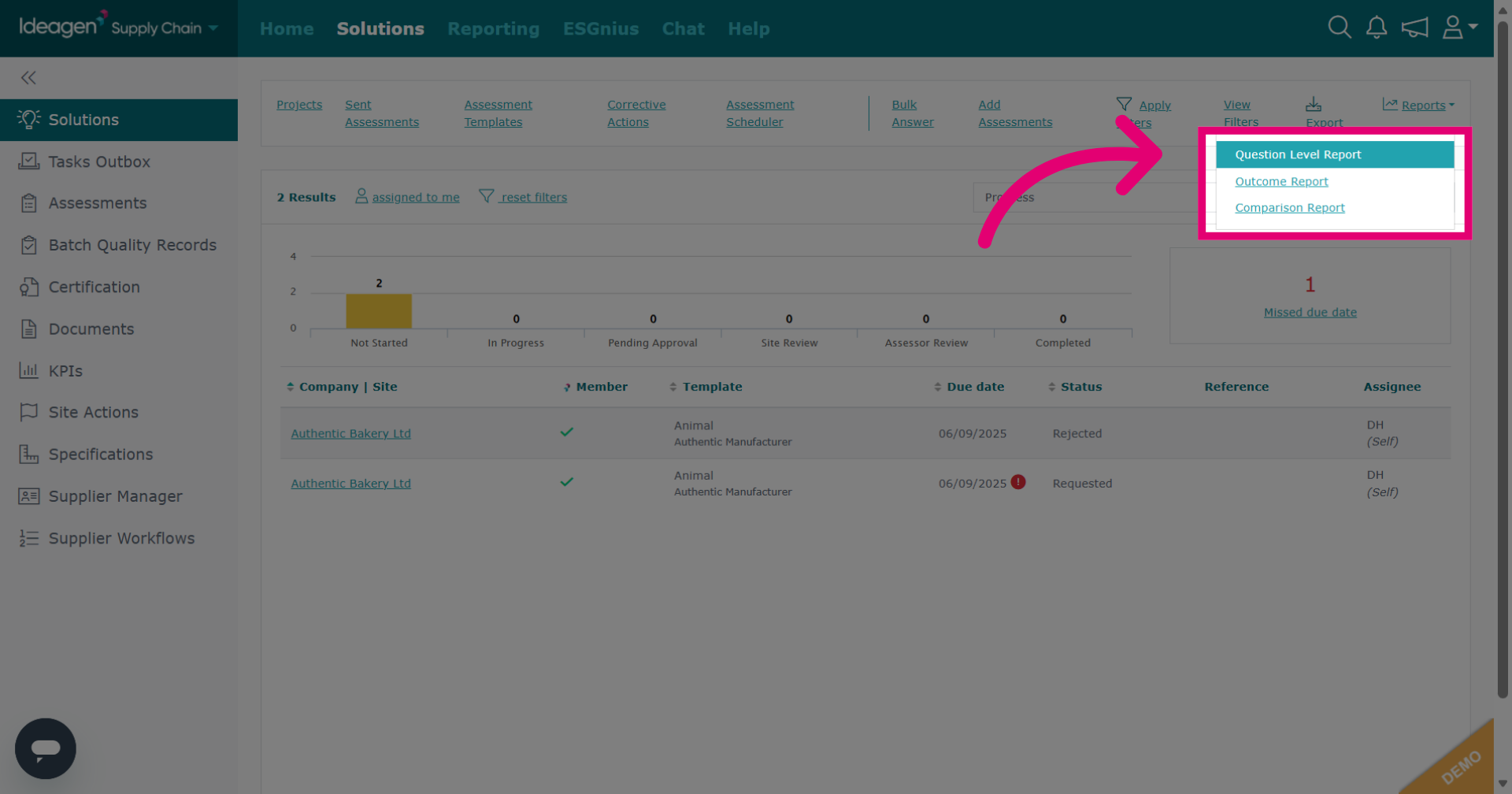
There are three available reports: question level report, outcome report and comparison report.
-
To view an individual supplier assessment within a project, click the relevant entry.
-
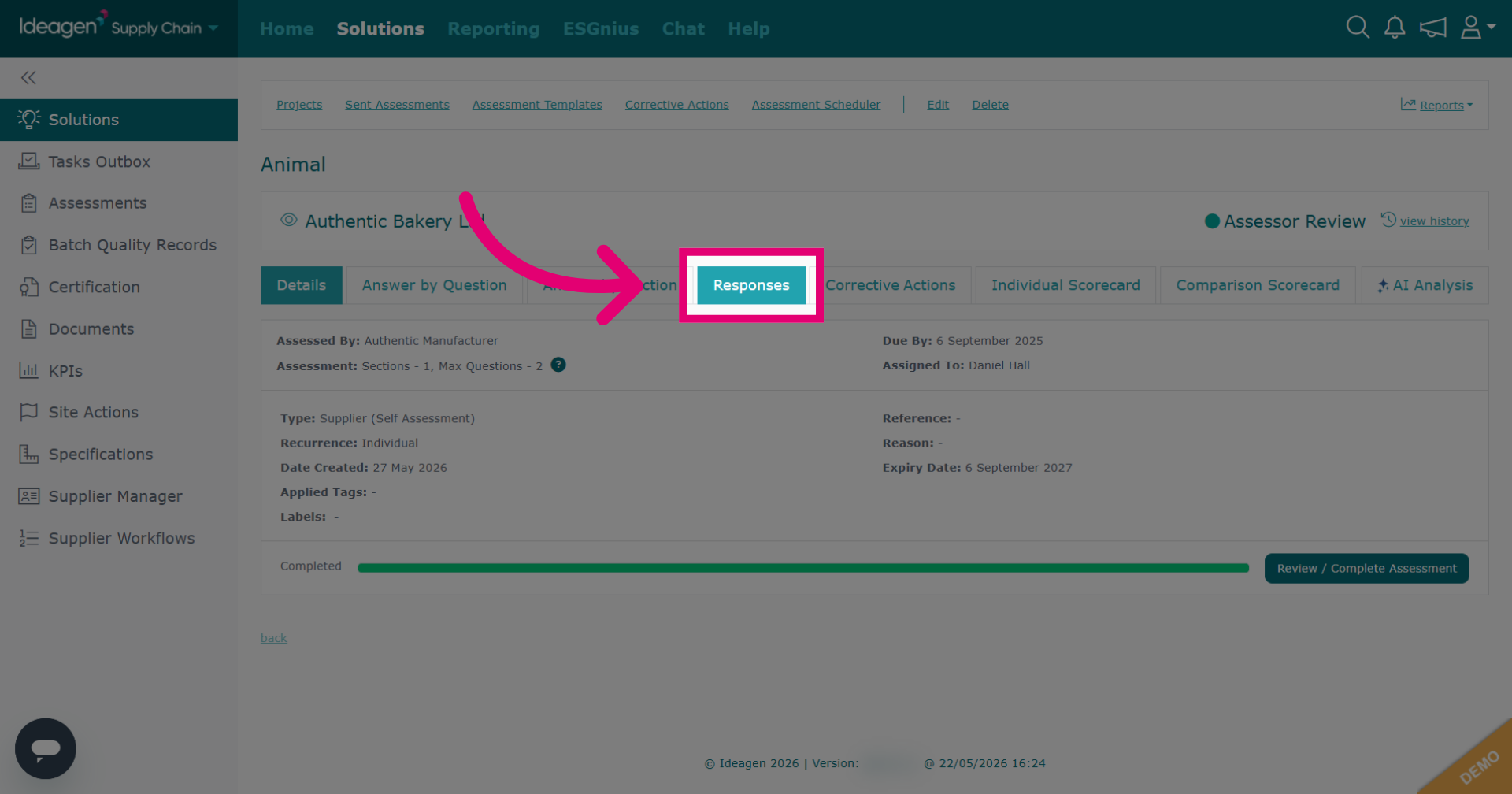
Within a individual supplier assessment, click Responses to view the answers input by the user who has filled out the assessment.