New article
Recently updated
Managing Suppliers & Mapping Progress - Supply Chain Mapping

Who is this article for?
Users who want to manage suppliers and track mapping progress.
Supply chain admin permissions are required.
This tutorial guides you through navigating the Ideagen Supply Chain platform to manage supplier information using the network and mapping progress pages.
You will learn how to view your supplier network, track mapping status, manage supplier relationships, and monitor progress across your supply chain tiers.
Managing suppliers and tracking mapping progress
-
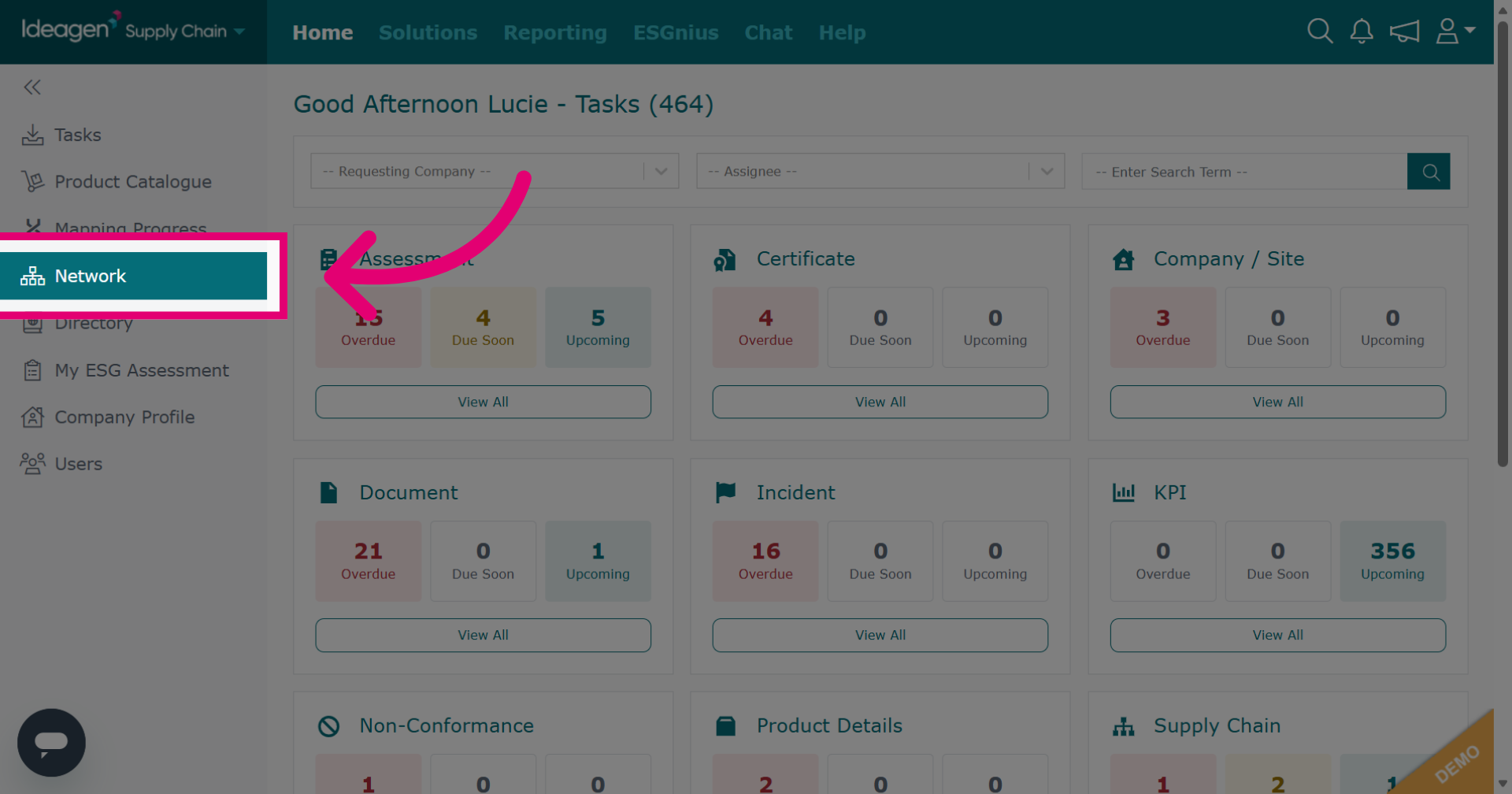
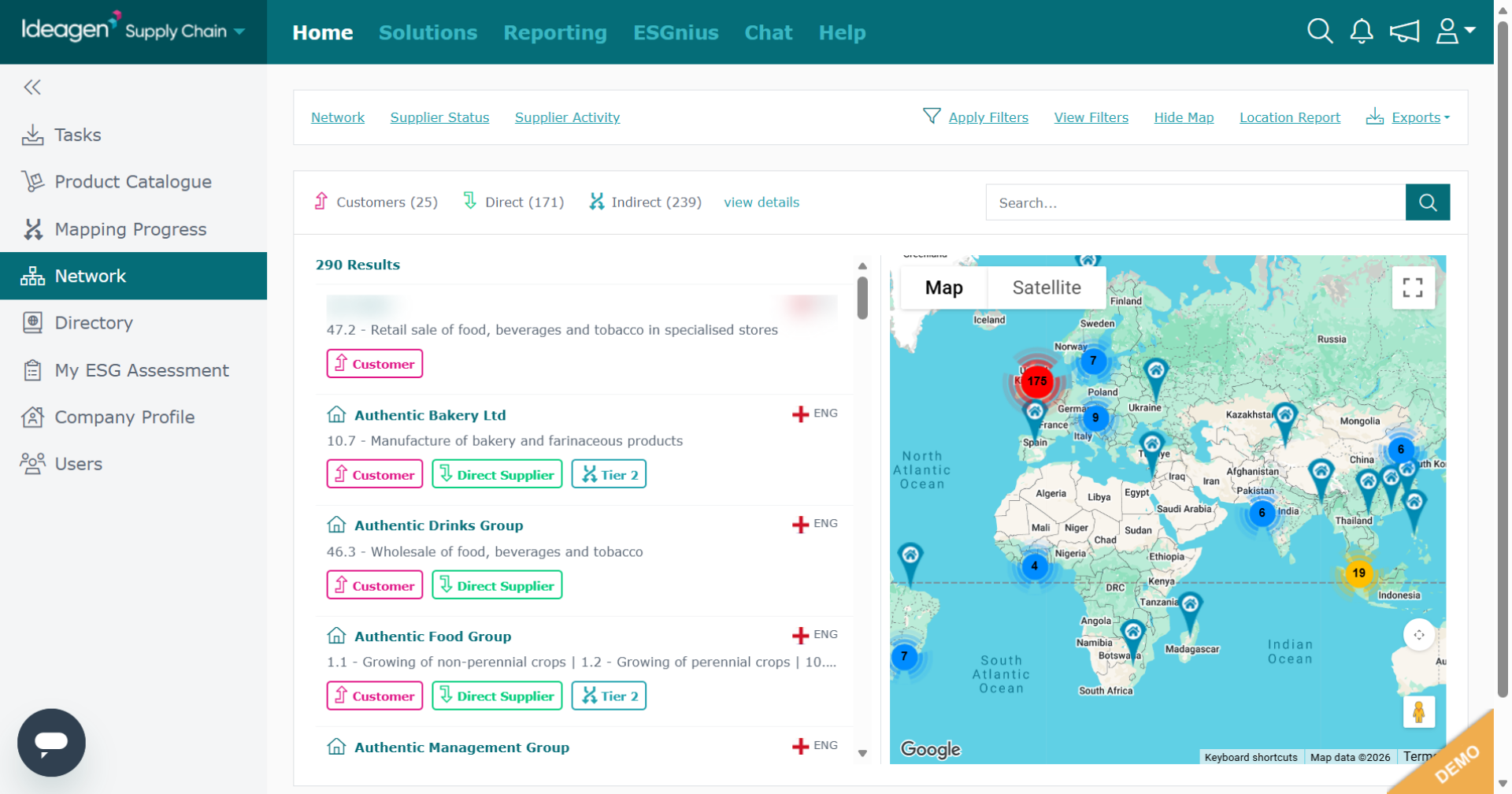
From the homepage, click Network to open the network overview. Your network displays your customers and suppliers.
-
All companies are branded with a customer or a supplier tag accordingly. Suppliers will also be branded with what tier number they are and whether they are direct or indirect.
-
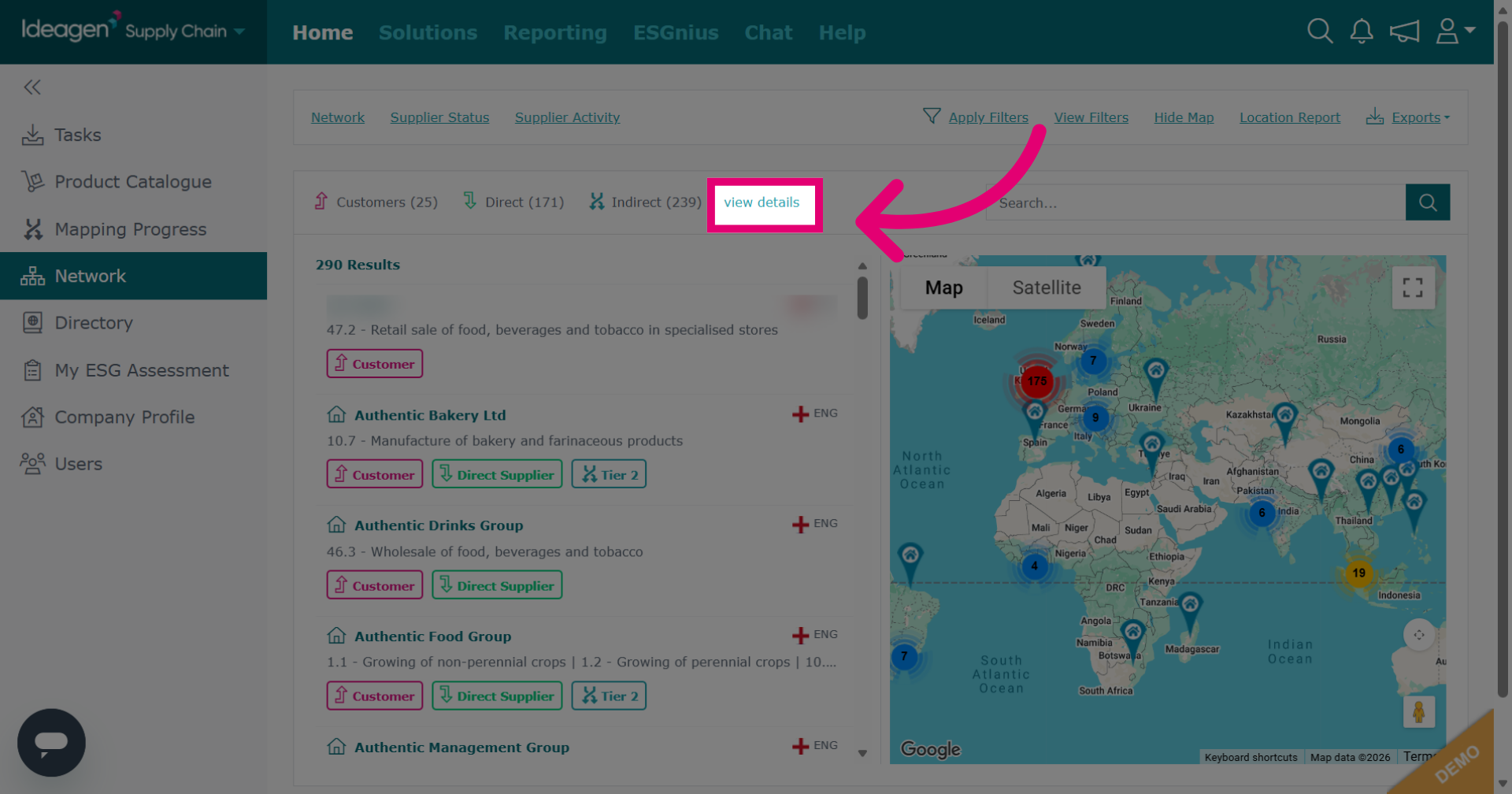
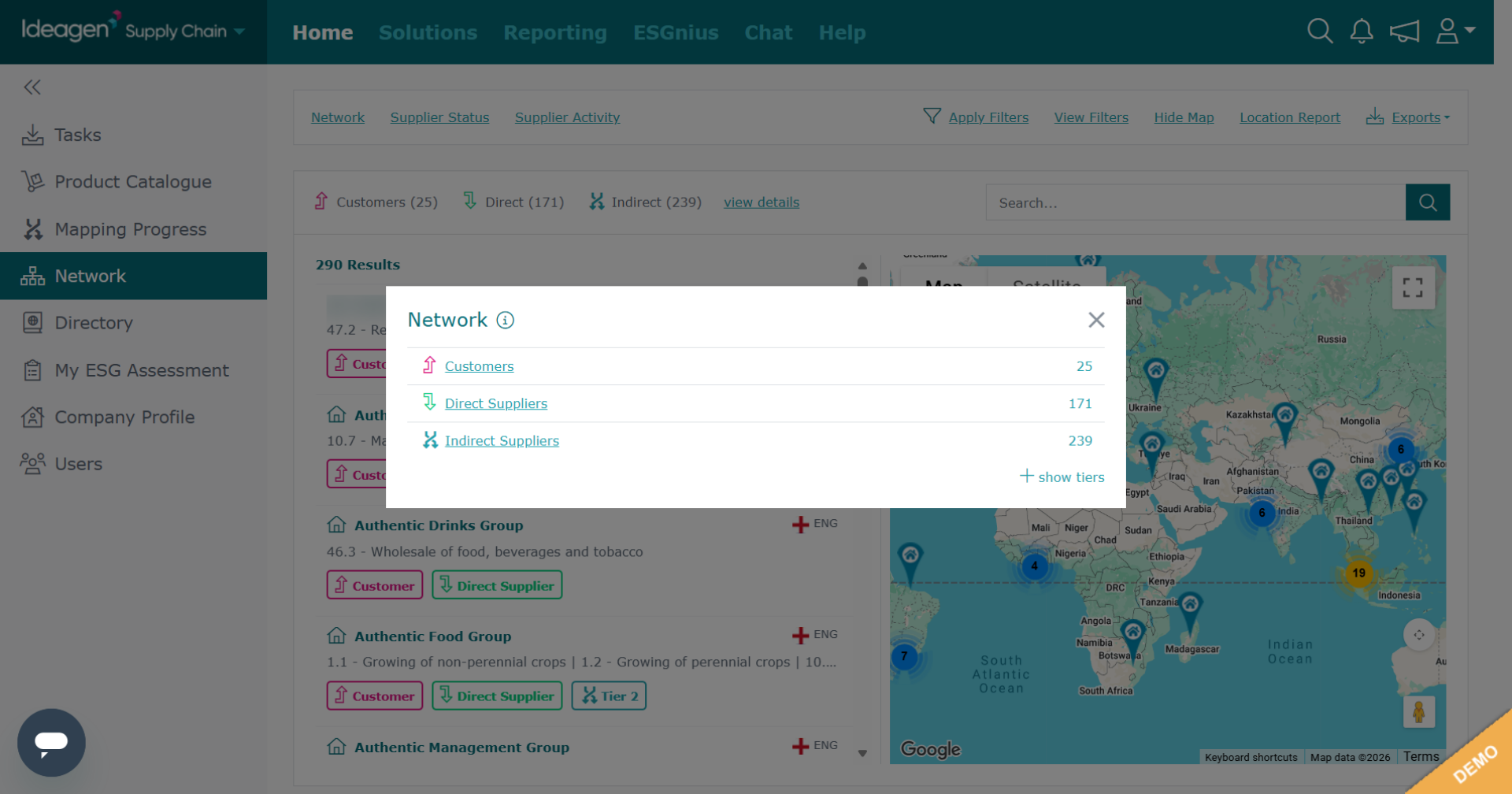
Click view details to drill into and view all customers, direct suppliers, indirect suppliers or all specific tiers respectively.
-
View the detailed breakdown of your network structure.
-
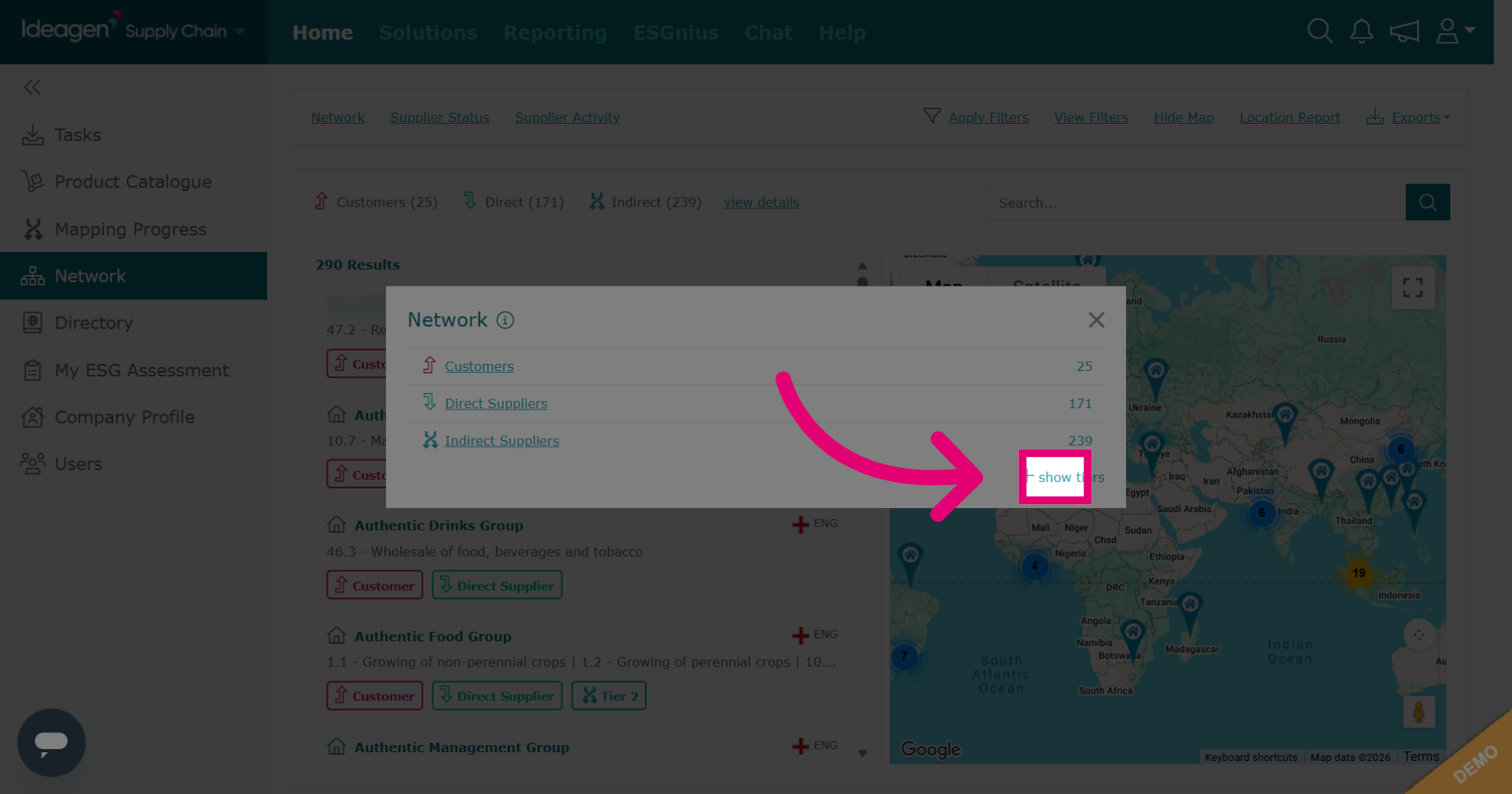
Click show to display all tiers of your supply chain.
-
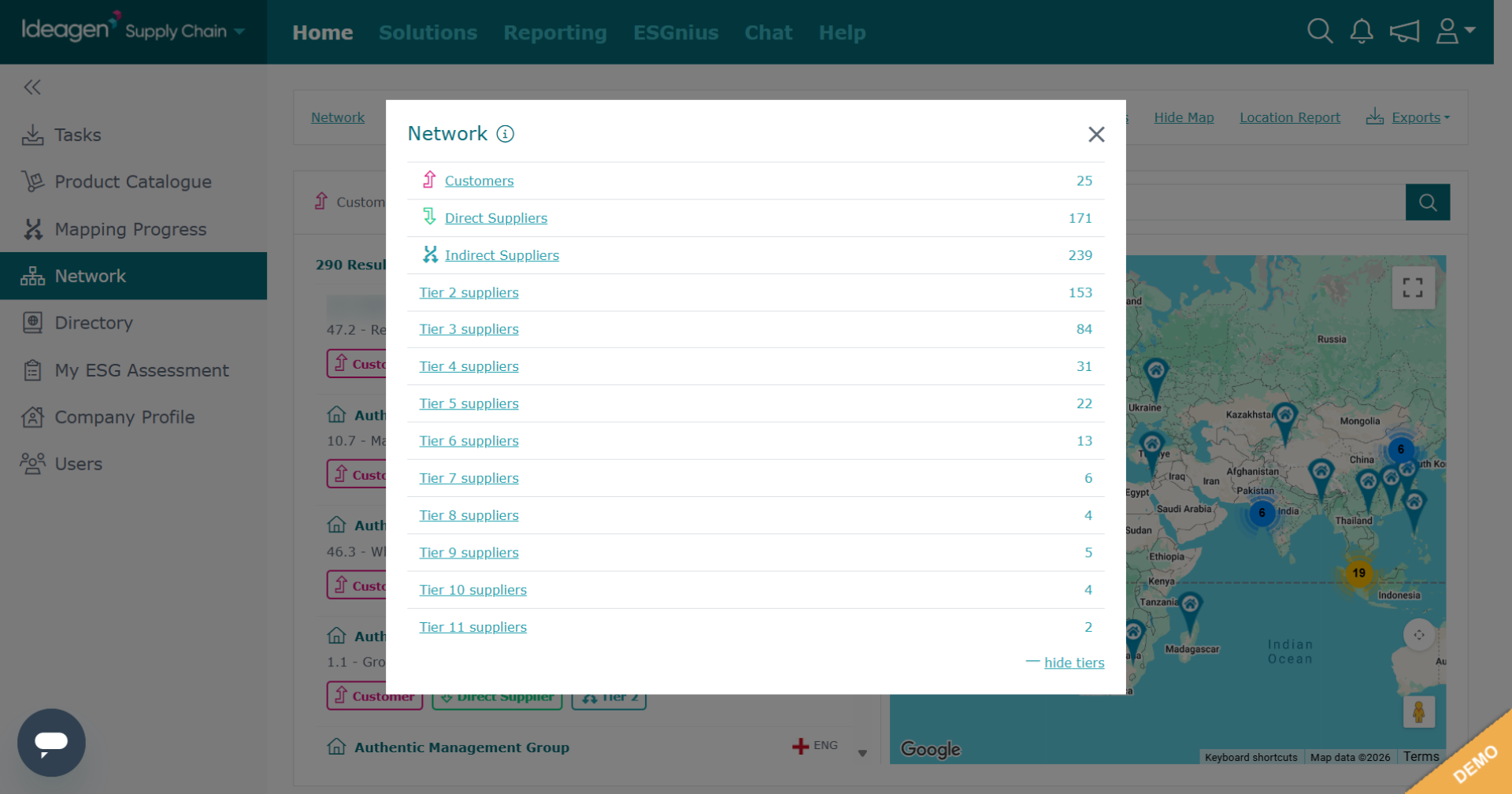
Click into the tier you wish to view to see all relevant suppliers. Alternatively, click × to close the details popup and return to the main network view.
-
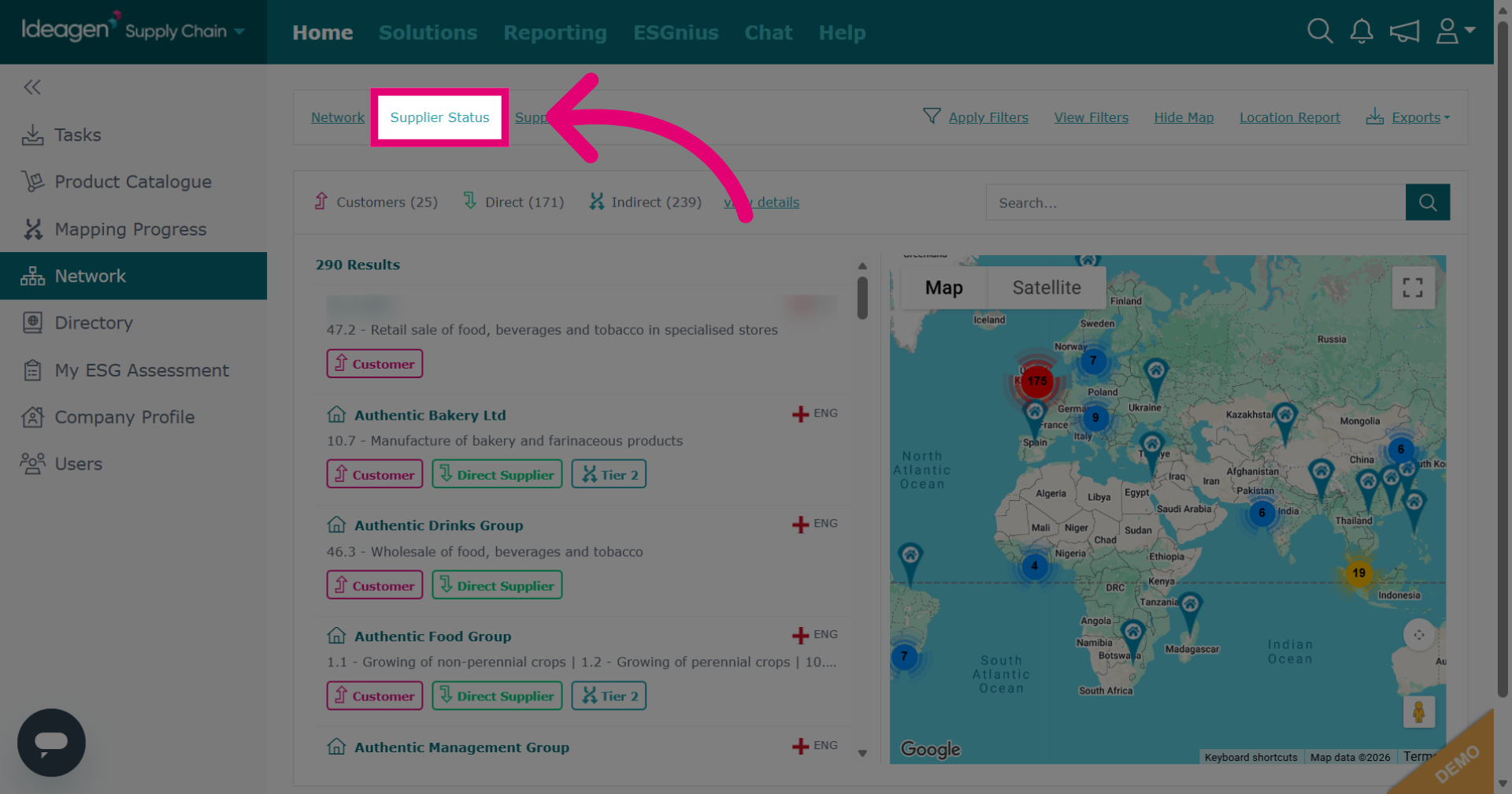
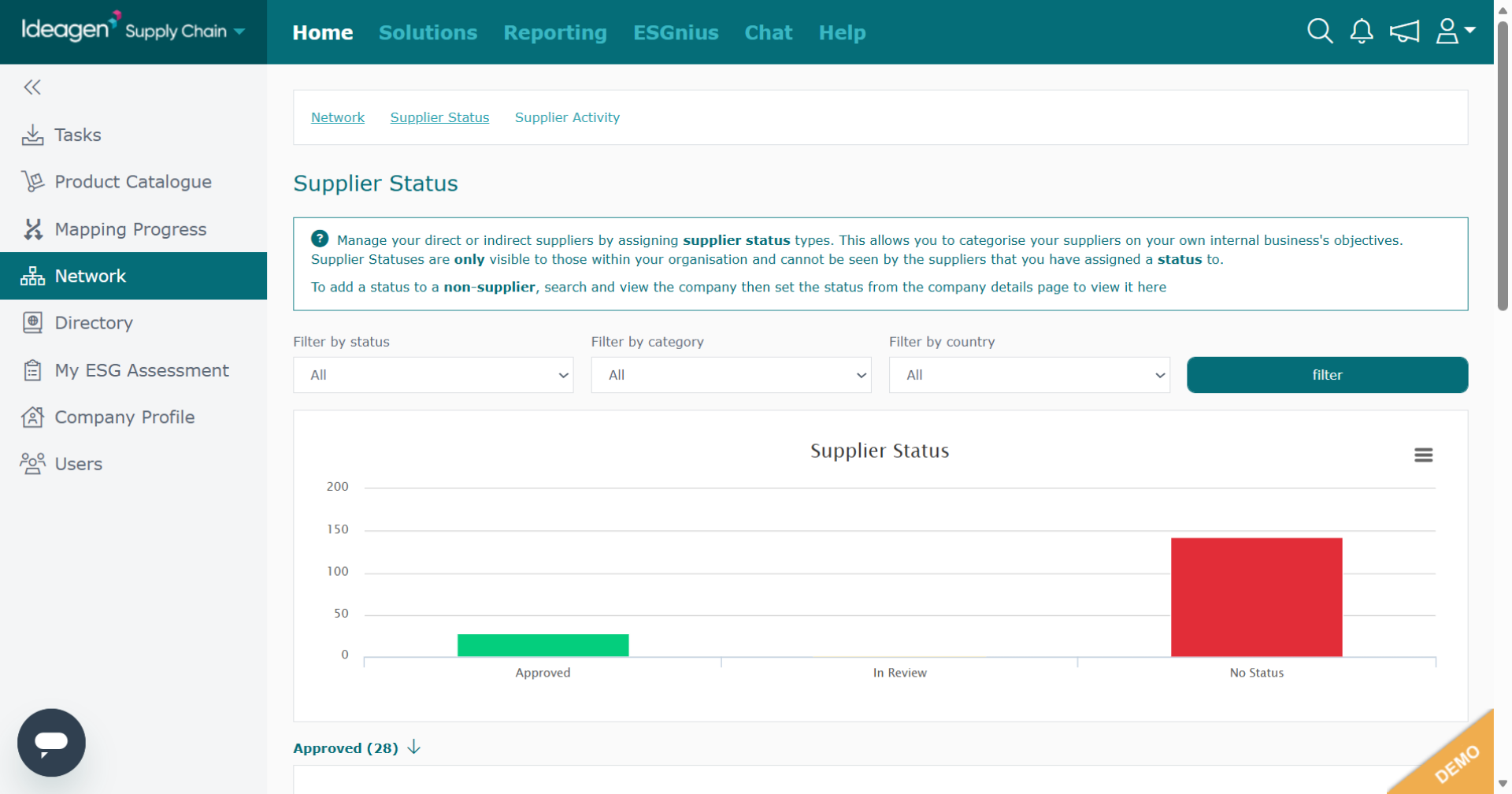
Click Supplier Status at the top of the page to view the current status of suppliers in the platform.
-
This page displays the status of your suppliers. The status is set by your company, if you are not sure how to do this please watch our video guide titled "Supplier Profile: Relationships & Contacts."
-
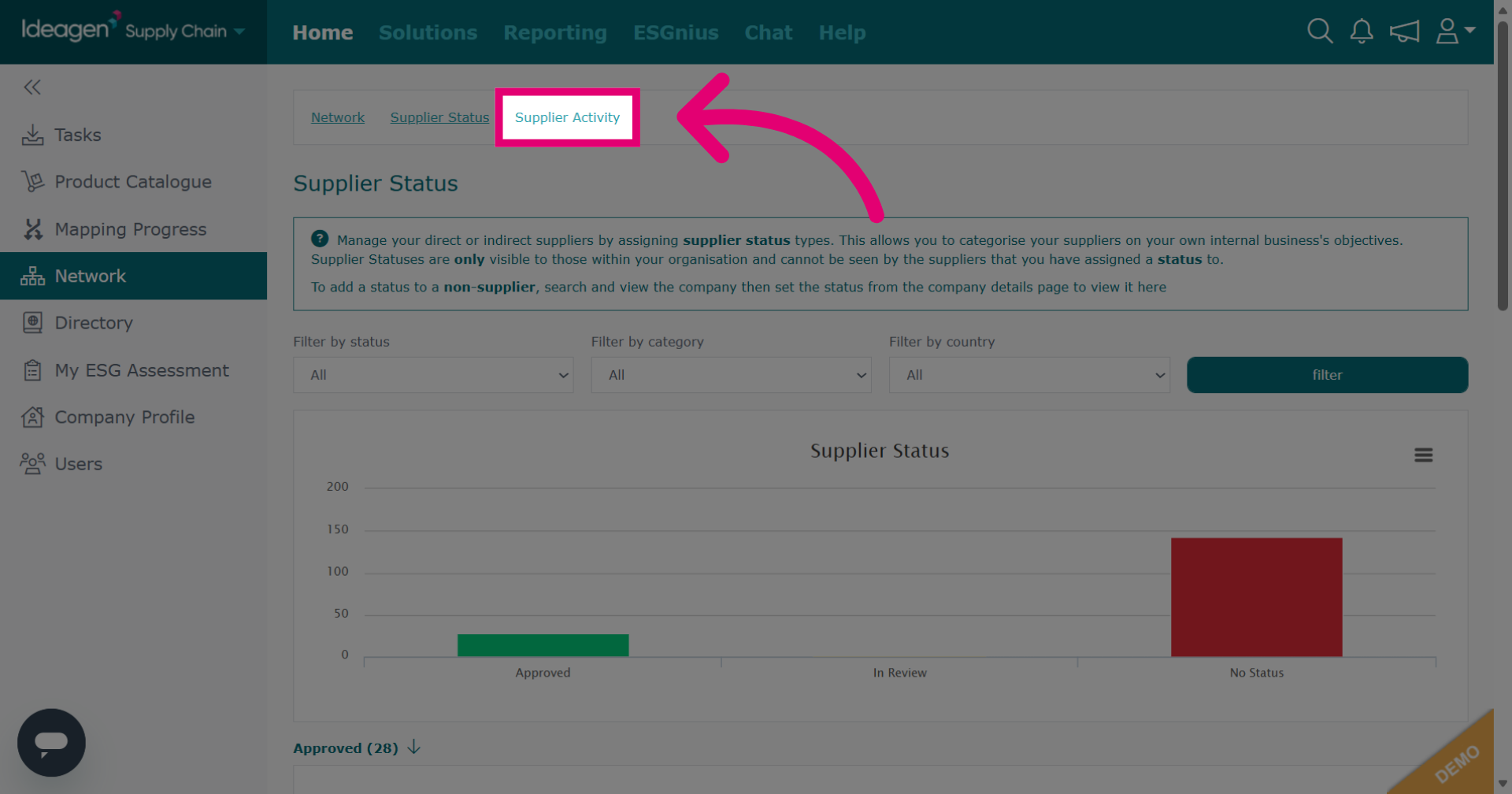
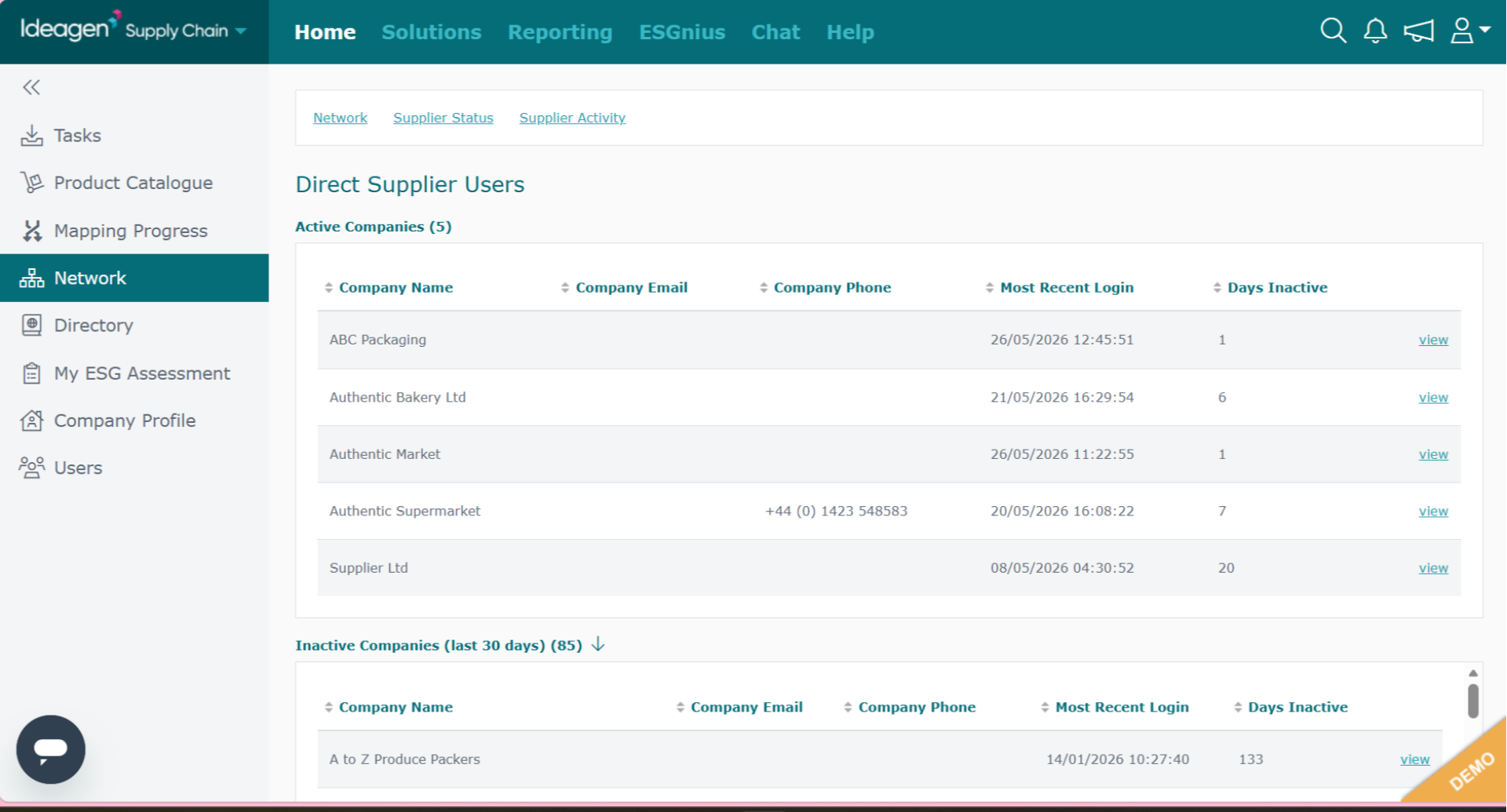
Click Supplier Activity to review recent activity related to your suppliers.
-
This page displays basic information as well as active status for your supplier.
-
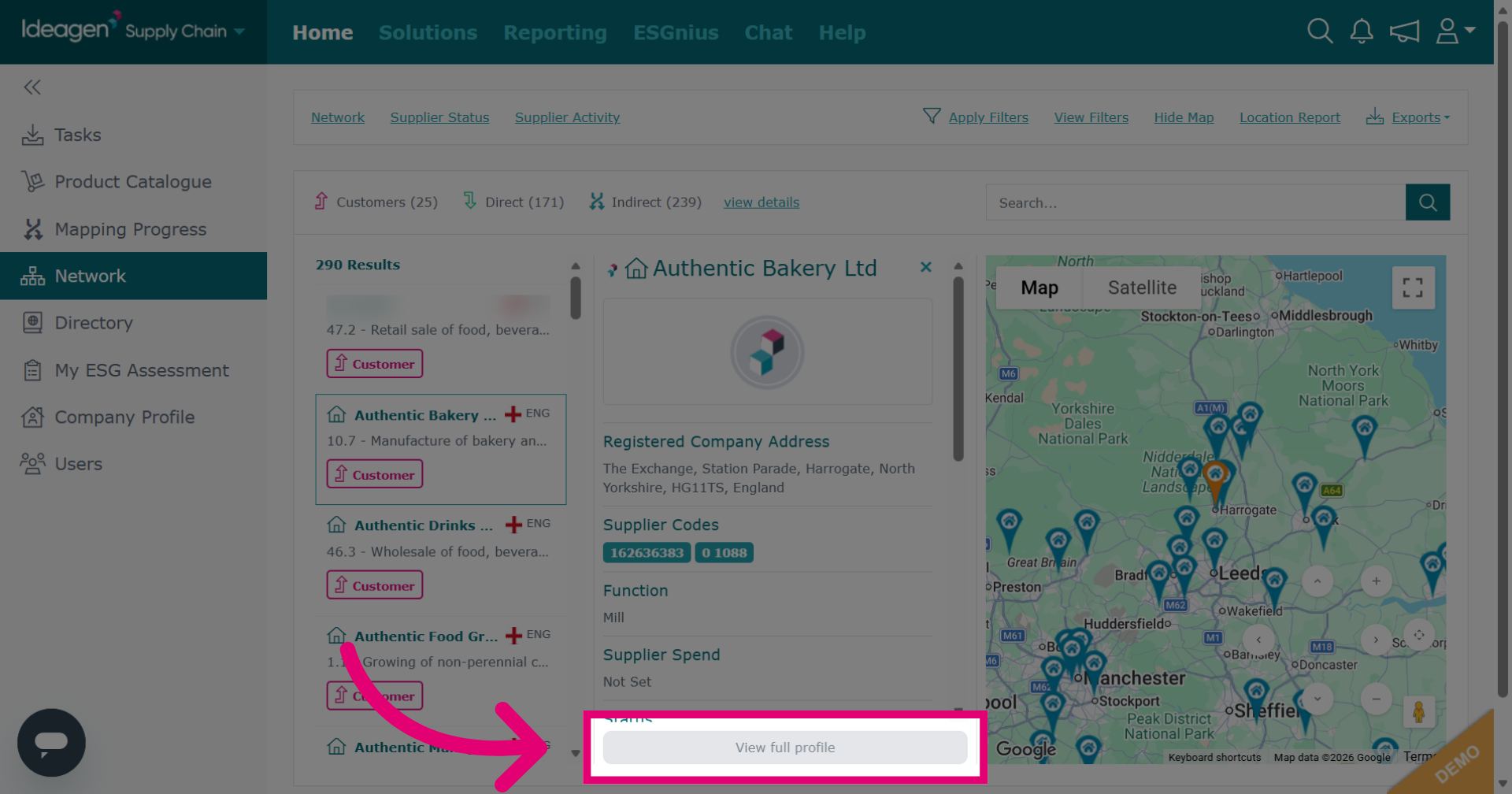
Returning to the main Network page, click View full profile to access comprehensive information about a specific supplier.
-
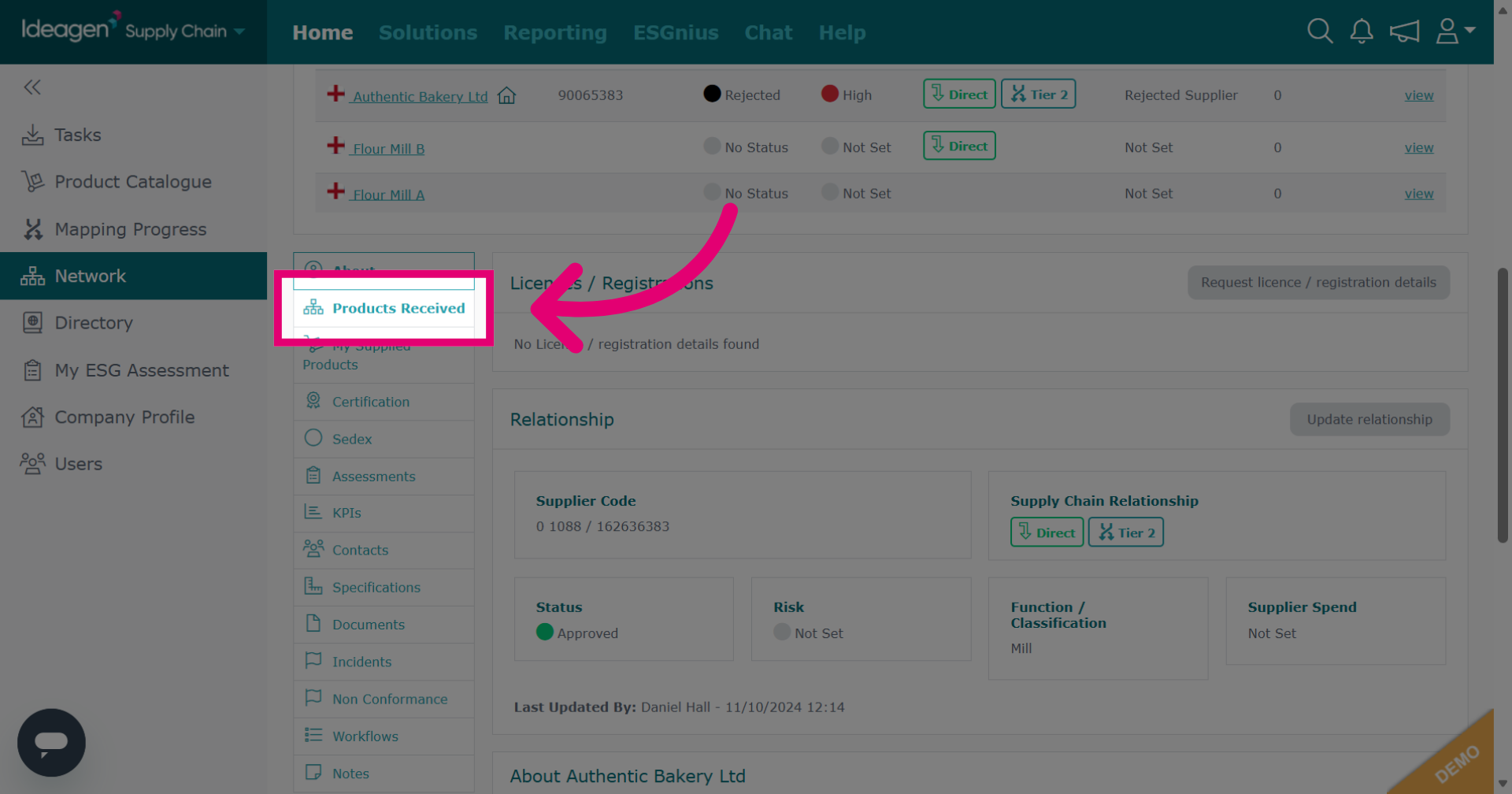
On the supplier's profile, click Products Received to see the list of products you receive from the specific supplier.
-
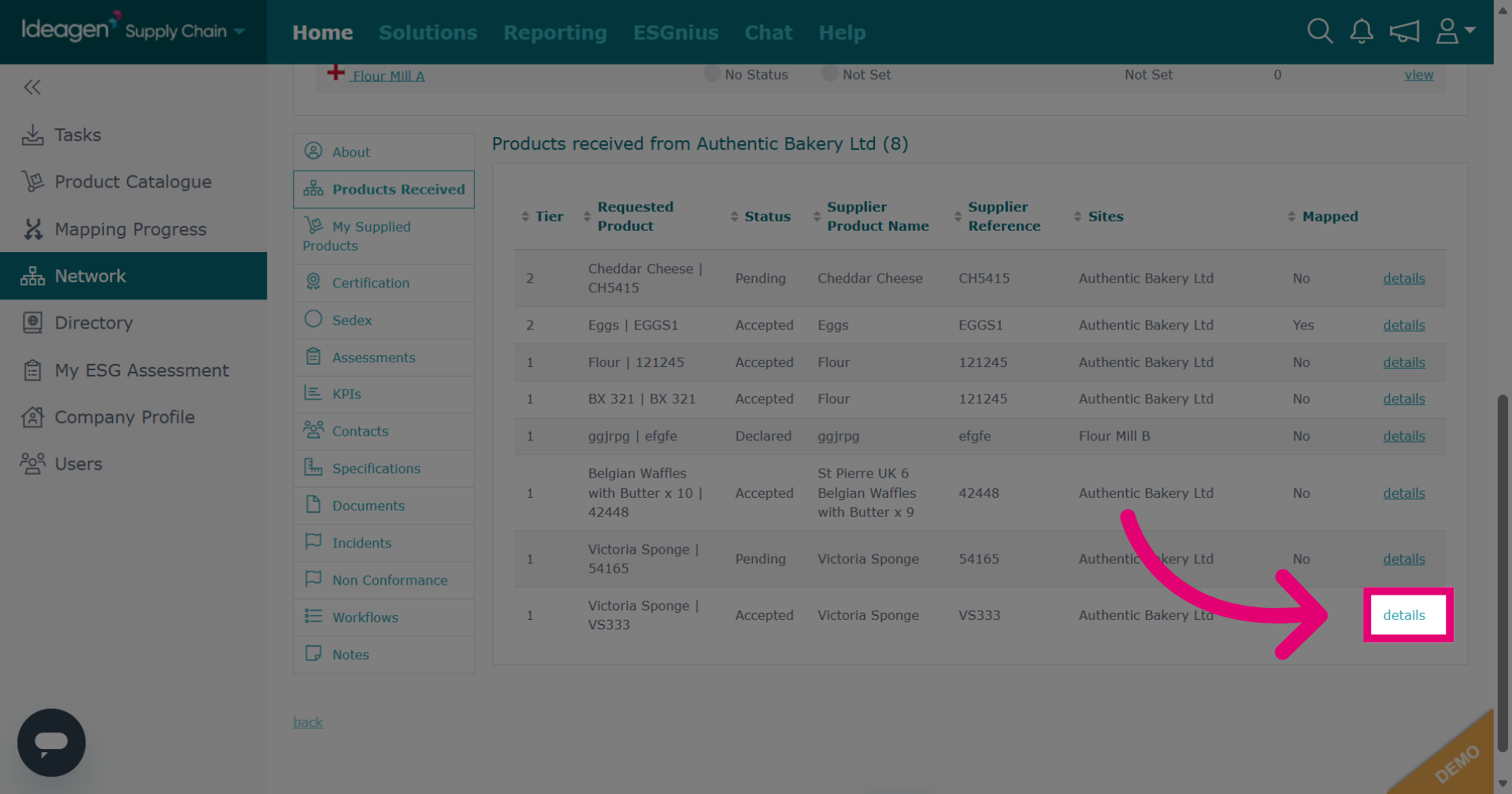
Click details to open the specific product's page. You can also view products via the product catalogue or the main search bar. If you are unsure how to do this, please watch our video guides titled "Supply Chain Mapping: Product & Catalogue Management" and secondly titled "Search Bar Functionality."
-
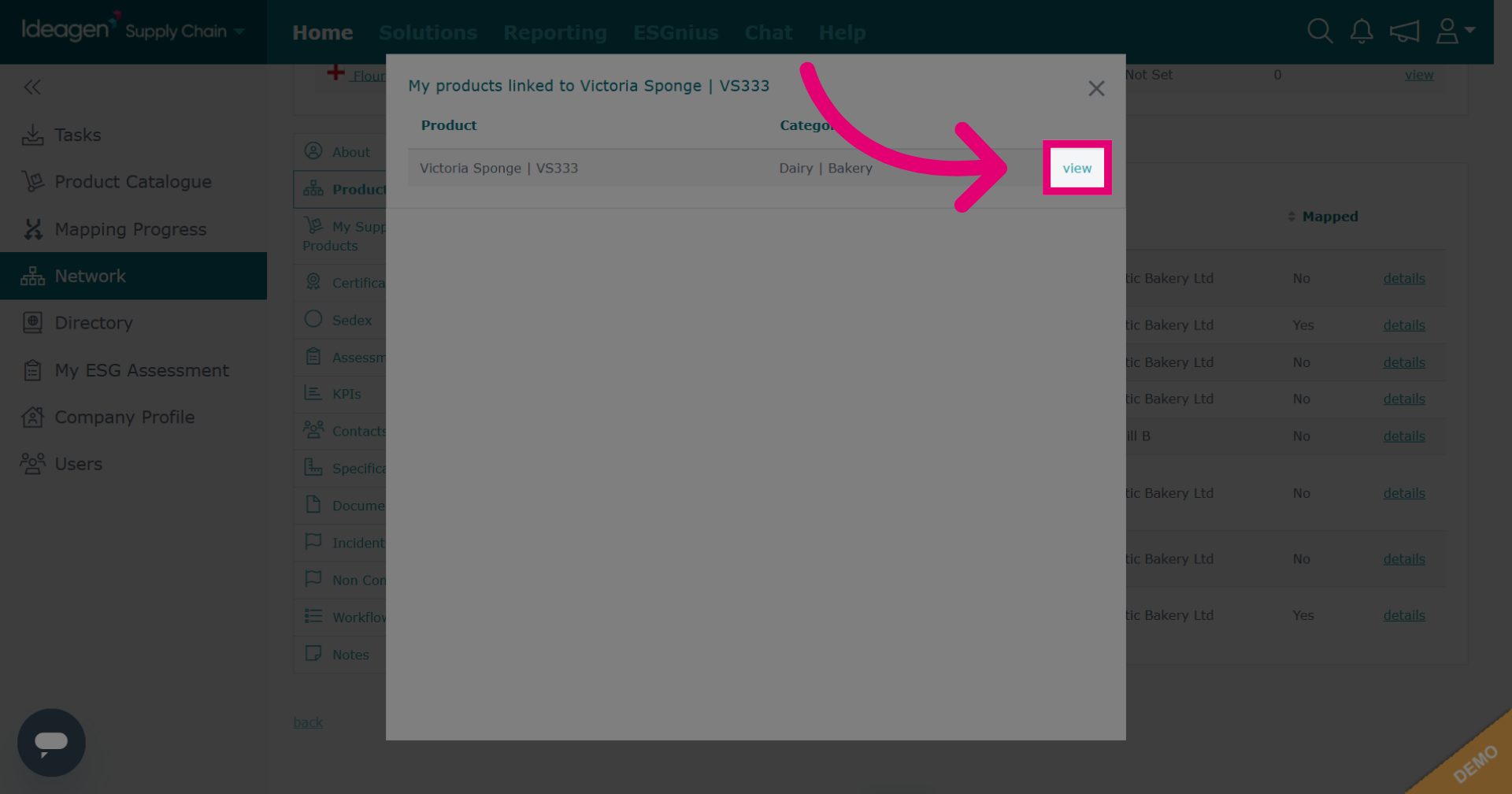
Click view to confirm opening the specific product's page.
-
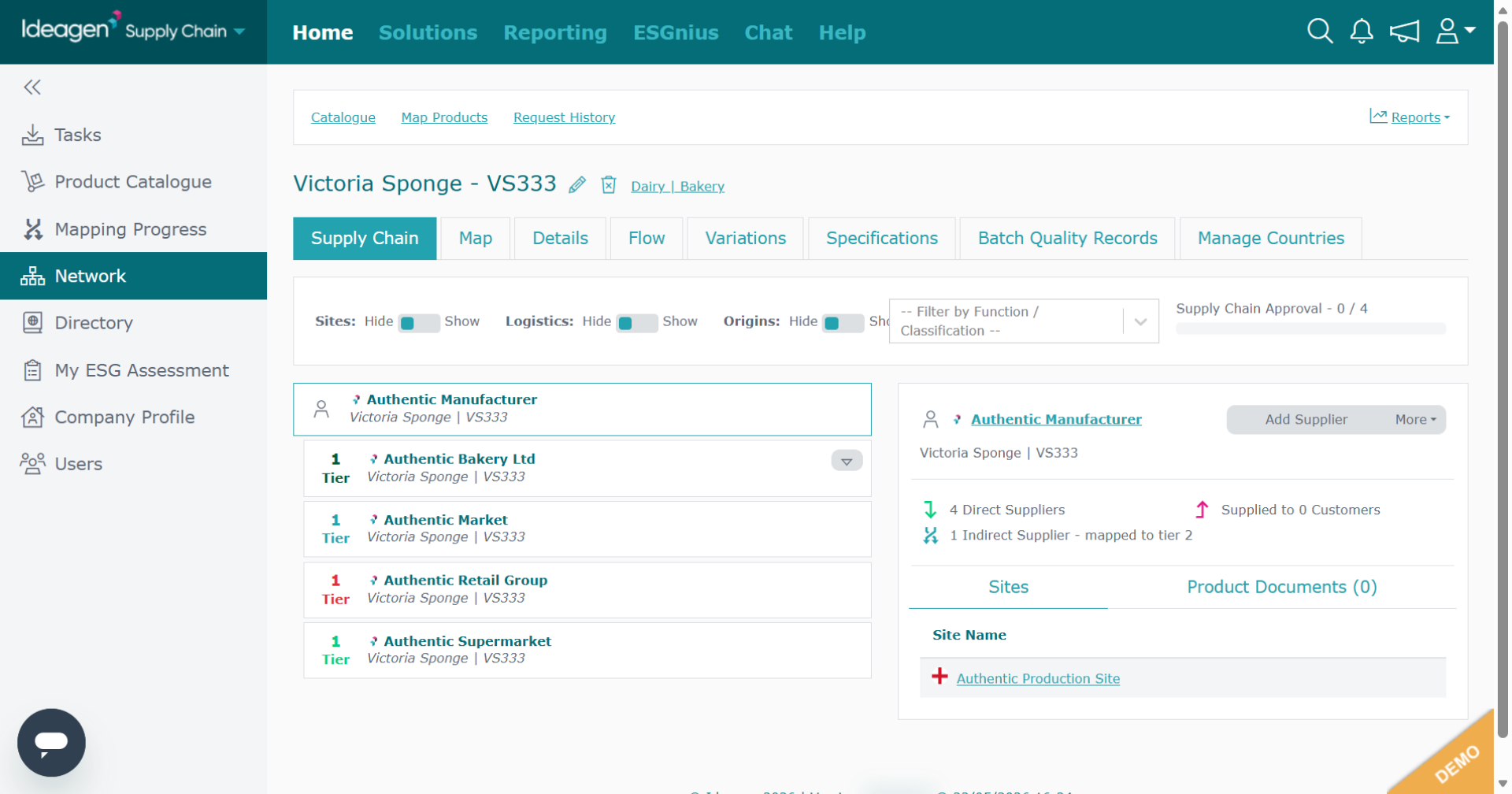
Your product's page will now display.
-
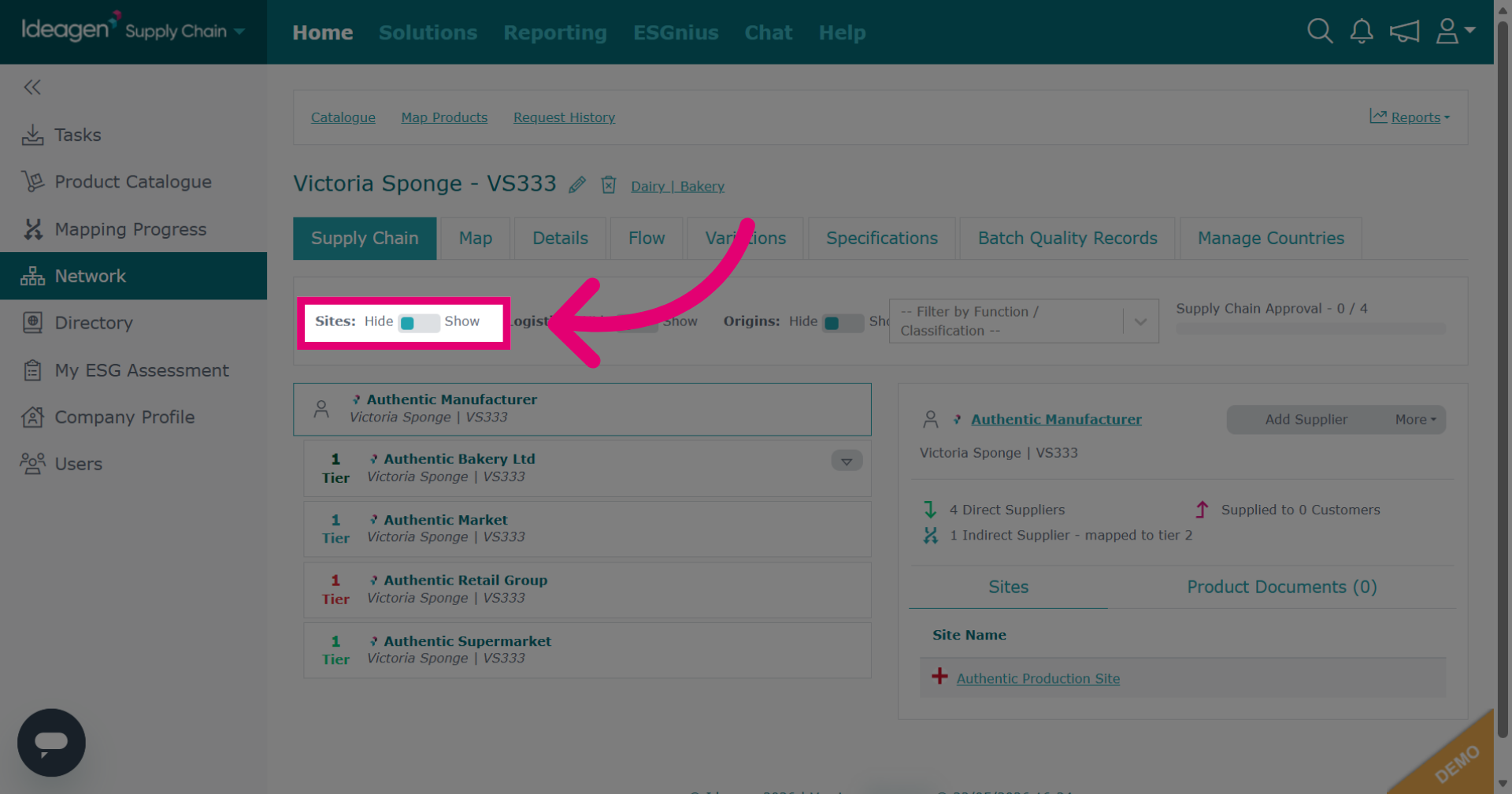
Click here to view the supply chain at site level.
-
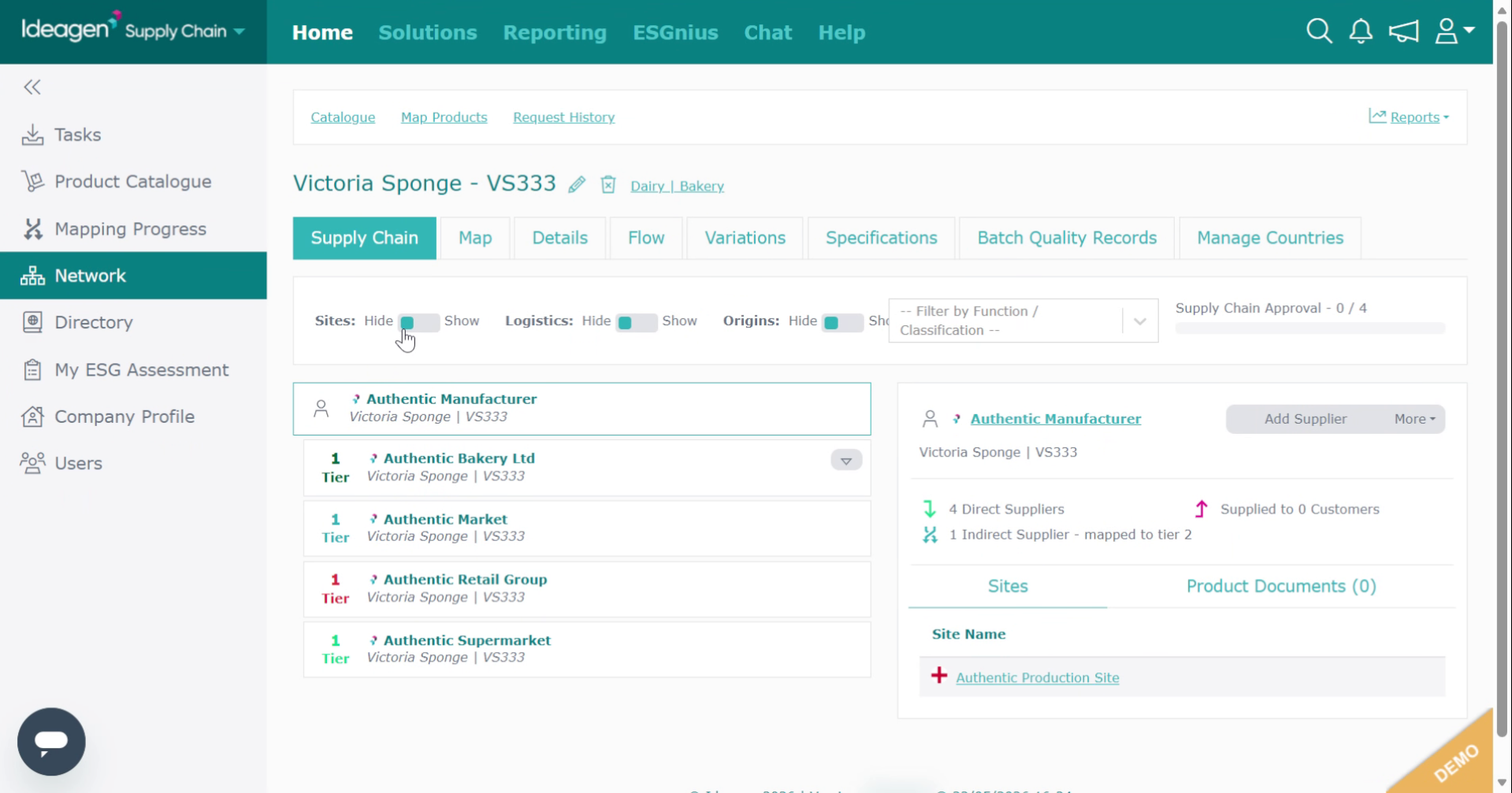
Review the site-specific supply chain information.
-
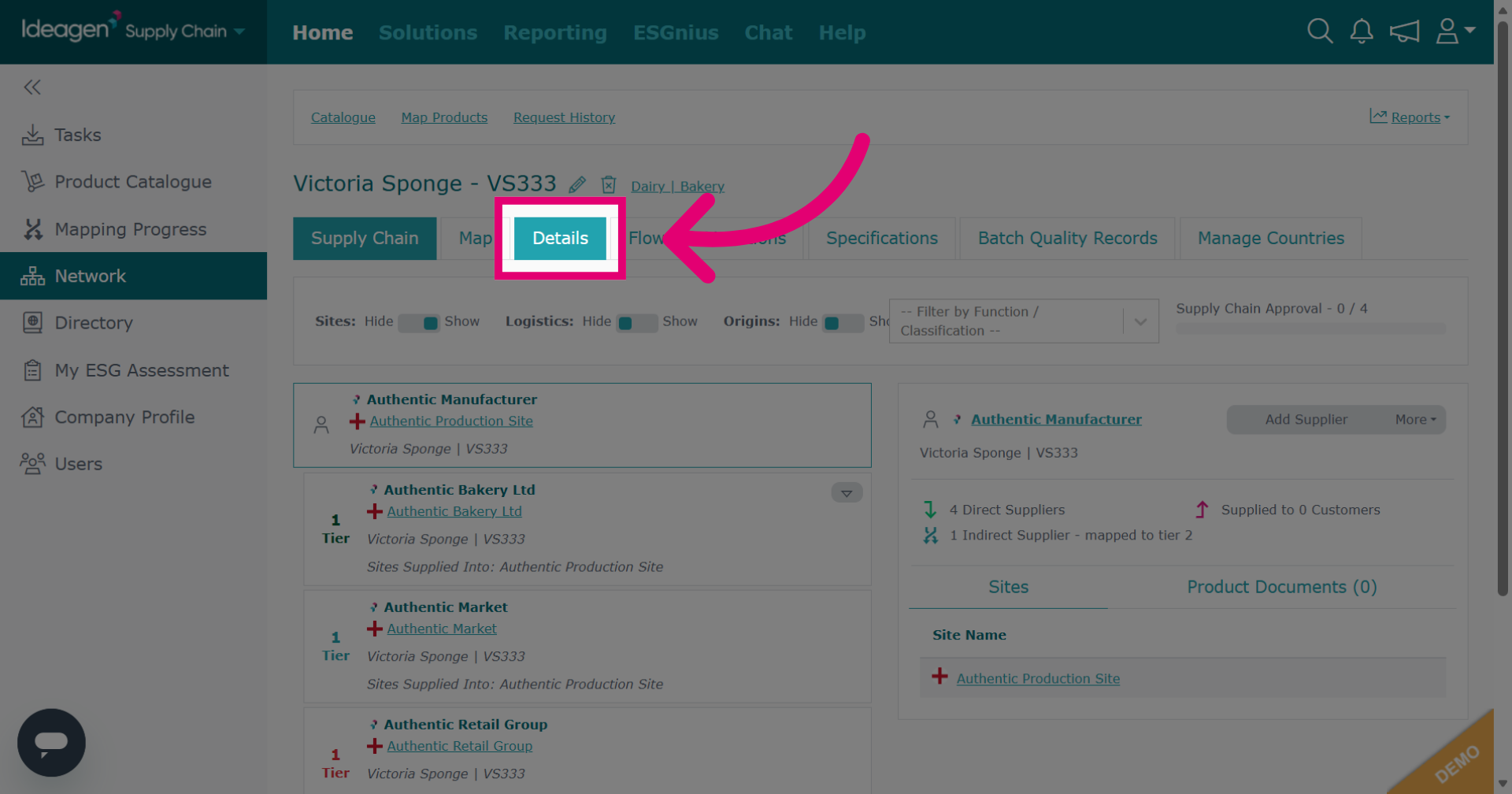
Click Details to view detailed data about the supply chain.
-
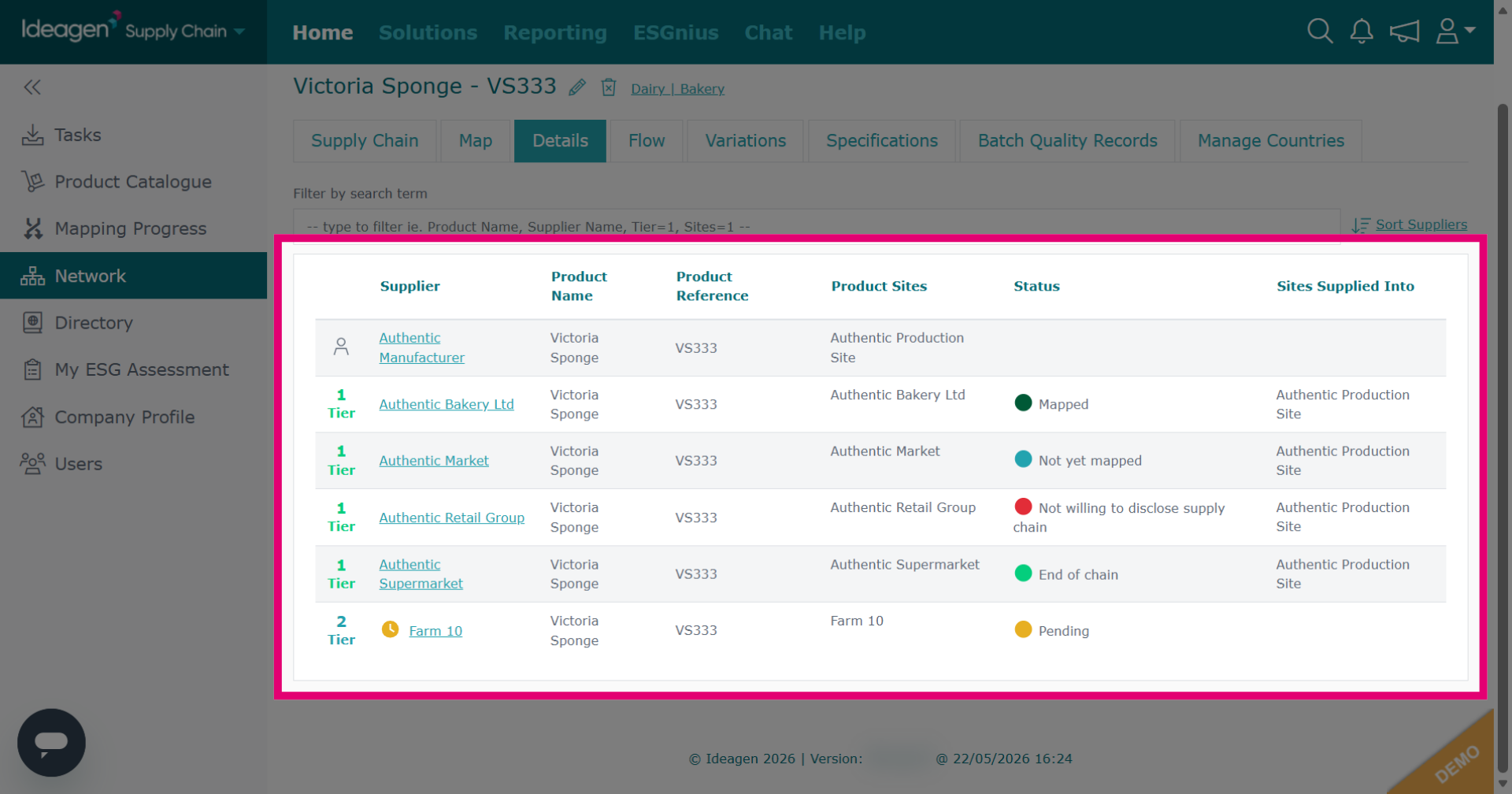
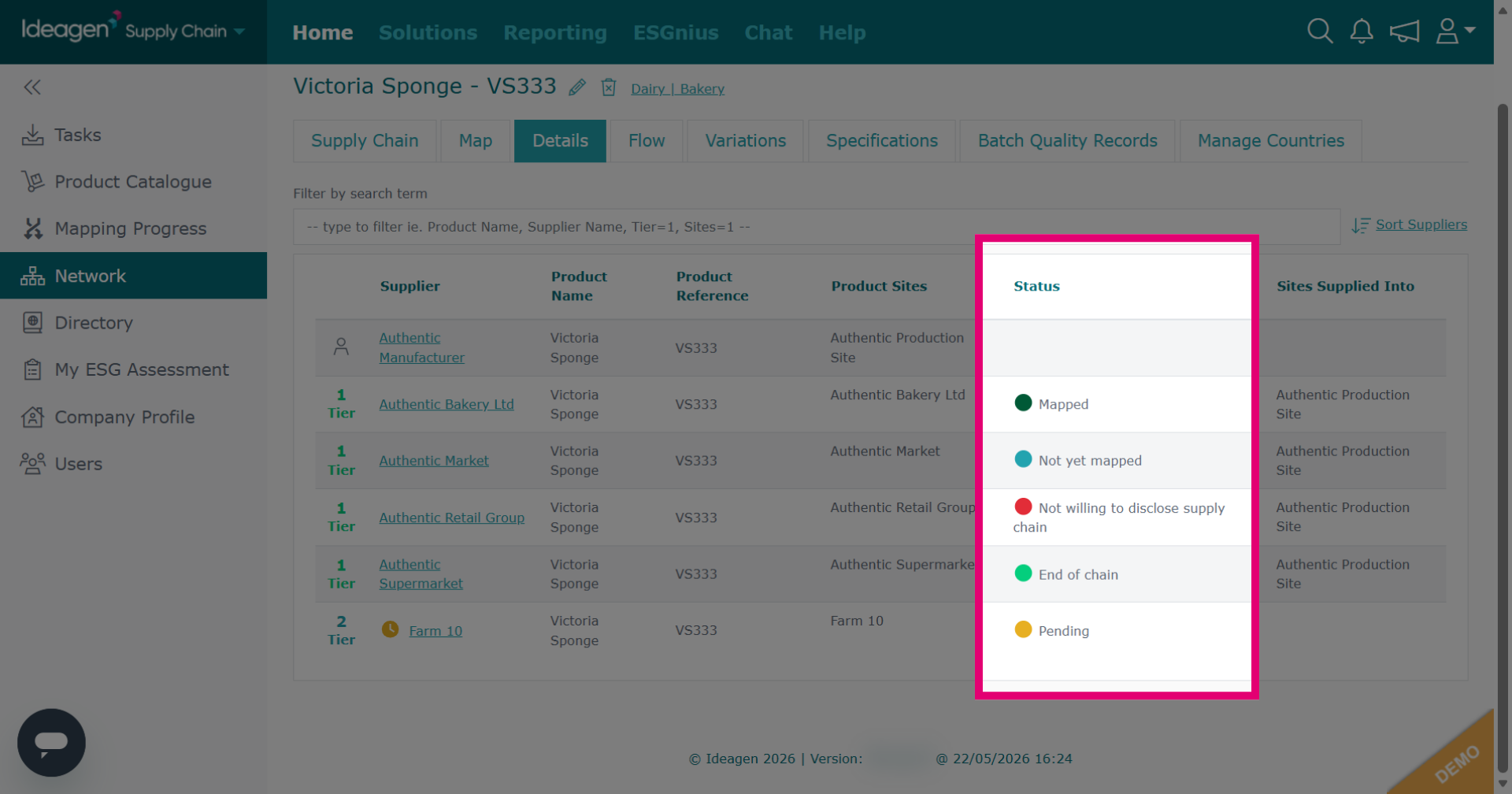
This breaks down the status of each supplier within your chain including status and tiers. You will gain visibility of your indirect tiers, tier 2 onwards, when your suppliers accept mapping requests and input their suppliers to build the chain.
-
The status of suppliers within a chain are all displayed here. Mapped means that the supplier has accepted and mapped your request. Not yet mapped means the supplier has accepted but not yet mapped your request. Not willing to disclose supply chain means that the supplier has accepted your product request but rejected the mapping request. End of chain means that the supplier has accepted the request, but has denied mapping due to them being the end of the chain. Pending means that the supplier has not yet accepted or mapped your request. Rejected requests will not appear in the supply chain, once a supplier rejects a request they are automatically removed from the chain. You can view rejected requests within your notifications area or within the mapping progress area.
-
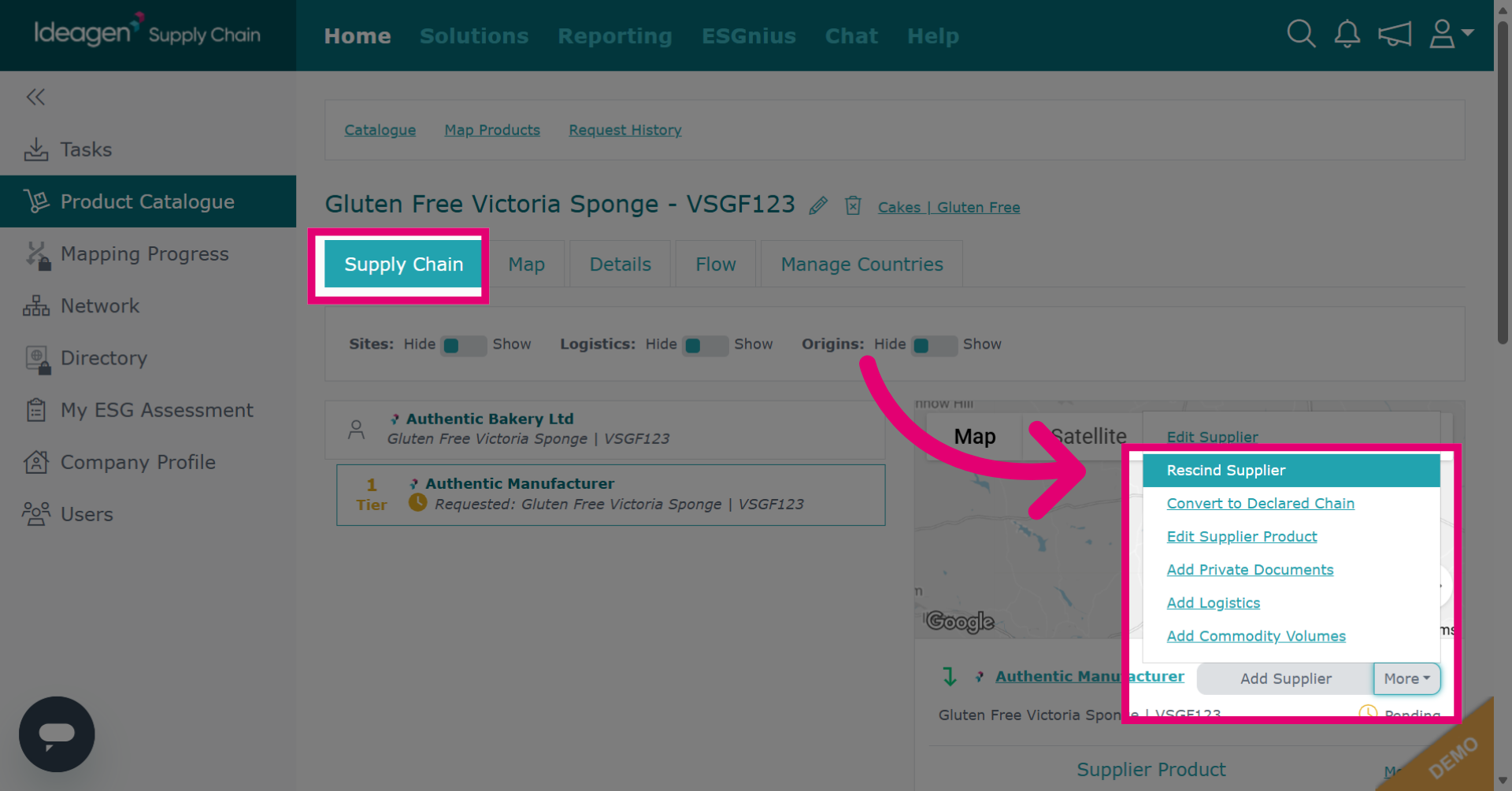
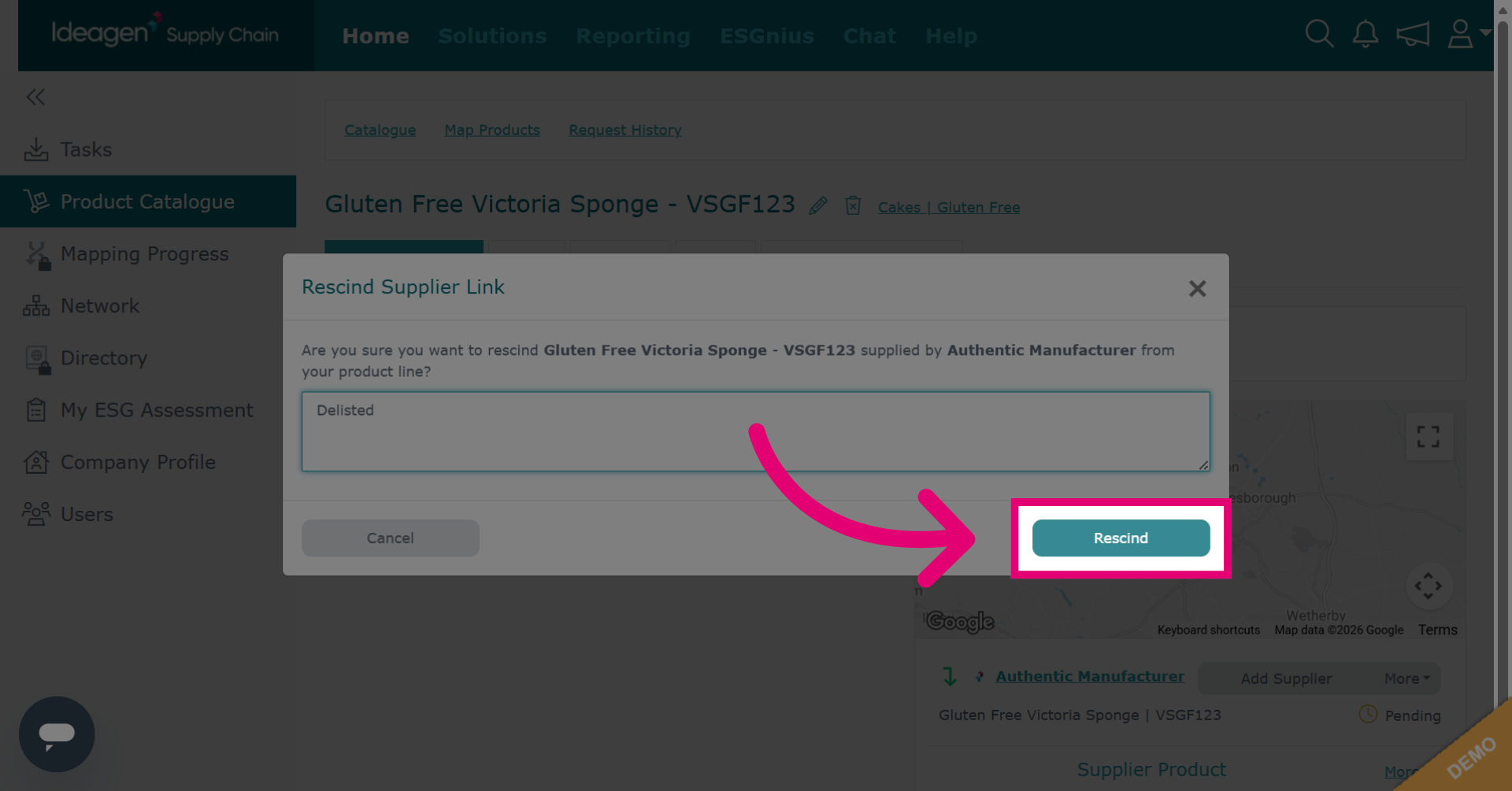
Returning to the Supply Chain tab, to rescind a supplier, click the relevant supplier within the chain. Click More and then click Rescind Supplier to remove the supplier from the chain.
-
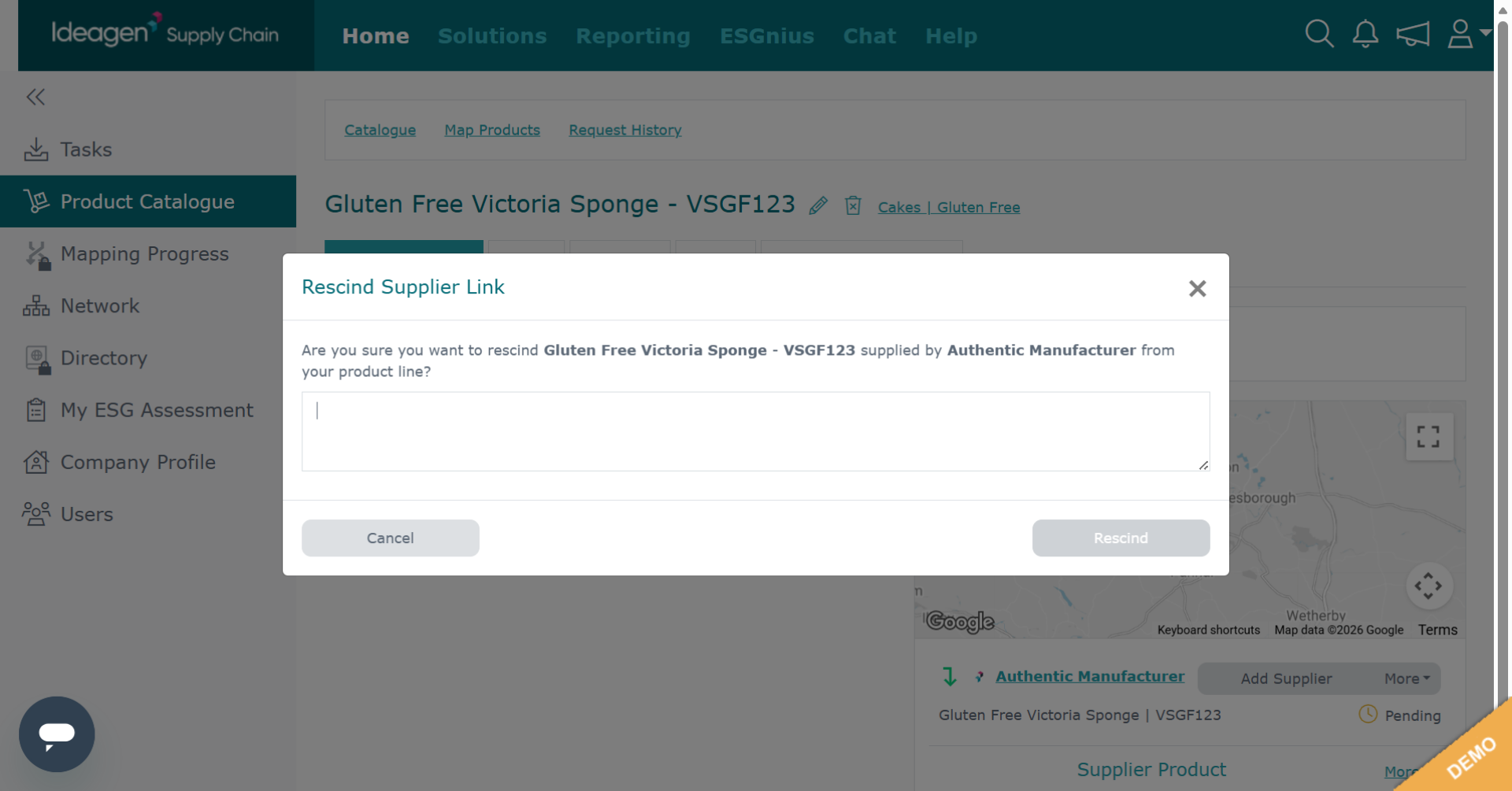
The rescind form will open.
-
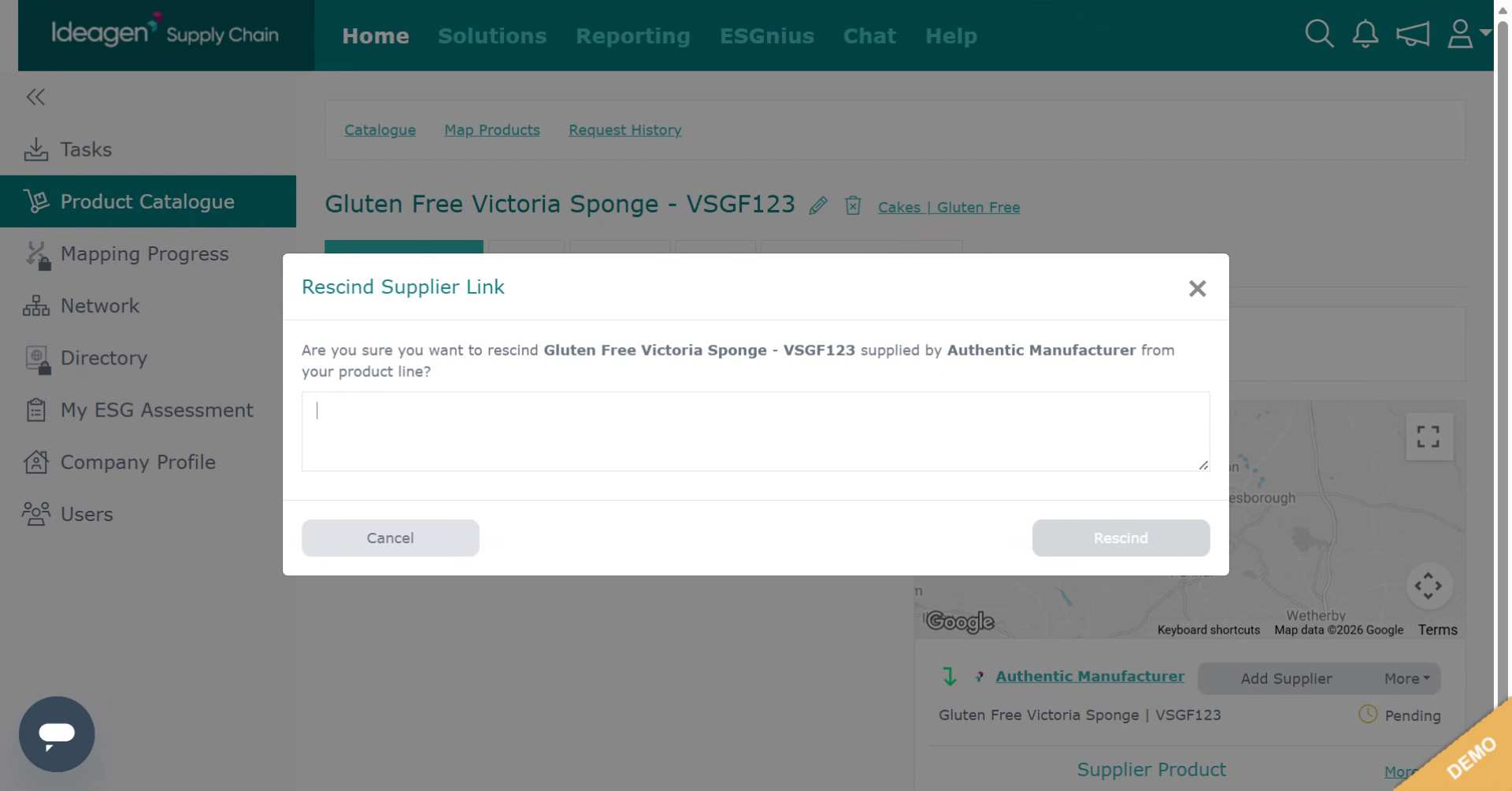
Fill the rescind reason field.
-
Click Rescind to confirm removal of the supplier.
-
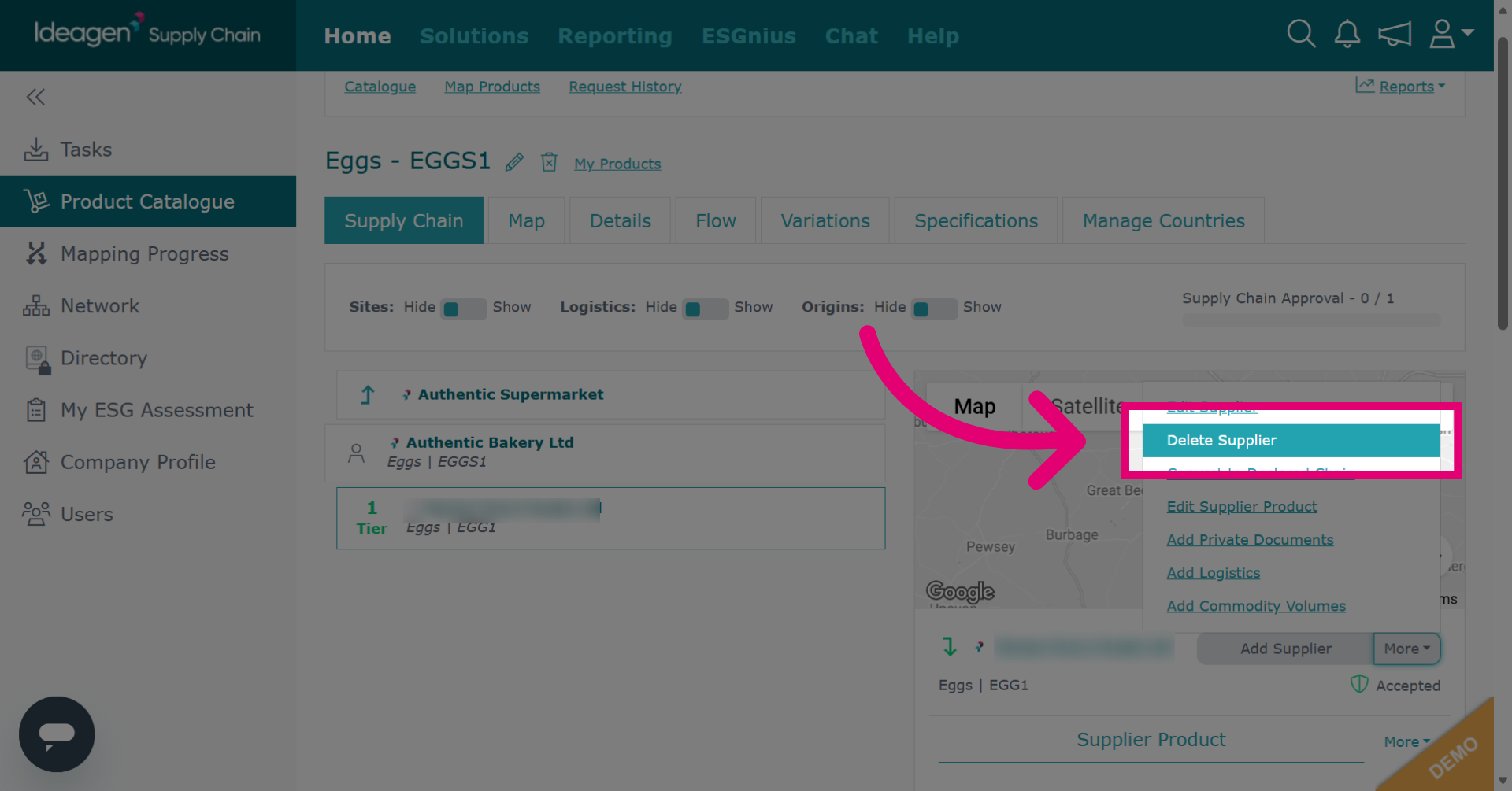
If a product link is already accepted, you will have the Delete Supplier option rather than Rescind Supplier option.
-
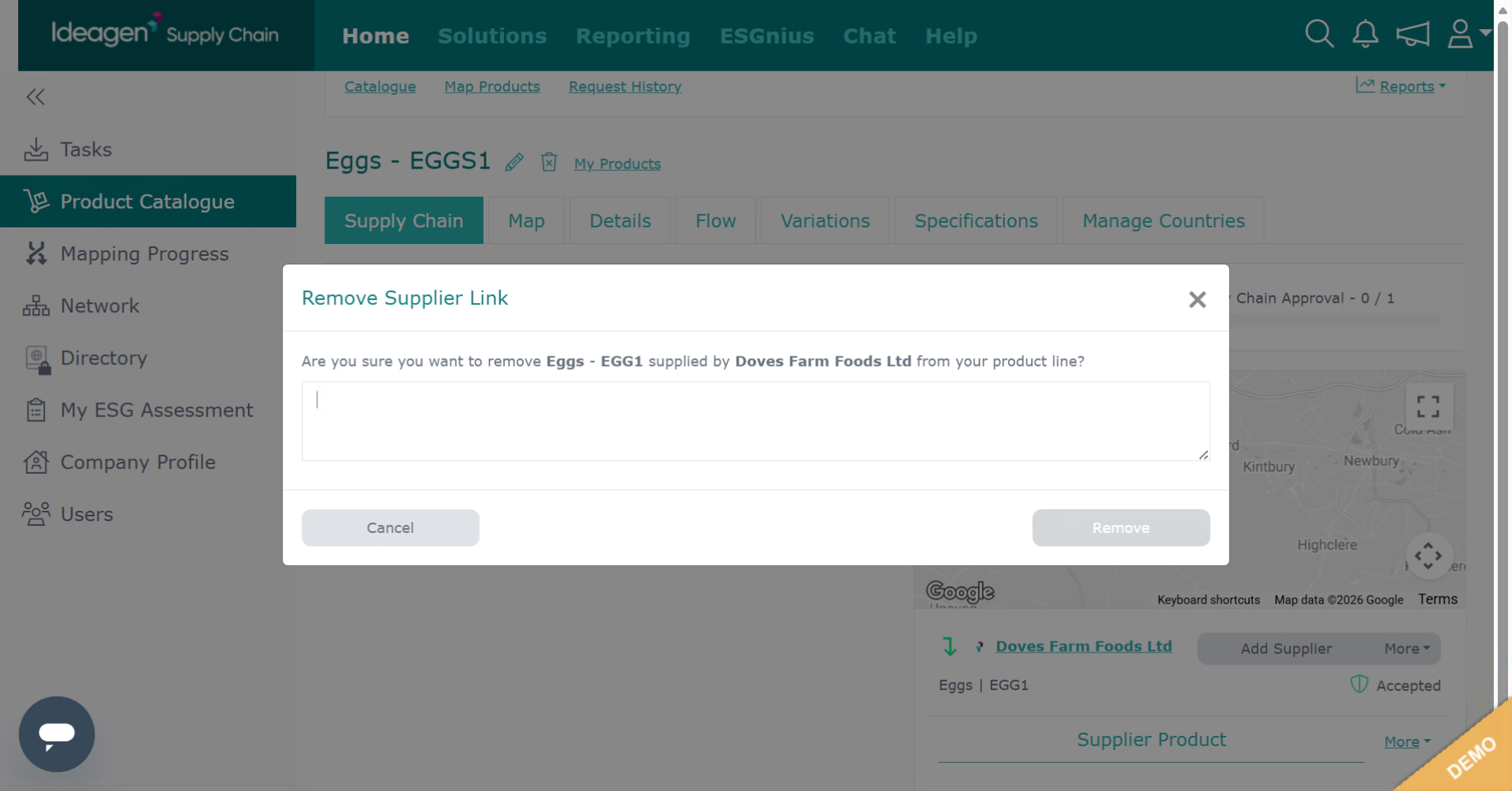
Enter deletion reason.
-
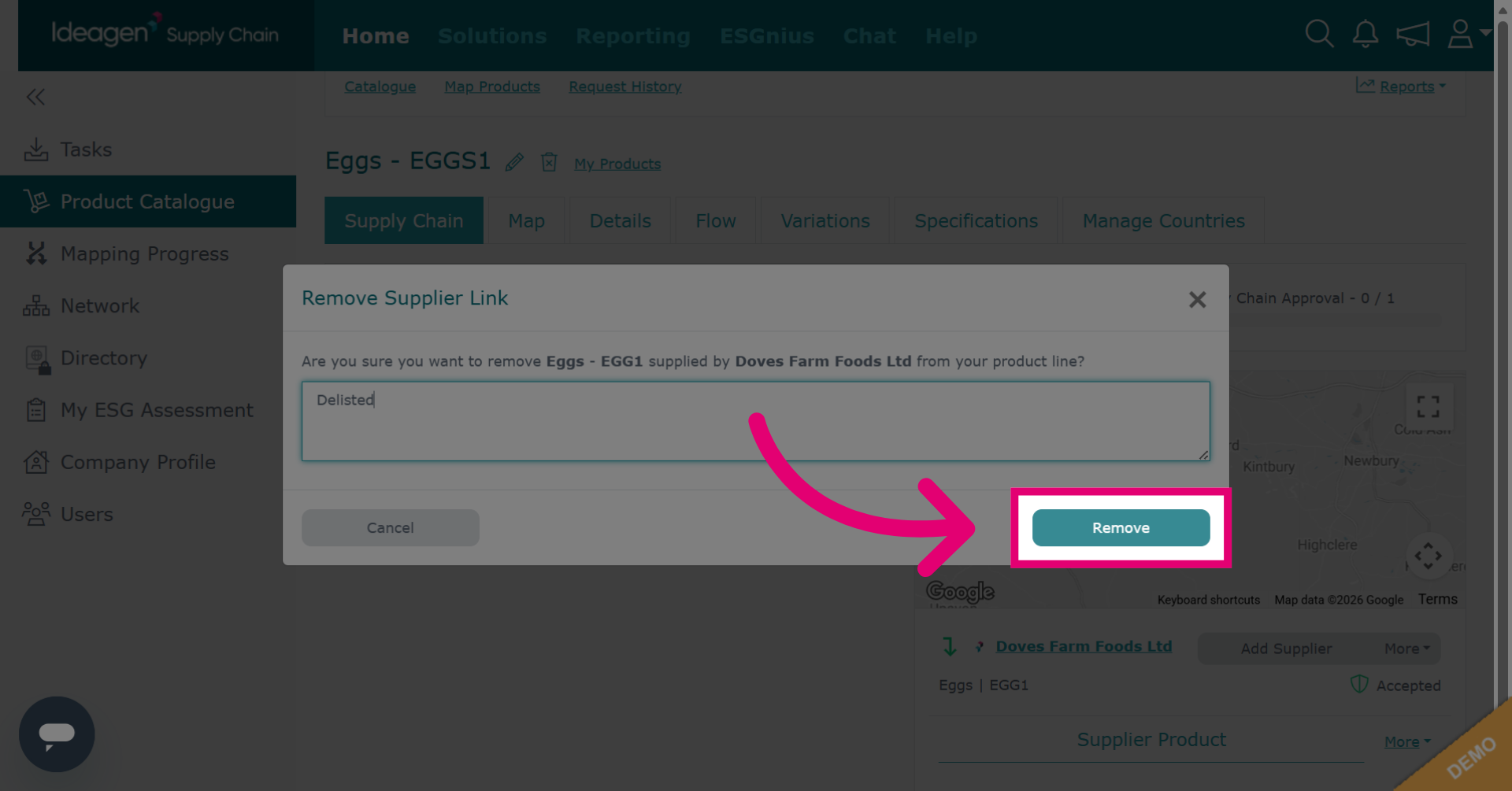
Click Remove to finalize the deletion of the supplier from the chain.
-
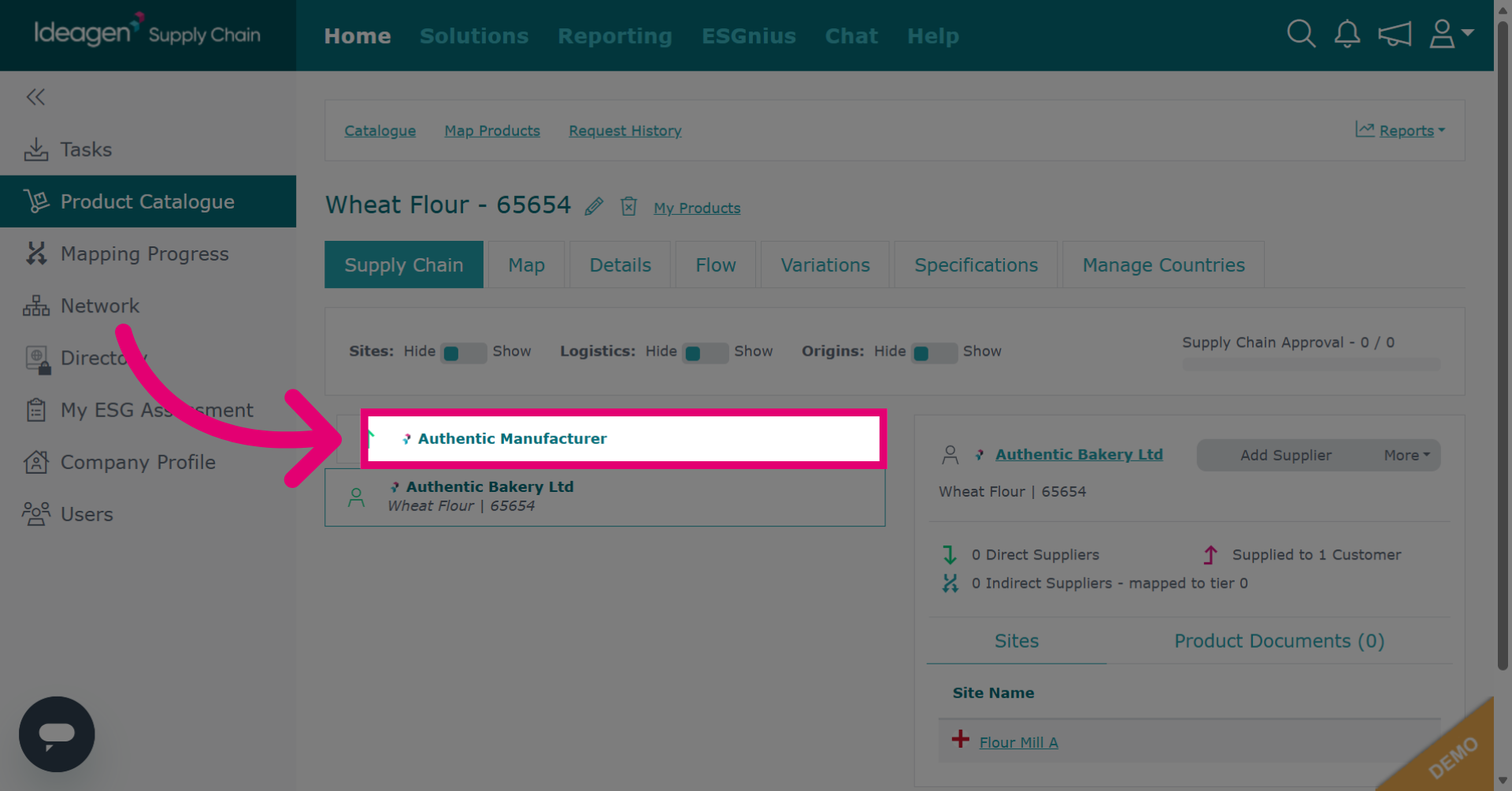
To remove a customer, first click on the customer within the chain.
-
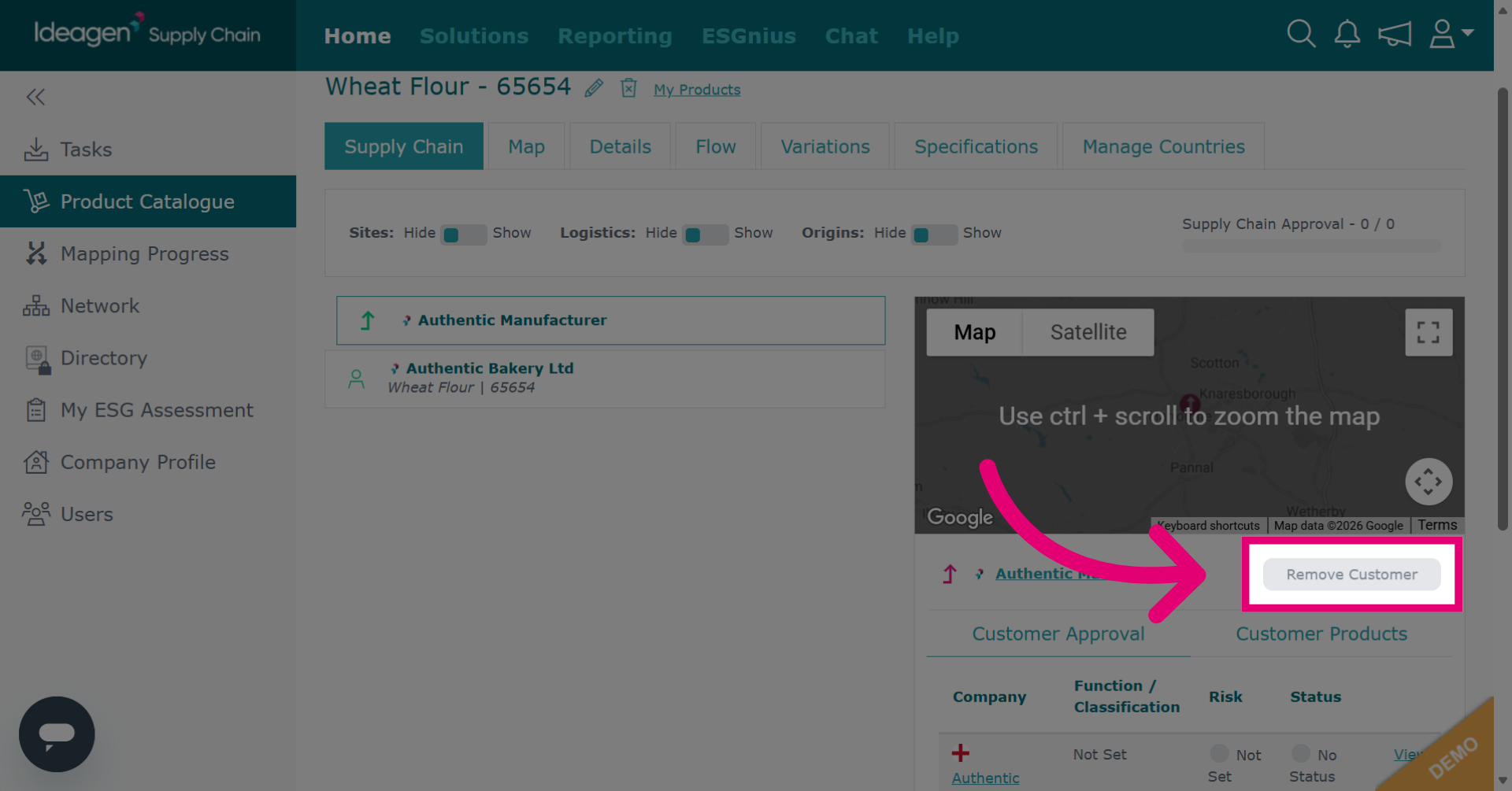
Click Remove Customer to disassociate the customer from the product.
-
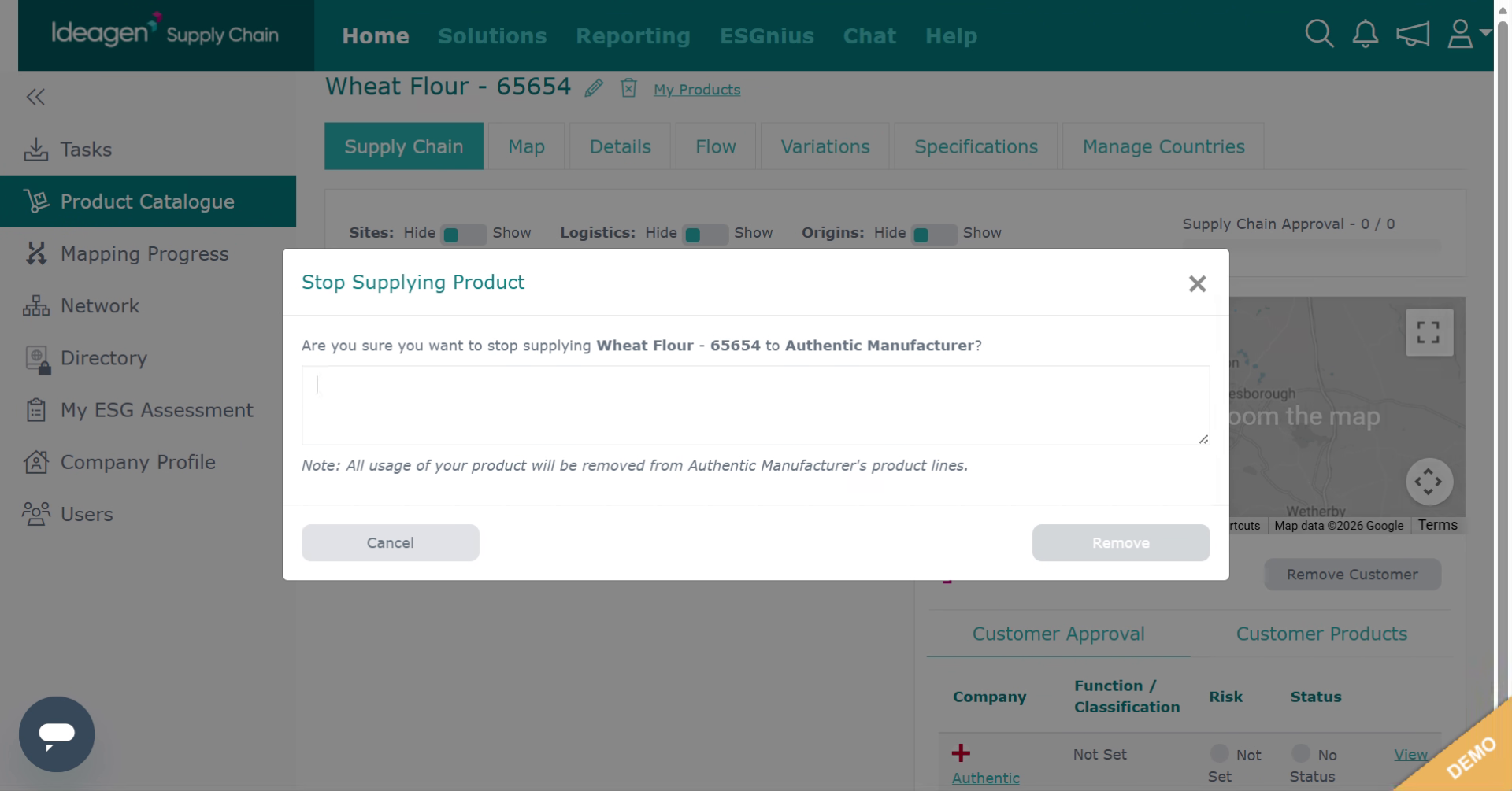
Fill the field to specify the removal reason.
-
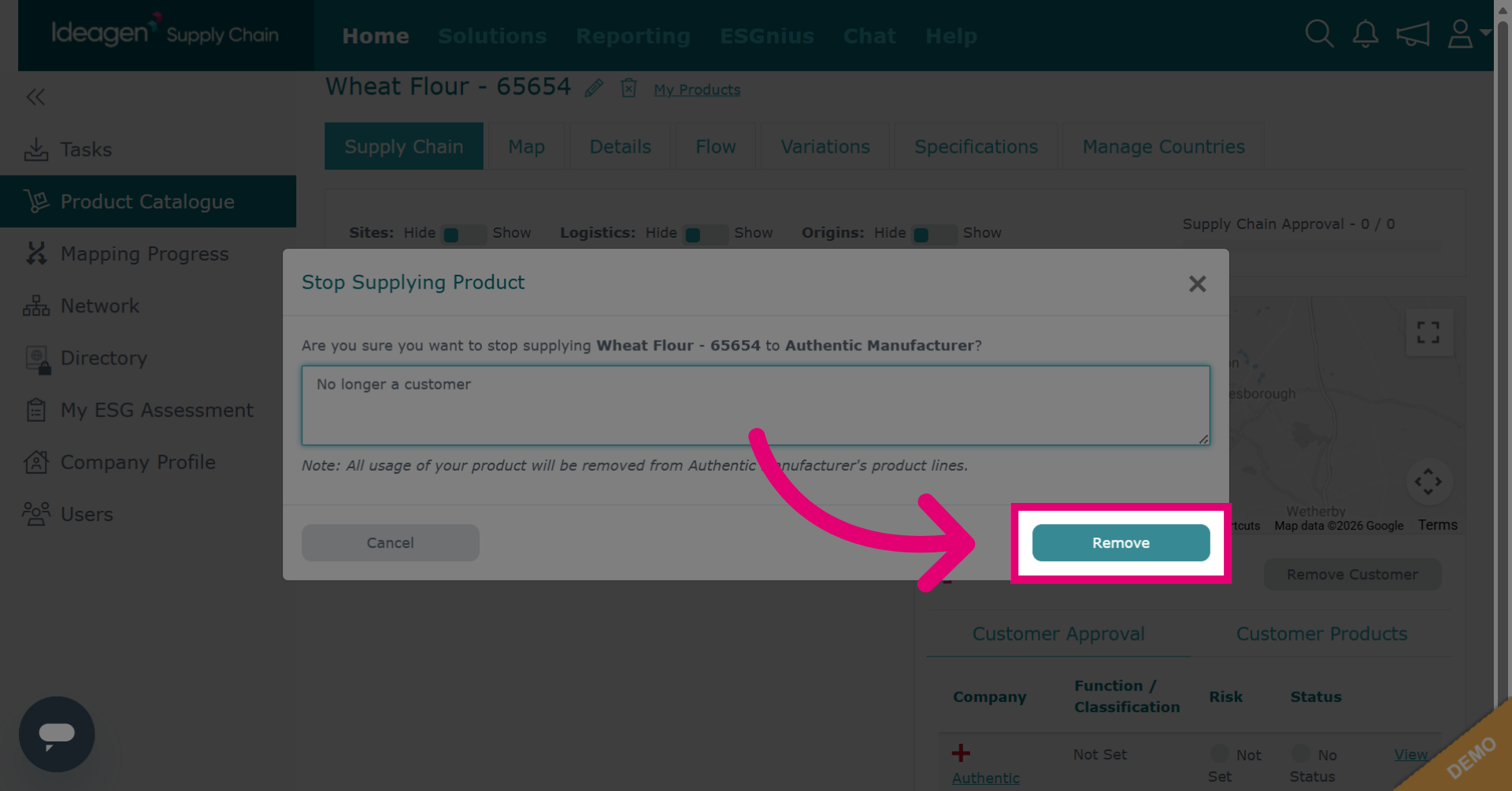
Click Remove to finalize the removal of the customer association.
-
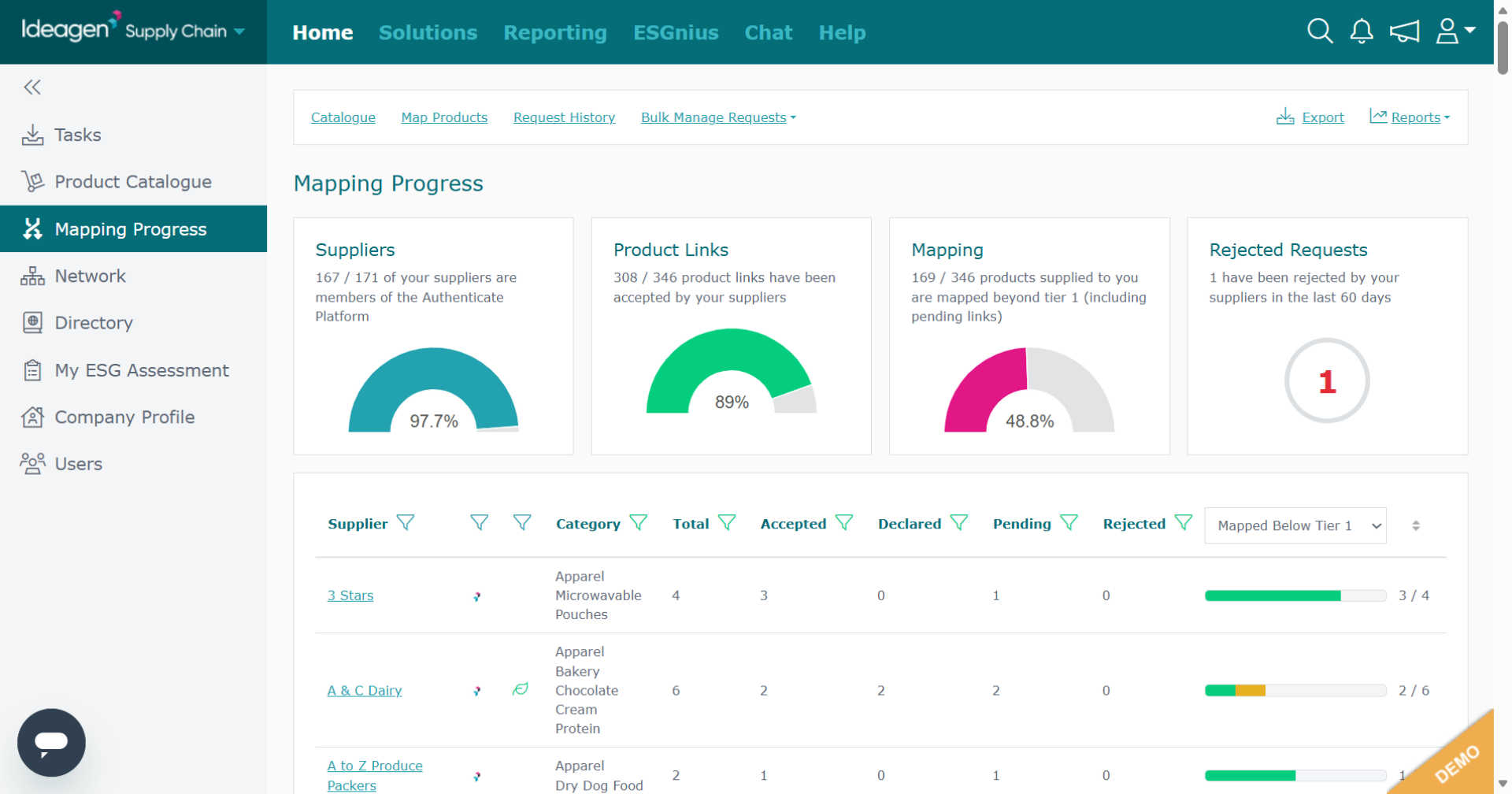
Returning to the homepage click Mapping Progress to open the mapping overview.

-
You will be shown a break down of your direct supplier's mapping progress.
-
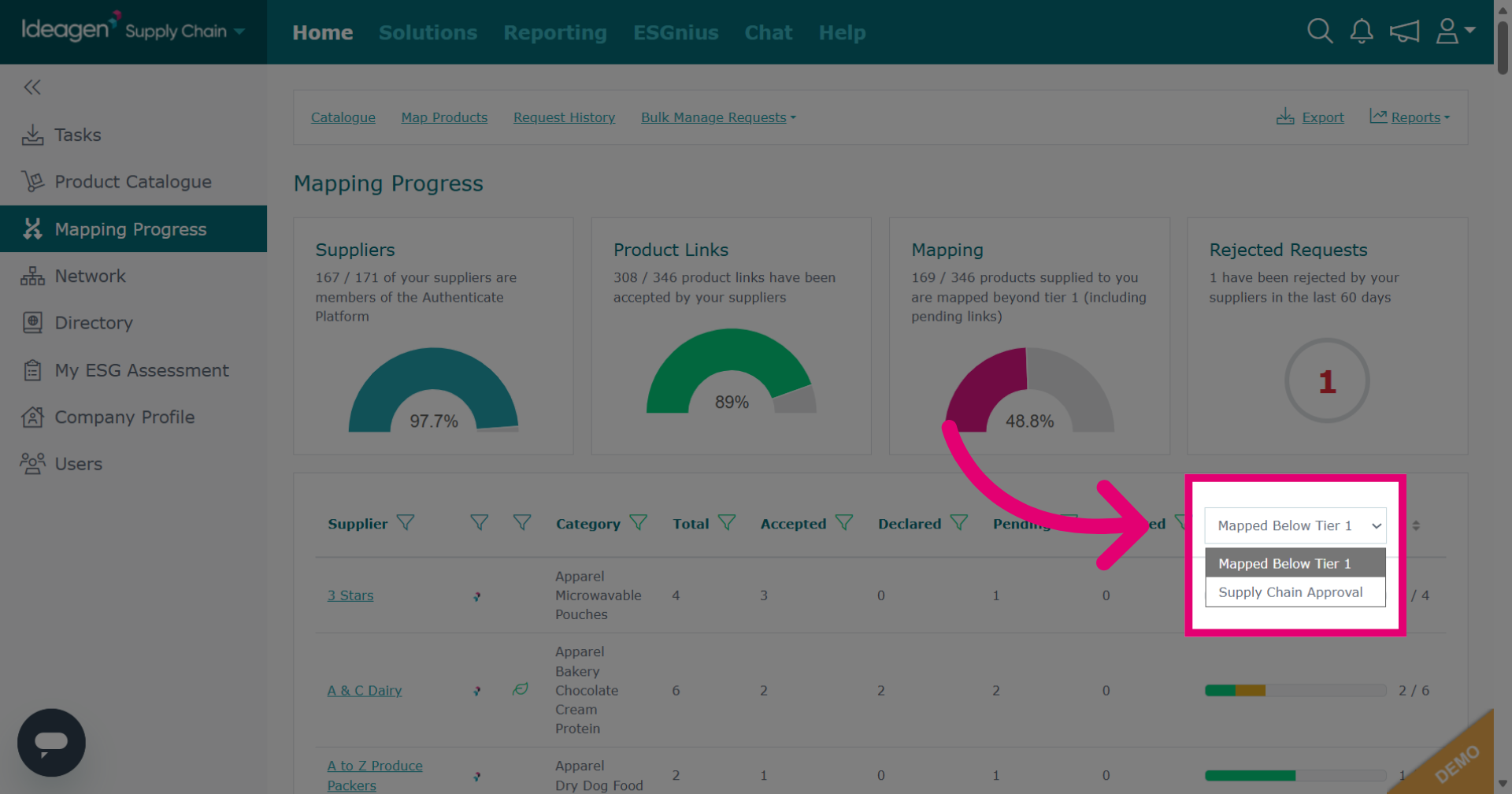
You can filter the outcome to show suppliers that have mapped below tier 1, or supply chains that have been approved. If you are unsure how to approve supply chains please watch our video guide titled "Supply Chain Mapping: Product & Catalogue Management."
-
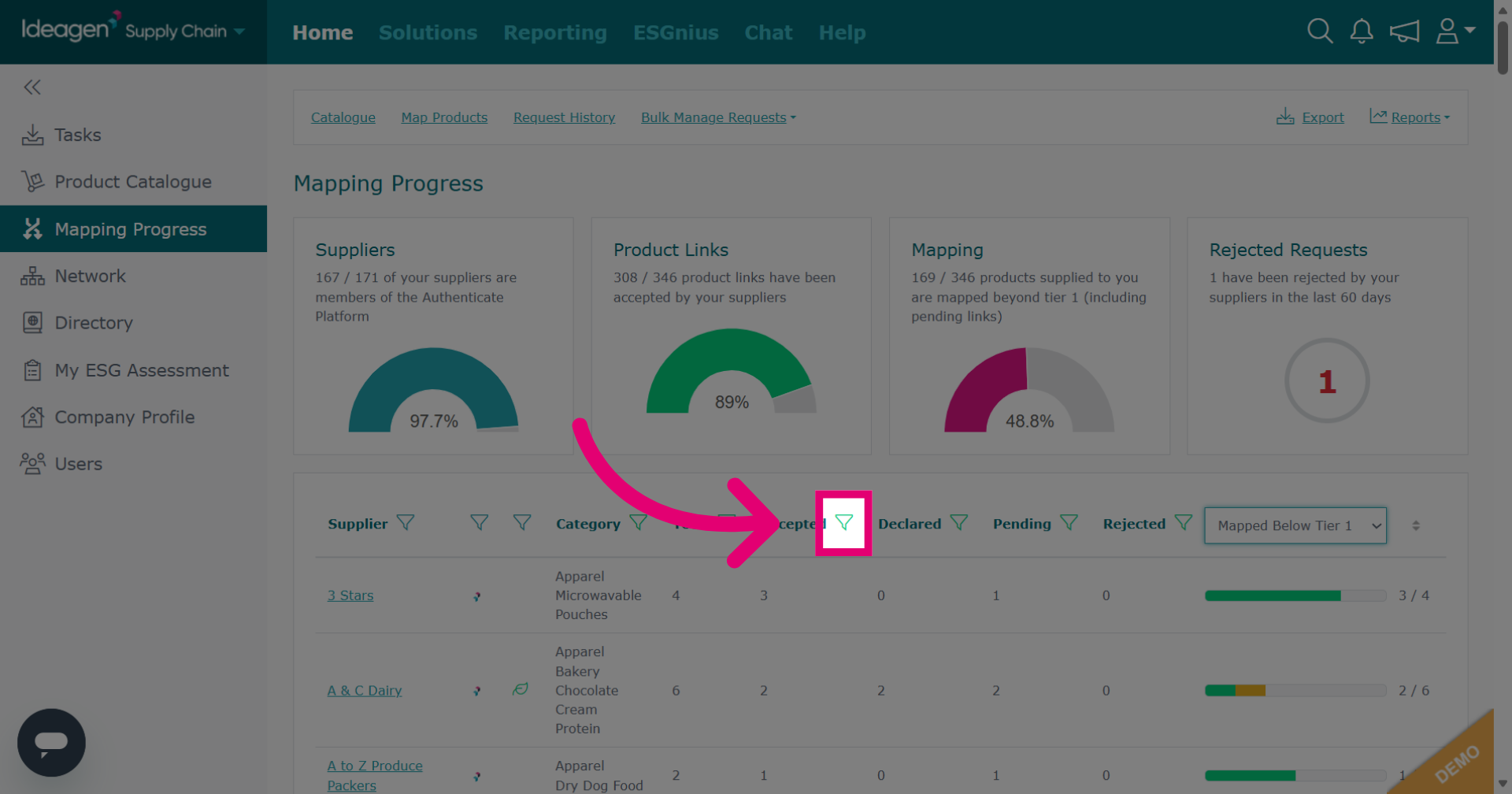
To filter results, click the filter icon next to the column you want to filter by.
-
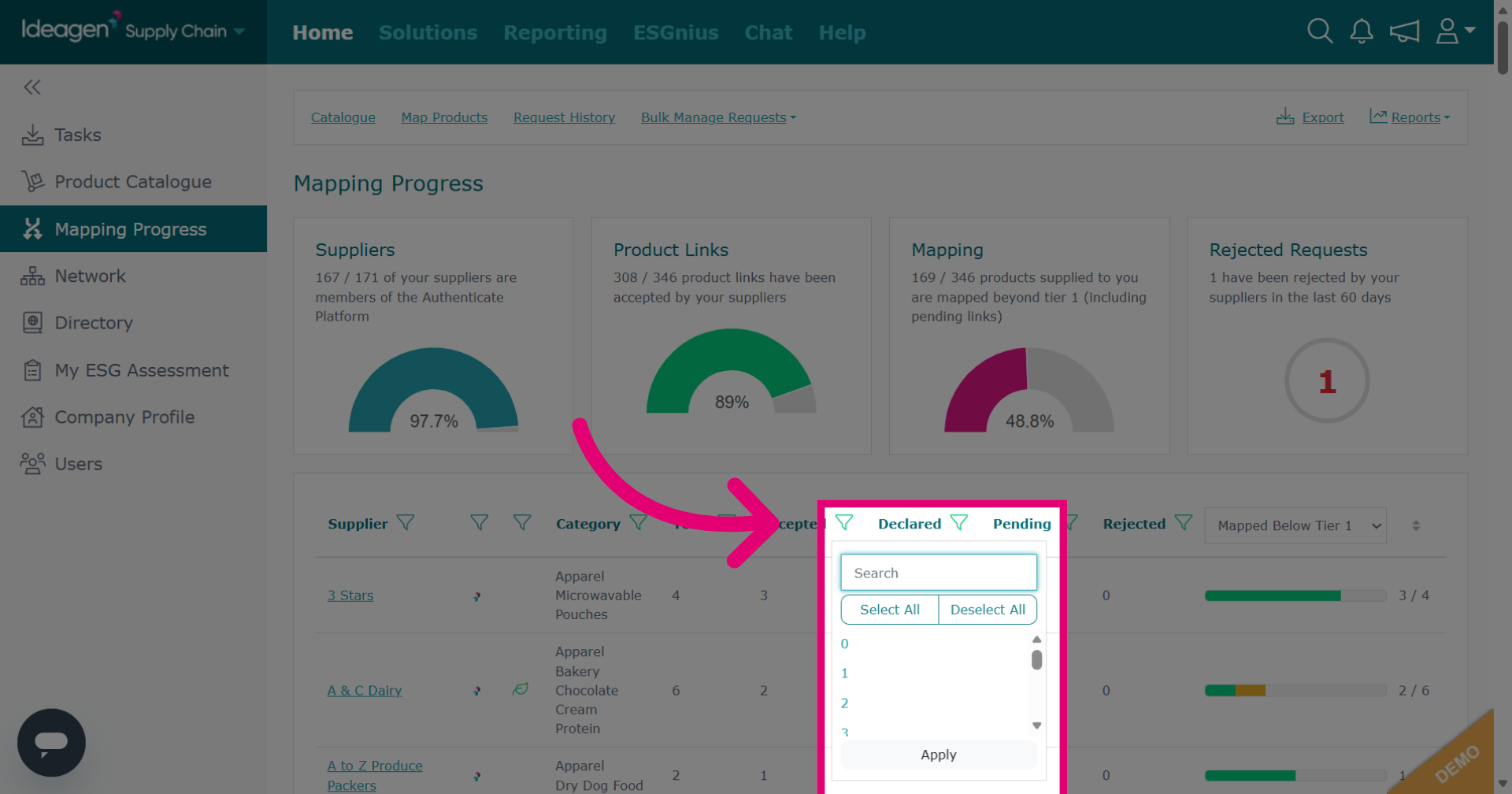
This will bring up a drop-down menu of relevant filters for the selected column.
-
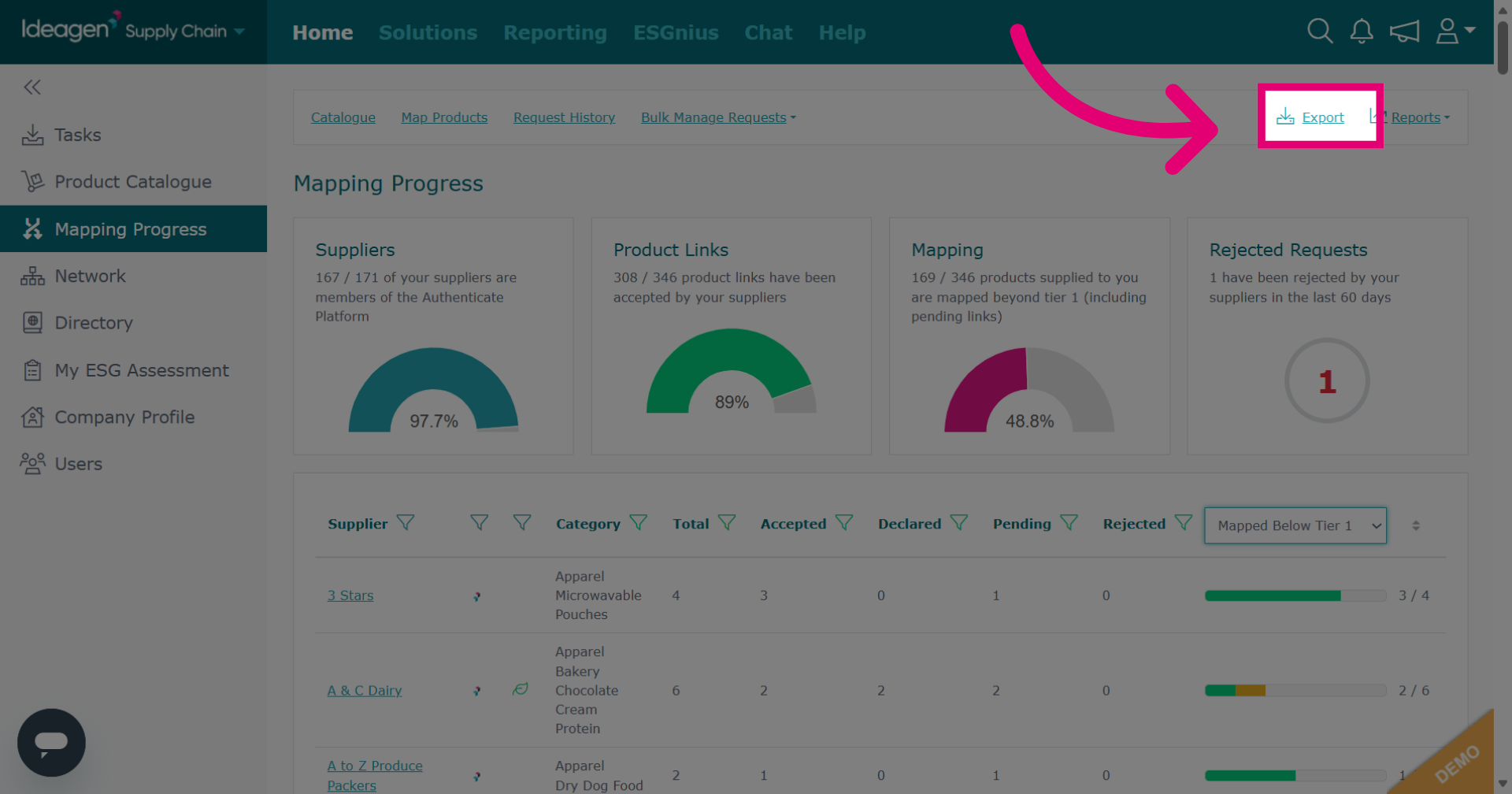
To export your mapping progress page, click export.
-
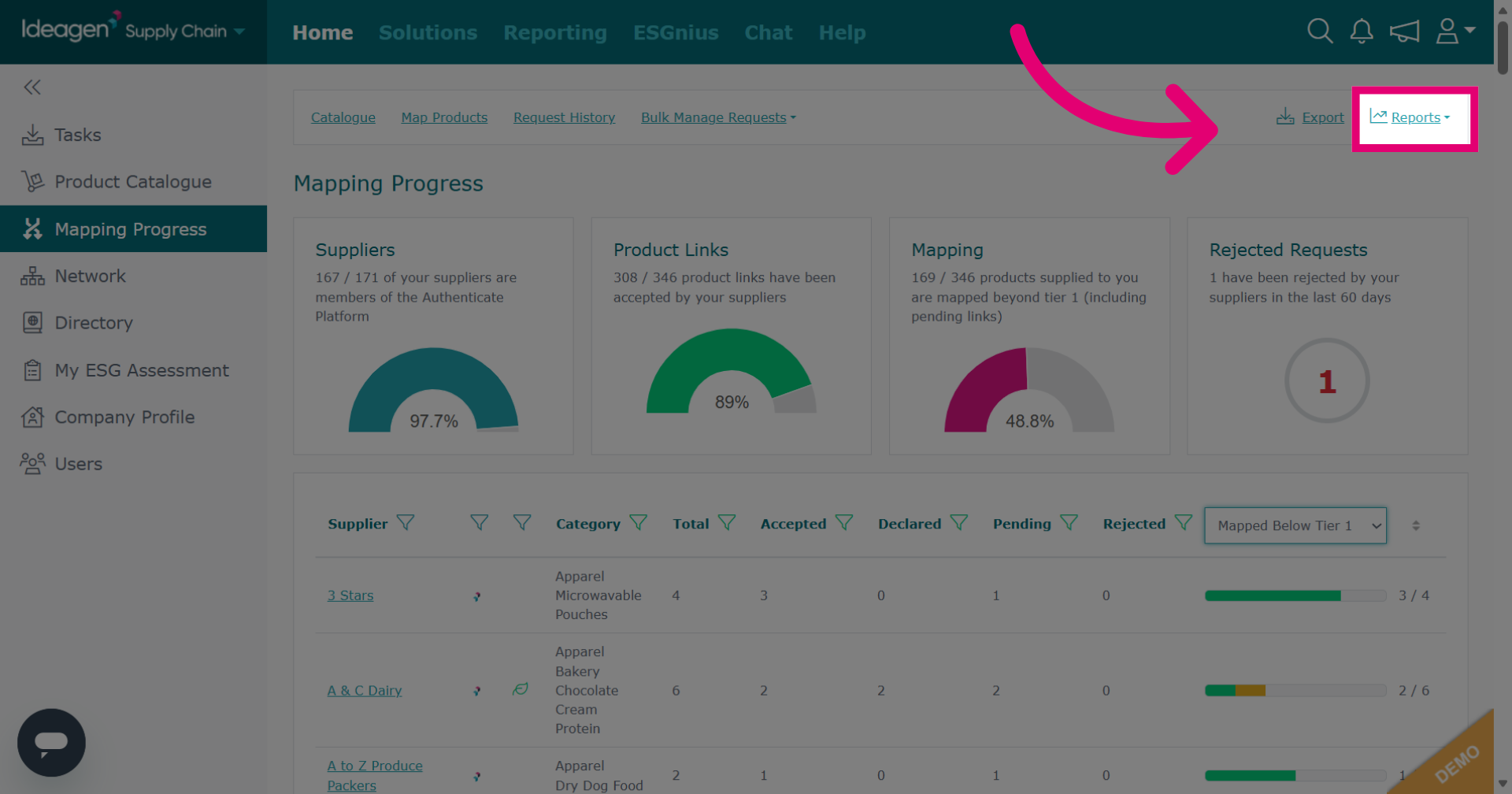
For reporting related to the mapping progress page, click reports.
-
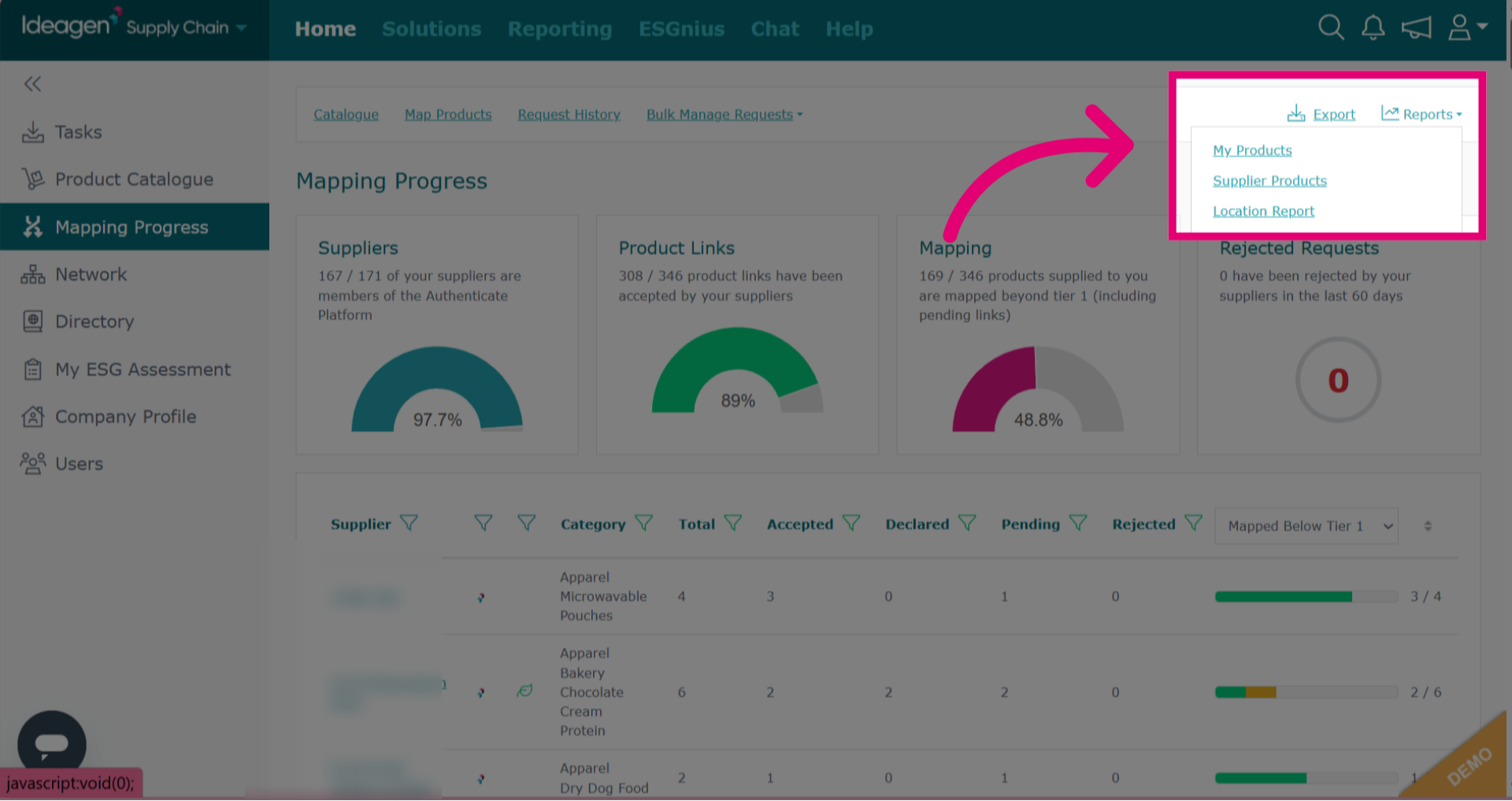
There are three available reports, my products, supplier products or location report. Click the relevant option to input the necessary data to pull the report.
-
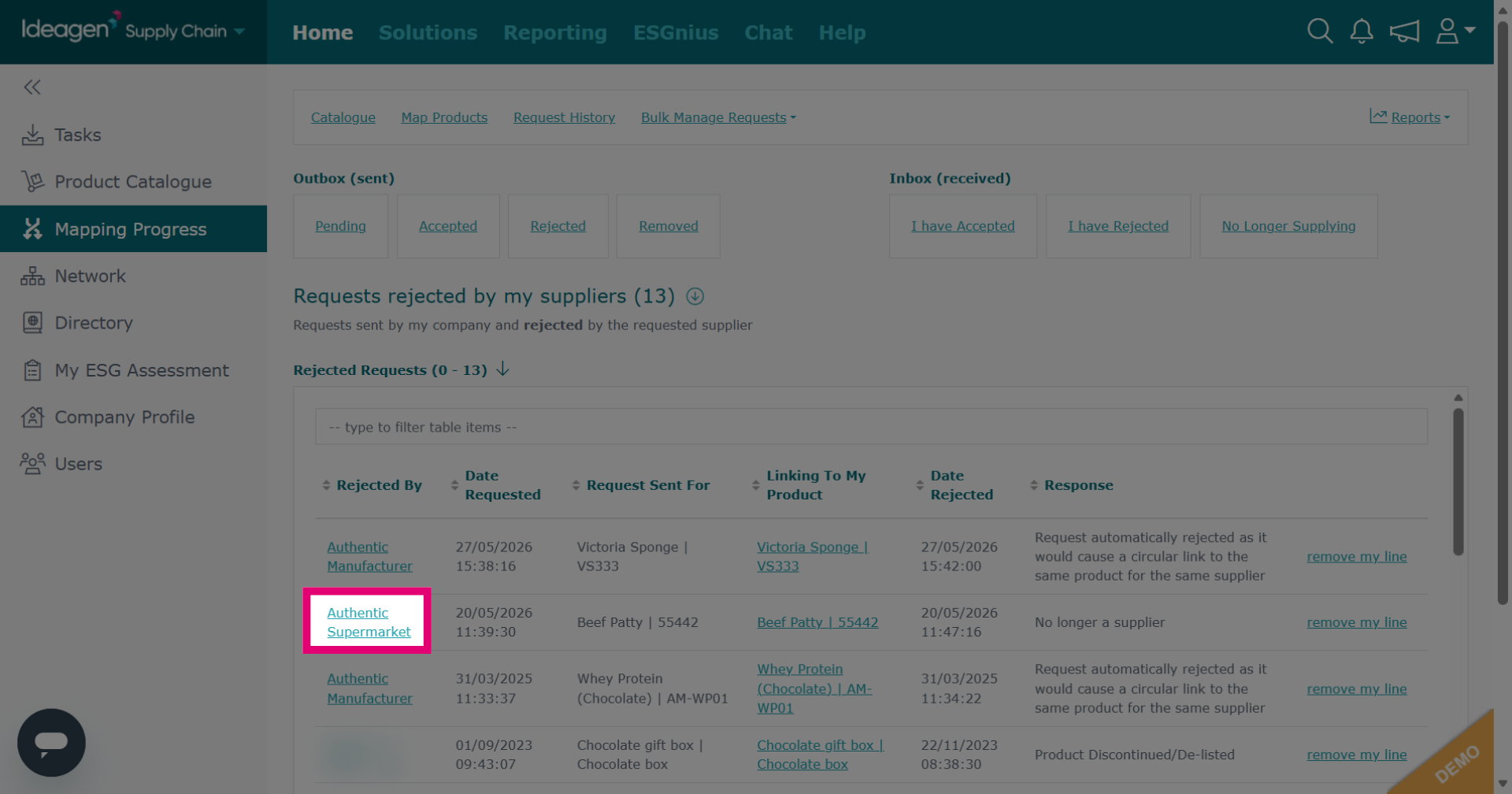
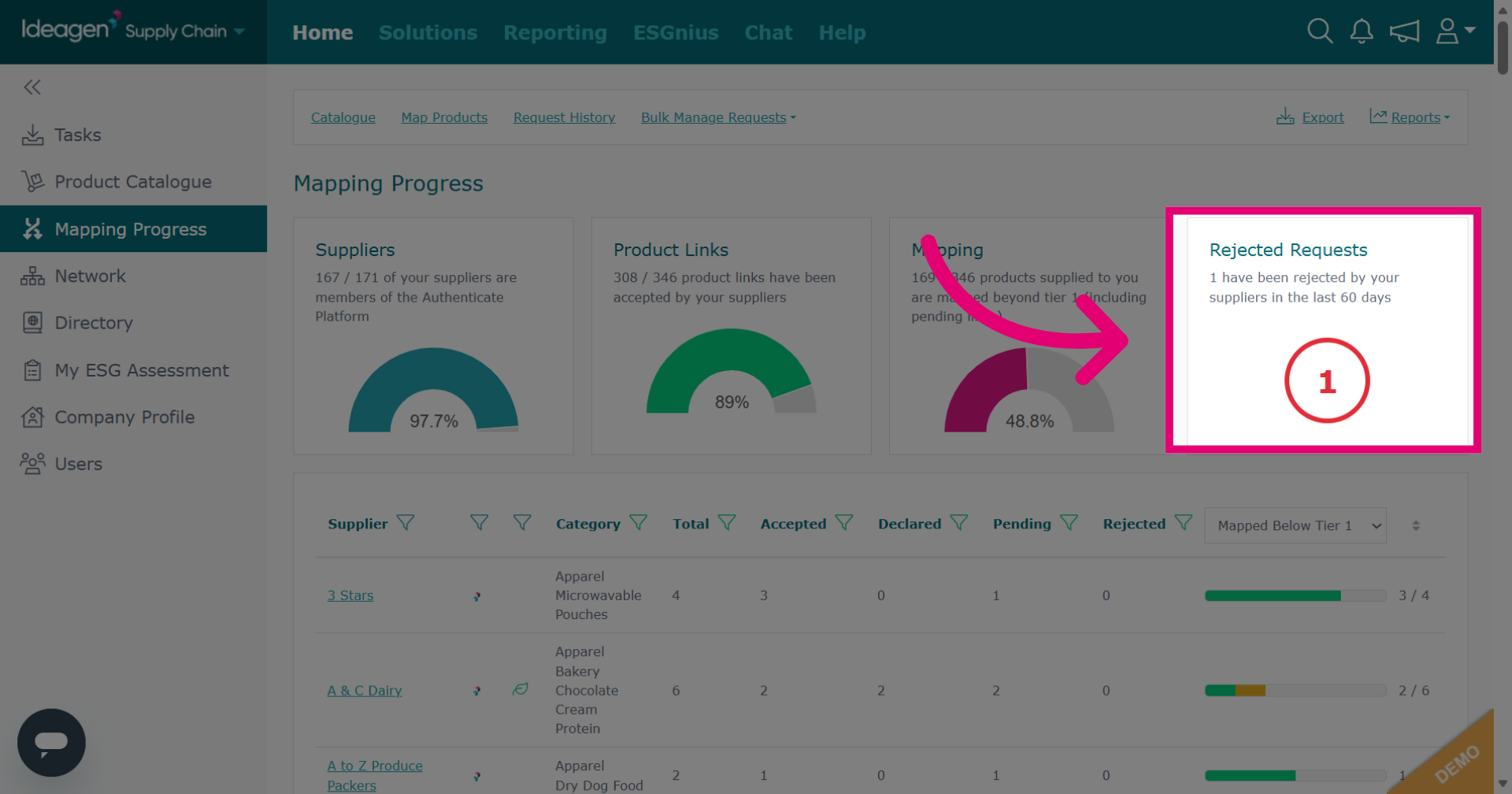
To view rejected requests, click the number icon. You can still click even if it shows as 0.
-
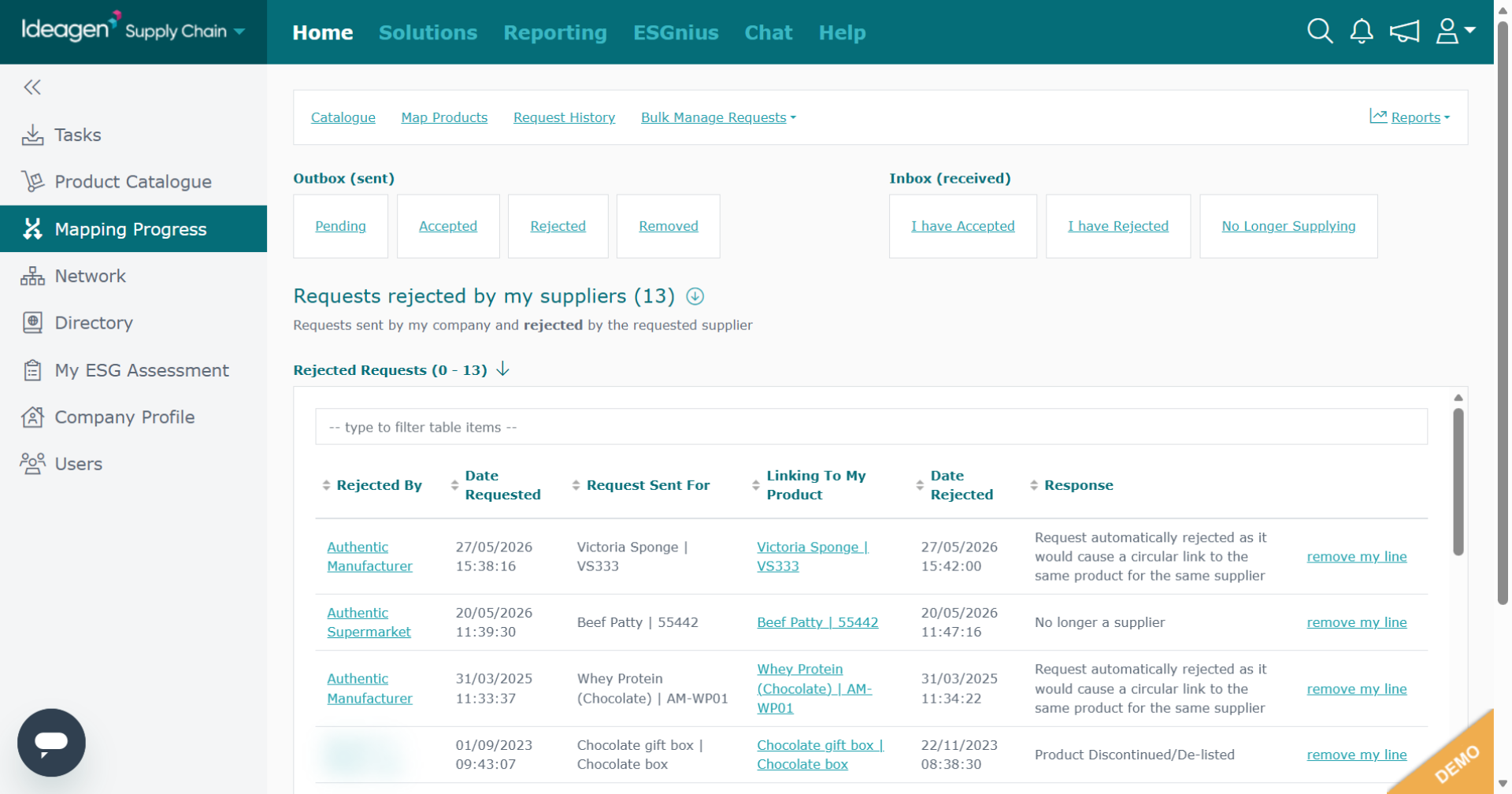
This page will show you requests you have sent that your suppliers have rejected.
-
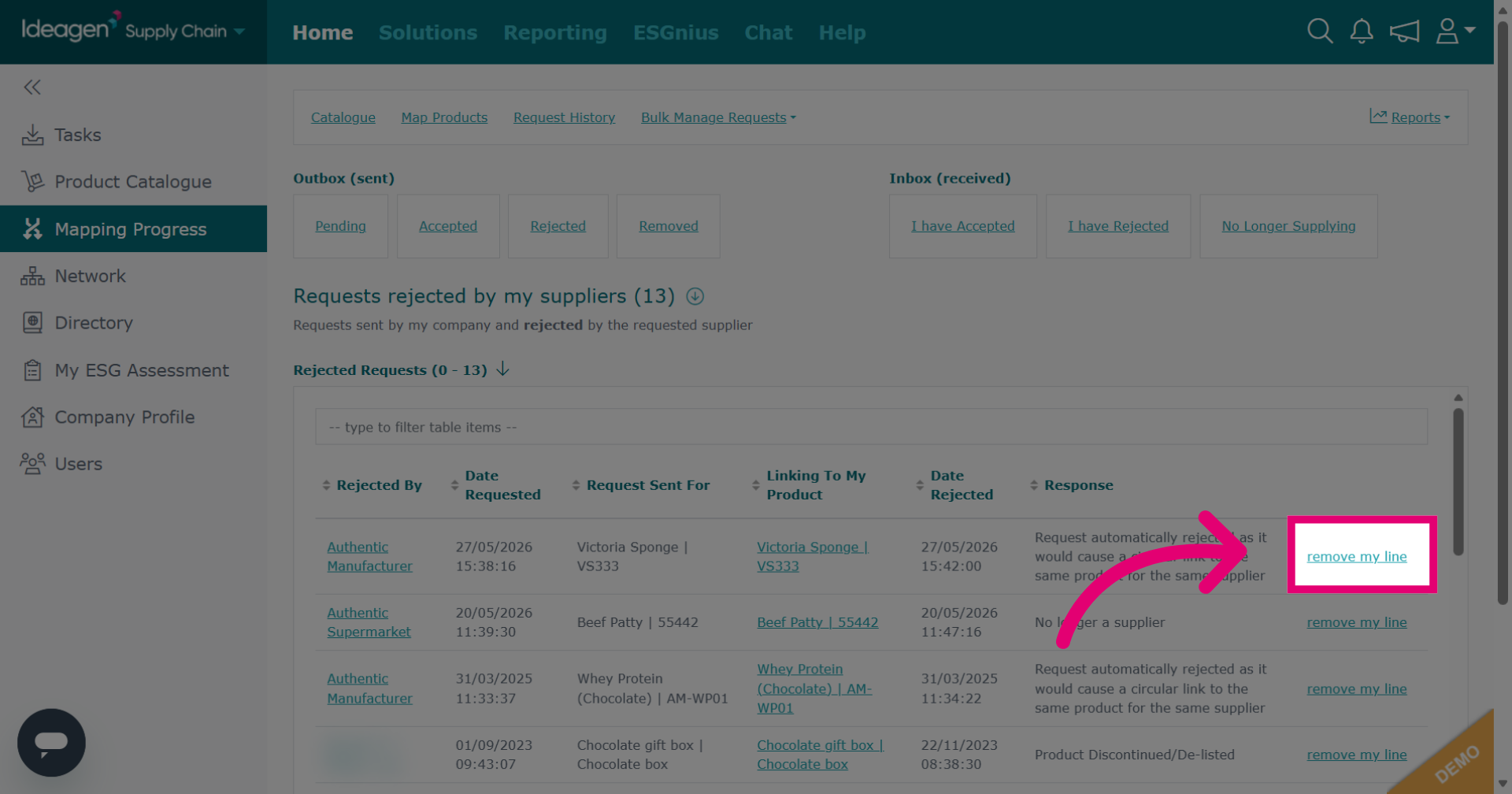
Click Remove Line to delete the product that your supplier has rejected. Please note, you will only be able to do this if there are no other outstanding links connected to this product.
-
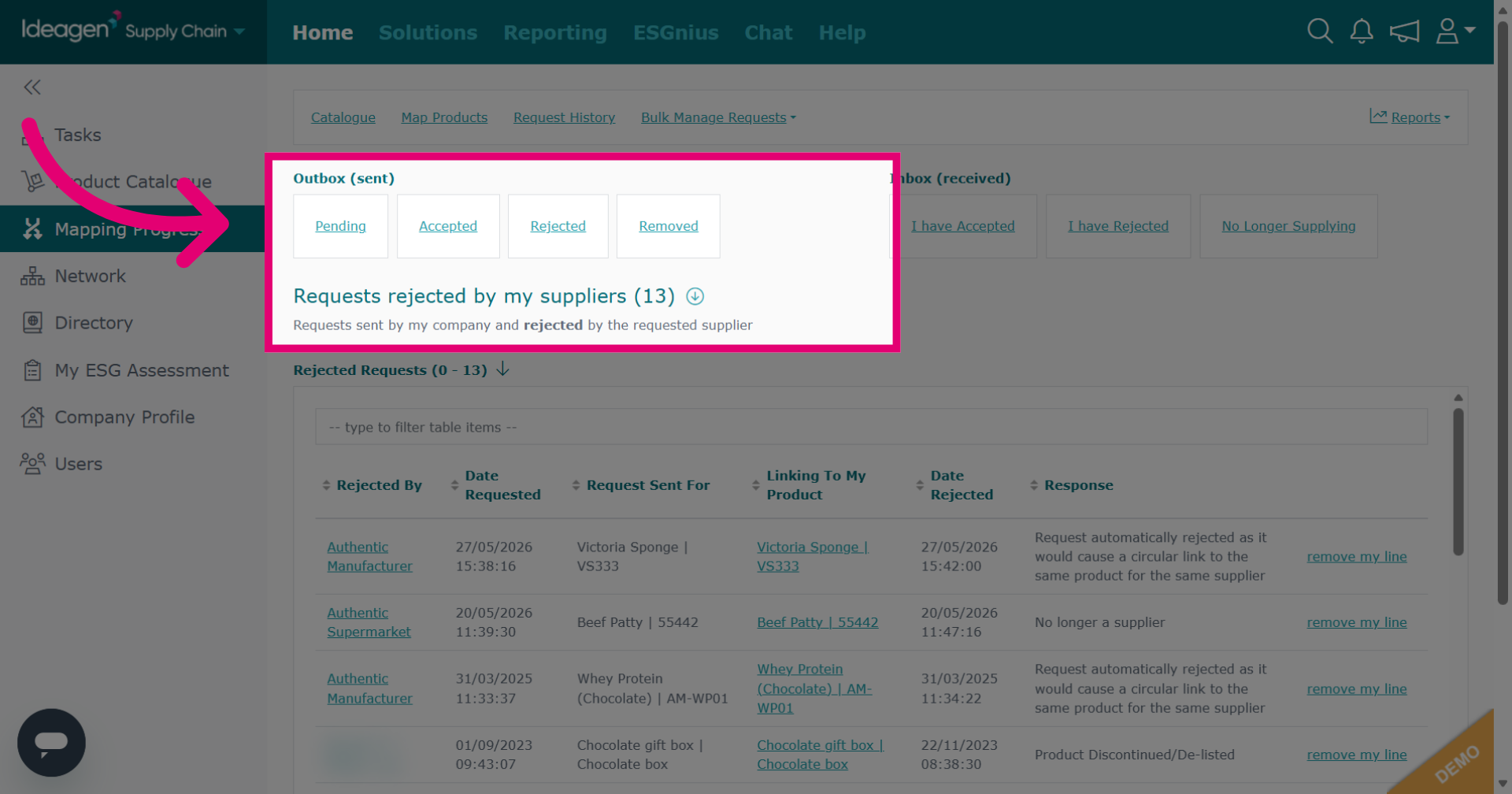
To track and view request responses sent to you by your supplier, select the relevant option within the outbox filters.
-
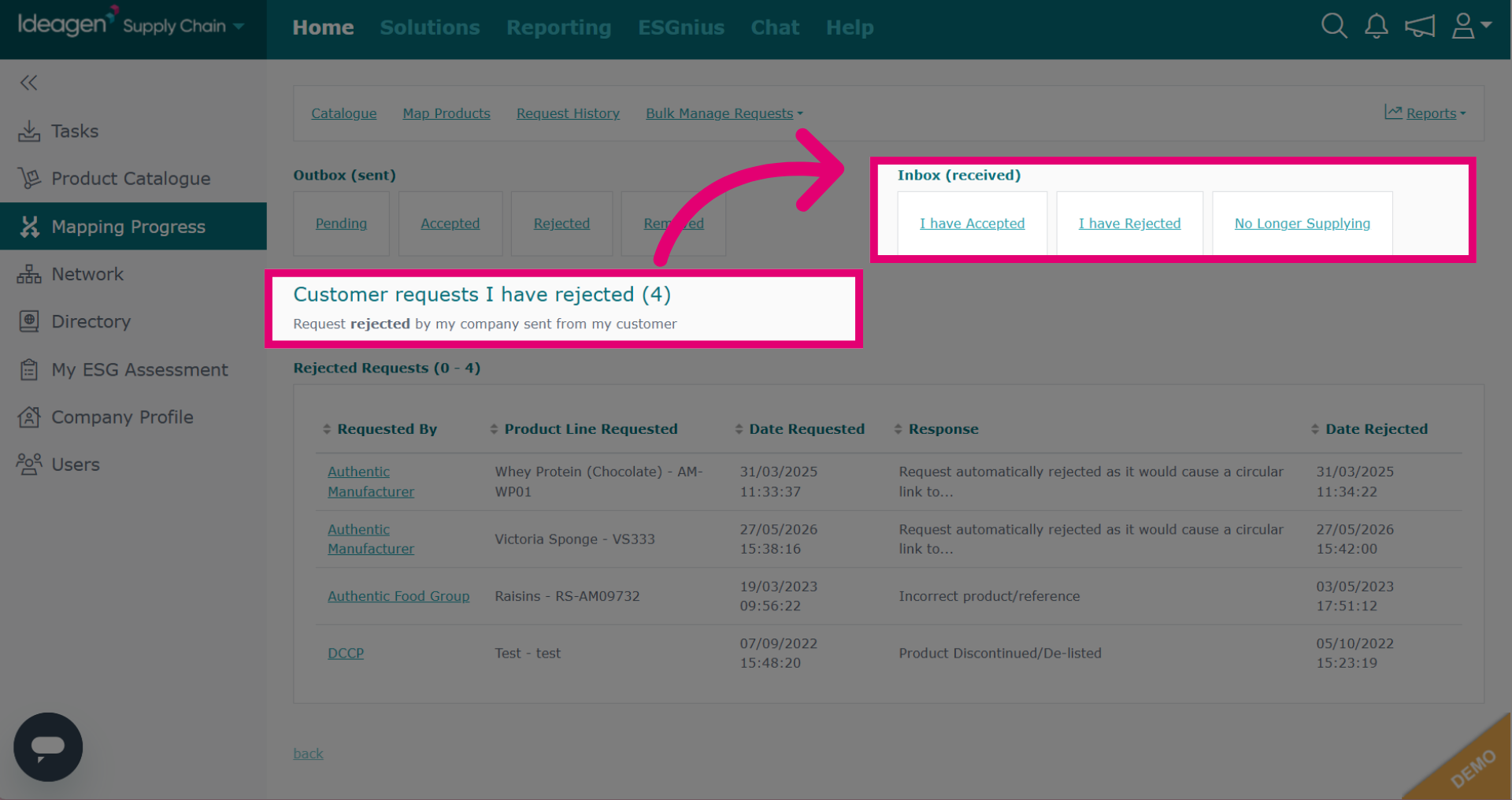
To track and view request responses you have sent regarding product acceptance, rejection and no longer supplied lines, select the relevant option within the inbox filters.
-
You can also view a supplier's profile from this view by clicking their name.