New article
Recently updated
Creating a Workflow - Workflows

Who is this article for?
Users who want to create a workflow.
Workflow admin permissions are required.
This tutorial guides you through creating and publishing workflows within the Ideagen Supply Chain platform.
Workflows are a vehicle to auto-send specific task requirements minimising the need for manual input.
Creating and publishing a workflow
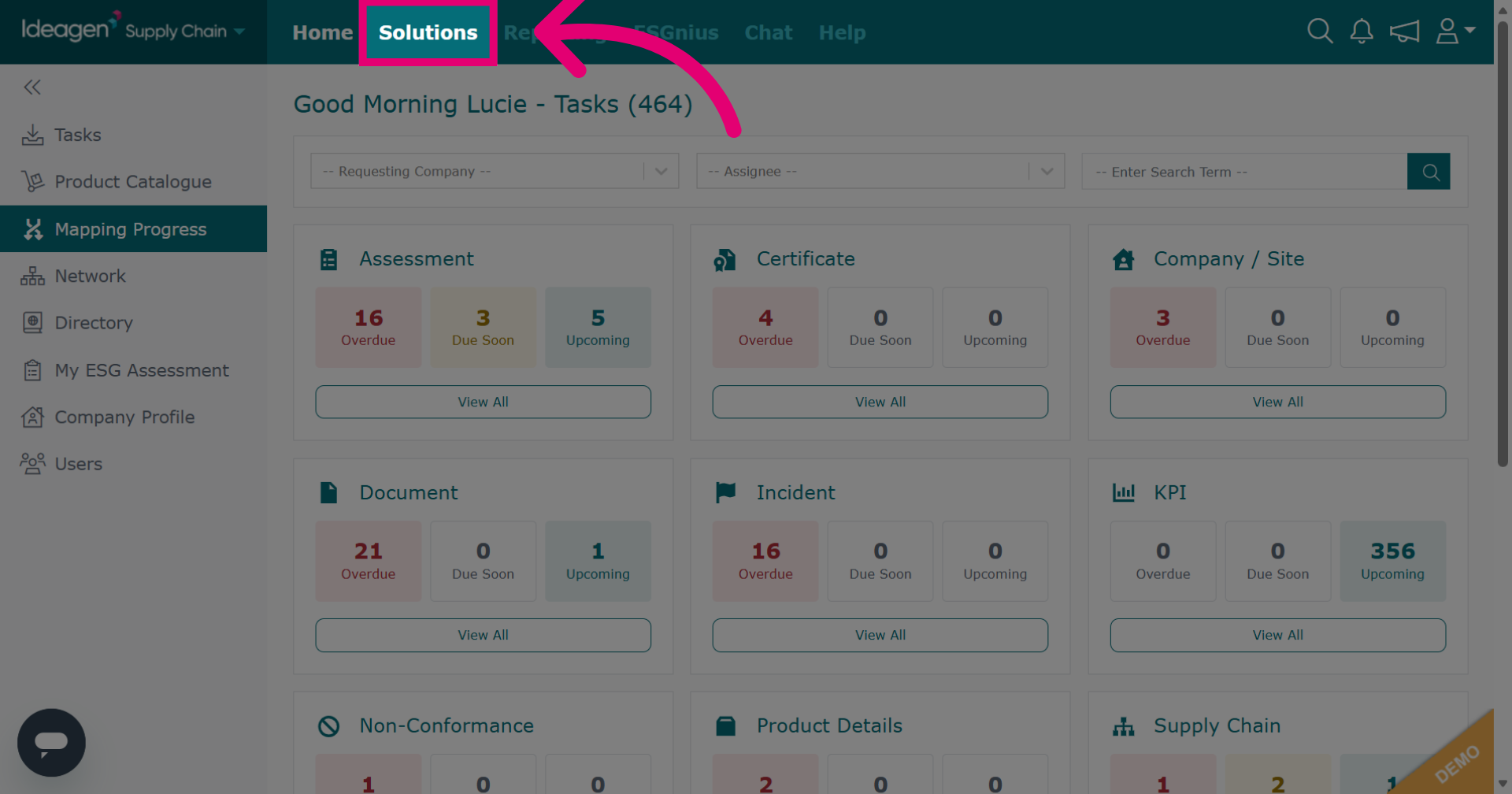
- Click Solutions to access the solutions menu.
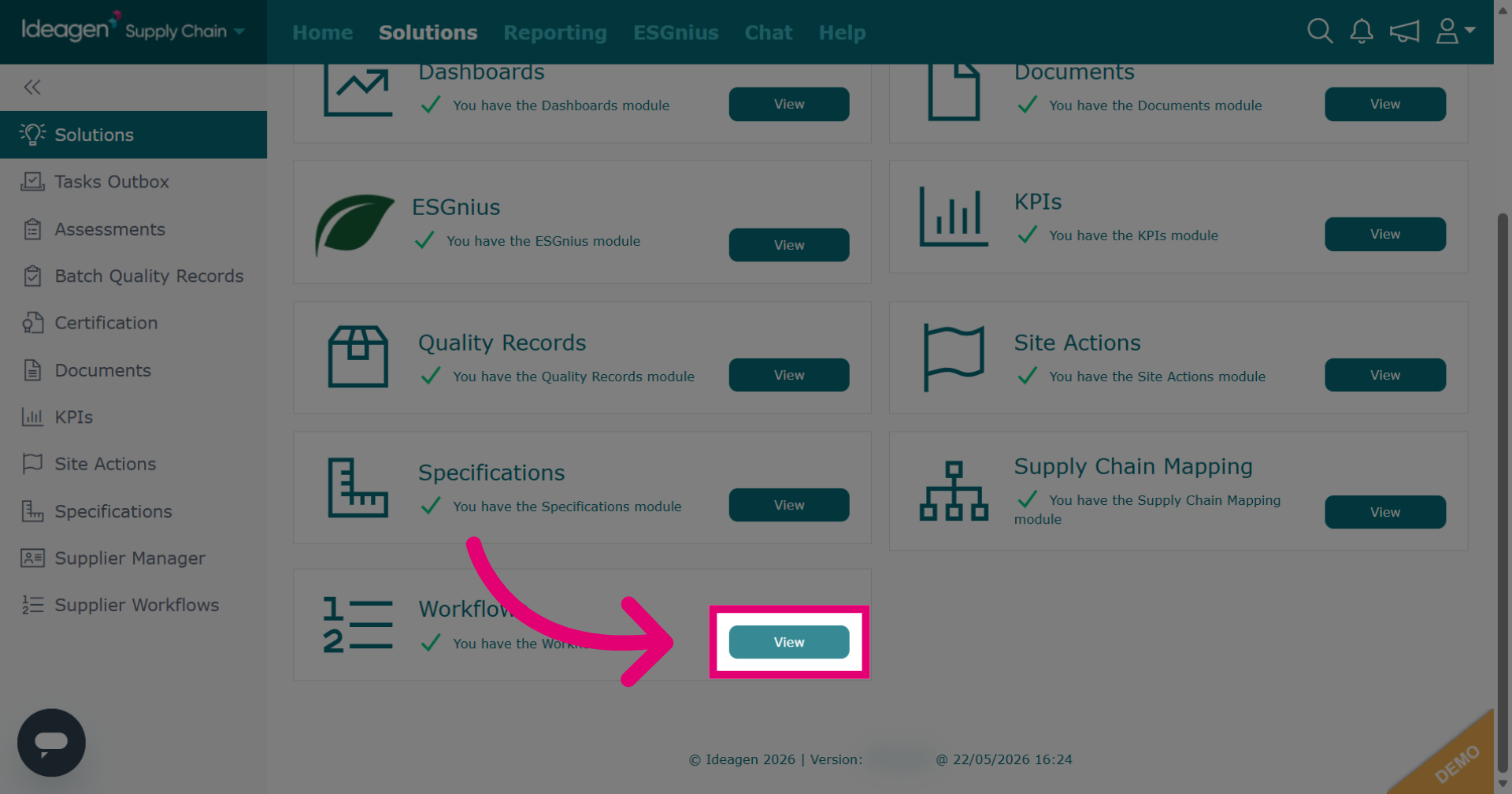
- Click View next to the workflows module.
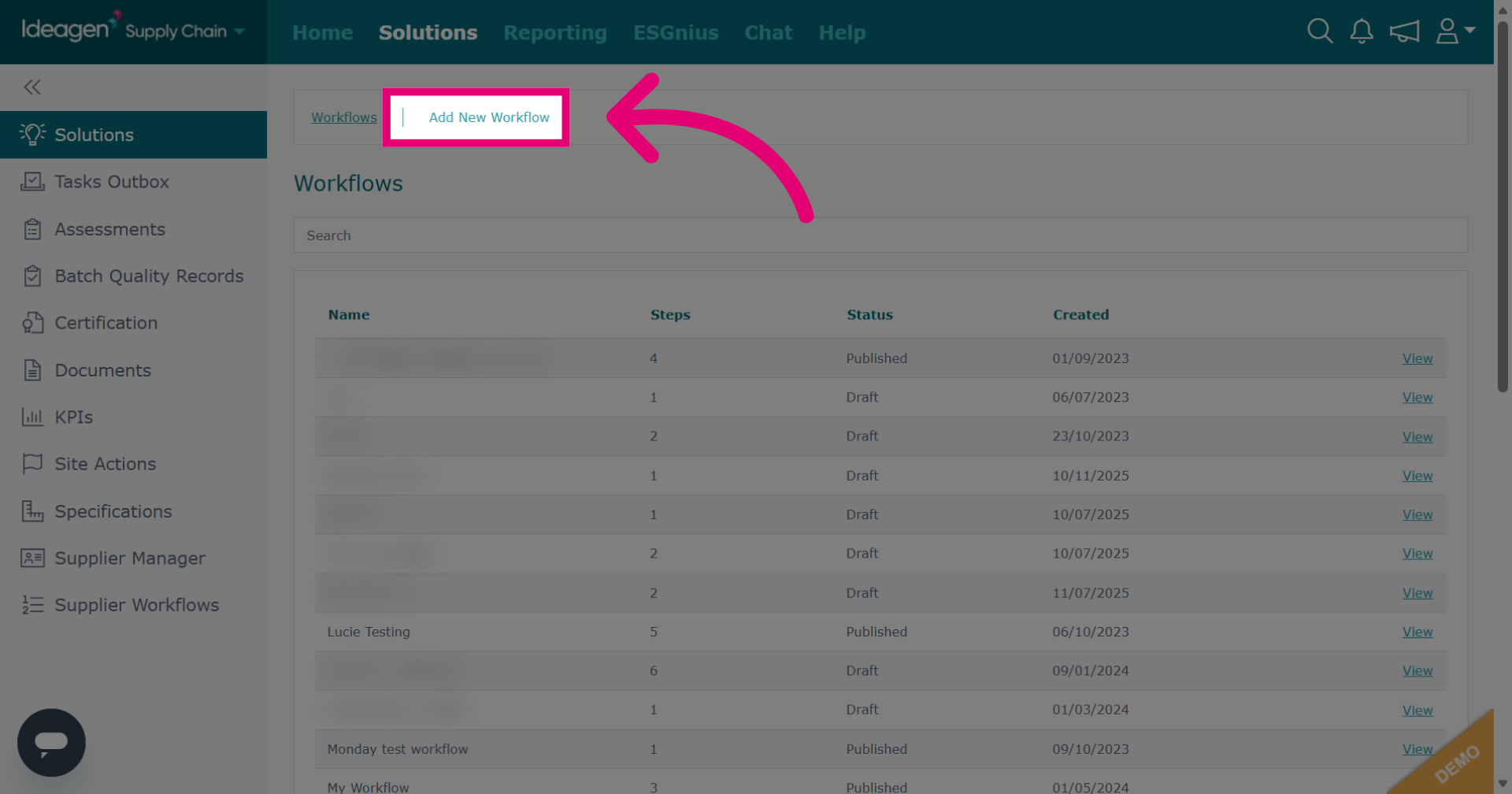
- Click Add New Workflow to start creating a new workflow from scratch.
- Enter the name for your new workflow.
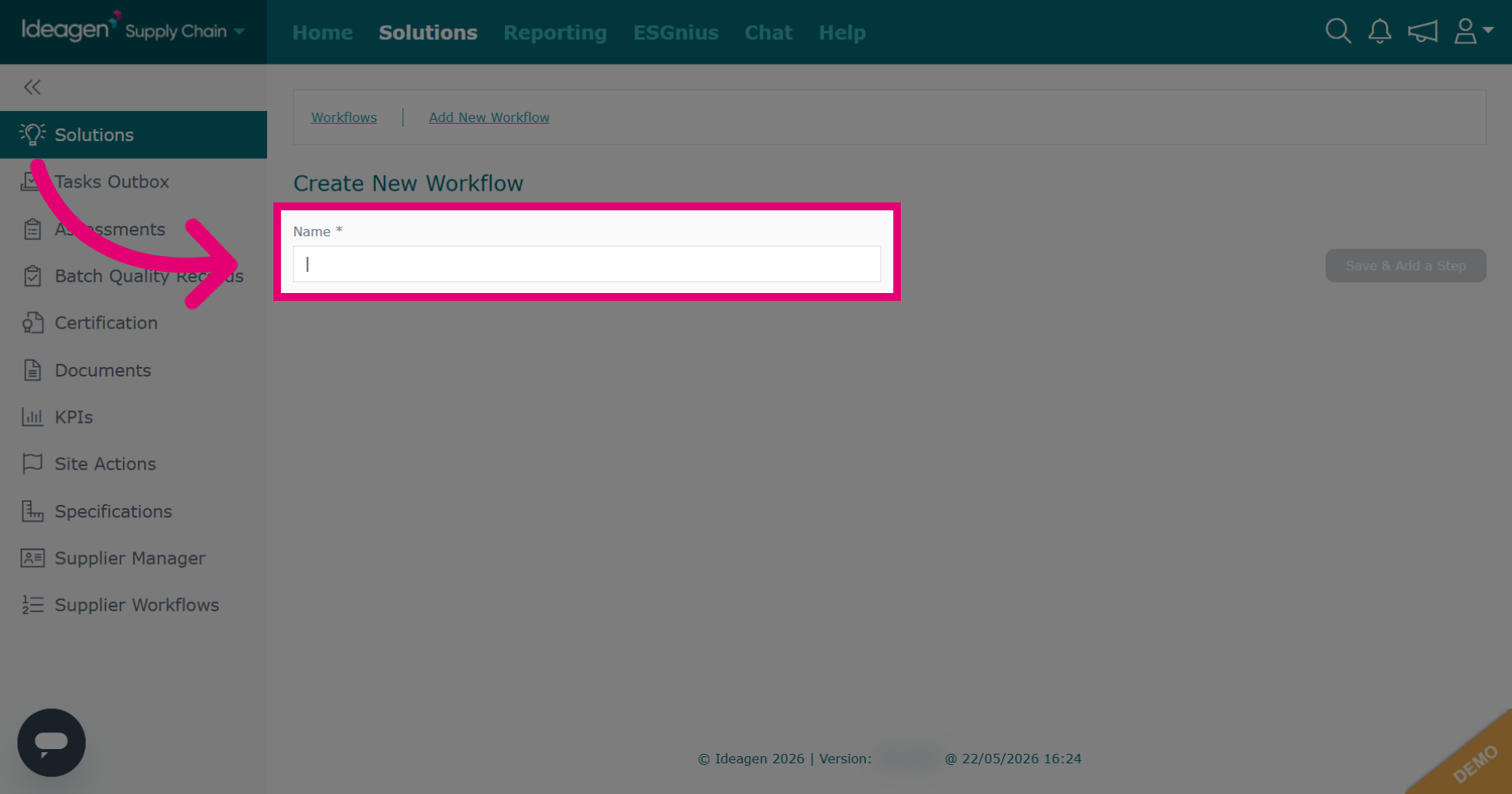
- Click Save & Add a Step to save the workflow name and proceed to adding steps.
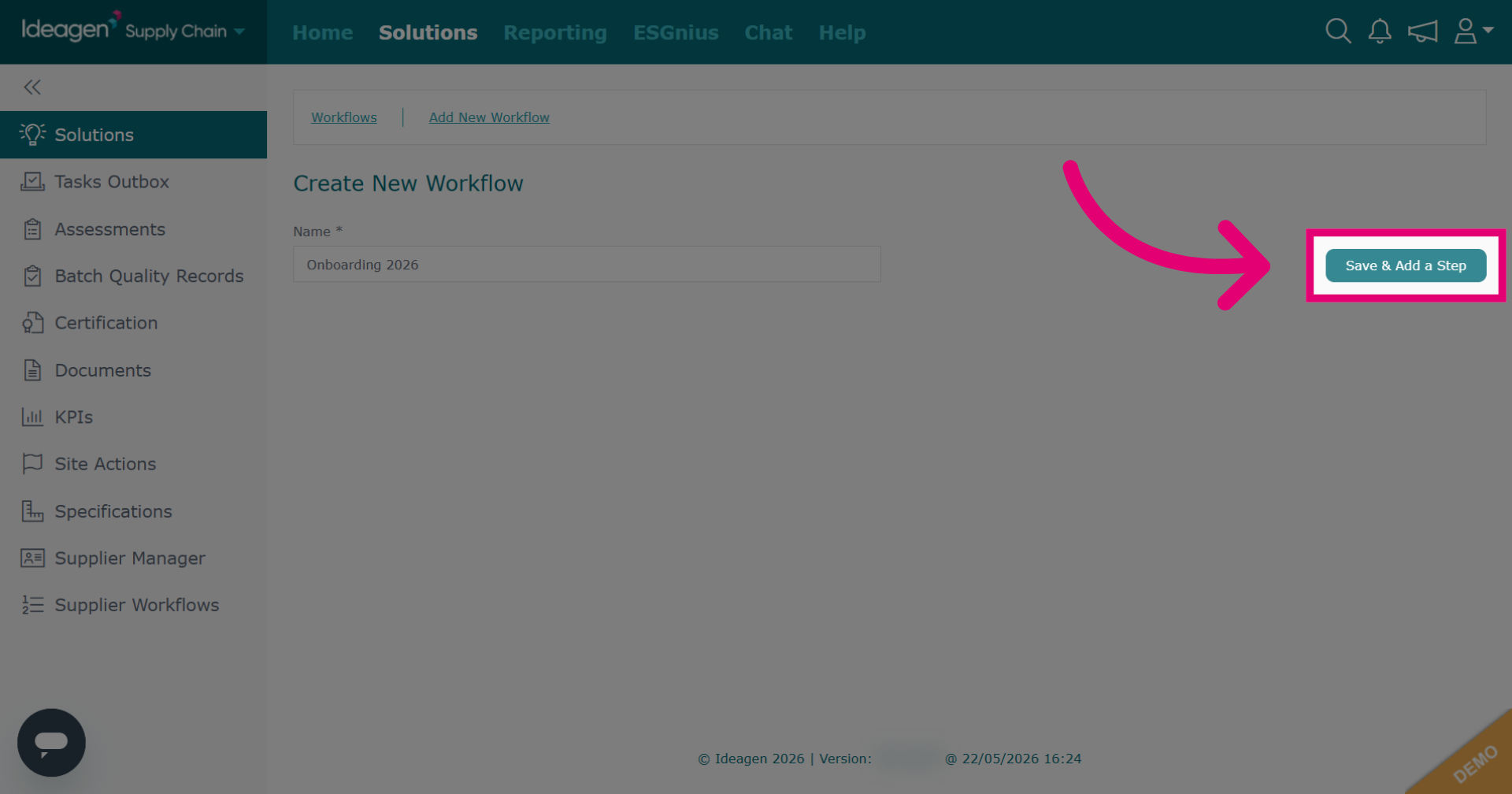
- Click Add Step to begin defining a step within your workflow. The step will contain the task requests that will be sent to your suppliers.
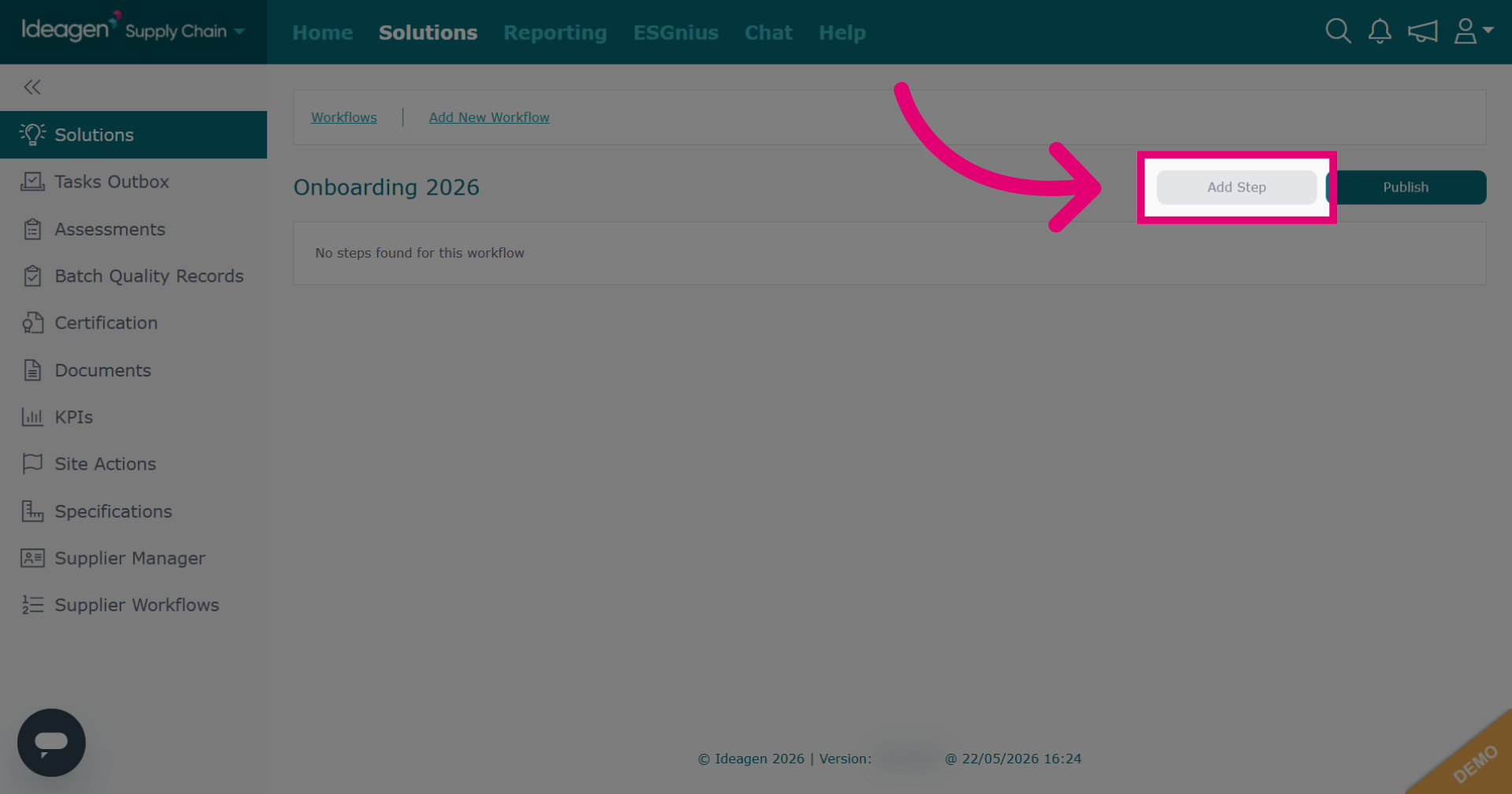
- Input a name for the step.
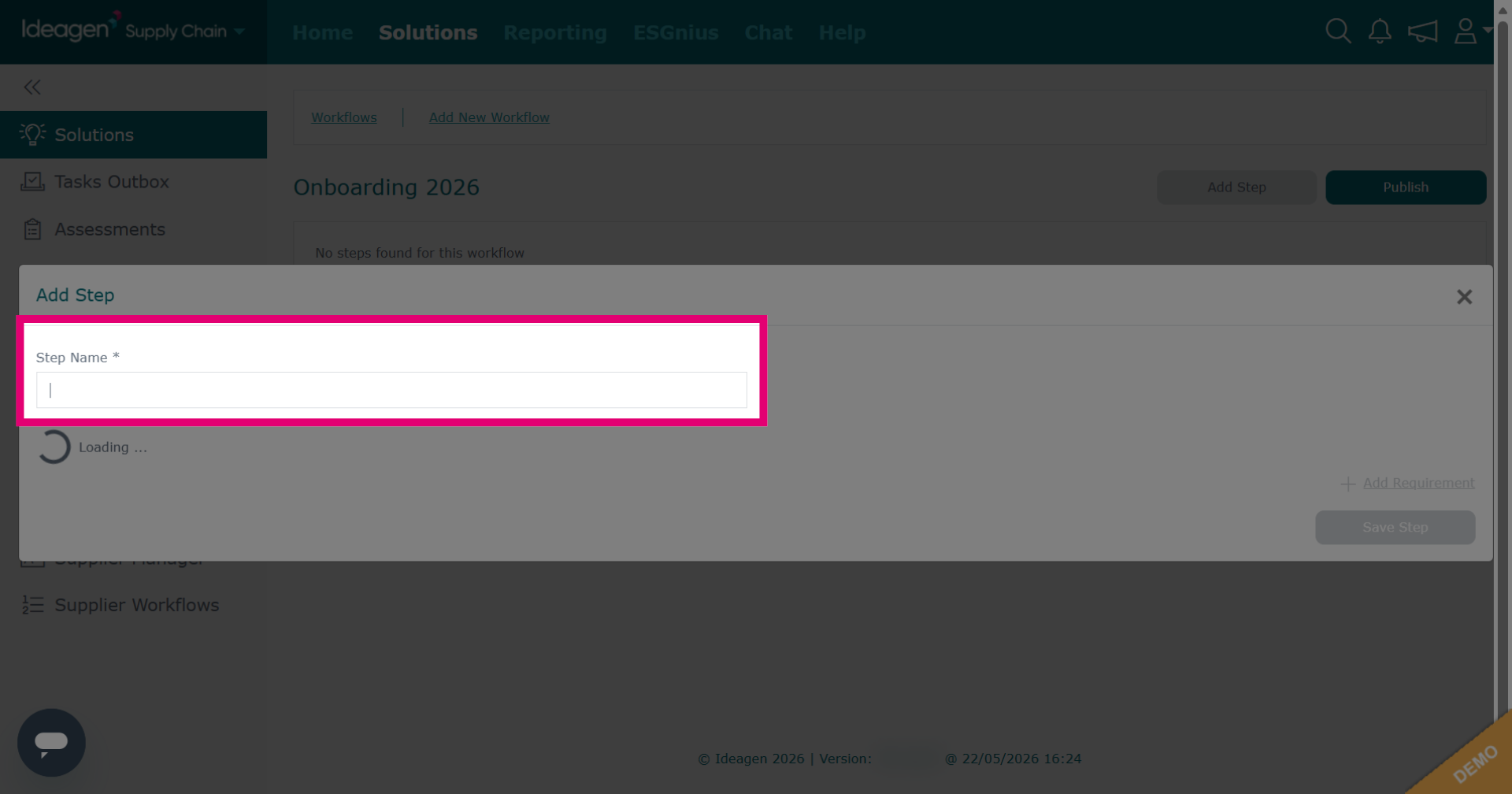
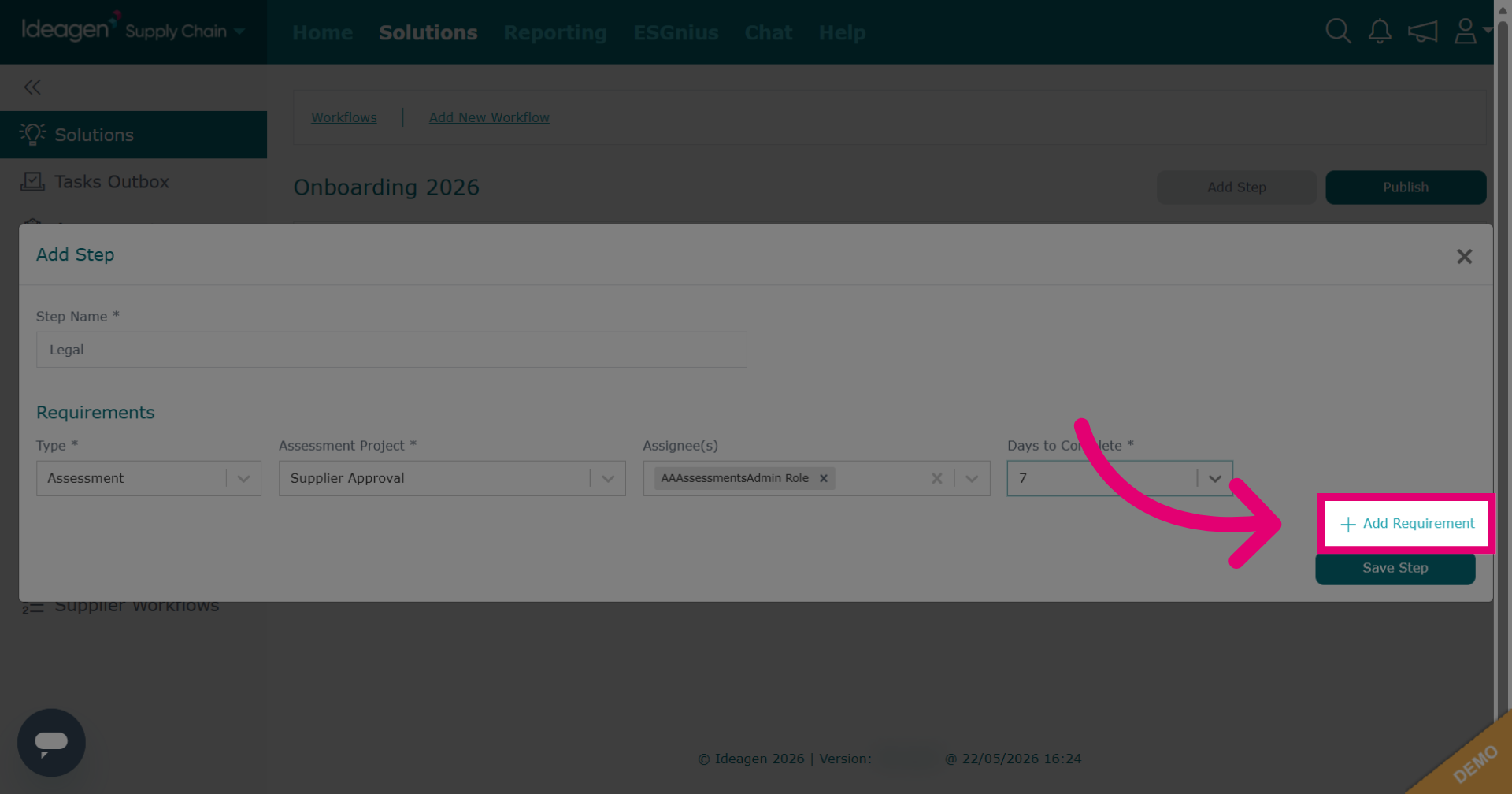
- Click Add Requirement to set task requirements.
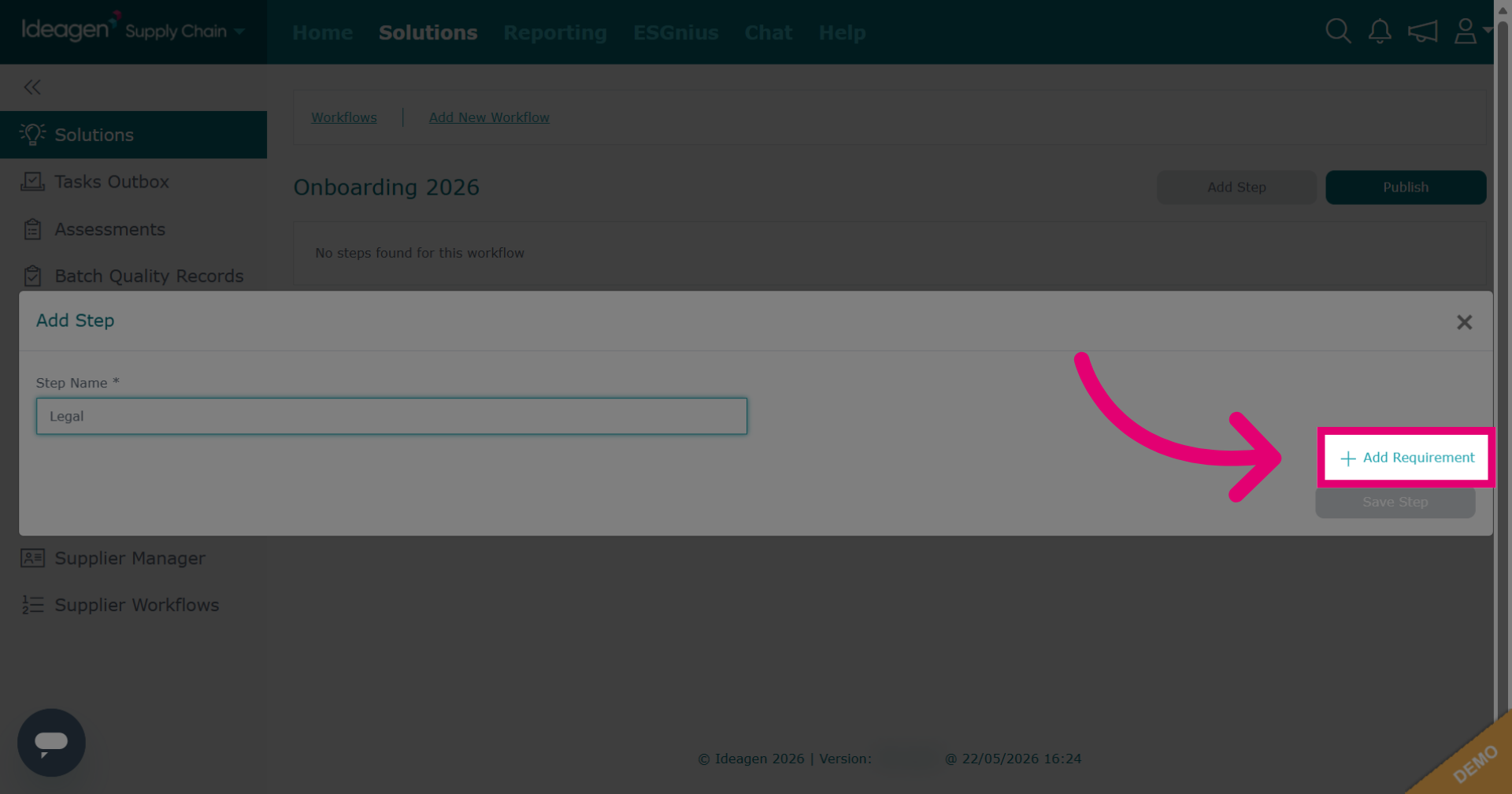
- Select requirement type from assessment, document, ESG or note. These are the only modules that can currently be included within a workflow. Please note, your assessment and document projects need to be pre-existing so that they can be added to the workflow. If you have not created the assessment or document you wish to add, please do so first.
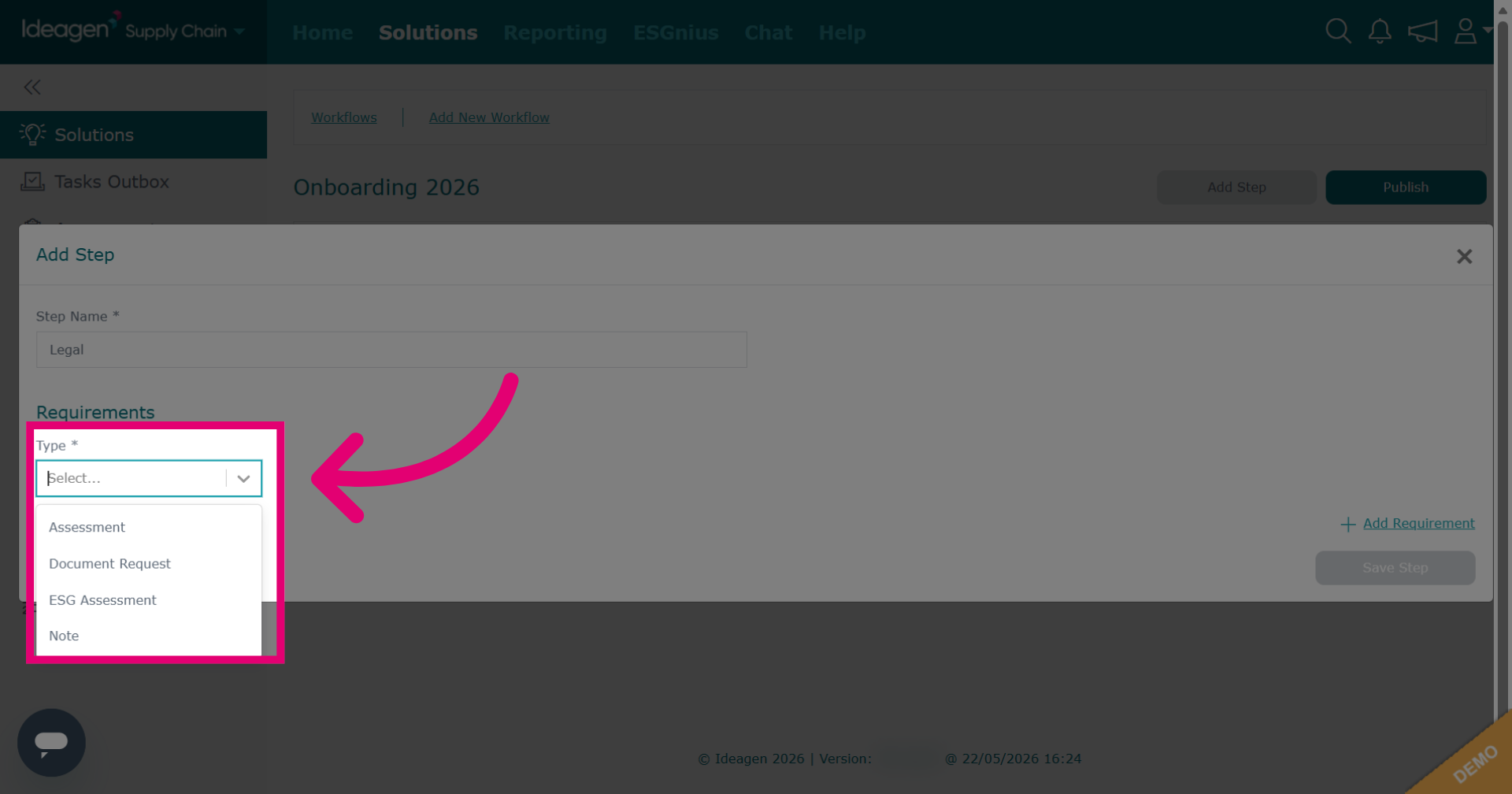
- Select the request data to be included within the requirement such as project, assignee and number of days the task should be completed within.
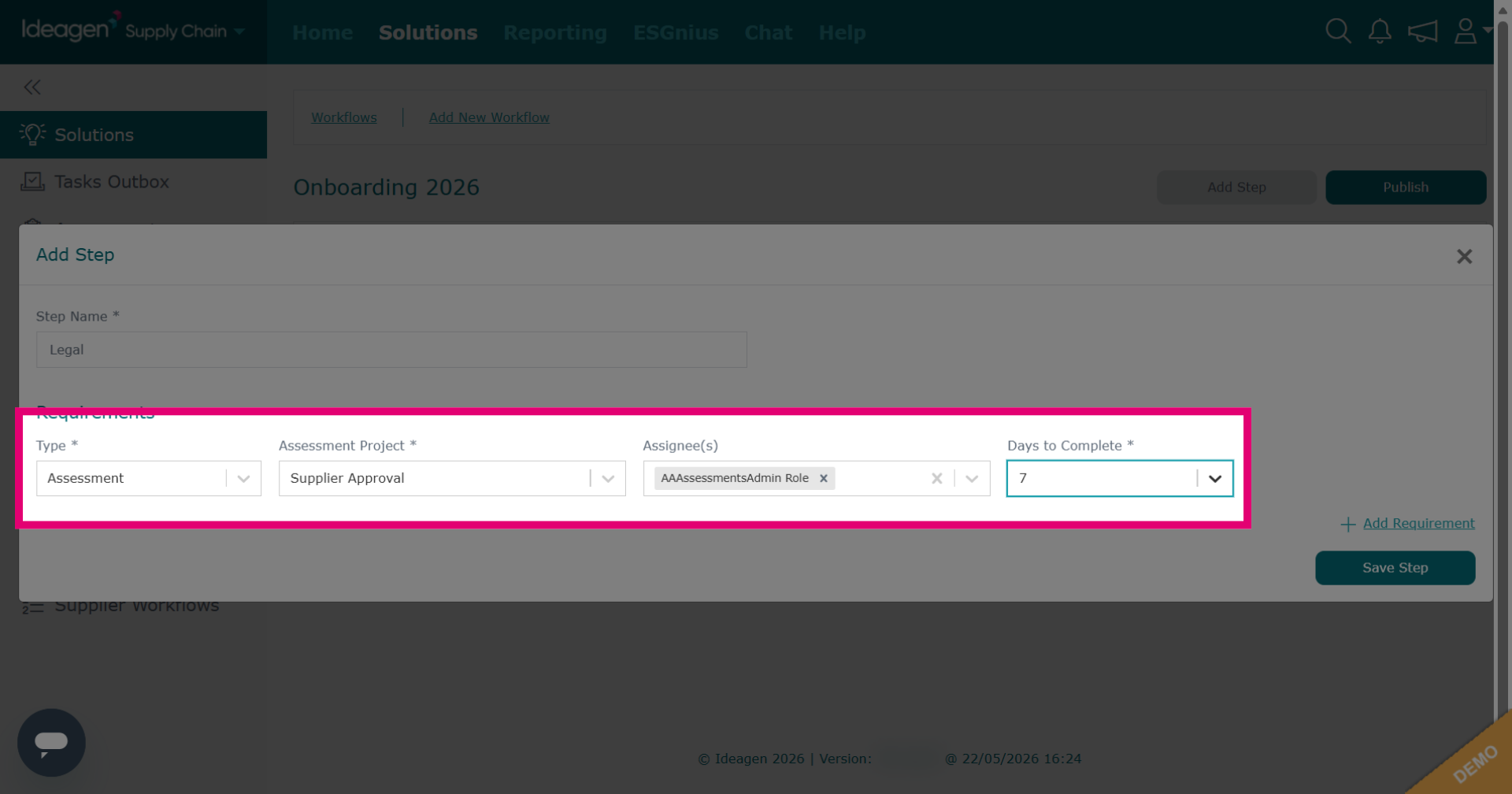
- Different request types require different request data. ESG only requires days to complete as there is only one ESGnius assessment and the assignee is Ideagen Supply Chain as it is managed by us. Note requires name, and whether it will be added to company or site level - as private notes are not project based. To learn more about notes please watch our video guide titled "Supplier Profile: Relationships & Contacts."
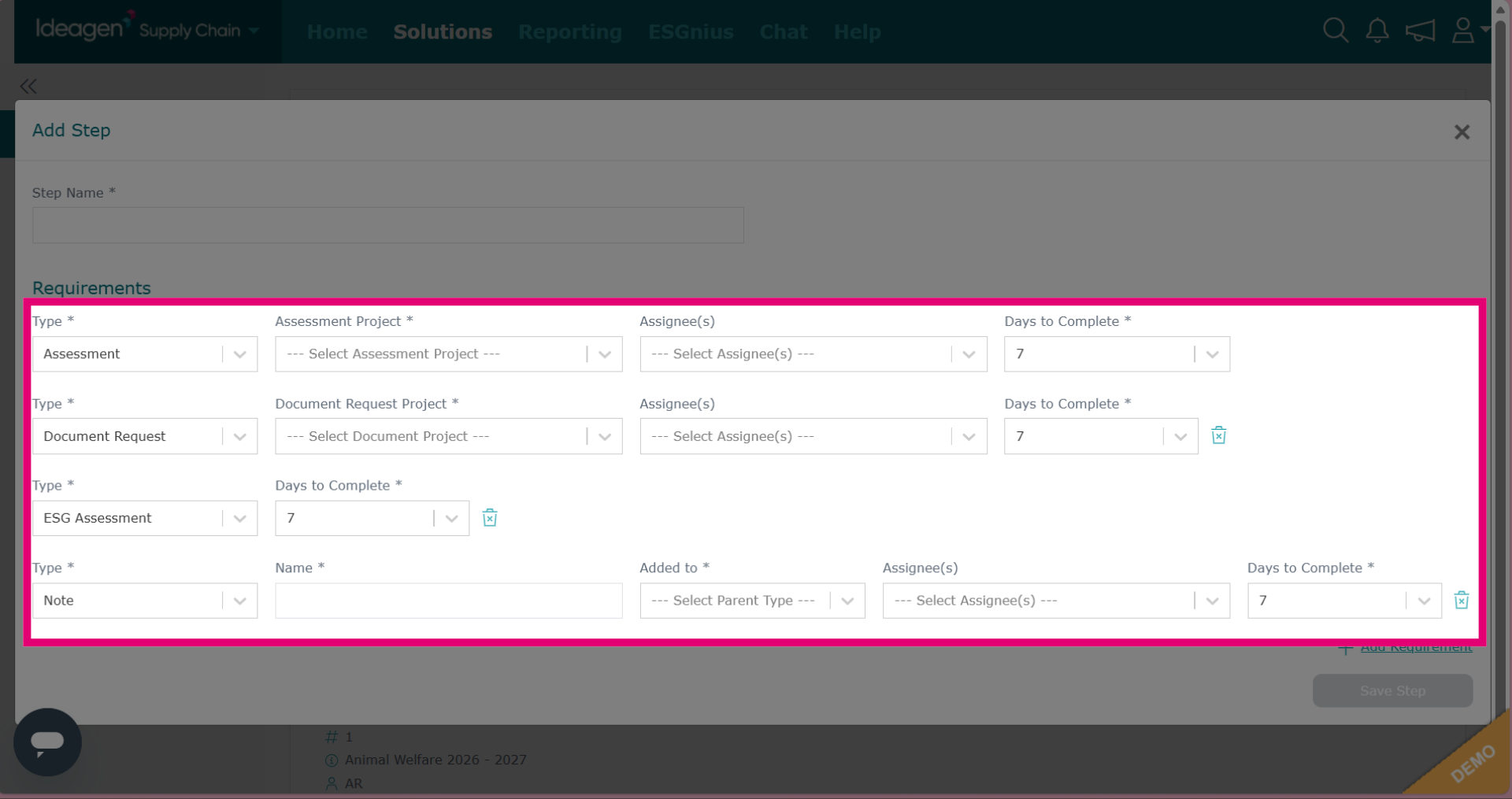
- If you would like a step to have multiple requirements, click Add Requirement to include additional tasks for the workflow step.
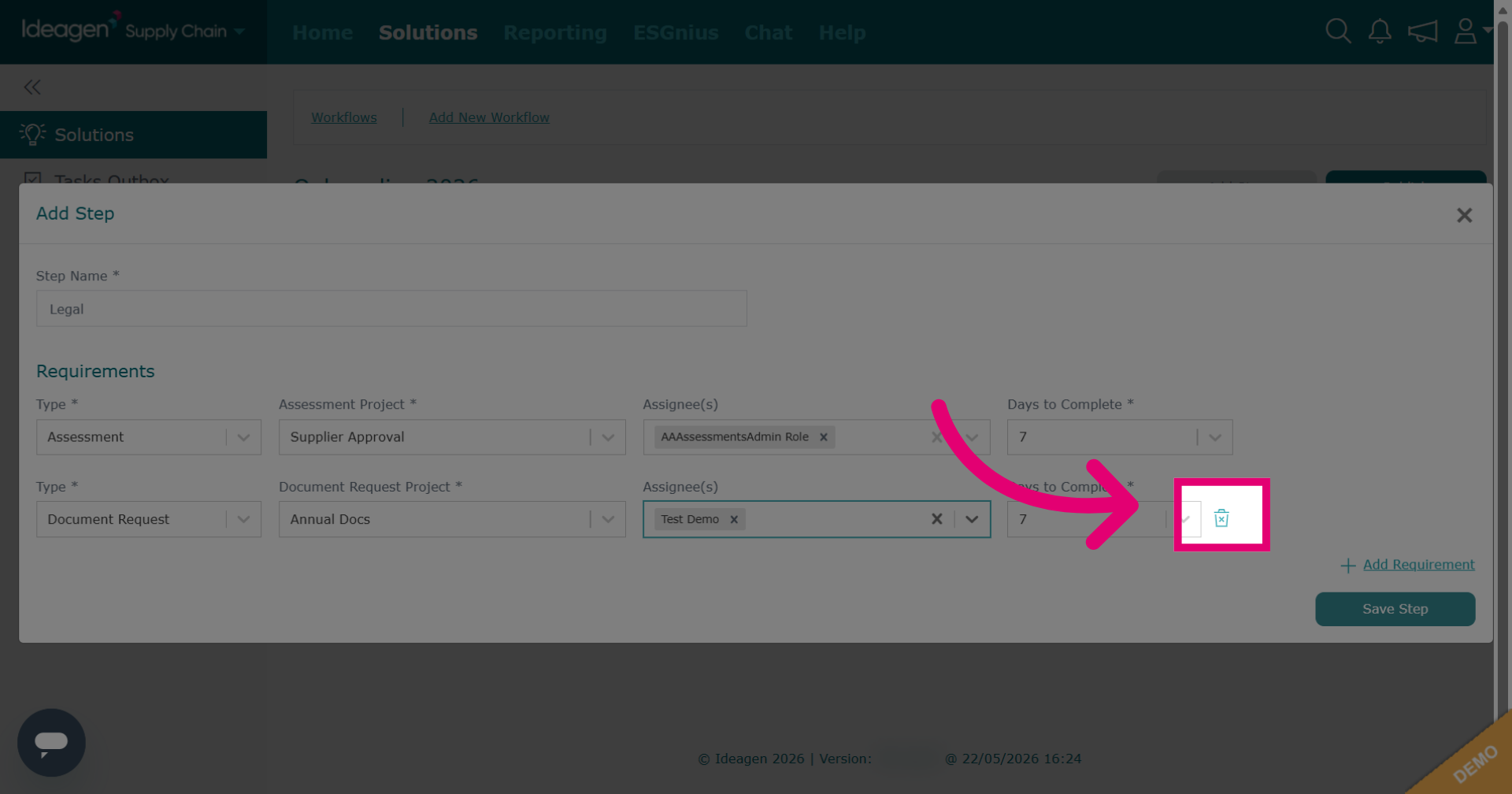
- All steps must contain at least one requirement, however you can delete additional requirements by clicking the bin icon next to the item you wish to remove.
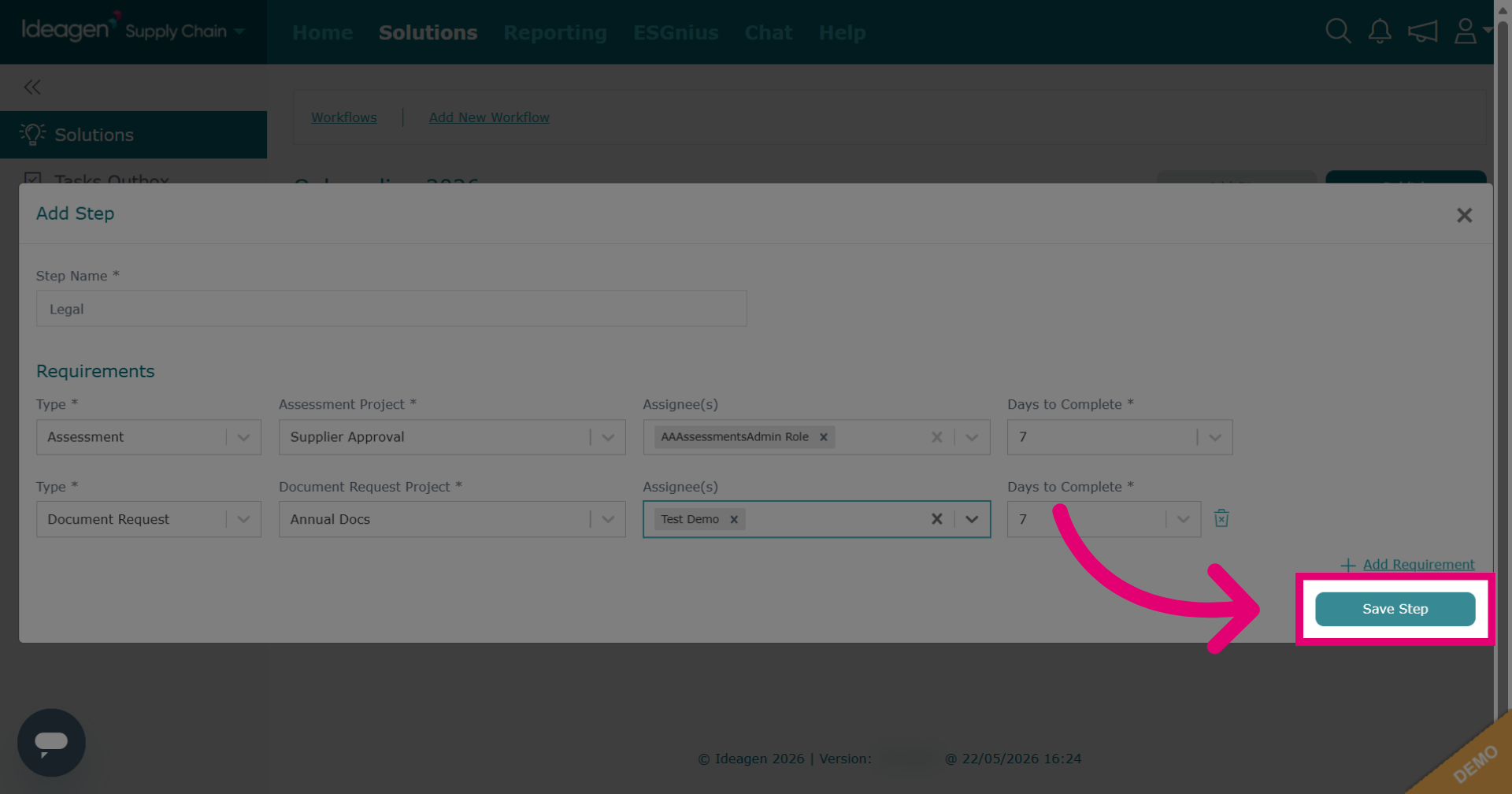
- Click Save Step to save all configurations made for this workflow step.
- Tasks contained within a step will all be sent out at once for supplier's to action. However, if you add further steps, tasks will be sent in a linear format. The tasks within the first step sent first, once they are returned and passed, the tasks within the second step will then be sent out, and so on and so forth. Please note, if you fail a supplier's returned task that is contained within a workflow, the workflow will end for that supplier. Any subsequent tasks contained within later steps will not be sent.
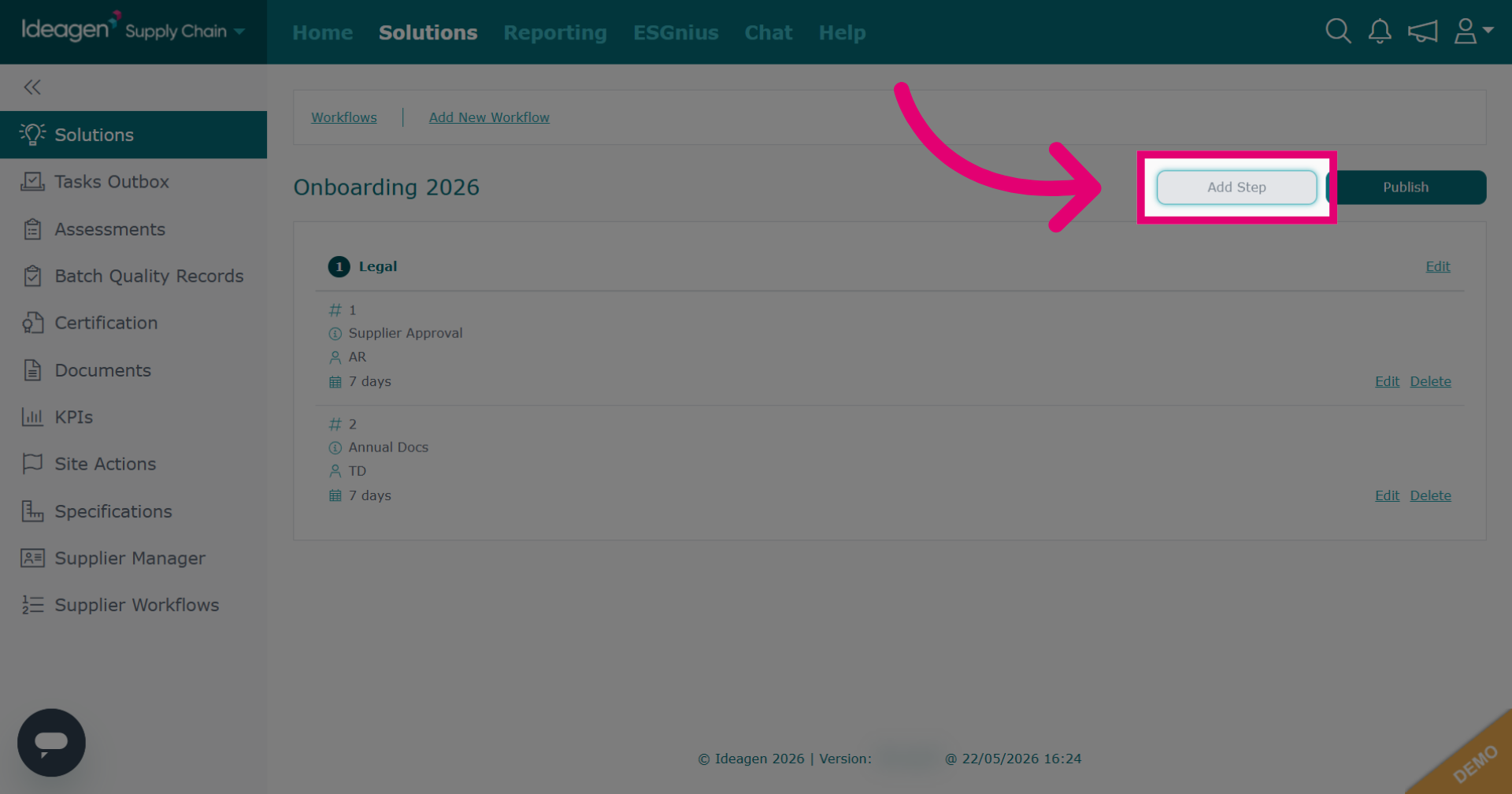
- Once you have added all steps and requirements, you can edit and delete by clicking Edit or Delete respectively. Currently, you cannot delete steps, you can only edit them. You are also limited with edit options for requirements, you will only be able to amend assignees and the number of days to complete. Please get in touch if further edits are required.
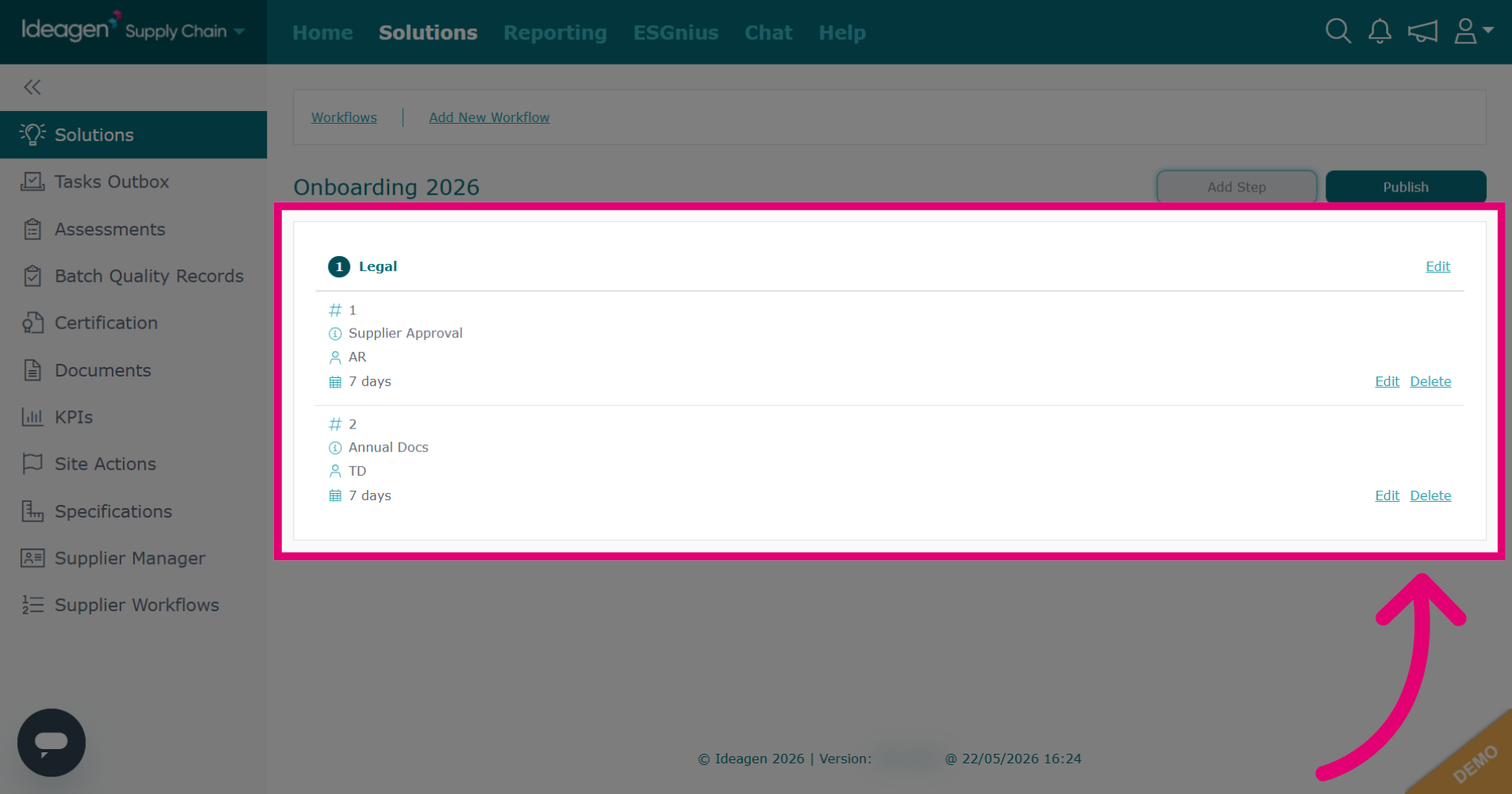
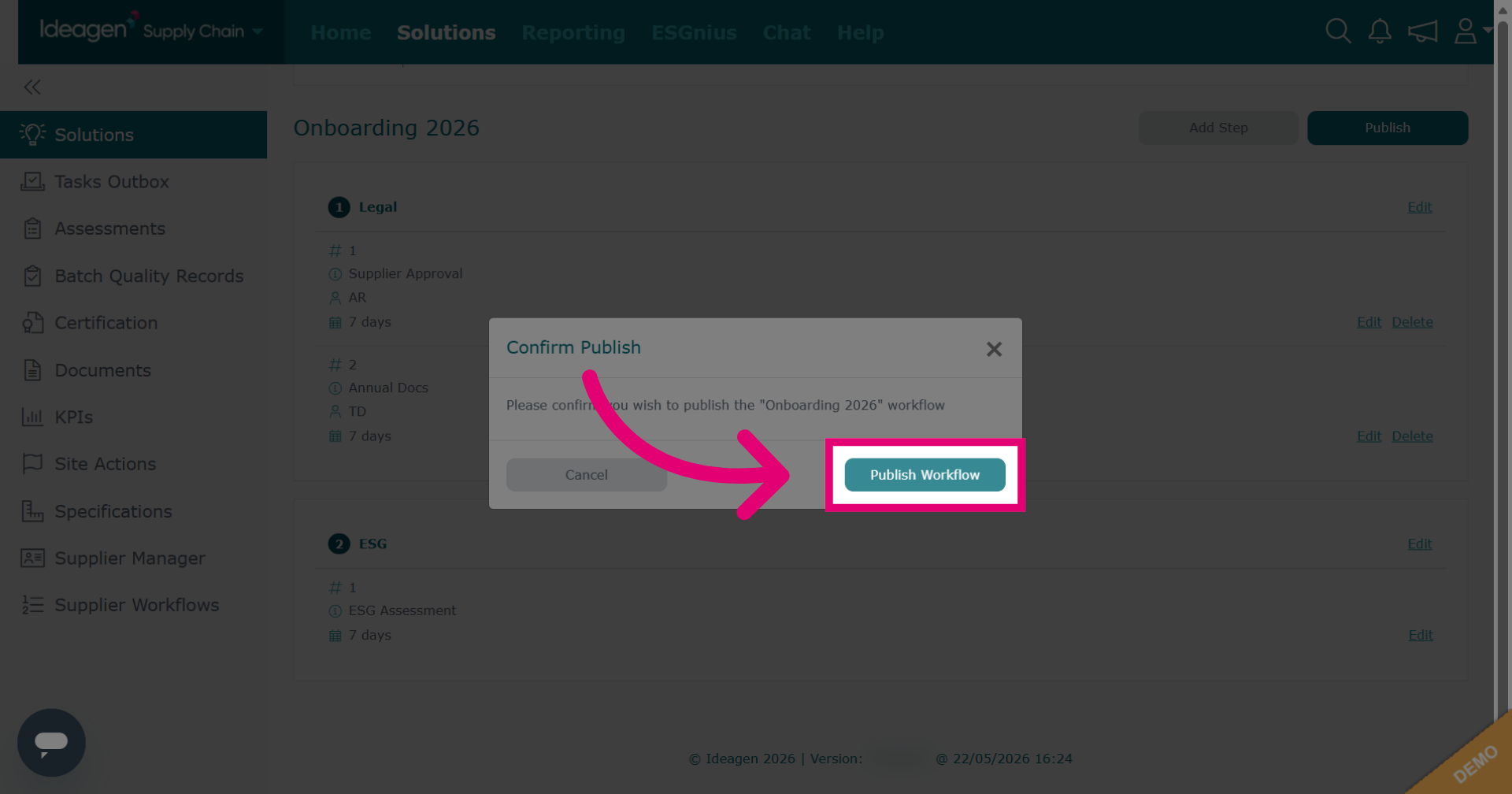
- Click Publish to initiate the workflow publishing process. Once published, no further changes or amendments can be made.
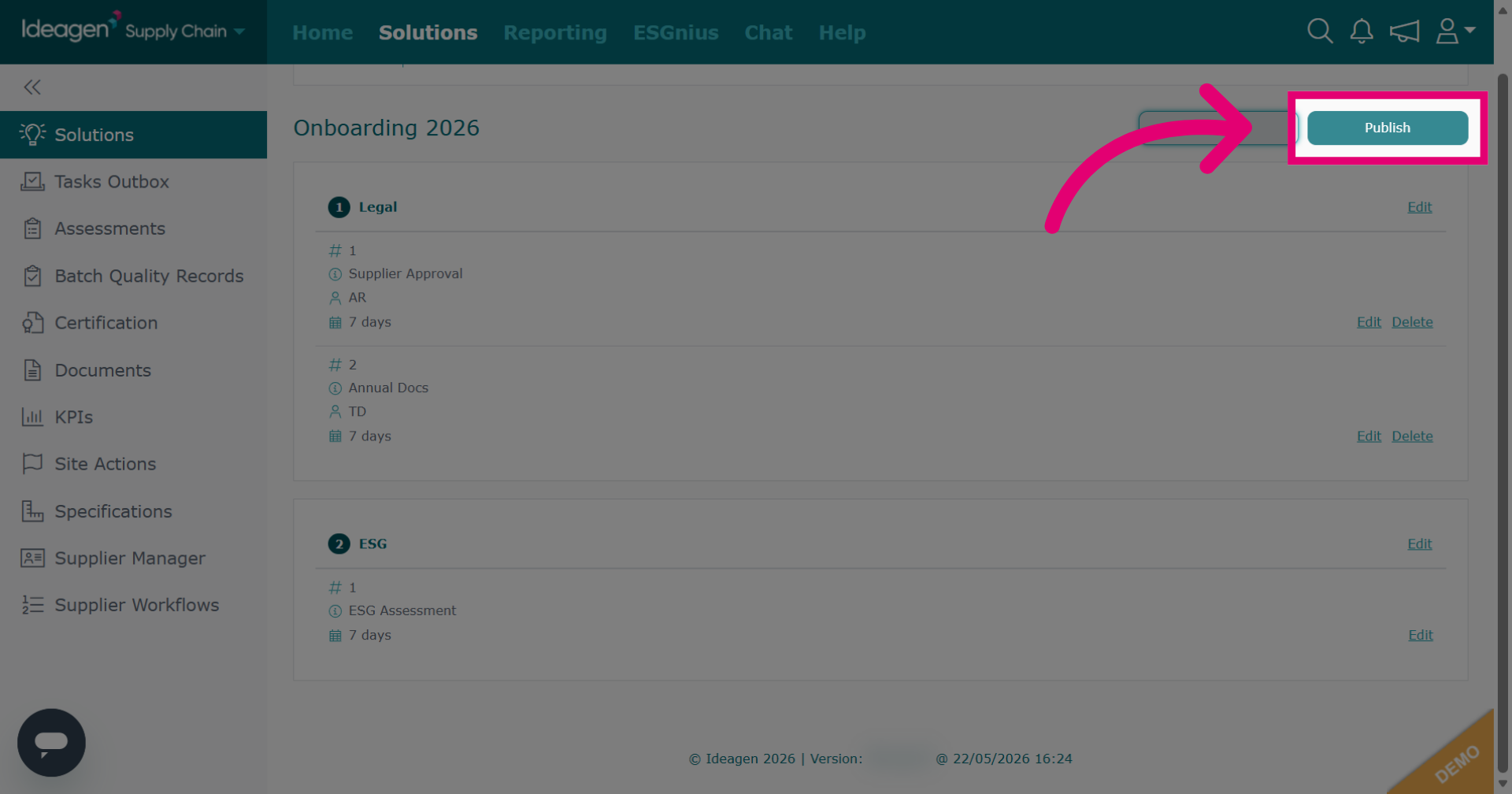
- Click Publish Workflow to finalize. If you are not ready to publish, click cancel instead.