


New article
Recently updated
Managing suppliers in a workflow

Who is this article for?
Users who want to add and manage suppliers within a workflow.
Workflow admin permissions are required.
This guide walks you through adding, editing, and deleting suppliers within a workflow.
Adding suppliers
To add suppliers to a workflow:
- Open the workflow.
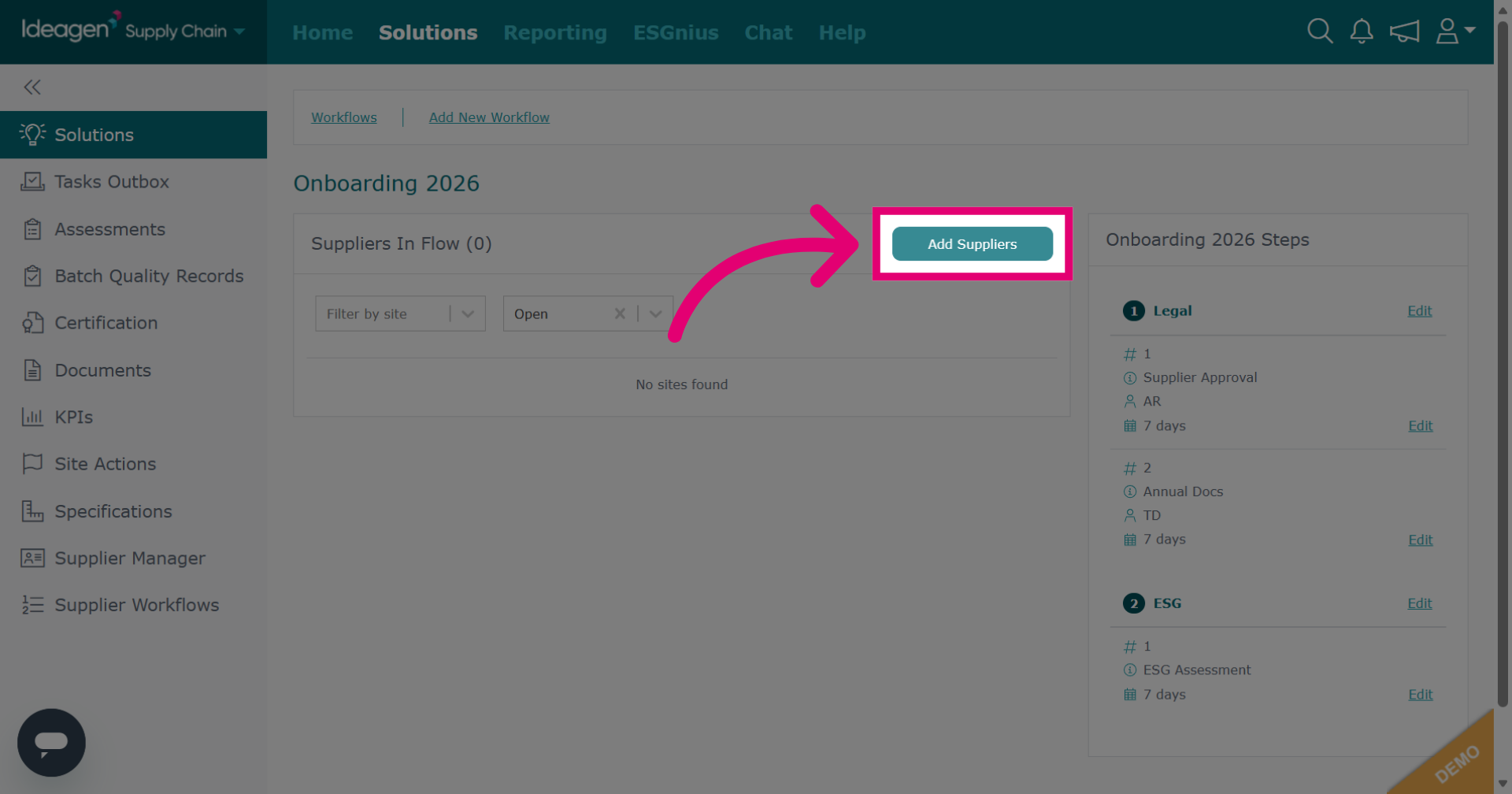
- Click Add Suppliers.
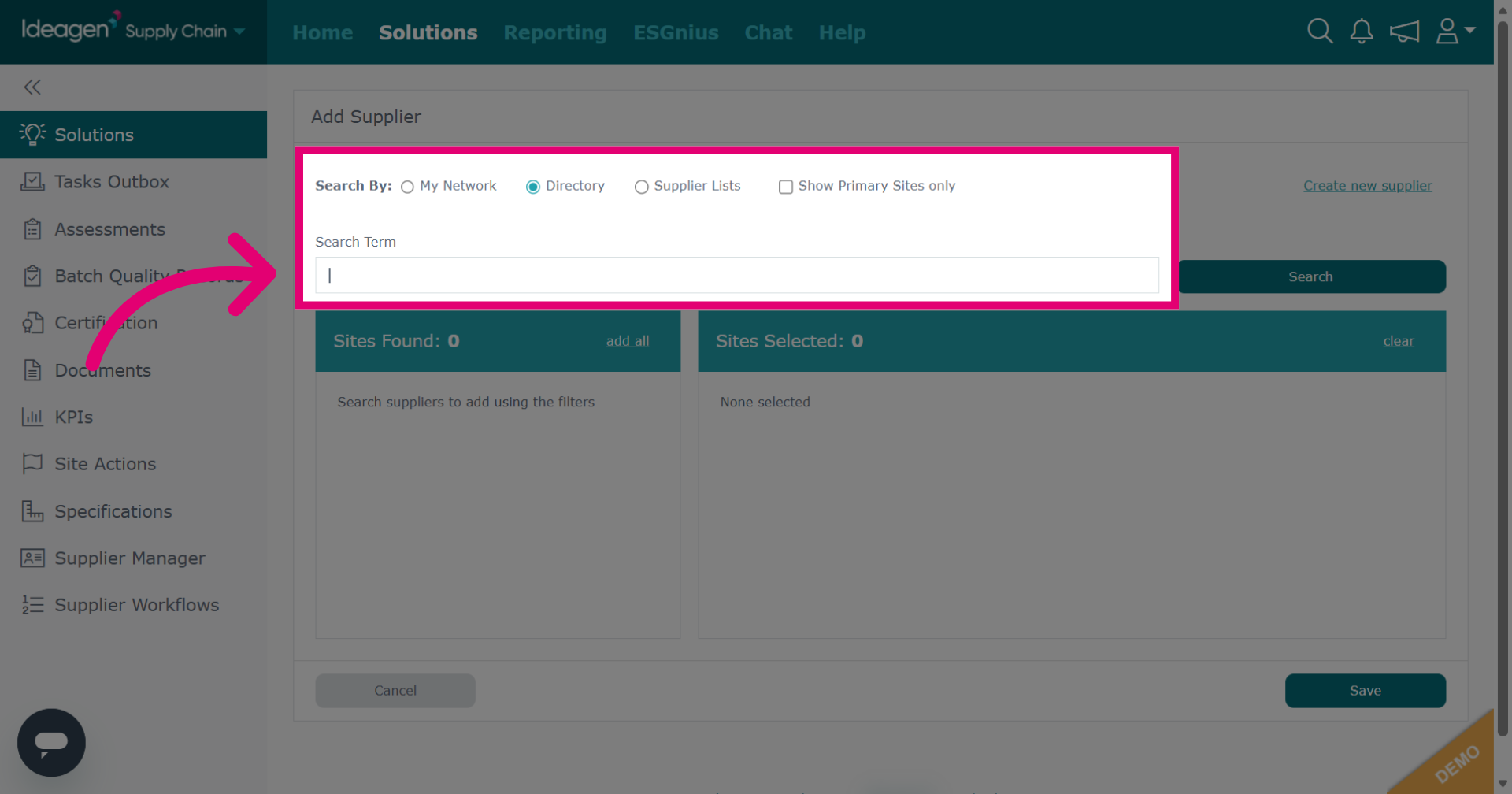
- Enter terms to find the supplier:
- Network shows suppliers linked through supply chain mapping.
- Directory searches the entire database.
- Supplier lists let you search within your created lists via the supplier manager module.
- Click Search.
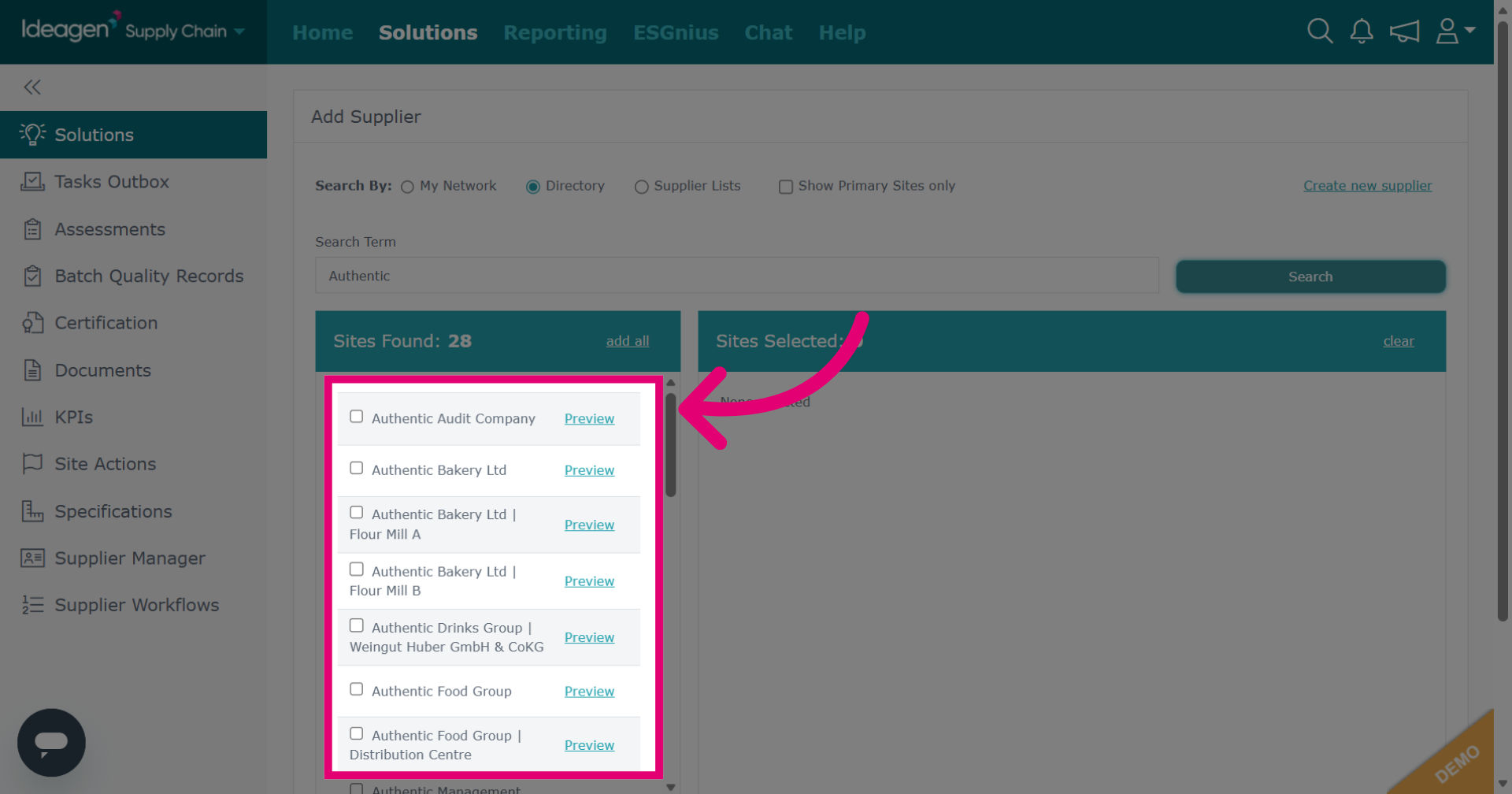
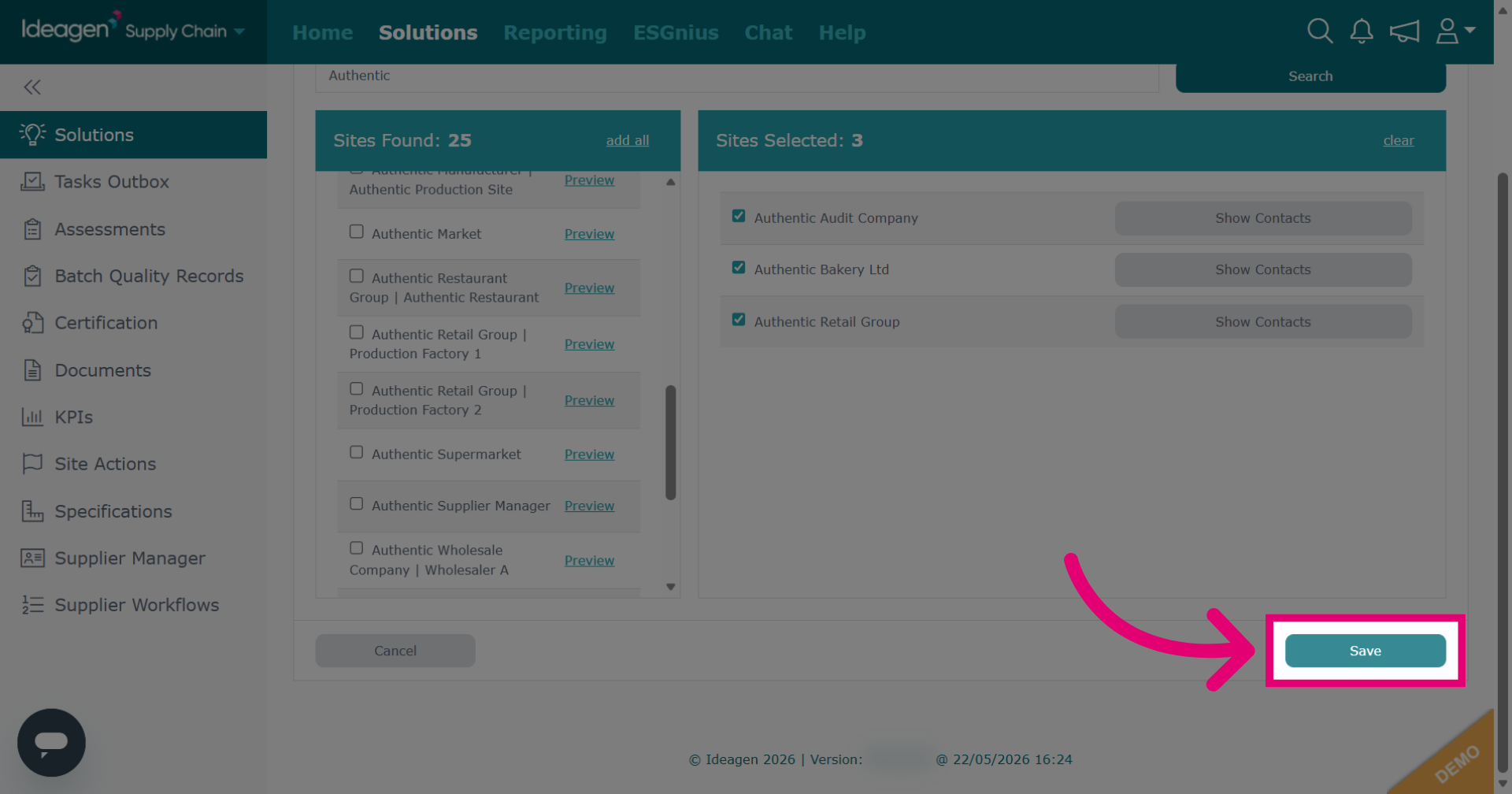
- Select suppliers from the search results.
Repeat this process until you've found all the suppliers you want to add.
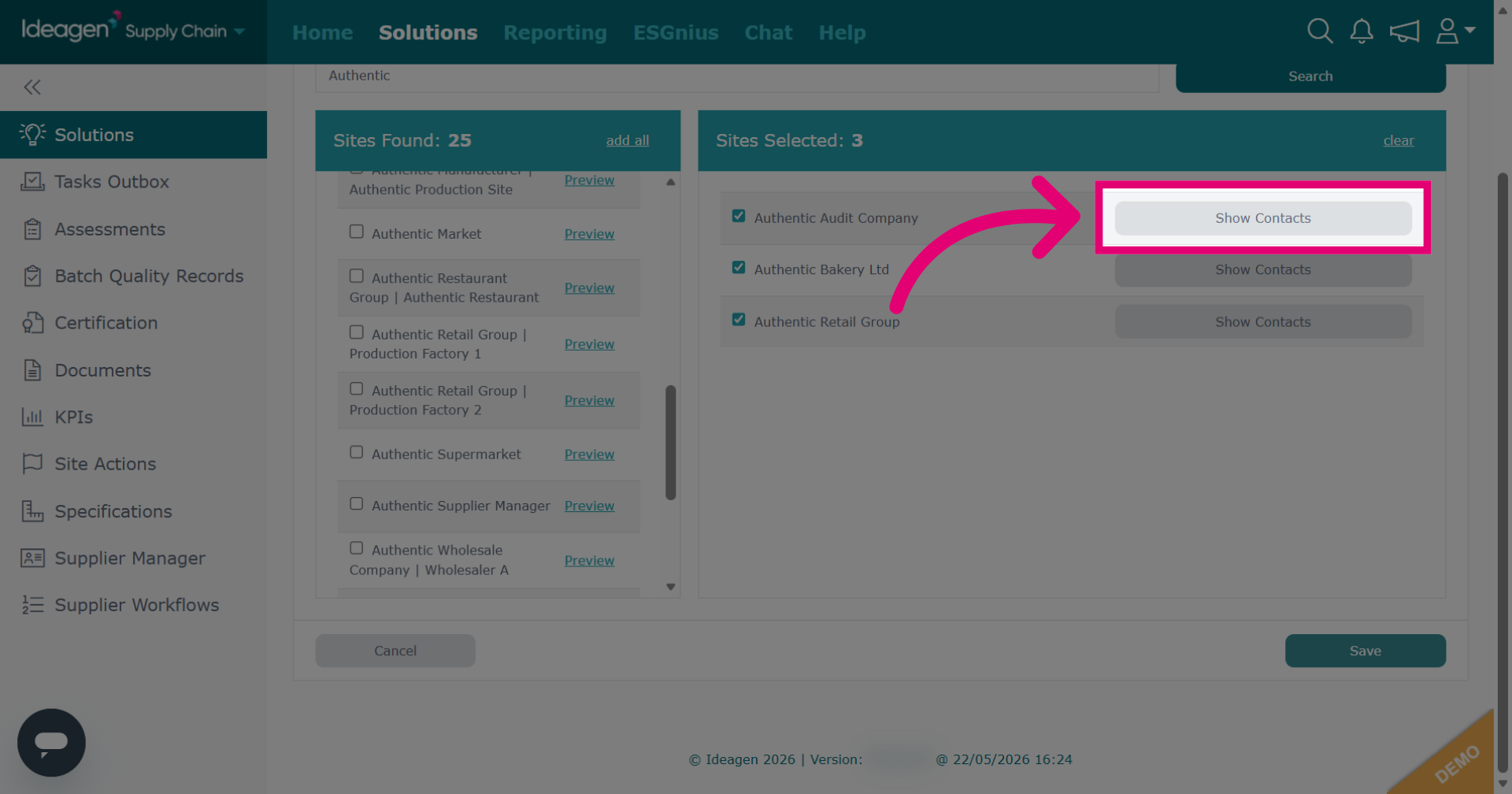
- Click Show Contacts to see the supplier contacts.
This user will be notified and assigned all tasks in the supplier profile workflow. Different assignees for separate steps or requirements cannot be set.
- Click Save.
The workflow tasks will be sent out to the selected suppliers.
Note
If a supplier has already completed tasks that are included within the workflow, providing that the task has not expired, this will be considered already complete and a new task will not be sent out. If the supplier has completed a task within the workflow that has expired, a new task will be sent out.
Viewing suppliers
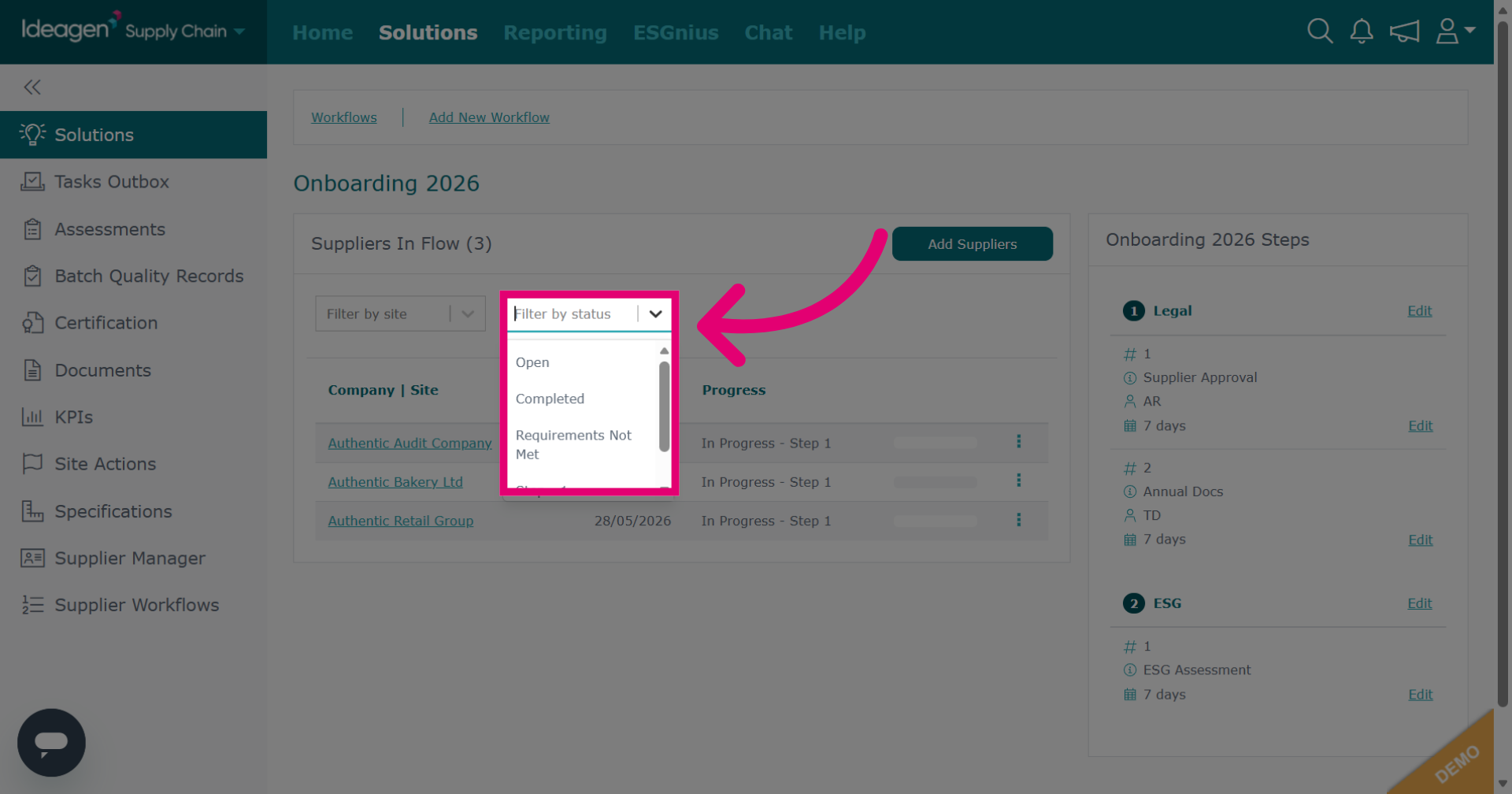
The default workflow view shows Open suppliers. If you cannot see the supplier you are looking for, change the Status filter.
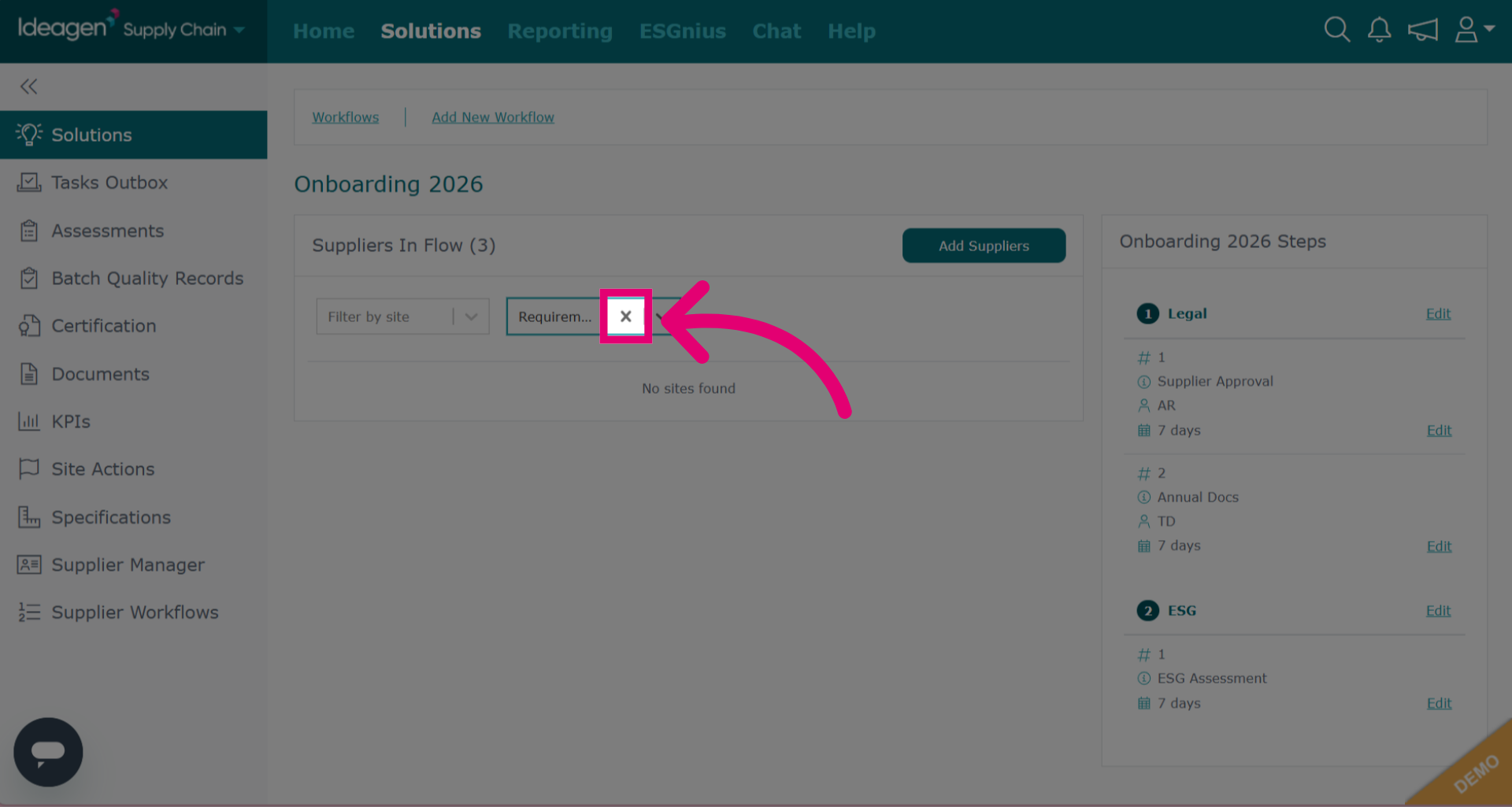
You can remove the filter by clicking the Cross icon.
Viewing supplier progress
To view task progress:
- Open the Actions menu.
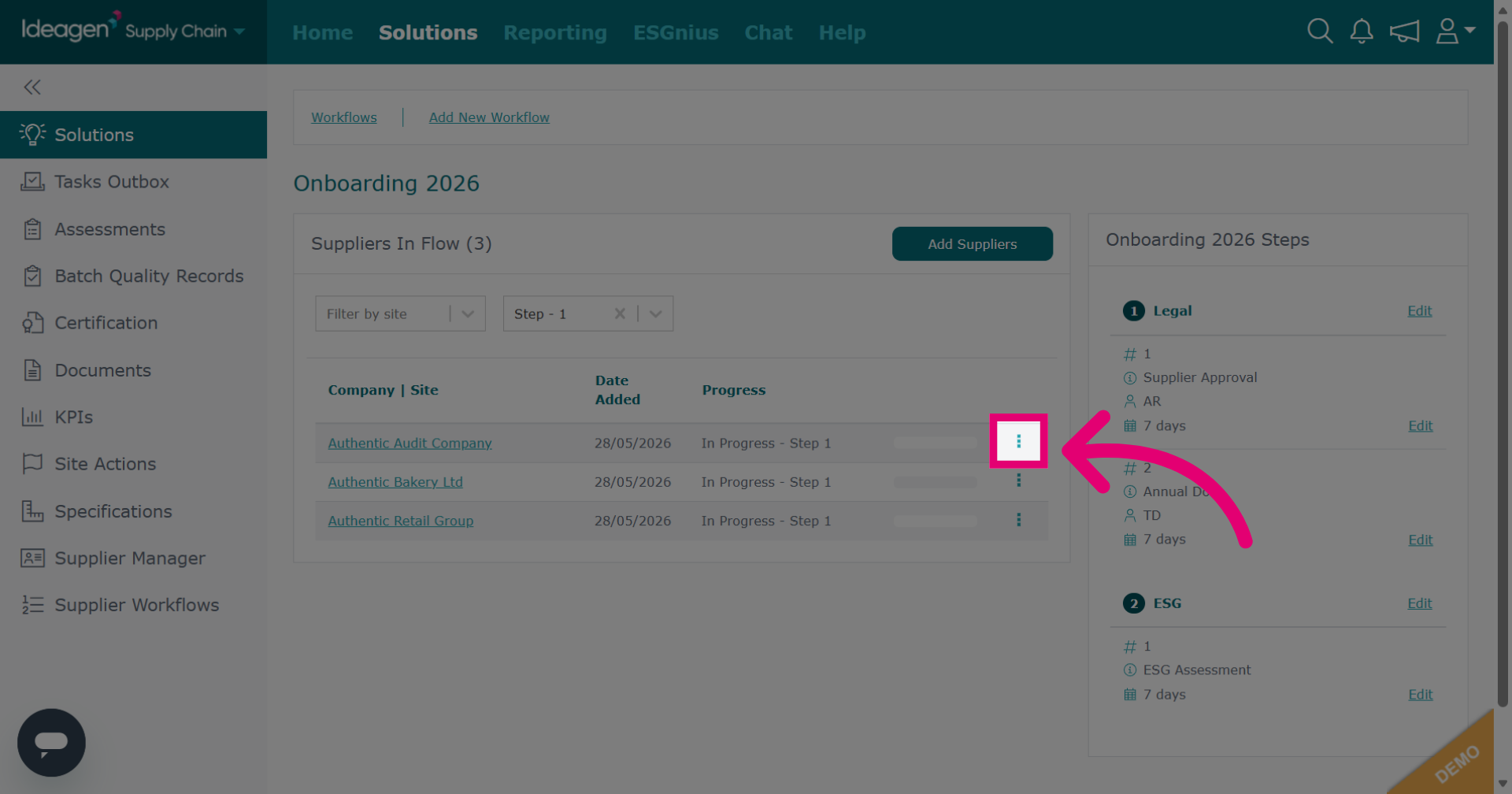
- Select View.
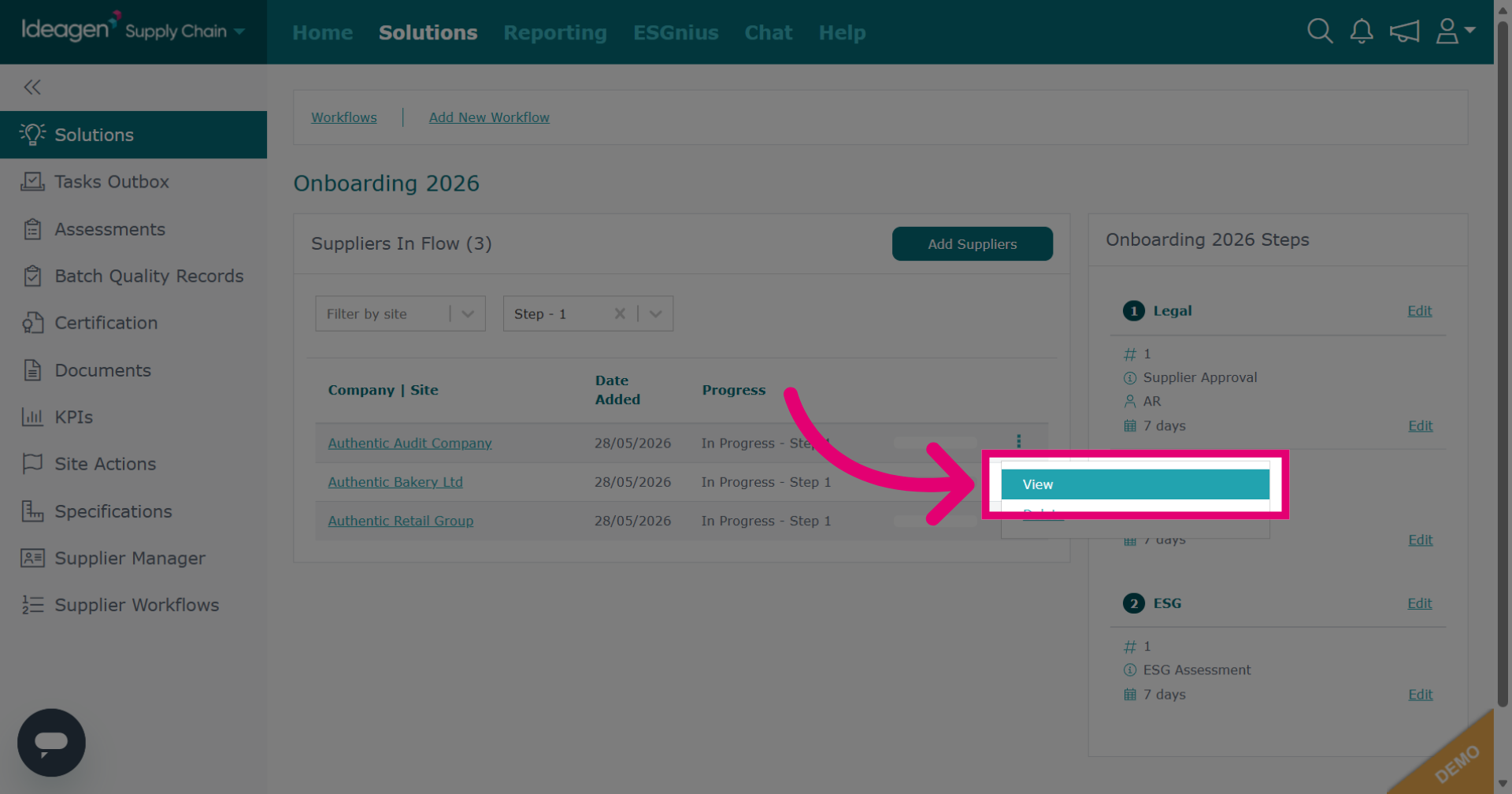
You will be able to see their workflow progress. Tasks that have not yet been passed or completed will not be able to be viewed from this screen.
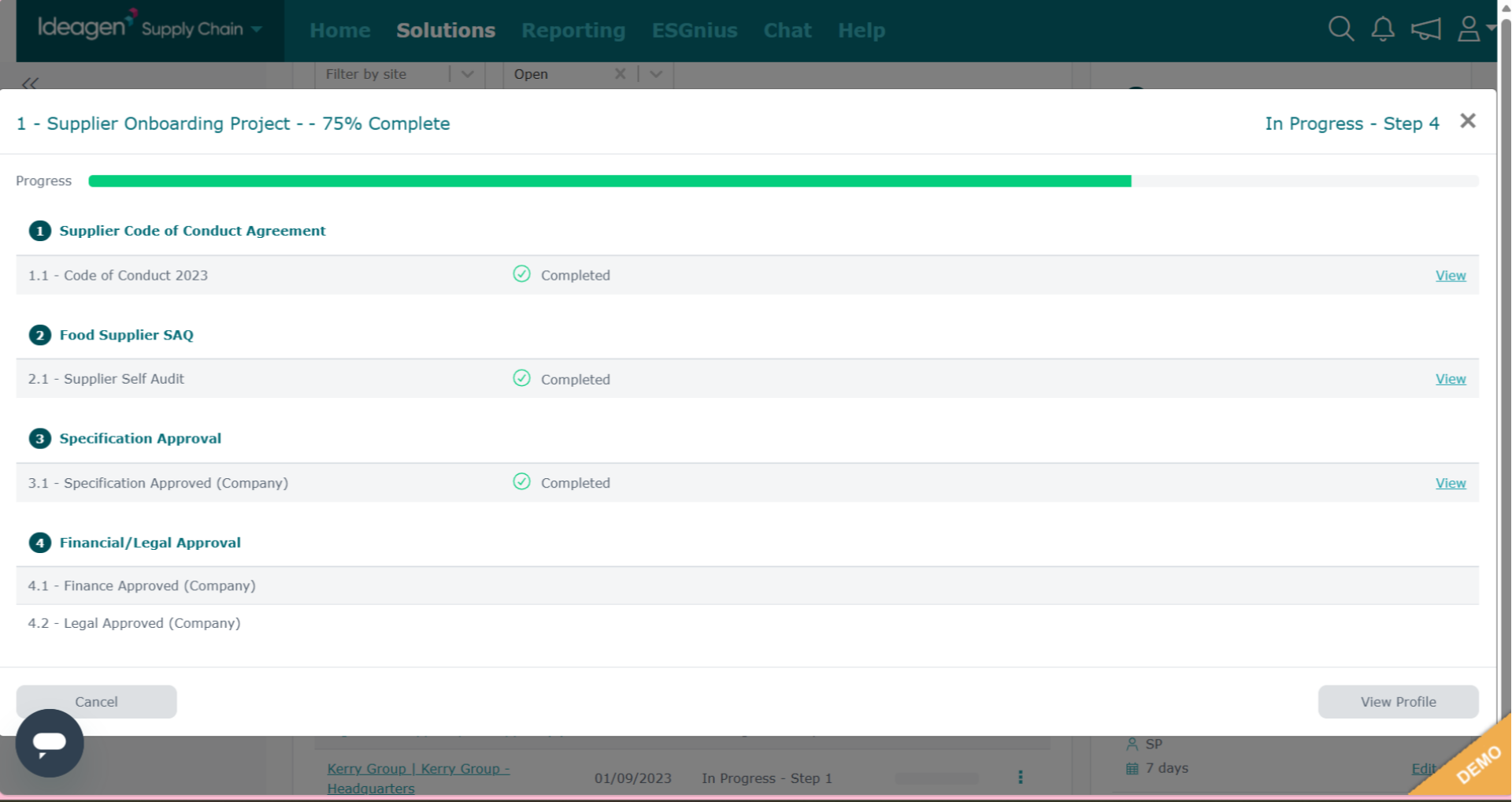
To view the full supplier profile, click View Profile.
Deleting suppliers
To delete a supplier from the workflow:
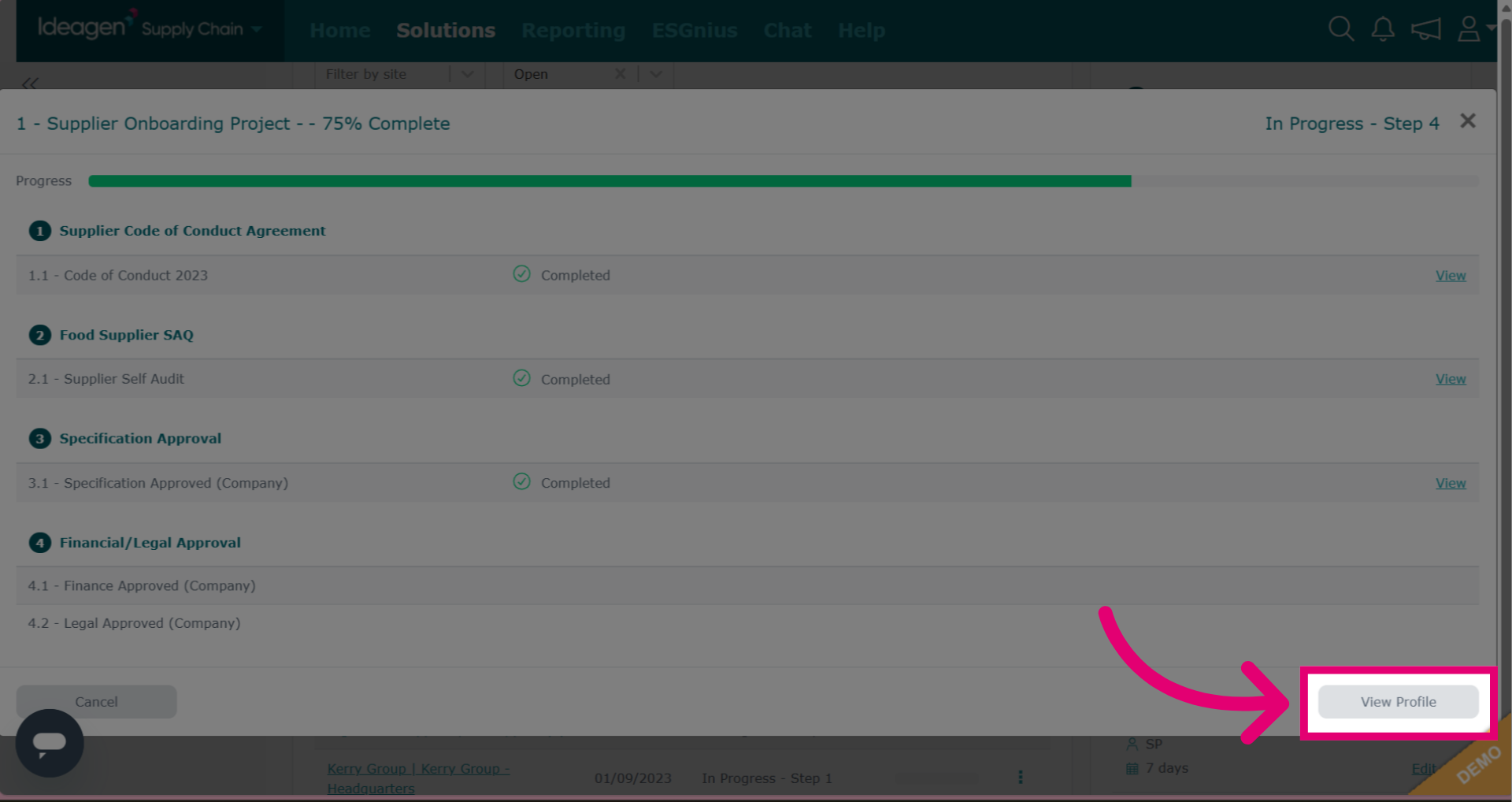
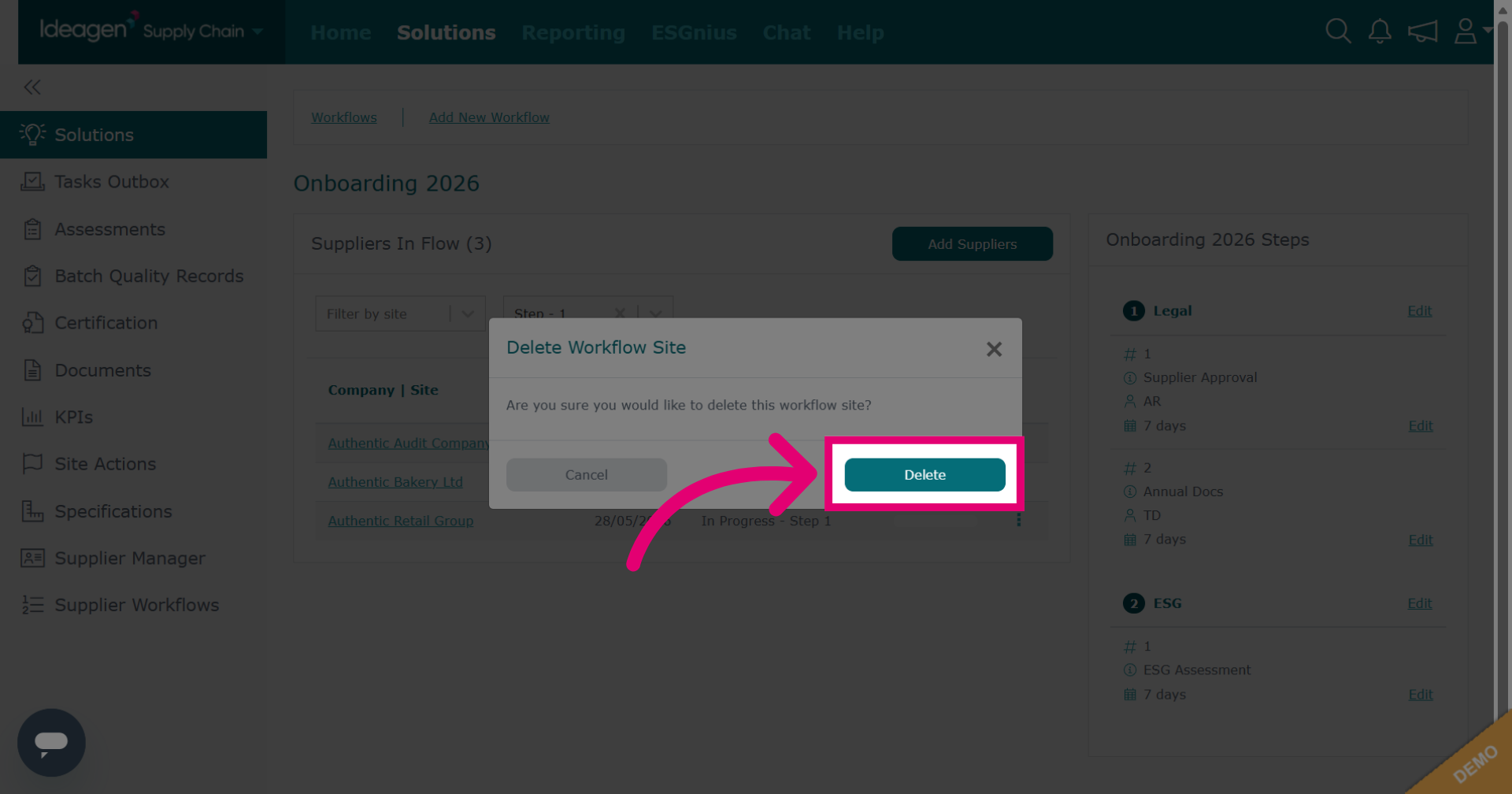
- Open the Actions menu.
- Select Delete.
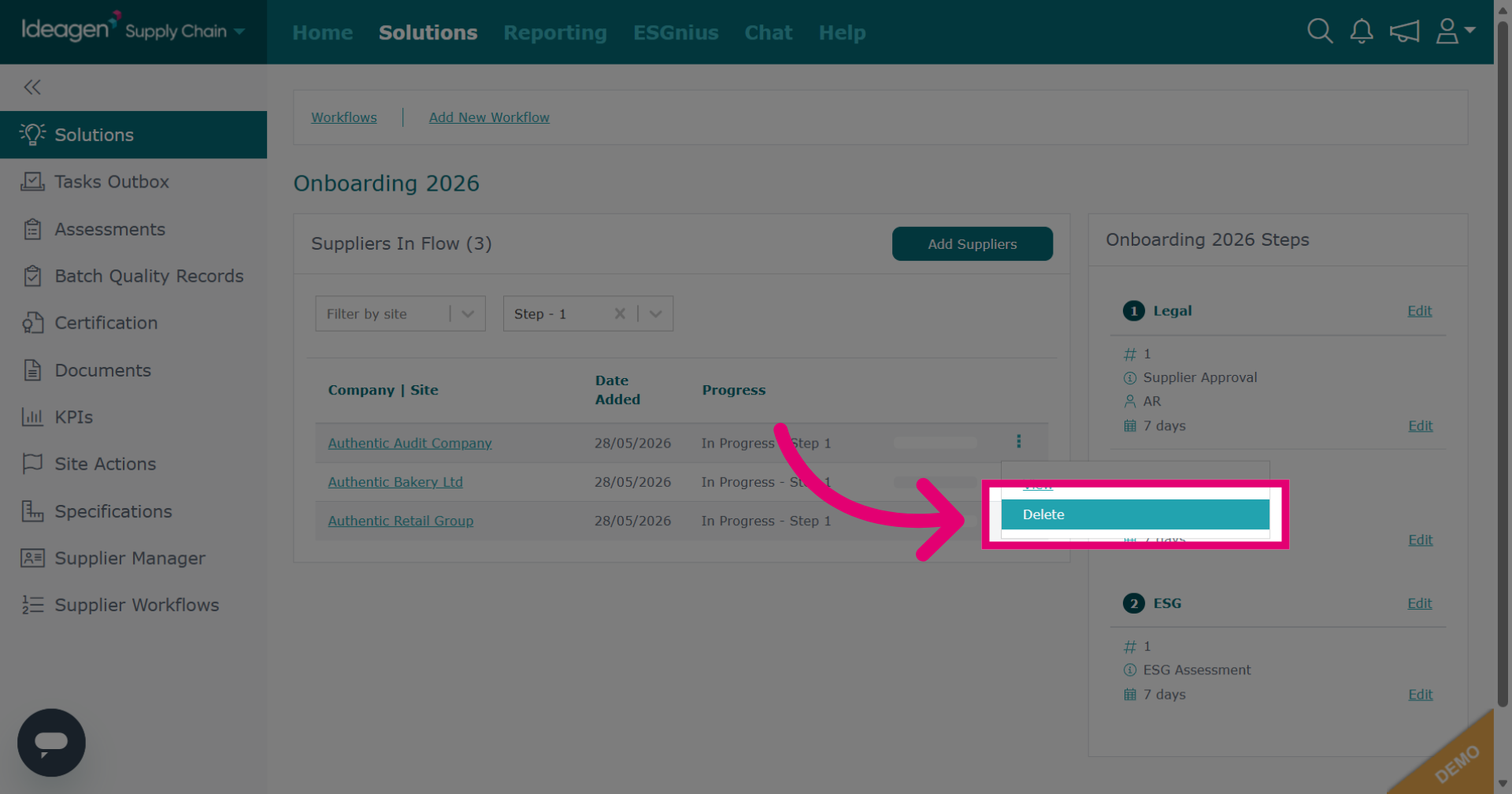
- Click Delete in the pop up.
Important
This will not delete the tasks that have already been sent to them, these will need to be deleted manually if no longer required. Deleting a supplier will prevent further tasks being sent, and the supplier will no longer show within the workflow.