New article
Recently updated
Managing suppliers in a workflow

Who is this article for?
Users who want to add and manage suppliers within a workflow.
Workflow admin permissions are required.
This tutorial guides you through adding and managing suppliers within a workflow in the Ideagen Supply Chain platform.
You will learn how to search for suppliers, add them to workflows, manage their progress, and remove them when necessary.
Adding and managing suppliers in workflows
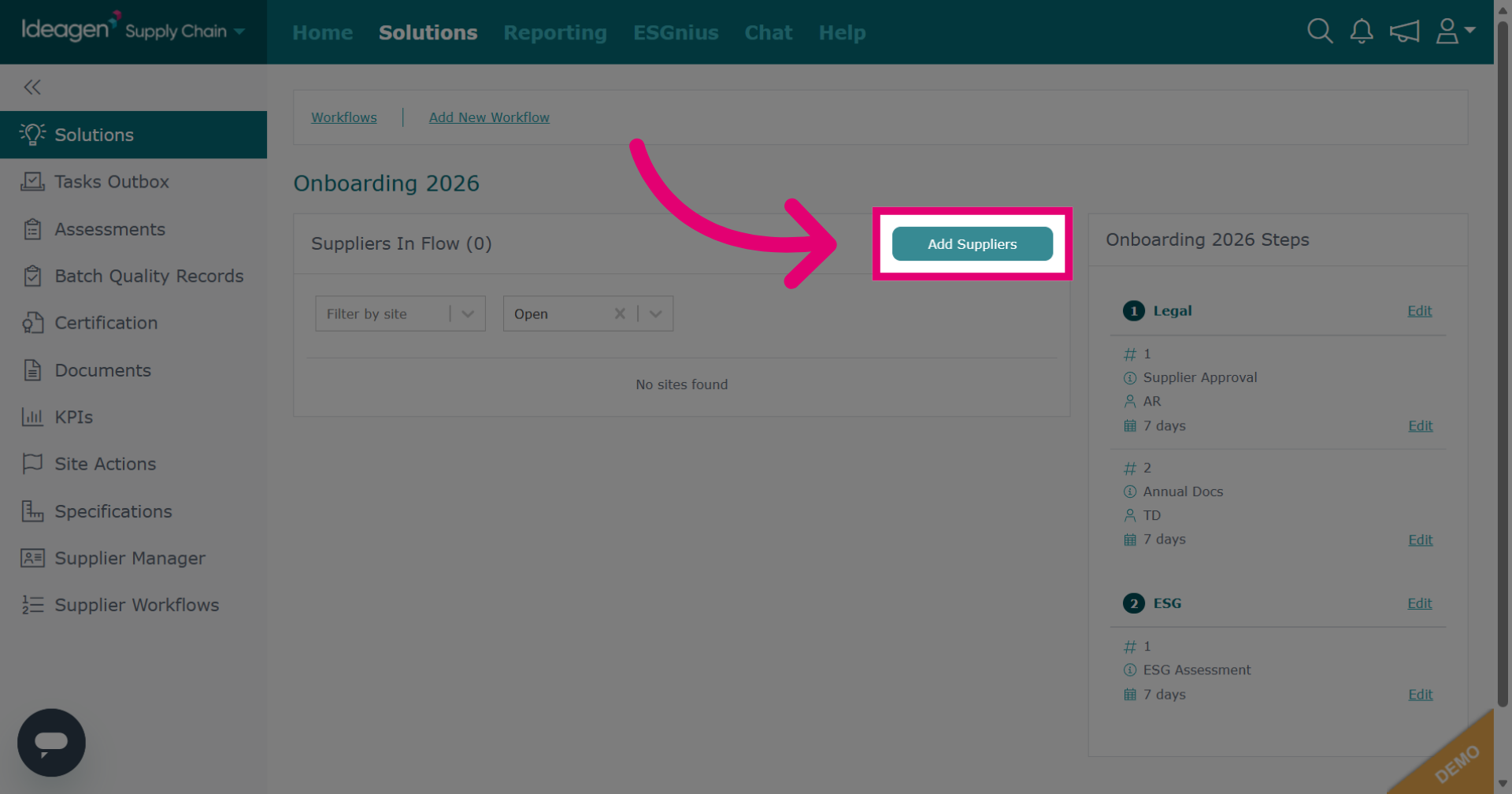
Click into your workflow and then select Add Suppliers. As soon as you add a supplier, the tasks within the flow will automatically send out to them. If a supplier has already completed tasks that are included within the workflow, providing that the task has not expired, this will be considered already complete and a new task will not be sent out. If the supplier has completed a task within the workflow that has expired, a new task will be sent out.
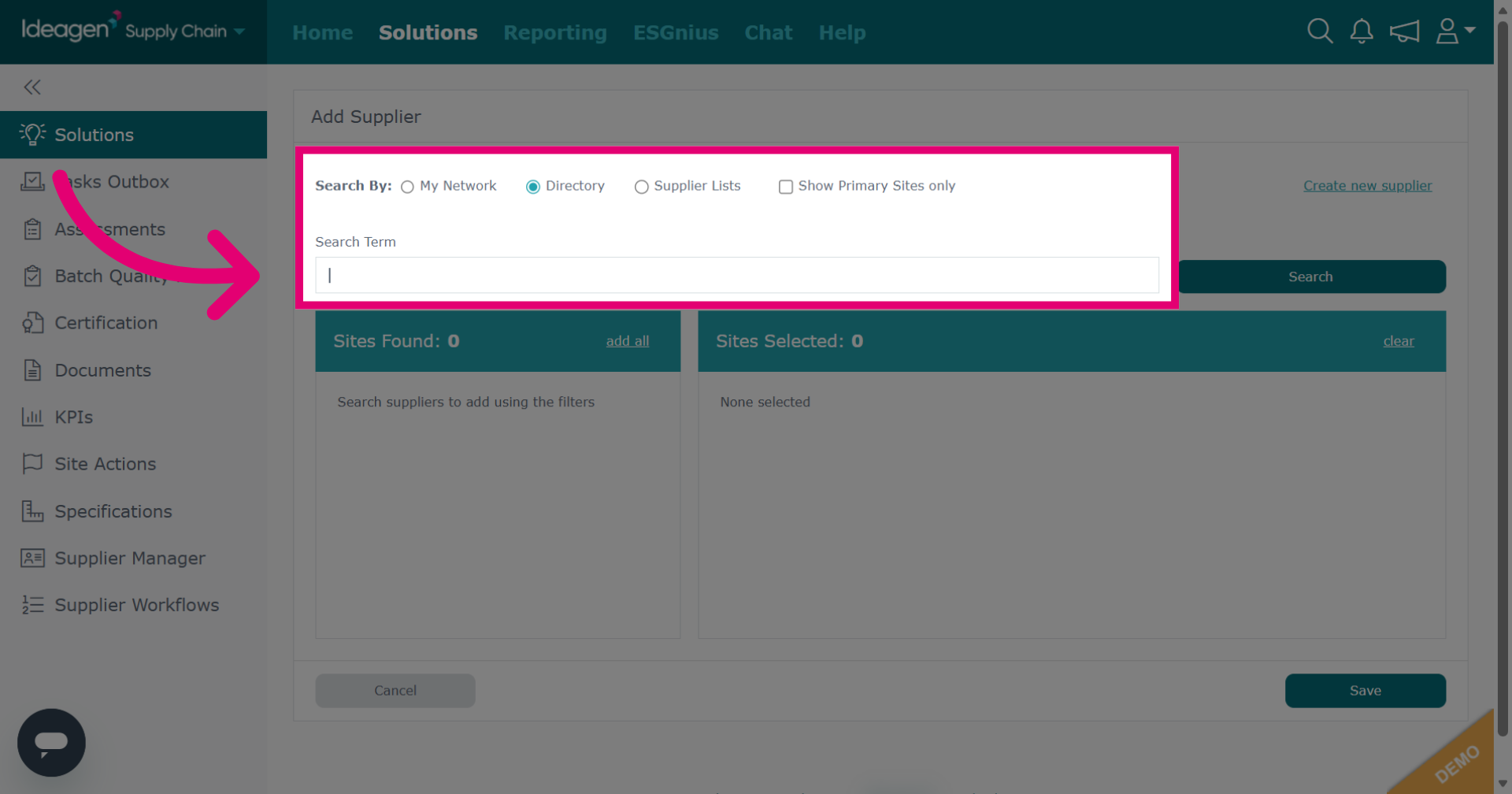
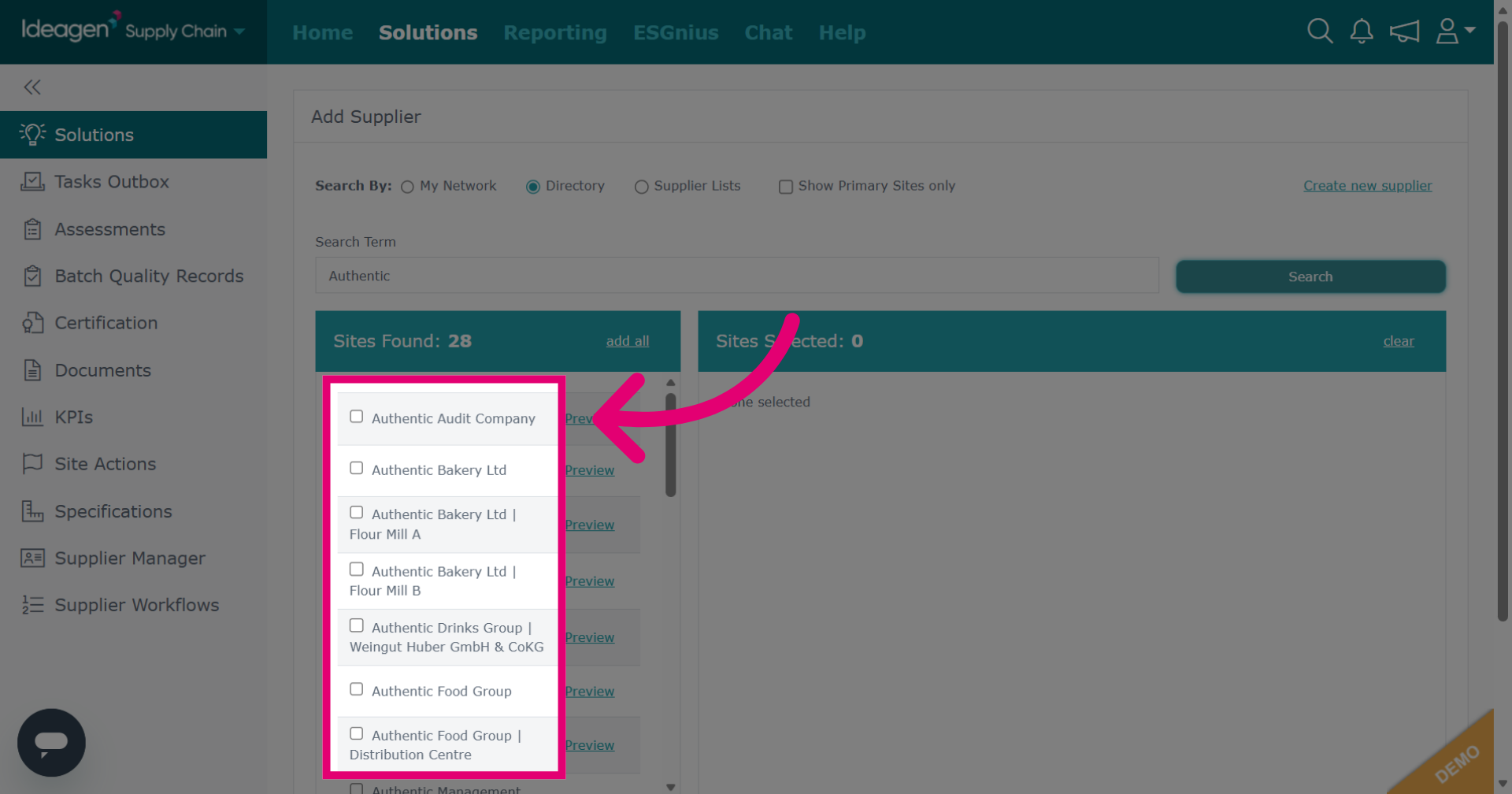
Search suppliers by entering data into the search term box, searching via network, directory, or supplier lists. Network contains suppliers you are connected with via supply chain mapping, directory searches across the entire Ideagen Supply Chain database, and supplier lists allows you to search within supplier lists you have created using the supplier manager module.
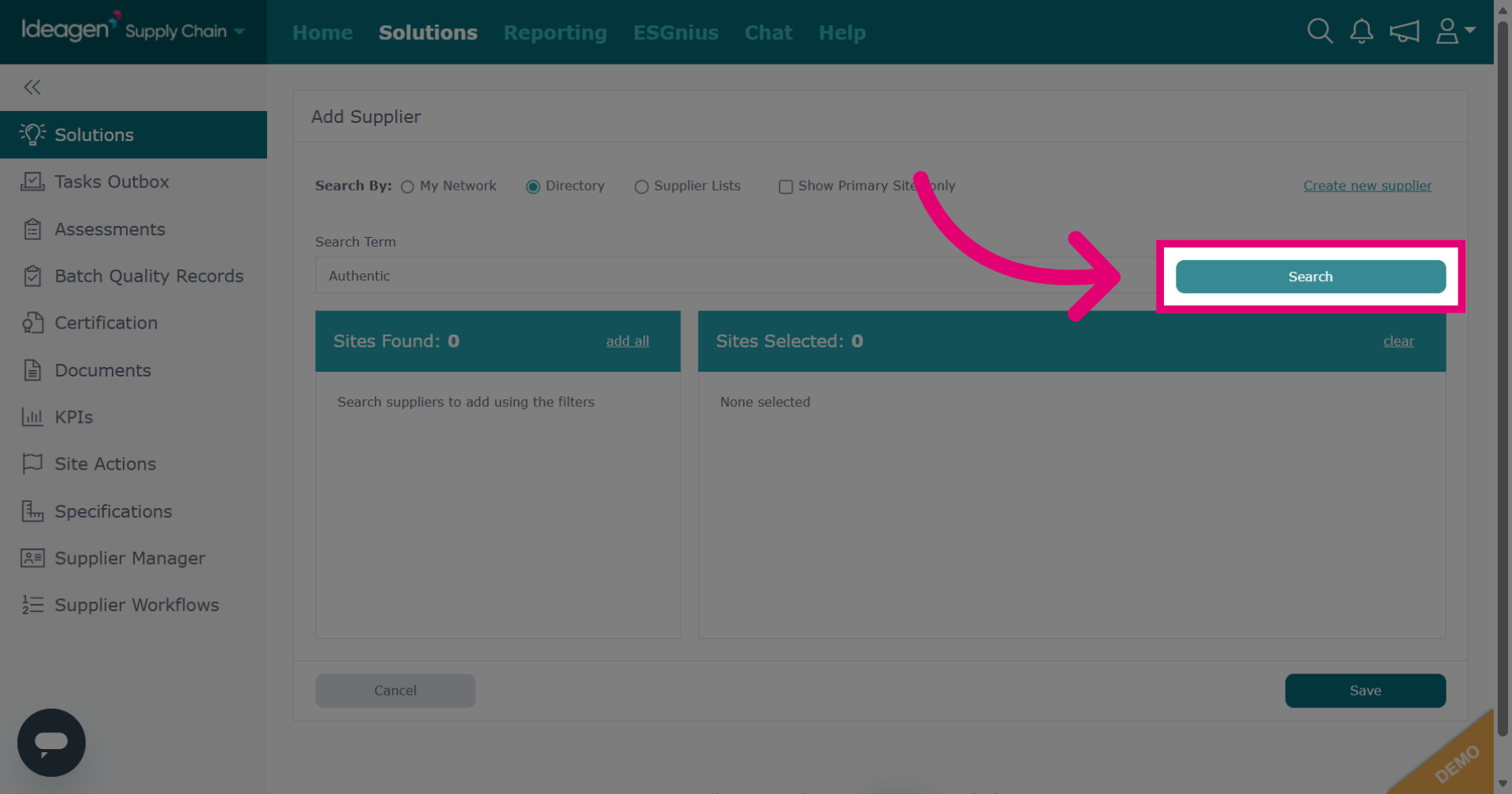
Click Search to find suppliers that match your criteria within the system.
Select suppliers from the search results. Once selected, they will move to the box on the right hand side of the screen. Repeat process until you have found all suppliers you want to add.
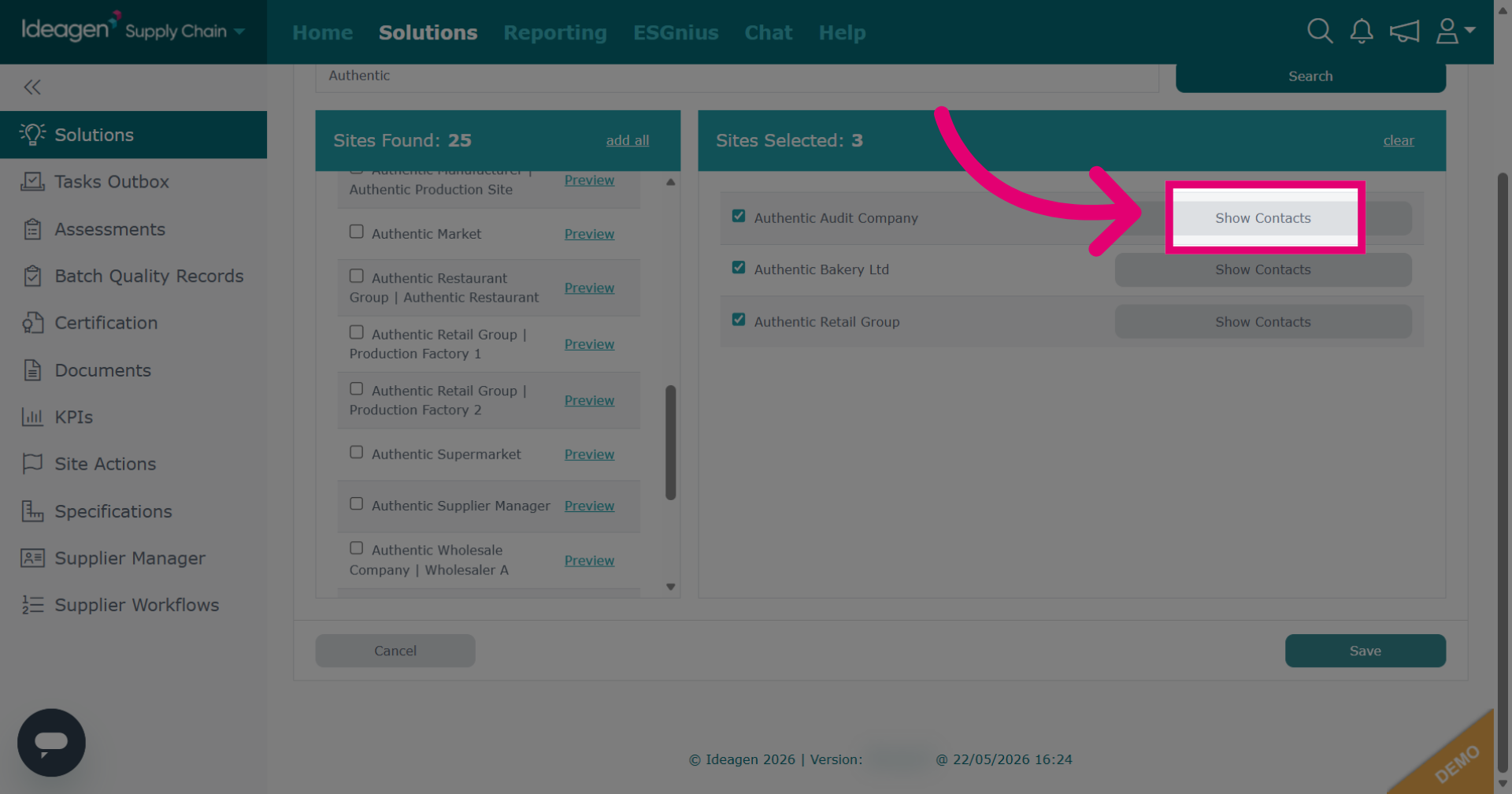
Select a supplier assignee if desired. This will be the user of the supplier profile who will be notified and assigned to all tasks within the workflow. You cannot set different assignees for different steps or requirements.
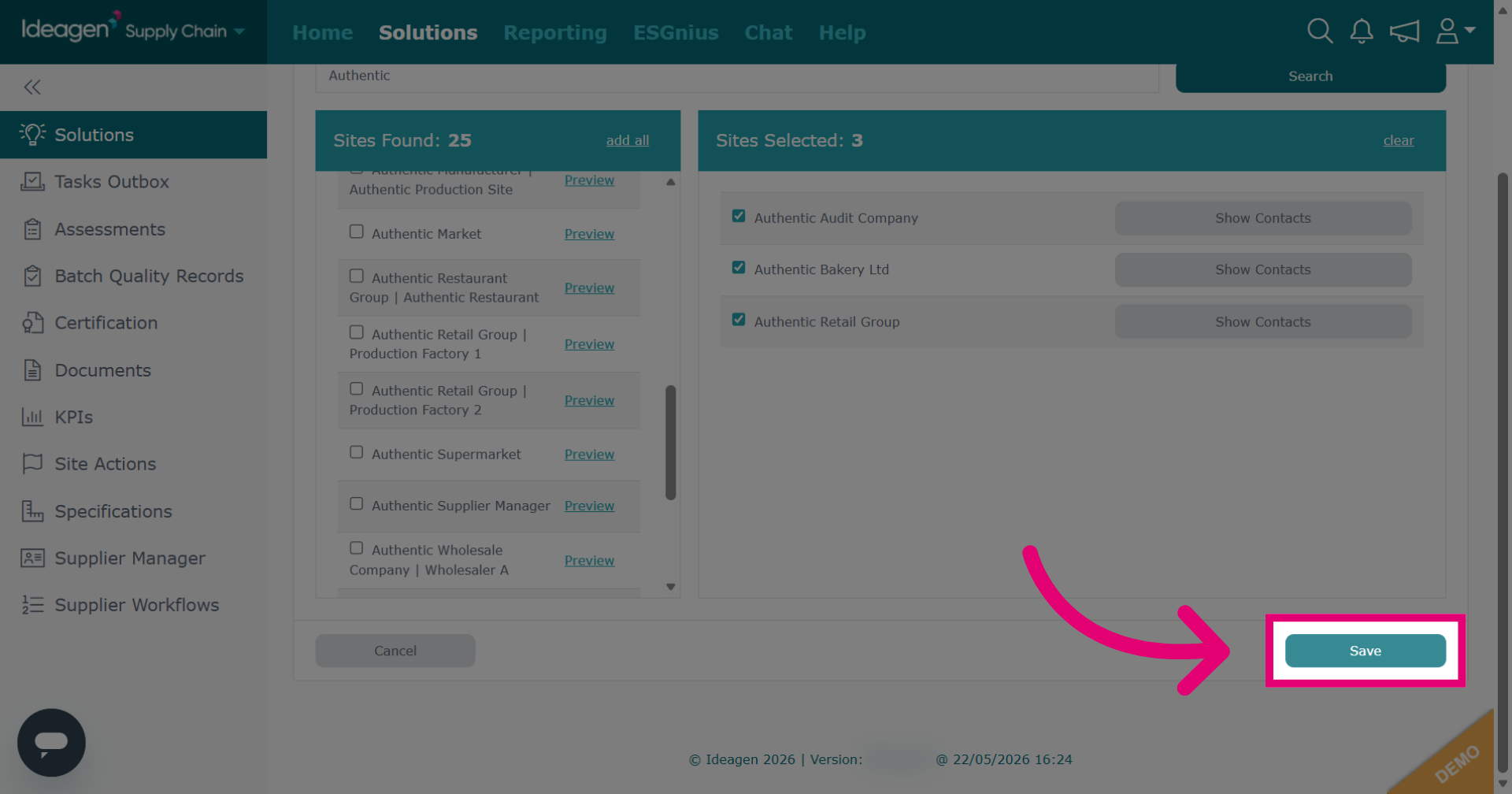
Click Save to confirm and store the selected suppliers in your workflow. The process is the same whether you are adding suppliers for the first time, or adding additional suppliers.
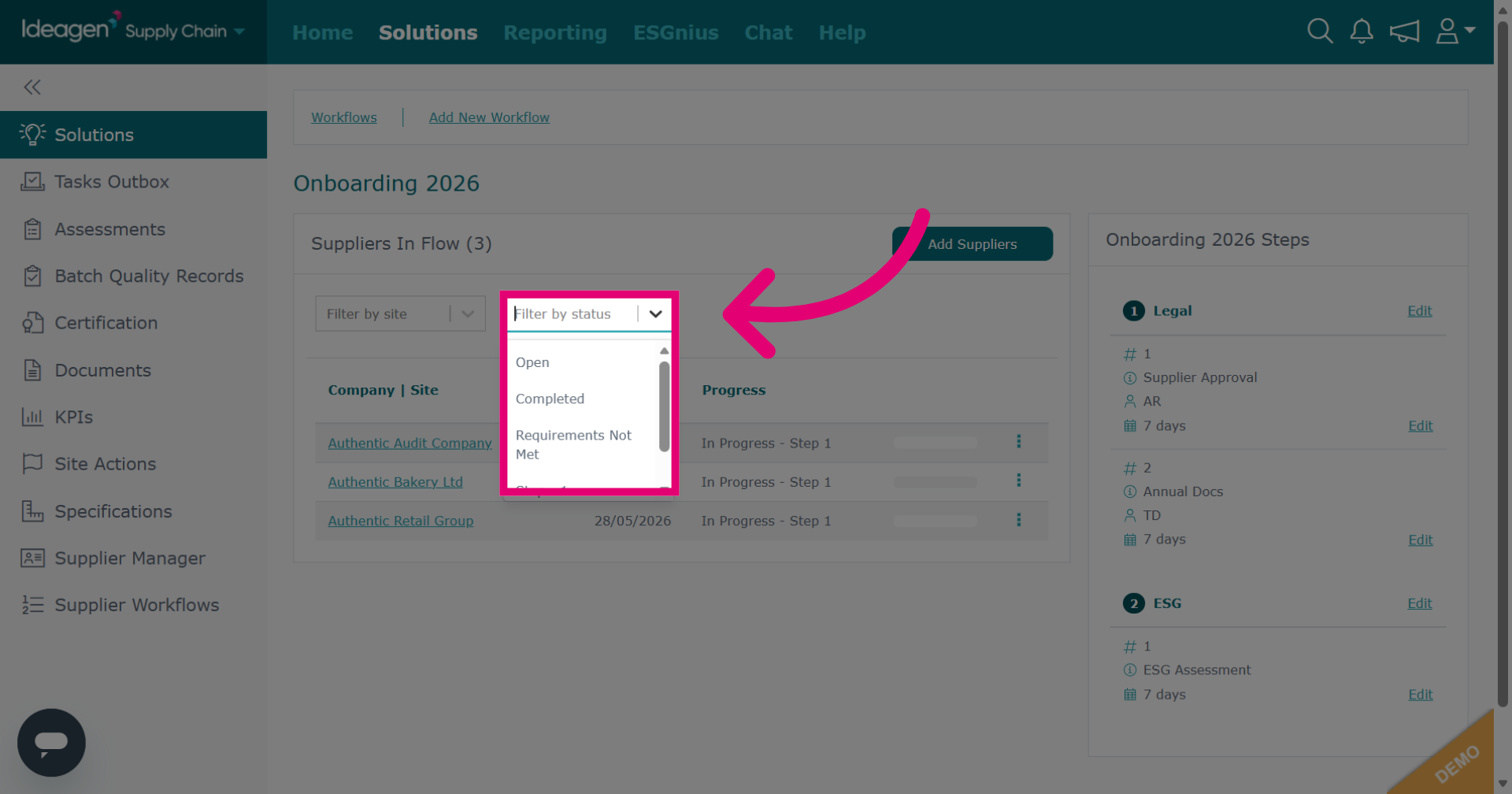
The default workflow view shows Open suppliers. If you cannot see the supplier you are looking for, change the status filter.
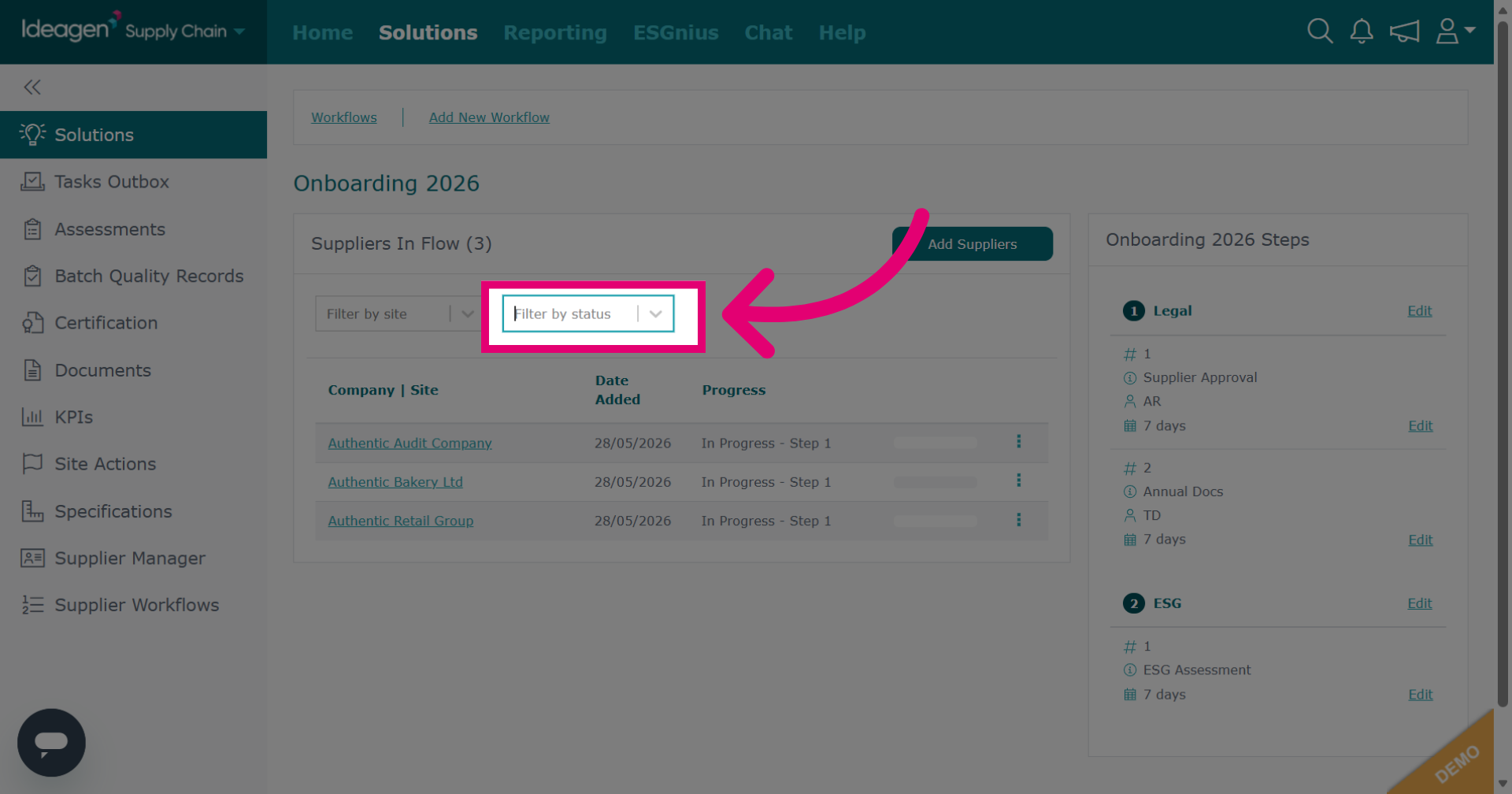
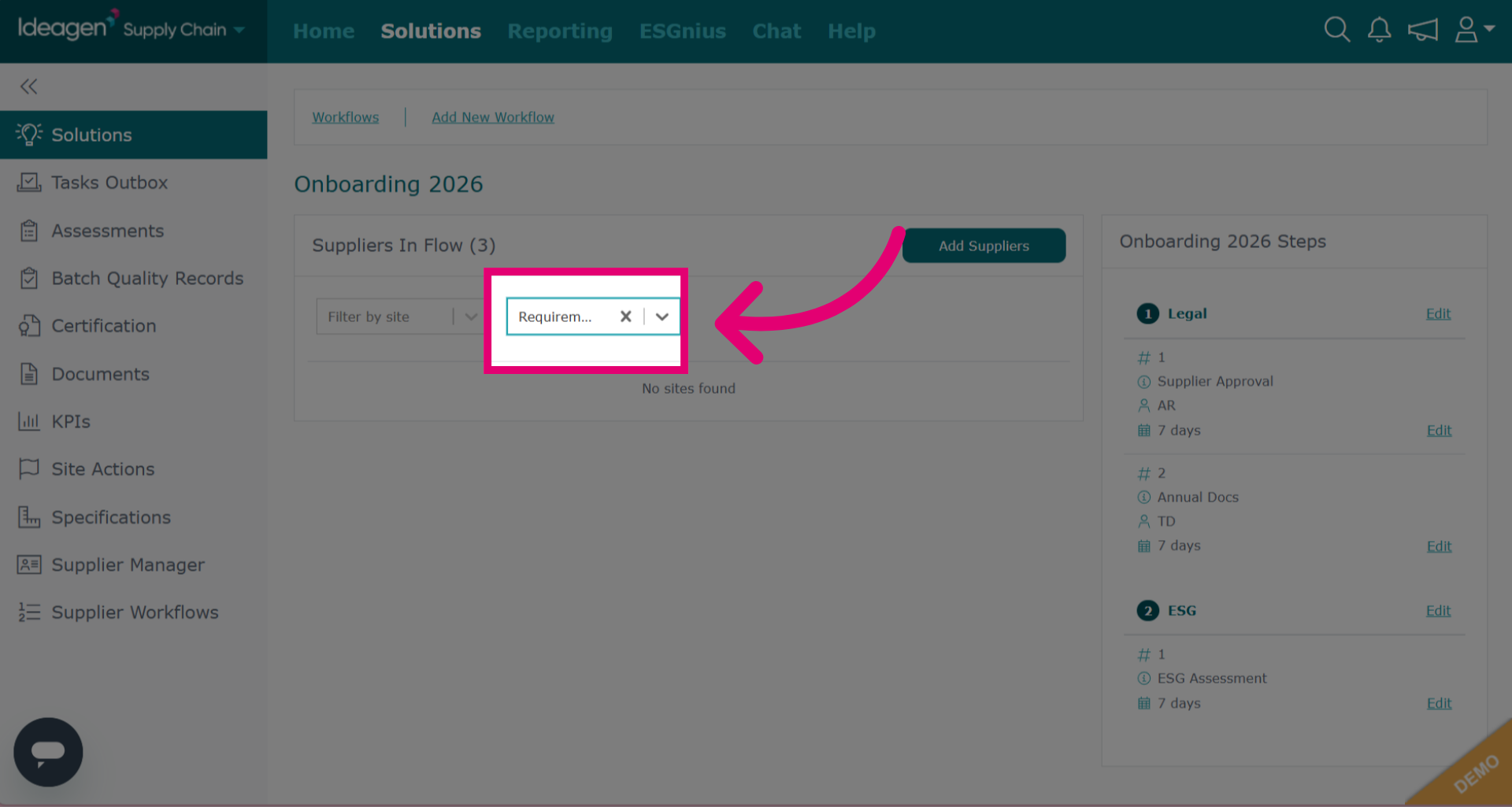
You can now view suppliers based on their status within the workflow. To view all suppliers with no filters set, ensure that the status box is blank.
If you have set any filters, you can remove them by clicking the x.
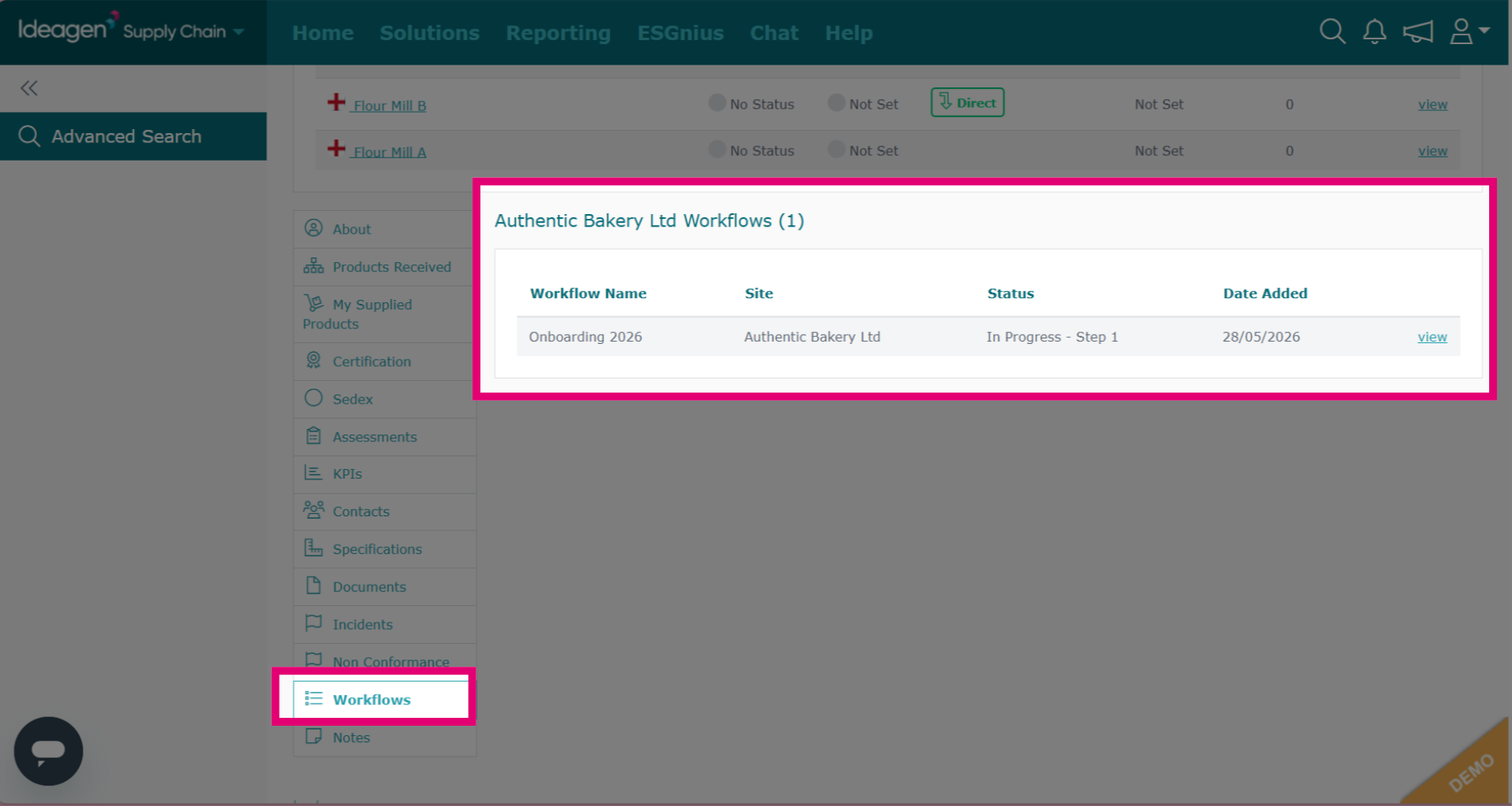
Check if a supplier is in a workflow by reviewing the supplier list.
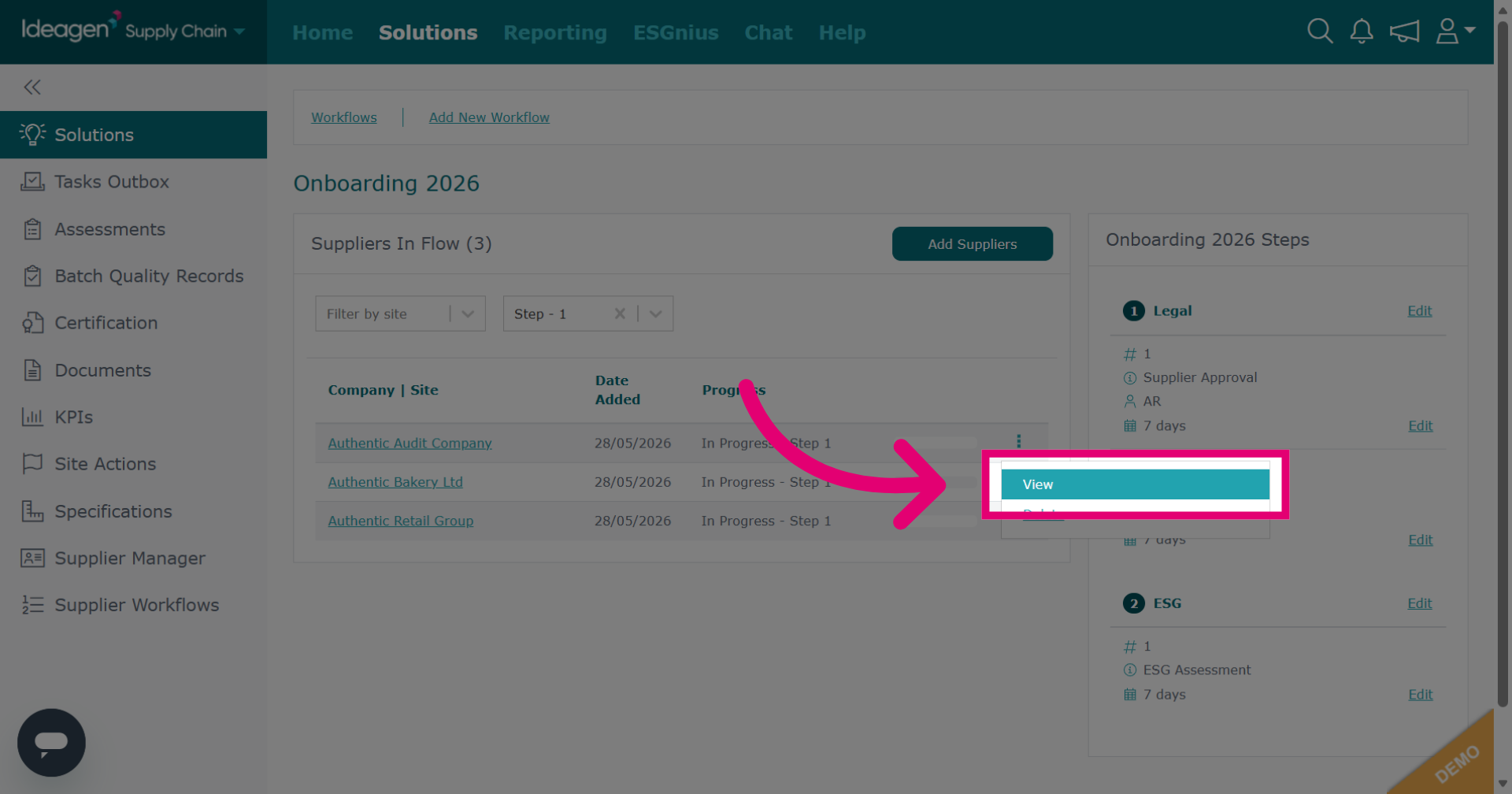
To manage suppliers within a workflow, click the three dots next to their name.
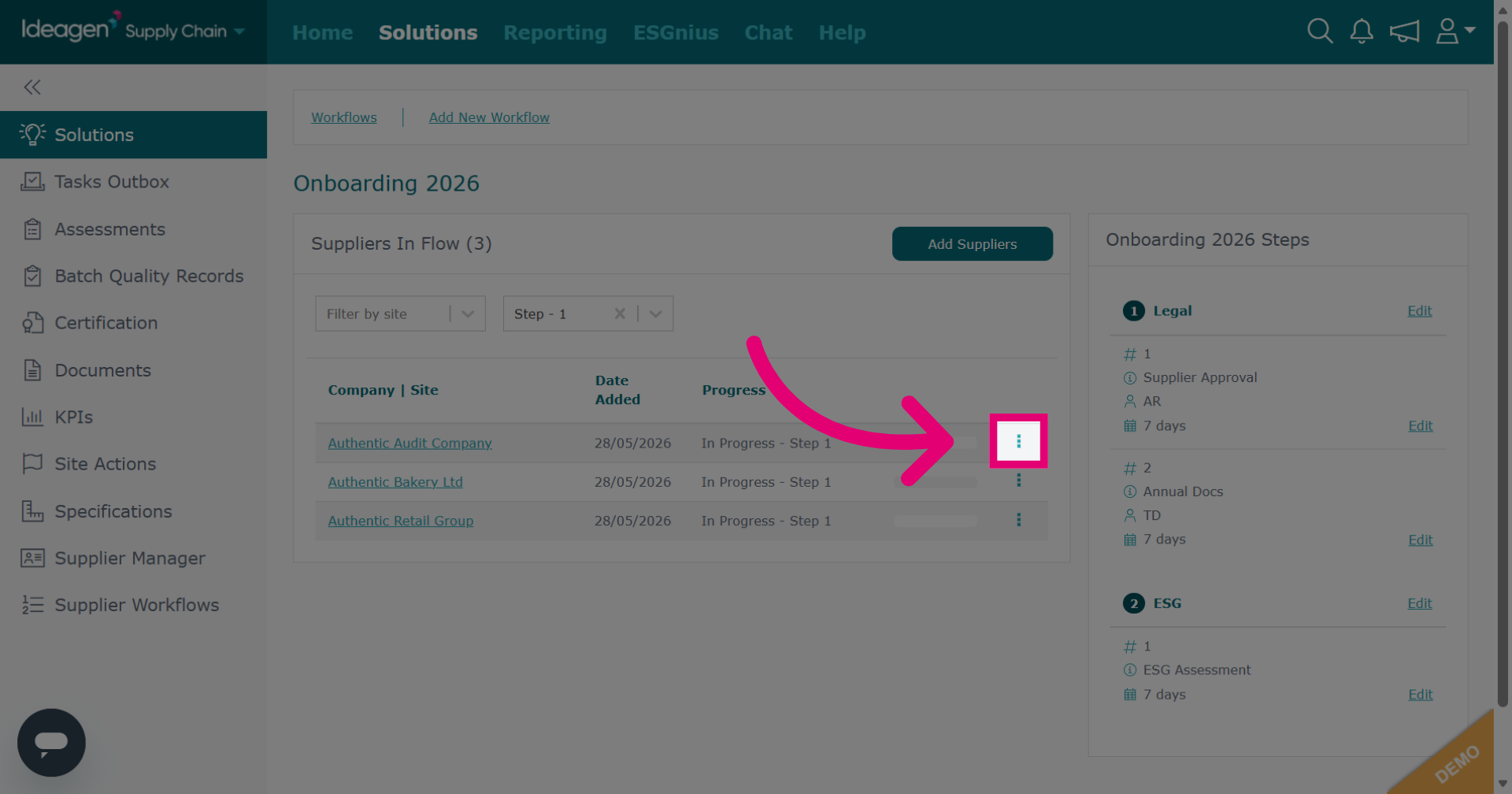
Click View to open the details of the supplier progress.
You will then be able to see their workflow progress. Once a task has been passed or completed by your company you will be able to view it directly within the workflow by clicking View next to the relevant task. Tasks that have not yet been passed or completed will not be able to be viewed from this screen.
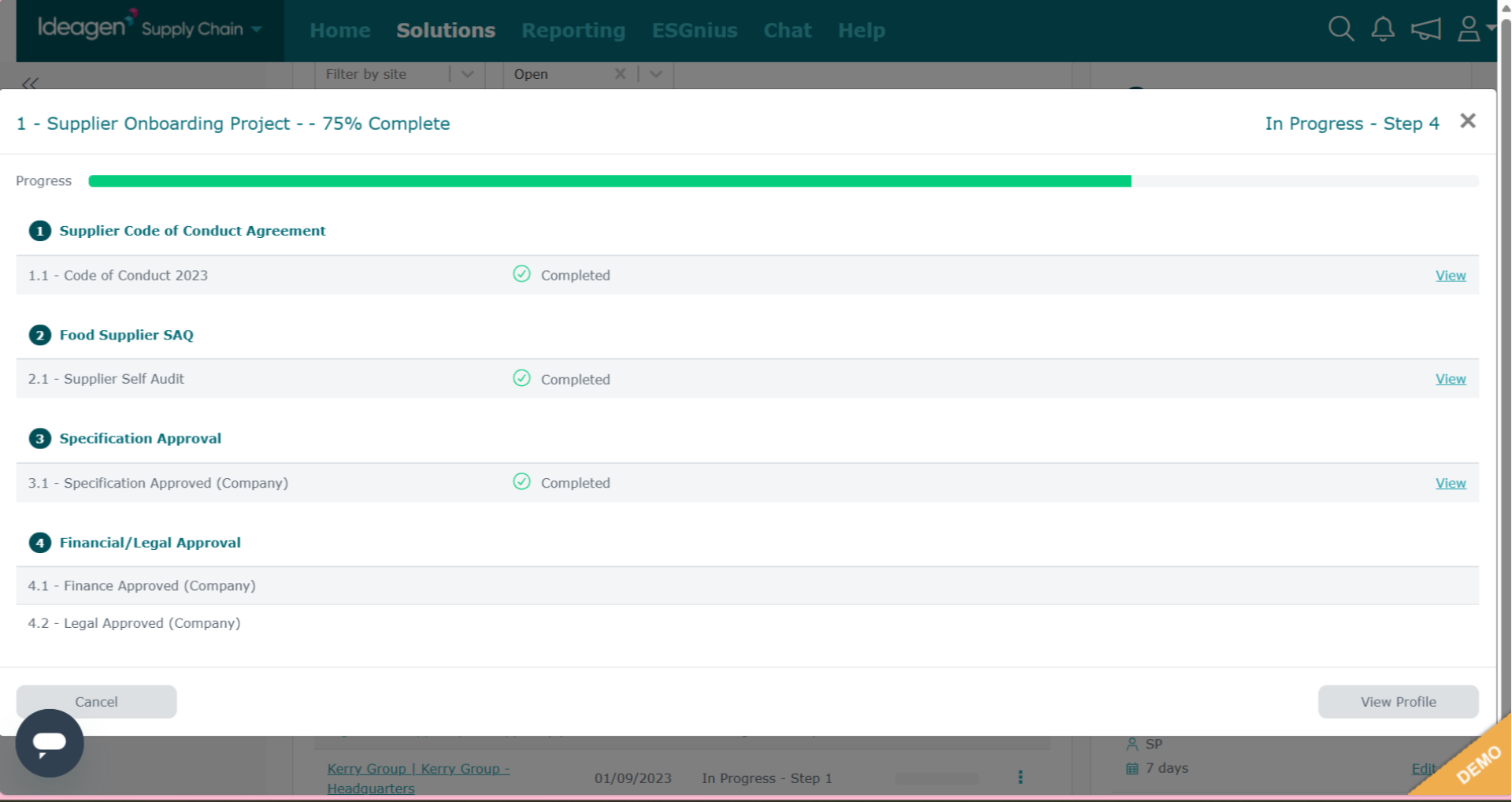
Click × to close the record details window and return to the main screen. If you want to view the supplier's profile, click View Profile.
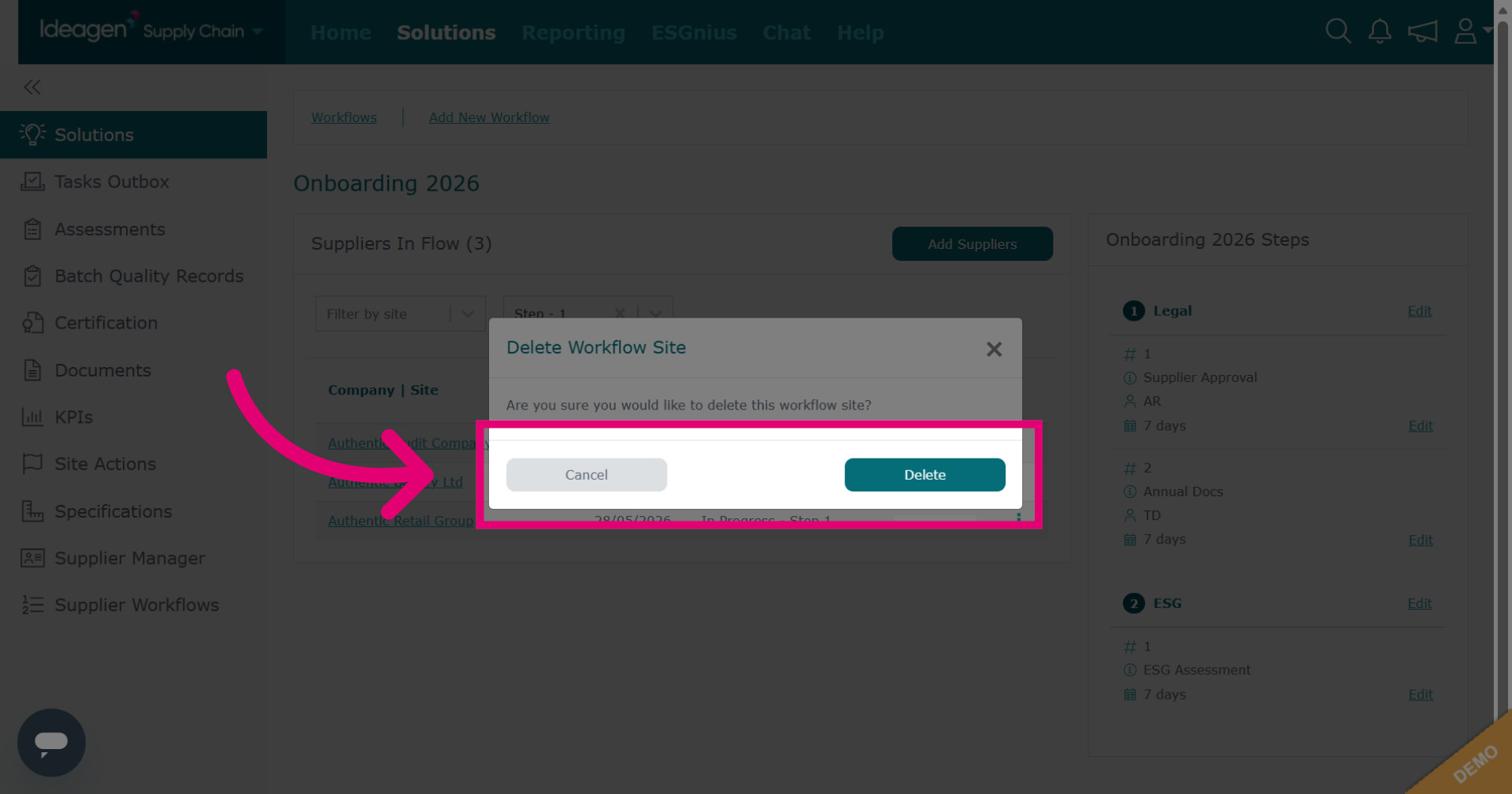
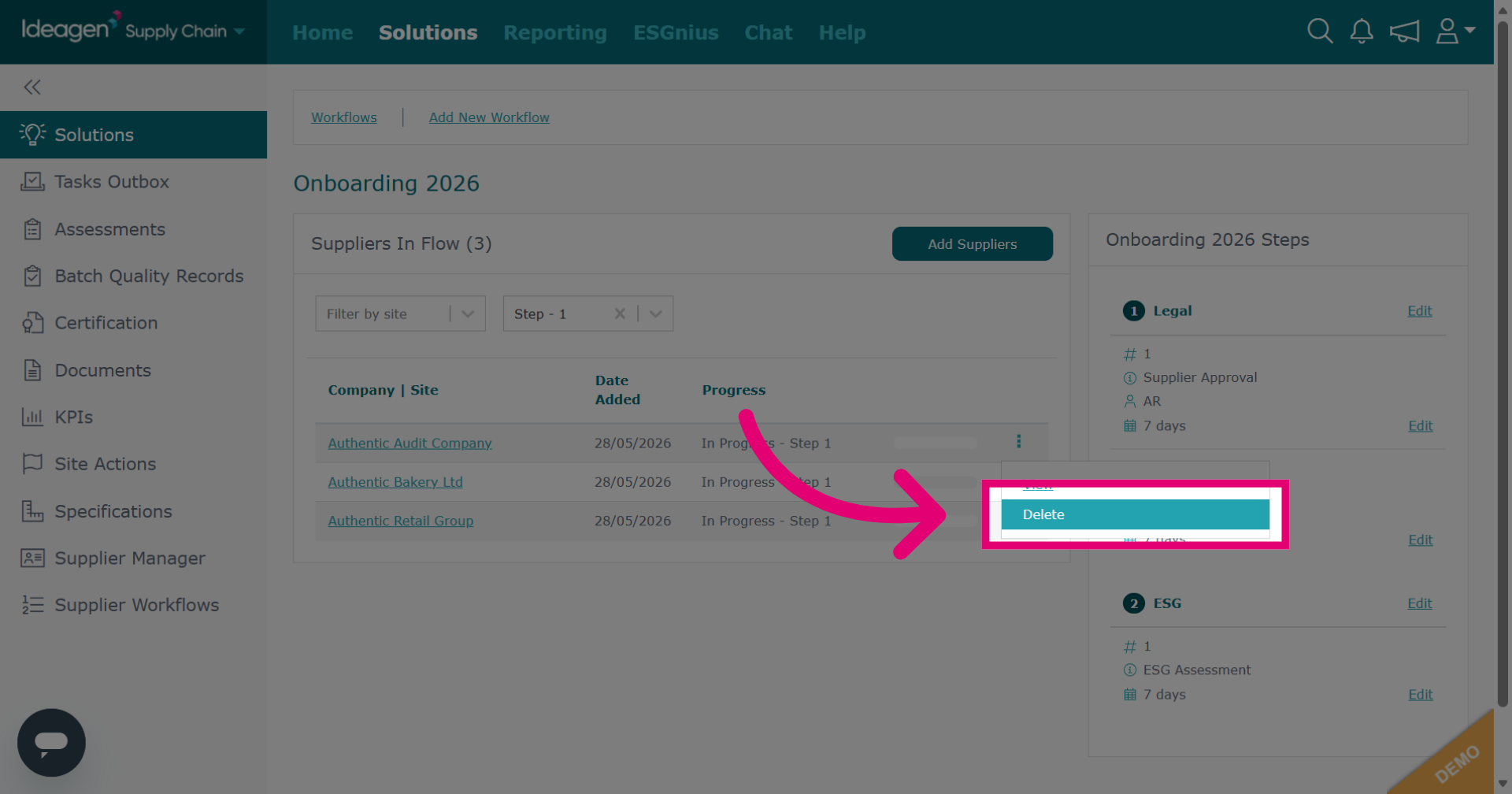
Also located within the options in the three dot menu is the option to delete a supplier from the workflow. Please note, this will not delete the tasks that have already been sent to them, these will need to be deleted manually if no longer required. It will prevent further tasks being sent, and the supplier will no longer show within the workflow.
Confirm delete to remove supplier from the workflow. Click cancel if you decide against removing the supplier.