New article
Recently updated
Managing Your Company's Users and User Requests

Who is this article for?
Users who want to manage their company's users and user requests.
Platform admin permissions are required.
This tutorial guides you through managing user approvals and roles within the Ideagen Supply Chain application.
You will learn how to review user requests, assign roles, and manage existing users in your company profile.
Managing User Requests and Company Users
-
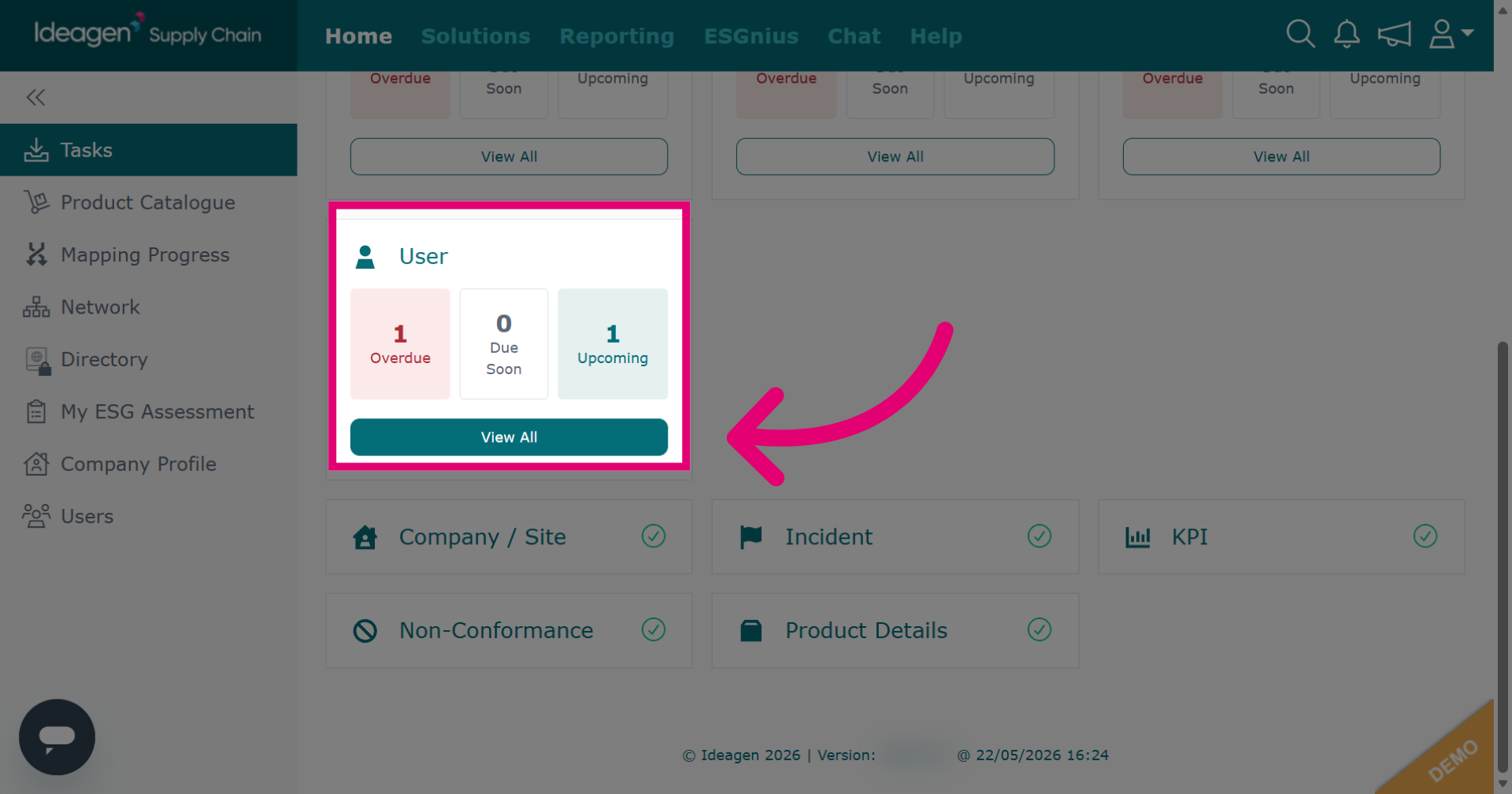
Click View All to display all user requests.
-
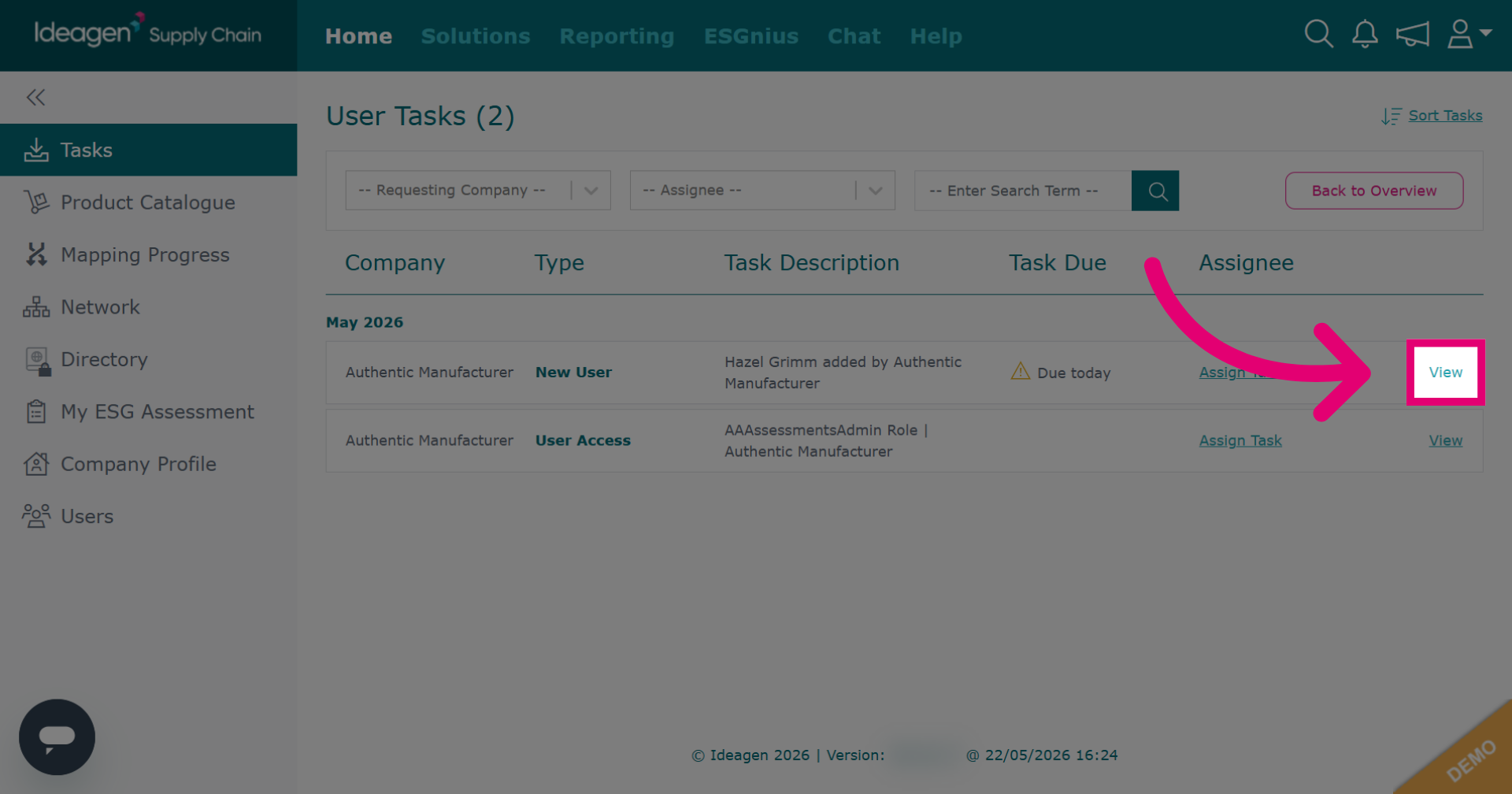
Click View to open the details of a specific user request for review.
-
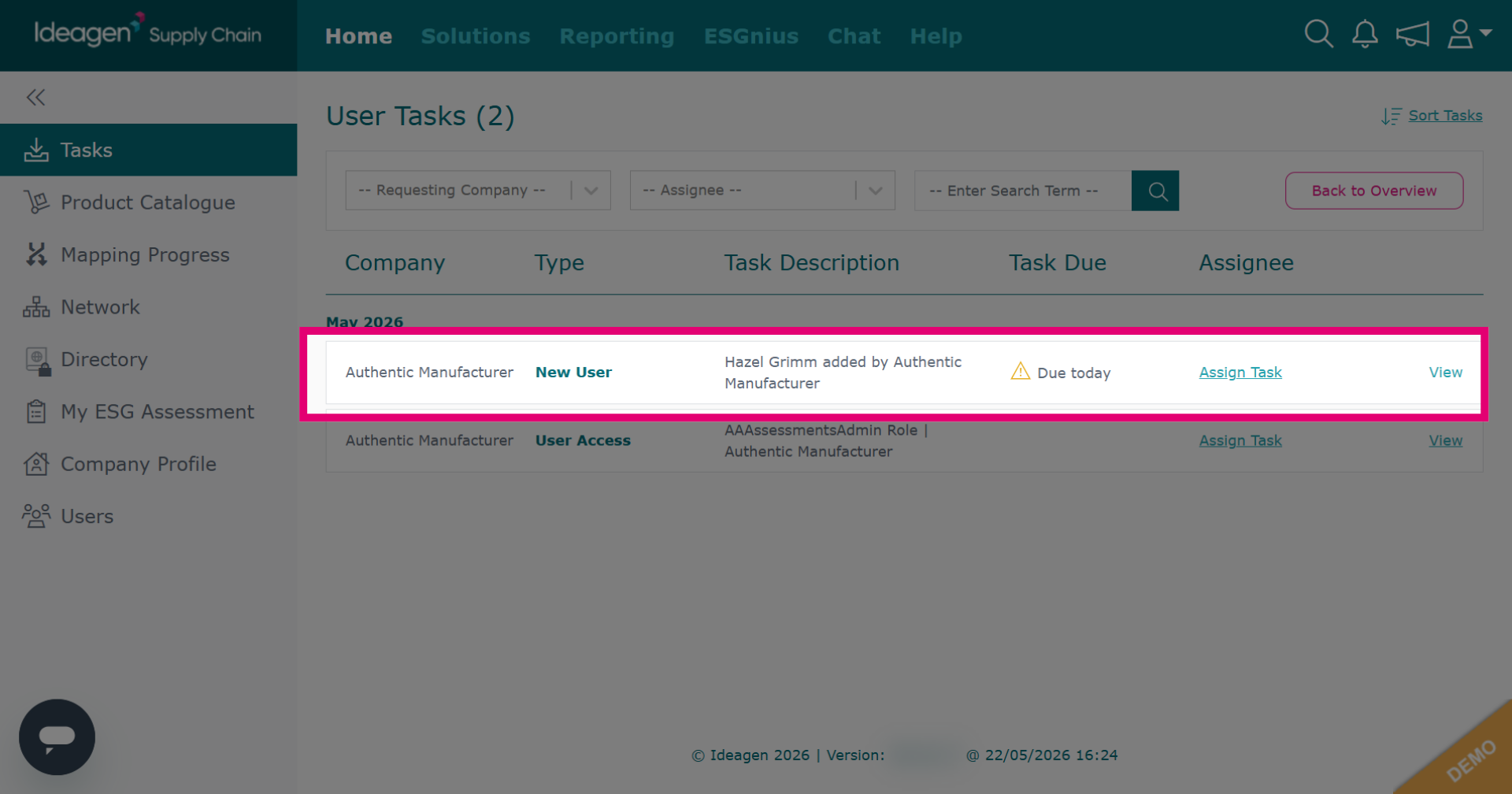
Review new user requests, which are users that have been added to your company by another company on the platform, usually your customer.
-
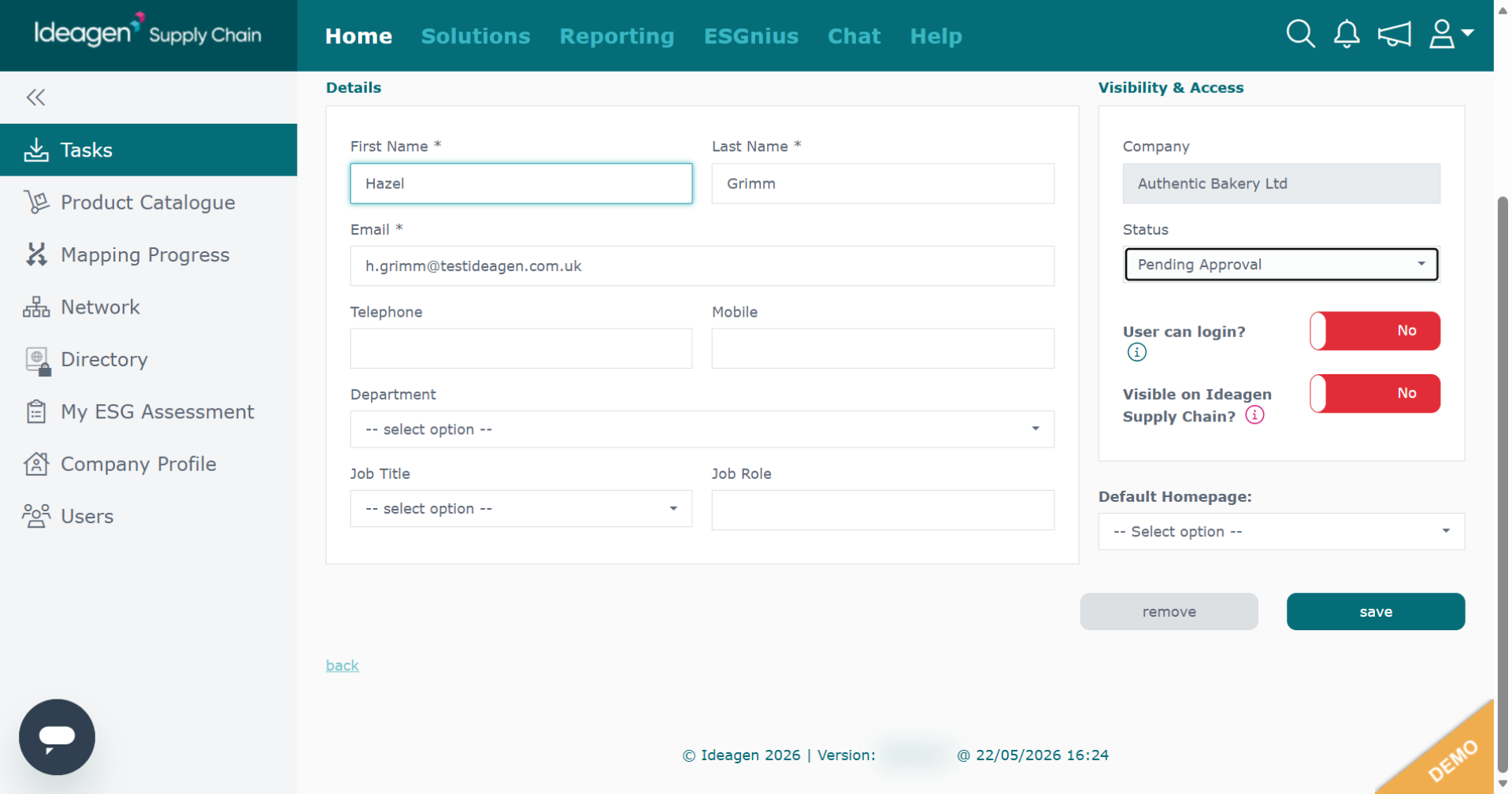
Review the new user request details displayed on screen.
-
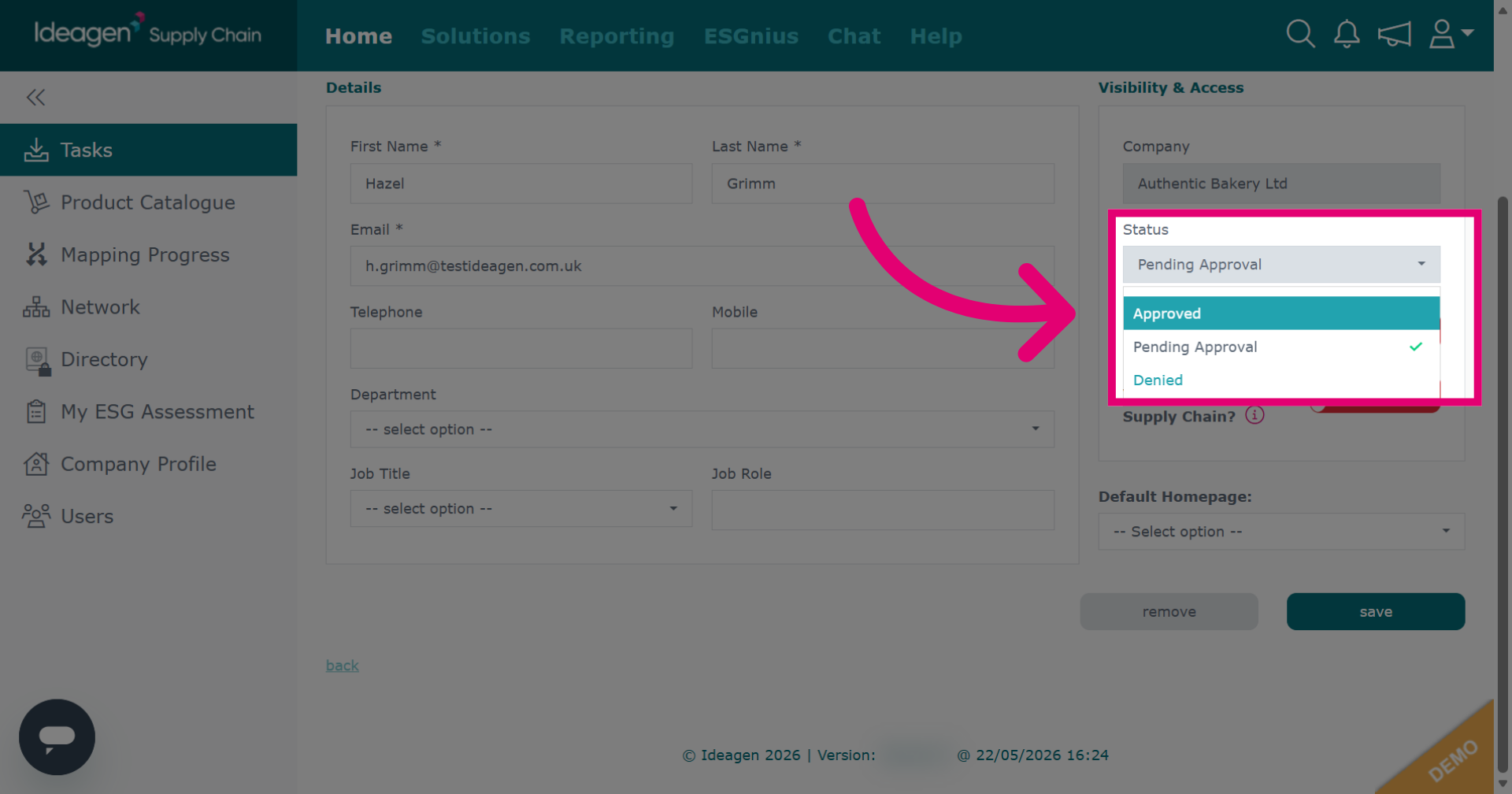
Select either Approved or Denied accordingly from the drop down options.
-
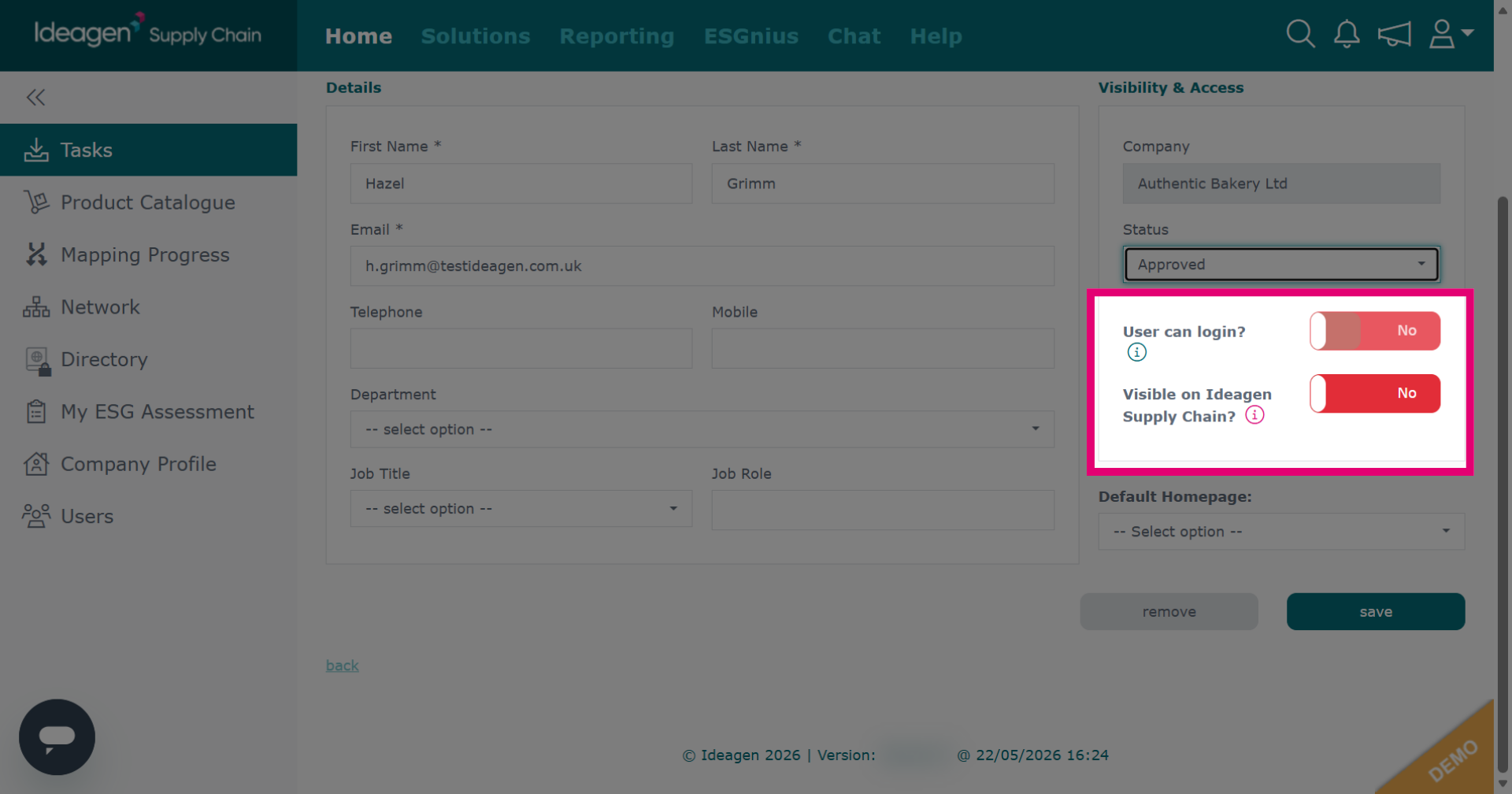
For approved users, select using the slider whether the user can login and whether they are visible to others on the platform.
-
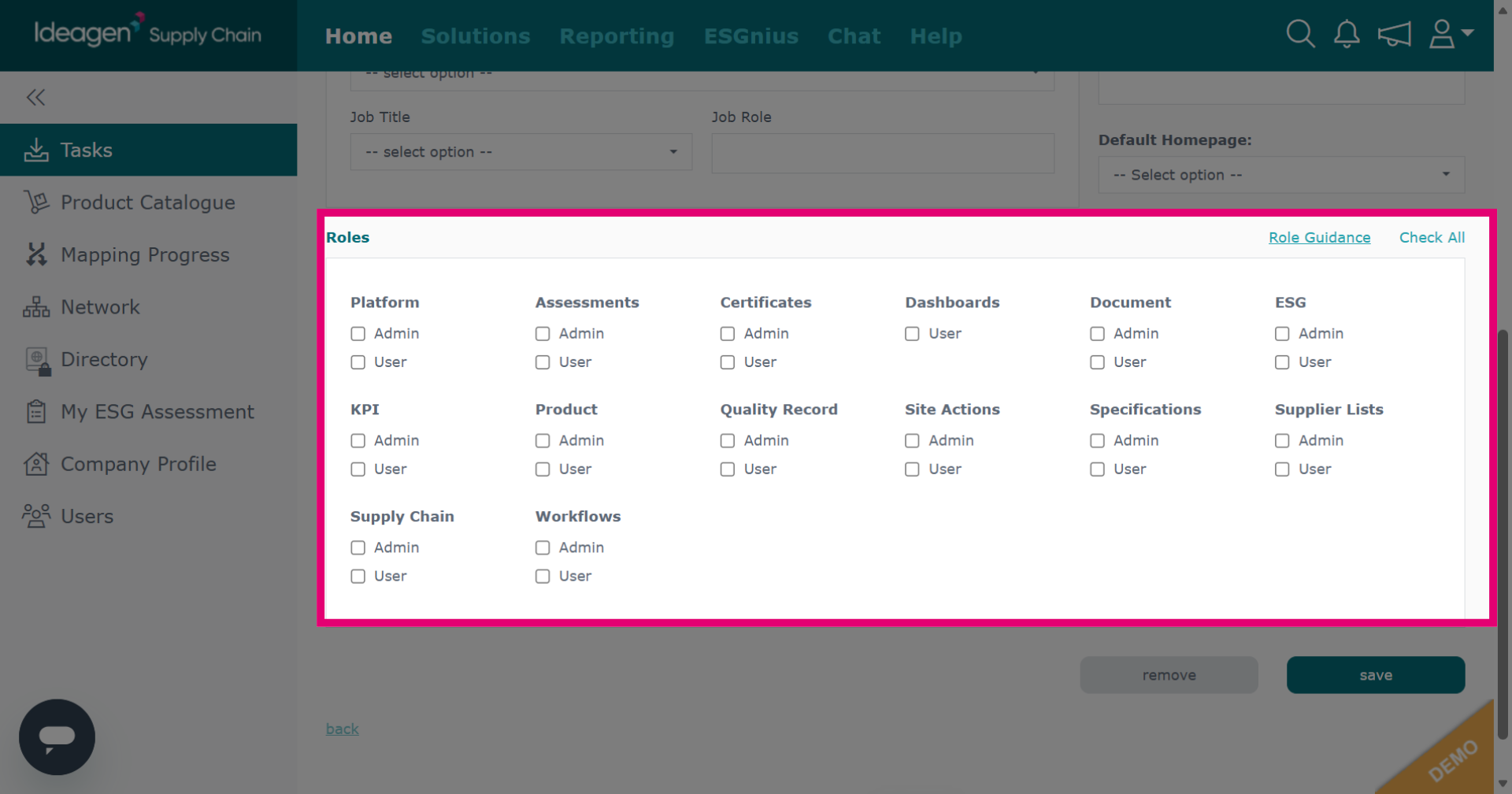
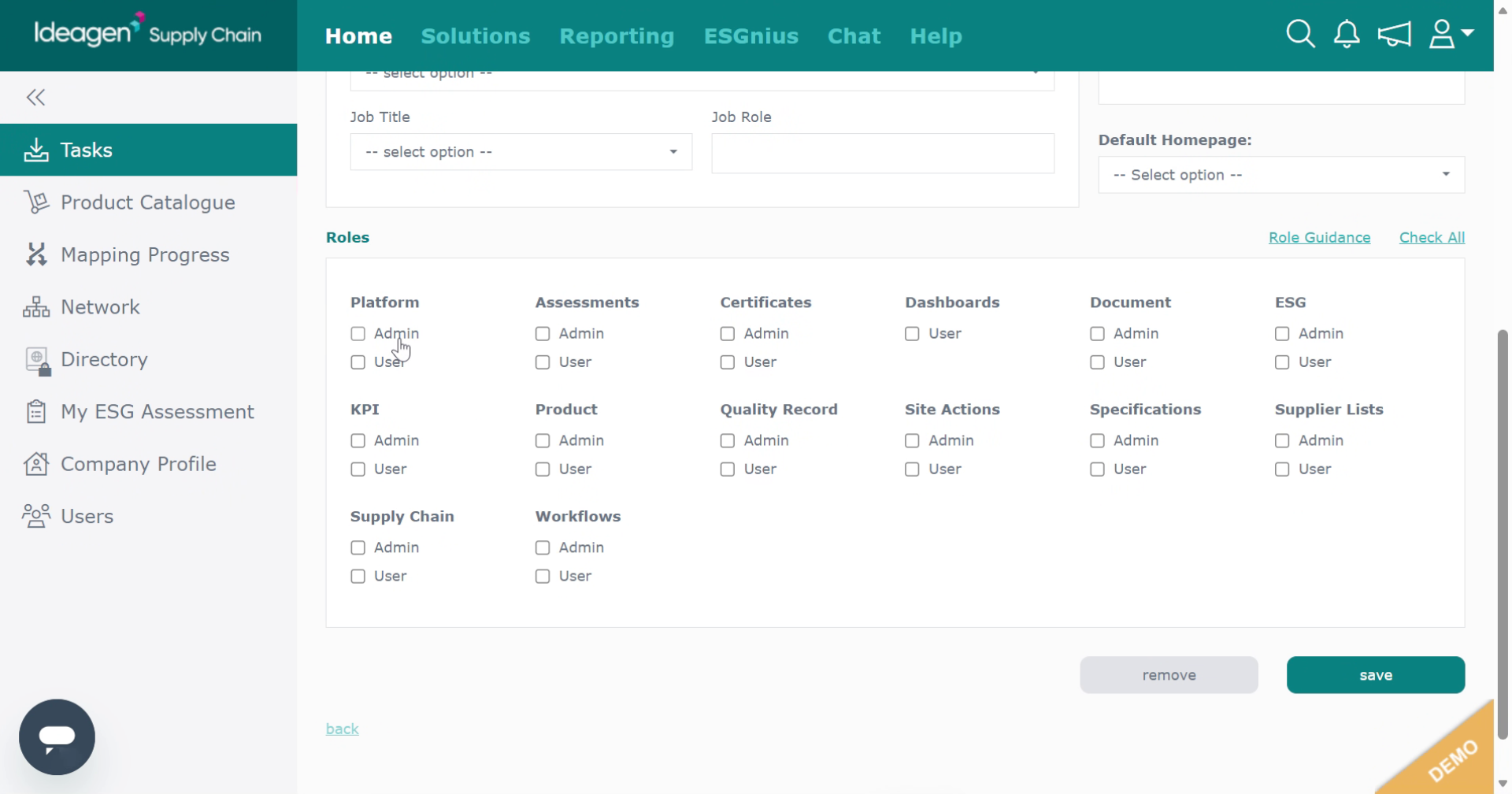
If you allow the user the ability to log in, select their user roles by checking and unchecking the boxes accordingly.
-
Continue selecting the appropriate roles for the user.
-
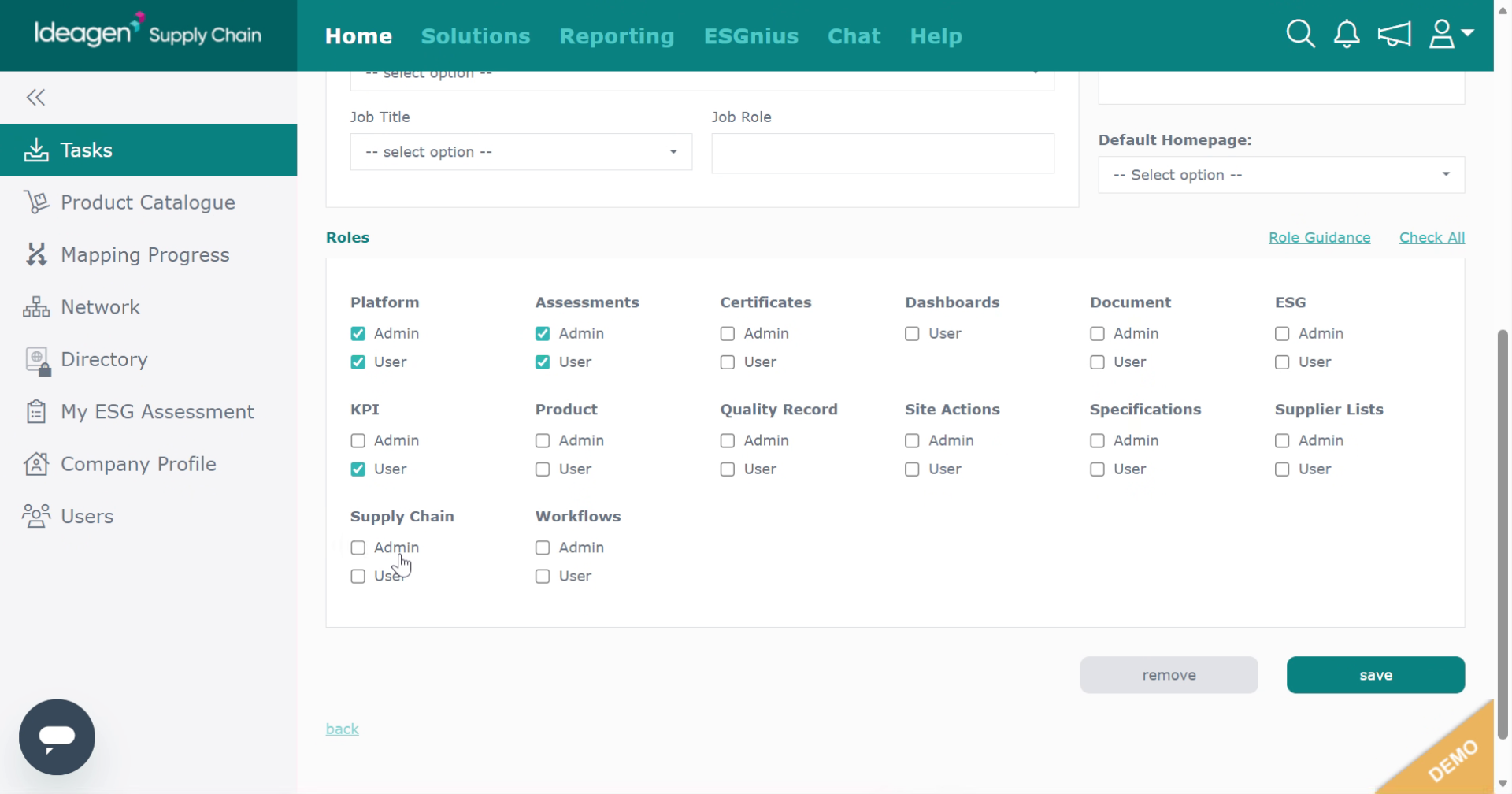
Review and finalize the role selections for the user.
-
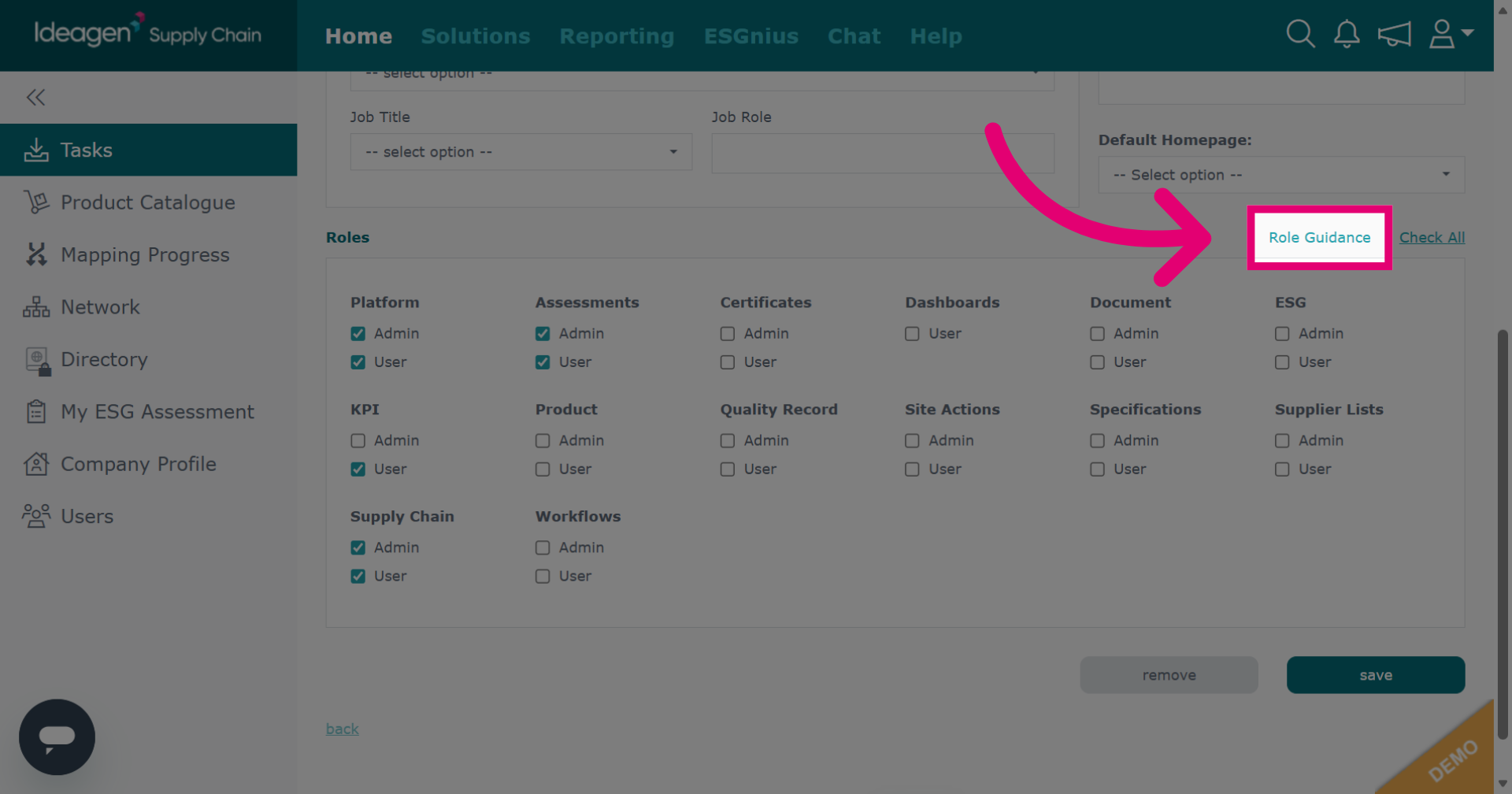
If you need guidance on the role functions, click Role Guidance for assistance.
-
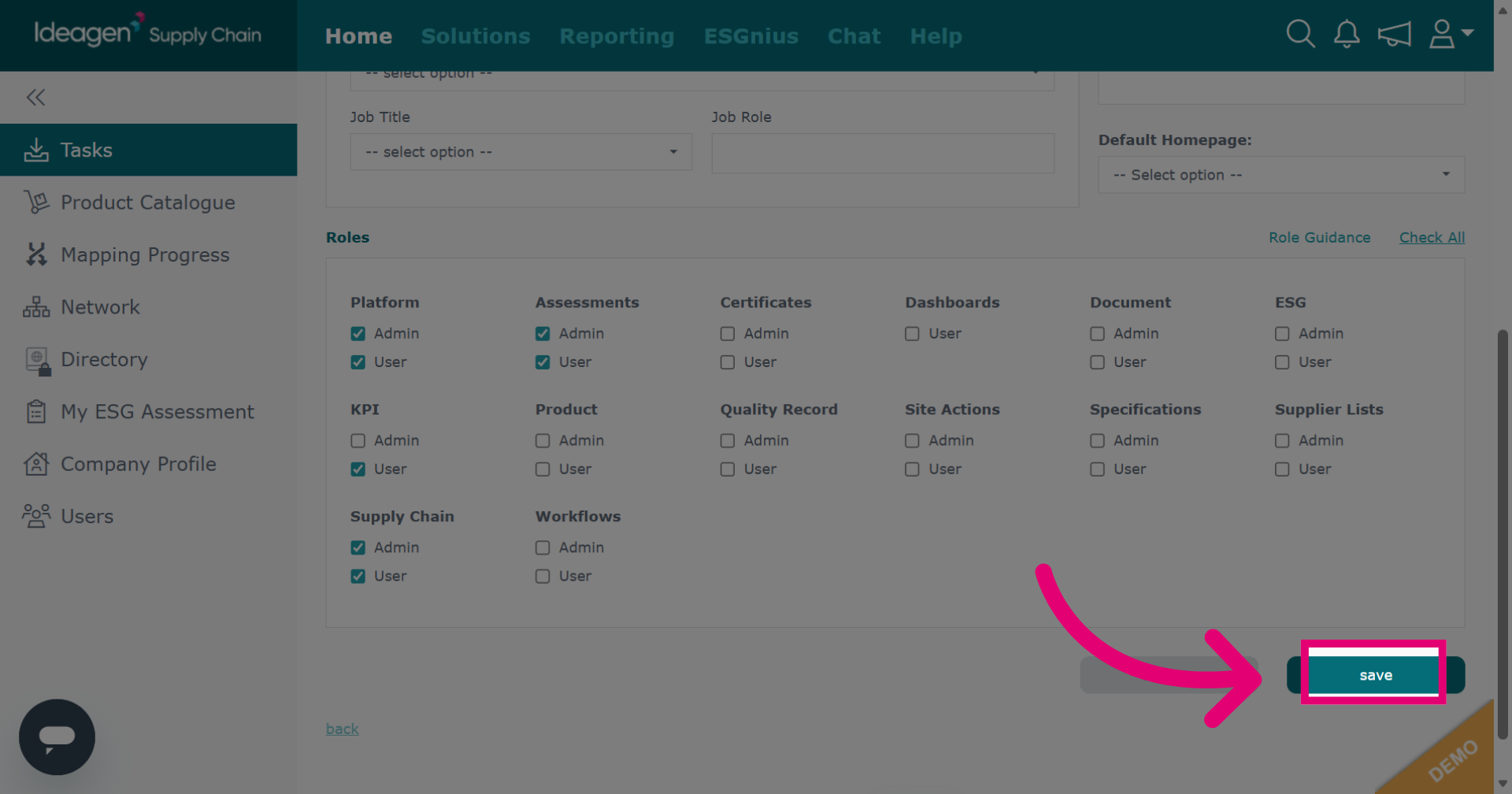
Once finished, click save.
-
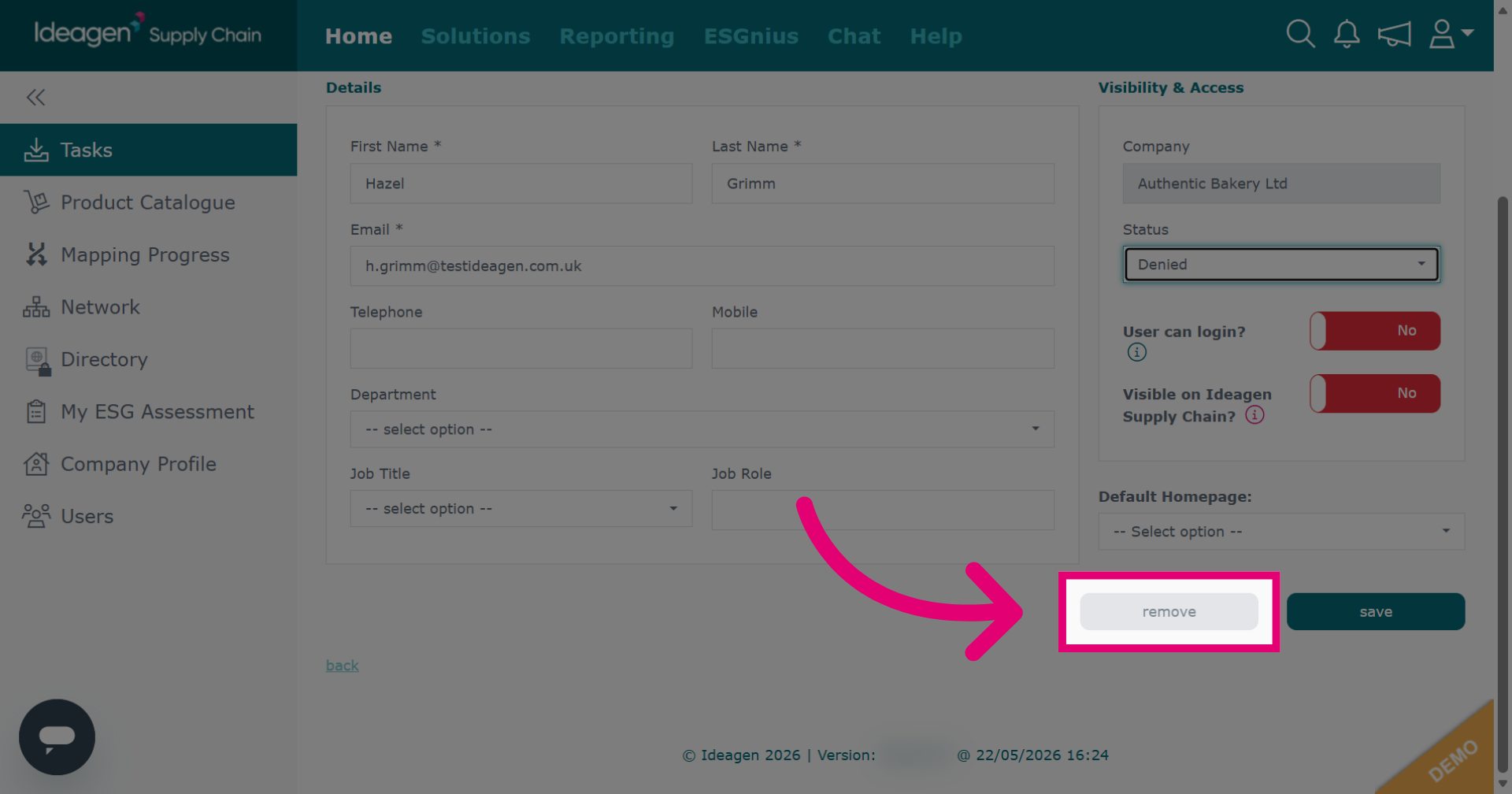
If you have selected denied for the user, click Remove.
-
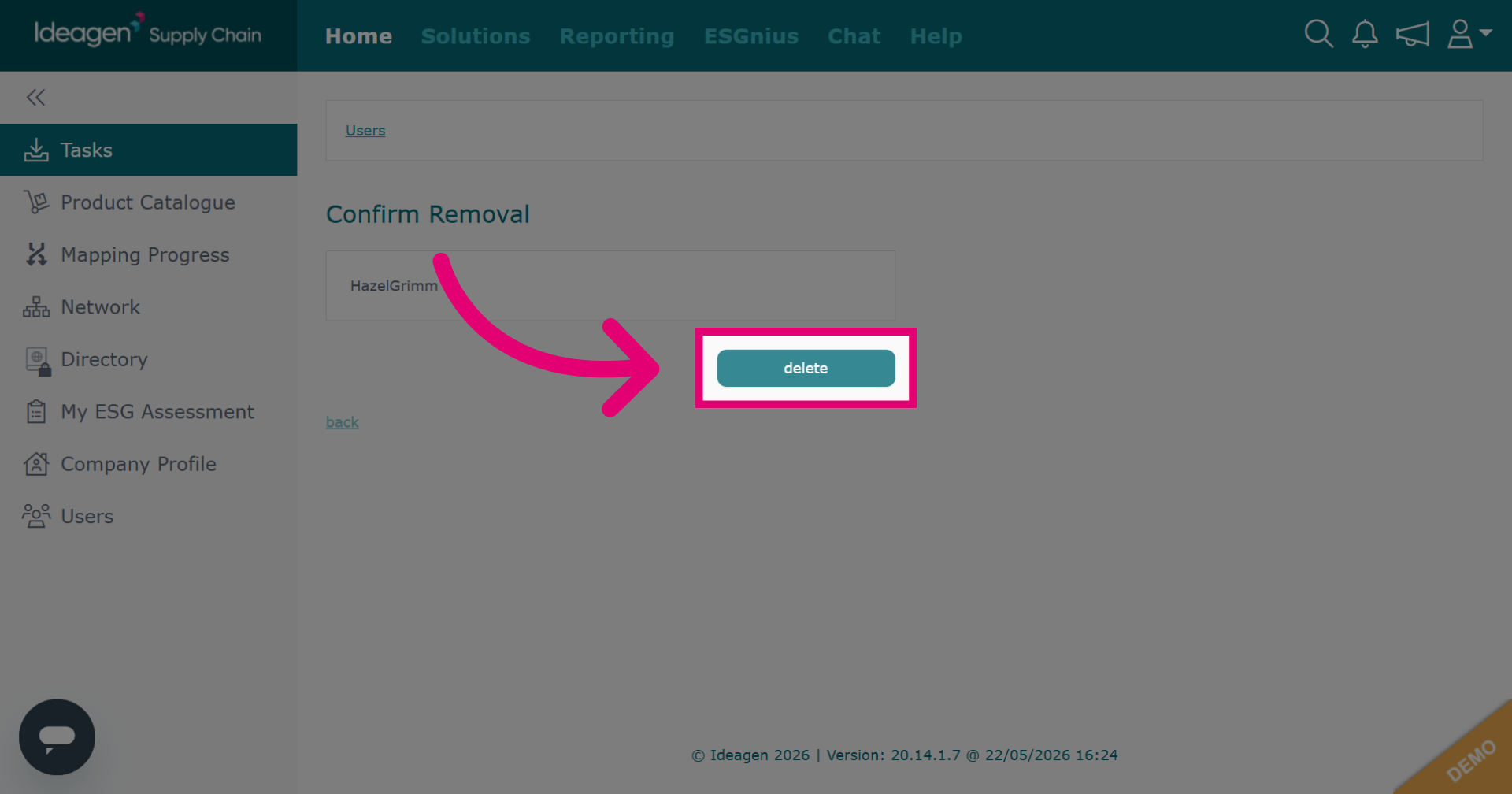
Click delete to confirm removal.
-
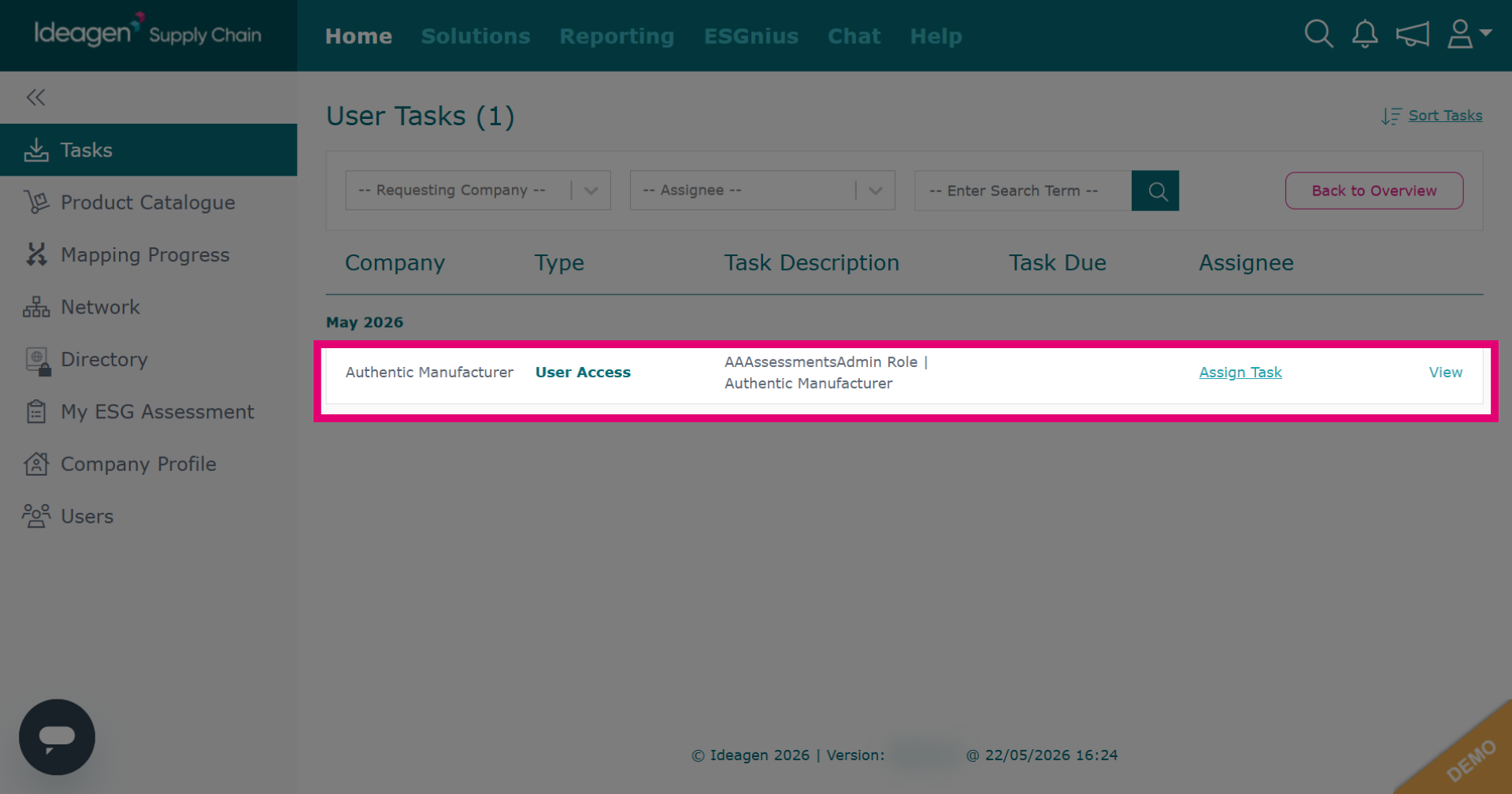
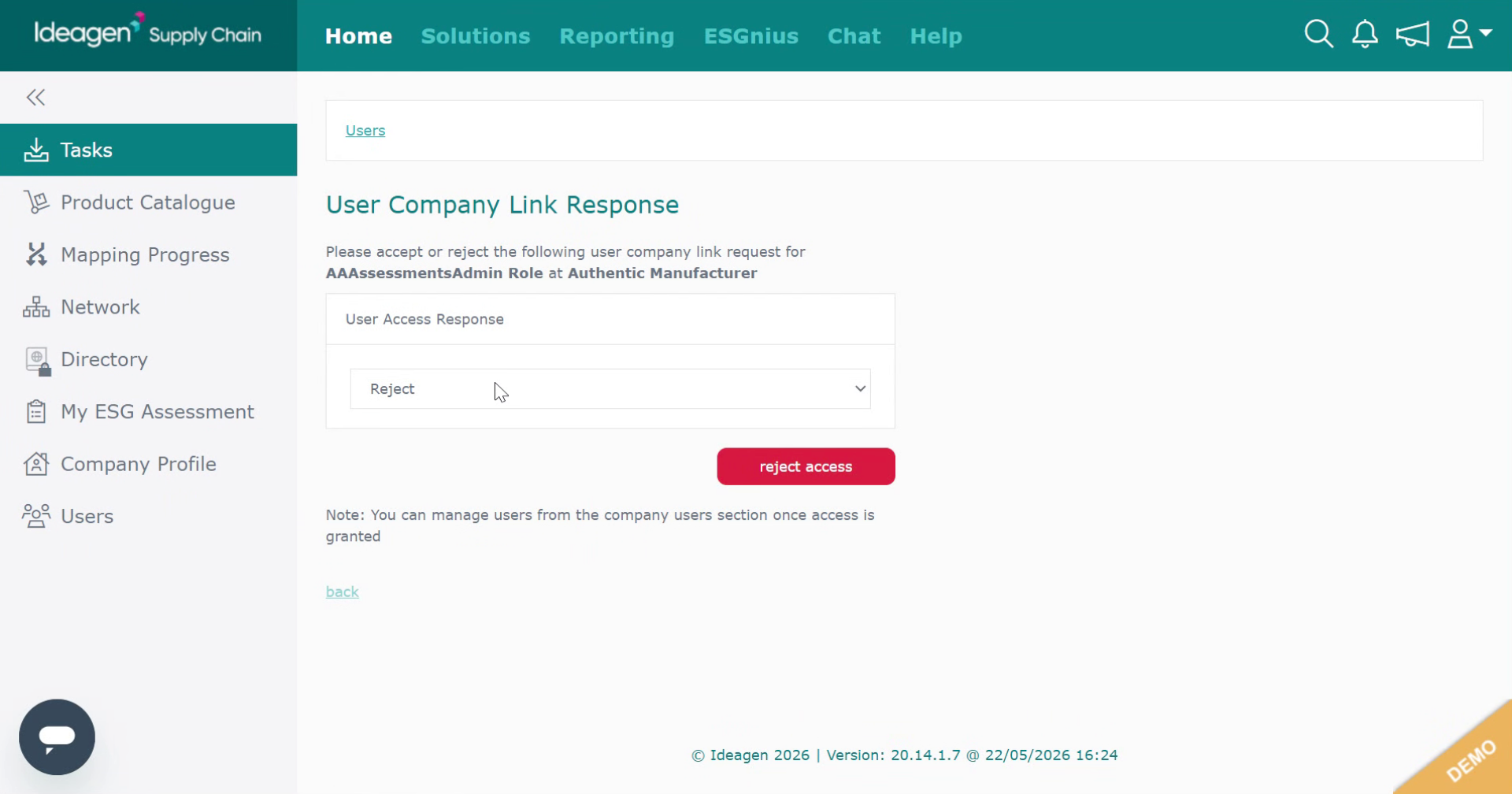
Review user access requests, which are when a user already has an account on a different profile, but has requested additional access to your company's profile.
-
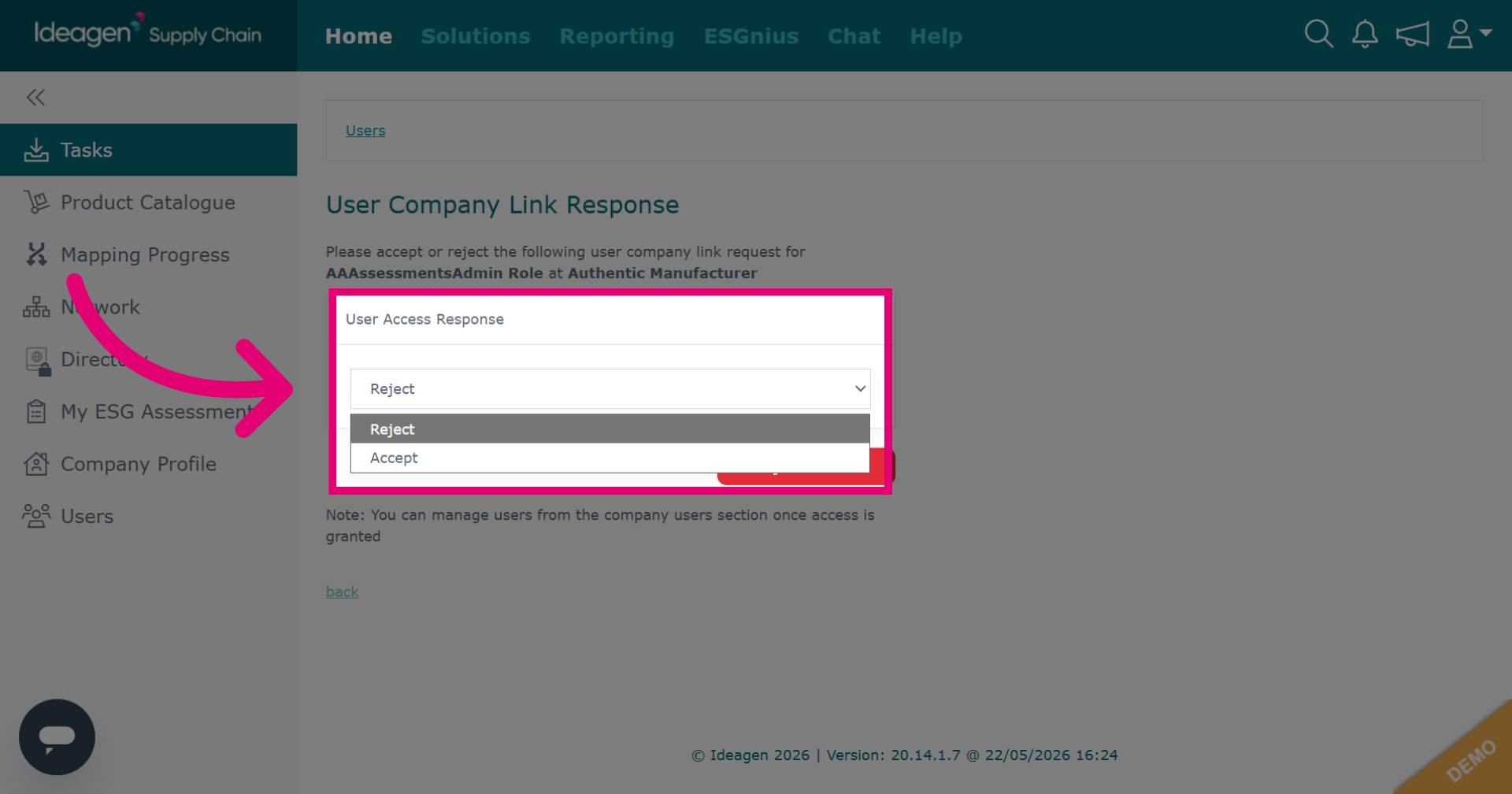
Click either Reject or Accept accordingly.
-
Review your selection before proceeding.
-
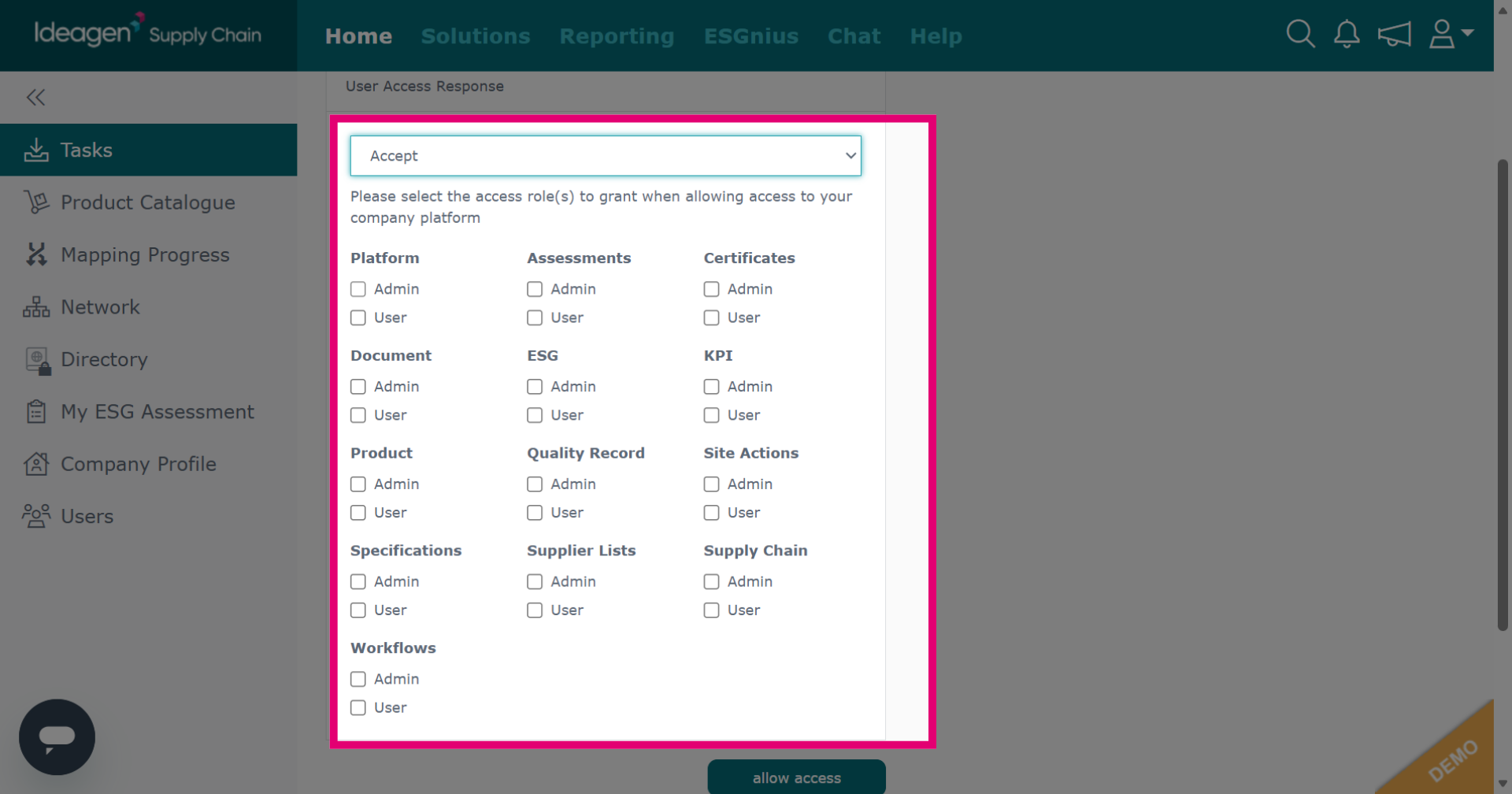
If accepting the request, select the applicable roles for this user by ticking and unticking the boxes.
-
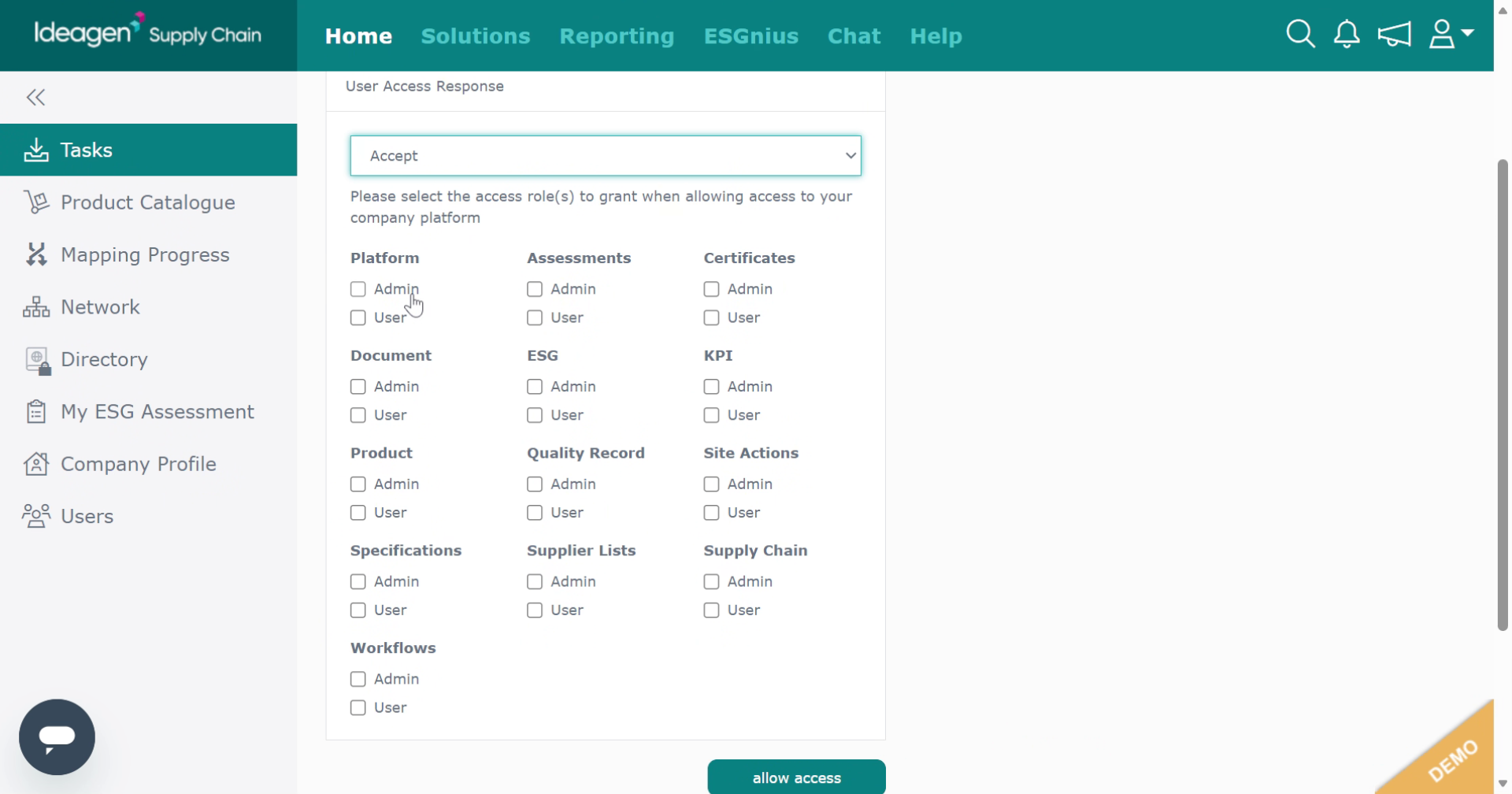
Continue selecting the appropriate roles for the user.
-
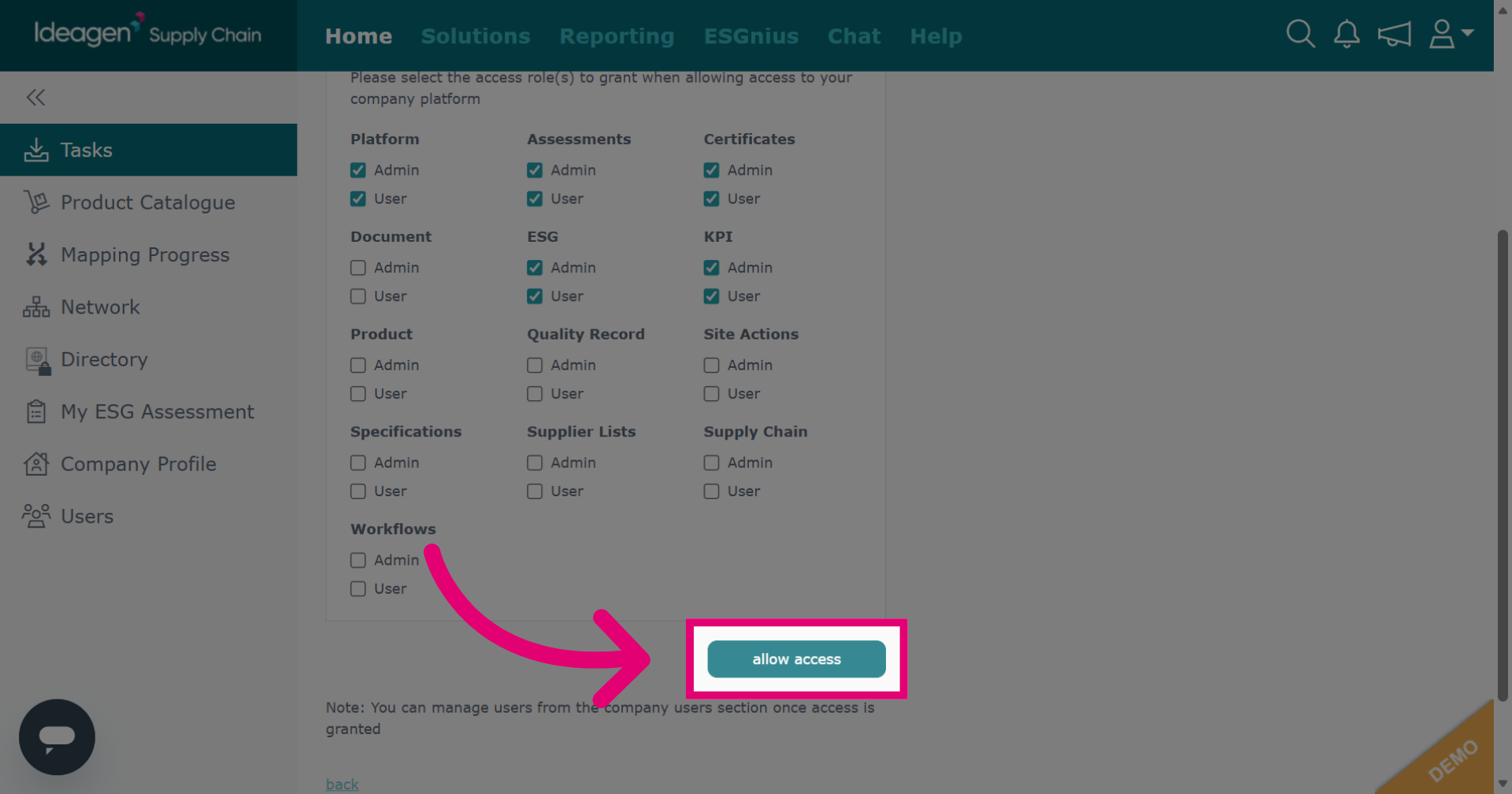
Click allow access to grant the necessary permissions and access to the user.
-
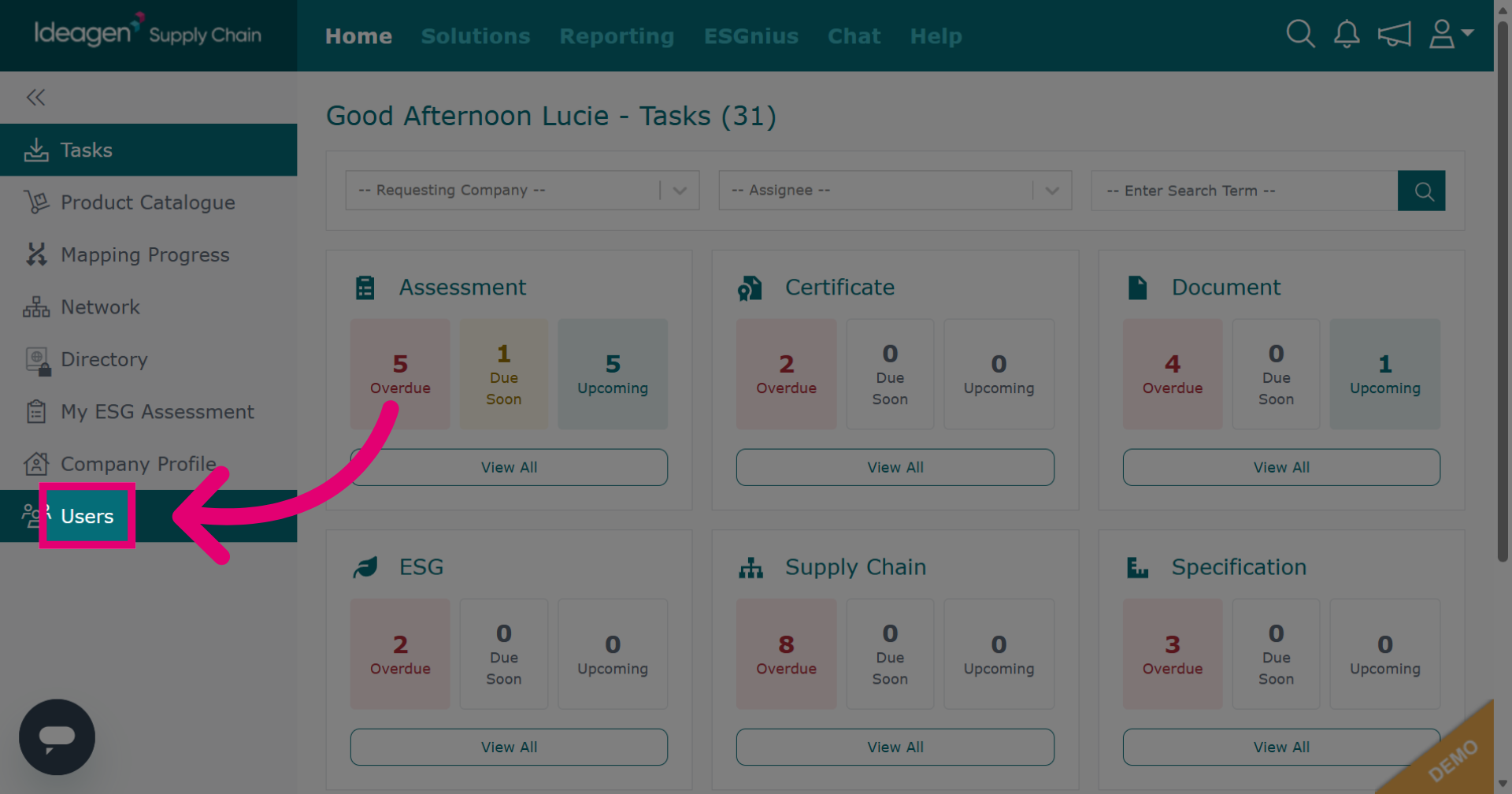
Click Users to navigate to the user management section of the platform.
-
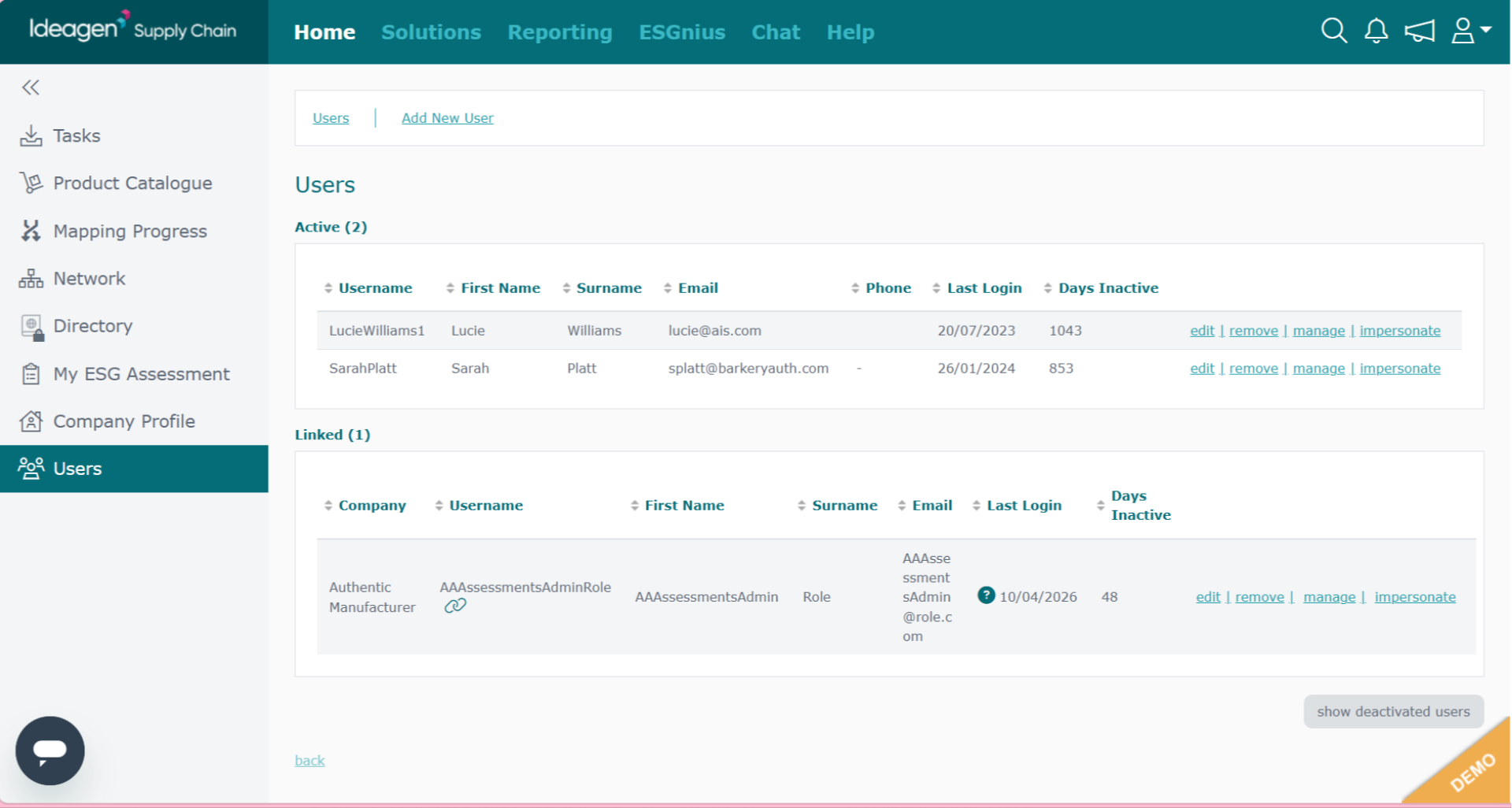
Review the Users page, which shows all users associated with your company's profile.
-
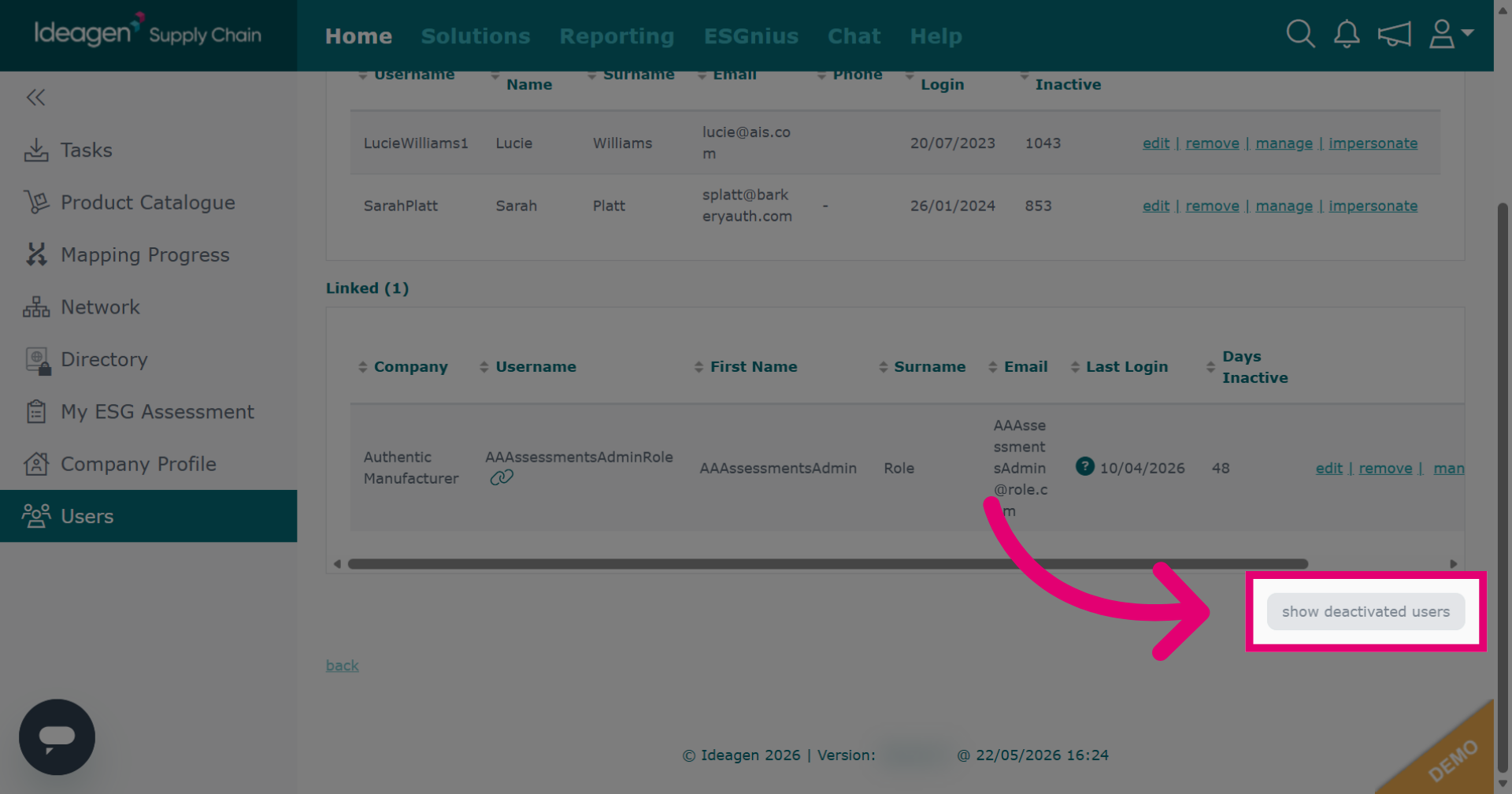
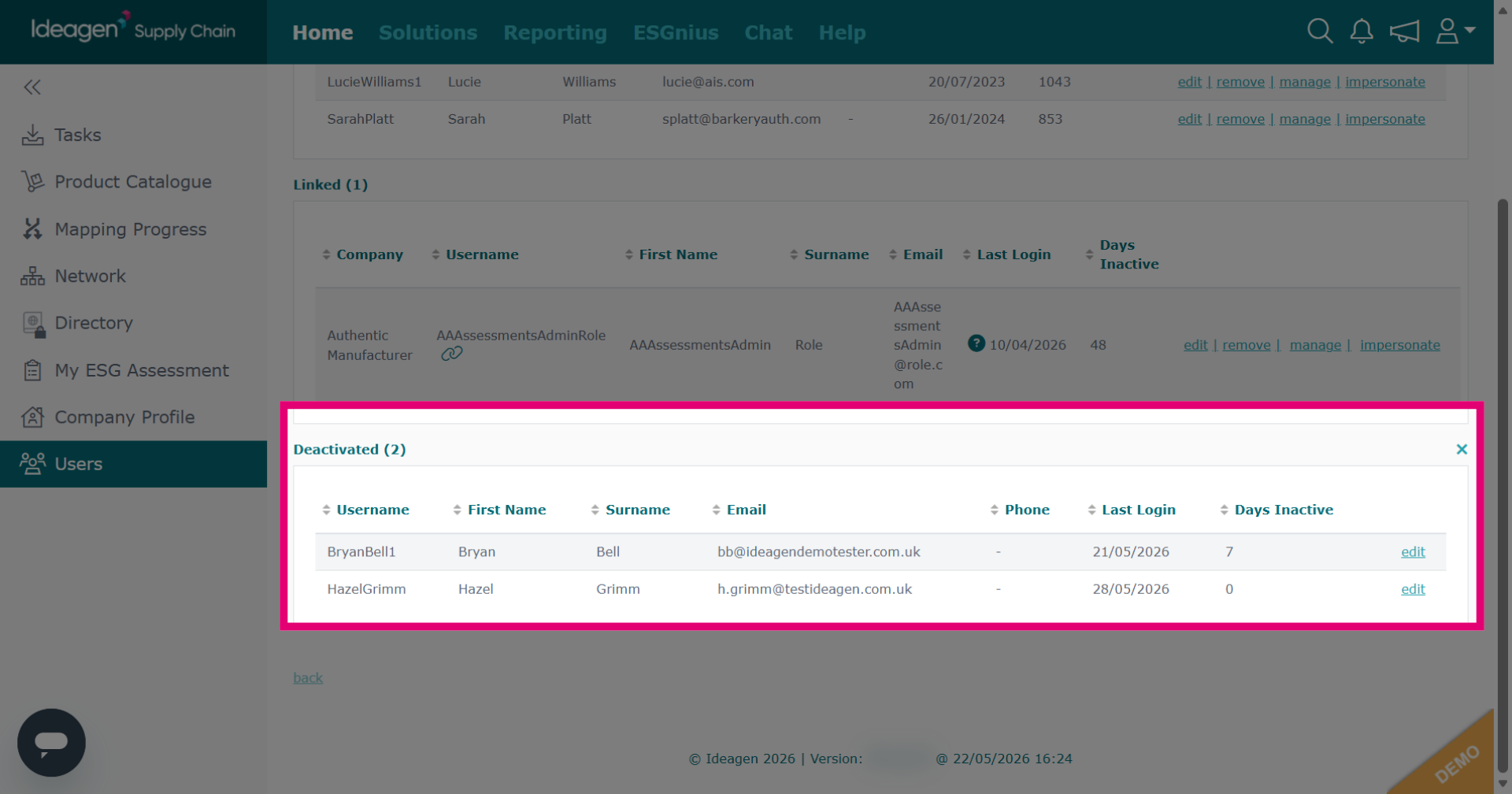
Click show deactivated users to display users who are currently deactivated.
-
If you want to re-activate any deactivated users, click Edit next to the user's name, you will then be able to amend access and change from Denied to Approved if needed.
-
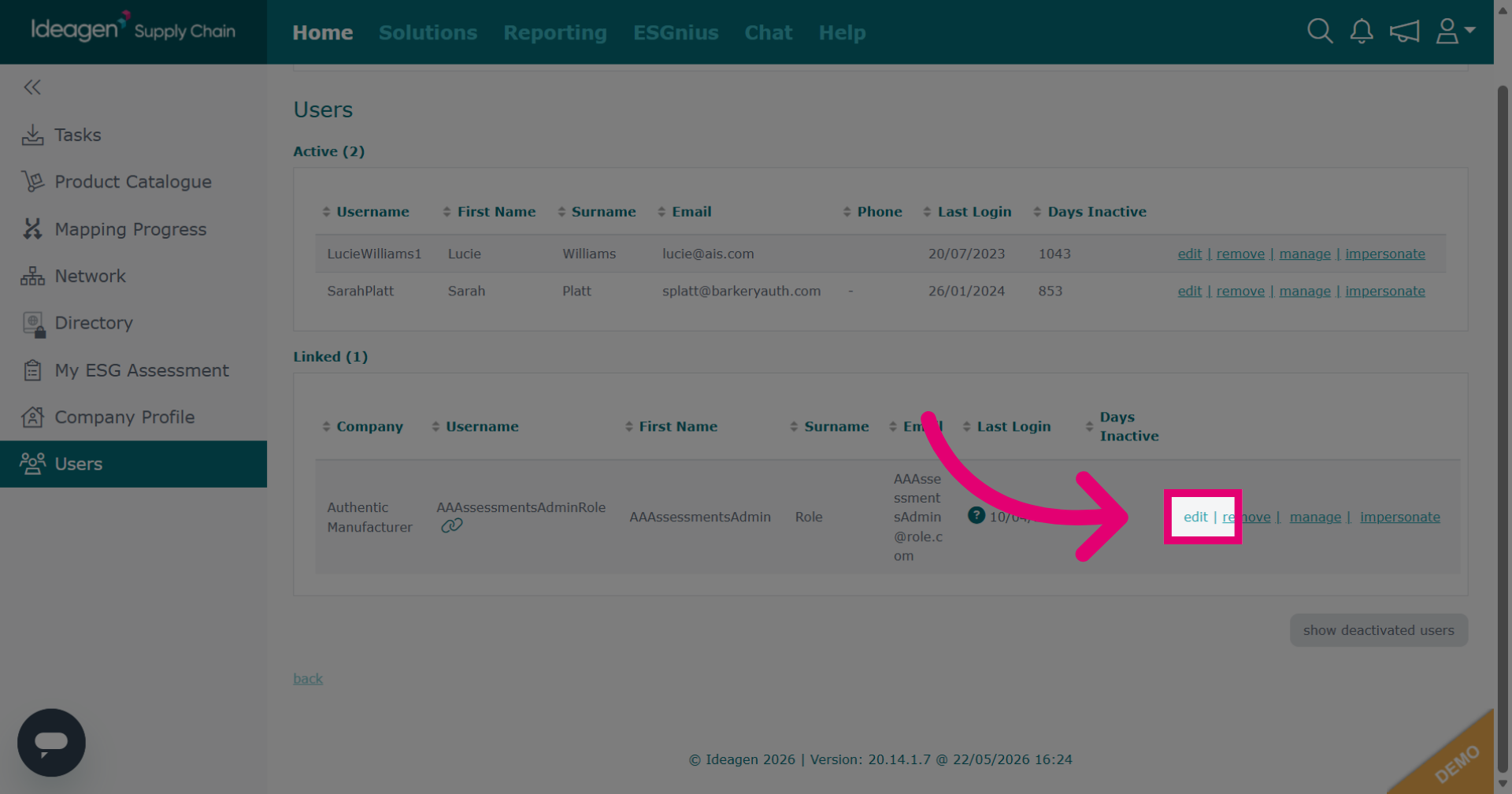
Click edit to modify the details of an active user. You will be able to amend their details and user roles. Please note, you will not be able to amend the username. If you need a username amending please get in touch. If you are taking over an account from someone, please do not remove their details and replace them with yours. Instead, please create a new user account for yourself. If you are unable to create a new user account due to the email already being in use, please get in touch.
-
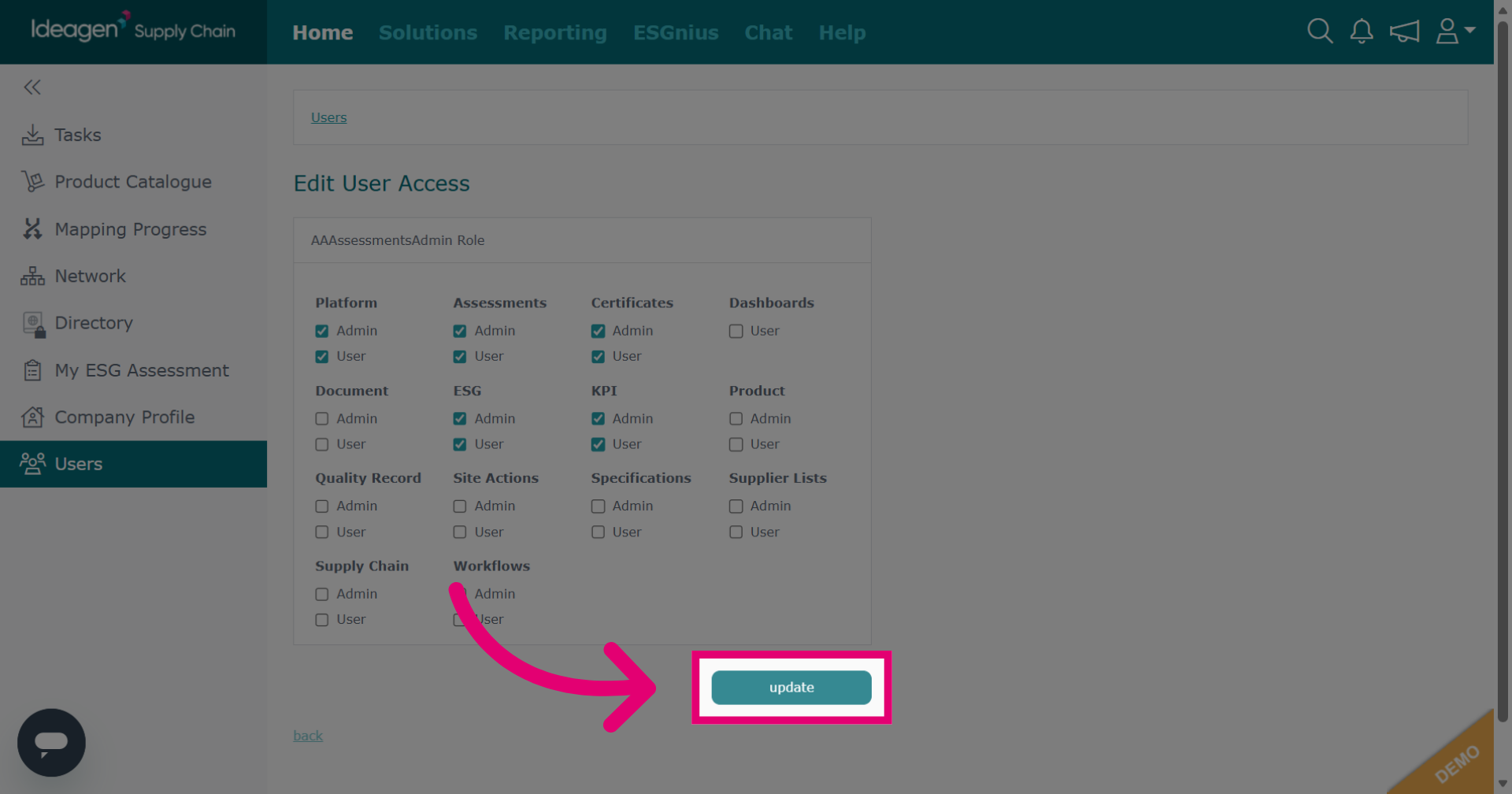
Click update to save changes made to the user's information.
-
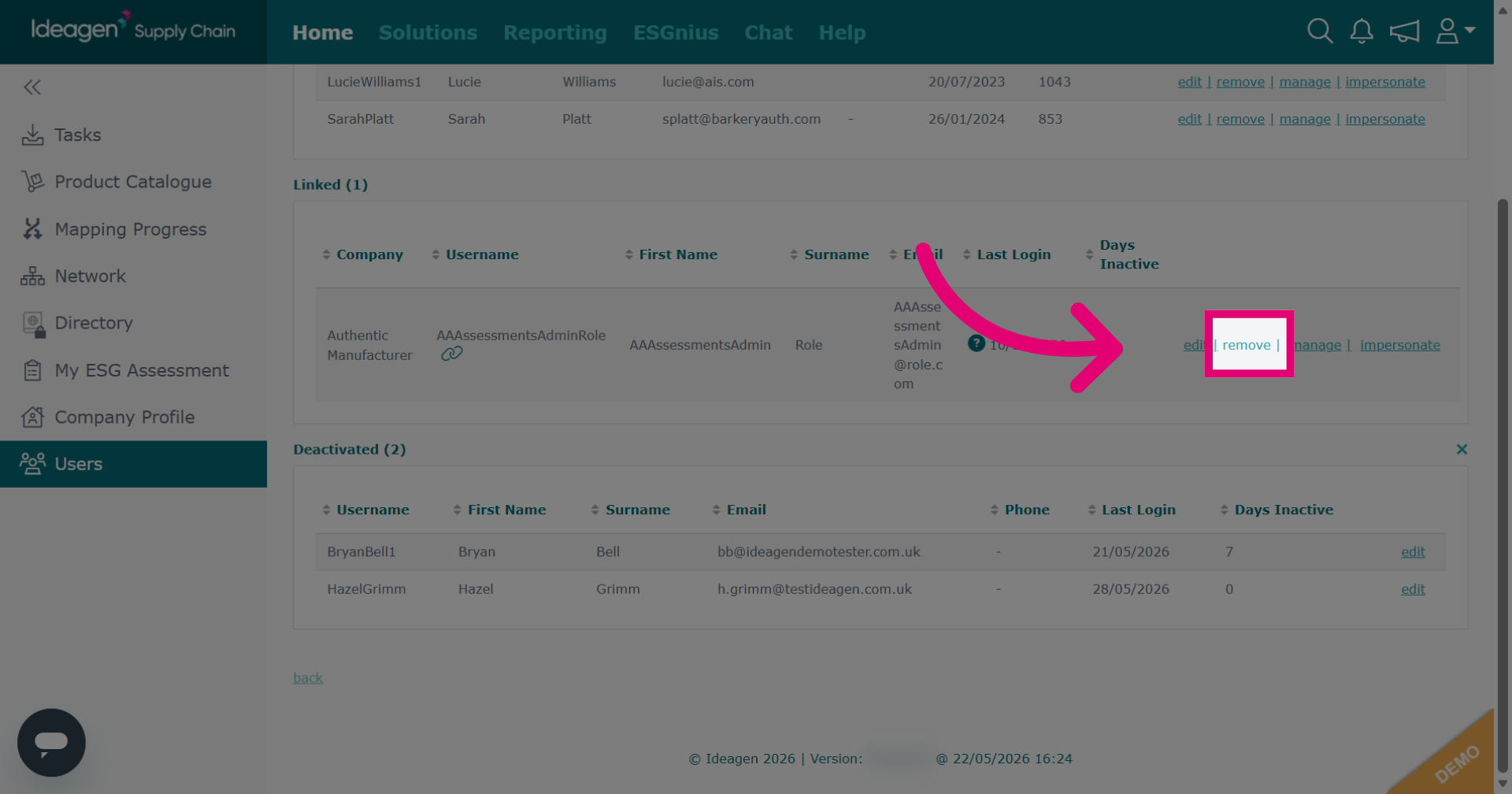
To remove an active user, click Remove.
-
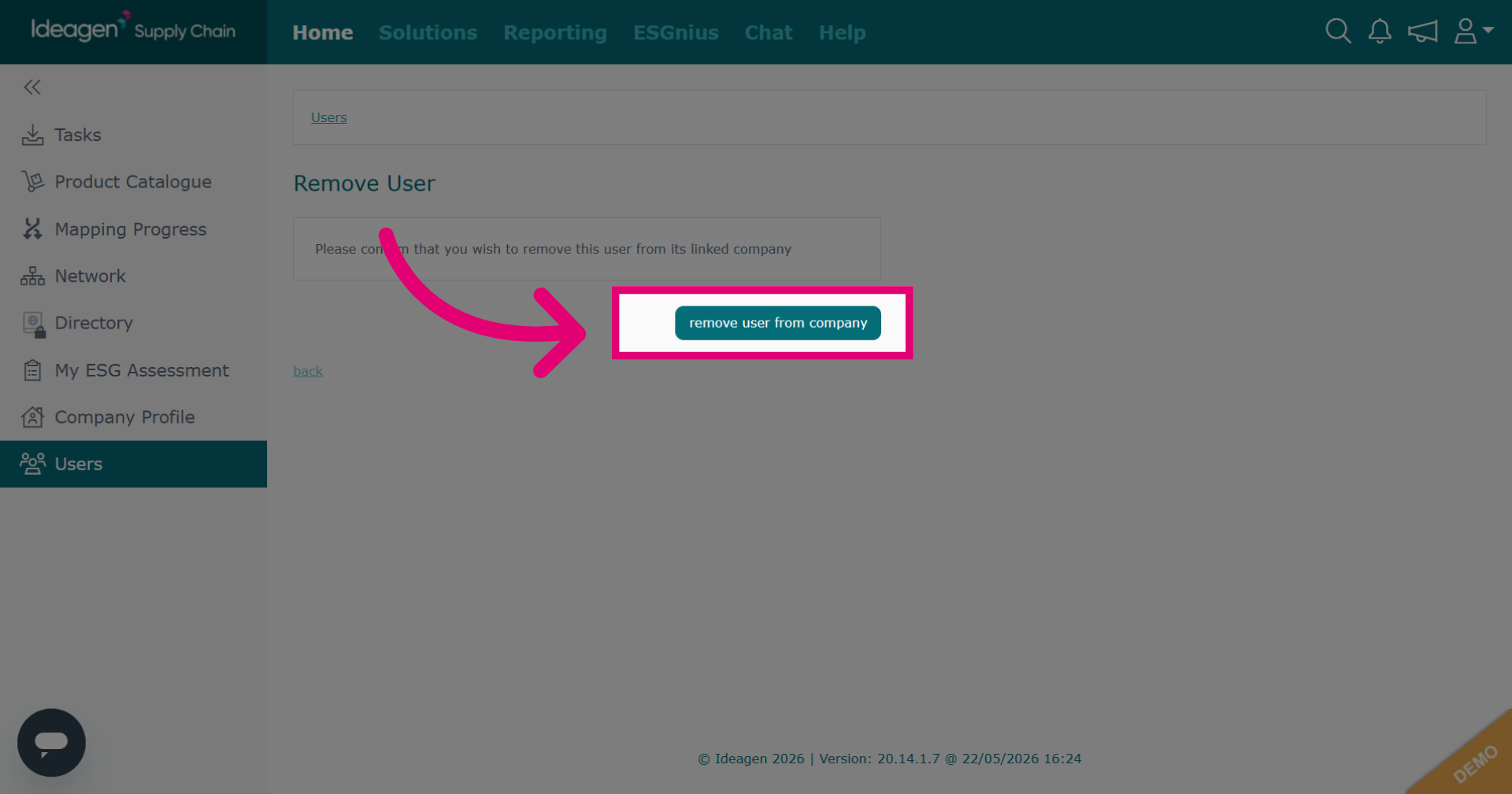
Click remove user from company to confirm removal.
-
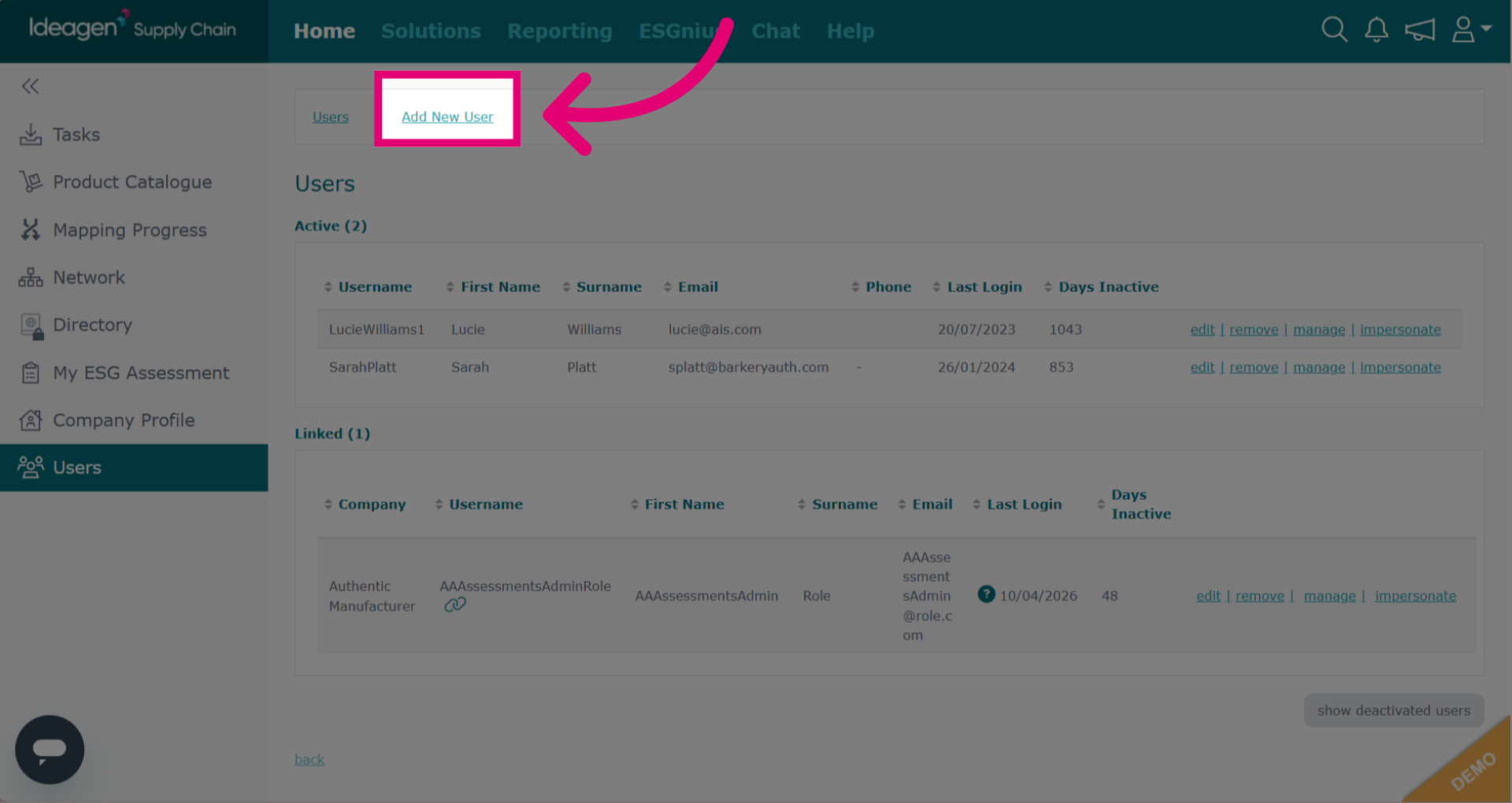
To add a new user to your company, click Add User at the top of the page. You will then be able add a new user.
-
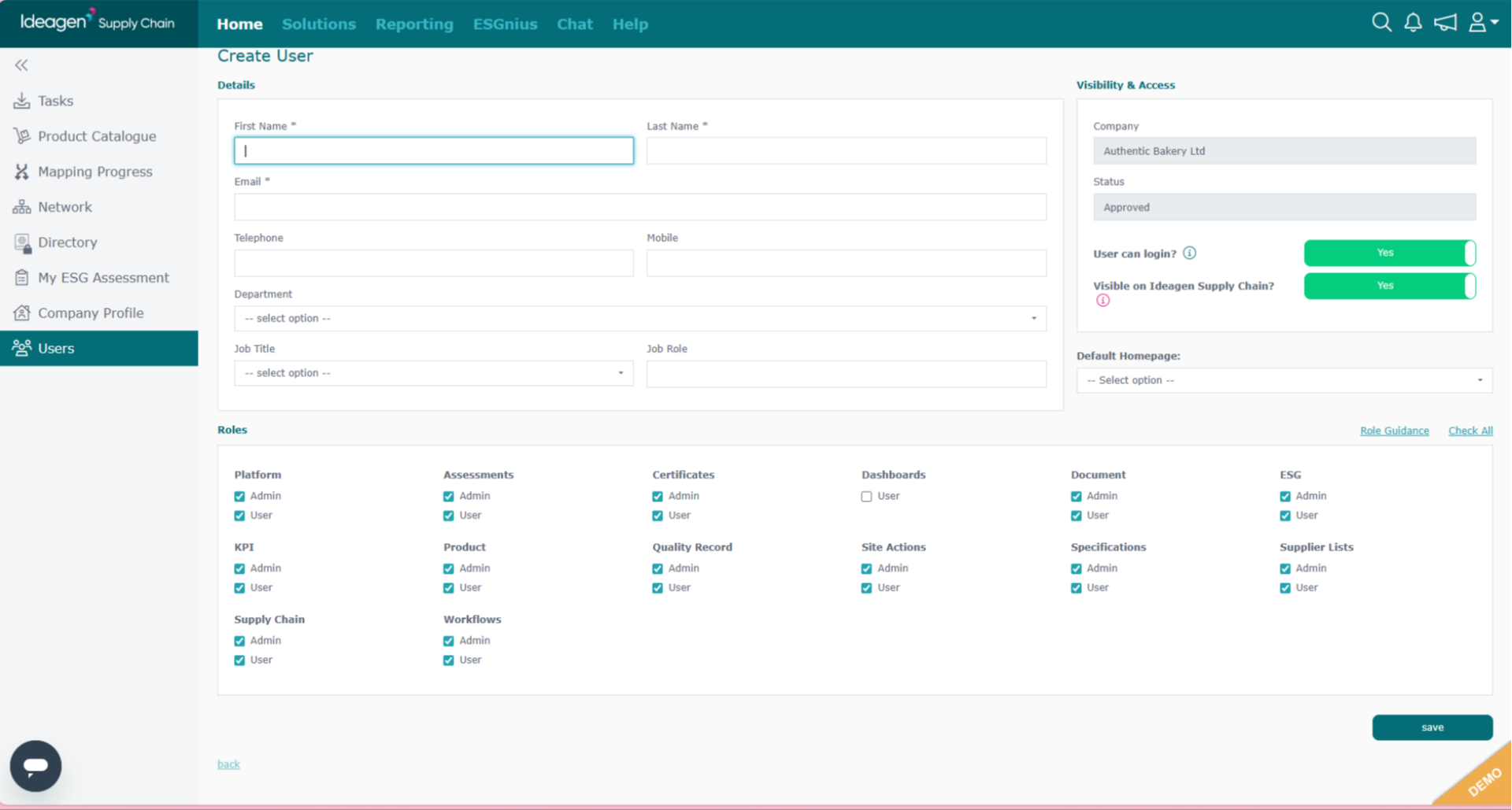
Input the user's details and select roles. Click save once finished.
-
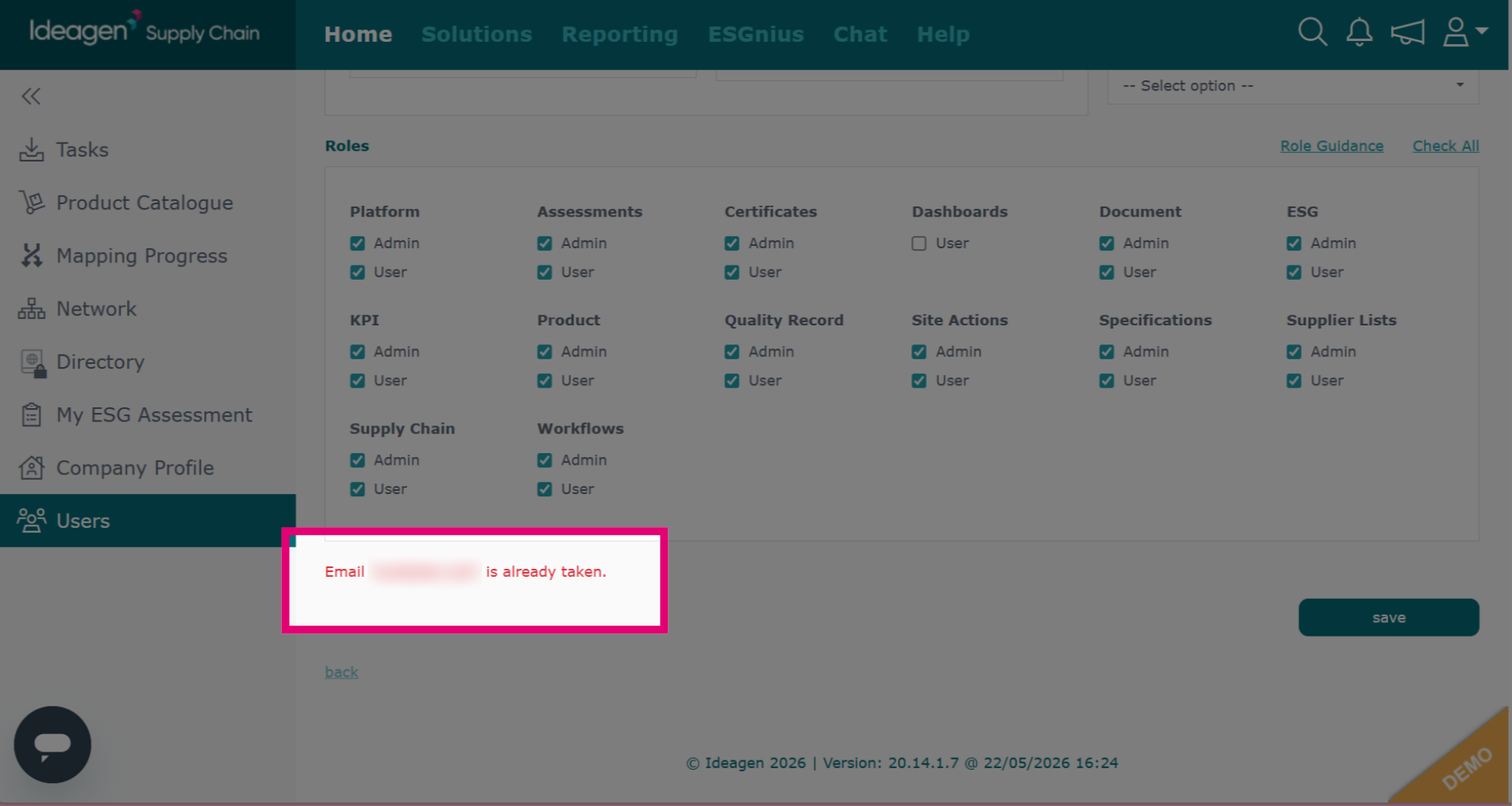
If you get an error message to say the email is already taken, it means the email address is already in use. If user needs access they will need to request multiple access. If you are unsure how to do this please watch our video guide titled "Request Access to Multiple Company Profiles."
-
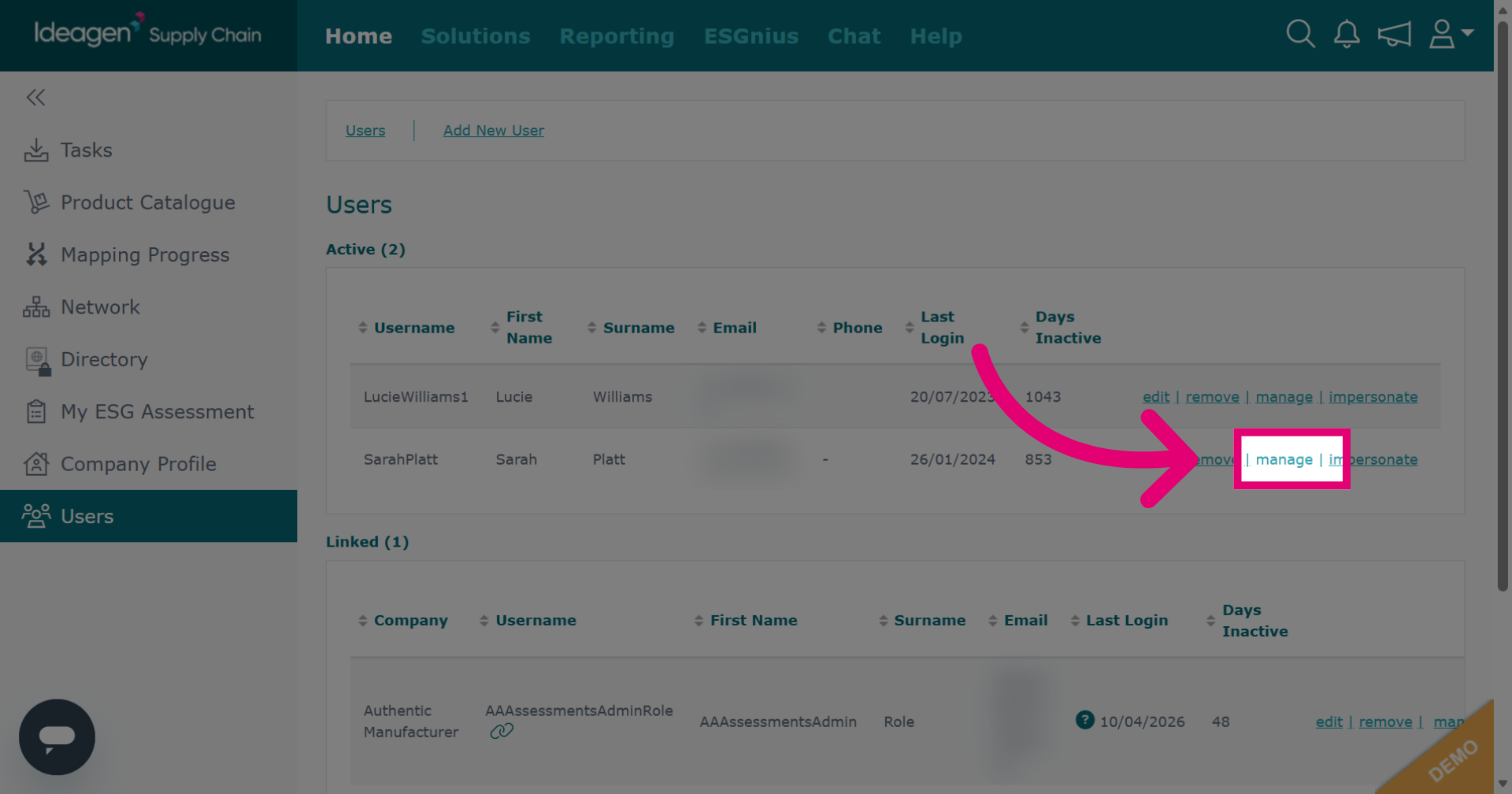
Click the Manage next to the user you want to manage email settings for.
-
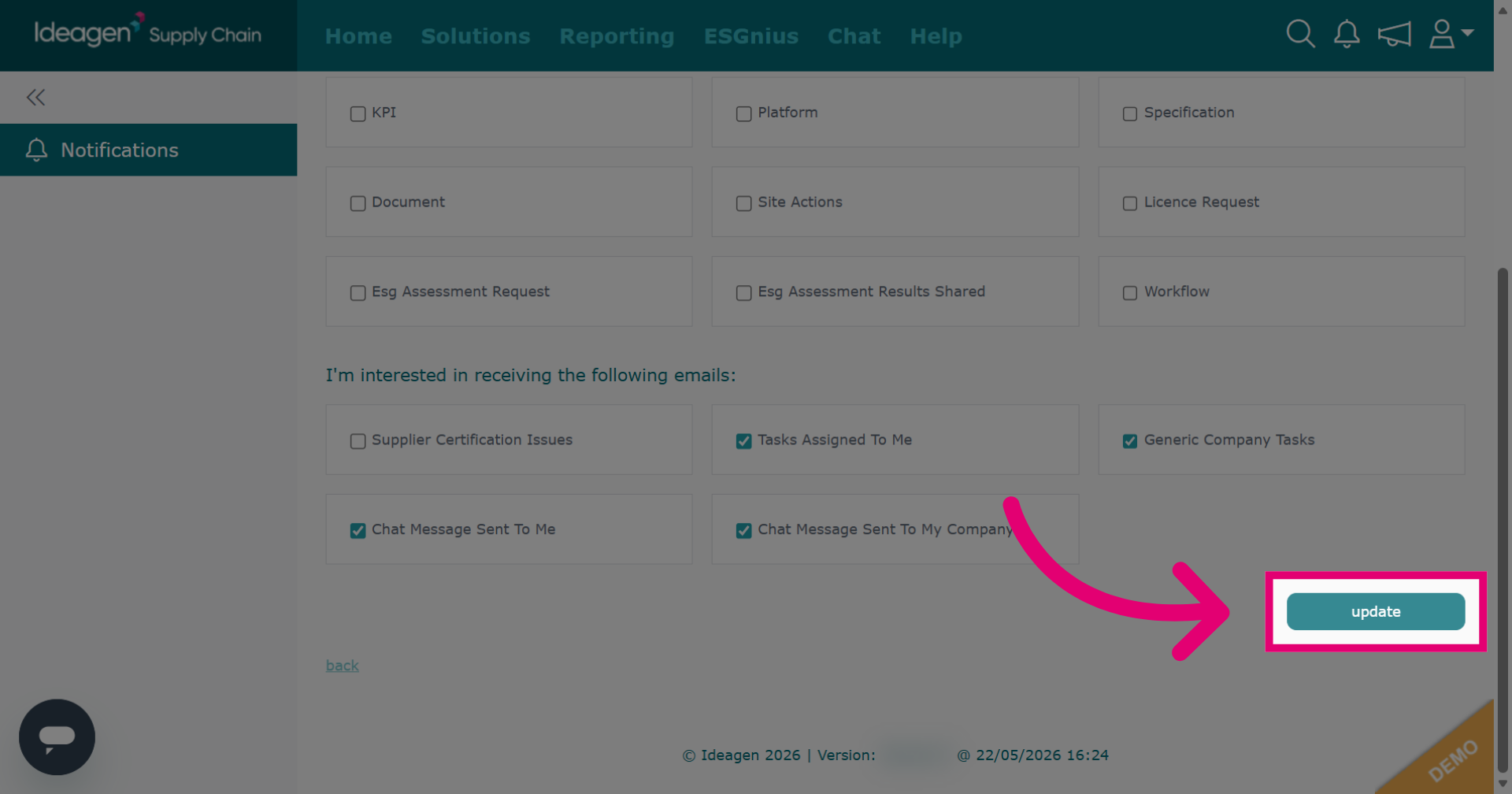
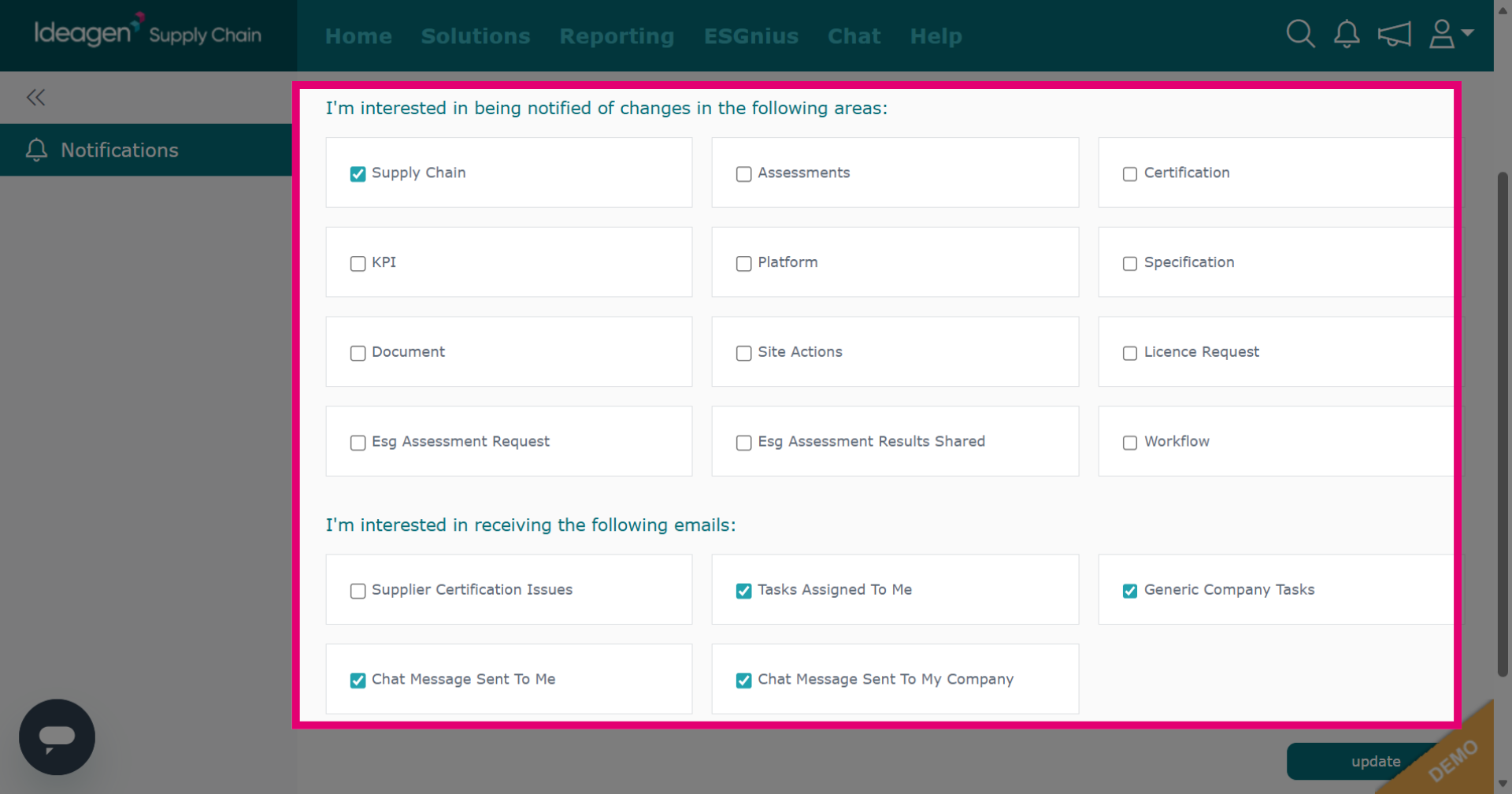
Tick the boxes accordingly. If you are not receiving emails as expected, please ensure that the email settings here are correct.
-
Click the Update button to save changes.