New article
Recently updated
Managing company user approvals and roles

Who is this article for?
Users who want to manage their company's users and user requests.
Platform admin permissions are required.
This tutorial guides you through managing user approvals and roles within the Ideagen Supply Chain application.
Managing user requests and roles
- Log into the system.
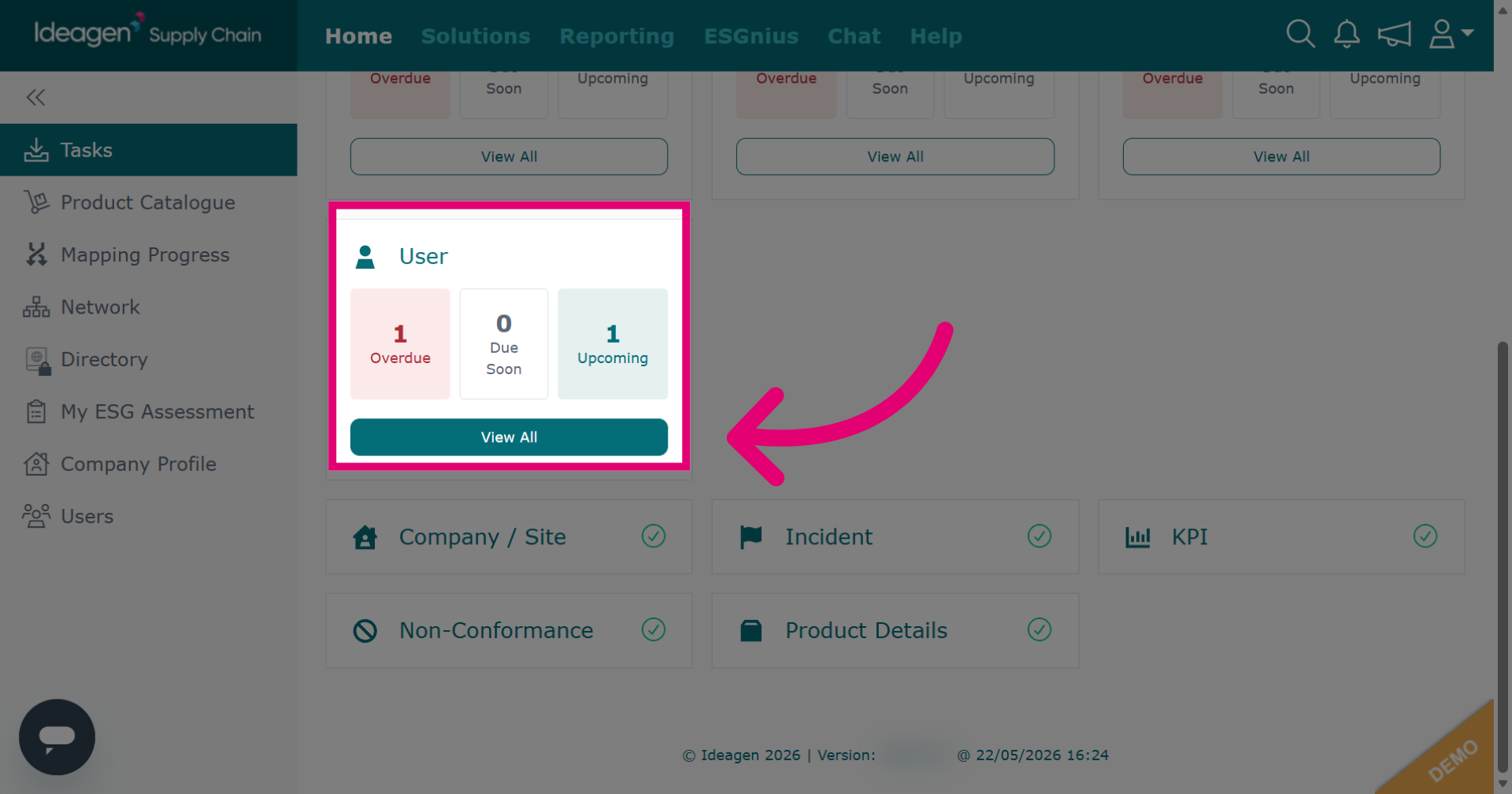
Click View All to display all user requests.
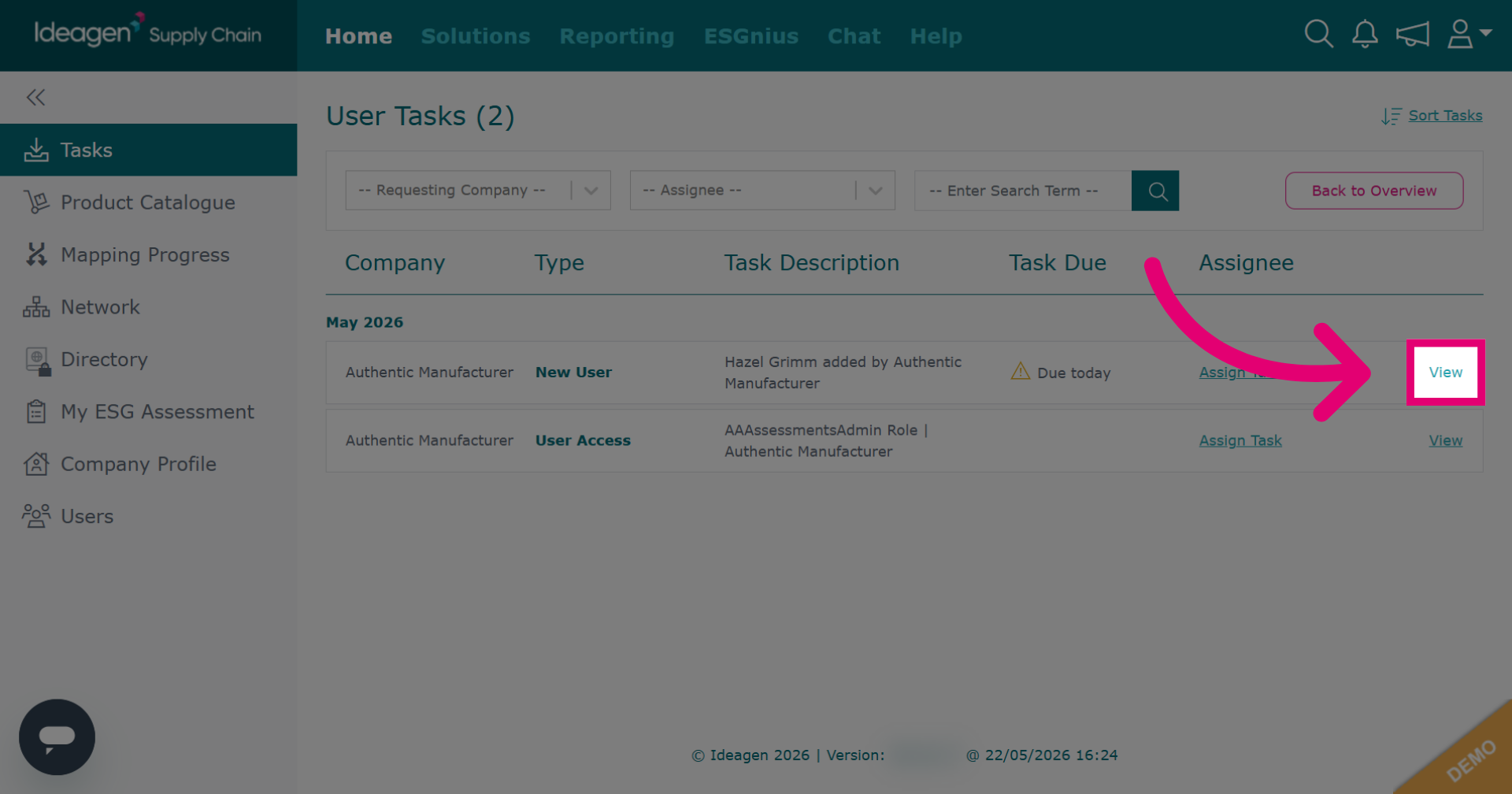
Click View to open the details of a specific user request for review.
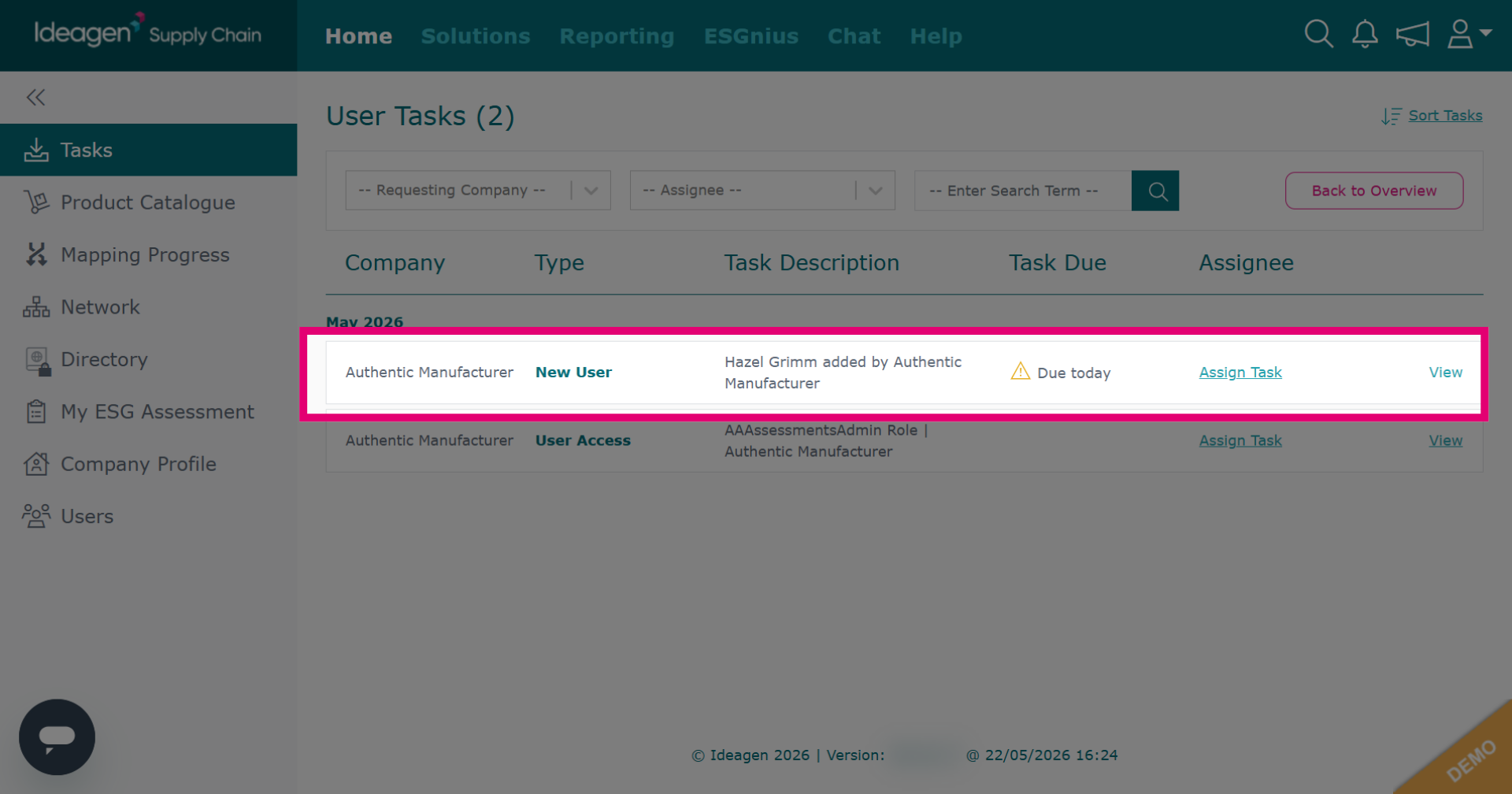
New user requests are users that have been added to your company by another company on the platform, usually your customer.
Select either Approved or Denied accordingly from the drop down options.
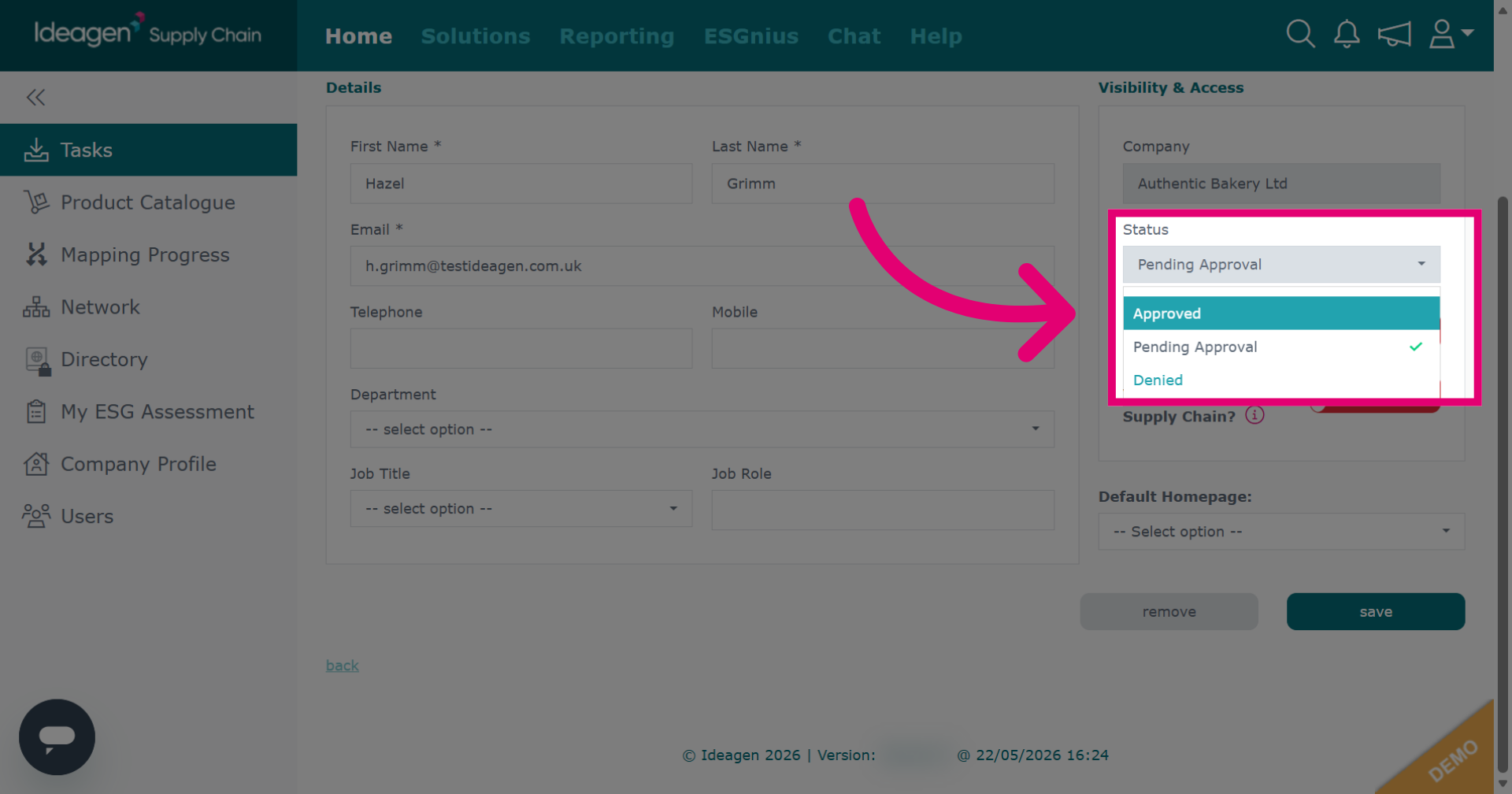
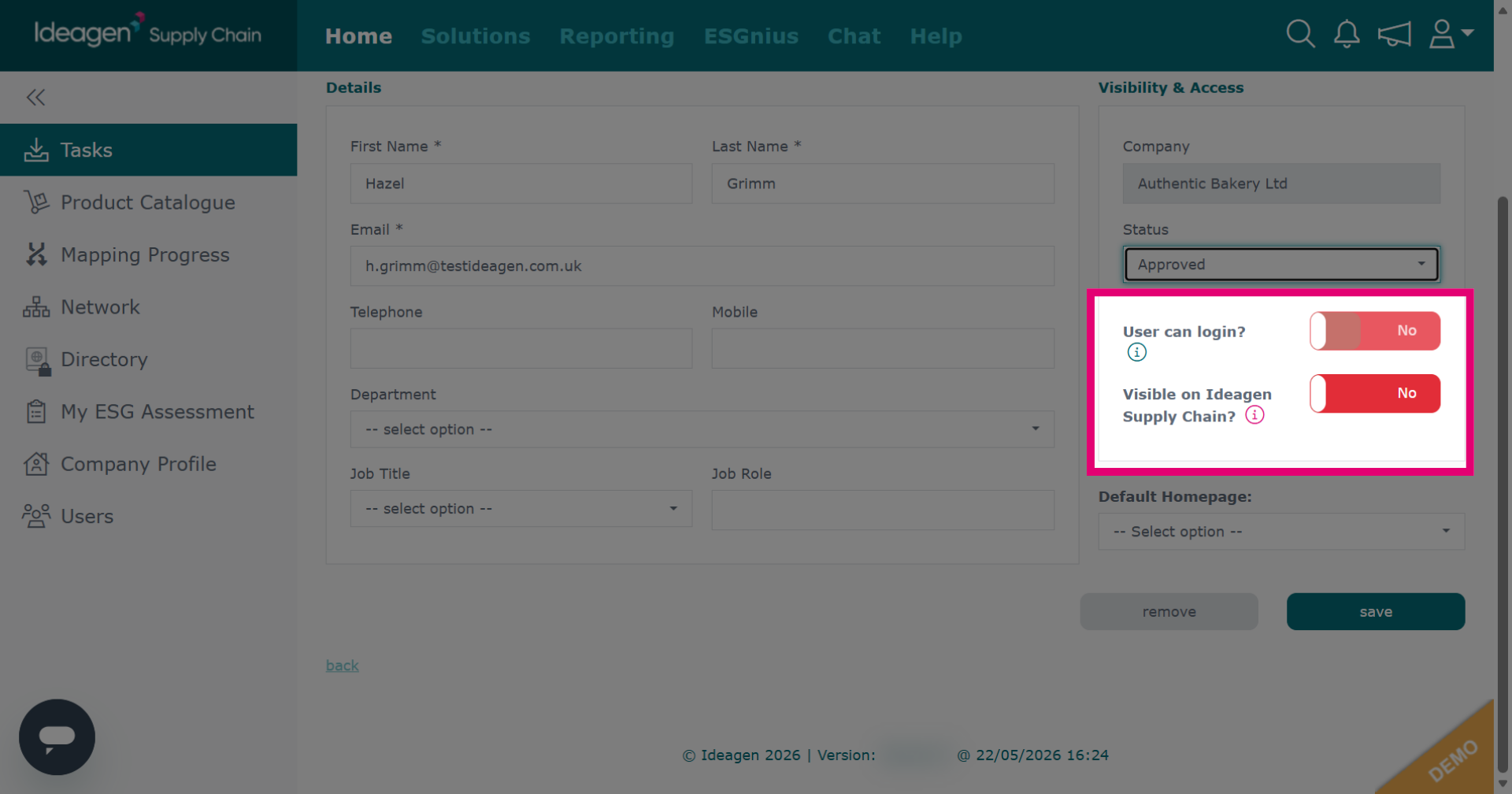
For approved users, you will then need to select using the slider whether the user can login and whether they are visible to others on the platform.
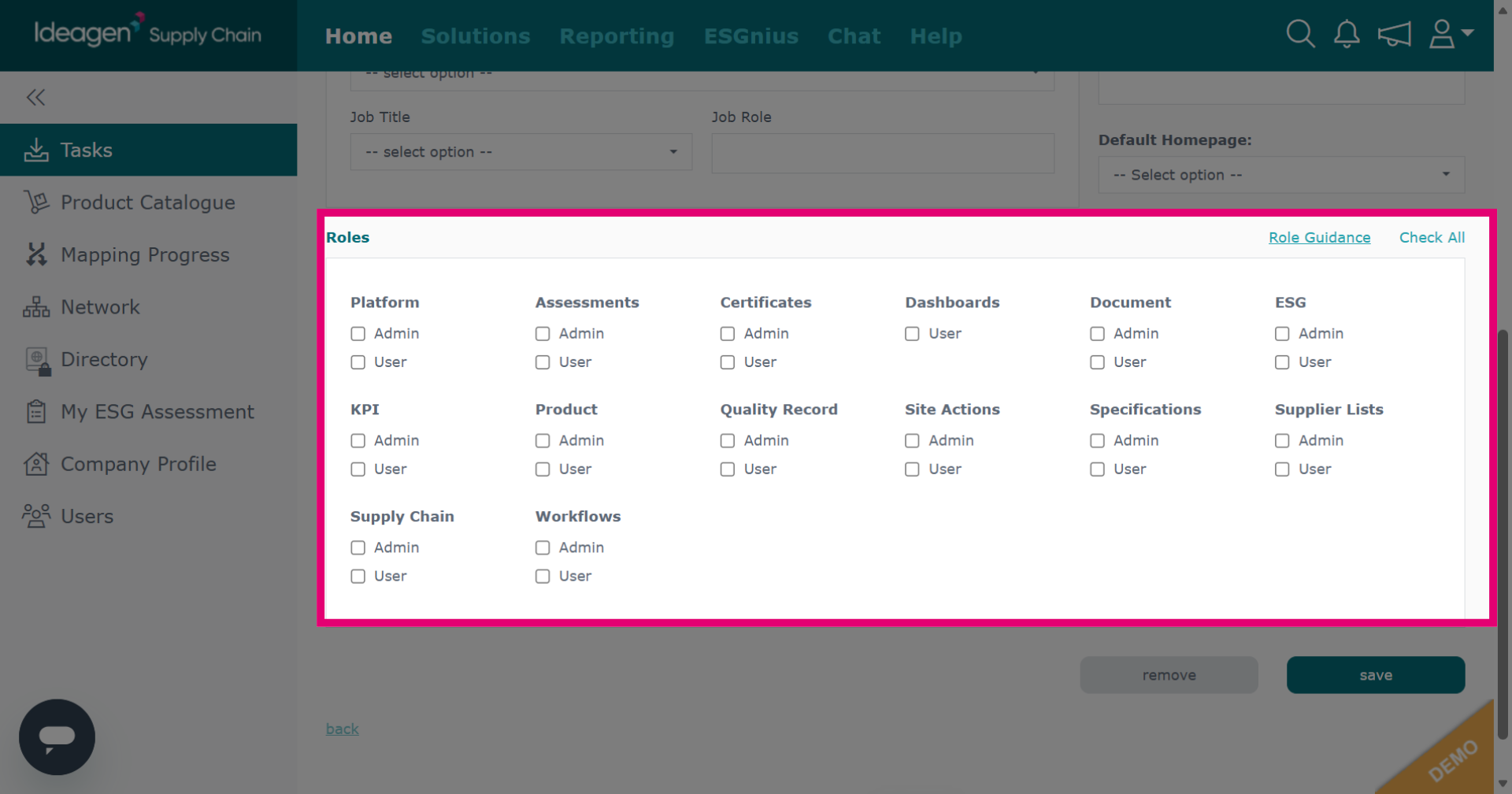
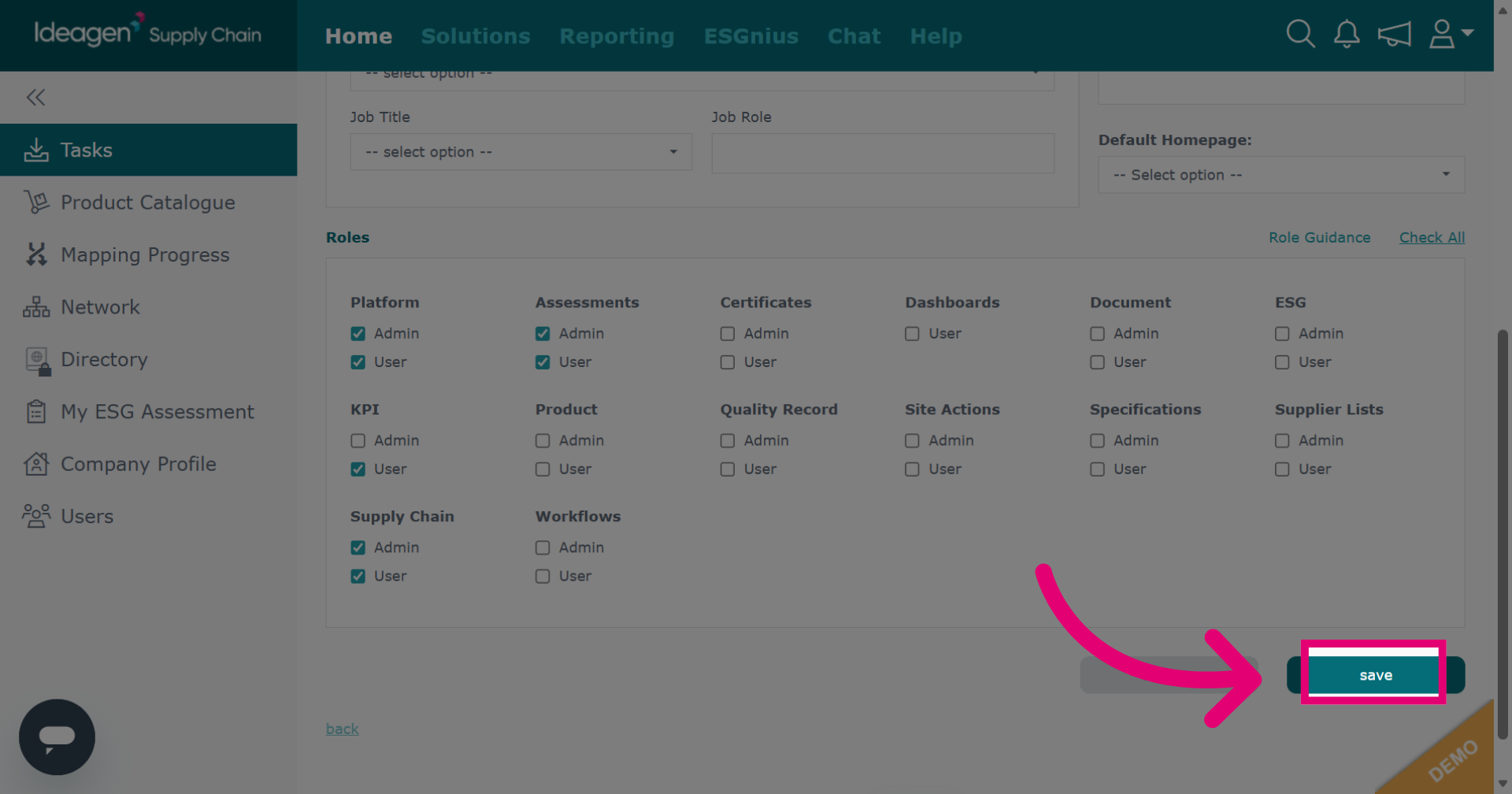
If you allow the user the ability to log in, you will then have to select their user roles by checking and unchecking the boxes accordingly.
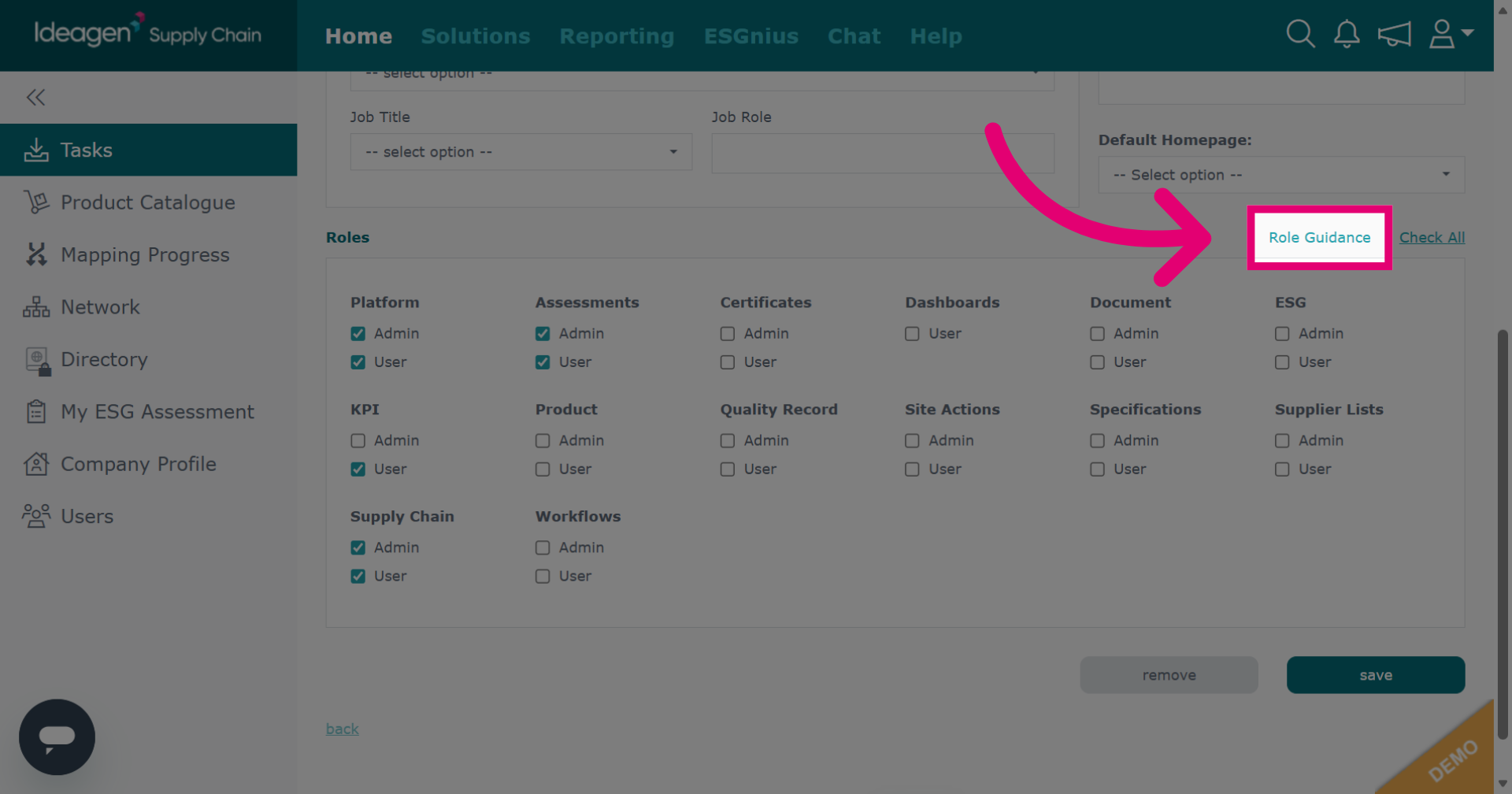
If you need guidance on the role functions, click Role Guidance for assistance.
Once finished, click save.
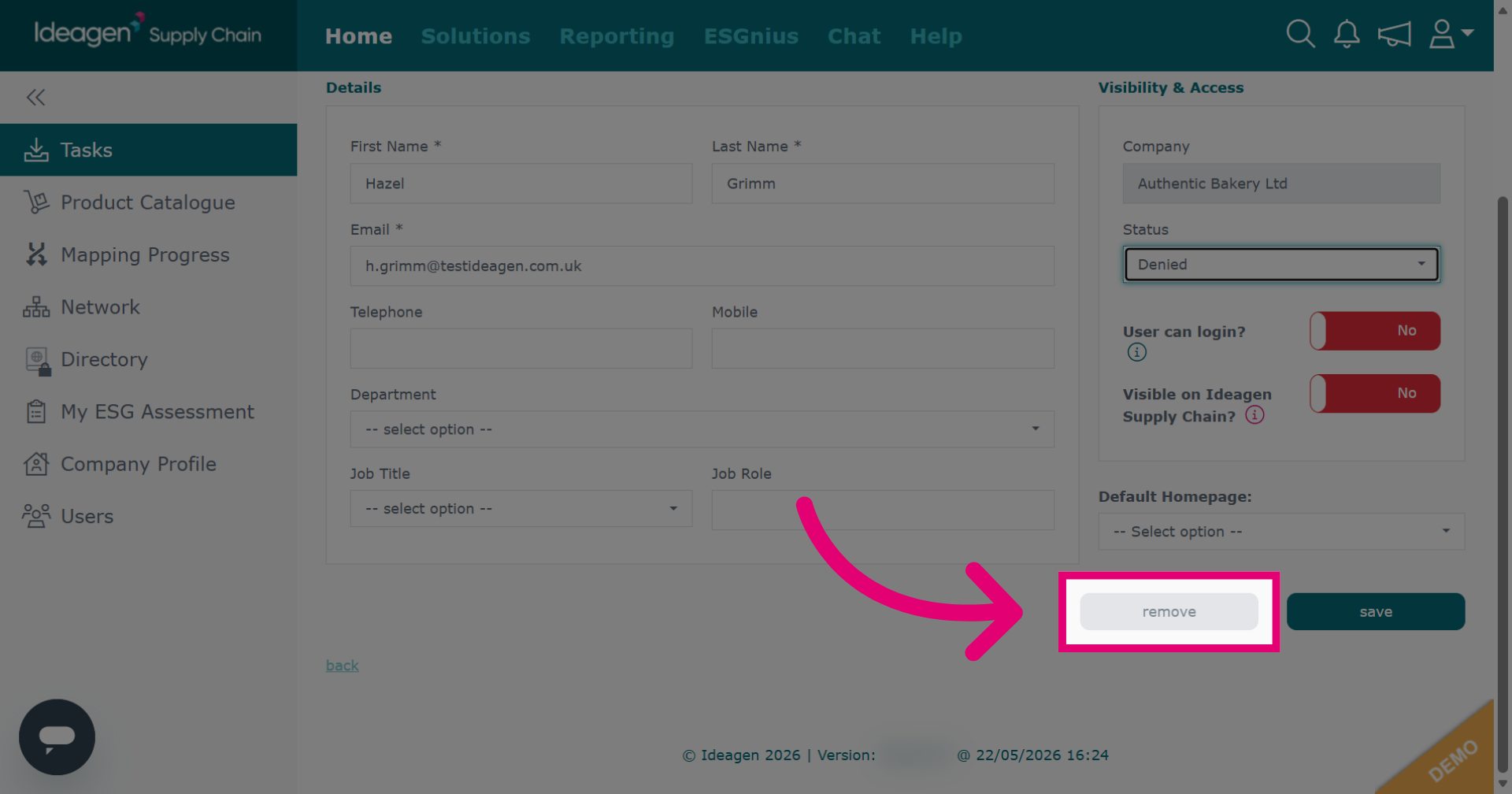
If you have selected denied for the user, click Remove.
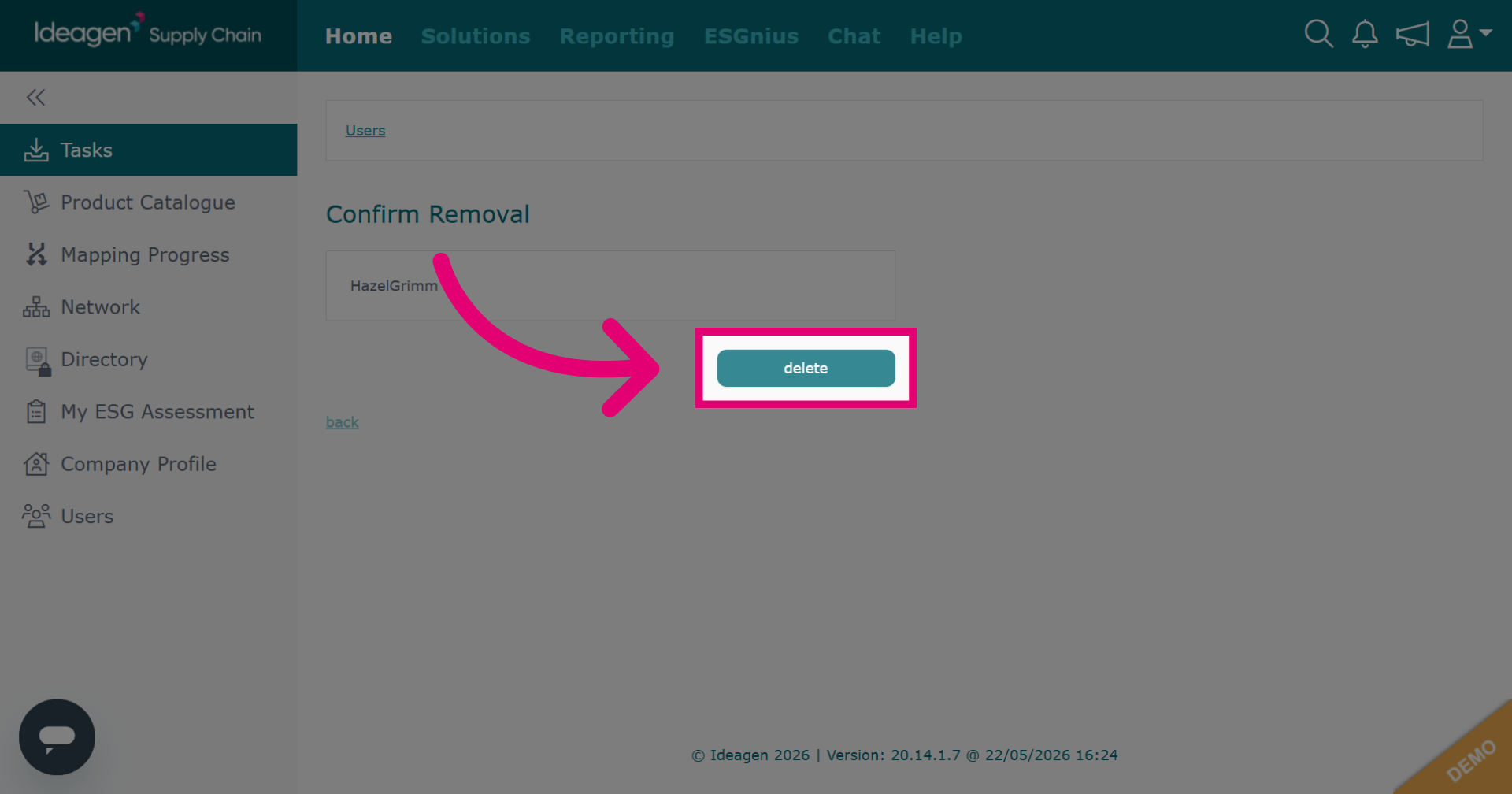
Click delete to confirm removal.
User access requests are when a user already has an account on a different profile, but has requested additional access to your company's profile.
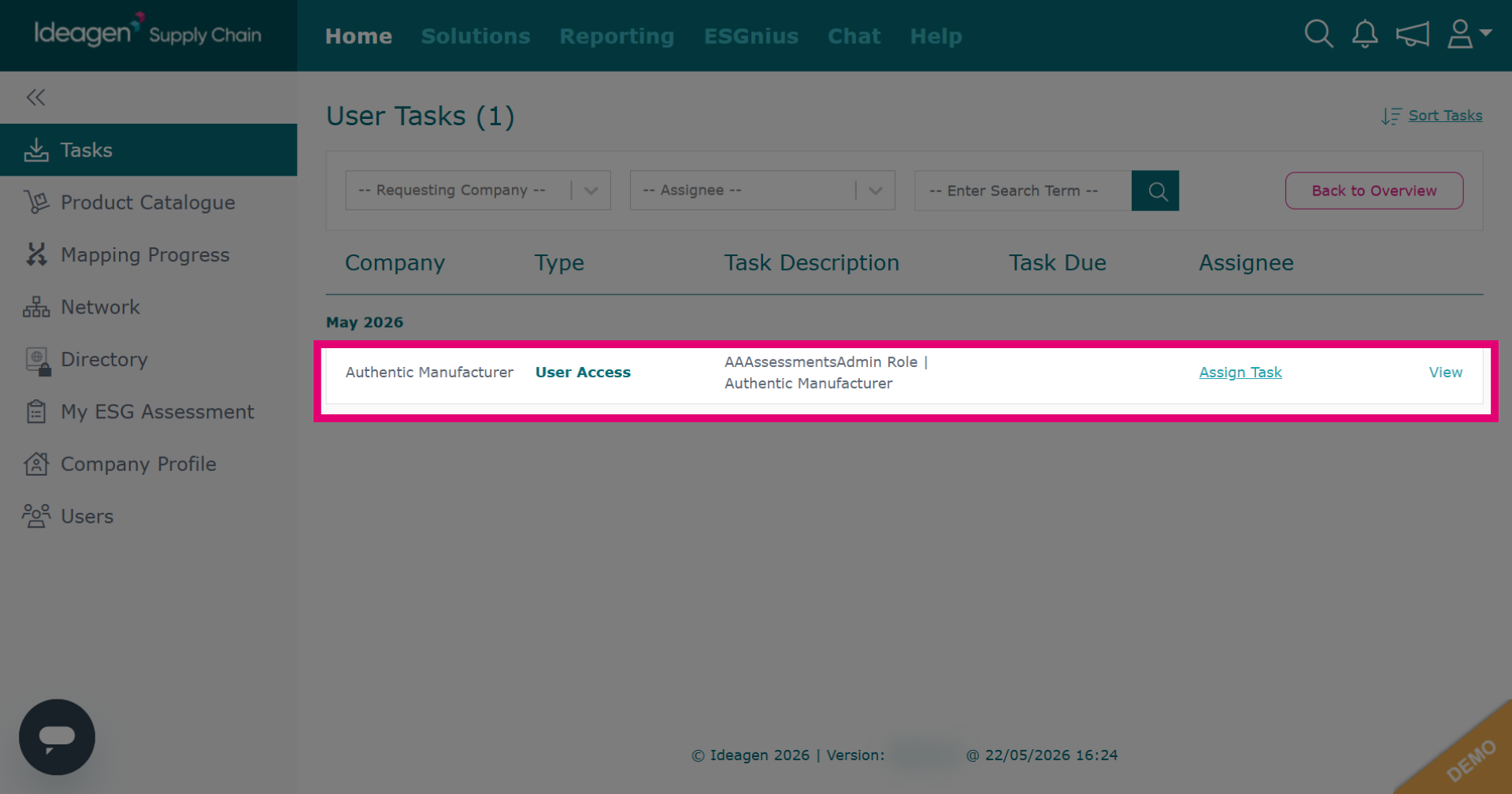
Click either Reject or Accept accordingly.
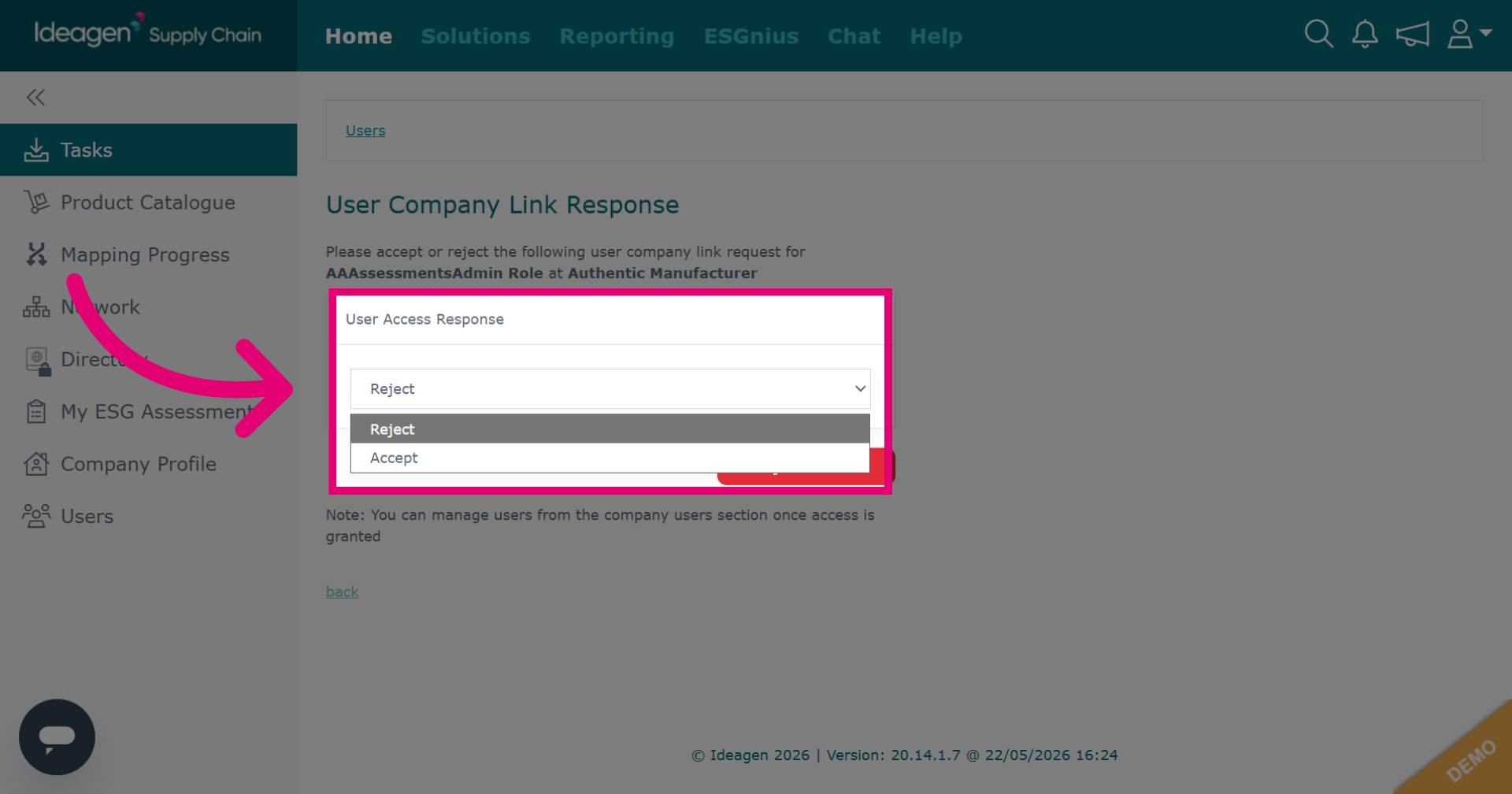
If accepting the request, please select the applicable roles for this user by ticking and unticking the boxes.
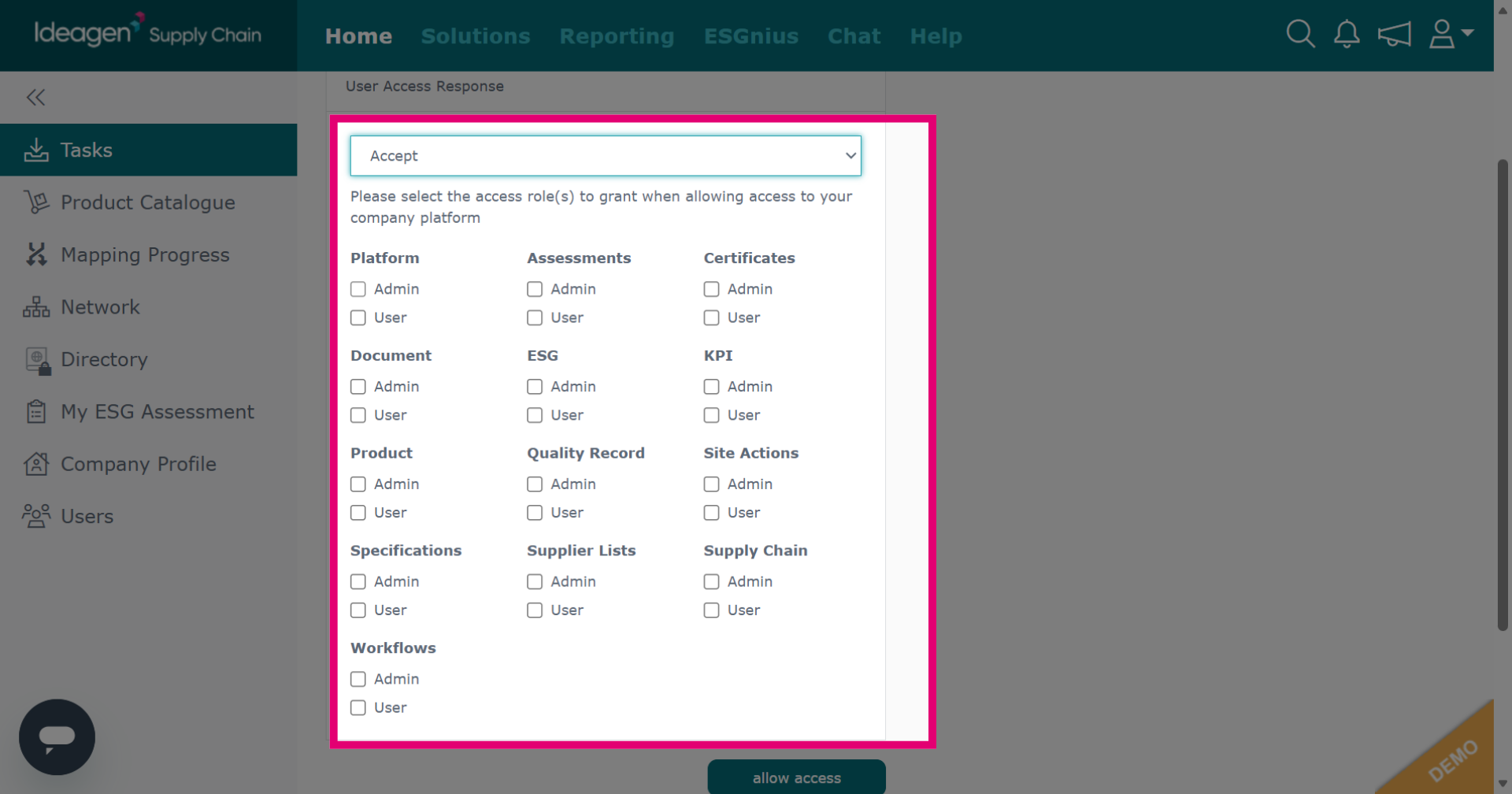
Click allow access to grant the necessary permissions and access to the user.
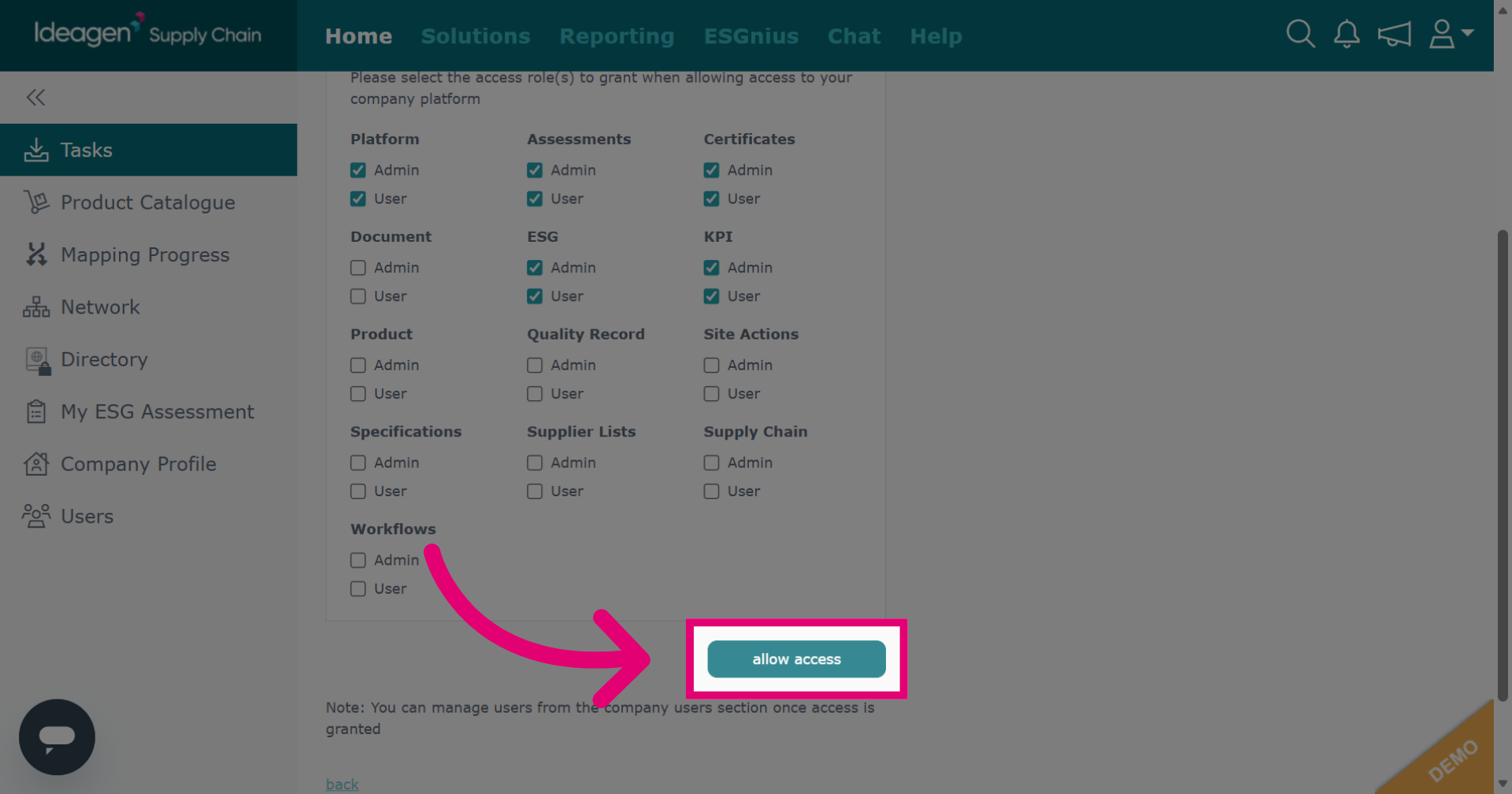
Click Users to navigate to the user management section of the platform. This will show you all users associated with your company's profile.
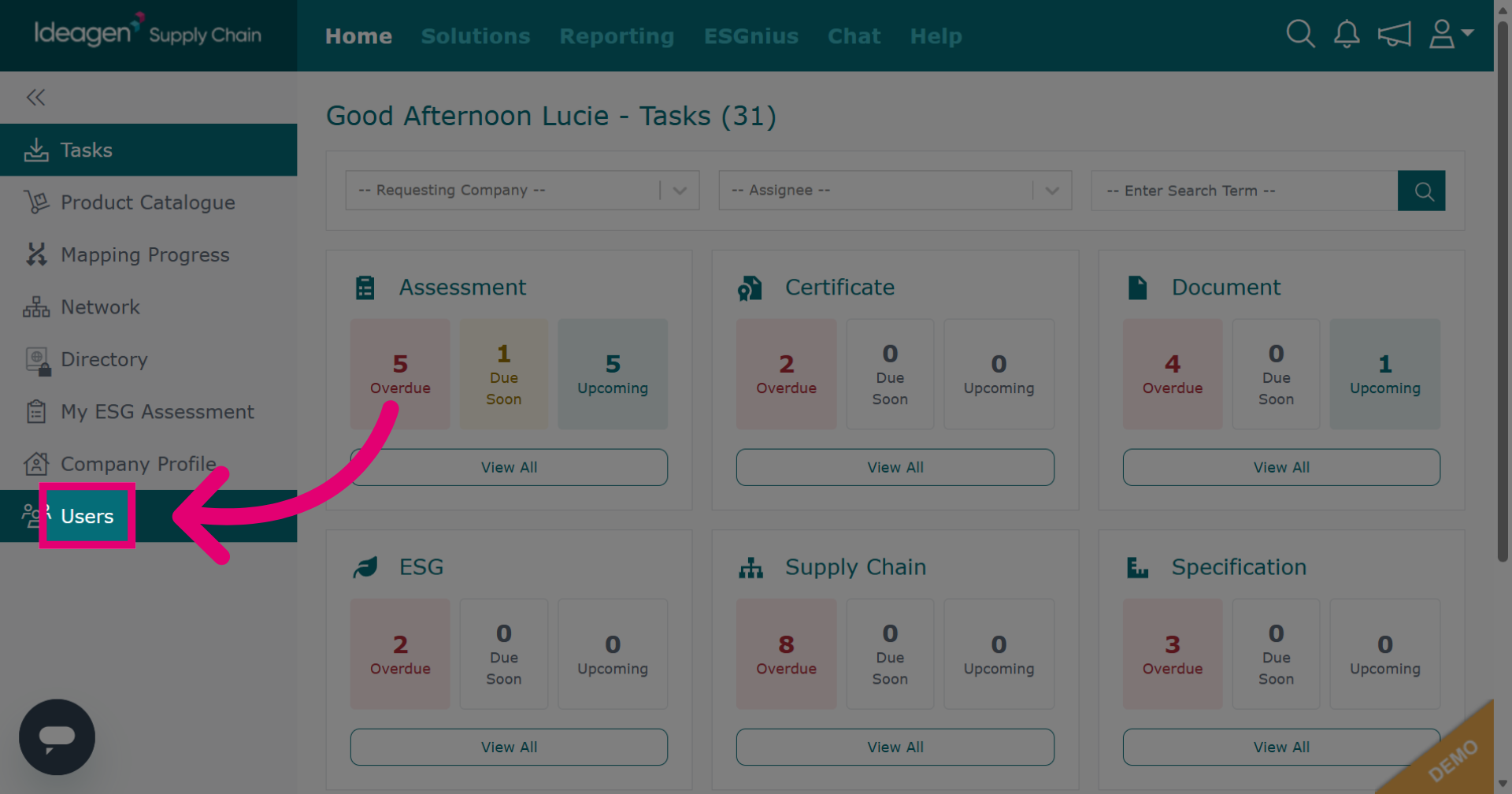
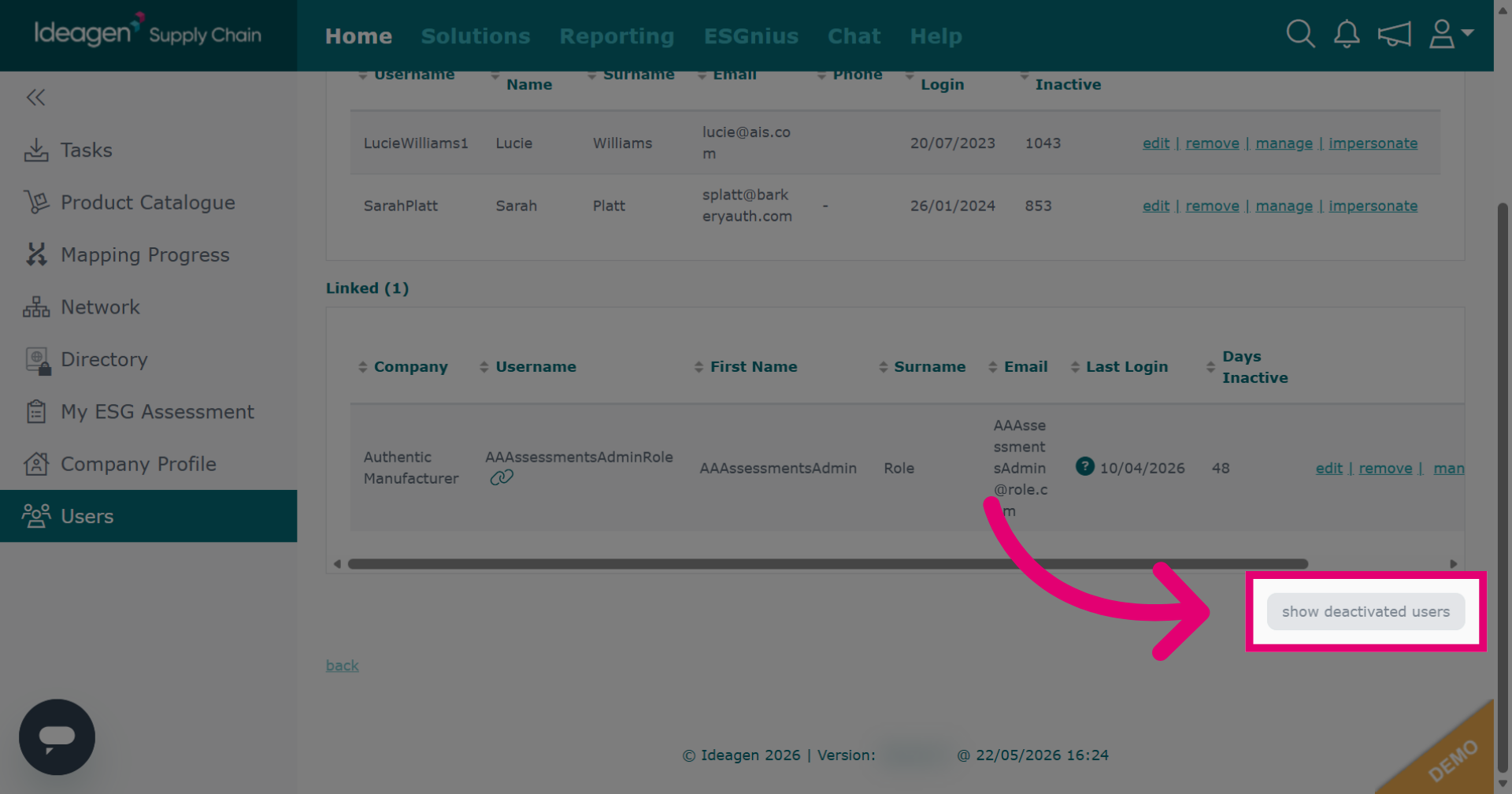
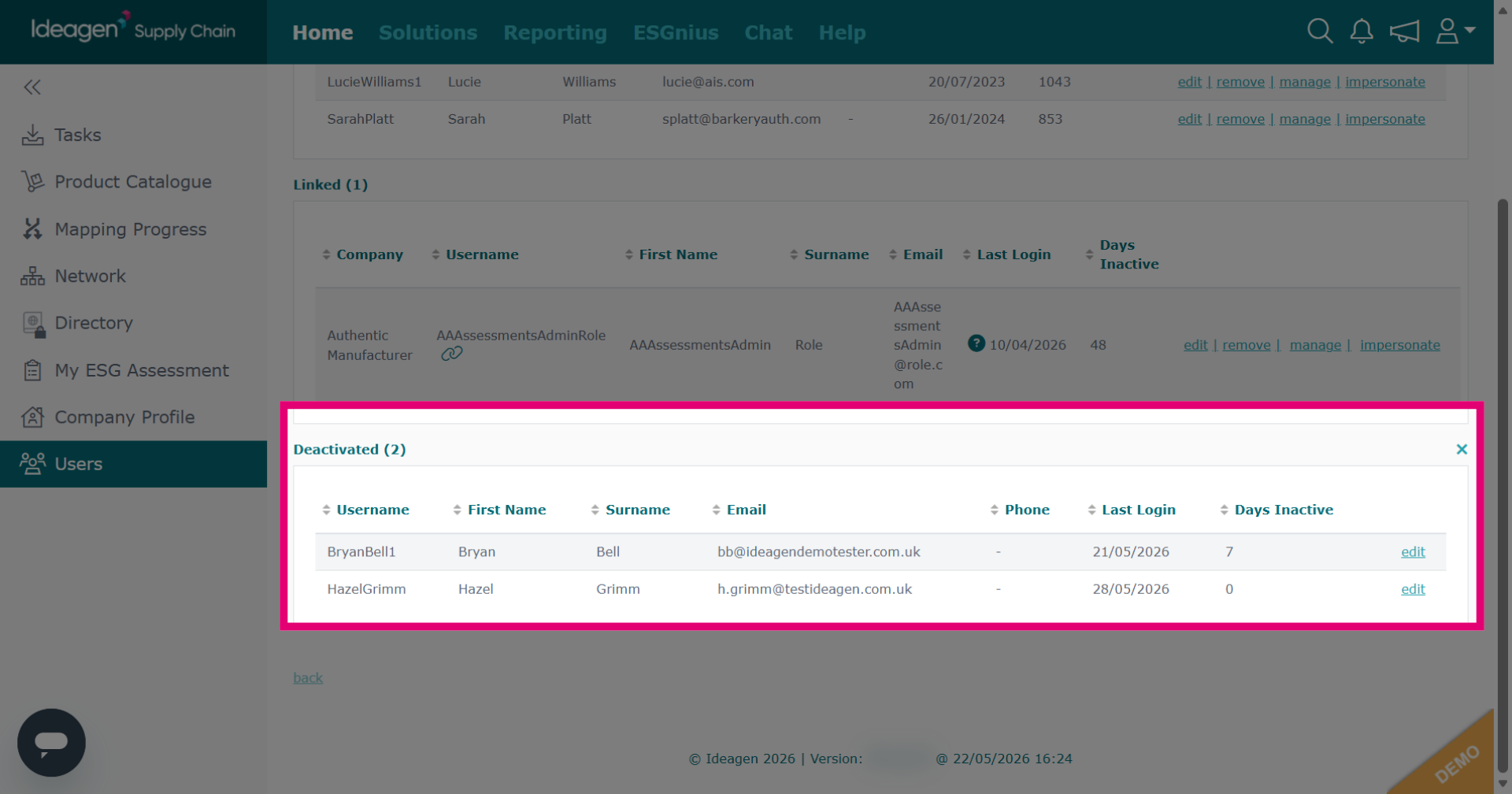
Click show deactivated users to display users who are currently deactivated.
To re-activate deactivated users, click Edit next to their name to change access from Denied to Approved.
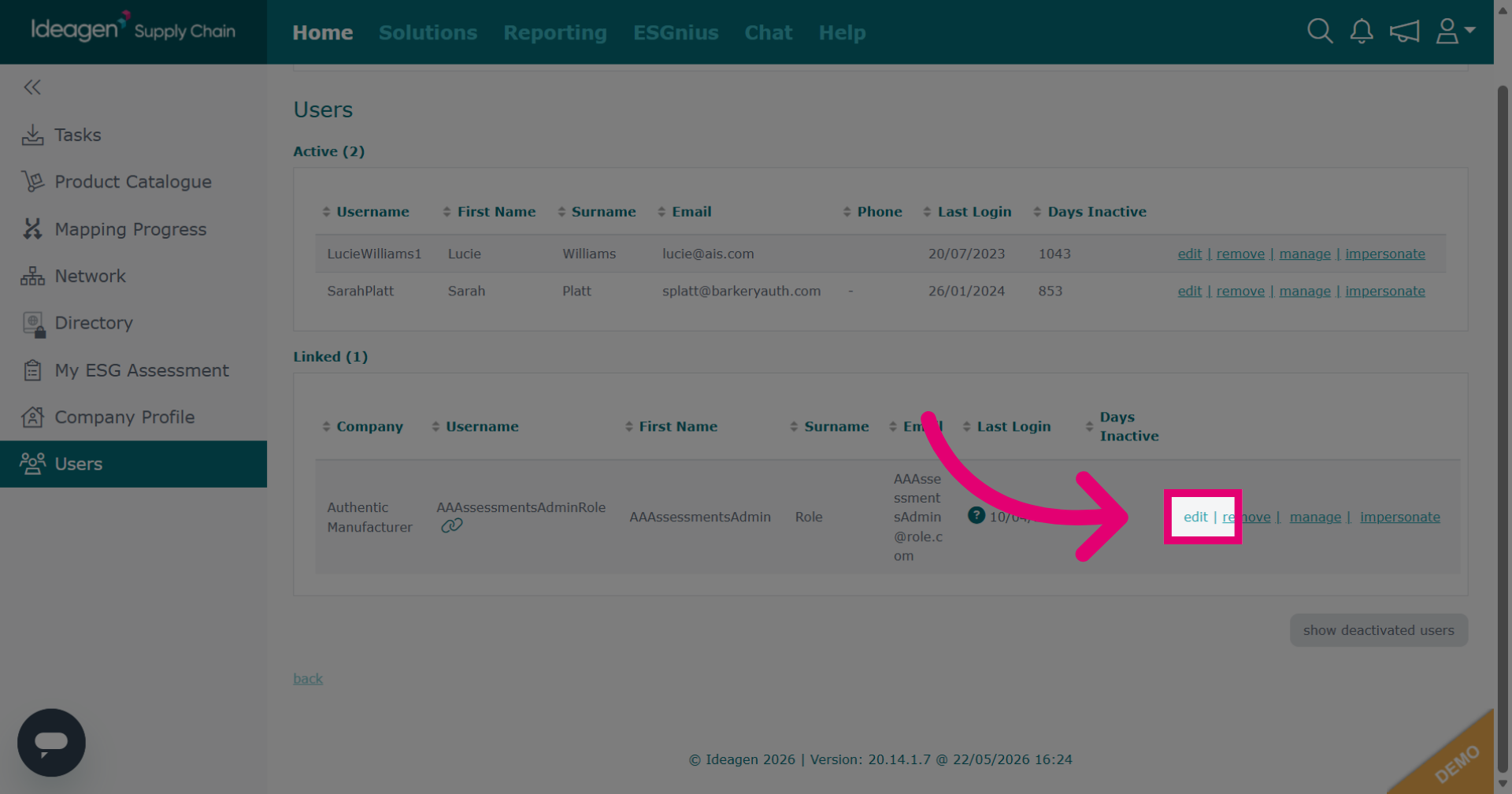
Click edit to modify an active user's details and roles.
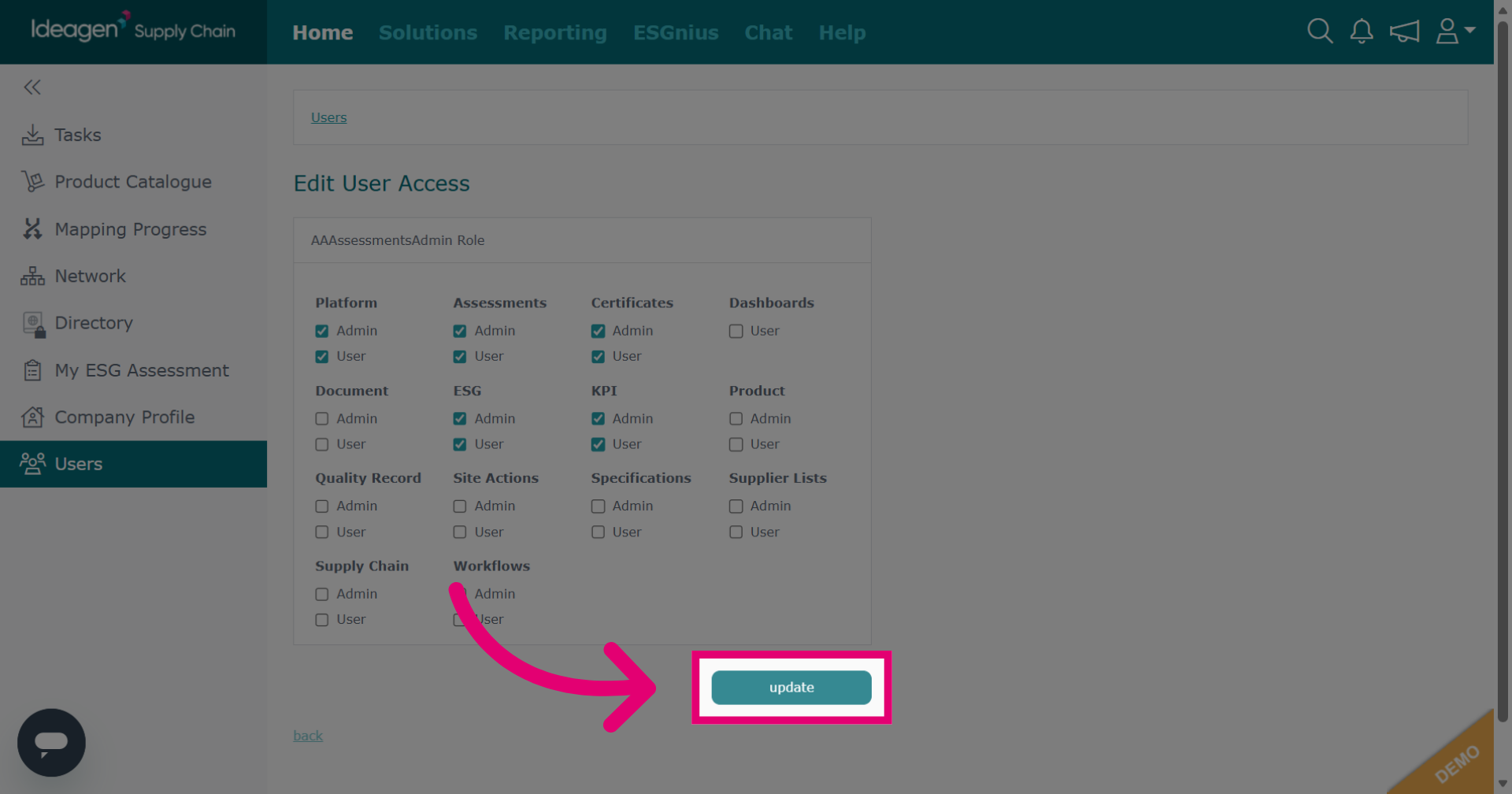
Click update to save changes made to the user's information.
To remove an active user, click Remove.
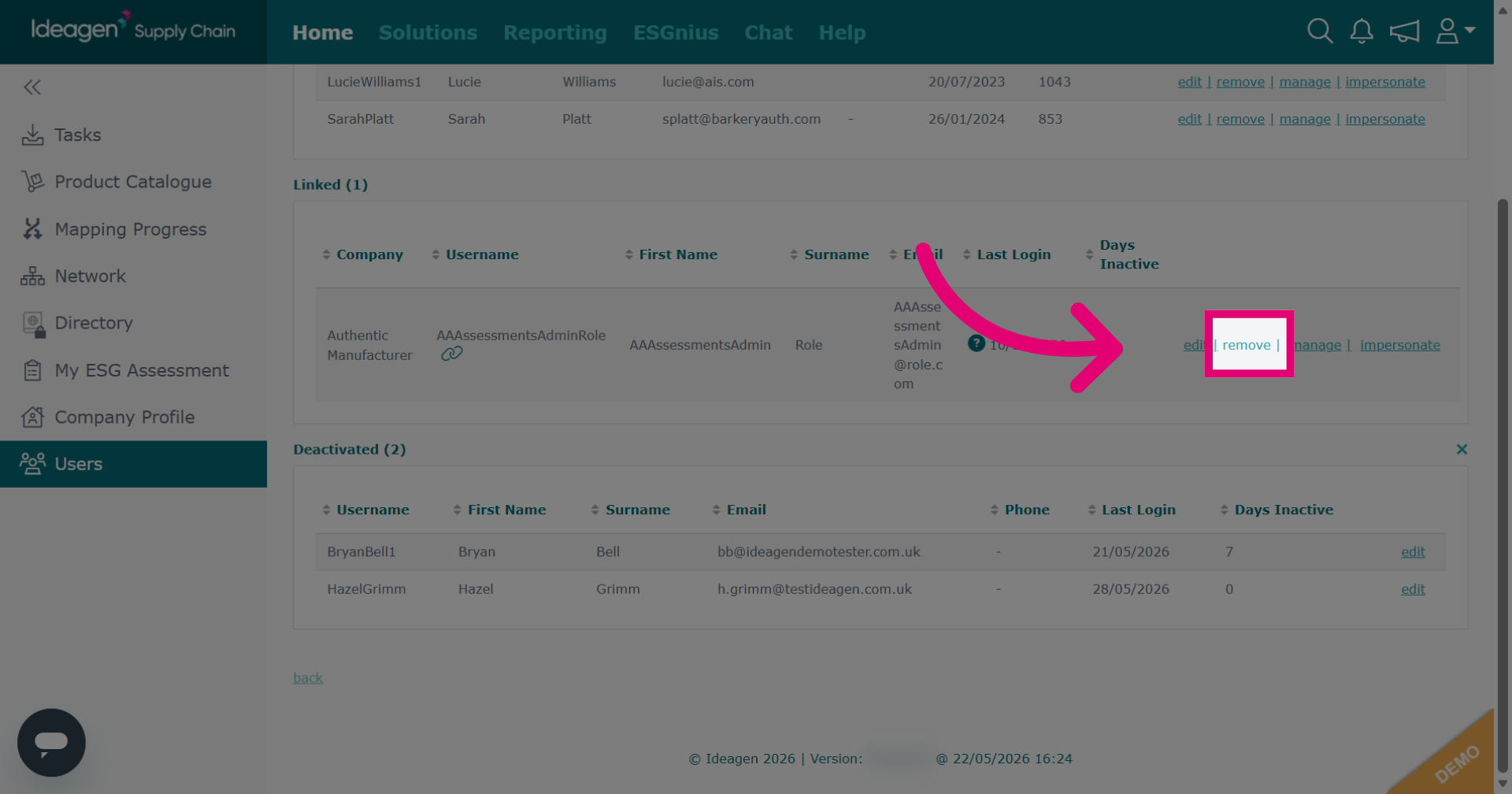
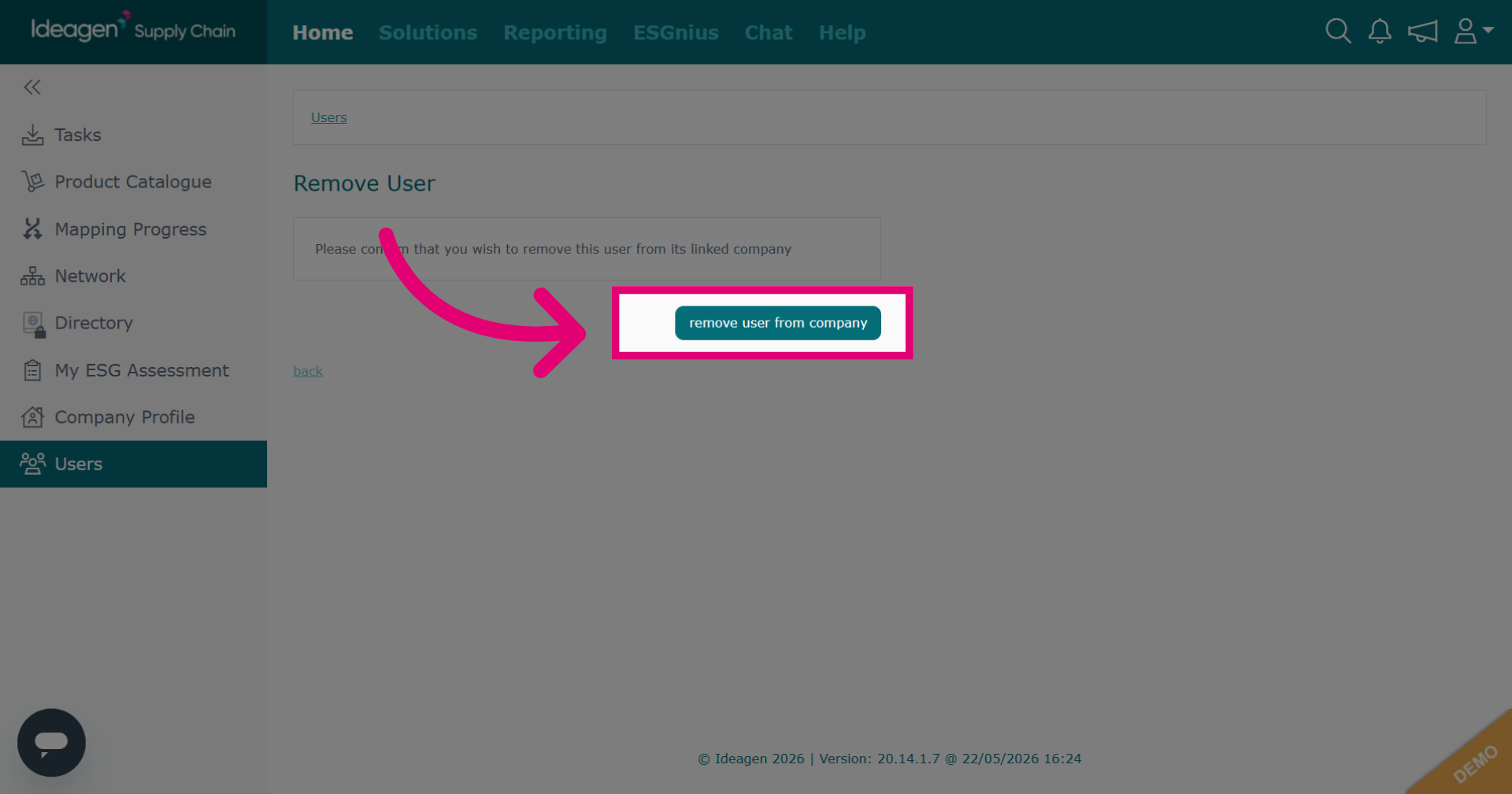
Click remove user from company to confirm removal.
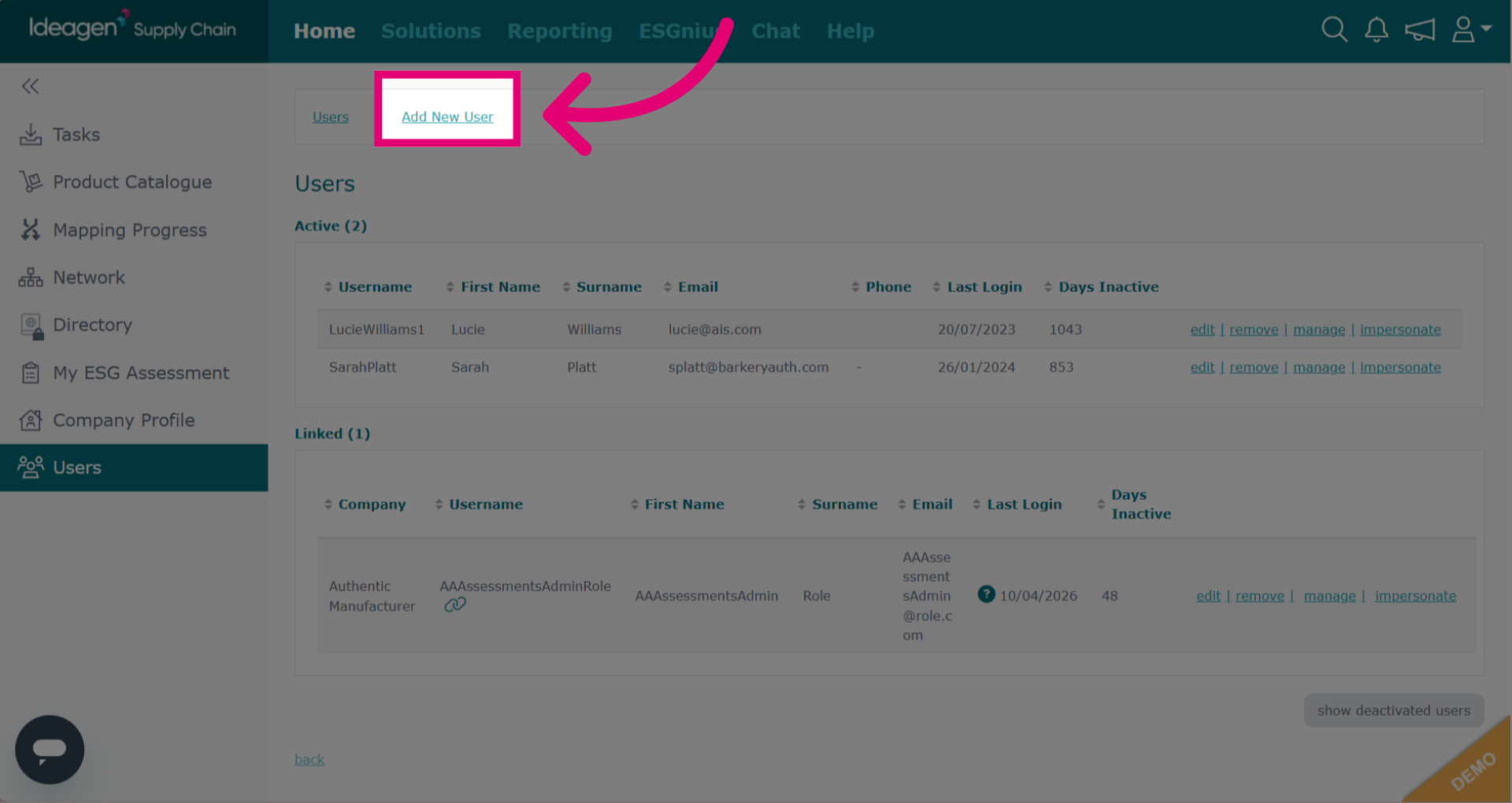
To add a new user to your company, click Add User at the top of the page. You will then be able add a new user.
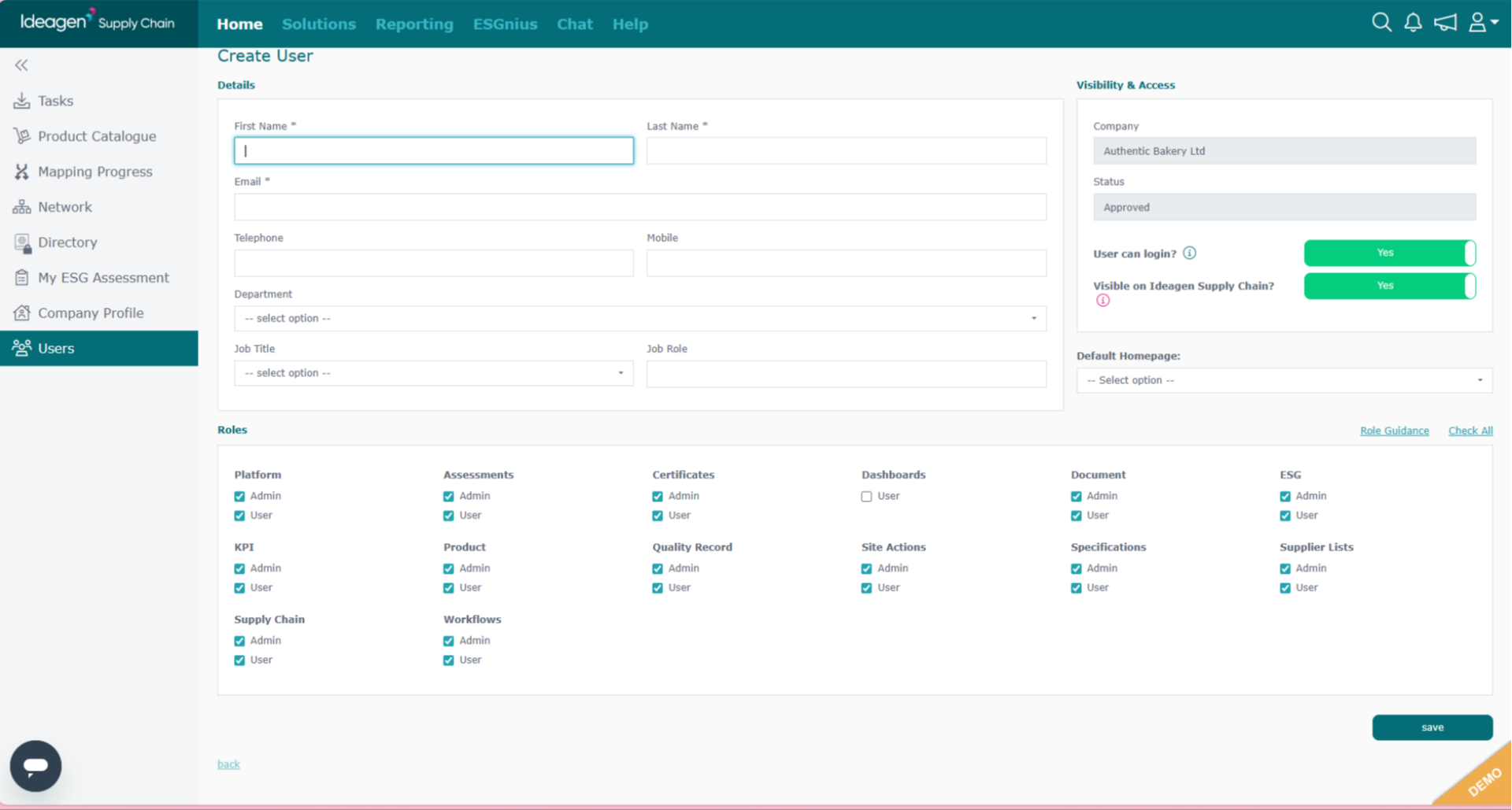
Input the user's details and select roles. Click save once finished.
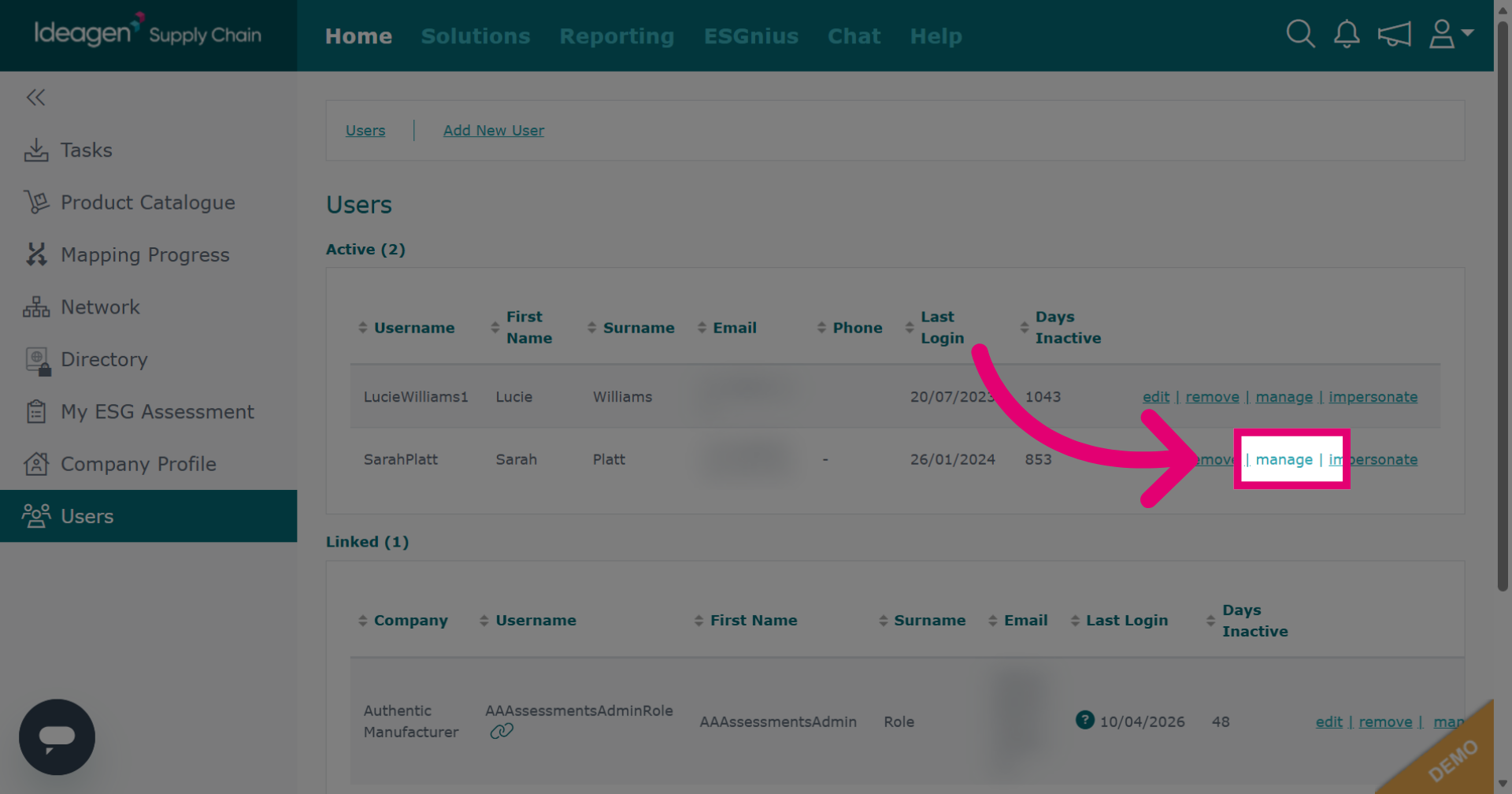
Click the Manage next to the user you want to manage email settings for.
Tick the boxes accordingly. If you are not receiving emails as expected, please ensure that the email settings here are correct.
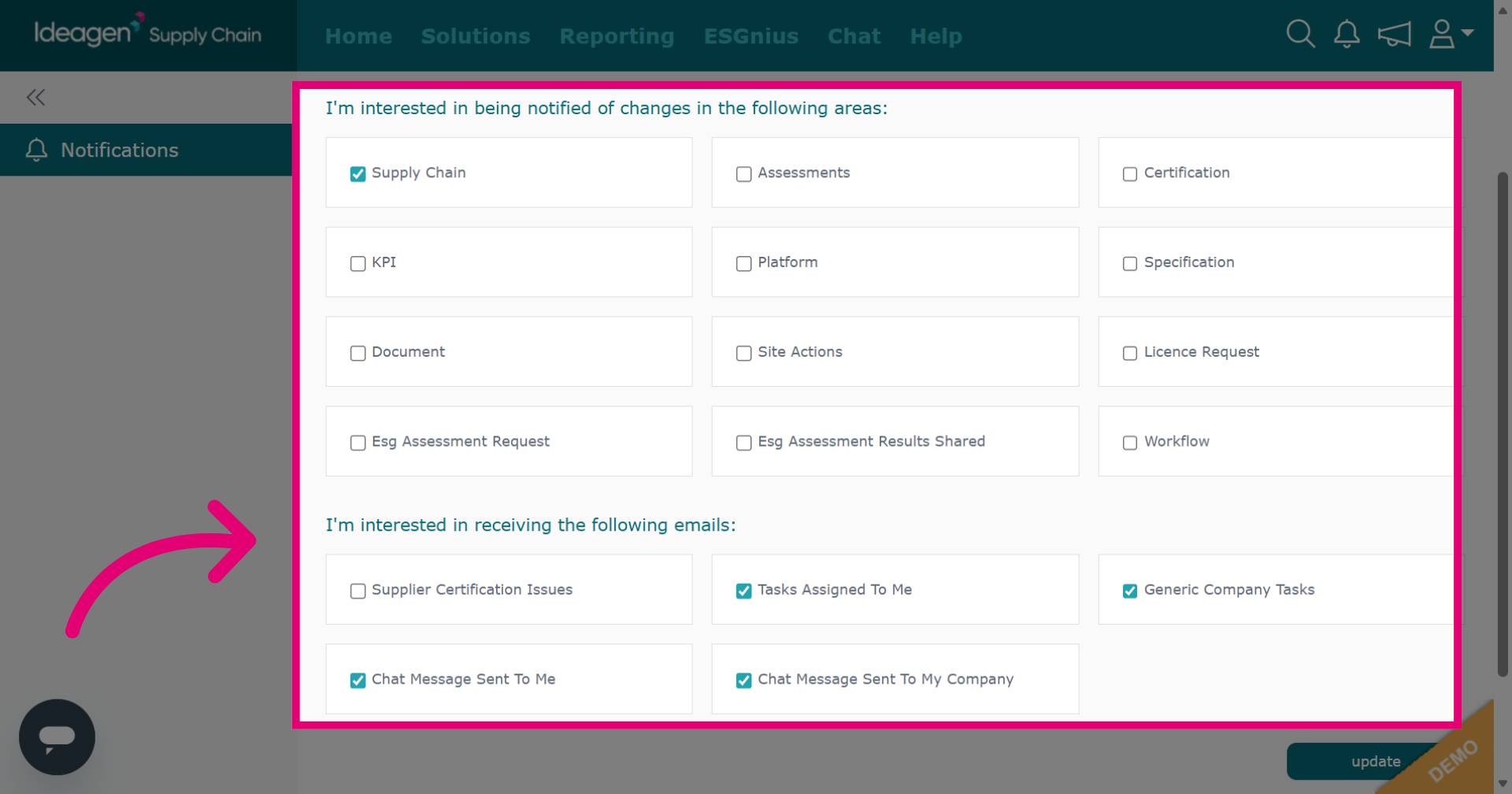
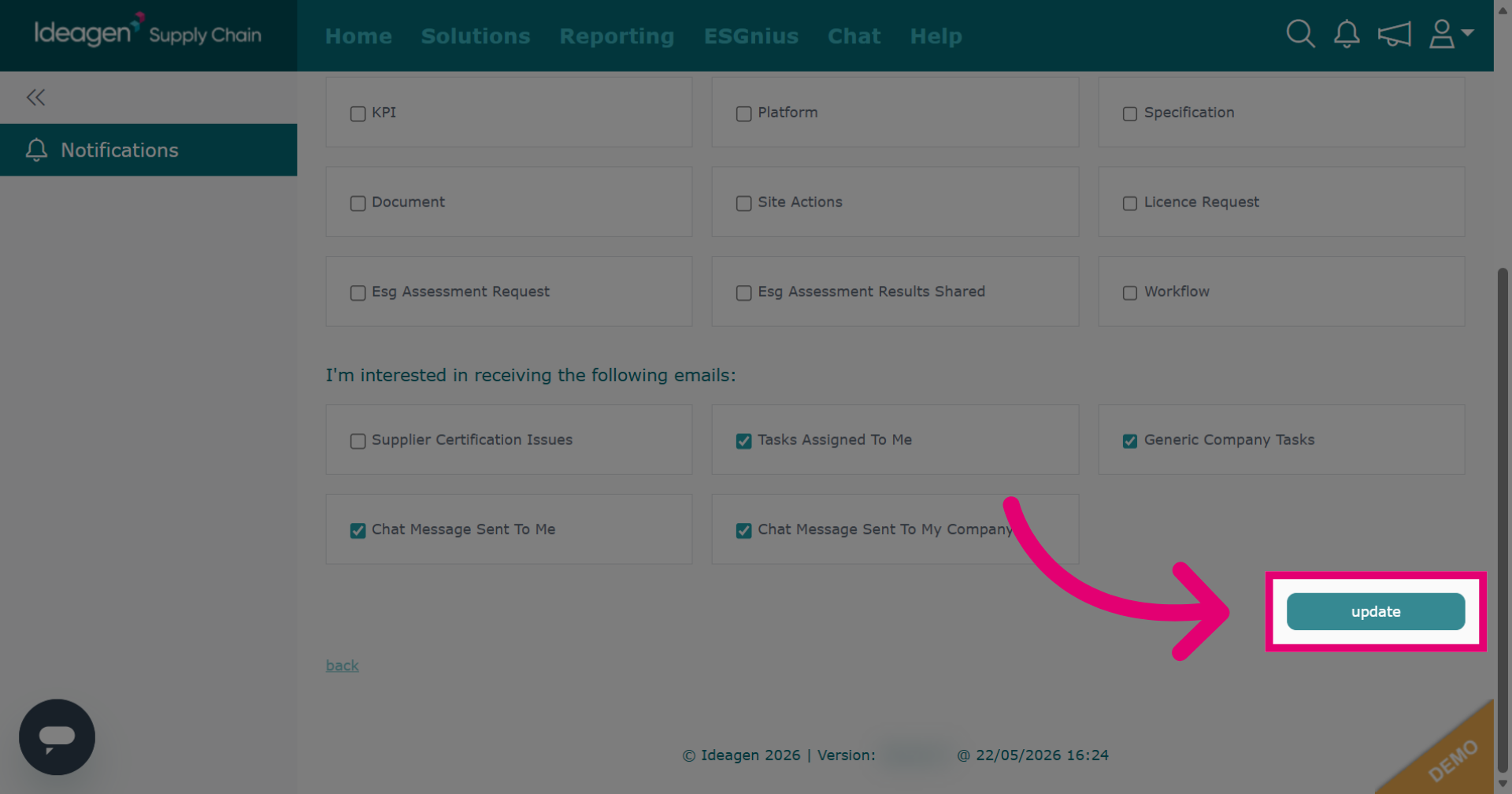
Click the Update button to save changes.