New article
Recently updated
Using the home page filters and notifications

Who is this article for?
Users wanting to learn about home page filters, tasks and notifications.
Platform user permissions are required.
This tutorial guides you through your homepage and notifications area.
Using the home page filters and notifications
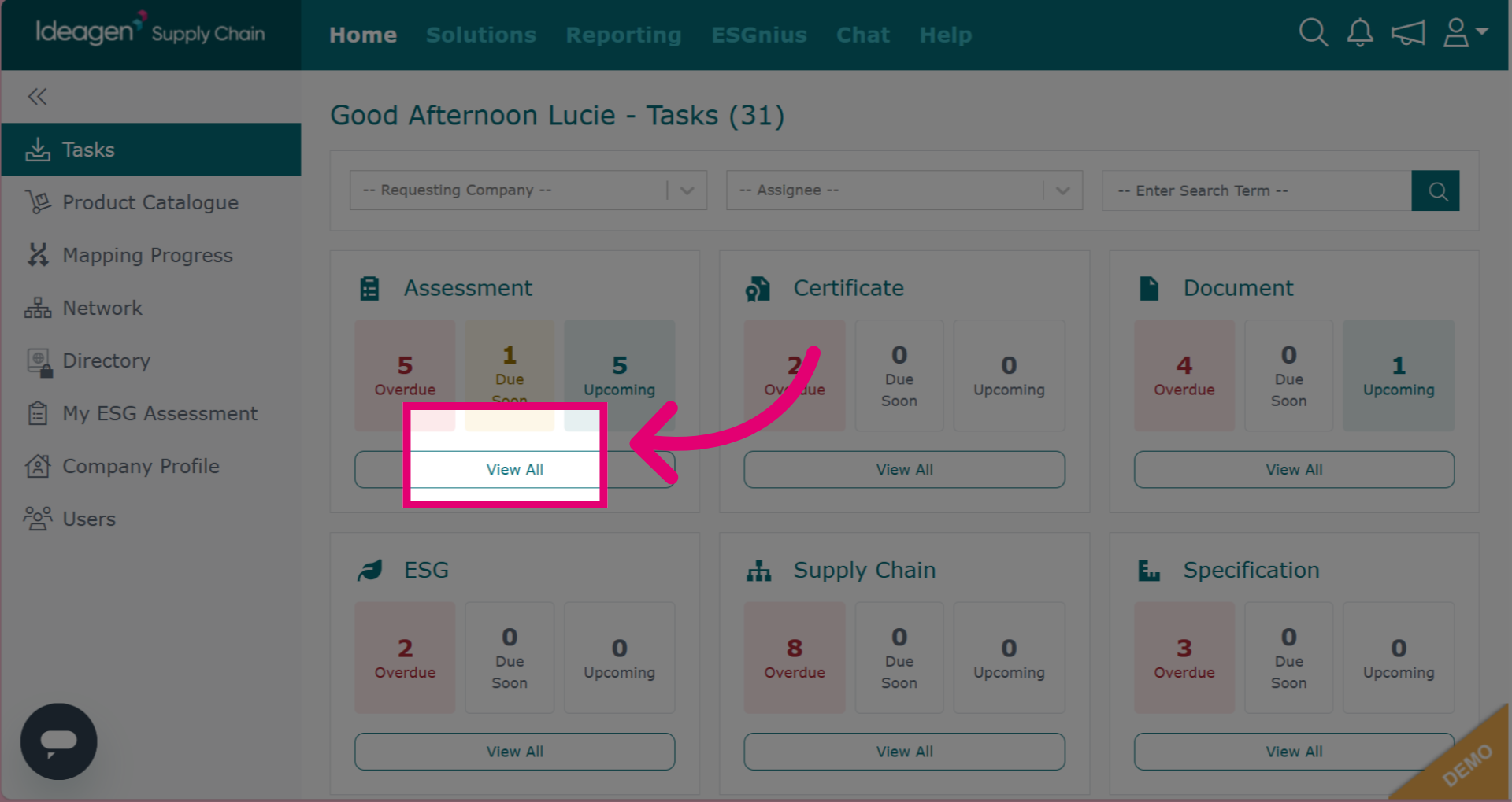
Click View All underneath a module tile to view all tasks related to this module.
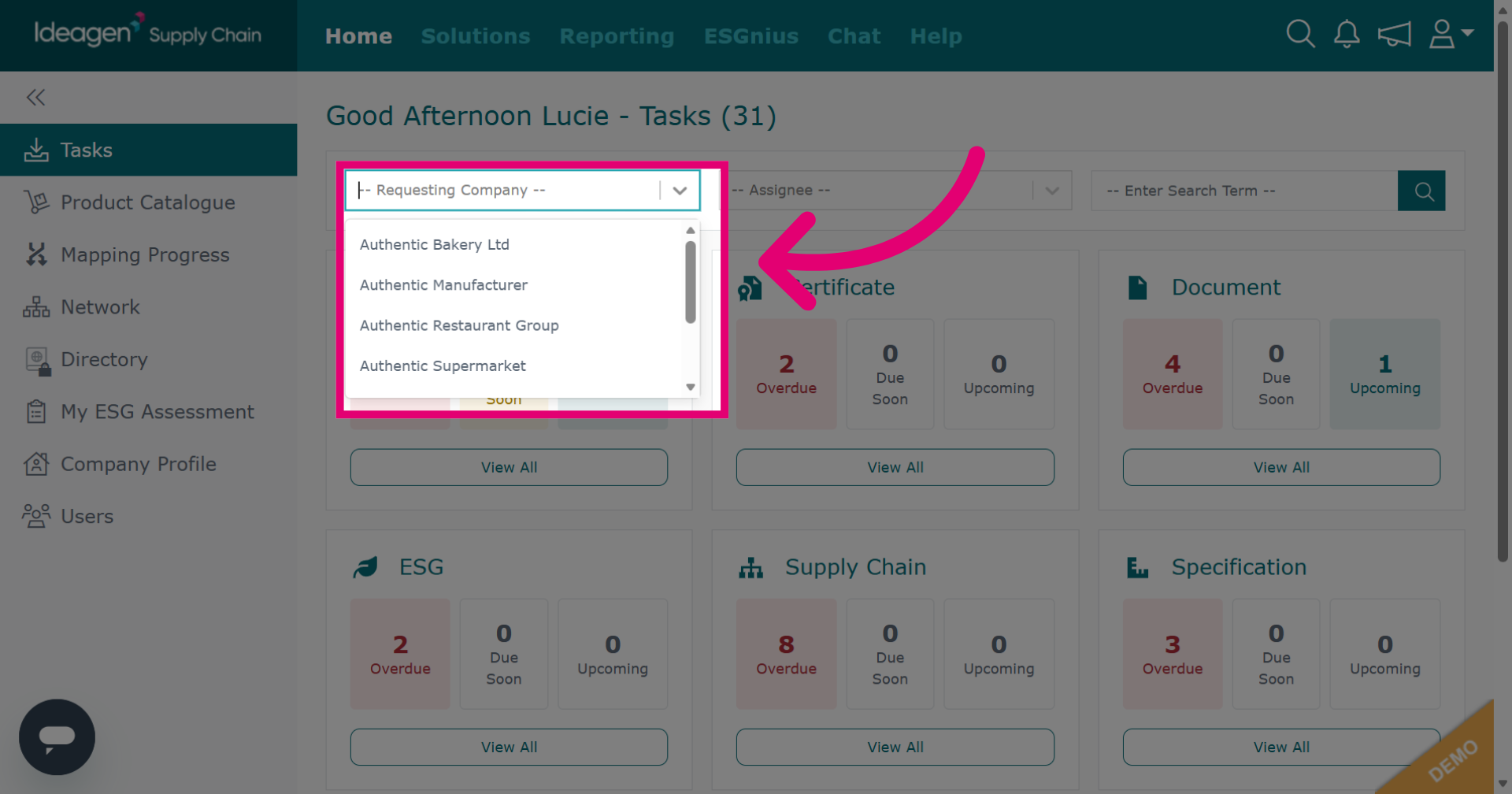
Filter tasks by their requesting company by clicking the company filter.
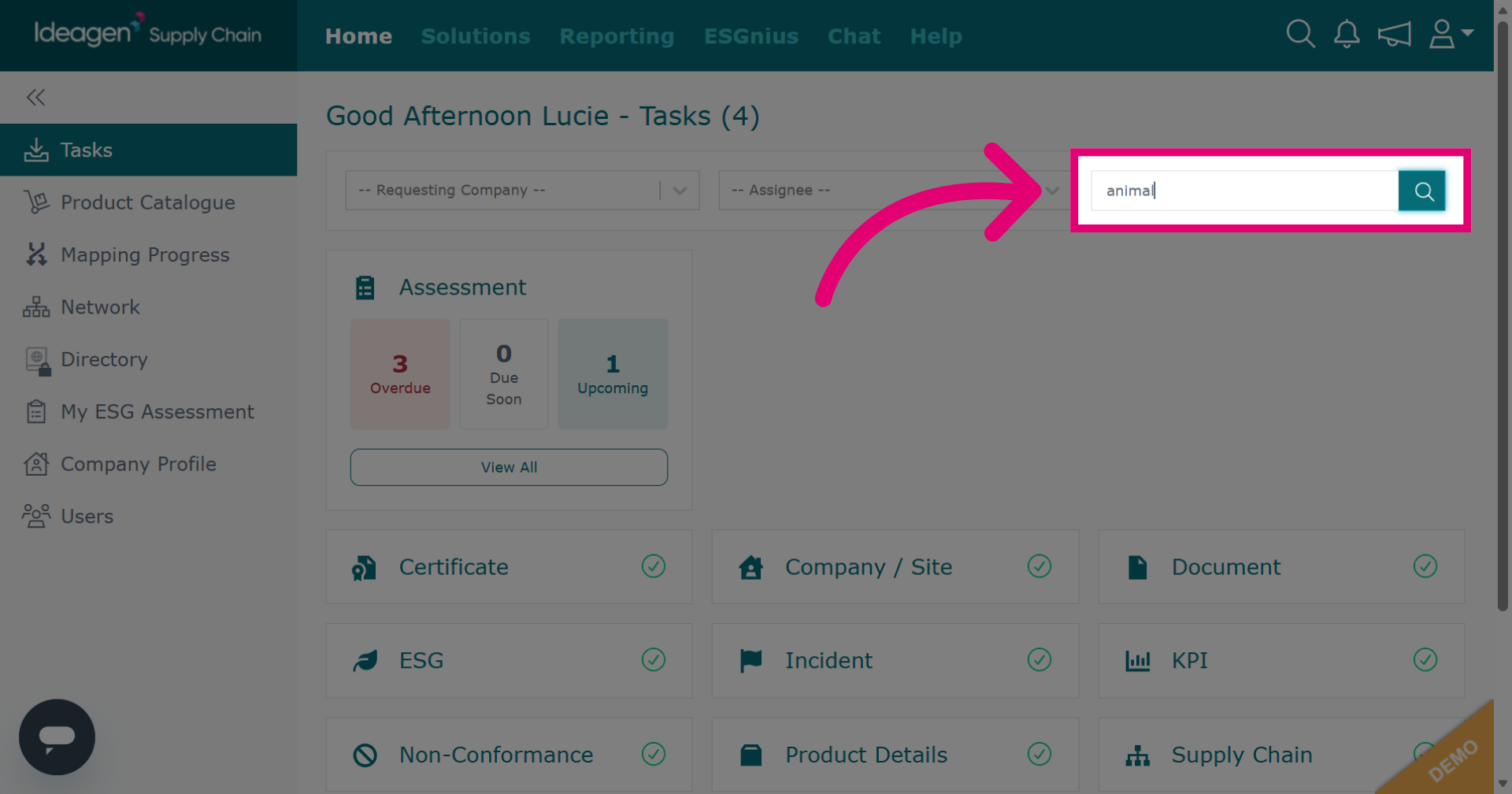
Filter tasks by searching keywords in the search bar.
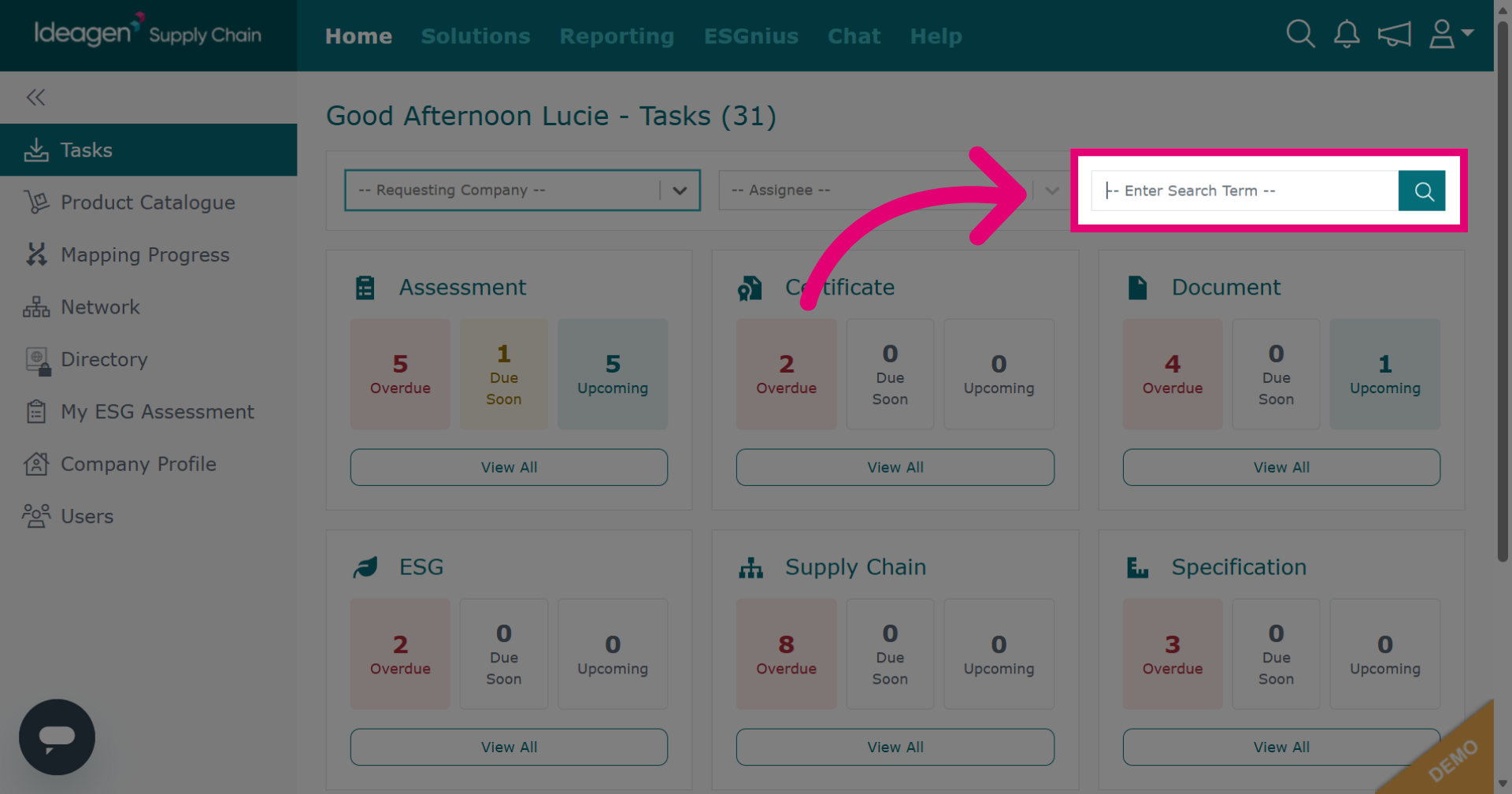
Click the search icon to initiate the search based on the entered keyword.
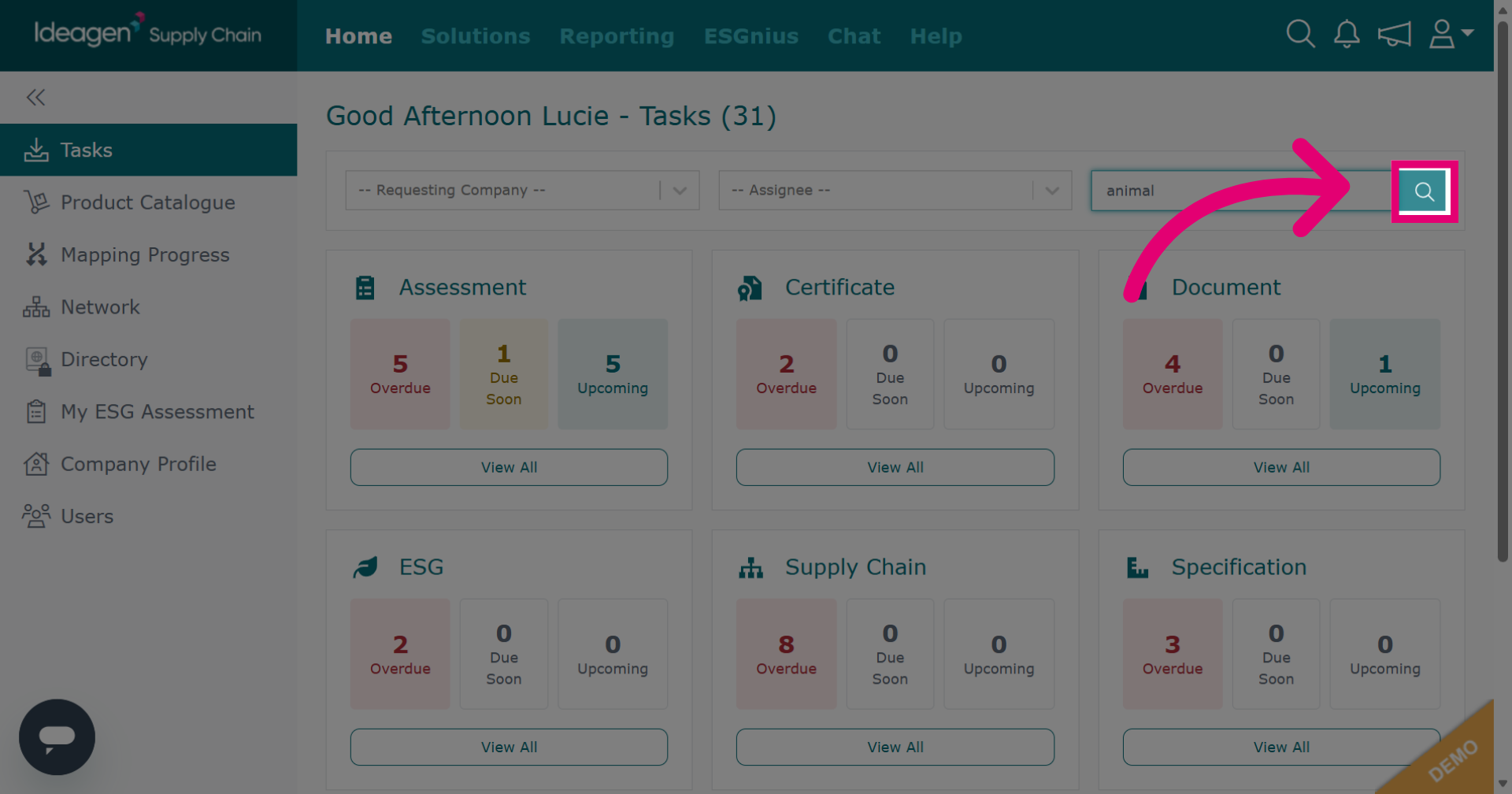
To remove the keyword search filter, delete the keyword and click the search icon again.
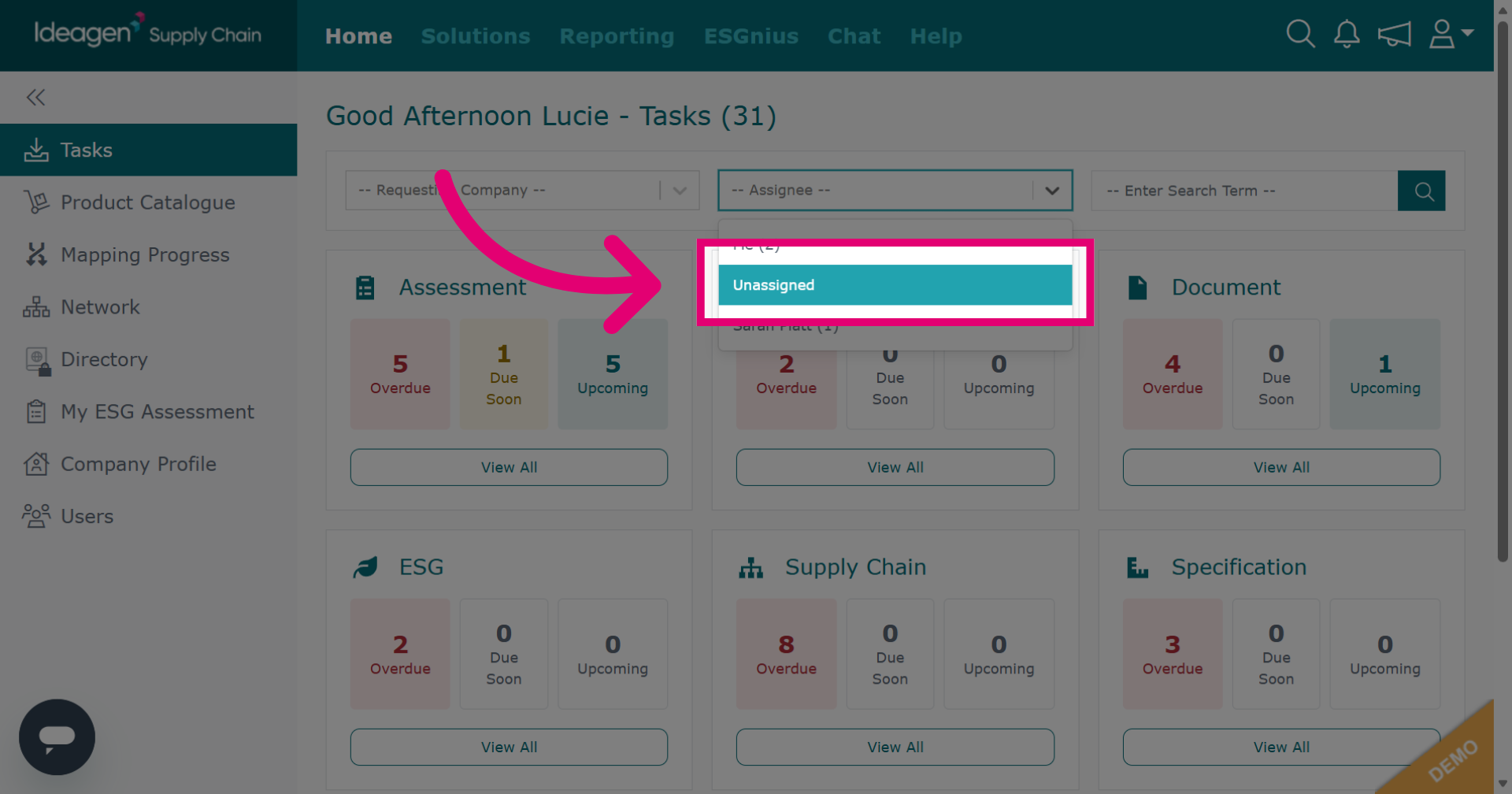
Your homepage shows your tasks. To view tasks for others or unassigned tasks, use the assignee filter.
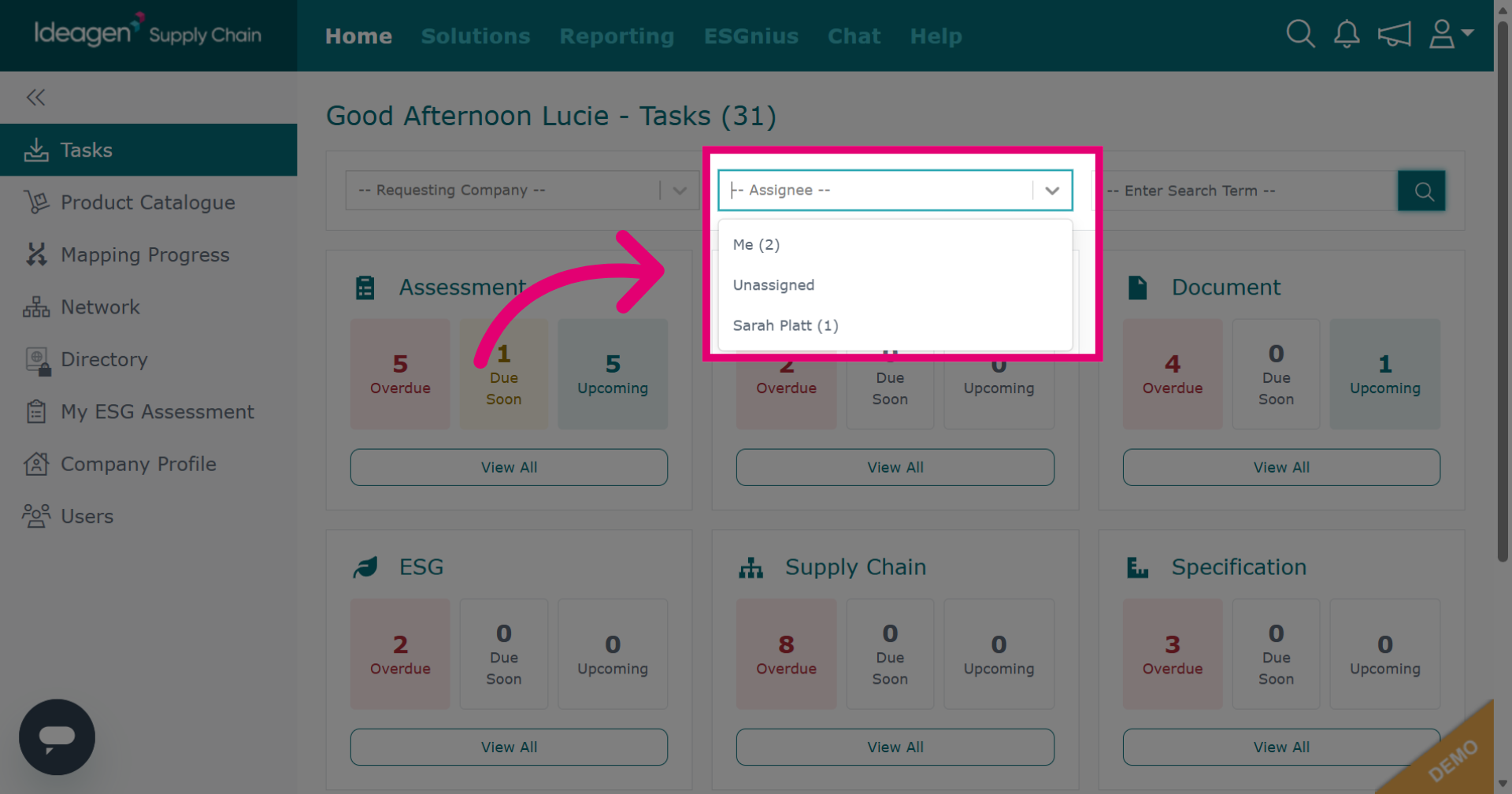
The assignee filter helps locate expected tasks not visible in your current view, especially under Unassigned. Before raising a ticket for a missing task, check tasks assigned to users in the assignee dropdown. Another way to find expected tasks is by viewing your company profile module tabs.
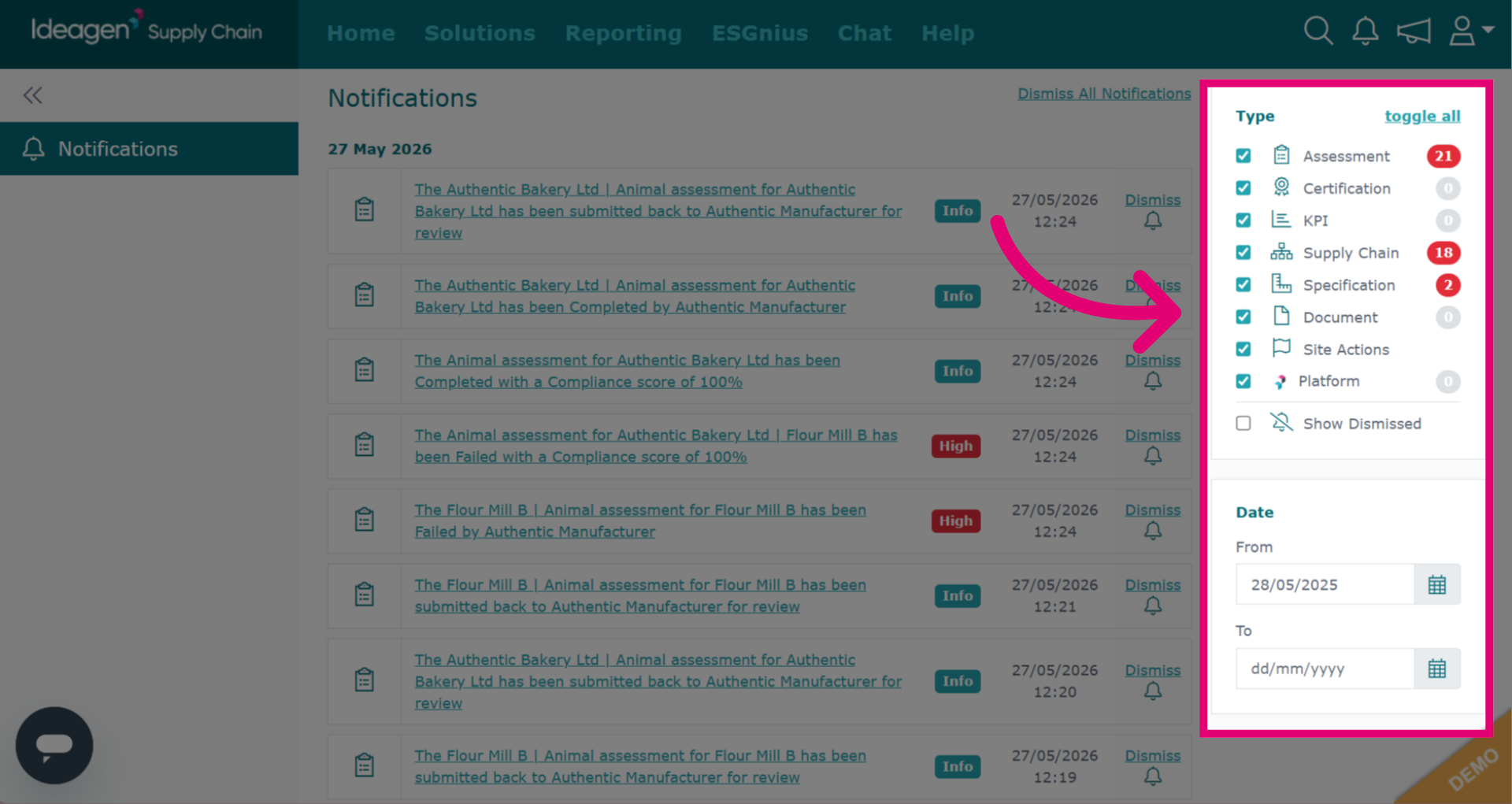
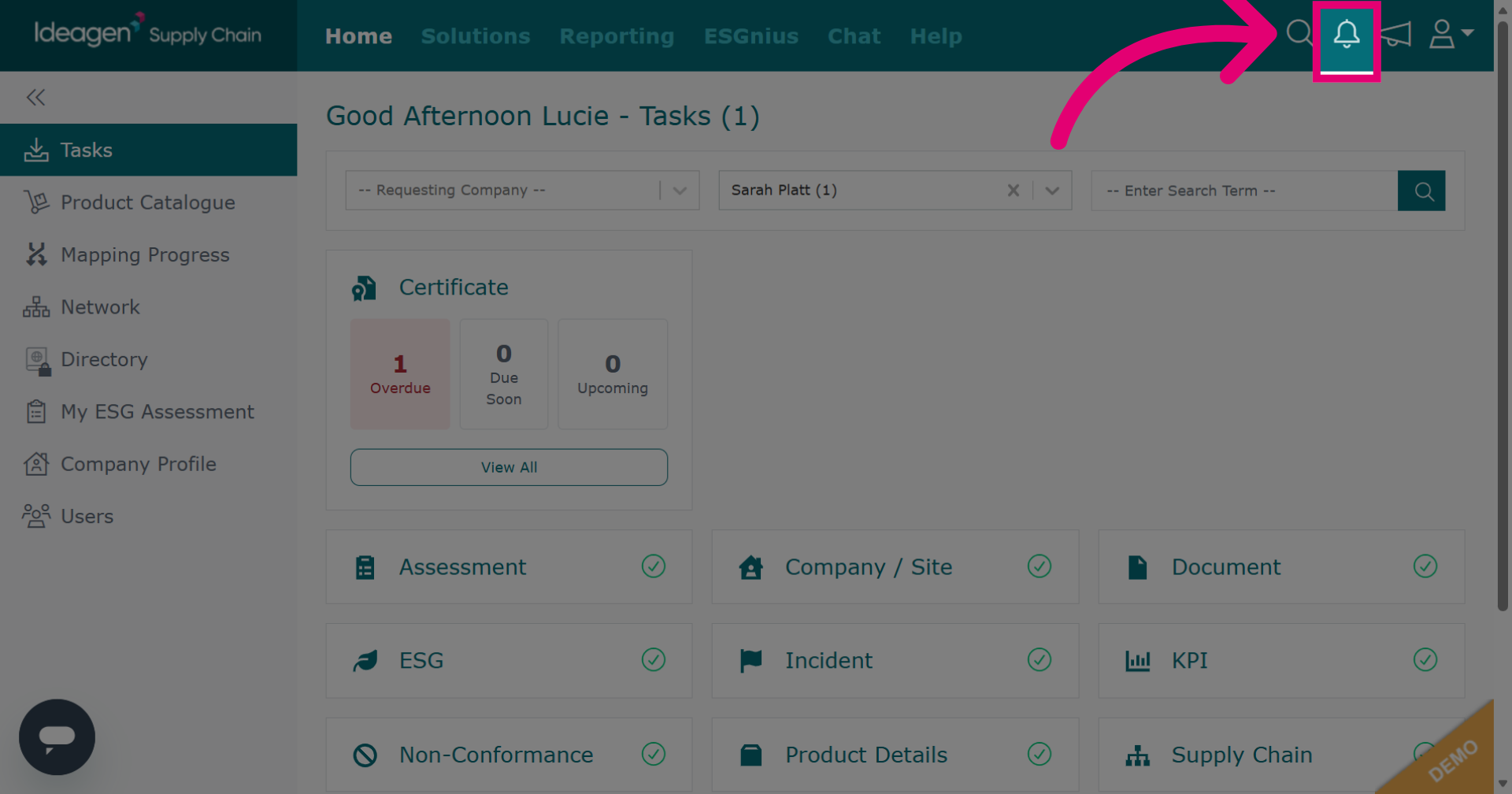
To view your company's notifications, click the bell icon in the top navigation bar.
To filter your notifications, tick or untick task types. You can also filter by date range. Click Show Dismissed to view previously dismissed notifications.