New article
Recently updated
Creating a supplier list

Who is this article for?
Users who want to create a supplier list.
Supplier lists admin permissions are required.
This tutorial guides you through creating supplier lists within Ideagen Supply Chain.
You will learn how to configure list settings, search for and add suppliers, and manage ESG requests or supplier approval workflows.
Creating a supplier list
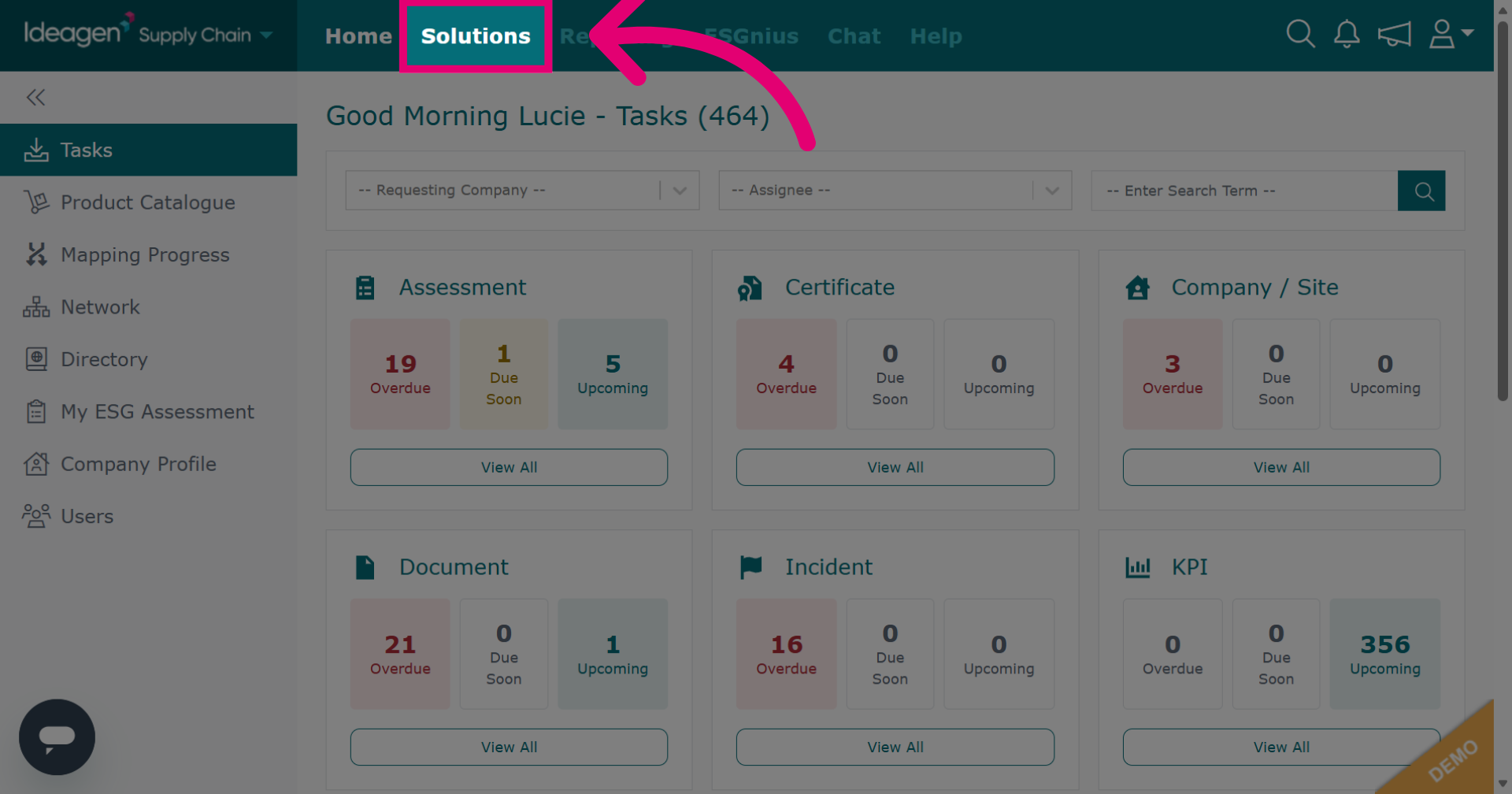
Click Solutions to open the main module menu.
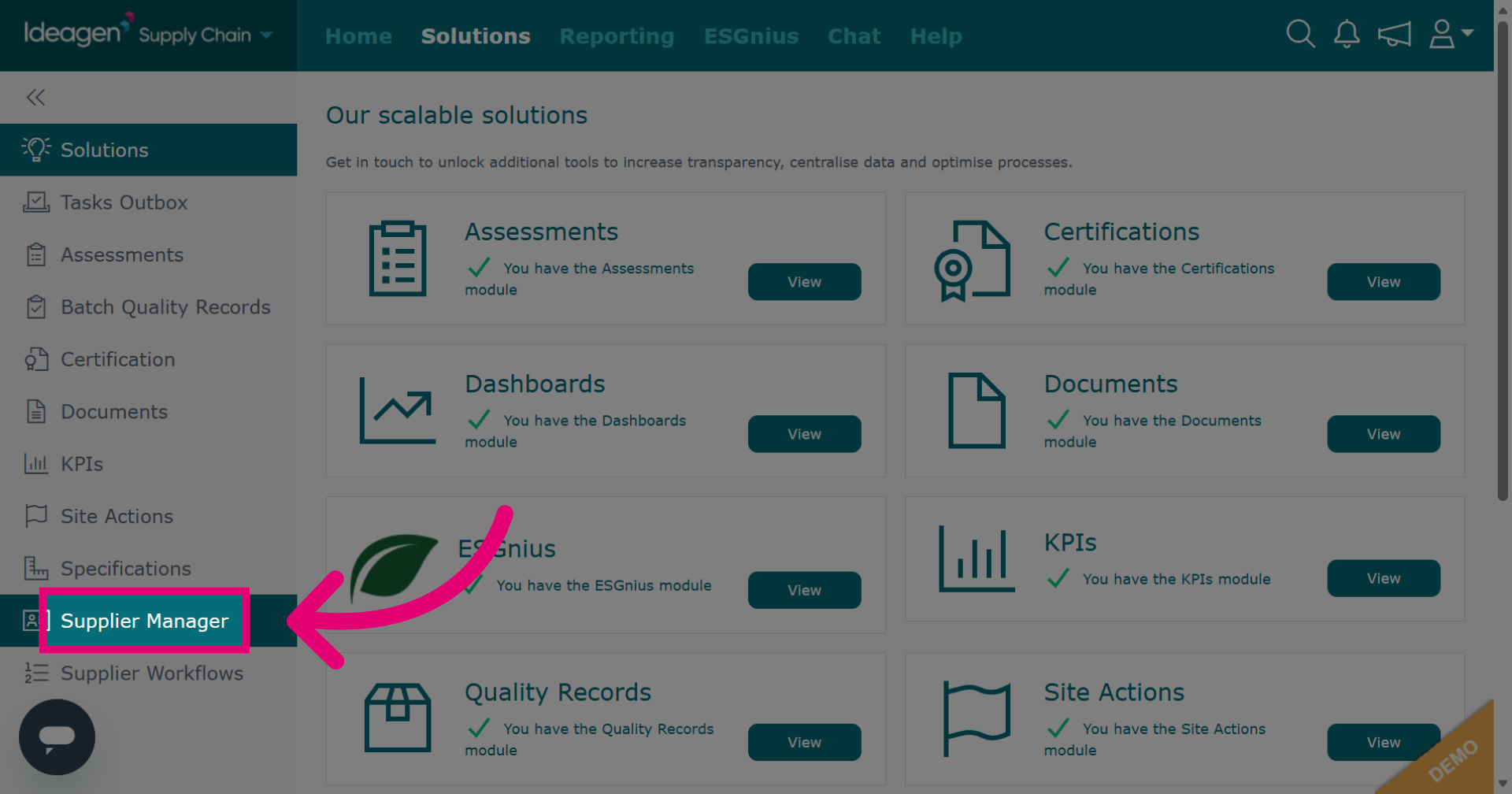
Click Supplier Manager to navigate to the supplier management section.
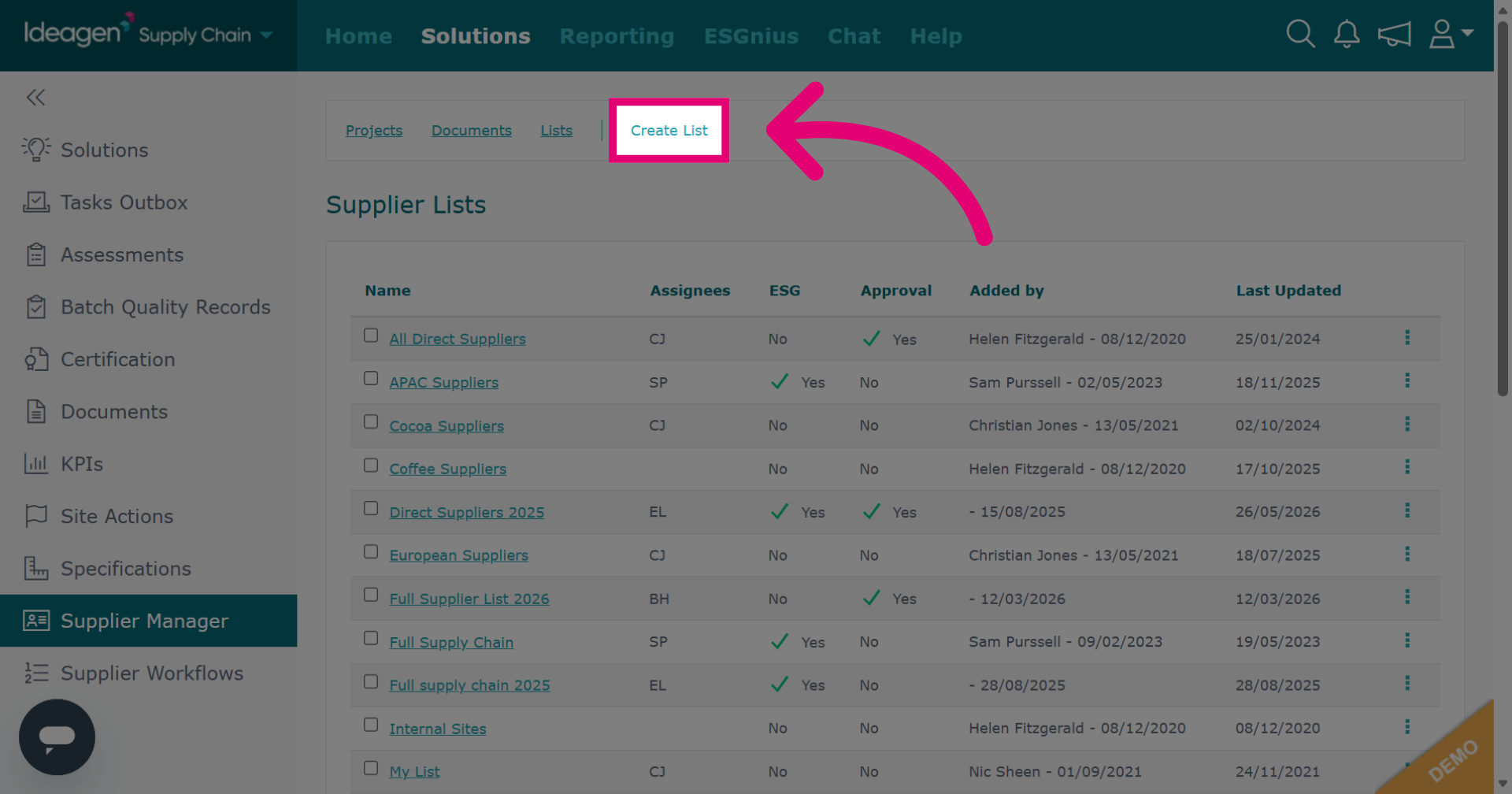
Click Create List to start building a new supplier list.
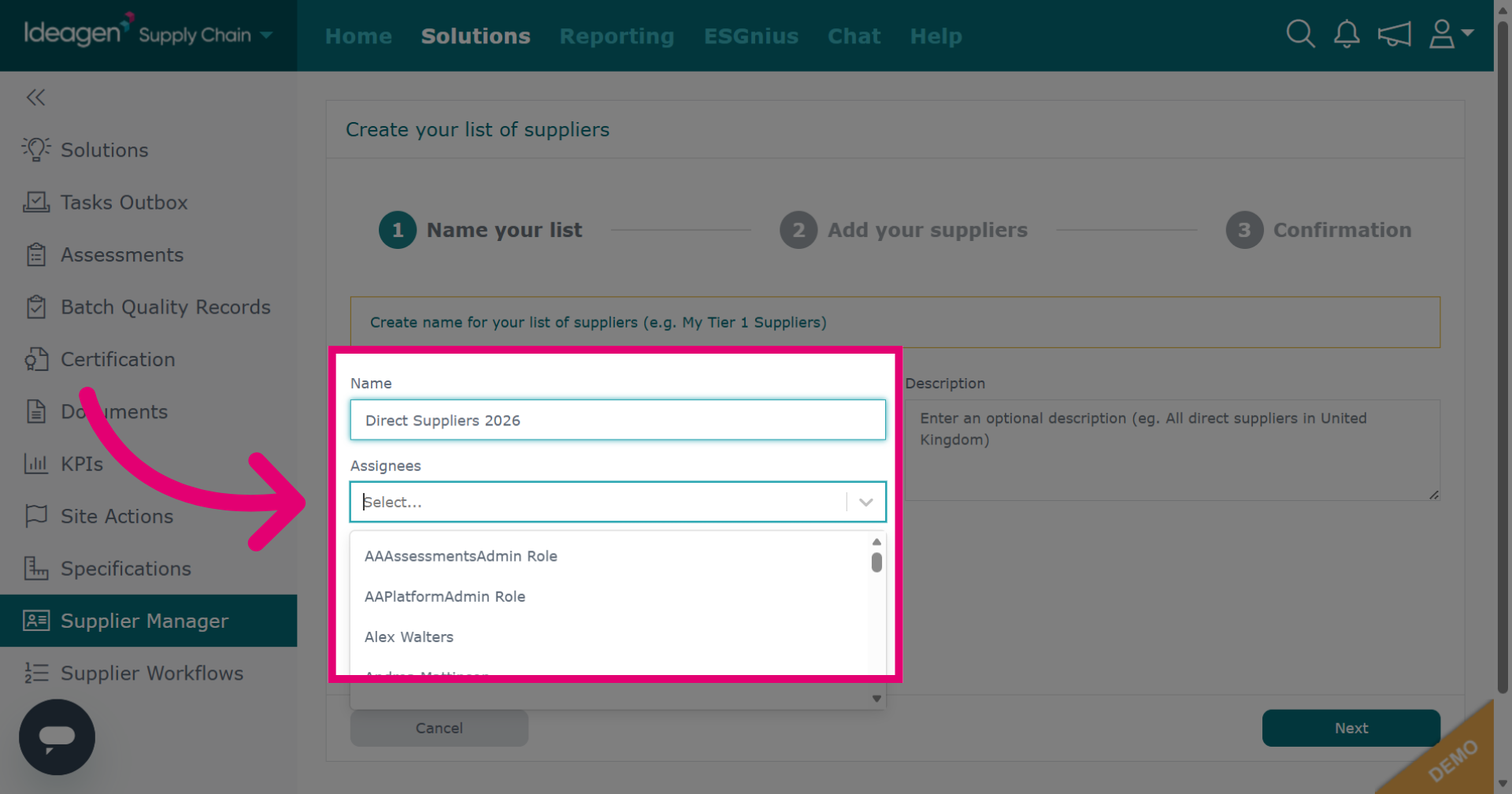
Name your list and select the assignee from the drop down options. You can have multiple internal assignees for a list.
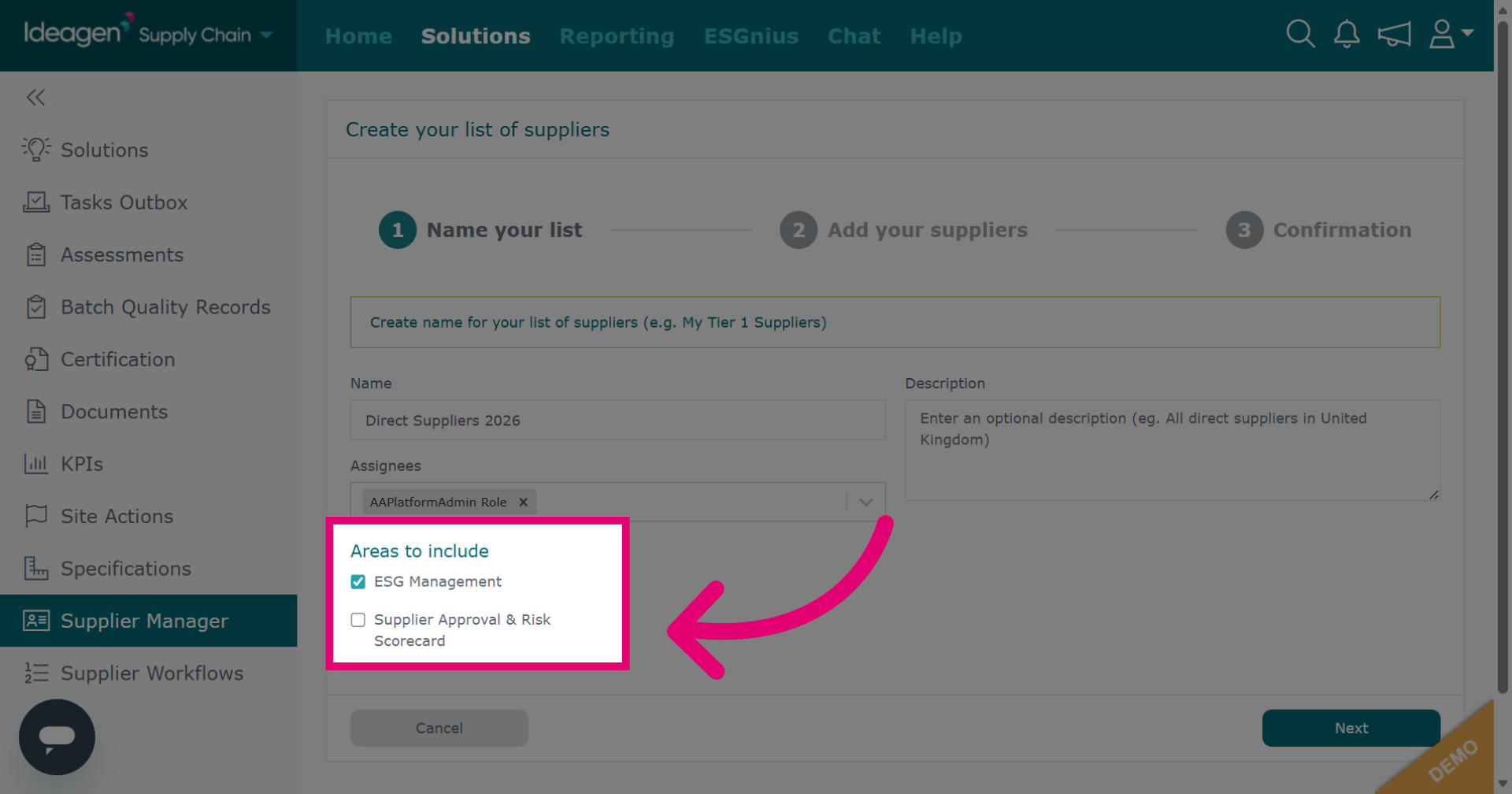
Select the areas you want to include within your list. ESG Management allows you to send ESG requests and manage supplier ESG data. Supplier Approval & Risk Scorecard does not involve sending any tasks and instead only focuses on the view and management of general supplier information. Please note, if you do not have the ESG module you will not be able to select ESG Management as an option.
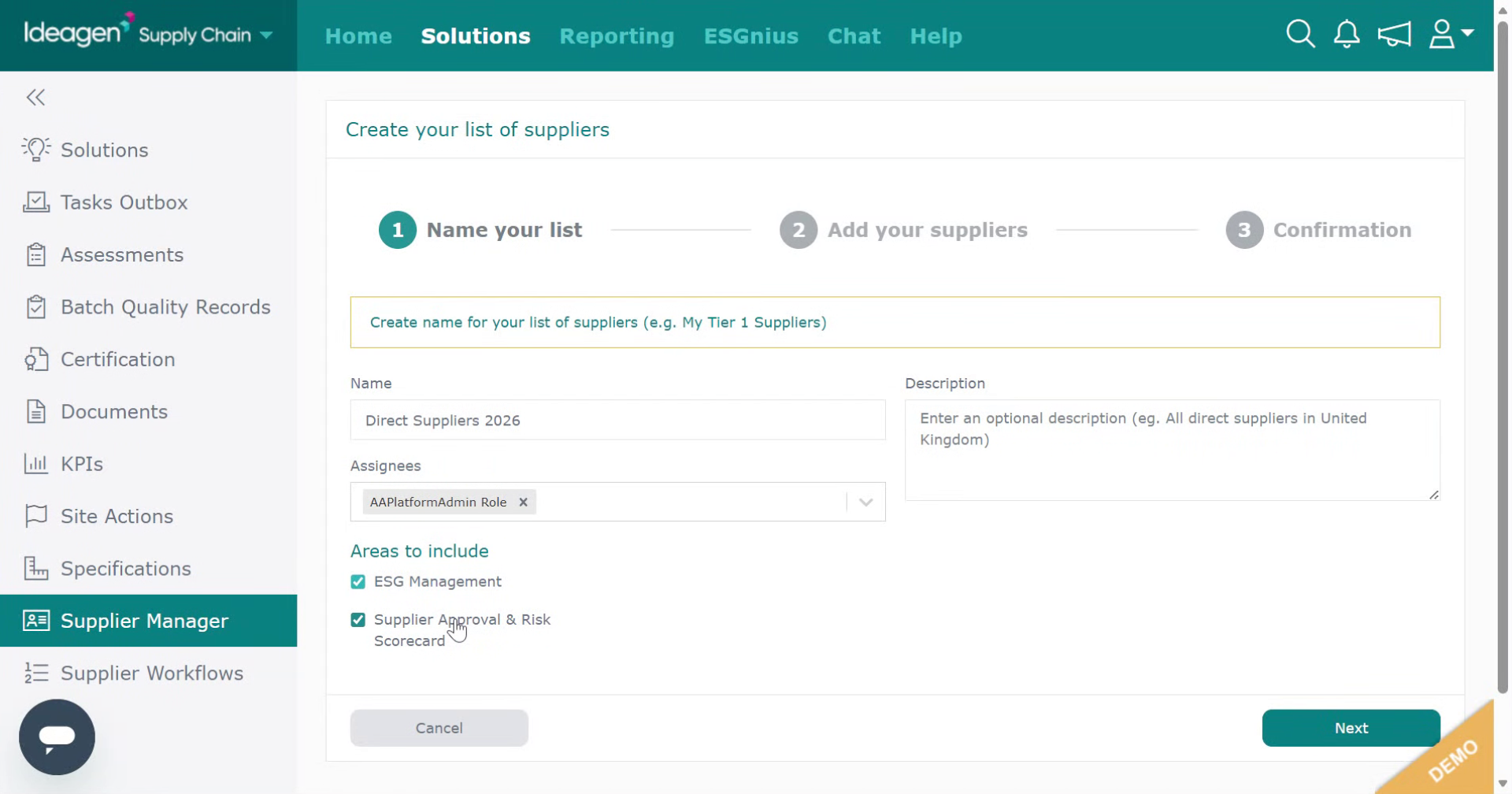
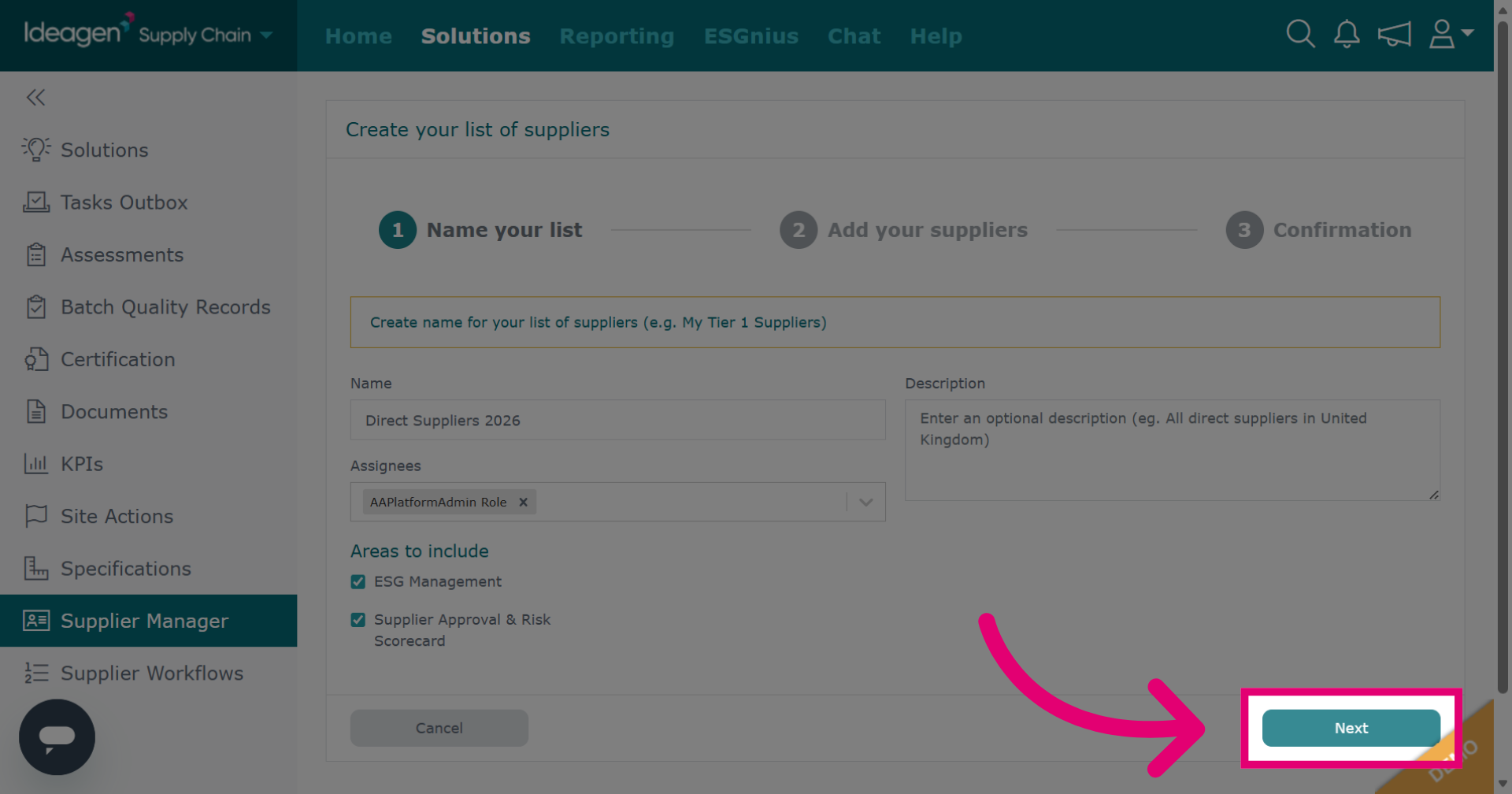
Click Next to continue to the following configuration stage.
Search for suppliers to add to your list by entering a key word in the search term box. You can search via network, directory or supplier lists. Network searches via suppliers linked to you by supply chain mapping, directory searches via the entire database of profiles on Ideagen Supply Chain and supplier lists searches via suppliers housed within pre-existing supplier lists. You can use the filters to refine your results if they are available within your search option.
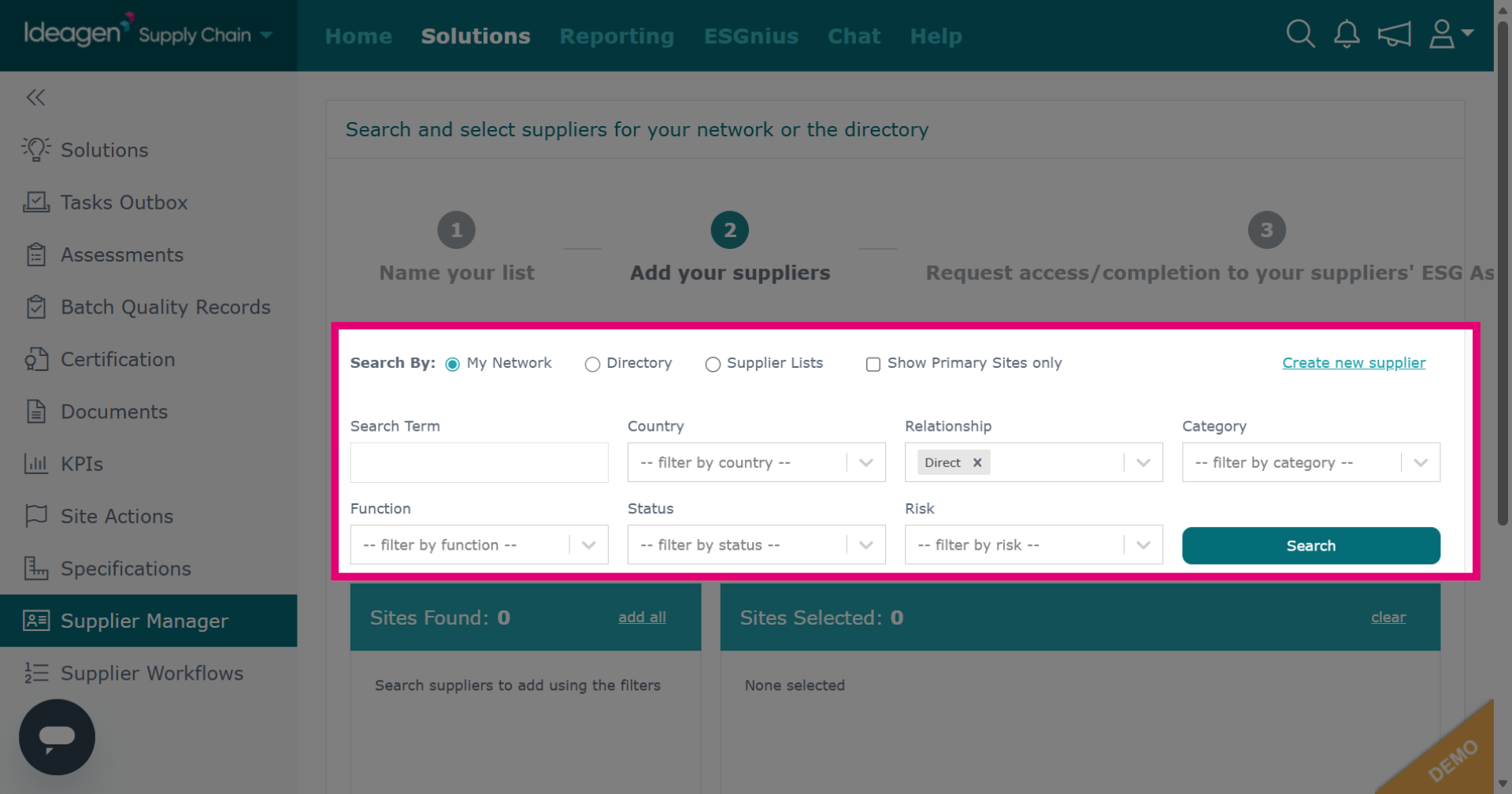
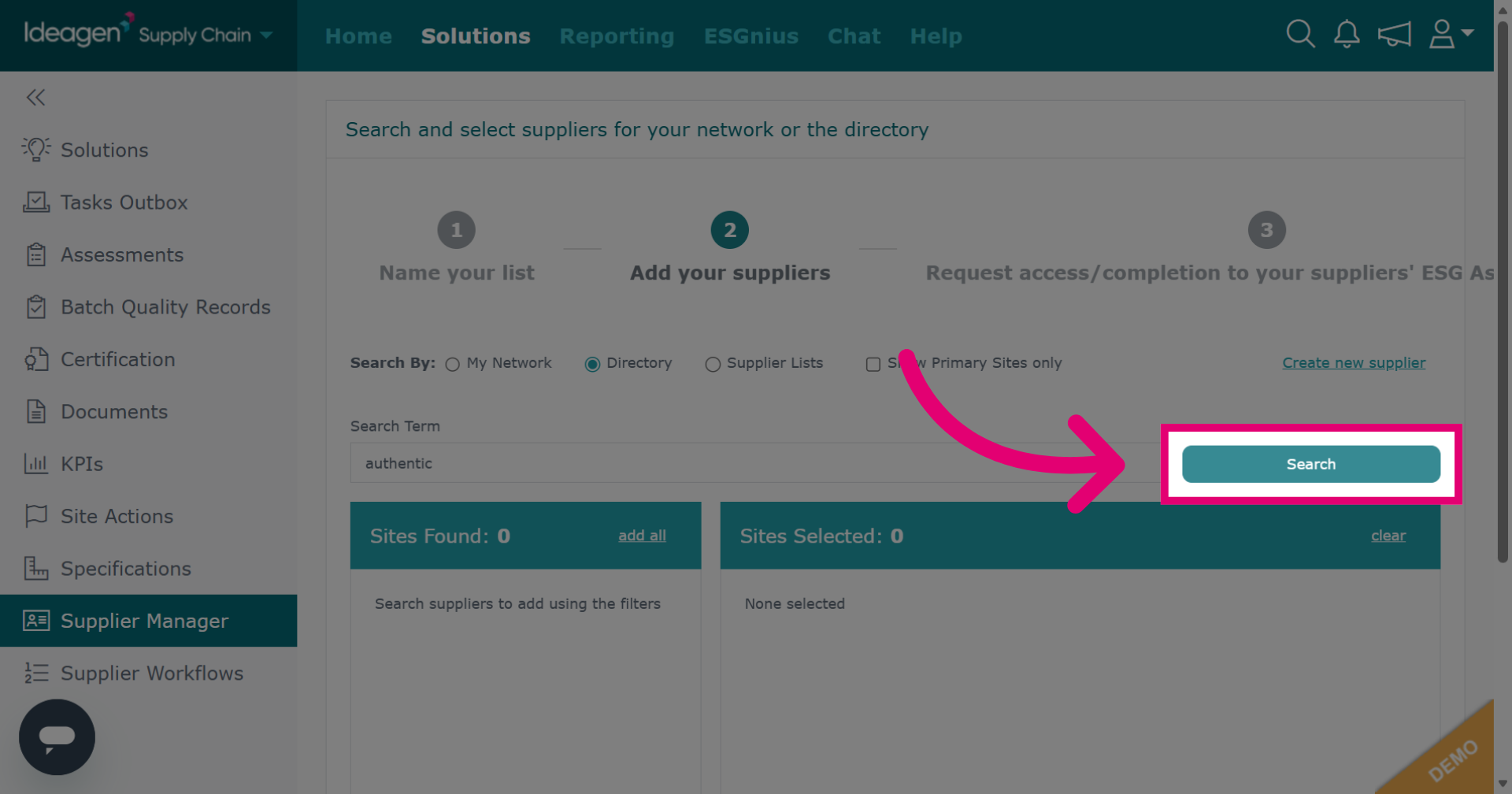
Click Search to find suppliers matching the entered criteria.
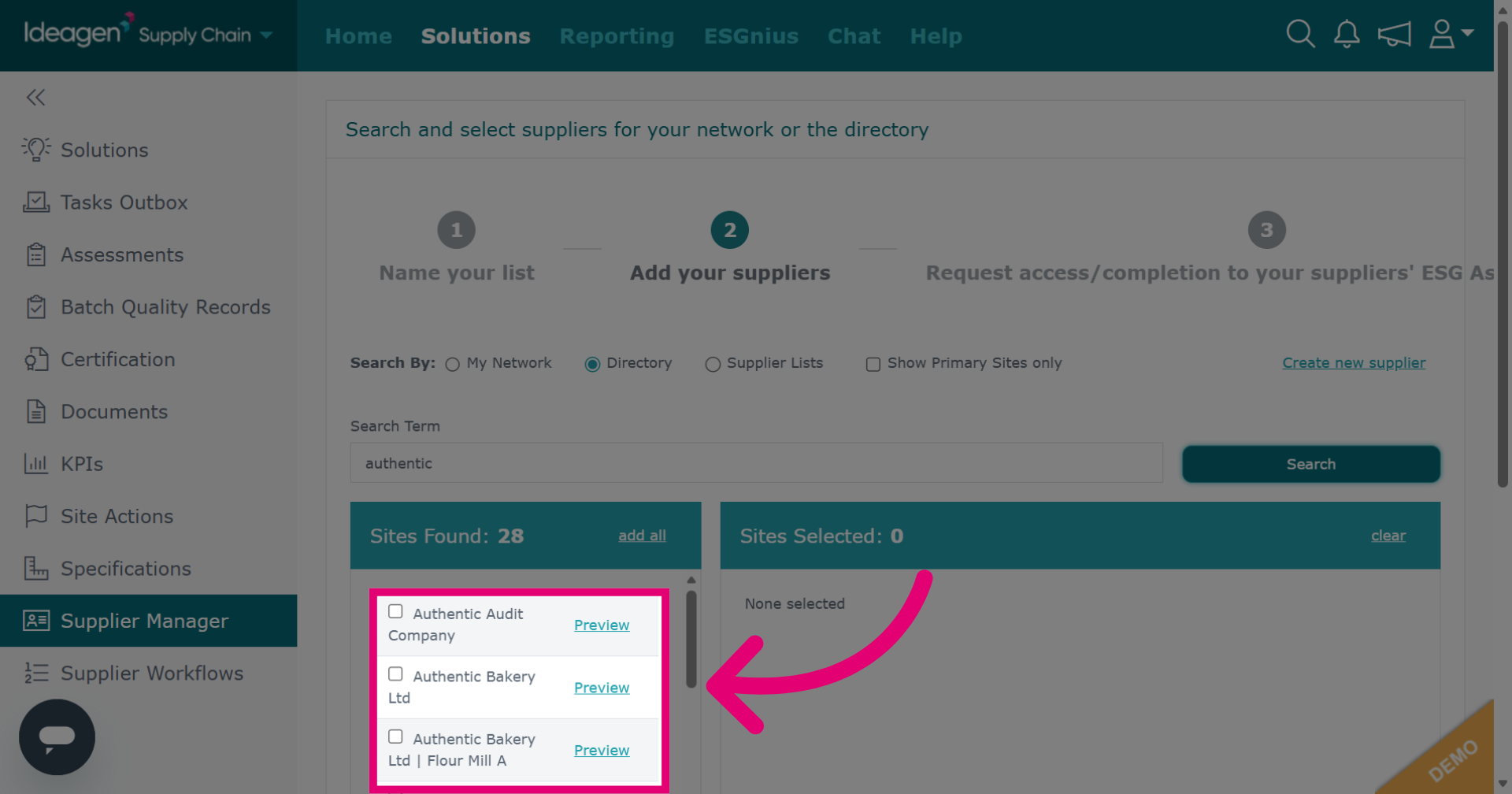
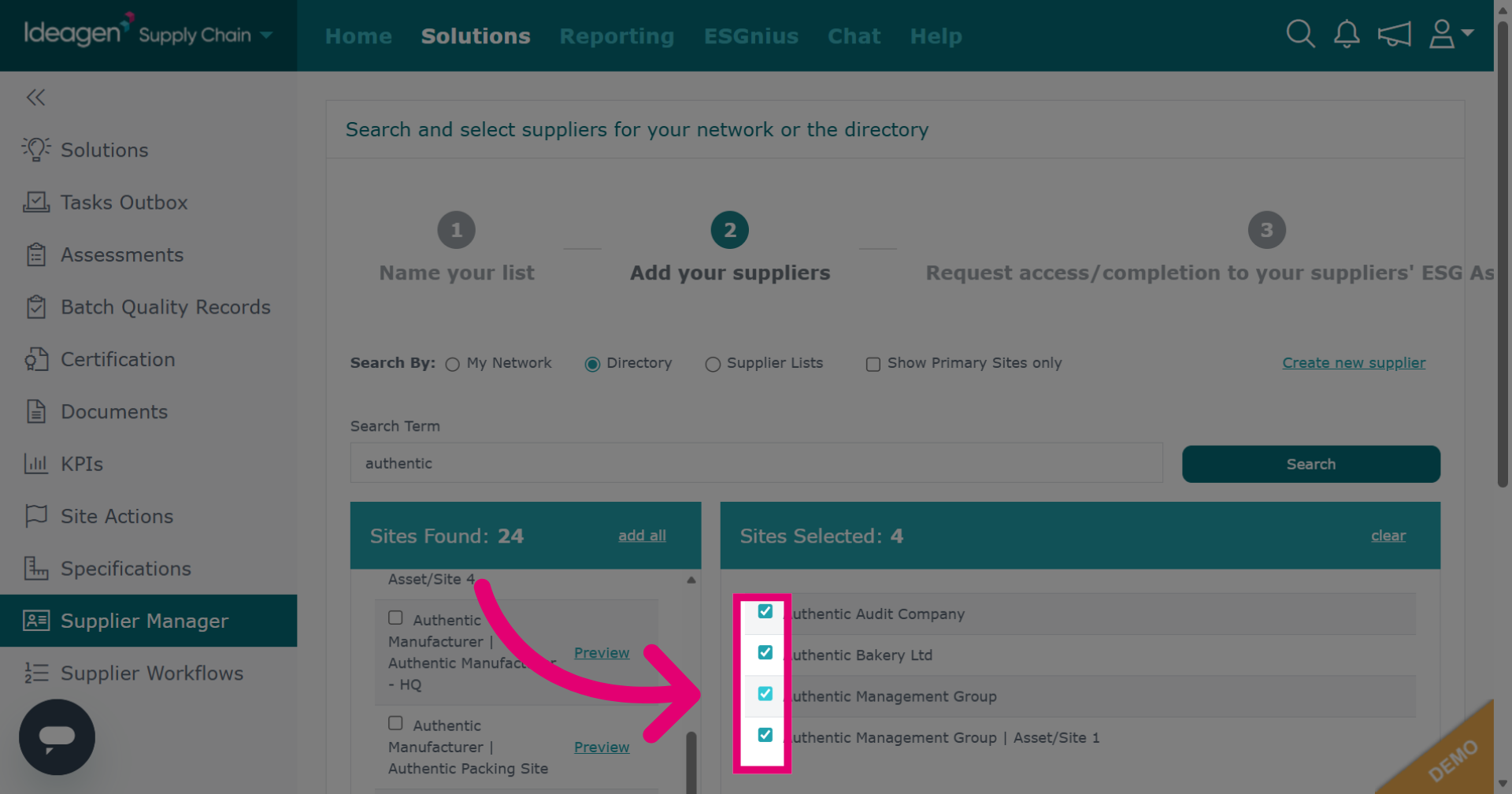
Select suppliers from the search results by clicking the box besides their name. Once selected the suppliers will move to the right hand side of the screen. Repeat process until you have found all suppliers you want to add.
To remove a supplier, untick the box next to their name.
If needed you can click Create New Supplier if the supplier you wish to add does not have a profile on the platform.
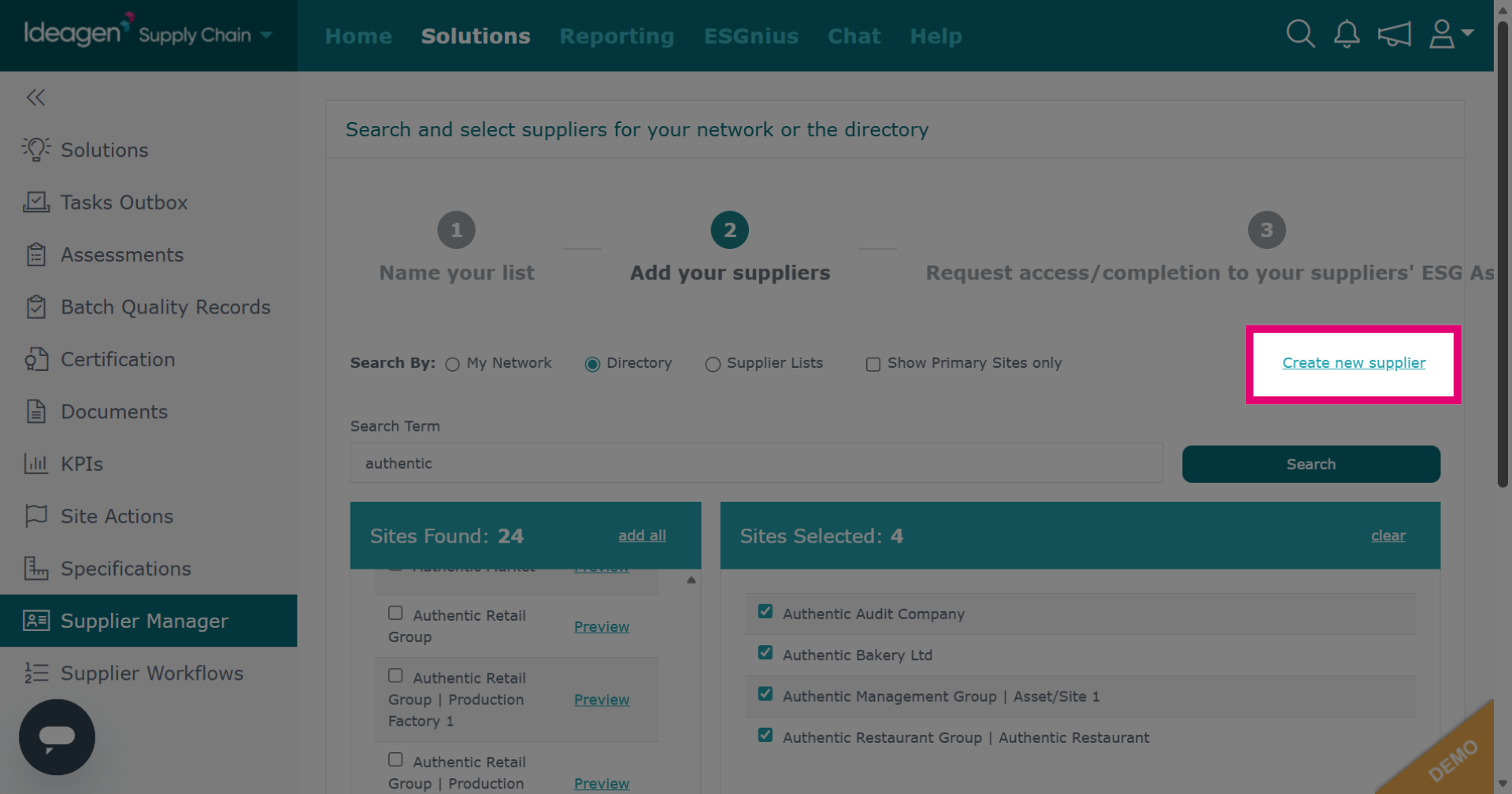
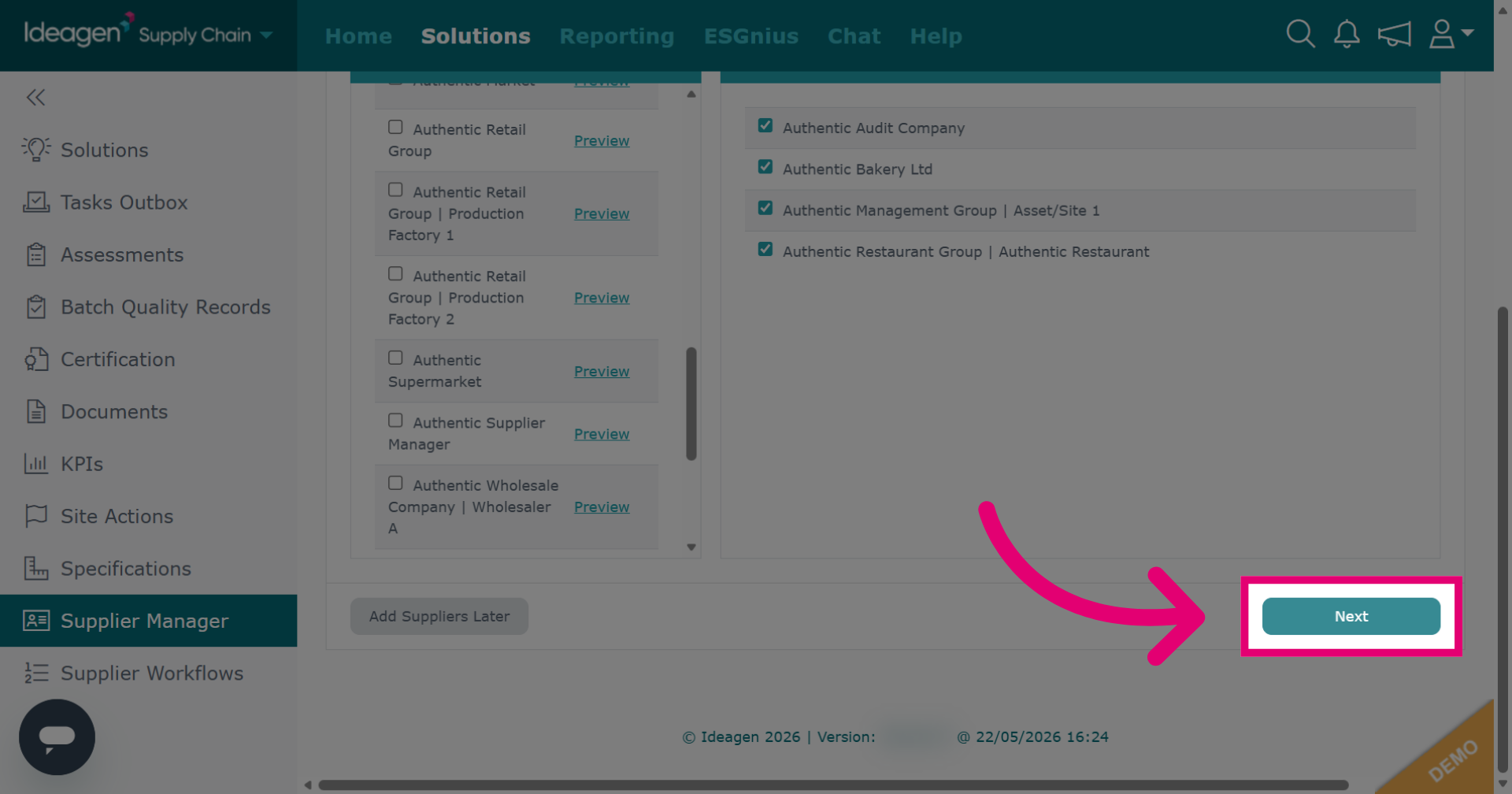
Click Next to advance to the next step.
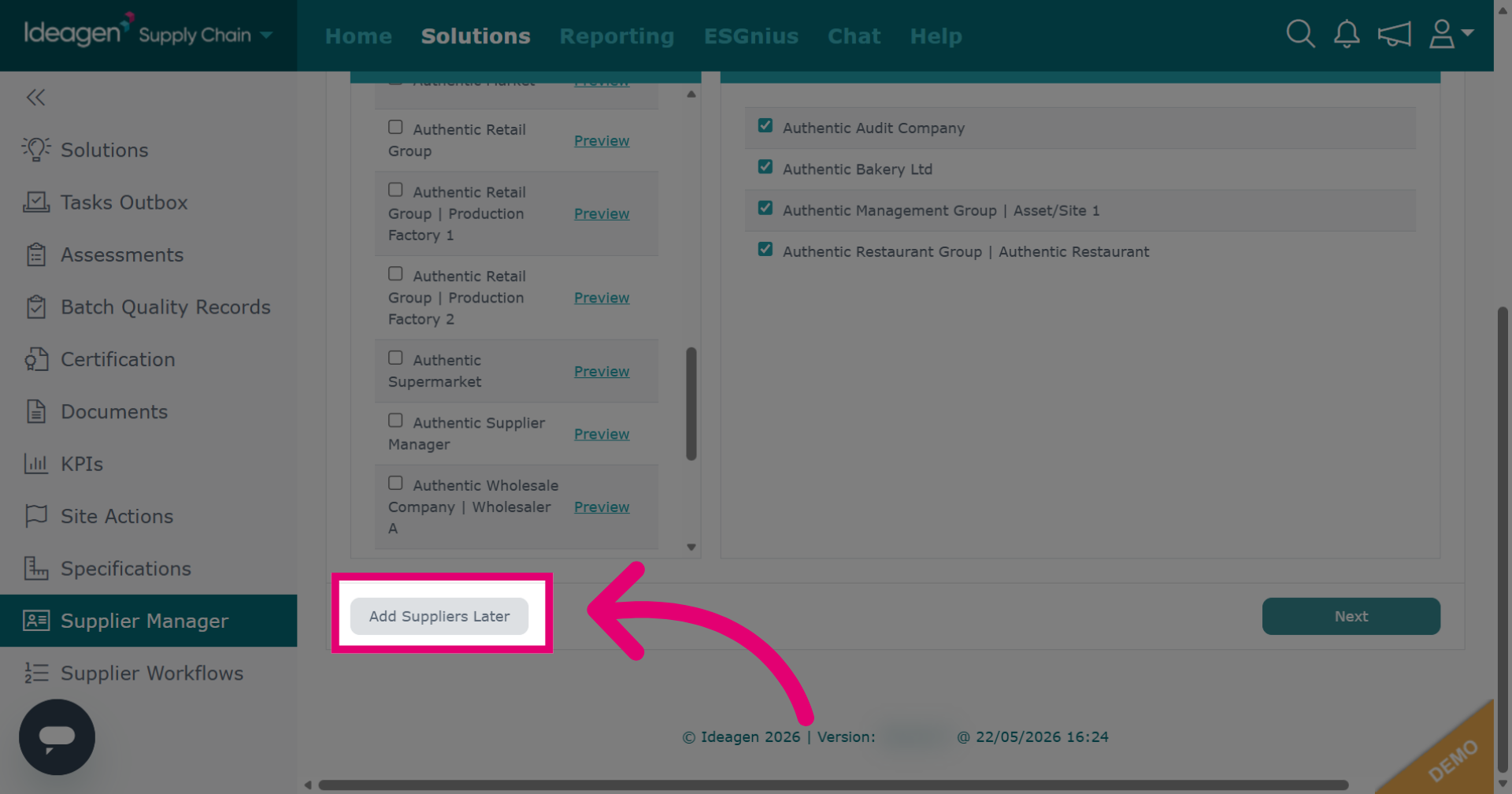
If you need to step away, you can click Add Suppliers Later to add your suppliers at a later date.
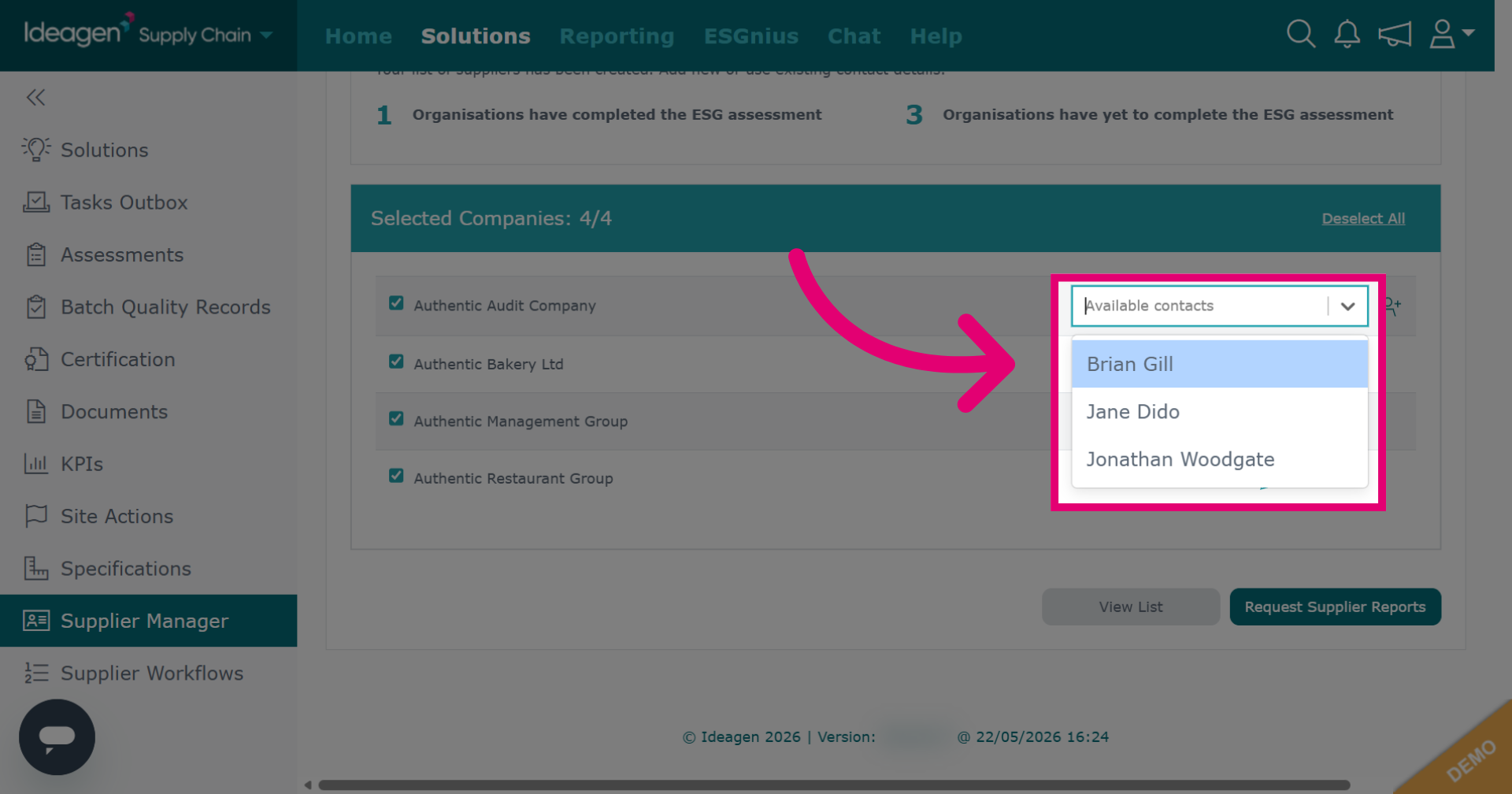
For lists that include ESG Management, if you want to send the ESG request to a specific contact, click the pencil icon.
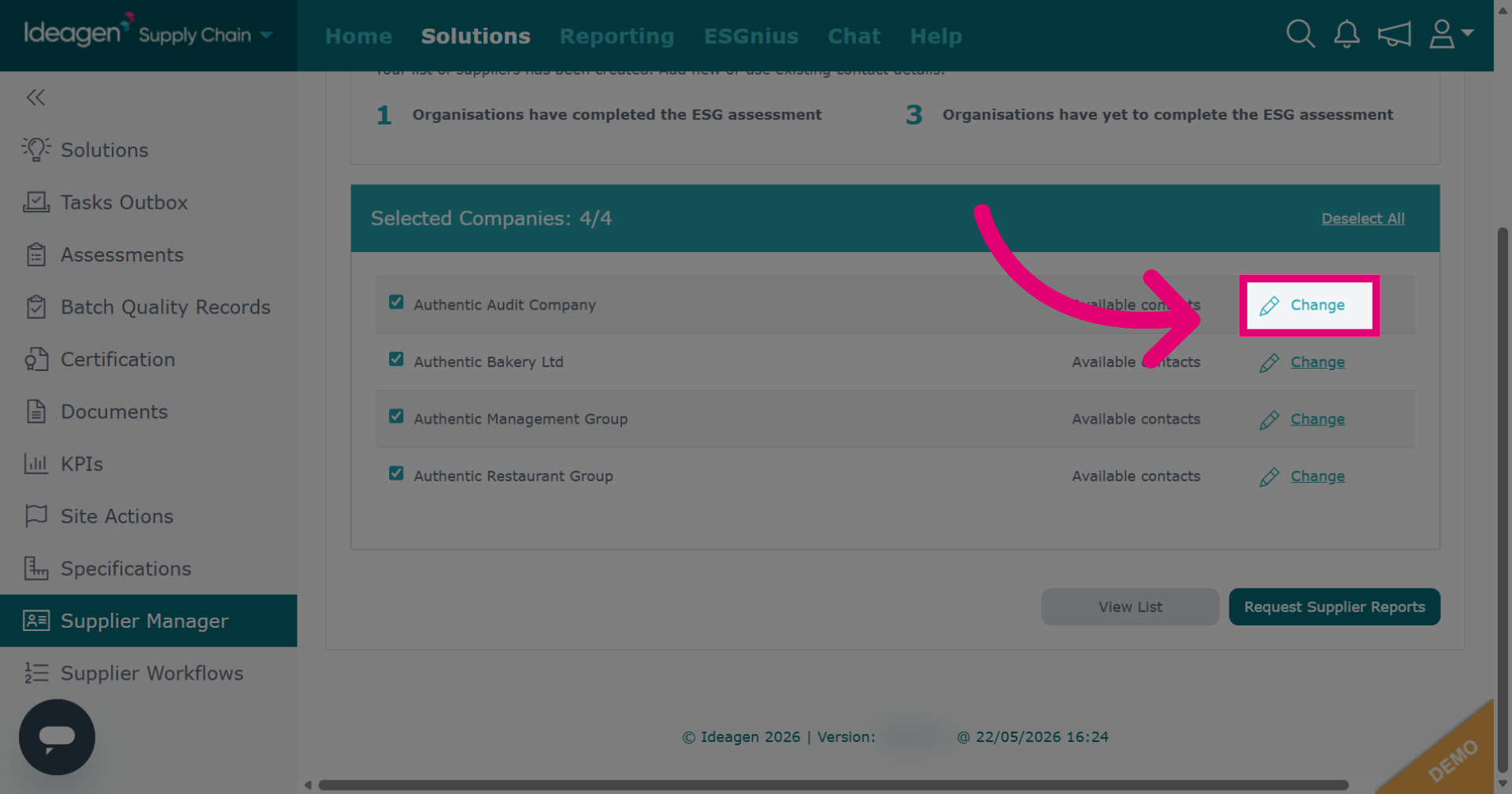
Select a user from the drop down options.
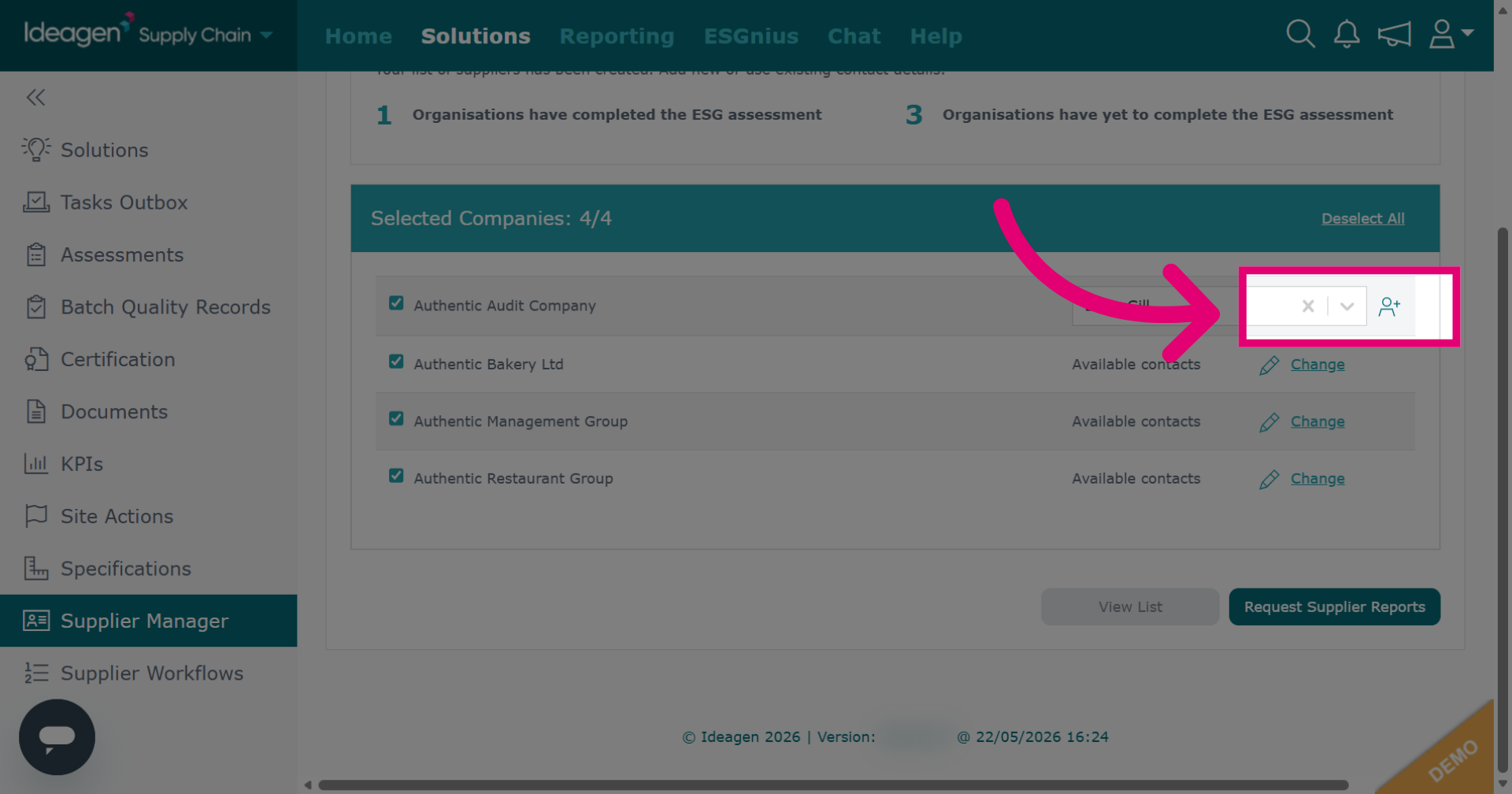
To remove an added contact from the request, click the x icon. If the contact you want to send the request to is not showing in the drop down, you can create a contact for the supplier's profile by clicking the person icon.
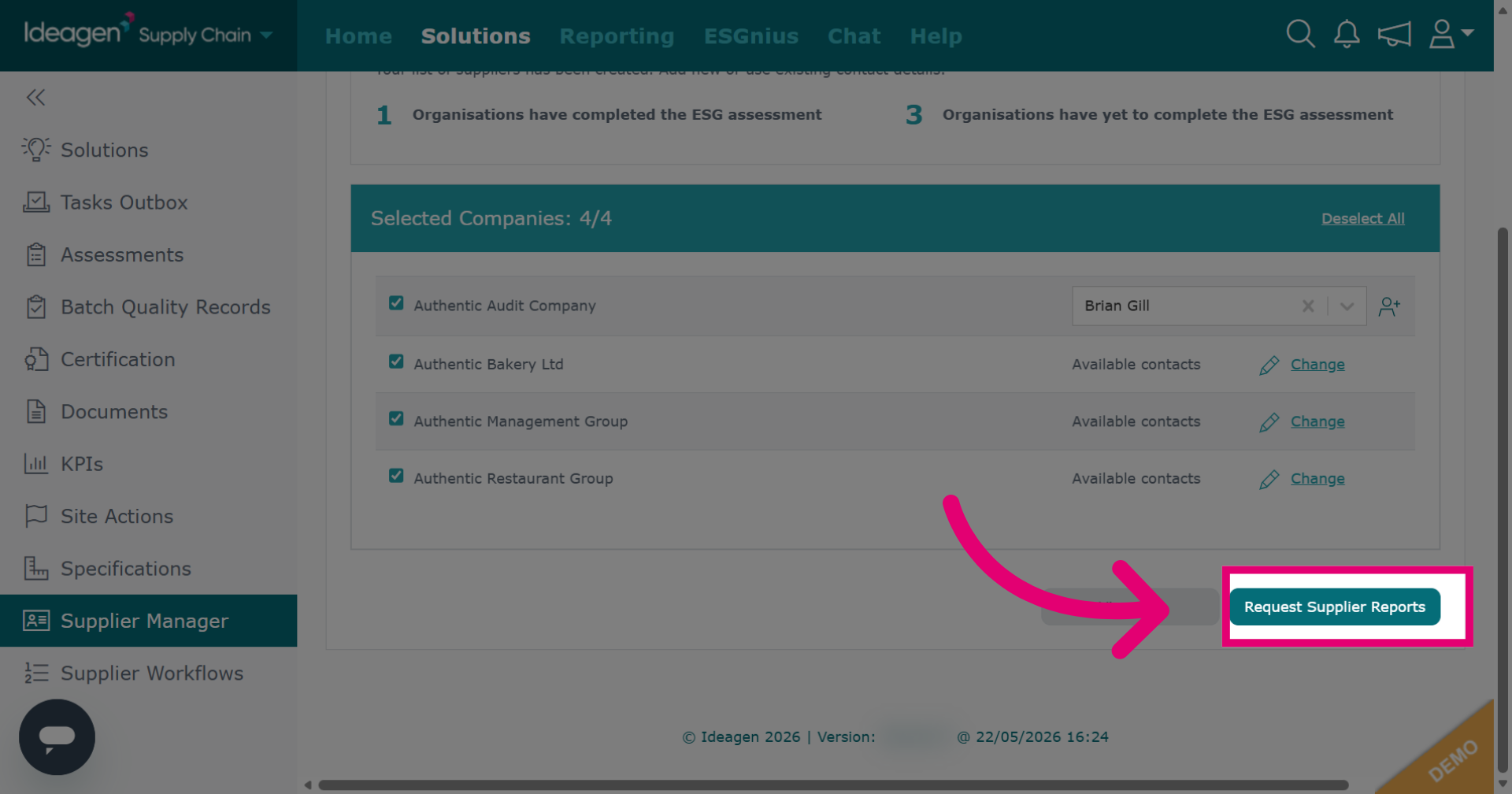
To request supplier ESG data immediately, click Request Supplier Reports.
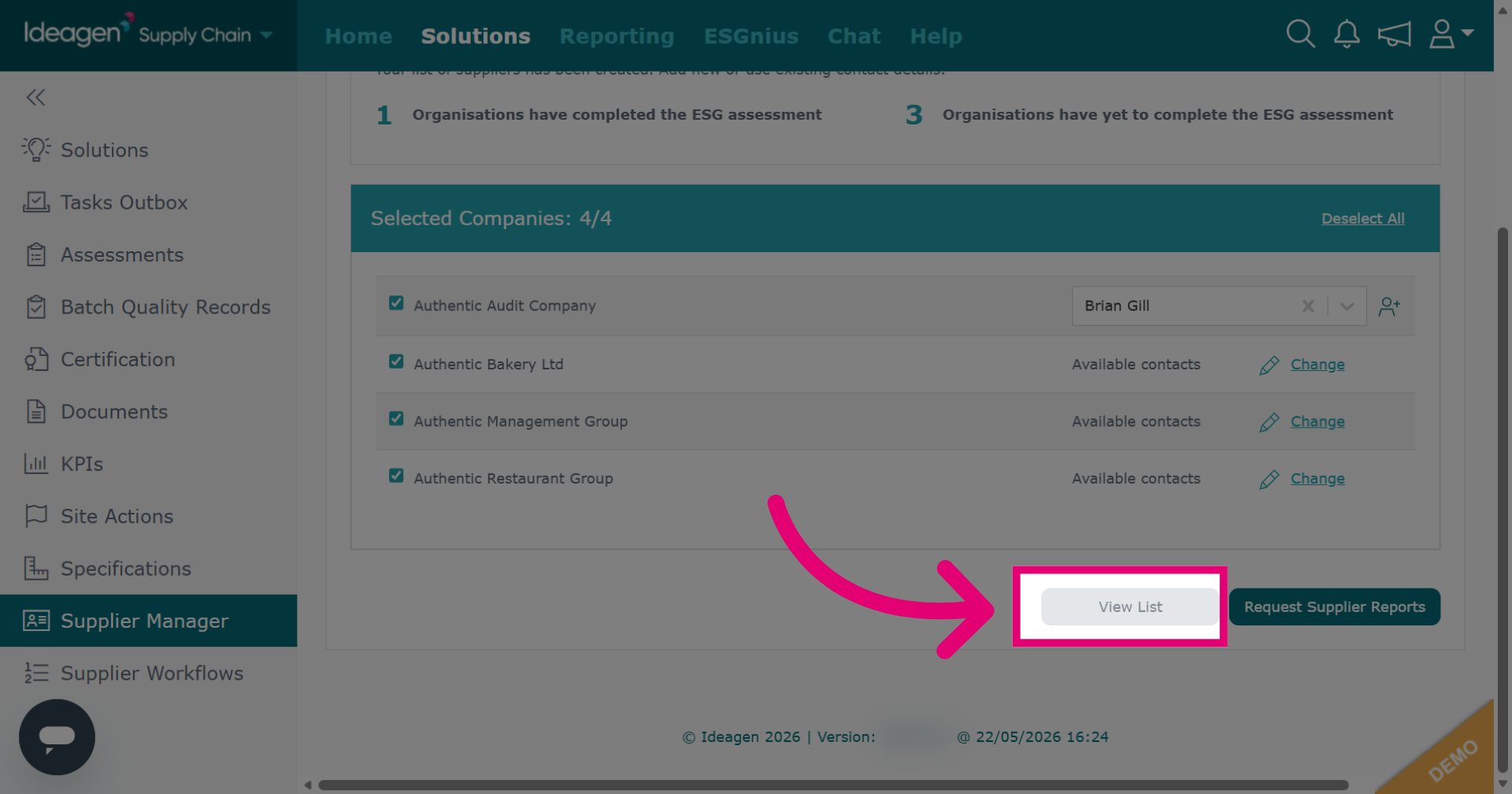
If you do not wish to request supplier ESG data immediately, click View List to see the details of your newly created supplier list.
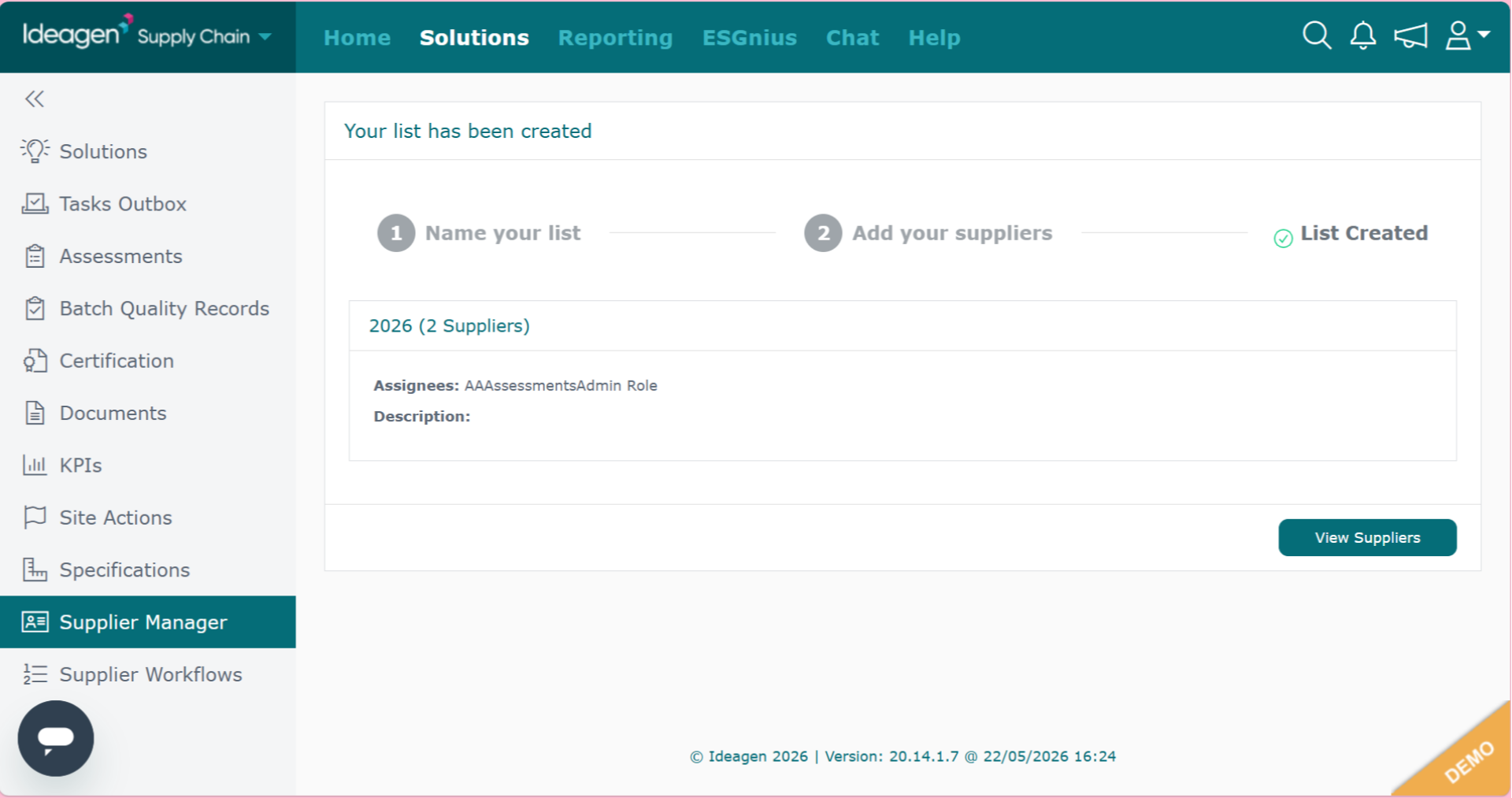
If your list does not contain ESG Management, your finalisation screen will only have one option and that will be View Suppliers.