


New article
Recently updated
Managing a supplier list

Who is this article for?
Users who want to manage a supplier list.
Supplier list admin permissions are required.
This article explains how to manage a supplier list through the available options and tabs.
Accessing a supplier list
To access a supplier list:
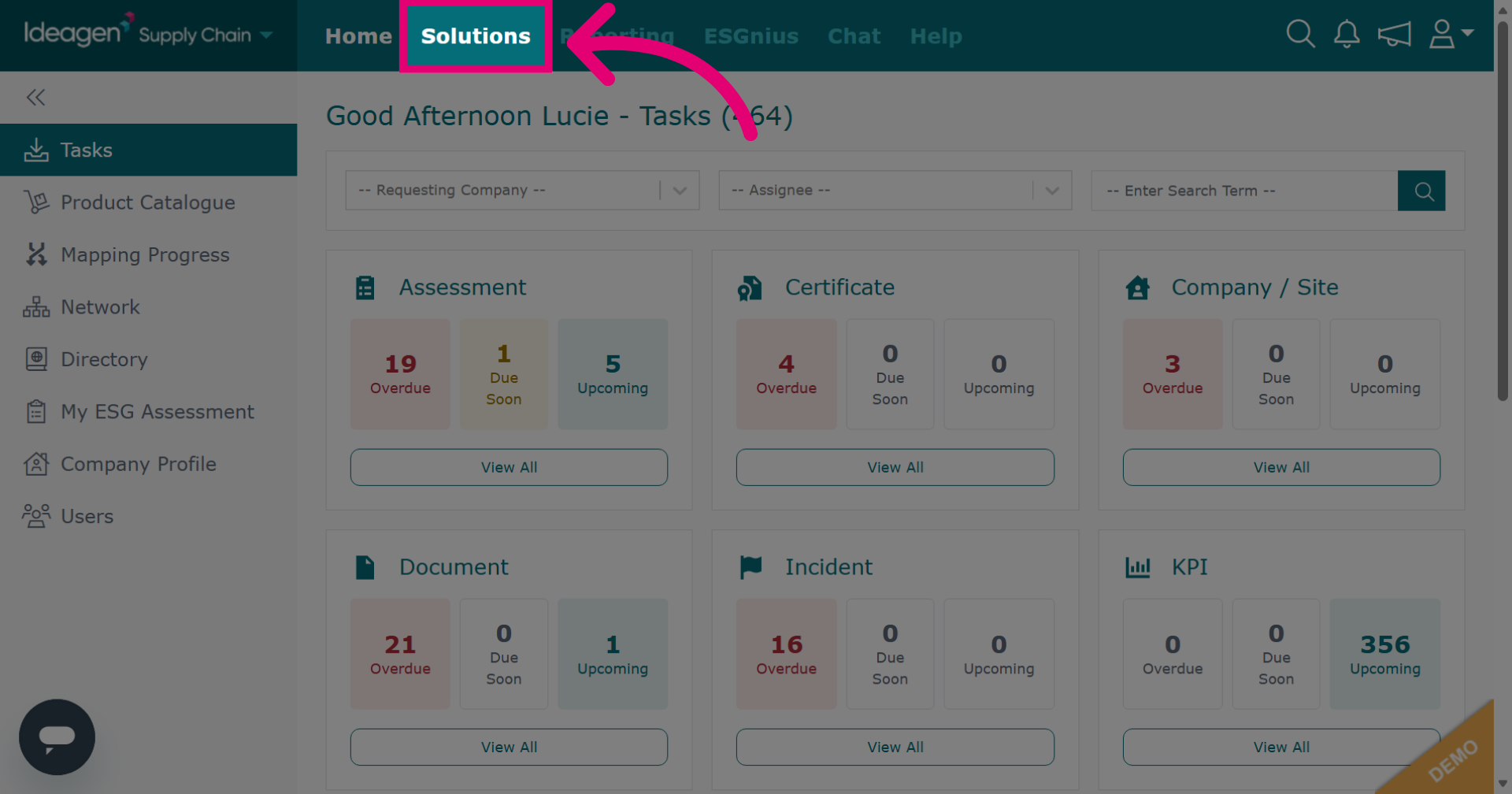
- Go to Solutions.
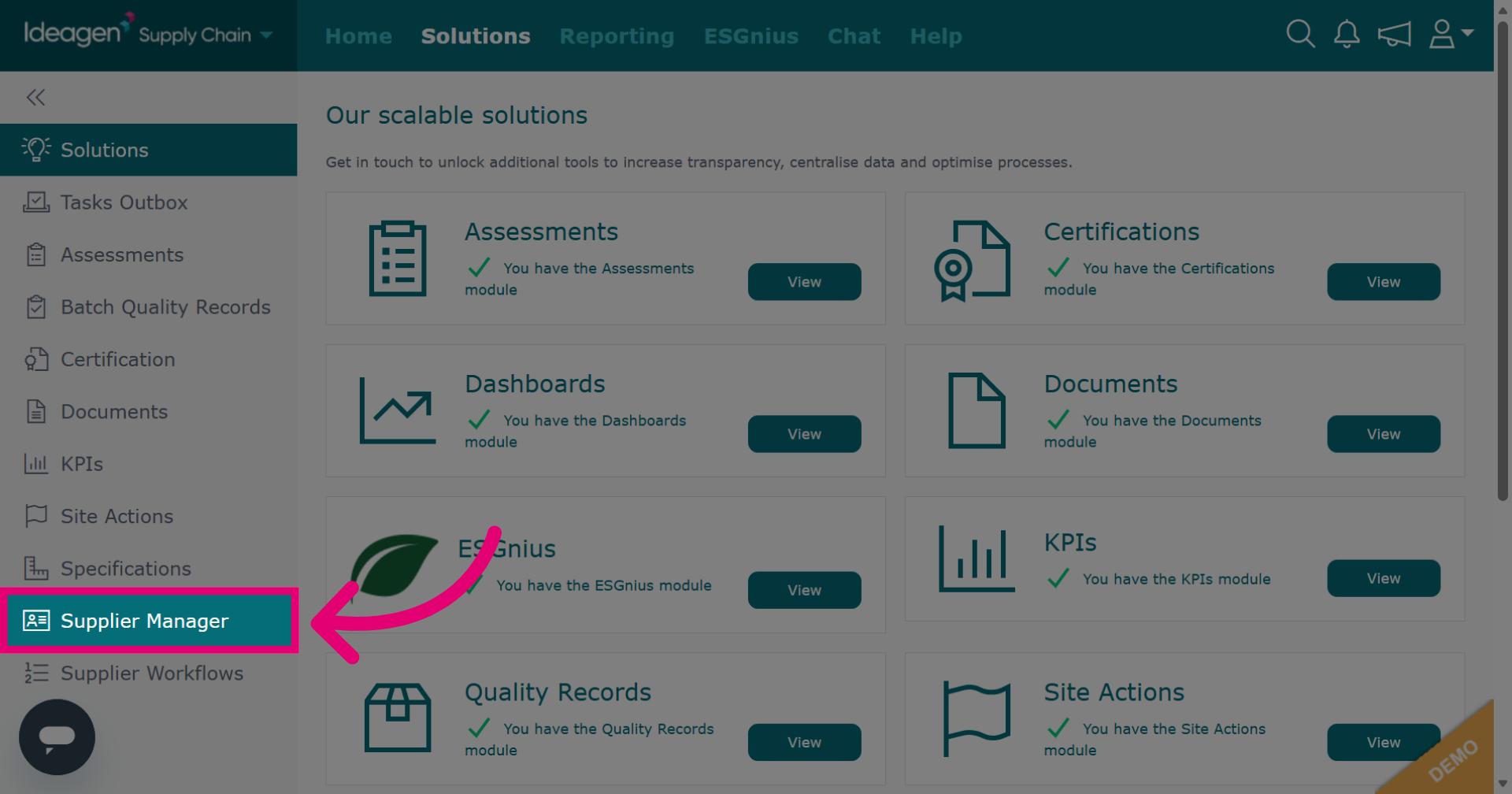
- Select Supplier Manager.
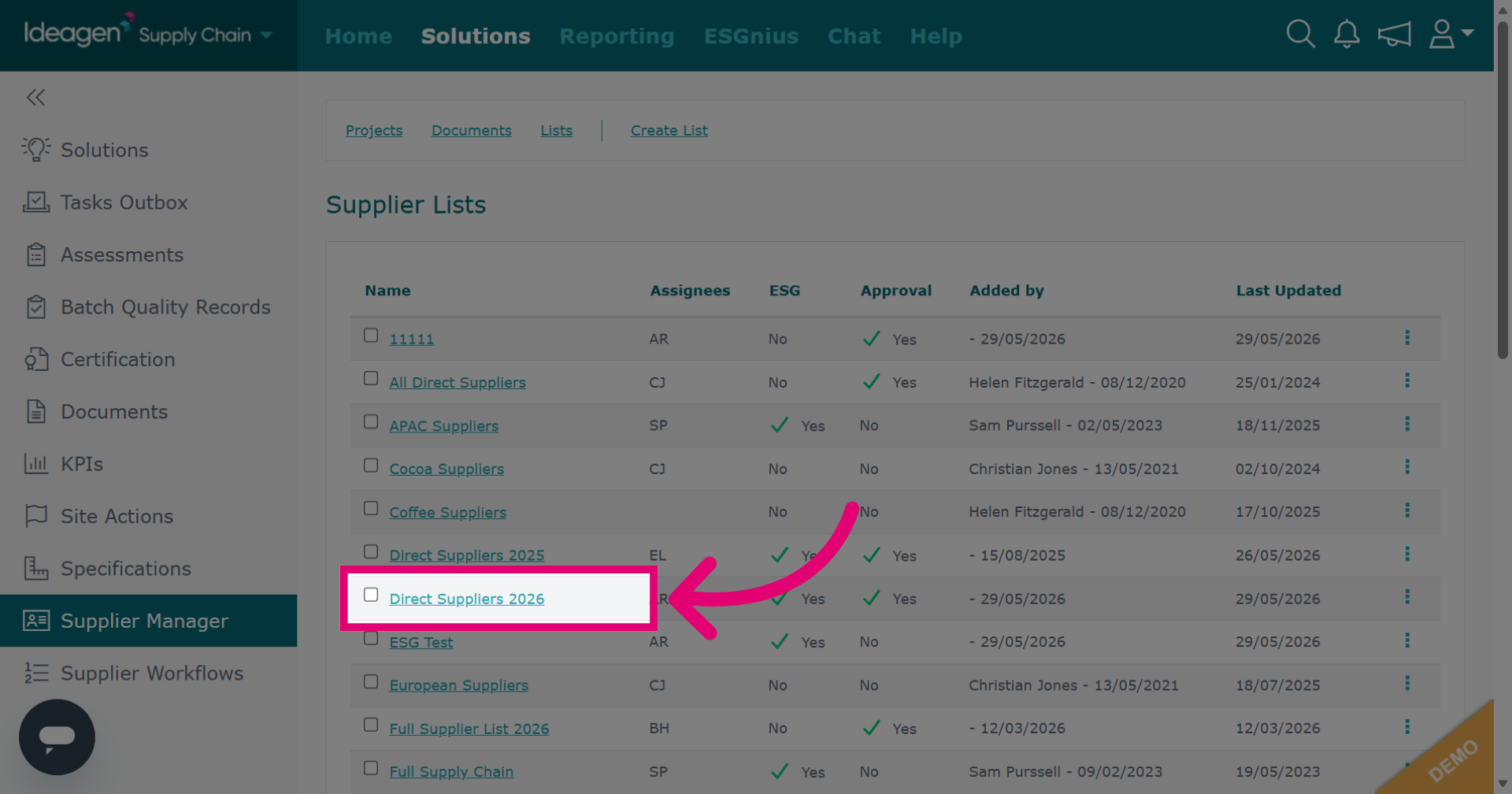
- Open a list you want to manage.
Managing a supplier list
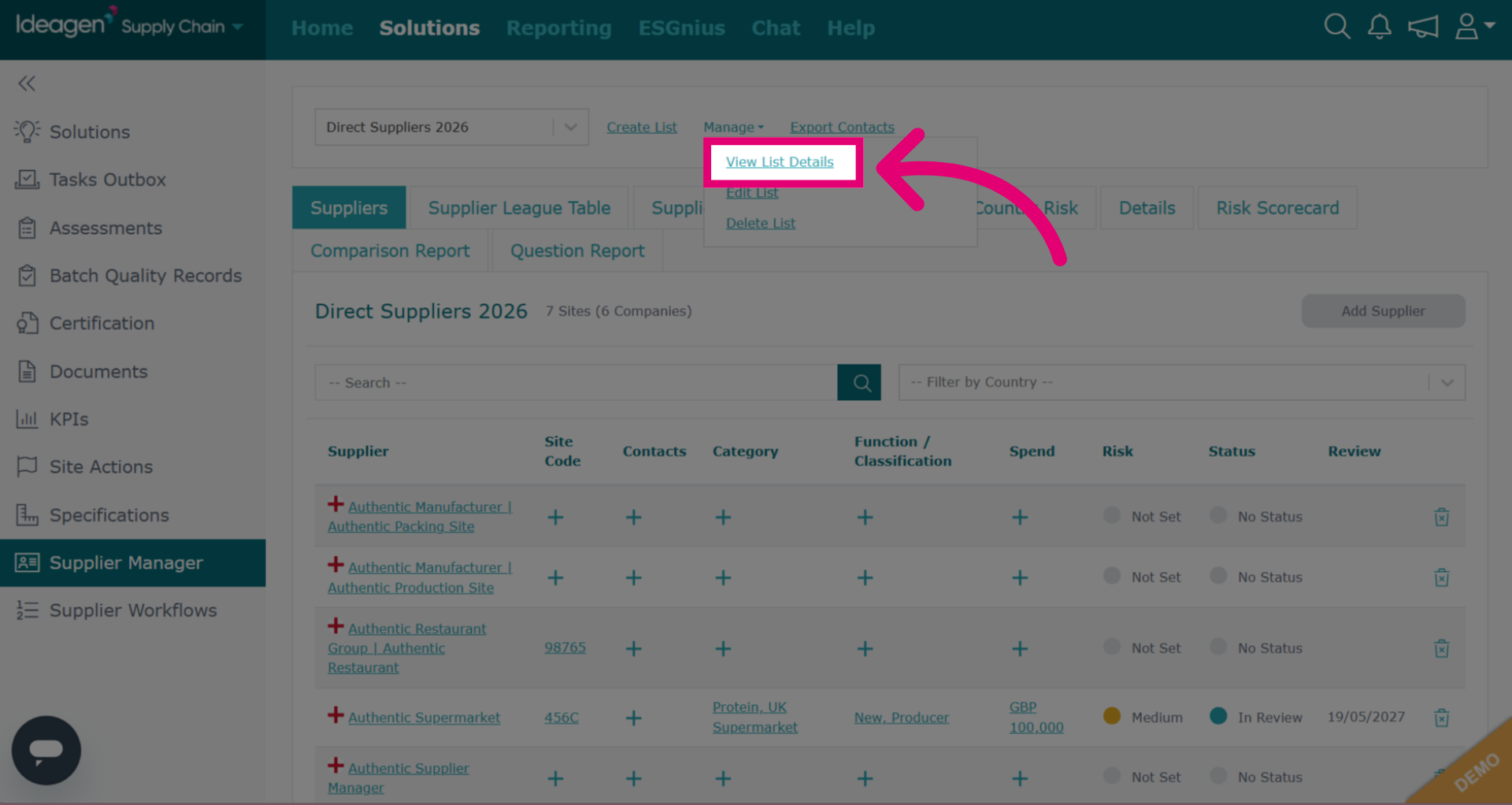
Viewing list details
To view list details:
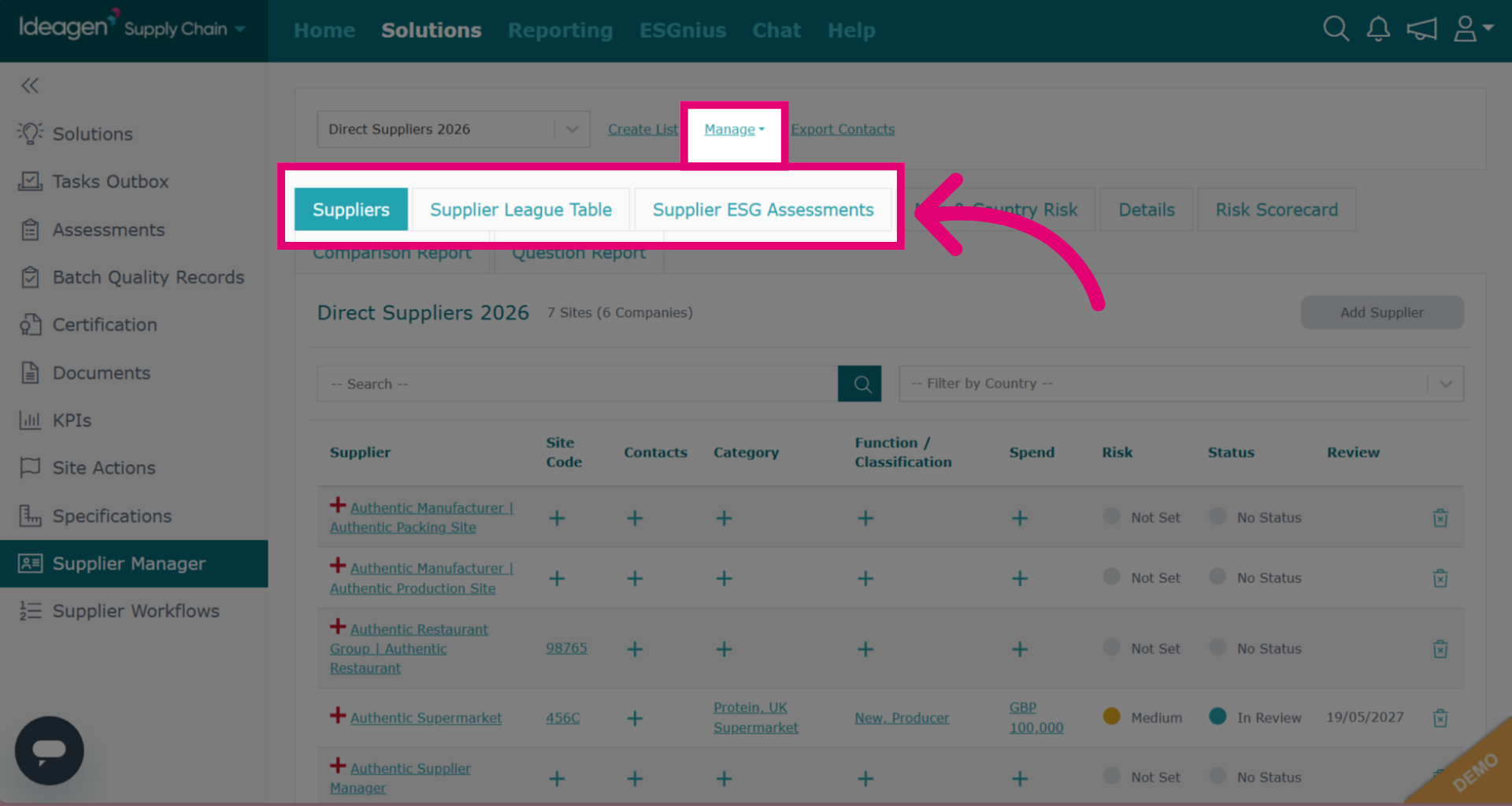
- Select a tab with "Supplier" in the name.
- Click Manage.
- Select View List Details to see a quick breakdown of key information pertaining to the list.
Editing a list
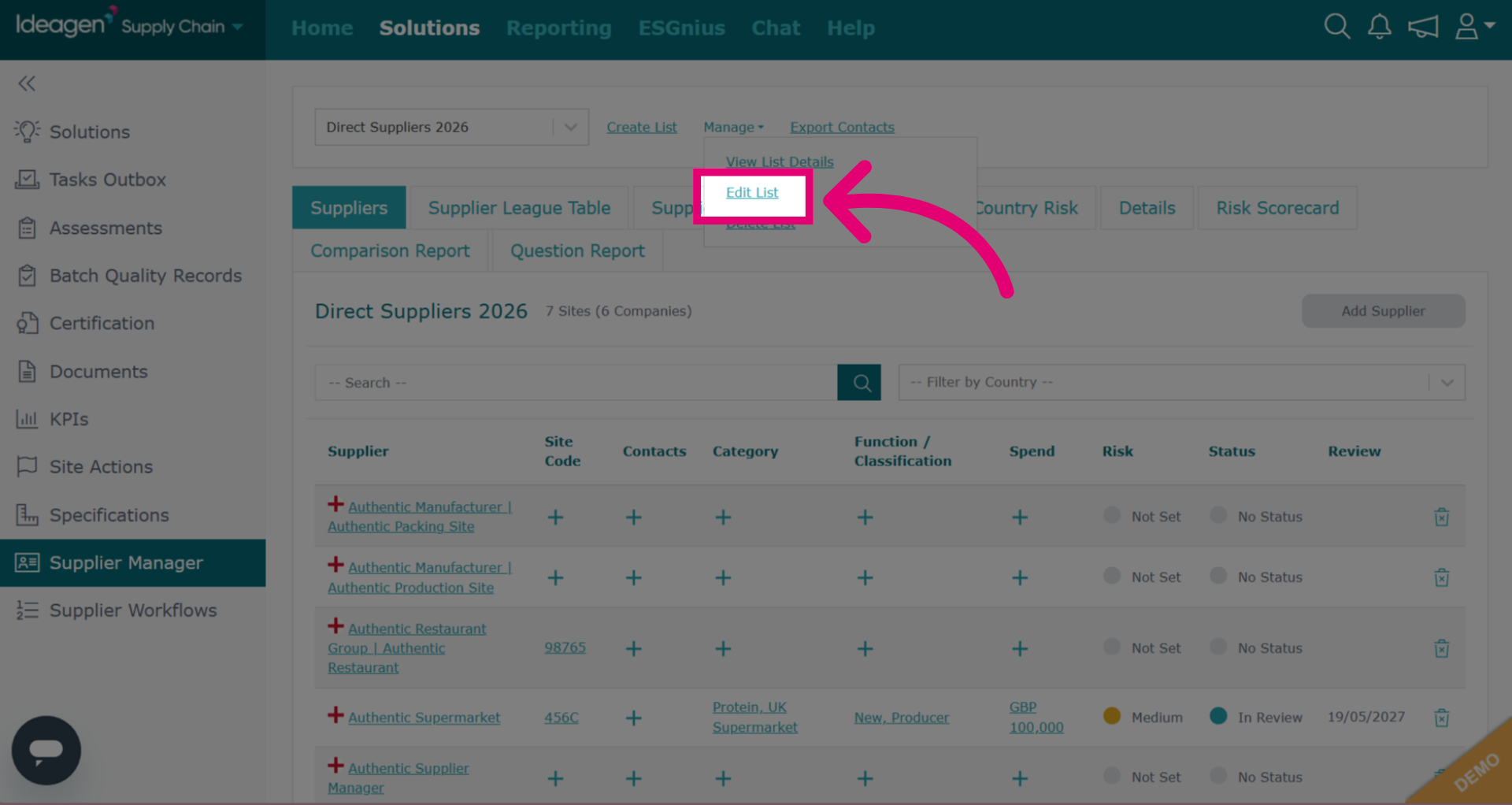
To edit a list:
- Select a tab with "Supplier" in the name.
- Click Manage.
- Select Edit List.
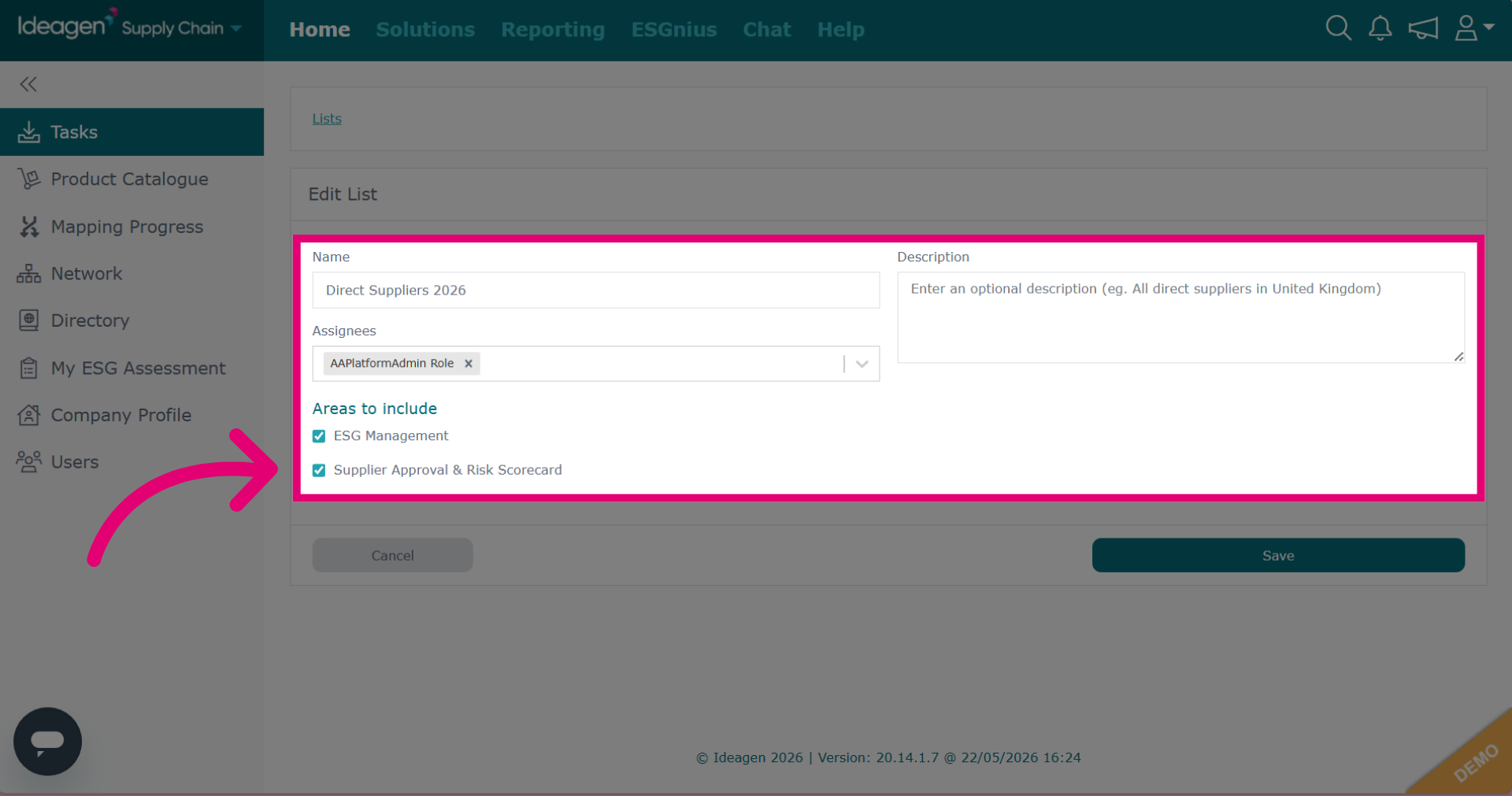
- Update details as needed.
- Click Save.
Deleting a list
To delete a list:
- Select a tab with "Supplier" in the name.
- Click Manage.
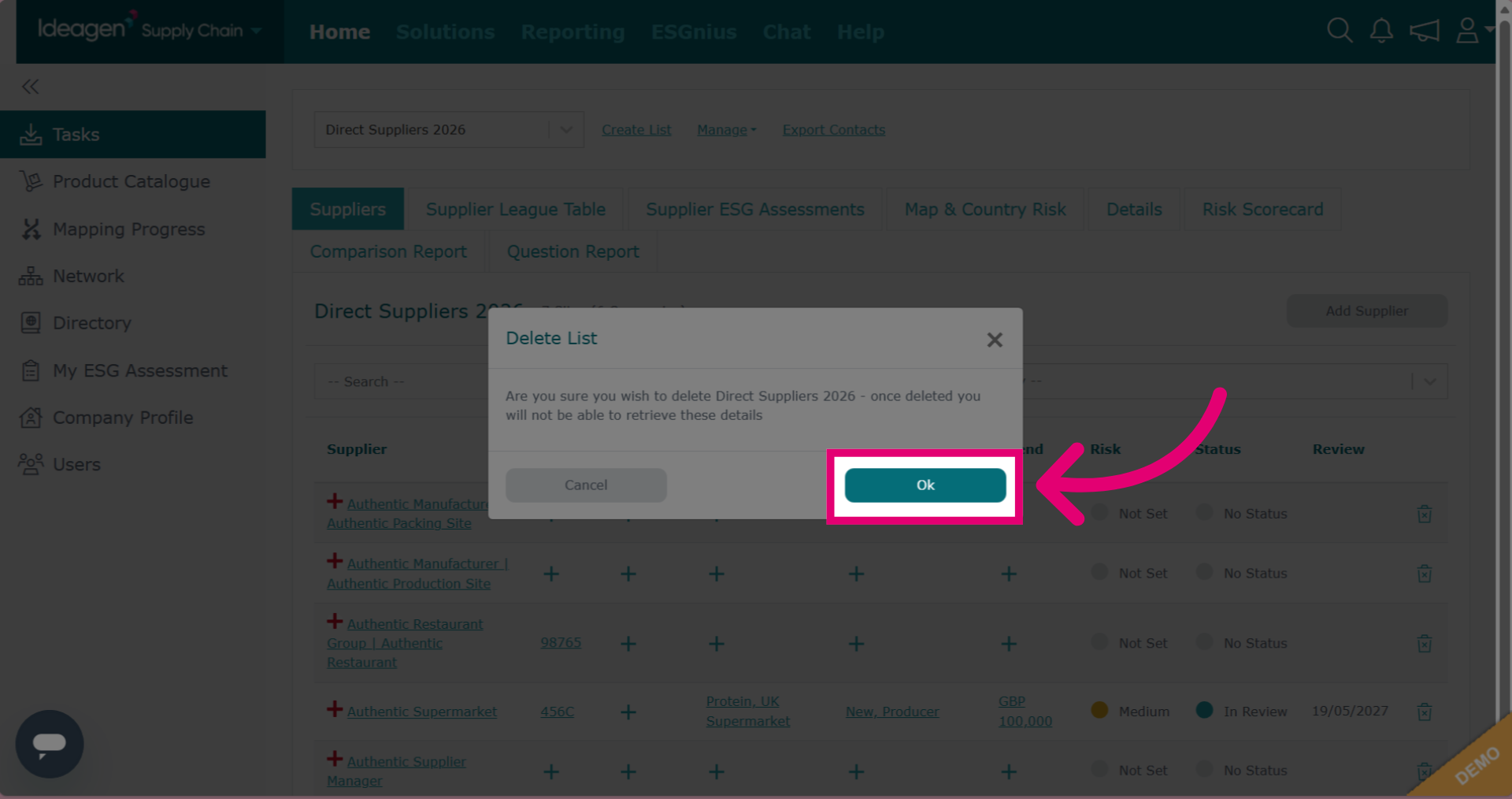
- Select Delete List.
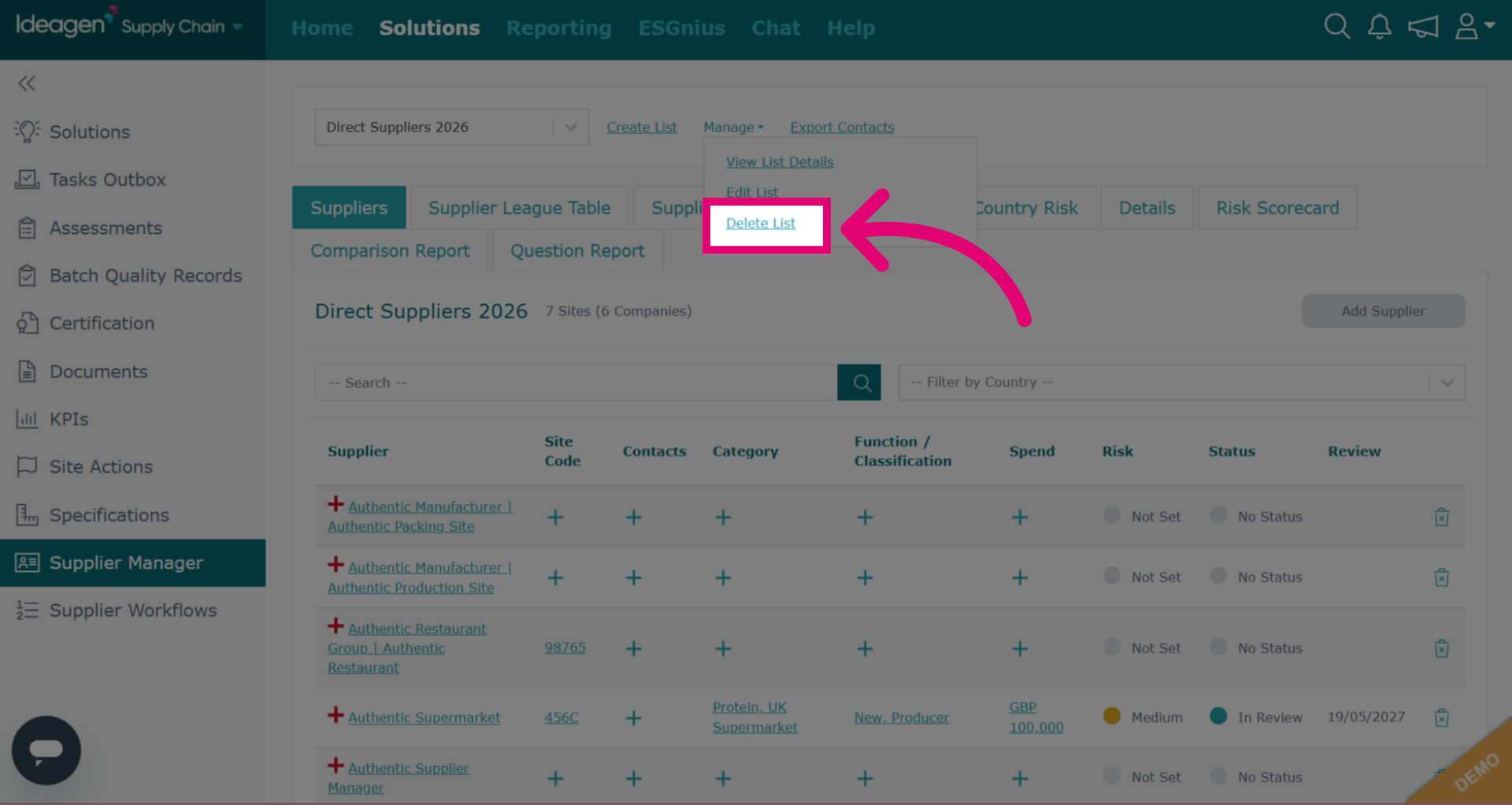
- Click OK to confirm deletion.
Exporting contacts
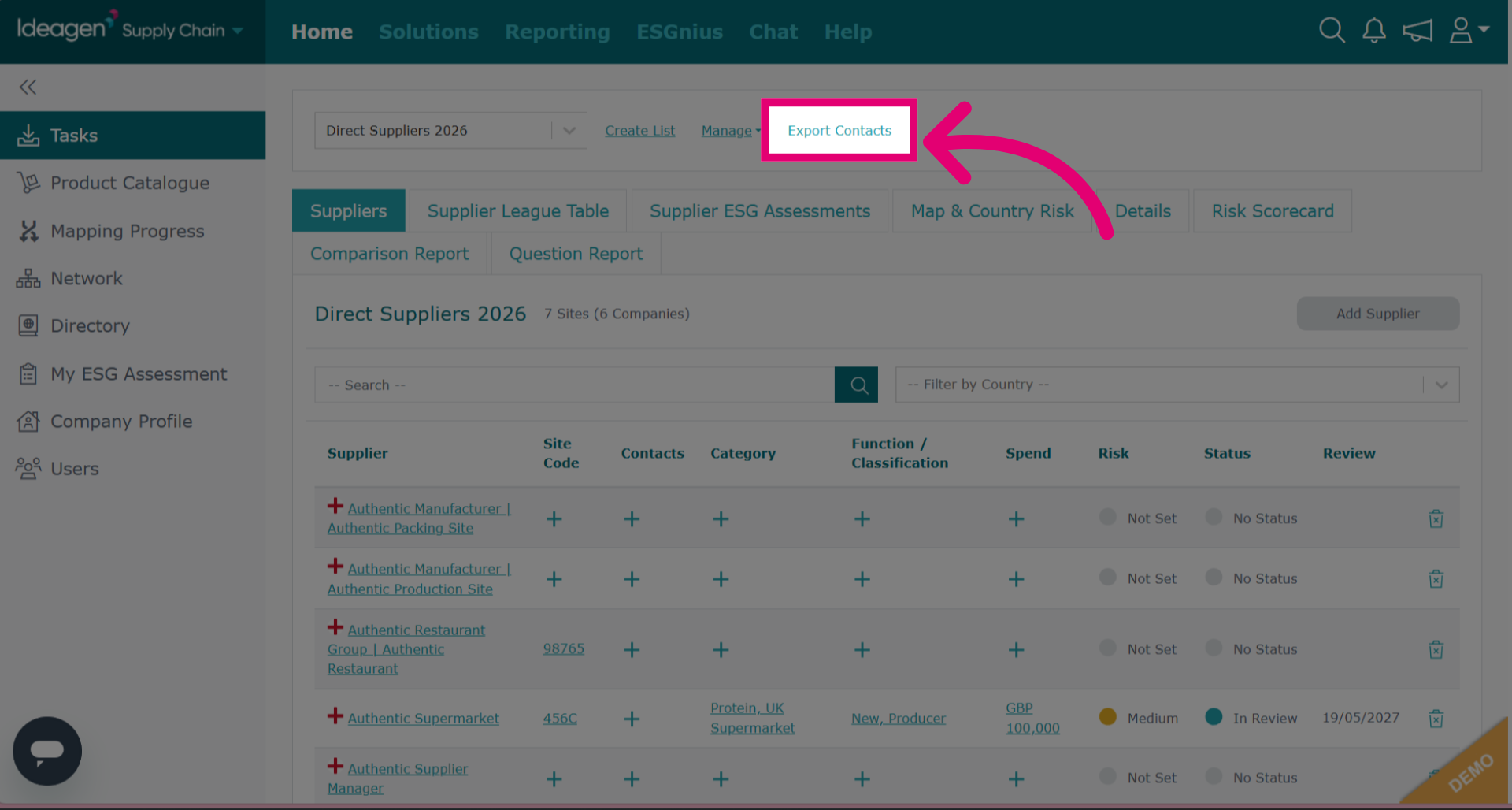
While you can't export the supplier list itself, you can click Export Contacts to export supplier's contact details.
Navigating a supplier list
Each supplier list has several tabs you can use to manage other aspects of the supplier list.
Suppliers
The Suppliers tab contains basic information about your suppliers.
You can add information by clicking the Plus icon. You can remove suppliers from the list by clicking the Bin icon. Some information such as the risk and status is pulled from data you have set on the supplier profile.
If you are unsure how to set this data, have a look at our article on managing supplier relationships and contacts.
Supplier League Table
The supplier league table ranks supplier's ESG scores numerically based on their assessment outcome, country risk, certification and ESG rating.
You can click a supplier's name to drill down into further details.
Supplier ESG Assessments
The supplier ESG assessments tab shows your supplier's ESG results broken down by environmental, social and governance scores.
You can click View to see the full ESG results including details, responses, and scorecard.
Map & Country Risk
Also visible in lists that contain the Supplier Approval option.
The Map & Country Risk tab shows your supplier's risk level based on their country.
Details
Visible in lists that contain the Supplier Approval option.
The Details tab shows general details about your supplier including assessments and document requests they have completed for your company, outstanding incidents and notes. As well as active certificates logged on their profile.
You can click View to drill down into the specifics.
You will then be able to view detailed information about all criteria housed against this supplier such as relationship, status, ESG, country risk, assessments, certification and documents.
You can also edit your relationship with the supplier from this screen.
Risk Scorecard
The Risk Scorecard tab allows you to set risk scores for four elements of the supplier's business. These will tally up to a total score.
To set a score:
Click View.
Pick a score from the dropdown.
Click Save.
Comparison Report
The Comparison Report tab compares suppliers ESG scores within your list to all companies that have completed the ESG within the period of time selected from the drop down option which has been highlighted on the screen.
Question Report
The Question Report tab compares suppliers within your list's ESG question responses to all companies who have completed the ESG within the period of time selected from the drop down option which has been highlighted on the screen.