New article
Recently updated
Generating assessment reports

Who is this article for?
Users who want to generate reports based on assessments.
Assessments admin permissions are required.
This tutorial guides you through generating detailed assessment reports within the Ideagen Supply Chain platform.
You will learn how to create question-level reports, outcome reports, and comparison reports to analyze assessment data.
Generating assessment reports
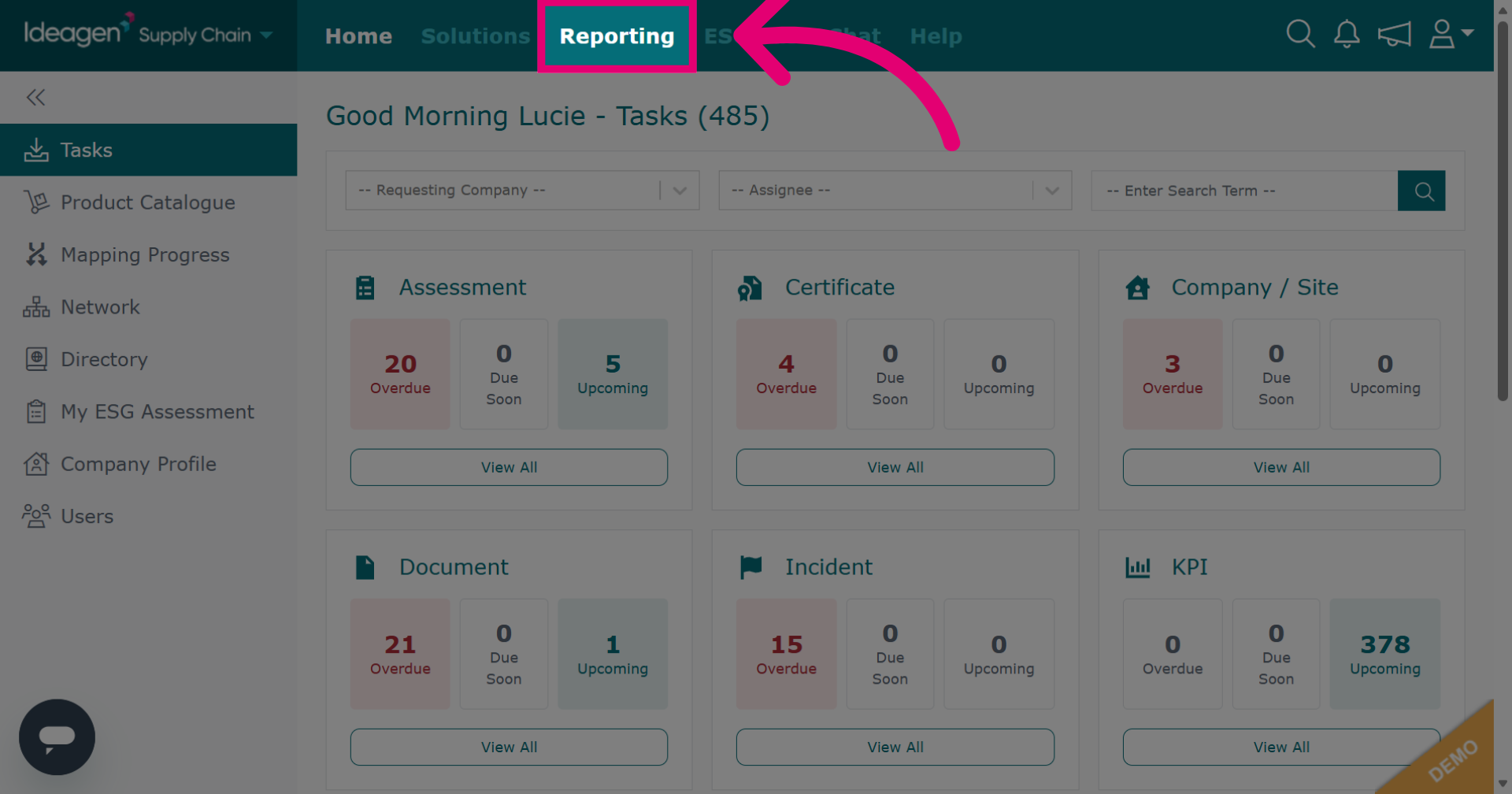
Click Reporting to open the reporting section where you can generate various assessment reports.
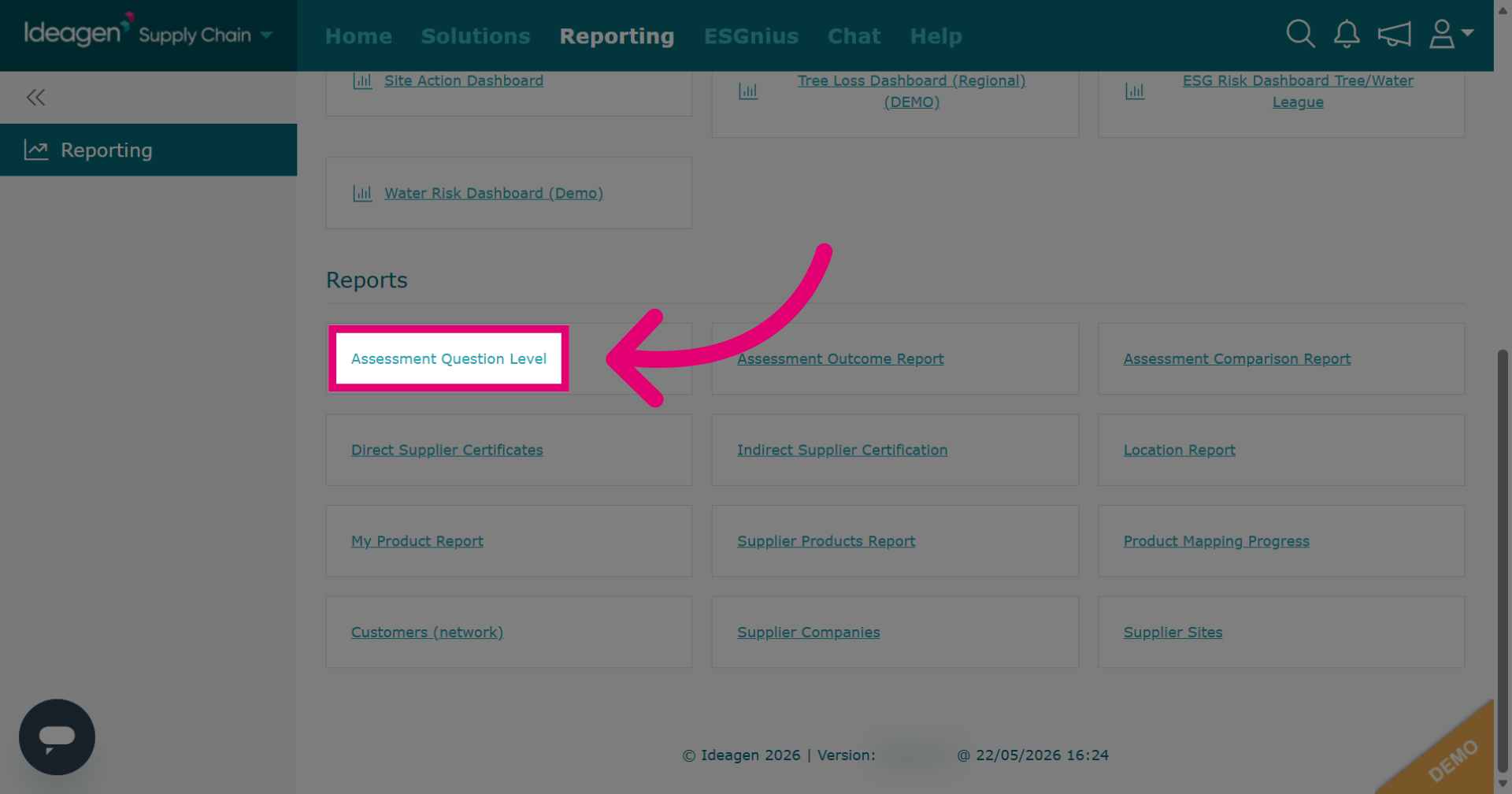
Click Assessment Question Level to create a report based on an assessment template's questions. You will be able to drill down and compare results at question level.
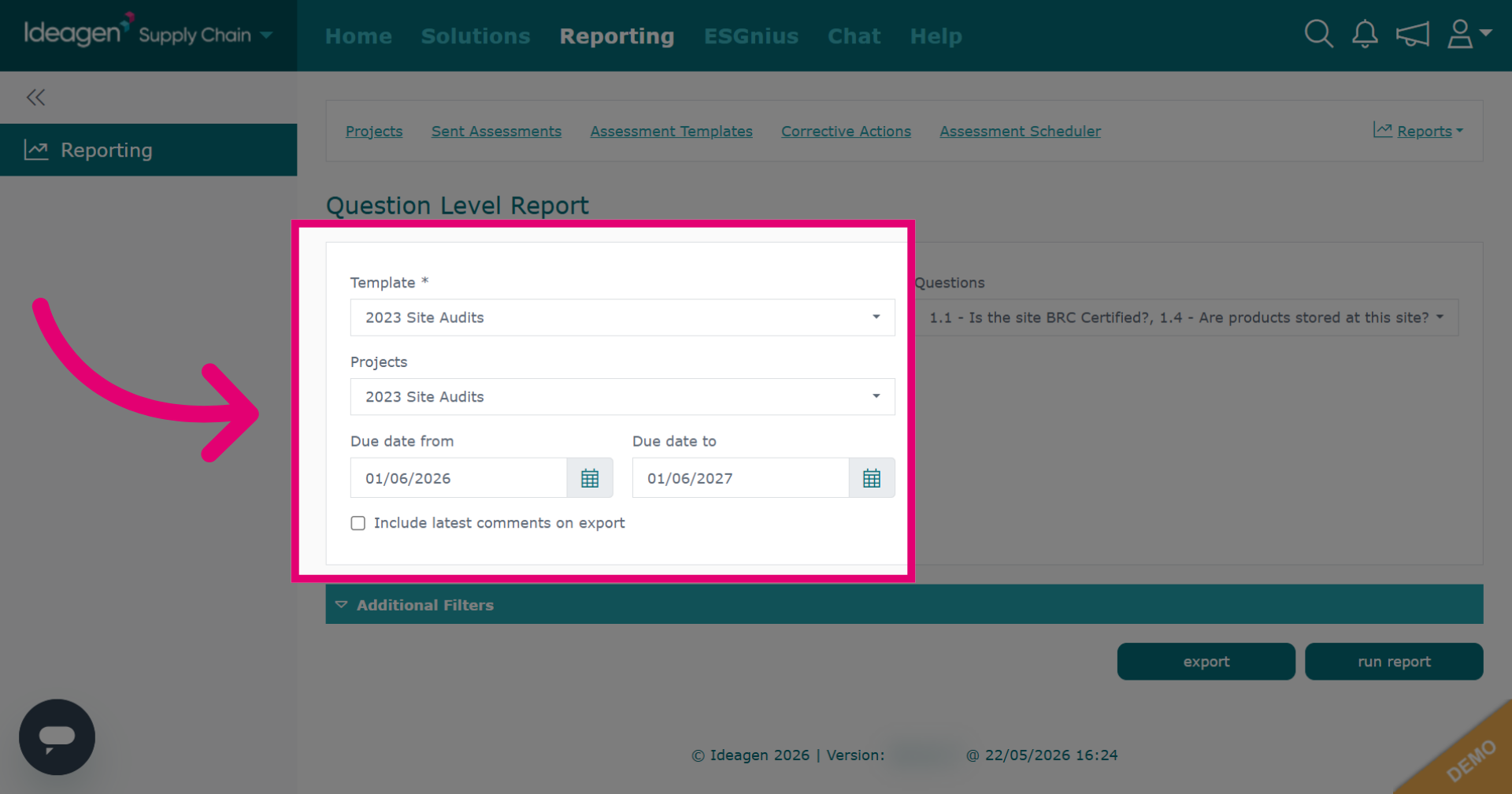
Select which assessment template and project you want to run the report on. You can add a date range if needed.
Select which questions you want to include in the report. Alternatively click Select All to include all of the specified assessment's questions within your report.
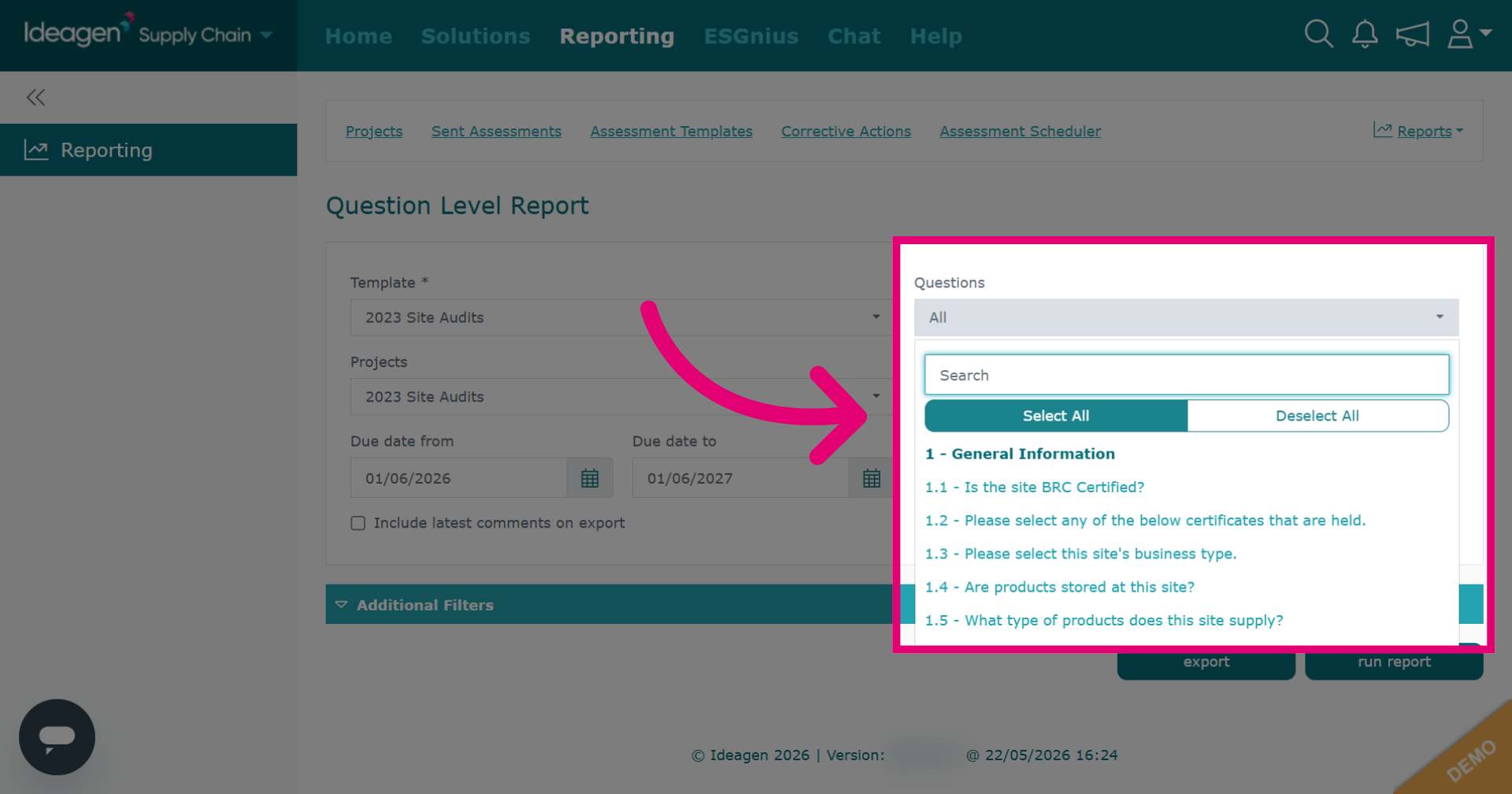
Click Additional Filters to access more filtering options for refining your report data.
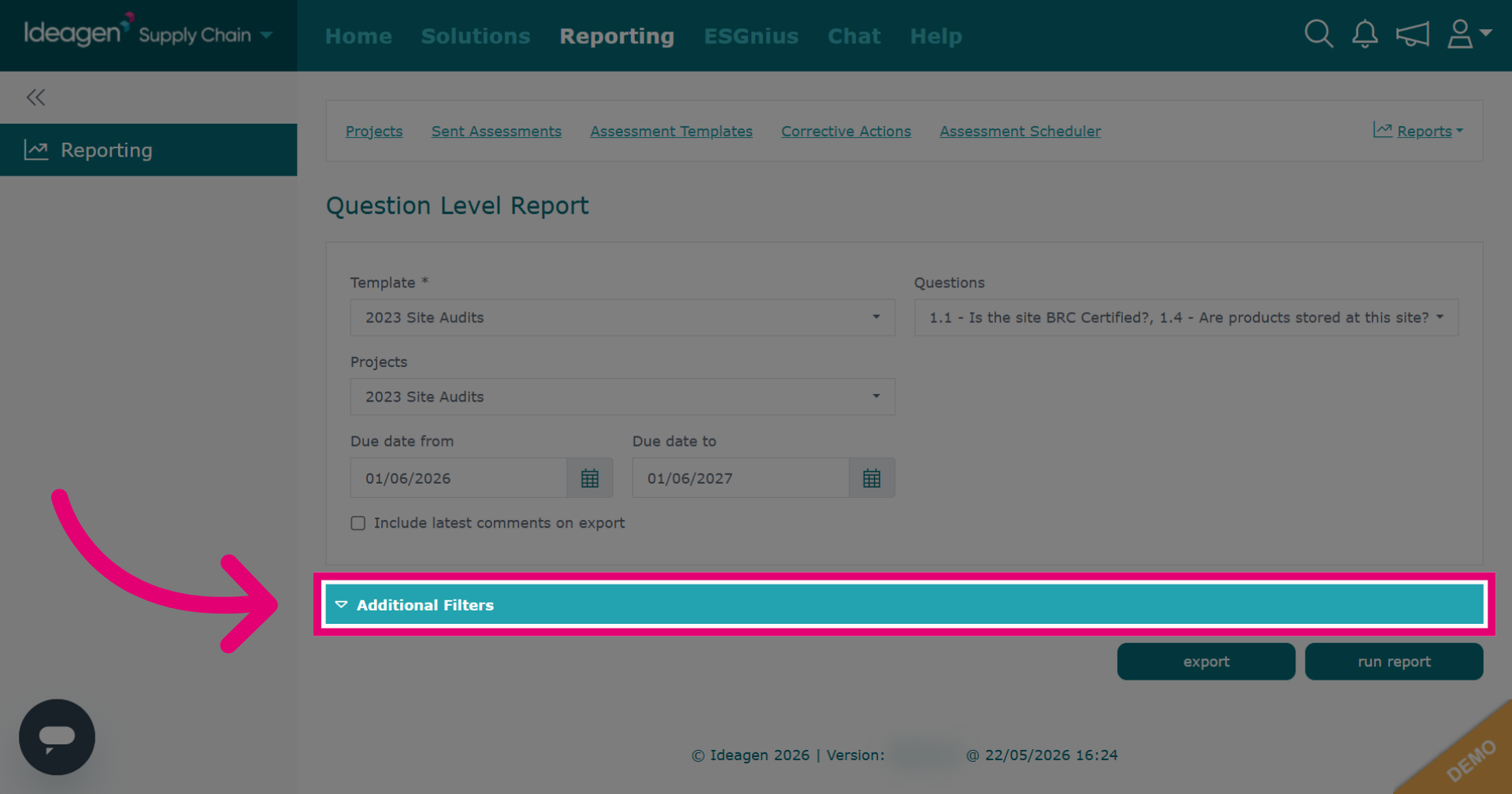
Review the additional filtering options available for the question level report.
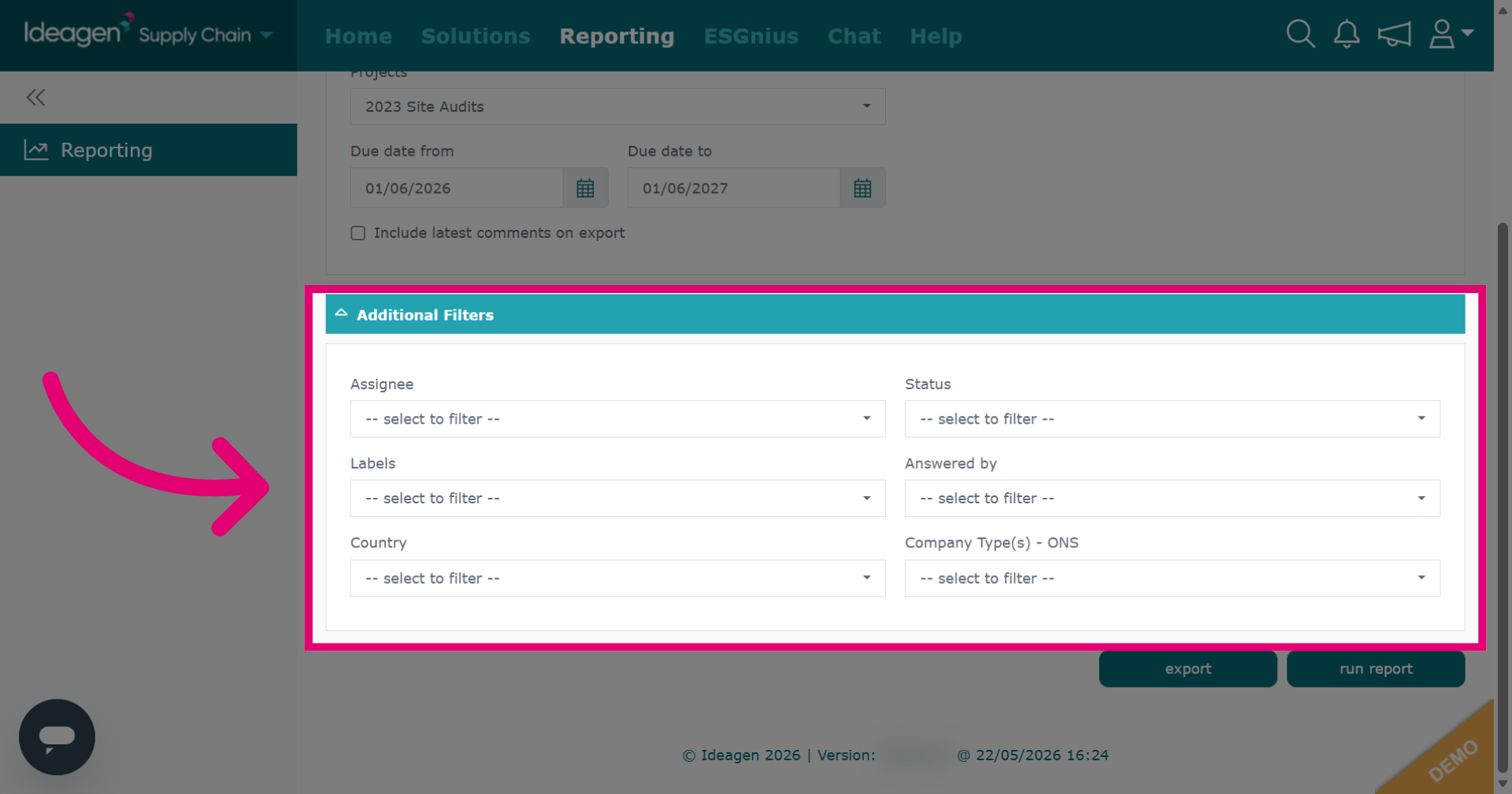
Click Run Report to show the report on screen. Click Export to show the report in an Excel spreadsheet.
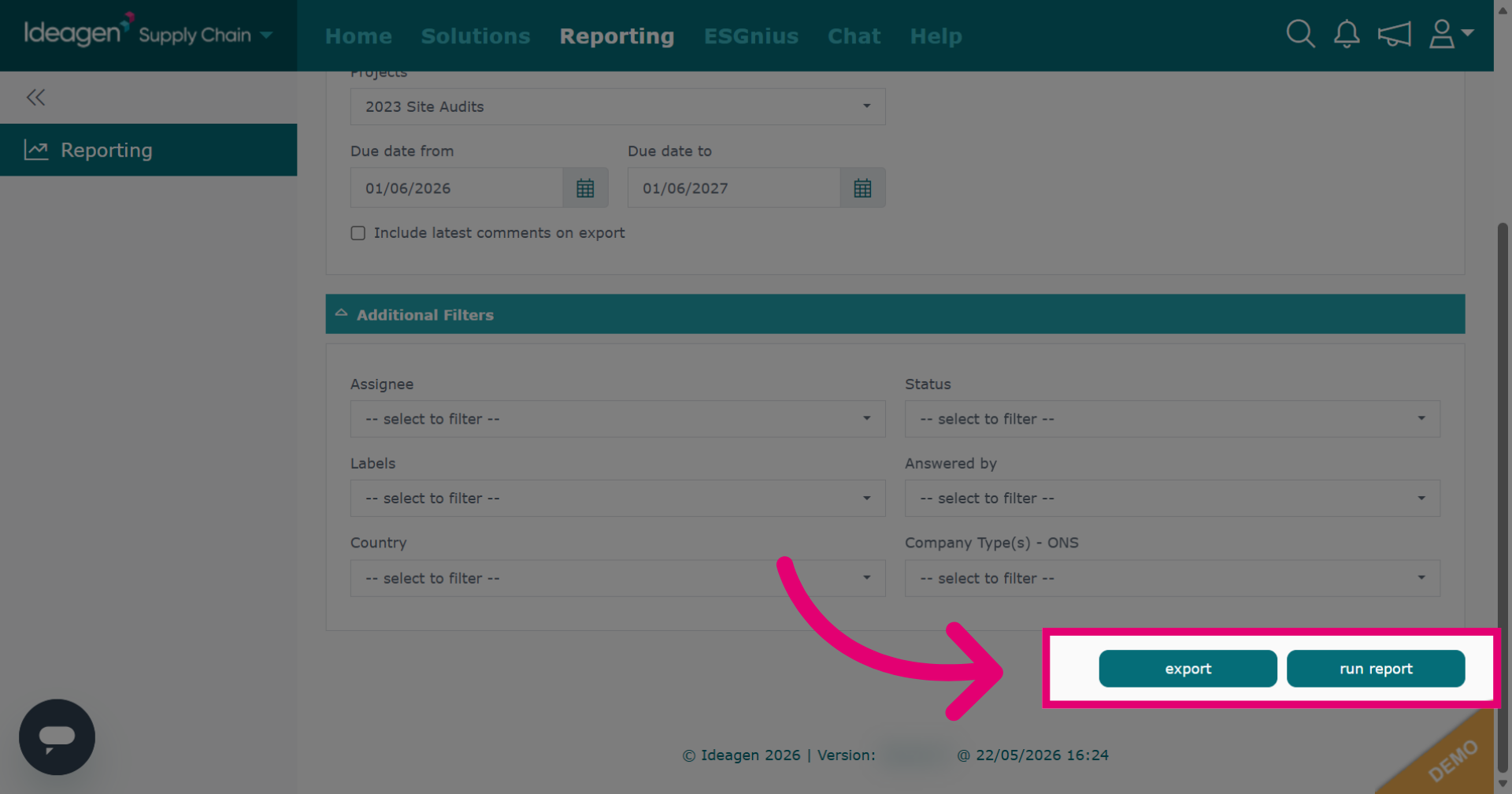
View the report results which drill down into assessment data at a question level.
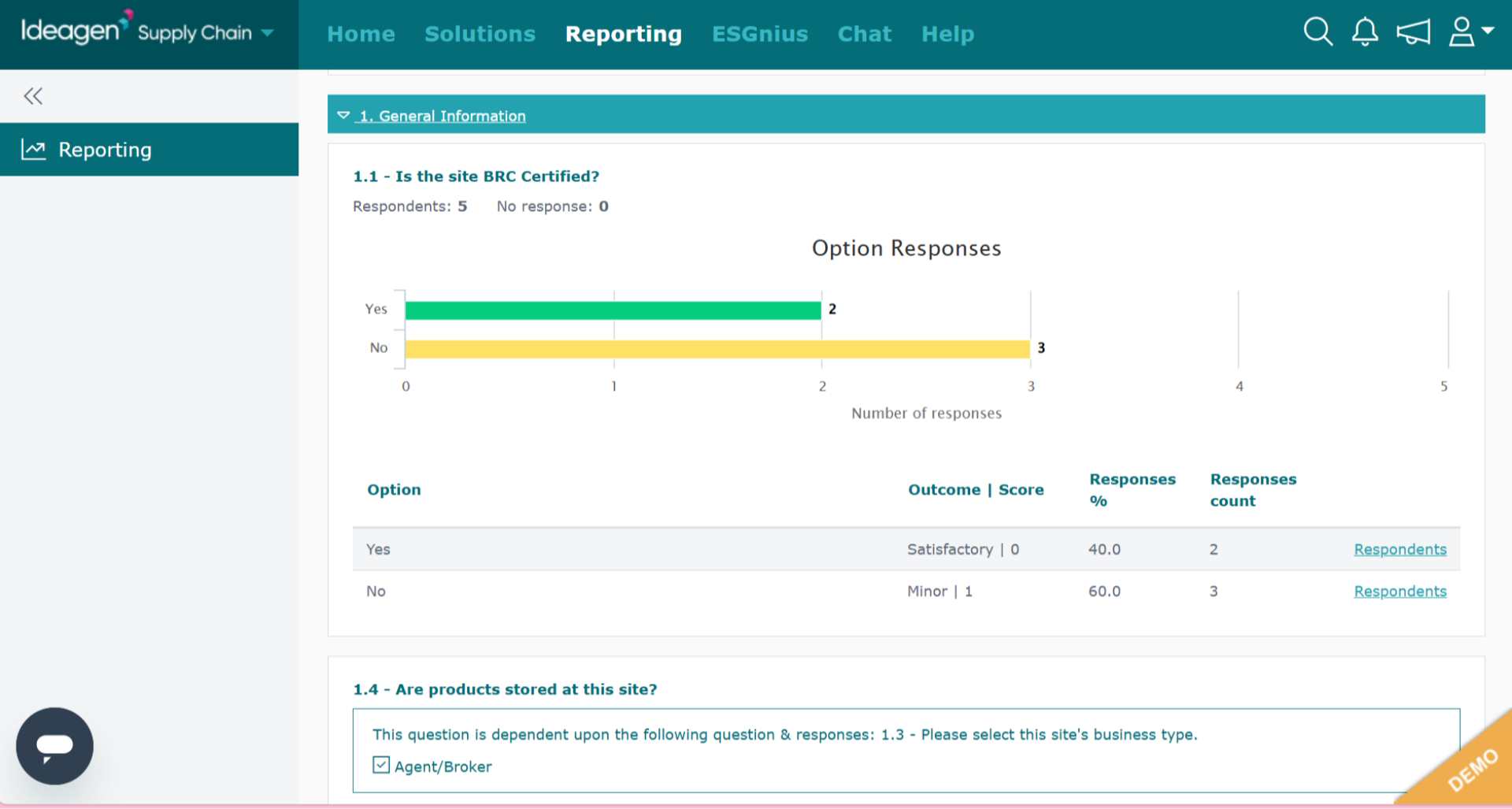
Click Assessment Outcome Report to create a report based on assessment outcomes received for questions such as excellent, minor, major, critical, etc.
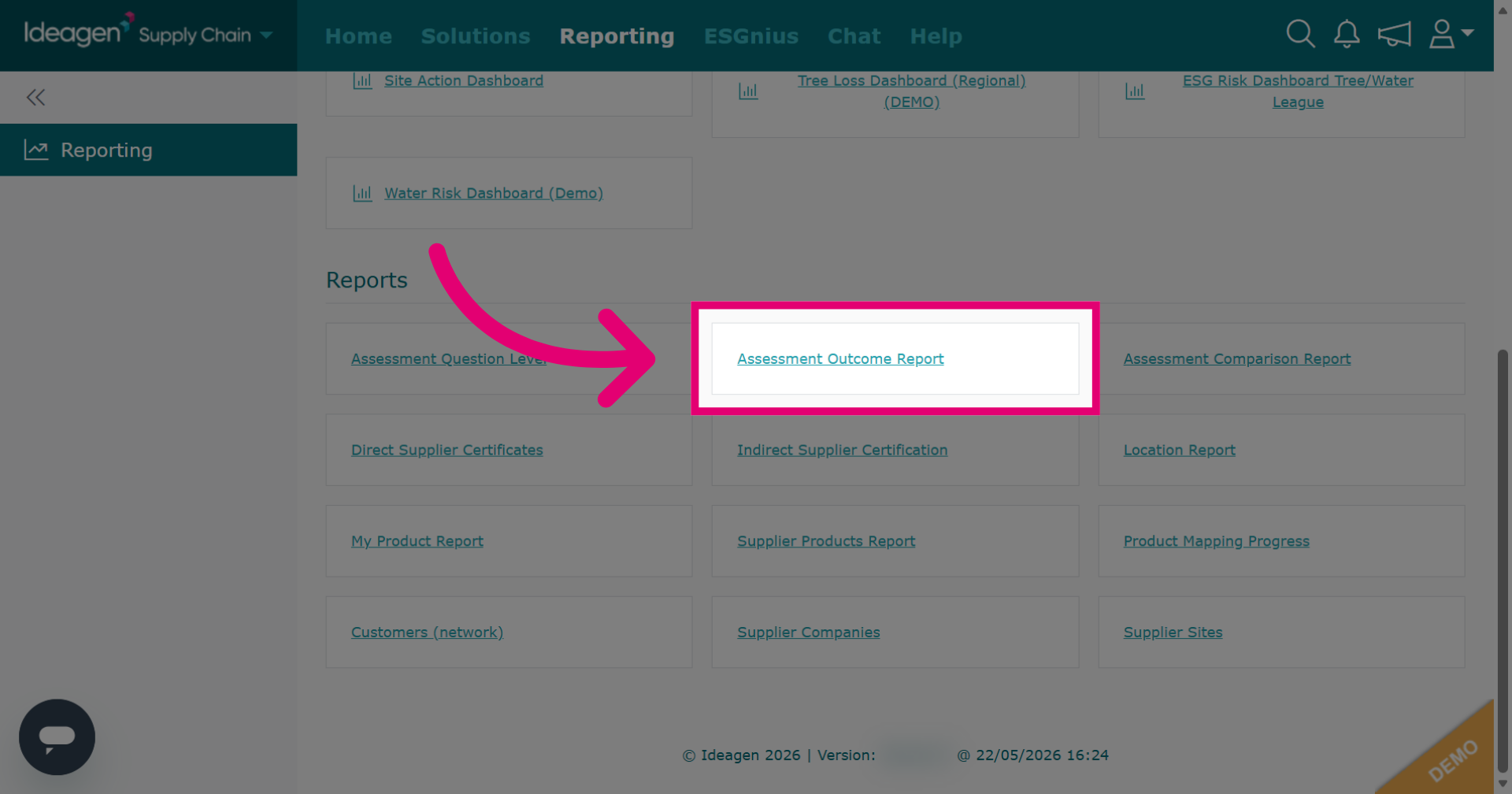
Select the assessment template you want to run the report on. Optionally, you can also select a specific section or specific questions within a section.
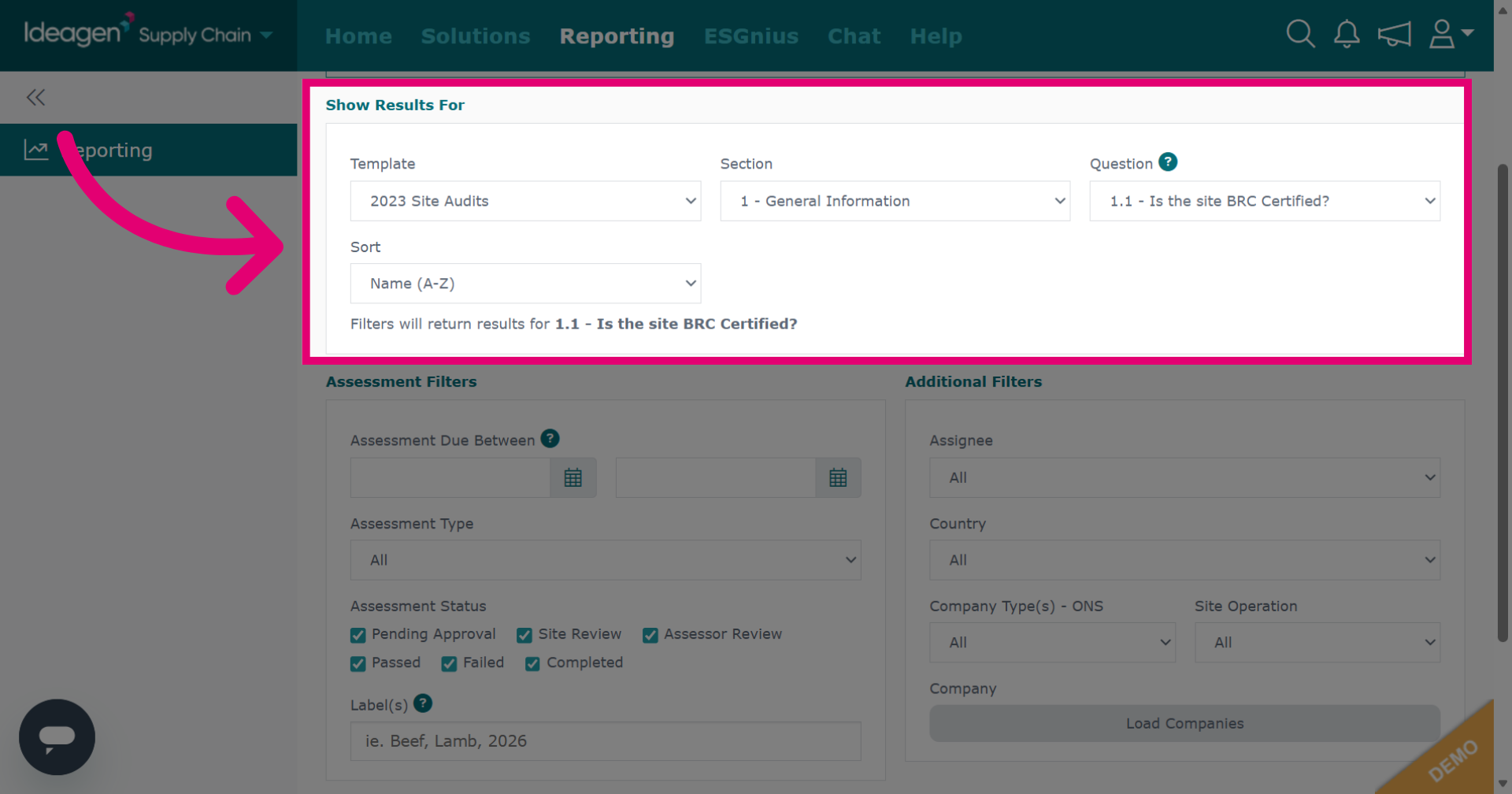
Input information into additional filters to access more filtering options for refining your report data.
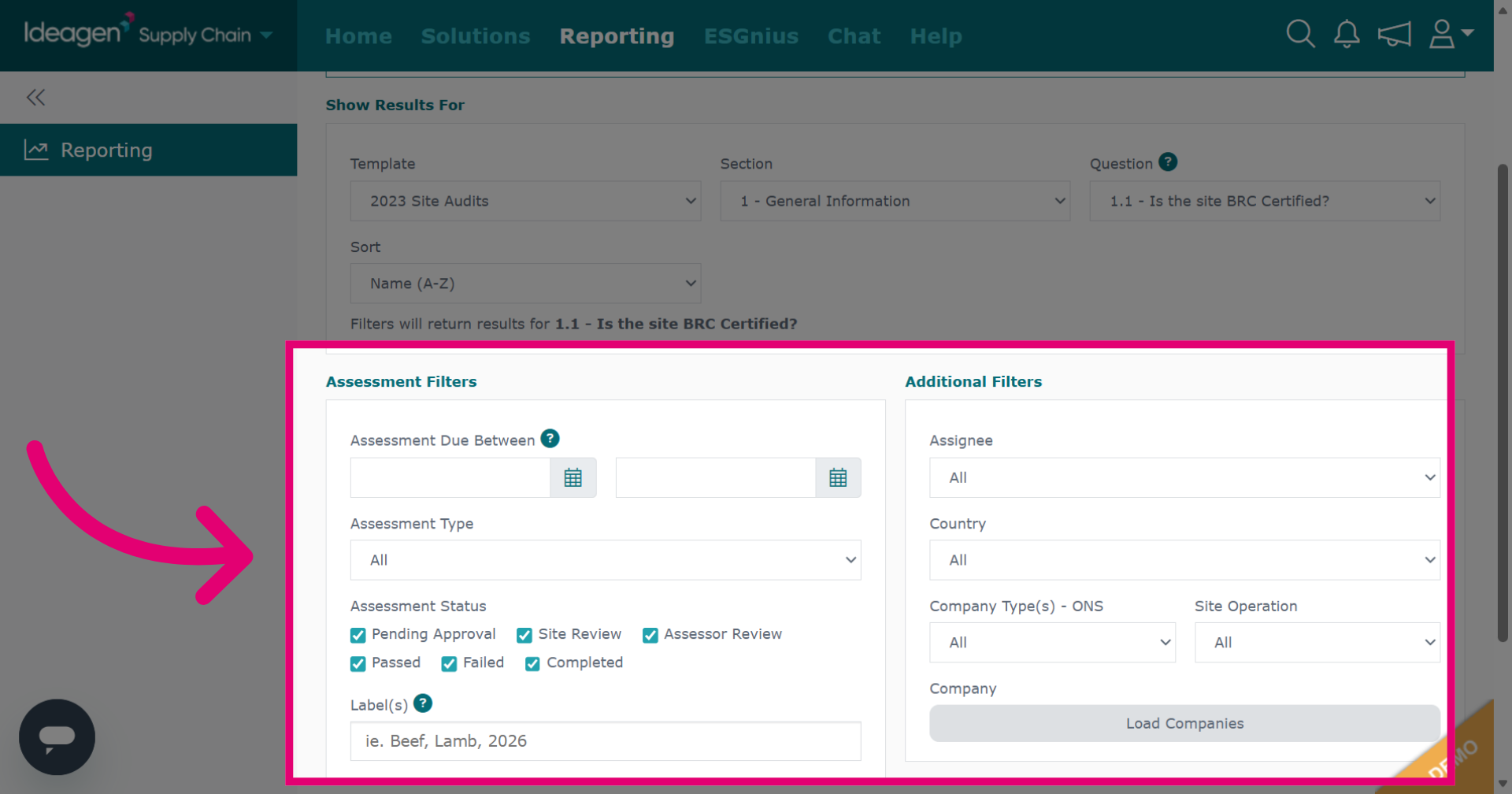
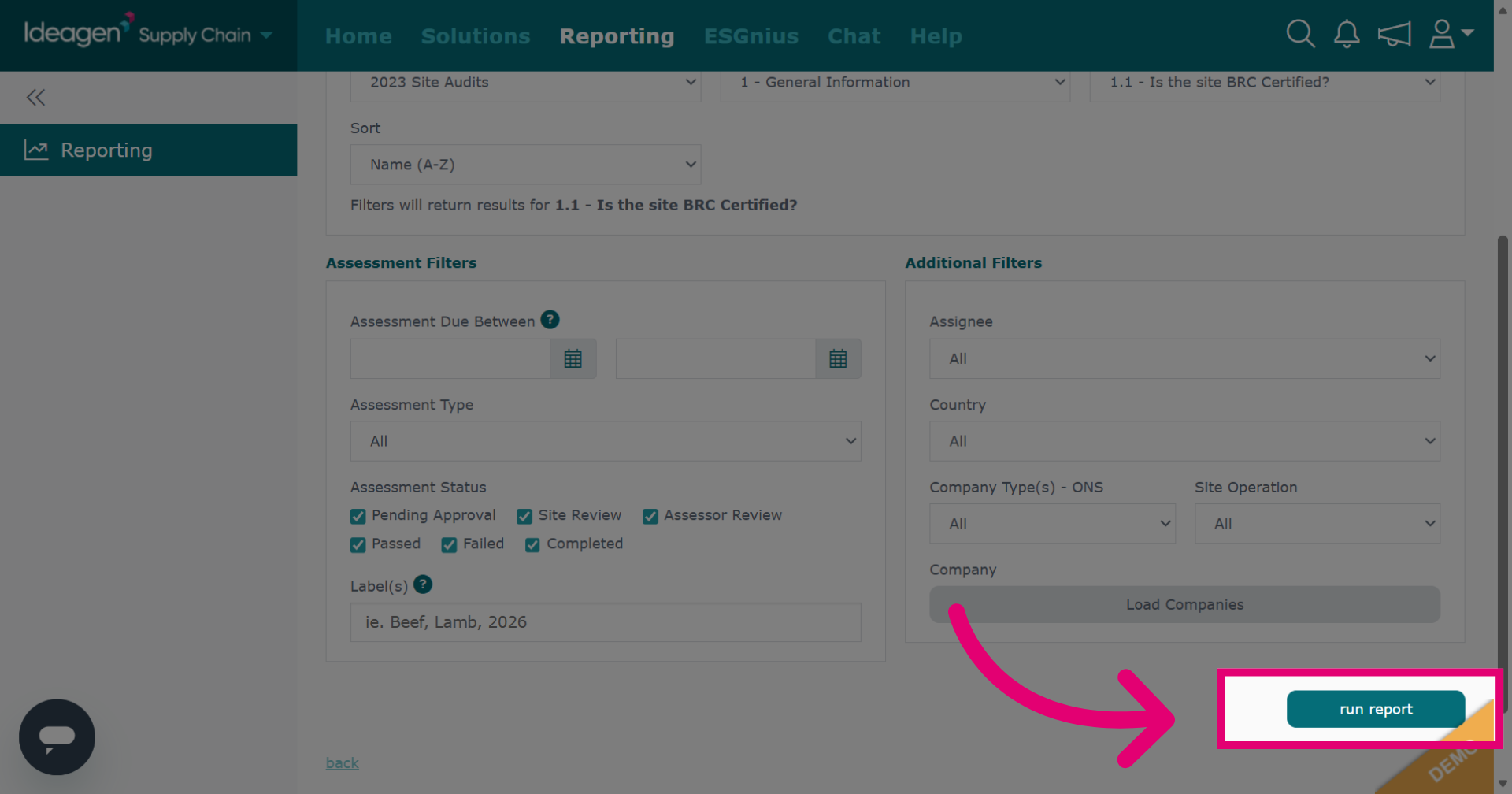
Click Run Report to generate your report.
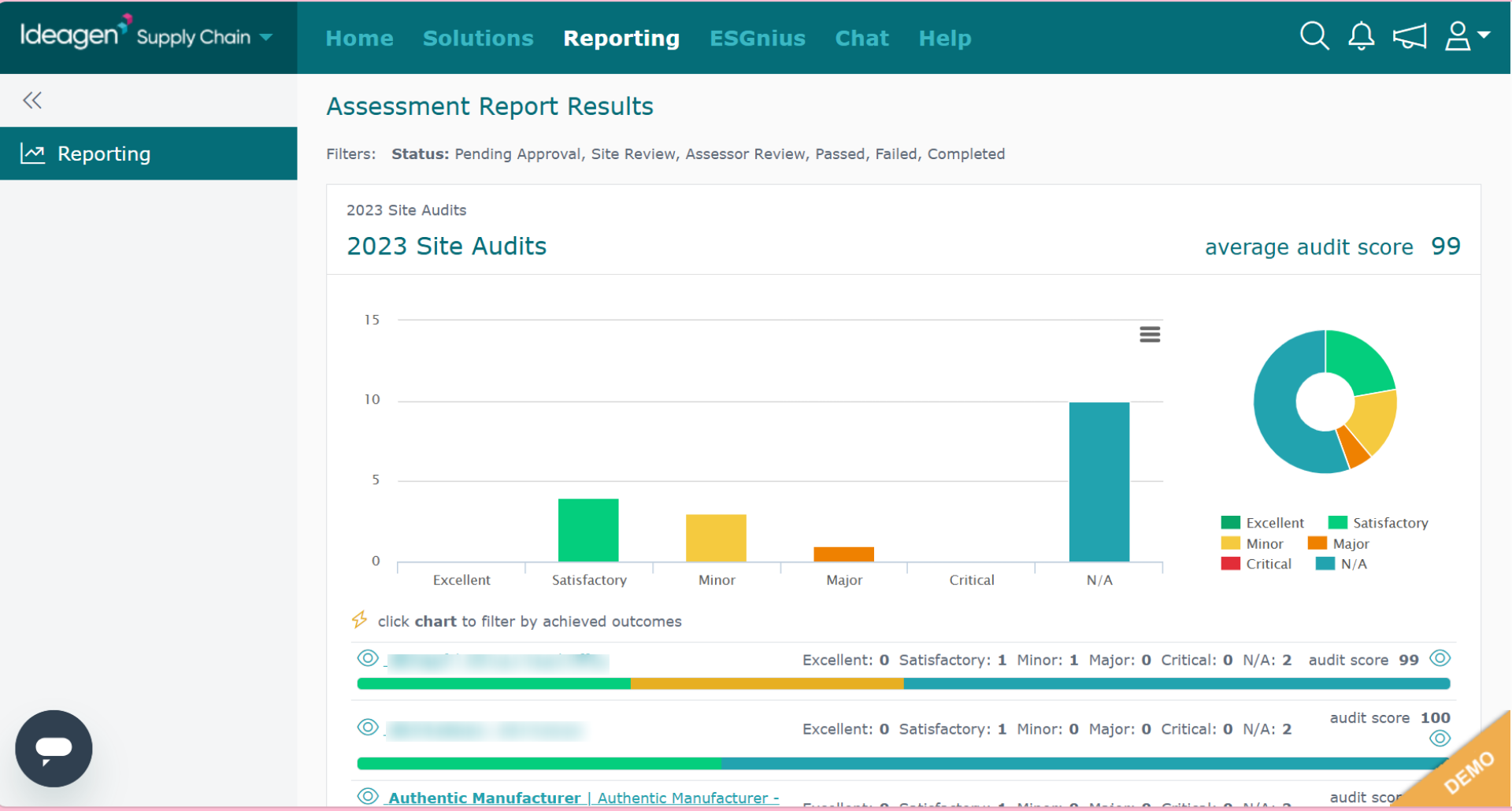
Review the report results showing each supplier who has completed the assessment's various outcomes.
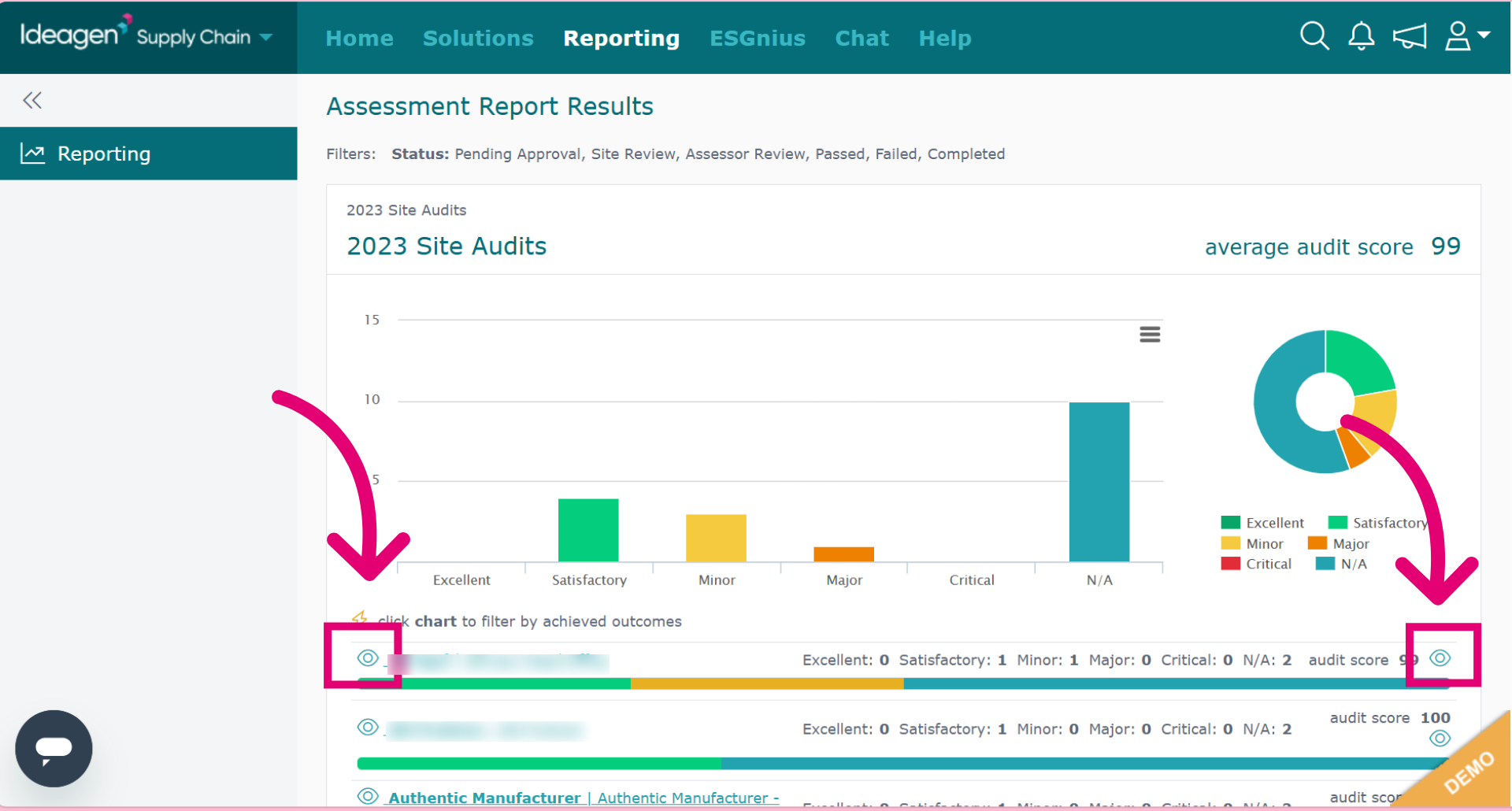
Click the eye icon on the left to view the individual assessment details. Click the eye icon on the right to view the assessment's individual scorecard.
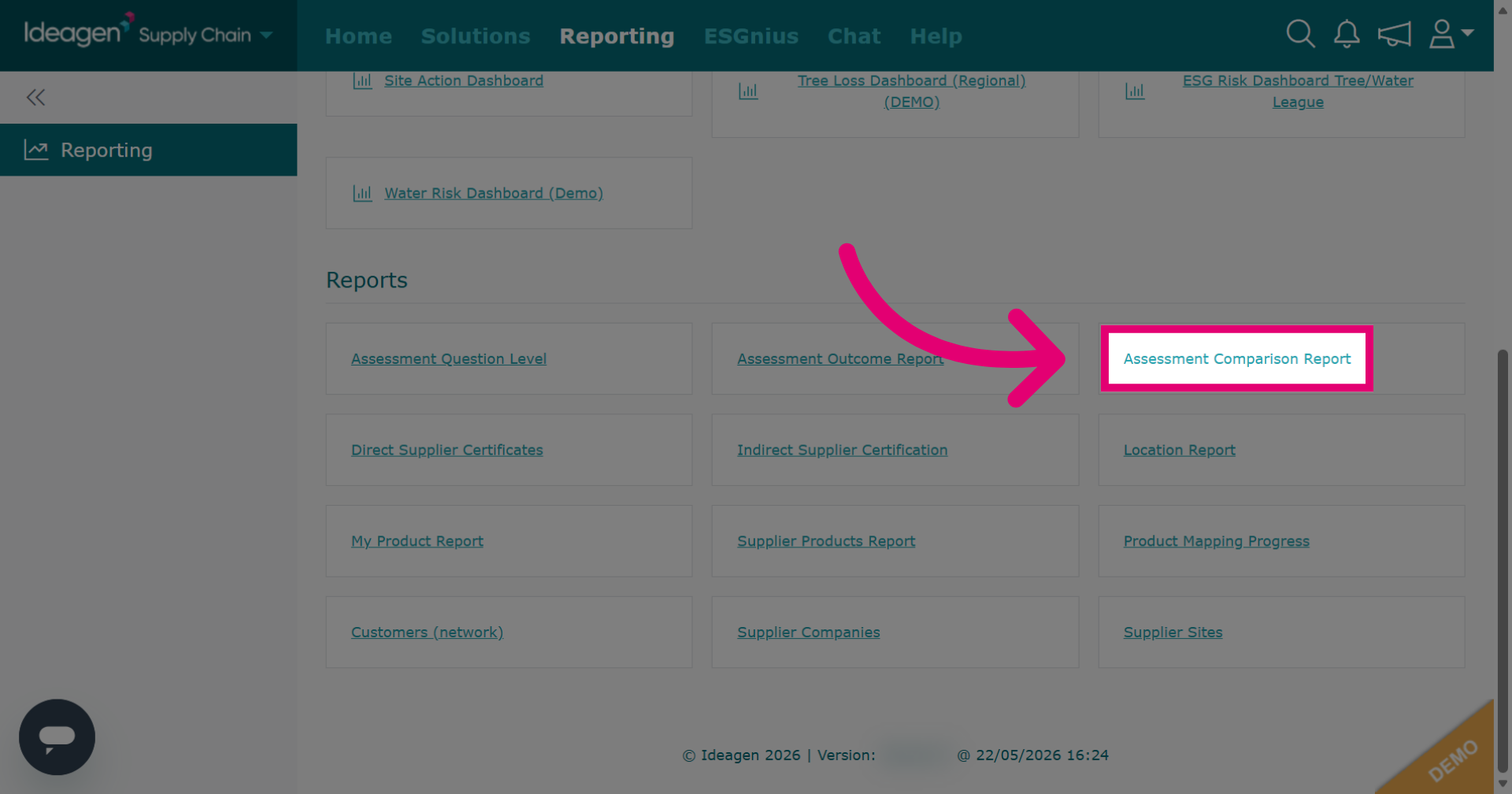
Click Assessment Comparison Report to compare assessment results from a specified template.
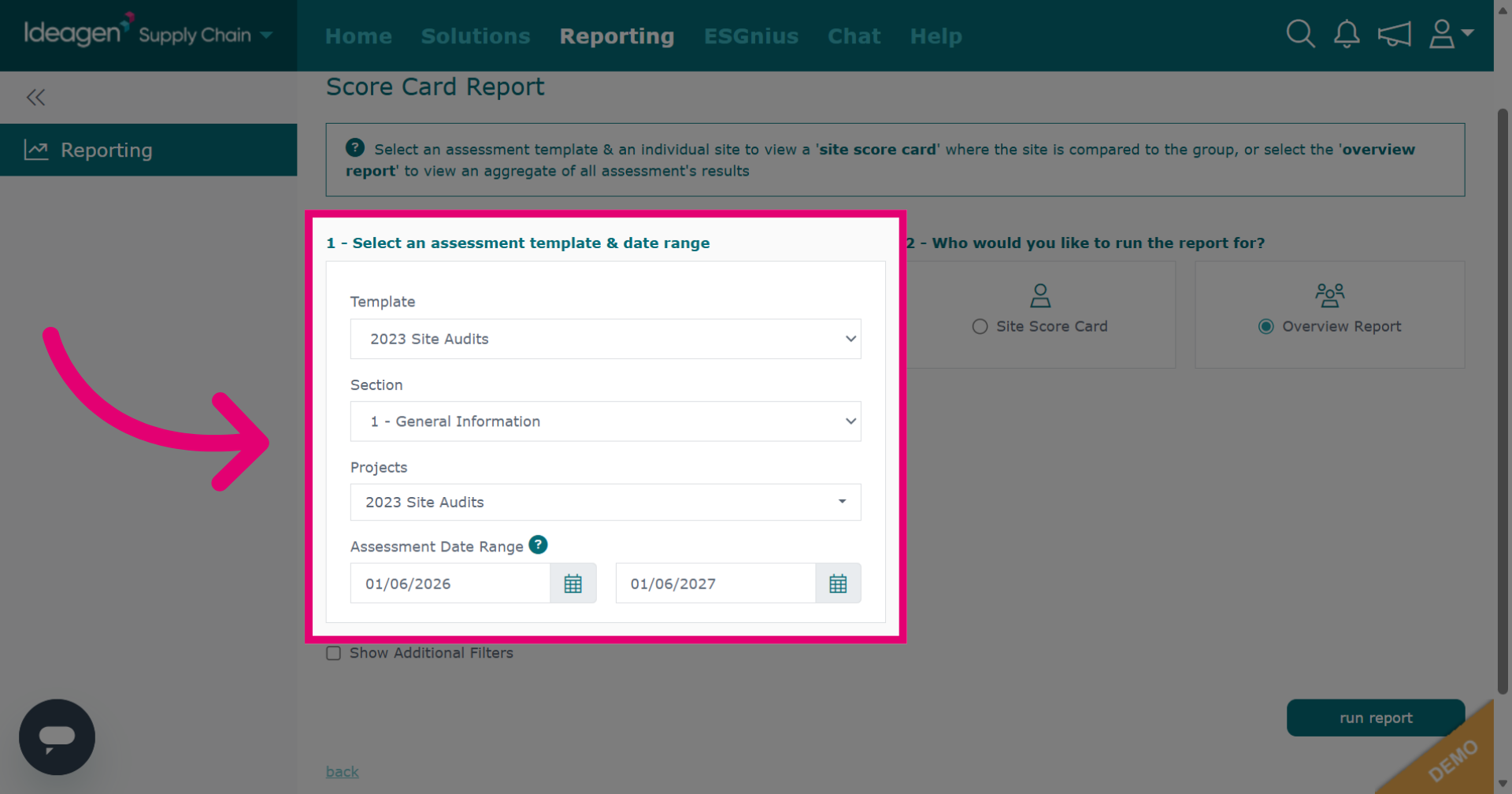
Select a template and date range.
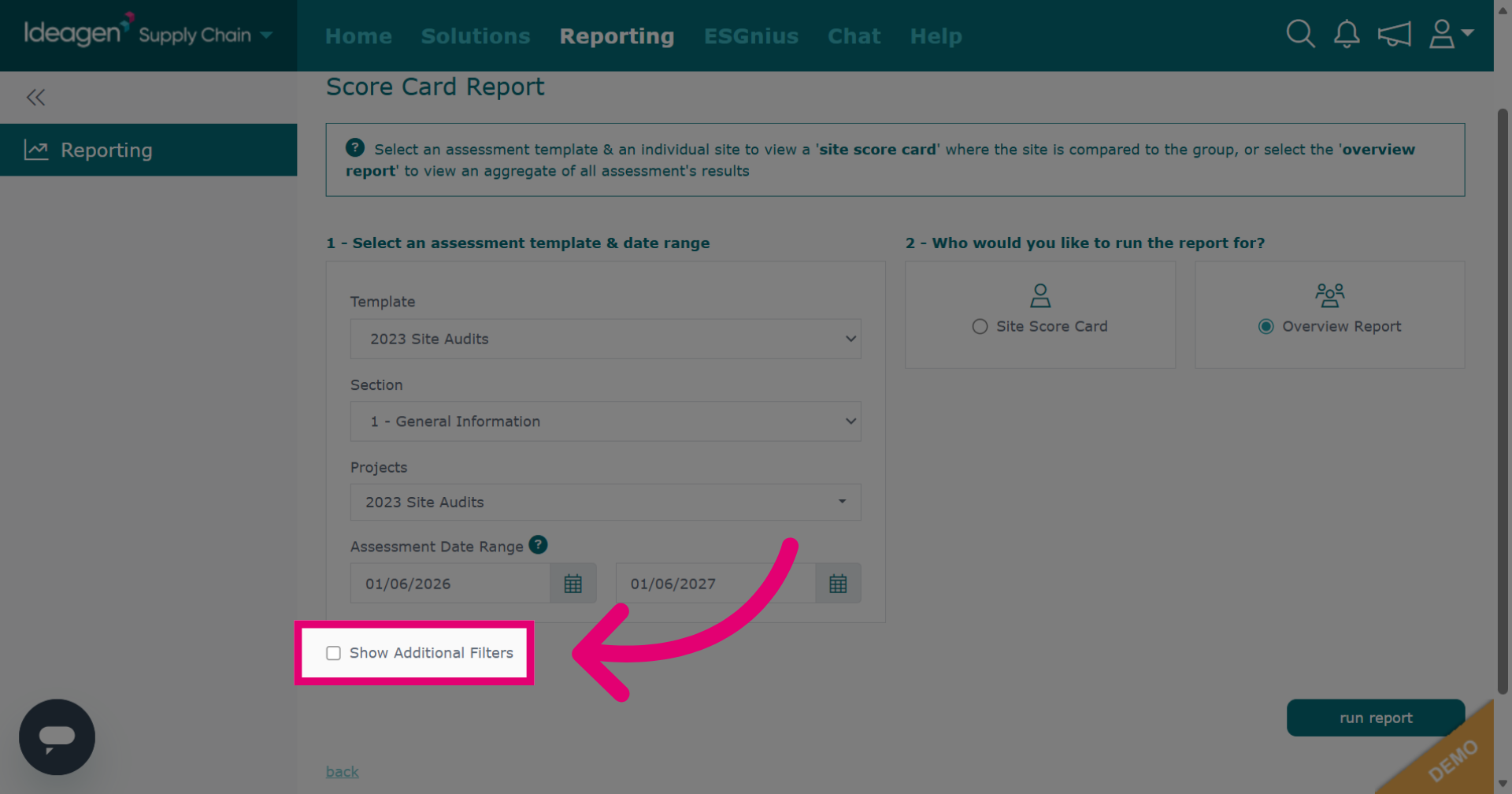
Click Show Additional Filters to reveal more options for refining your comparison report.
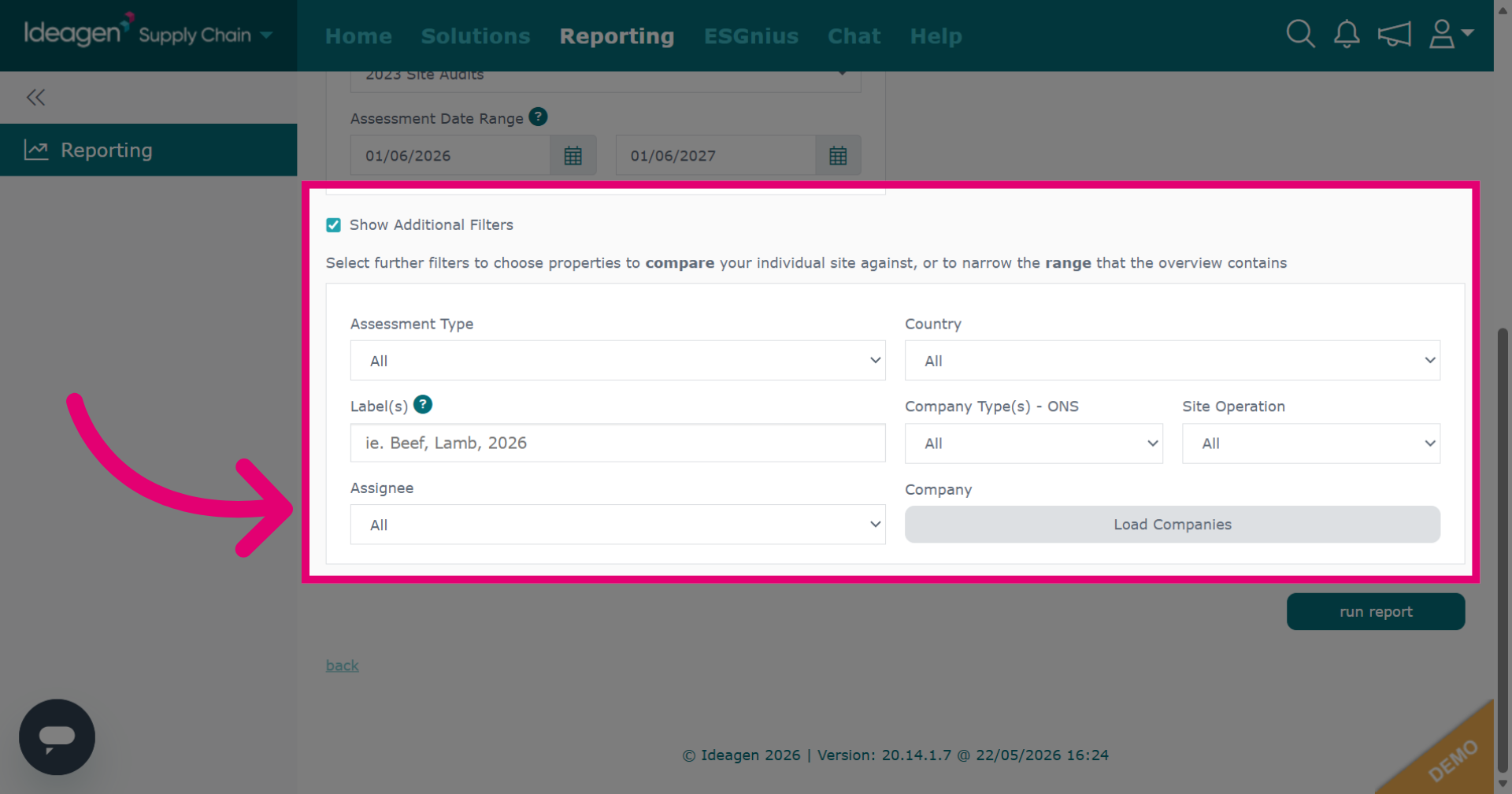
Input information into additional filters to access more filtering options for refining your report data.
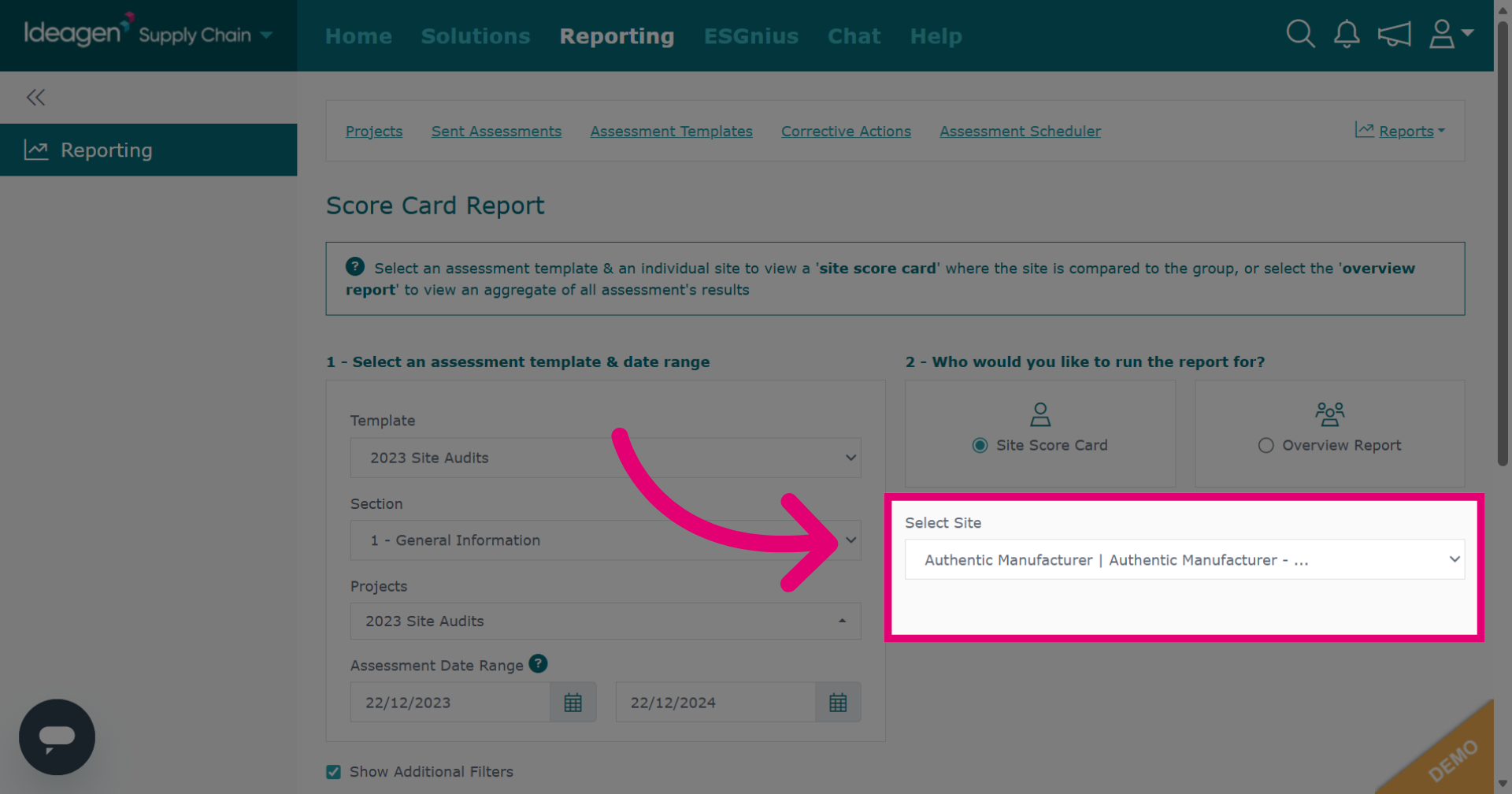
Select whether you want to compare by a specific site's scorecard or an overview of all suppliers who have completed the assessment.
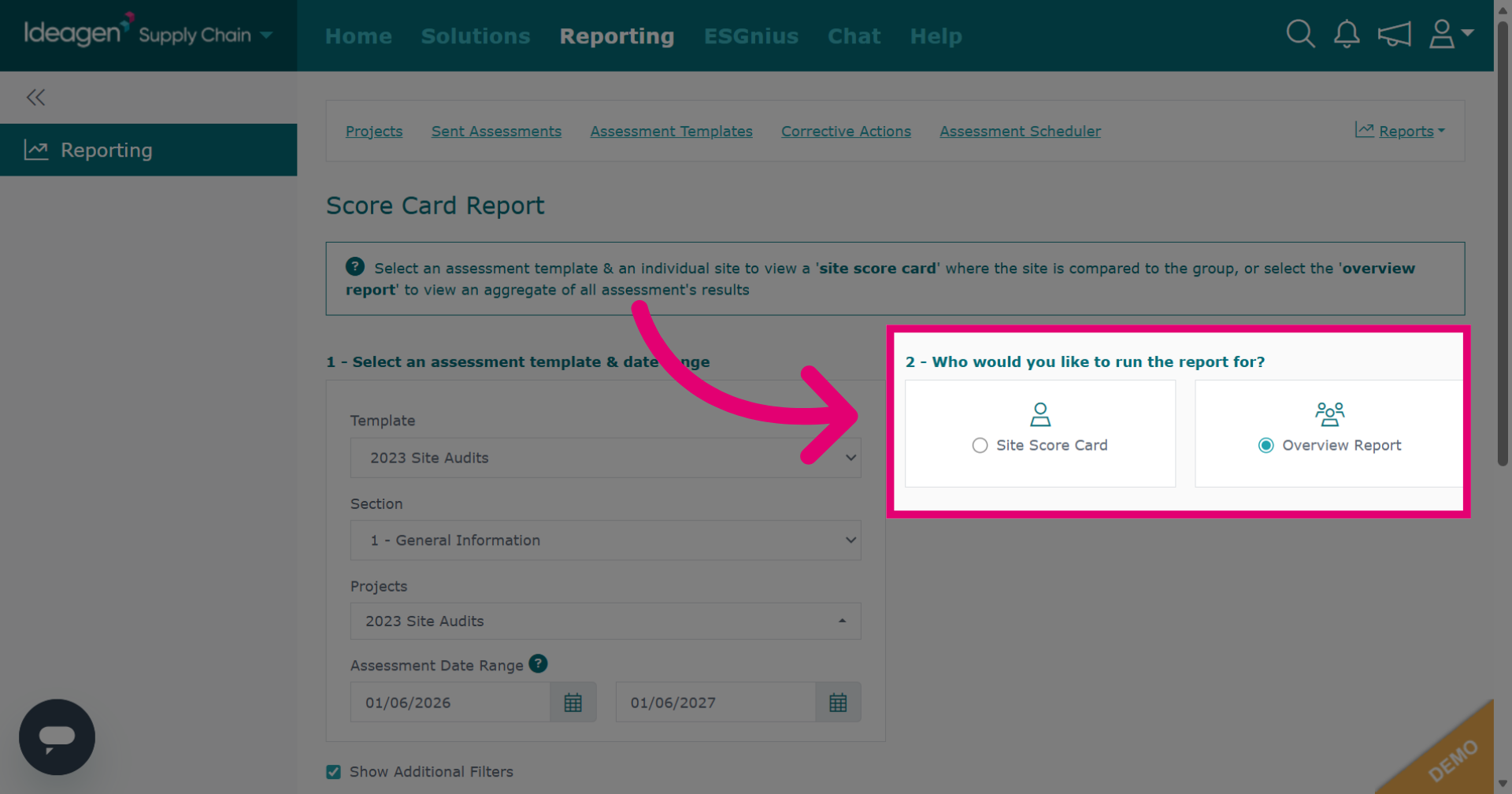
If you select Site Score Card you will need to pick a site from the drop down options. This will then show the selected supplier's results compared to all results procured from the selected template. If you choose the Overview Report option, the report will compare all results from all suppliers who have submitted an assessment using this template.
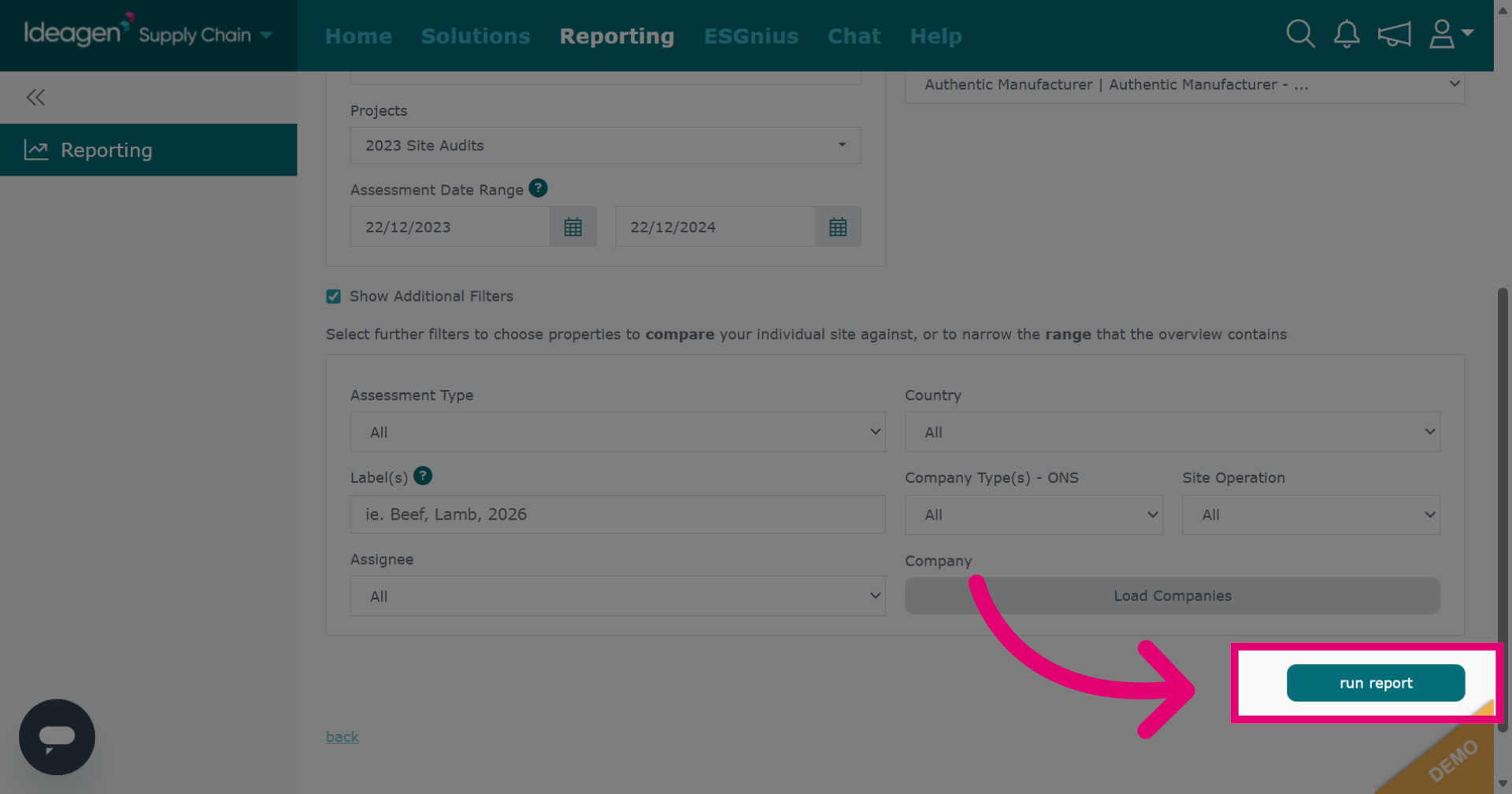
Click Run Report to generate the comparison report.
Review the overview report results. If you scroll down it will compare questions contained within the assessment also.
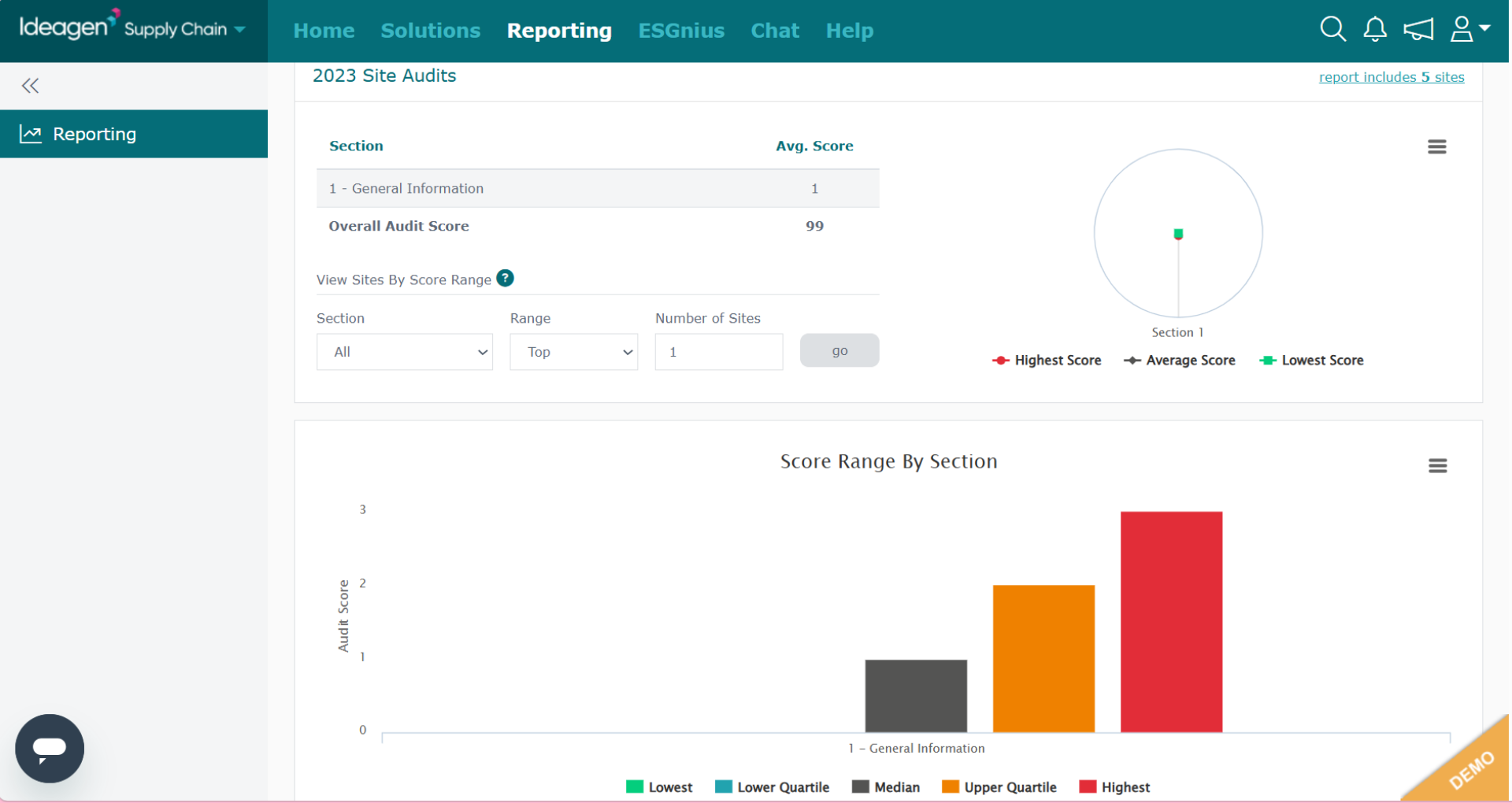
Review the site score card results. If you scroll down it will compare questions contained within the assessment also.