New article
Recently updated
Generating Product and Location Reports - Reporting

Who is this article for?
Users who want to generate product and location reports.
Supply chain admin permissions are required.
This tutorial guides you through generating product and location reports within the Ideagen Supply Chain platform.
You will learn how to access the reporting section, configure report parameters, and export data for analysis.
Generating Reports in the Ideagen Supply Chain Platform
-
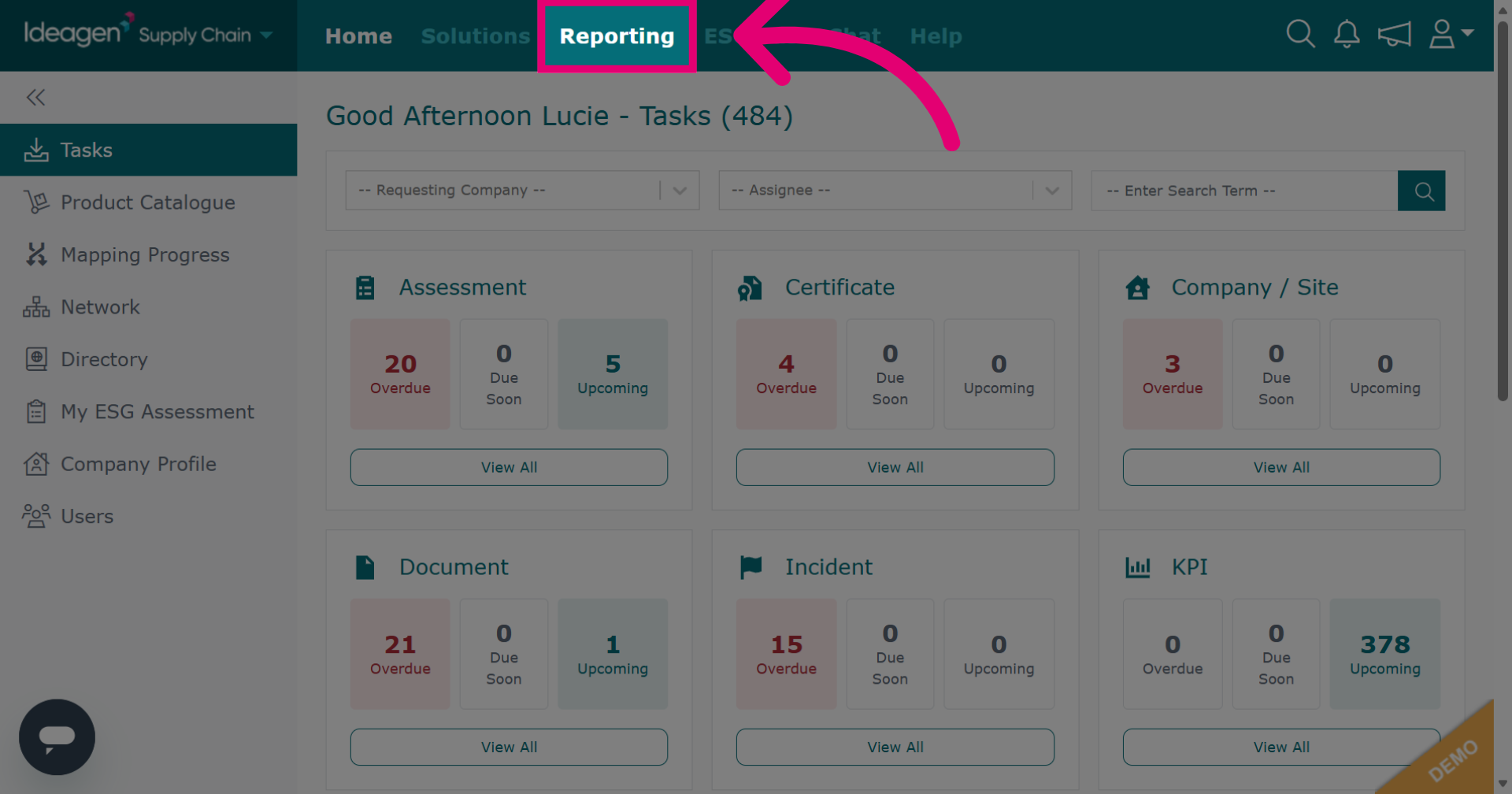
Click Reporting to open the reporting section.
-
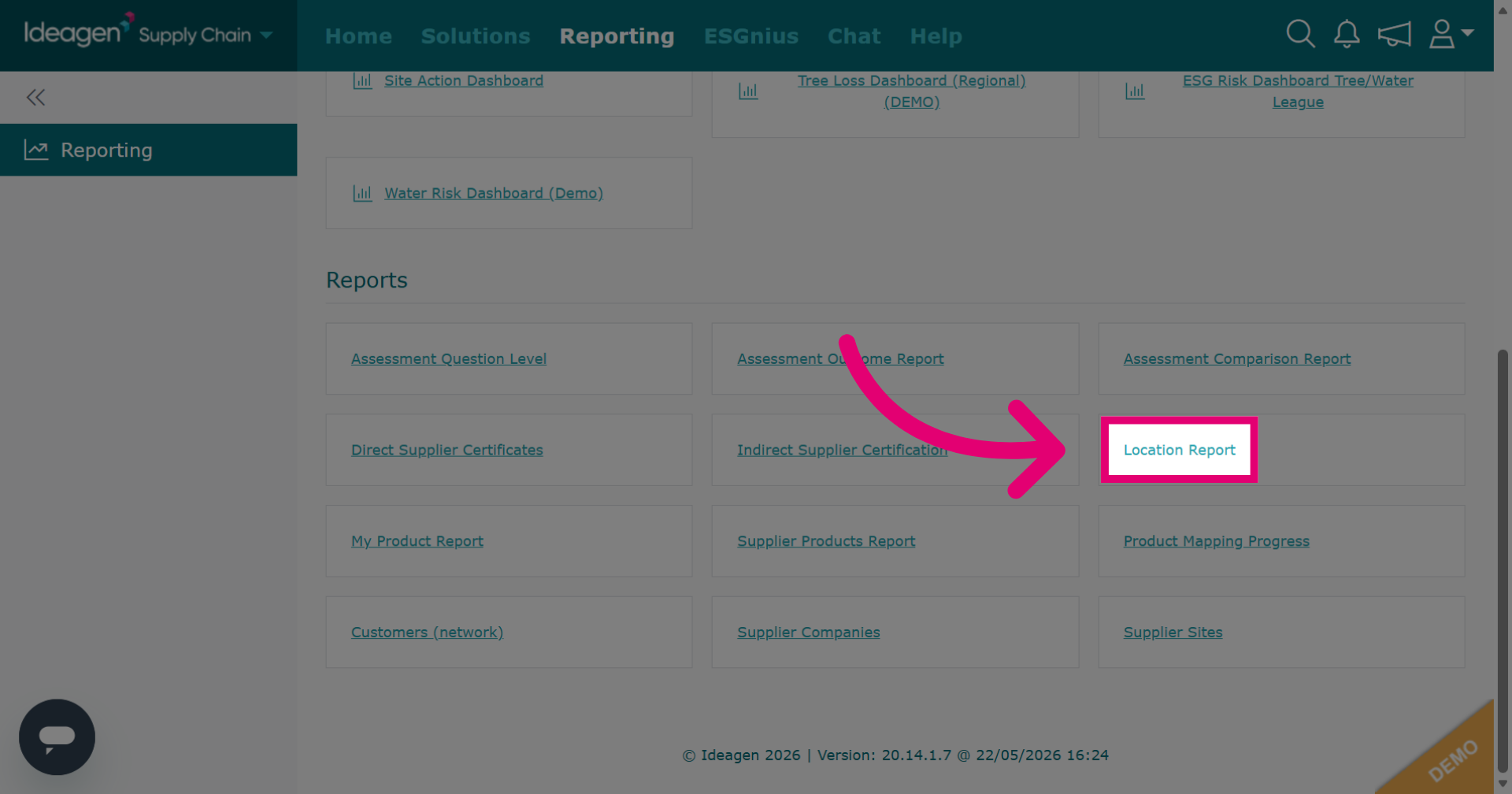
Click Location Report to generate a report based on supplier locations and geographic data.
-
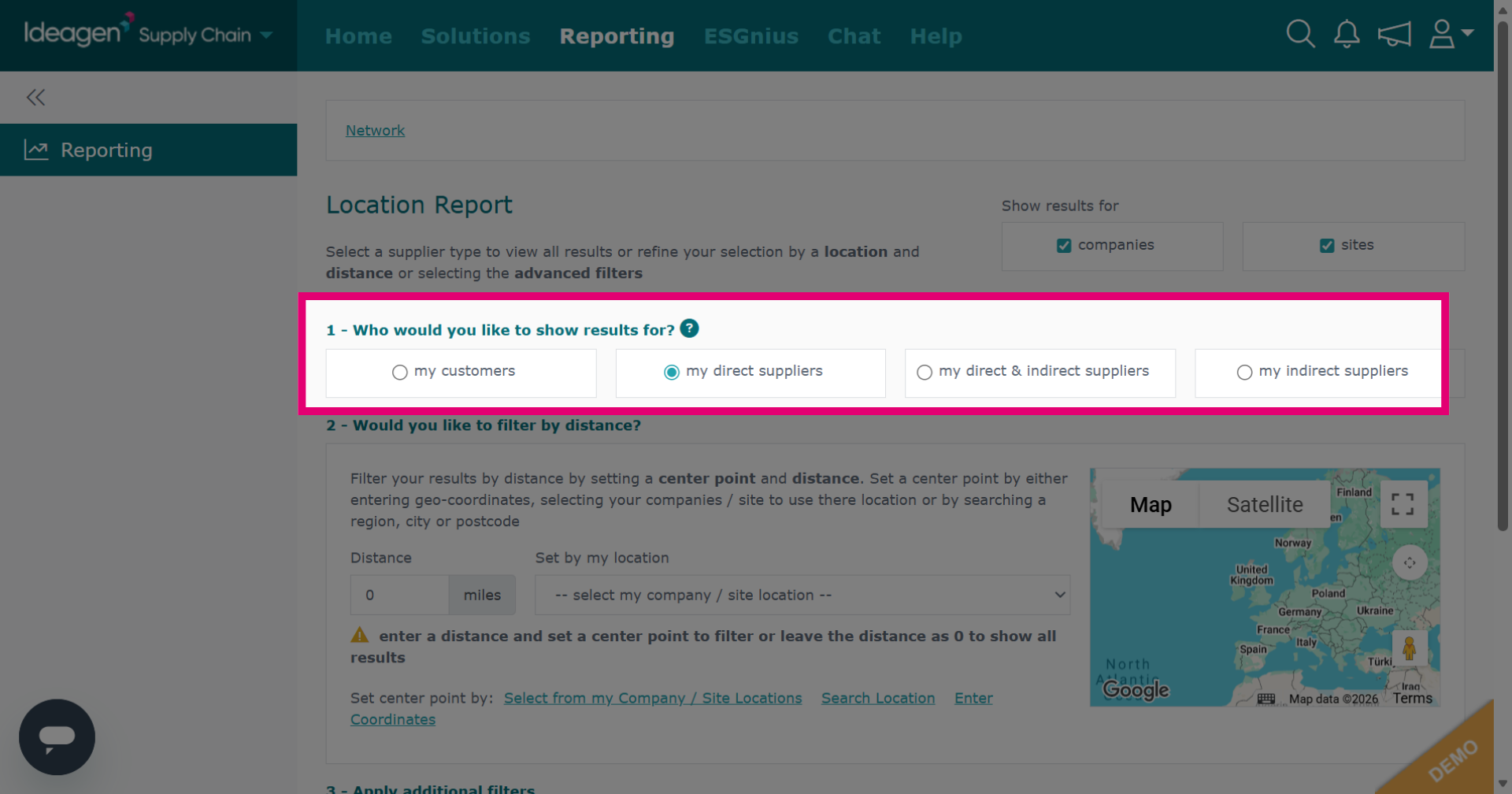
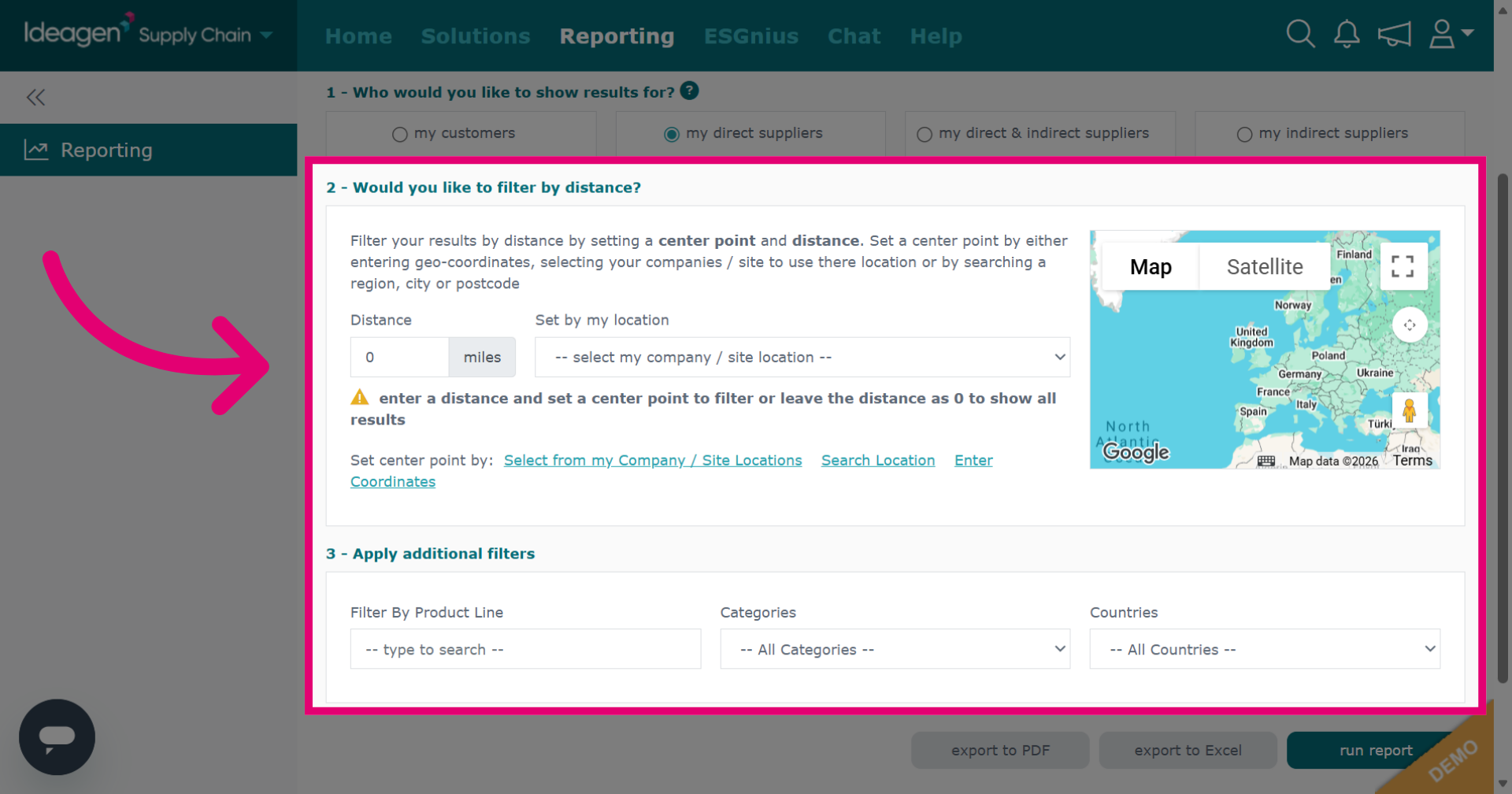
Select which area of your network you wish to view results for: customers, direct suppliers, indirect suppliers, or both direct and indirect suppliers.
-
Input the relevant information you wish to include within the report.
-
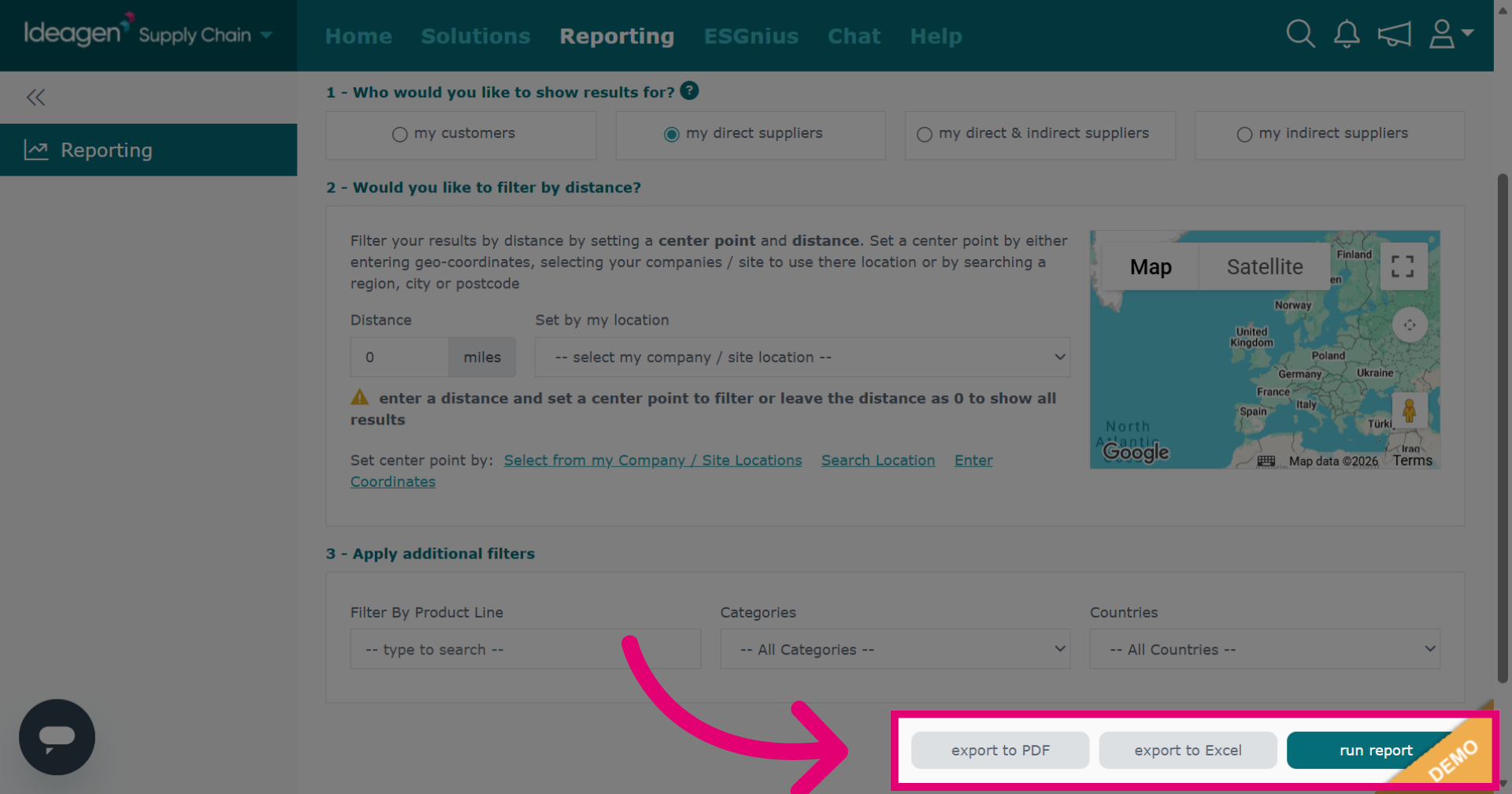
Click Run Report to run the report and view it in the platform. Click one of the export options to view the report externally.
-
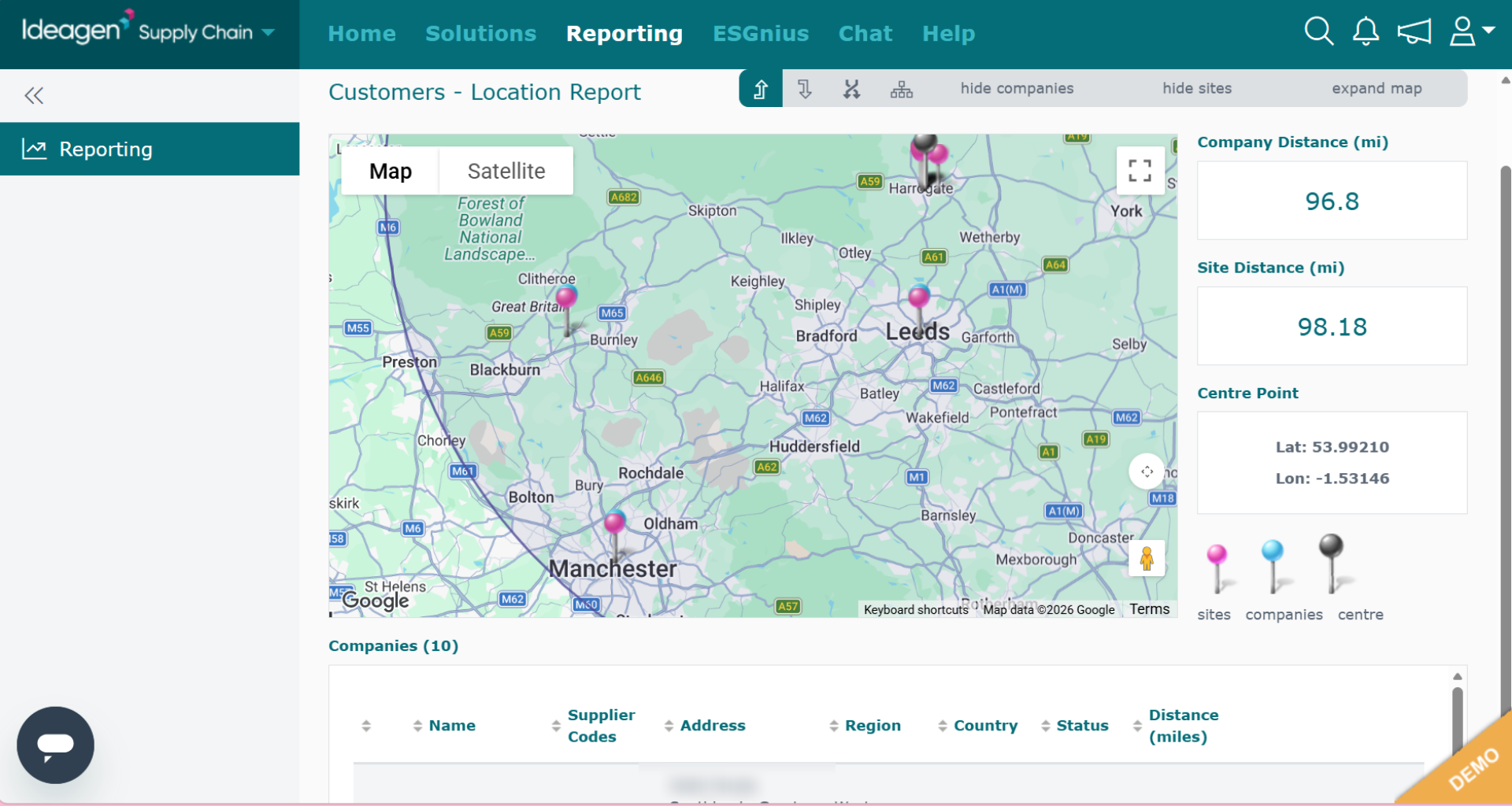
This is what the location report will look like.
-
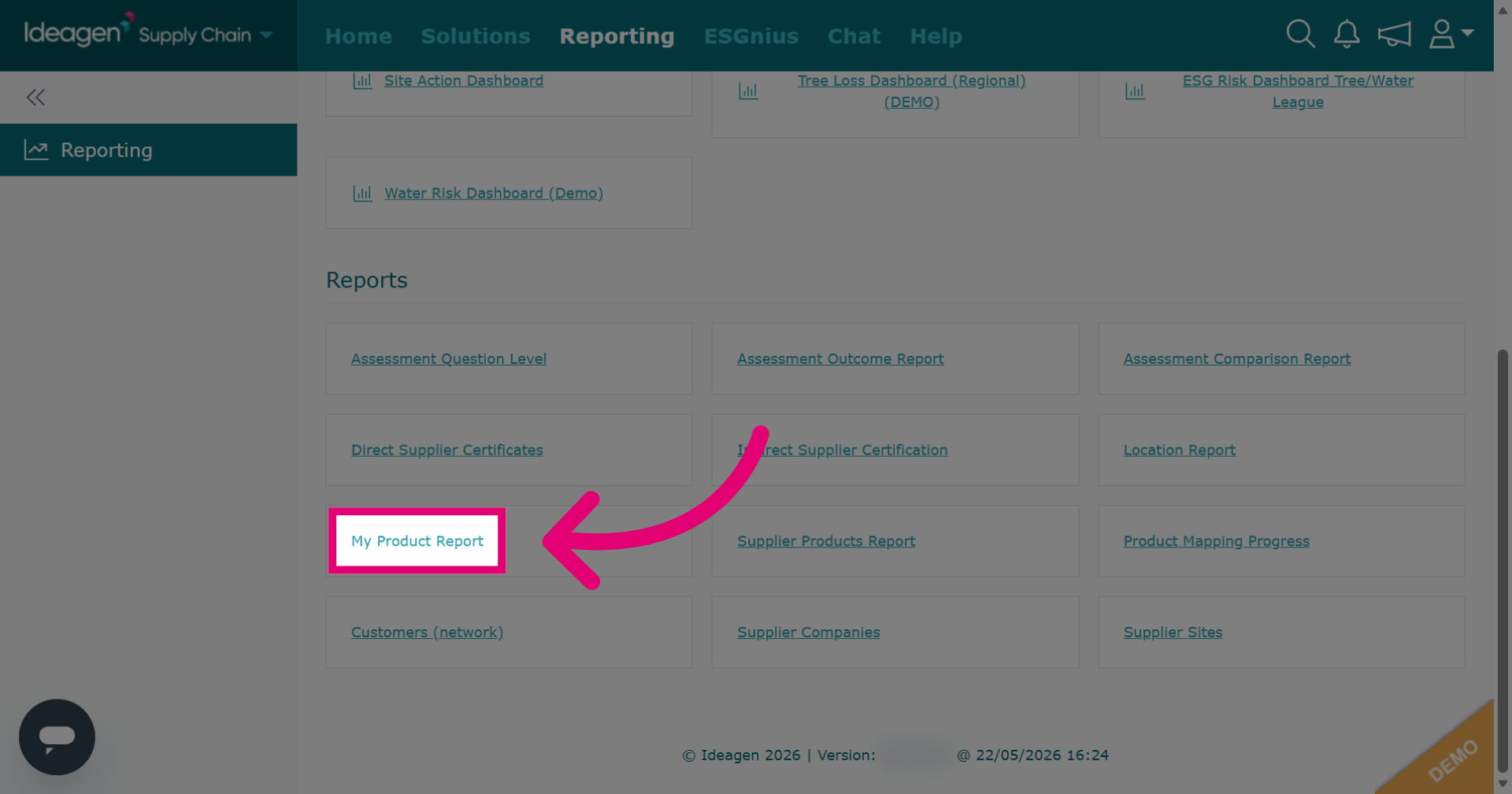
Click My Product Report to generate a report on your products.
-
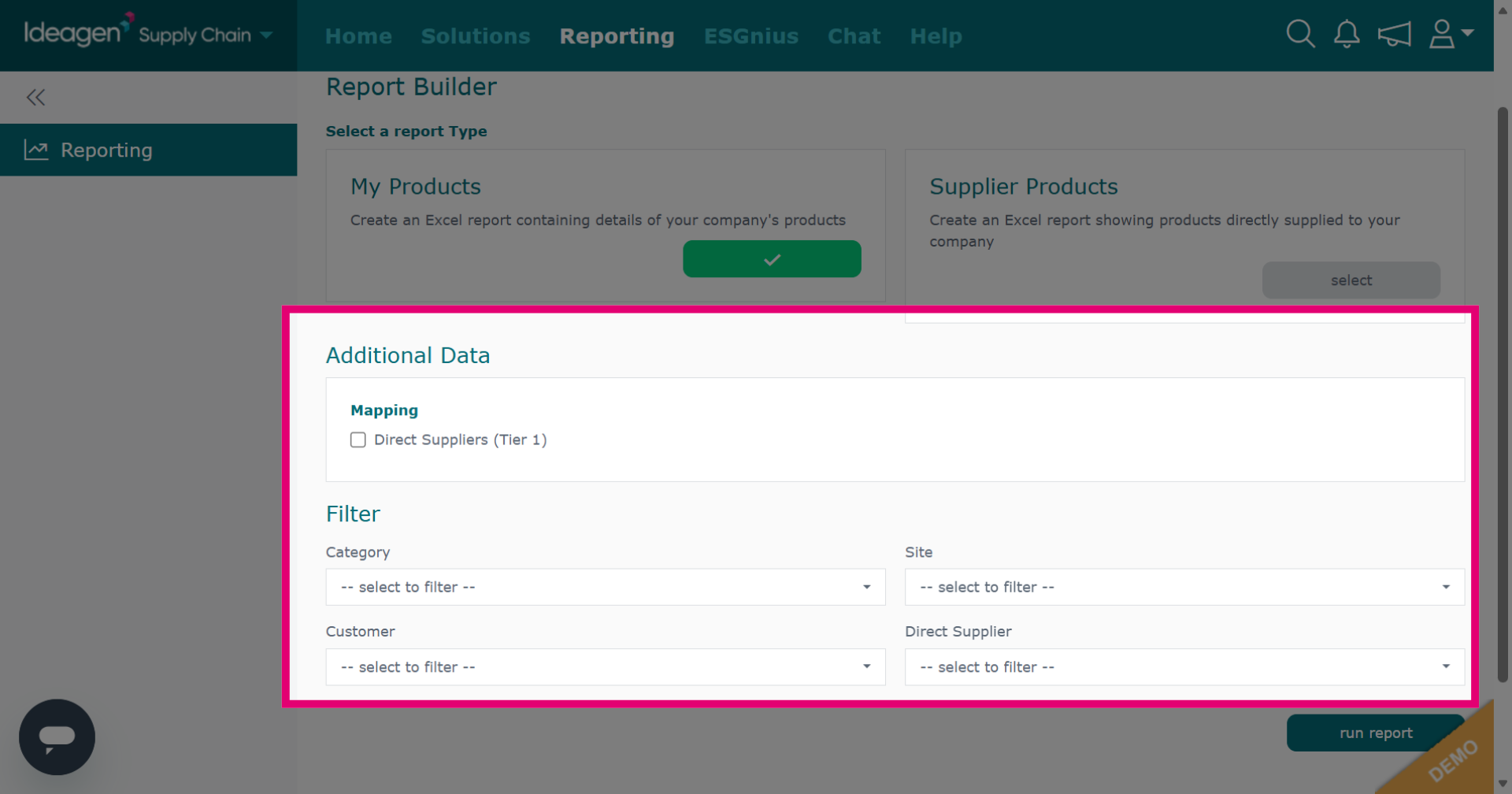
Input the relevant information using the drop down options to tick and untick your preferences. Leave the filters blank to generate a report using all available information.
-
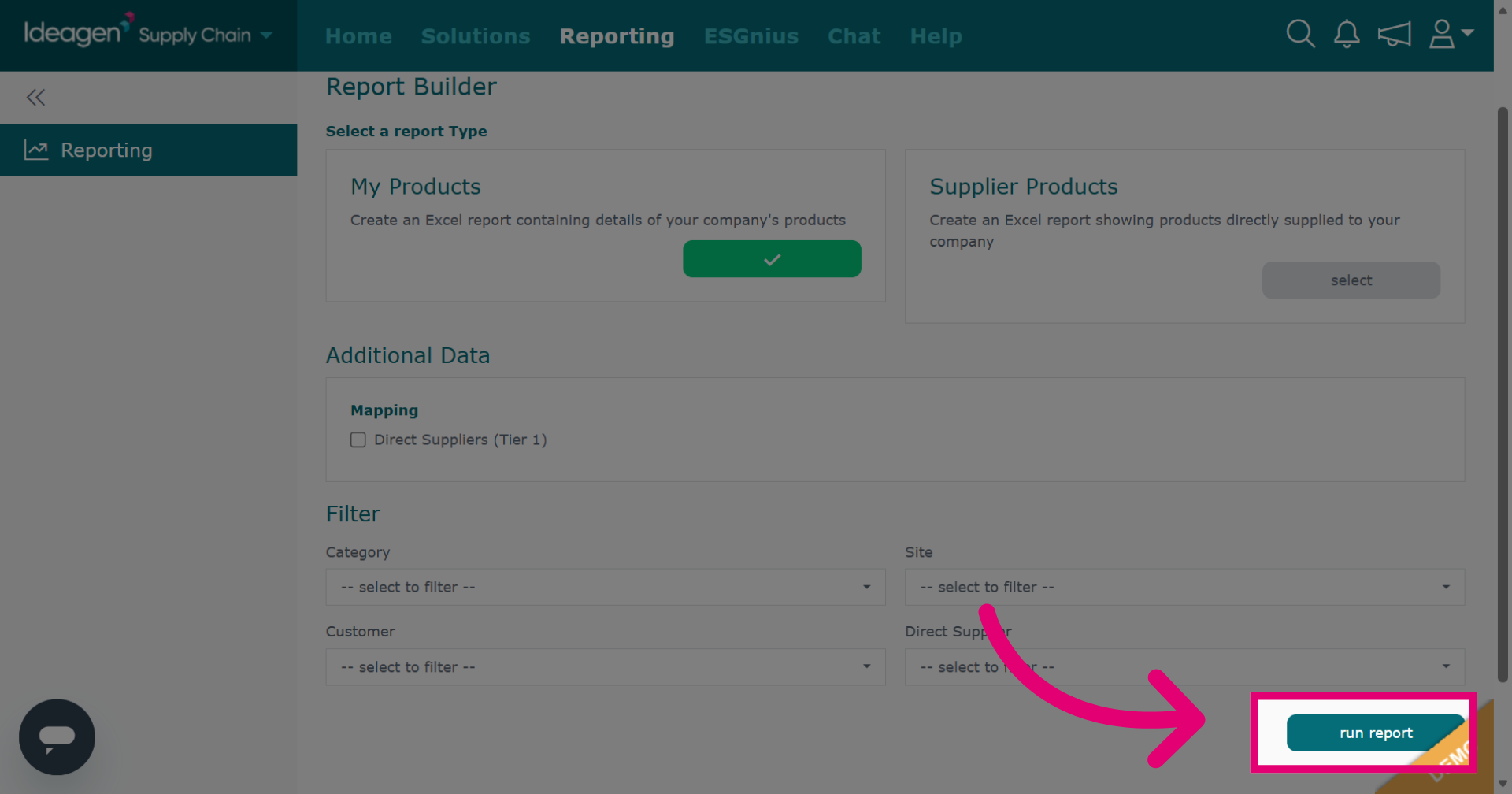
Click Run Report to run the report. It will download externally and contains the following information: Company, Product, Reference, Category, Sites, and Production Site.
-
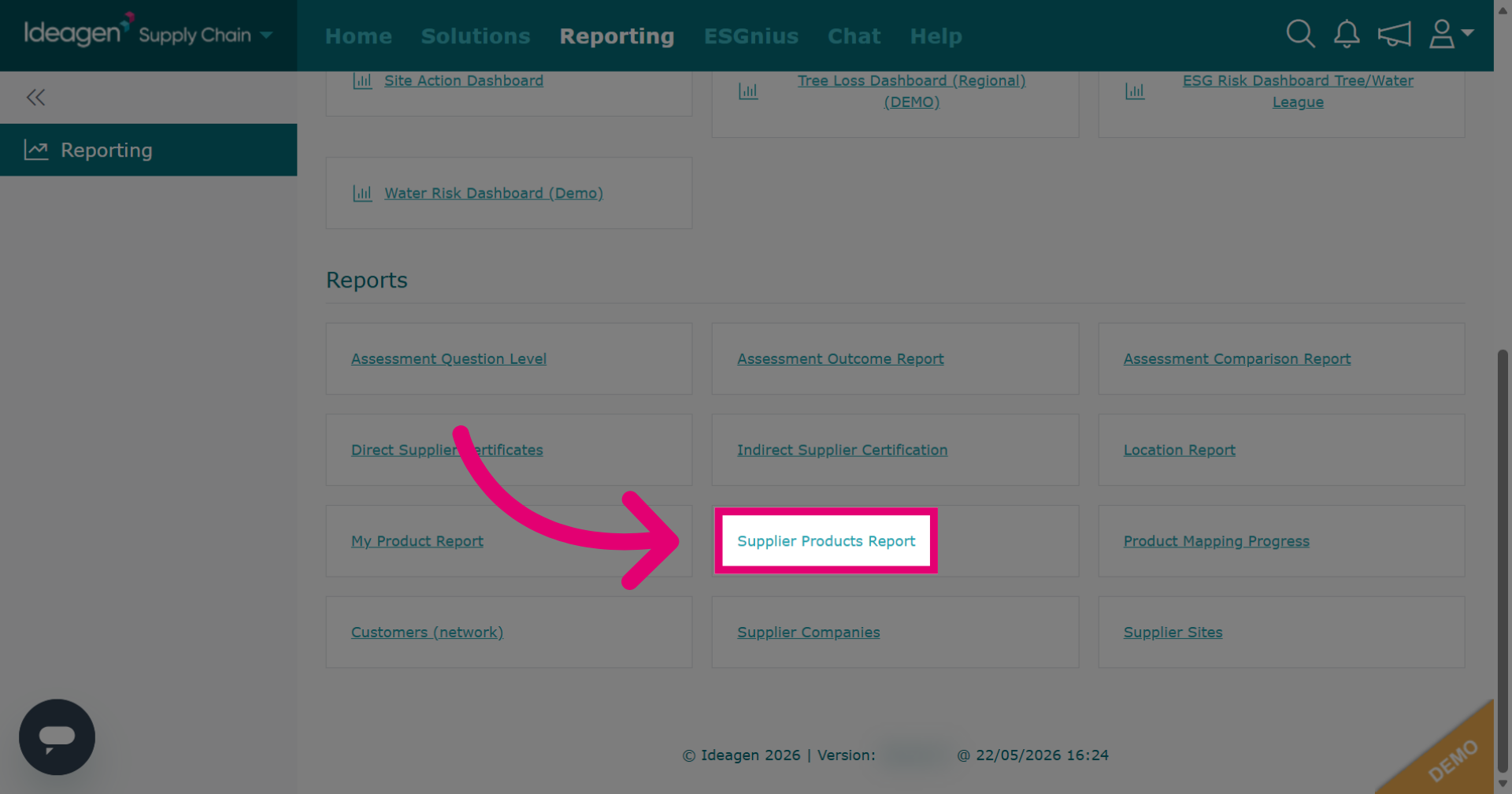
Click Supplier Products Report to generate a report on your suppliers' products.
-
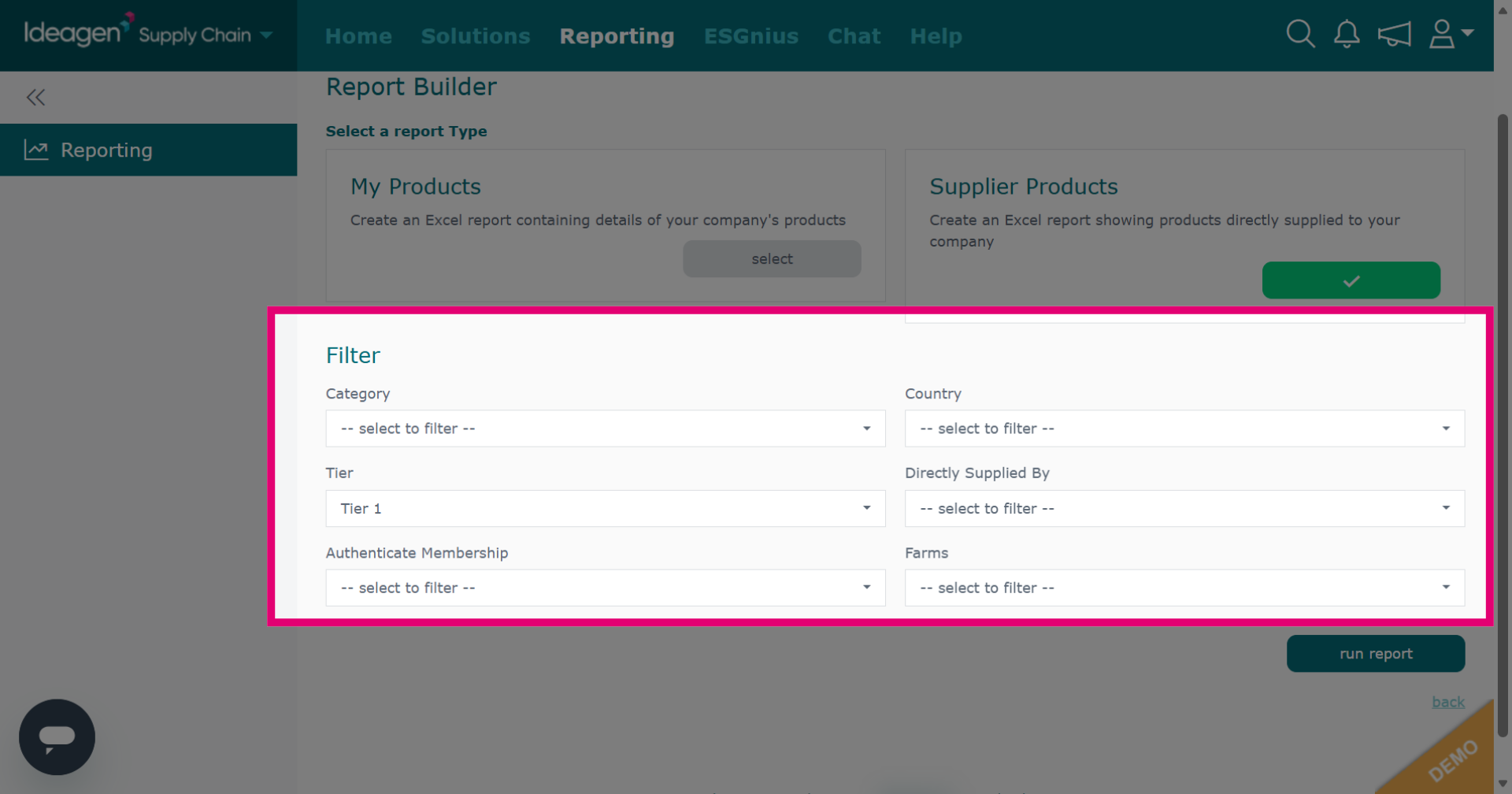
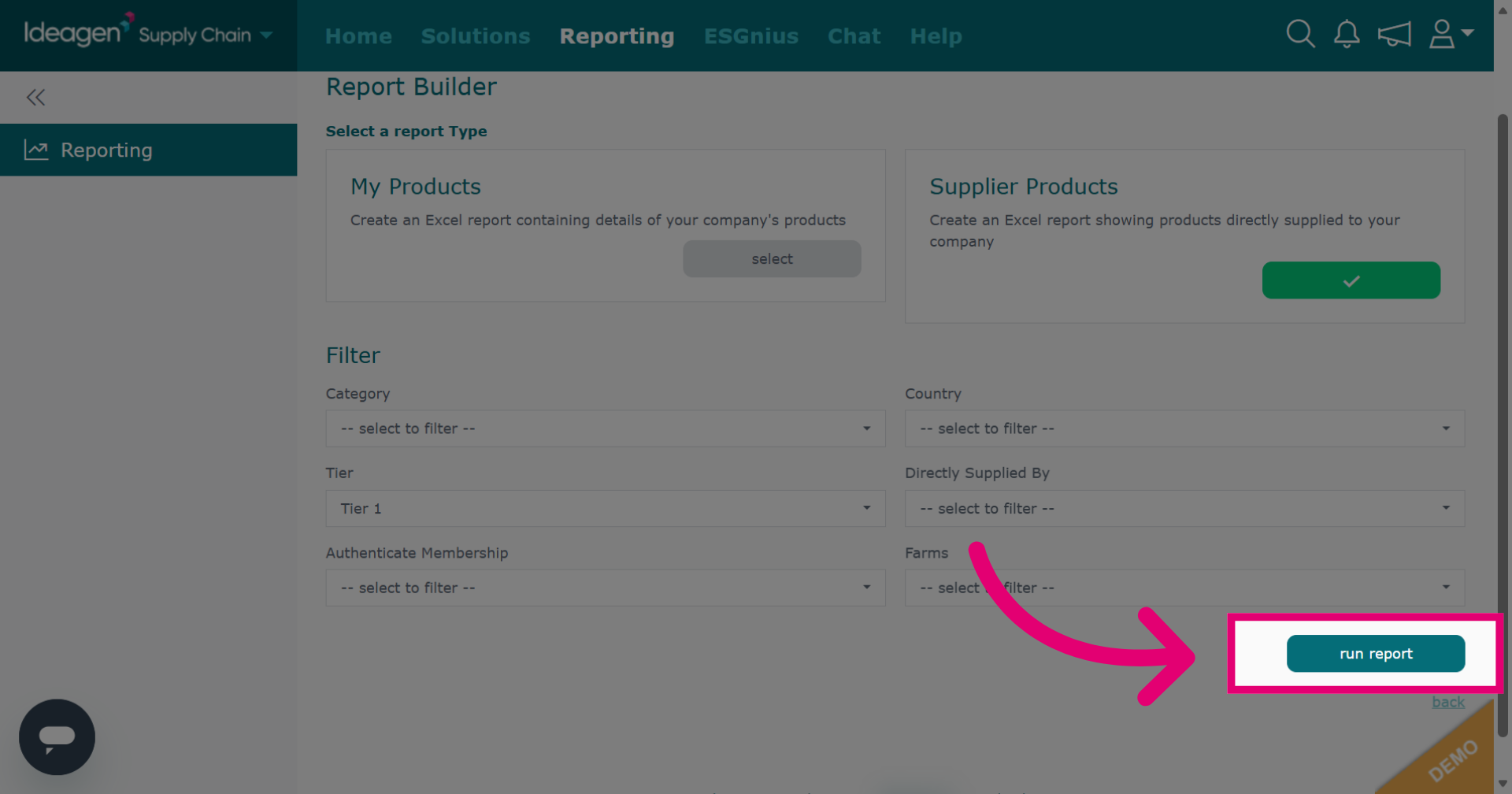
Input the relevant information using the drop down options to tick and untick your preferences. Leave the filters blank to generate a report using all available information.
-
Click Run Report to generate your supplier products report. It will download externally and contains the following information: My Product Name, My Product Reference, Parent Category, Category, Supplier, Company Licence Codes, Site, Site Licence Codes, Tier, Link Status, Requested Product Name, Requested Reference, Linked Product Name, Linked Product Reference, Mapped or Not, Mapping Declaration, Address, Longitude, Latitude, Product Status, Status Details, Product Risk, Risk Details, Review Date, Review Details, Brands, and Supply Chain Approved Yes or No.
-
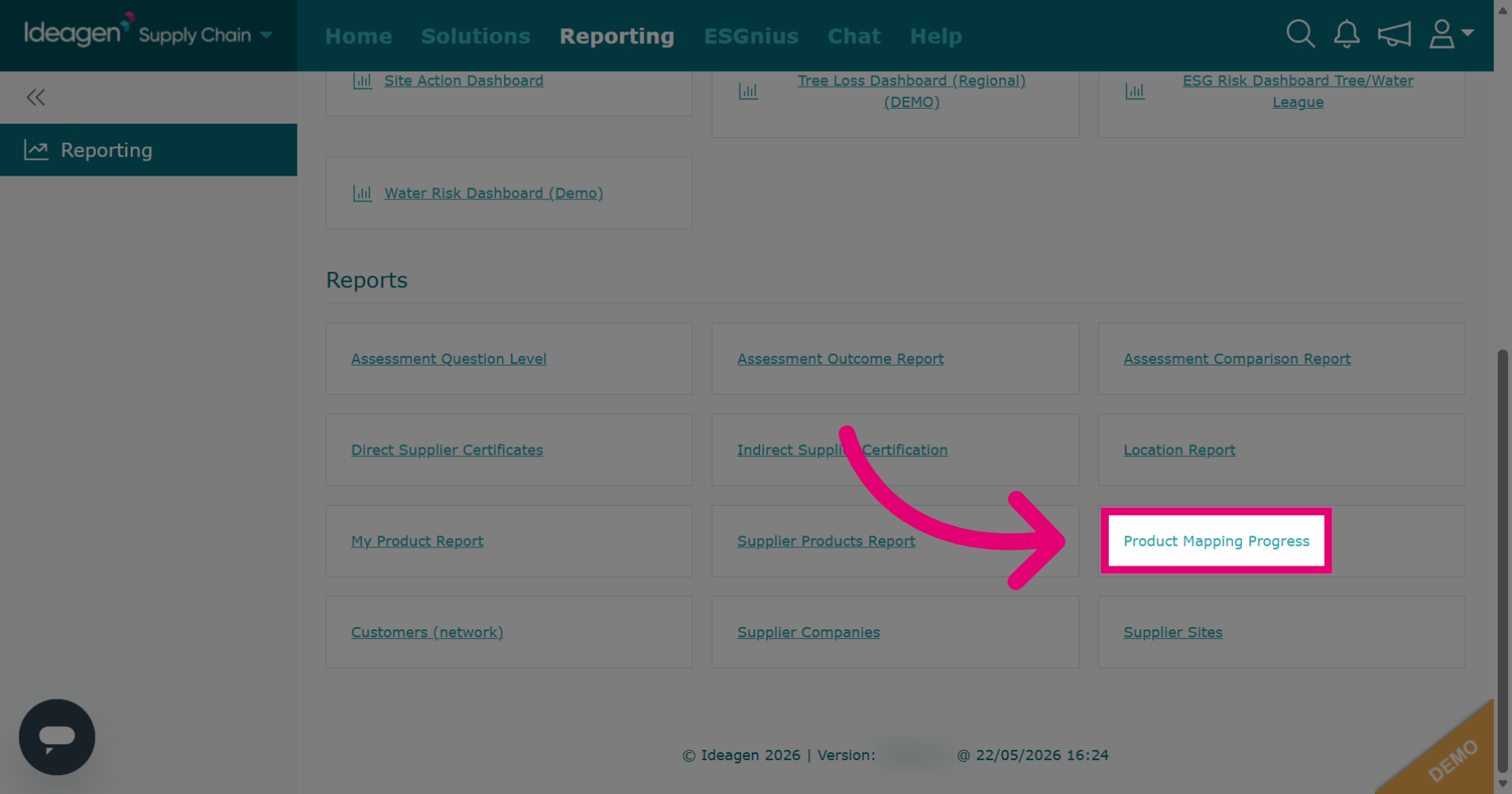
Click Product Mapping Progress to monitor the status of product mapping within your supply chain data.
-
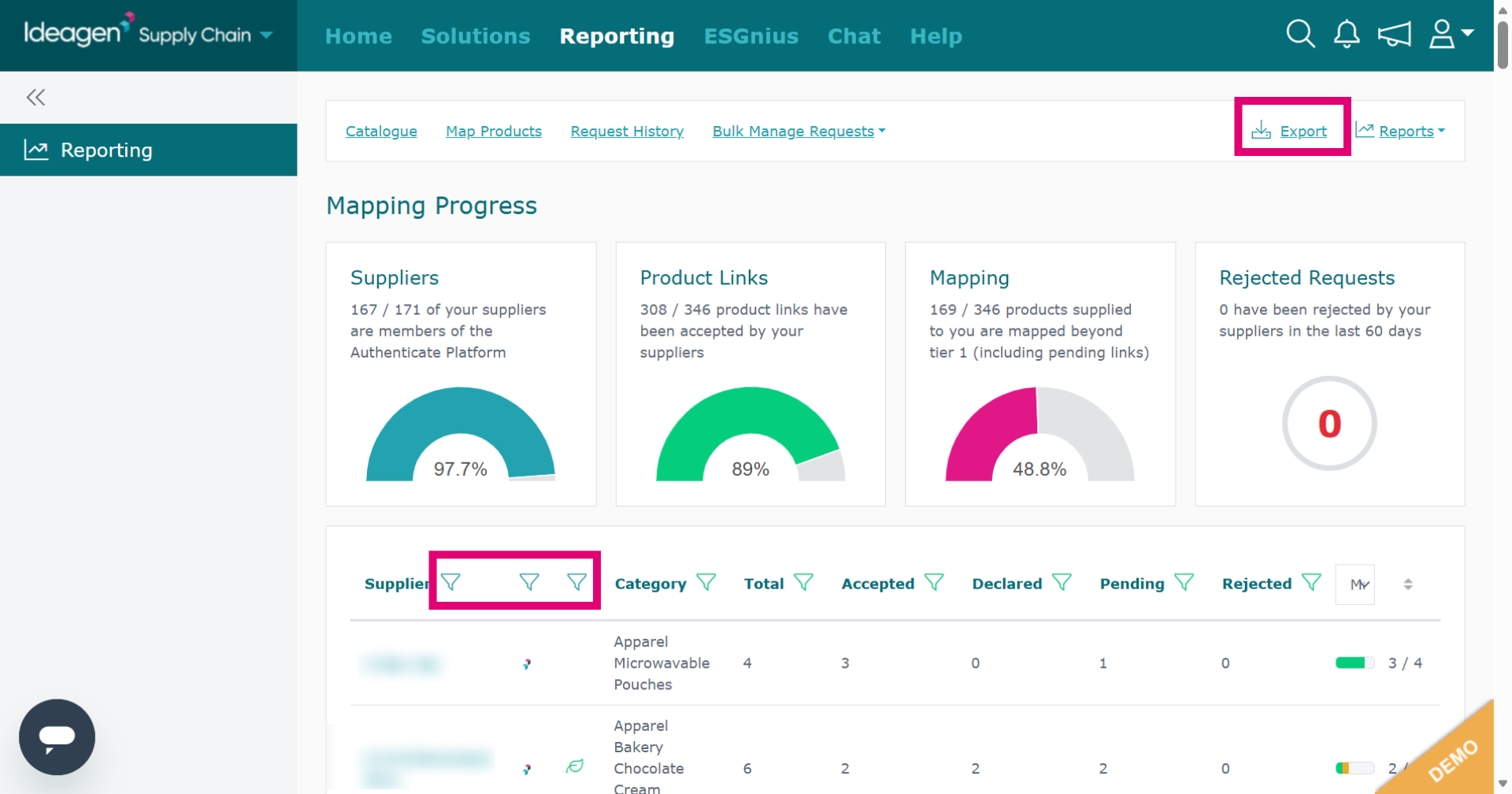
This is the product mapping progress page. Use the filters to amend the information shown. Click Export to export the information into an external report. For more detailed information on this page, please go and watch our video guide titled "Supply Chain Mapping: Supplier Management & Mapping Progress."