New article
Recently updated
Generating product and location reports

Who is this article for?
Users who want to generate product and location reports.
Admin permissions are required.
This tutorial guides you through generating product and location reports within the Ideagen Supply Chain platform.
You will learn how to access the reporting section, configure report parameters, and export data for analysis.
Generating product and location reports
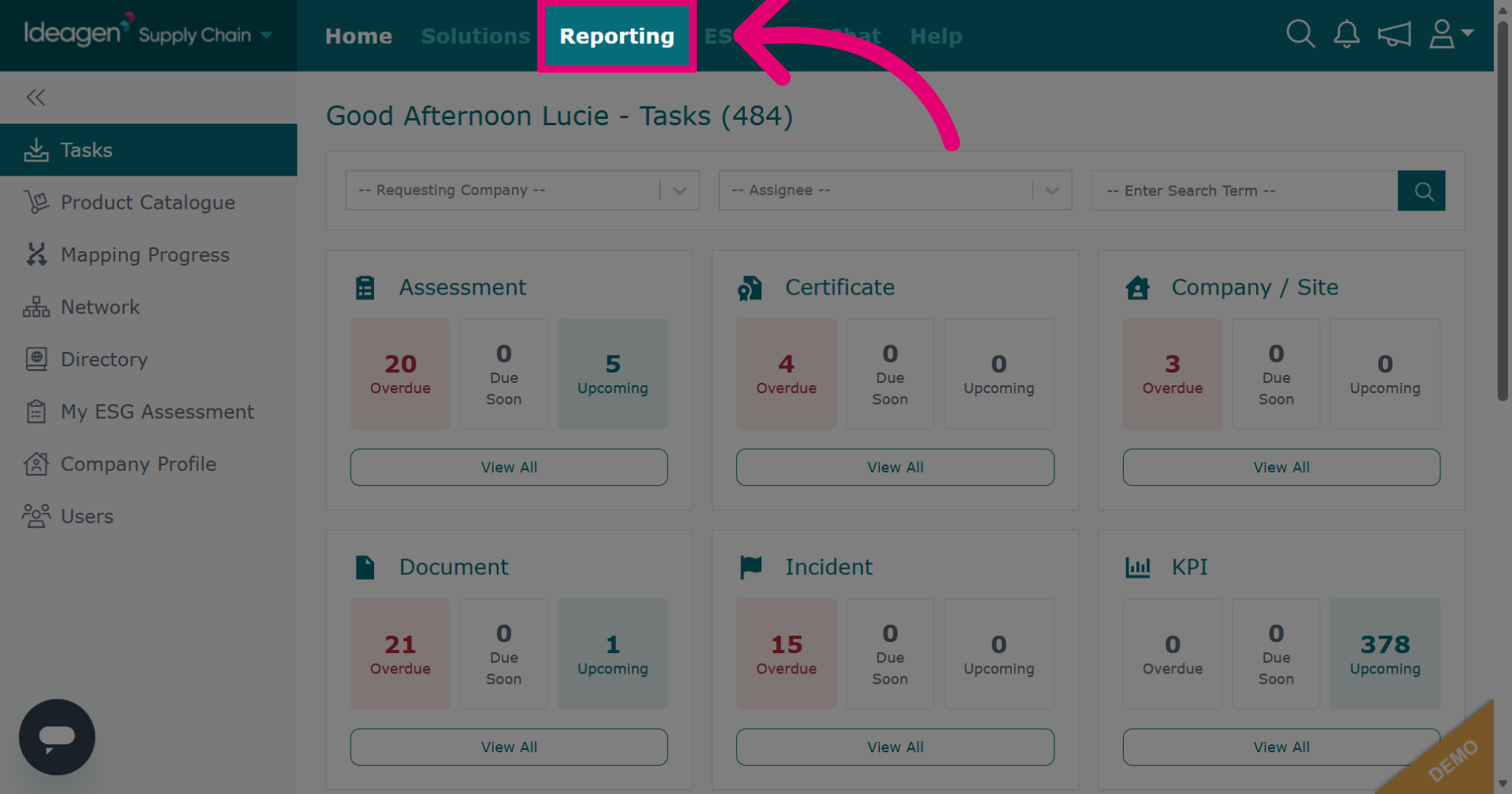
Click Reporting to open the reporting section.
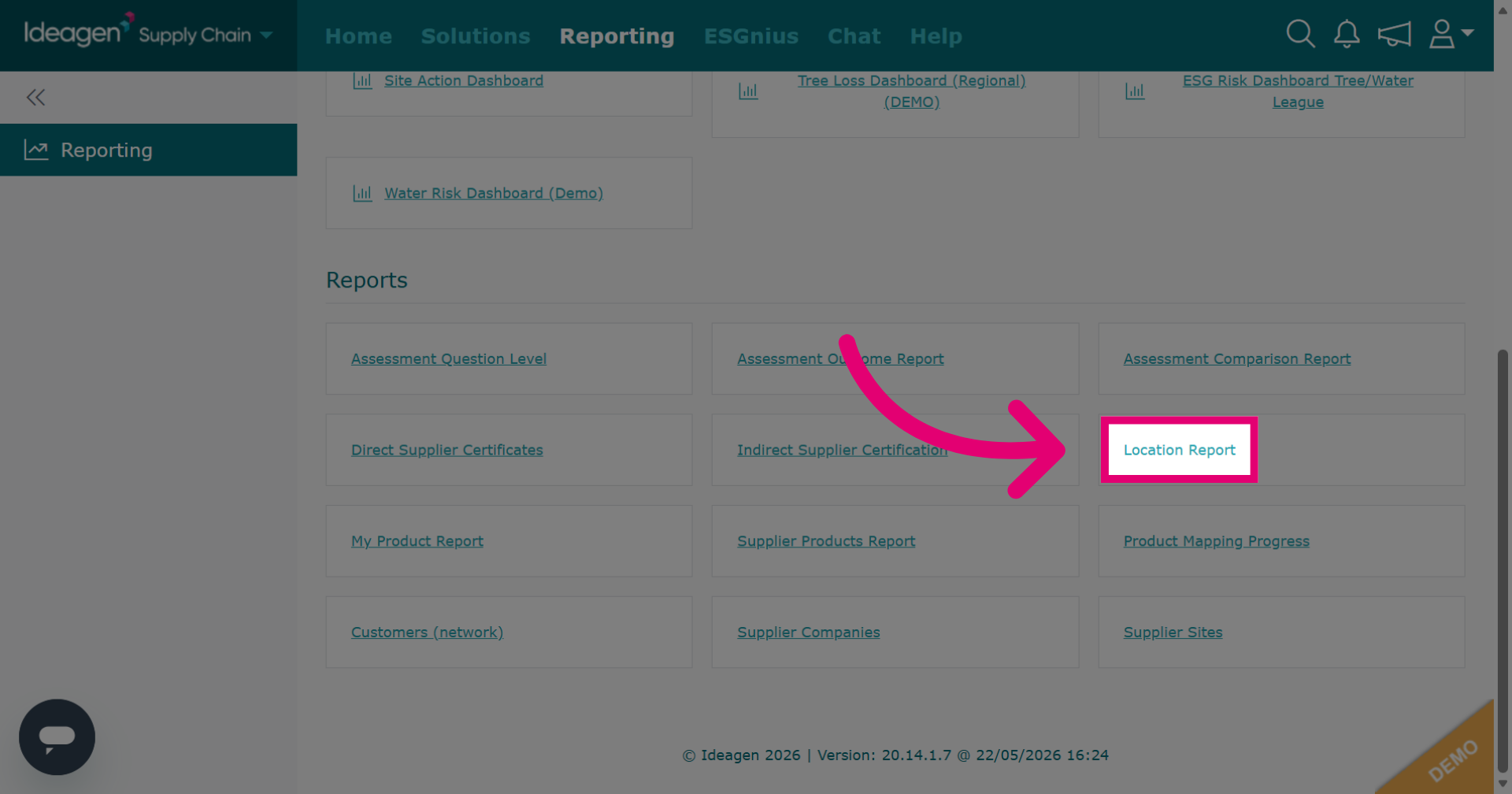
Click Location Report to generate a report based on supplier locations and geographic data.
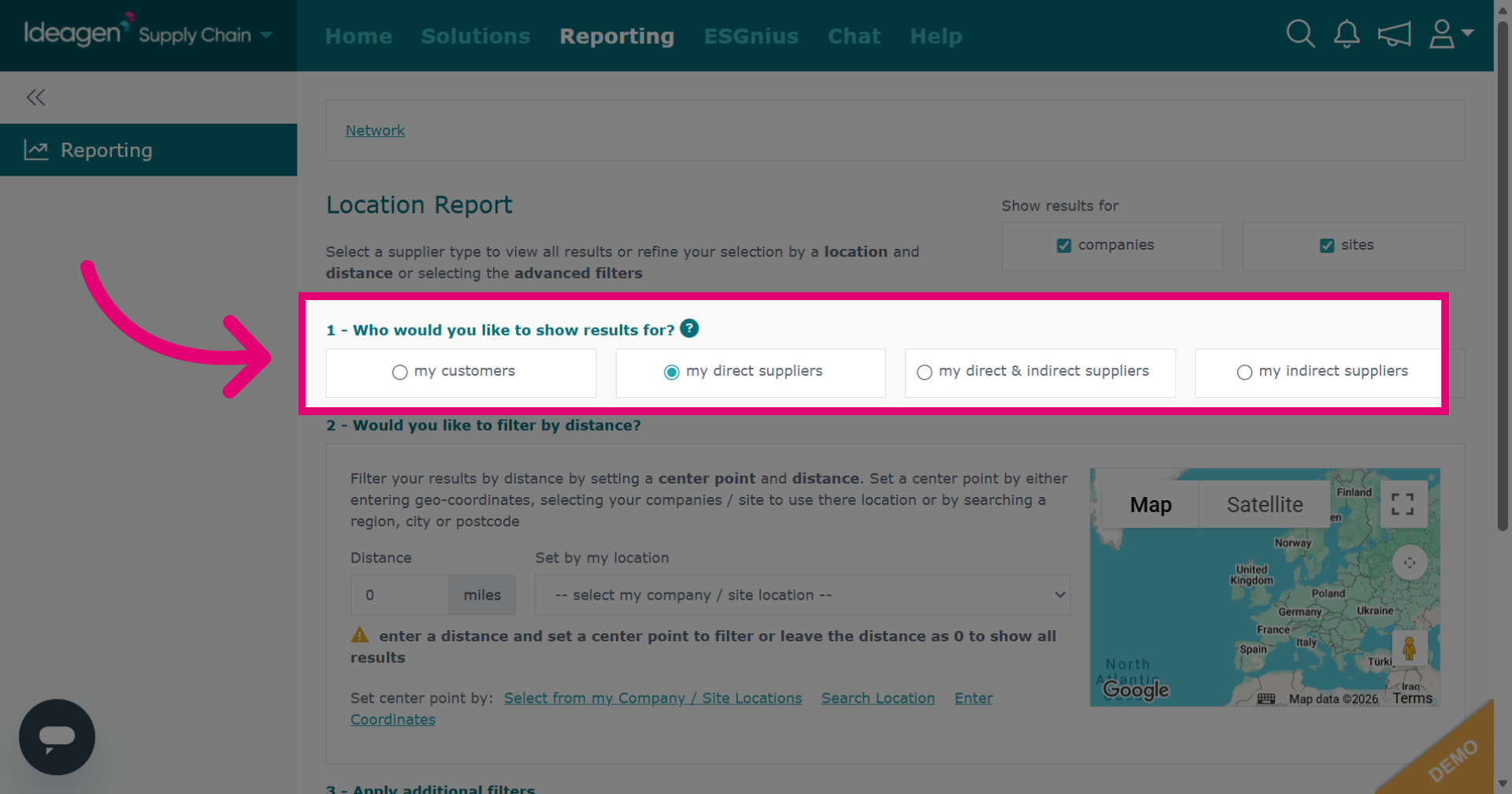
Select the area of your network to view results: customers, direct suppliers, indirect suppliers, or both.
Input the relevant information you wish to include within the report.
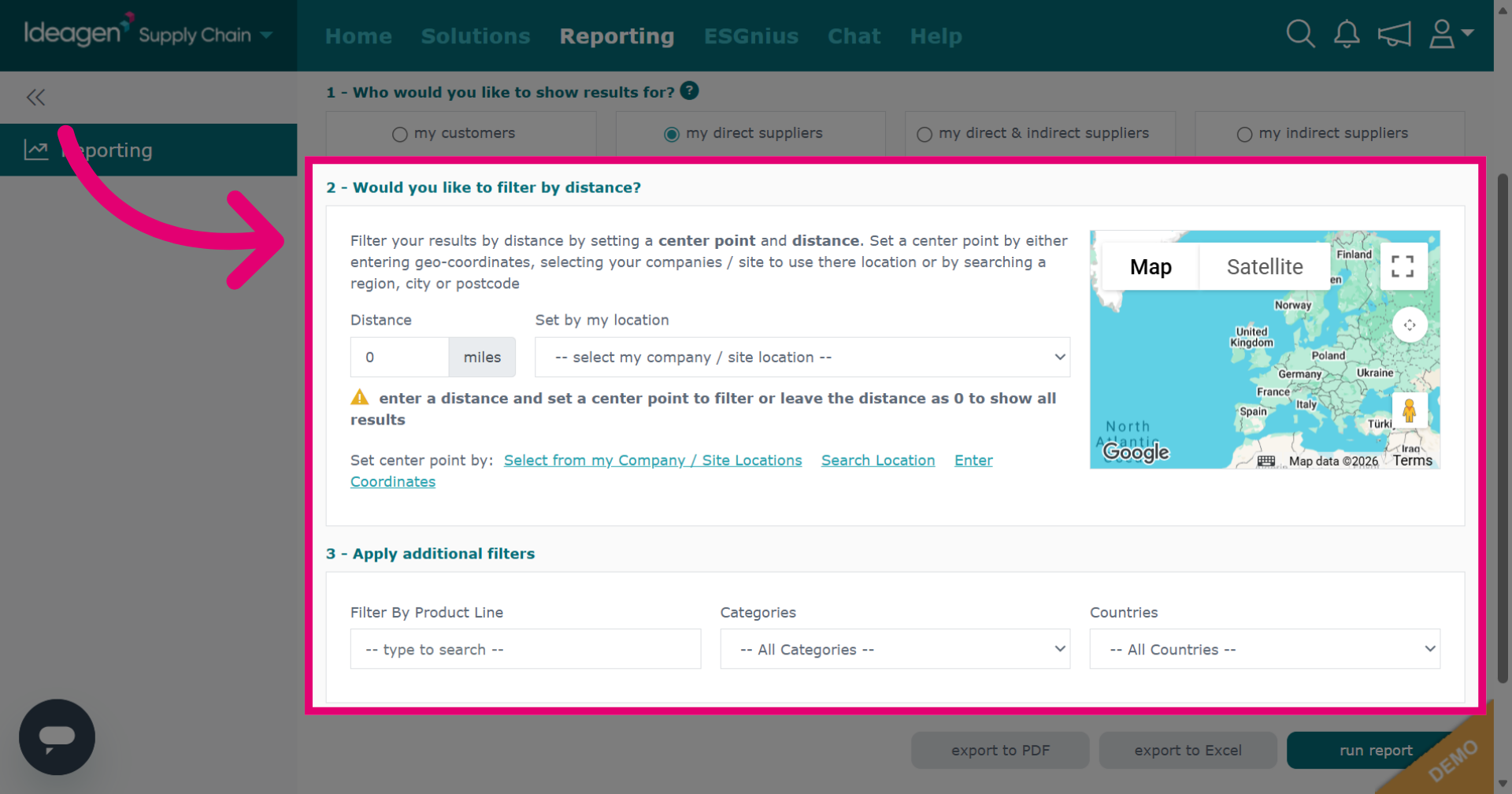
Click Run Report to run the report and view it in the platform. Select one of the export options to view the report externally.
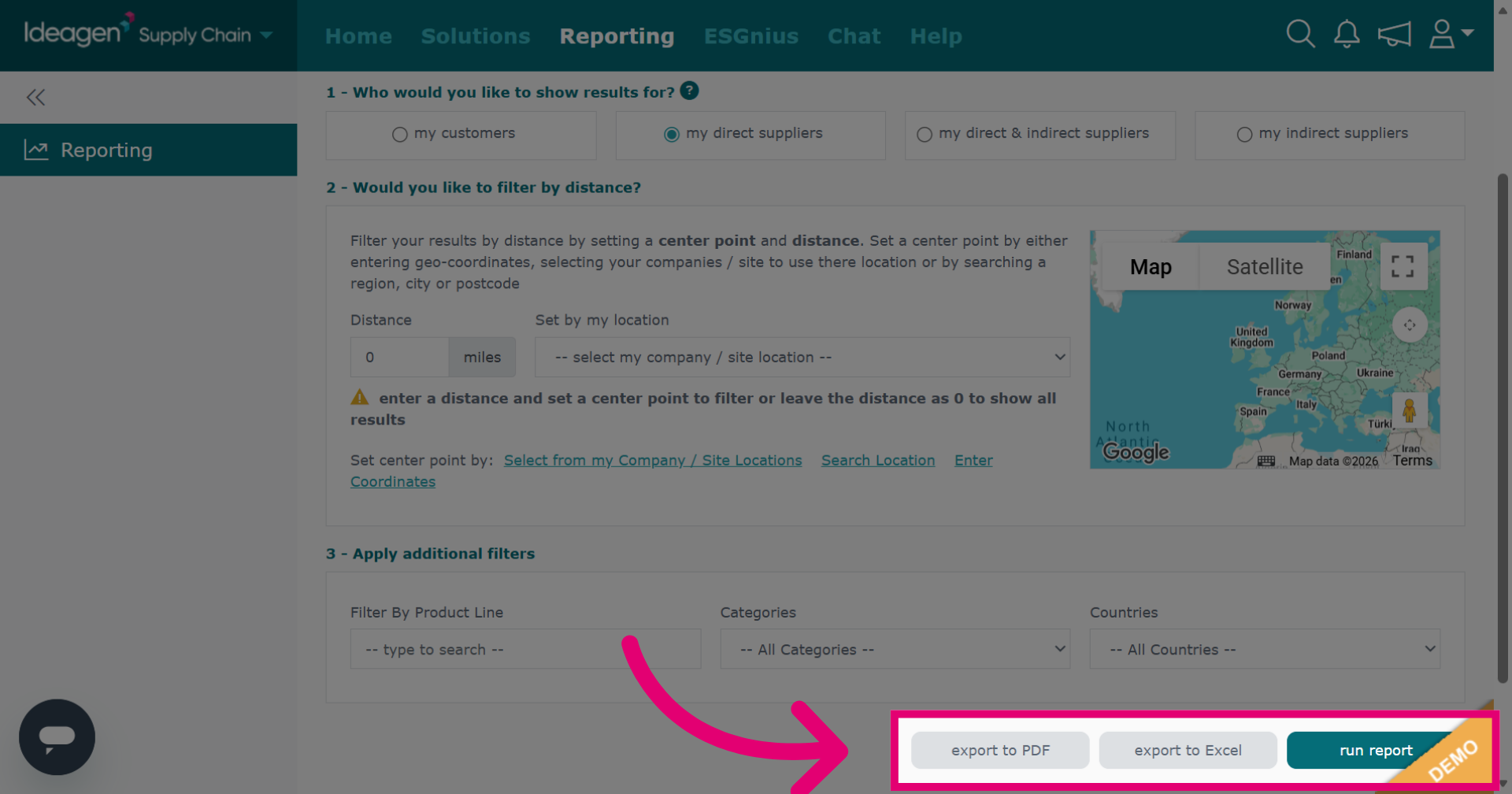
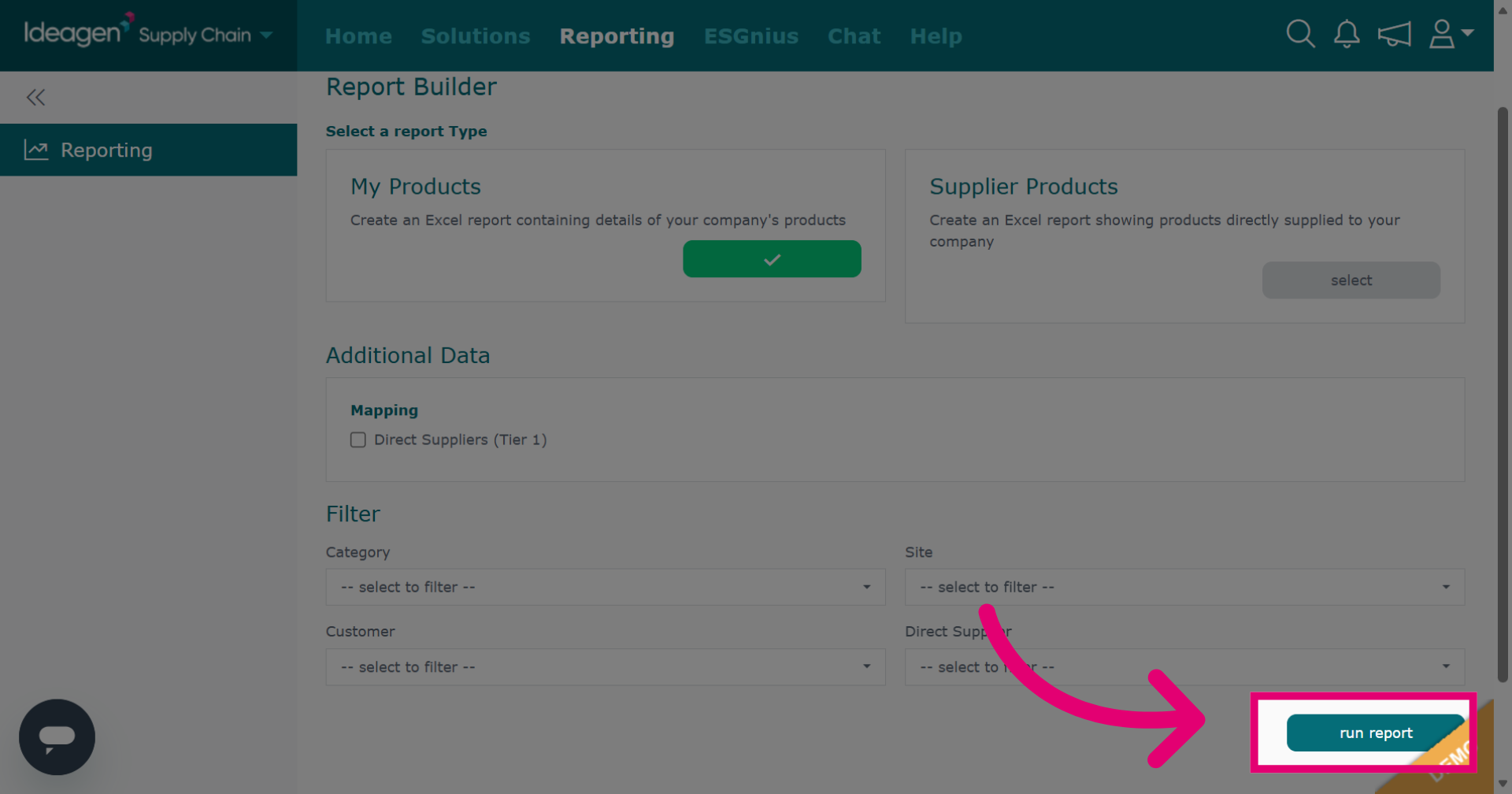
Click My Product Report to generate a report on your products.
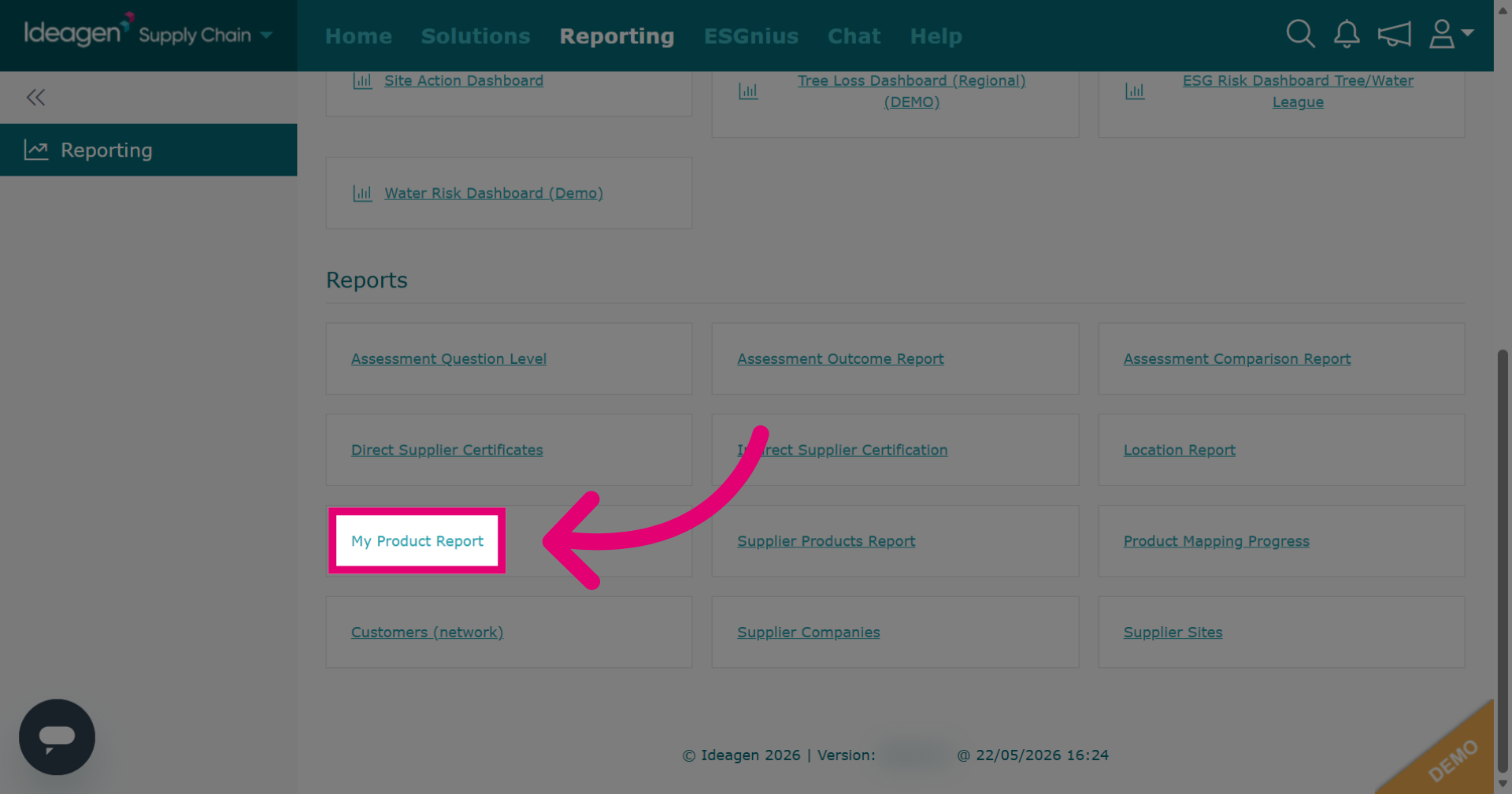
Input relevant information using the drop-down options to select preferences. Leave filters blank to generate a report with all available data.
Click run report to download it externally.
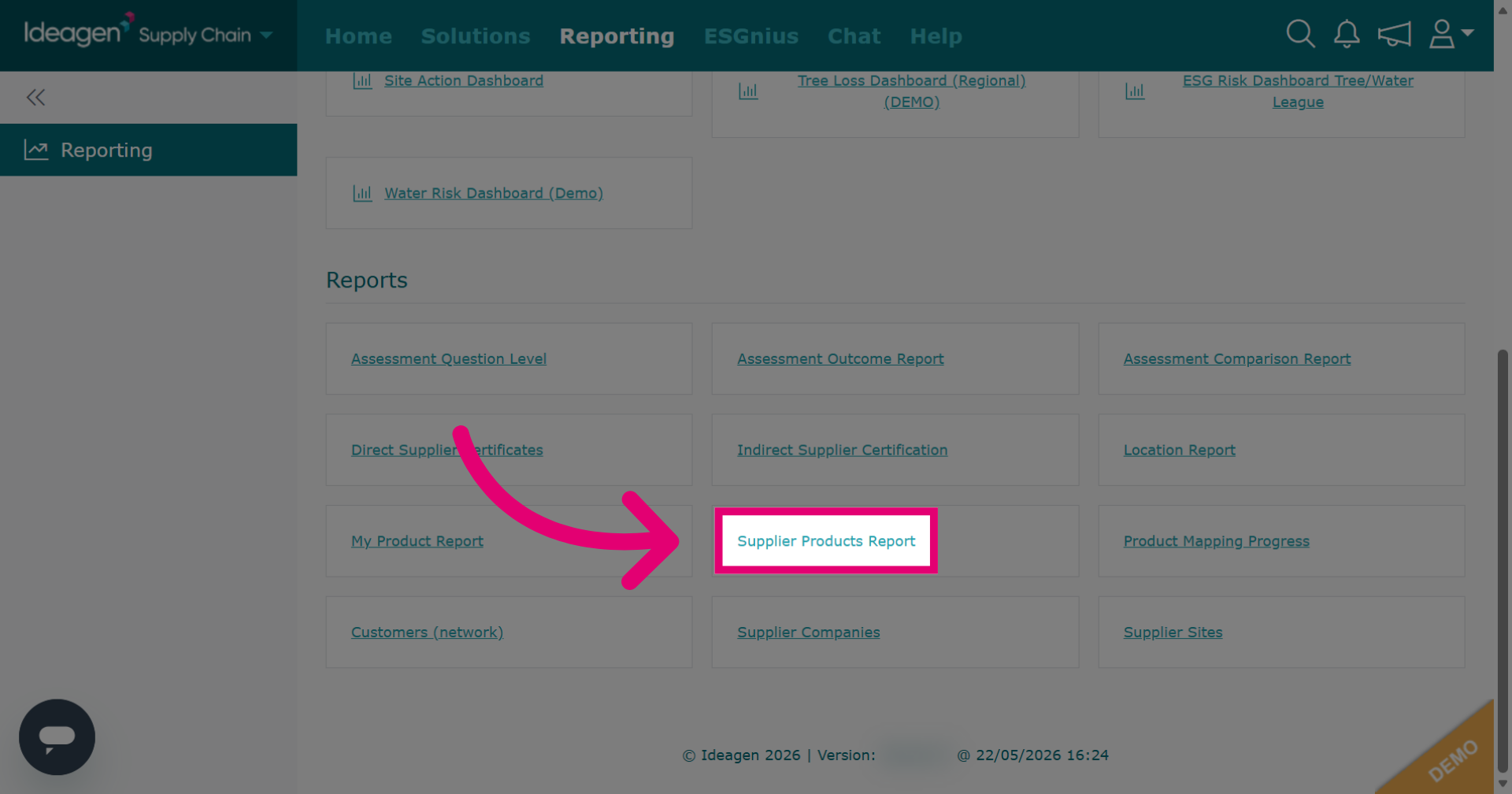
Click Supplier Products Report to generate a report on your suppliers products.
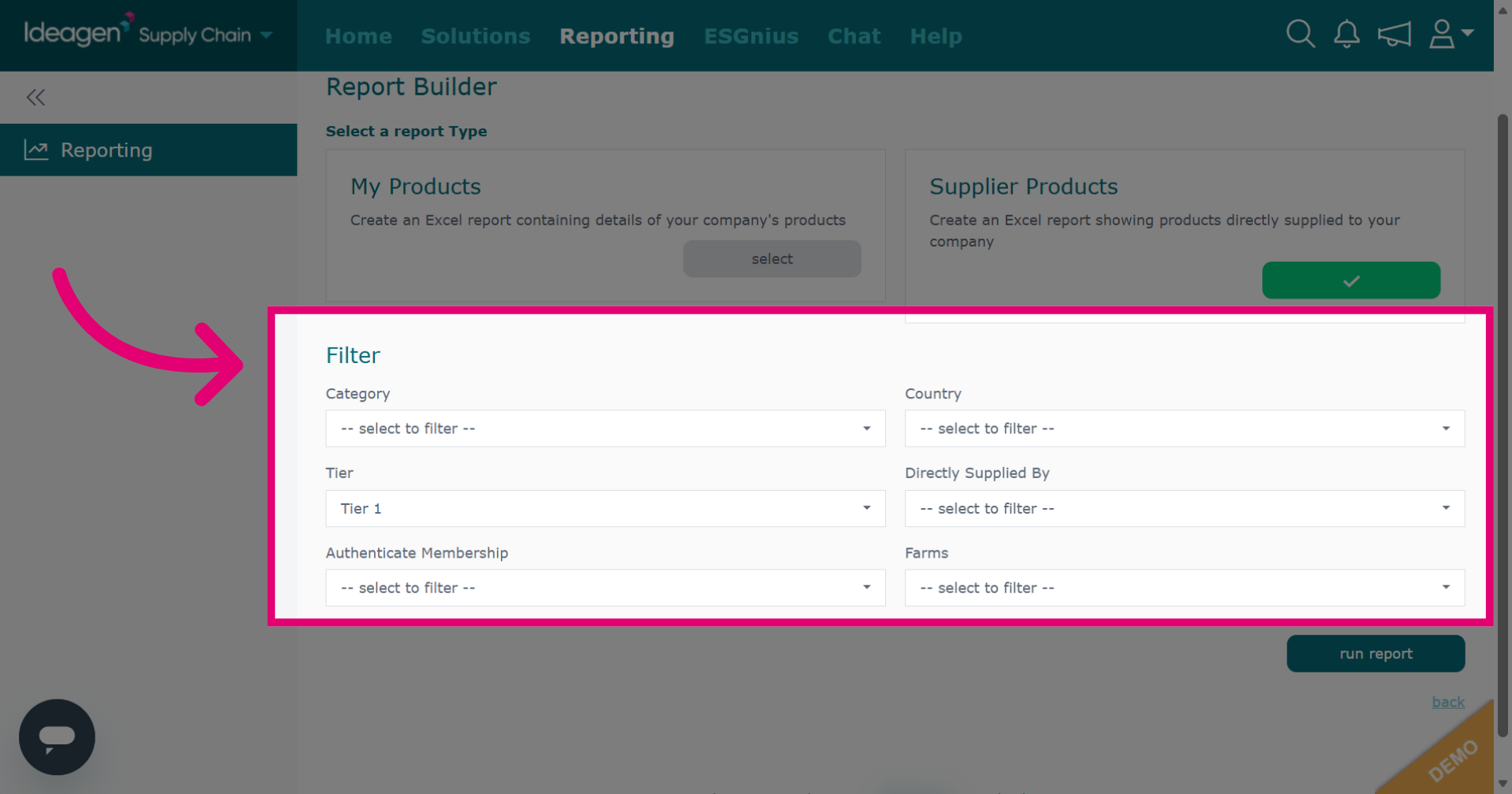
Input relevant information using the dropdown to select preferences. Leave filters blank to generate a report with all available data.
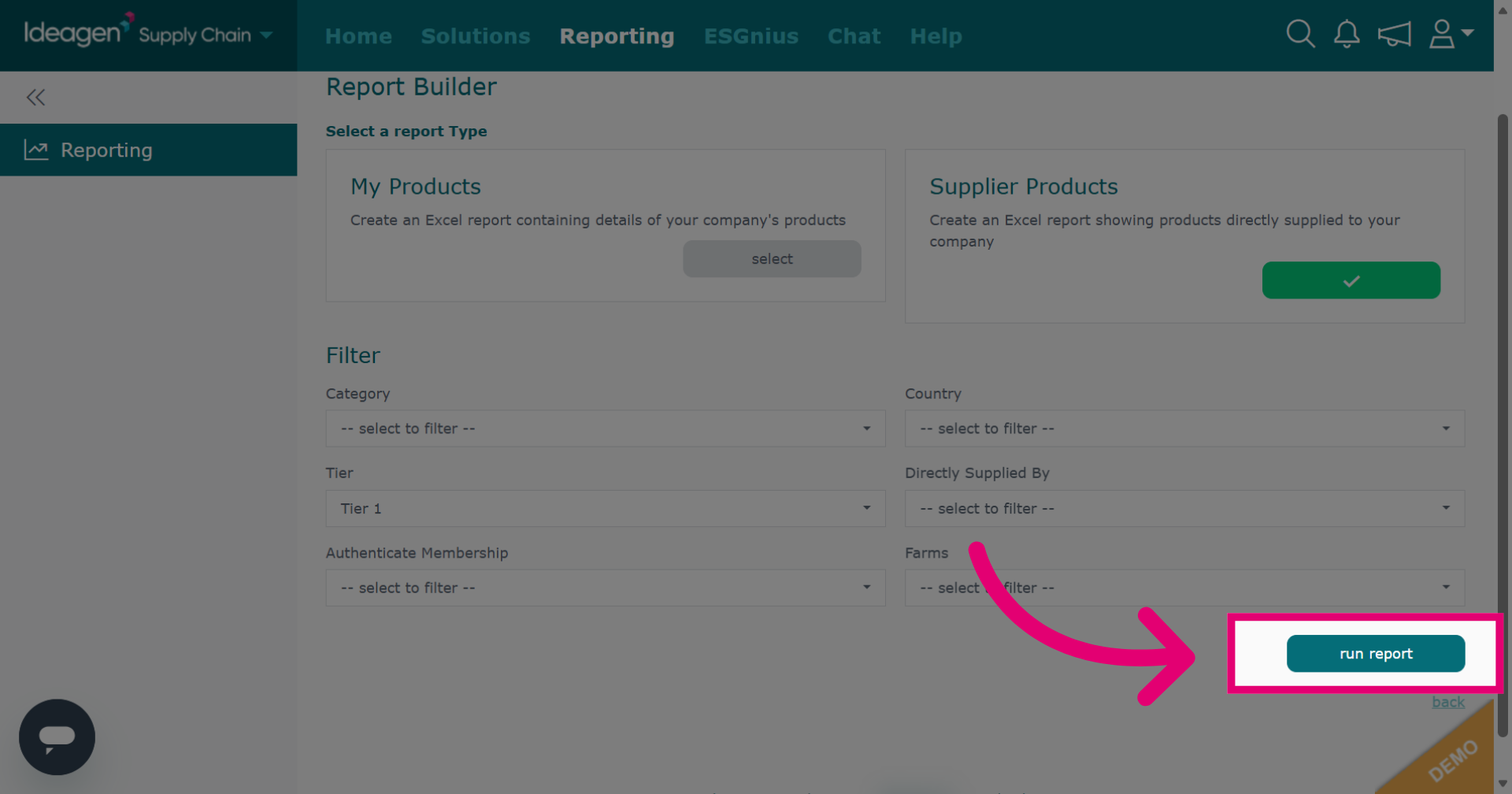
Click run report to generate your supplier products report. It will download externally.
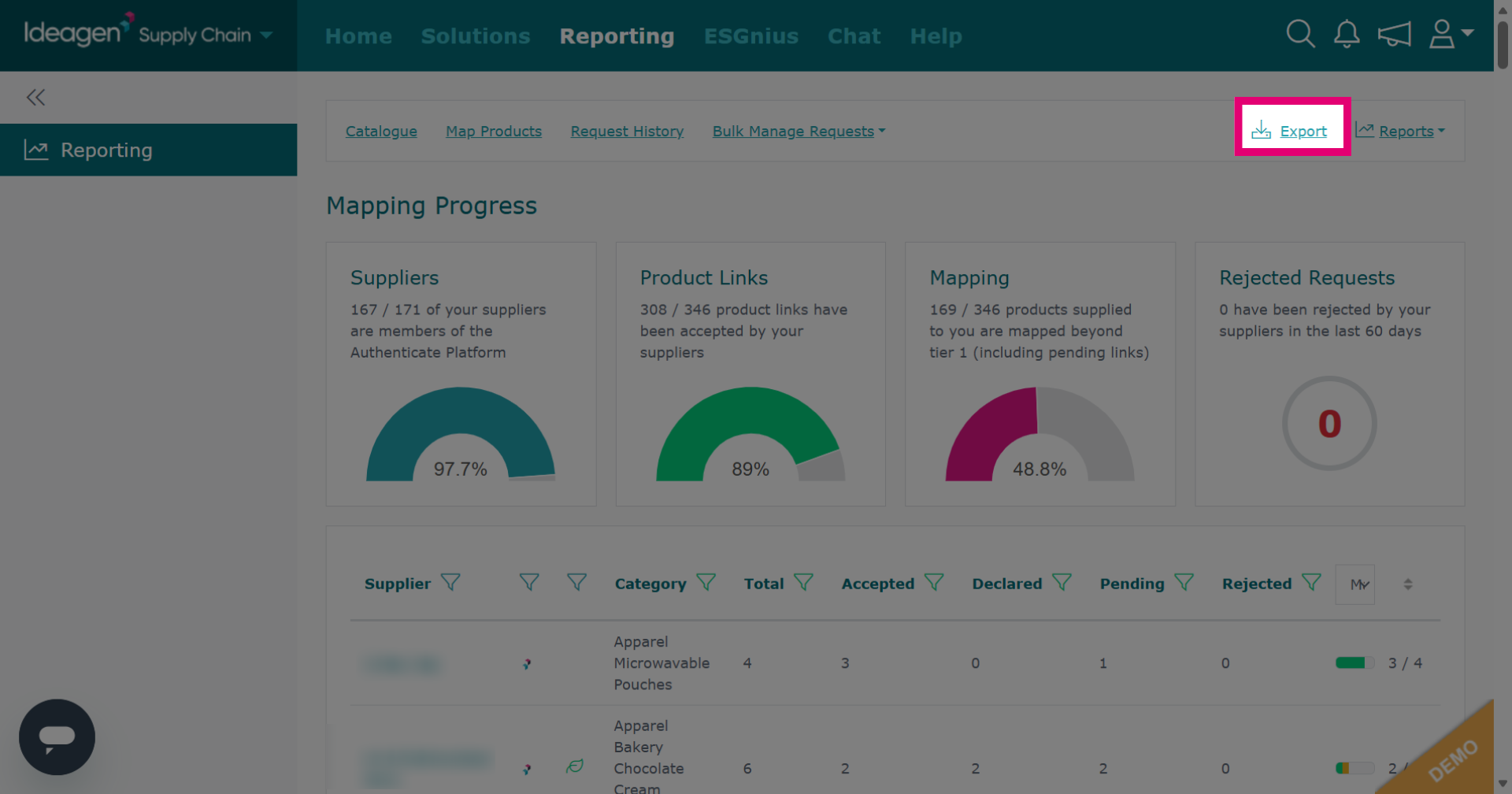
Click Product Mapping Progress to monitor mapping status in your supply chain.
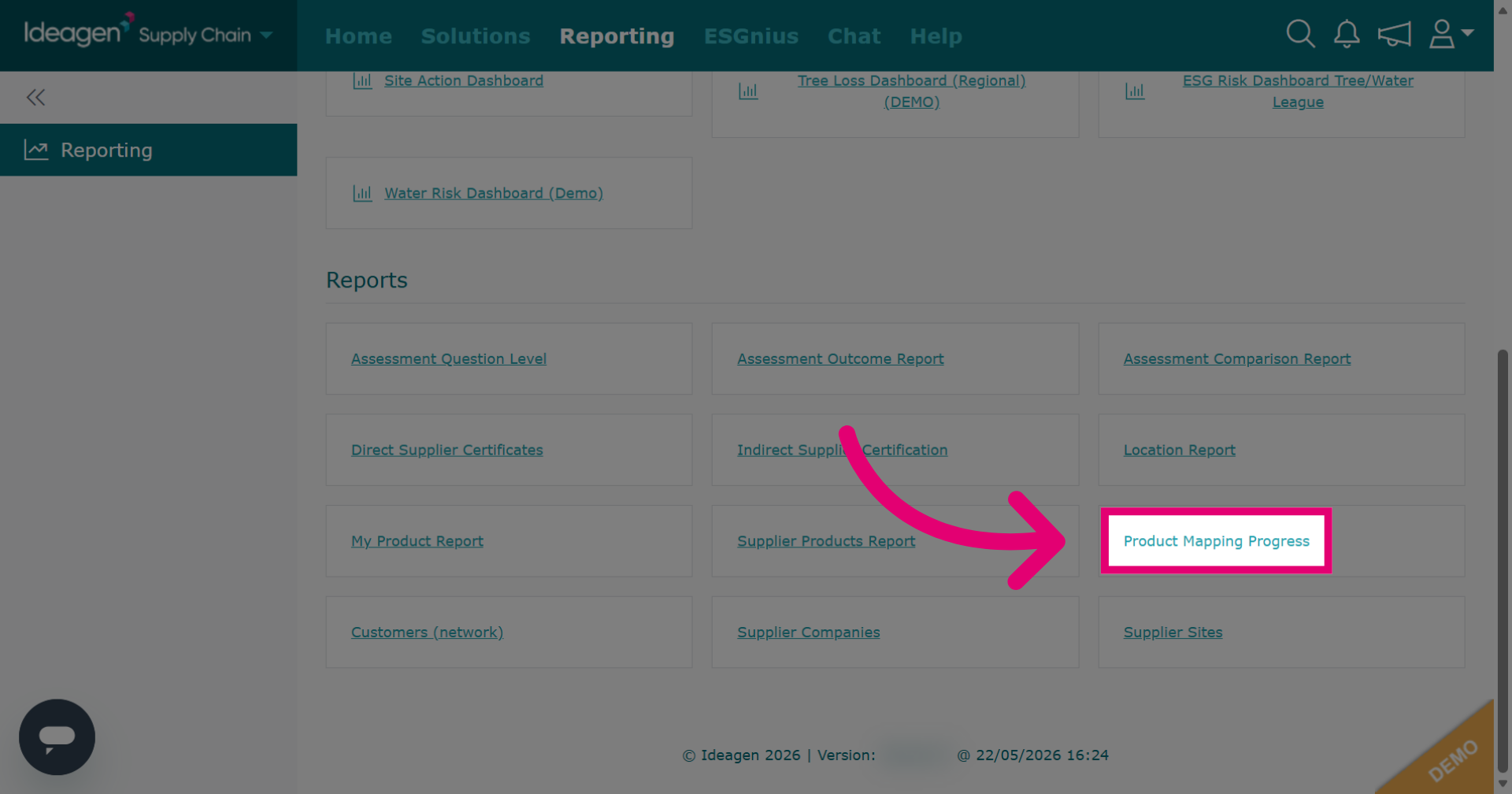
Use filters to amend information. Click export to create a report.