New article
Recently updated
Navigating the Offline Assessments App

Who is this article for?
App users navigating the offline assessments app.
Access to an Apple iPad to use the app.
This article covers the complete workflow for using the Offline Assessments App on your iPad, from initial download through to uploading completed assessments.
You will learn how to download and install the app, manage offline assessments, complete assessments without an internet connection, and sync your work back to the main platform.
Using the Offline Assessments App
-
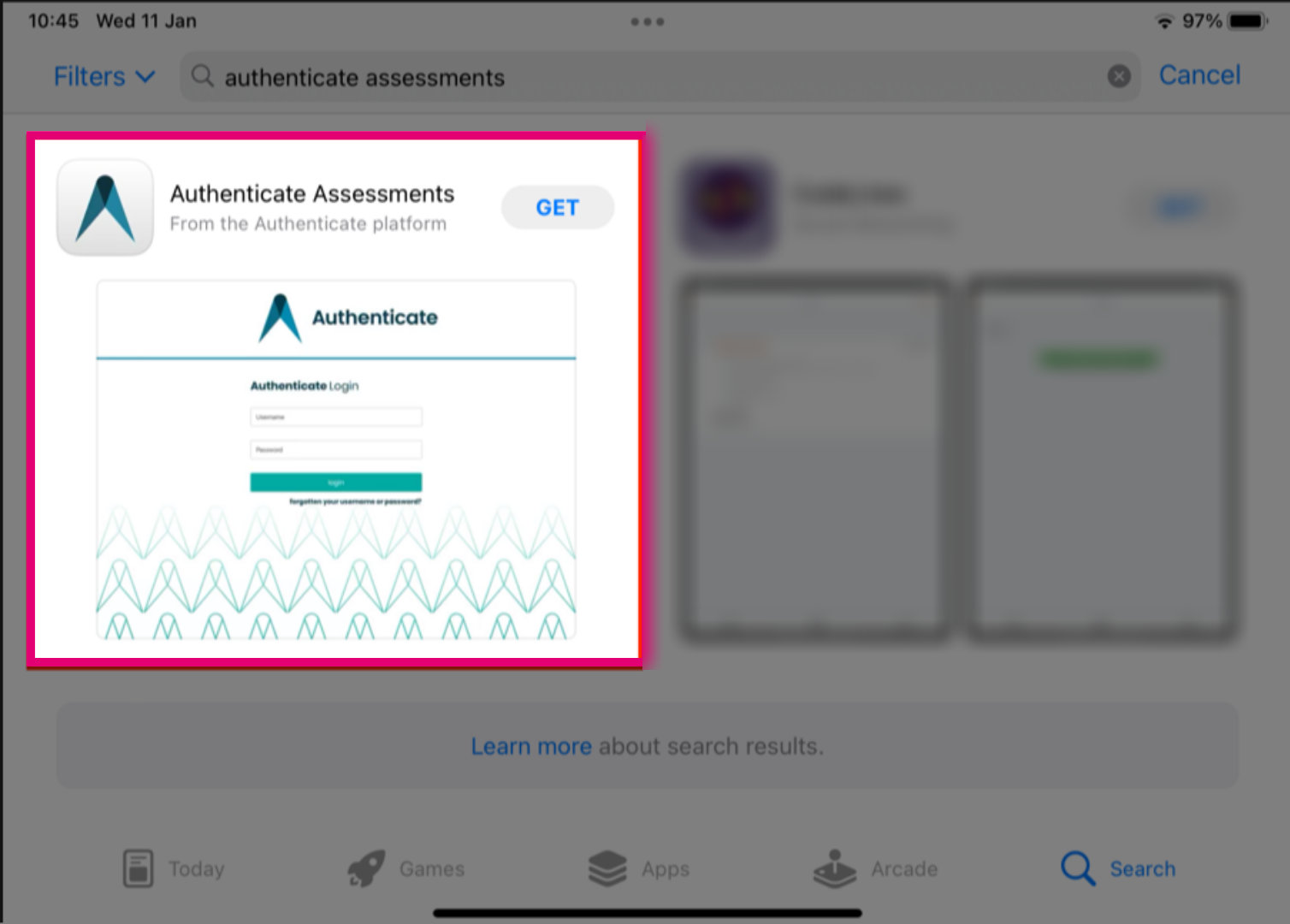
On your iPad navigate to the AppStore and search for 'Ideagen Supply Chain Assessments.' Once you have found the App select get to download it. An internet connection is required for this stage.
-
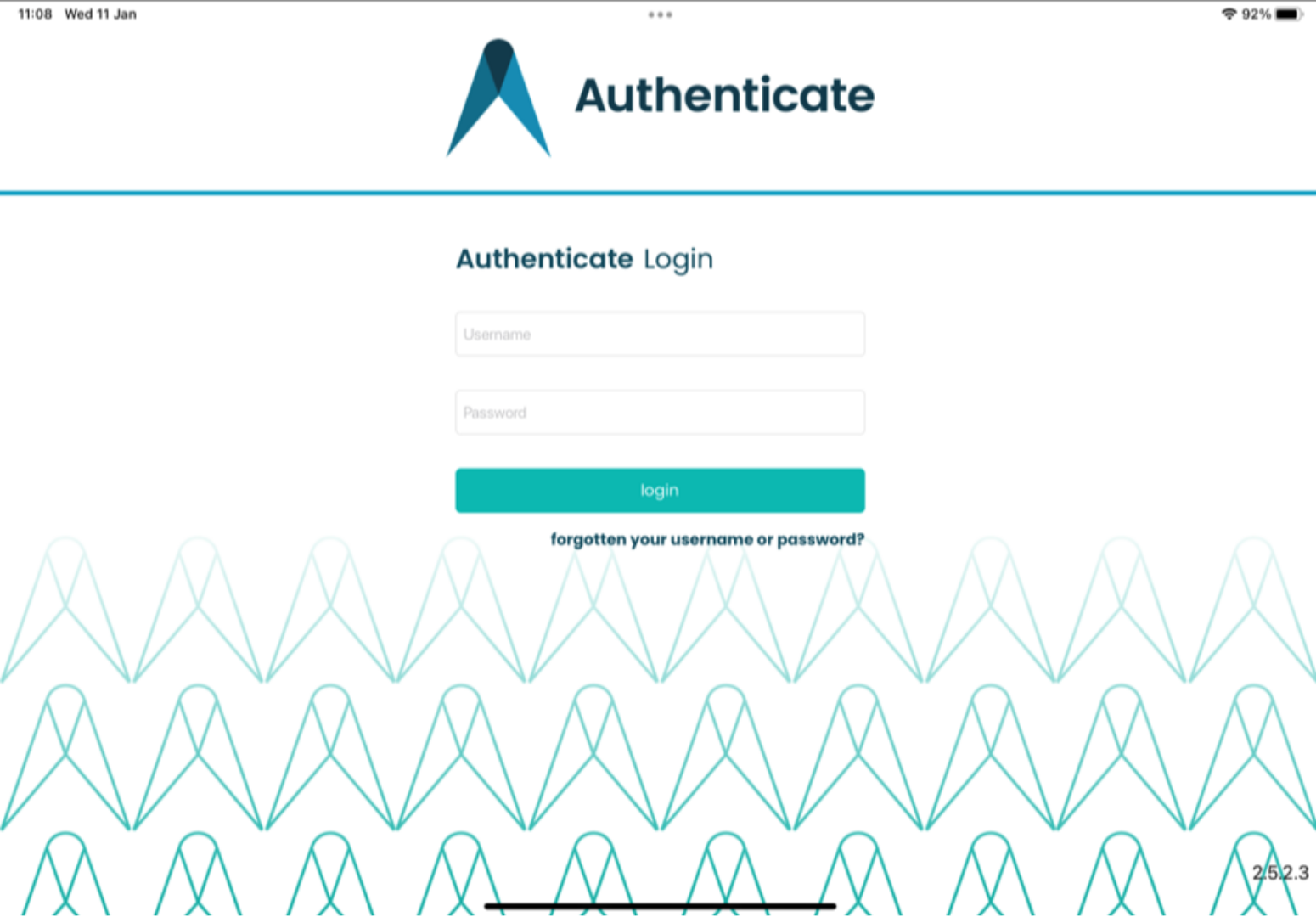
When you open the app you will be presented with the login screen. Log in to the app using the same username and password that you've set up on desktop.
-
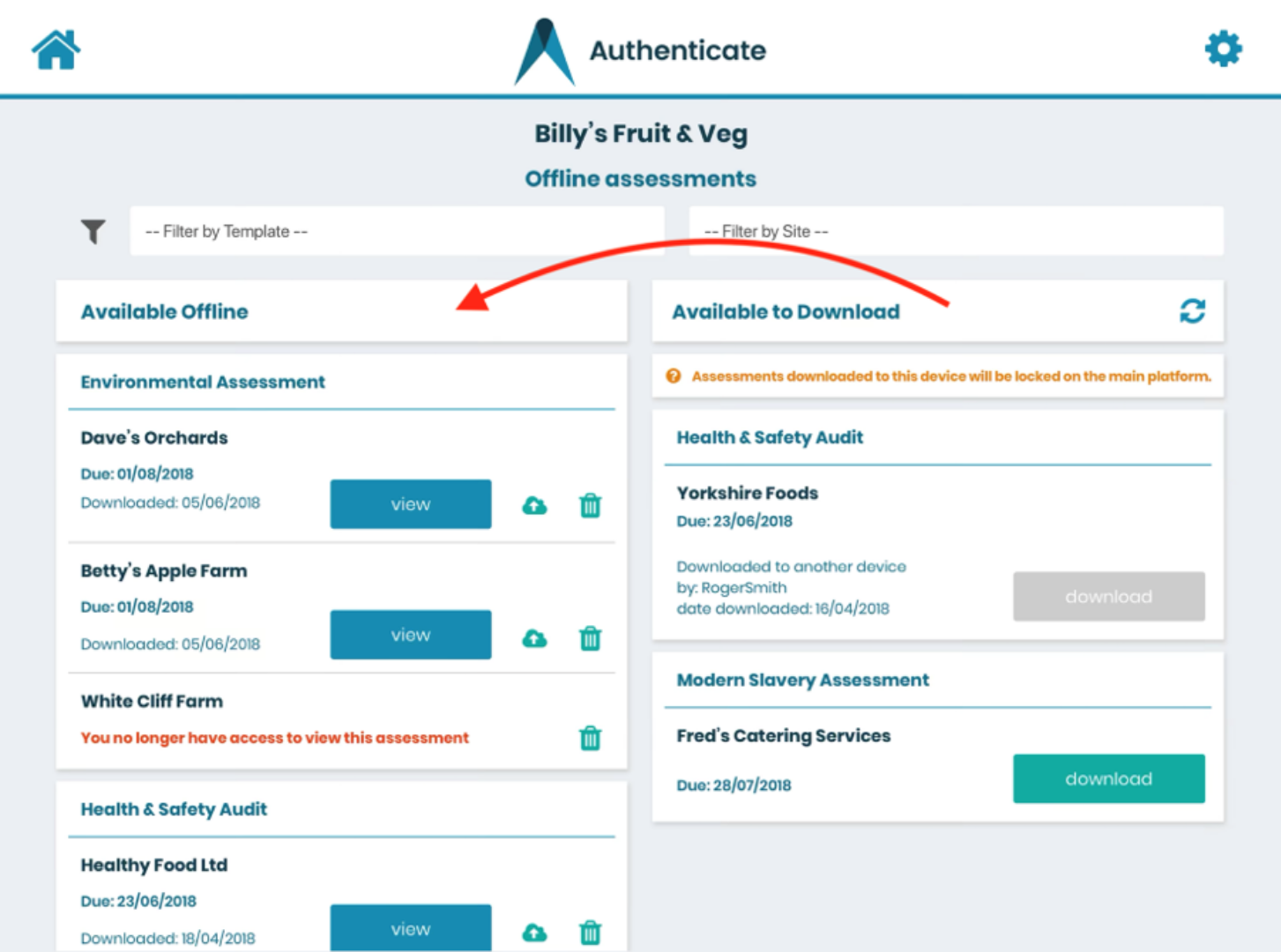
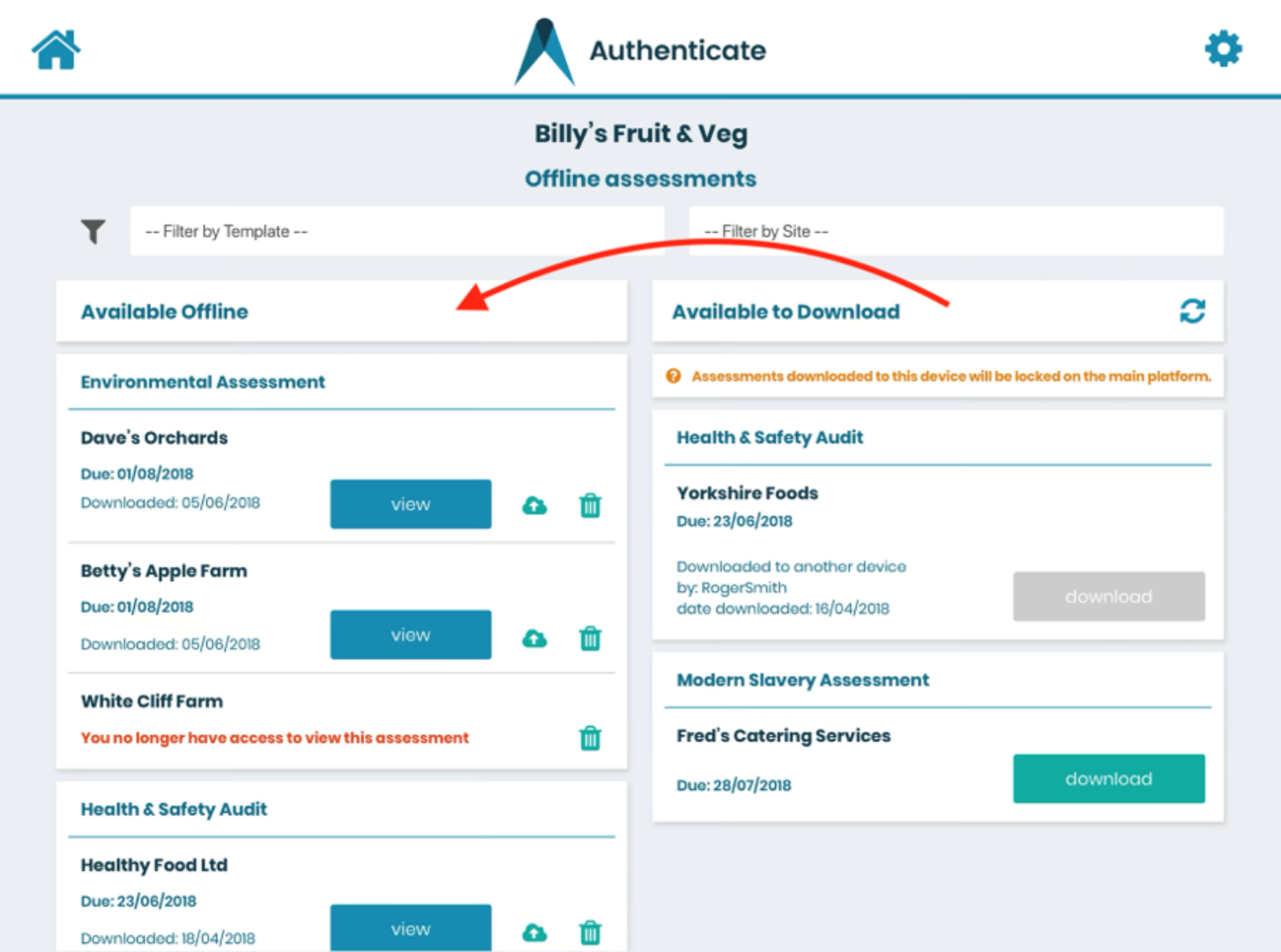
An internet connection is required for this stage. In order to make an assessment available offline you will need to download it by selecting the Download button on the assessment you require. It will then move from the list on the right-hand side to the left-hand side once downloaded. Assessments listed on the left-hand side will be available offline and the ability to view and answer the assessment will not require an internet connection. To find the assessment you're looking to complete, you can either scroll down the right-hand side or filter the list by assessment template or site. Please Note - Don't forget to clear any filters applied when searching for other assessments.
-
Important points to note: If you lose your iPad or delete the assessment, it CANNOT be recovered. Once you have downloaded an assessment it CANNOT be accessed via the main platform, it is locked to your user on your iPad until it is uploaded back to the platform. Once downloaded, selecting the View button, this will take you through to view the details of the assessment, from there you will be able to start or continue the assessment.
-
If an assessment is downloaded to an iPad then on the main platform this is highlighted with the following iPad icon:

-
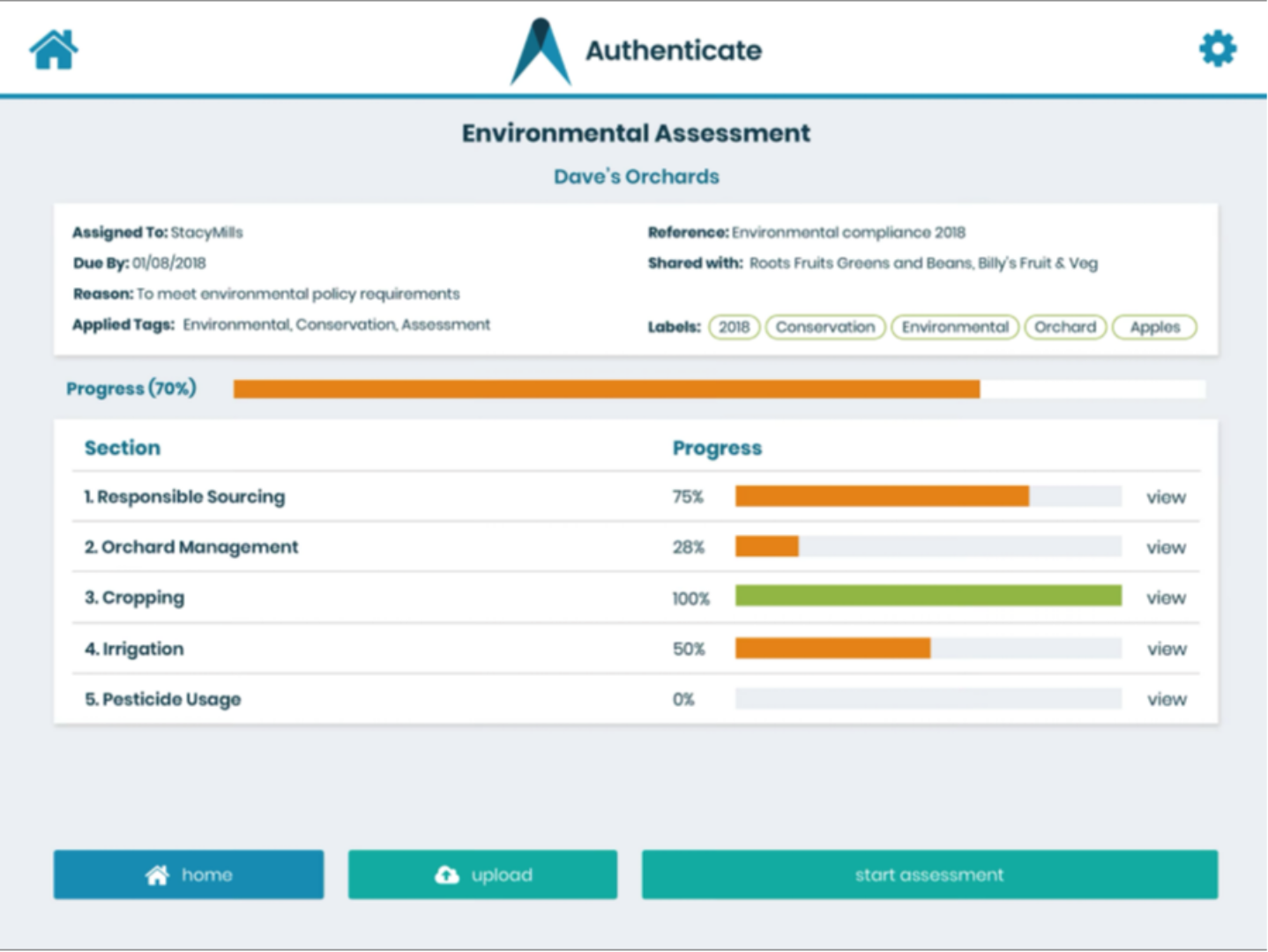
Ensure that you have downloaded the correct assessment before travelling to a location without internet access. From the assessment details page you will have the option to Start assessment (or Continue Assessment if it has already been started). Selecting Start Assessment will take you to the first question to answer (or the first unanswered question if continuing the assessment.)
-
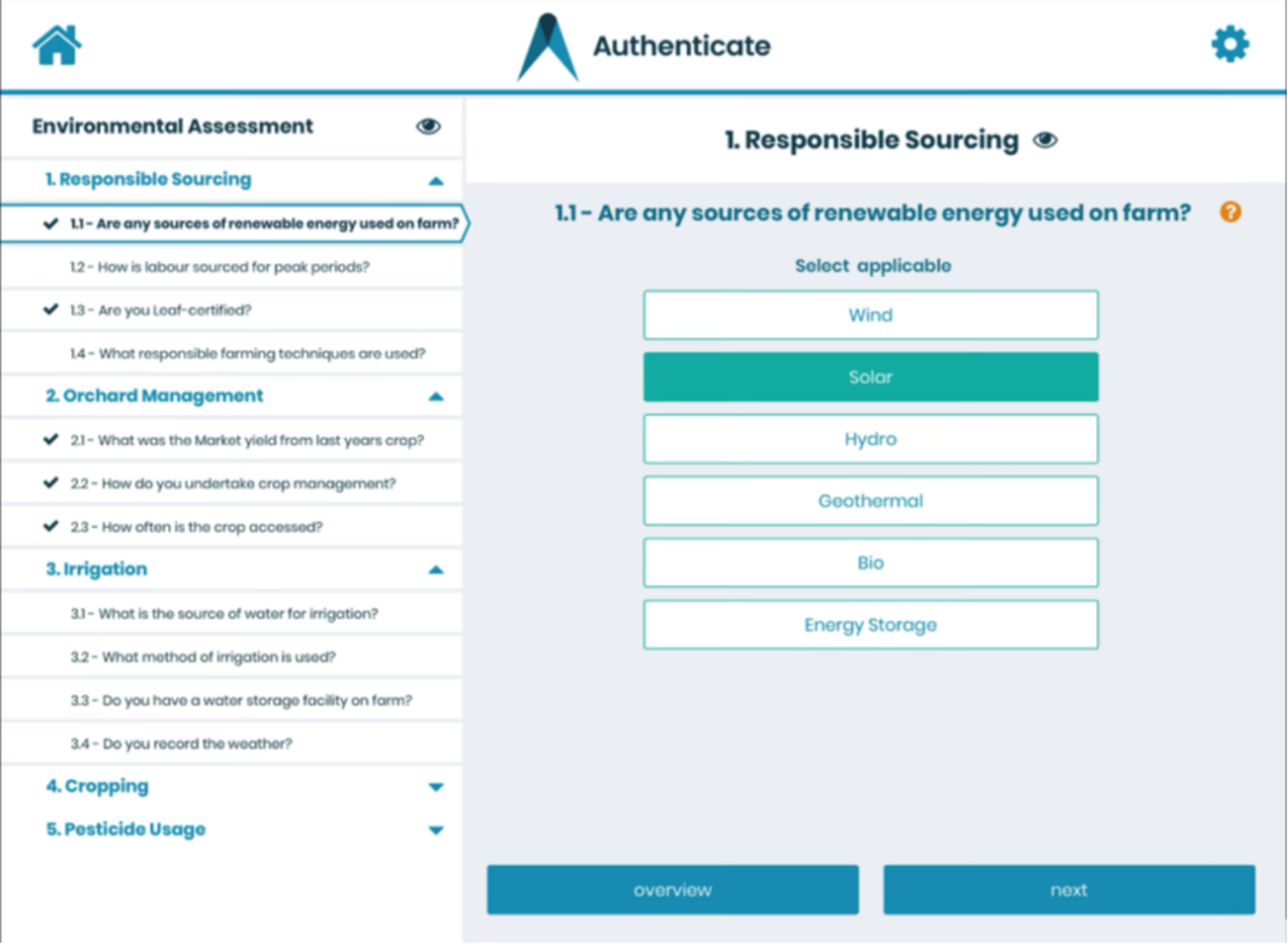
You will then be able to answer the assessment questions accordingly.
-
An internet connection is required for this stage. When the assessment is complete you will need to upload the assessment back to the main platform. This will copy the answers (along with any attachments, comments, observations and corrective actions added) from your iPad back to the main platform. On the assessment details page, there is an upload button at the bottom. When you select upload you will be asked to confirm that you want to save all the answers to the main platform and remove the assessment from the iPad. Select upload to confirm. Once the upload is successful the assessment will be removed from the list of offline assessments on your iPad and the assessment will be unlocked on the main platform. The assessment will then also appear back on the right-hand side column on the homepage of available assessments to download.
-
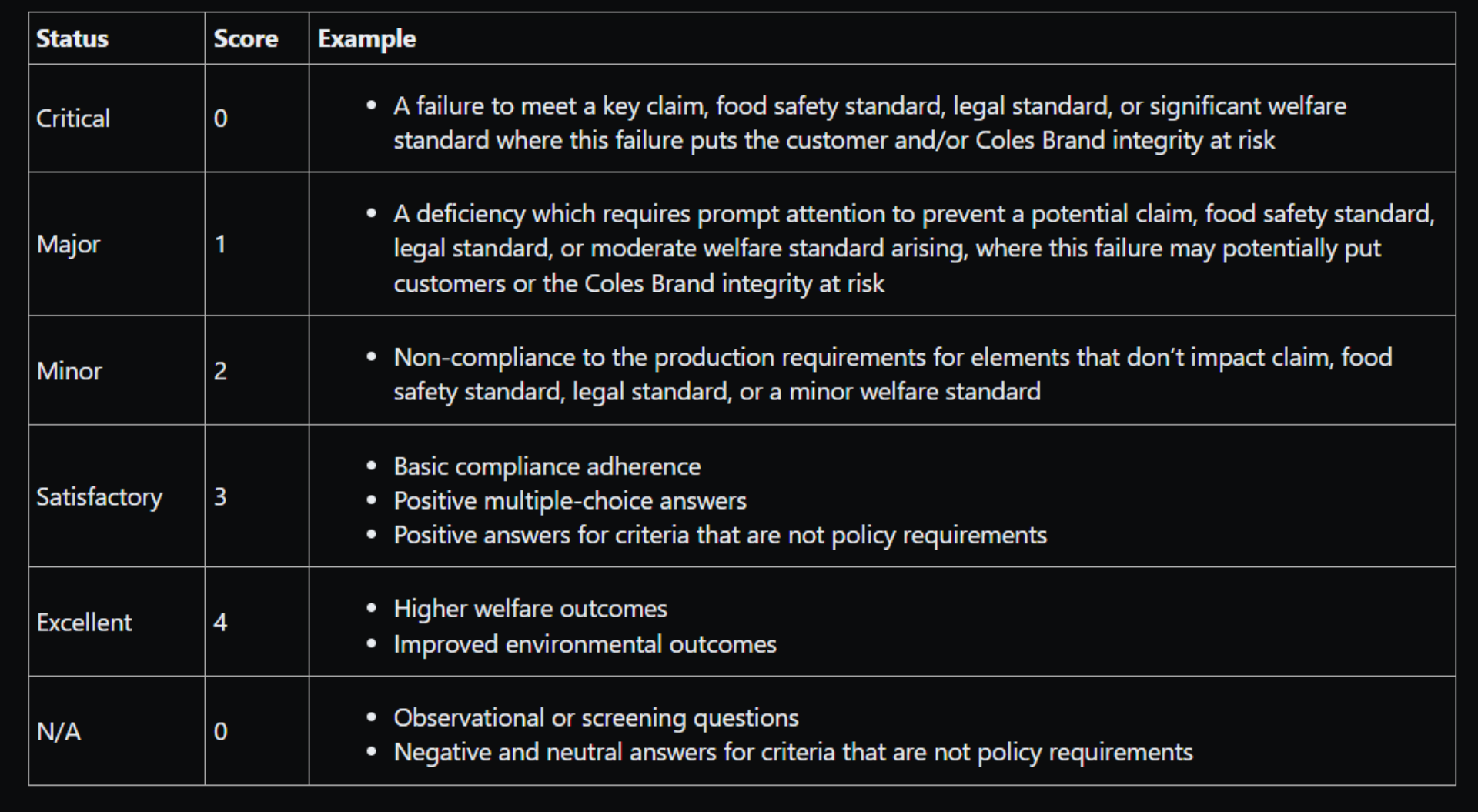
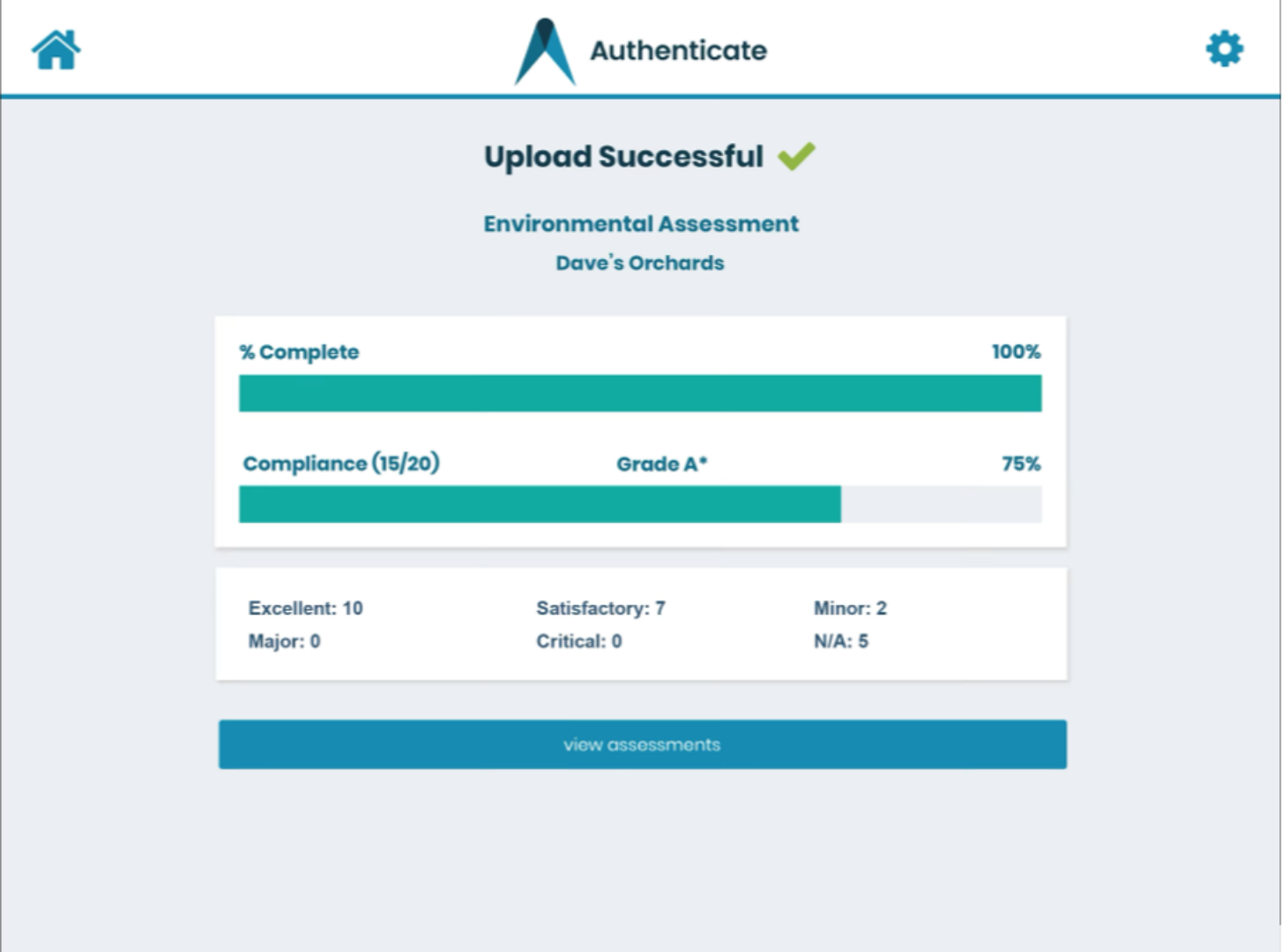
You will receive a confirmation on the screen saying that the upload was successful. This screen also provides some instant feedback outlined as follows: Percentage Complete – How far the assessment has progressed. Risk Compliance Score & Status – Based on the responses given, the answer is nominated into one of the following categories and has the following points system associated with it, unless you have manually changed the points scoring system.