New article
Recently updated
Sending and responding to messages

Who is this article for?
Users who want to learn to send and respond to messages.
No elevated permissions are required.
This tutorial guides you through sending and responding to chat messages in Ideagen Supply Chain.
You will learn how to initiate new chats, search for companies and users, send messages with attachments, and manage your chat notifications.
Sending and responding to messages
- Log into the system.
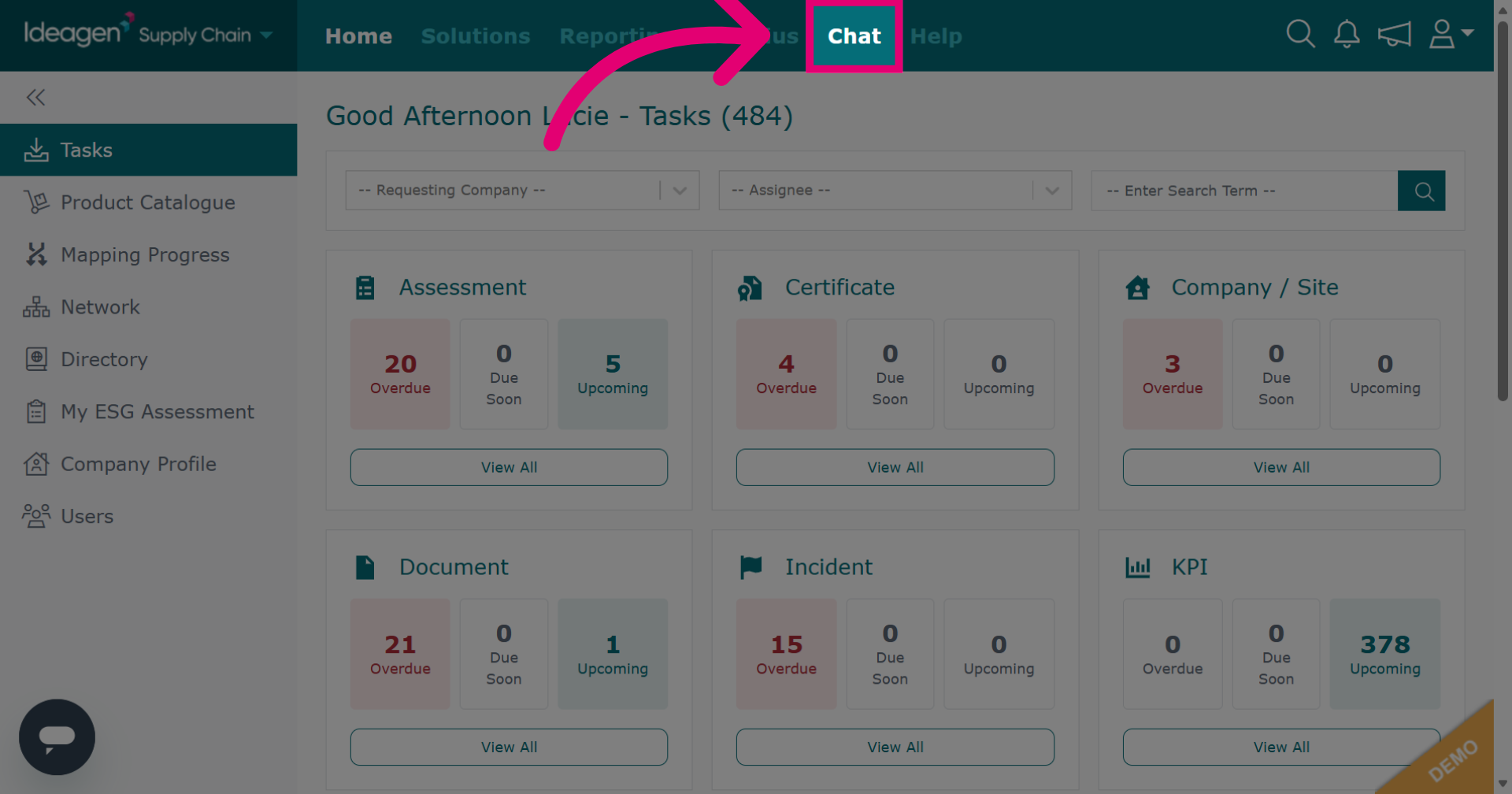
Click Chat to open the chat area within Ideagen Supply Chain.
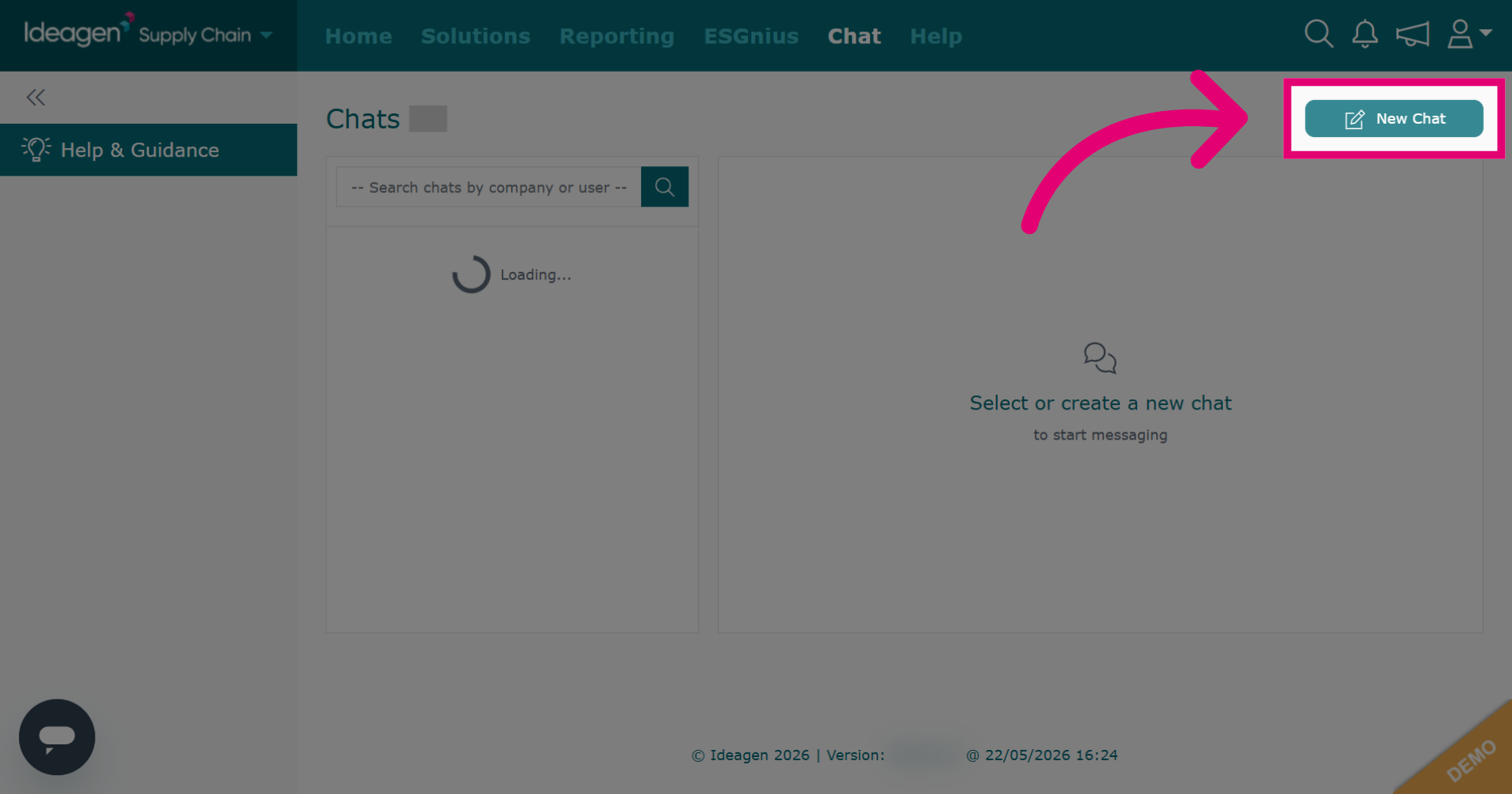
Click New Chat to initiate a new chat. Chats send instant messages in real time so that you can have a back and forth conversation with any company that has a profile on the platform.
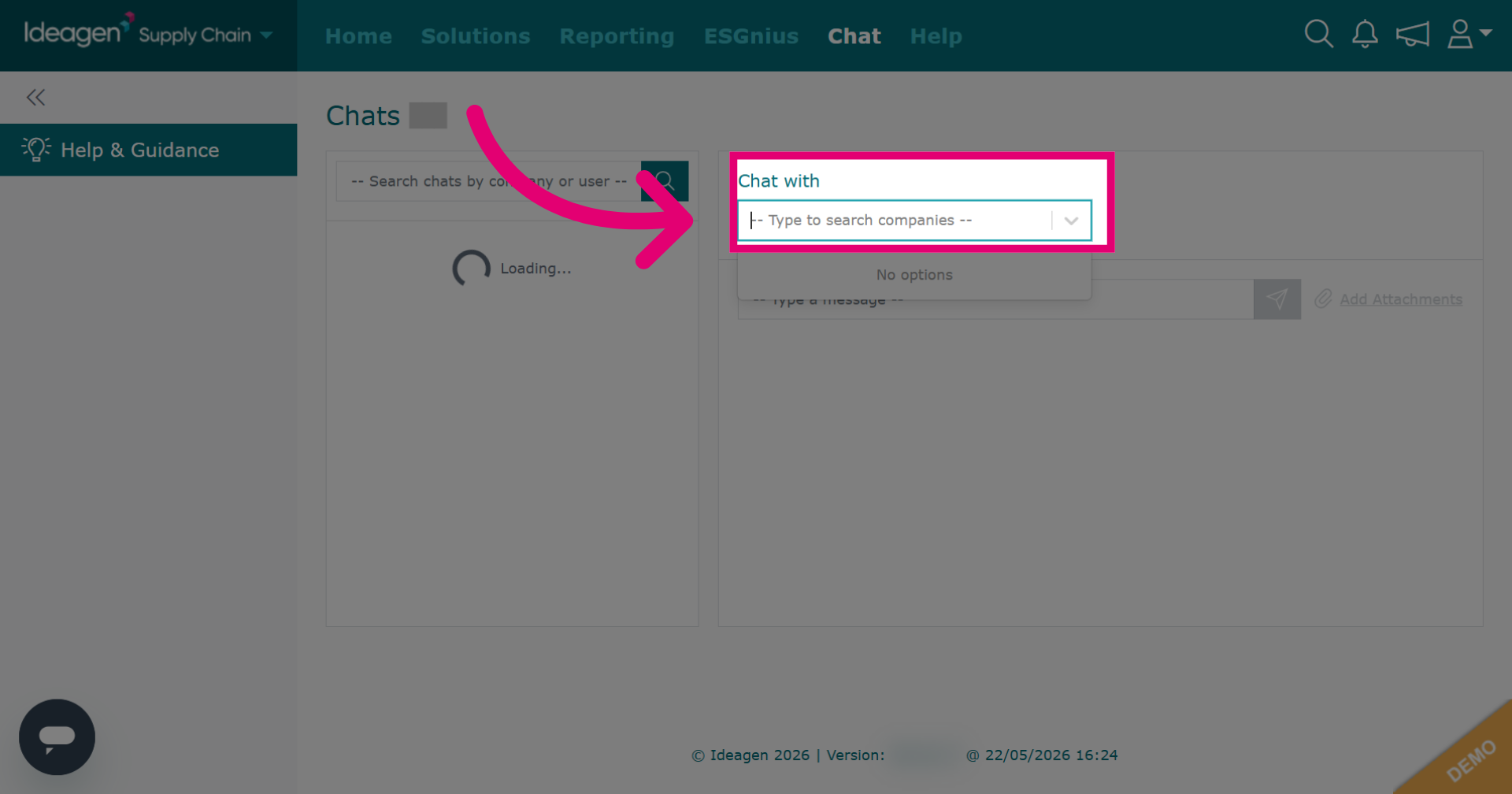
Click here to find the company you wish to chat with and enter the search term.
Select the company from the drop down options.
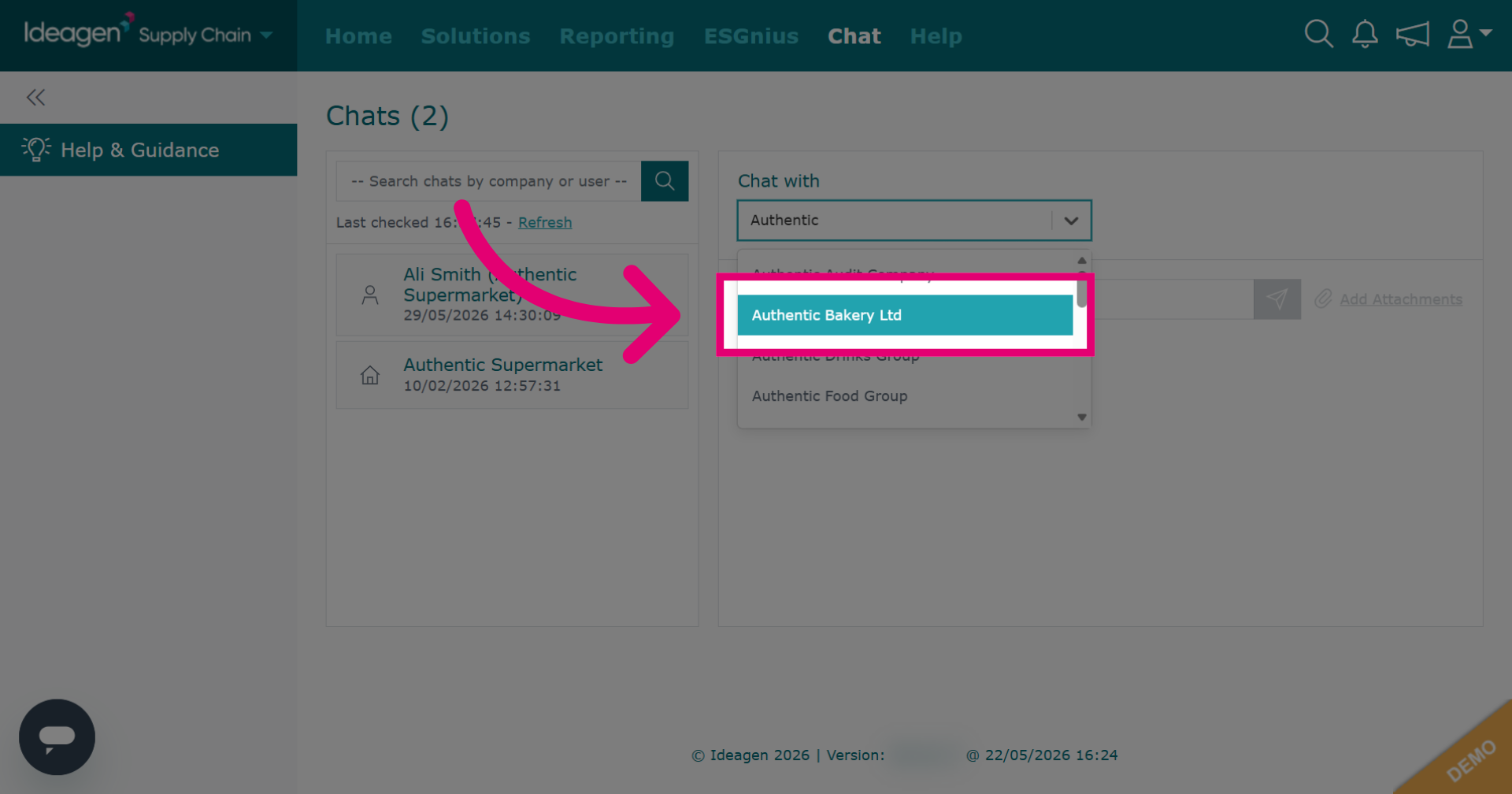
Search for a user or multiple users in the search bar.
Users can view and respond to the chat only if included. You cannot add or remove users after the chat is created. Users not included cannot see or reply to messages.
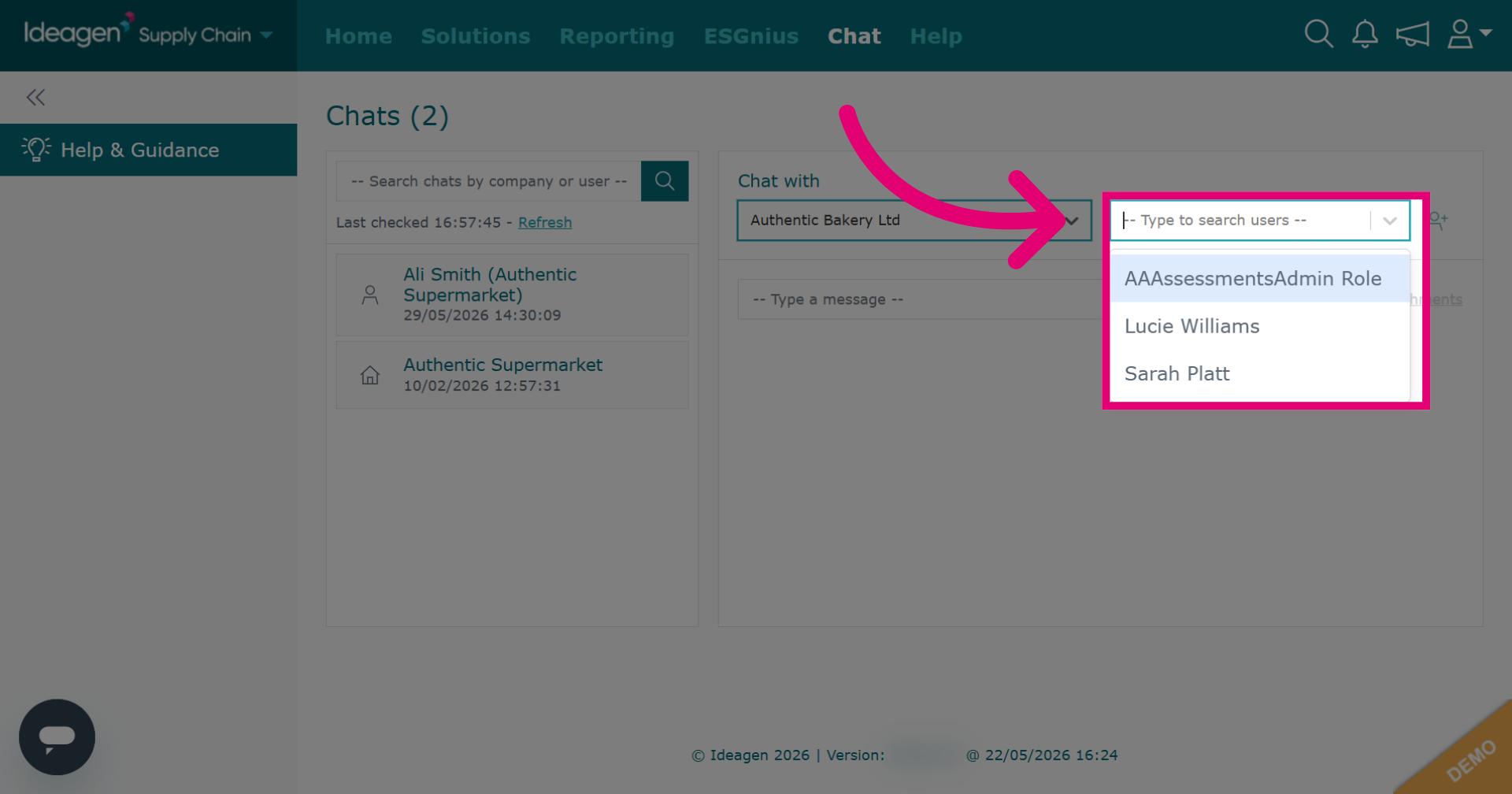
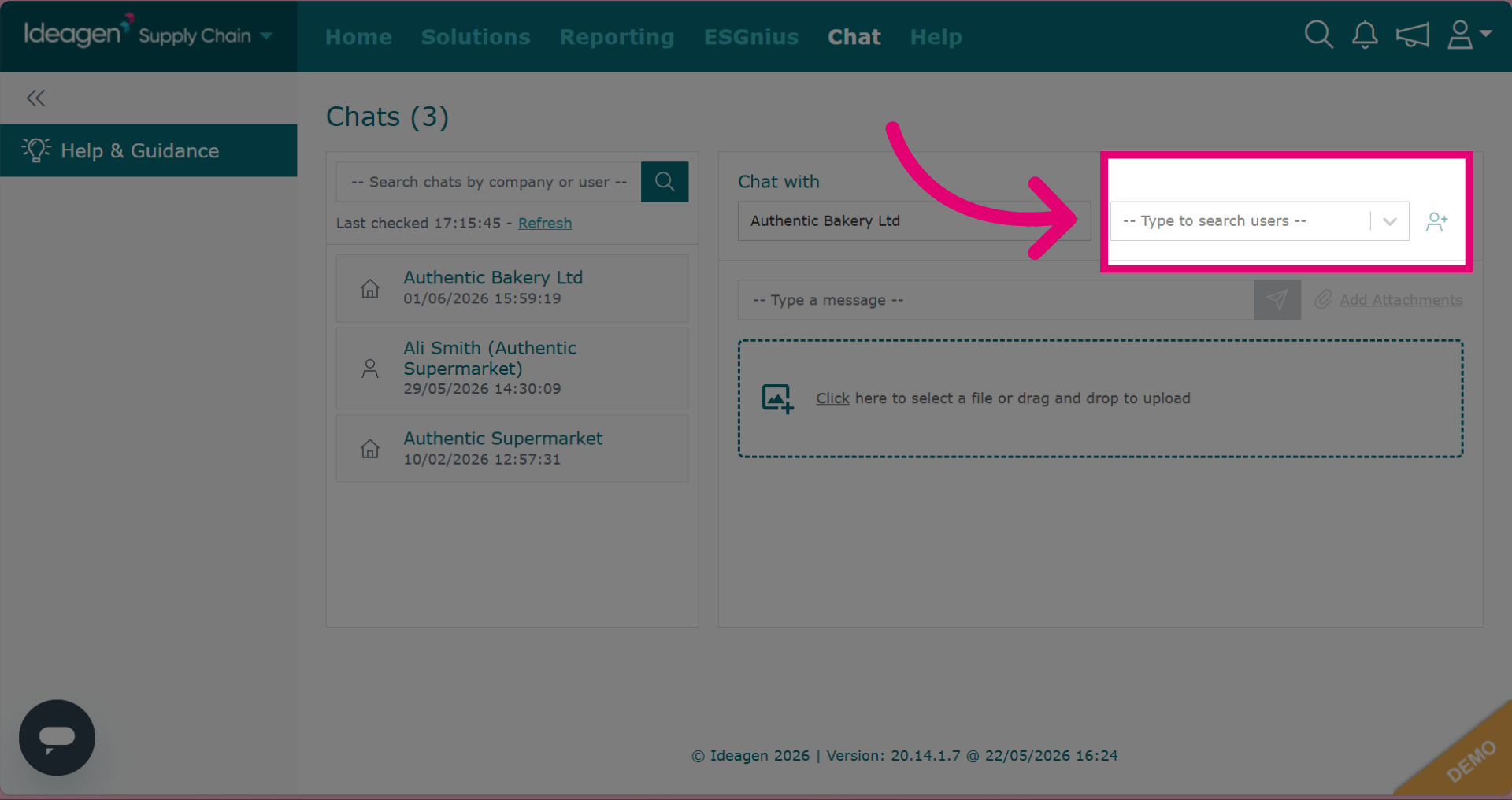
If you leave the users box blank, the chat will be visible to all users of the company's profile.
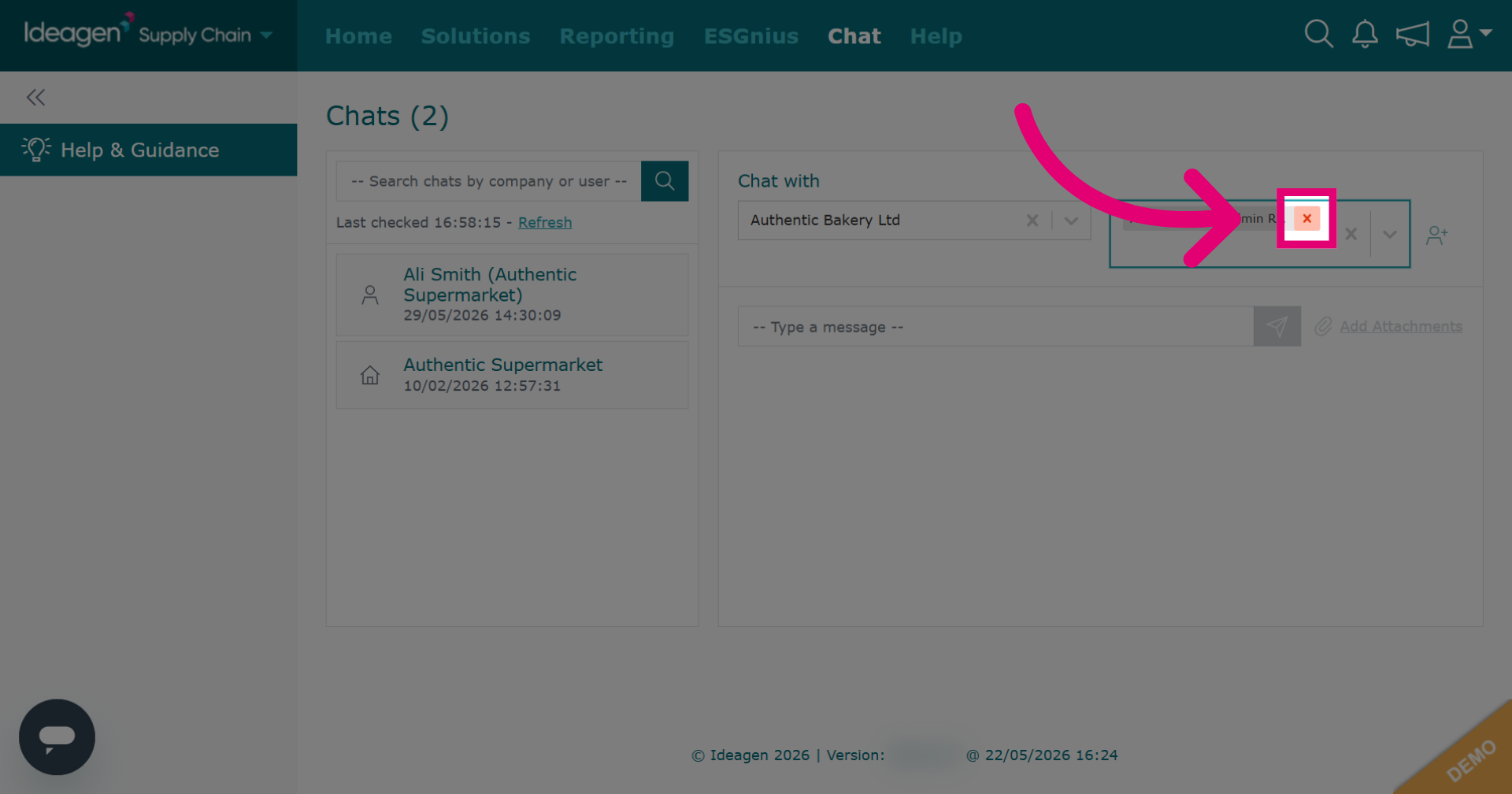
Click the x to remove a user from the user box. This means that the chat will not be sent to that user.
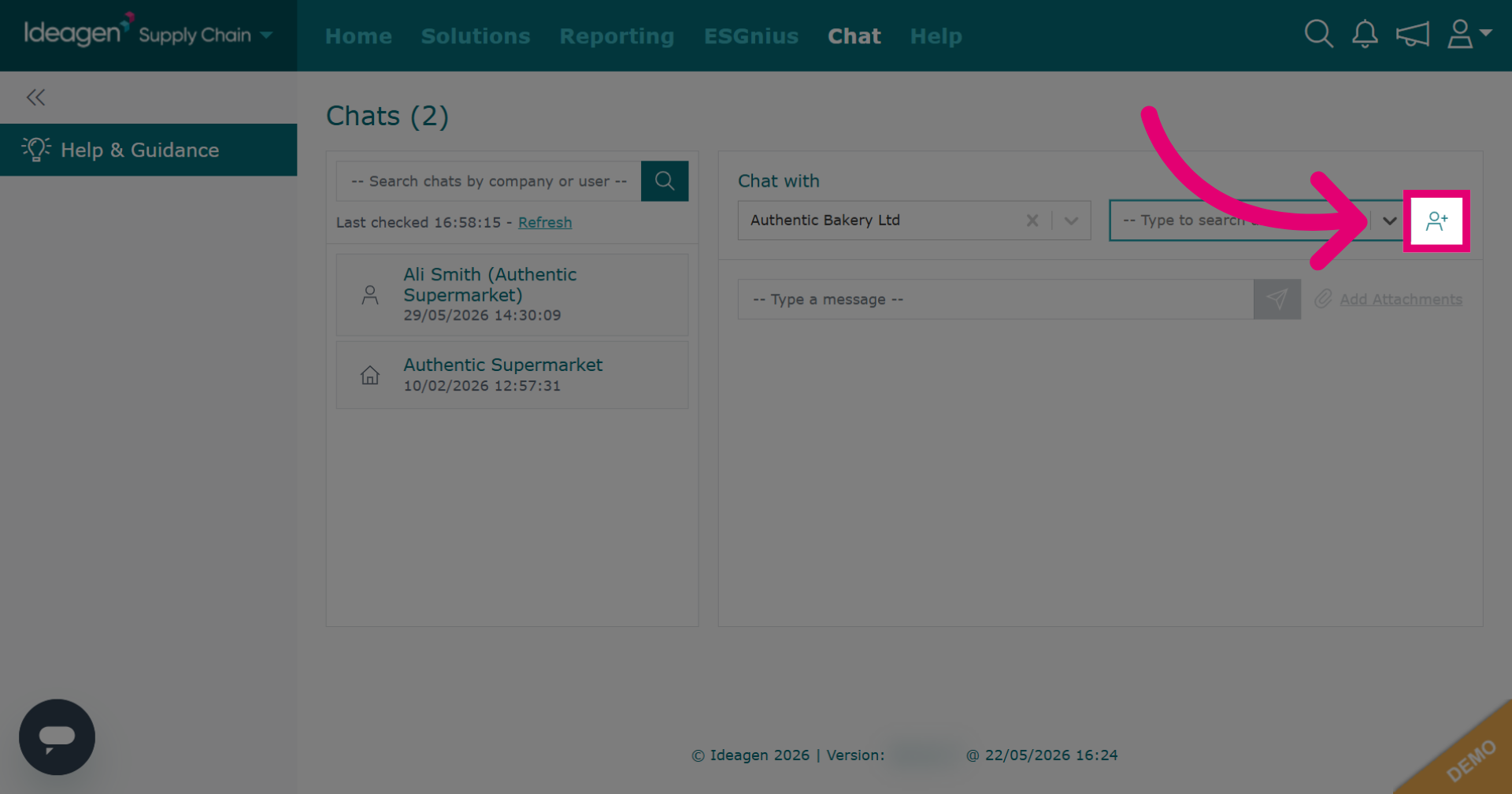
If the user you want to chat with is not listed in the drop down options, you can add them by clicking the plus icon.
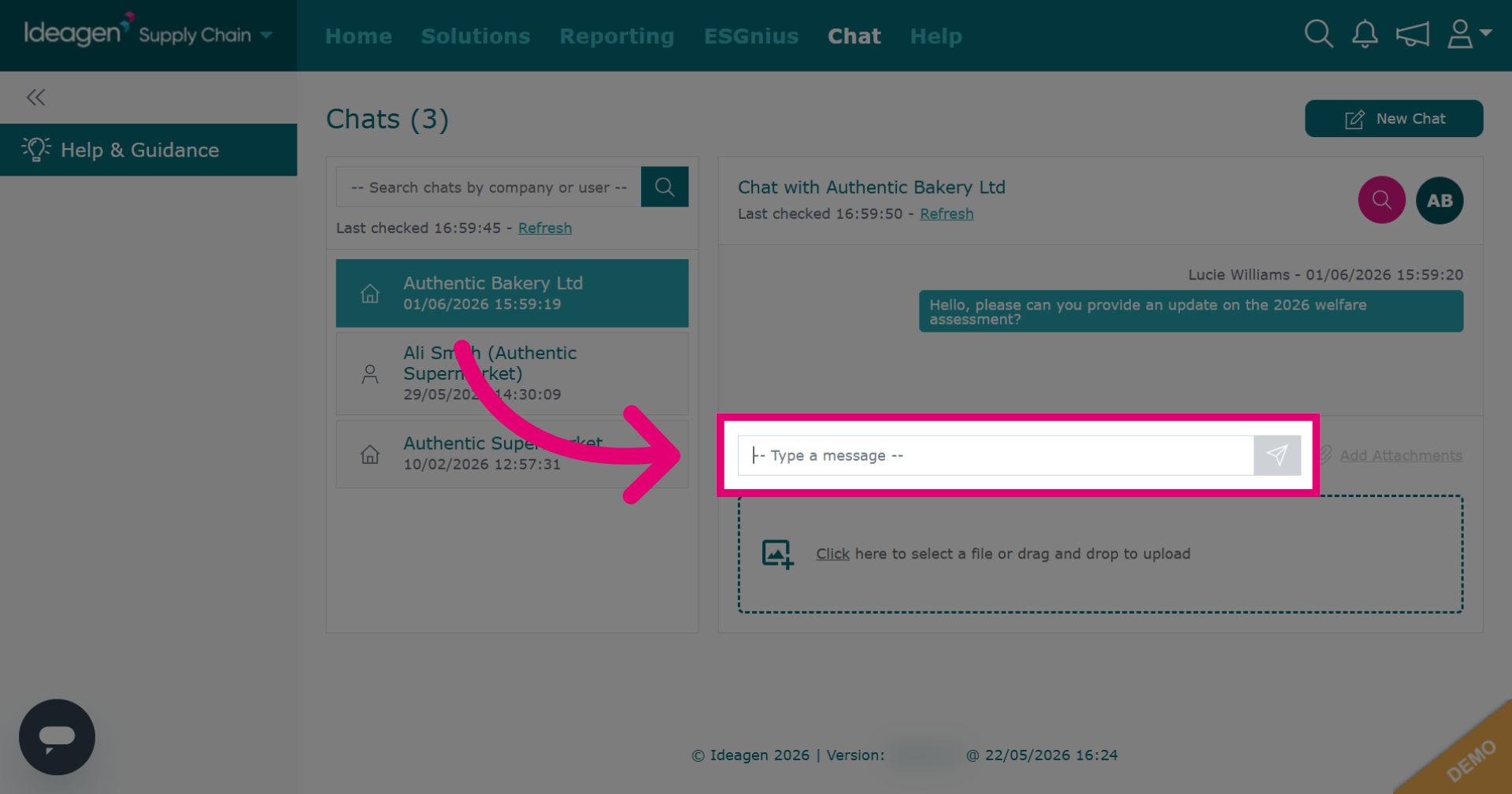
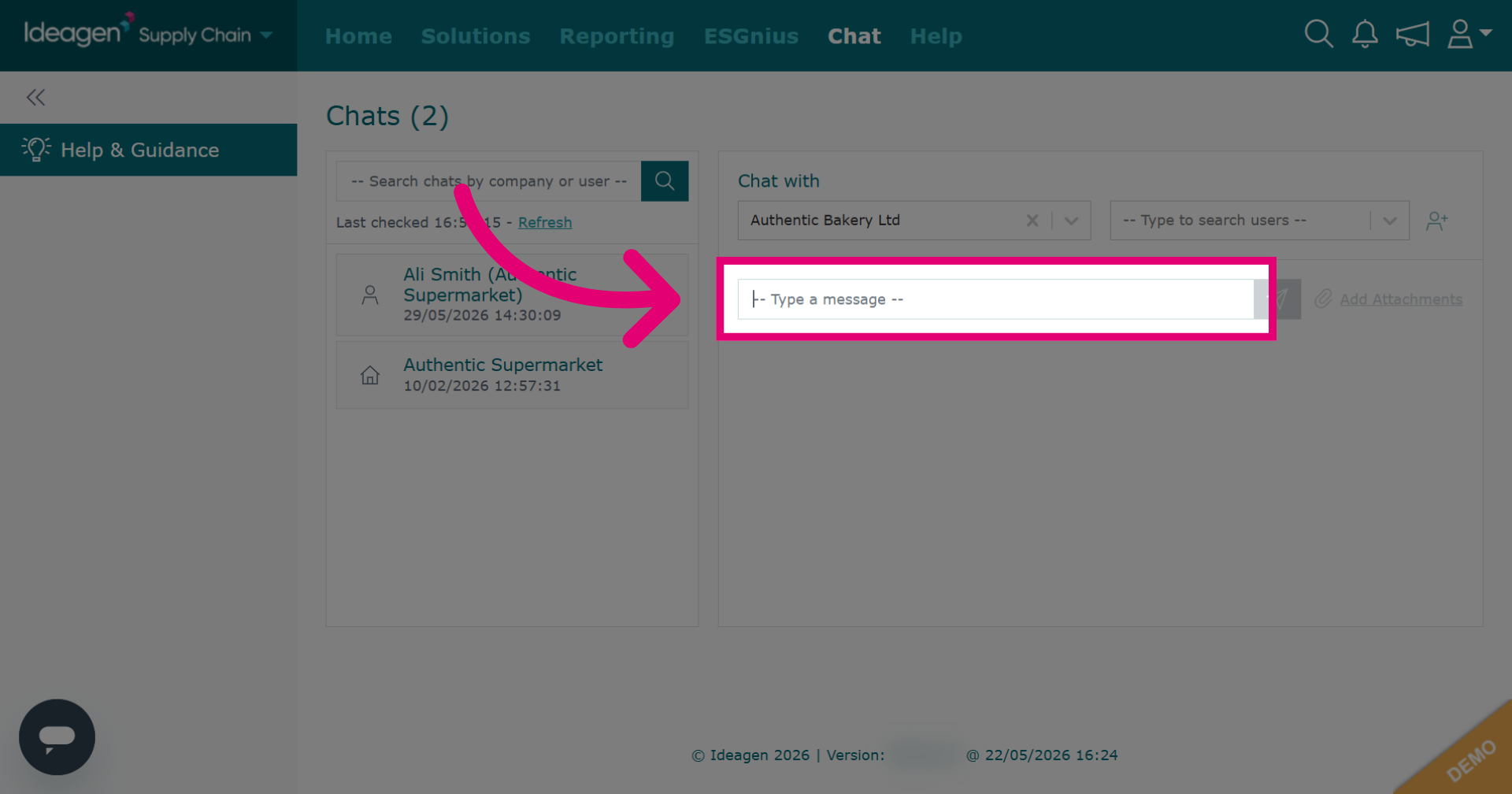
Click here and begin typing your message.
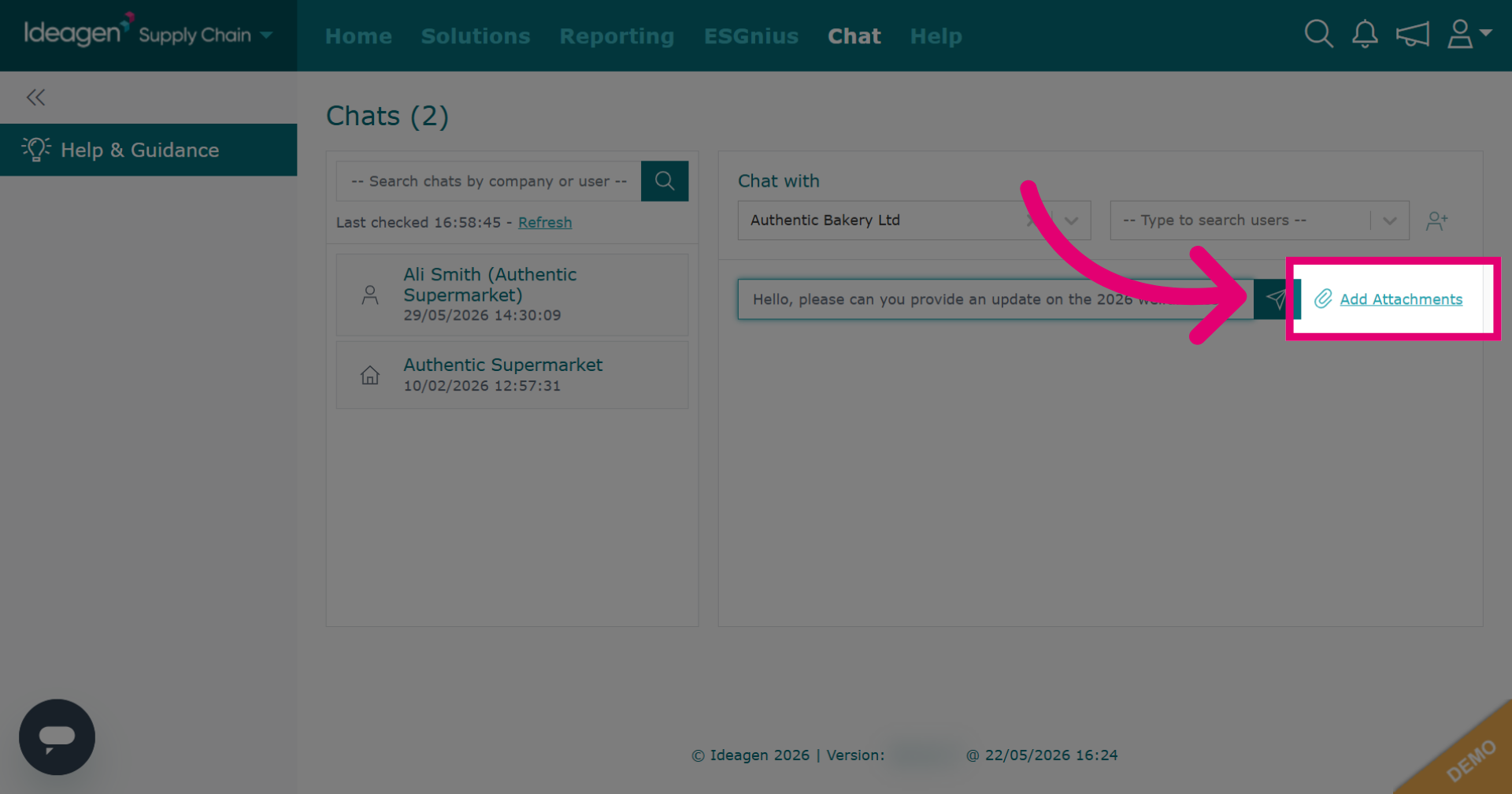
Click Add Attachments to attach files to your message.
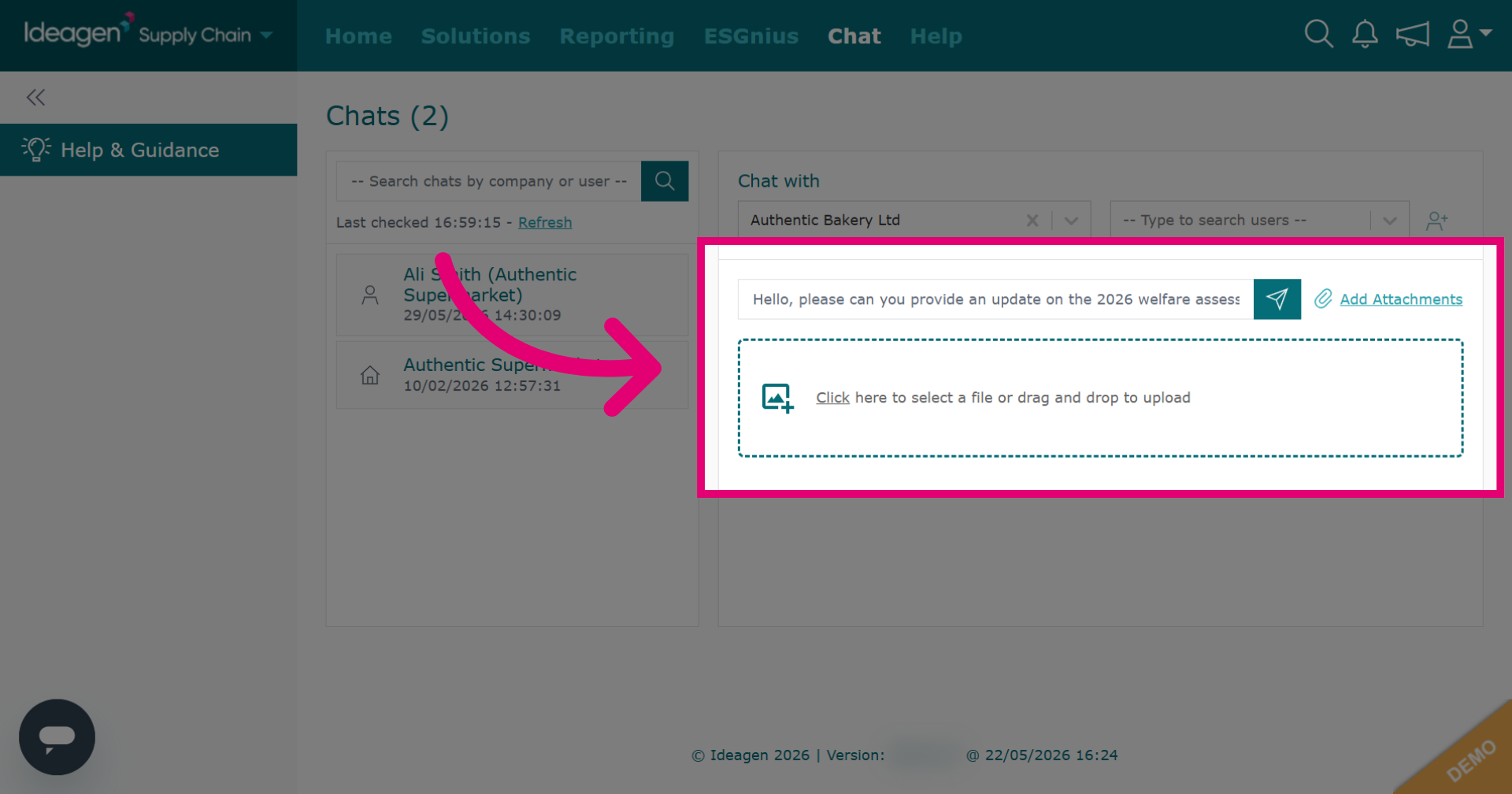
Select the files that you want to upload from your desktop into the chat.
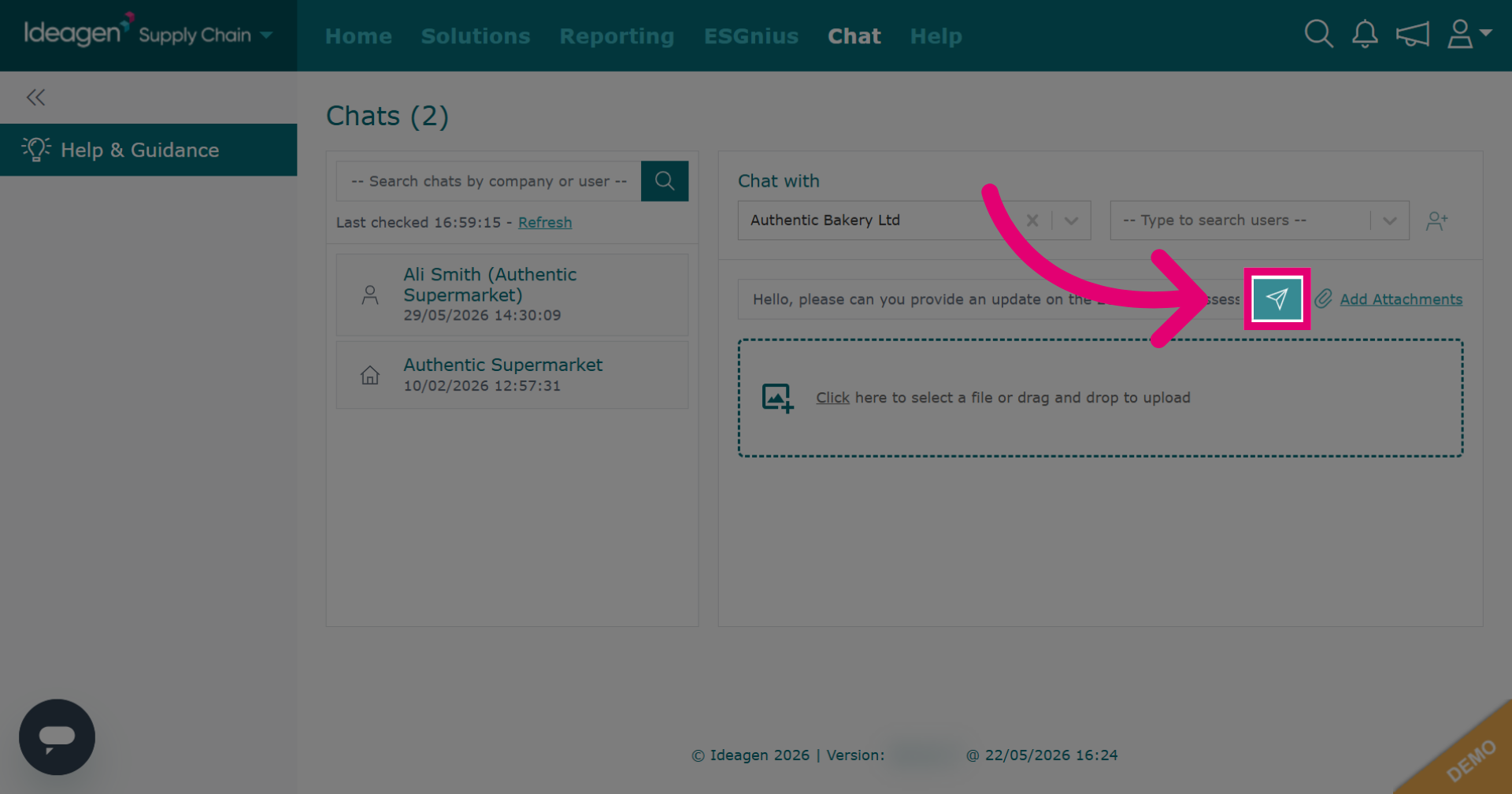
Click the paper plane icon to send the message. Please note that you cannot delete a message or attachment once it has been sent.
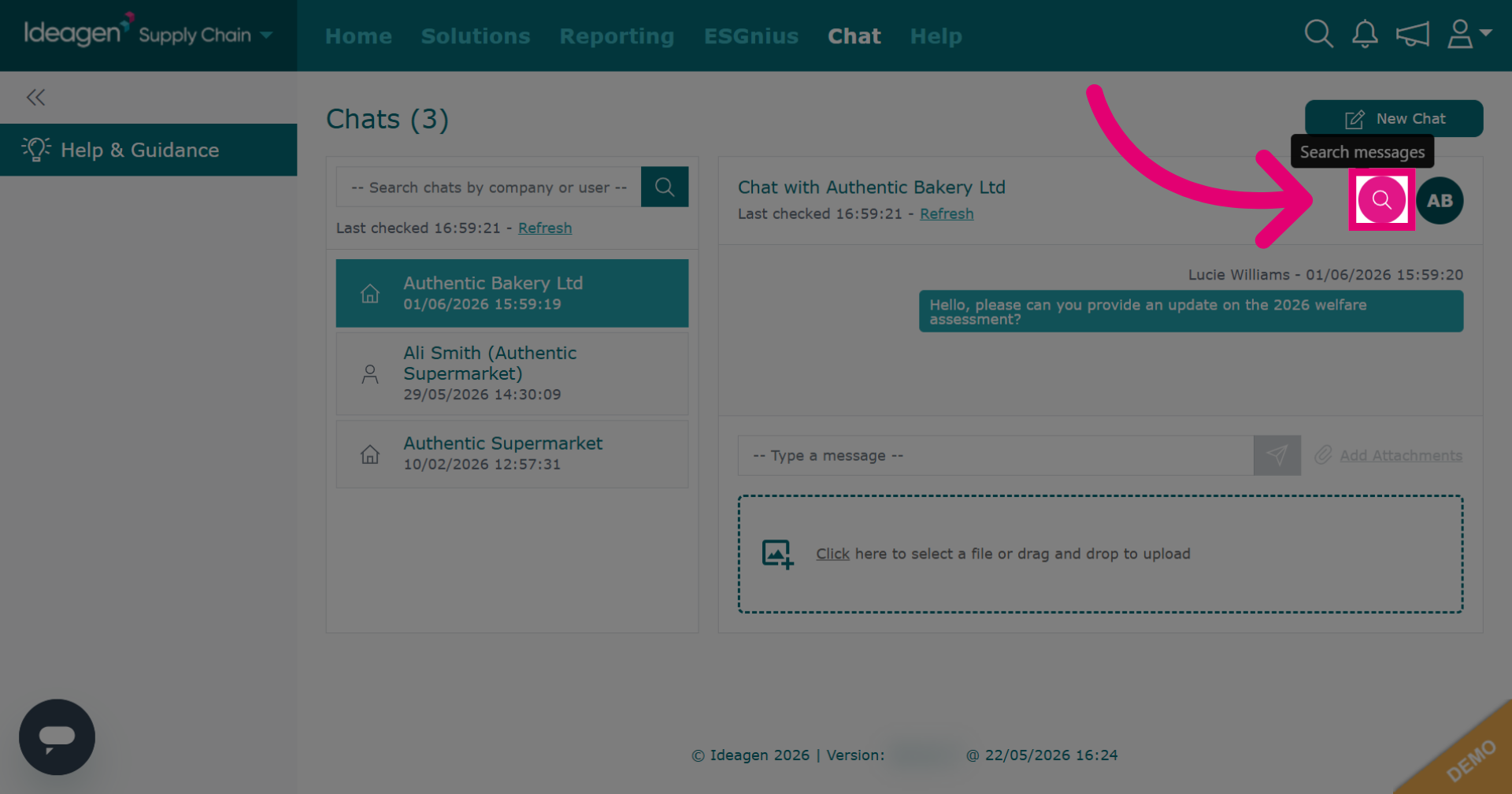
To search within a chat, select the chat you wish to search within and then click the pink search icon.
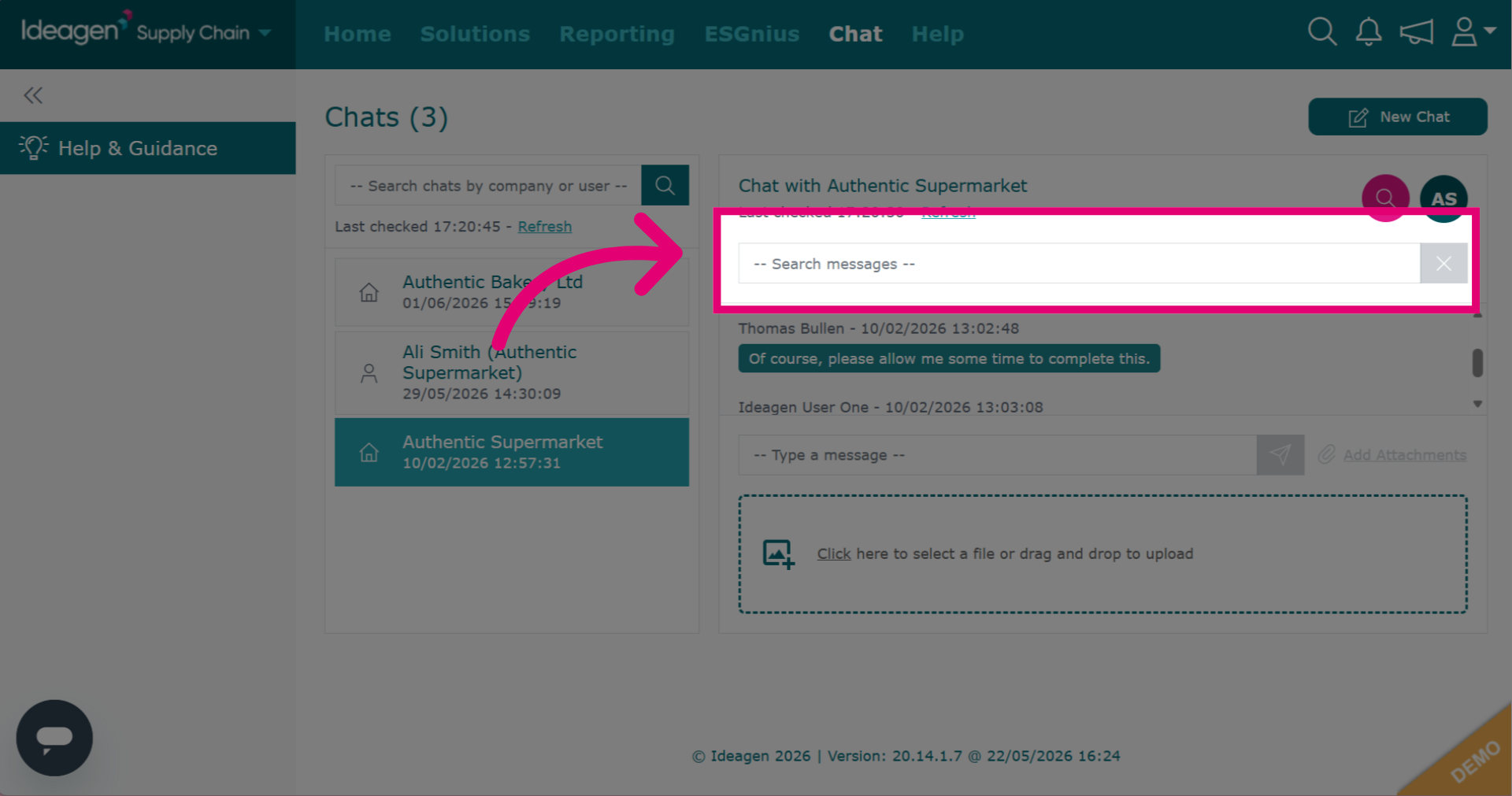
Input a keyword to search by.
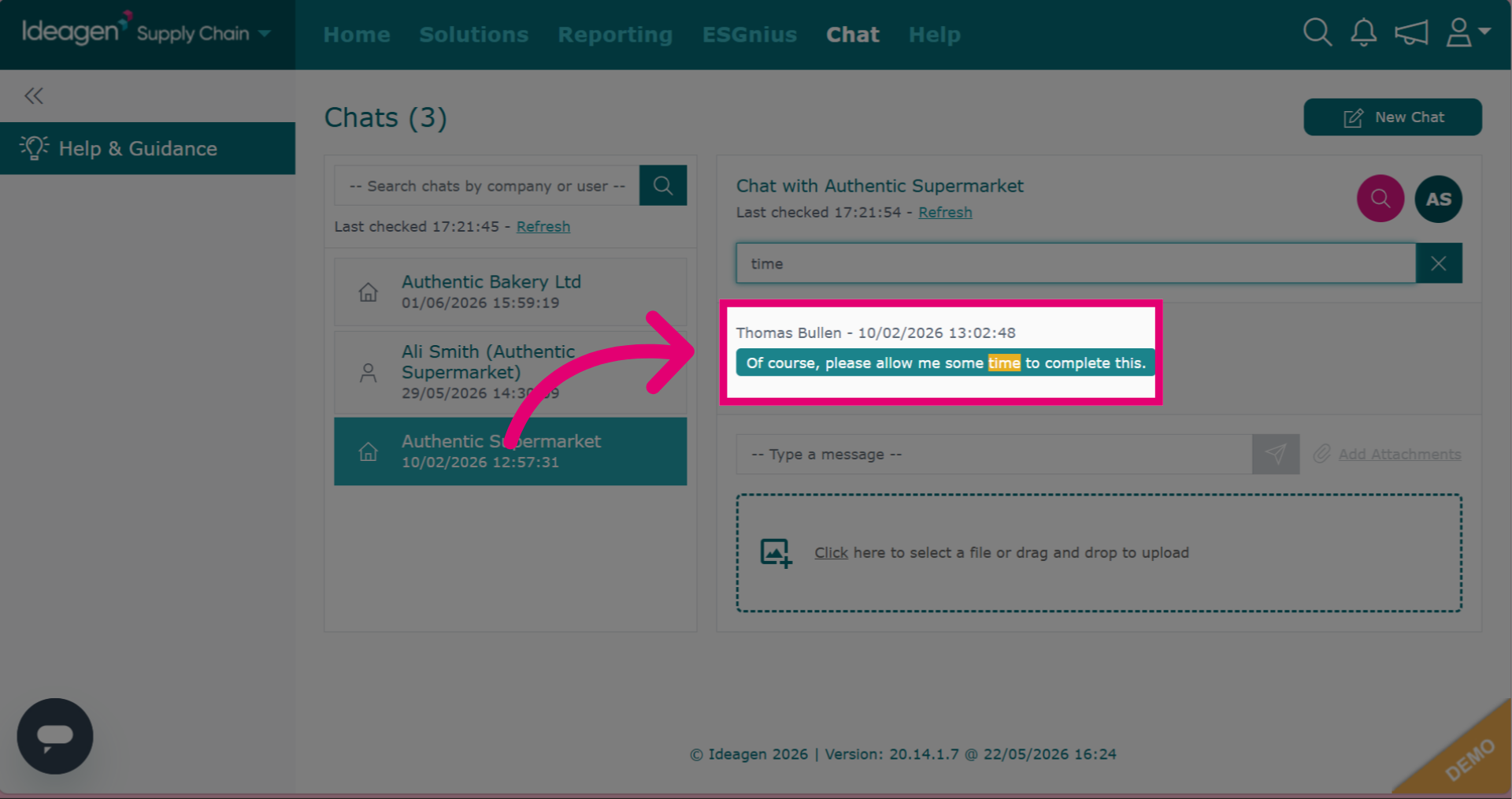
Any matching keywords will then be highlighted in the chat.
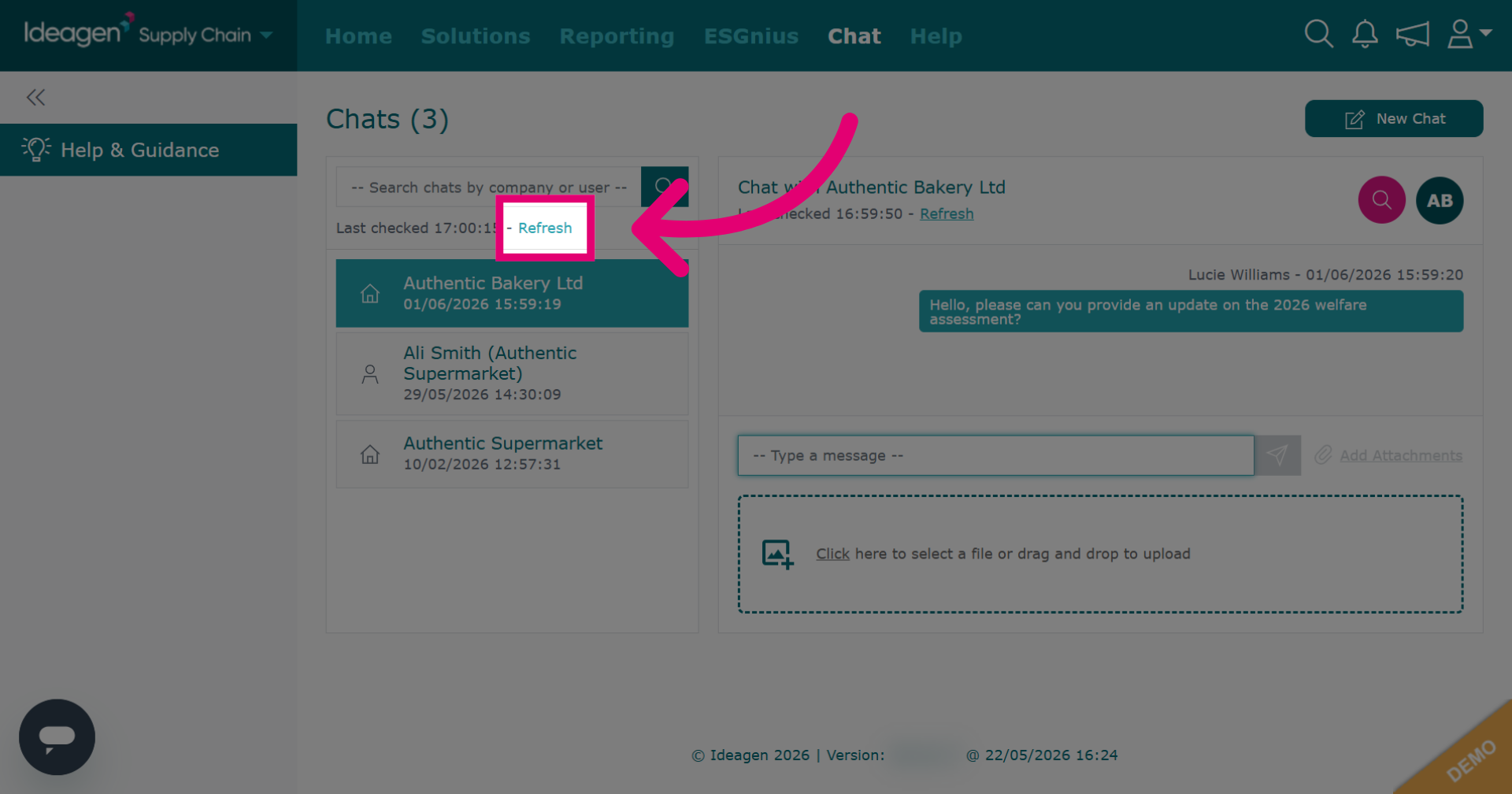
Click Refresh to update the page and view the latest messages and attachments.
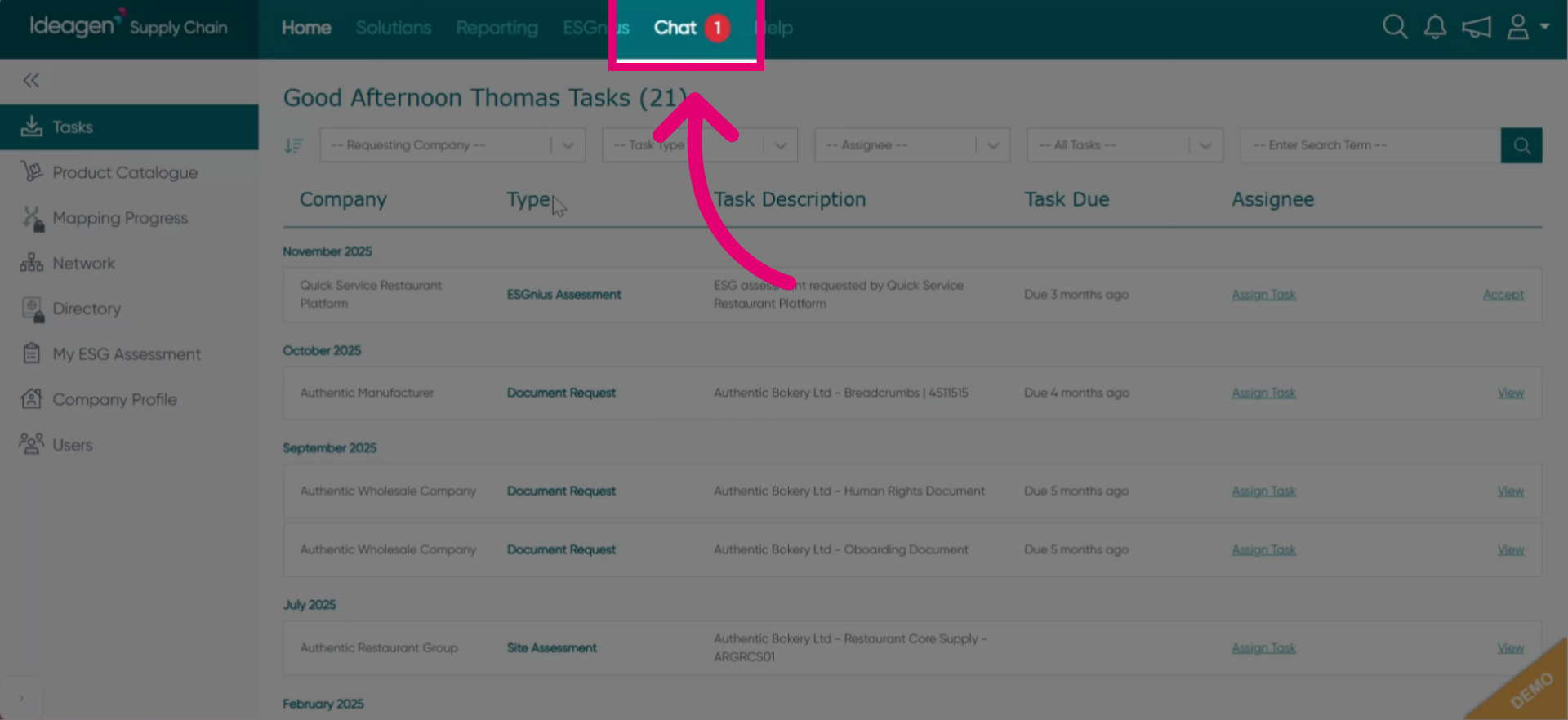
When you have a new chat message, it will show with a red number icon.
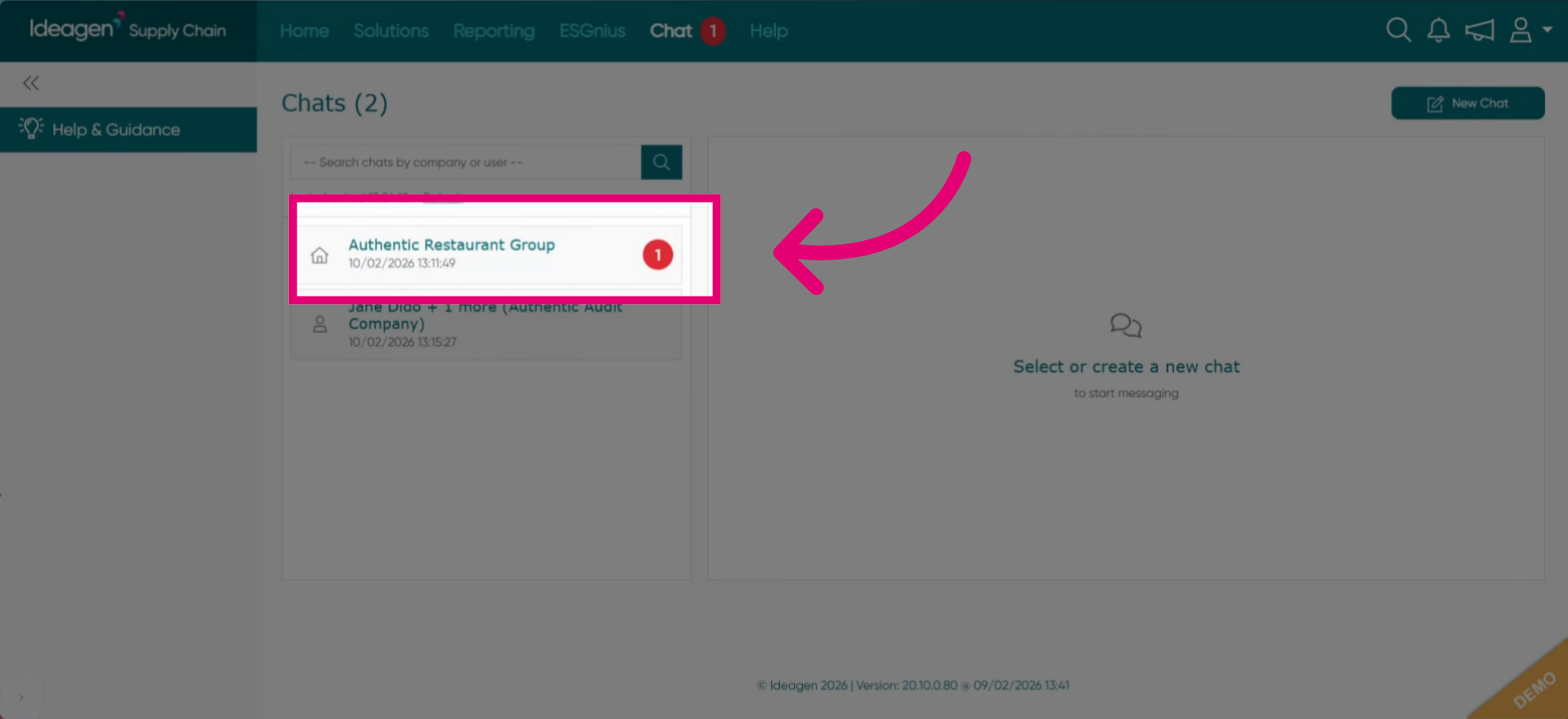
The chat with a new message will display the same red number icon next to it.
To send additional messages in a chat, click on the relevant chat and select type a message. You can then enter your message and send it by clicking the grey send button.