New article
Recently updated
Using the Chat Function to Send and Respond to Messages

Who is this article for?
Users accessing the chat function.
Permissions: None.
This tutorial guides you through sending and responding to chat messages in Ideagen Supply Chain.
You will learn how to initiate new chats, select recipients, send messages with attachments, and manage your chat conversations.
Sending and responding to chat messages
-
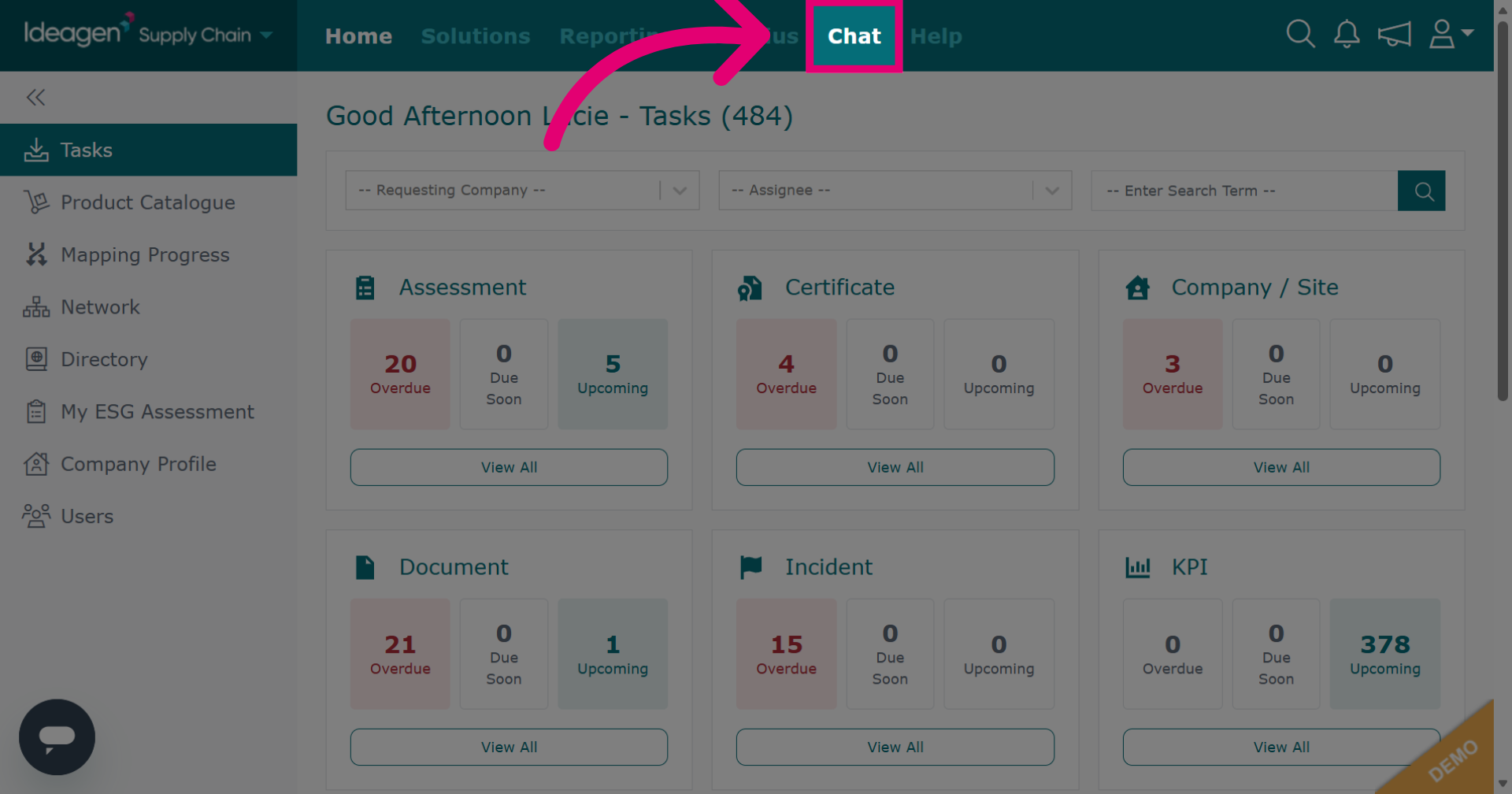
Click Chat to open the chat area within Ideagen Supply Chain.
-
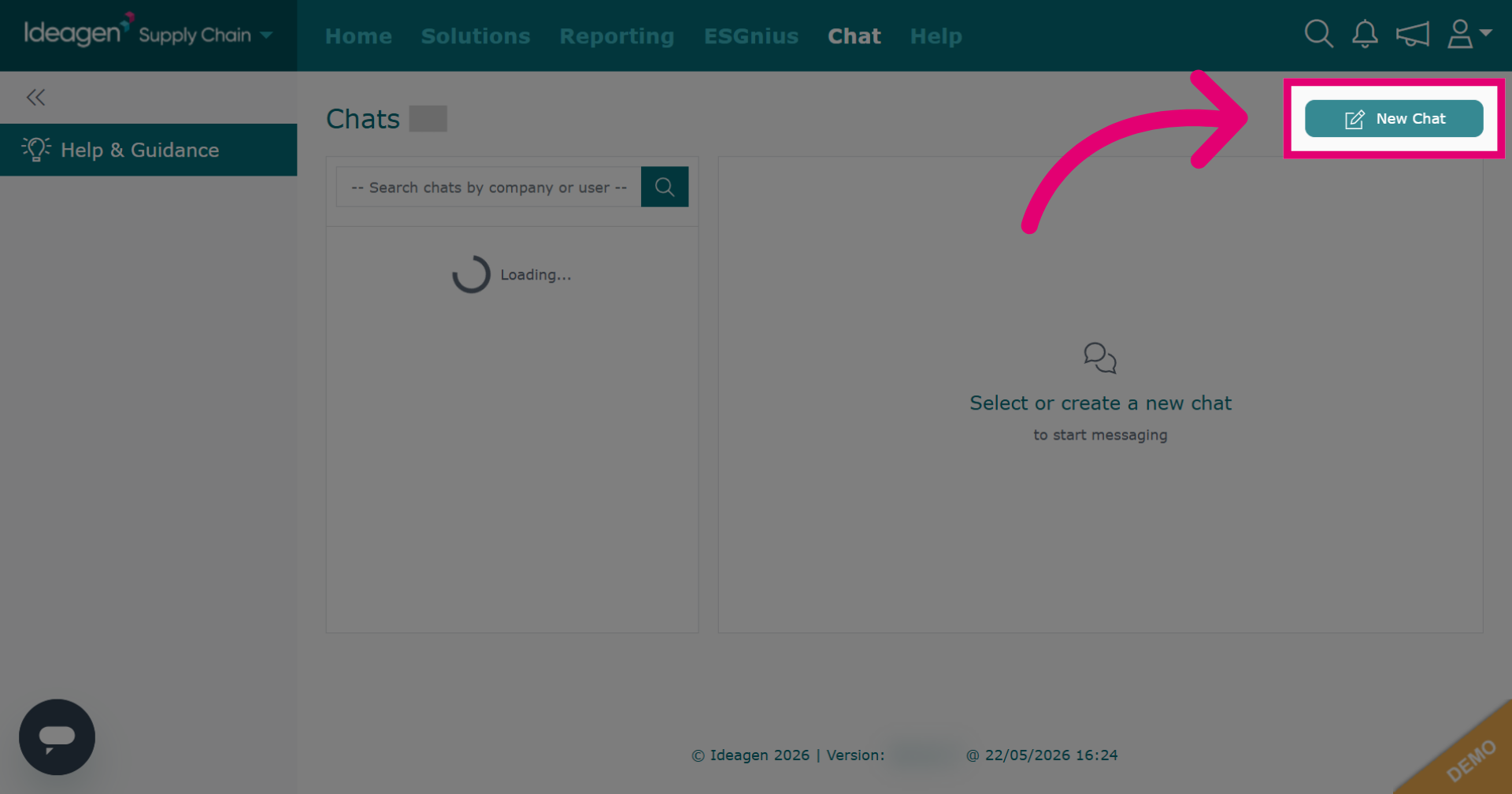
Click New Chat to initiate a new chat. Chats send instant messages in real time so that you can have a back and forth conversation with any company that has a profile on the platform.
-
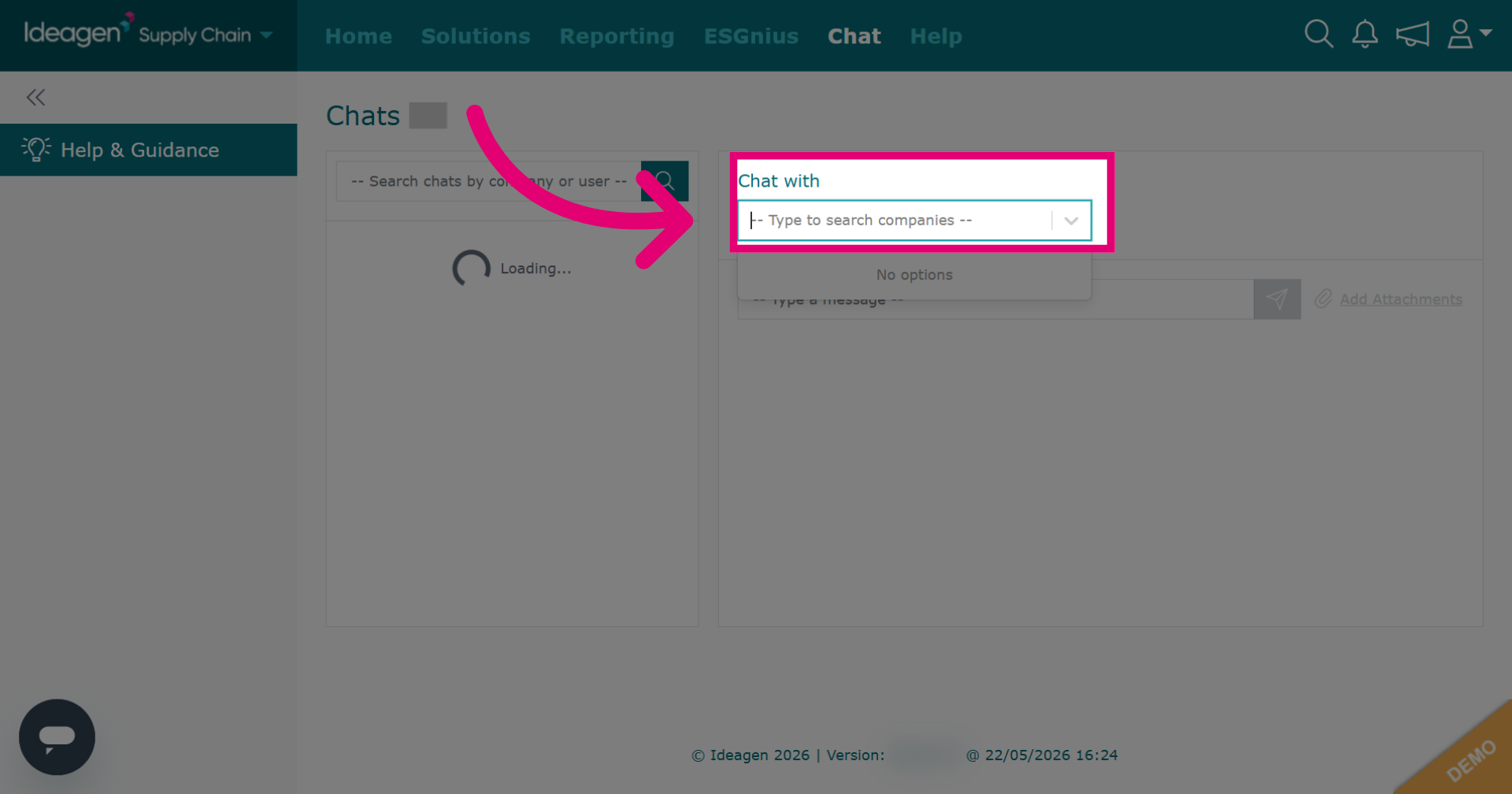
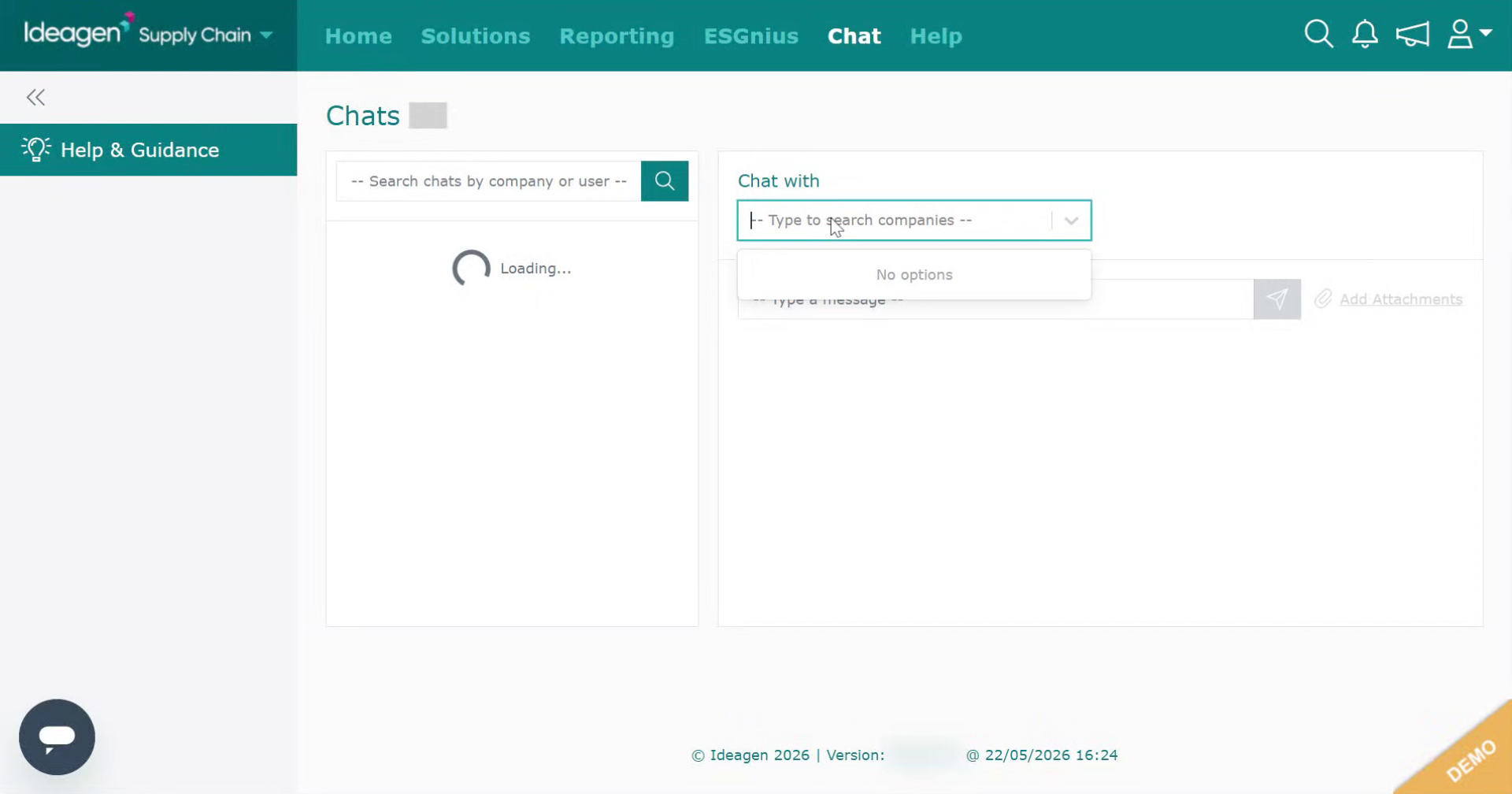
Click the search field to find the company you wish to chat with.
-
Enter the search term to find a company.
-
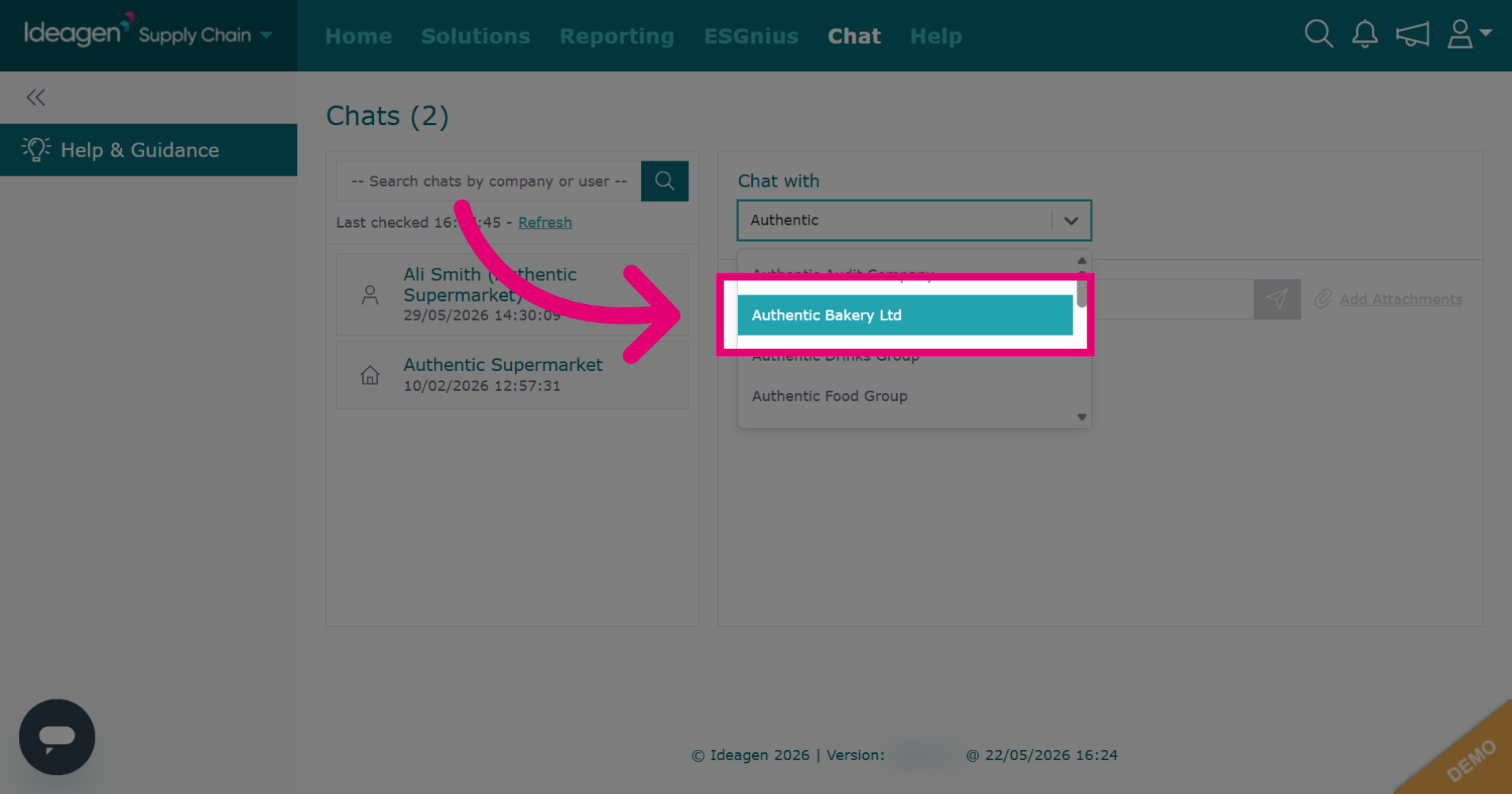
Select the company from the drop down options.
-
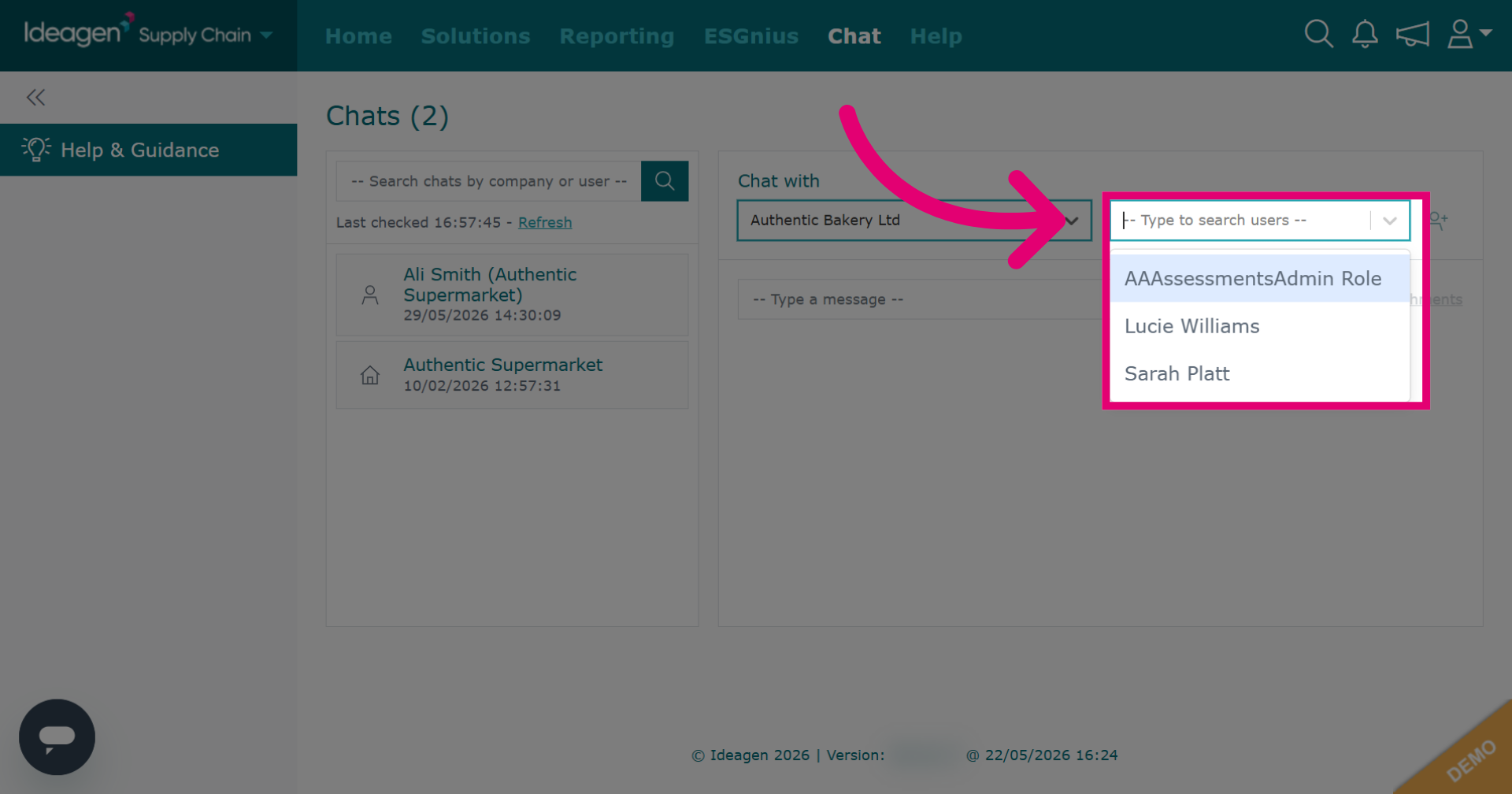
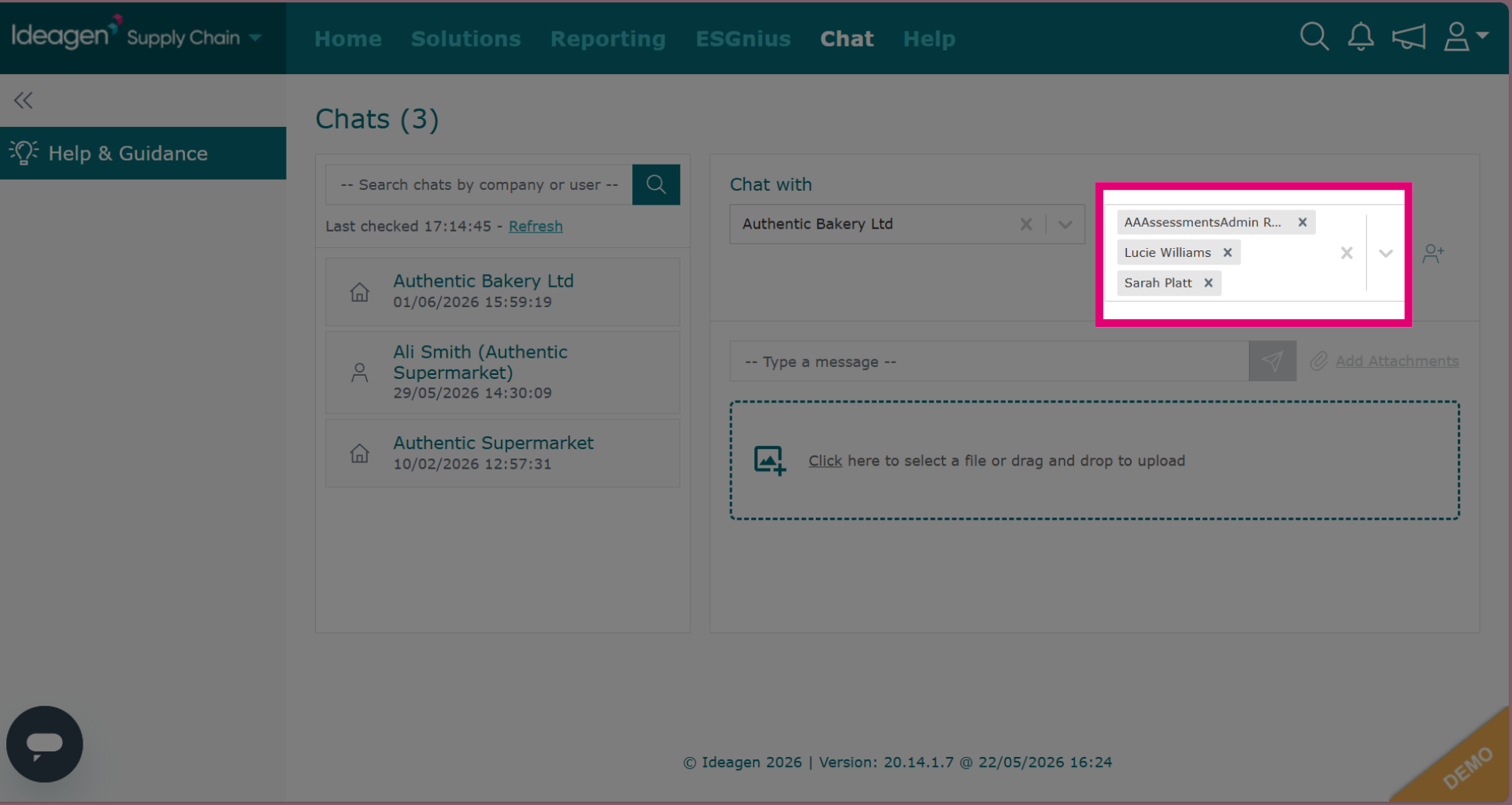
Select the users who will be able to view and respond to the chat. Users are the people who will be able to view and respond to the chat. If you do not include a user in a chat, you won't be able to add them at a later date. Equally you will not be able to remove a user from a chat either. If a user is not included within a chat message they will not be able to view or respond.
-
Select one user for a private chat.
-
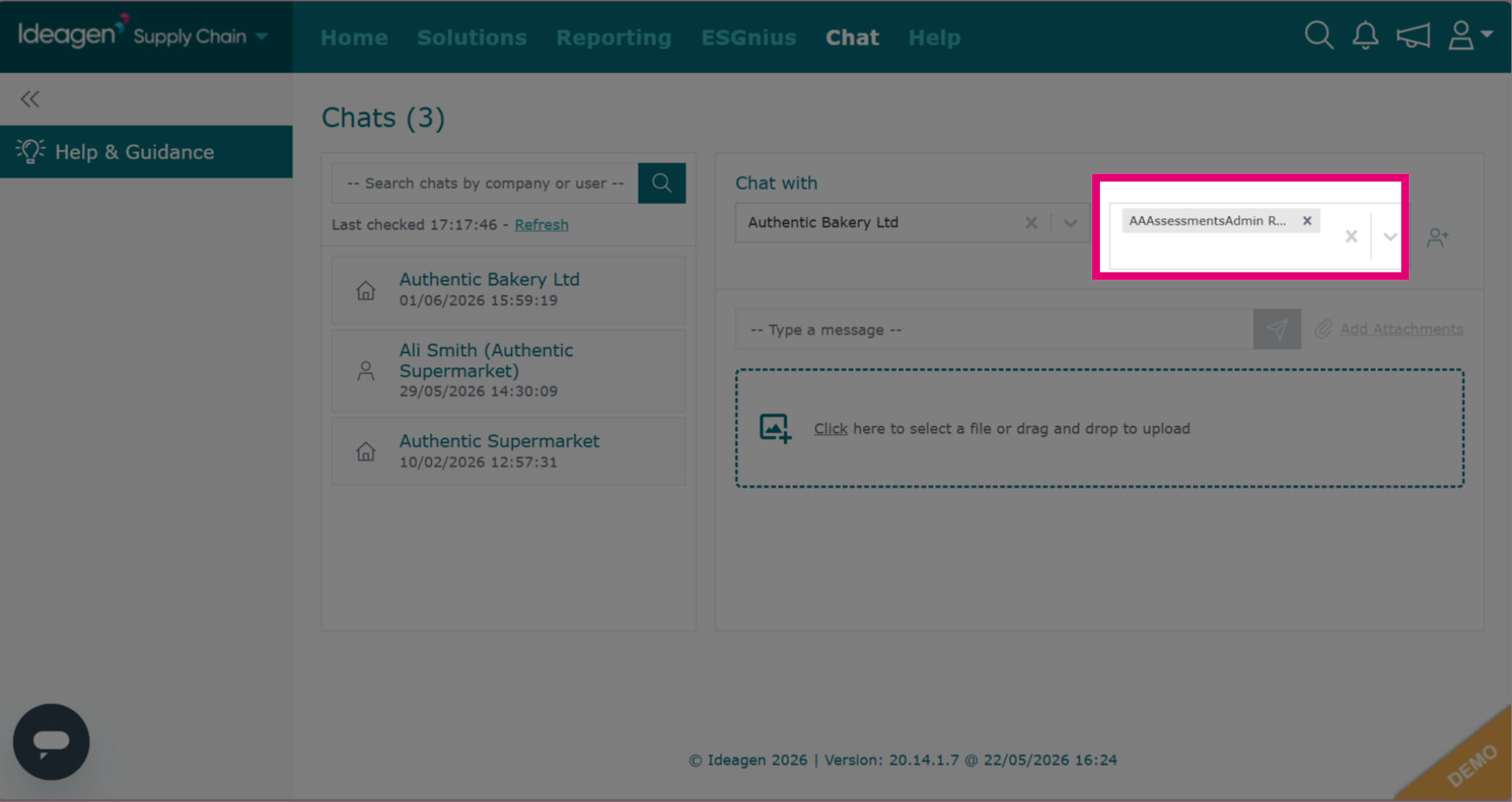
Select multiple users for a group chat.
-
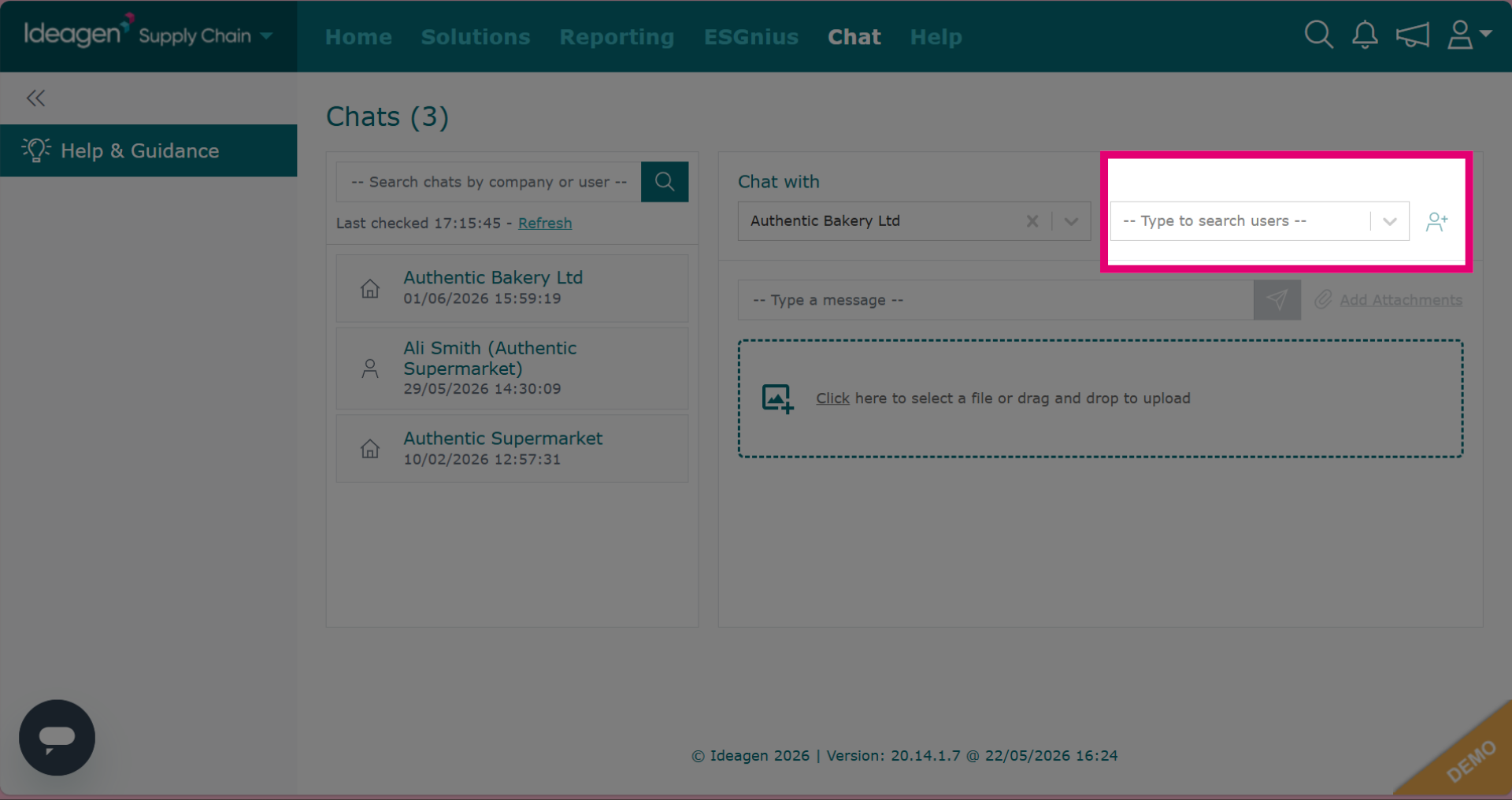
Leave the users box blank if you want the chat to be visible to all users of the company's profile.
-
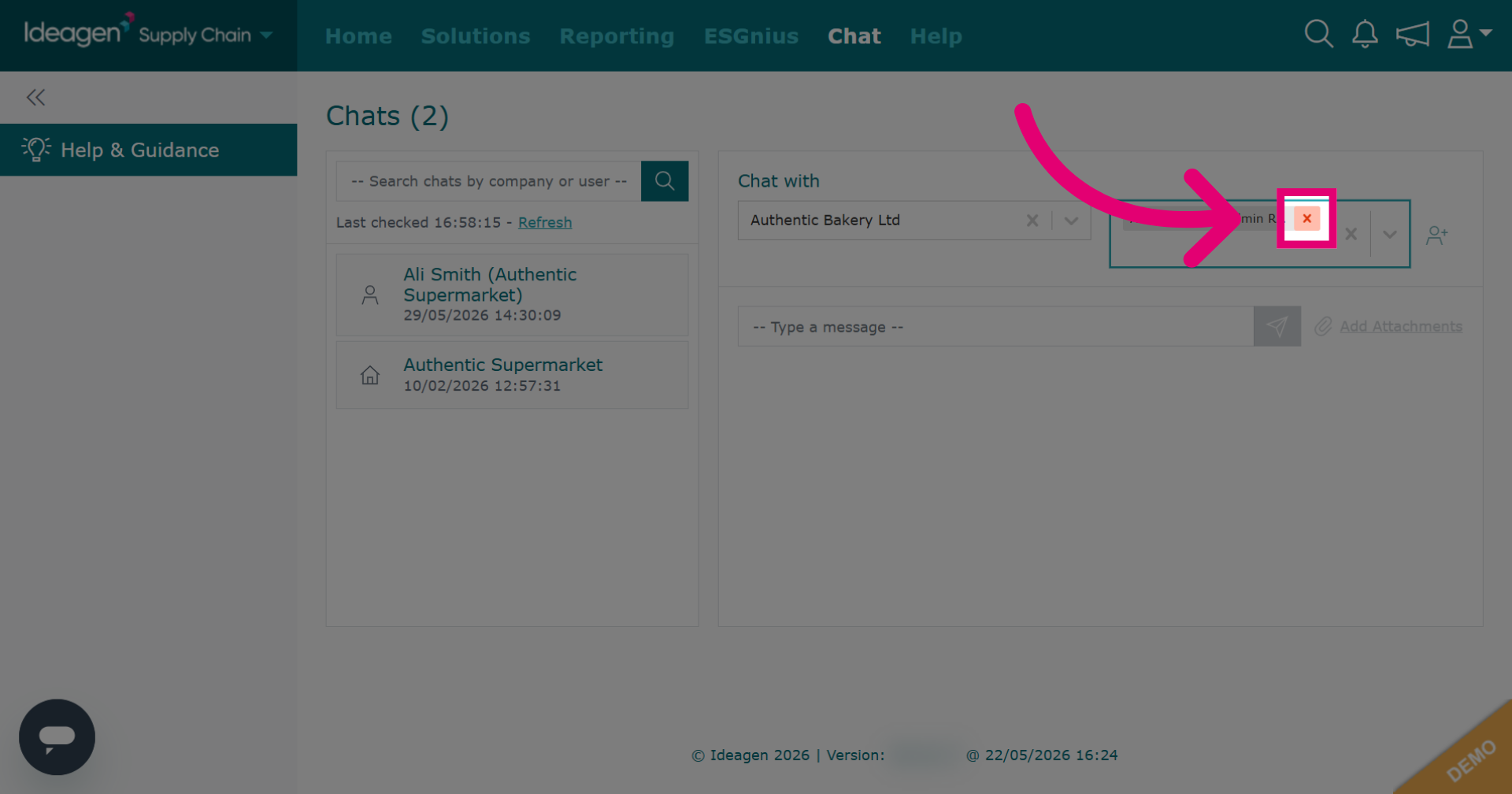
Click the x to remove a user from the user box. This means that the chat will not be sent to that user.
-
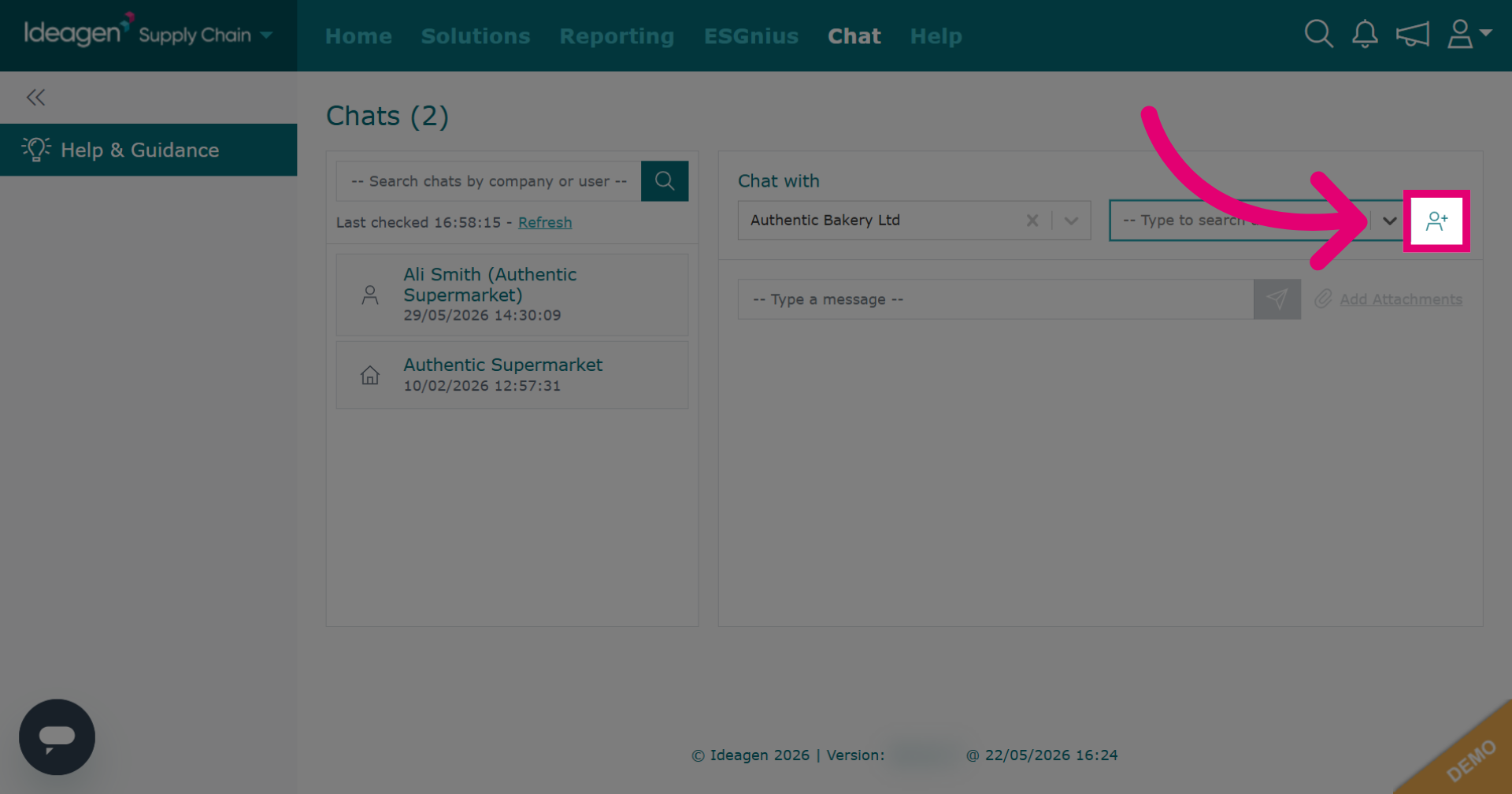
Click the person icon to add a user if the user you want to chat with is not listed in the drop down options.
-
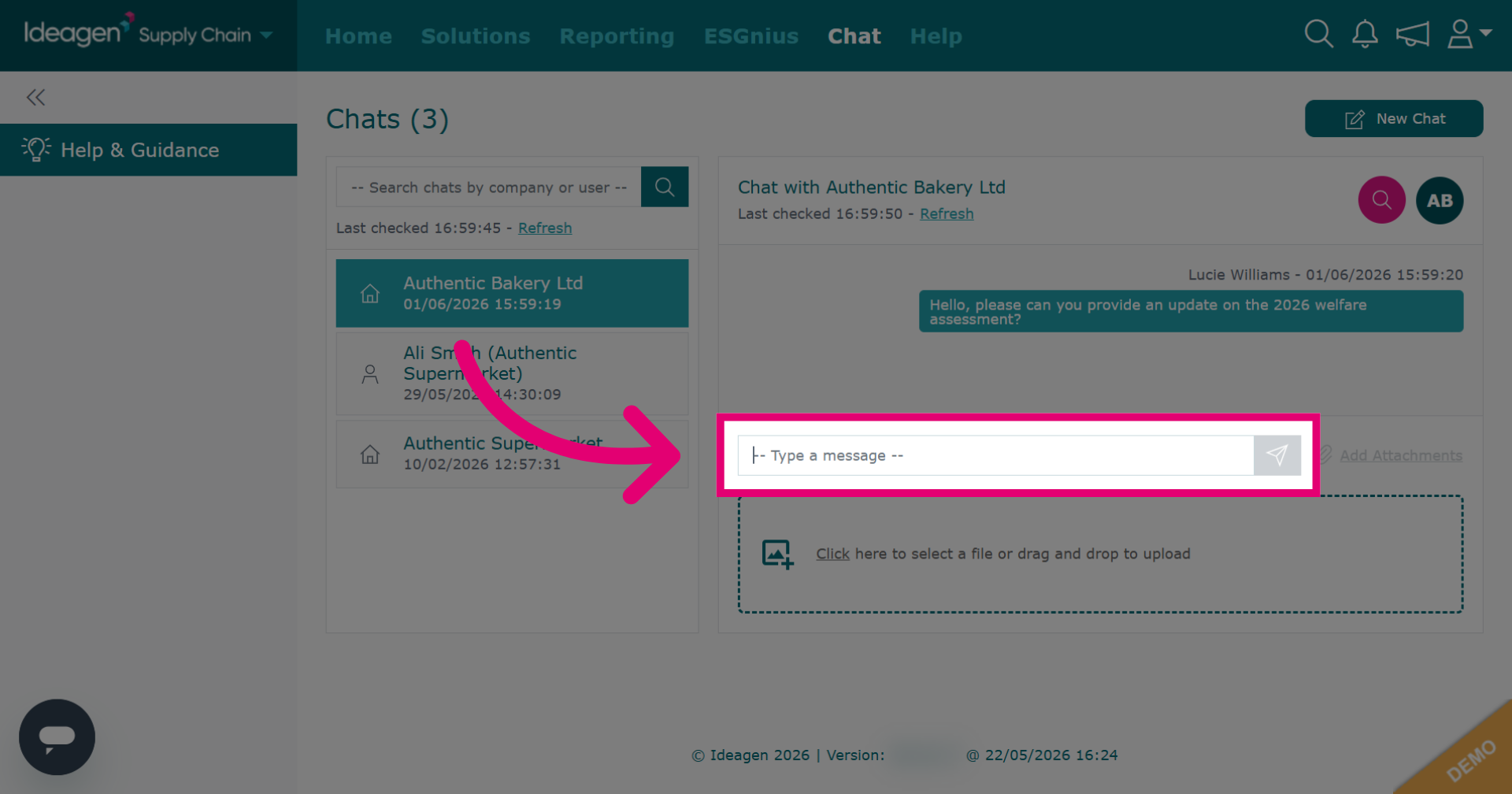
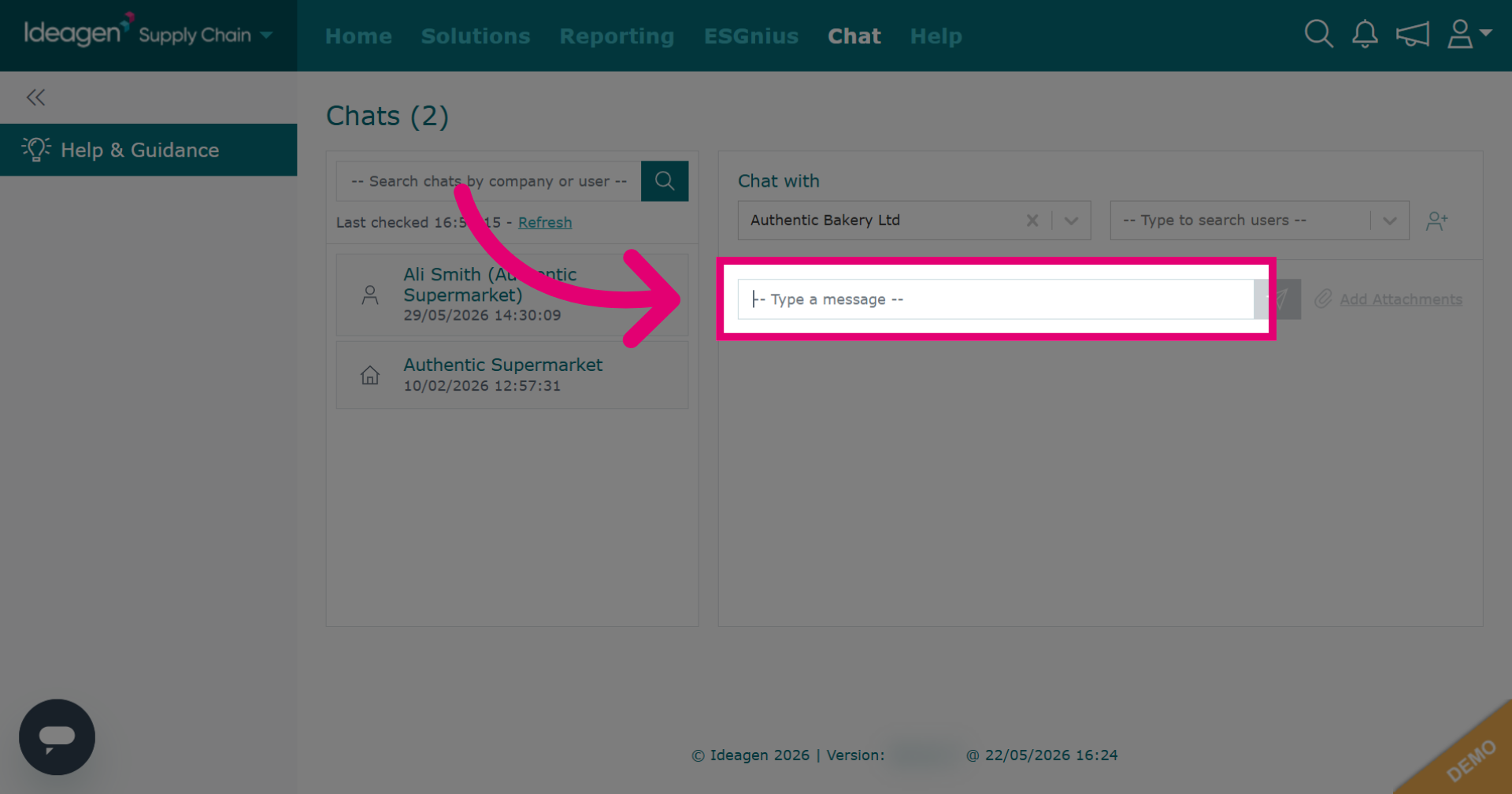
Click the message field and begin typing your message.
-
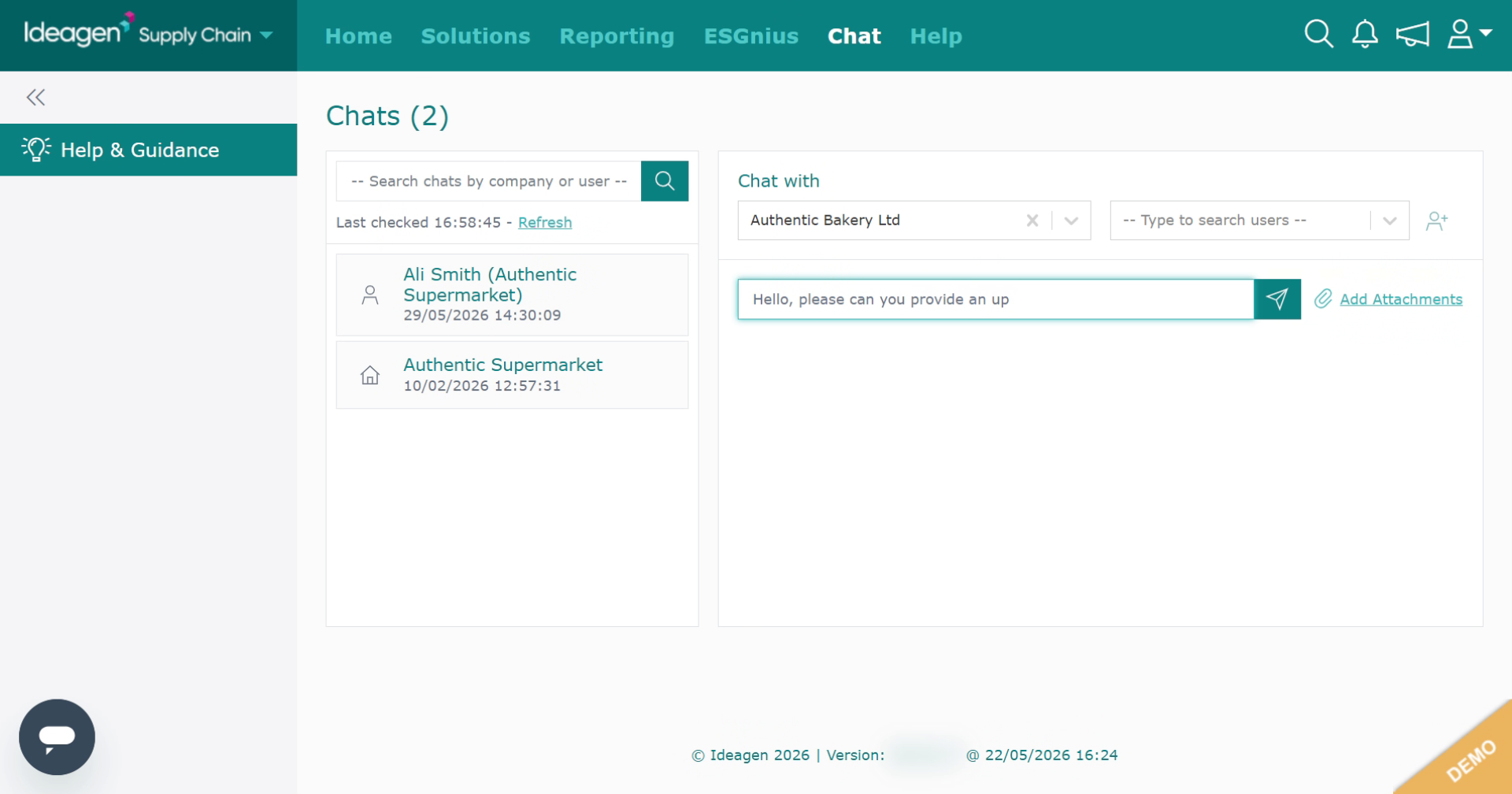
Type your message in the field.
-
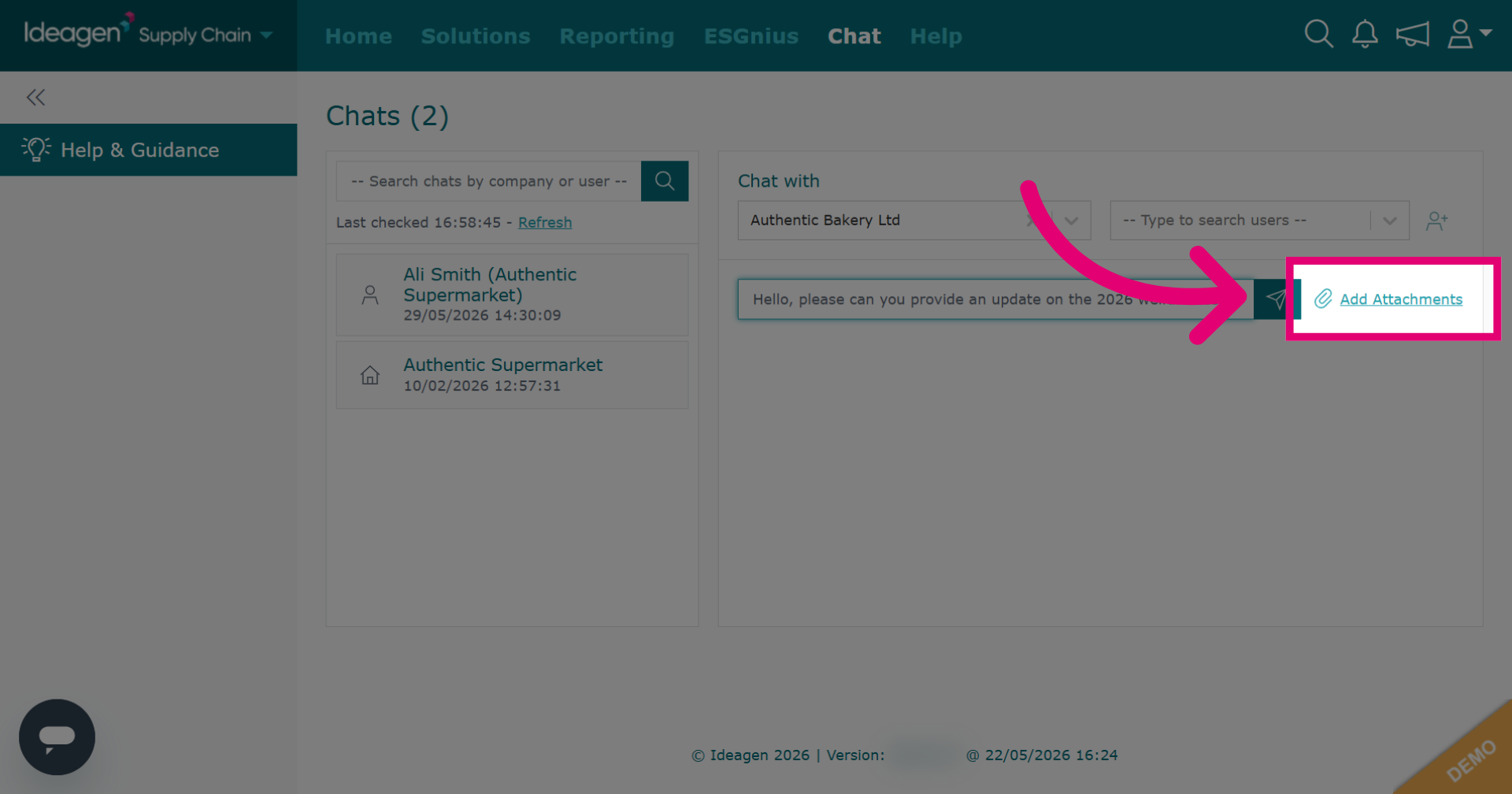
Click Add Attachments to attach files to your message.
-
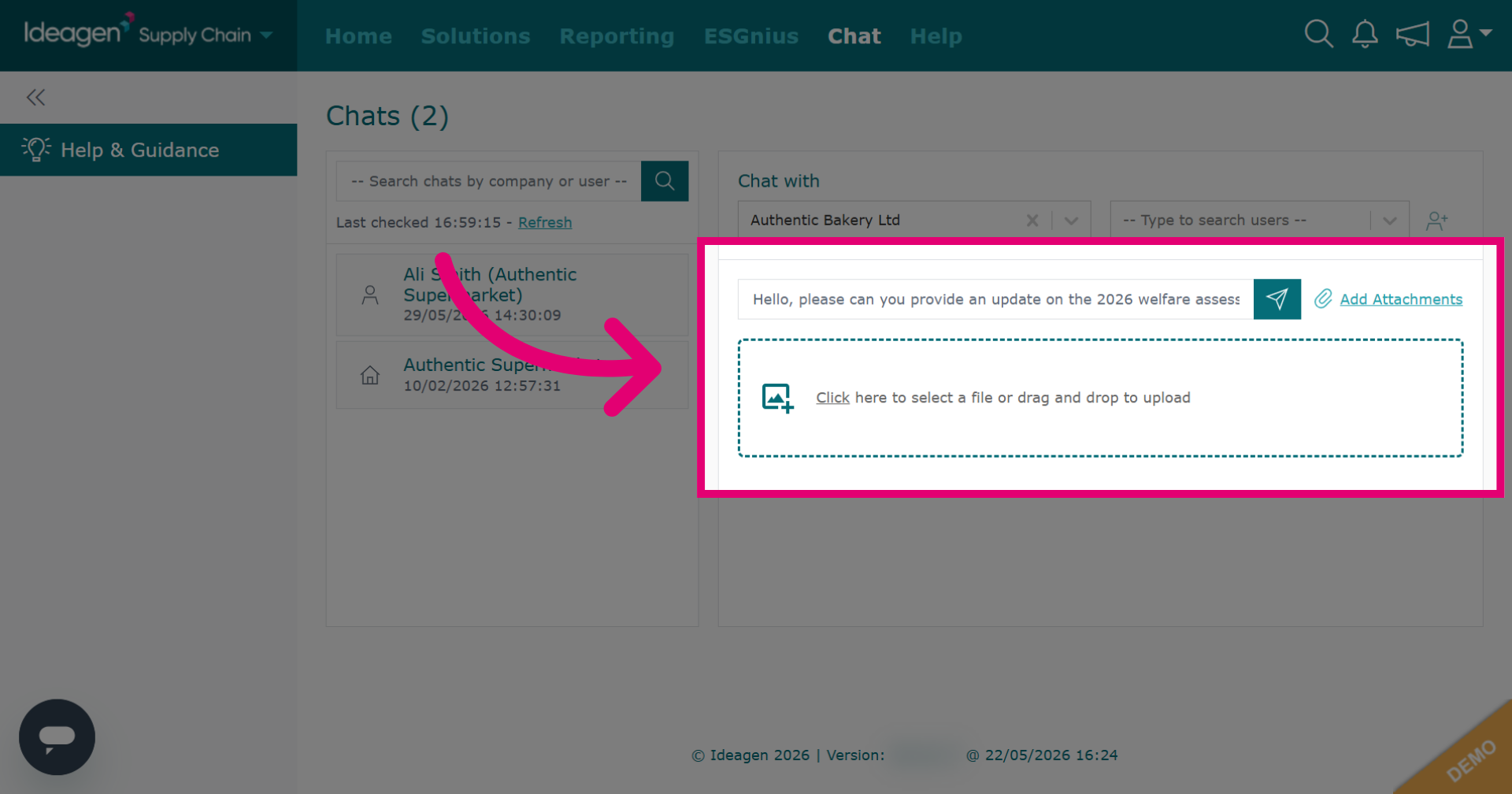
Select the files that you want to upload from your desktop into the chat.
-
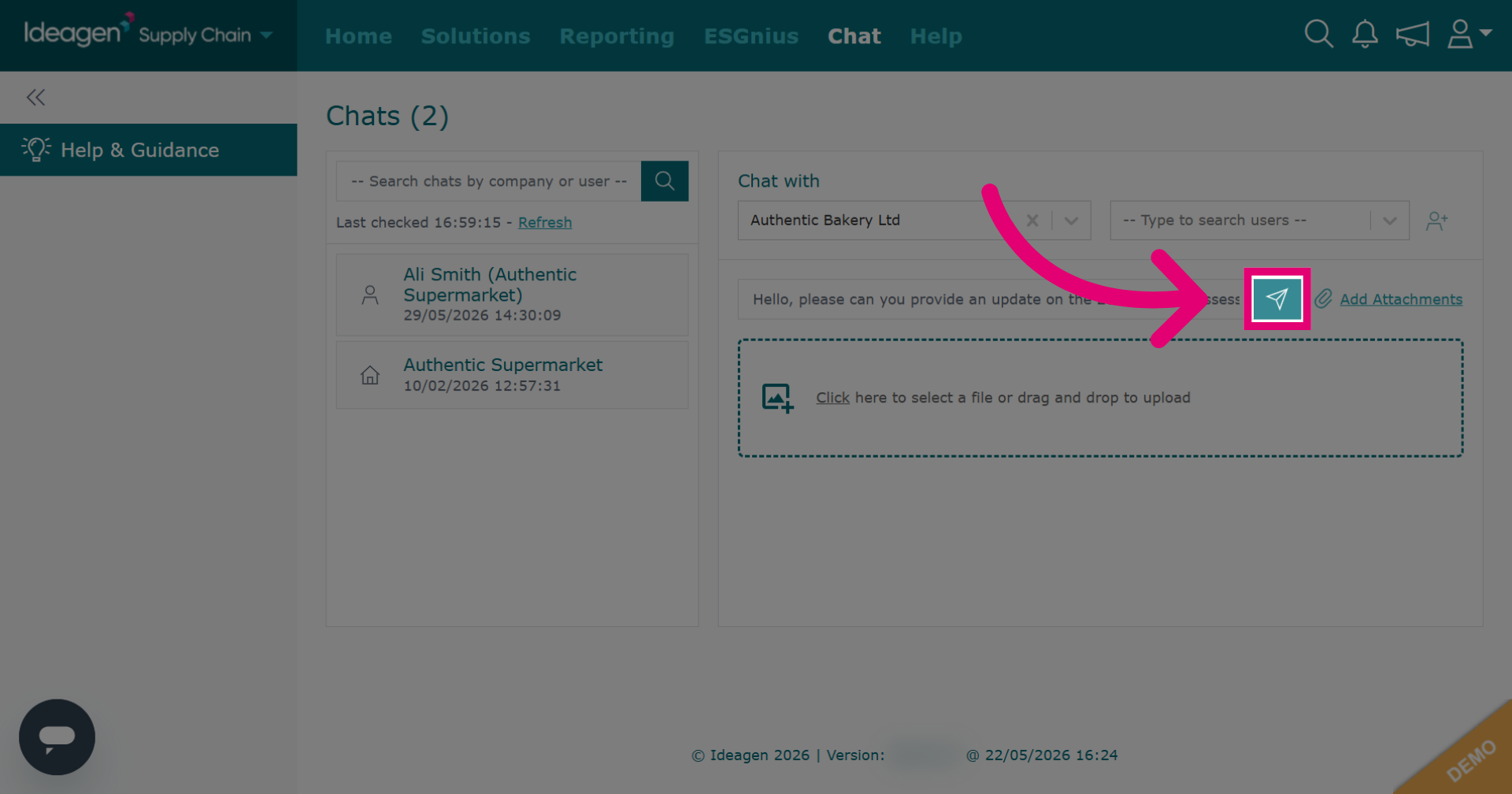
Click the send button to send your message.
-
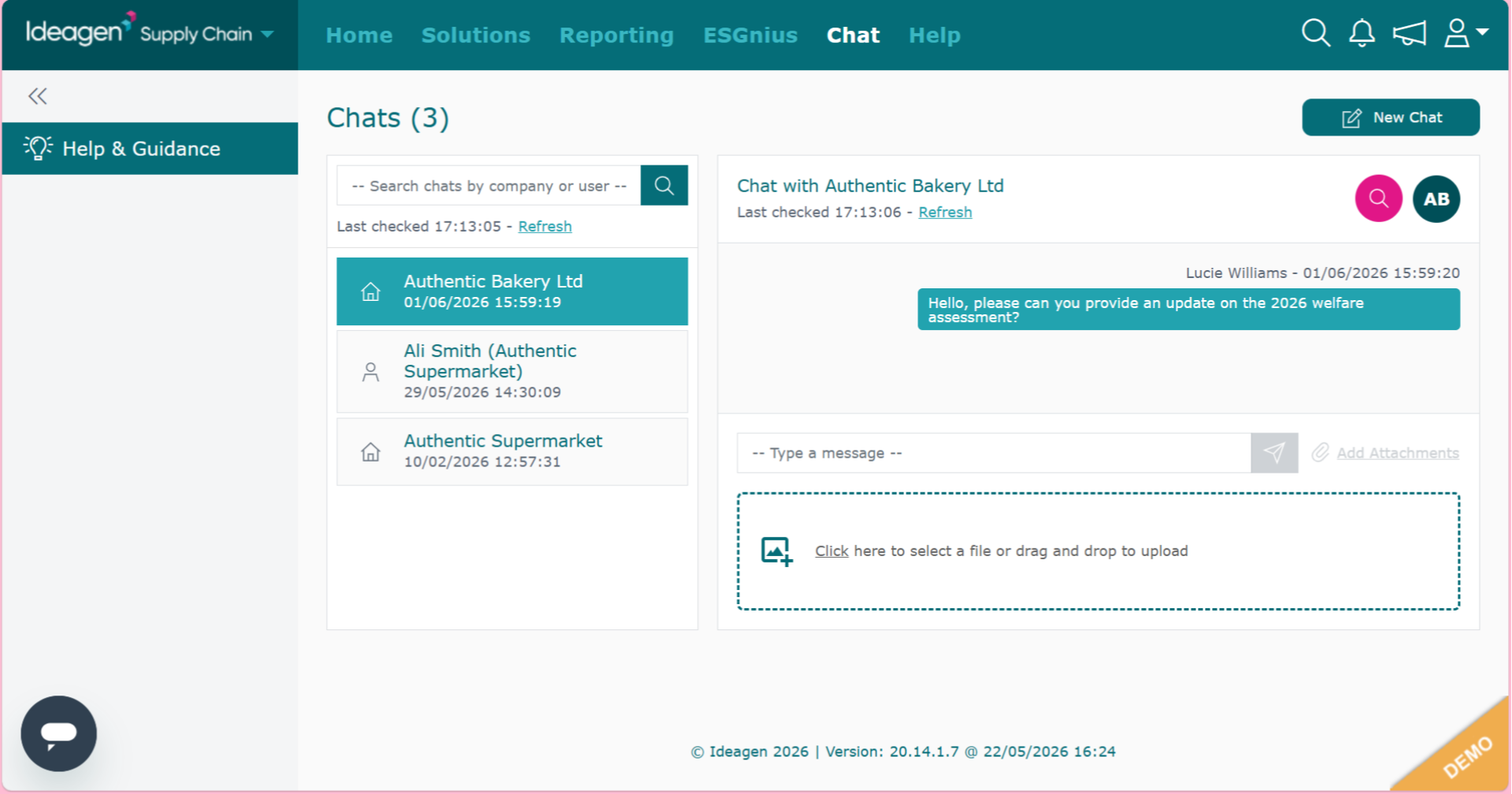
Please note, you CANNOT delete a message or attachment once it has been sent, so take extra precautions and double check both your message and attachment before sending.
-
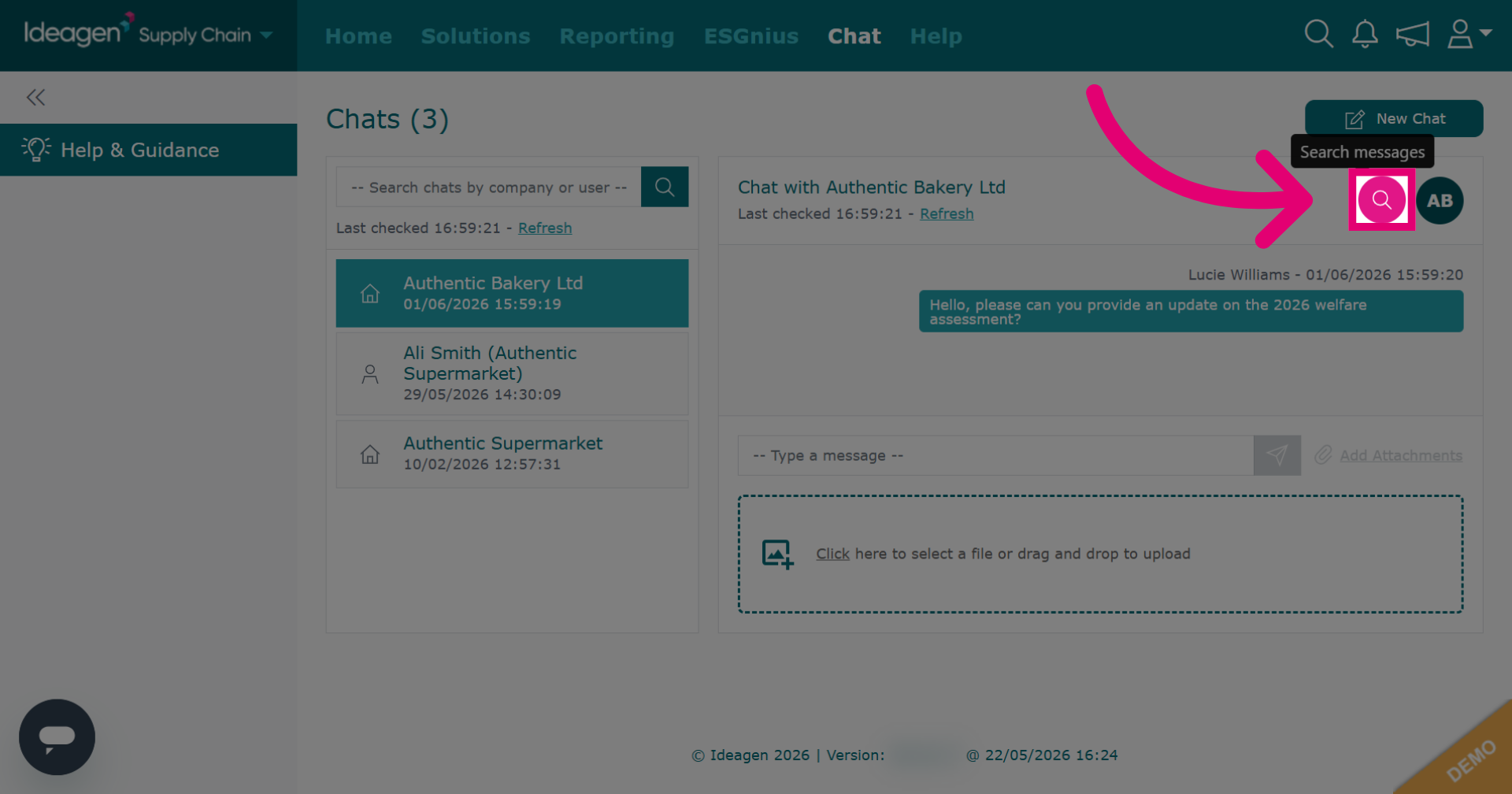
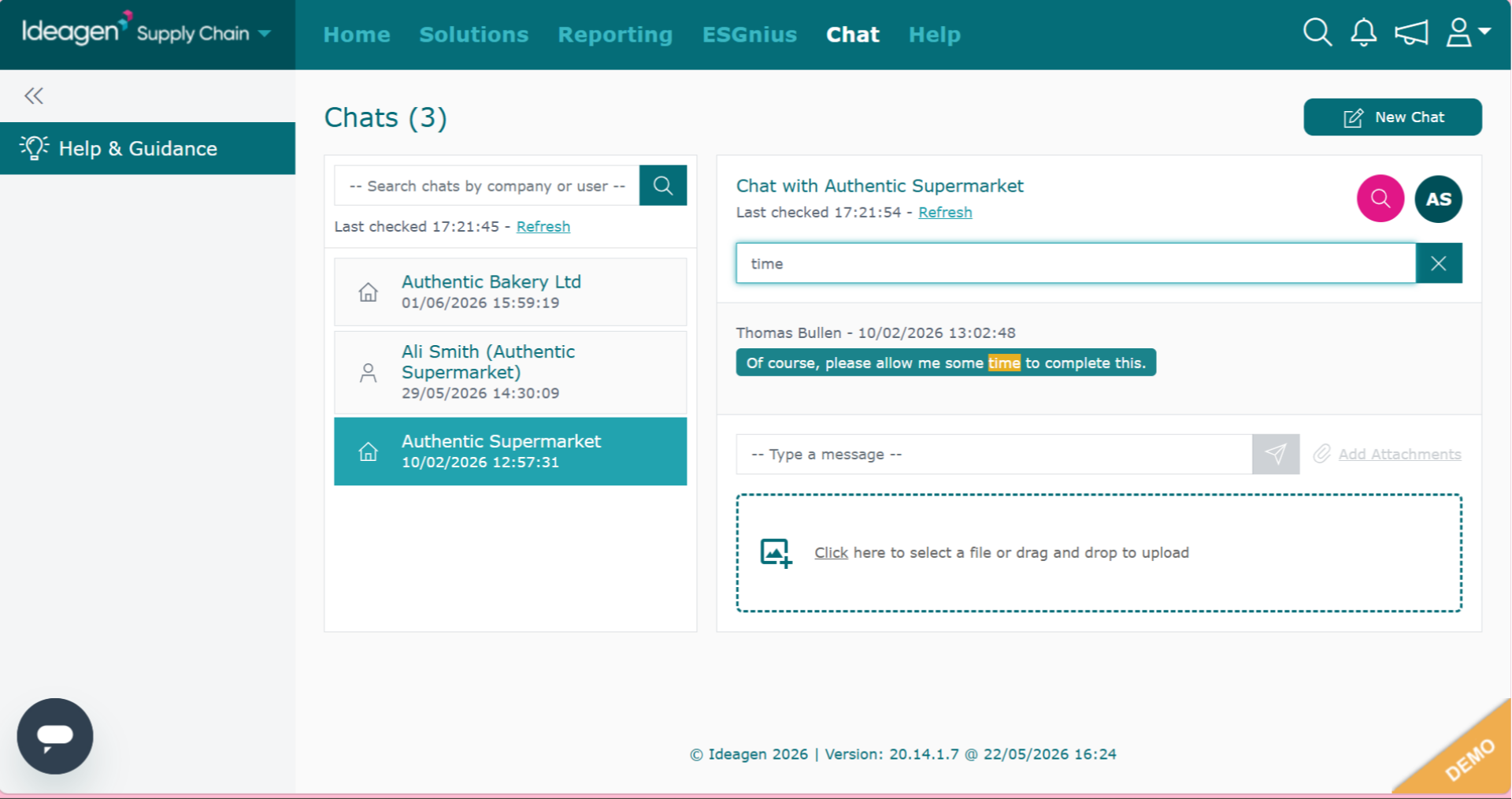
Click the pink search icon to search within a chat. Select the chat you wish to search within first.
-
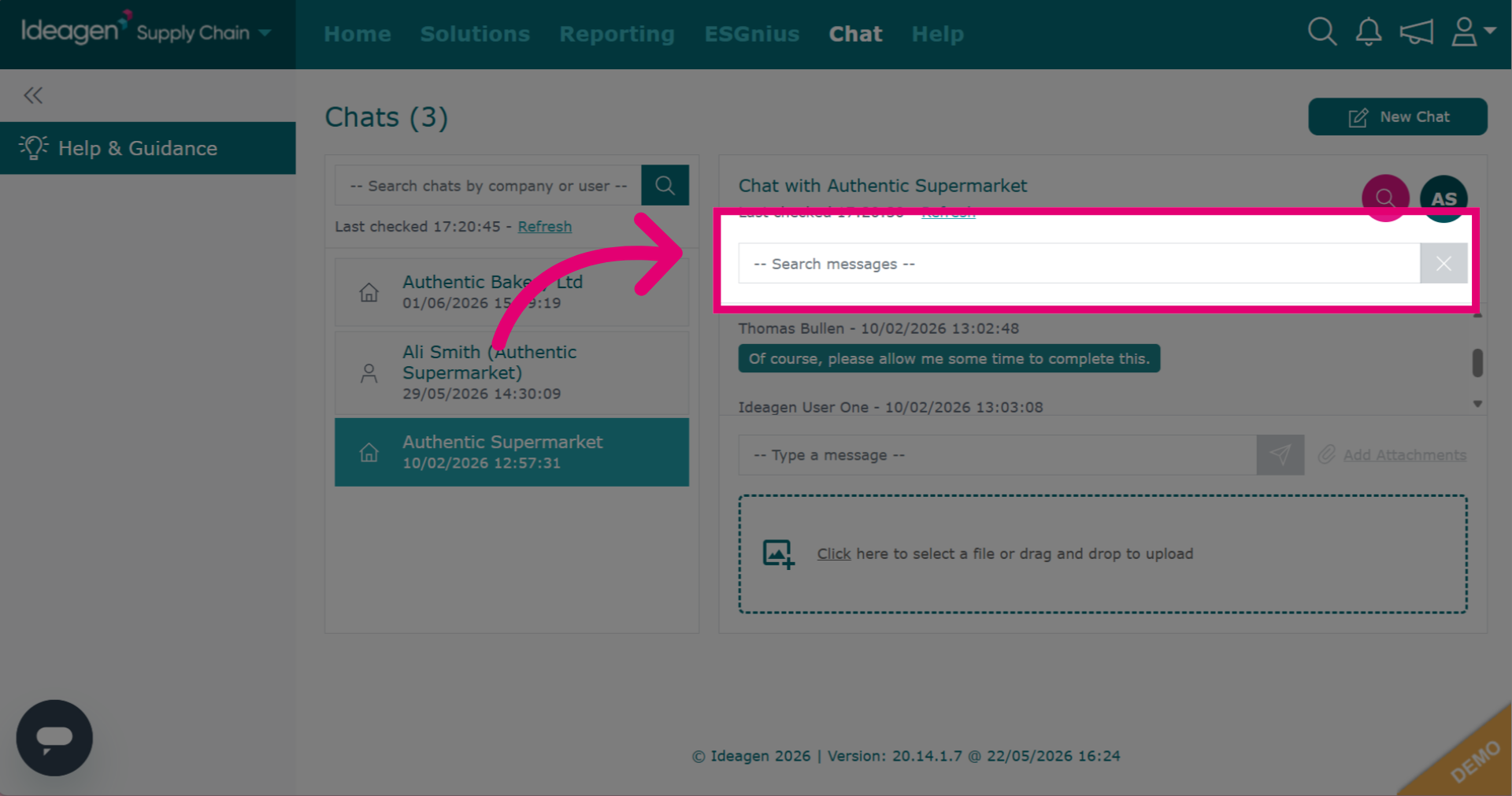
Input a keyword to search by.
-
Any matching keywords will then be highlighted in the chat.
-
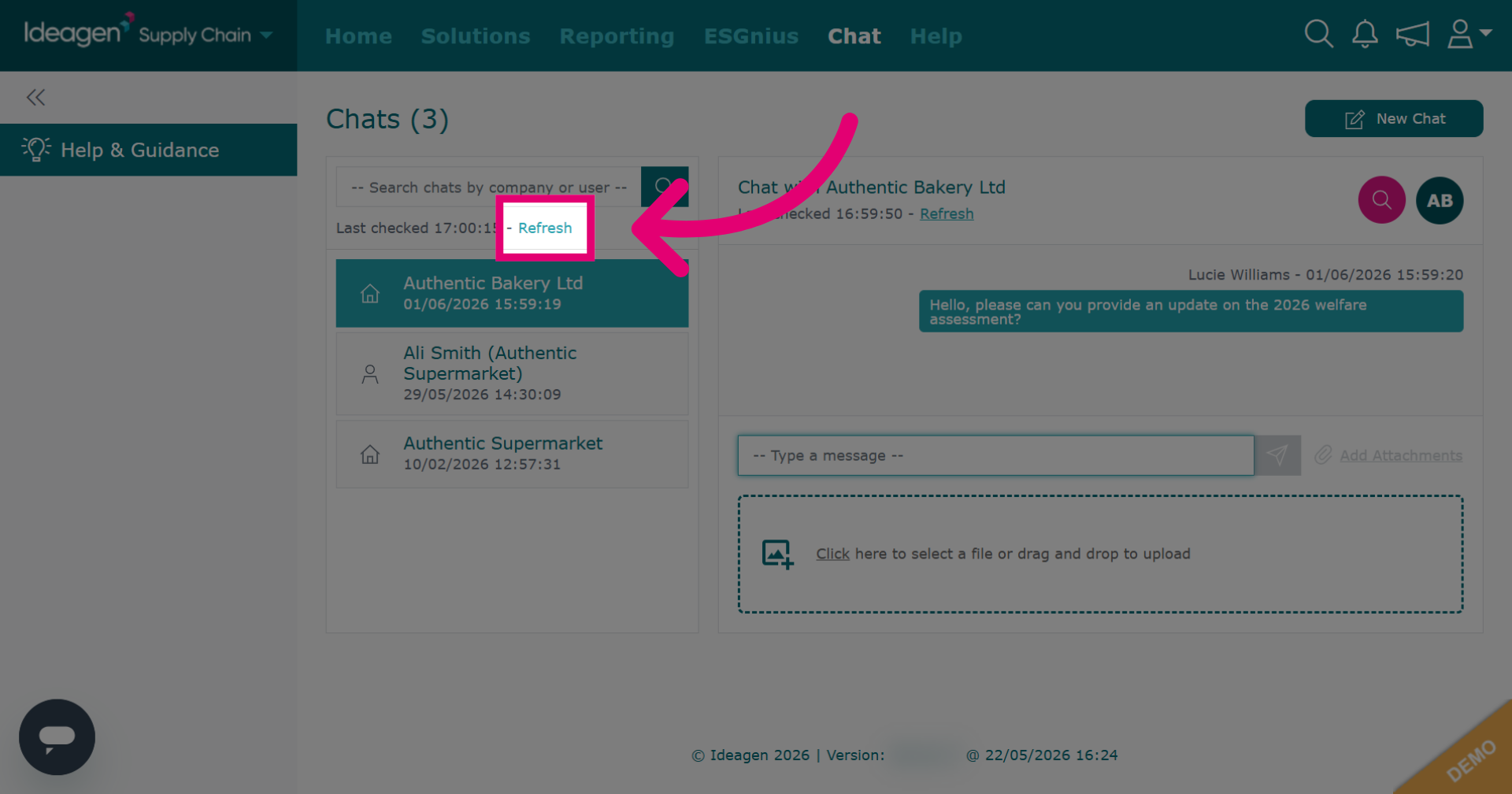
Click Refresh to update the page and view the latest messages and attachments.
-
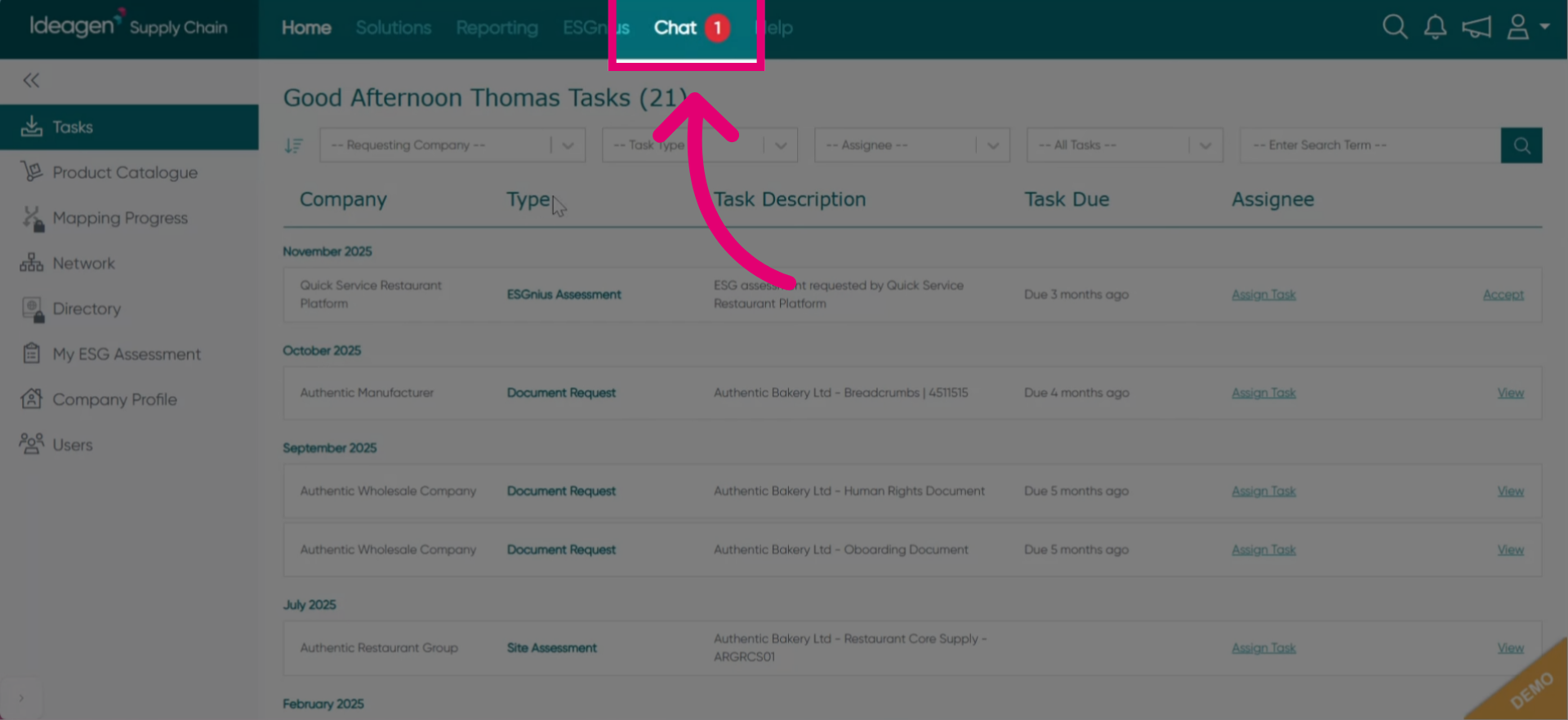
When you have a new chat message, it will show with a red number icon.
-
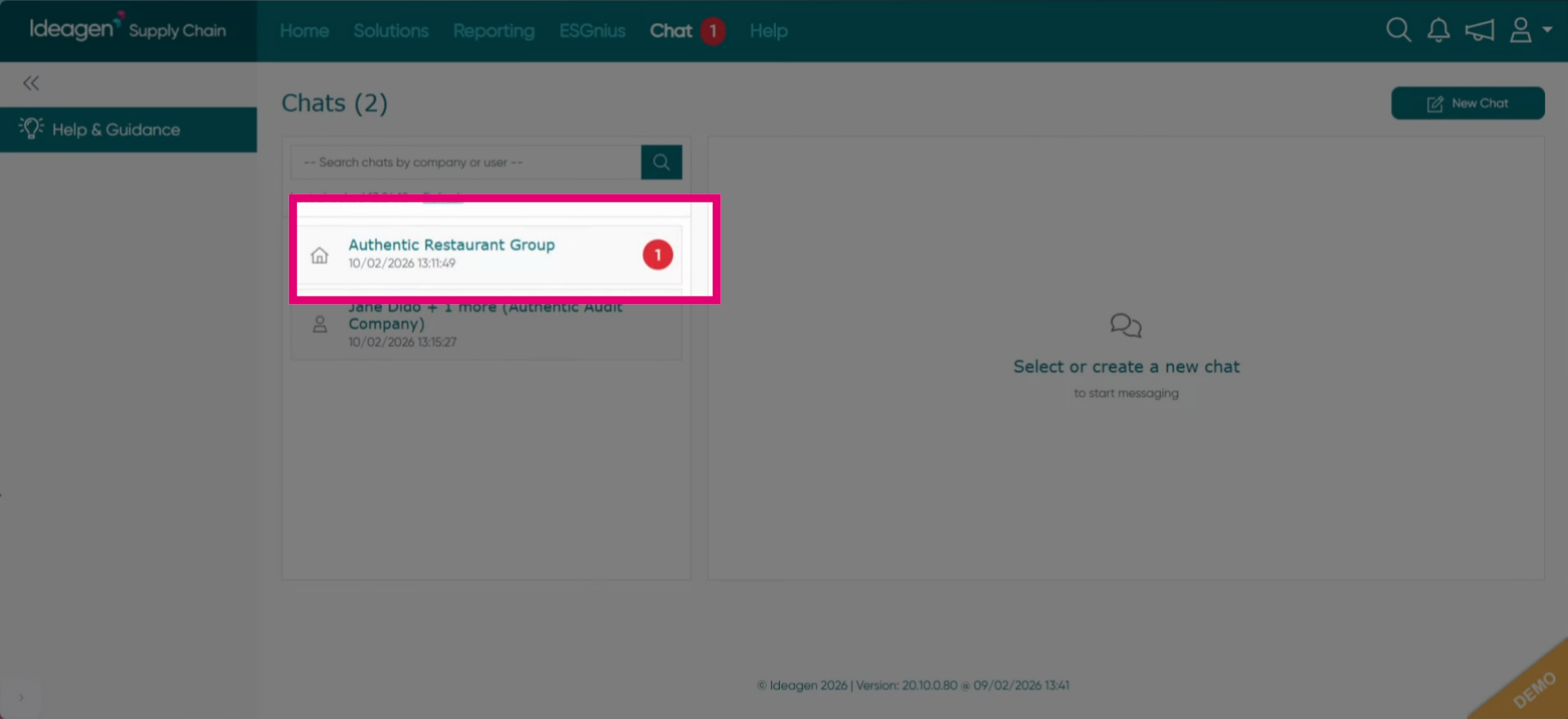
The chat that contains a new message will have the same red number icon displayed beside it.
-
Click into the relevant chat and select type a message to send further messages in a chat. You will then be able to input your message and send by clicking the grey send button.