New article
Recently updated
Managing Batch Quality Records

Who is this article for?
Users navigating the batch quality records module.
Quality records admin permissions are required.
This tutorial guides you through managing batch quality records within the Ideagen Supply Chain platform.
You will learn how to create, view, update, and delete records.
Managing batch quality records
-
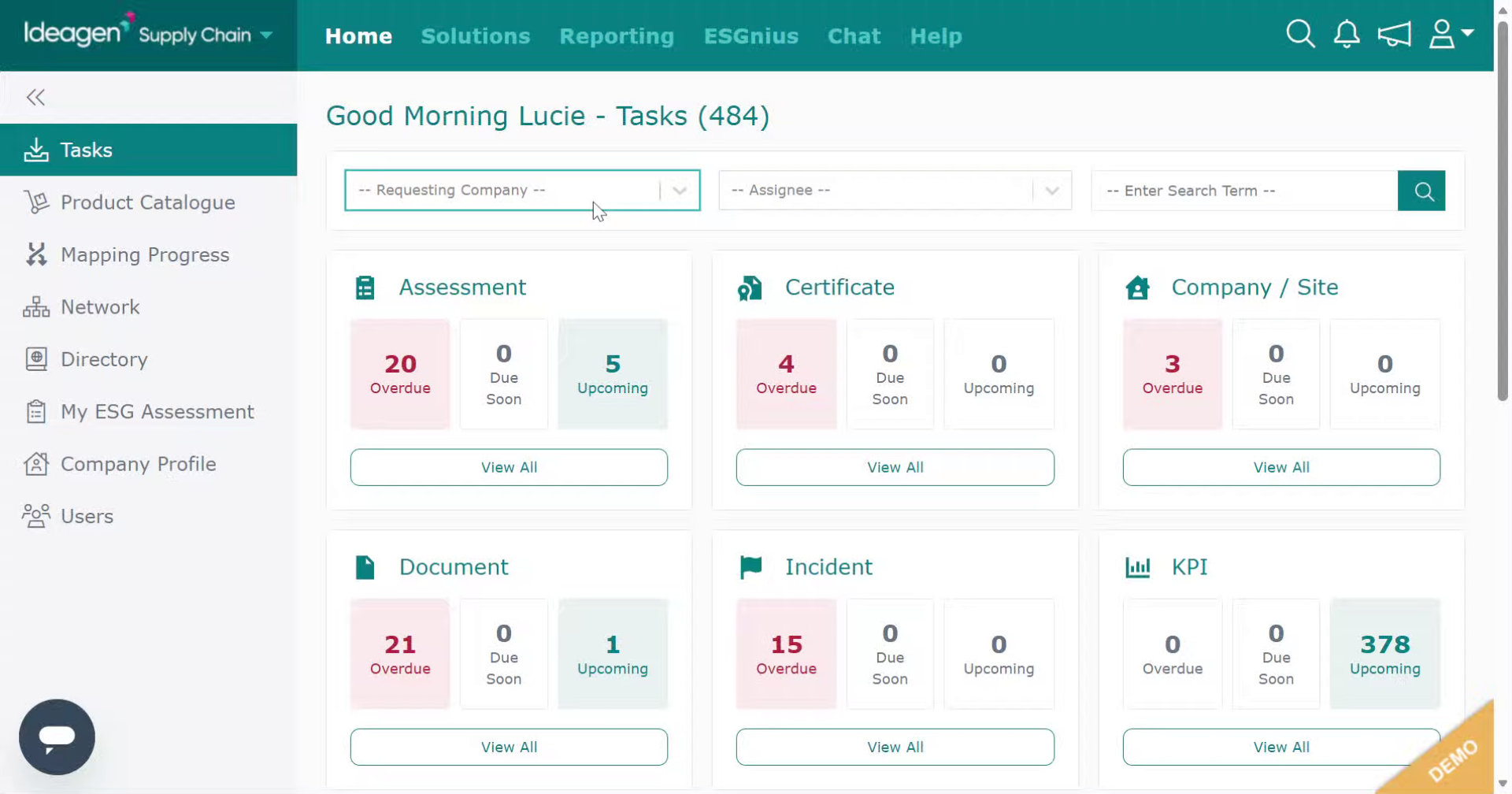
Log into the system.
-
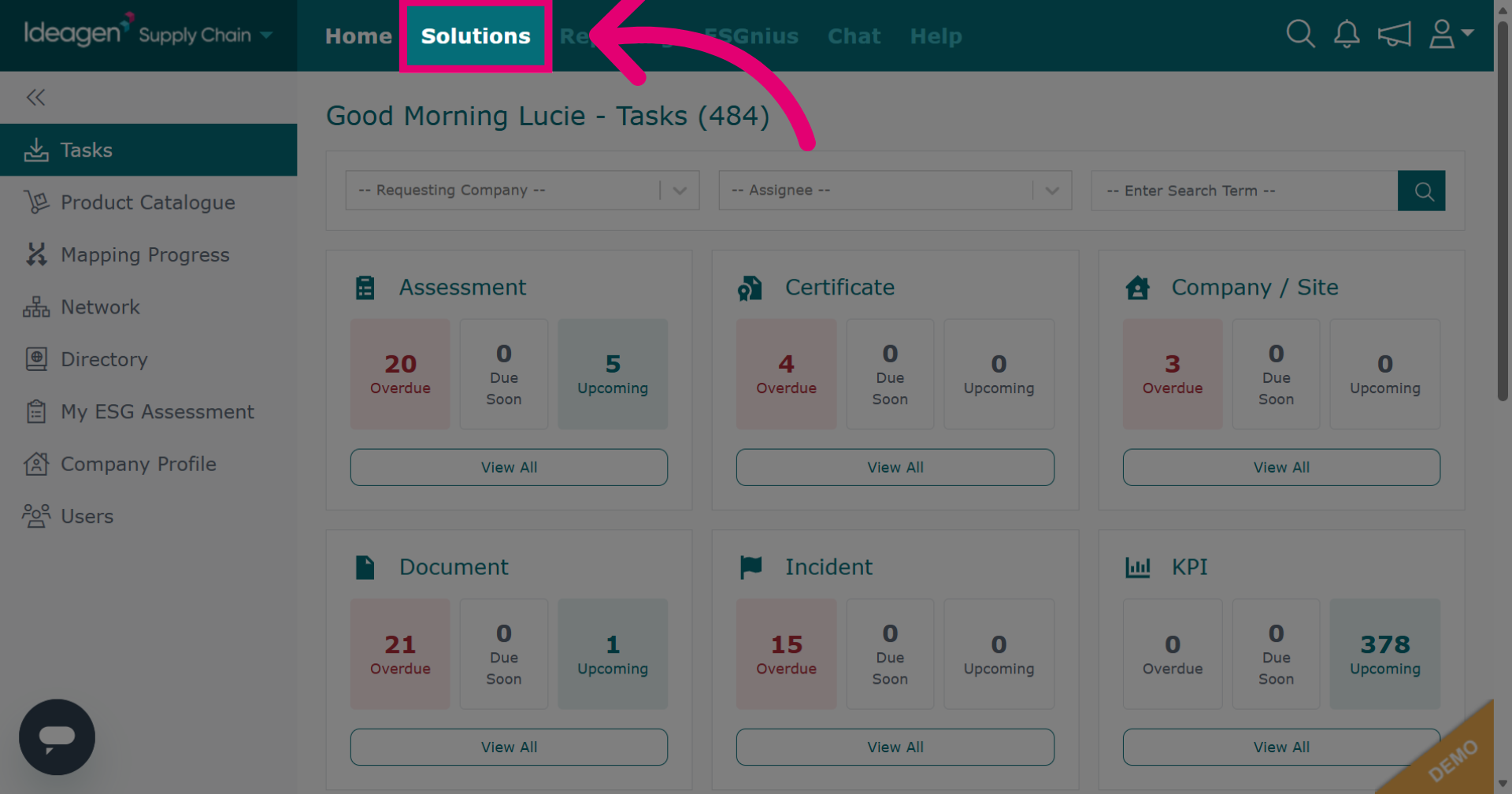
Click Solutions to open the main module menu.
-
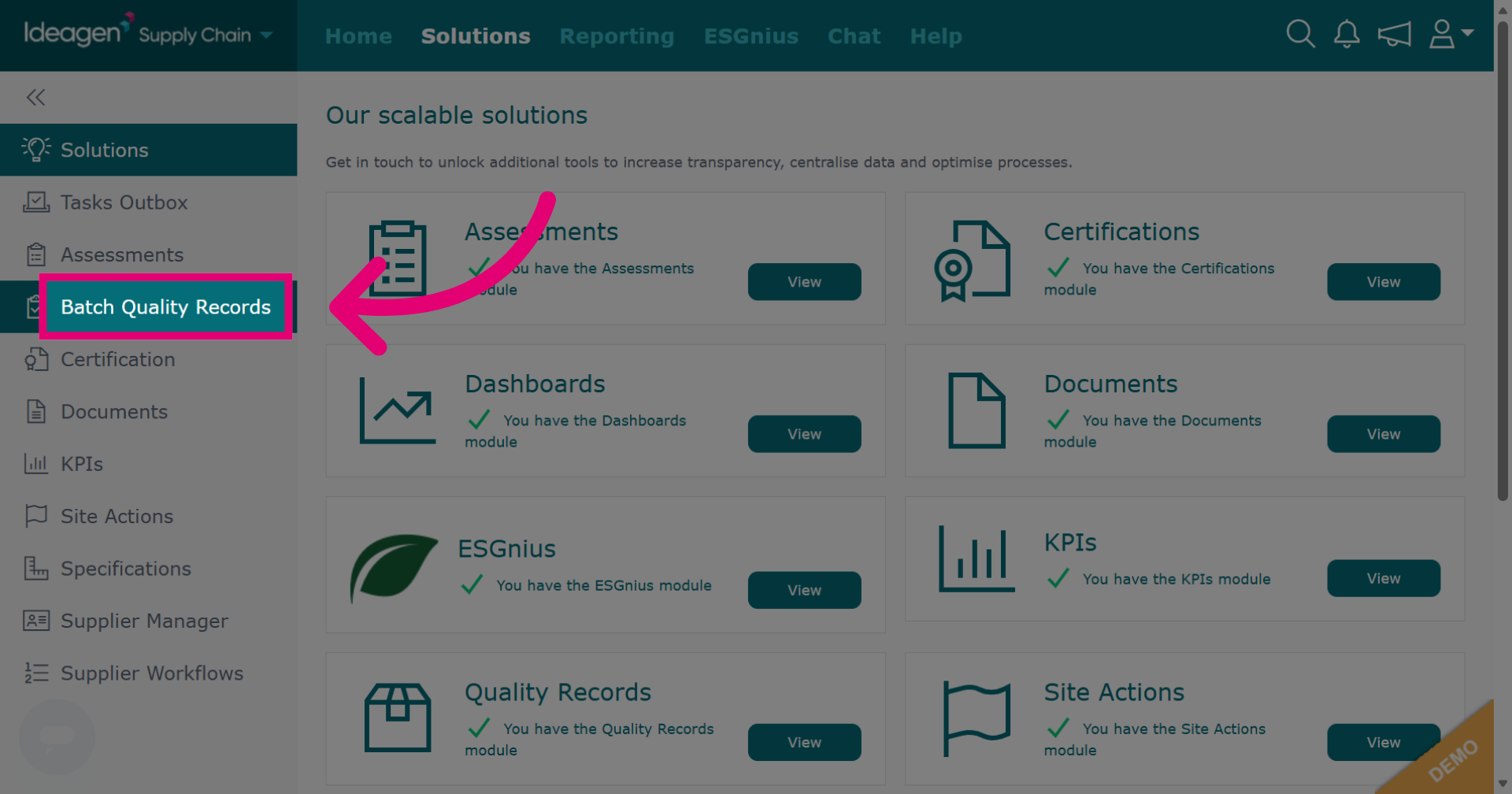
Click Batch Quality Records to access the module.
-
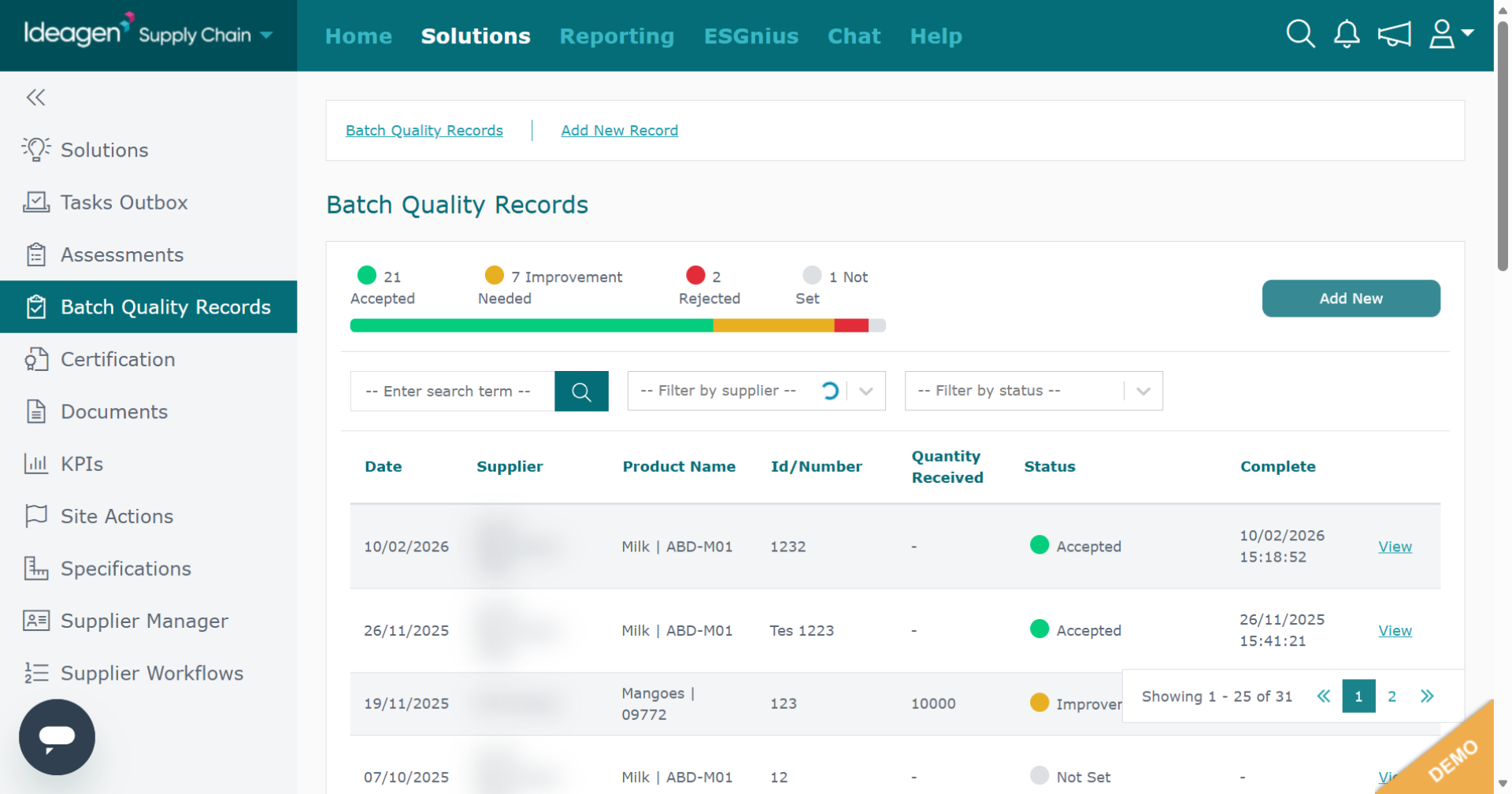
You will be taken to the batch quality main page.
-
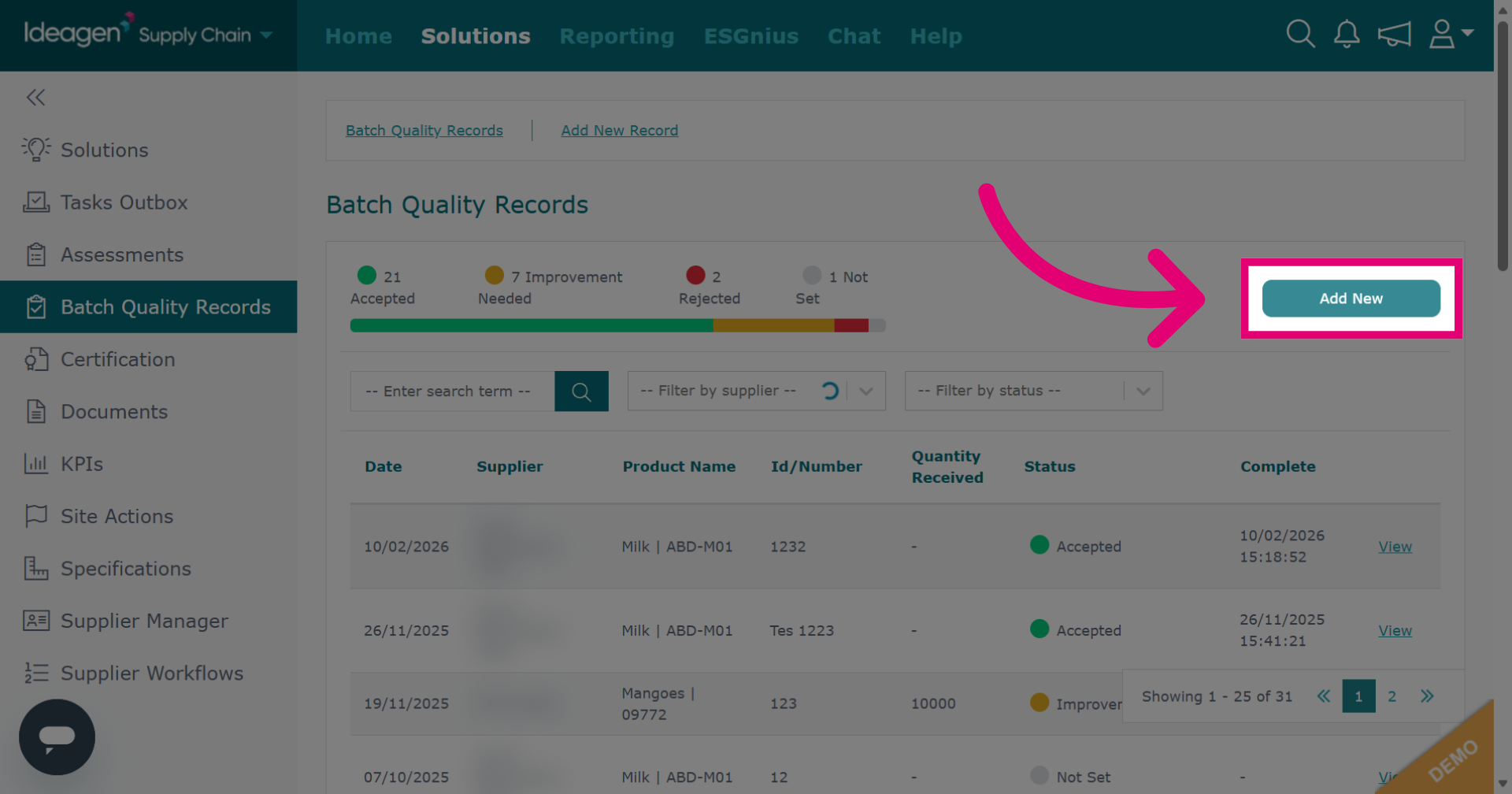
Click Add New to start creating a new record.
-
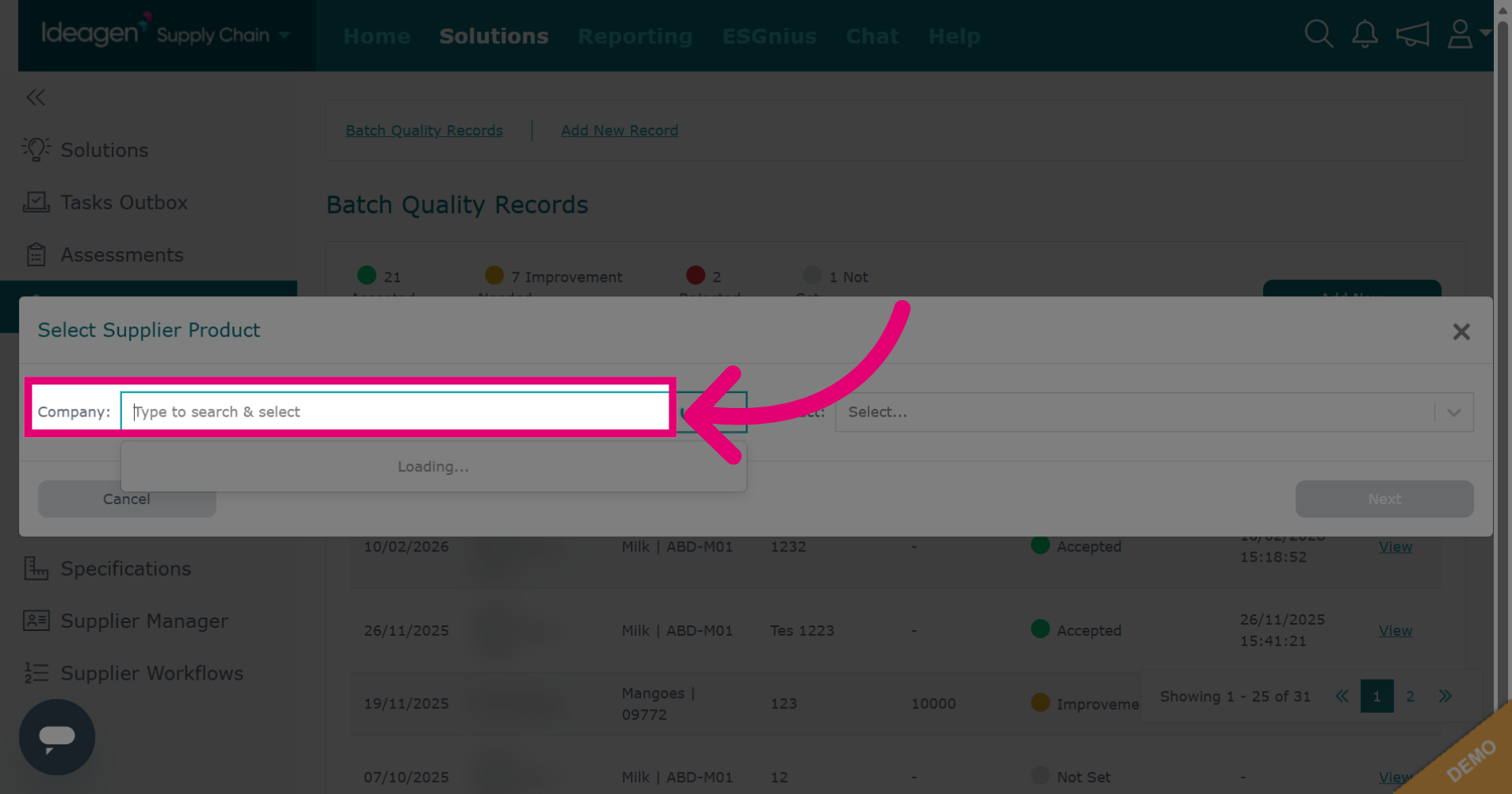
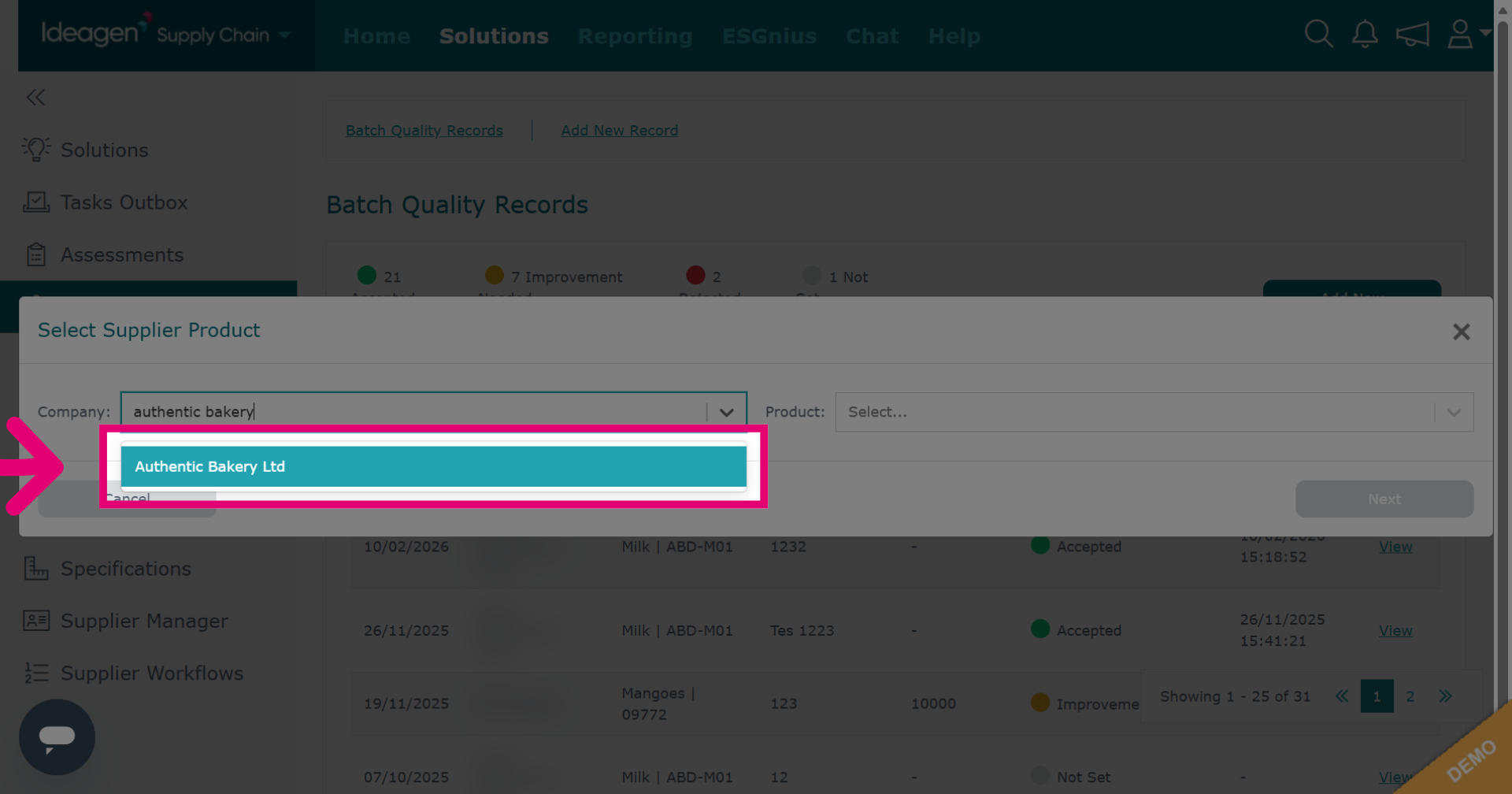
Enter a keyword to find the company on the platform that you want to associate the record to. Please note, this should be a supplier that is already connected to you via supply chain mapping.
-
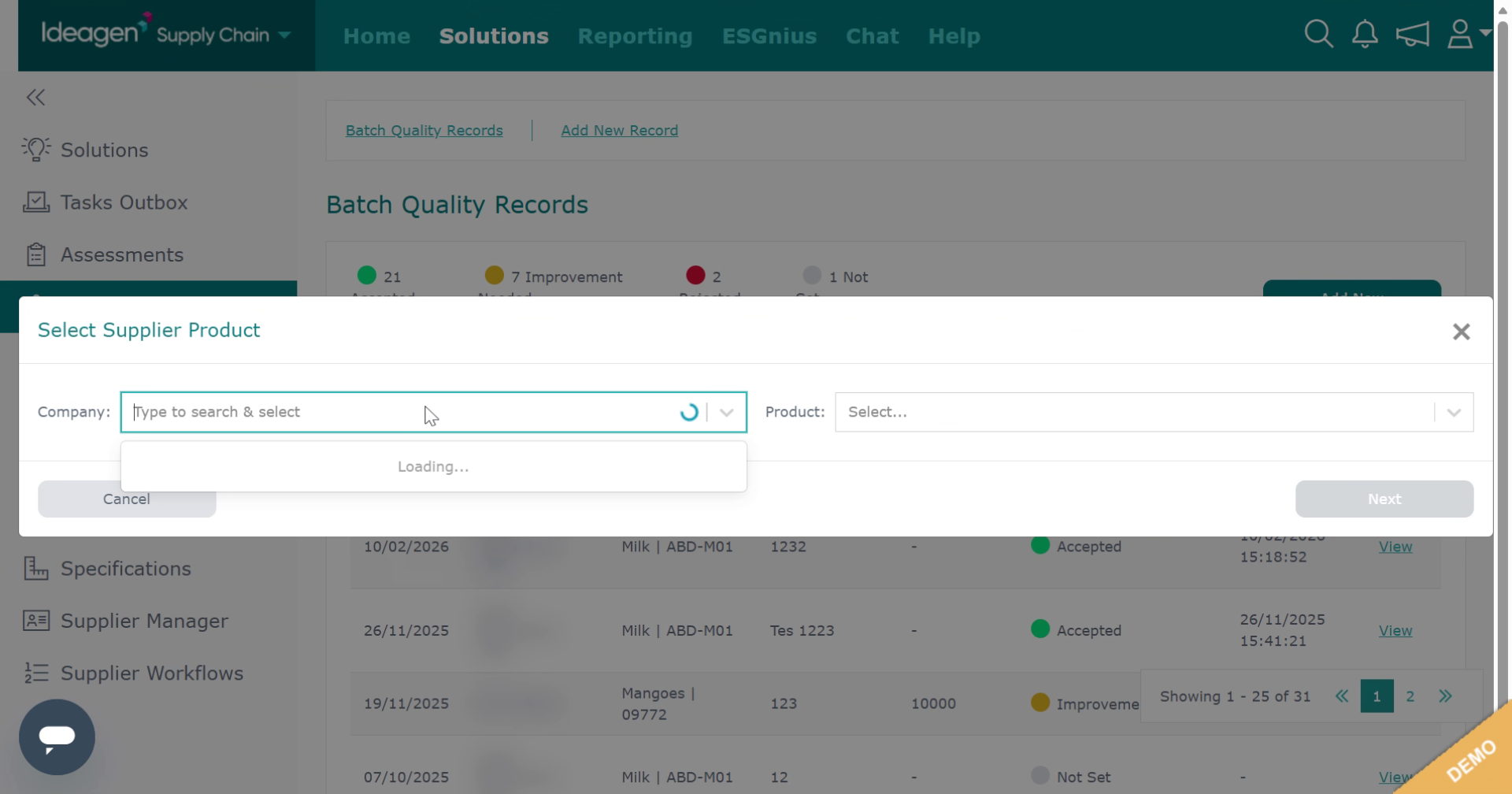
Continue searching for the company.
-
Select the company from the drop down options to associate the record to this profile.
-
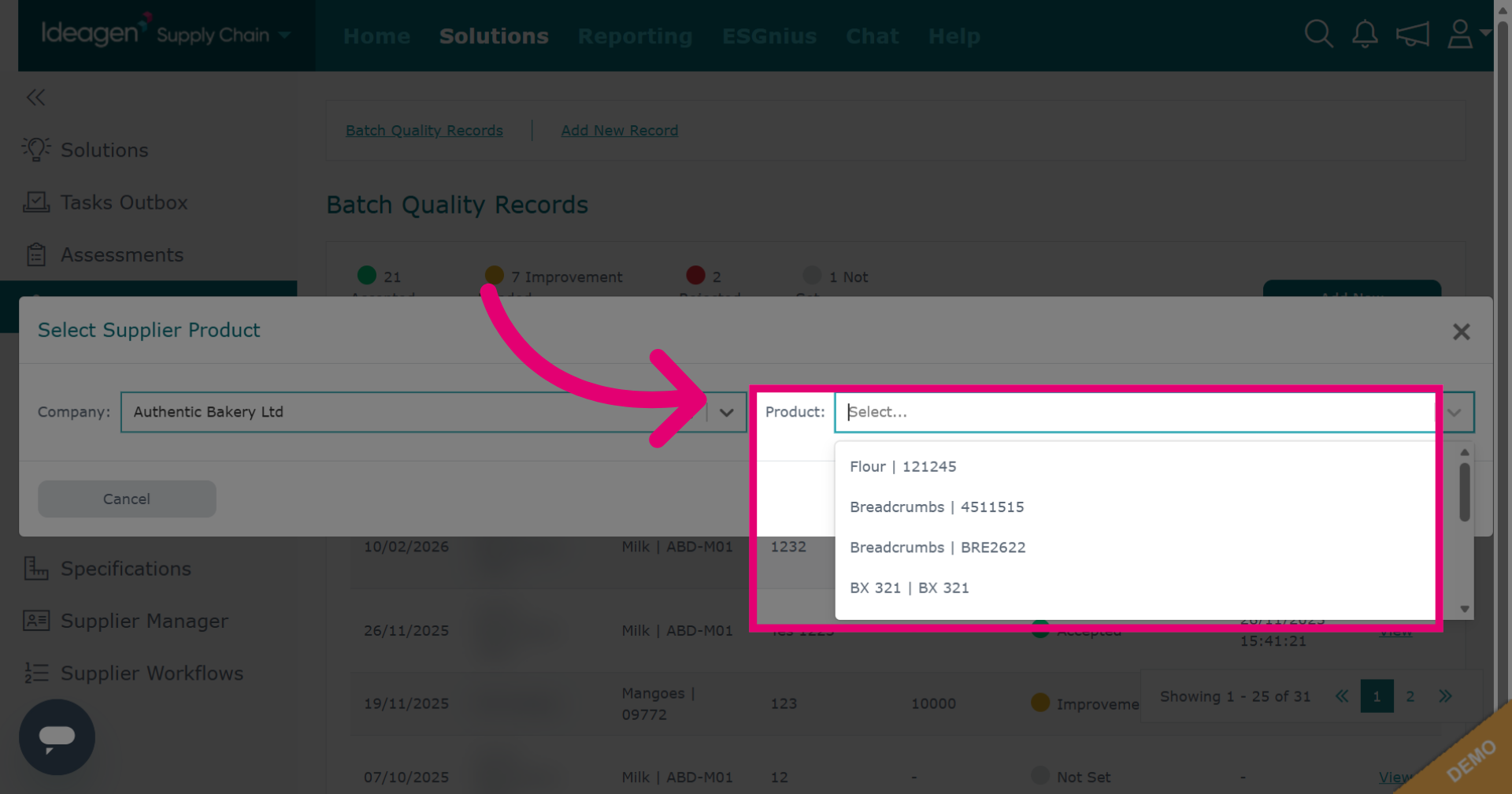
Select the product the record is associated with from the drop down options. The products are items that are associated to the selected supplier via supply chain mapping.
-
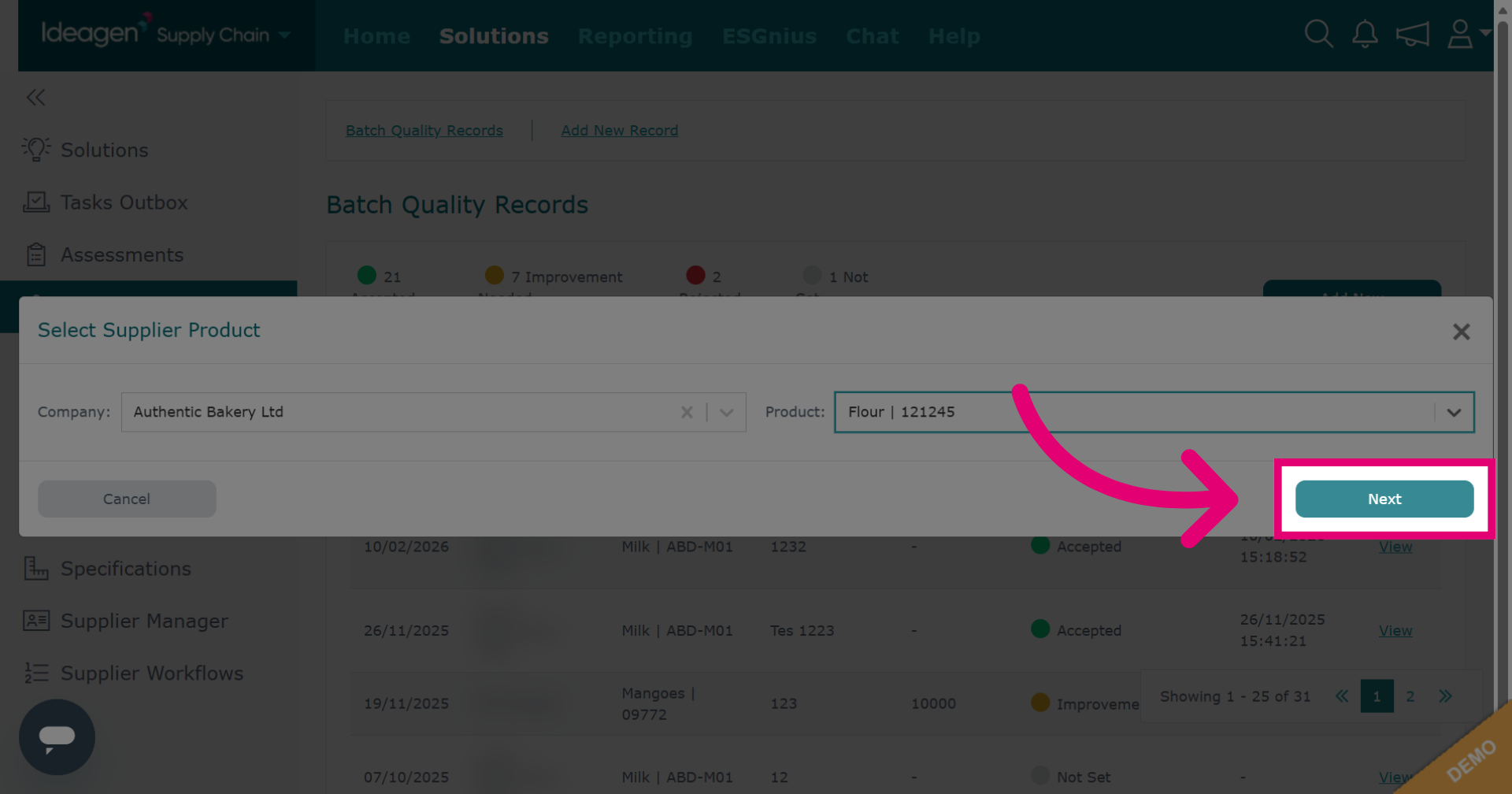
Click Next to continue to the next step.
-
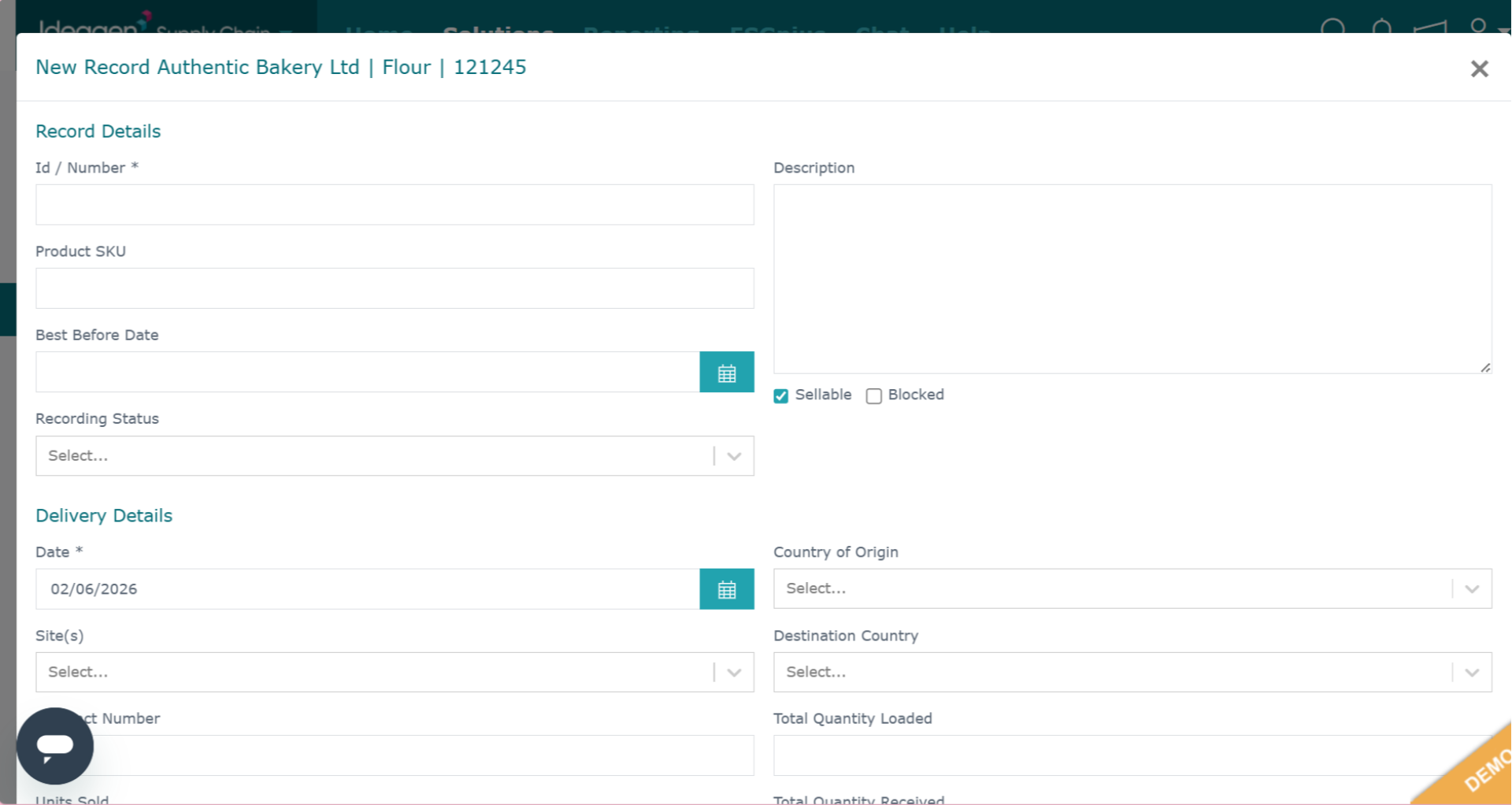
Input the record's data. Fields marked with an asterisk are mandatory.
-
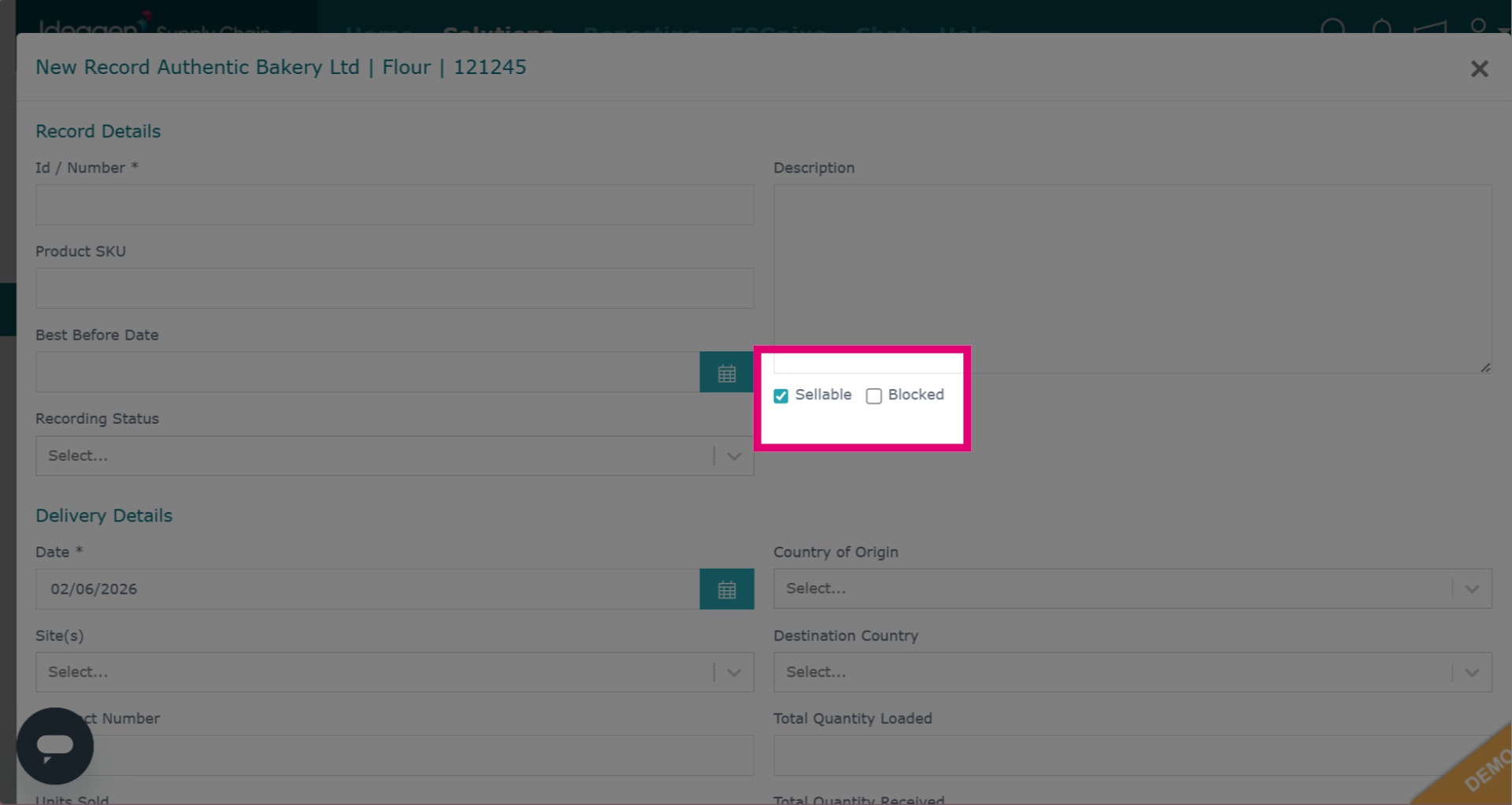
You can mark a batch as sellable or blocked by checking or unchecking the tick box.
-
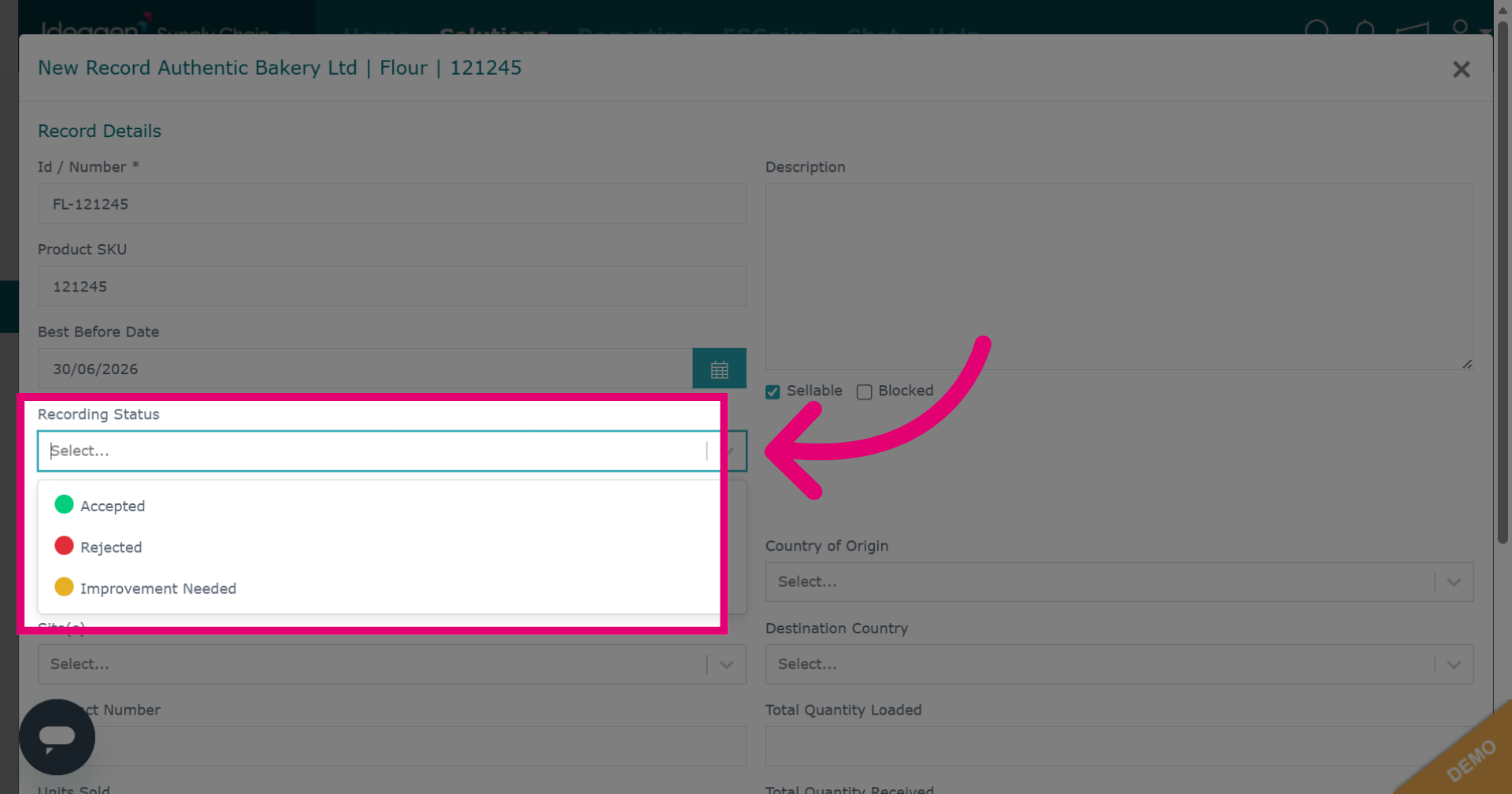
Select whether the batch has been accepted, rejected or marked as improvement needed from the recording status drop down.
-
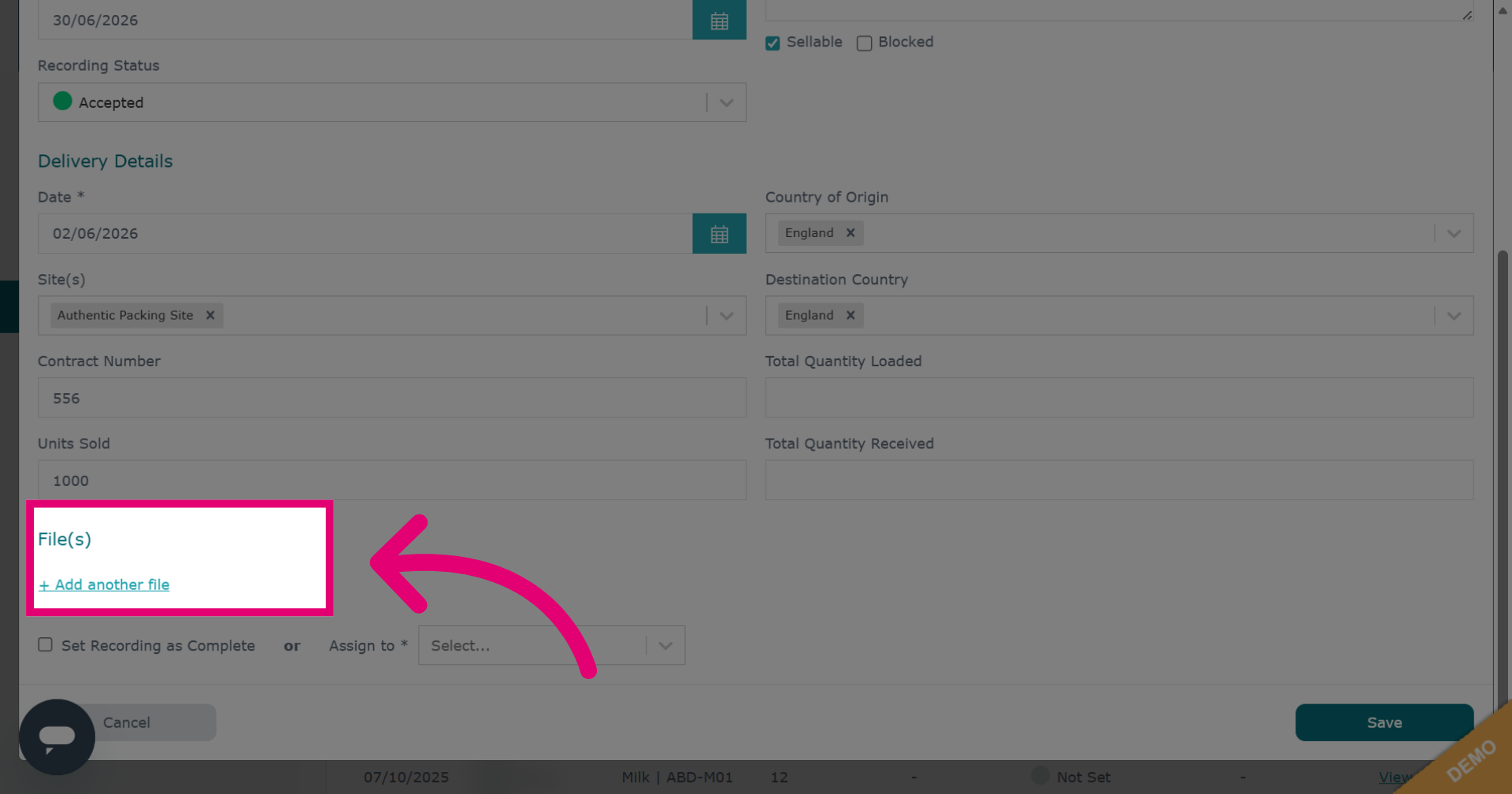
Click Add another file to upload supplementary attachments from your desktop to the record.
-
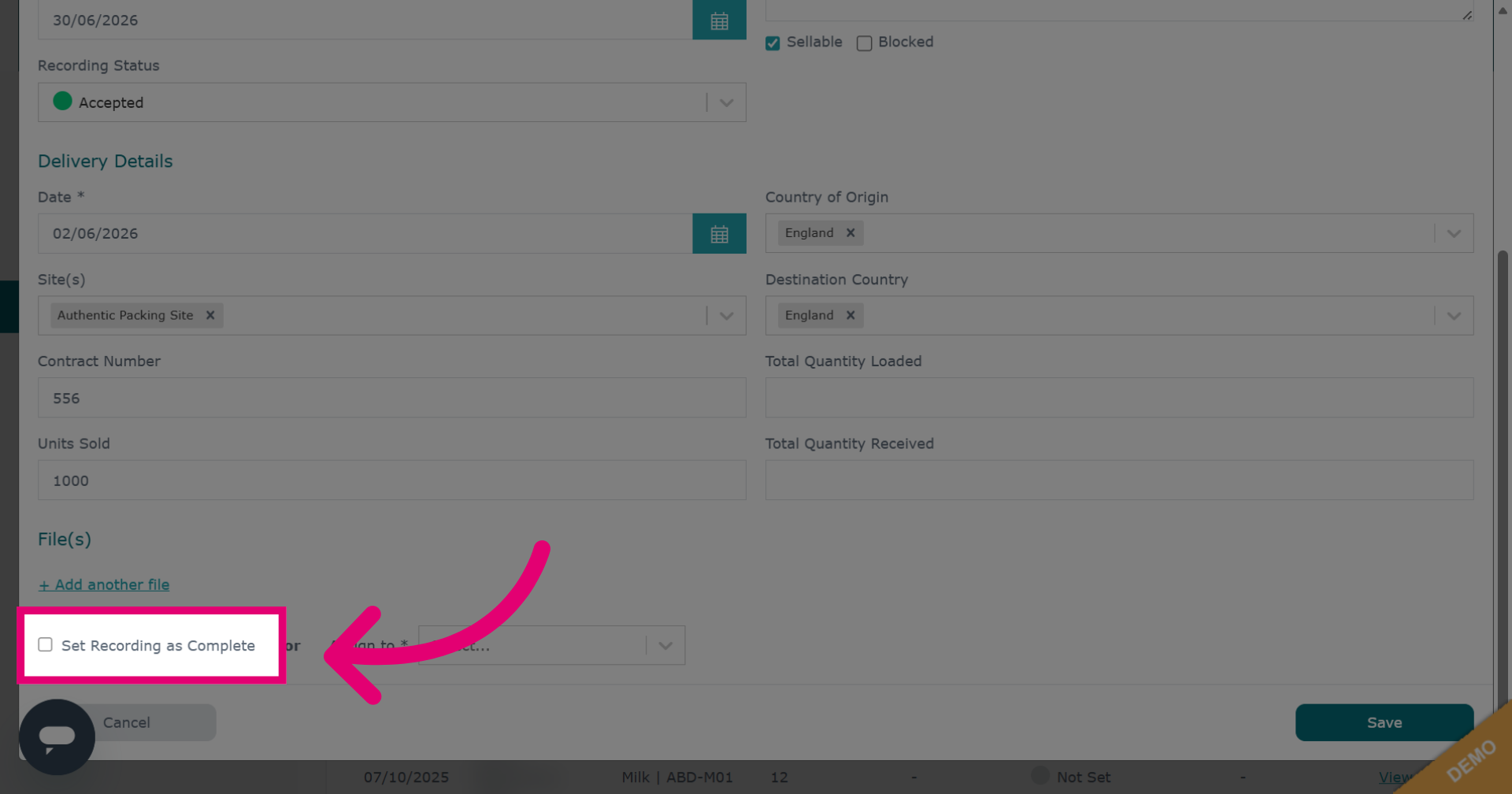
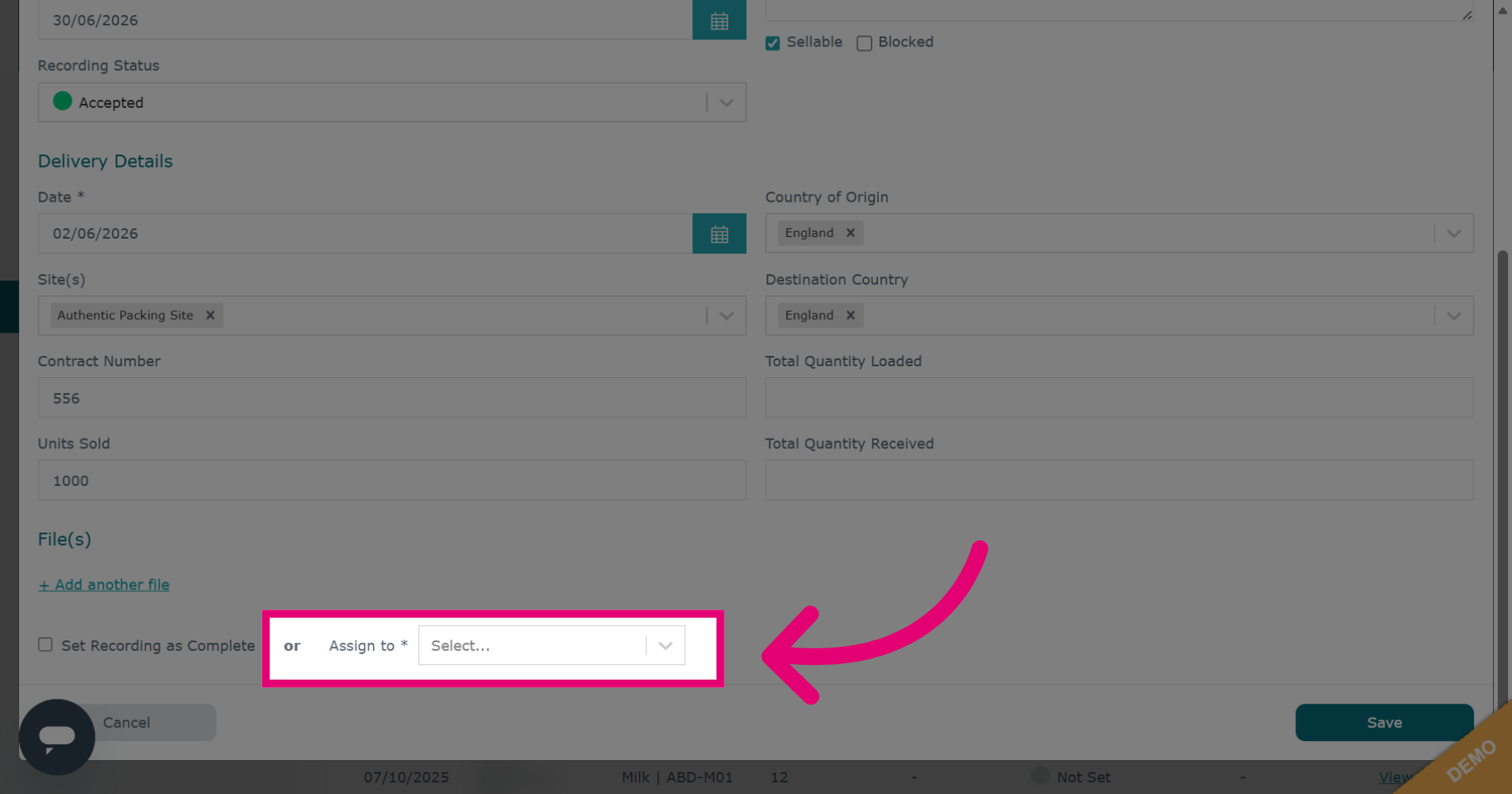
Click Set Recording as Complete to mark the batch record as finalised.
-
If the record requires further input for completion from an internal user, select their name from the drop down box besides the Assign To heading.
-
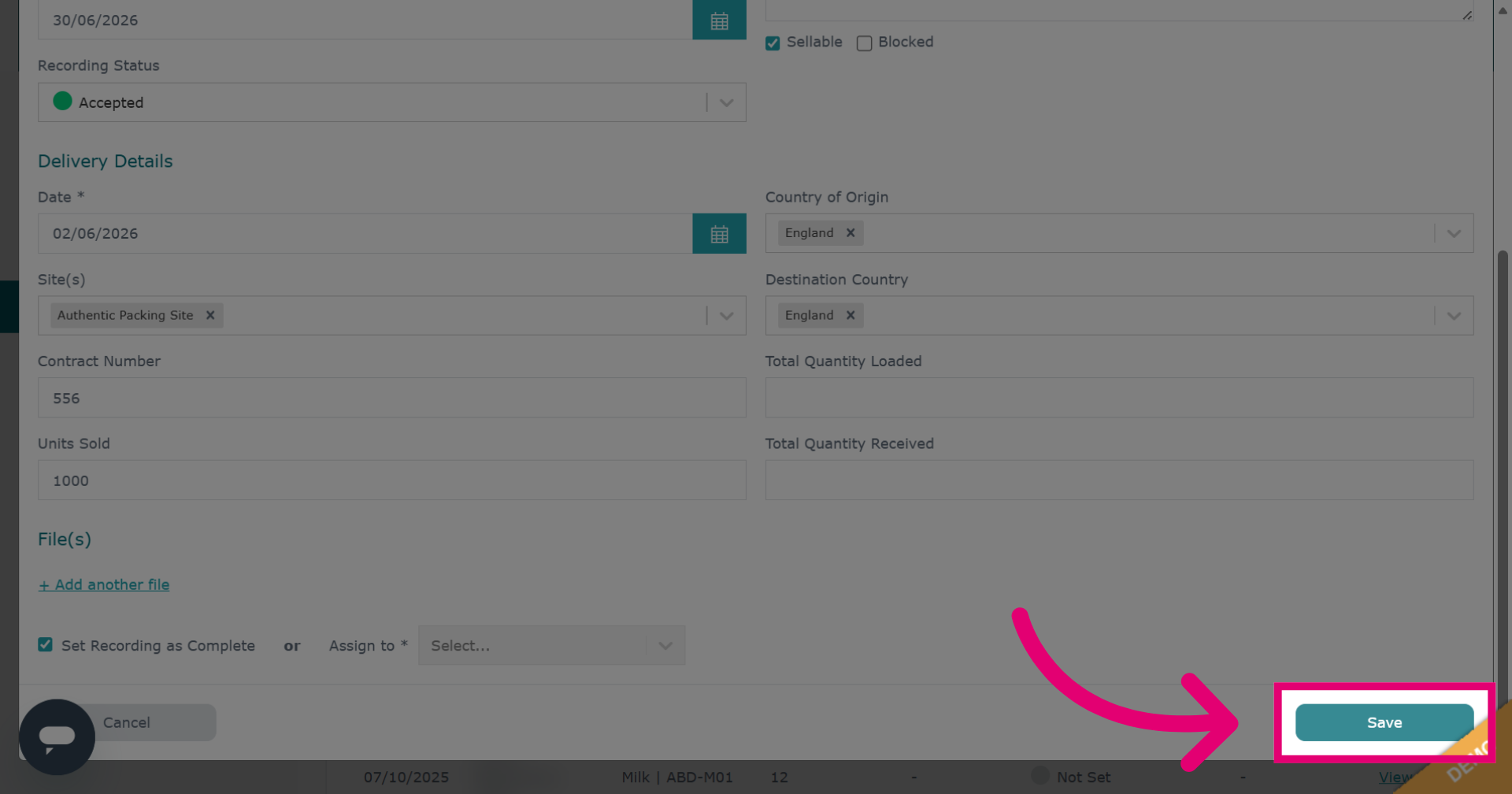
Click Save to add the record.
-
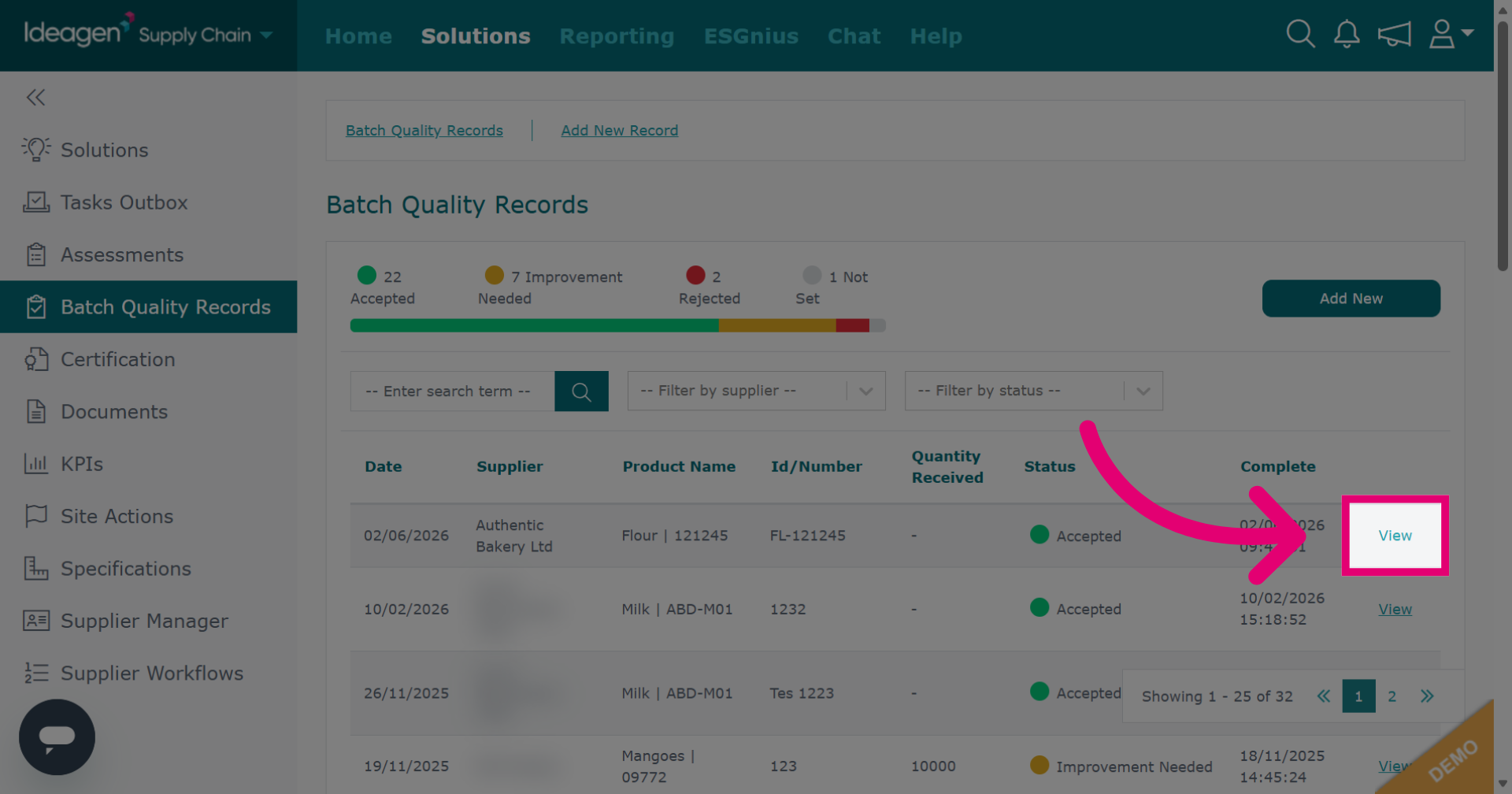
On the batch quality main page, click View besides the relevant entry to examine the full details of the batch record.
-
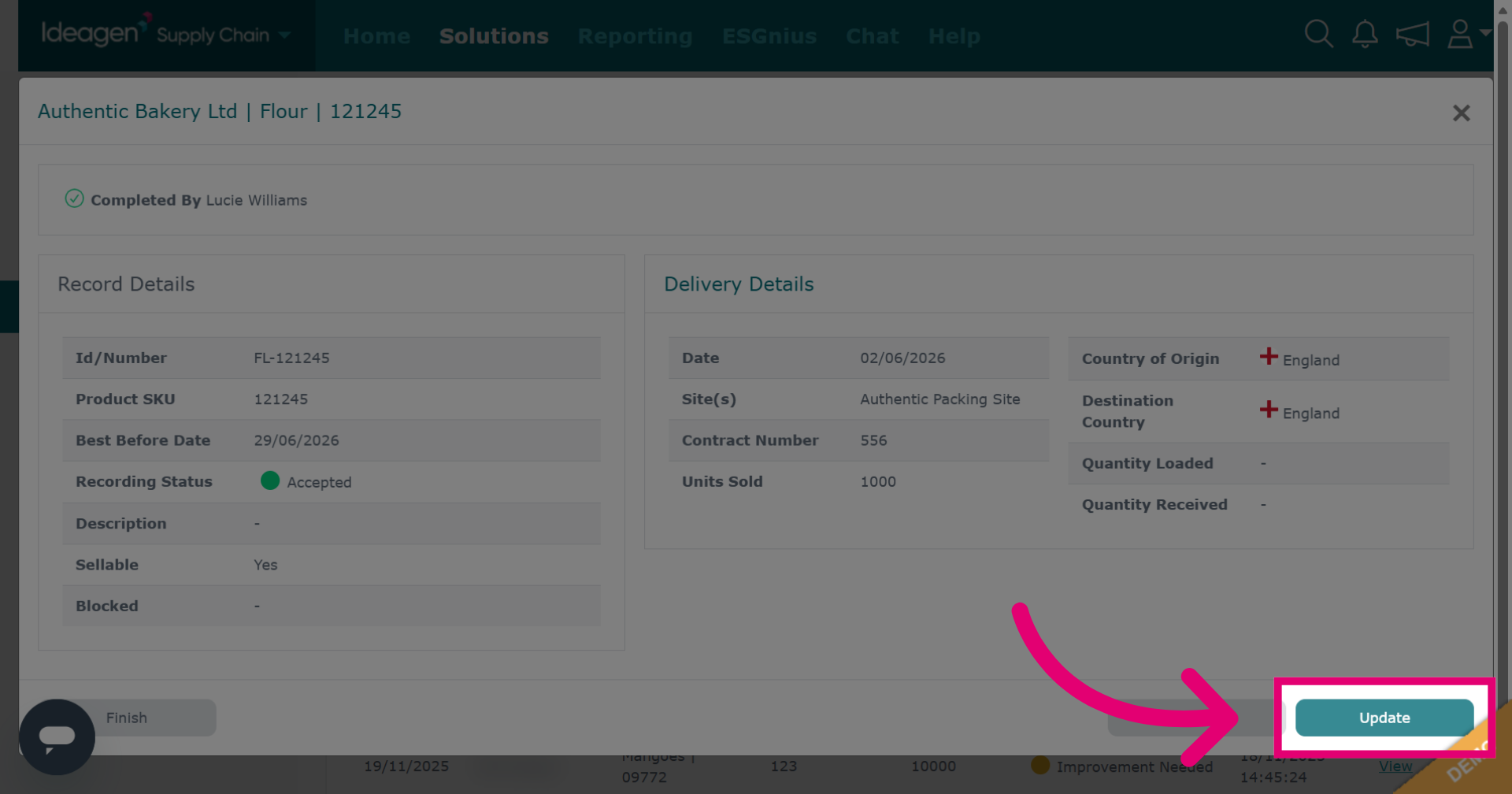
In the view option, click Update to make changes to the existing batch quality record.
-
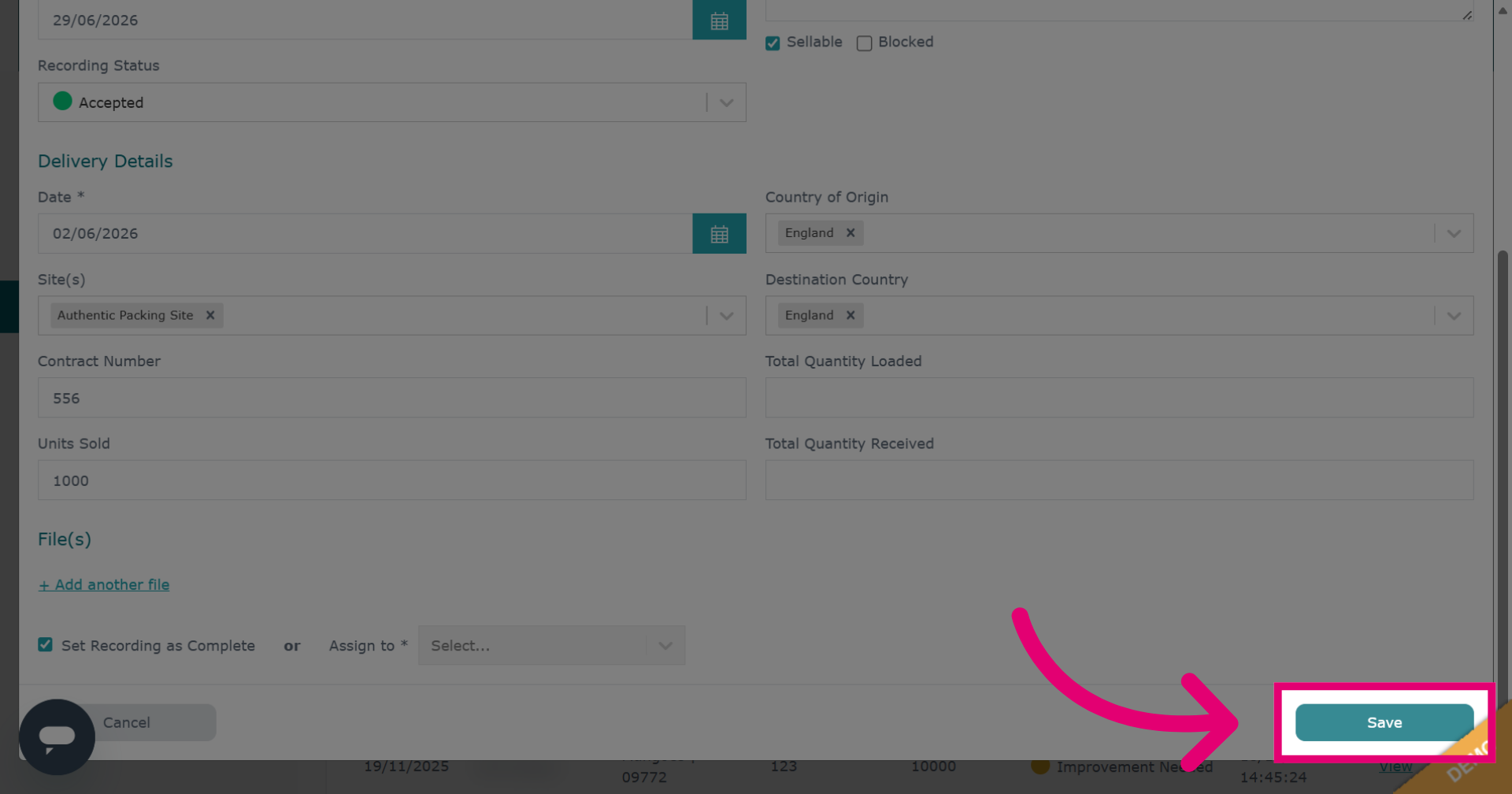
After editing the relevant information, click Save to confirm and store all updates.
-
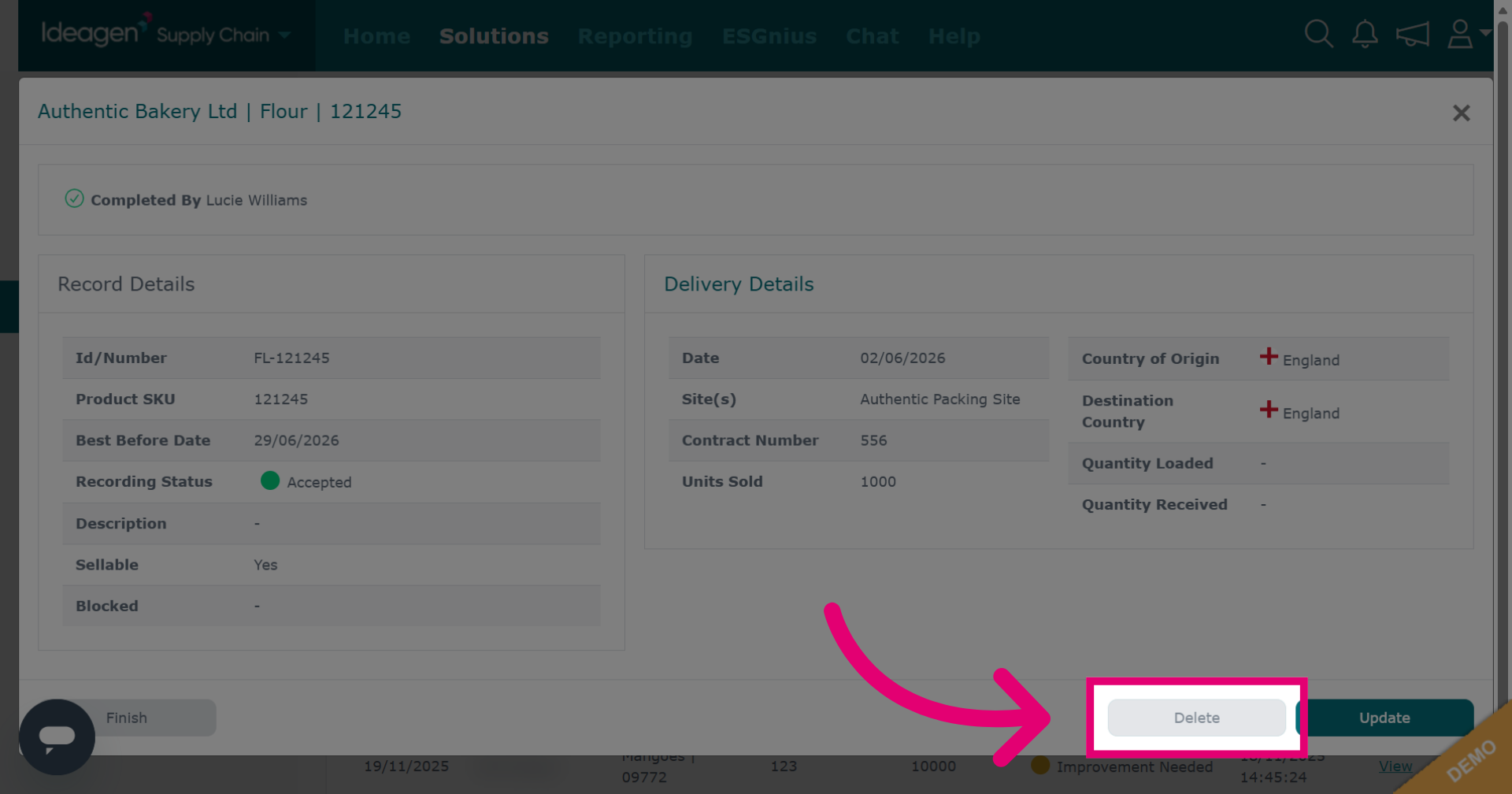
In the view option, click Delete to remove the batch quality record permanently.
-
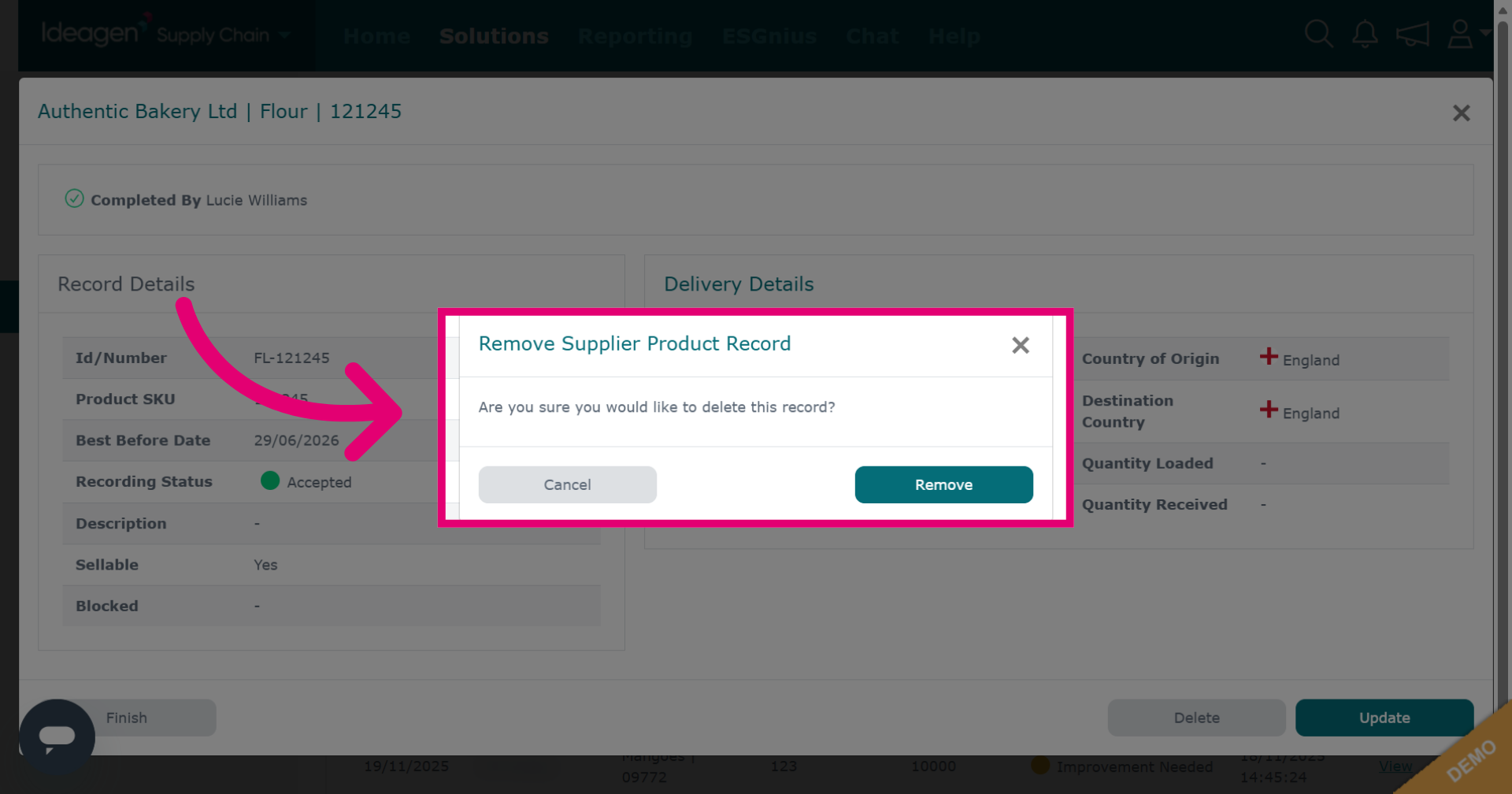
You will be asked to confirm deletion, click remove to confirm and cancel to return to the batch quality records main page.