New article
Recently updated
Managing batch quality records

Who is this article for?
Users who want to learn to manage batch quality records.
No elevated permissions are required.
This tutorial guides you through managing batch quality records within the Ideagen Supply Chain platform.
Managing batch quality records
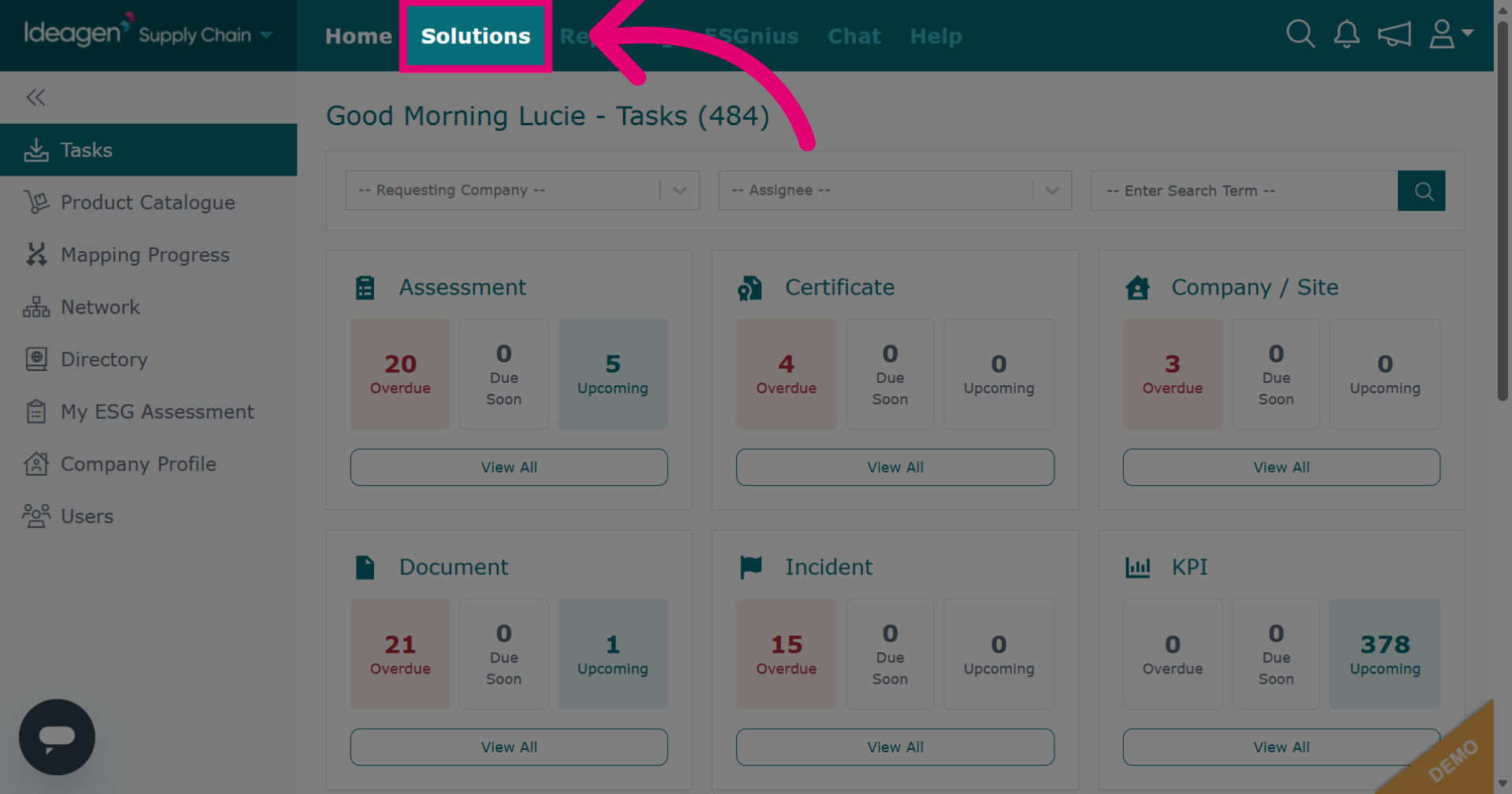
Click Solutions to open the main module menu.
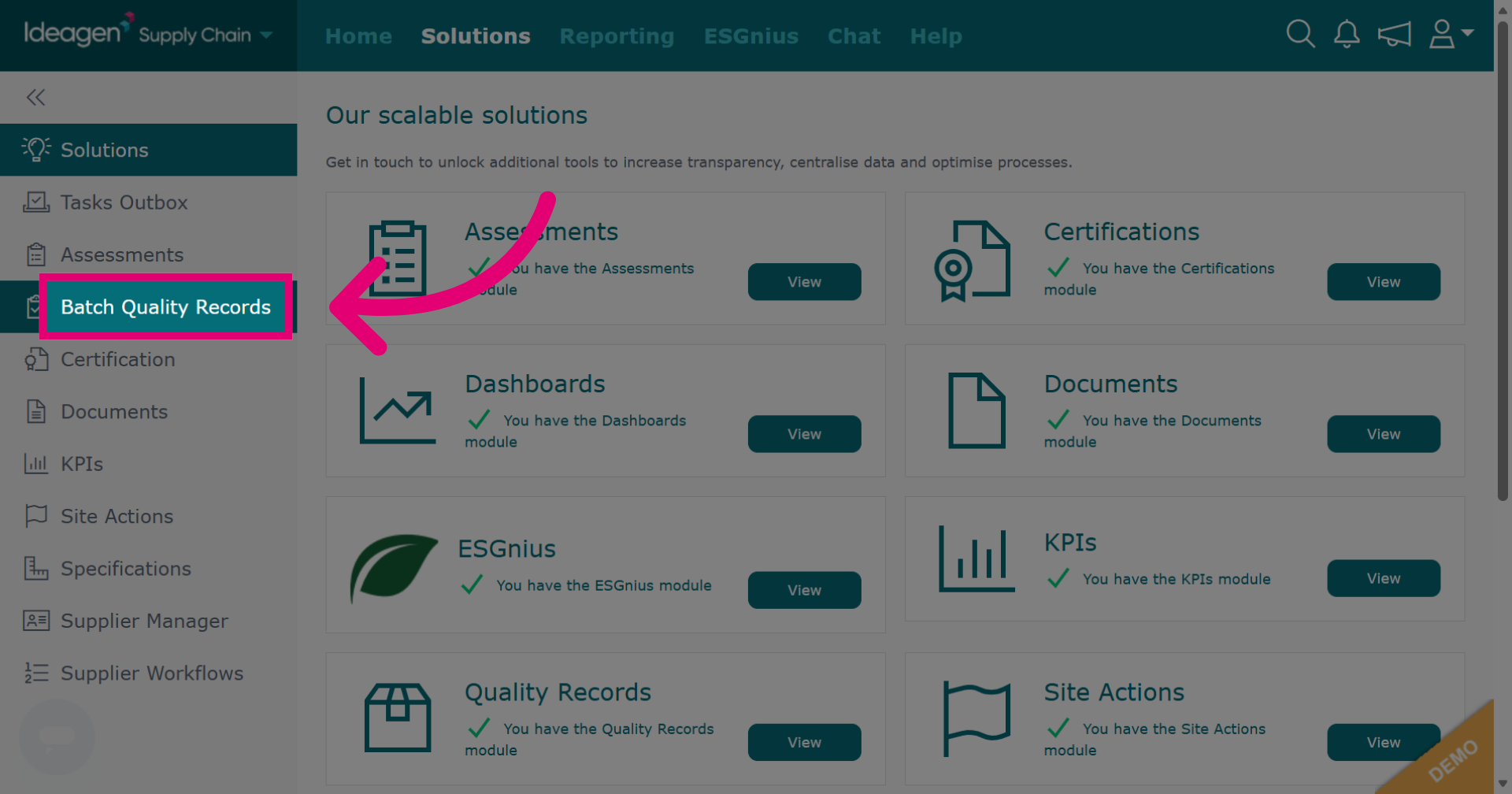
Click Batch Quality Records to open the module.
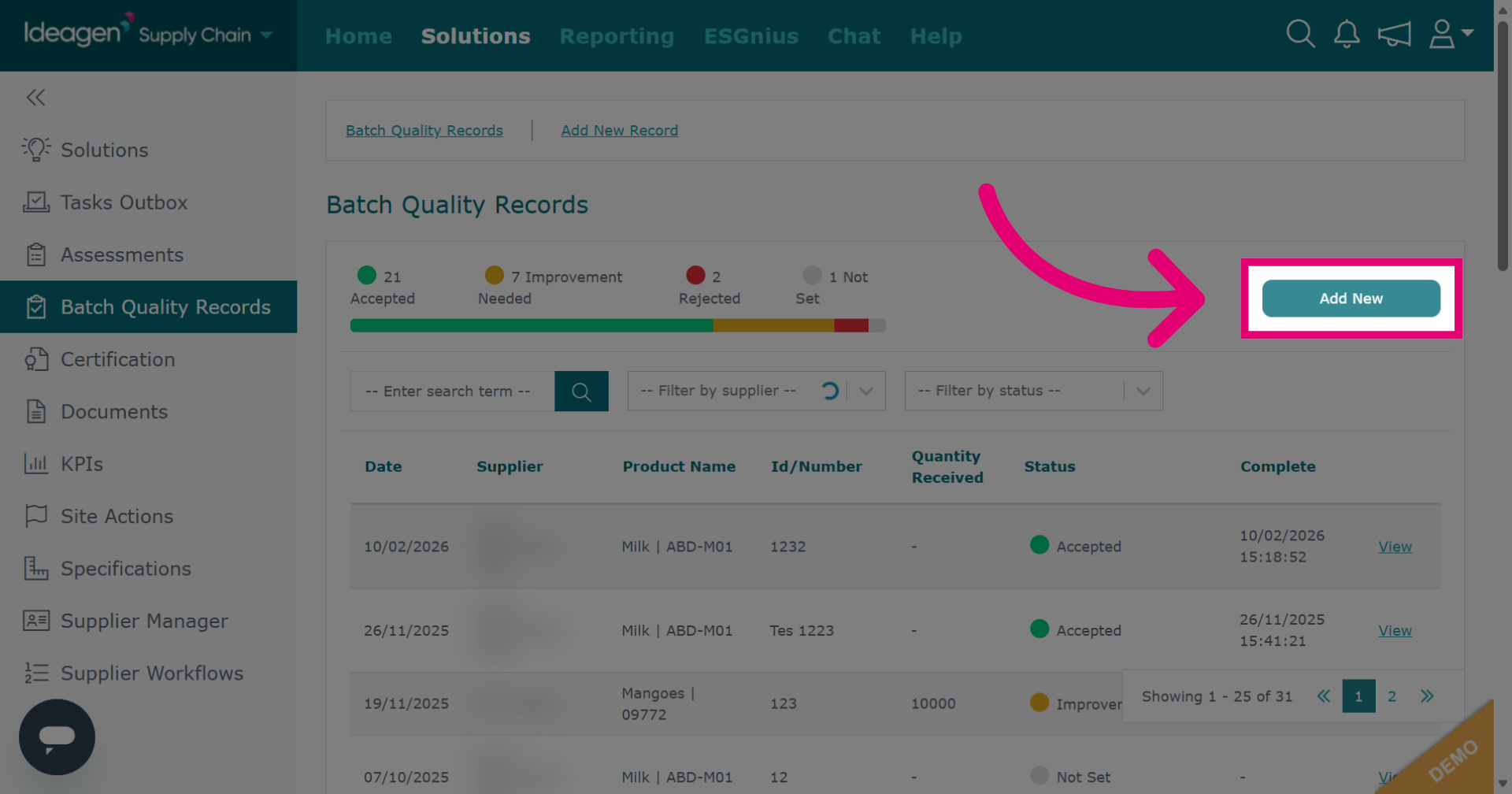
Click Add New to start creating a new record.
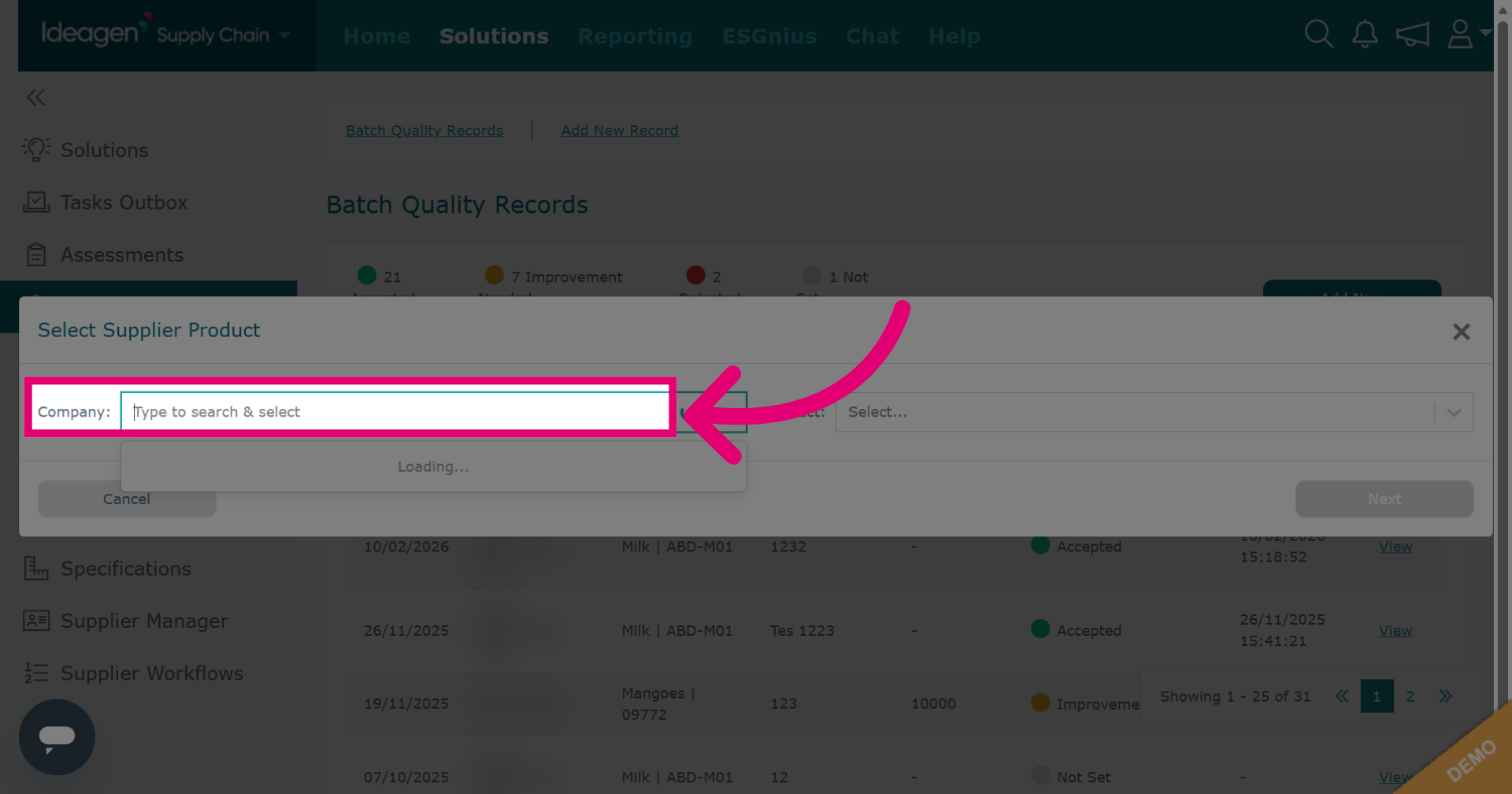
Enter a keyword to find the company to associate the record with. This should be a supplier already connected via supply chain mapping.
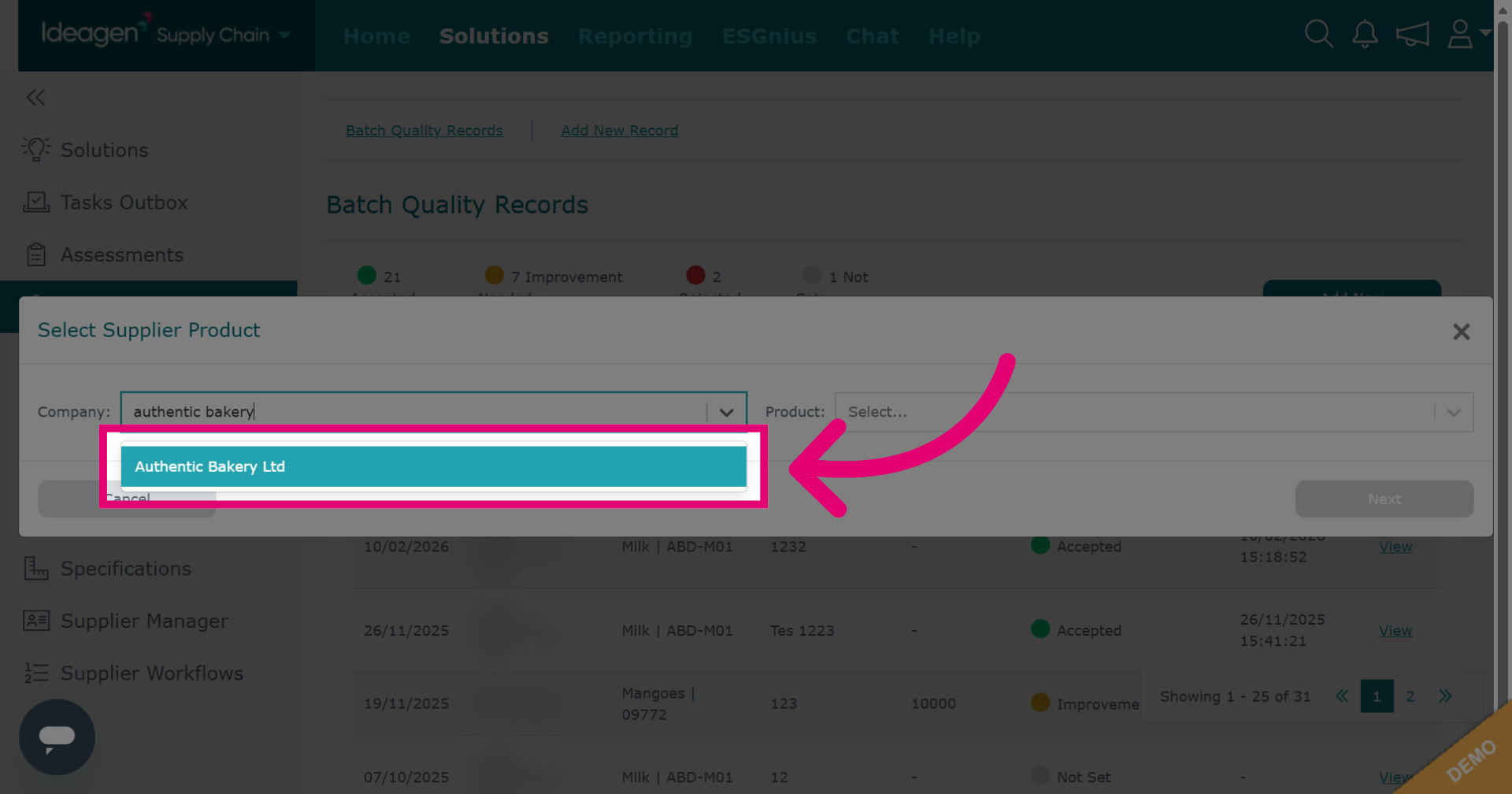
Select a company from the drop-down to associate the record with this profile.
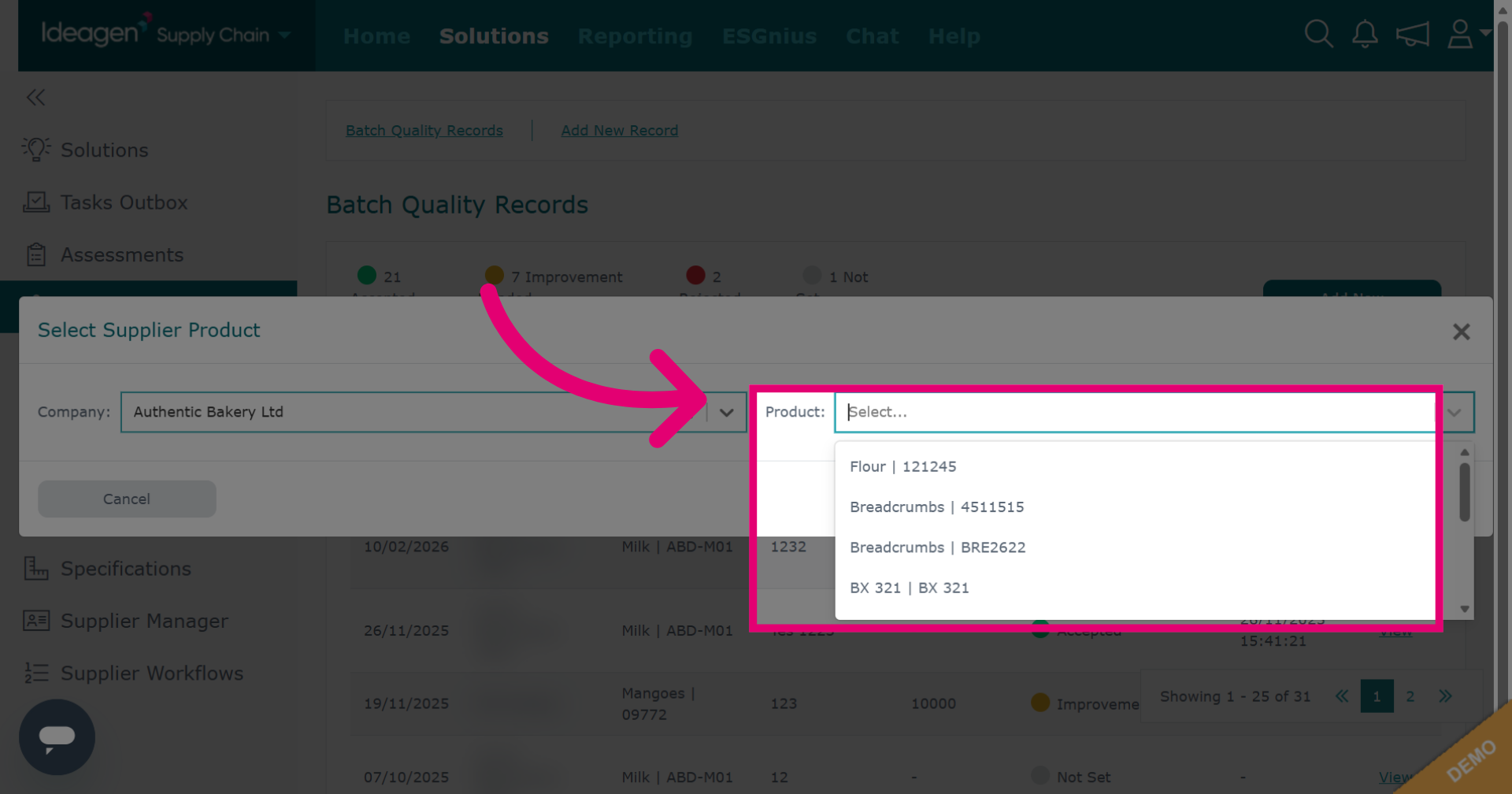
Select the product from the drop-down. Products are linked to the selected supplier through supply chain mapping.
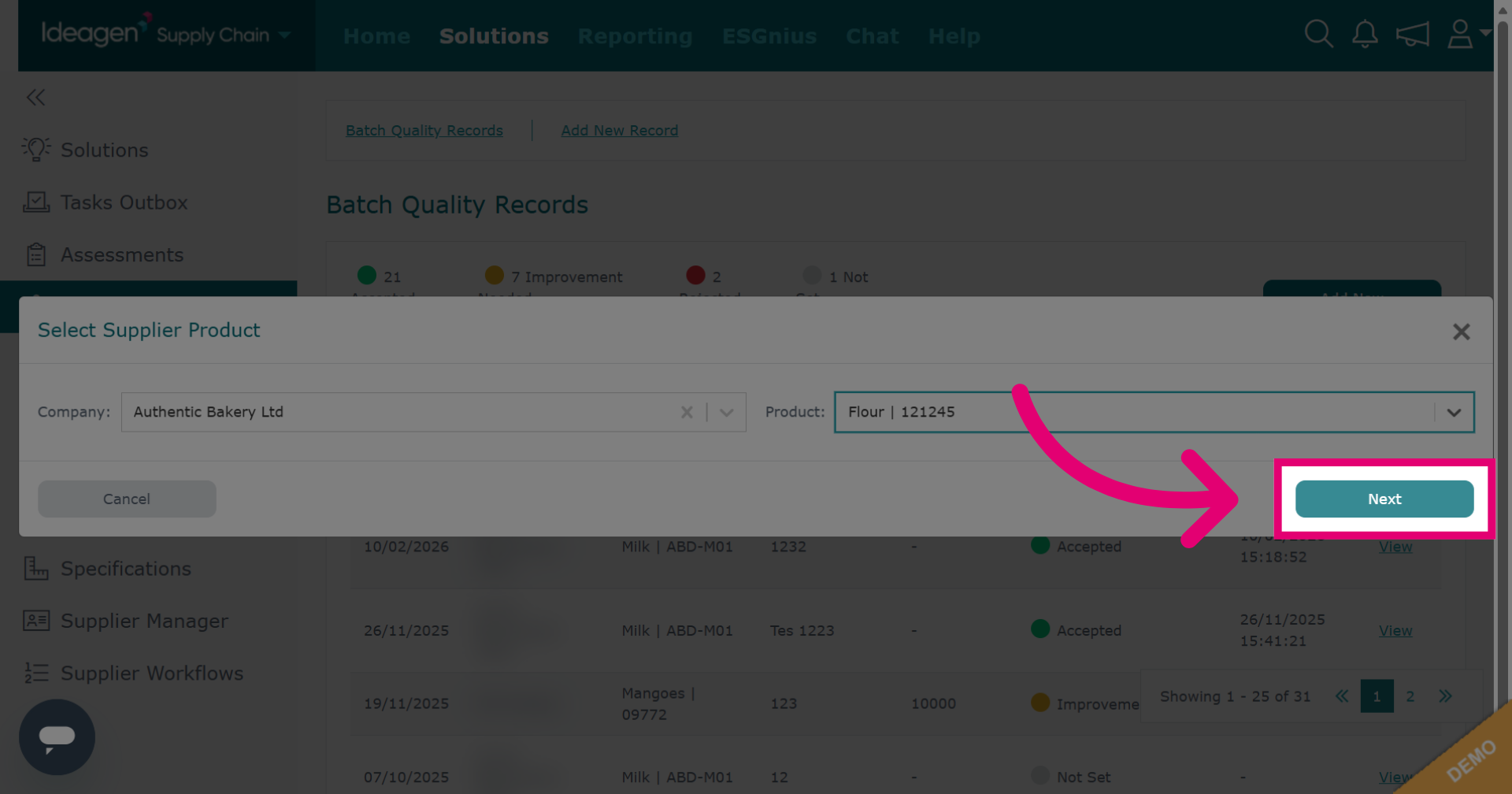
Click Next to continue to the next step.
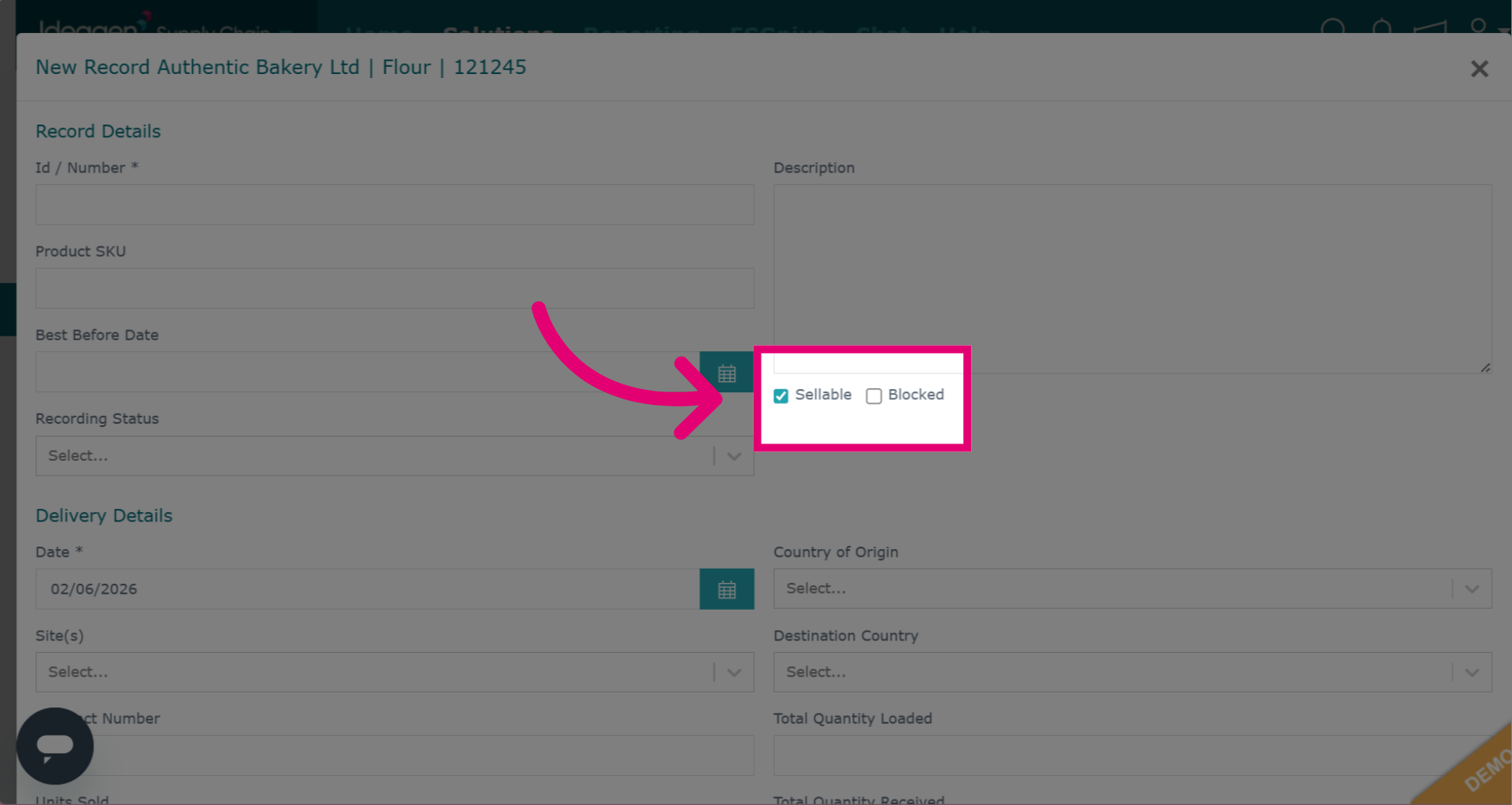
Mark a batch as sellable or blocked by checking or unchecking the box.
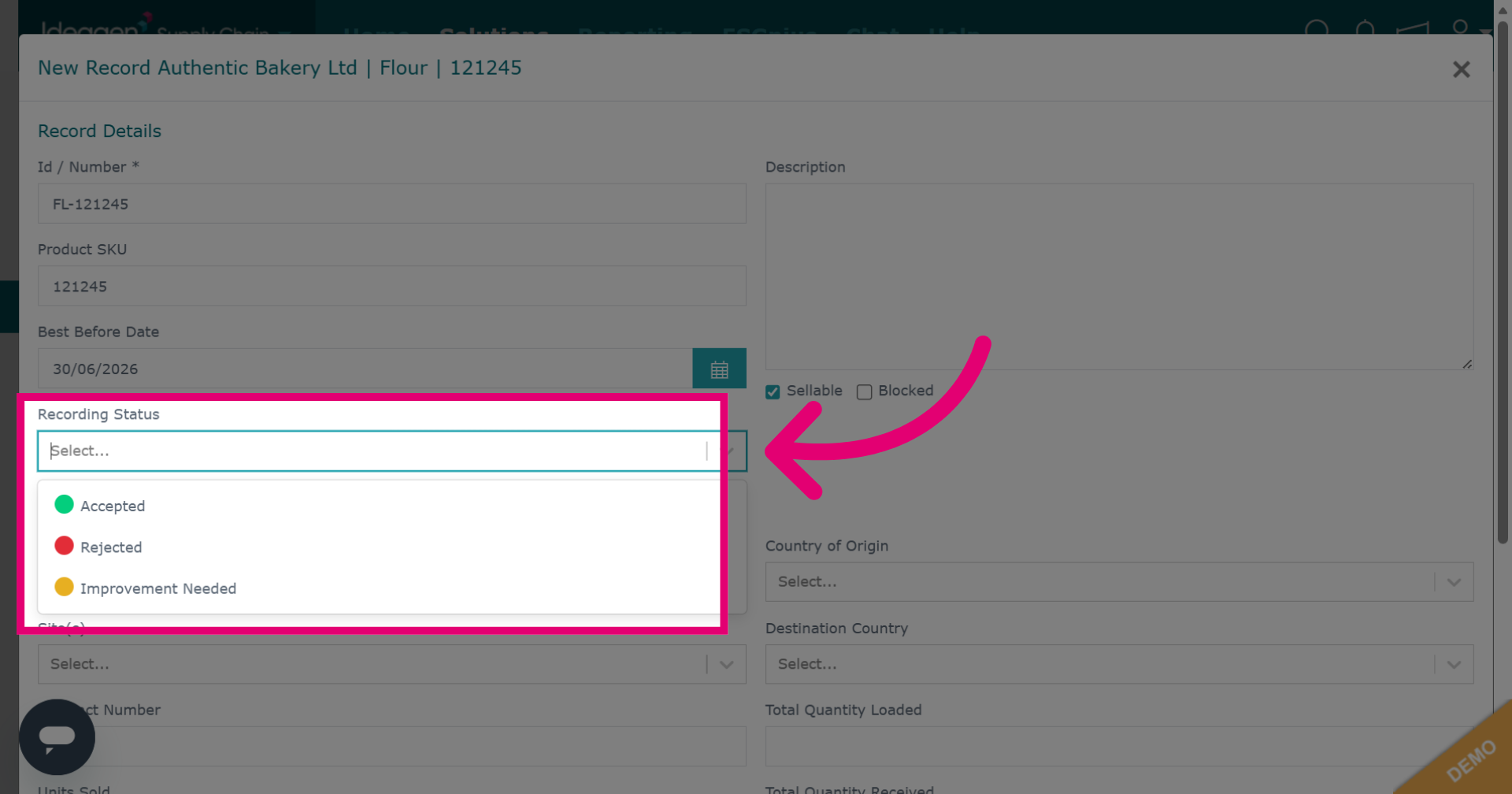
Select if the batch is accepted, rejected, or needs improvement from the status drop down.
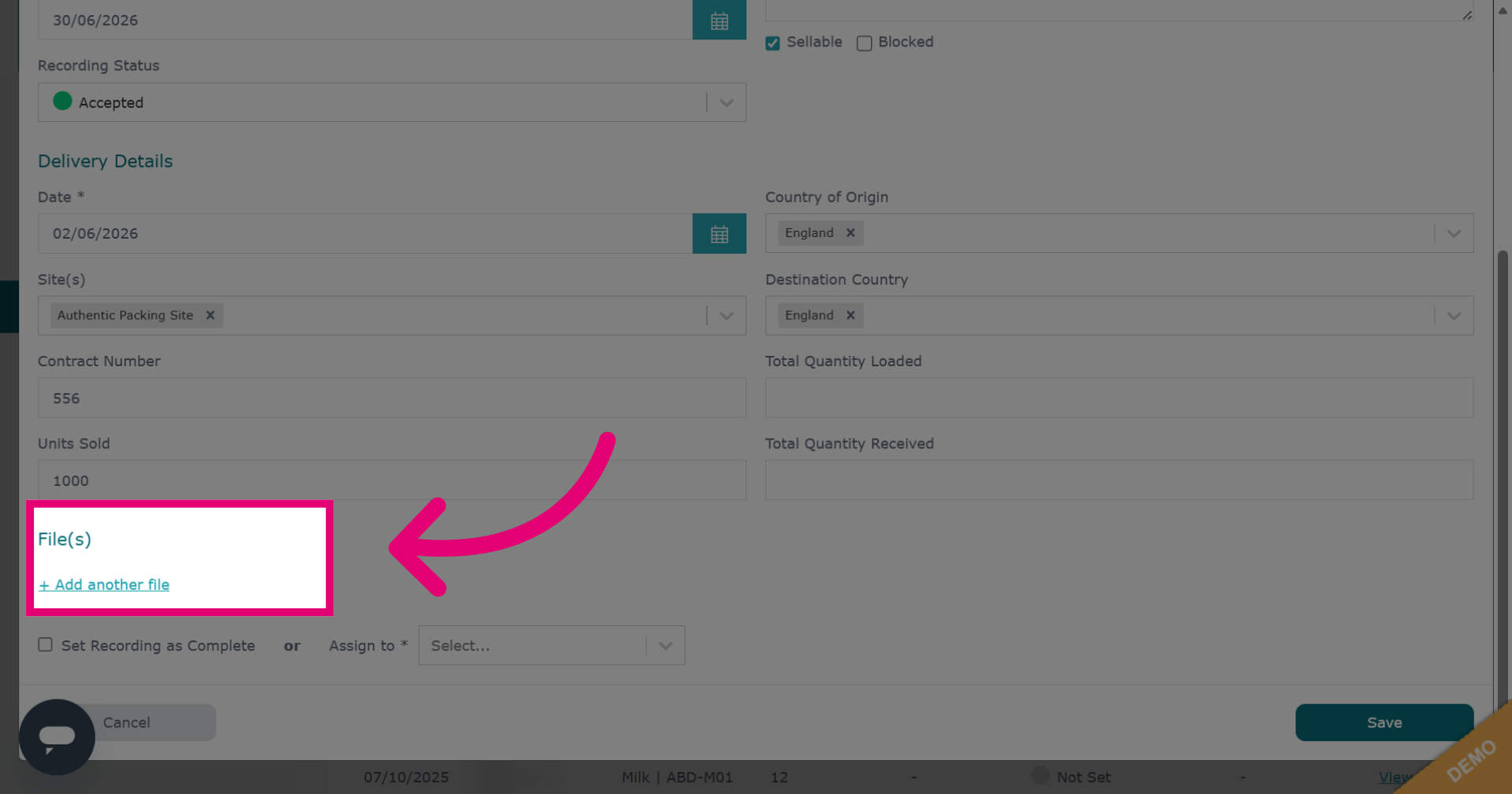
Click Add another file to upload attachments from your desktop.
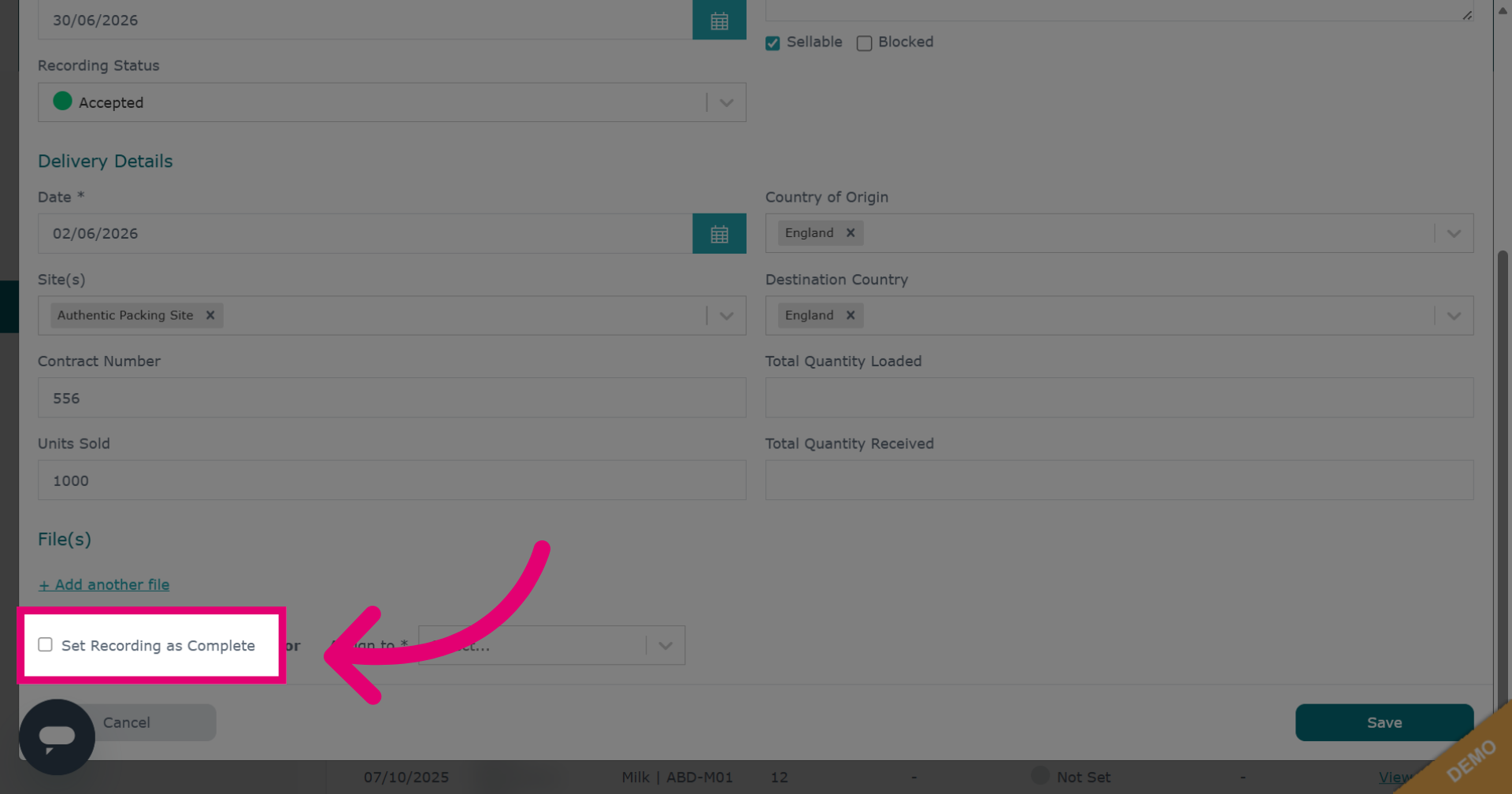
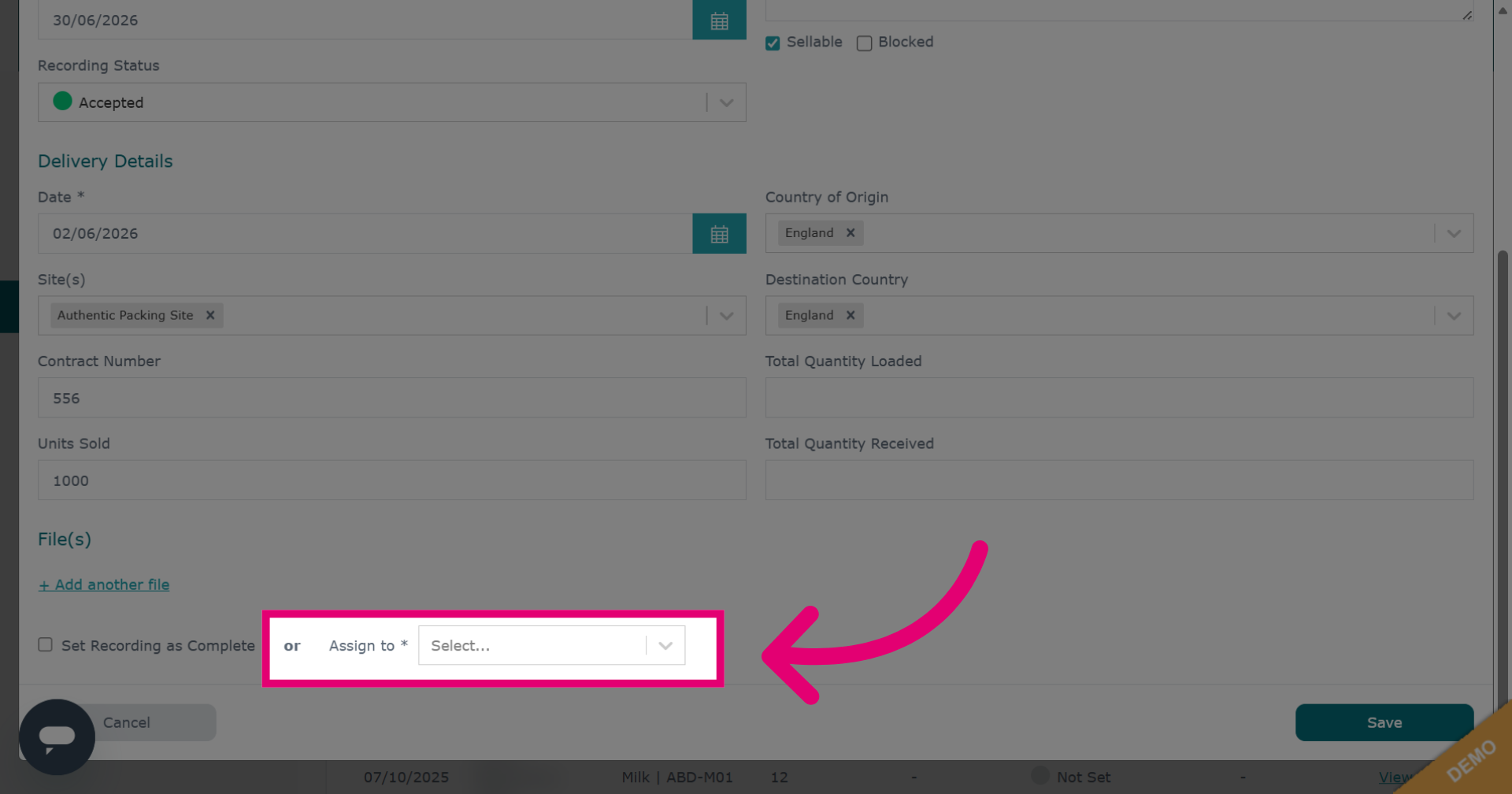
Click Set Recording as Complete to finalize the batch record.
If the record needs more input from an internal user, select their name from the drop-down box next to Assign To.
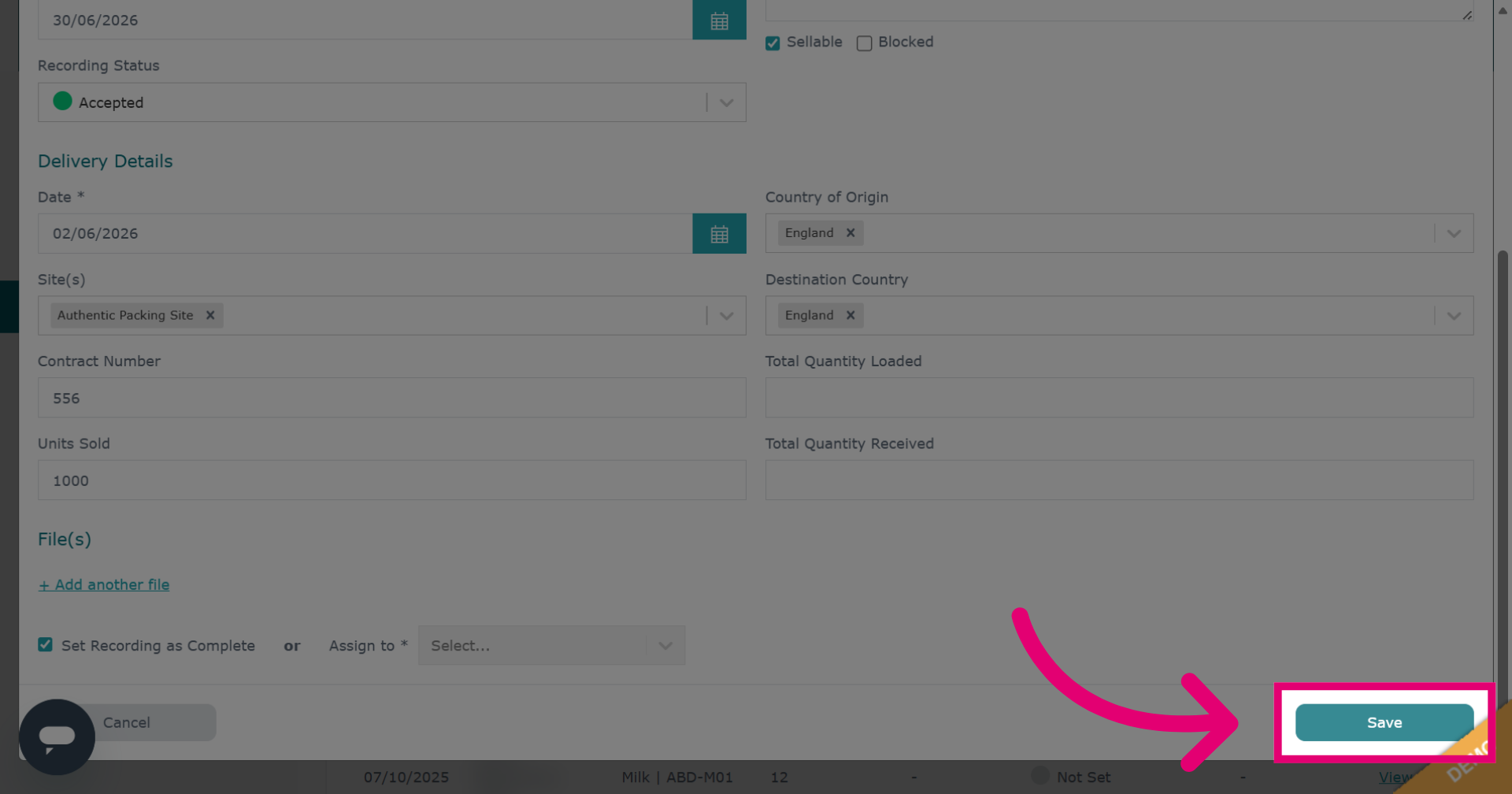
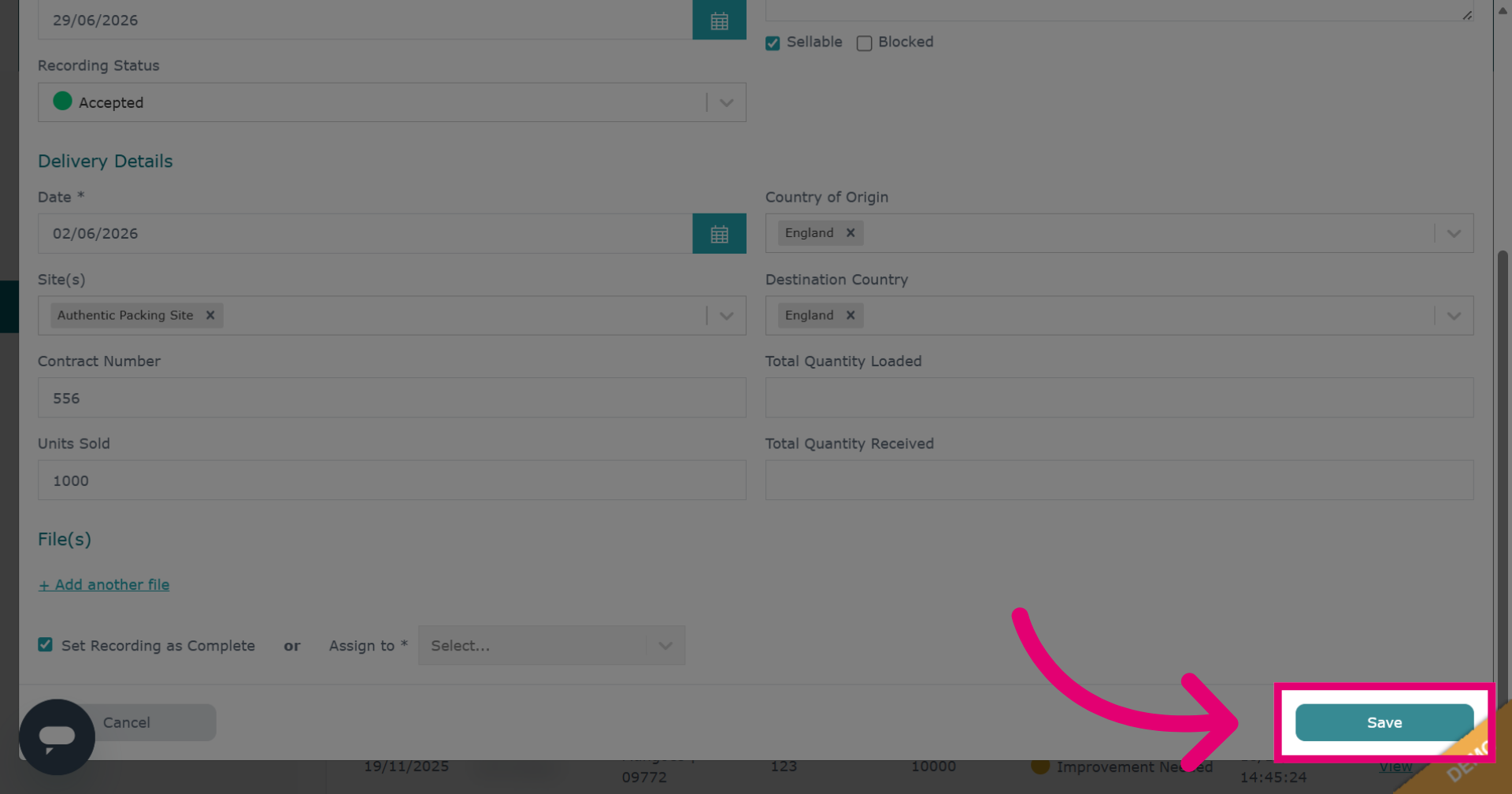
Click Save to add the record.
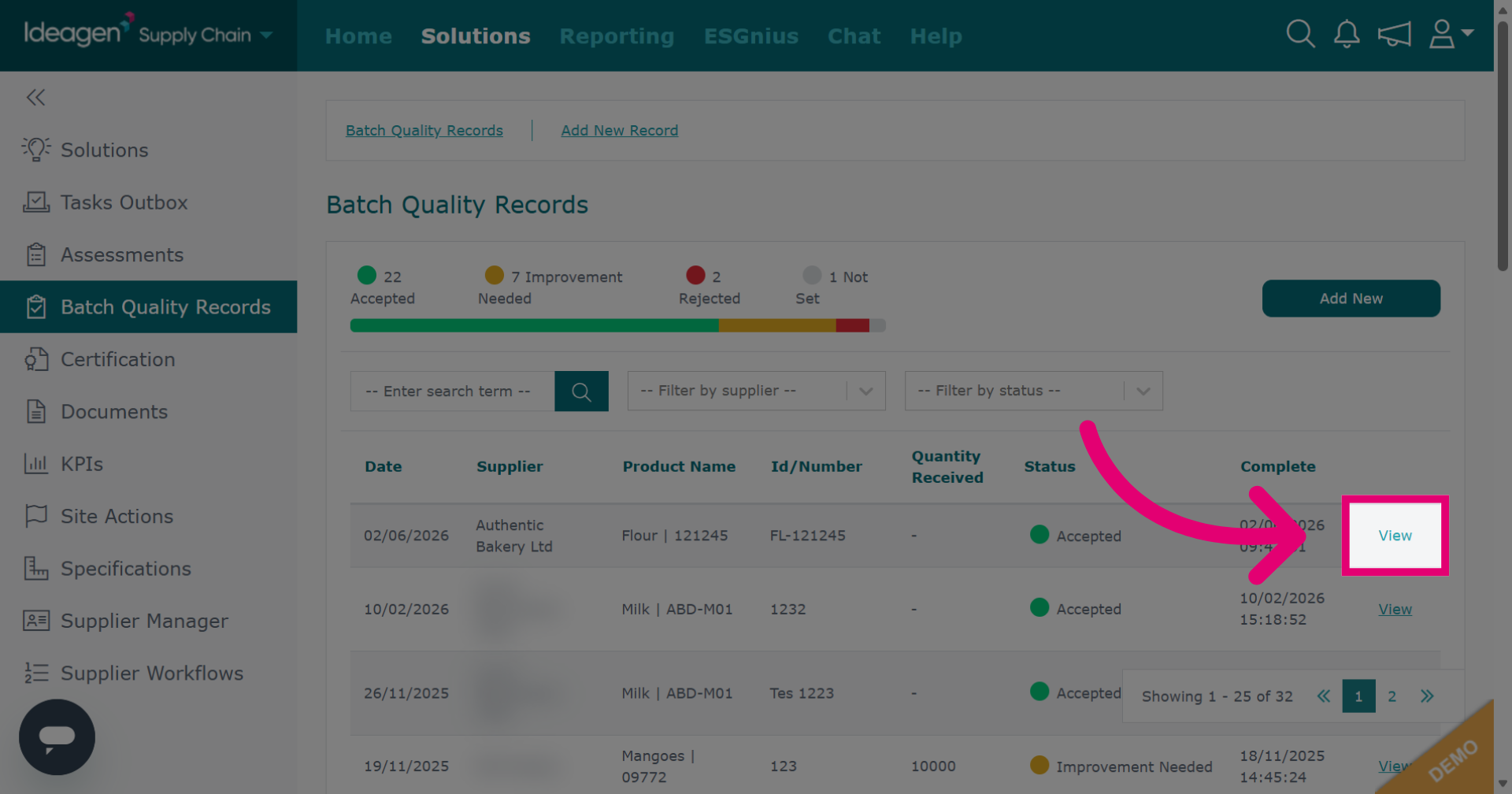
On the batch quality page, click View next to the entry to see the full batch record details.
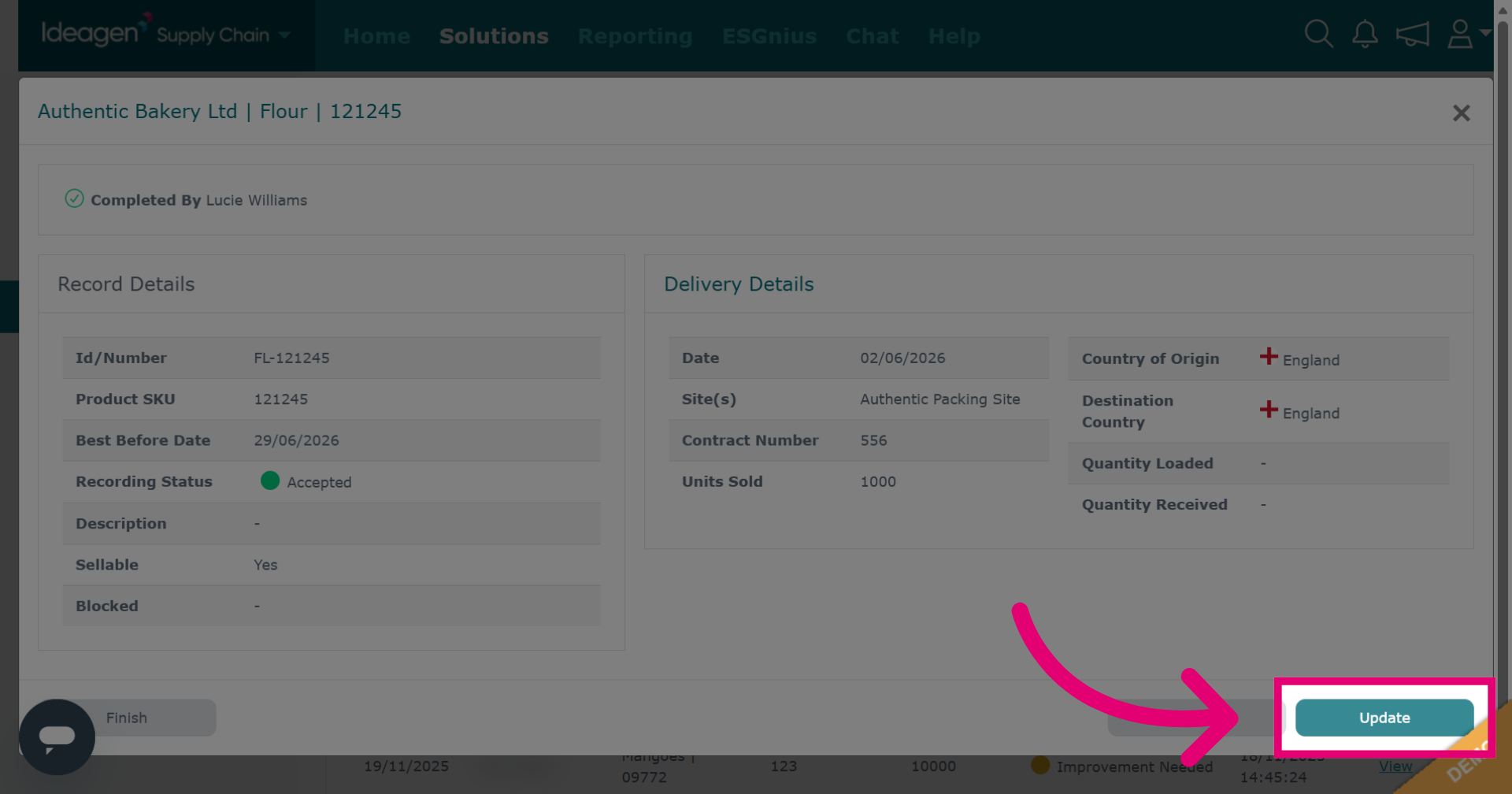
Click Update to change the existing batch quality record.
Click Save to confirm and store updates.
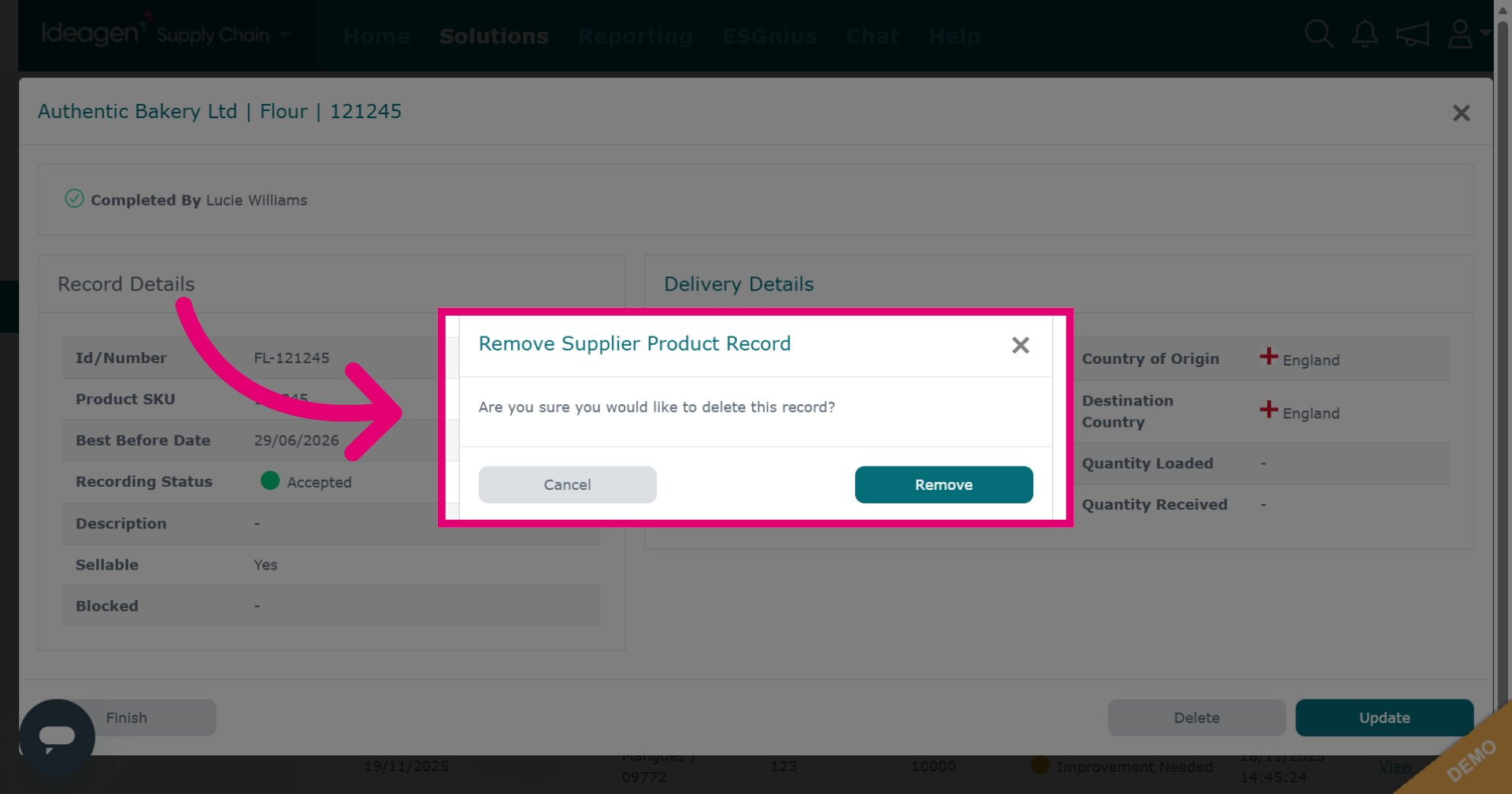
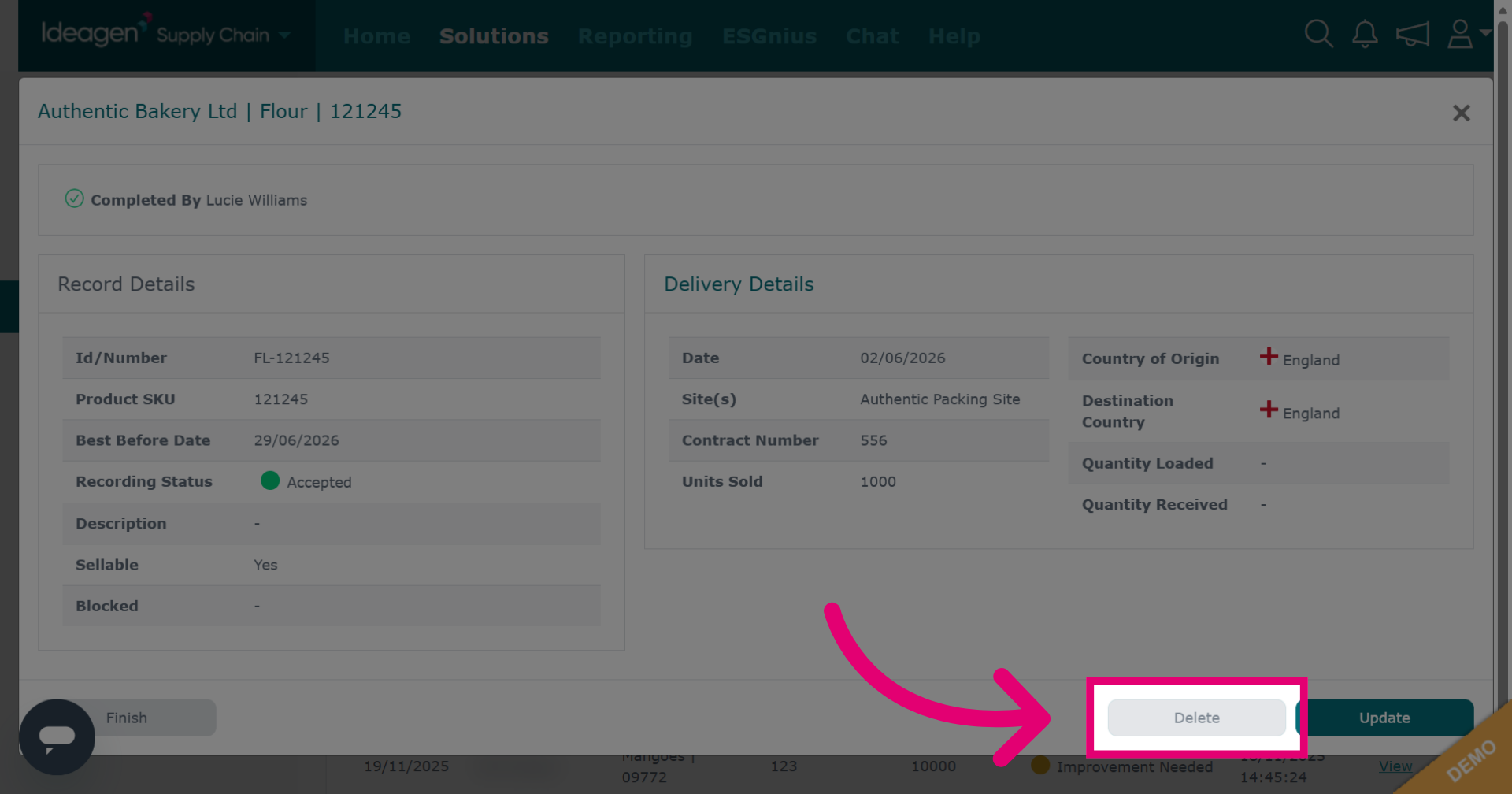
To delete a record permanently, click Delete.
Confirm deletion by clicking remove or return to the main page with cancel.