New article
Recently updated
Responding to an ESG Request - ESGnius

Who is this article for?
Users who need to respond to an ESG request.
ESG user permissions are required.
This tutorial guides you through completing an ESG assessment in Ideagen Supply Chain.
You will learn how to accept an ESG request, complete the assessment questions, manage visibility settings, and submit your responses for review.
Completing an ESG assessment
-
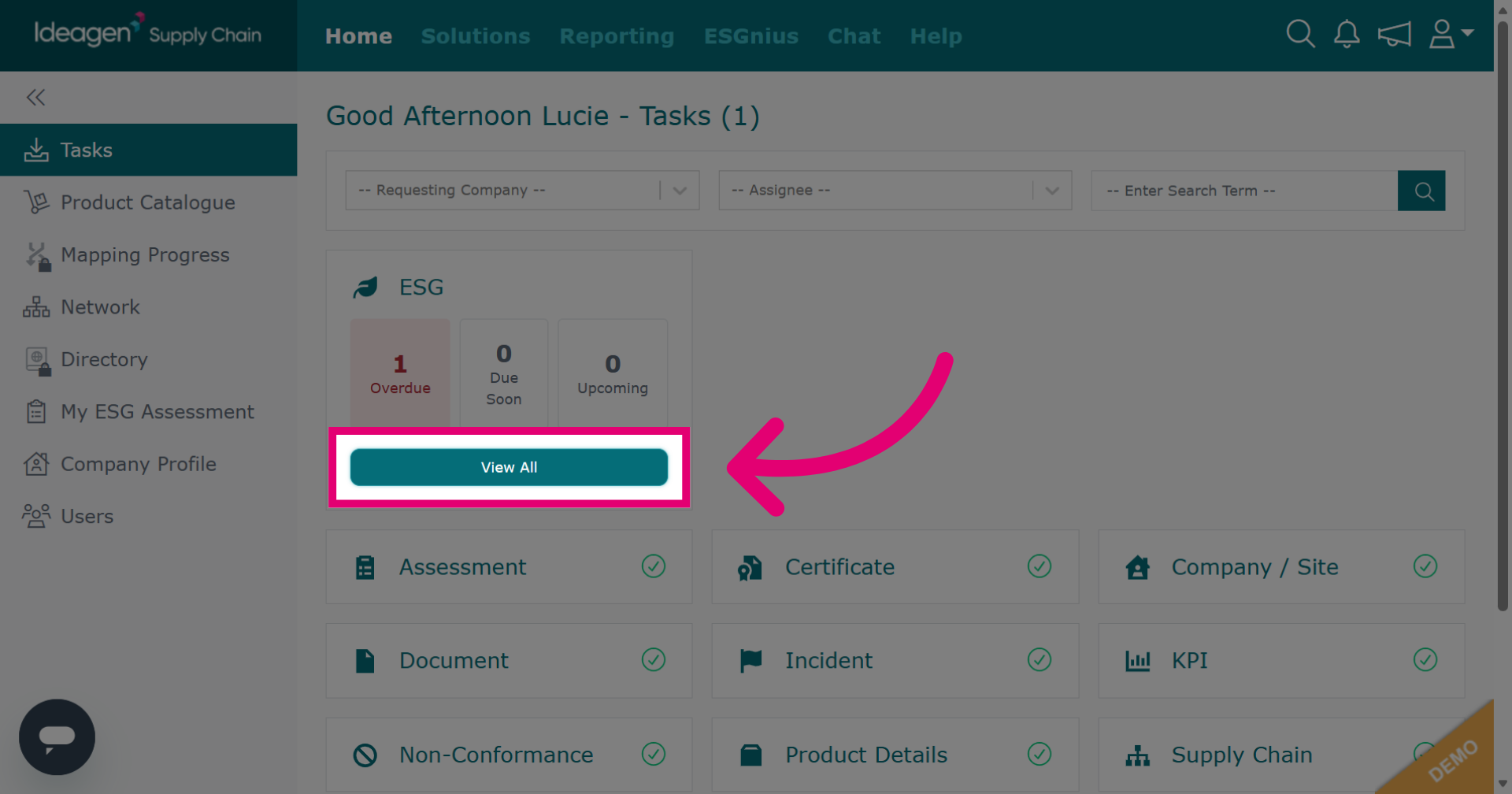
Click View All beneath the ESG tile to view your outstanding ESG tasks.
-
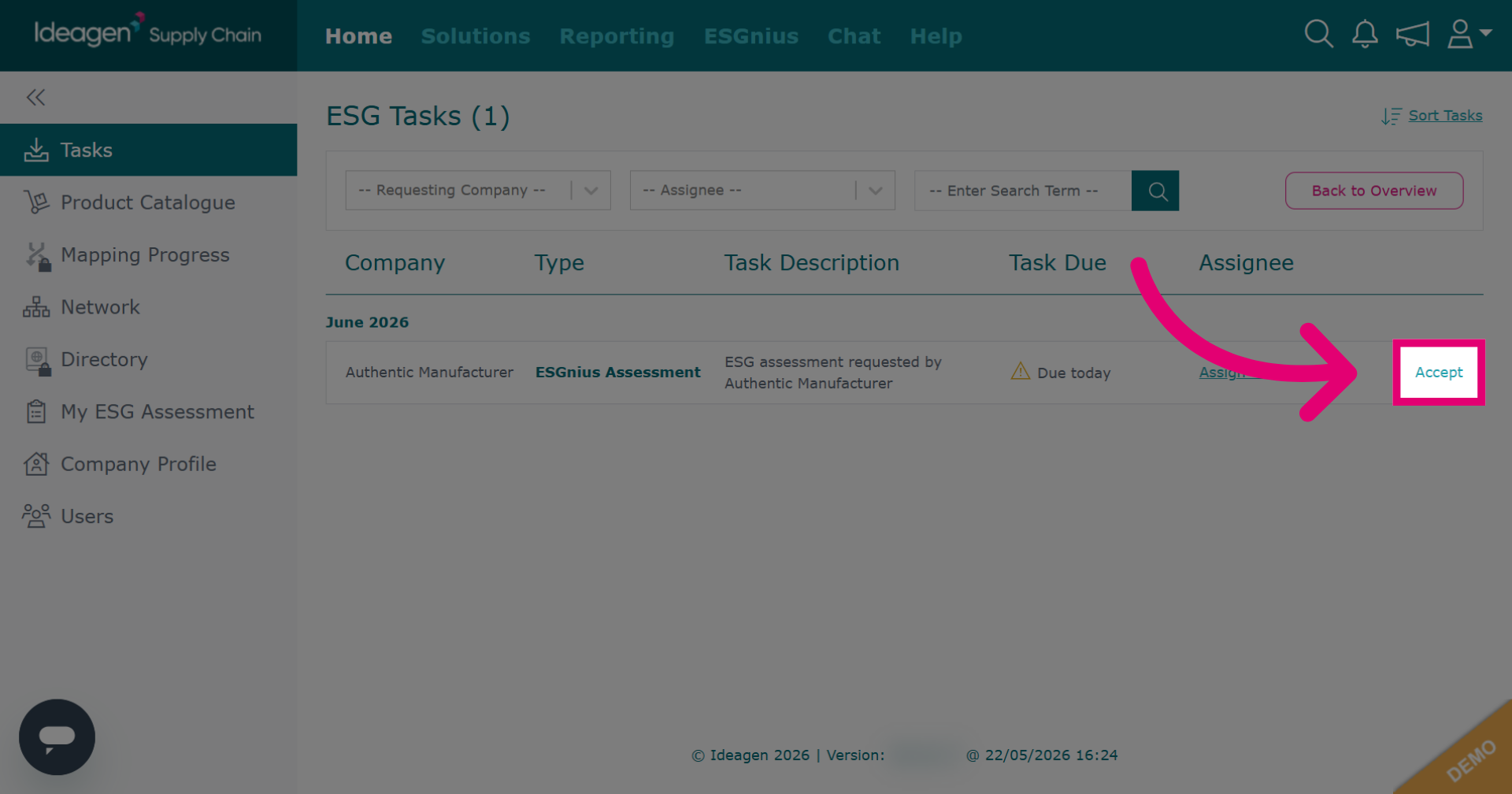
Click Accept to begin the ESG assessment. There isn't a Reject option for the ESG assessment.
-
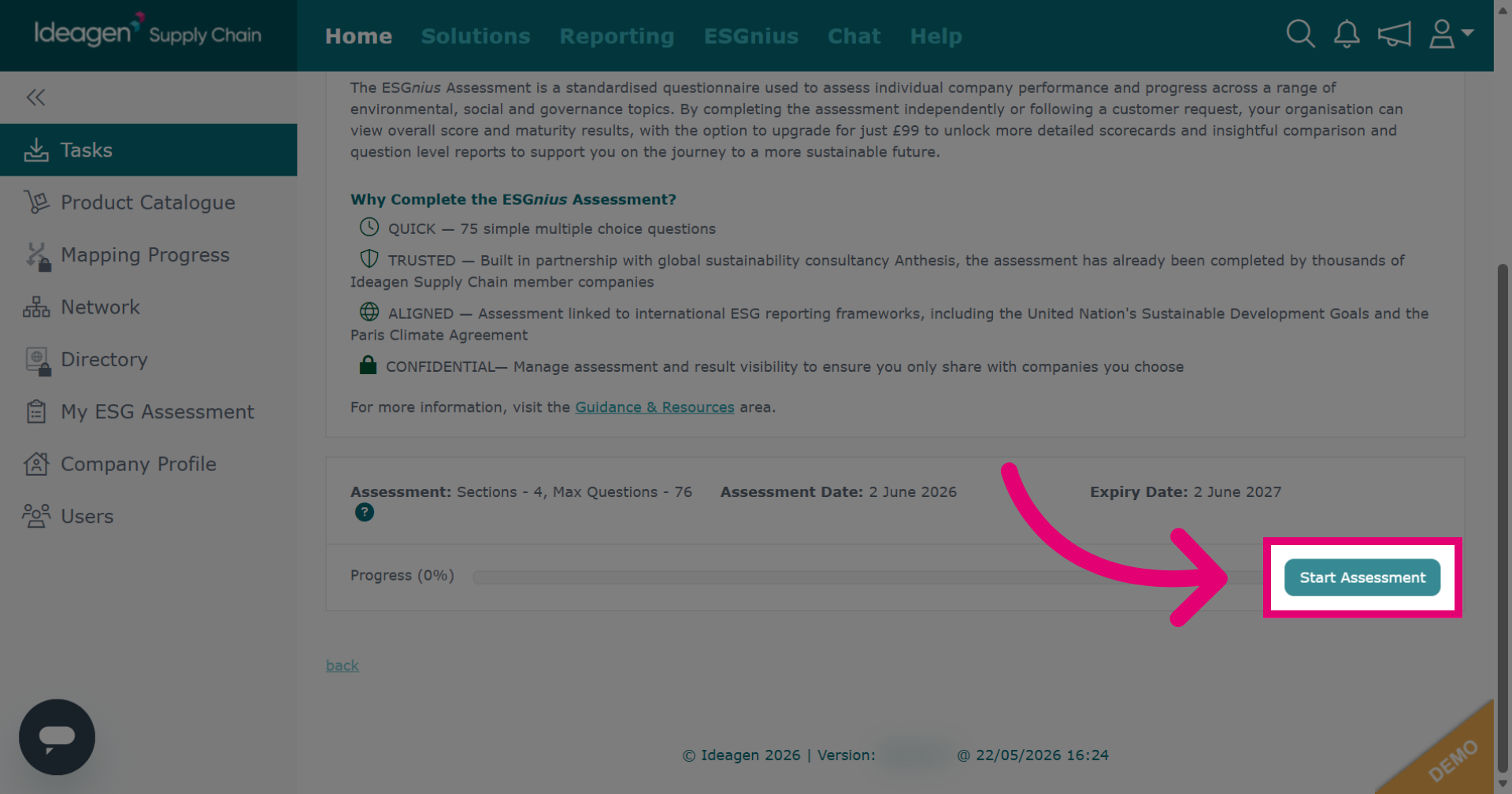
Click Start Assessment to begin answering the assessment questions.
-
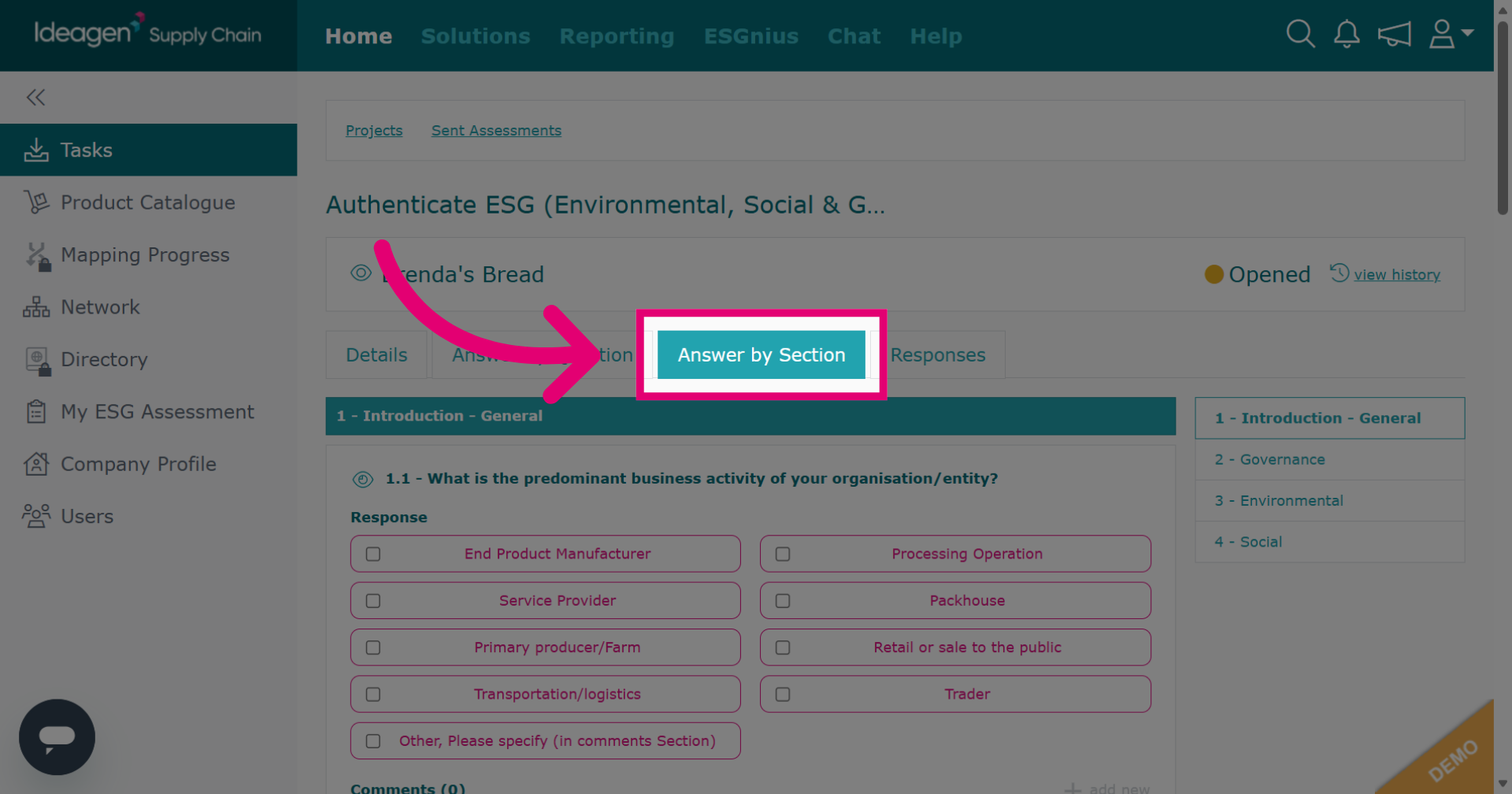
Click Answer by Section to respond to the assessment questions organized by their respective sections.
-
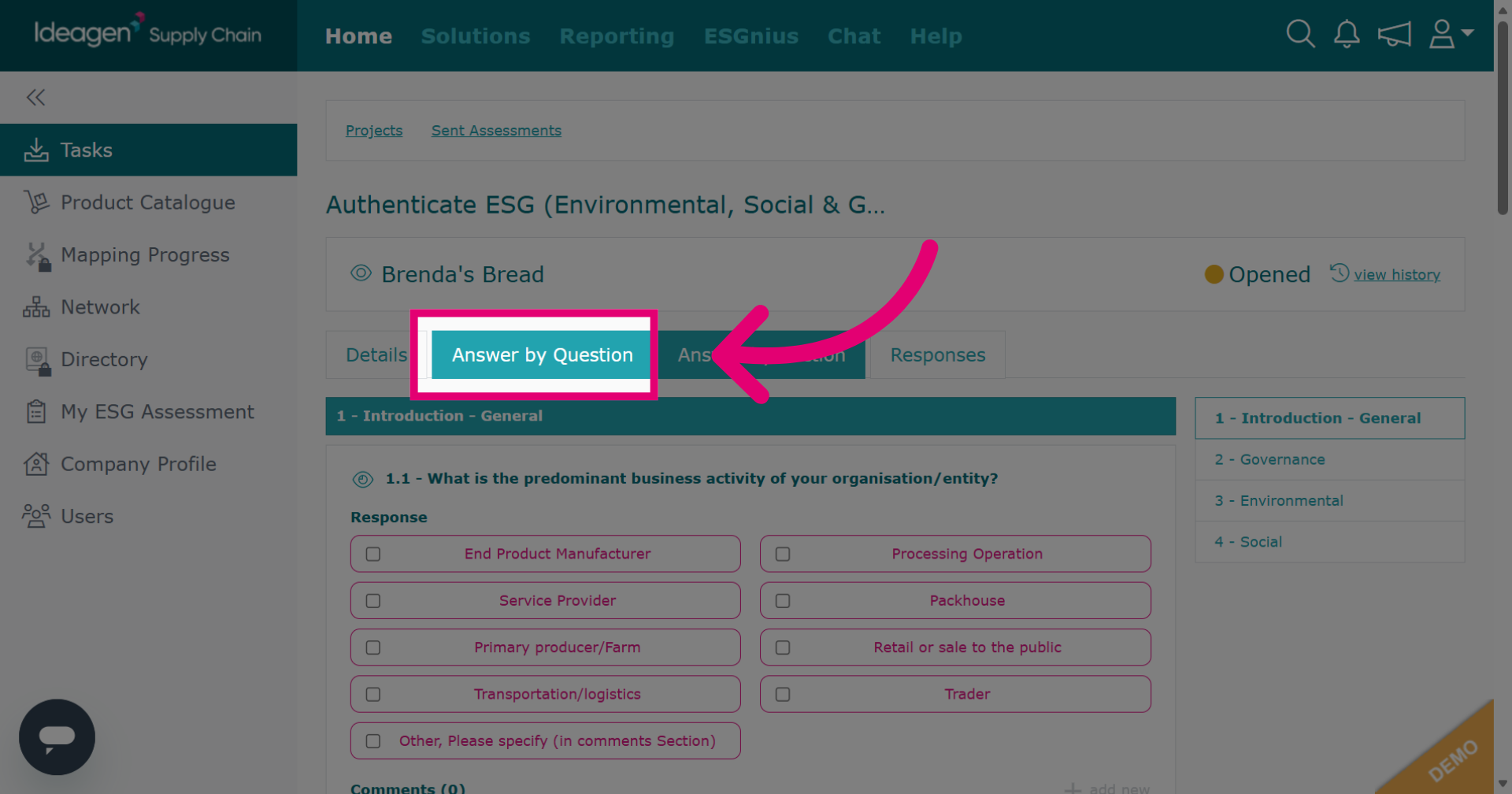
Click Answer by Question to address each assessment question individually.
-
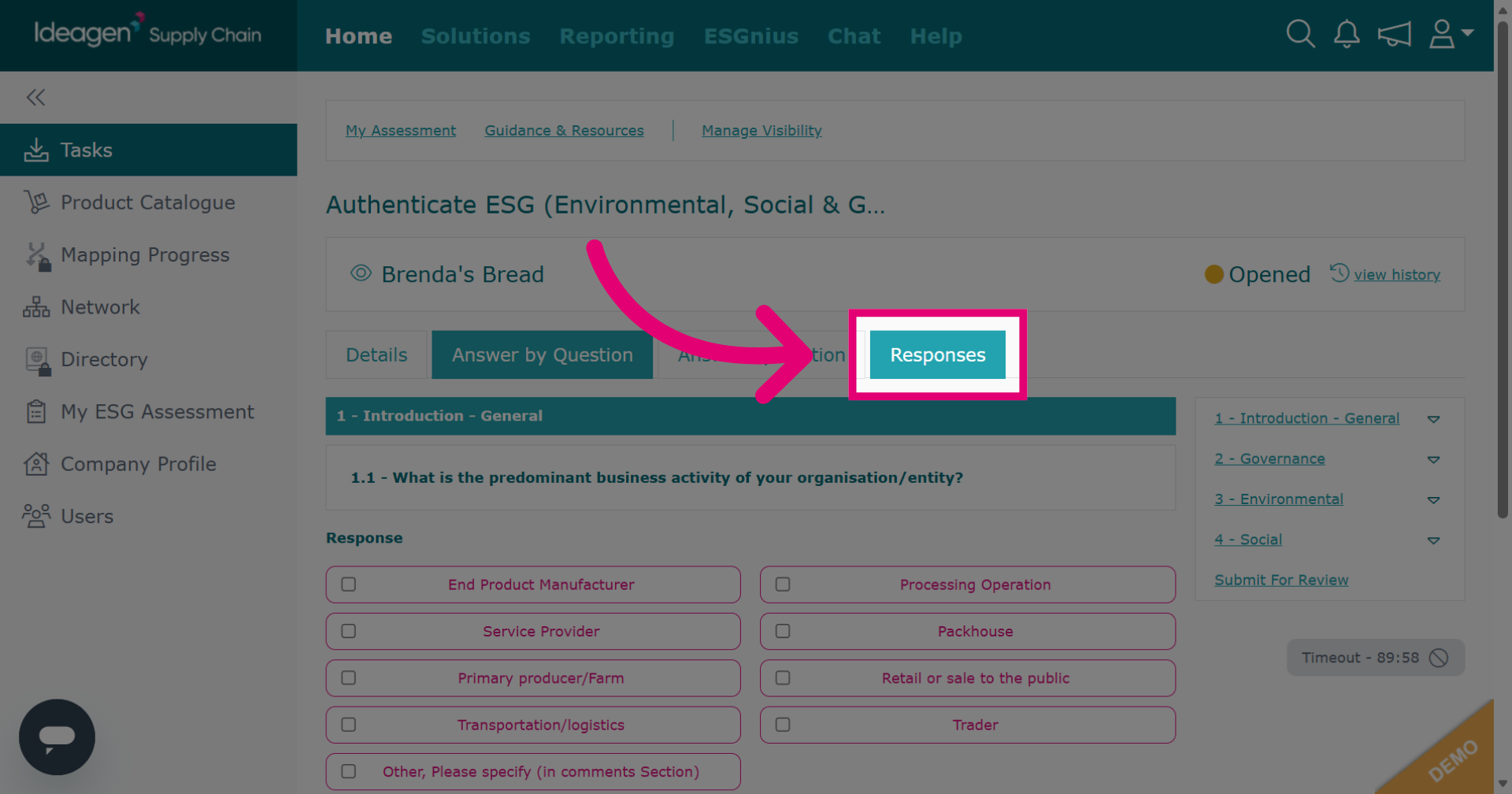
Click Responses to review all your answers. If you require more detailed assistance on how to answer an assessment, please watch our video guide titled "Assessments: Responding to an Assessment."
-
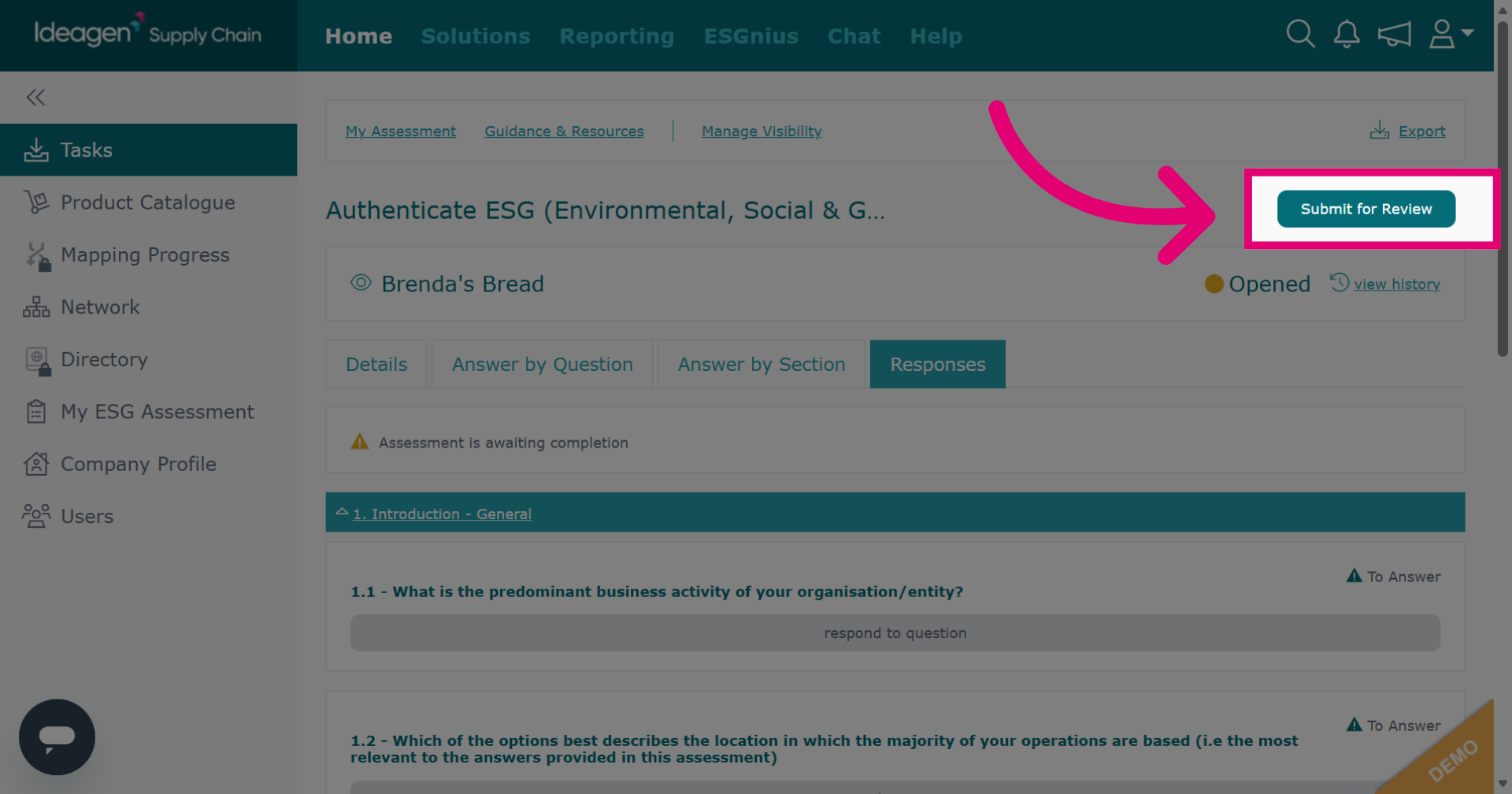
Once you have answered all questions, click Submit for Review to finalize your assessment.
-
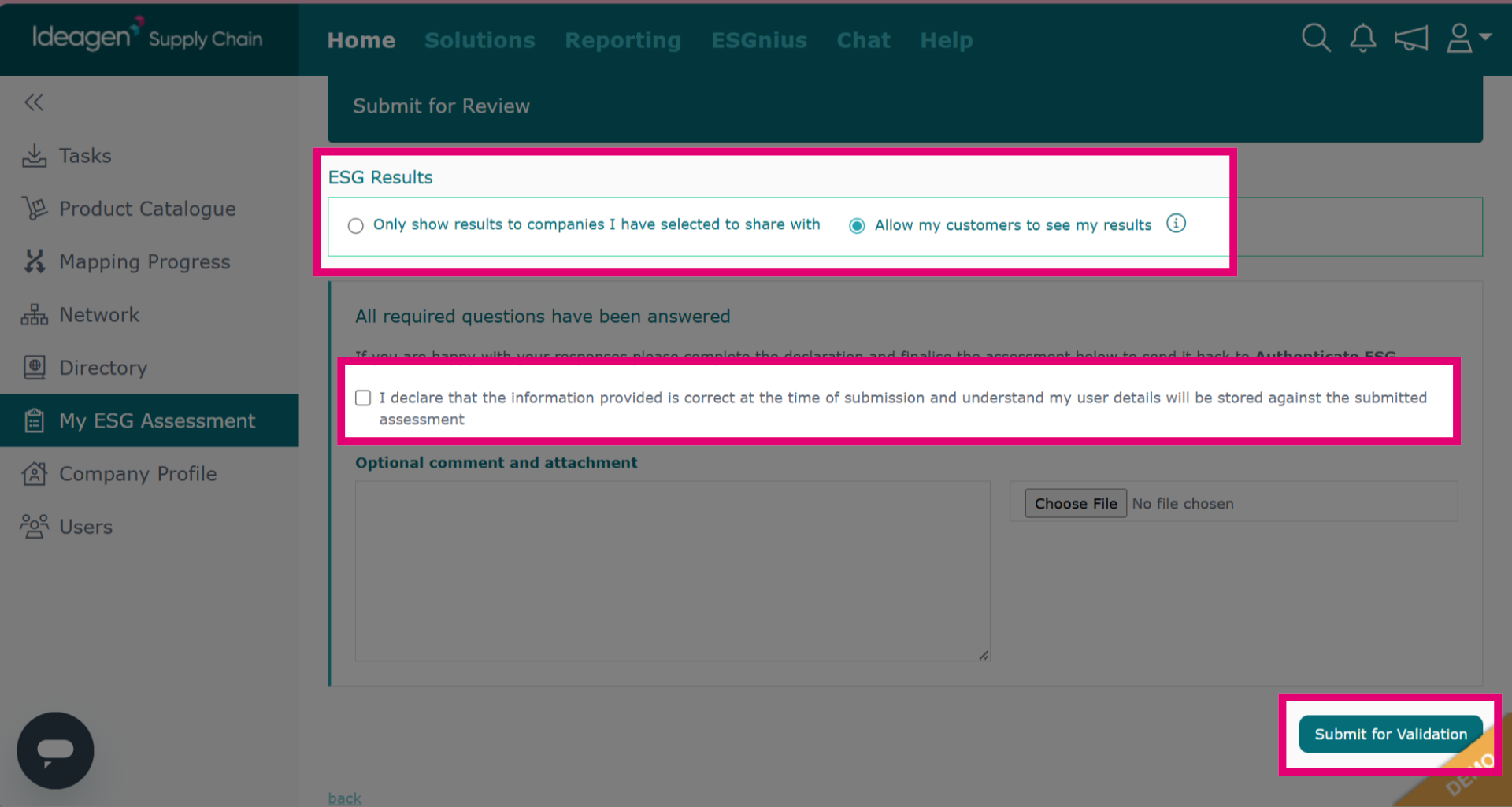
If you are happy with your assessment responses, select who you want to share your results with, tick the declaration box and then click submit for validation. This will send the assessment for scoring. You will not be able to edit your answers after submission.
-
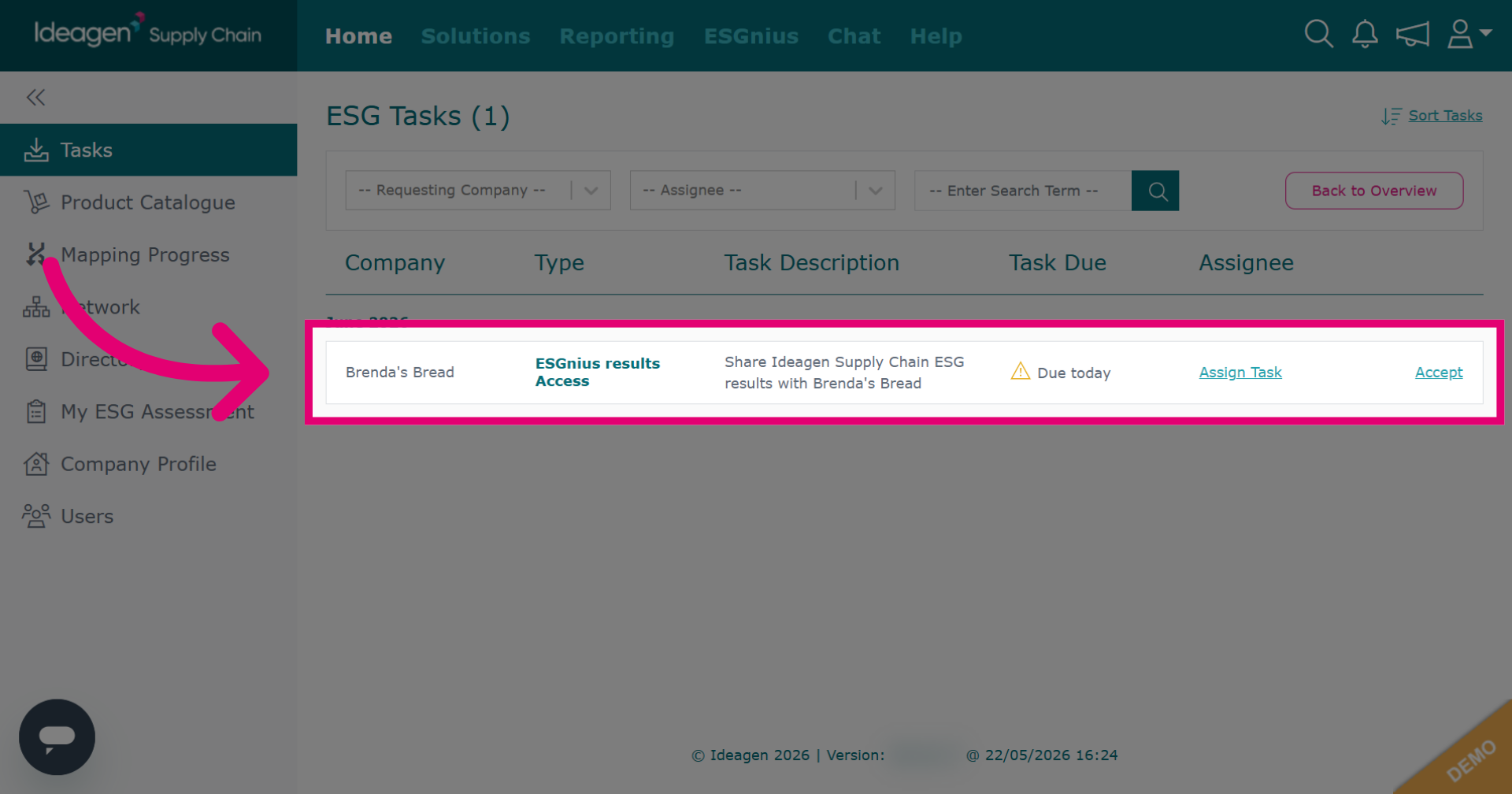
If you have already completed your ESG assessment but have your visibility settings set to private, you may receive a request to share those results with your customer or supplier.
-
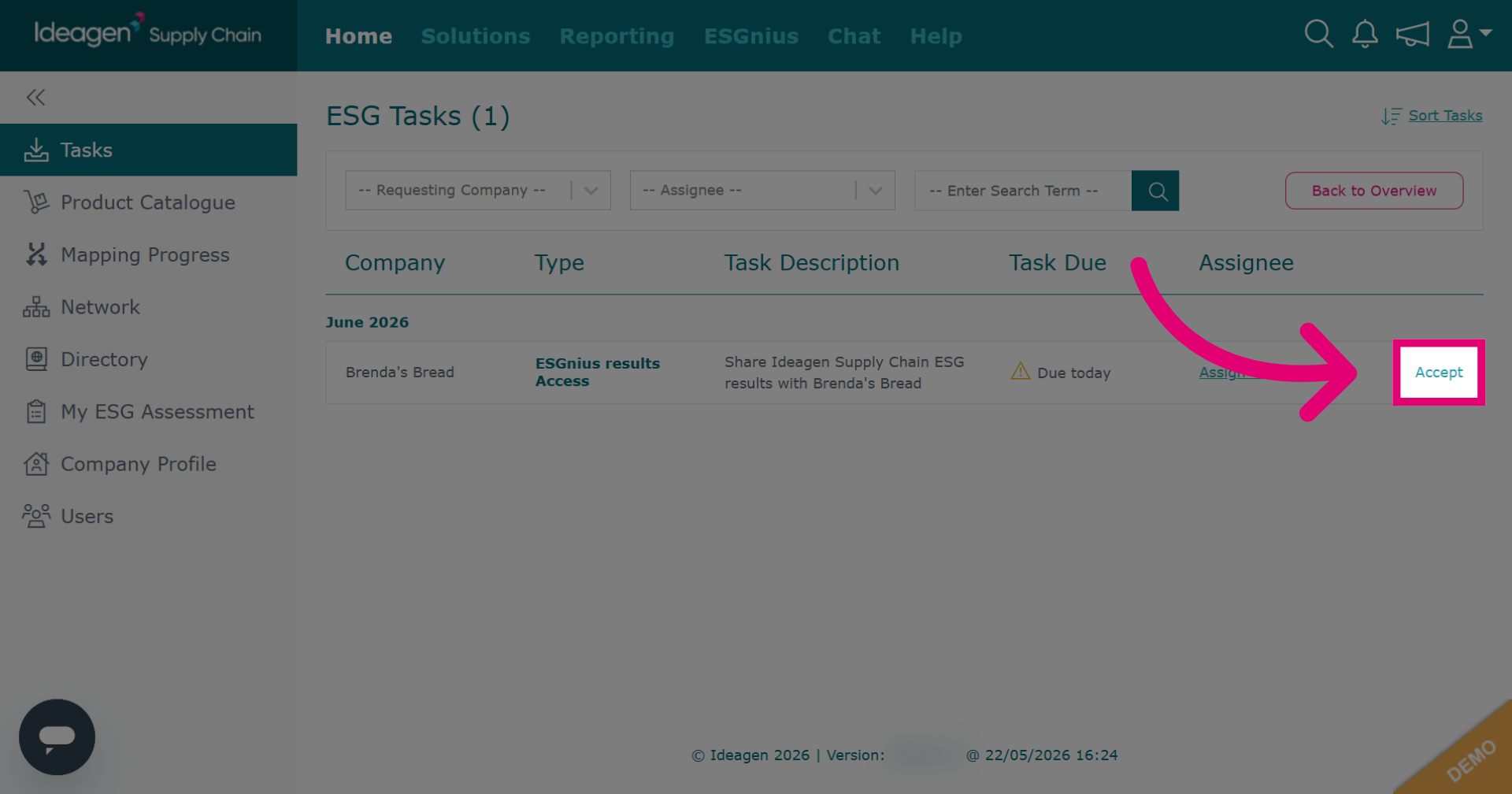
Click Accept to confirm and proceed with sharing your ESG results.
-
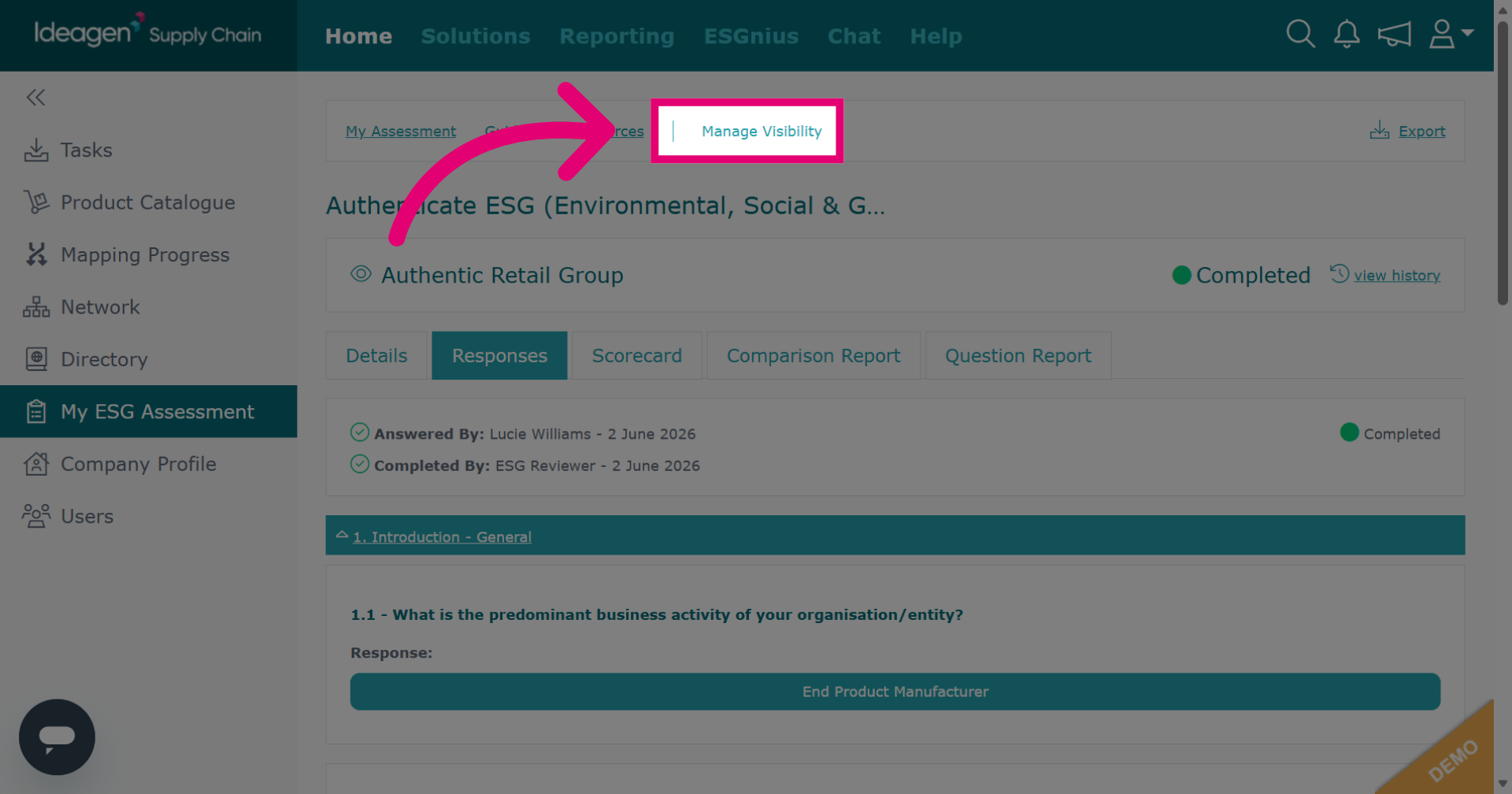
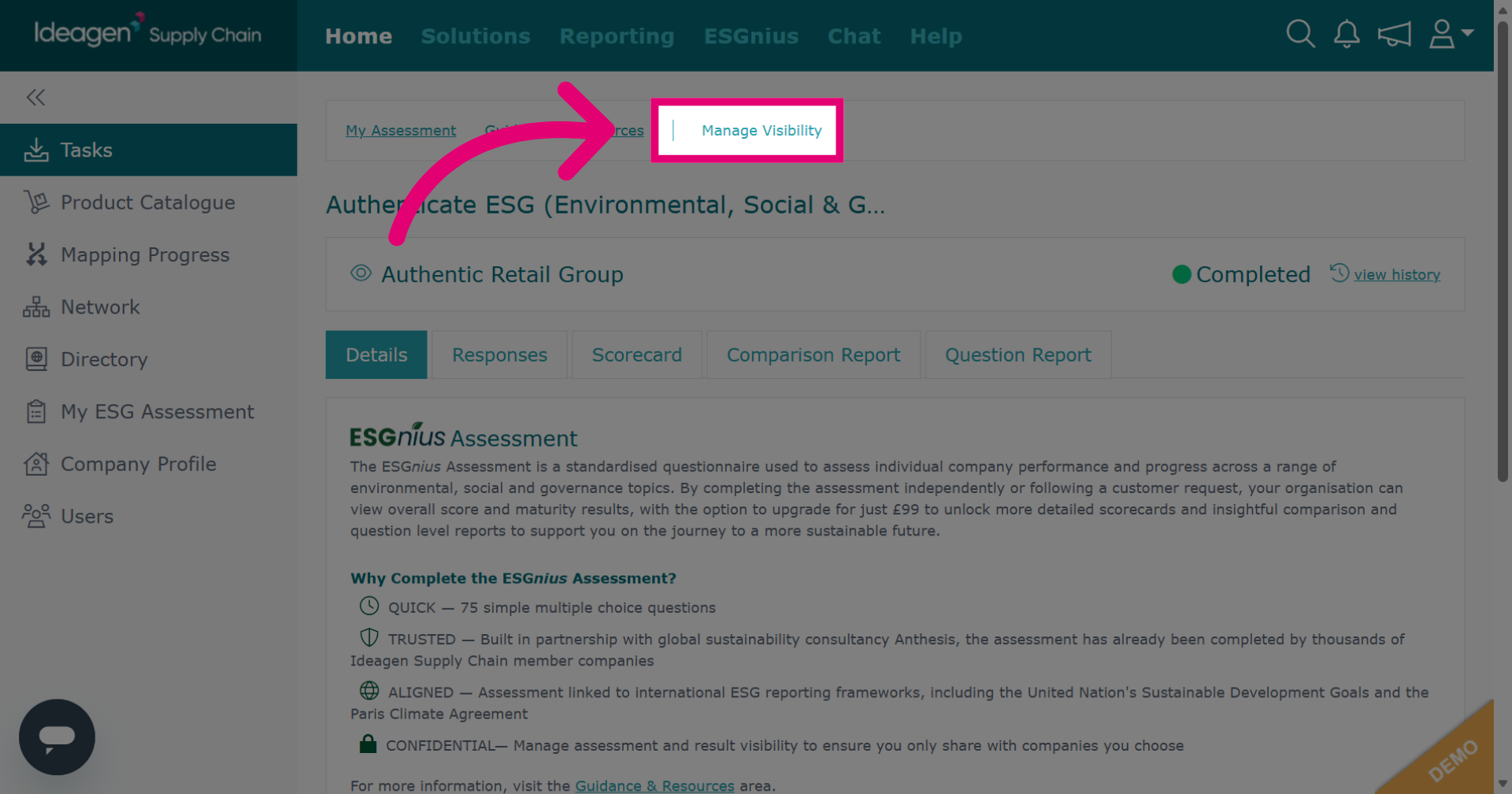
Click Manage Visibility to adjust who can view your ESG results.
-
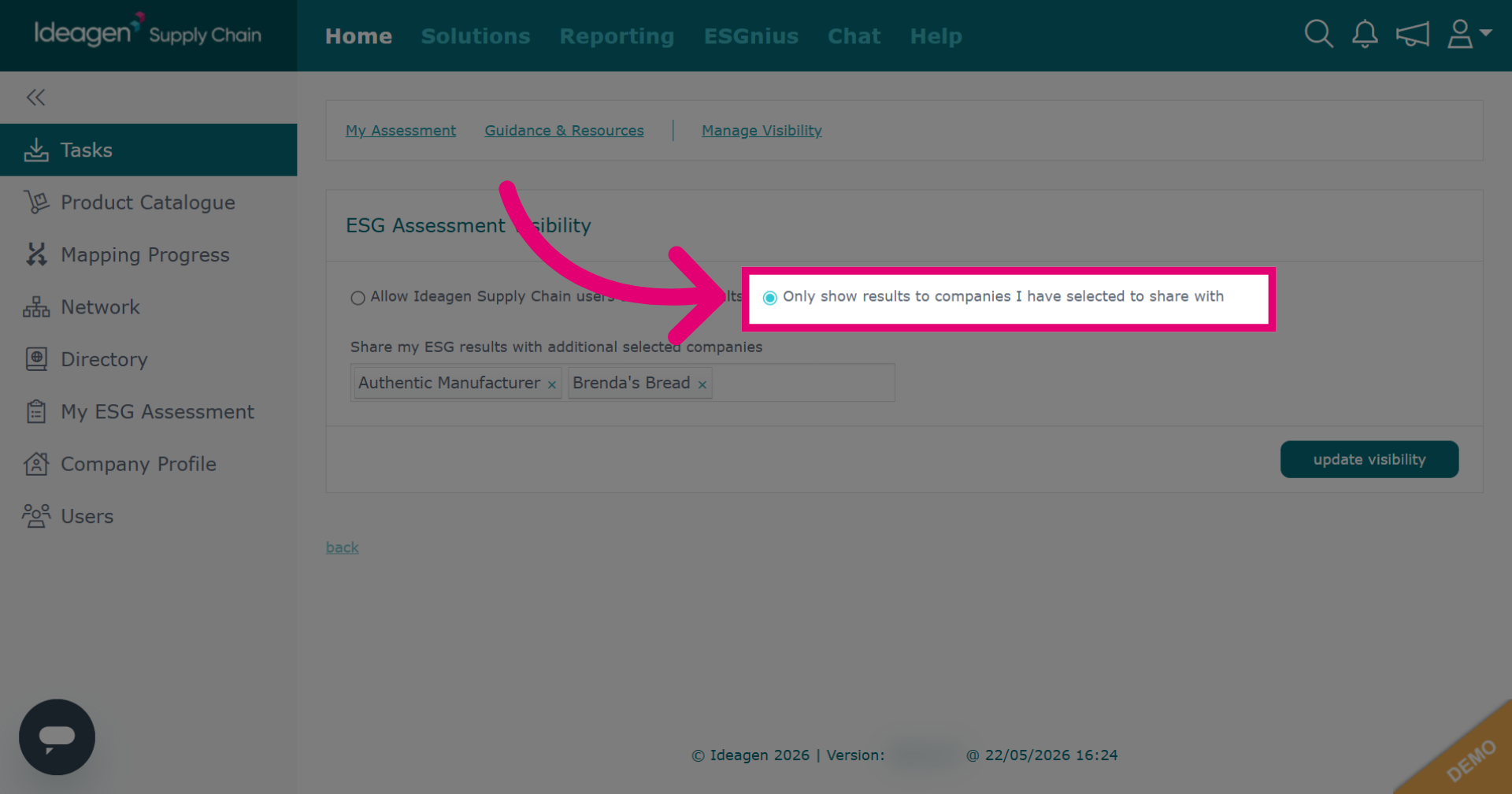
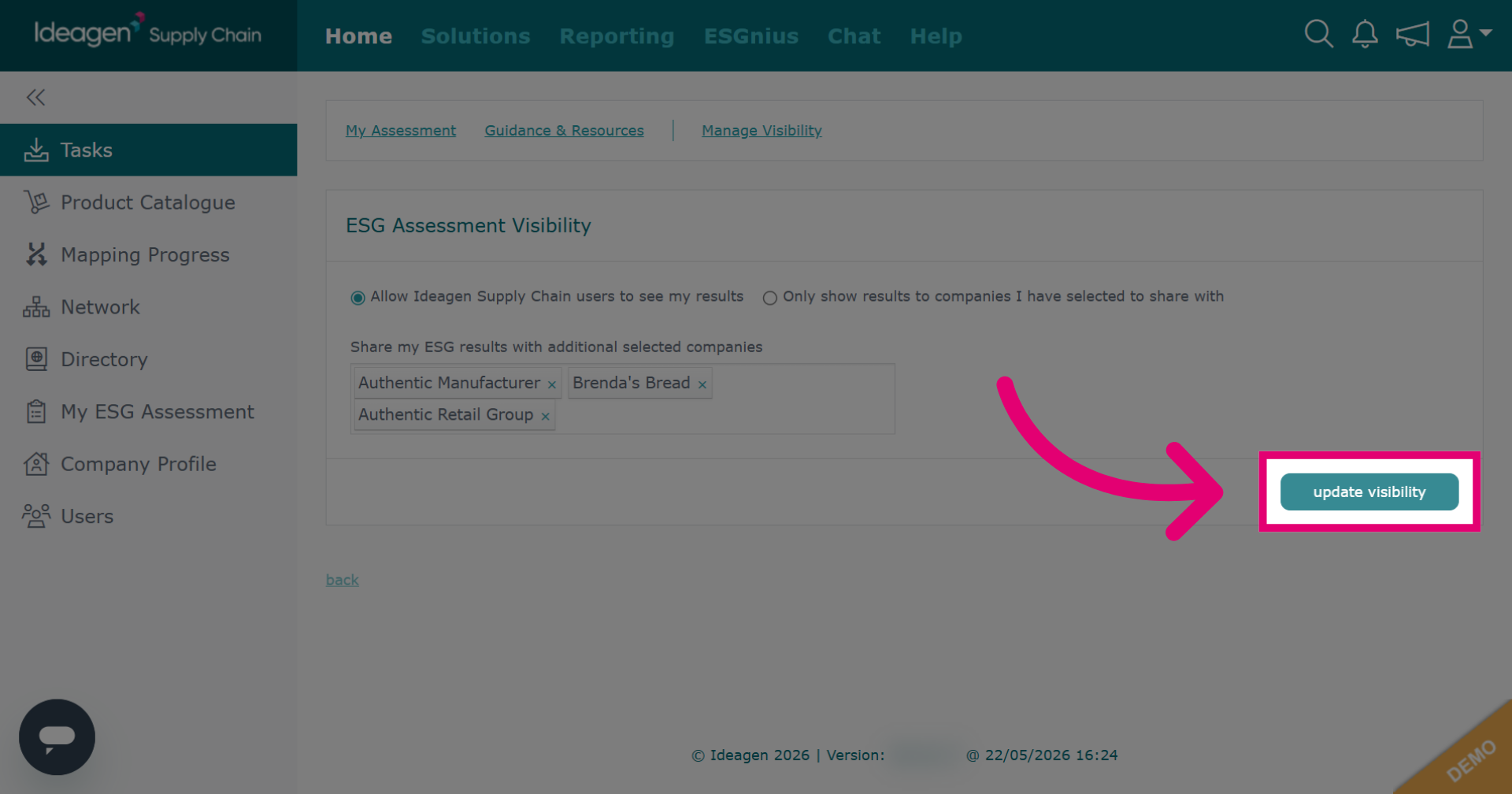
Click Only show results to companies I have selected to share with to limit visibility to specific companies.
-
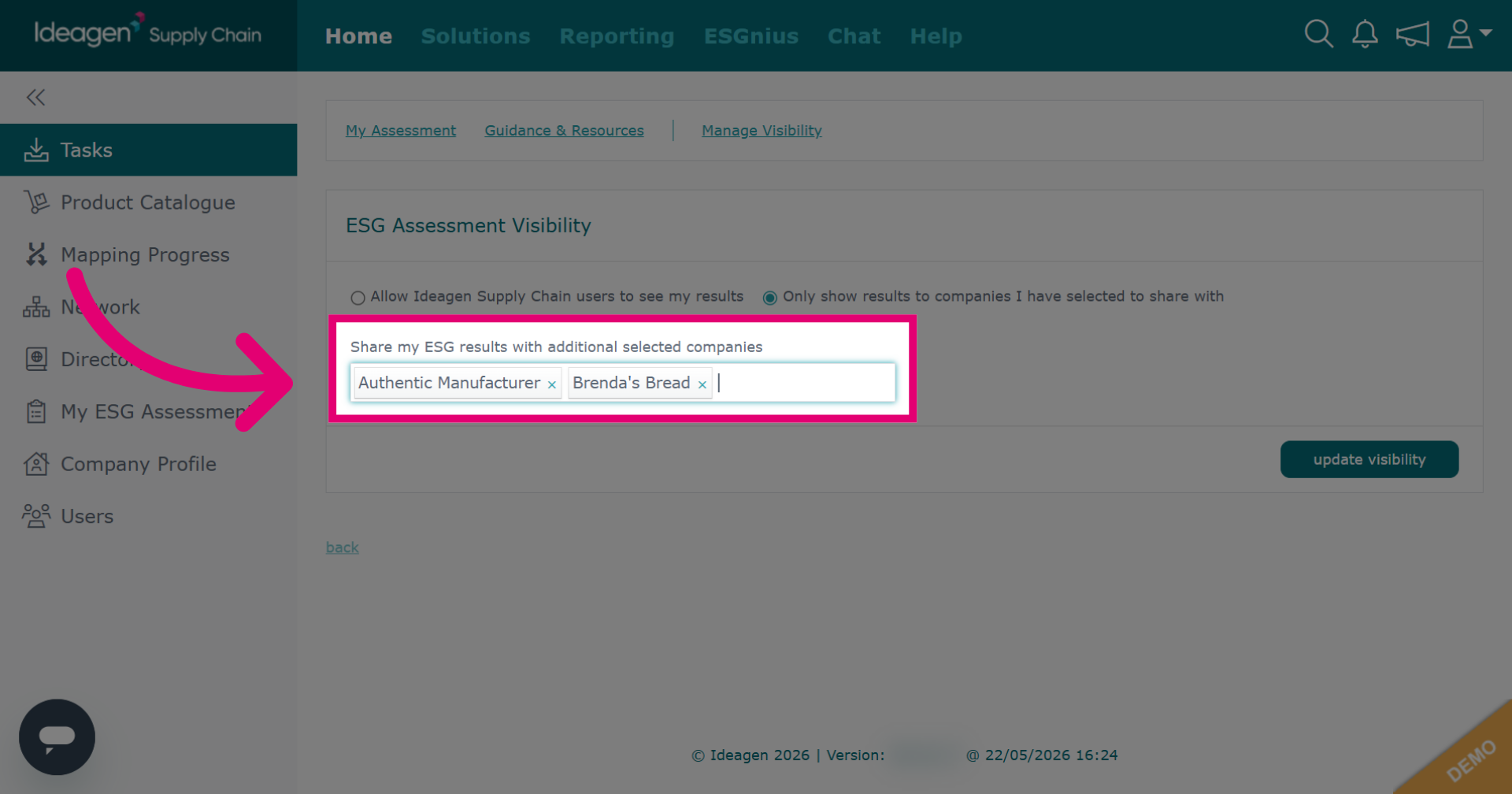
To update the companies you share results with input the company name into the search box and then select them from the drop down. To remove a company click the 'x' besides their name.
-
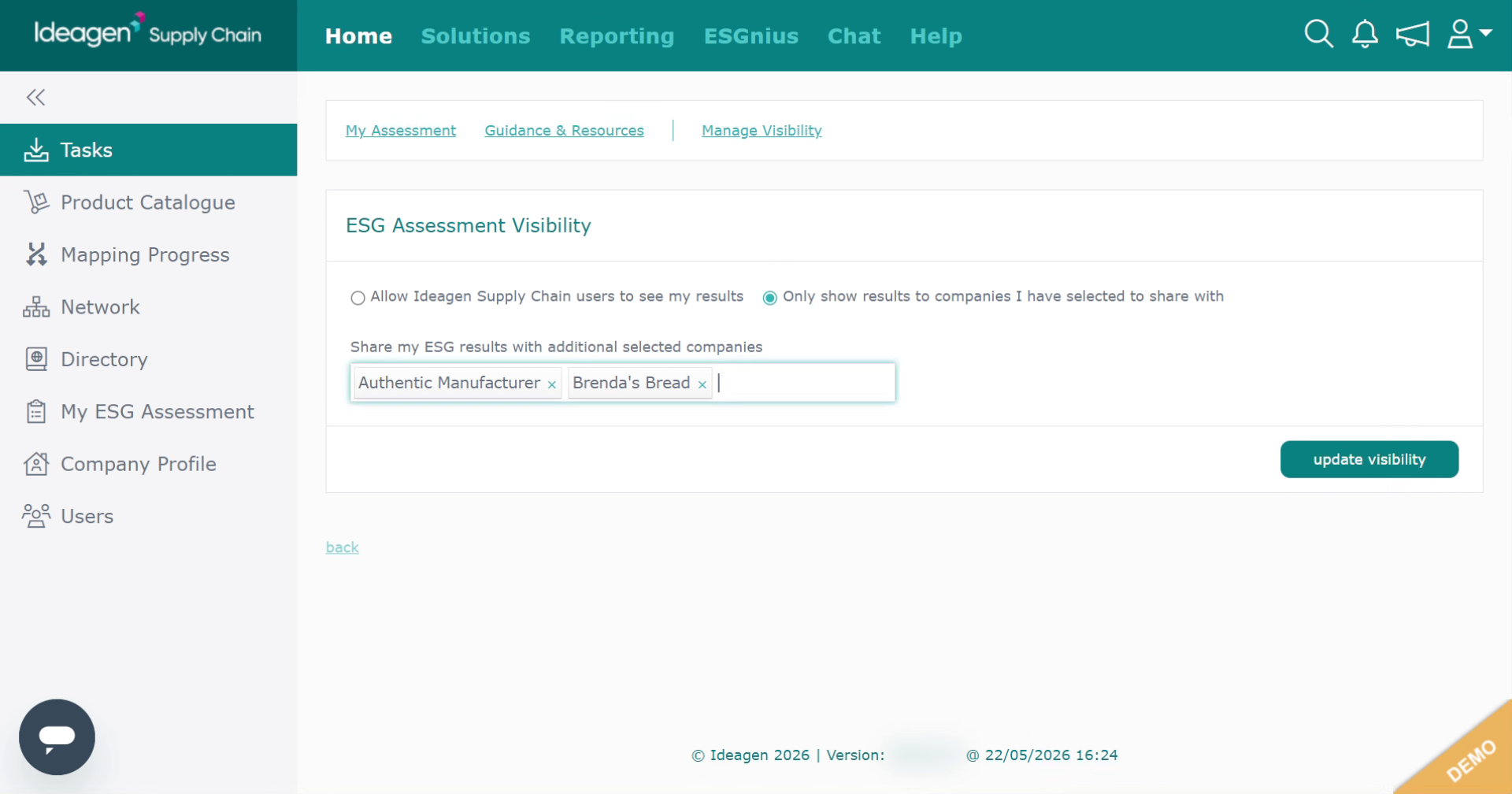
Search for the company you want to share results with.
-
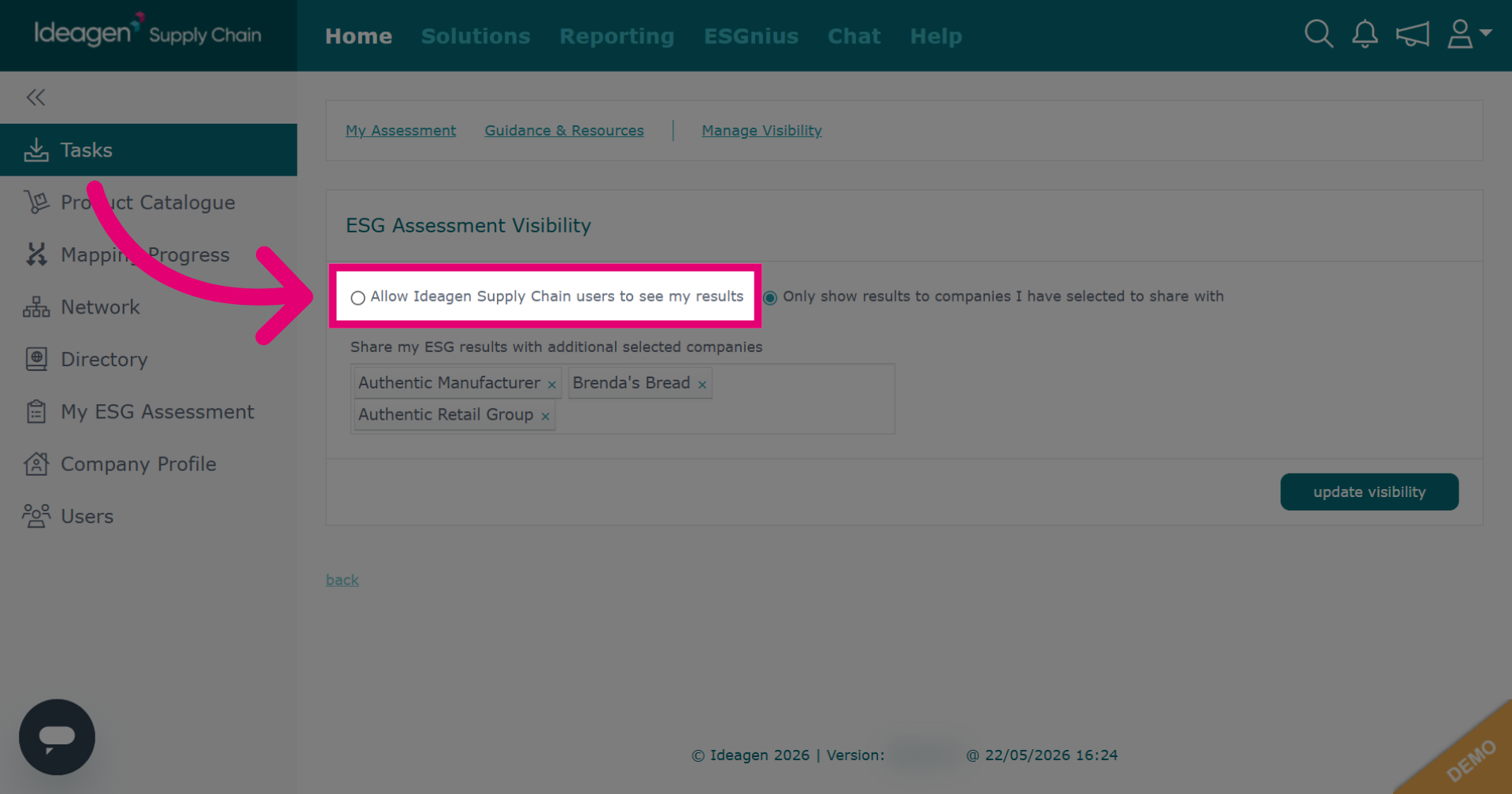
Click Allow Ideagen Supply Chain users to see my results to permit all users from all companies on the platform to view your ESG results.
-
Click update visibility to save all changes made to your ESG results sharing settings.
-
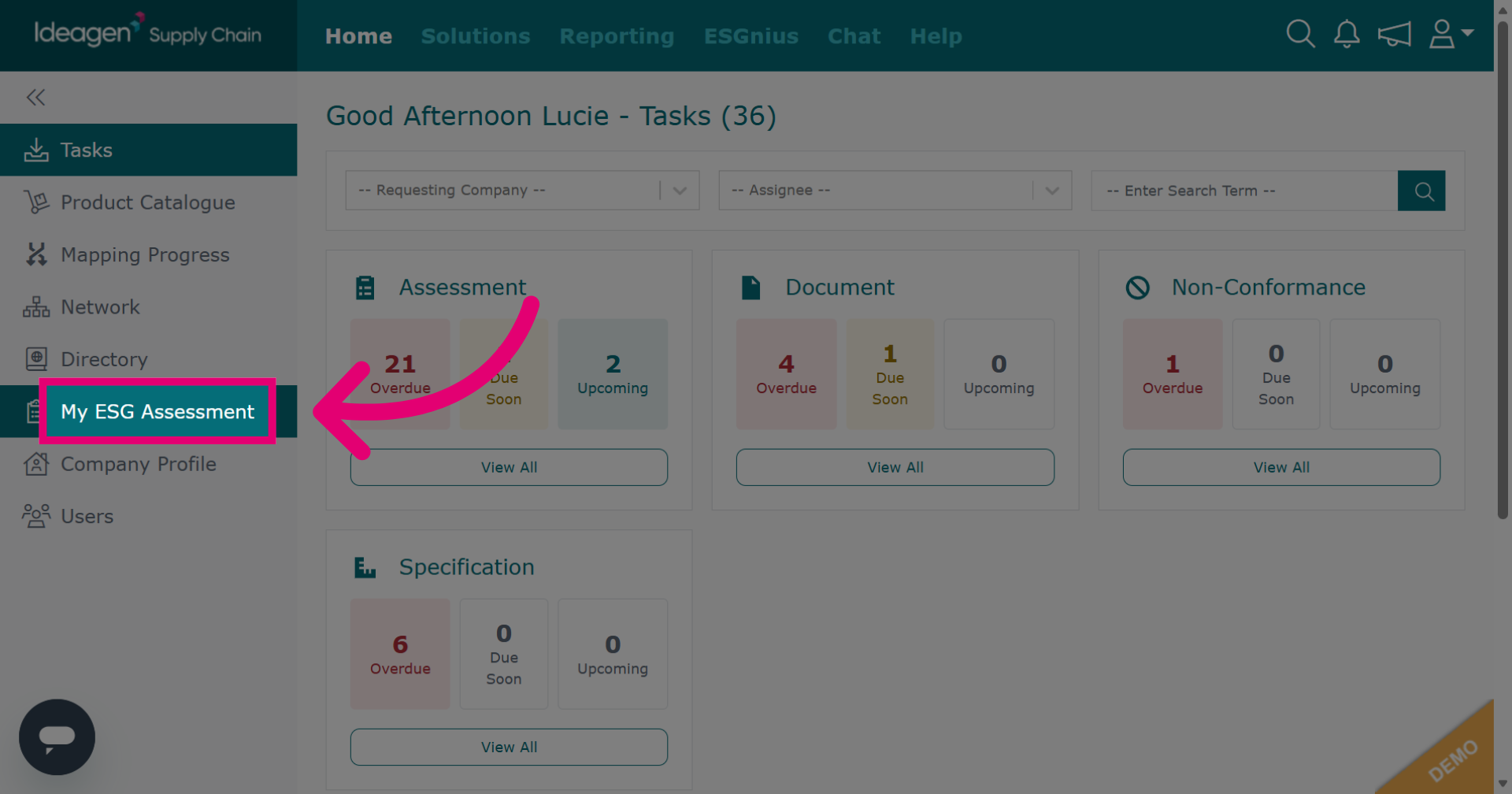
You can update your shared visibility settings at any time, even if you do not have a sharing request. To do so, navigate to the home page and then click My ESG Assessment.
-
Click Manage Visibility to configure who can view your ESG assessment details and control access permissions.