New article
Recently updated
Raising Incidents - Site Actions

Who is this article for?
Users who want to raise an incident in the site actions module.
Site actions admin permissions are required.
This tutorial guides you through raising incidents within the Ideagen Supply Chain platform.
You will learn how to create, configure, and submit incident records through the Site Actions module.
Raising an incident in Site Actions
-
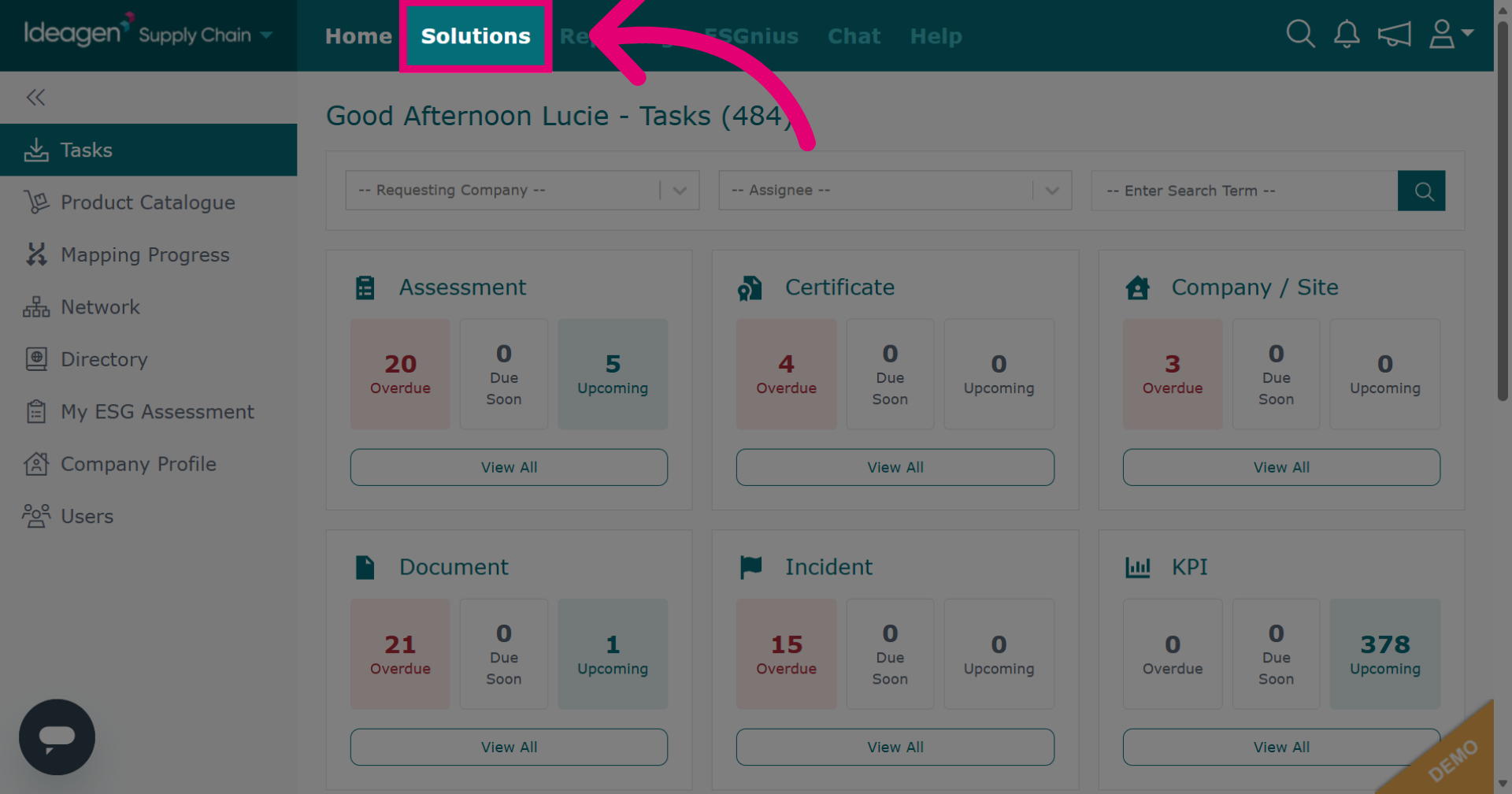
Click Solutions to open the main module menu.
-
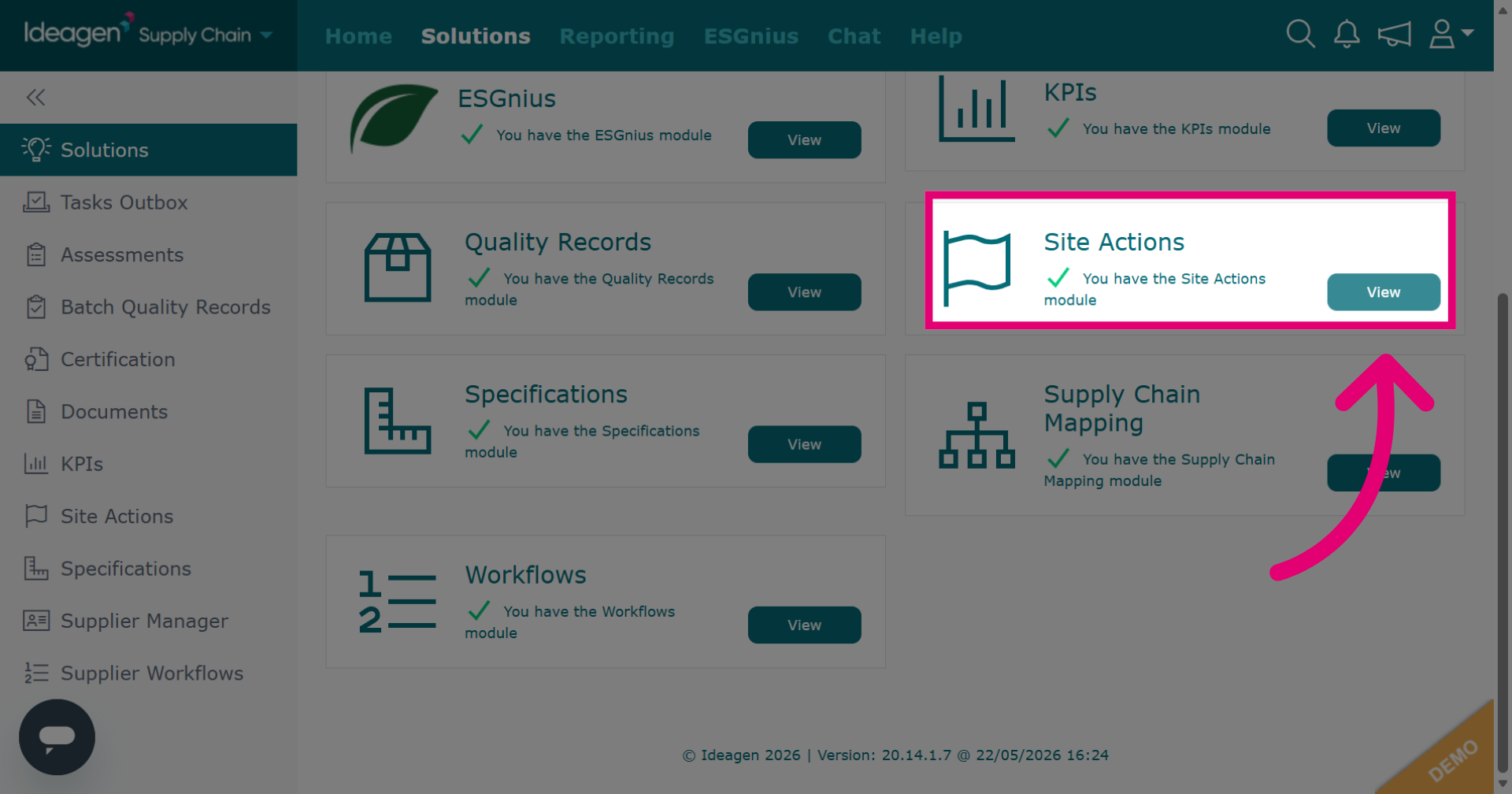
Click View next to the site actions module.
-
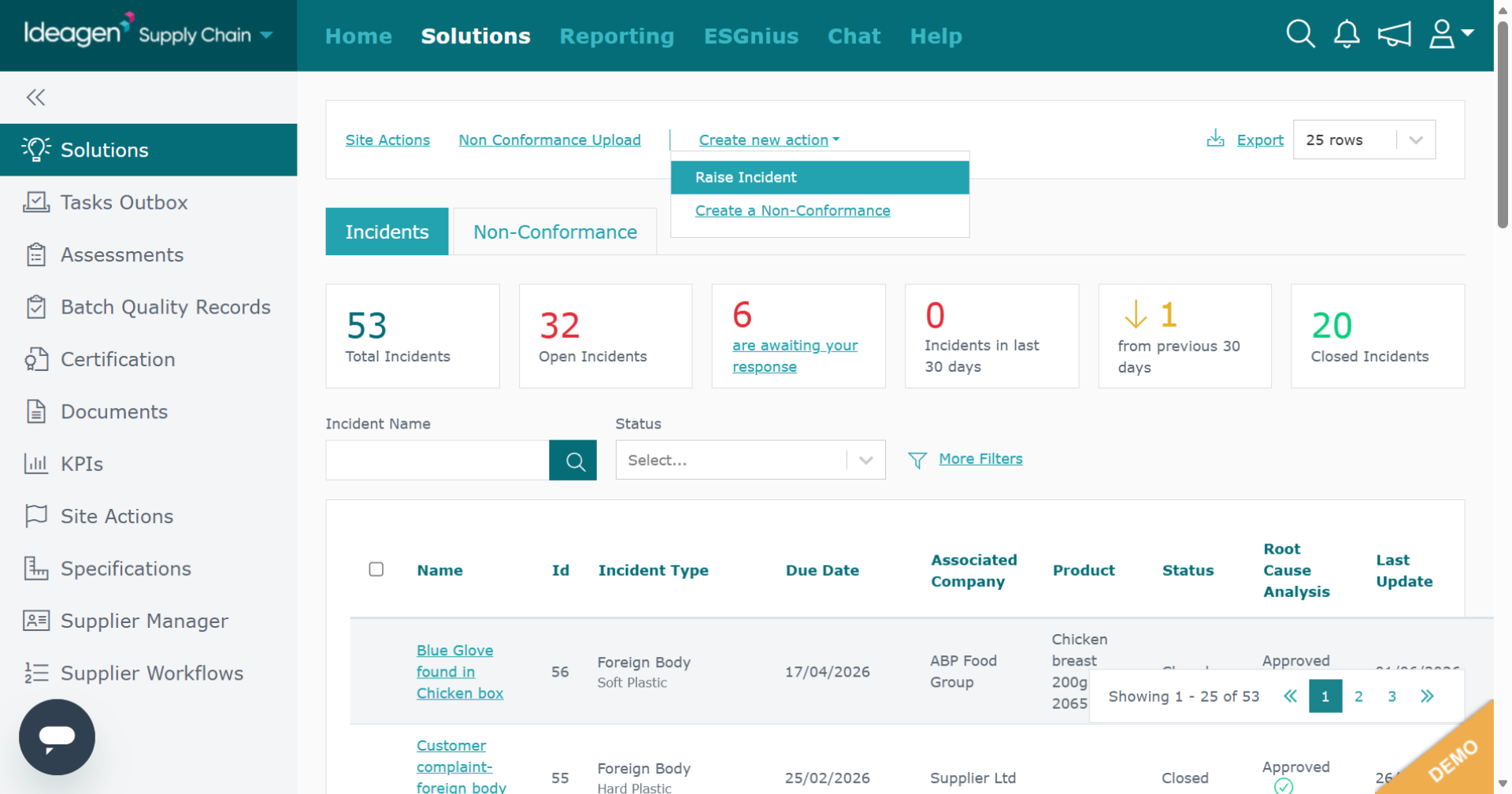
This will take you to the main site actions page.
-
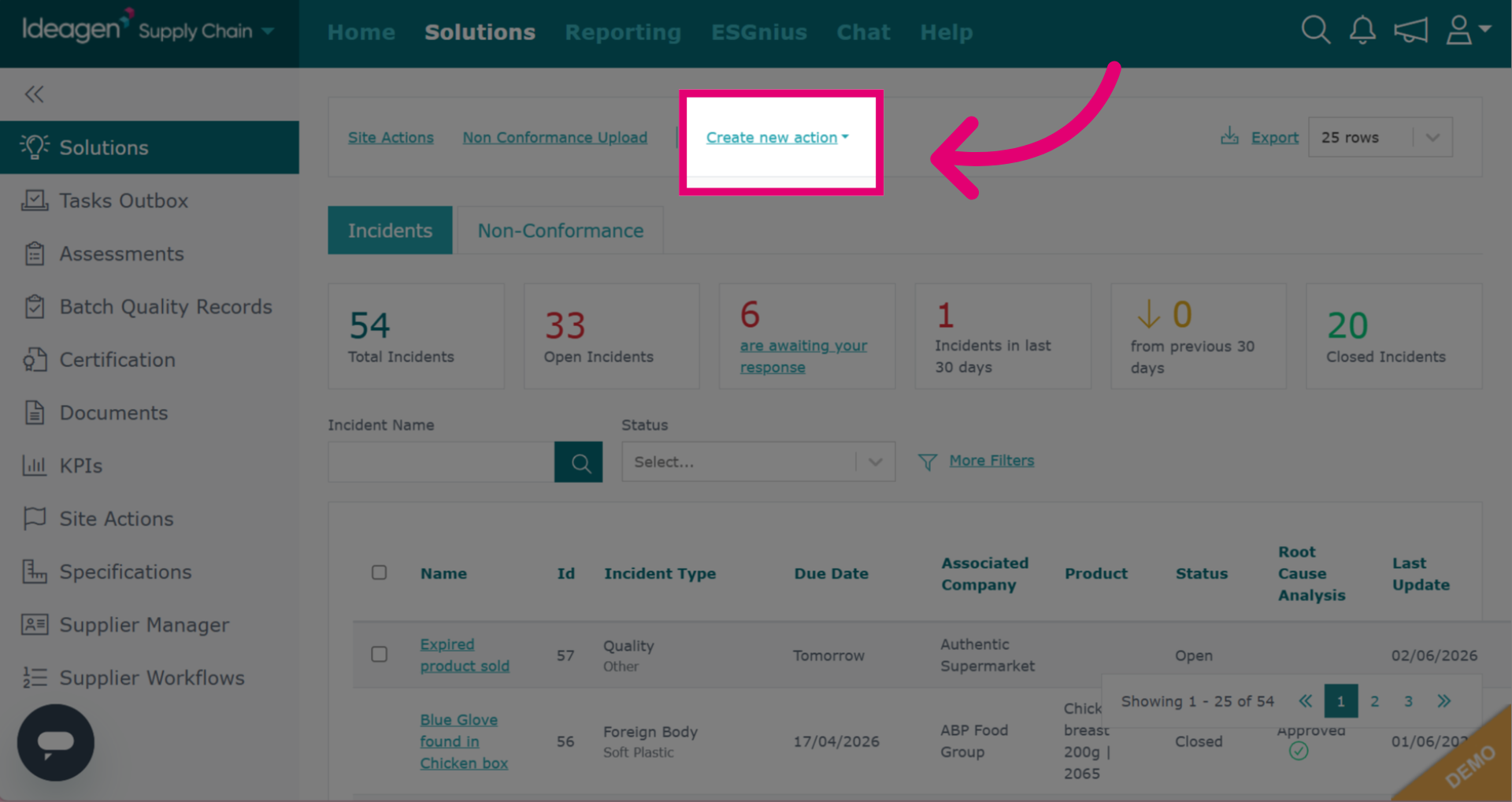
Click Create New Action.
-
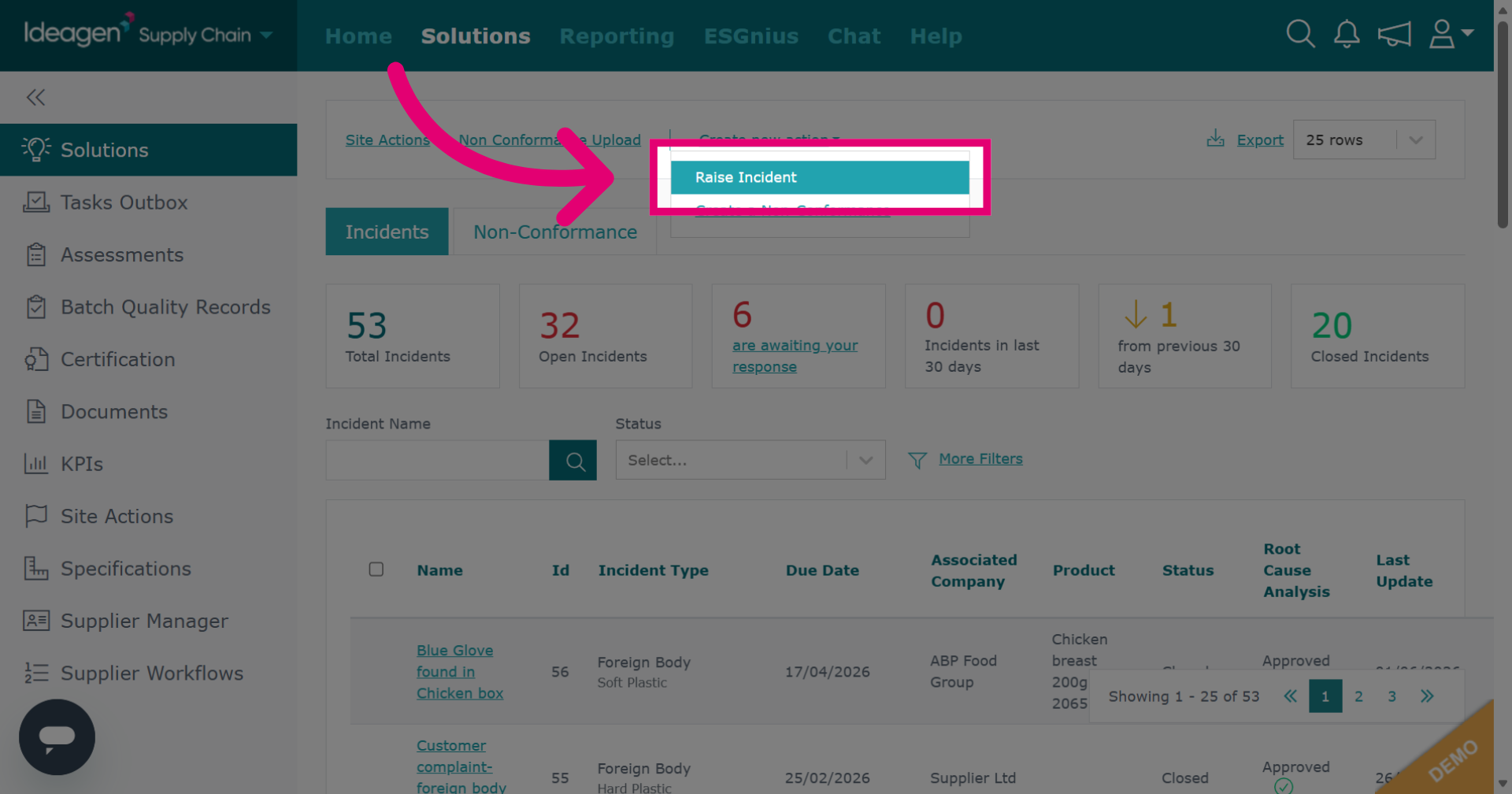
Click Raise Incident to begin the incident reporting process.
-
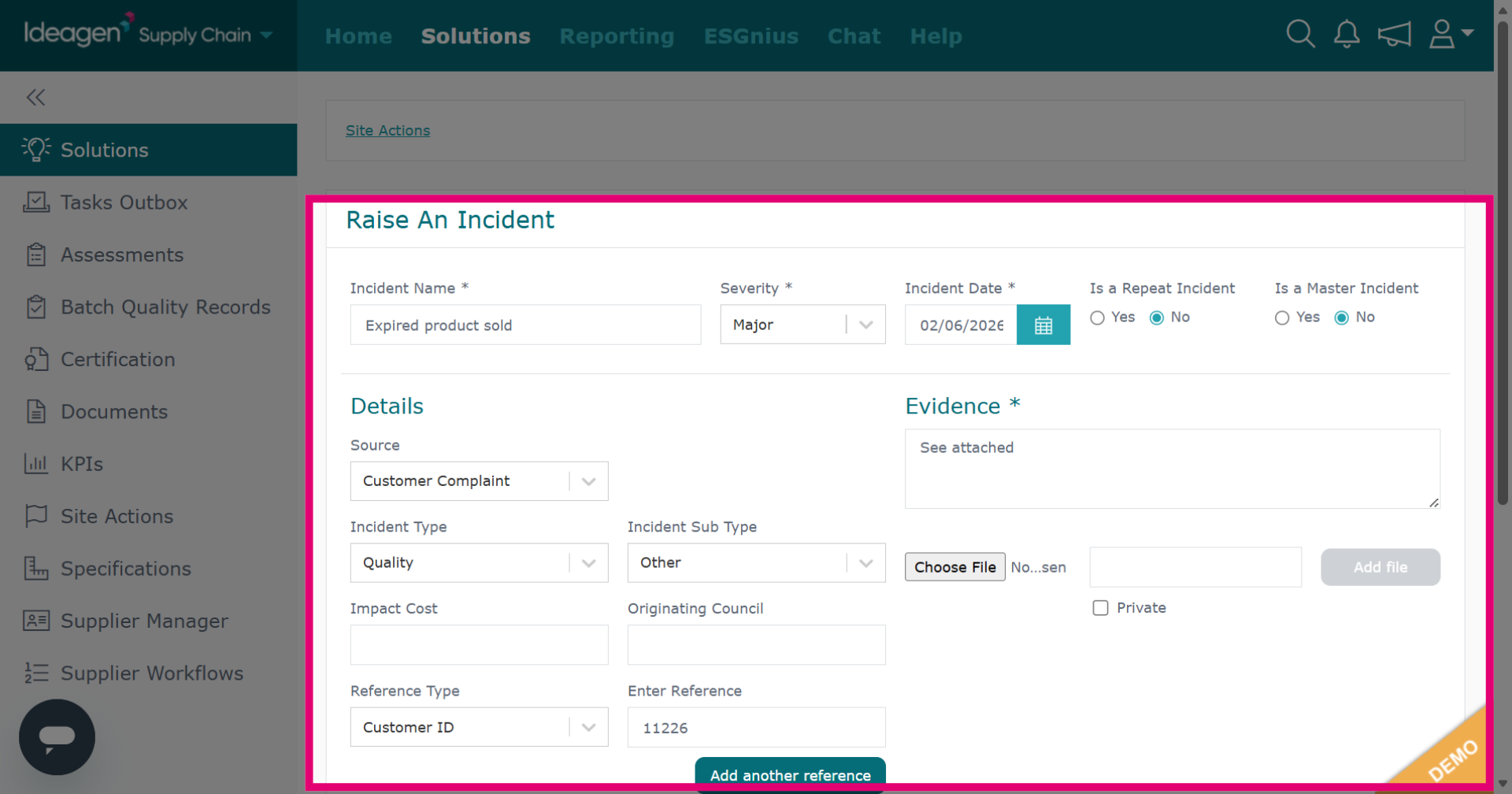
Input the details for the record. Fields with an asterisk are mandatory.
-
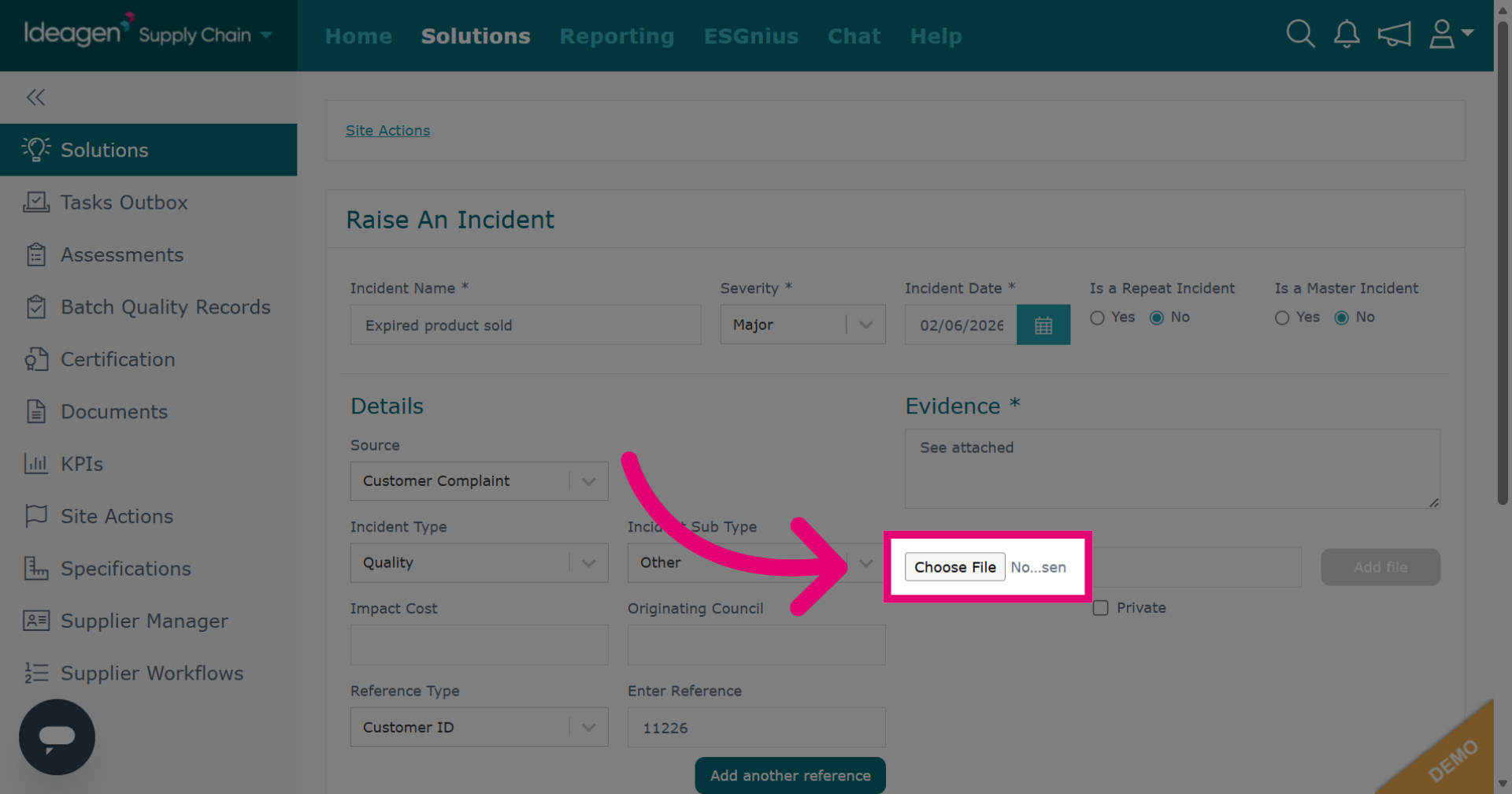
Click Choose File to add an attachment from your desktop.
-
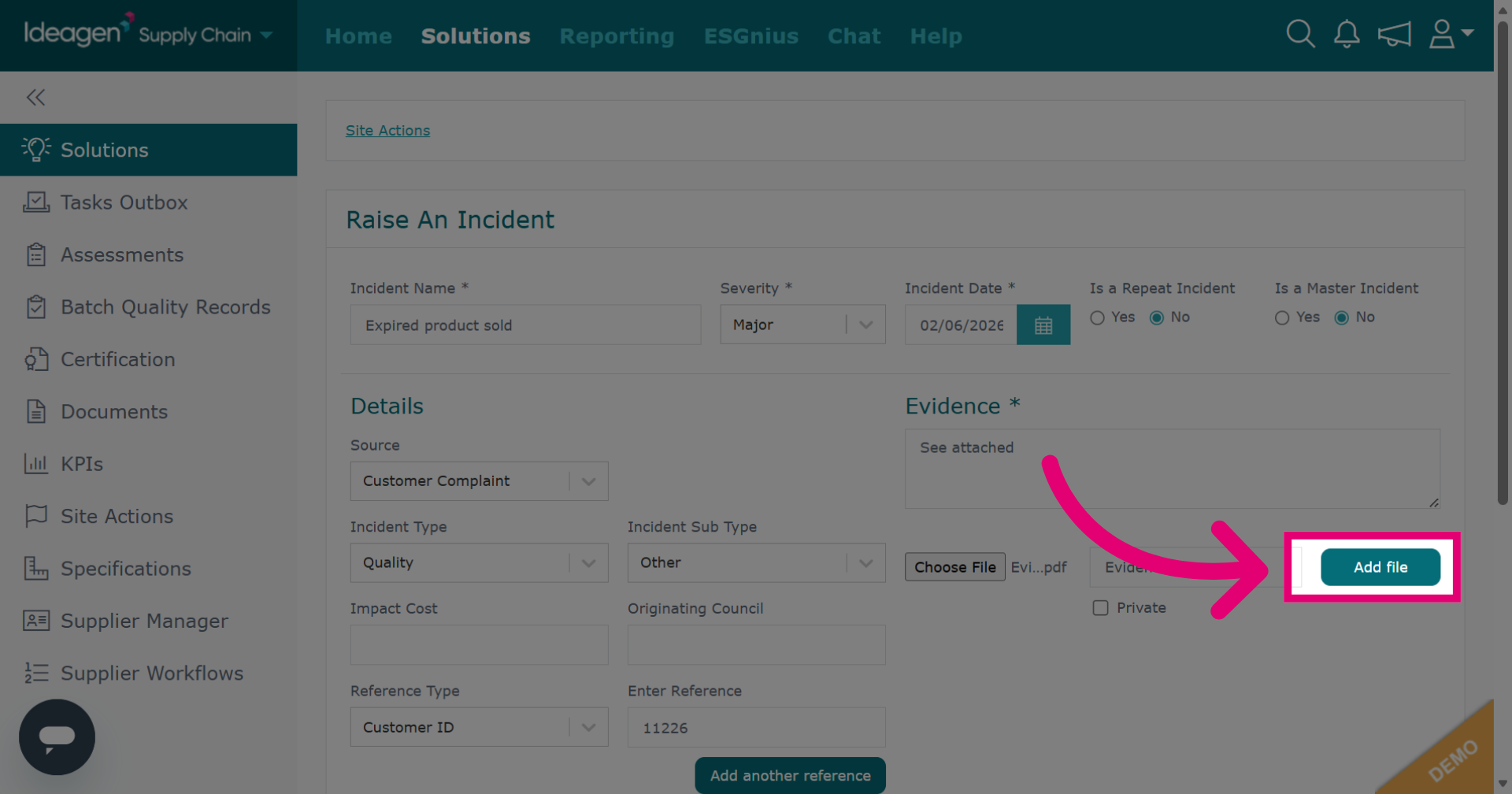
Once you have uploaded your attachment, click Add File.
-
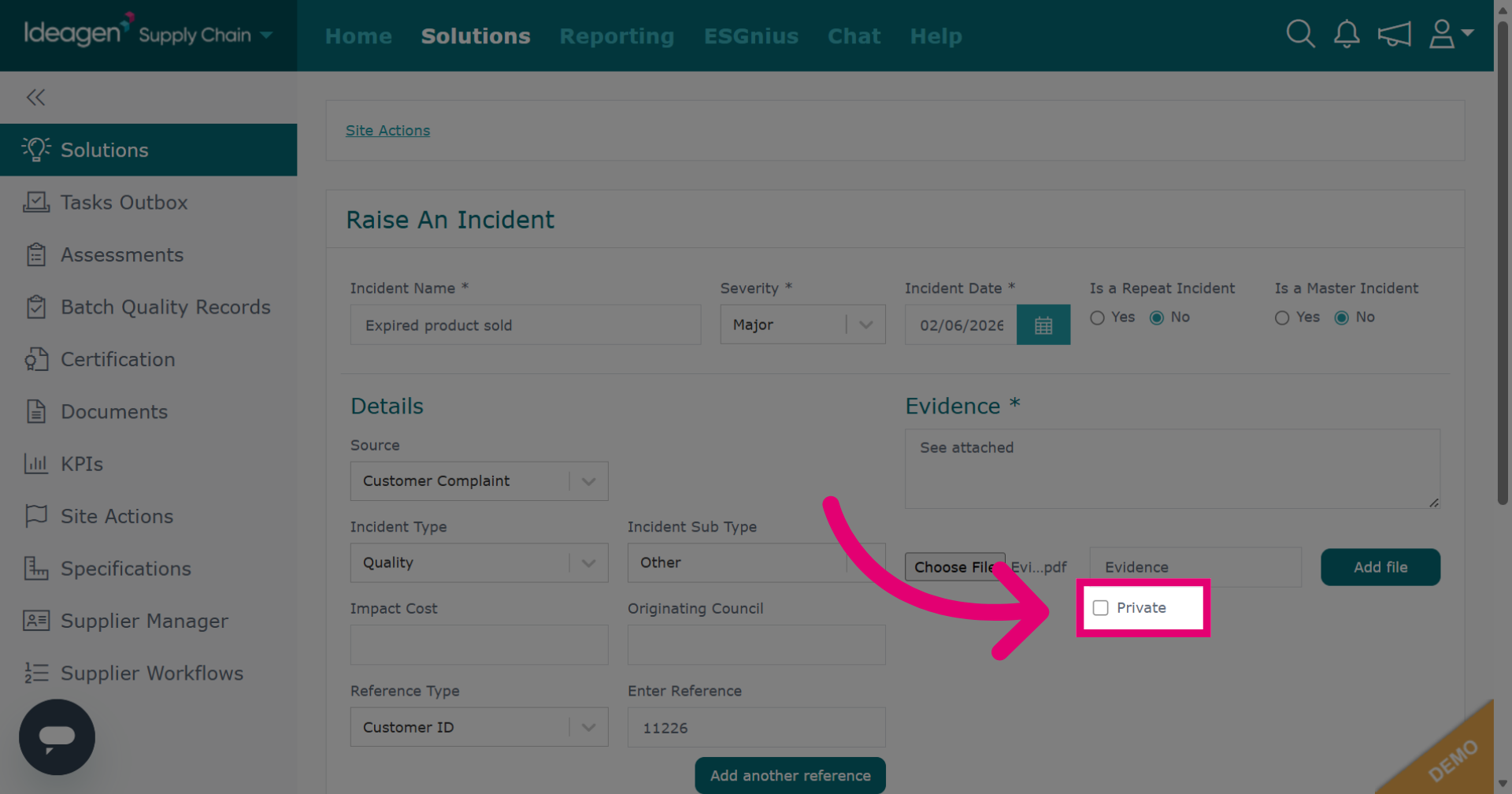
Tick the box for private if you want the attachment to be visible only to your company.
-
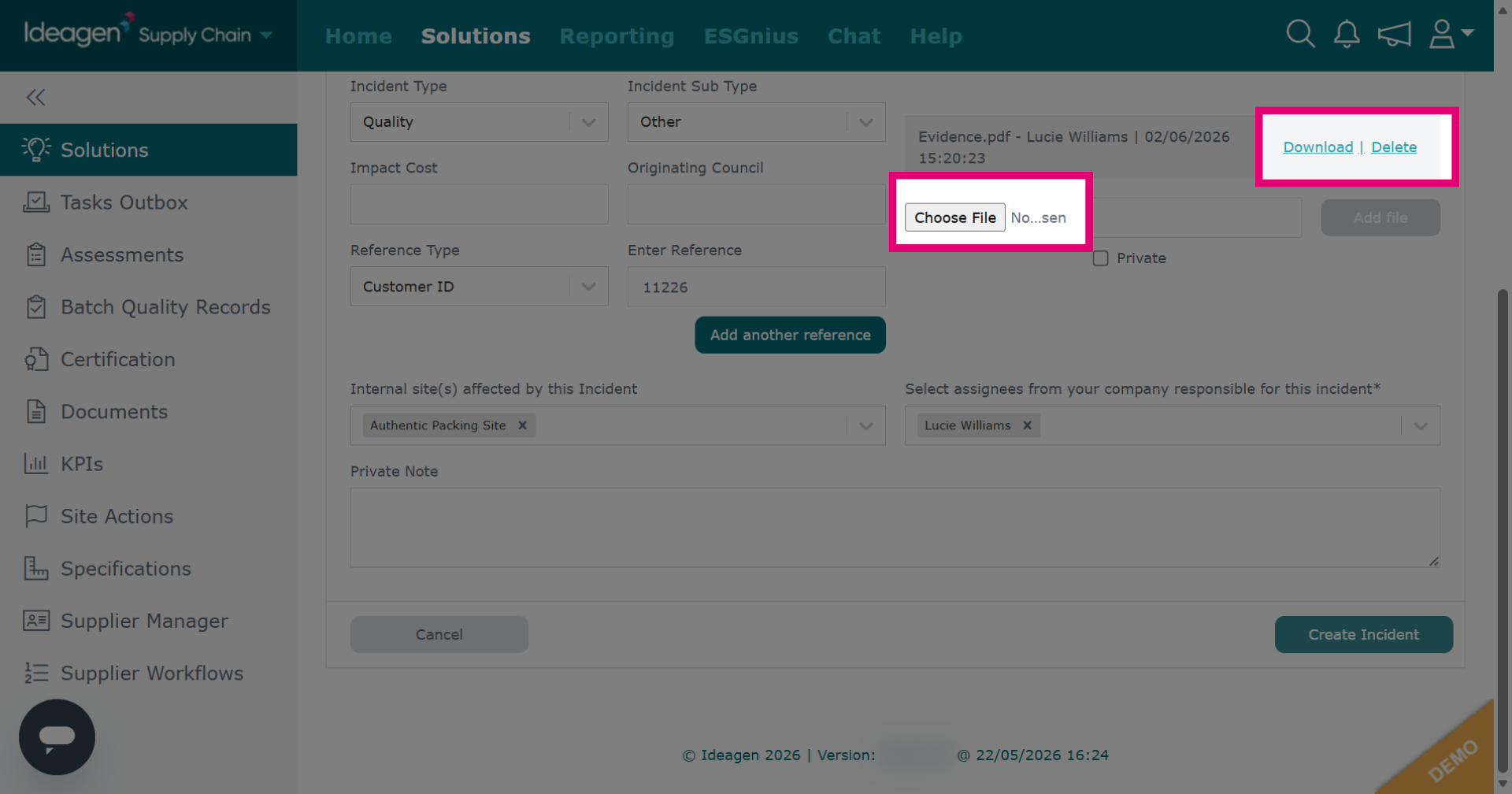
Once the file has uploaded you will be given the option to download or delete if needed. You can also upload further files by clicking Choose File and repeating the process.
-
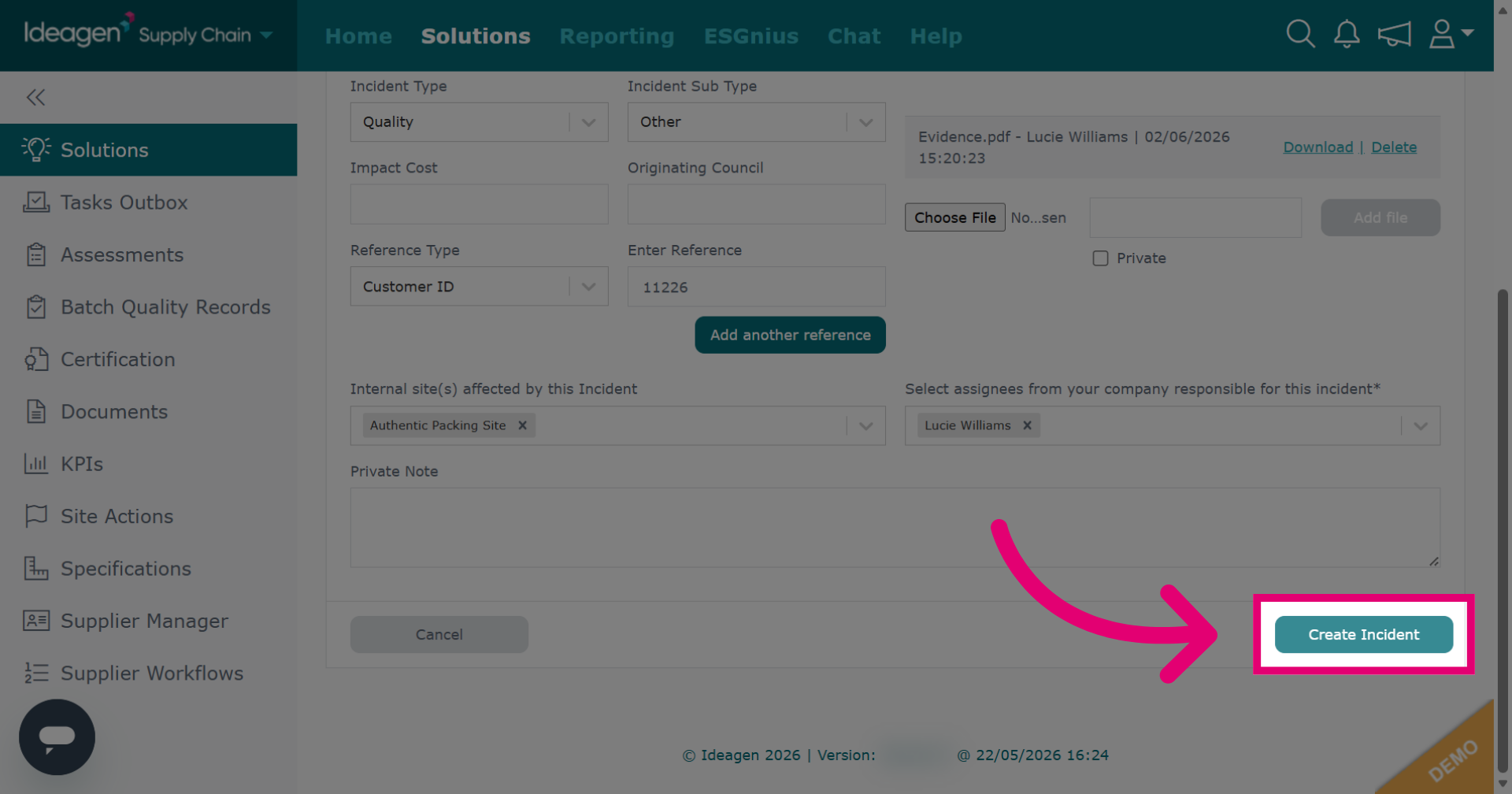
Click Create Incident to finalize the creation of the incident record.
-
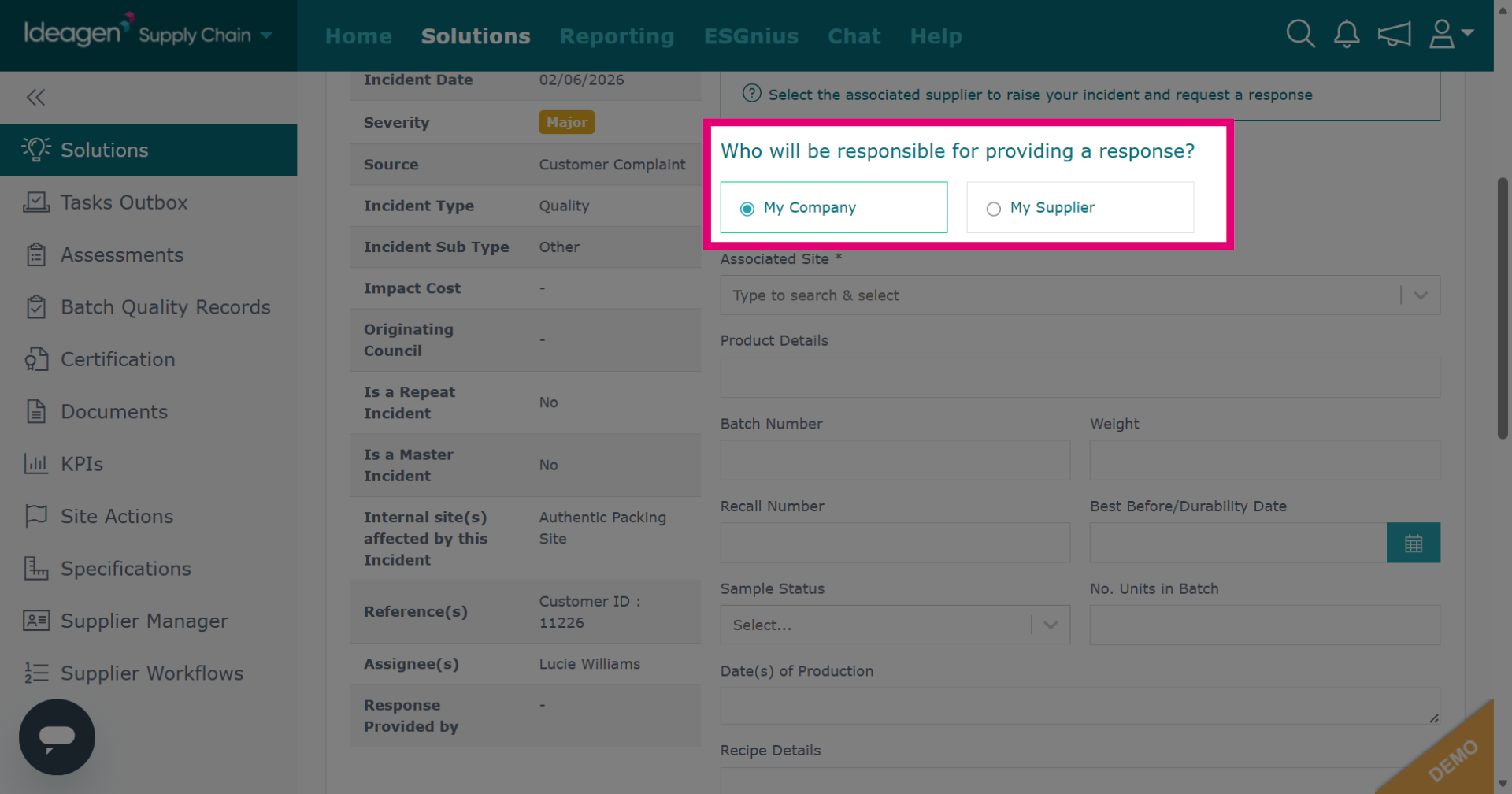
Decide who should respond to the incident. Click My Company for it to be answered by someone from your company. Click My Supplier to send the incident to your supplier for action.
-
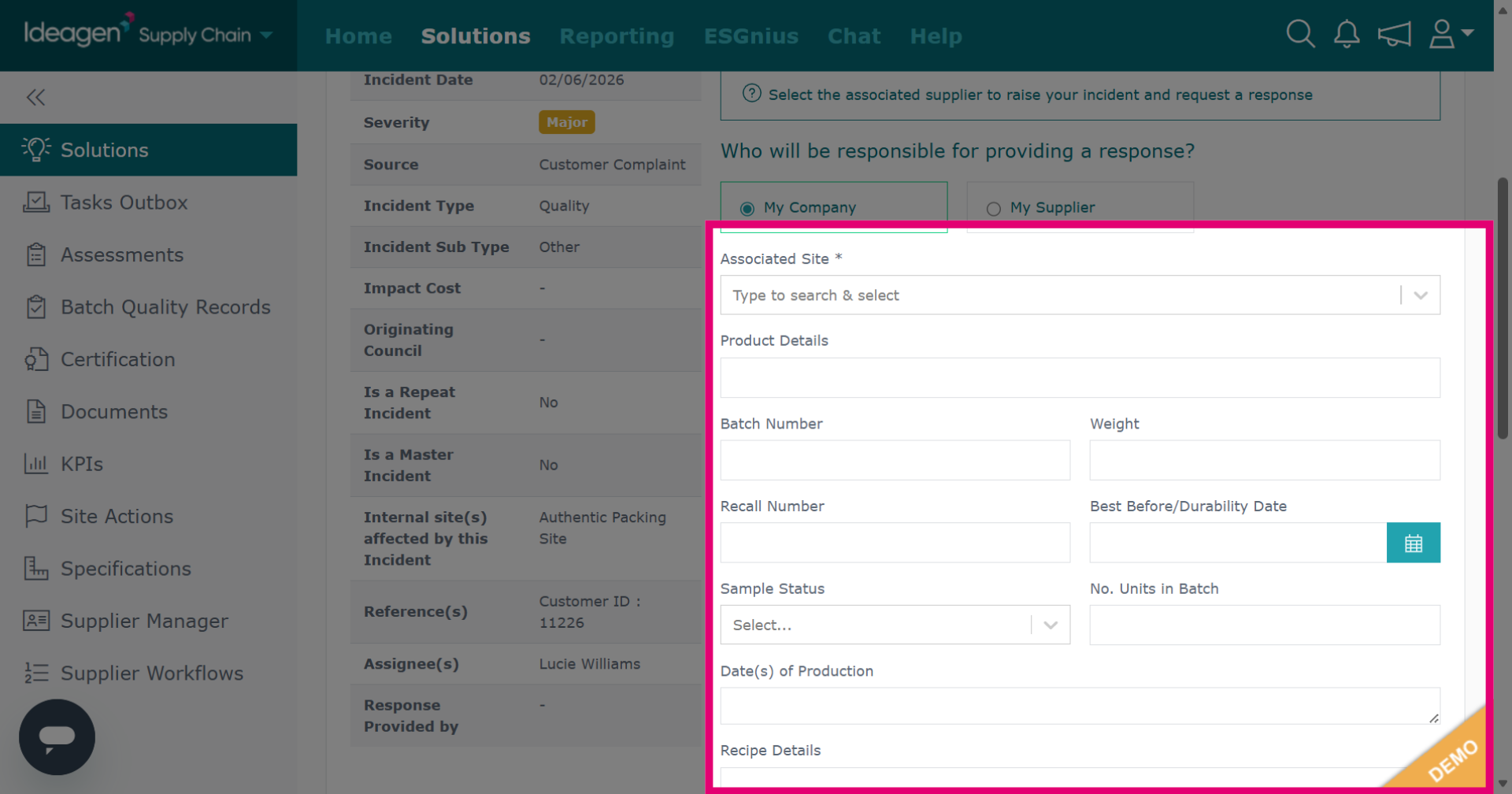
Input further details for the record entry. For site, type the company name into the search box and select the relevant profile from the drop down.
-
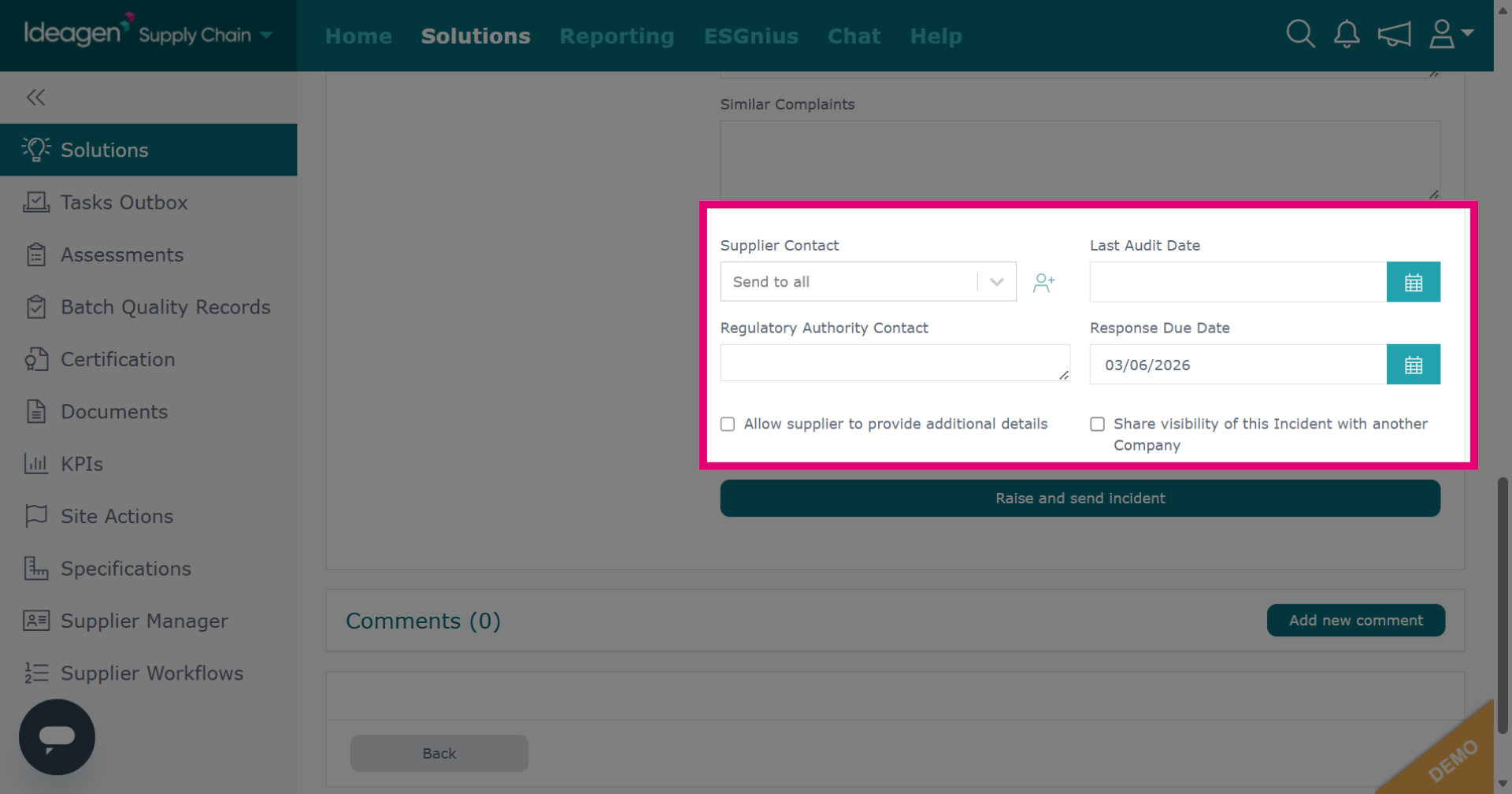
If sending to a supplier to complete, input the supplier details here.
-
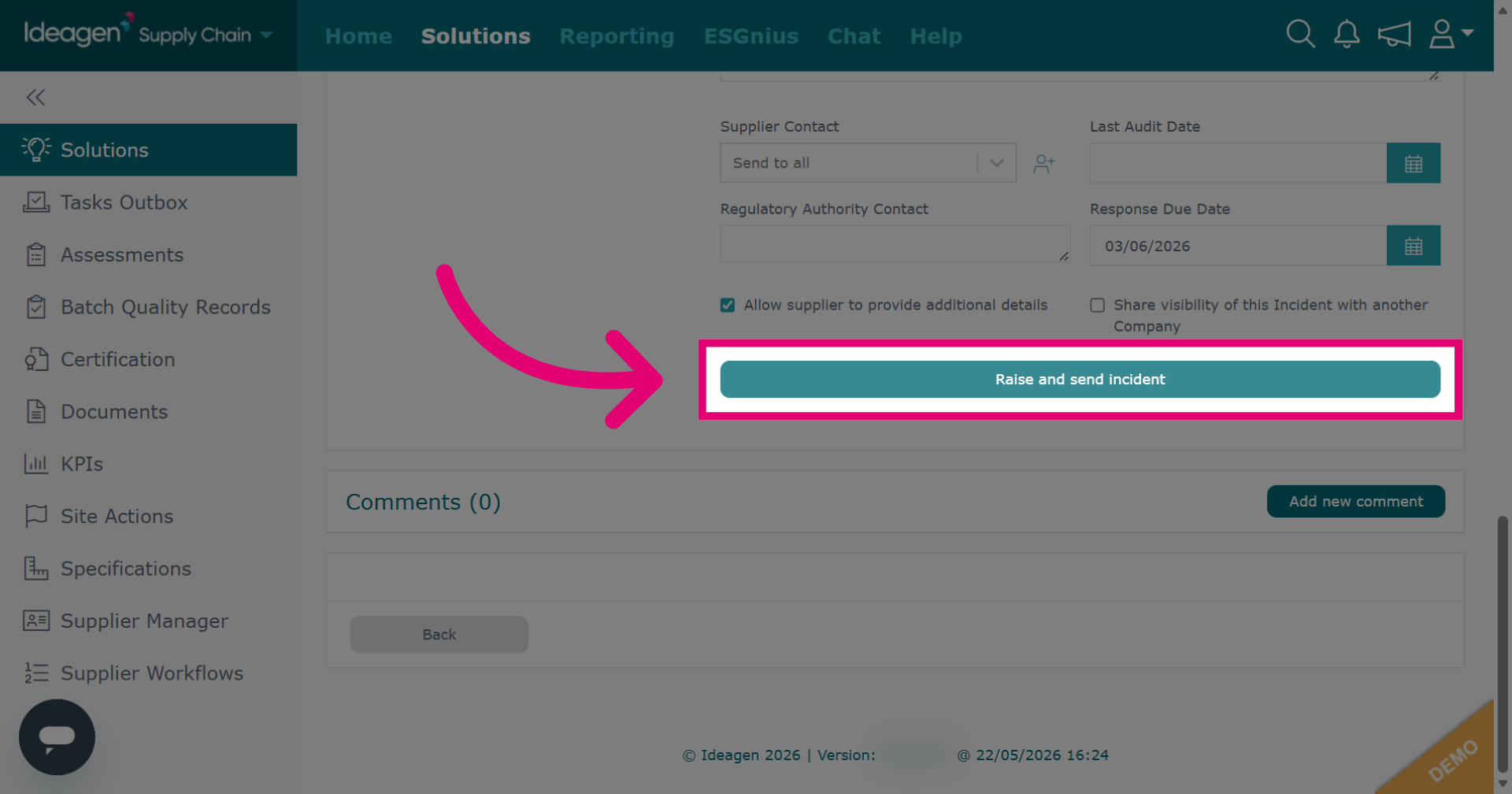
Click Raise and send incident to submit the incident and notify the supplier. If the incident is being managed by your company the button will say Raise incident instead.
-
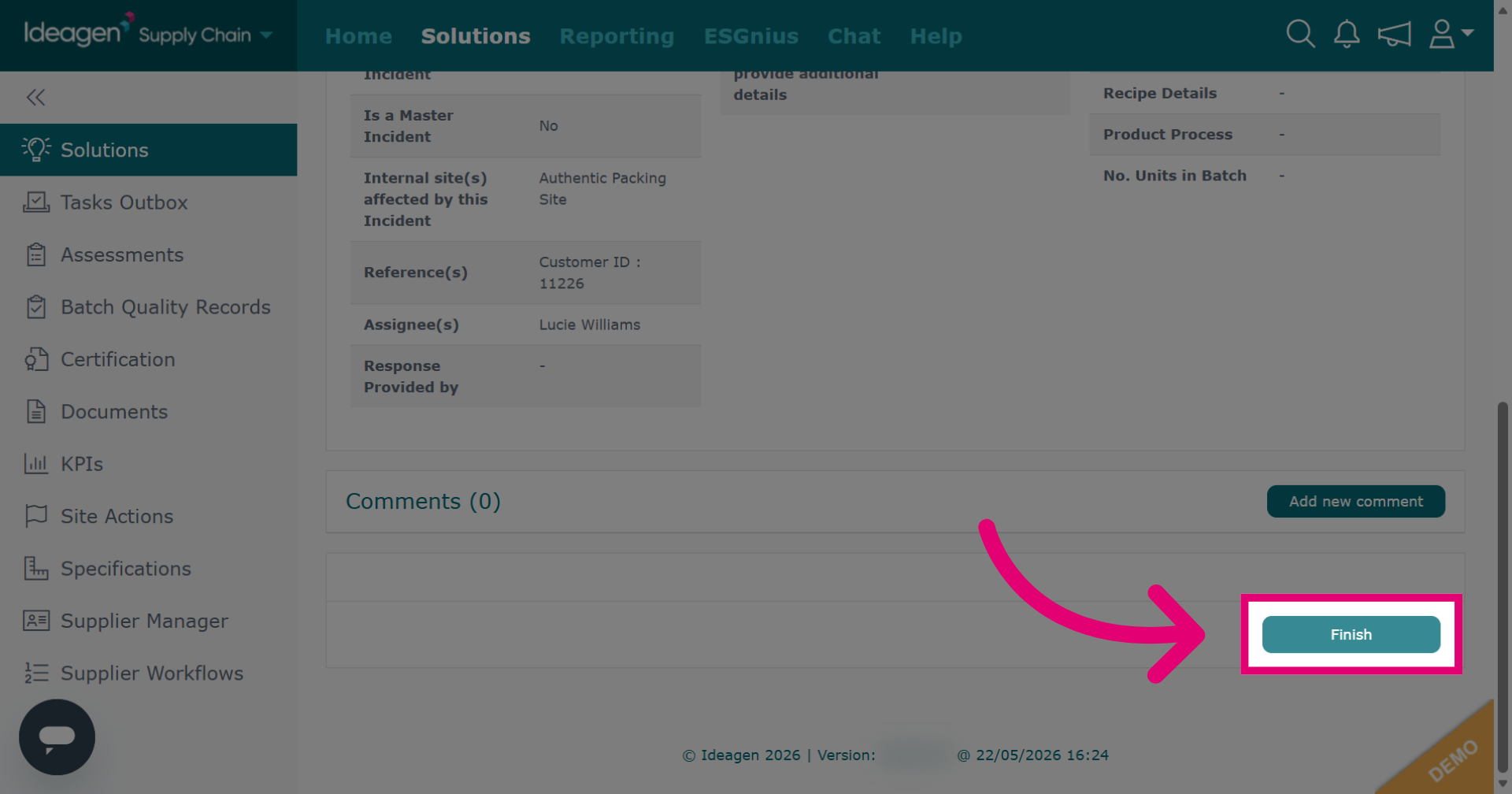
Click Finish to complete the incident reporting process and return to the main site actions page.