New article
Recently updated
Raising incidents

Who is this article for?
Users who want to raise an incident in the site actions module.
Site actions admin permissions are required.
This tutorial guides you through raising incidents within the Ideagen Supply Chain platform.
You will learn how to create, configure, and submit incident records through the site actions module.
Raising incidents
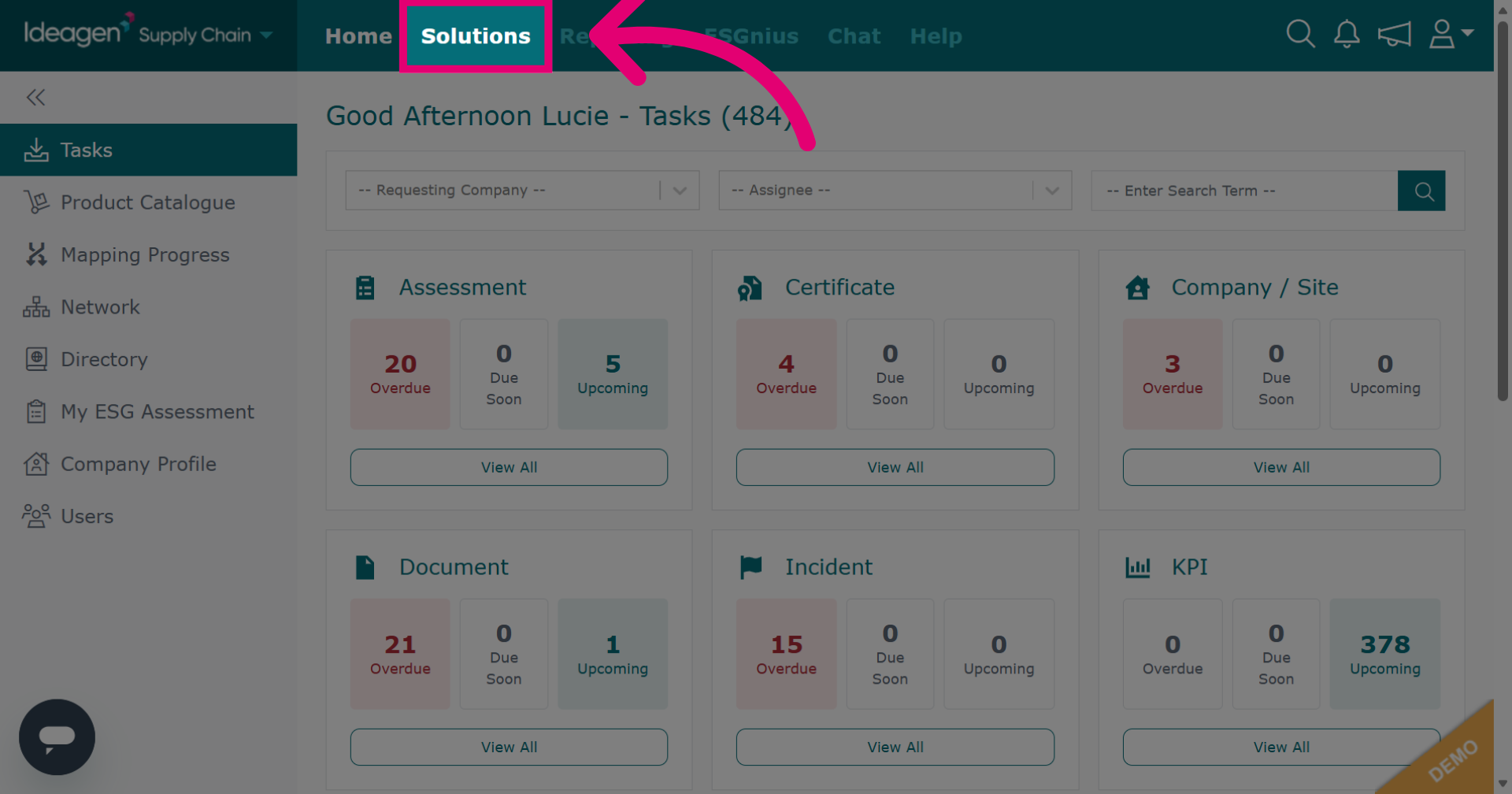
Click Solutions to open the main module menu.
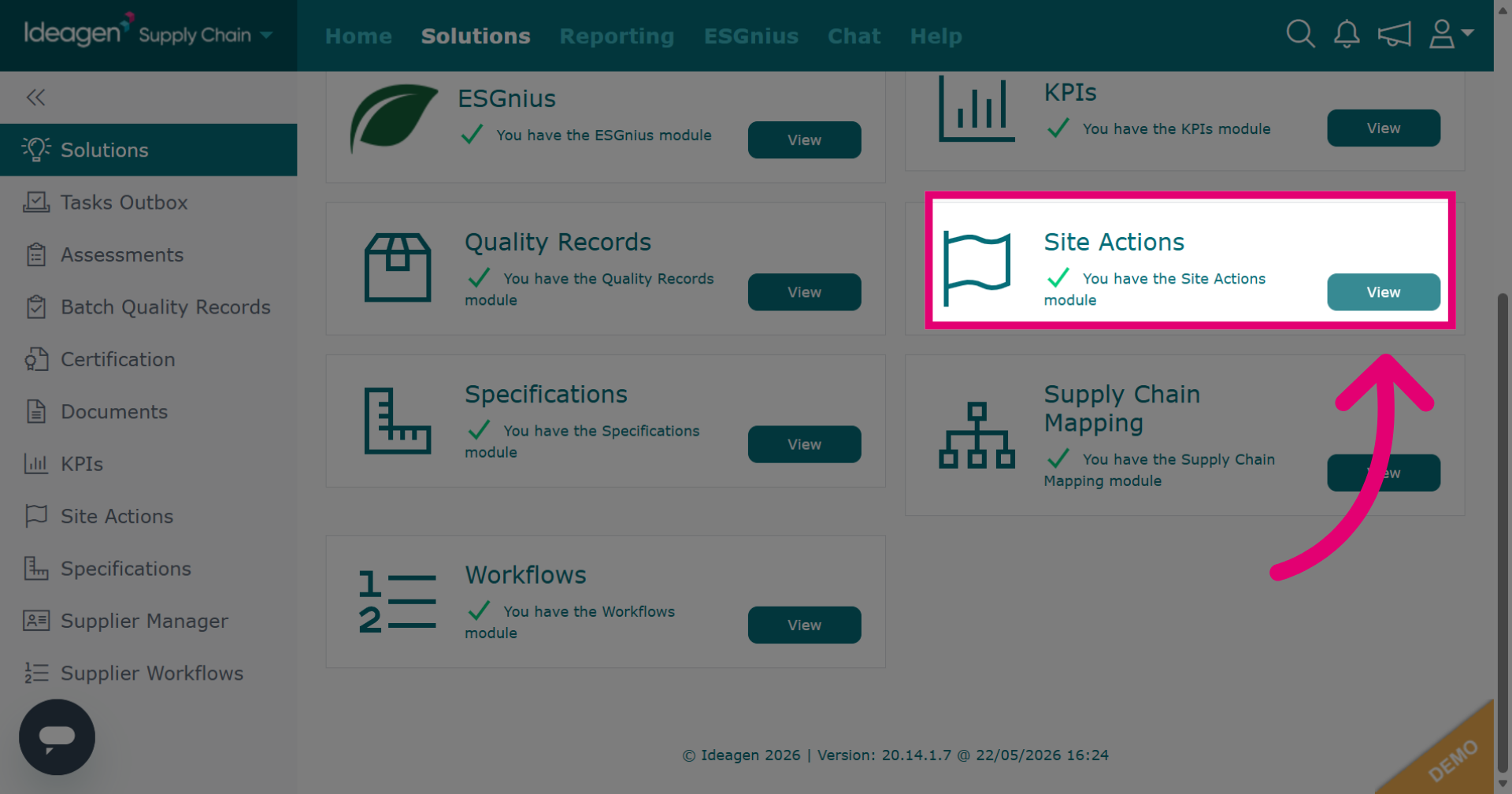
Click View next to the site actions module.
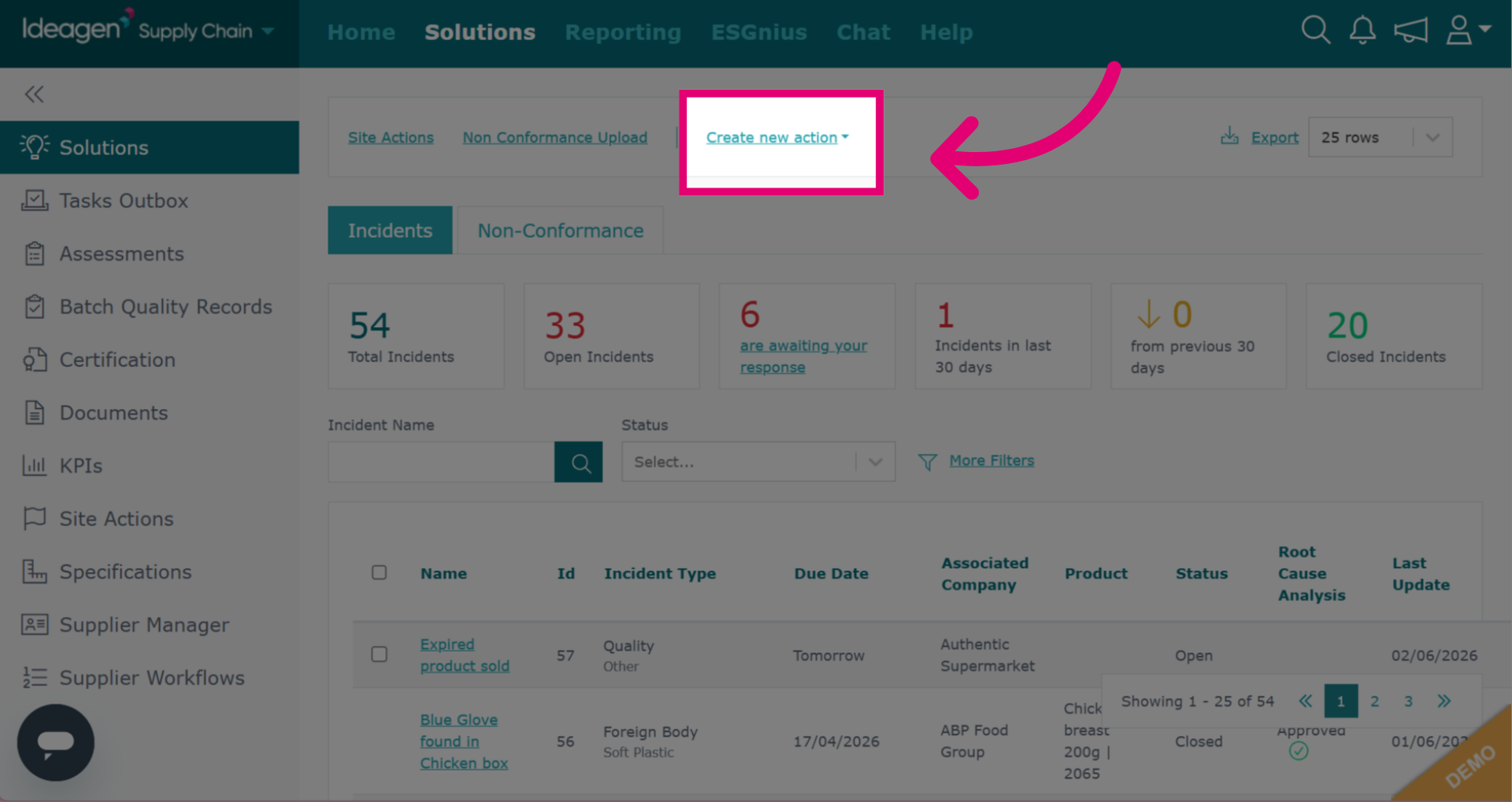
In the main site actions page, click Create New Action.
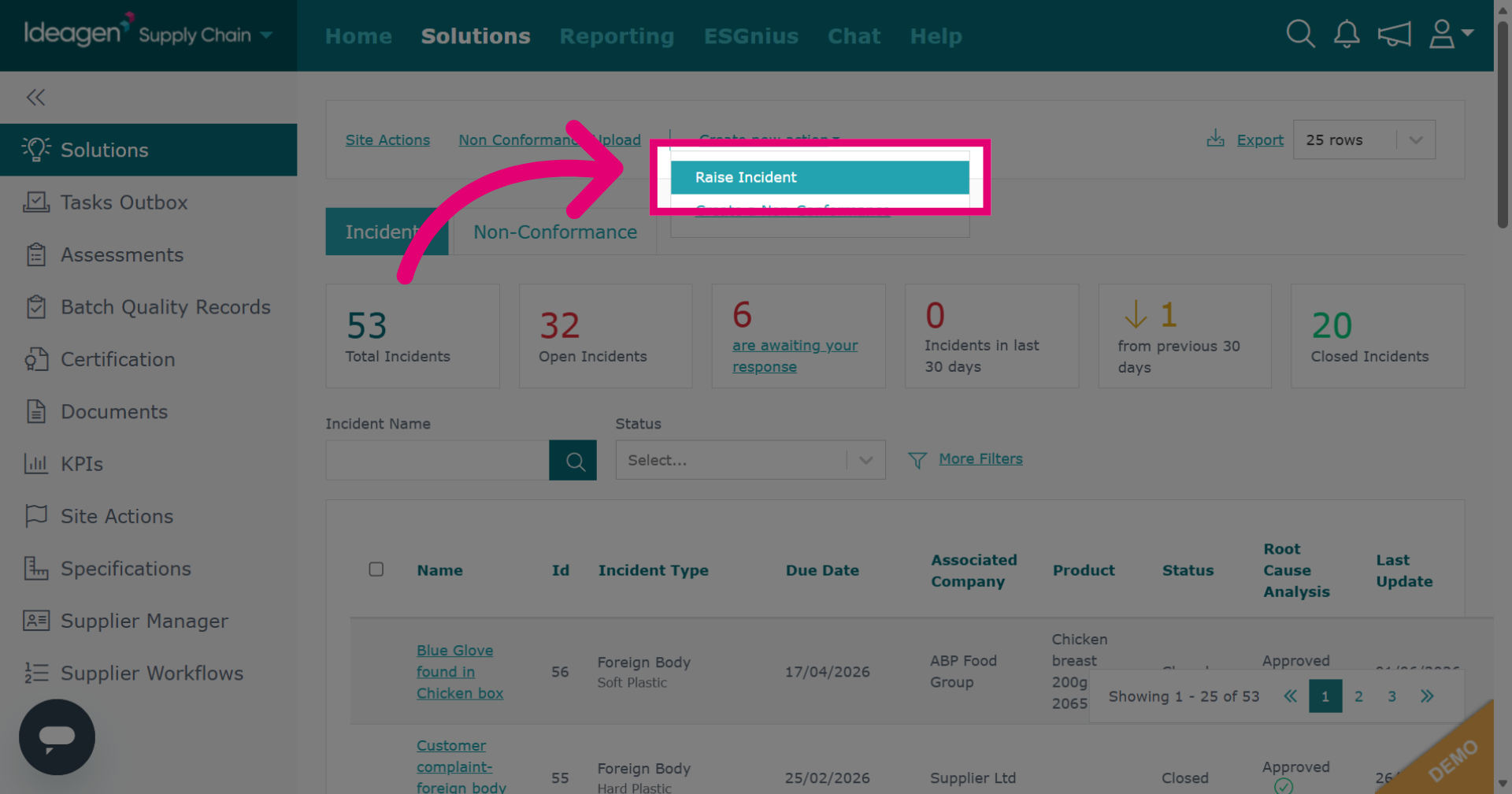
Click Raise Incident to begin the incident reporting process.
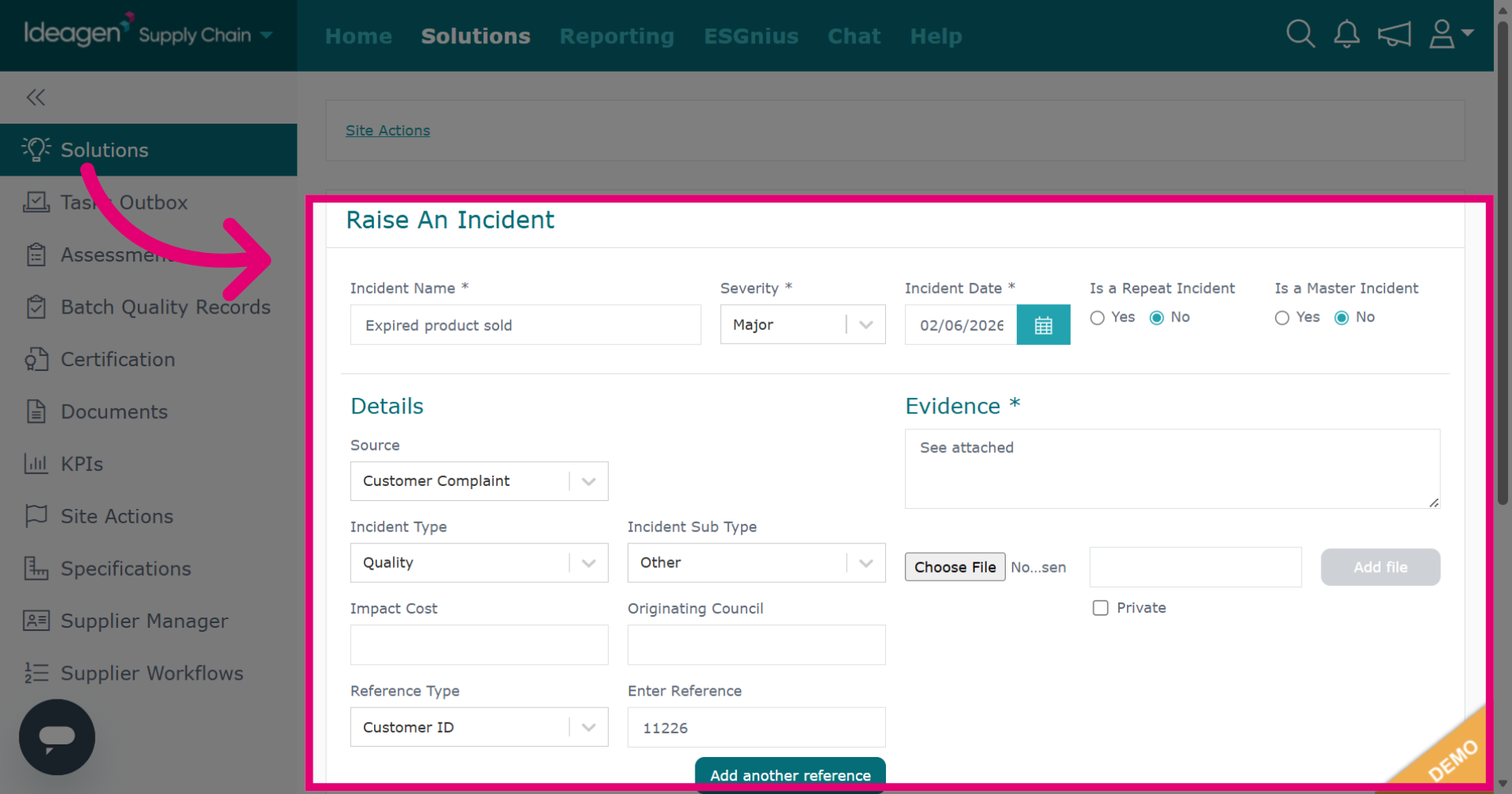
Input the details for the record. Fields with an asterisk are mandatory.
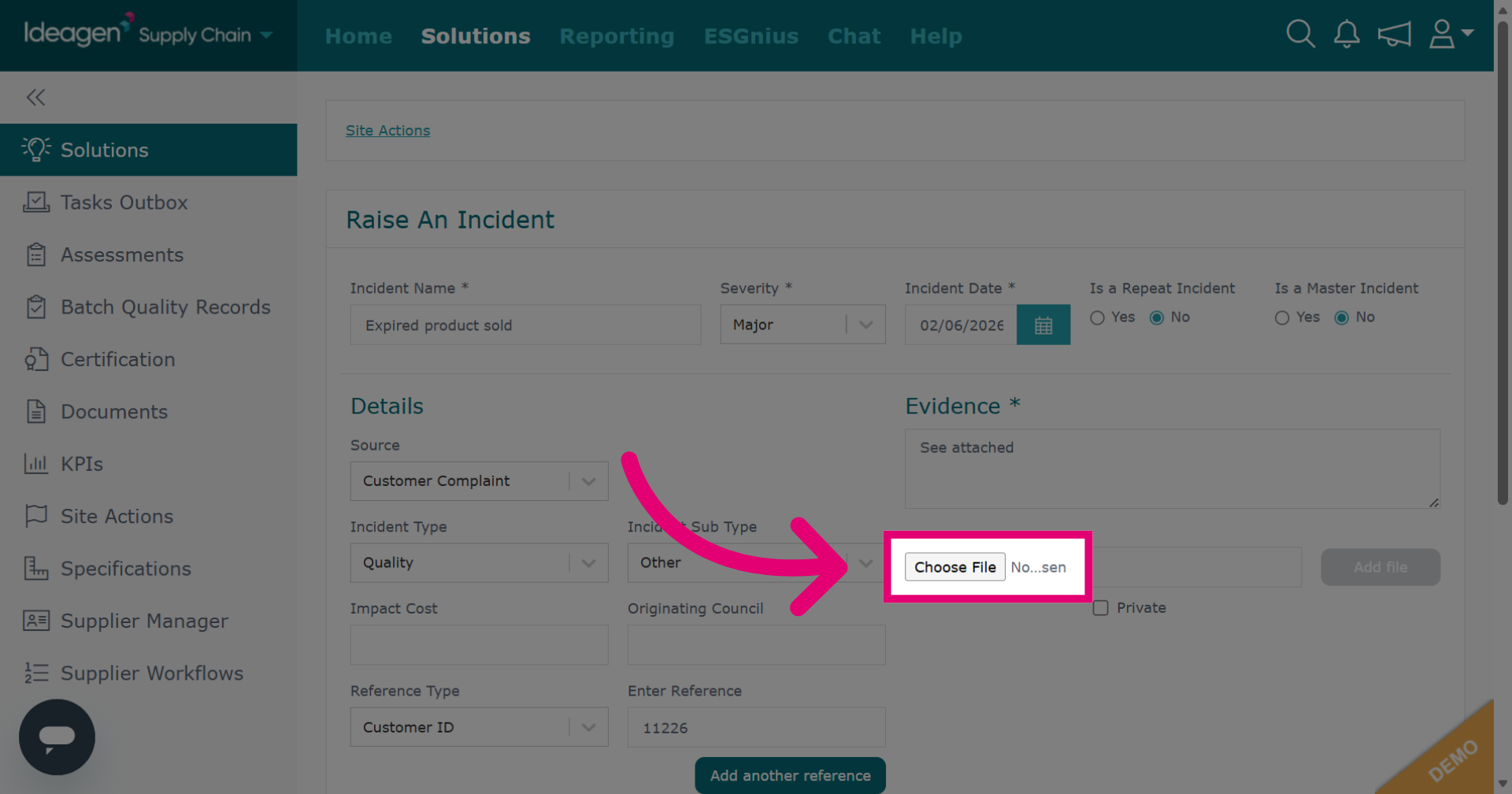
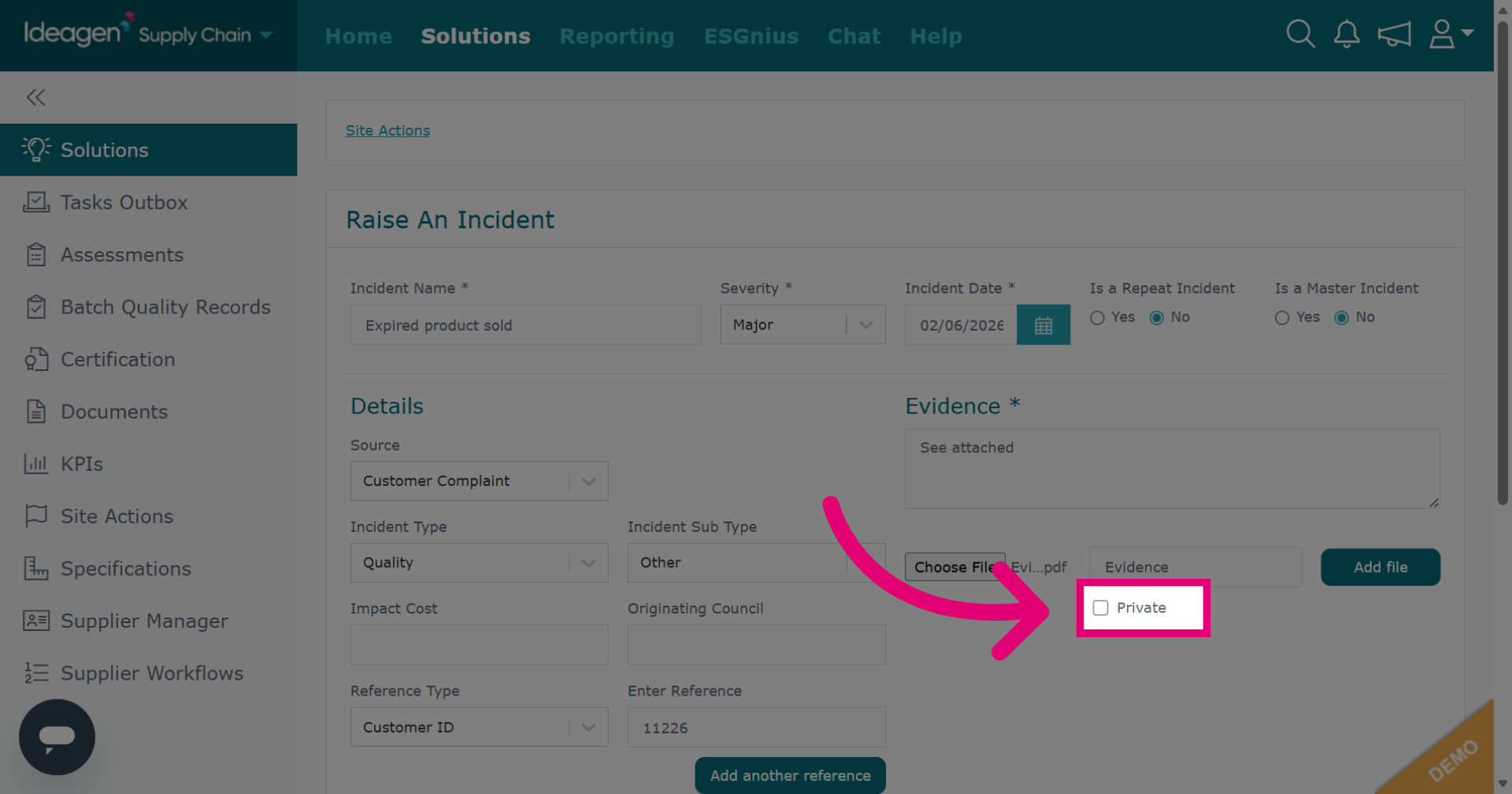
Click Choose File to add an attachment from your desktop.
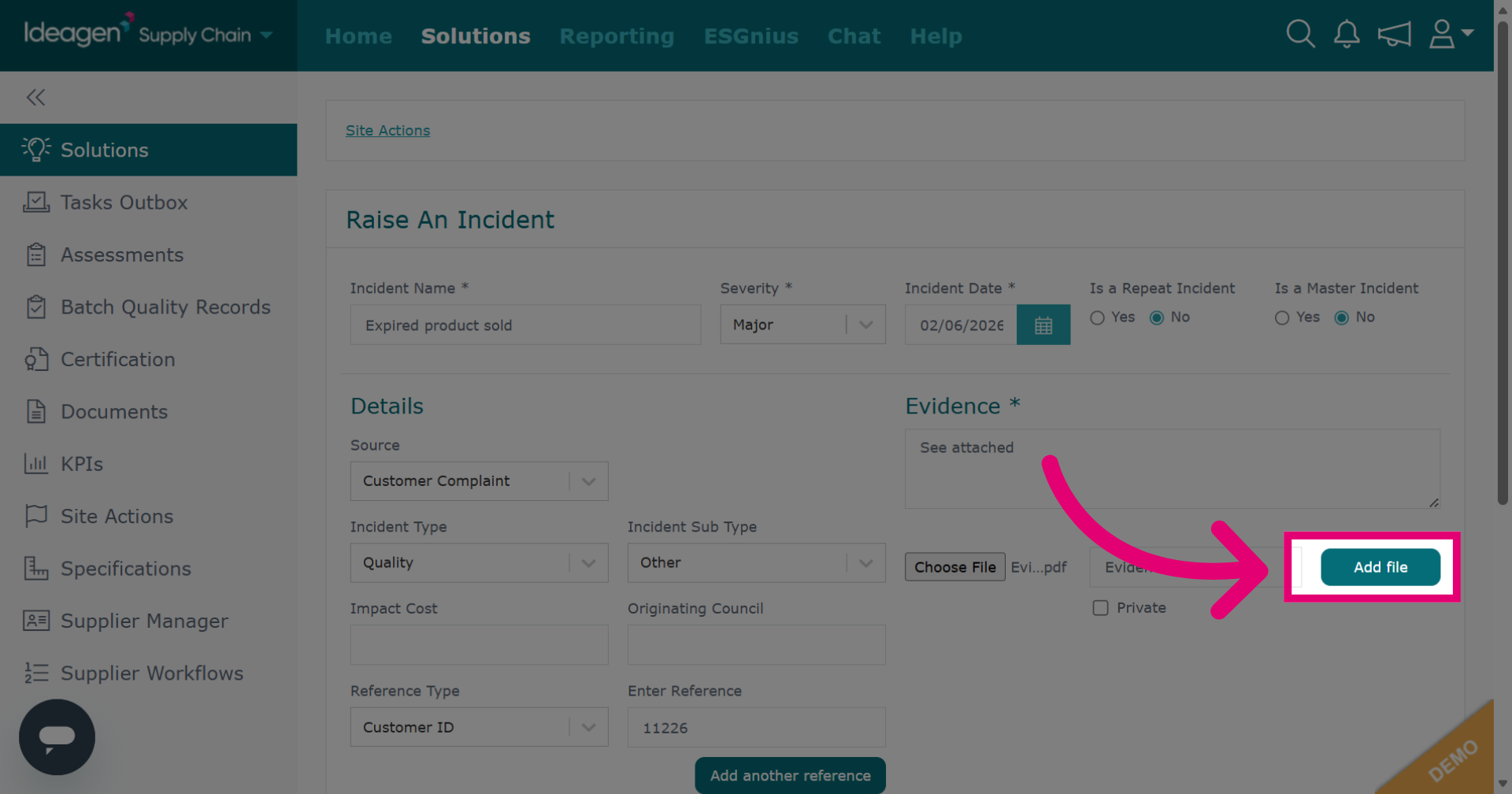
Once you have uploaded your attachment, click Add File.
Tick private to make the attachment visible only to your company.
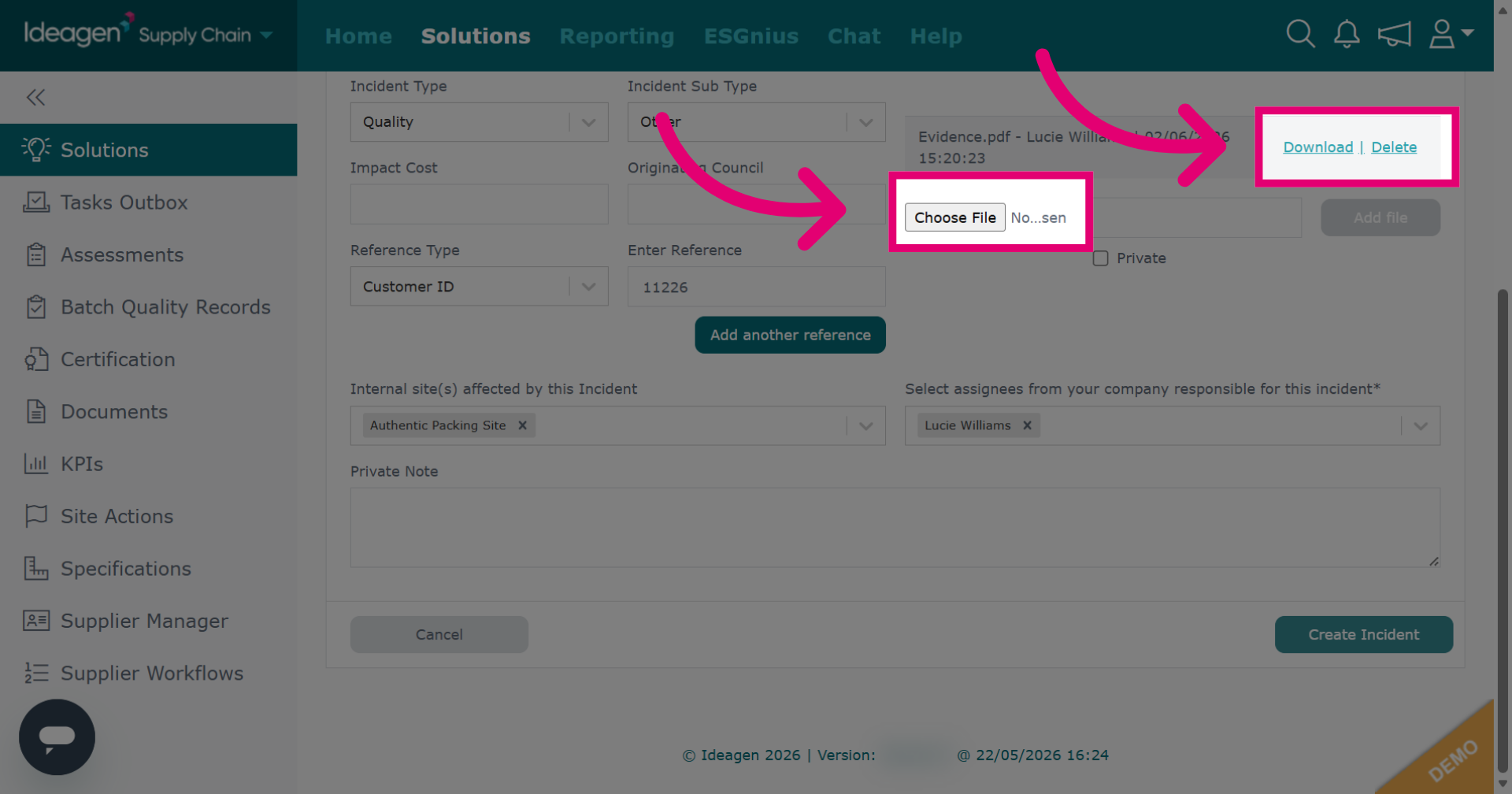
After uploading, you can download or delete the file. To upload more, click Choose File and repeat.
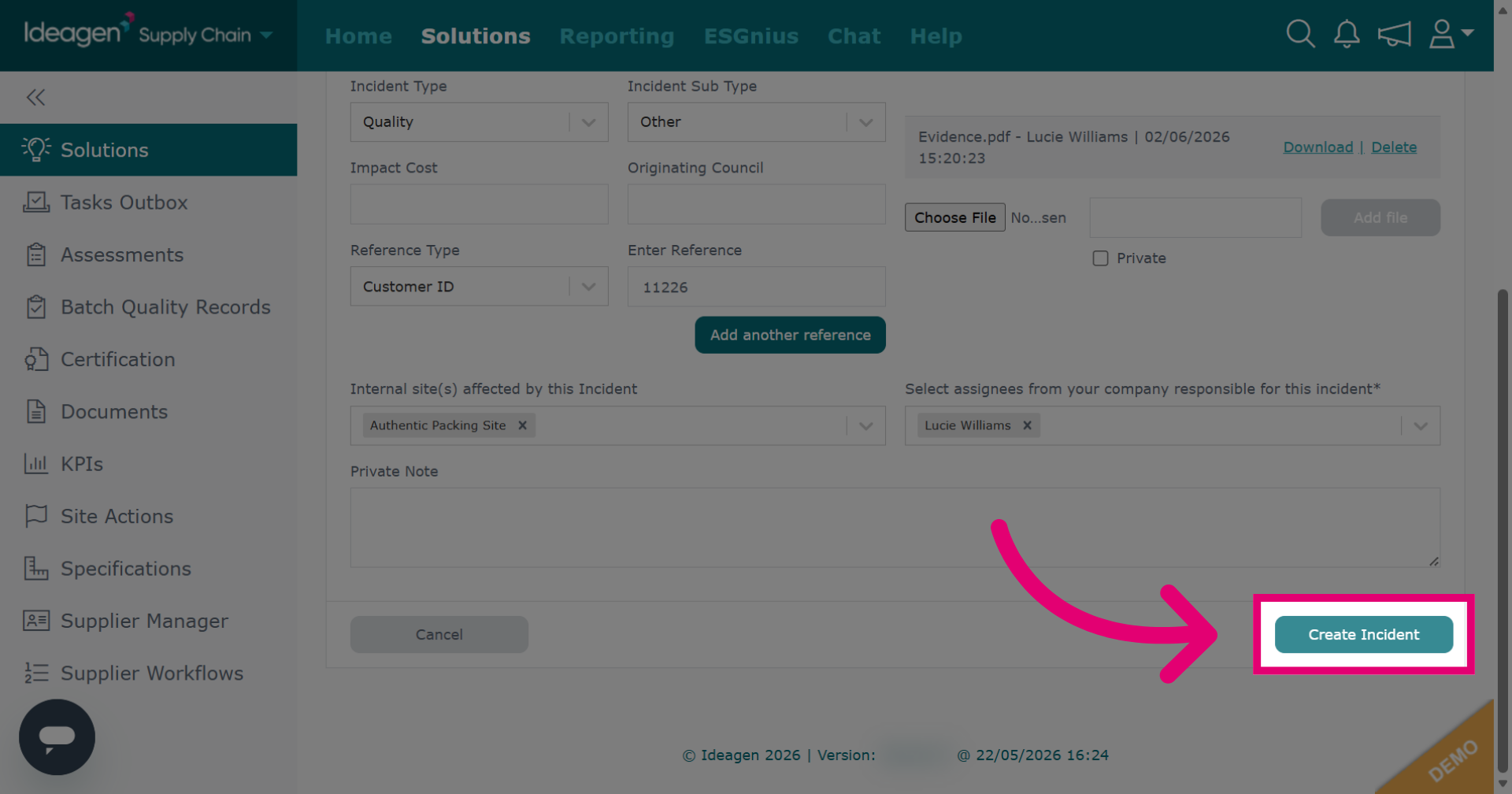
Click Create Incident to finalize the creation of the incident record.
Decide who responds: click My Company for a company response or My Supplier to send it to your supplier.
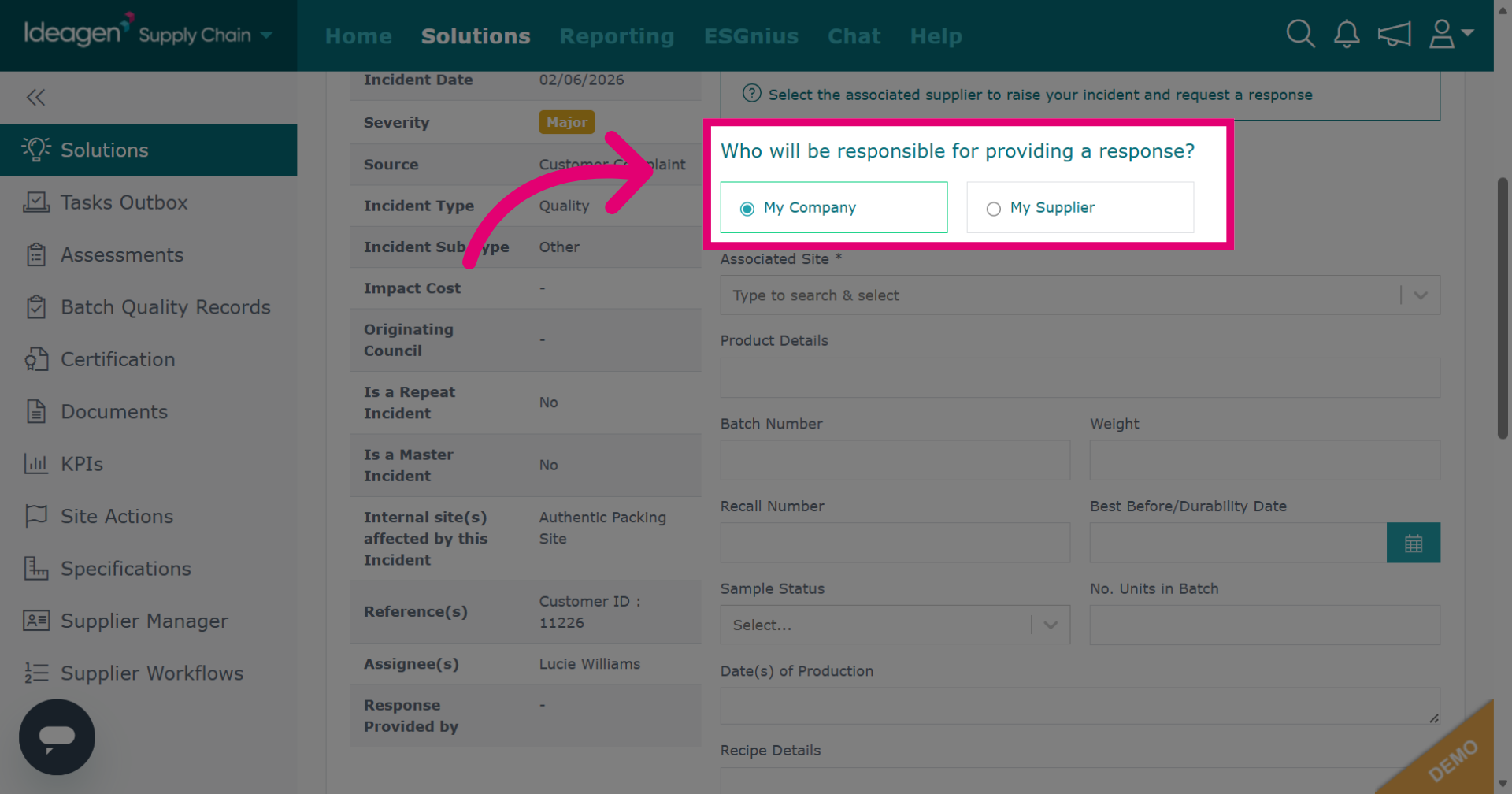
Input details for the record. For site, type the company name in the search box and select the profile from the drop down.
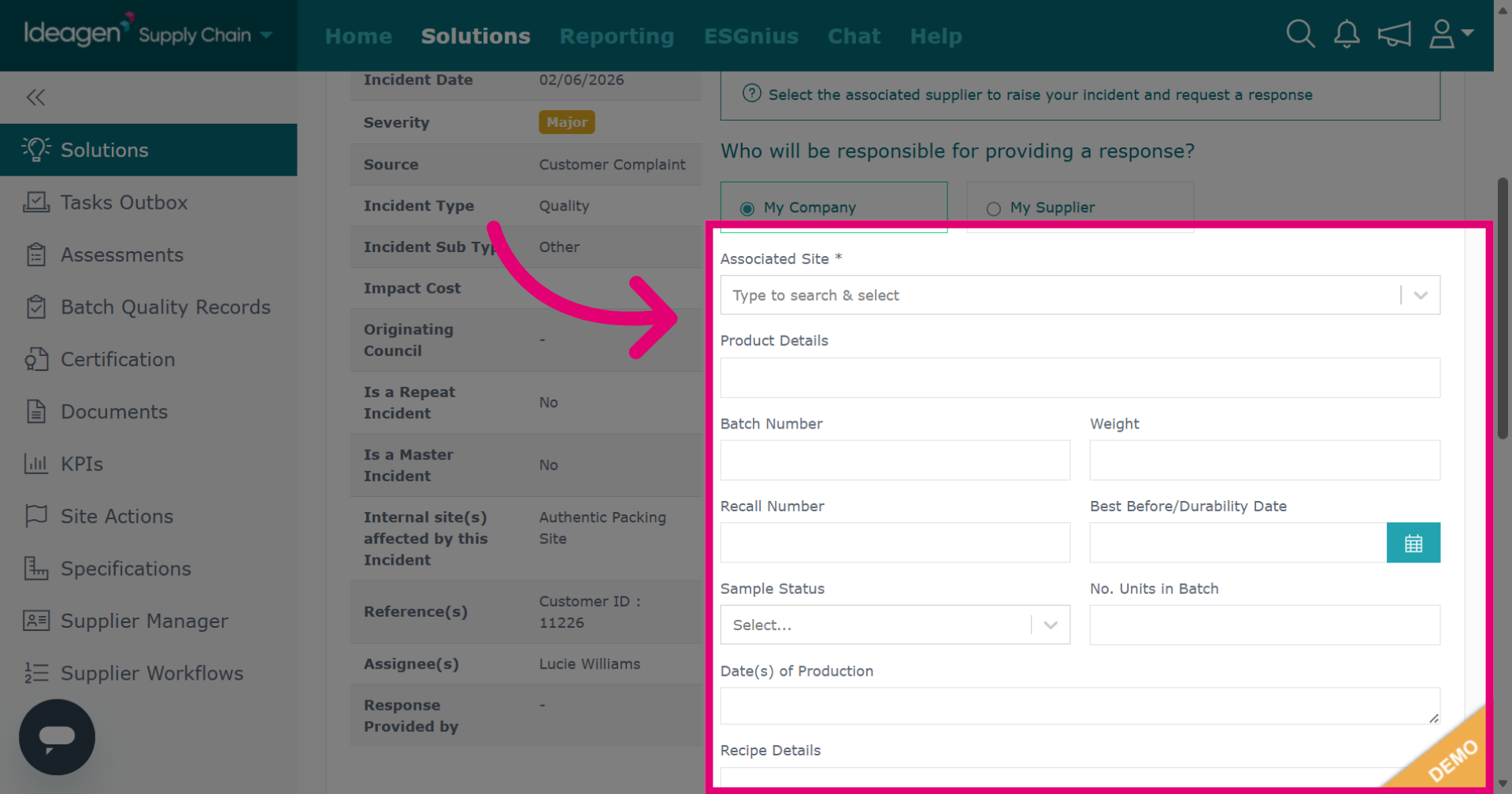
If sending to a supplier to complete, input the details here.
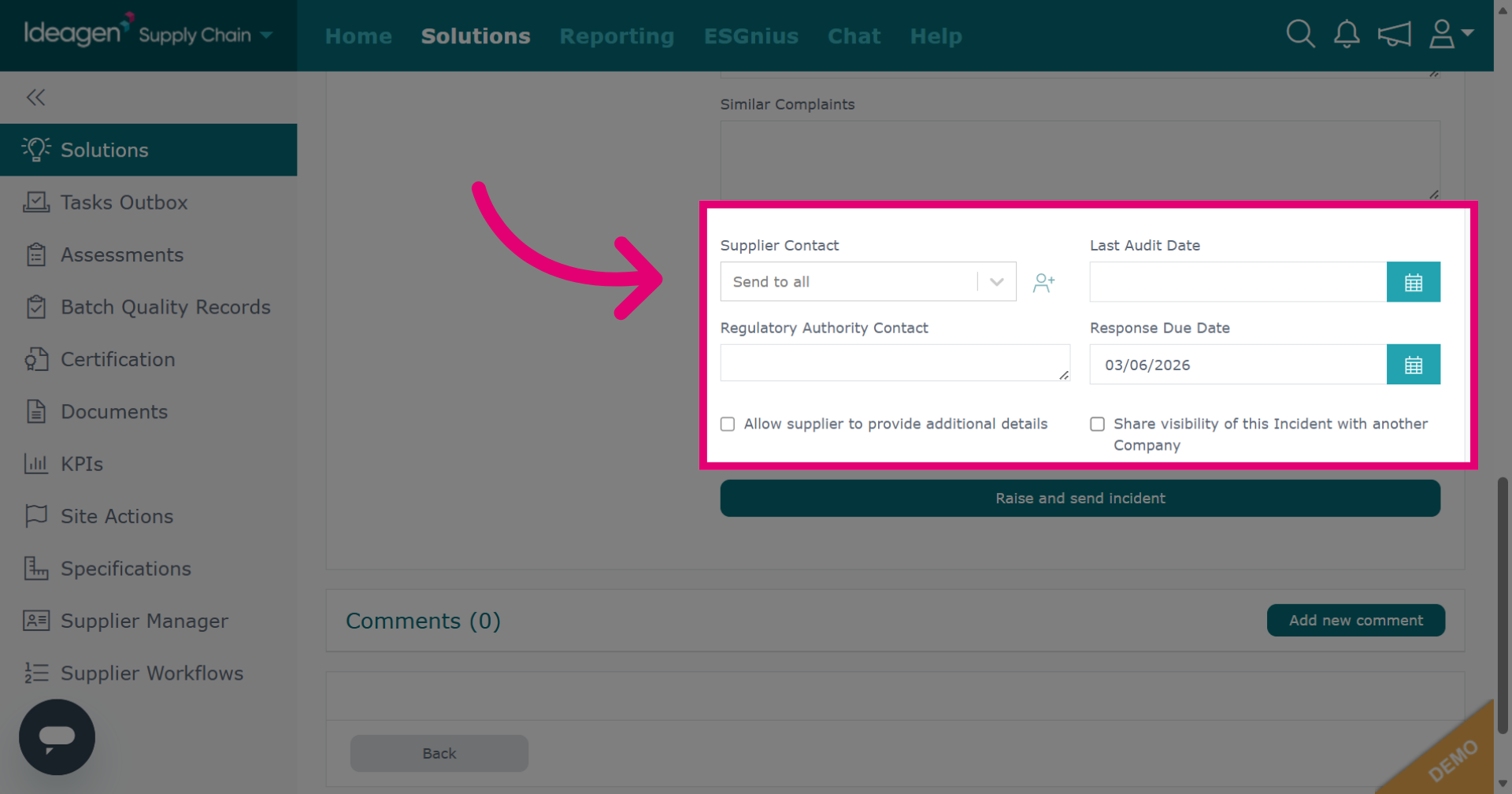
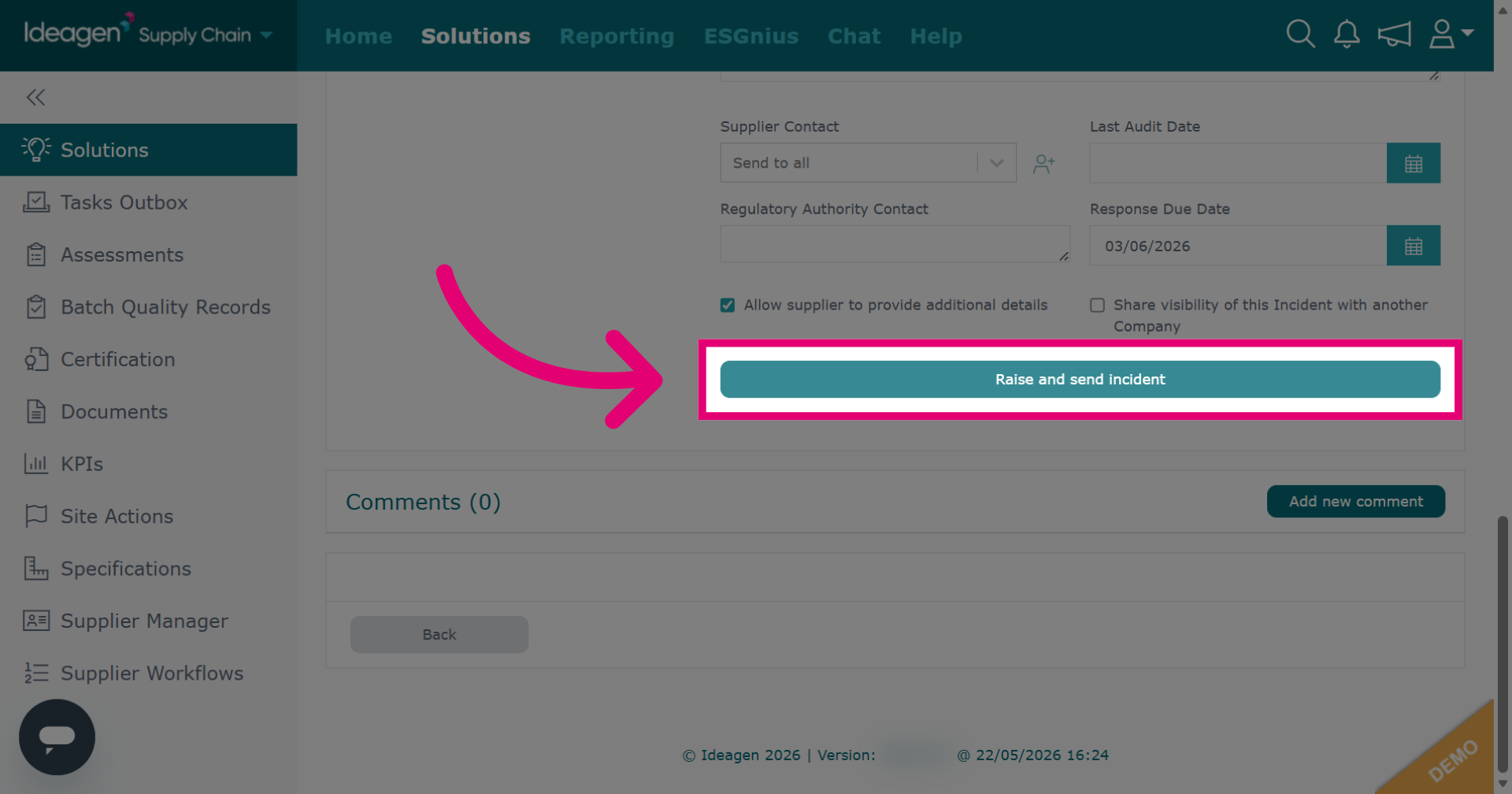
Click Raise and send incident to submit and notify the supplier. If managed by your company, it will say Raise incident instead.
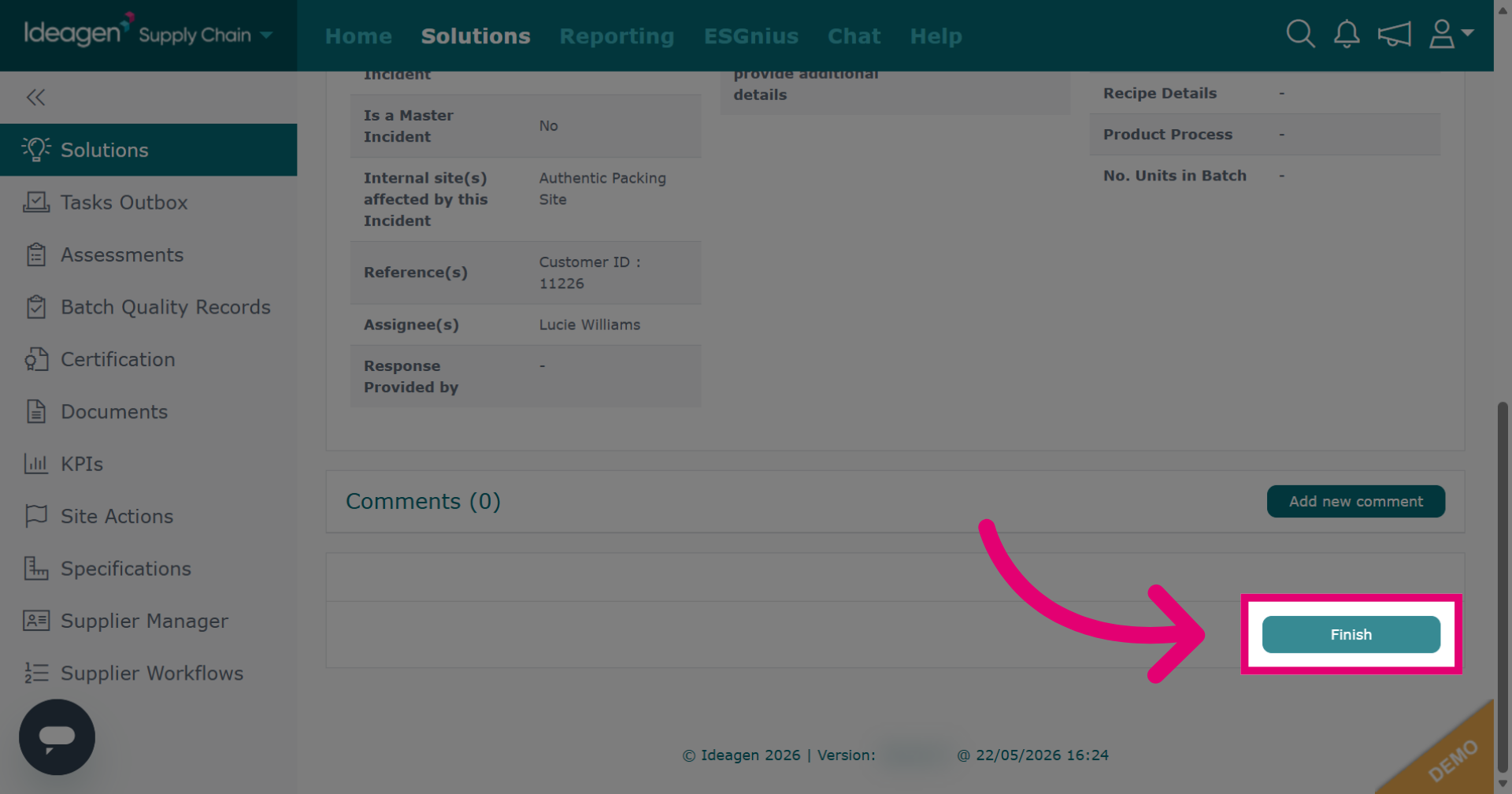
Click Finish to complete incident reporting and return to the main actions page.