New article
Recently updated
Viewing and Managing Incidents and Non-Conformances - Site Actions

Who is this article for?
Users who want to view and manage records within the site actions module.
Site actions admin permissions are required.
This tutorial guides you through viewing and managing incidents and non-conformances within the Ideagen Supply Chain platform.
You will learn how to access, edit, export, and delete incident and non-conformance records, as well as how to use filters and search functionality.
Viewing and managing incidents and non-conformances
-
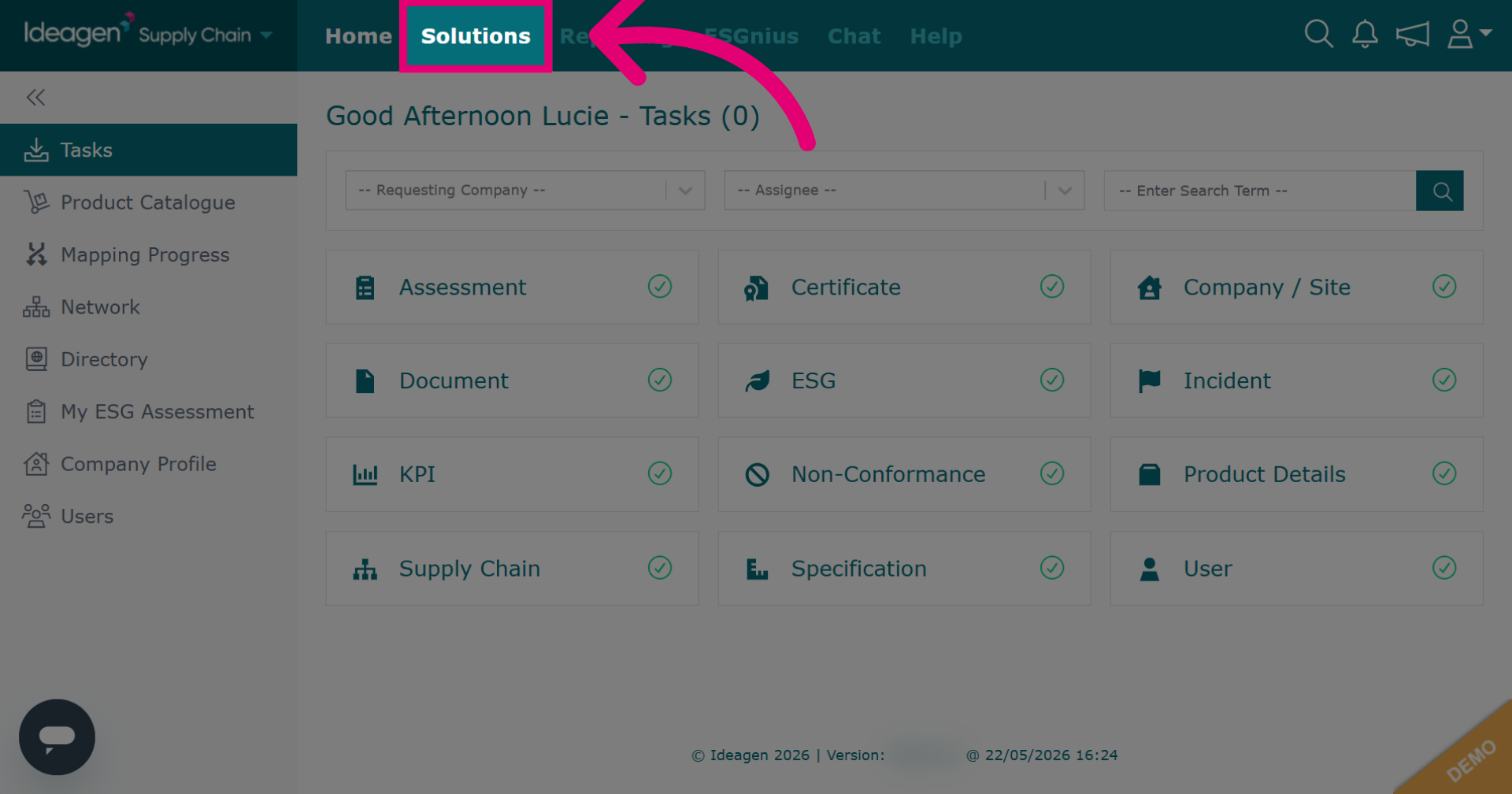
Click Solutions to open the main module menu.
-
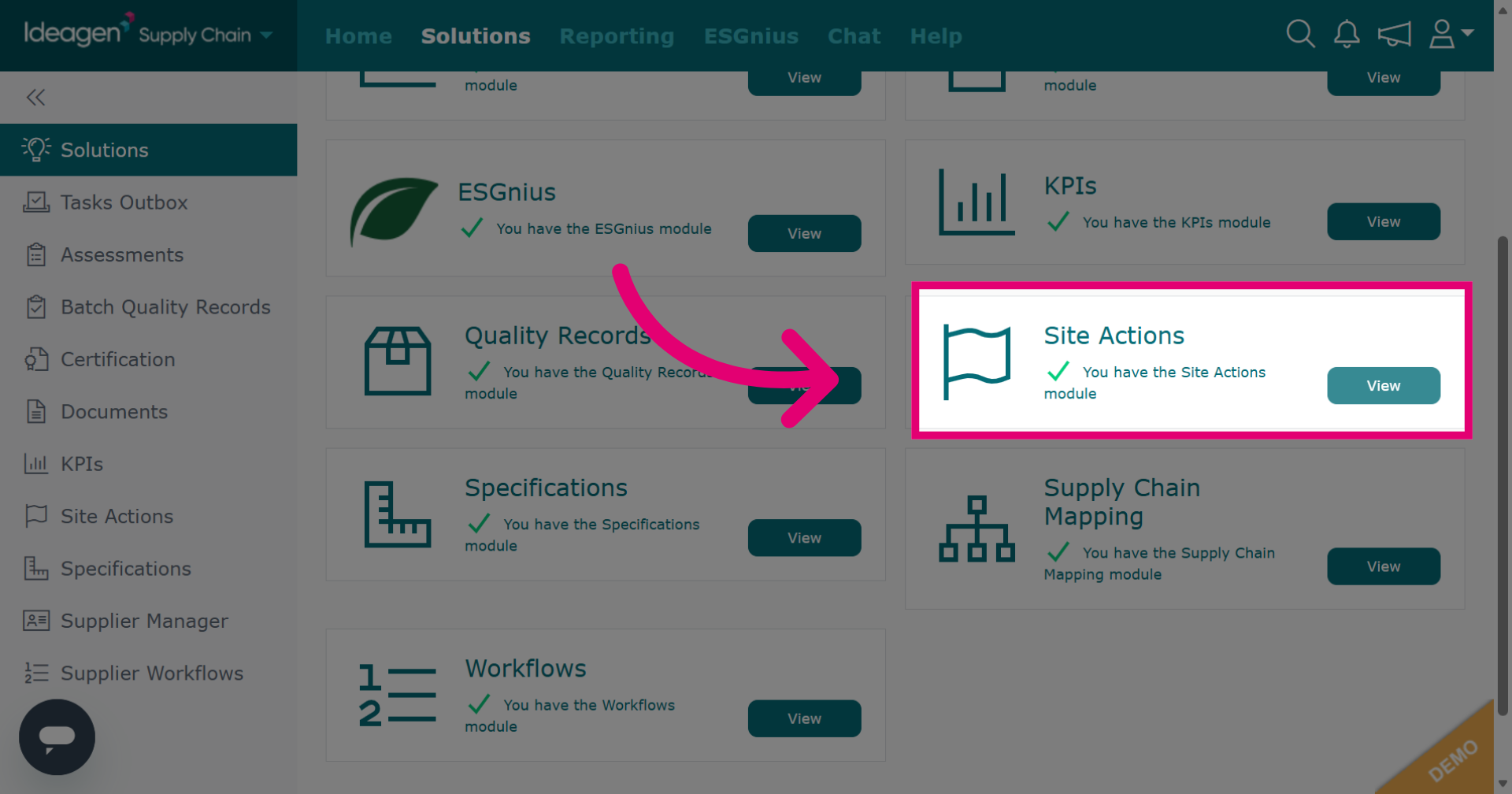
Click View next to the site actions module.
-
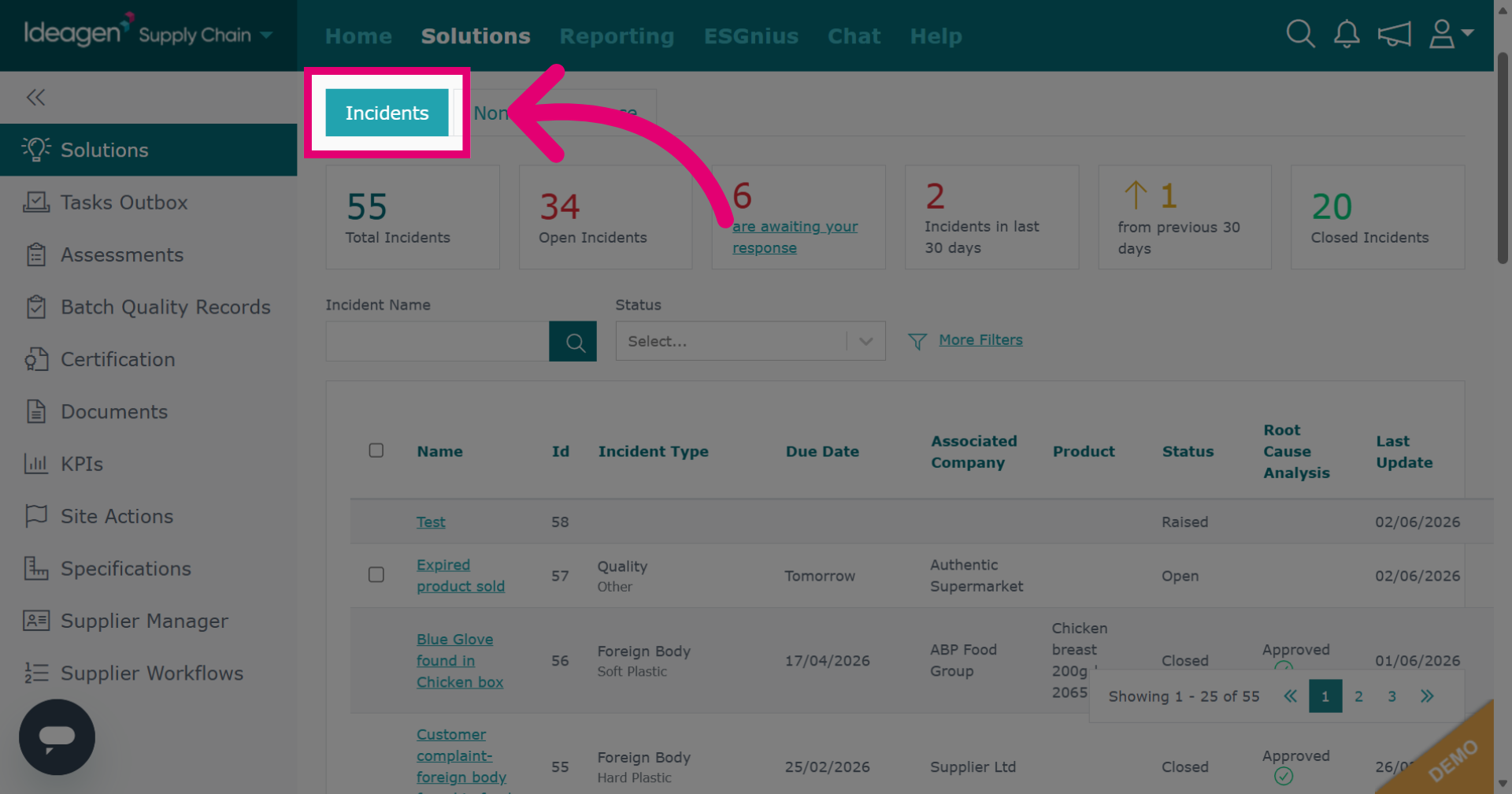
Click Incidents to access the main incidents page.
-
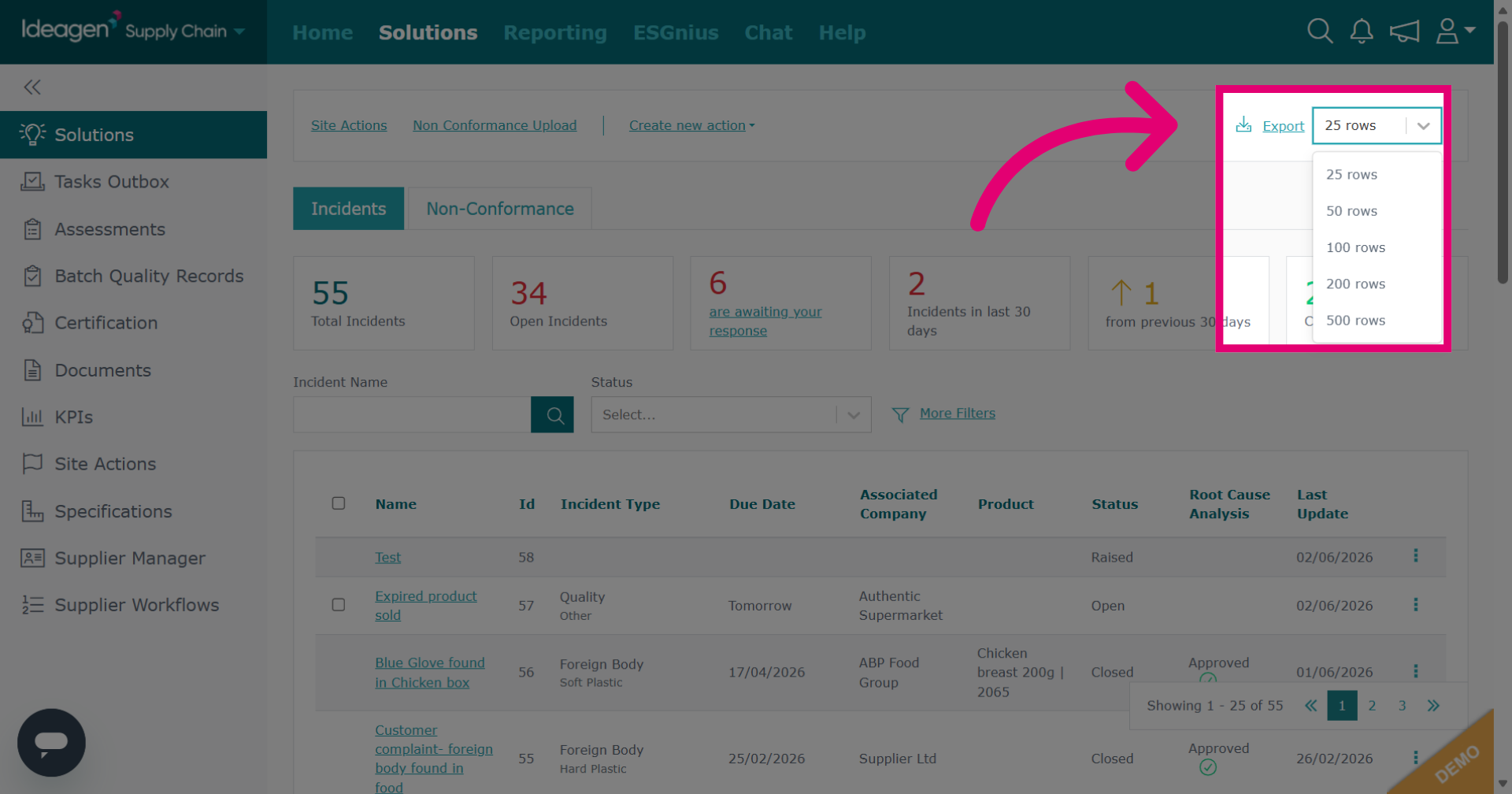
To export, select the number of rows from the drop down, and then click Export.
-
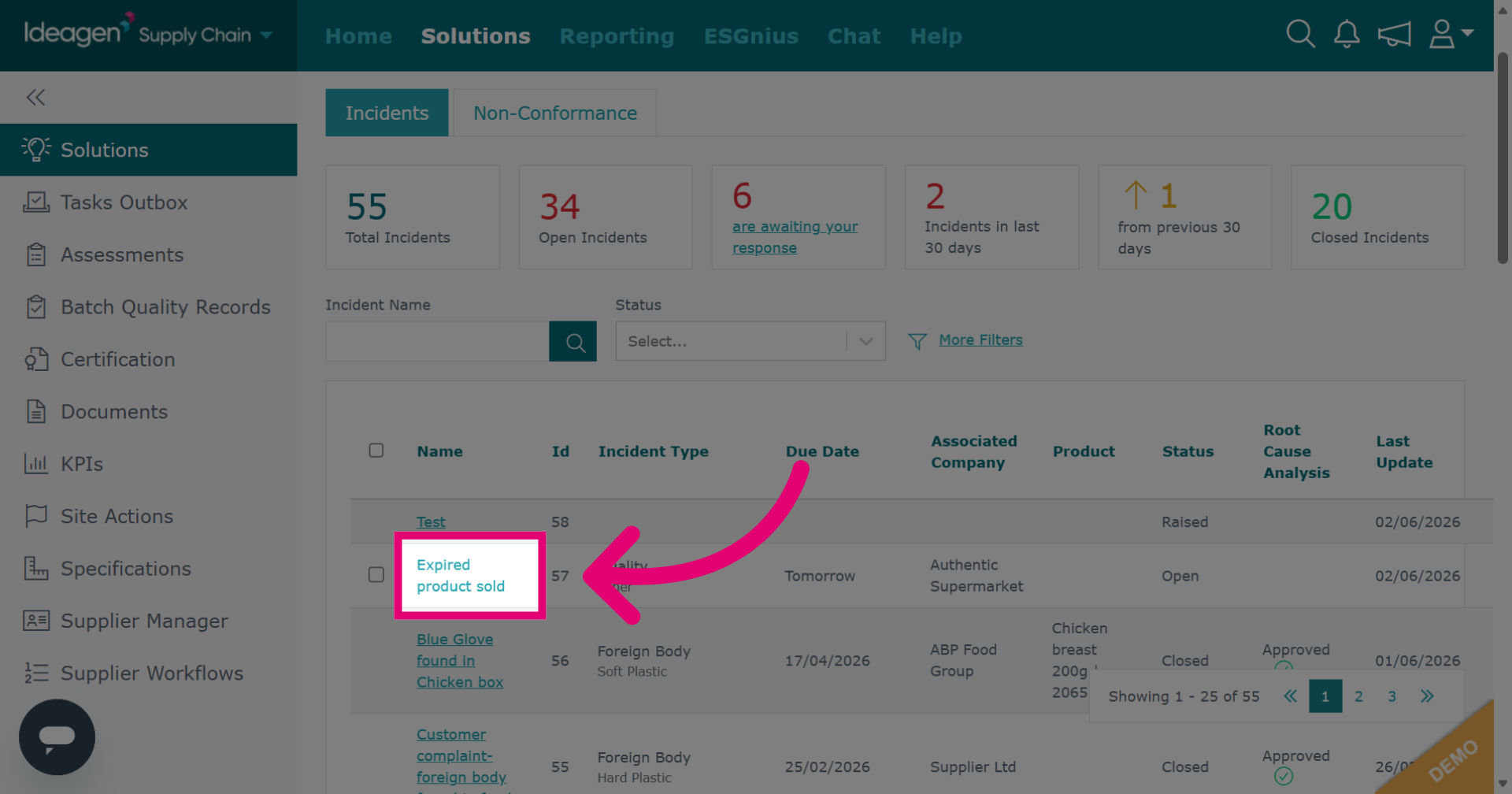
Click the name of the incident you wish to view.
-
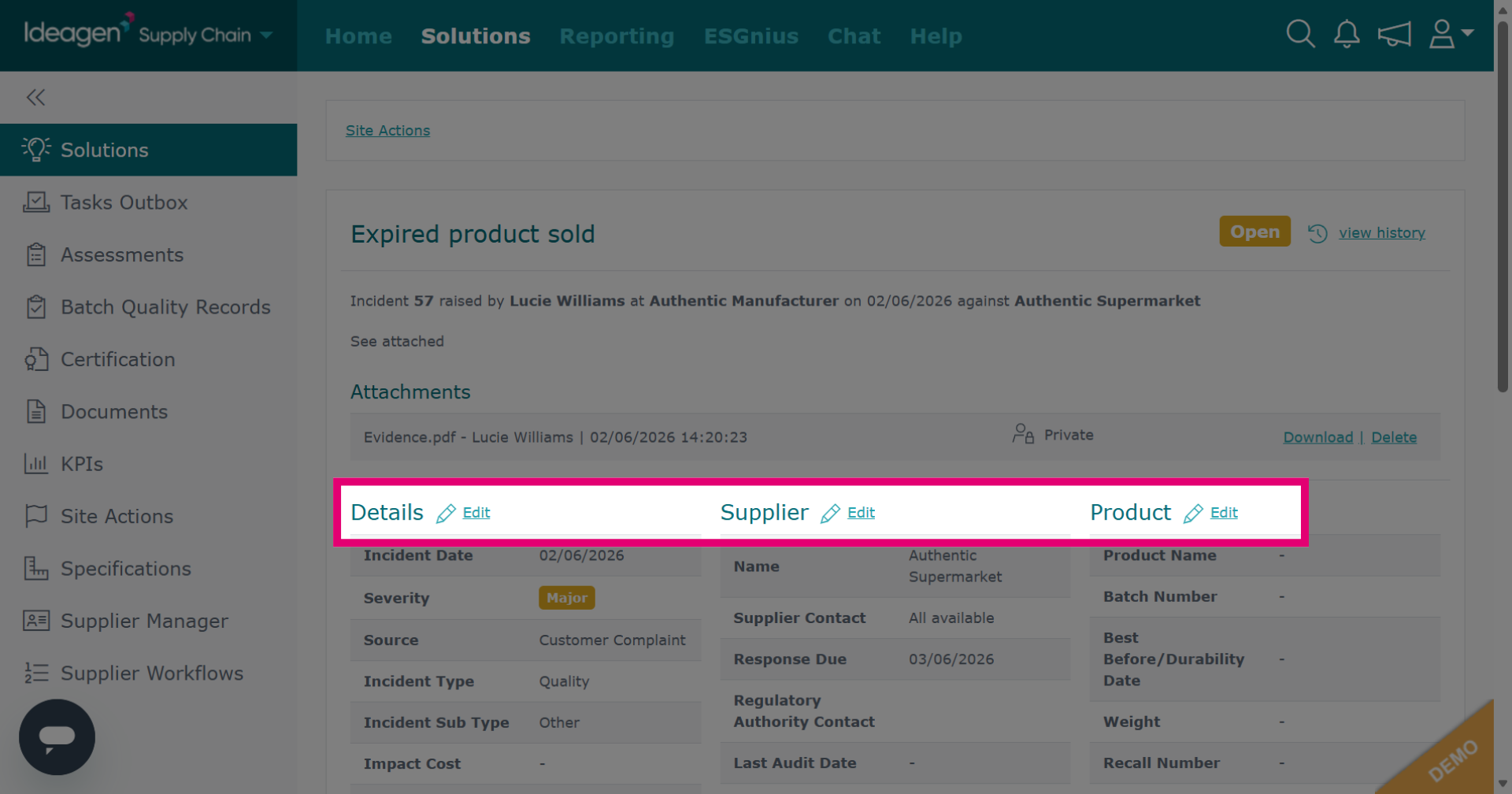
When viewing, click Edit to amend data within the incident record.
-
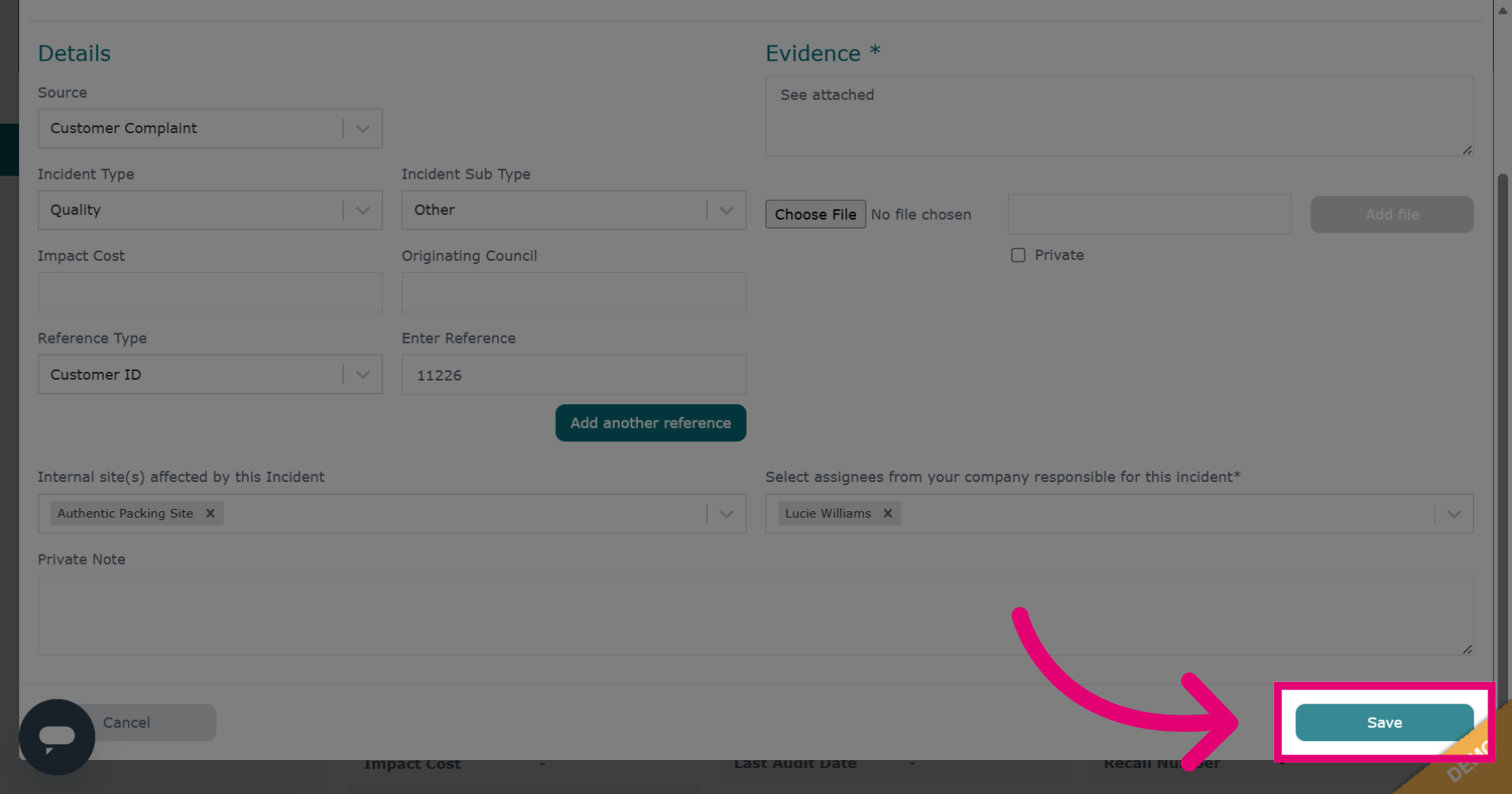
Click Save to apply the changes made to the incident record.
-
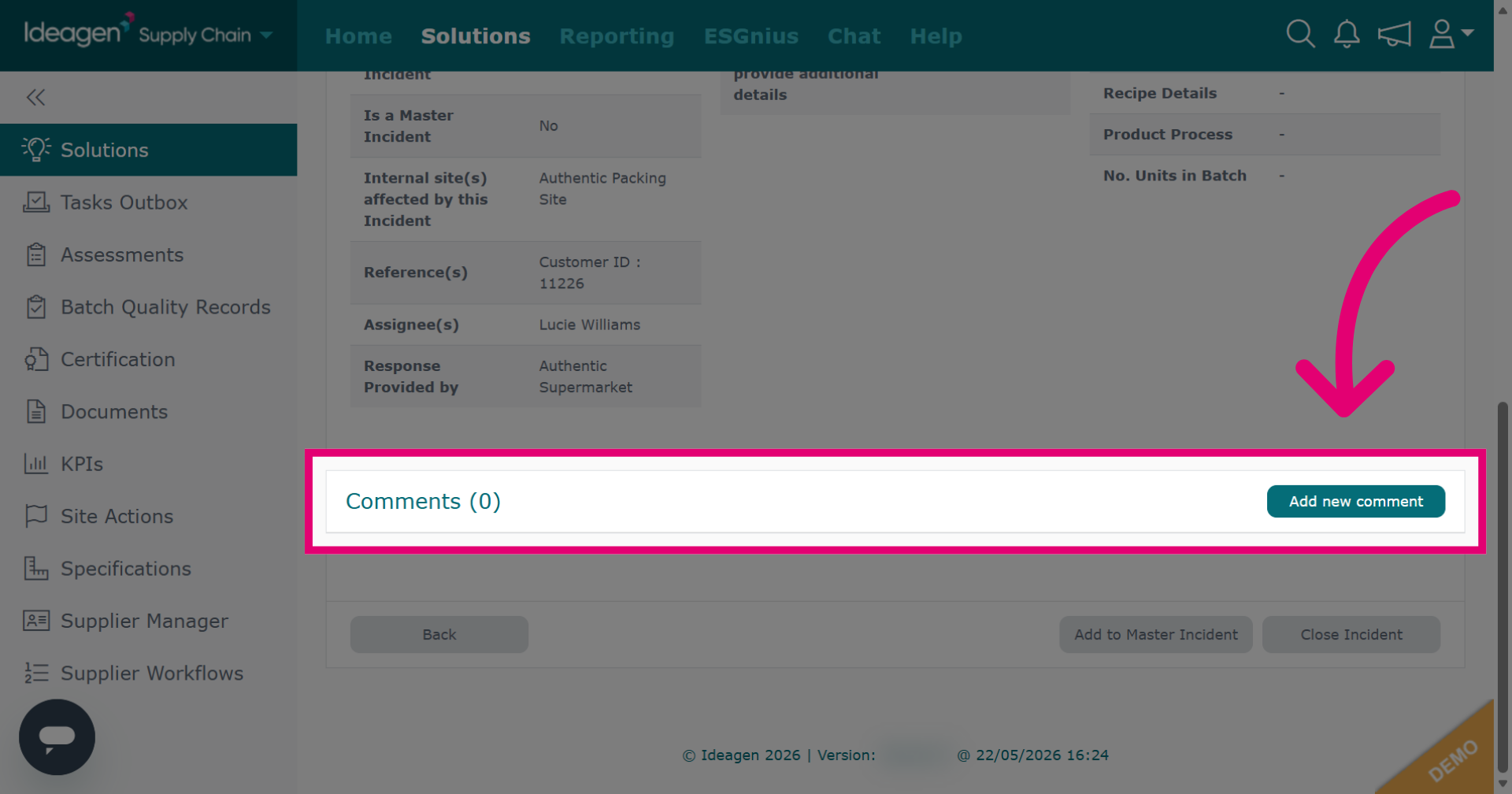
Click Add New Comment to add a new comment to the incident record.
-
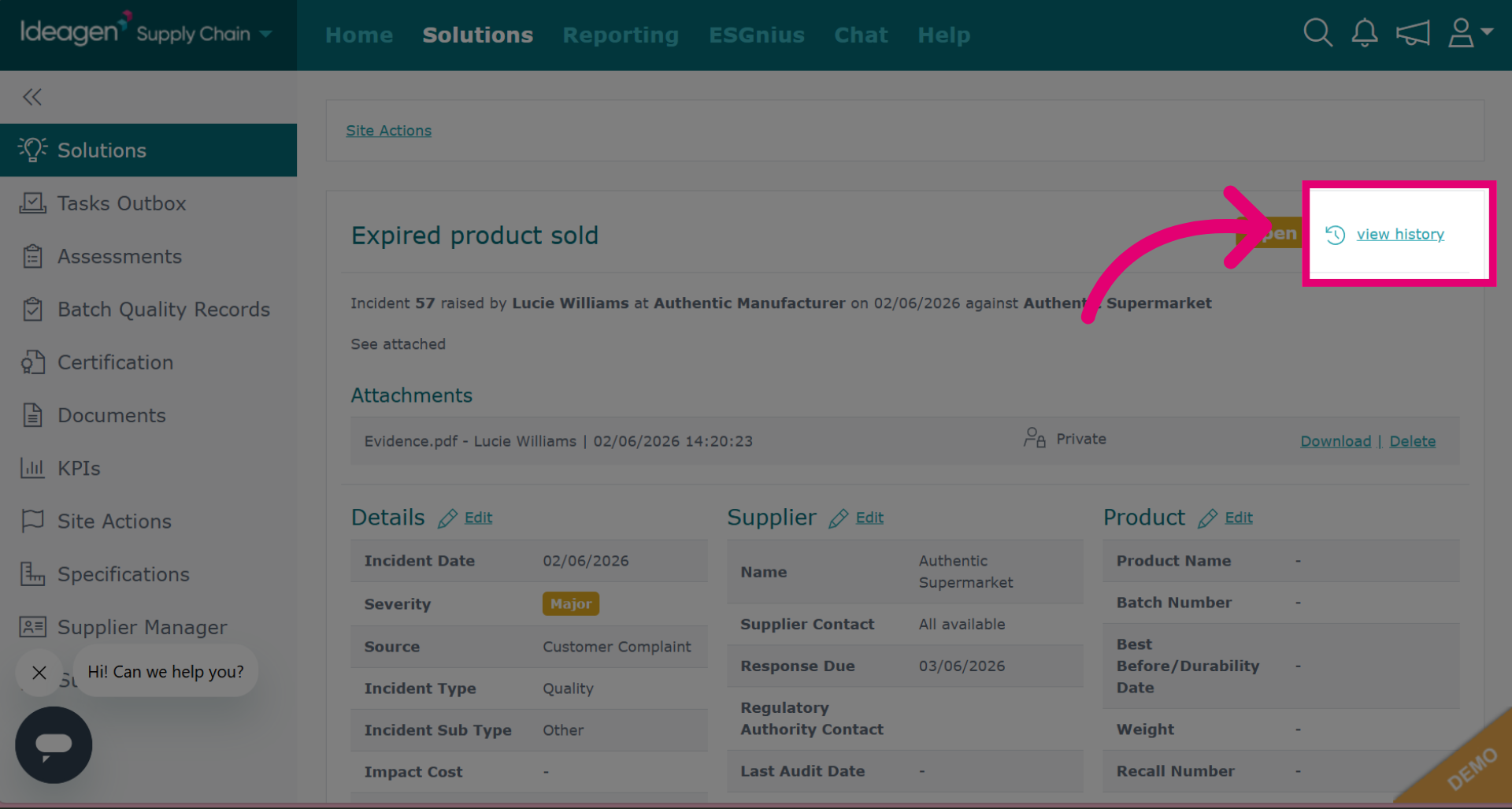
Click view history to review the status history for the selected record.
-
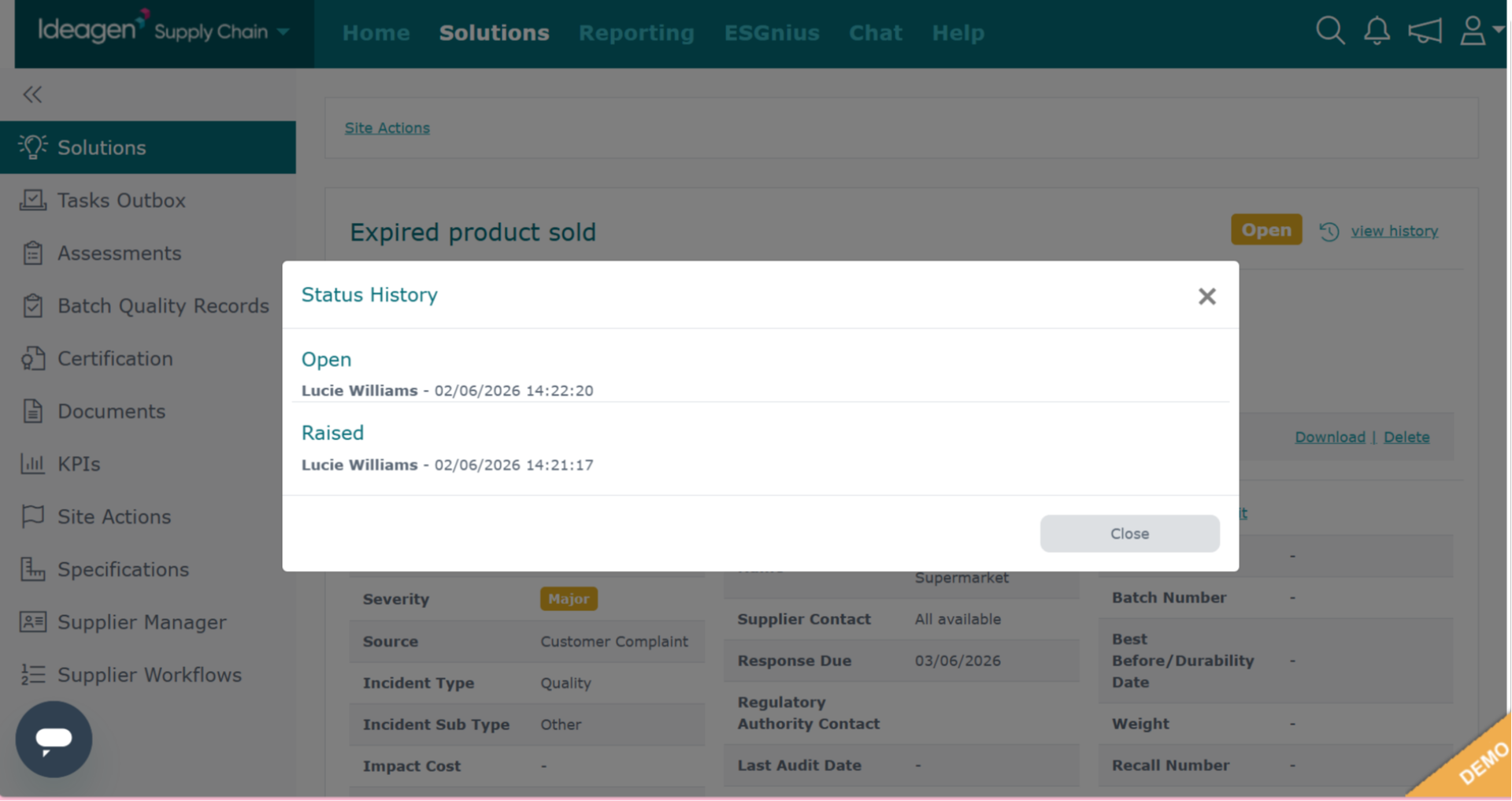
Status history shows a timestamped timeline of when the record met each stage.
-
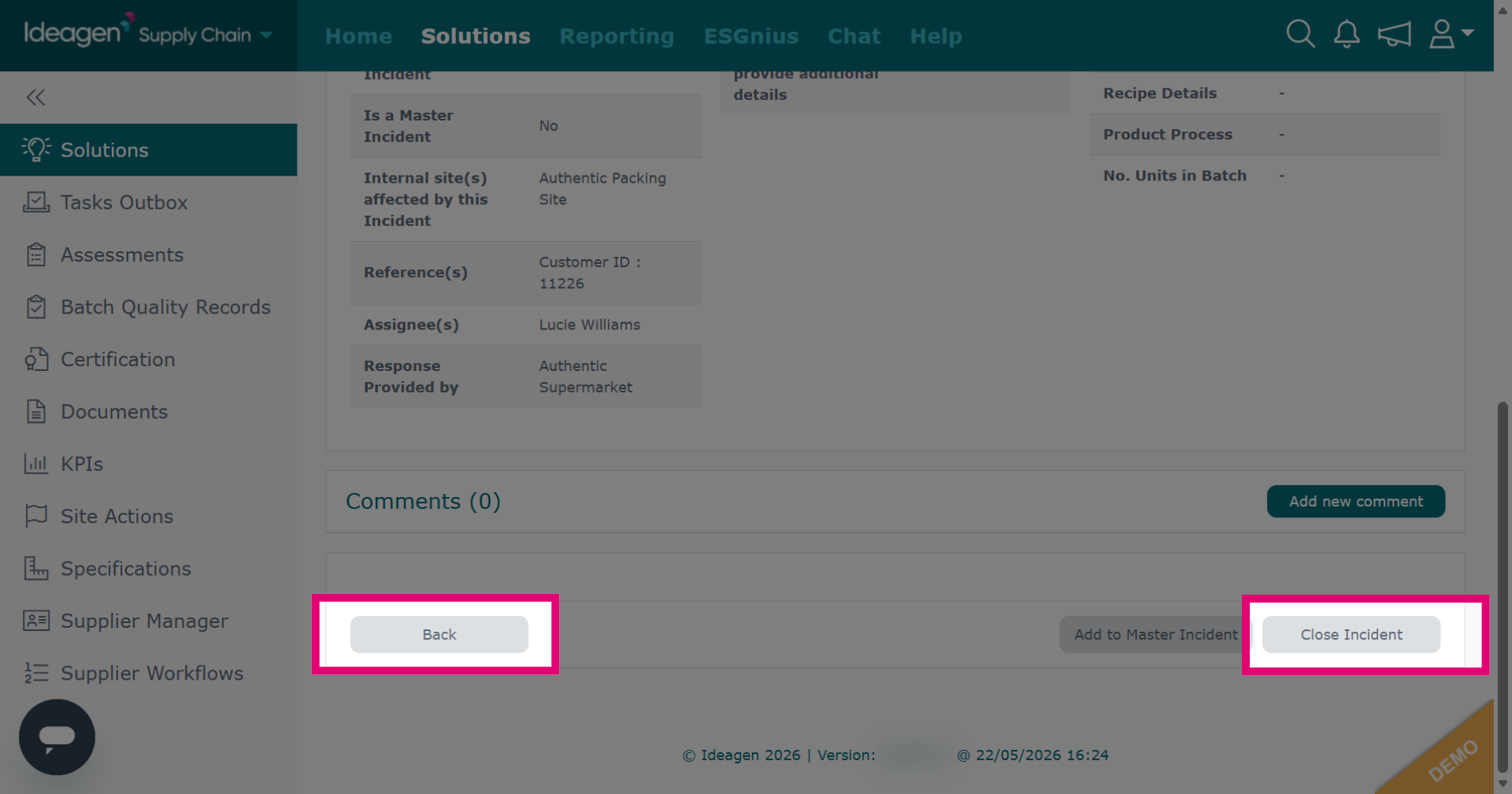
Click Close Incident or Back to return to the main page.
-
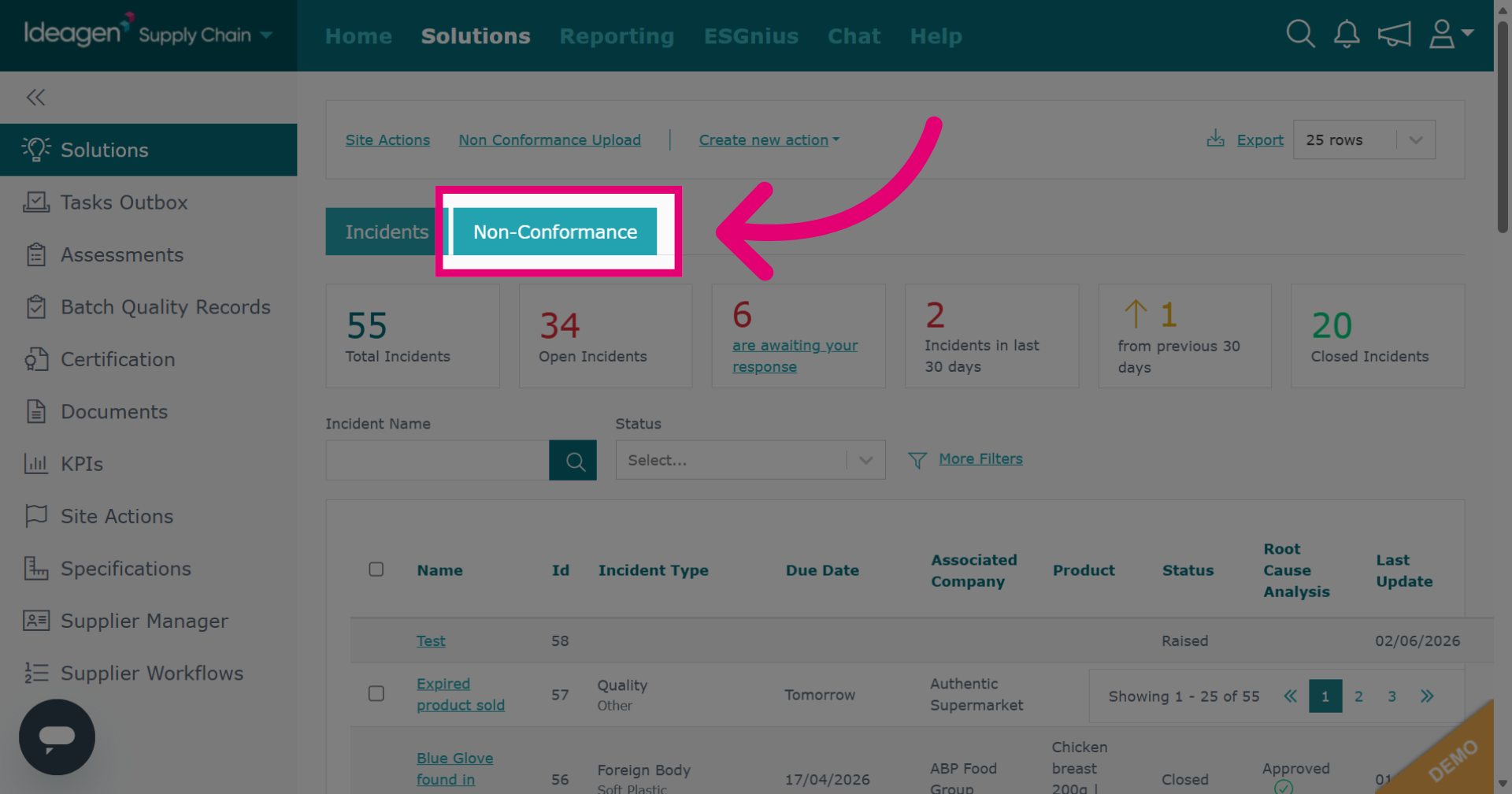
Click Non Conformance to access the main non conformance page.
-
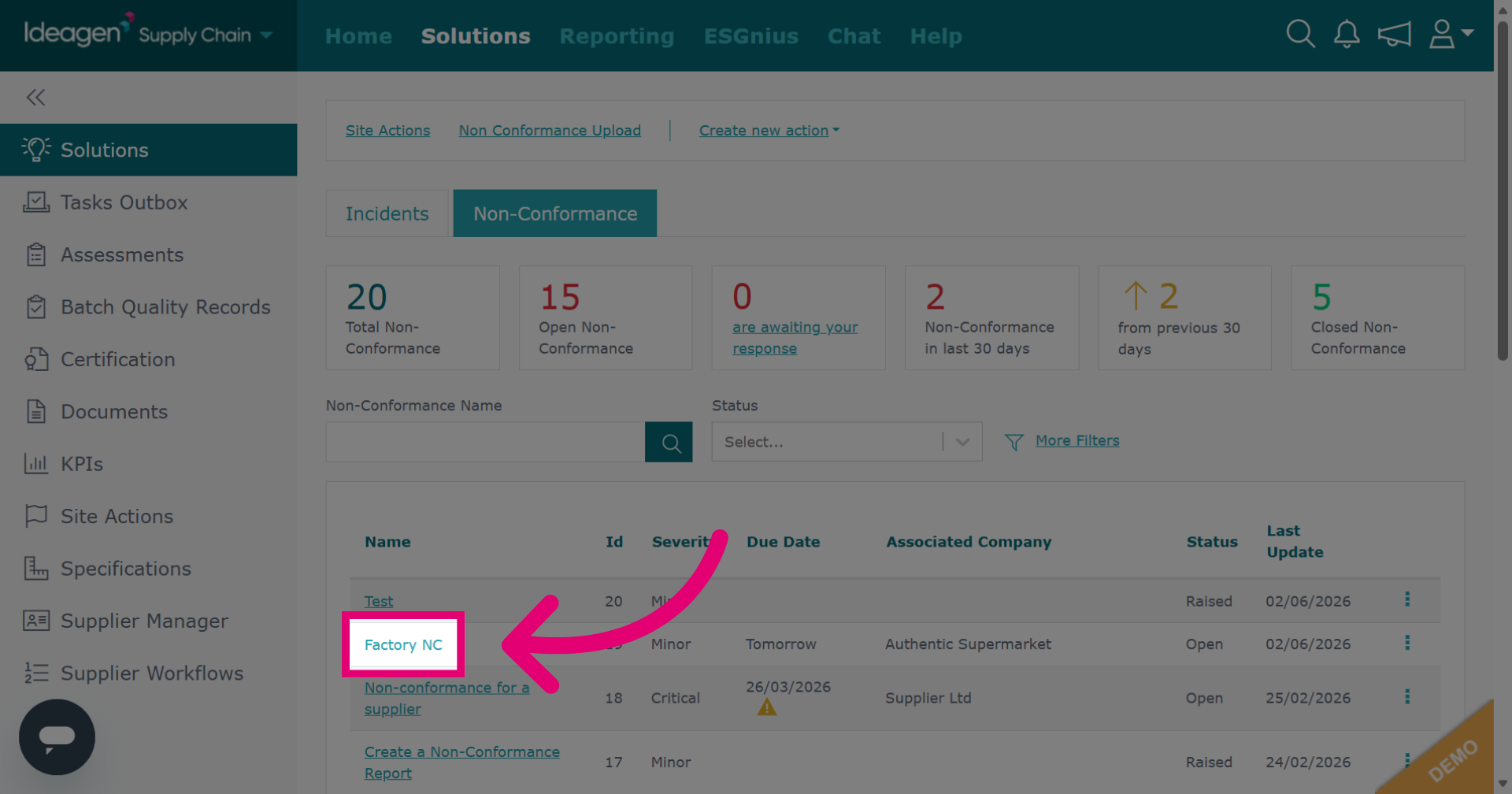
Click the name of the non-conformance you wish to view.
-
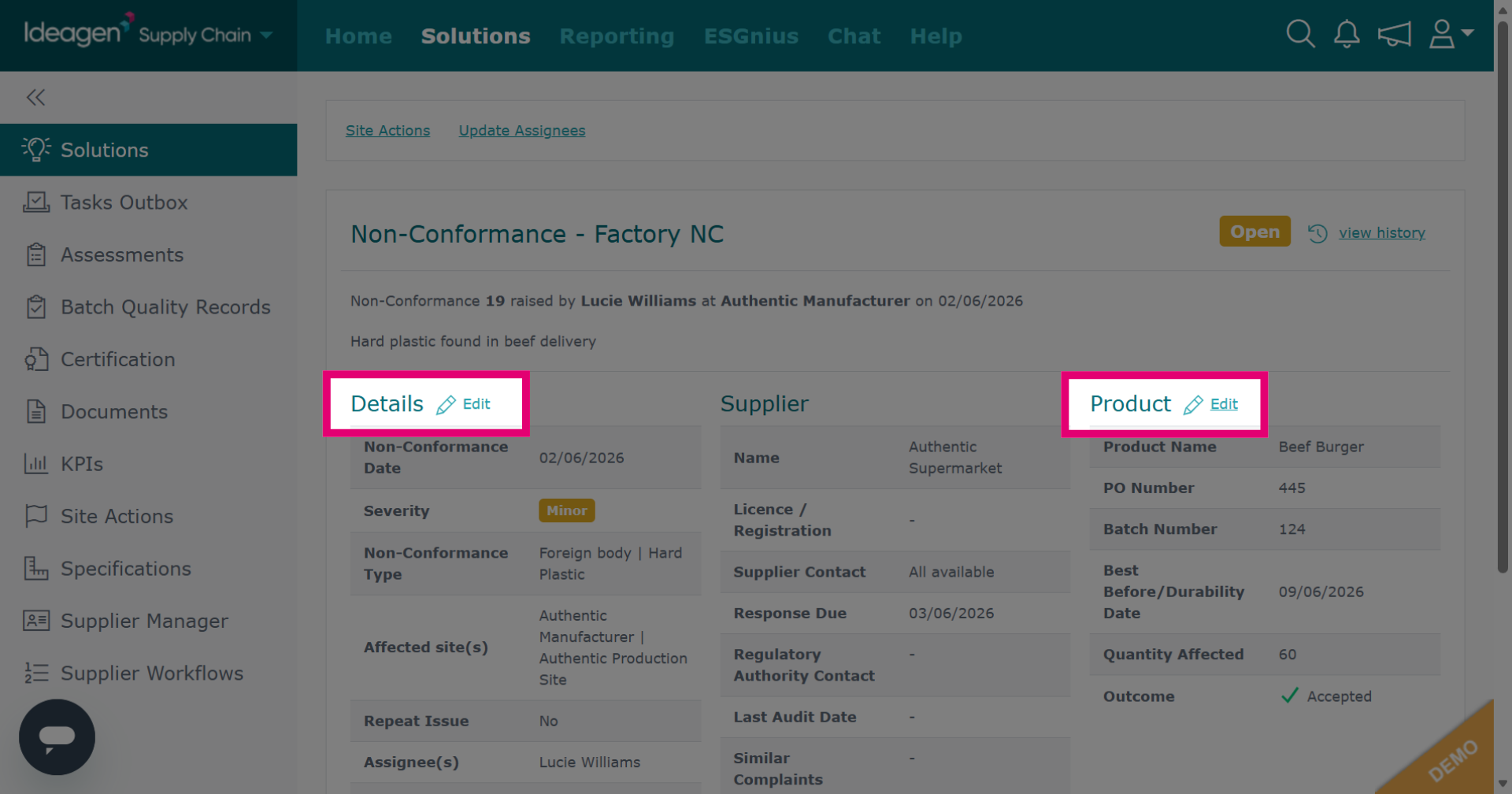
When viewing, click Edit to modify data.
-
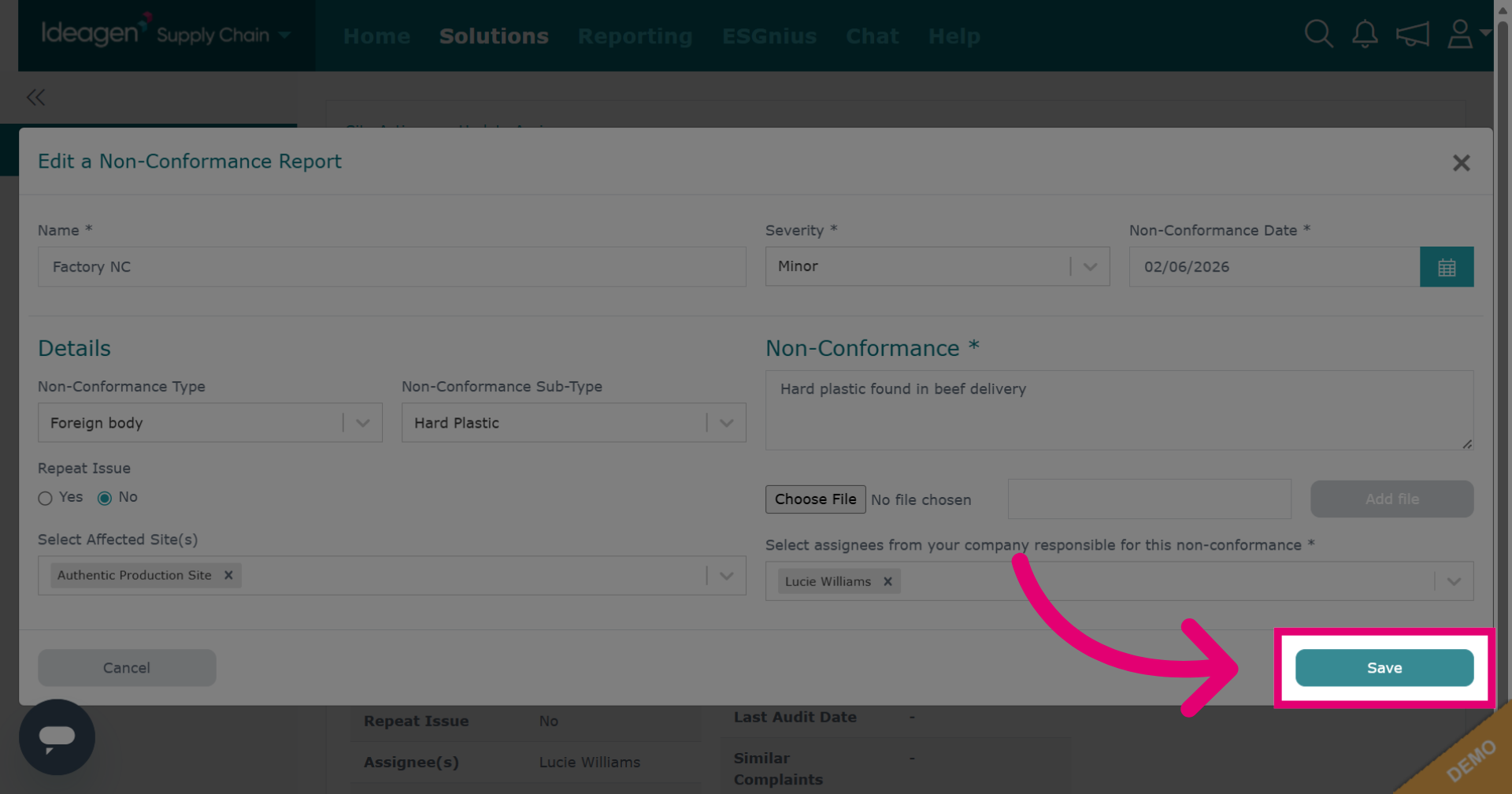
Click Save to apply and save the changes made to the non-conformance record.
-
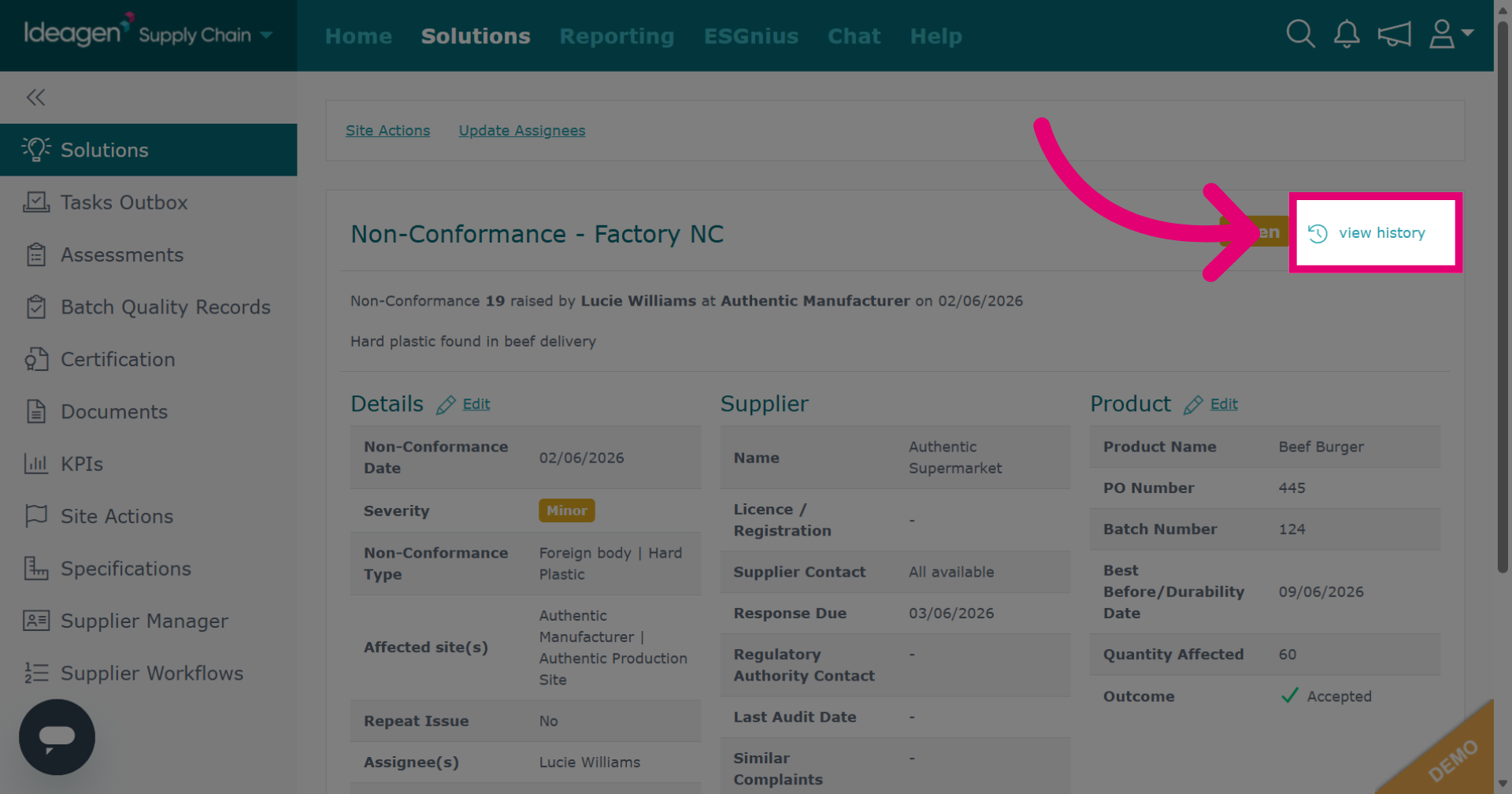
Click view history to review the status history for the selected record.
-
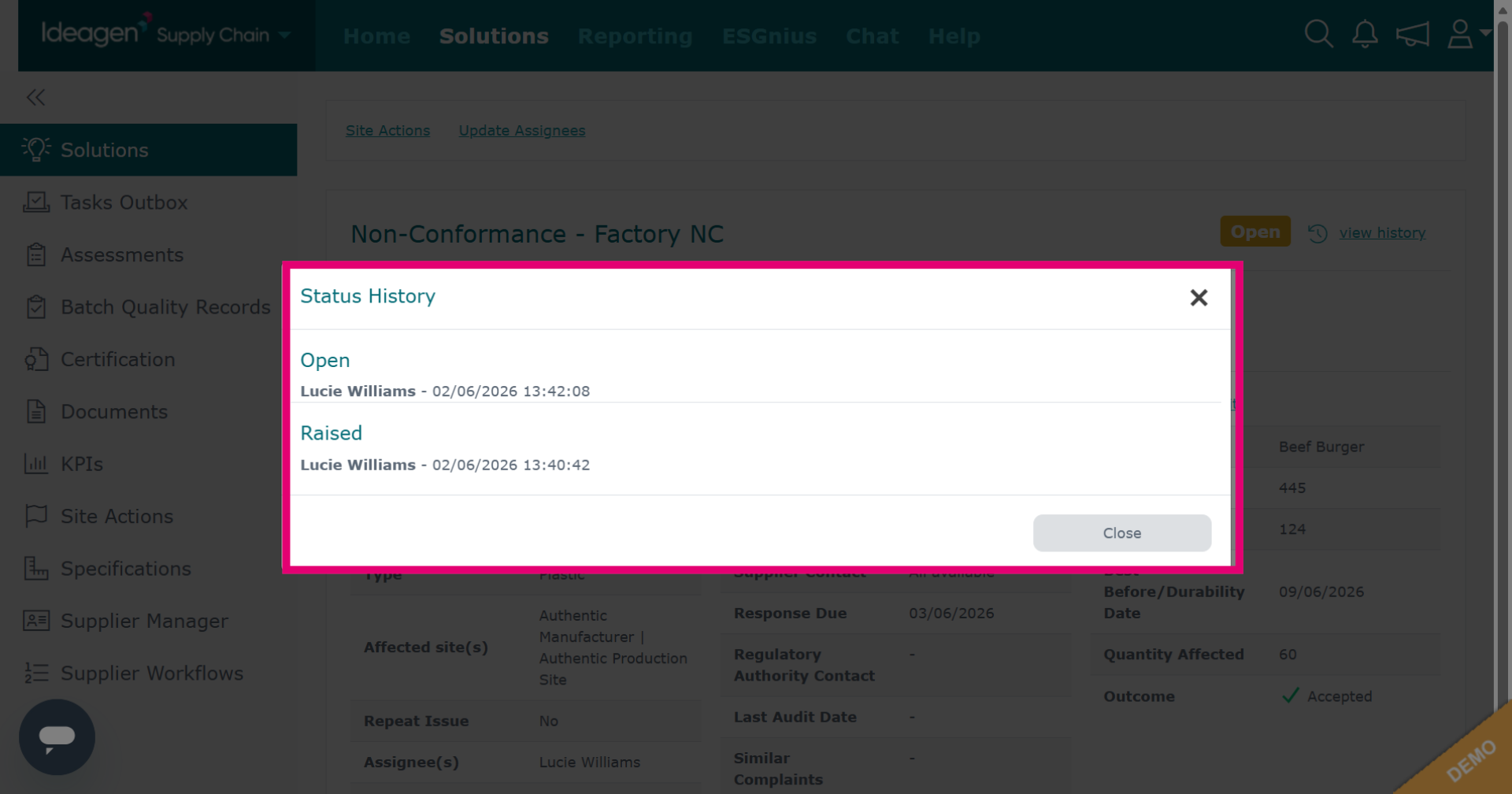
Status history shows a timestamped timeline of when the record met each stage.
-
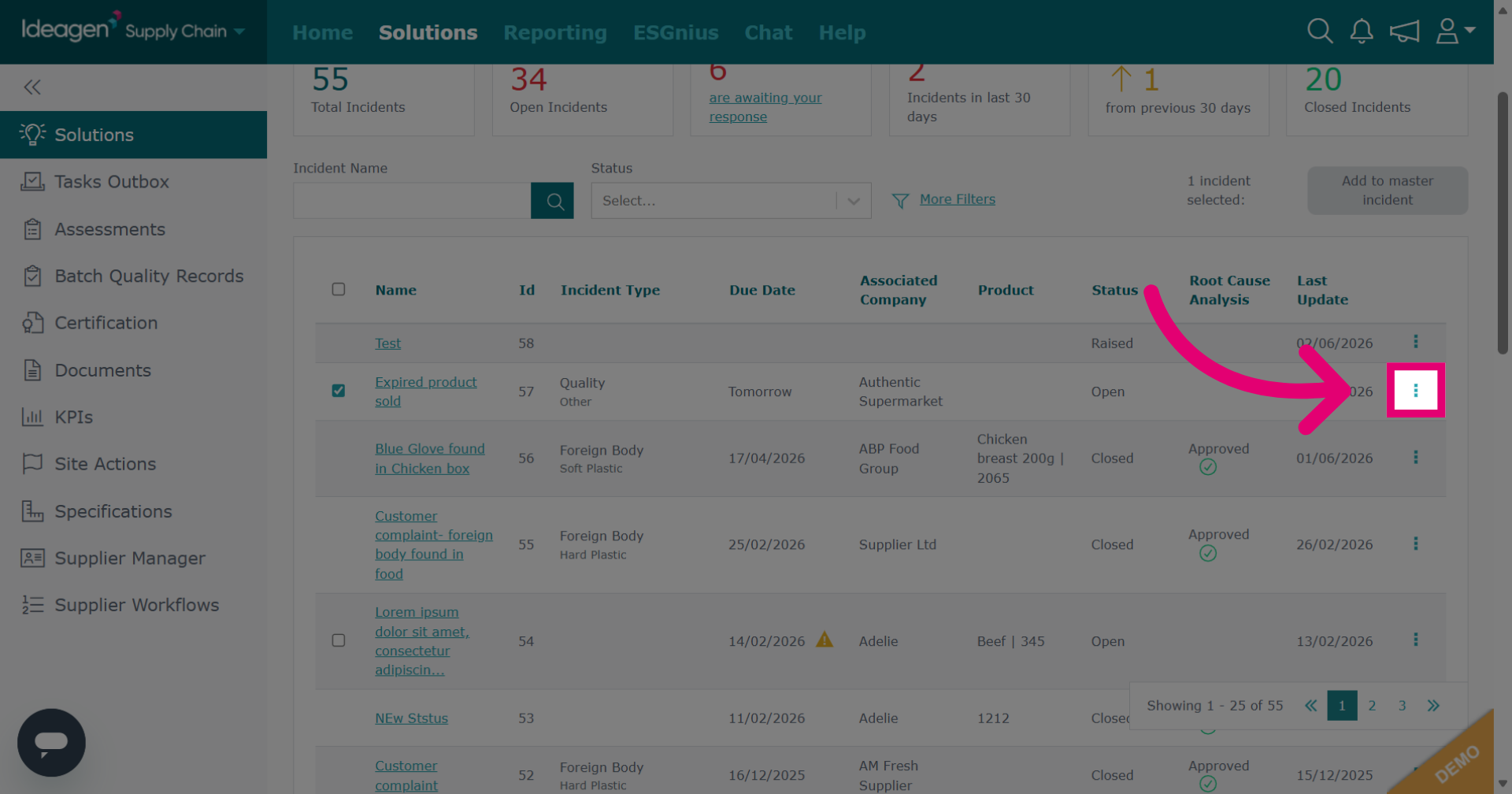
On the main page, click the three dots next to the incident you wish to delete.
-
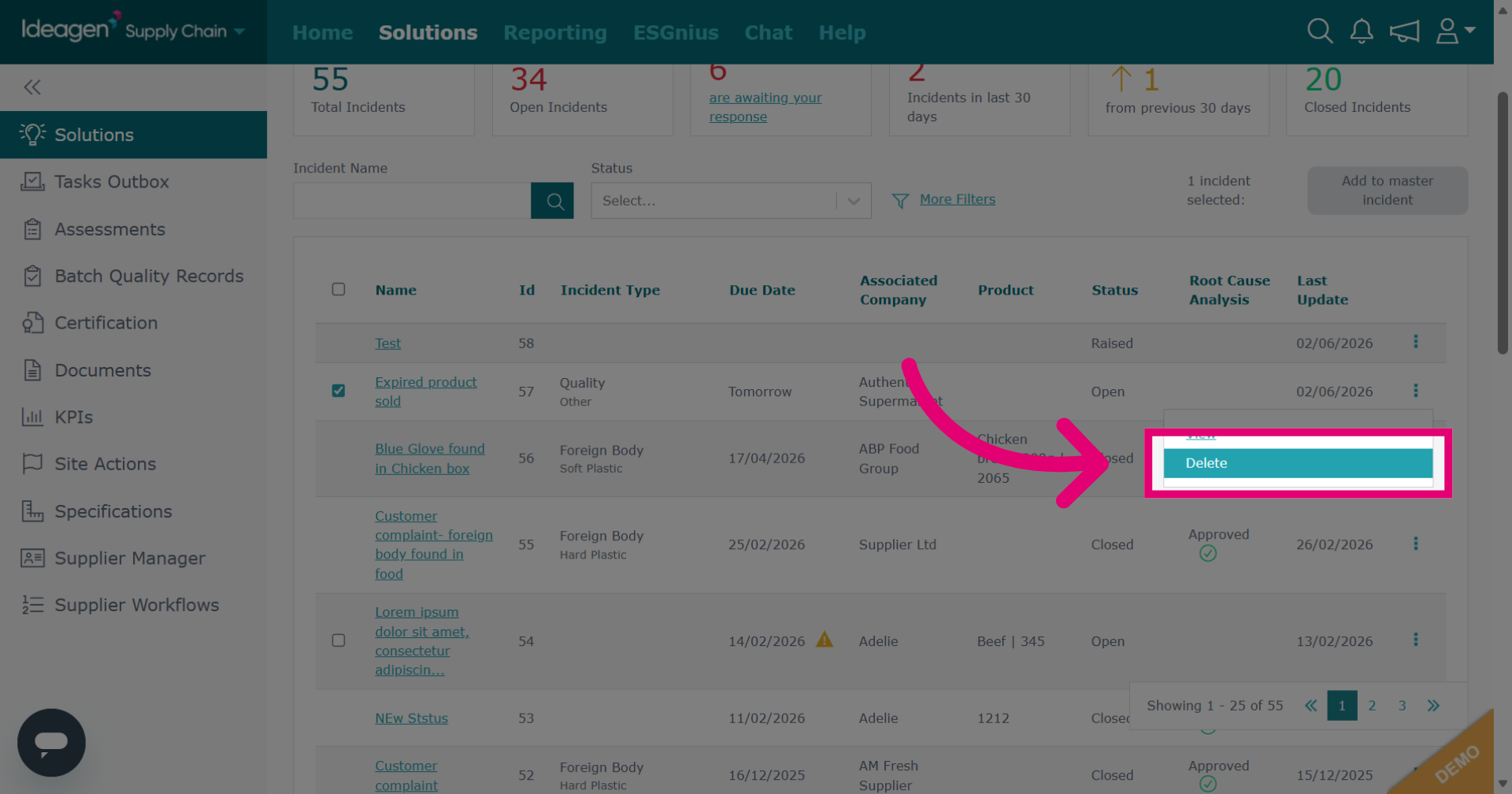
Select Delete from the drop-down options.
-
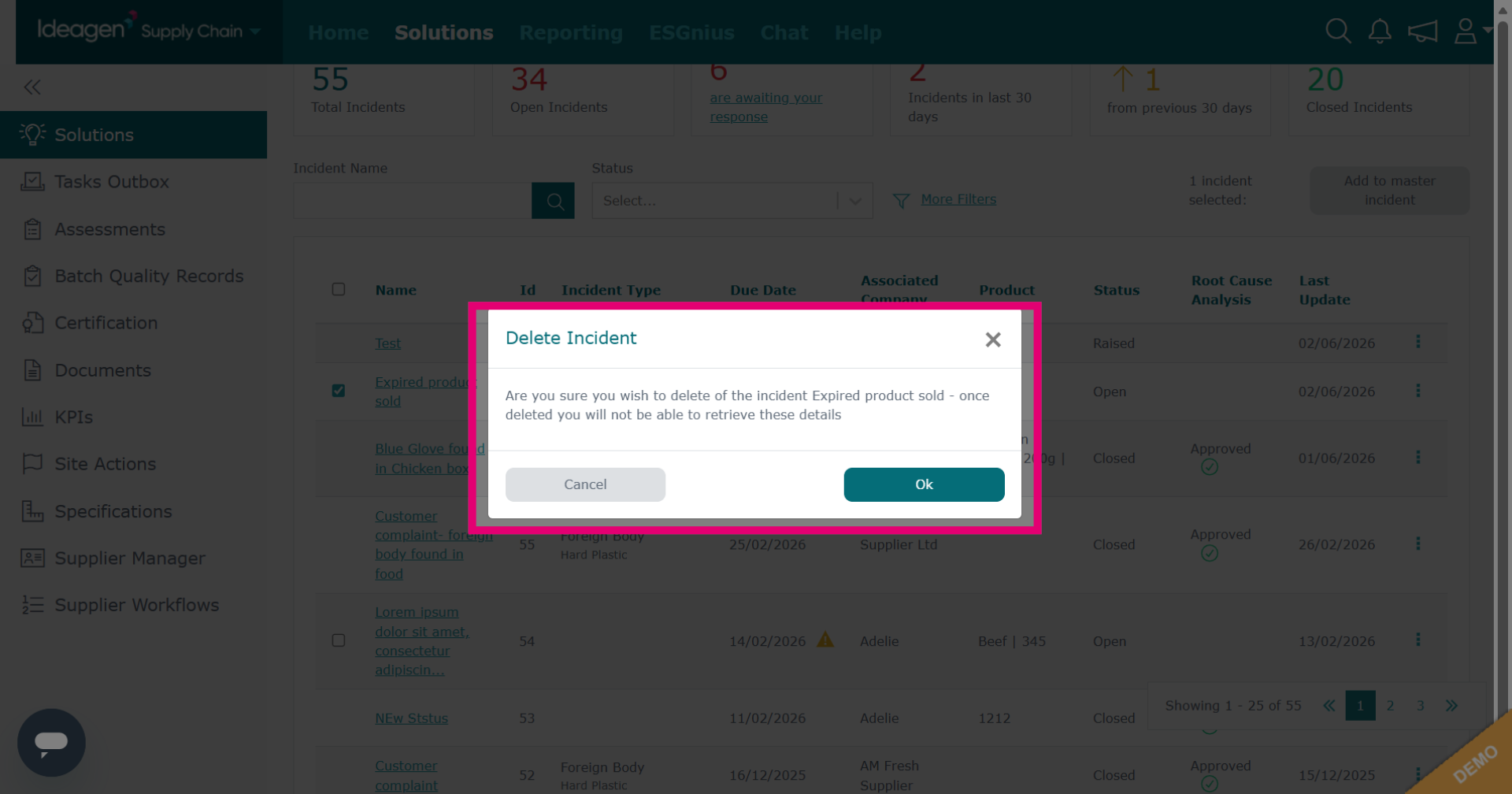
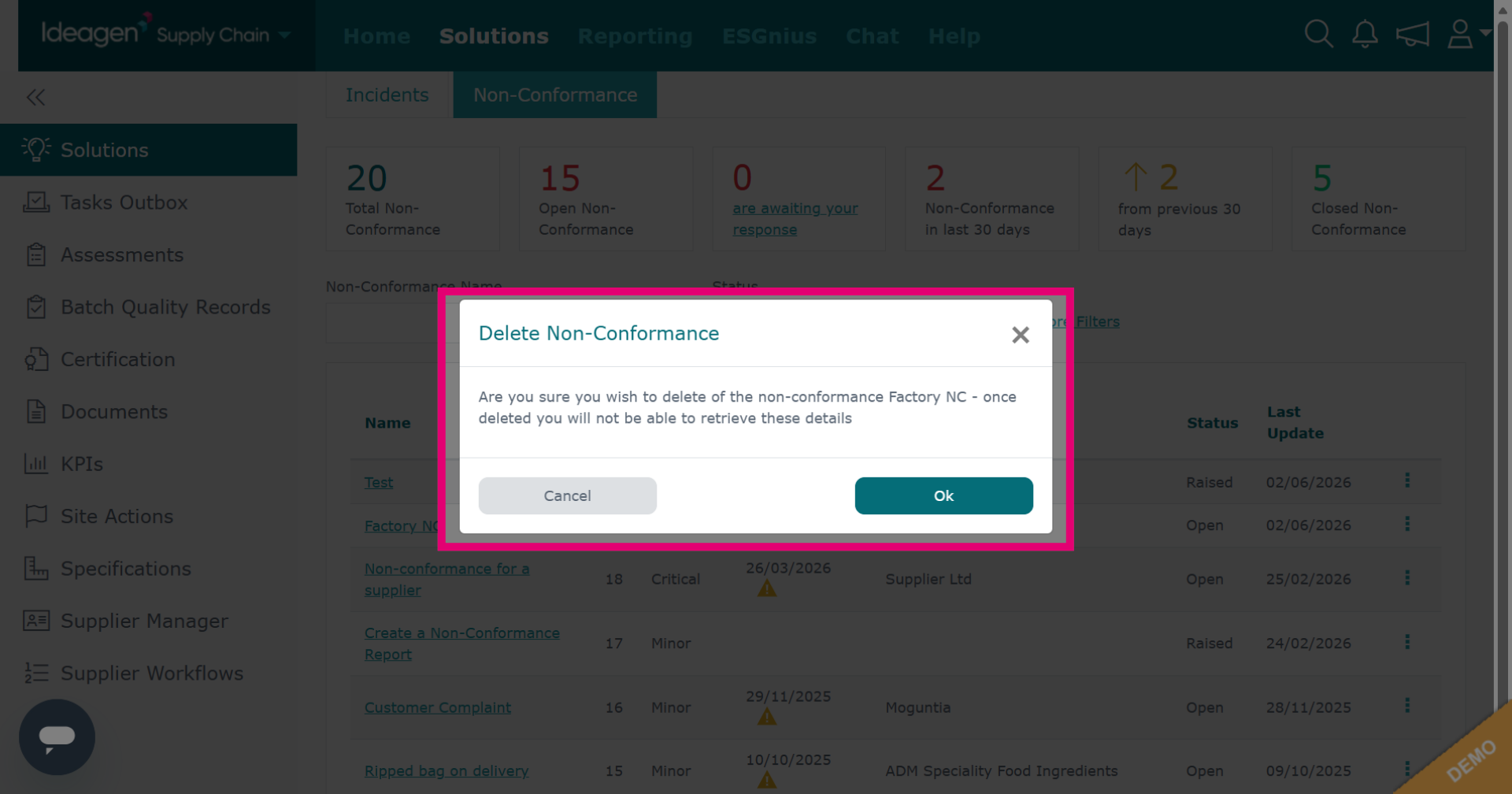
Click Cancel or Ok to either cancel or confirm the deletion action as prompted.
-
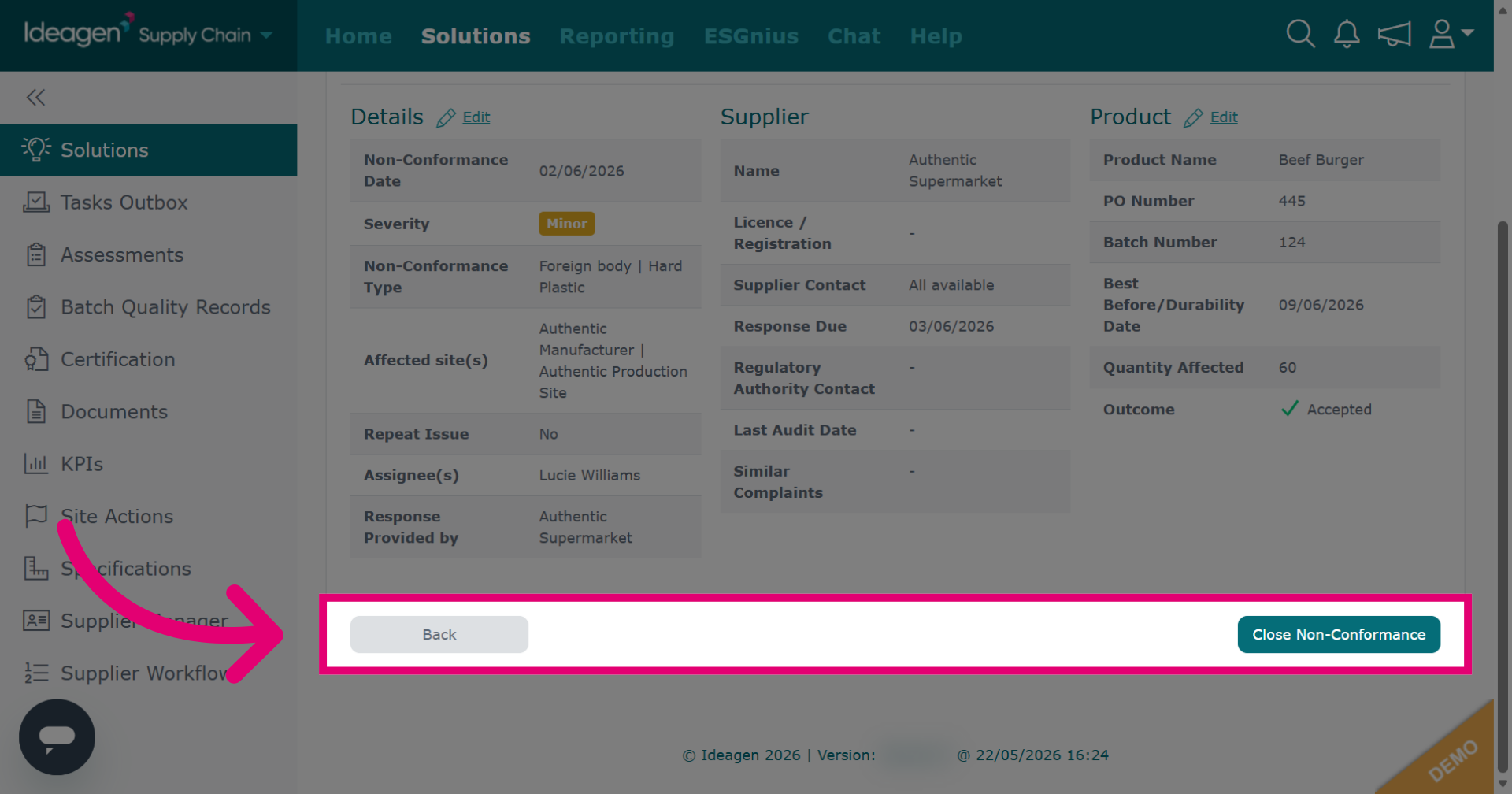
Click either Back or Close Non-Conformance to return to the main page.
-
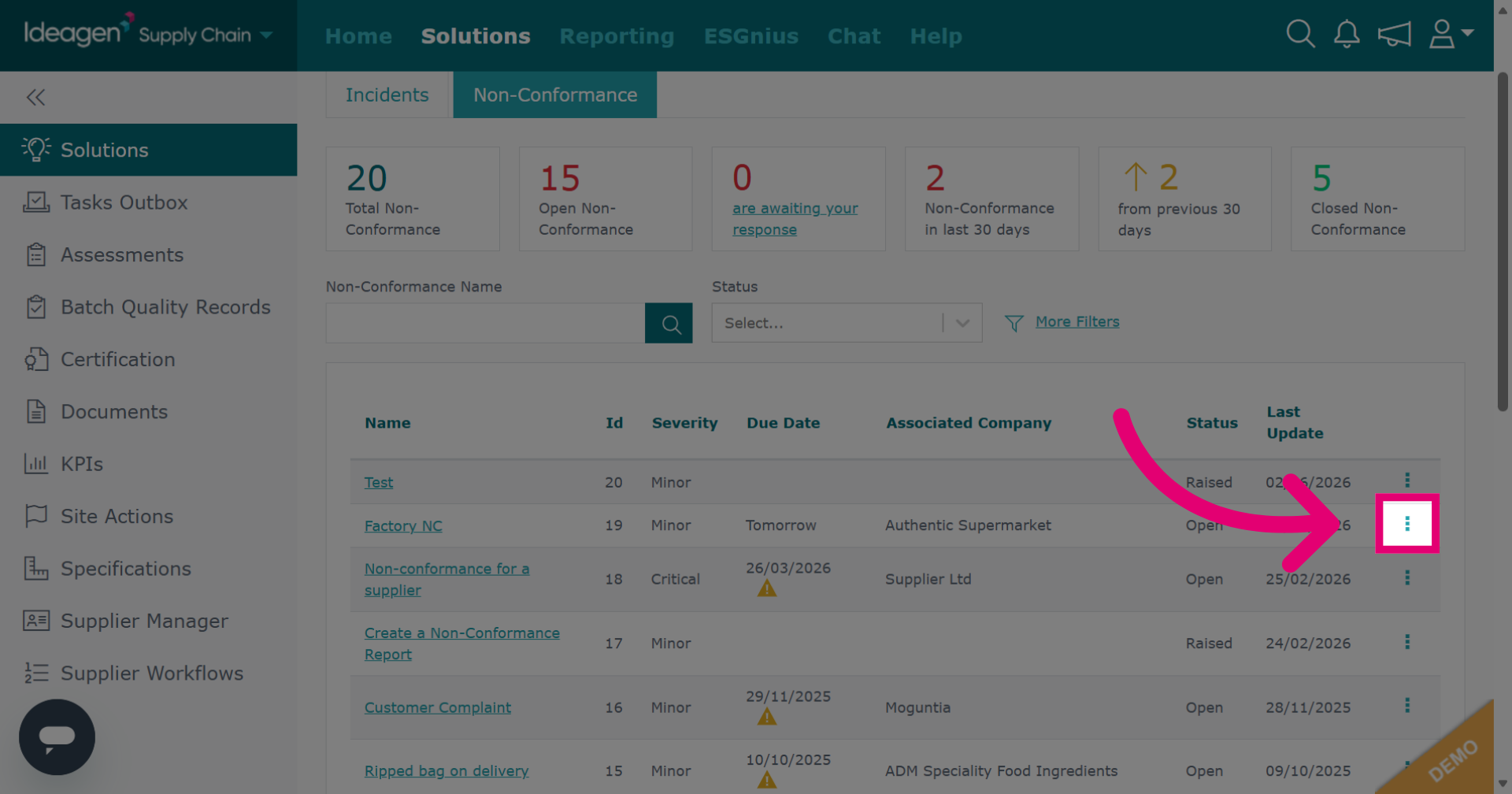
Click the three dots next to the entry you want to remove.
-
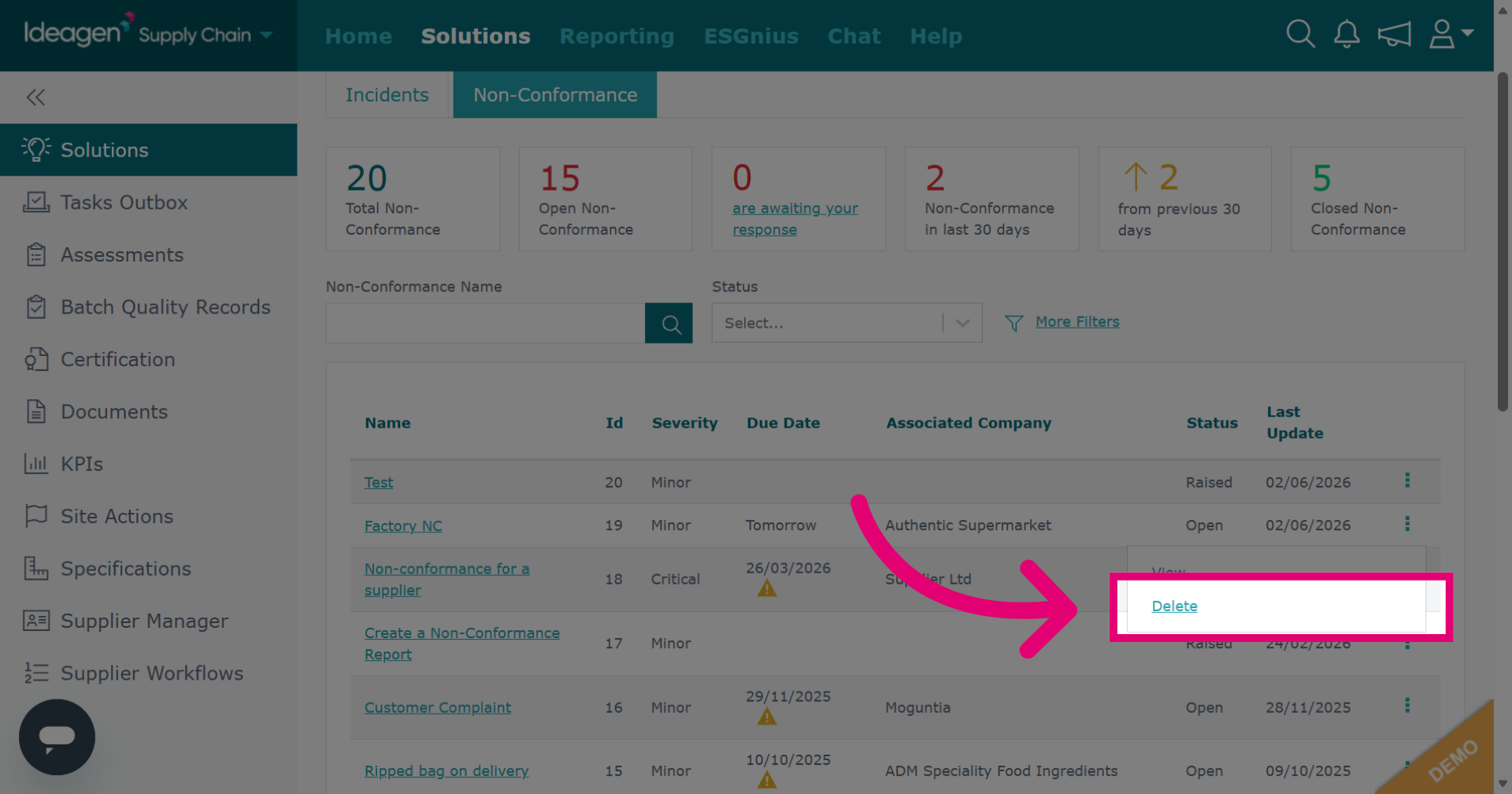
Select delete from the drop down options.
-
Click Cancel or Ok to either cancel or confirm the deletion action as prompted.
-
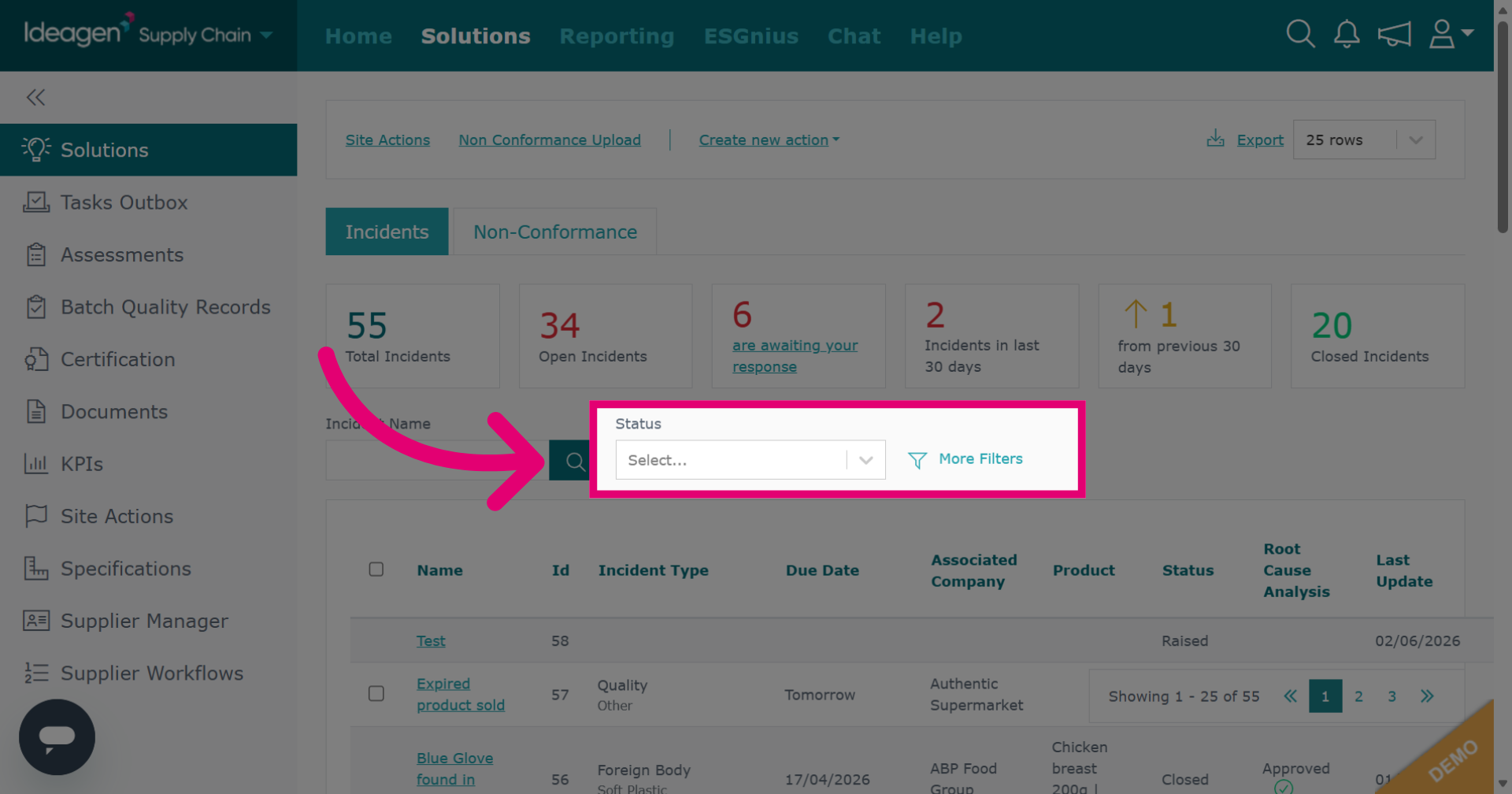
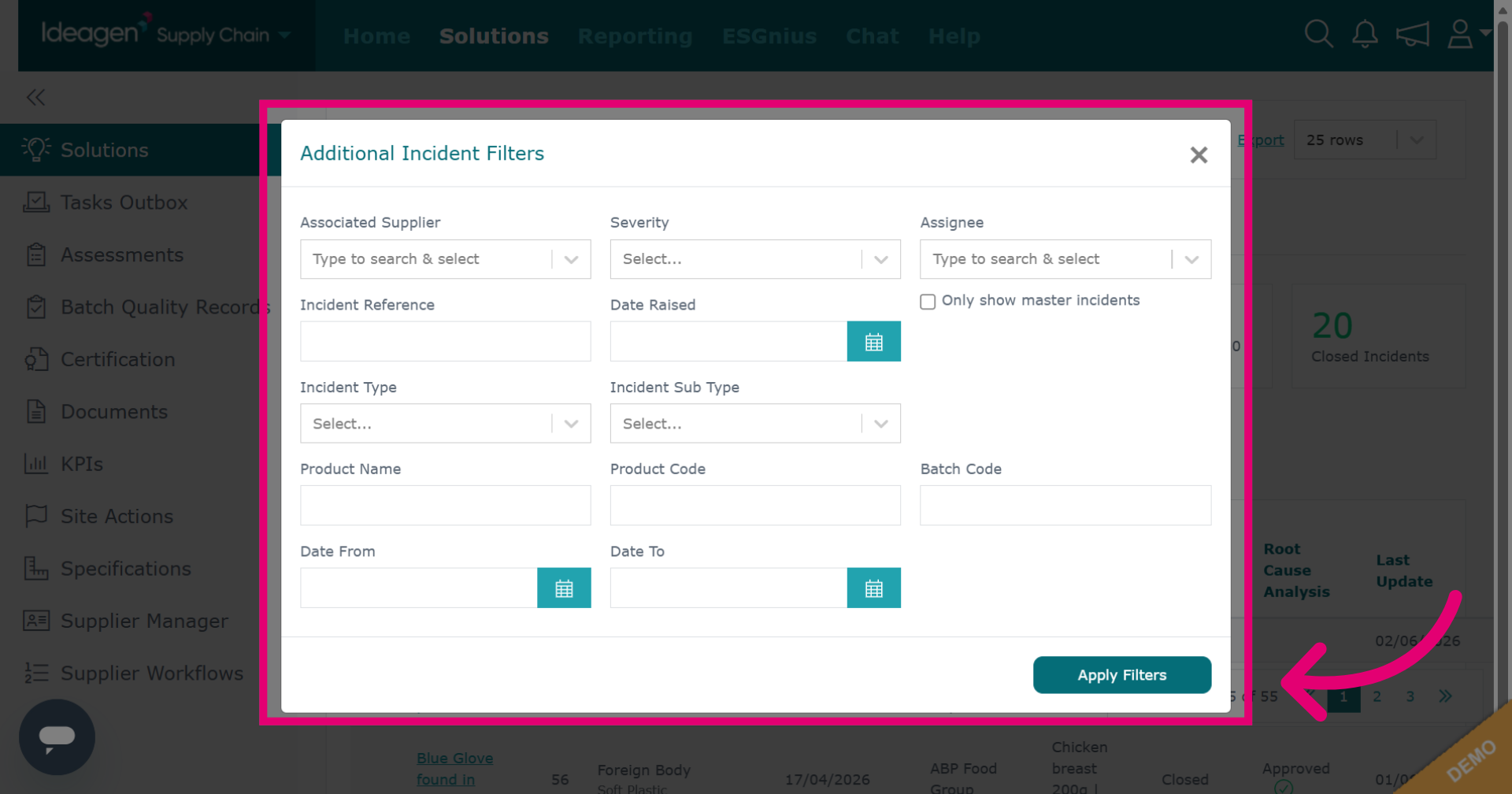
You can filter both of the main pages via status by selecting options from the drop-down. Further filters are available by clicking More Filters.
-
Add the additional filters as needed and click Apply Filters.
-
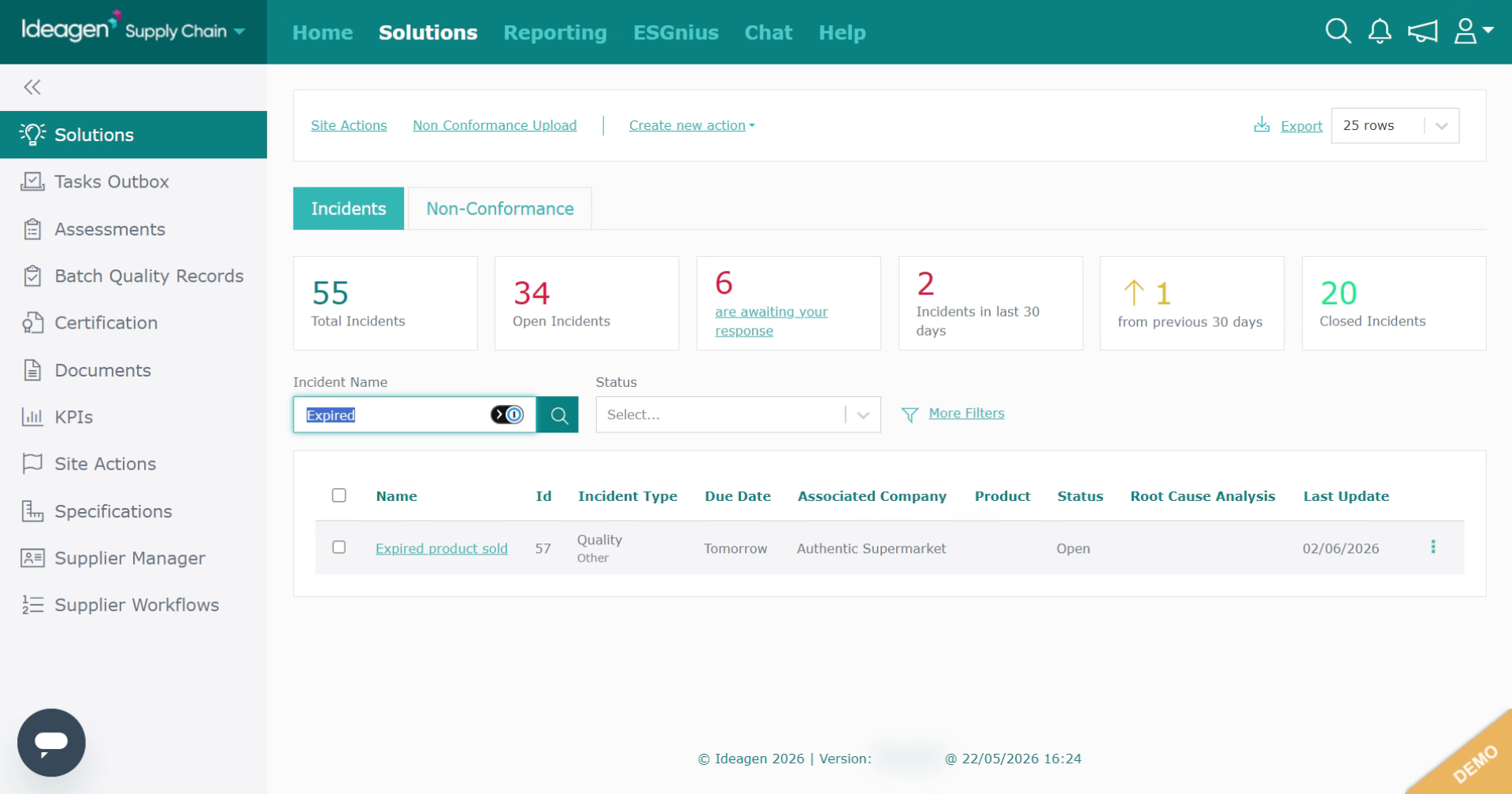
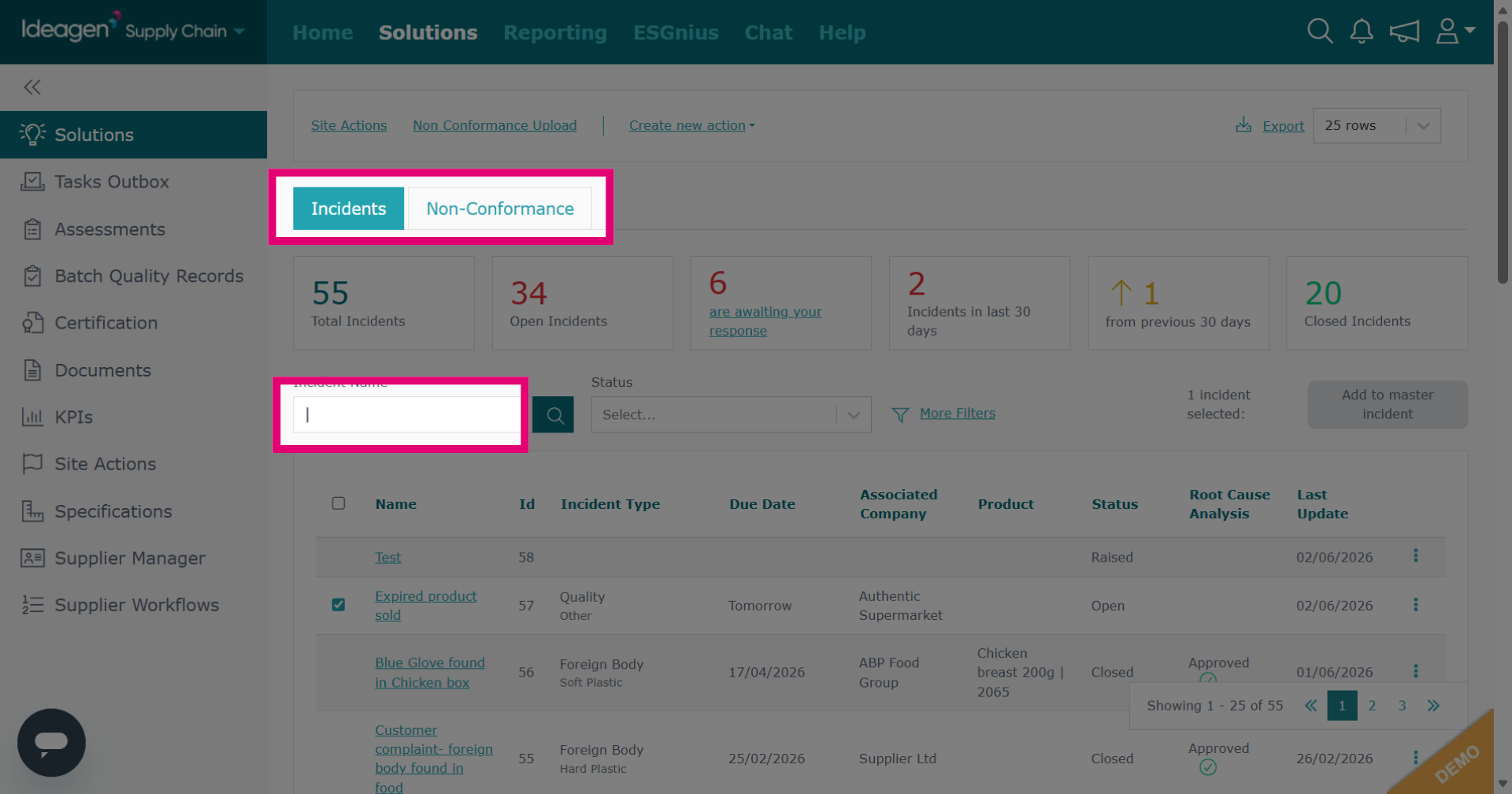
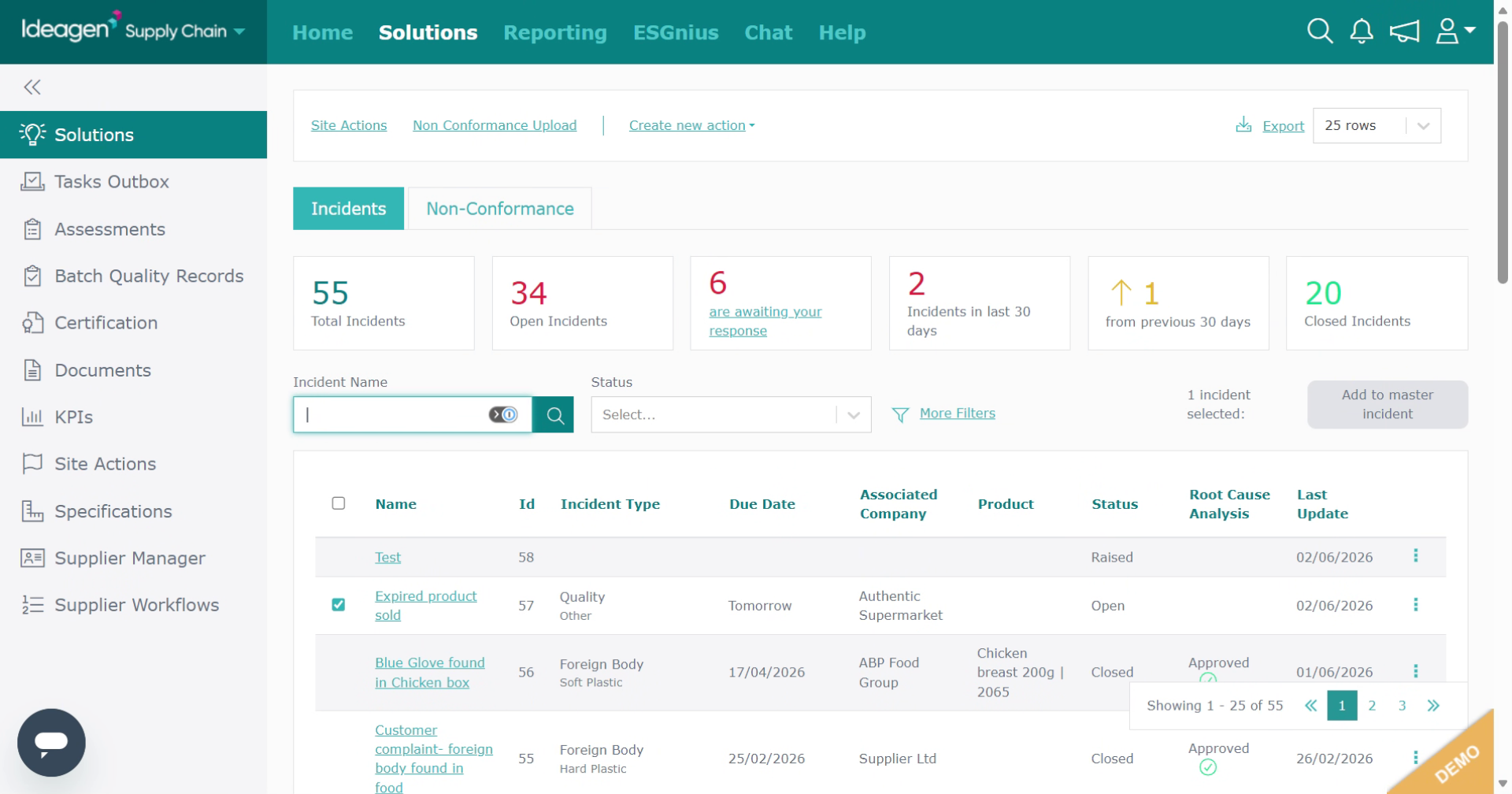
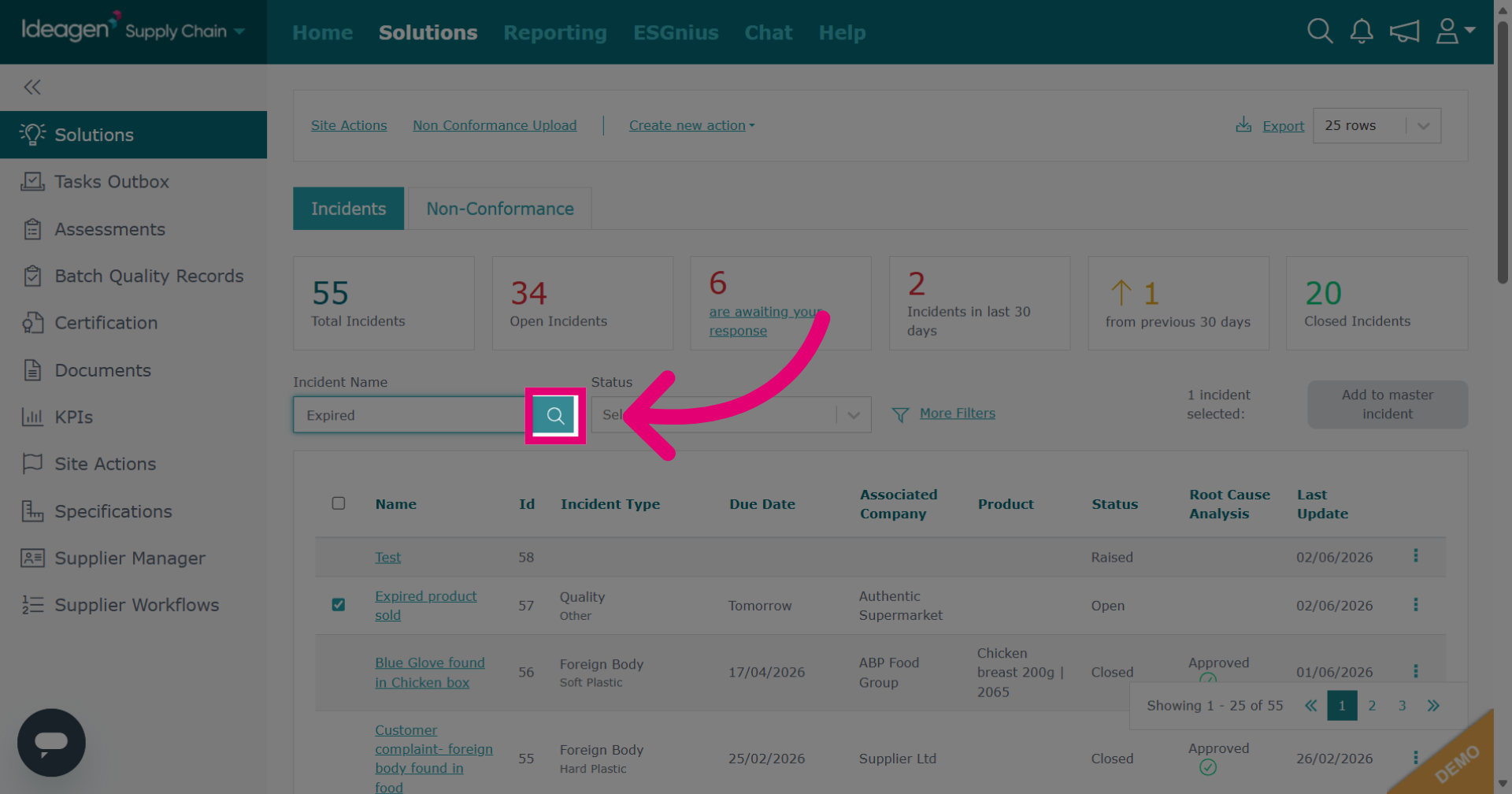
To search for a particular record, select either the Incidents or Non-Conformances tab, and then enter a keyword into the search bar as highlighted.
-
Enter your keyword in the search field.
-
Click the search icon to search via keyword.
-
To clear a search term, delete the keyword from the search bar and then click the search icon again.